Learning how to make a live wallpaper comes down to three decisions: which motion source you use, where the loop starts and ends, and which system setting actually turns playback on. Mobile operating systems handle dynamic backgrounds through specific file containers, and each container trades animation smoothness against battery drain. Get the container wrong and nothing moves. Get the loop wrong and everything moves, badly.
The Short Version
- iPhone (iOS 17 or later): a live wallpaper is a Live Photo, meaning a JPEG key frame plus a paired MOV clip of roughly 1.5 seconds. Set it via Settings → Wallpaper → Add New Wallpaper → Photos → Live Photo, switch on the motion/play toggle, then tap Set as Wallpaper Pair. The animation runs on the Lock Screen at wake, or on Haptic Touch (press and hold). Never on the Home Screen.
- Android (Samsung One UI, Pixel, Xiaomi, Sony): behavior is OEM specific. Samsung supports Gallery → More → Set as wallpaper → Lock screen for photos and short videos; stock Android usually needs a helper app such as Video Live Wallpaper.
- Fastest mobile-only route: trim in InShot or iMovie (3 to 5 seconds), convert with intoLive (video to Live Photo) or GIPHY (GIF to Live Photo), then apply from Photos.
- Best export targets: 1080×2400 px for FHD+ panels, 2160×3840 px for 4K panels, 19.5:9 portrait framing, H.264 or HEVC encoding, seamless loop under 5 seconds.
- Sound: mobile lock screens mute wallpaper audio. Desktop engines (Wallpaper Engine, Lively Wallpaper) play full audio, including AI voice tracks.
- Enterprise note: most one-click generators are cloud services. Check processing location, retention policy, and commercial-use rights before you upload anything that belongs to your employer.
Who This Guide Is For, and What Usually Goes Wrong
Two readers end up on this page. The first wants a personal lock screen that looks good and does not eat the battery by lunchtime. The second is preparing branded wallpapers for a managed fleet, which quietly turns a creative task into a procurement and data-handling question.
Both groups fail in the same four places. The motion toggle stays off, so the wallpaper looks static. The clip is edited into a plain still, which breaks the Live Photo pairing. The loop restarts with a visible jump, because the first and last frames never matched. Or the source frame contains something internal, gets uploaded to a free converter, and nobody can say afterwards where it went.
Everything below is organized around avoiding those four outcomes.
What Is a Live Wallpaper and Which Format Should You Use?
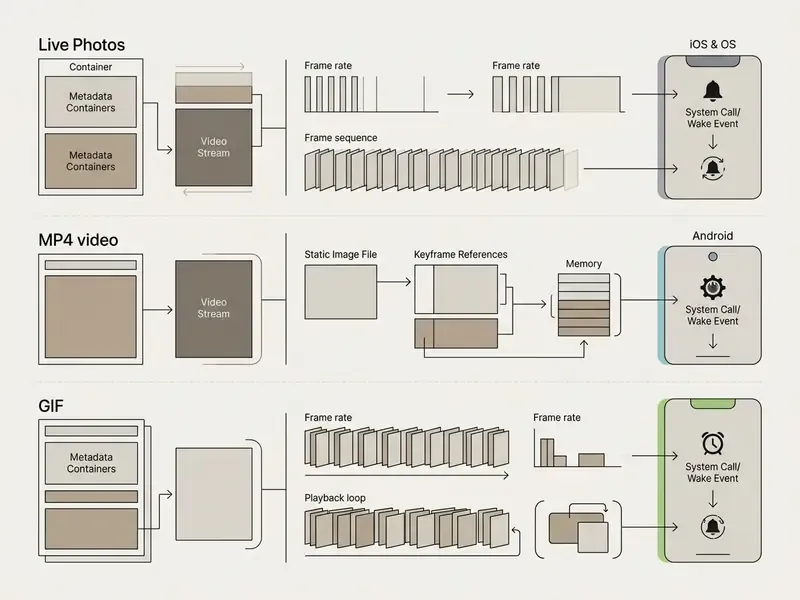
A live wallpaper is a dynamic background that renders movement when the device wakes or when you touch and hold the screen. Unlike a static image, a moving background depends on a container format, either a Live Photo bundle or a video file, to carry the motion sequence. Short version: pick a Live Photo for iPhone lock screens, an MP4 or MOV clip for Android and desktop engines, and treat GIF as a source you convert rather than a format you ship.
Live Photo, Video, GIF, and Animated Image: Key Differences
Live Photos combine a JPEG key frame with a paired 1.5-second MOV clip, which is what enables native iOS lock screen animation. MP4 and MOV containers carry full-motion video at higher resolutions, while a static image turned into a dynamic wallpaper relies on software animation effects rather than recorded movement. GIFs use 8-bit indexed color palettes, so they usually end up larger and visibly rougher than modern H.264 or HEVC encodings.
Format choice is not purely technical. It shapes how people judge the animation itself.
«Smartphone animation is evaluated along four dimensions, rationality, consistency, quality and timeliness, and these ratings significantly predict overall attitude toward the animation.»
In practice, a file that is technically correct but inconsistent in motion still feels broken to the eye. A 2-second HEVC loop with matched boundaries reads as smoother than a 10-second GIF with color banding and a visible jump at the seam. The file spec wins arguments; the seam wins perception.
| Format | Structure | Native lock screen use | Audio | Typical weak point |
|---|---|---|---|---|
| Live Photo | JPEG key frame plus MOV of about 1.5 s | iPhone (iOS 17+), all models except iPhone SE | Recorded, muted as wallpaper | Duration is fixed and short |
| MP4 / MOV (H.264, HEVC) | Full-motion video container | Samsung and several Android OEMs; desktop engines | Supported in container | Needs trimming and aspect-ratio crop |
| GIF | 8-bit indexed animated bitmap | Not native, must be converted | None | Color banding, large files, delay-based timing |
| Animated image effects (parallax, particles) | Still image plus software motion vectors | Depends on the maker app | None | Motion looks synthetic if overdriven |
When a Live Wallpaper Works on the Lock Screen
Live wallpaper animation runs mainly on lock screens, triggered by a wake event or a touch-and-hold gesture. Modern mobile systems deliberately restrict continuous home screen animation to protect processing capacity and battery life, and that constraint has been measured rather than assumed.
«A video playback power model achieved 91% accuracy on the training device and 88% on an unseen device, identifying display and processing as the dominant components.»
Compatibility varies across platforms, and each platform expects a specific file structure before it will play motion on the lock screen.
iOS version note. Apple removed Live Photo wallpapers in iOS 16 and brought the capability back in iOS 17, where playback triggers on wake if the motion/play toggle is enabled. Replay comes from Haptic Touch, a press-and-hold gesture, on every modern iPhone. Ignore any guide still talking about 3D Touch or Force Press: that hardware layer was discontinued after the iPhone XS generation. Apple also documents that Live Photo wallpapers work on all iPhone models except iPhone SE, and that the Home Screen shows only the still key frame.
Compatibility verification. The rules in this guide come from Apple Support documentation on iOS 17+ Lock Screen Live Photo playback, Apple's iPhone User Guide wallpaper pages, and Android OEM platform documentation: the Samsung One UI lock screen wallpaper flow, Sony's Android 15 live wallpaper help pages, and Xiaomi's live wallpaper permission notes. Android behavior is not uniform. Sony documents separate live wallpapers for home and lock screens, while Xiaomi states that third-party live wallpapers require the app to expose live wallpaper settings plus background permissions.
Plan Your Custom Live Wallpaper Before Creating It
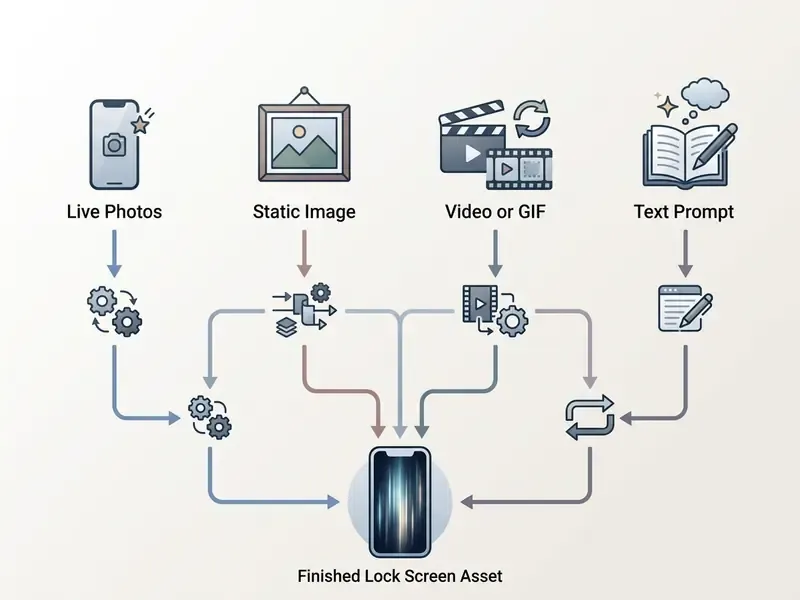
Working out how to make a custom live wallpaper starts before any editing: prepare source assets that match your screen aspect ratio and pixel density. Decide first whether the visual comes from a camera recording, a static digital graphic, an existing video clip, or an AI prompt. That single choice determines the rest of the workflow.
Workflow selection for custom live wallpaper creation
- Identify the source input
- *Path ALive Photo* goes straight to framing and lock screen adjustment.
- *Path BStatic image* needs depth-map parallax or particle animation effects.
- *Path CVideo or GIF* needs segment trimming, format conversion, and loop settings.
- *Path DText prompt* goes to an AI generation pipeline for frame output.
- Optimize.Crop the asset to the target display aspect ratio, typically 19.5:9, and set seamless loop points.
- Deploy.Export at the panel's resolution and assign the file in system wallpaper settings.
Choose a Photo, Image, Video, or GIF as Your Source
Good source content comes down to three things: visual clarity, predictable motion, and composition that survives cropping. Keep subjects away from the frame edges so the clock overlay and notification widgets do not slice through them. High-resolution sources keep fine detail sharp after display scaling; practical guidance is at least 10 megapixels, and treat sharpness as a mix of focus and local contrast, so edges stay readable once the frame is downscaled.
If your source needs trimming first, look at free photo and media editors and desktop video editing options that export H.264 or HEVC directly. Anyone learning how to use generative visual models should frame prompts for mobile portrait dimensions from the start, not crop a landscape render afterwards.
Record a Live Photo with the Camera App
Capturing a Live Photo with the native camera app records roughly 1.5 seconds of motion before and after the shutter. Apple's documentation is explicit here: the capture covers what happens just before and just after the tap. So center the interesting moment on the shutter press instead of starting it afterwards. Keep the camera steady, and prefer smooth, predictable subject motion; both choices pay off on the lock screen, where the clip replays dozens of times a day.
«Timeliness and consistency are core fluency dimensions that directly shape users' overall attitude toward animated interfaces.»
Step sequence on iPhone: open Camera, select Photo mode, confirm the Live Photo icon (the concentric circles) is active, then tap the shutter once. On Samsung Galaxy devices the equivalent is Motion Photo, switched on in camera settings before you shoot.
How to Make a Live Photo Wallpaper from Your Own Photo
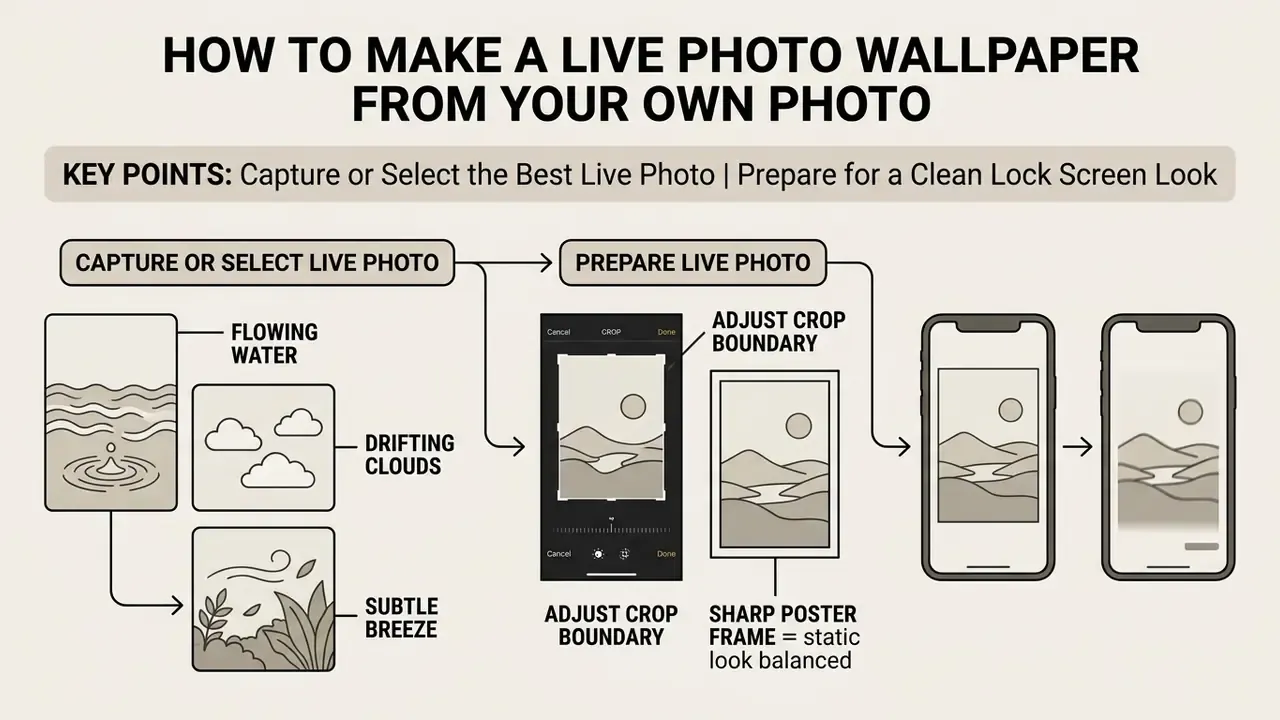
Working out how to make a live photo wallpaper turns personal shots into dynamic backgrounds. Two things matter: isolating a clean motion sequence, and adjusting framing so it fits lock screen geometry.
Capture or Select the Best Live Photo
The Live Photos that work best contain continuous movement: flowing water, drifting clouds, a subtle breeze through leaves. When deciding how to make live photo a wallpaper worth keeping, pick clips with consistent lighting; an exposure shift mid-clip reads as a glitch during wake playback. Stable camera positioning also matters, because the still key frame has to blend into motion without a visible pop. Shoot from a tripod, or brace the phone against a fixed surface, and the low-frequency drift that makes short clips look unstable disappears. If the motion is coming from a prompt rather than a camera, the same discipline applies when you learn how to write ai prompts for images.
Prepare the Live Photo for a Clean Lock Screen Look
Preparation means adjusting the crop boundary inside the system photo editor. For retouching or upscaling before you crop, compare photo editing tools that preserve the Live Photo bundle instead of flattening it into a still. Apple's own guidance says to keep the Live Photo intact and edit the whole asset; splitting frames or audio breaks the pairing. If you genuinely want a still, convert it on purpose, not by accident at 11pm.
A sharp poster frame keeps the static lock screen balanced before the animation triggers. Put primary subjects in the lower two-thirds of the frame so system typography has room. Remember where iOS drops lock screen widgets too: inline text sits above the clock, circular and rectangular widgets sit below it. Keep those bands visually quiet.
Choose an Animated Wallpaper Maker for Images and AI Creations
A dedicated animated wallpaper maker lets you add motion to static graphics or generate dynamic assets from scratch. Tools differ by input support, processing power, export options, and, for organizations, by where processing happens and who owns the output.
| Tool Name | Input Formats | AI Generation Models | Animation Effects | Seamless Loop | Resolution Output | Free Plan Limits | Processing (Local / Cloud) | Content Rights & Data Handling |
|---|---|---|---|---|---|---|---|---|
| Wallpaper Engine | MP4, MOV, GIF, PKG | SceneScript, Shader FX | Parallax, particles, 3D depth, audio spectrum | Manual and scripted | Up to 4K | Paid software (one-time) | Local (desktop app) | Assets stay on device; Workshop publishing is opt-in |
| Lively Wallpaper | MP4, WebM, AVI, MOV, MKV, GIF | None (FFmpeg encoding) | Video, web, audio-reactive | Manual (-loop 0) | Source-limited | Free, open source | Local (FFmpeg re-encode) | No upload; conversion runs offline |
| Wallpapers.com Builder | JPG, PNG, MP4 | Proprietary image-to-live | Motion blur, pan, zoom, subtle parallax | Automatic (4 s default; 4 to 30 s premium) | 720p free, up to 1290×2796 premium | Watermarked 720p preview | Cloud | Review upload terms; personal-use wallpaper licensing |
| VisionAI Generator | JPG, PNG | Custom motion diffusion | Depth parallax, AI motion | Dedicated loop workflow | 4K upscaled | Credit-based (5 s = 1 credit, 10 s = 2) | Cloud | Credits model; verify retention and training opt-out |
| Media.io AI Animator | JPG, PNG, WebP | Text-to-video, image-to-video | Particle, zoom, ripple | Automatic crossfade | 1080p | 1 free export per day | Cloud | Check the commercial-use clause before client work |
| ElevenLabs Animated Wallpaper | Image or text prompt | Veo 3.1, Sora 2, Kling, Seedream 4, Topaz upscale | Ambient motion, voice/audio layer | Seamless looping option | Up to 4K | Video generation requires a paid plan | Cloud | Enterprise terms and data policy published separately |
Animate a Static Image with Animation Effects
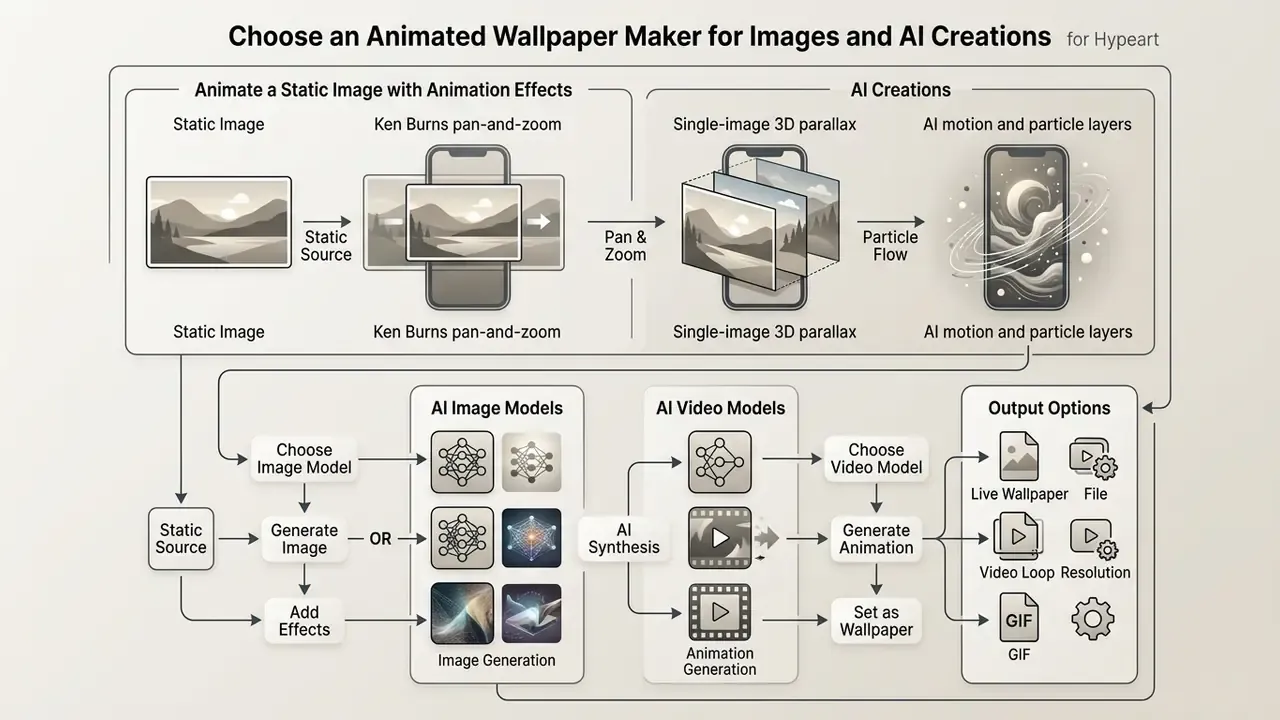
Animating a still image means applying software motion vectors that imitate natural movement. A wallpaper maker can add subtle parallax, fluid ripples, or atmospheric particles to create dynamic backgrounds from a single frame. Keep the speed controlled; anything faster than a slow drift becomes tiring within a day of unlocking your phone.
Three approaches dominate practice, and each has a documented technical lineage:
- Ken Burns pan-and-zoom.A slow camera translation and scale across a still frame, borrowed from documentary film.
- Single-image 3D parallax.Depth is estimated from one photograph and the virtual camera moves, producing real motion parallax. See 3D Ken Burns Effect from a Single Image (arXiv, 2019). https://arxiv.org/pdf/1909.05483
- AI motion and particle layers.A model reads a prompt and generates zoom, background drift, or particle systems over the plate.
Current personalization research explains why image-derived animation manages to keep the original subject recognizable instead of drifting into something else:
«InstructBooth combines diffusion-model personalization with policy-gradient training to improve image and text alignment for instructed generation.»
For broader workflow comparisons of motion tooling, review general-purpose animation makers alongside the wallpaper-specific tools in the table above.
Evaluate AI Image Models, Video Models, and Output Options
Generative video models turn text descriptions or still graphics into motion sequences. Teams evaluating asset libraries use dedicated pages to compare output resolutions, licensing terms, and codec specifications. For side-by-side evaluation of still-image backbones, see comparisons of the best AI art generators; for motion backbones, see free AI video generators plus the implementation notes in the Google Veo video generation API guide and the wider set of AI Media API Guides.
Published 2024 to 2025 research sets realistic expectations. CogVideoX reports 10-second clips at 16 fps and 768×1360 (ICLR 2025), while Waver documents unified text-to-video and image-to-video generation natively at 720p for 5 to 10 seconds, with upscaling to 1080p. Read that carefully: current models comfortably cover wallpaper-length loops, and nothing longer. Which, for this use case, is exactly enough.
Security, Privacy, and Rights Before You Upload
Most one-click "animate my wallpaper" services are cloud services. That single fact changes the risk profile for anyone creating wallpapers on a managed device or with corporate imagery.
Before uploading, confirm four things:
- Processing location.Local tools (Wallpaper Engine, Lively Wallpaper, FFmpeg) never transmit the asset. Browser-based generators always do. If the source frame contains an internal dashboard, a badge photo, an office layout, or customer data, encode locally.
- Retention and training use.Check whether uploads are deleted after processing, and whether they may be used to train models. If the policy is silent, assume the upload is retained.
- Commercial-use rights.Wallpaper libraries frequently license output for personal use only. A branded corporate wallpaper pushed to fleet devices is commercial use, no matter how small the file is. Validate terms against guidance on commercial-use conditions for AI generators before distribution.
- Shadow AI exposure.Free converters installed by employees on BYOD handsets are unmanaged AI endpoints. Publish an approved-tool list and route wallpaper requests through it, rather than banning the use case outright; a ban just pushes the activity off-record.
Rule of thumb: if the asset would fail an email-attachment review, it should fail a wallpaper-converter upload review.
How to Make a Moving Wallpaper from Video or GIF
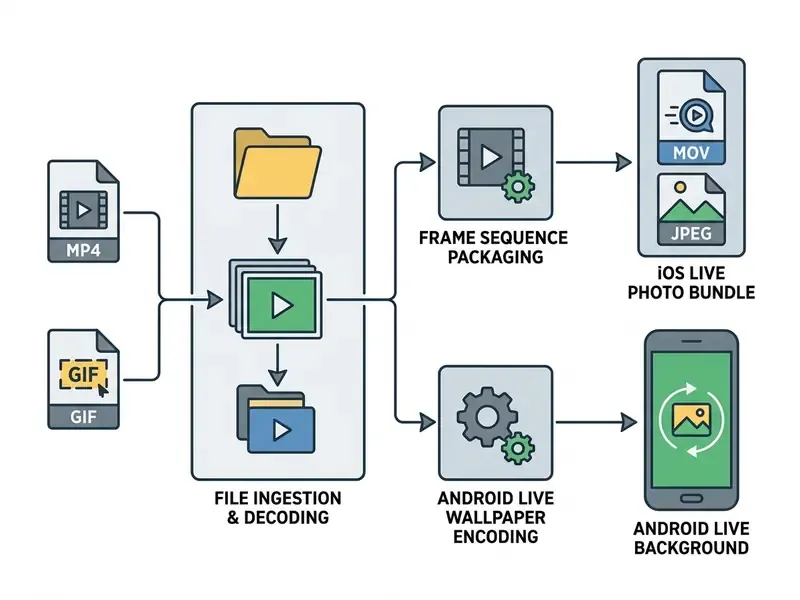
Figuring out how to make a moving wallpaper means converting a standard video clip or an animated GIF into a mobile-compatible container. Trimming and codec configuration keep frame rates high without letting file size run away.
A concrete starting point, since vague advice wastes renders: a 4-second 1080×2400 clip encoded with libx264 at -crf 20 typically lands somewhere around 2 to 5 MB depending on motion complexity. Raise the CRF value and the file shrinks while gradients start to band; lower it and you pay in storage and decode cost for detail nobody sees at arm's length. Test two settings, compare on the actual phone, then stop tuning.
Turn a Short Video into an Animated Wallpaper
Converting standard video starts with choosing a 2 to 5 second segment with stable motion. Three to five seconds is the practical sweet spot: long enough to feel natural, short enough to stay cheap. Crop to mobile portrait and fix spatial alignment before exporting.
Desktop workflow (Premiere Pro or any NLE):
- Drop the source clip on the timeline and set In and Out points around the motion you want.
- Trim by dragging the clip edge to the exact loop length.
- Crop to portrait, 19.5:9 for most modern phones.
- Export via File → Export → Media, choosing H.264 (MP4) or QuickTime (MOV), and confirm frame size and frame rate before rendering.
Command-line workflow (FFmpeg, fully local): re-encode with libx264, add -crf 20, use -an to strip audio, and -loop 0 for continuous playback. That is the same recipe Lively Wallpaper documents for optimized MP4 wallpapers, and it never leaves your machine.
Because file size drives both storage and decode cost, compare video compressors before locking a final bitrate. Any external media clip should also be trimmed of redundant frames before packaging, not after.
Convert a GIF into a Live Wallpaper Format
Turning an animated GIF into a live wallpaper means re-encoding its frame sequence into an H.264 or HEVC container. That conversion removes color banding and smooths frame transitions on mobile displays. The reason is twofold, and the converters document it themselves: GIF stores delay times in centiseconds rather than a true frame rate, so timing quantizes unevenly, and its 8-bit indexed palette cannot represent gradients without dithering artifacts. Re-encoding restores exact frame timing and full-range color.
Typical conversion output for iPhone is a .livp package, a container holding an HEVC-encoded MOV plus a JPEG key frame, which Photos imports as a working Live Photo. One detail decides quality: converters that decode every GIF frame and re-encode to H.264 preserve the original animation speed and loop behavior, while converters that sample frames quietly change the tempo.
Mobile Apps That Convert Video and GIF Without a Desktop
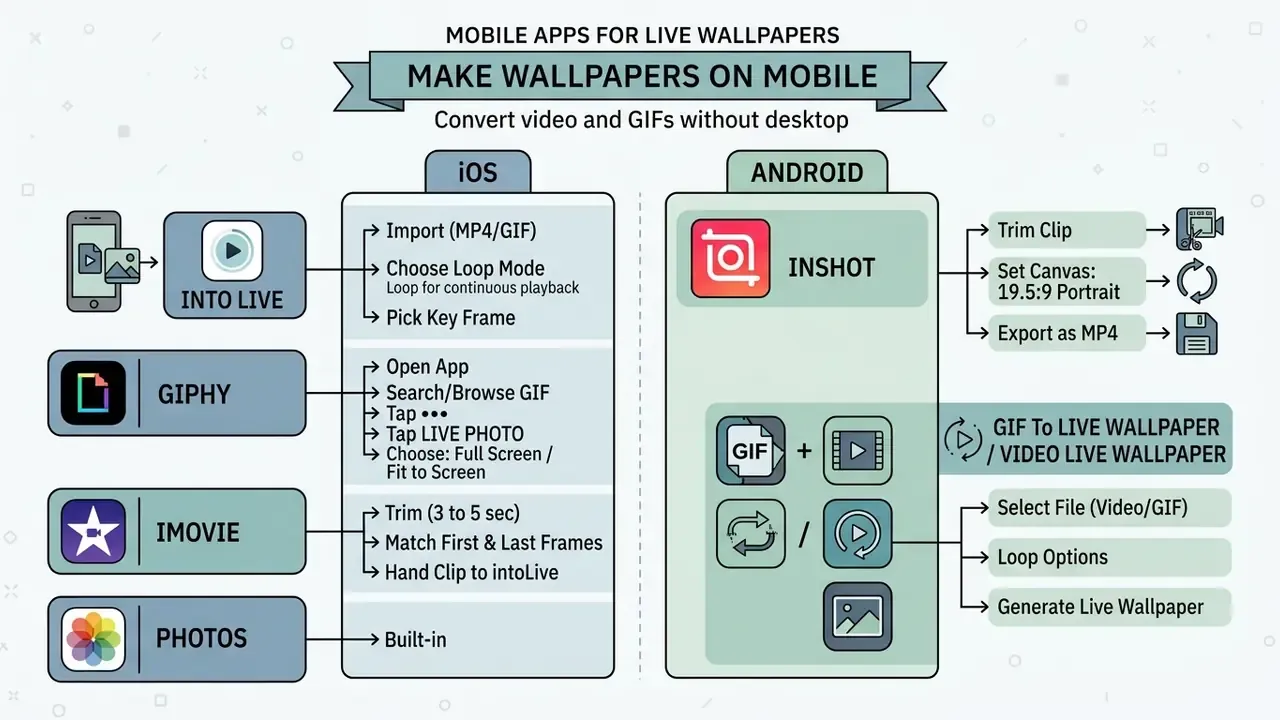
You do not need a computer. These named apps close the whole pipeline on the handset.
iOS
- intoLive. Import an MP4 or GIF, choose the loop mode (Loop for continuous playback), pick the key frame, then tap Make Live Photo. Save to Photos and apply from Settings.
- GIPHY. Open the app, search or browse for a GIF, tap … then Live Photo, then choose Full Screen or Fit to Screen. The saved Live Photo shows up in Photos and can be set as wallpaper immediately.
- iMovie. Trim to 3 to 5 seconds, match the first and last frames, then hand the clip to intoLive.
- Photos (built in). Swipe up on any Live Photo and apply the Loop effect; the result lands in the Animated album and can be shared as a GIF or MOV.
Android
- InShot. Trim the clip, set the canvas to 19.5:9 portrait, export as MP4.
- GIF To Live Wallpaper / Video Live Wallpaper. Installs a wallpaper service, so stock Android builds without native video wallpaper support can still render a looping background.
- Samsung Gallery (One UI). No third-party app needed for short videos; installation steps are below.
Quick decision rule: iPhone lock screen means you need a Live Photo, so route through intoLive or GIPHY. Android means you need an MP4, so route through InShot plus the Gallery or a wallpaper-service app.
Create a Seamless Loop That Looks Natural
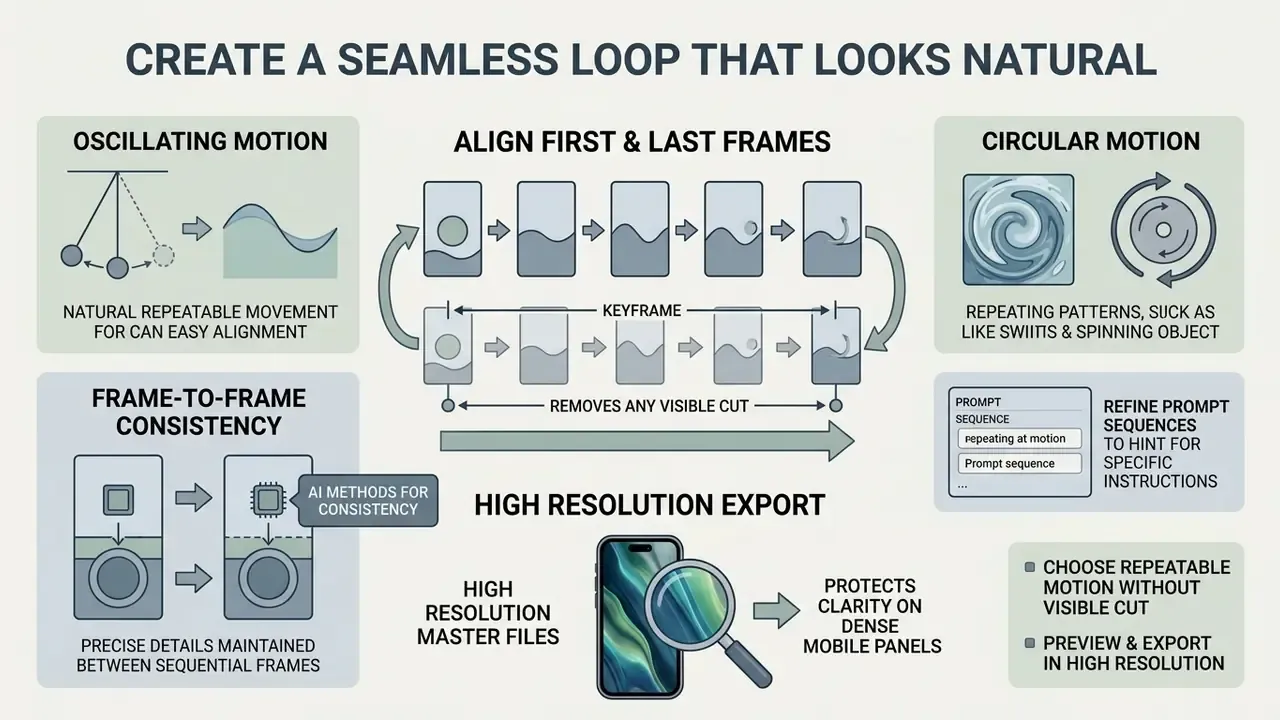
A seamless loop removes the visible cut by aligning the first and last frames of the animation. Match those boundaries precisely and the background repeats indefinitely with nothing to catch the eye.
Three techniques cover nearly every case. Exact boundary matching makes the first and last frame visually identical. Overlap-and-crossfade fades the tail into the head, so the join is blended instead of cut. Ping-pong, or boomerang, plays the segment forward and then in reverse, which mathematically guarantees a matched seam and works even on footage that refuses to cooperate. Research on video looping formalizes the same ideas: frame similarity computed through a distance matrix, opacity shifted gradually between candidate frames, and Poisson blending to remove the residual seam.
Frame-to-frame consistency is also where AI personalization methods now help:
«An encoder-based approach personalizes a diffusion model in as few as five training steps from a single image while preserving visual fidelity and frame consistency.»
Choose Motion That Can Repeat Without a Visible Cut
Oscillating motion makes loop alignment easy. Ocean waves, a gentle fire, drifting clouds, falling snow, rising steam, slow rain on glass, a flickering neon sign: none of these frames reads as a narrative beginning, so the eye never registers the restart. Avoid motion with a clear arc. A person walking across frame, a door closing, a car passing; the reset is unavoidable and the brain catches it every time.
Creators refining prompt sequences should learn how to write instructions that specify continuous circular motion rather than a single action. A crossfade between the initial and final frames hides hard cuts; in animation runtimes this is the same principle as a cross-fade transition with a defined fade length, which stops playback from snapping between states. When generating motion from a prompt instead of footage, favor AI video generation tools that expose an explicit loop workflow instead of a one-shot render.
Preview and Export the Wallpaper in High Resolution
Exporting master files in high resolution protects clarity on dense mobile panels. Standard targets are 1080×2400 pixels for FHD+ screens and 2160×3840 pixels for 4K panels. Android's design guidance also maps assets across density buckets from mdpi (×1) up to xxxhdpi (×4), which is the ladder to follow when one master has to serve several devices.
«An aggregate video playback power model estimates current draw with 91% accuracy on the training device; resolution and brightness are key display-component variables.»
The practical takeaway is blunt. Exporting a 4K loop to a 1080×2400 panel buys no visible quality and costs measurable power. Match the export to the panel.
If your master is smaller than the target panel, upscale before export rather than letting the OS stretch the frame; review upscaling options alongside photo editing tools that support batch resizing. Technical teams also use online calculators to estimate compression rates and display processing load before the final render.
Pre-Export Checklist
Run this before rendering the final file. Every unchecked item is a known cause of rework.
Checklist0 / 10
Set Your Live Wallpaper on the Lock Screen
Installing a finished live wallpaper means assigning the dynamic asset to the lock screen in system settings. Steps differ across platforms and OS versions, so the two platforms are documented separately.
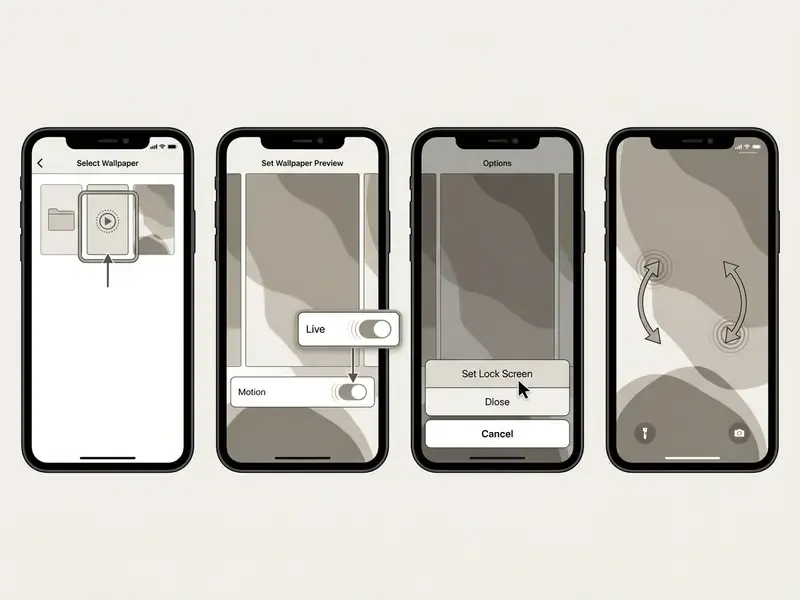
iOS 17+ lock screen Live Photo installation sequence
- Open Settings and select Wallpaper.
- Tap Add New Wallpaper and choose Photos or Live Photo.
- Select the prepared dynamic asset from your media library.
- Check that the motion playback toggle (the play button) is On in the preview. If it is off, the wallpaper only animates on press-and-hold.
- Tap Add, then choose Set as Wallpaper Pair or Set Lock Screen.
- Lock the device, wake it, then use Haptic Touch (press and hold) on the Lock Screen to replay the animation.
Android video and live wallpaper installation sequence (Samsung One UI, Pixel, stock)
- Open the Gallery app and select your trimmed MP4 file.
- Tap the More icon (three dots) in the bottom-right corner.
- Select Set as wallpaper, then Lock screen.
- If the clip runs longer than roughly 15 seconds, tap Trim to select a segment, then press Done.
- Tap Apply to finalize.
- Alternative on Samsung: press and hold the Lock screen, open Wallpapers, choose Gallery, select the photo or video, preview, then tap Done.
- Stock Android without native video wallpaper support: install a free wallpaper-service app such as Video Live Wallpaper from Google Play, import the MP4, then set it from Settings → Wallpaper → Live Wallpapers.
- Sony (Android 15): live wallpapers can be assigned to the Home screen and Lock screen independently. Xiaomi: third-party live wallpapers require the app to expose live wallpaper settings plus background permission.
Cross-platform note. Live Photos are an Apple container. To use the same asset on a non-Apple device, export it as a standard MP4, MOV, or GIF first. That converted file is universally viewable, and it remains the only reliable way to share a live wallpaper between an iPhone and an Android handset.
Select the Live Photo or Animated Wallpaper in Settings
System wallpaper controls are where you choose the converted Live Photo or video background, preview it, and adjust spatial positioning and motion toggles. On older iOS builds the equivalent path is Settings → Wallpaper → Choose a New Wallpaper → Live, or the Live Photos album, then Set Lock Screen. On iOS 17 and later, use the Add New Wallpaper flow above. If you intend to generate the underlying motion rather than film it, compare AI video generation options before committing to a pipeline.
Test the Wallpaper on the Lock Screen
Testing means locking the device and triggering display activation, three separate ways, because different layers of the OS handle each one:
Repeat all three after a reboot, and on at least one lower-tier device, since decode performance differs across chipsets. That last step catches more problems than it should. Creative teams distributing assets should also check specifications against AI Media Commercial-Use terms and AI Media Benchmarks and Review Proof documentation.
For Enterprise Teams and Governance Reviewers
Appendix A: Revision Notes
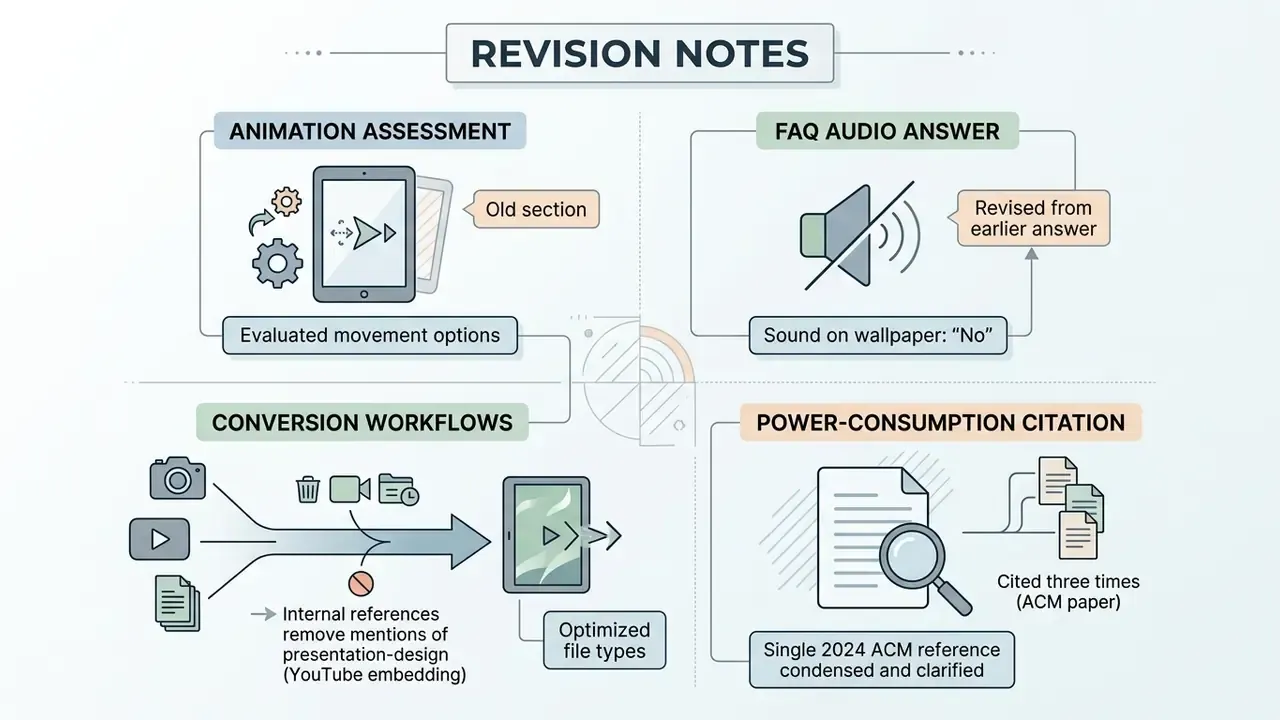
For transparency, these passages were revised in this update and are preserved here in their original form:
- Original animation section: "A technical media team evaluated visual movement options for mobile lock screens. They converted static landscape graphics into animated dynamic wallpapers using motion vector mapping. The team achieved smooth background movement while preserving key frame sharpness across multiple display resolutions." Replaced in the main text with cited research on personalized image generation, because the original named no source, methodology, or measurable result.
- Original FAQ audio answer: "No. System lock screens suppress audio tracks embedded in video or Live Photo wallpapers during wake events to prevent unexpected sound playback." Retained for mobile, but supplemented with a separate desktop answer, since desktop wallpaper engines do support audio.
- Original conversion sections: internal references to presentation-design workflows (embedding YouTube video in Canva, wrapping text in Google Slides) were replaced with topically relevant links to media compression, editing, and generation resources.
- Original power-consumption citation: the same 2024 ACM measurement paper was cited three times. Two citations remain, and the third was replaced with concrete encoding guidance on CRF values and resulting file sizes.