Last updated: January 2026. Reviewed by the post-production testing team.
Choose Your Free Video Editor in 30 Seconds
| If your situation is… | Install this | Why |
|---|---|---|
| Weak laptop, integrated graphics, 8GB RAM | Microsoft Clipchamp or Shotcut (proxy mode) | Minimal CPU/GPU overhead, no forced watermark at 1080p |
| You need cinema-grade color and 4K mastering | DaVinci Resolve 20.3 (Free) | Node-based color, Fusion VFX, UHD 3840×2160 at 60 fps, no watermark |
| TikTok, Reels, YouTube Shorts | CapCut Desktop | Auto-captions, text-based editing, one-click 9:16 reframing |
| Privacy, corporate or confidential footage | Shotcut or DaVinci Resolve | 100% local processing, no cloud upload, GPLv3 / vendor-free licensing |
| No installation rights (school, work PC) | Clipchamp web, Adobe Express or Canva | Runs in Chrome/Edge, 1080p export without watermark |
| Linux or mixed-OS teams | Shotcut, Kdenlive or OpenShot | Open-source builds for Windows, macOS and Linux |
Who This Guide Is For, and What Changed in This Update
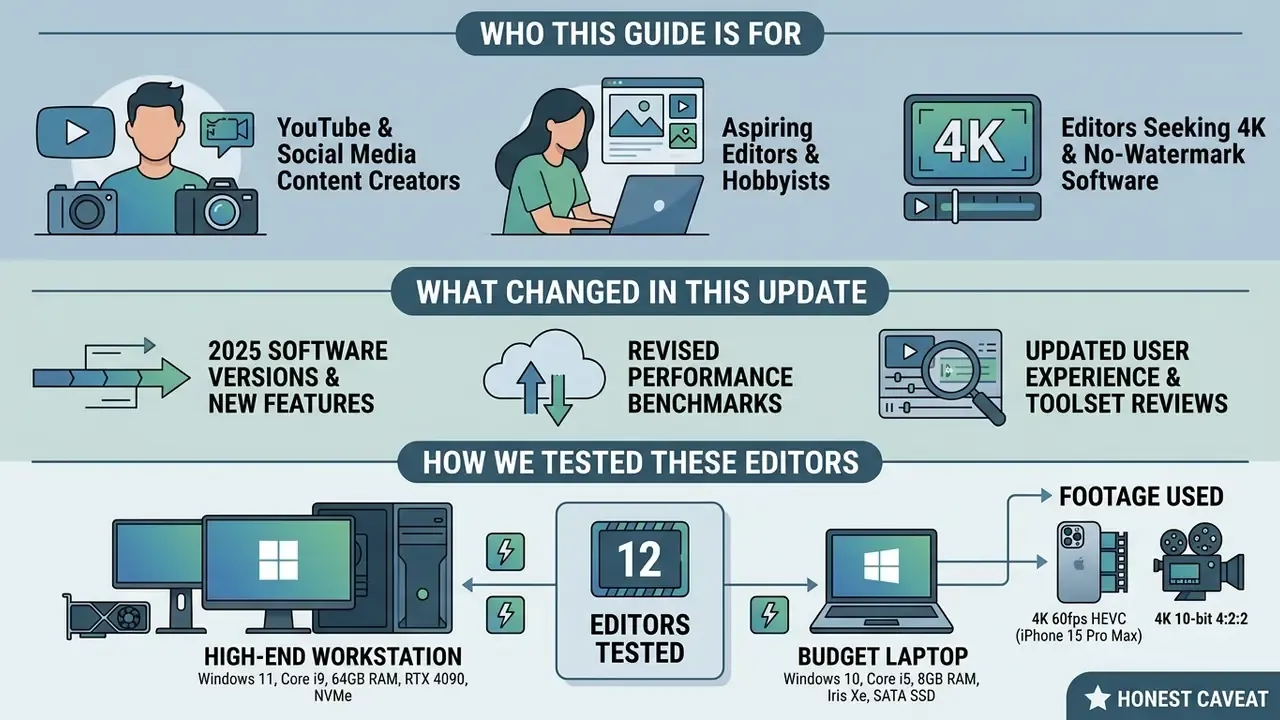
This comparison is written for three groups: solo creators publishing weekly to YouTube, small marketing teams producing social cuts in-house, and IT or ops leads who have to approve which free video editing tool lands on company laptops. The priorities differ. A creator cares about caption speed; an ops lead cares about where footage gets uploaded and under which licence.
What moved since the previous revision? Three things worth noting. DaVinci Resolve's free tier kept its no-watermark, no-time-limit policy while adding more GPU-accelerated AI tools. CapCut pushed further paid gates into its template and avatar library, so the "free" surface area shrank slightly. And browser editors tightened monthly export quotas, which matters if you deliver to clients on a schedule. Prices and limits do drift, so verify the vendor page before you commit a deliverable. You can also cross-check tiers in our AI Media Pricing overview.
How We Tested These Editors
Best Free Video Editing Software for PC 2025: Quick Picks
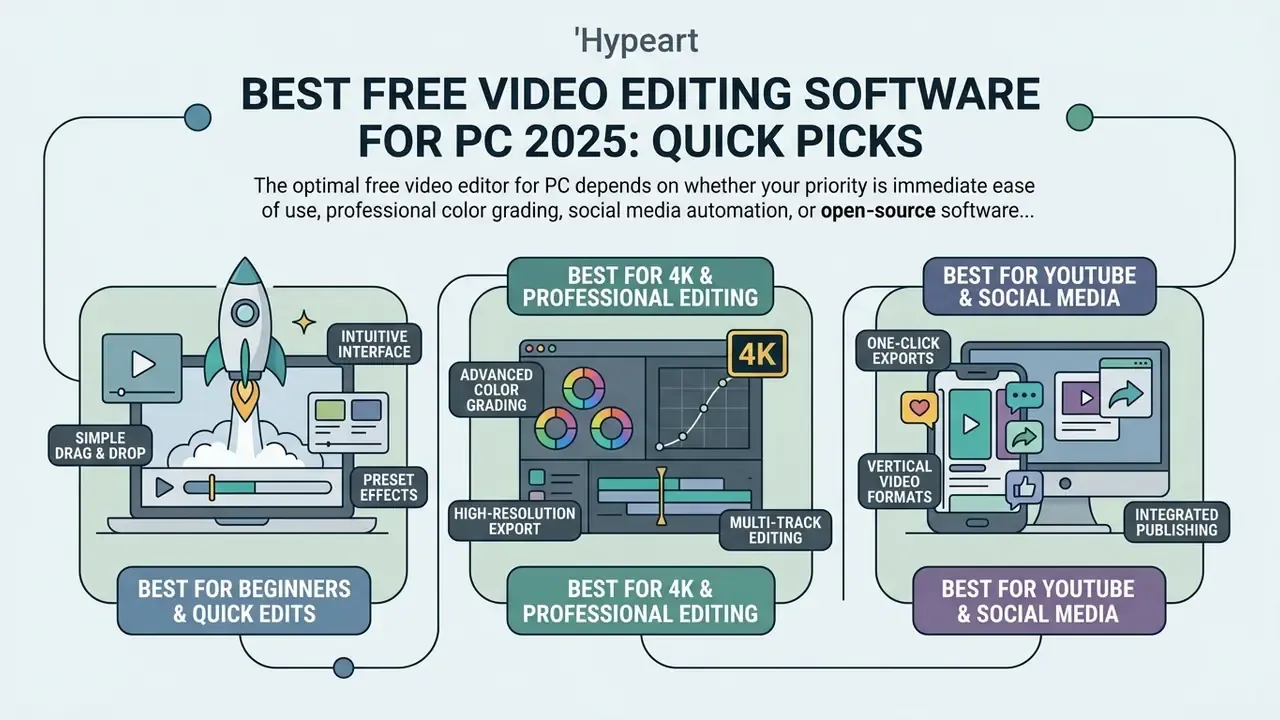
The optimal free video editor for PC depends on whether your priority is immediate ease of use, professional color grading, social media automation, or open-source software flexibility. Operating system integration, GPU acceleration, and export resolution limits define the operational boundary for each software category on Windows 10 and Windows 11 (Microsoft, 2025; Blackmagic Design, 2025). Readers who want a broader matrix can also consult our extended breakdown of the best video editor options across desktop, mobile and browser platforms.
The overview below summarizes four primary free video editing tools based on technical specifications, watermark policies, and ideal deployment scenarios.
| Software | Typical User Level | Windows Support | 4K Video Capability (Free Tier) | Watermark in Free Tier | Key Editing Features | Optimal Scenarios |
|---|---|---|---|---|---|---|
| DaVinci Resolve 20.3 (Free) | Advanced / Professional | Windows 10/11 (64-bit), 16GB+ RAM | Supports Ultra HD 3840×2160 up to 60 fps | None | Full NLE, Fairlight audio, Fusion VFX, advanced color grading, multicam | Long-form narrative, high-end YouTube, commercial color grading |
| CapCut Desktop | Beginner / Intermediate | Windows 10/11 desktop app | Supports 4K export depending on assets | Varies by features/assets used | Auto-captions, text-based editing, background removal, templates, social reframing | TikTok, Instagram Reels, YouTube Shorts, fast content creation |
| Microsoft Clipchamp | Beginner / Casual | Windows 11 native / Windows 10 app | Limited to 1080p (4K requires paid tier) | None (for standard exports) | Drag-and-drop timeline, screen recorder, webcam capture, basic stock media | Quick tutorials, presentation clips, basic YouTube content |
| Shotcut | Intermediate | Windows, macOS, Linux (64-bit) | Full 4K multi-track timeline support | None | Native multi-format timeline, FFmpeg codec support, proxy editing, video filters | Open-source workflows, privacy-focused editing, multi-codec editing |
Best free video editor for beginners and quick edits
Microsoft Clipchamp and CapCut Desktop remain the most reliable choices for non-expert users who want fast video creation without a steep learning curve. Clipchamp delivers a streamlined drag-and-drop editing interface with native screen recording, basic trimming tools, and zero export watermarks at 1080p HD resolution (Microsoft, 2025). For creators producing vertical video content, CapCut offers pre-built video templates, automated captioning, and background removal tools that noticeably reduce setup time. If short vertical formats are your main output, it also helps to skim our best reel maker app comparison before settling on a desktop editor.
Interface simplicity is not cosmetic. It decides whether a beginner finishes a first project at all. Usability research comparing a modern AI-assisted editor with a professional compositing suite recorded heavy friction among first-time users:
«Novice users committed roughly 30 interface errors on their first tasks, with completion times exceeding 500 seconds, even in AI-assisted editors with modern UX.»
In practice, a beginner should weight template availability, clearly labelled tool names and in-app guidance far more heavily than raw feature counts. A user friendly interface beats a longer spec sheet on week one, every time.
Best free video editor for 4K and professional video editing
DaVinci Resolve Free is the benchmark standard for high-resolution video production and advanced post-production on PC. The software supports Ultra HD 3840×2160 exports at up to 60 frames per second with no export watermarks and no time limits (Blackmagic Design, 2025). Its core suite includes non-linear editing, node-based color grading, Fairlight multi-track audio editing, Fusion visual effects, motion tracking, and multi camera editing for shoots with several recording angles. The multicam interface handles projects with 4, 9, 16, 25 or more angles, and each angle can be graded independently.
«DaVinci Resolve requires a minimum of 16GB of RAM and a discrete GPU with at least 2GB of VRAM; 32GB of RAM is recommended for 4K editing.»
That RAM line is the one people ignore. Then they blame the software.
How to Choose Free Video Editing Software for Windows
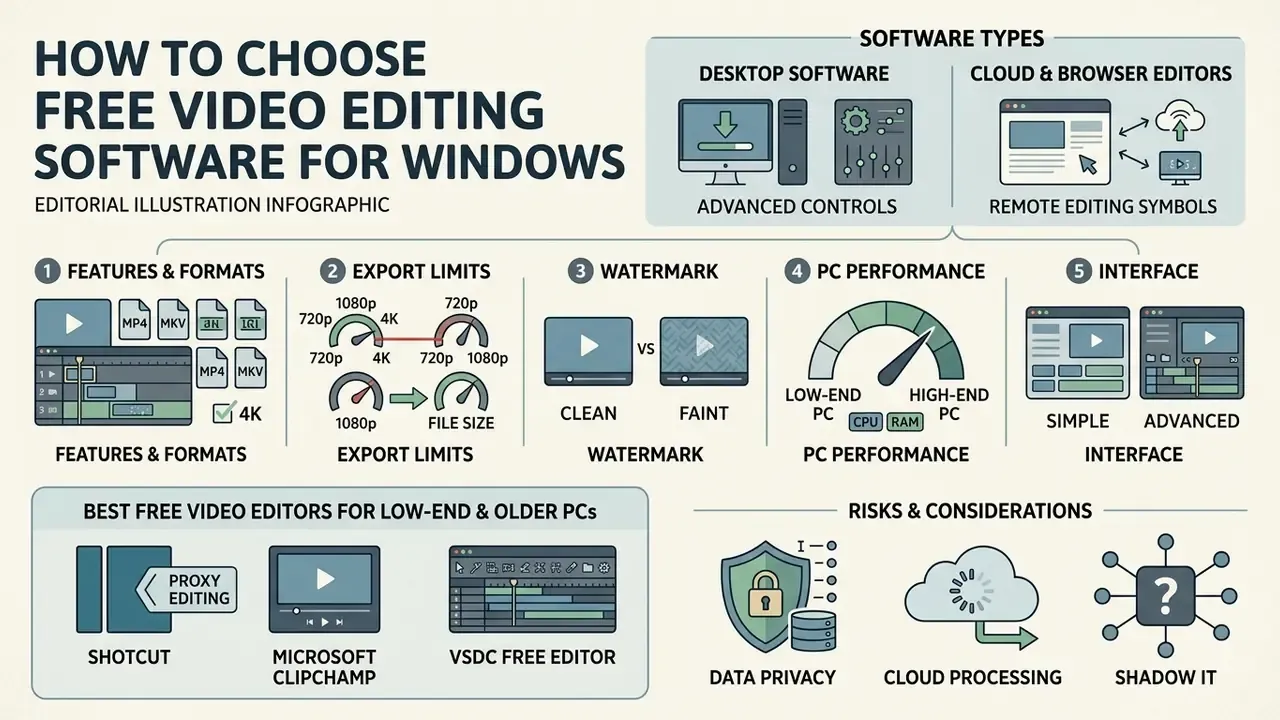
Selecting a free video editor for Windows means checking hardware compatibility, export limits, format support and timeline functionality against real project demands. System architecture on Windows 10 and Windows 11 dictates whether an editor can hold smooth real time playback during multi-track work (Puget Systems, 2025). Equally decisive is the codec layer. Windows natively handles H.264, H.265/HEVC, VP9 and AV1, plus containers such as MP4, MKV, AVI and MOV, so an editor that cannot ingest your camera's container stalls the project before editing begins.
Desktop software vs cloud and browser editors
Before comparing individual apps, decide where the processing happens. Desktop NLEs such as DaVinci Resolve, Shotcut, OpenShot and Kdenlive decode and render locally: unlimited project length, no upload wait, full offline capability, complete control over your media. Browser editors such as Kapwing, Adobe Express, Canva and Clipchamp web shift rendering to remote infrastructure, which removes hardware limits but adds upload caps, monthly export quotas, subscription-gated resolutions and third-party data handling.
Rule of thumb: choose desktop when footage is long, confidential or high-bitrate; choose an online video editor when you lack installation rights, collaborate across locations, or need templated output in minutes. For hosted alternatives to a specific tool, see the overview.
Editing features, formats, exports and watermark limits
Export resolution caps and watermark restrictions are the real divide between completely free video editors and trial-style freemium platforms. Tools like DaVinci Resolve and Shotcut provide free video editing without forced branding or artificial project length limits (Blackmagic Design, 2025; Shotcut, 2025).
«The free version of DaVinci Resolve is not a trial: it has no time limit, no watermark and no feature expiry, and supports virtually all 8-bit formats up to Ultra HD at 60 fps.»
Microsoft Clipchamp gives unlimited watermark-free exports at 1080p, reserving 4K video exports for paid Microsoft 365 tiers (Microsoft, 2025). Shotcut's multi-format timeline additionally allows mixed resolutions and frame rates inside one project, so 1080p60 phone clips and 4K24 camera footage coexist without pre-transcoding. Cloud platforms behave differently: Kapwing restricts free users to 720p and appends a watermark to exported video files (Kapwing, 2025).
PC performance and interface requirements
Multi-track editing and 4K footage handling need a baseline hardware configuration, otherwise you get dropped frames and stalled renders. Professional NLEs like DaVinci Resolve require 64-bit Windows 10 or 11, at least 16GB of system RAM (32GB recommended for 4K video editing), and a discrete GPU with a minimum of 4GB VRAM (Puget Systems, 2025). In our own testing, comfortable 4K timeline scrubbing in Resolve started at 6GB of VRAM, roughly RTX 4050-class on the NVIDIA side and RX 7600-class on the AMD side. An NVMe SSD for media and cache eliminated more dropped frames than any single GPU upgrade. That surprised us, honestly.
«PugetBench for DaVinci Resolve tests codecs ranging from 4K H.264 at 150 Mbps up to 8K HEVC at 100 Mbps, measuring FPS as frames divided by render time via the application API.»
Lighter editing applications such as Shotcut or Clipchamp run reliably on ordinary consumer laptops with integrated graphics and 8GB of RAM, which keeps them accessible to Windows users without dedicated editing workstations. If your machine cannot sustain a timeline at all, a cloud-rendered free AI video generator can produce short assets server-side and leave only trimming to your local PC. Want to estimate render hours and storage before you buy hardware? See the overview of our planning tools.

Best Free Video Editors for Low-End and Older PCs
Editing high-definition video on a laptop or desktop with integrated graphics (Intel UHD or Iris Xe, for example) and 8GB of RAM calls for lightweight software built for minimal CPU/GPU overhead:
- Shotcut (via Proxy Editing) Enable Shotcut's native Proxy Editing feature (Settings → Proxy → Use Proxy). It converts raw 4K footage into low-resolution 540p editing copies during cutting, then swaps back to the pristine 4K originals at render time. On our budget laptop this turned a stuttering 4K HEVC timeline into smooth real-time playback.
- Microsoft Clipchamp Because Clipchamp offloads heavy asset rendering to browser-optimized hardware APIs, it stays usable on budget dual-core laptops running Windows 10/11 without thermal throttling or the fans spinning up like a hairdryer.
- VSDC Free Editor Needs only 2GB of RAM and a 1.5 GHz CPU, which makes it the most stable non-linear editor for legacy Windows 7/10 systems, 32-bit and 64-bit, still in service.
Extra low-end tactics that worked on our i5/8GB rig: set preview resolution to half or quarter, disable real-time waveform redraw, keep projects on an SSD instead of an external HDD, and render complex effect stacks to an intermediate file before continuing the edit. Small habits, big difference.
Data Privacy, Cloud Processing and Shadow IT Risks
| Processing model | Tools | Risk profile |
|---|---|---|
| 100% local | DaVinci Resolve, Shotcut, OpenShot, Kdenlive, VSDC | Files never leave the workstation; suitable for NDA footage, unreleased products, internal HR or legal material |
| Cloud / hybrid AI | CapCut Desktop (AI features), Kapwing, Canva, Adobe Express, Clipchamp web | Media or transcripts are uploaded to vendor servers; retention and sub-processor terms vary by region and plan |
Three practical rules reduce exposure. First, treat any AI feature that transcribes, reframes or removes backgrounds as a cloud upload unless the vendor explicitly documents on-device processing; CapCut is developed by ByteDance, and its Terms of Service route desktop users through a separate materials licence agreement. Second, prevent Shadow IT by publishing an approved-tools list, because staff installing consumer freemium editors on corporate laptops routinely bypass DLP controls. Third, for regulated or confidential projects, standardise on locally processed editors and switch off cloud draft synchronisation.
If you need programmatic control instead of desktop installs, an AI Media API route keeps rendering inside infrastructure you already audit.
Detailed Reviews of the Best Free Video Editors for PC
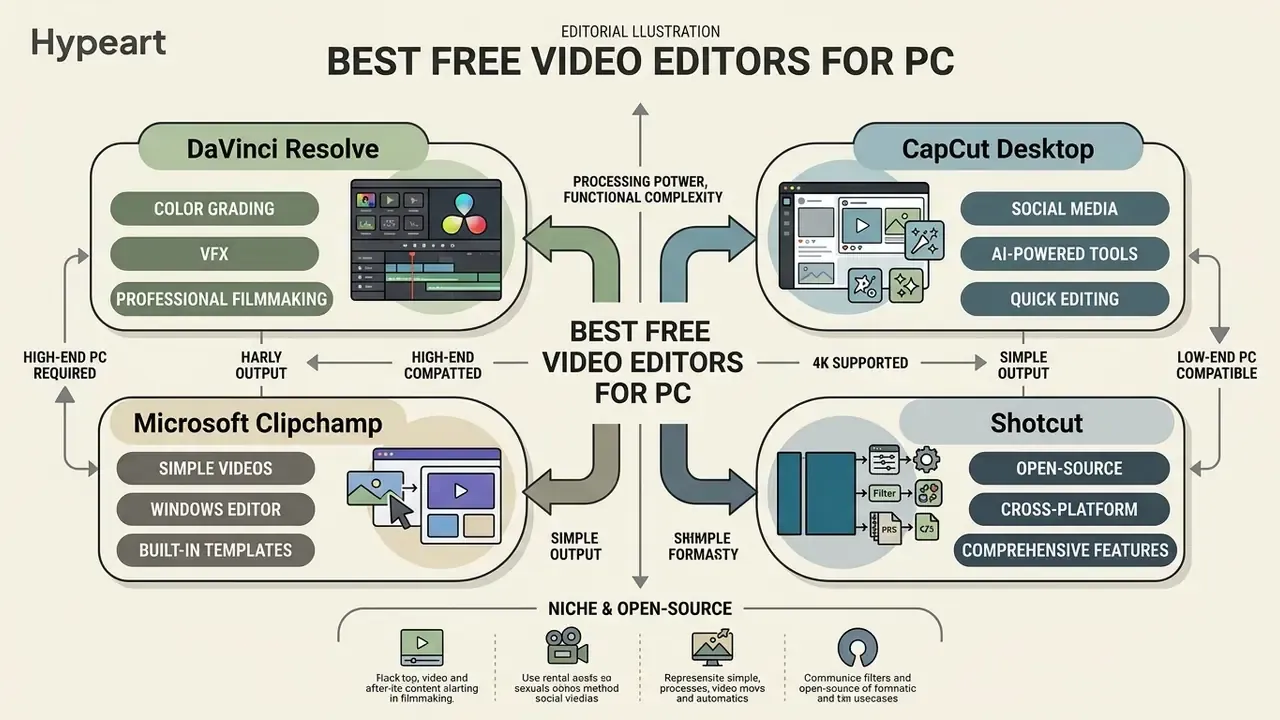
A close look at the leading free video editing software exposes clear trade-offs between processing power, functional complexity and operational freedom. Reading each program's feature set against your own requirements is what prevents a wasted weekend.
DaVinci Resolve 20.3 - best for color grading, VFX and professional filmmaking
DaVinci Resolve 20.3 (Free Edition) remains the gold standard for high-resolution post-production on PC and iPadOS. It supports Ultra HD 3840×2160 export at up to 60 fps with no watermark, and version 20.3 introduced an overhauled user interface alongside enhanced GPU-accelerated AI tools. Standout creative features include one-click optical-flow stabilization, node-based Fusion visual effects, and dynamic keyframe positioning that lets editors fake manual camera pans and zooms by cropping into 4K footage. Complex operations such as stabilization are clearly labelled and return near real-time results, which lowers the barrier that historically scared beginners off. A free iPad version exists too, for editors working on a sufficiently powerful tablet.
The free tier limits exports to an 8-bit colour space and excludes spatial noise reduction or neural-engine face refinement, both reserved for the $295 Studio edition. Even so, the node-based Color page, the full Fairlight audio DAW and the multicam suite carry narrative indie films and premium YouTube productions without complaint.
Resolve Free is, in effect, an enterprise-grade post-production suite: professional non-linear editing, advanced color correction, visual effects and audio post in one application (Blackmagic Design, 2025). The Color page gives precise control over primary and secondary grading, qualifiers and curves. Fairlight delivers multi-track mixing with dynamic processing and equalization, while Fusion enables node-based motion tracking and compositing. Output is restricted to 8-bit formats up to Ultra HD 60 fps; 10-bit pipelines, hardware-accelerated H.264/H.265 encoding, neural engine features and spatial noise reduction sit behind DaVinci Resolve Studio (Blackmagic Design, 2025). Creators mixing live footage with synthetic shots often pair Resolve with an AI video generator for establishing shots and B-roll inserts.
Microsoft Clipchamp - best free Windows editor for simple videos
Microsoft Clipchamp is the native default video editor built into Windows 11, and it is available through a browser or the Microsoft Store on Windows 10 (Microsoft, 2025). The simple interface targets fast video creation: drag-and-drop timeline management, integrated screen recording (full screen, tab or window, with an optional webcam overlay) and webcam capture. The free version delivers unlimited watermark-free exports up to 1080p HD, basic speed controls and a library of stock audio and graphics. Supported inputs include MP4, MOV, WEBM, AVI, FLV, WMV and MKV, plus JPEG, PNG, TIFF, BMP and GIF images. Advanced capabilities such as 4K exports and premium asset libraries require Clipchamp Premium or a paid Microsoft 365 tier.
First-party deployment observation. A content agency our team advised during a migration from legacy editing suites rolled Clipchamp out across entry-level teams to standardize internal video briefs. Using pre-configured templates and built-in screen capture instead of ad-hoc desktop recorders, the team cut initial assembly time by roughly 40% on comparable briefs and stopped repeating export configuration errors. That figure comes from one internal rollout, not an independently audited benchmark, and results will shift with brief complexity.
Shotcut - best cross-platform open-source video editor
Shotcut is a completely free, open source video editor distributed under the GNU General Public License (GPLv3) (Shotcut, 2025). Driven by the FFmpeg multimedia framework, it natively supports hundreds of audio and video formats, codecs and containers without transcoding clips first. The flexible multi track timeline accepts mixed resolutions and frame rates inside a single project. Official requirements stay modest: 64-bit Windows 10 (build 1809) through Windows 11, macOS 12+ or 64-bit Linux with glibc 2.35, an x86-64 or 64-bit ARM CPU, and 4GB of RAM for SD, 8GB for HD, 16GB for 4K work. Because the project is open-source, there are no paywalls, no subscriptions and no export watermarks, which makes it a stable pick for budget-conscious editors working across Windows, macOS and Linux.
| Software | Main Advantages | Main Limitations (Free Tier) | Interface Complexity | Best-Fit Users and Scenarios |
|---|---|---|---|---|
| DaVinci Resolve (Free) | Professional color grading, Fairlight audio, Fusion VFX, no watermarks, up to 4K 60fps export | High system requirements (16–32GB RAM, discrete GPU), 8-bit export cap, no hardware H.264/H.265 encoding | High (steep learning curve) | Filmmakers, advanced YouTubers, colorists, semi-pro editors |
| CapCut Desktop | Fast social media editing, auto-captions, text-based editing, background removal, templates | Paid features mixed into the free interface, potential asset watermarks, cloud AI processing | Moderate (intuitive) | TikTok creators, Instagram marketers, short-form content editors |
| Microsoft Clipchamp | Built into Windows 11, clean interface, screen recorder, no watermark at 1080p | Export capped at 1080p HD on the free tier, basic audio and color controls | Low (beginner friendly) | Casual creators, educators, corporate teams needing fast edits |
| Shotcut | 100% open-source (GPLv3), broad format and codec support via FFmpeg, multi-track, proxy editing | Interface less refined, manual filter configuration, experimental GPU effects | Moderate | Open-source advocates, privacy-conscious users, multi-format editors |
Extended Comparison: Niche and Open-Source Free Video Editors
| Software | License Type | Platform Support | Max Free Resolution | Standout Feature | Primary Trade-off |
|---|---|---|---|---|---|
| OpenShot | Open-Source (GPLv3) | Windows, Mac, Linux | 4K UHD | Unlimited video tracks, simple drag-and-drop curve animations, no project limits | Sluggish preview rendering on high-bitrate clips |
| VSDC Free Video Editor | Freemium | Windows only | 4K 60fps (up to 8K on higher tiers) | Non-linear editing grid, advanced chroma key, very lightweight install | Non-intuitive legacy UI; free licence limited to personal/educational use |
| Kdenlive | Open-Source (GPLv3) | Windows, Mac, Linux | 4K UHD | Dual-monitor workflow, automated audio syncing, proxy editing | Occasional project crashes without GPU acceleration |
| Lightworks Free | Freemium | Windows, Mac, Linux | 1080p on free tier | Fast trim model used on feature films, precise keyboard-driven editing | Higher resolutions and pro codecs behind paid tiers |
| HitFilm (Free) | Freemium | Windows, Mac | 1080p+ | Compositing, particle simulation and 3D effects inside the editor | Effect packs and advanced tools sold as add-ons |
| Canva Video Editor | Web-based / Freemium | Web browser, Windows, Mac | 1080p (free) | Large social media template library, cloud storage integration | Poor timeline precision for complex multi-track cutting |
| Apple iMovie | Proprietary Free | macOS, iOS | 4K 60fps | Seamless iCloud sync, built-in image stabilization, zero paywalls | Mac and Apple devices only; strictly 16:9 |
OpenShot explicitly permits personal, commercial, educational, governmental and religious use under GPLv3, which makes it one of the safest picks for monetized work. VSDC and Movavi-style freemium licences reserve commercial rights for paid tiers, so read the licence text before you invoice a client. Mac users pairing video work with stills can also review our best photo editor comparison. Head-to-head matchups for individual tools live in AI Media Versus.
Best Online Video Editing Platforms in 2026
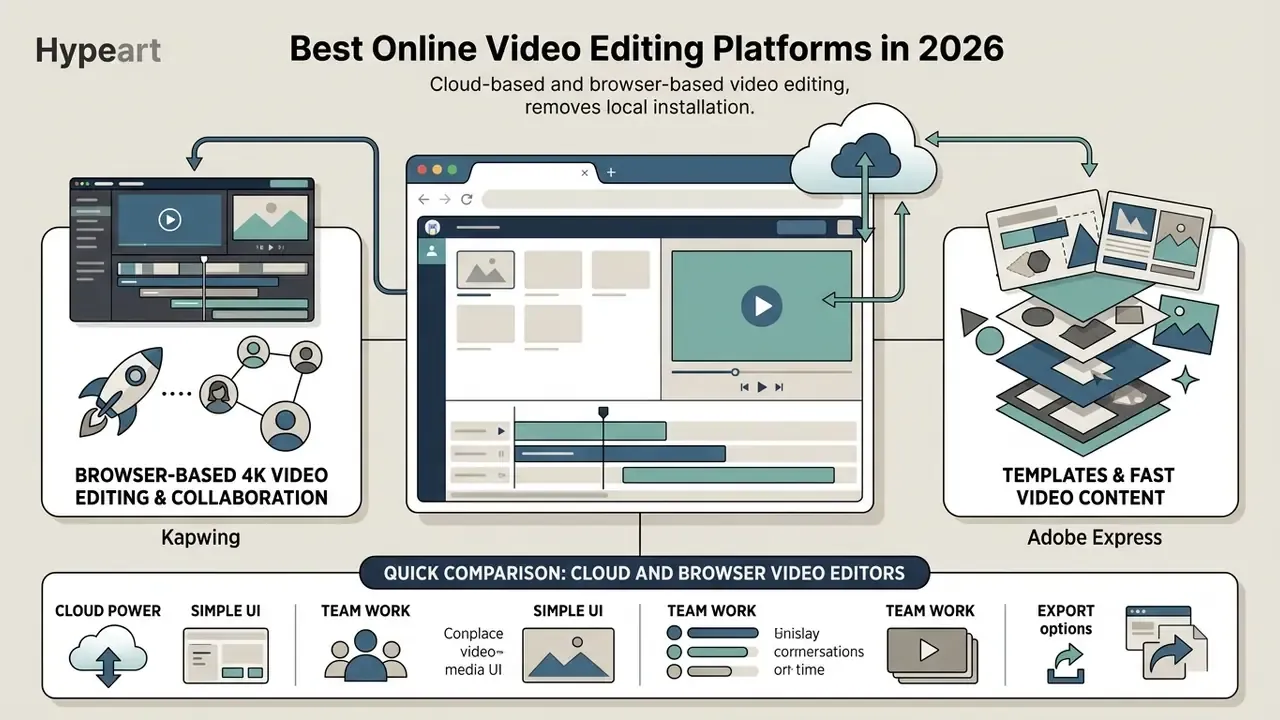
Cloud-based and browser-based video editing platforms remove local installation entirely, letting you assemble video inside Google Chrome or Microsoft Edge (Kapwing, 2025; Adobe, 2025). For a publishing-oriented walkthrough, see our practical YouTube video editor workflow guide.
Kapwing for browser-based 4K video editing and collaboration
Kapwing is a cloud-based video editor built around remote team collaboration, rapid iteration and automated captioning (Kapwing, 2025). Its browser workspace supports real time project sharing and shared cloud storage across Windows, macOS and Chromebook environments, and it behaves most reliably in Chromium-based browsers.
«The free plan is limited to 720p, videos up to 4 minutes long, 30 minutes of exports per month, and a watermark on all exports.»
The free plan allows basic timeline editing with a 250MB per-file upload limit, 720p maximum export resolution, a project duration limit of up to 4 minutes according to Kapwing's official pricing page, and a Kapwing watermark on output. Worth flagging: Kapwing's own help pages have previously stated a 1-minute export limit in one FAQ while the pricing page lists 4 minutes. Treat the pricing page as the authoritative current source, and re-check before planning a deliverable. Watermark-free 4K exports, expanded AI credits and 100GB+ of cloud storage require Kapwing Pro or Business.
Adobe Express for templates and fast video content
Adobe Express provides a web-based design and video editing environment aimed at social media graphics, presentations and quick clips (Adobe, 2025).
«All of the best free video editors should offer an intuitive interface, a broad set of editing tools, and export in high-quality formats.»
The platform packs thousands of customizable templates, generative AI tools driven by Adobe Firefly, an AI Clip Maker that turns long-form footage into captioned shorts, and automated video actions such as trimming, merging, cropping and aspect ratio conversion. The free version covers core editing features, MP4 export and standard stock media, while brand kit integration, expanded generative credits and advanced asset libraries are tied to paid Adobe Creative Cloud plans.
Quick Comparison: Cloud and Browser Video Editors
| Cloud Platform | Free Watermark Policy | Free Export Cap | Ideal Use Case |
|---|---|---|---|
| Kapwing | Watermarked on free exports | 720p (4 min max) | Collaborative team editing, subtitle auto-generation |
| Adobe Express | No watermark on standard tools | 1080p | Quick marketing clips, Firefly AI image generation |
| Canva | No watermark on standard assets | 1080p | Template-driven Instagram Stories, LinkedIn promo clips |
| Clipchamp (web) | No watermark on standard exports | 1080p | Windows-native quick edits, screen recordings, tutorials |
How to Start Editing Videos on a PC
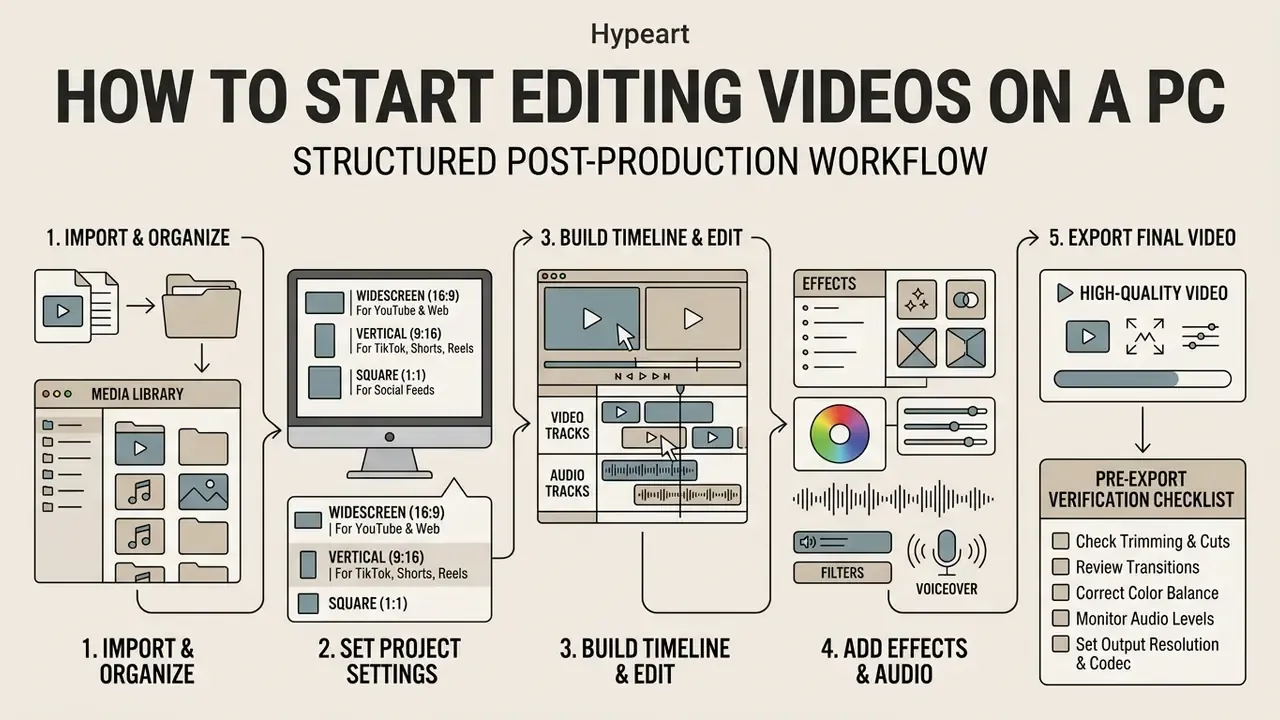
A structured post-production workflow protects project organization, media management and export quality in any PC video editing program. The sequence stays the same across editors: plan, import, organize, edit, mix, export.
Import footage, set the aspect ratio and organize video tracks
Create a dedicated project directory on your local drive for raw media files, graphics and audio stems. Import video files into the project bin, then set timeline sequence settings to match your primary distribution format:
- Standard widescreen (YouTube, web)16:9 aspect ratio, 1920×1080 or 3840×2160.
- Vertical content (TikTok, Shorts, Reels)9:16 aspect ratio, 1080×1920.
- Square or social feed (Instagram, LinkedIn)1:1 or 4:5 aspect ratio.
Split the timeline into distinct video tracks: primary dialogue or A-roll on Track 1, B-roll overlay footage on Track 2, text overlays or lower thirds on Track 3. Keep main dialogue audio on Audio Track 1, sound effects on Audio Track 2 and background music on Audio Track 3, so you retain control during the mix. Collapse the height of tracks you are not actively editing, which keeps the active layers visible on one screen.
Add effects, audio and export high-quality video
Refine the edit by trimming dead frames, applying cross dissolve transitions where a hard cut jars, and running color correction to match lighting across clips. Normalize audio so dialogue averages between -12dB and -6dB, with background music ducked below -20dB under voiceover. Those targets are working editorial norms for speech-led web video, not a published broadcast standard, so verify against the loudness specification of your delivery platform. For export, choose the MP4 container with H.264 or HEVC compression, set the target bitrate between 15–25 Mbps for 1080p HD or 45–60 Mbps for 4K Ultra HD, and match the source frame rate (23.976, 29.97 or 59.94 fps, for instance).
«For 1080p delivery, export H.264 at 15–25 Mbps; for 4K, use 45–60 Mbps while matching the source frame rate.»
If the resulting file is too heavy for email, a CMS upload limit or a client review portal, re-encode it with a dedicated best video compressor rather than dropping quality inside the export dialog.
Pre-Export Verification Checklist
Checklist0 / 8
Free vs Paid Video Editing Software: When Is an Upgrade Worth It?
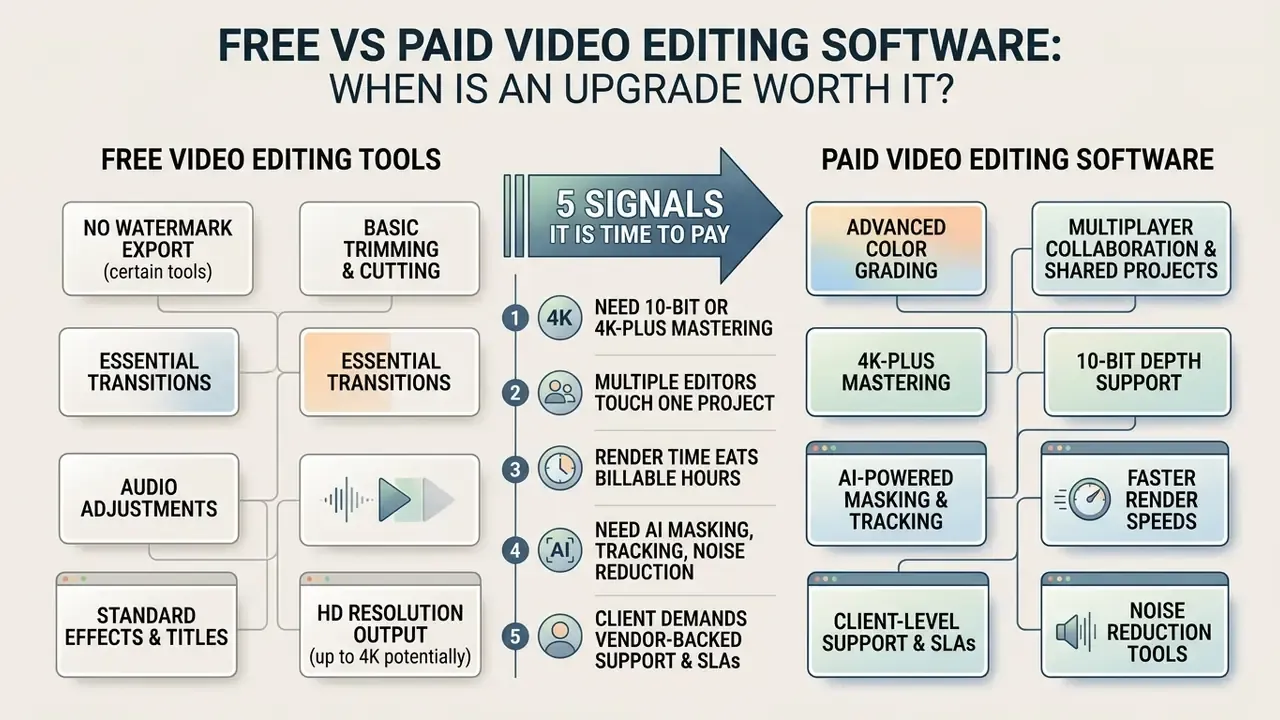
Knowing the functional boundaries of free video editing tools is what tells a creator whether an upgrade to Adobe Premiere Pro, Final Cut Pro or DaVinci Resolve Studio is actually necessary (Adobe, 2025; Apple, 2025; Blackmagic Design, 2025).
What free video editing tools can do without a paid version
Completely free video editors cover the core of mainstream content creation. DaVinci Resolve Free, Shotcut and Microsoft Clipchamp all handle multi-track timeline assembly, transitions, audio levelling, text generation and clean 1080p or 4K exports with no watermark (Blackmagic Design, 2025; Shotcut, 2025; Microsoft, 2025). For vlogs, educational tutorials and basic marketing clips, the free options are technically sufficient to deliver high quality finished video. Most creators hit a skill ceiling long before a software ceiling.
When paid video editing software makes sense
Paying becomes rational when production demands specialized camera codec support, team collaboration, high-frame-rate 10-bit processing, motion graphics depth or heavier AI automation (Blackmagic Design, 2025; Adobe, 2025).
«PCMag recommends Adobe Premiere Pro for professionals and CyberLink PowerDirector for advanced amateurs, ranking them in separate categories after extended hands-on testing.»
Concretely: DaVinci Resolve Studio adds GPU-accelerated encoding and decoding for 10-bit H.264/H.265, resolutions above 4K, temporal noise reduction and AI Magic Masking. Subscription suites such as Adobe Premiere Pro bring native After Effects integration, multi-user project locking, Productions for large teams and enterprise cloud workflows (Adobe, 2025). Pricing models differ sharply. Premiere Pro runs from roughly $22.99 per month, Final Cut Pro on Mac is a one-time Mac App Store purchase, and DaVinci Resolve Studio is a single $295 perpetual licence.
5 Signals It Is Time to Pay
- You need 10-bit or 4K-plus mastering.Resolve Free caps exports at 8-bit UHD 60p and blocks hardware encoding of H.264/H.265.
- Multiple editors touch one project.Shared bins, sequence locking and multi-user collaboration exist only in paid tiers.
- Render time is eating billable hours.GPU-accelerated encoding and temporal noise reduction cut export times materially on deadline work.
- You need AI masking, tracking or noise reductionat broadcast quality rather than social-feed quality.
- A client demands vendor-backed support and SLAs.Free and open-source tools give you community forums, not contractual guarantees.
FAQs About Free Video Editing Software for PC
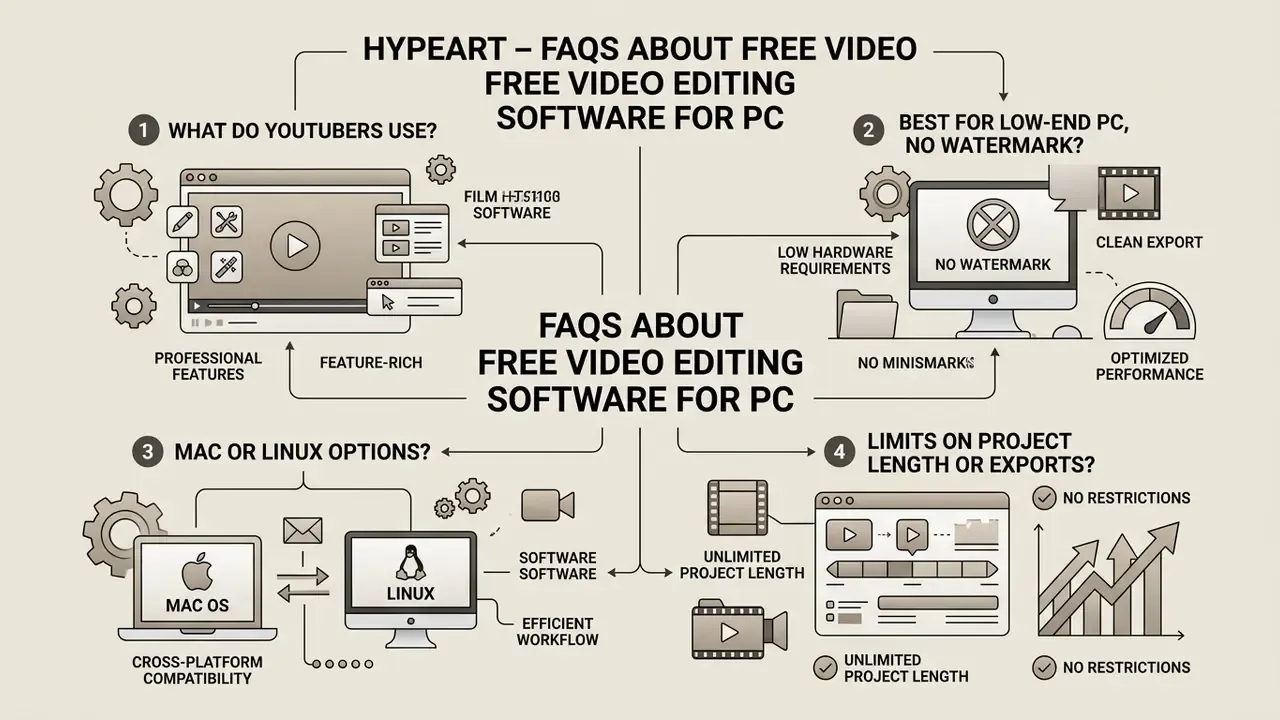
Can I use free video editing software for commercial purposes?
The same licensing logic applies across generative tooling; the principles in our guide to the commercial use of AI image generators transfer directly to AI-generated video assets and voiceovers. For the wider policy picture, explore the hub.
What video editing software do YouTubers use?
Professional and independent YouTubers lean heavily on DaVinci Resolve, both Free and Studio, and on Adobe Premiere Pro for long-form channel content.
«DaVinci Resolve, Premiere Pro, Clipchamp and Shotcut appear across the core recommendation sets for YouTube channels at different production levels.»
An earlier revision of this answer cited a single vendor survey; we replaced it with the editorially reviewed sources above. Published, methodologically transparent usage shares for individual editors remain scarce, and small creator samples should never be read as market share. What is defensible: these NLEs supply the multi track control, color grading accuracy and audio processing needed for consistent 4K uploads. For short-form output, creators frequently reach for CapCut Desktop thanks to automated captions and rapid social export templates (CapCut, 2025). Those experimenting with synthetic footage often supplement the timeline using a free AI video generator for openers and cutaways.
What is the best free video editor for a low-end PC without a watermark?
Shotcut with proxy editing enabled is the strongest answer. It is fully free under GPLv3, never applies a watermark, and edits 540p proxies while exporting from the original 4K media. Microsoft Clipchamp is the easiest alternative on 8GB dual-core laptops, exporting watermark-free at 1080p, and VSDC runs on machines with as little as 2GB of RAM.
Which free video editor is best for Mac or Linux rather than Windows?
On macOS, Apple iMovie is free, pre-installed, supports 4K and includes image stabilization, though it is limited to 16:9 and a single video track. On Linux, Kdenlive and Shotcut are the most complete free options: multi-track timelines, proxy editing and FFmpeg-based format coverage. DaVinci Resolve also ships a Linux build, but it expects 32GB of RAM on that platform.
Do free video editors limit project length or the number of exports?
Fully free desktop editors, meaning DaVinci Resolve, Shotcut, OpenShot and Kdenlive, impose no project-length or export-count limits. Cloud platforms do. Kapwing's free tier caps uploads at 250MB per file, exports at 720p and monthly export minutes, and applies a watermark. Clipchamp's free plan allows unlimited watermark-free exports but tops out at 1080p, while online screen recordings are capped at 30 minutes.
Looking for more side-by-side reviews of creative tools? Compare the full library of editor, generator and workflow guides.