That second risk is why tool selection no longer sits only with the creative lead. Most modern editors (CapCut, VEED, Canva, Adobe Premiere Pro) now ship AI features that transcribe, re-voice, re-frame, or generate footage. Some process media locally on your GPU. Others send it to a vendor's cloud. When marketing, HR, or support adopts a browser editor on its own, the organisation inherits an unreviewed data pipeline, usually described as Shadow AI.
Read that as a checklist rather than a slogan. A video editor is a pipeline with inputs (raw footage, scripts, brand assets), a processing location (local GPU or vendor cloud), and outputs (published media plus derived transcripts and AI-generated assets). This guide evaluates every tool on both axes: creative capability and controlled workflow.
Best video editors: quick picks by task
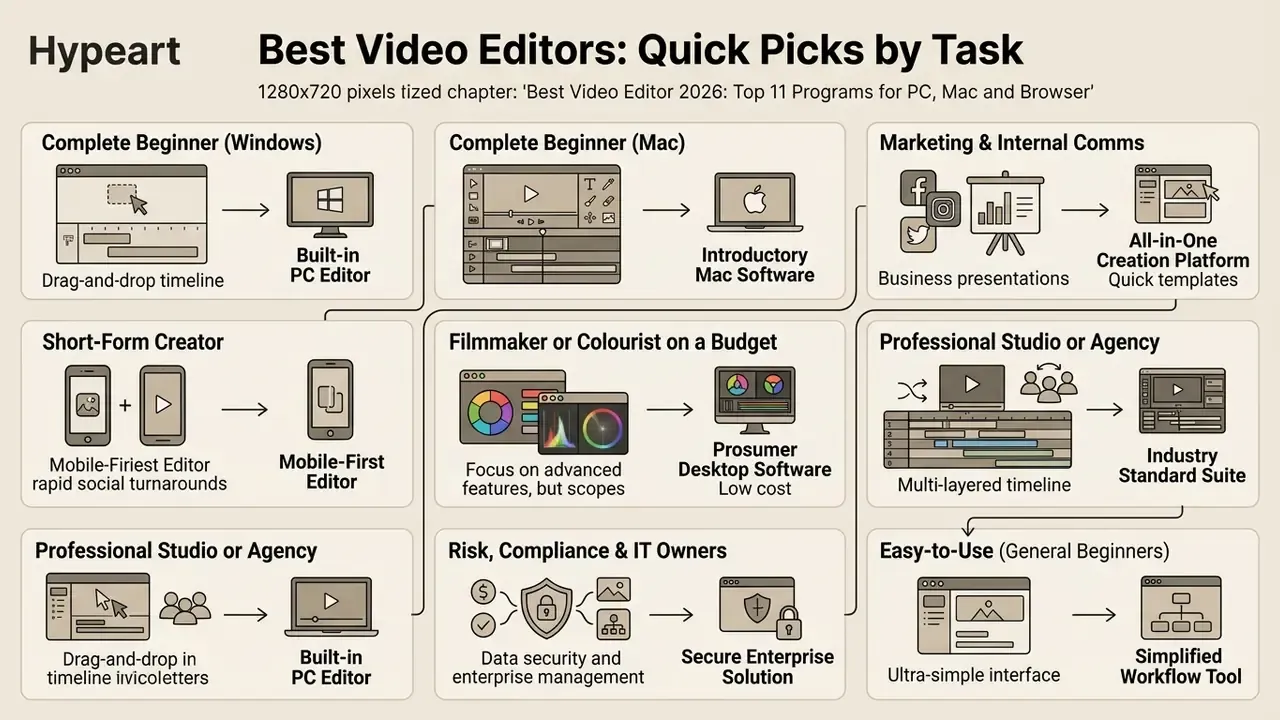
The best video editor depends on whether your workflow prioritises rapid social turnarounds, accessible browser-based editing, or high-end cinematic colour grading. Beginners benefit from automated drag-and-drop tools. Professional editors need multitrack timelines, motion tracking, and advanced colour controls. There is no single best platform to edit videos on, only the best fit for your footage, your hardware, and your approval rules.
To make an informed selection based on user level and platform constraints, see the overview of top-tier editing platforms.
Quick picks by role and scenario
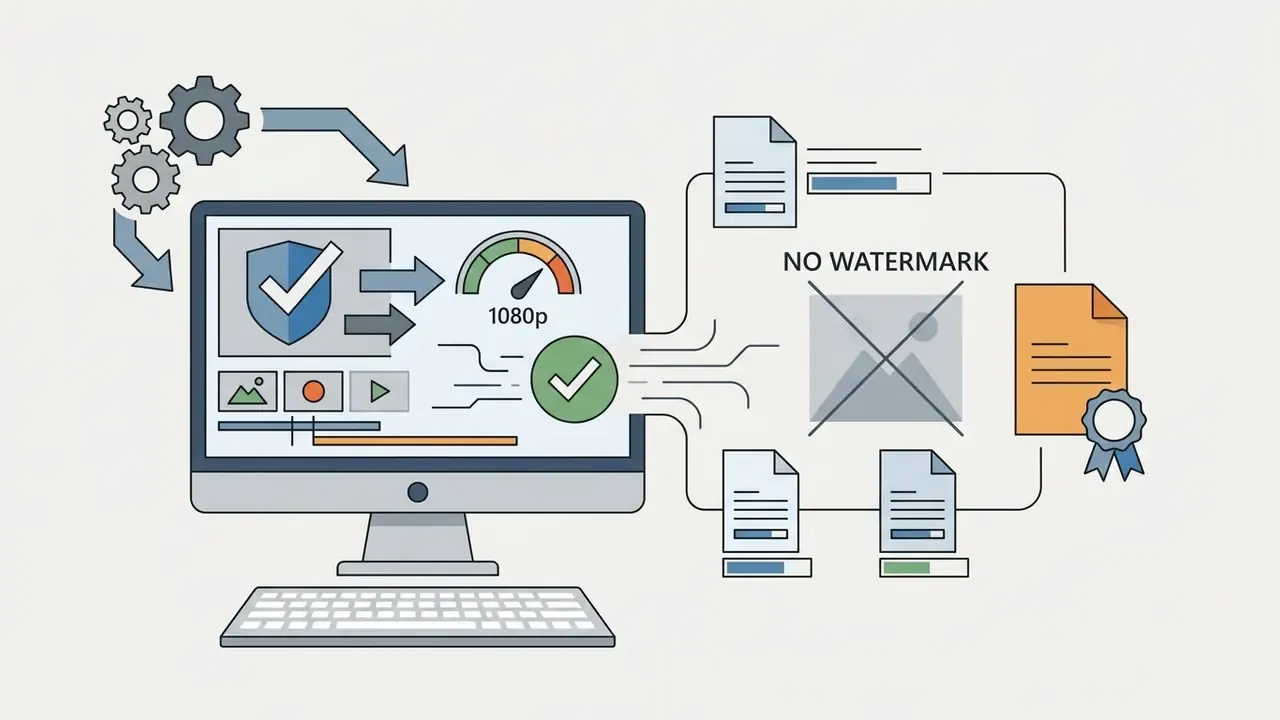
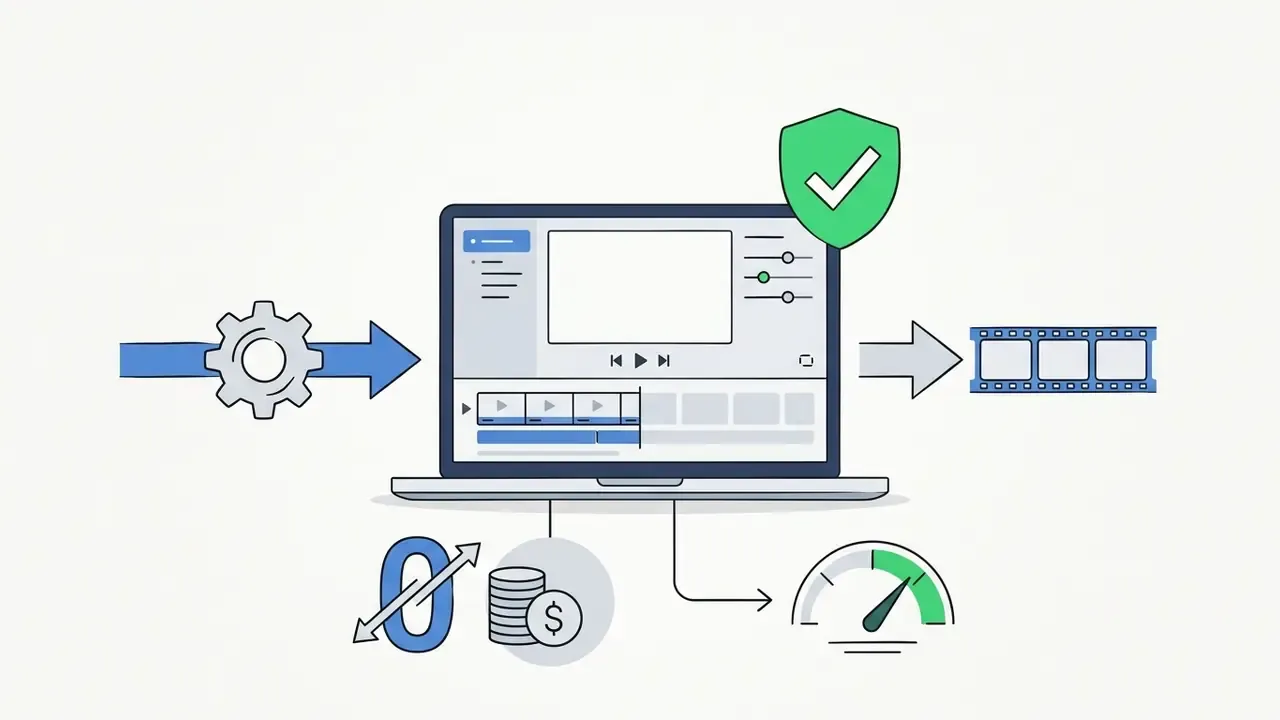
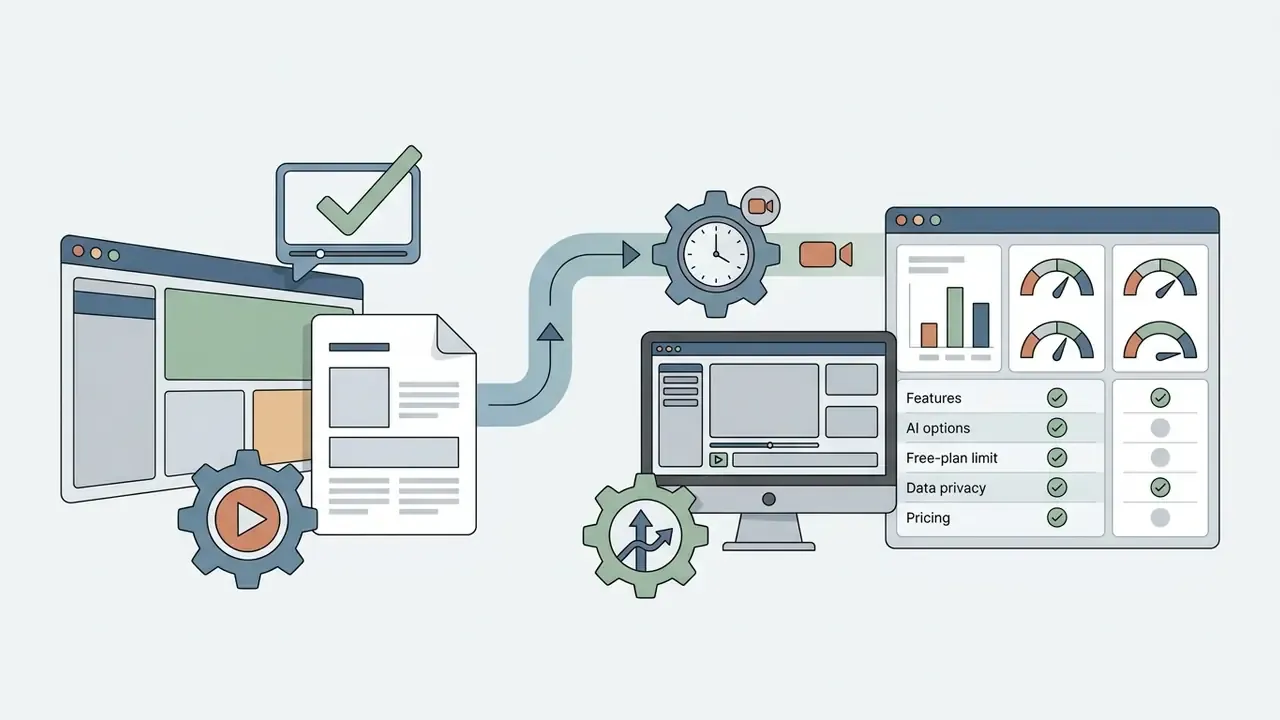
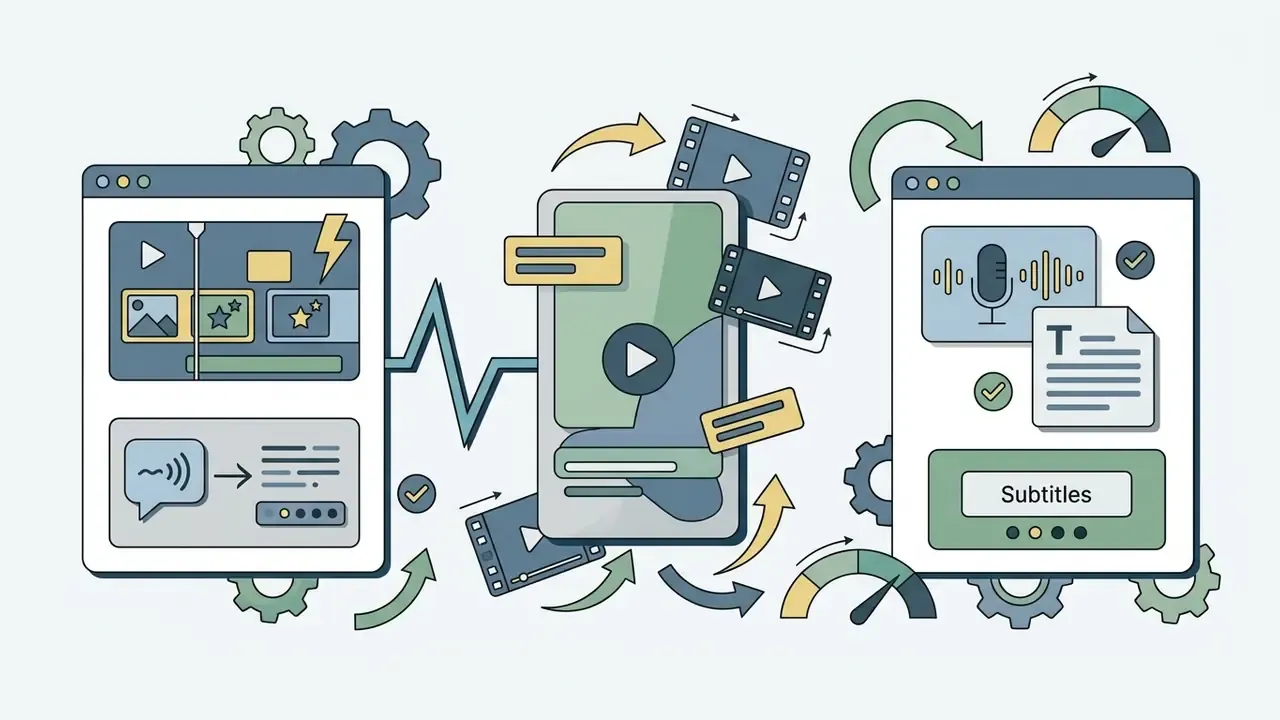

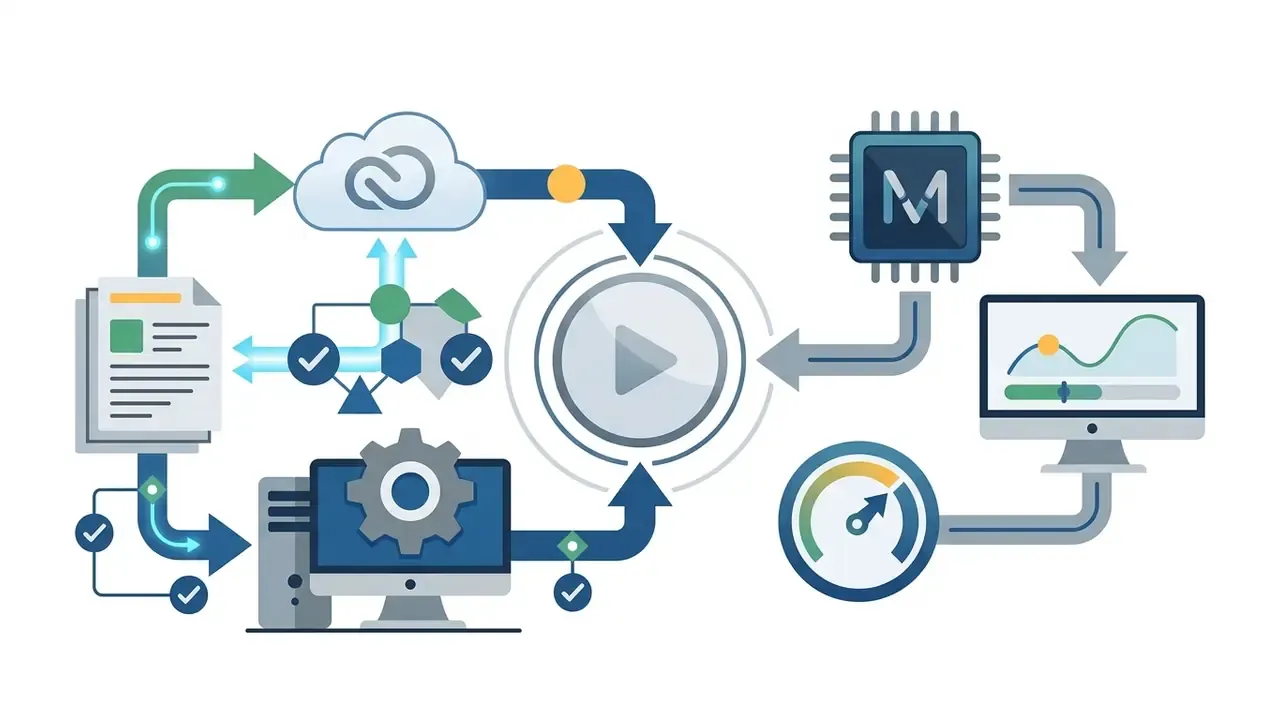

Table 1. Comparative overview of video editors by target scenario, platform and processing model (2026 data)
| Software / Service | Supported OS / Platforms | Difficulty level | Free version / trial | Key features | Processing model | Enterprise controls | Recommended primary scenario |
|---|---|---|---|---|---|---|---|
| CyberLink PowerDirector | Windows 10/11 (64-bit) | Beginner to intermediate | 30-day trial with limits | AI motion tracking, chroma key, 360° editing, HDR support | Local CPU/GPU; some AI plugins downloaded on demand | Volume licensing; no full IdP/SSO suite | Desktop Windows editing with automated AI assistance |
| Wondershare Filmora | Windows, macOS | Beginner friendly | Free trial (watermarked export) | 3,000+ templates, drag-and-drop effects, Instant Mode | Local rendering; cloud storage and AI credits optional | Multi-device licence (up to 6 devices on cross-platform plan) | Quick marketing clips and beginner video projects |
| Adobe Premiere Elements | Windows 11, macOS | Consumer / beginner | 3-year non-renewing licence | Guided Edits, auto-reframing, simplified trimming | Local | Consumer licence; not designed for managed fleets | Casual family and basic organisational video creation |
| Microsoft Clipchamp | Windows 11 app, web (Chrome/Edge) | Beginner | Free tier (1080p, no watermark) | Screen recording, auto-captions, cloud integration | Hybrid: browser or app editing with Microsoft cloud storage | Microsoft 365 tenant identity, admin policies | Fast browser-based clips and internal communications |
| Adobe Premiere Pro | Windows 11 v24H2, macOS | Professional | 7-day free trial | Multitrack timeline, Lumetri Color, Generative Extend AI | Local editing; generative features call Adobe cloud | Creative Cloud for teams and enterprise, SSO, admin console | Industry-standard professional video editing |
| DaVinci Resolve | Windows, macOS, Linux | Professional / advanced | Comprehensive free version (8-bit, up to UHD 60 fps) | Fairlight audio, node-based colour grading, Fusion VFX | Fully local; optional self-hosted project server | Project server / Blackmagic Cloud, on-prem friendly | Advanced colour correction and high-end post-production |
| Final Cut Pro | macOS 15.6+ (plus iPad version) | Professional | 90-day trial | Magnetic Timeline, Apple silicon optimisation, FxPlug | Fully local | Apple Business Manager / VPP licensing | High-performance editing optimised for Mac users |
| Apple iMovie | macOS, iOS/iPadOS | Beginner | Completely free, no watermark | Stabilisation, basic colour, titles, 4K export, iCloud sync | Local, with iCloud media library | Consumer app; managed via MDM only | Family videos, vlogs and first steps in editing on Mac |
| Canva | Web, iOS, Android, desktop | Beginner | Free plan available | Brand kits, short-form templates, basic AI generators | Cloud | Canva for Teams/Enterprise, SSO, brand controls | Social media marketing graphics and short clips |
| VEED.IO | Web browser | Beginner to intermediate | Free tier (720p, watermark, 10-minute cap) | Text-based editing, auto-subtitles, AI dubbing, Eye Contact Correction | Cloud | Team workspaces and enterprise plans | Browser-based subtitle generation and video clipping |
| CapCut | Windows, macOS, web, iOS, Android | Beginner to intermediate | Free plan (desktop exports up to 8K, incl. ProRes) | Auto-captions, vertical templates, cloud sync, text-based editing | Hybrid: local desktop rendering, cloud AI and sync | Consumer-first; limited admin governance | TikTok, Instagram Reels, and YouTube Shorts production |
Read the table twice: once for features, once for the processing column. The second reading is the one that decides what your security team will sign off.
Best easy-to-use video editor for beginners
An intuitive, easy-to-use video editor minimises setup friction: direct timeline controls, pre-built transitions, guided export profiles. Tools like Wondershare Filmora and Microsoft Clipchamp let non-technical operators import raw media files, trim unwanted segments, and publish 1080p MP4 files without touching a render setting. If you want the best easy video editor for a first project, pick the one already installed on your machine and stop researching.
«Systems driven by text commands and sketches let people edit video without mastering complex timelines, and participants relied on AI progressively more as tasks advanced.»
That research validates what beginner tools already do commercially: replace timeline literacy with natural-language and template-driven interaction. Before committing budget, compare free video editing programs side by side, because most first projects (a trimmed vlog, a captioned product clip, a screen-recorded tutorial) never exceed free-tier capability.
For teams testing simple web-based applications to edit videos, review options in the best ai video generator apps 2025 collection to evaluate template-driven workflows.
Apple iMovie: the best free video editor for Mac owners
Apple iMovie is the default free video editor pre-installed on macOS, iOS, and iPadOS. It remains the fastest way for a Mac owner to find out whether they enjoy editing at all: import from the iCloud Photo Library, drag clips onto a storyboard, add titles, record a voiceover, export 4K. No watermark, no subscription.
- Pros completely free without functional restrictions; pre-installed on Apple devices; built-in image stabilisation (rare outside mid-range paid editors); preset EQ effects for voiceovers; basic but effective colour grading; seamless iCloud and Photos integration; projects can be handed off to Final Cut Pro later.
- Cons only one video track and a couple of audio tracks, which rules out layered composites, picture-in-picture stacks, and multi-cam assembly; no chroma key control comparable to paid tools; no Windows version; limited aspect-ratio flexibility for vertical-first social formats.
The single-track limit is the real decision point. Holiday videos, school projects, interview cutdowns, and simple YouTube uploads fit comfortably. The moment a project needs overlays, green screen, or three camera angles in sync, the upgrade path is DaVinci Resolve (free) or Final Cut Pro.
Best professional editor for complex projects
Professional video editing platforms provide multitrack timeline management, advanced colour grading tools, precise audio mixing, and sub-frame precision. Applications such as Adobe Premiere Pro and DaVinci Resolve let editors handle multi-camera setups, process RAW camera footage, and manage complex keyframe animations across extensive video editors for professional post-production workflows.
A typical enterprise migration looks like this: a corporate communications group moves from a single-track consumer tool to a dedicated professional NLE, configures a multi-track editing timeline, applies primary colour-correction wheels, and standardises audio normalisation across a batch of project files. The benefit is consistency and reusability rather than one headline number, which is exactly where published measurement helps.
«An automated system assembled a 2-minute news clip from 2 hours of raw footage in under 5 minutes on a single GPU; viewers rated results 4.13/6 versus 4.58 for manual edits.»
The practical reading: AI-assisted assembly inside professional pipelines delivers near-human composition quality at a fraction of the turnaround time. Decisive for news, earnings communications, and time-sensitive campaign media. Final creative and compliance review still stays human.
Key AI features in modern video editors (2025 to 2026)
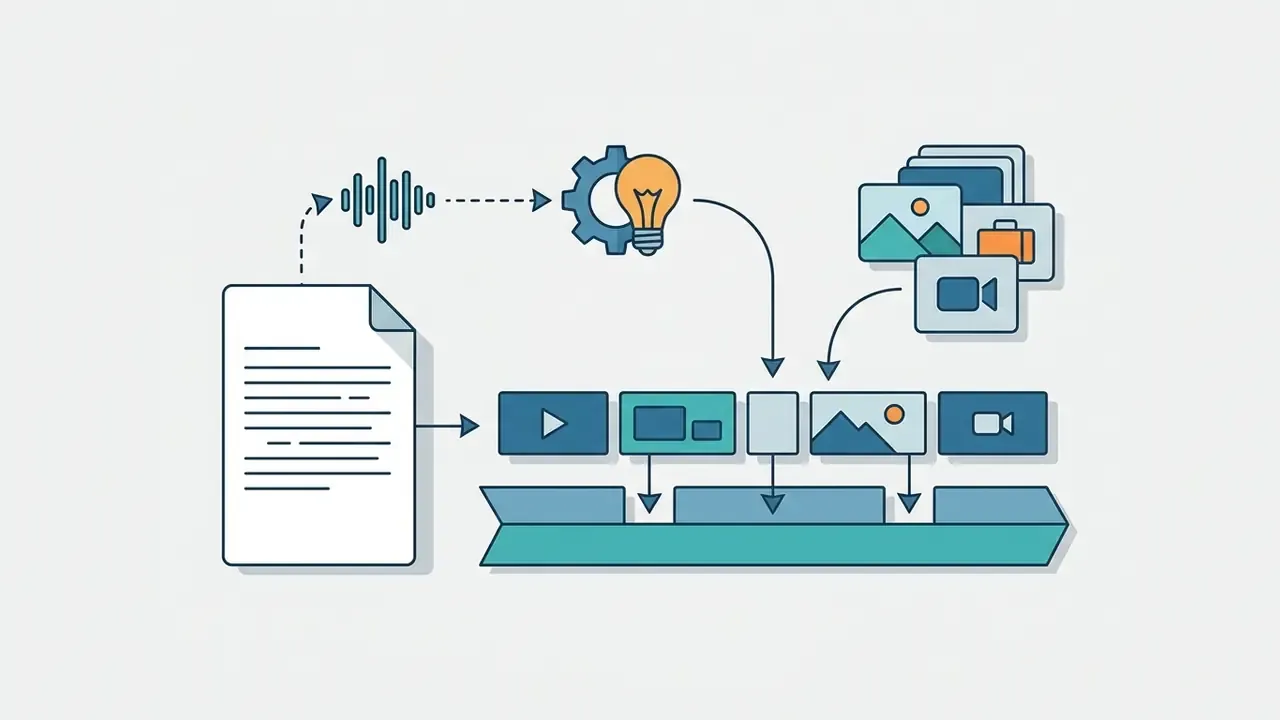
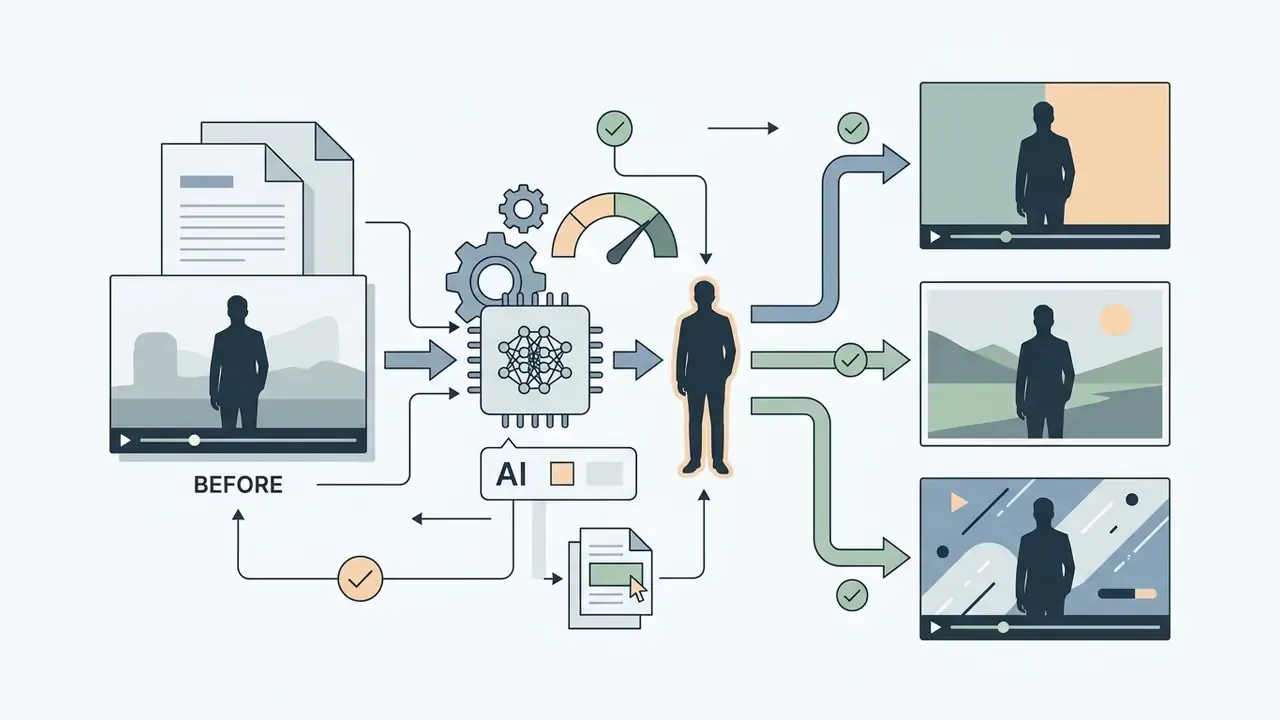
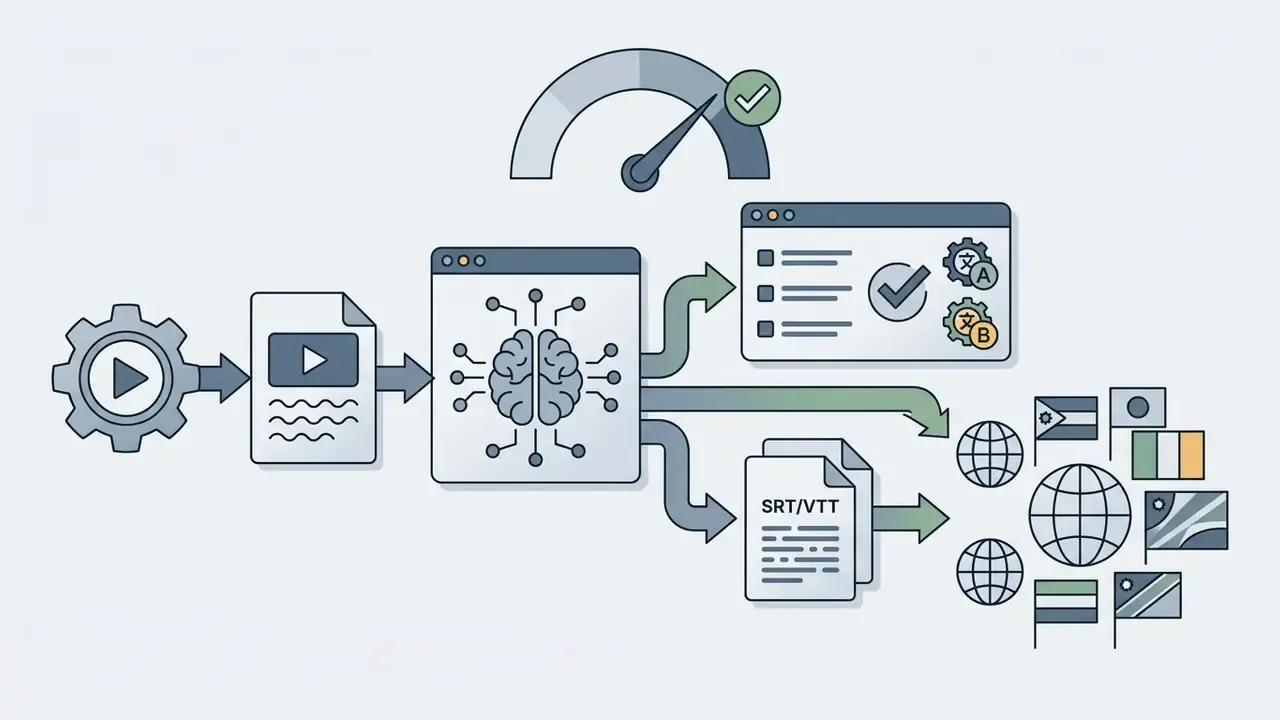
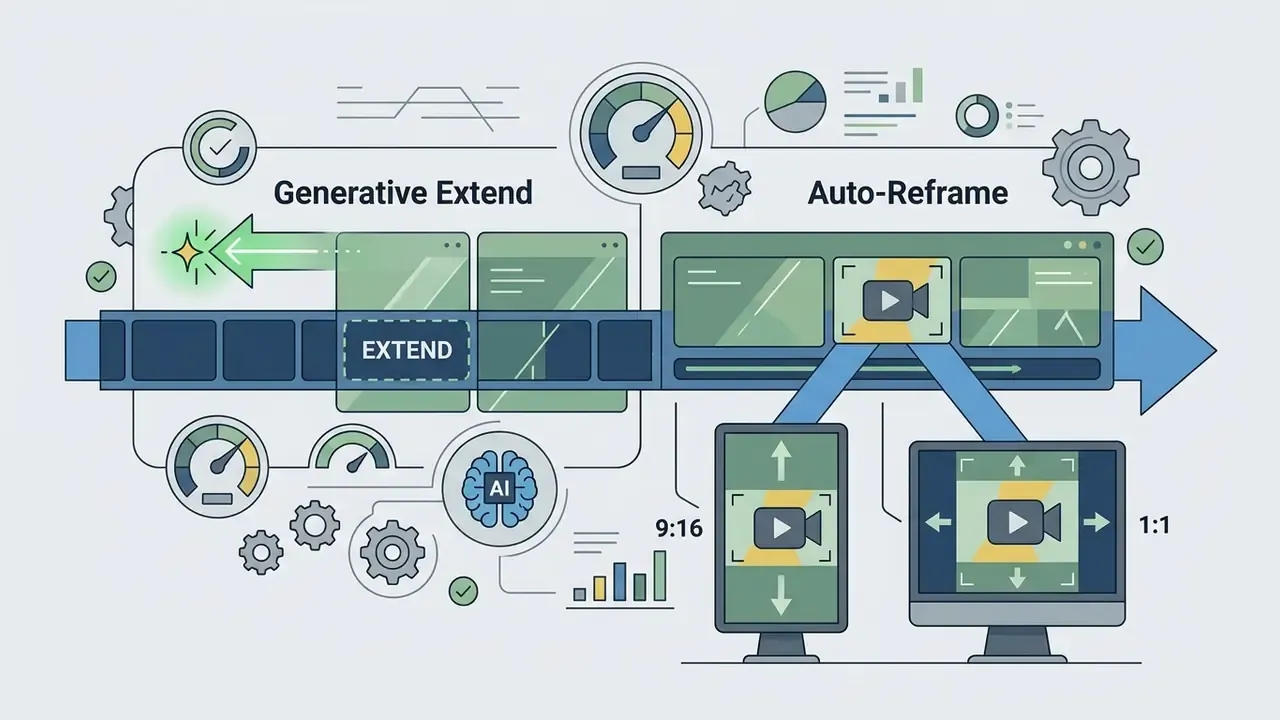
AI in video editing has moved from marketing copy to measurable time savings. These are the functions worth testing during a trial, because they replace the slowest manual steps in social, training, and podcast production.
Governance note: these eight features differ sharply in where processing happens. Local AI plugins (PowerDirector, Resolve Studio Neural Engine, Final Cut Pro) keep footage on the workstation. Cloud AI (VEED, Canva, CapCut Web, Firefly-powered Adobe features) uploads it. That distinction, not feature count, should drive approval for confidential material.


How to choose the best video editing software
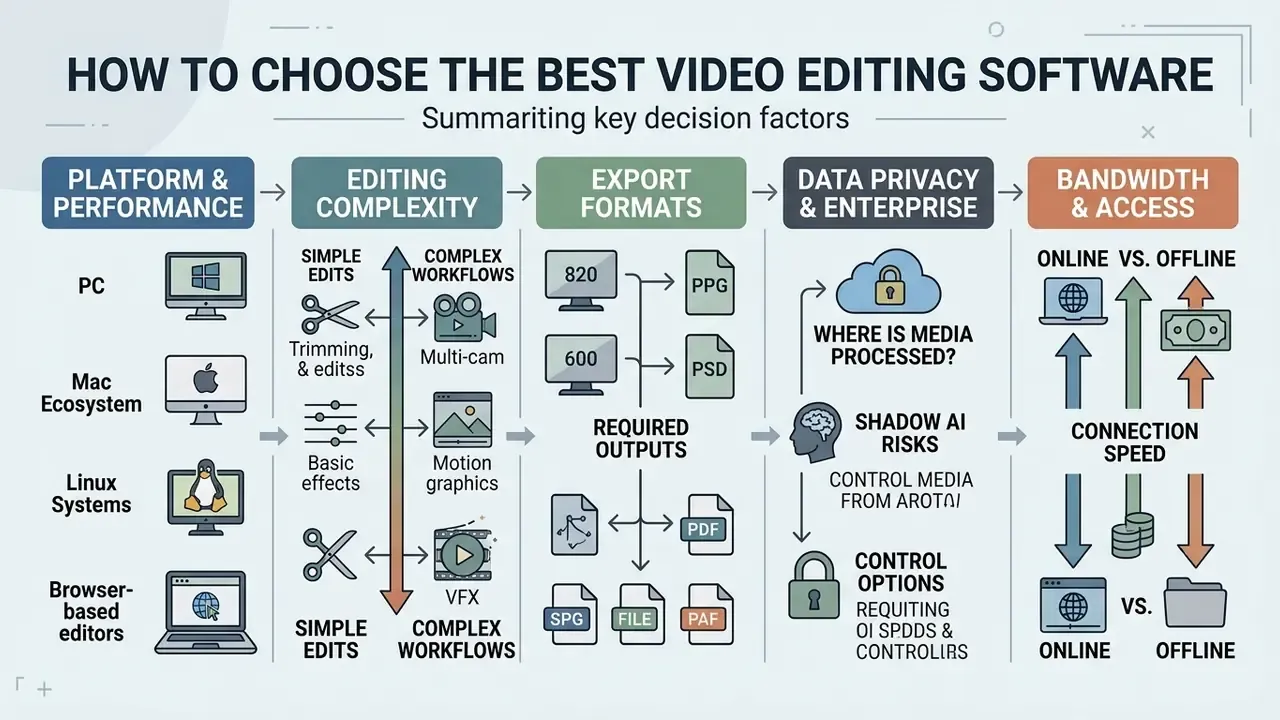
Selecting the best video editing software means analysing hardware constraints, editing complexity, required export formats, data-handling policy, and available bandwidth. Teams must decide whether desktop-installed applications or cloud-based web tools fit their operational environment, and whether both can coexist under one policy.
Platform and performance: PC, Mac, Linux or browser
Hardware dictates editing stability, rendering speed, and format playback. Desktop applications running locally on Windows or macOS use GPU acceleration and system RAM. Browser-based editors rely on external cloud processing and remote servers. Browser workflows also overlap with text-to-video AI tools, which run entirely server-side.
- Windows PC demands dedicated NVIDIA or AMD graphics hardware, AVX2 CPU support, and a minimum of 16 GB RAM for smooth 4K editing (32 GB and above for multi-layer 4K+ timelines). This is the baseline for any advanced pc video editor claim.
- Mac ecosystem leverages Apple silicon Unified Memory Architecture for real-time playback without heavy thermal throttling; Apple documents full-screen real-time preview from SD up to larger-than-4K frame sizes.
- Linux systems supported by professional platforms like DaVinci Resolve and open-source NLEs, requiring explicit FFmpeg codec configuration. Note that H.264 support is more constrained on Linux, where WebM/VP8 is often the safer delivery path.
- Browser-based editors shift computation online and need a stable internet connection of at least 25 Mbps for fluid timeline scrubbing; cloud-native suites and remote workstation services typically recommend 20 to 35 Mbps or more for high-resolution media and multi-monitor setups.
Cross platform matters more than it used to. A Premiere Pro or Resolve project moving between a Windows tower and a MacBook keeps one set of habits, one set of shortcuts, one render preset library.
Core and advanced features for your editing workflow
Core editing features cover trimming, multi-track audio layering, and standard text titles. Advanced workflows require secondary colour wheels, green screen chroma keying, screen recording, motion tracking, and automated AI clip generation.
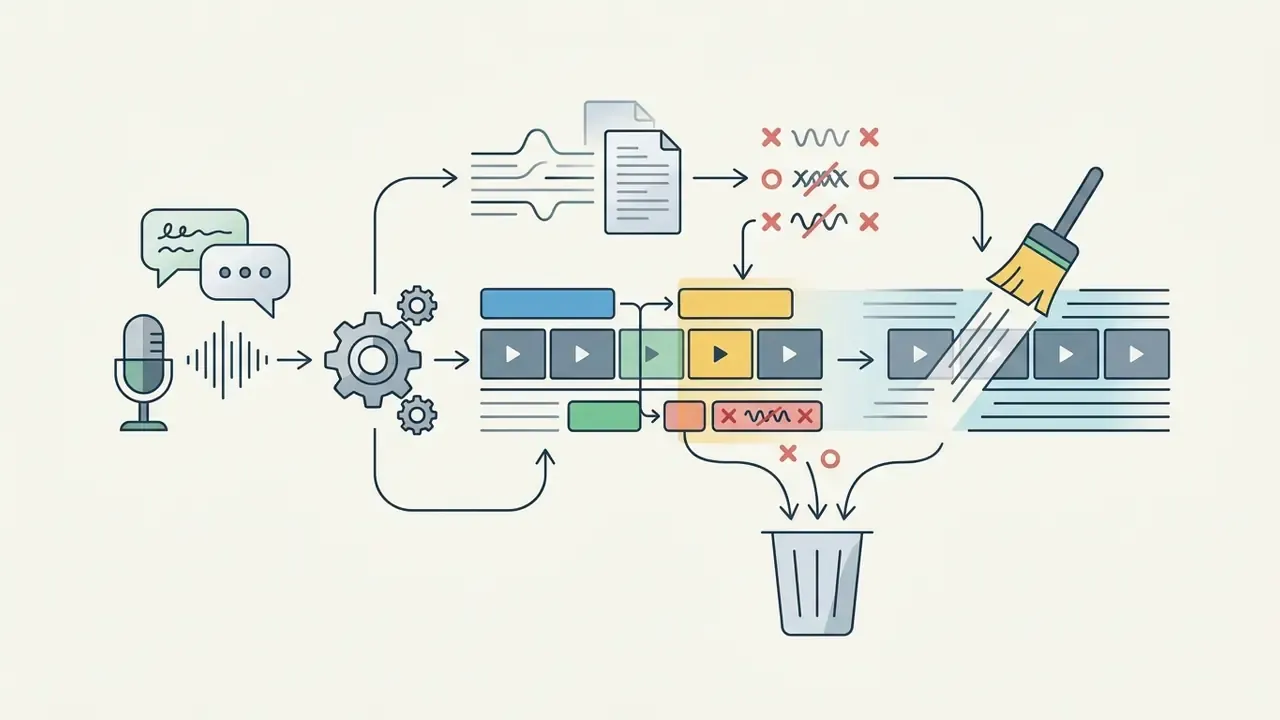
Research from the ACM Digital Library on the AVscript accessibility system shows that text-based script interfaces let users navigate long-form media non-linearly, locating specific errors and cutting footage far faster than timeline scrubbing.
«Participants used the script structure for non-linear navigation: jumping to an error, then back a few lines, combining audio and visual context to choose the exact cut point.»
Feature-to-purpose mapping worth checking against your own briefs:
- Chroma key / green screen: replace a solid-colour background and composite the subject over another layer.
- Screen recording: capture software demos, onboarding walkthroughs, and support explainers as a production input.
- Audio editing and mixing: balance dialogue, music, and effects across multiple tracks; professional suites add dedicated mastering pages (Fairlight, Audition round-trip).
- Motion tracking: bind text, graphics, or blurs to a moving object so they stay aligned frame by frame.
- Multi-cam sync: align several angles by timecode or audio waveform for interviews and events.
Data privacy, Shadow AI and enterprise controls
This is the section most consumer roundups skip, and the one that decides whether a tool can actually be approved. Before adopting any AI-enabled editor, document four answers.
- Where is media processed?Local-only tools (Final Cut Pro, iMovie, DaVinci Resolve on a workstation, PowerDirector with downloaded AI components) never transmit footage. Browser editors (VEED, Canva, CapCut Web, Clipchamp) upload it by design. Adobe Premiere Pro is hybrid: the timeline is local, while generative features call cloud services.
- Is uploaded content used to train public models?A vendor-policy question, not a feature question, and policies change. Verify current terms and any opt-out controls on the vendor's trust or privacy page before uploading unreleased product footage, customer recordings, or internal briefings.
- What identity and administration controls exist?Enterprise tiers of Adobe, Canva, and Microsoft support tenant identity, SSO, and admin policy. Consumer apps such as CapCut and iMovie are managed only through device-level MDM.
- Which artefacts are created beyond the video?Transcripts, translations, cloned voices, and AI-generated B-roll are new data objects with their own retention and rights questions, especially voice cloning of employees or executives.
A workable control pattern for most organisations: confidential and pre-release material stays in locally processed desktop NLEs on managed hardware; already-public marketing and social assets may be edited in approved cloud tools under a team or enterprise licence; personal accounts and unreviewed free web editors are blocked for corporate footage. Publish that rule next to a short list of approved tools. Shadow AI mostly grows where no approved option exists.
Pricing, free plans and free version limits
Pricing structures vary between recurring monthly subscriptions, annual plans, and one-time perpetual licences. Free tiers frequently impose constraints: mandatory export watermarks, 720p or 1080p resolution ceilings, duration caps (VEED limits free projects to 10 minutes), 8-bit-only pipelines, and restricted stock media. For a deeper look at how vendors gate output, see free video editors and their export restrictions.
A realistic total cost of ownership (TCO) model
TCO (per editor, per year) equals:
- licence or subscription cost, per month or per year;
- plus amortised workstation cost (GPU, 32 GB RAM, NVMe) divided by refresh years;
- plus storage and archive cost (local NAS or cloud tier);
- plus bandwidth cost for cloud editing and uploads;
- plus training time multiplied by internal hourly rate;
- plus governance overhead (vendor review, DPA, periodic re-approval).
The model matters because the two architectures hide costs in different places. Desktop NLEs concentrate cost in hardware and training: a US$295 one-time DaVinci Resolve Studio licence can sit on top of a multi-thousand-dollar workstation. Cloud editors concentrate cost in per-seat subscriptions, bandwidth, and vendor-review effort, while keeping the endpoint cheap. Teams that only compare sticker prices routinely mis-forecast by a factor of two or more. Sometimes worse.
When evaluating team software costs, refer to the AI Media Pricing Guides for detailed breakdowns of subscription models.
How we tested
Best desktop video editors for Windows and PC
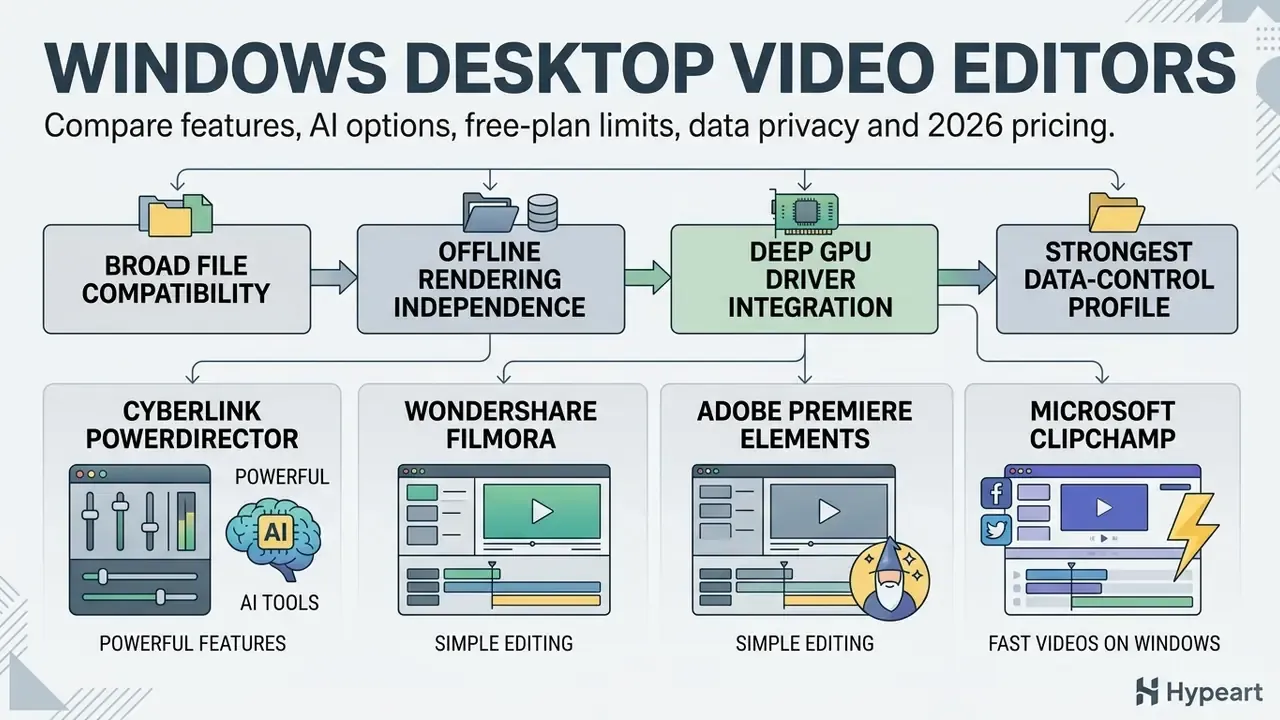
Desktop editors on Windows offer broad file compatibility, offline rendering independence, deep GPU driver integration, and the strongest data-control profile, because media never leaves the workstation. Anyone hunting the best pc video editor should first confirm that the machine meets minimum memory and processing baselines. A powerful editor on a thin laptop is just a slower editor.
CyberLink PowerDirector: powerful features and AI tools
CyberLink PowerDirector balances consumer accessibility with advanced features: AI-driven motion tracking, chroma keying, and 360-degree video editing. The platform needs 64-bit Windows 10 or 11 and an AVX2-compatible CPU to run its integrated AI plugins effectively. CyberLink lists 8 GB RAM as the minimum, 16 GB as recommended, and 2 GB VRAM or more for AI plugins, with NPU support on Intel Core Ultra and Snapdragon X Elite hardware.
Commercial licence options include the annual PowerDirector 365 subscription at US$59.99 per year (or US$24.99 monthly) and a one-time perpetual licence at US$139.99 for the 2026 release. Recent updates added native hardware decoding for HEVC 10-bit 4:2:2 files, improving timeline playback stability on modern workstations. Import and export coverage spans MP4 (H.264/H.265), MKV, WMV, MPEG-2, ProRes, MXF, HEIC, and camera RAW stills.
AI motion tracking is the standout practical feature: text, stickers, or blurs follow a moving object frame by frame, with a choice between higher-accuracy and faster tracking modes. The chroma-key tool has been simplified to Color Range and Denoise controls, with support for keying multiple colours at once.
Microsoft Clipchamp for fast videos on Windows
Microsoft Clipchamp ships pre-installed on Windows 11 (and installs from the Microsoft Store on Windows 10), offering free browser- or app-based editing without export watermarks at 1080p, with no cap on the number of exports. Free users receive 5 GB of cloud storage integration plus built-in screen and webcam recording, and AI autocaptions that detect speech, generate editable subtitles in one click, and export a transcript as .SRT.
Clipchamp Premium unlocks 4K UHD export, advanced stock media, filters, and brand kits. It is sold standalone or bundled with eligible Microsoft 365 personal, family, and business plans, which also means Clipchamp inherits tenant identity and admin policy. That makes it the easiest cloud-adjacent editor to approve inside a Microsoft-managed estate. Templates, however, are limited to consumer Microsoft 365 and standalone Clipchamp plans rather than commercial or education tenants.
Best programs for professional video editing
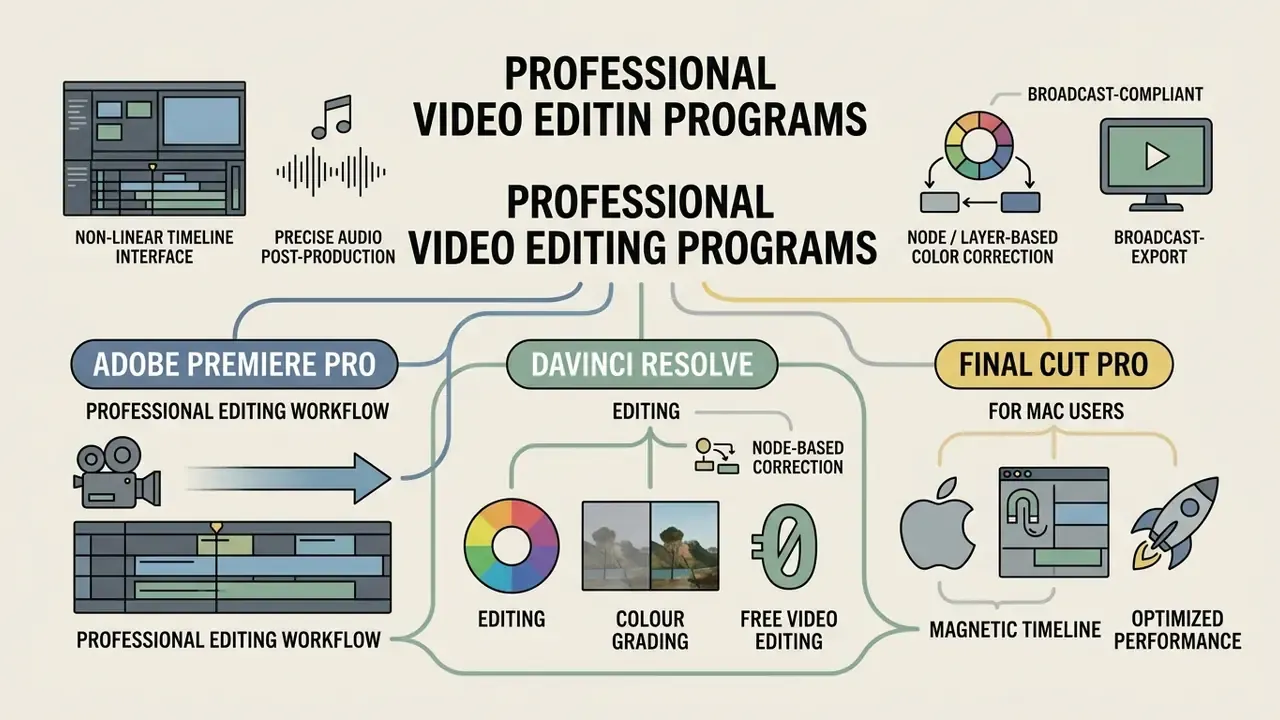
Professional video editing software provides non-linear timeline editing, precise audio post-production, node- or layer-based colour correction, and broadcast-compliant export controls. These are the best programs to edit videos when the deliverable carries a client contract or a regulator's eyes on it. They anchor film, television, and enterprise media departments alike.
To analyse top tools across production categories, browse the hub for side-by-side feature breakdowns.
Adobe Premiere Pro for a professional editing workflow
Adobe Premiere Pro remains the industry-standard best software video editor for mixed teams: multi-track video editing (up to 32 audio channels), Lumetri Color with curves, wheels, HSL secondary correction and LUT support, precise audio mixing with an Audition multitrack round-trip, and deep Creative Cloud Libraries integration. It requires Intel 8th Gen or newer processors with AVX2 support (or Apple silicon) and runs on subscription from US$22.99 per month for the single app, with team licensing at a higher per-seat rate. Mask tracking happens in-app; advanced tracking is offloaded to After Effects via Dynamic Link.
Recent updates introduced generative AI tools such as Generative Extend alongside Firefly-powered text-based video editing, plus Auto Color driven by Adobe's machine-learning models. Updated: for shared-storage collaboration, Adobe's published system requirements recommend 1 Gigabit Ethernet for HD workflows and 10 Gigabit Ethernet for 4K shared-network editing. Budget network throughput as part of the workstation specification rather than treating it as an afterthought (see Adobe's Premiere Pro system requirements: https://helpx.adobe.com/premiere-pro/system-requirements.html).
«Professionals judge AI features not only on technical capability, but on compatibility with existing workflows and algorithmic transparency.»
DaVinci Resolve for editing, colour grading and free video editing
DaVinci Resolve by Blackmagic Design combines professional editing, Fusion visual effects, Fairlight audio mixing, and industry-leading colour correction in one application. The base version is completely free, with no watermarks or time limits, supporting exports up to Ultra HD 3840×2160 at 60 frames per second with 8-bit colour depth and a single processing GPU. That 8-bit ceiling is the limitation to internalise: fine for social and web delivery, restrictive for heavy grading of log footage or HDR deliverables, where banding shows up fast.
The paid DaVinci Resolve Studio version costs a one-time US$295 and unlocks multi-GPU acceleration, resolutions beyond 4K (up to 120 fps at very large frame sizes), 10-bit and professional format support, hardware-accelerated H.264/H.265 encode and decode, and Neural Engine AI tools such as Magic Mask, Depth Map, and Super Scale. Minimum GPU capability is OpenCL 1.2 or CUDA 12 with at least 2 GB VRAM on Windows and Linux, and a Metal-capable GPU on macOS. Version 20.3 introduced a redesigned interface that makes stabilisation and keyframed digital pans or zooms far more approachable than earlier releases, and an iPad build is free for tablet-based cutting.
Because Resolve exports master-quality files, delivery often needs a second pass. See the guide to video compression after export for shrinking a video file without visible quality loss.
Final Cut Pro for Mac users
Final Cut Pro is Apple's flagship NLE, built exclusively for macOS and tuned for M-series Apple silicon, with Apple documenting performance and efficiency optimisations for M1 Pro and M1 Max class chips. The Magnetic Timeline prevents clip collisions, closes gaps automatically, and holds audio-visual sync through complex edits.
Sold on the Mac App Store for a one-time US$299.99, Final Cut Pro requires macOS 15.6 or later (8 GB memory minimum, 16 GB recommended, roughly 6.5 to 7.2 GB of disk space depending on the listing). It delivers real-time, full-screen playback of SD through 4K, 5K and larger-frame media, using unified memory to process visual effects without pre-rendering, and supports an ecosystem of third-party FxPlug plug-ins with custom interfaces. Colour work includes wheels, curves, LUT support, HDR tools, and saveable correction presets that copy across clips.
Table 2. Professional NLE comparison matrix: Adobe Premiere Pro vs DaVinci Resolve vs Final Cut Pro
| Evaluation metric | Adobe Premiere Pro | DaVinci Resolve (free / Studio) | Final Cut Pro |
|---|---|---|---|
| Supported platforms | Windows, macOS | Windows, macOS, Linux (plus free iPad app) | macOS (and iPadOS variant) |
| Learning curve | Moderate to high; traditional track NLE | High; node-based grading and multi-page model | Moderate; Magnetic Timeline paradigm |
| Colour correction capabilities | Lumetri Color panel, curves, HSL, LUTs, Auto Color (ML) | Industry-standard primary and secondary wheels, PowerWindows, qualifiers, scopes, HDR | Colour wheels, curves, LUT support, HDR tools, correction presets |
| Free tier / trial | 7-day trial only | Full free version (8-bit, UHD 60 fps, single GPU) | 90-day trial |
| Cost structure | Subscription (from US$22.99 per month) | Free base version; US$295 one-time Studio licence | One-time purchase (US$299.99) |
| Processing / data location | Local timeline; generative AI via Adobe cloud | Fully local; optional self-hosted project server | Fully local |
| Key strengths | Creative Cloud ecosystem, text-based editing, motion graphics, team admin controls | Unmatched colour grading, Fairlight audio, robust free tier, on-prem friendly | Extreme Apple silicon efficiency, rapid playback, magnetic timeline, FxPlug ecosystem |
| Primary limitations | Ongoing subscription cost; hardware heavy on 4K; cloud calls for AI features | Steep learning curve for Fairlight and Fusion; free tier capped at 8-bit | Exclusive to Apple hardware; nontraditional track model |
Best online video editing tools for the browser (2026 update)
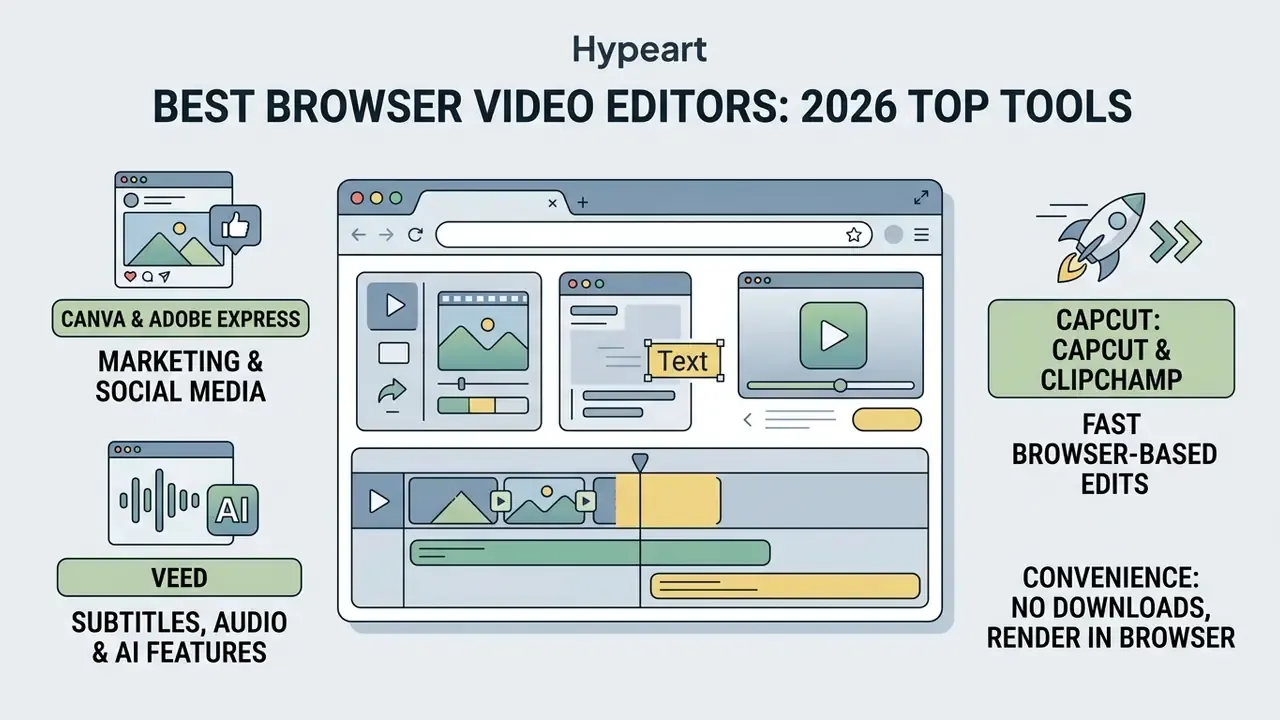
Modern web-based platforms let creators assemble footage, add text overlays, and render clips inside a browser tab. Powered by WebCodecs, WebAssembly, and serverless cloud architectures, they remove local installation entirely. Most «best online video editing tools 2025» roundups still circulating miss the point that matters now: where the media physically lands.
«Serverless architectures with CDN delivery scale video processing in the cloud, reducing dependence on client device performance during online editing.»
VEED for subtitles, audio editing and AI features
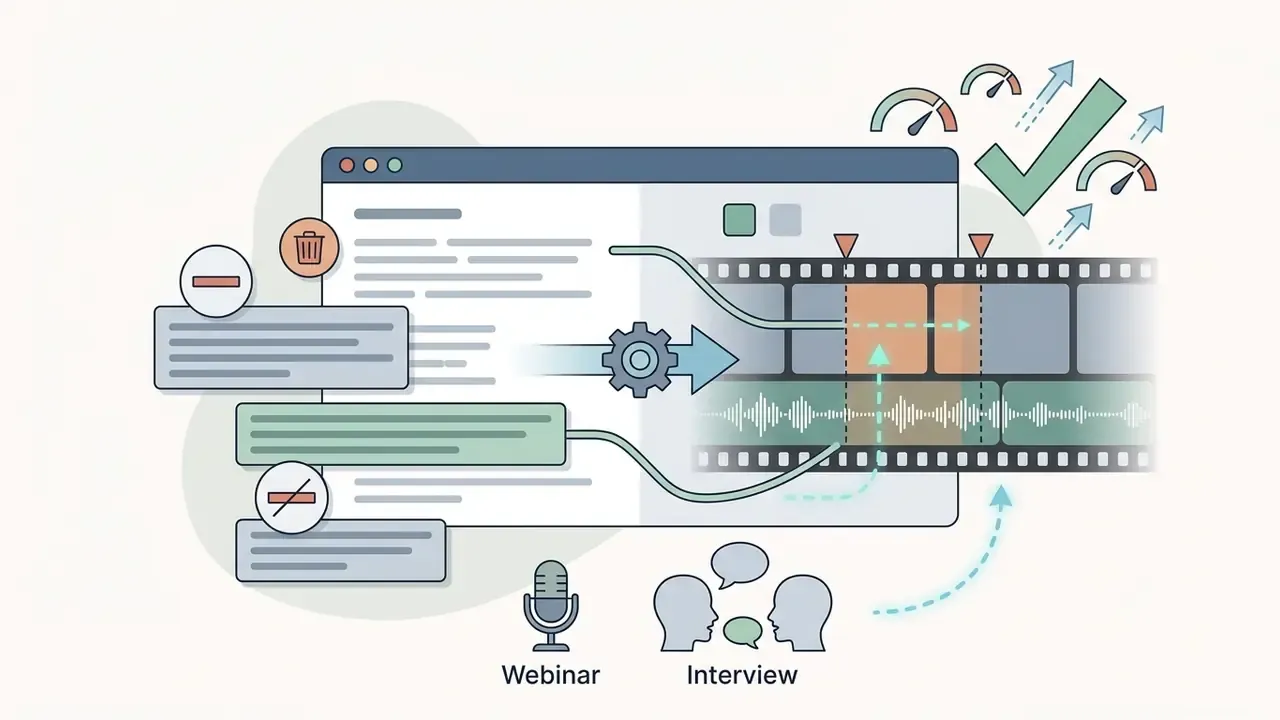
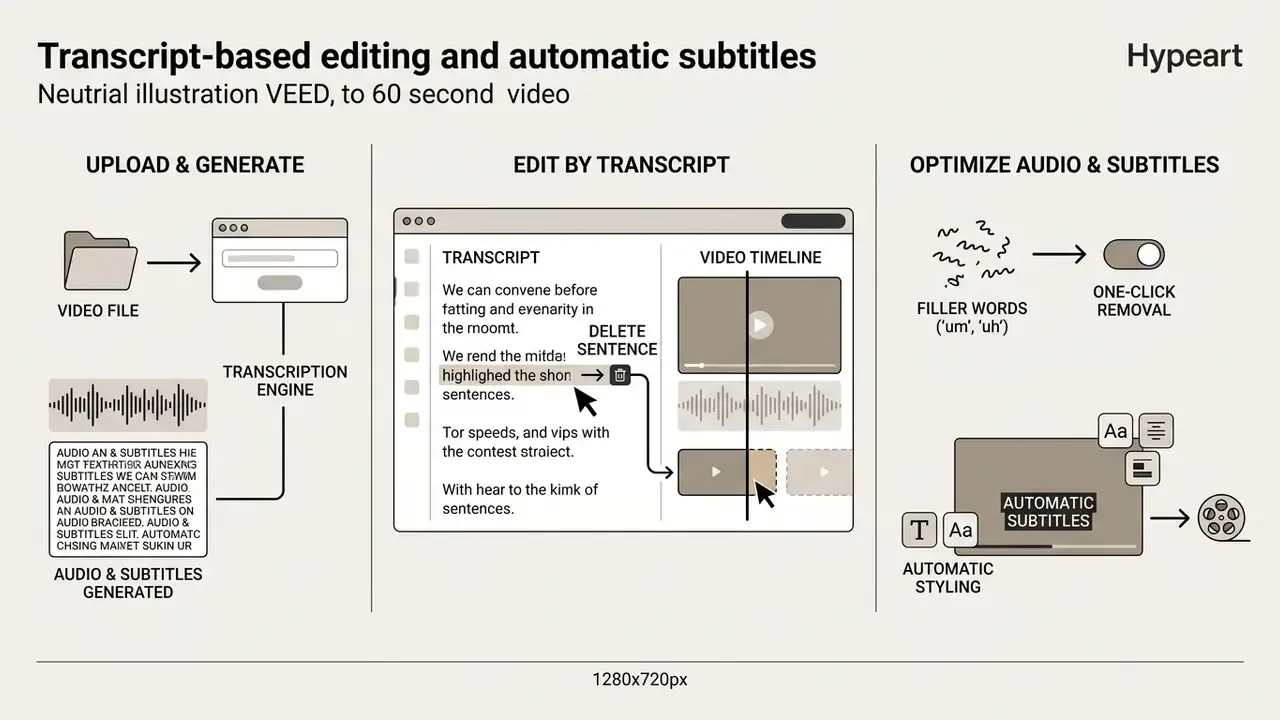
VEED.IO is a specialised online editor focused on automated transcription, subtitle generation, and text-based video trimming. Users edit video content by editing the underlying transcript: «Edit by Script» opens from the Edit by Text menu, which makes it a strong solution for podcasts, webinars, and talking-head videos. Its differentiators are workflow AI rather than raw editing depth: Eye Contact Correction to redirect a presenter's gaze to camera, one-click removal of silences and filler words, background removal without a green screen, noise reduction, automatic B-roll insertion, and timestamped team comments for review rounds.
CapCut and Clipchamp for fast browser-based edits
CapCut Web and Microsoft Clipchamp offer feature-rich browser interfaces for rapid assembly. CapCut Web syncs project assets across mobile apps, desktop, and cloud space (mobile and PC accounts link via QR-code login) while providing auto-captions with spoken-language selection, bilingual subtitles, keyword highlighting, vertical video templates, and trend-driven filters. Paid Pro plans add premium effects, AI tools, and expanded cloud storage (CapCut's help pages list 100 GB, with a newer page stating 1 TB for new subscribers).
The CapCut desktop app is the stronger free option. Beyond drag-and-drop simplicity, it includes a chroma-key tool with colour picker and keyframes in the Remove BG panel, RGB curves, LUT support, exposure and contrast controls, text based editing, GPU-accelerated rendering, and, crucially, free exports up to 8K at 60 fps in formats including Apple ProRes, with GIF output available too. Many advertised AI extras stay gated behind token-based Pro subscriptions (from roughly US$9.99 per month or US$89.99 per year on desktop plans, with higher regional tiers elsewhere). For teams weighing generative alternatives against conventional editing, the comparison of AI video generators sets out where each approach wins.
For teams planning complex automated pipelines, consult the Google Veo API Implementation Guide to explore developer-level video workflows.
Free or paid video editor: which one to choose
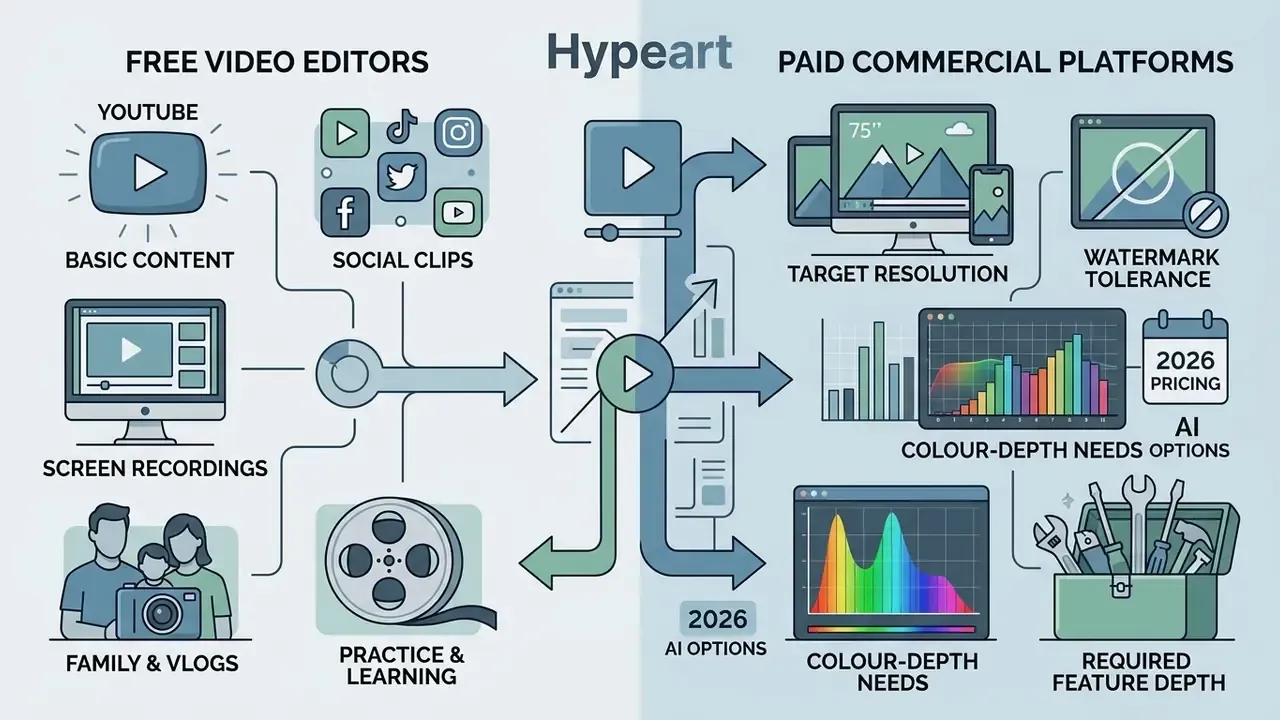
Deciding between a free video editor and a paid commercial platform depends on target resolution, watermark tolerance, colour-depth needs, and required feature depth. Free software covers basic trimming; paid subscriptions unlock advanced colour tools, higher export framerates, 10-bit pipelines, and professional codecs. Ask the question in reverse: what would a watermark cost you on the next deliverable?
When the free version is enough
A free video editor is fully sufficient for simple trimming, tutorial recordings, standard 1080p YouTube uploads, and personal social posts. Microsoft Clipchamp, Apple iMovie, DaVinci Resolve (free), and CapCut provide robust baseline capability without spending anything, and a complete YouTube video editing workflow can be built end-to-end on free tools alone.
- Basic YouTube content simple cuts, voiceover additions, and standard transitions do not require paid software.
- Social media clips quick 1080p vertical videos can be edited and captioned entirely in free browser tools; CapCut desktop exports far beyond that ceiling.
- Screen recordings internal training clips and software demonstrations can be captured and trimmed in default free apps such as Clipchamp.
- Mac-based family and vlog projects iMovie handles single-track assembly, stabilisation, titles, and 4K export at no cost.
- Filmmaking practice and colour learning Resolve's free version covers grading fundamentals, as long as you accept the 8-bit pipeline.
When paid advanced tools are needed
Upgrading to a paid version becomes necessary when client contracts prohibit watermarks, or when the spec demands 4K HDR delivery, 10-bit colour, multi-cam editing, shared-storage collaboration, and advanced noise reduction. It also becomes necessary for governance reasons: only team and enterprise tiers typically expose SSO, admin consoles, audit visibility, and negotiated data-processing terms.
«Creators evaluate tools through an ROI lens: the ratio of time cost and workflow complexity to monetisation is the decisive criterion when choosing paid software.»
The ROI test has three inputs: how many deliverables per month, how much editing time each paid feature removes, and what a watermark or a missed deadline costs in client or campaign terms. A creator publishing four videos a month rarely justifies a professional subscription. A team publishing forty almost always does.
For further analysis of pricing structures across commercial media software, open the hub to compare tool tiers.
Decision checklist before you buy
Ten minutes with this list saves a quarter of wasted licences. Work down it in order, and stop at the first hard blocker.
- Confirm the operating system and GPU on the machines that will actually edit, not the newest one in the office.
- Define the heaviest deliverable of the next quarter: resolution, colour depth, number of angles, audio channels.
- Check the codec pair you receive from camera or phone, and whether the editor decodes it without proxies.
- Classify the footage: public marketing, internal, confidential, or regulated. That classification picks the processing model.
- Test the free tier to its limits (watermark, duration, resolution, bit depth) before paying anything.
- Ask the vendor, in writing, about model training, retention, and opt-out for uploaded media.
- Price the full TCO, licence plus hardware plus bandwidth plus training plus review effort.
- Name an owner for the tool, the account, and the archive. Unowned tools become Shadow AI.
FAQ on choosing a video editor
What is the best video editor for a complete beginner?
For a complete beginner, Microsoft Clipchamp or Wondershare Filmora on Windows, and Apple iMovie on macOS. Clipchamp runs in the browser or on Windows 11 with no setup and exports 1080p without a watermark. iMovie is free and pre-installed on every Mac. Filmora provides intuitive drag-and-drop templates and guided modes, which is often the best application to edit videos with if you have never opened a timeline.
What is the best free video editor for a Mac?
Apple iMovie for straightforward projects, DaVinci Resolve once you outgrow it. iMovie is free, watermark-free, includes stabilisation and 4K export, but supports only one video track and a couple of audio tracks. Resolve's free version adds unlimited video tracks, node-based colour grading, and Fairlight audio, at the cost of a steeper learning curve and an 8-bit export pipeline.
What hardware is required to edit 4K video smoothly on a PC?
Smooth 4K editing needs a 64-bit CPU (Intel 8th Gen or newer with AVX2, or AMD Ryzen 3000 and up), at least 16 GB of system RAM (32 GB for multi-layer 4K), a dedicated GPU with 6 GB or more VRAM, and a fast NVMe SSD for media caching. Shared-storage teams should also budget 1 GbE for HD and 10 GbE for 4K collaborative workflows.
What is the difference between a video container and a codec?
A container (MP4, MOV, MKV, MXF, AVI) is a wrapper holding video tracks, audio tracks, and metadata. A codec (H.264, HEVC/H.265, VP8, ProRes) is the algorithm that compresses and decompresses the visual data inside it. Import failures are usually a codec problem, not a container problem: the file opens, but the decoder is missing on that platform. H.264 in MP4 remains the most universally compatible delivery pair among video formats; on Linux, WebM with VP8 is often safer.
Can online browser-based video editors replace desktop software?
Online editors are ideal for short-form social content, basic corporate clips, and quick automated subtitles. Desktop software remains necessary for multi-gigabyte RAW camera projects, complex 3D visual effects, 10-bit HDR grading, and offline post-production, including any project where footage must not leave managed hardware. For narration-heavy formats, pair either approach with AI voice generators for video narration.
I have just started editing. What should I learn first?
Three things, in this order: trimming on a timeline, audio levels, and export presets. Effects can wait. Most beginner frustration comes from muddy sound and wrong export settings, not from missing transitions. Pick one editor, finish two short projects in it, then decide whether you need more.
Is my footage used to train the vendor's AI models?
It depends entirely on the vendor and the plan, and terms change. Locally processed editors (iMovie, Final Cut Pro, DaVinci Resolve on a workstation, PowerDirector with local AI components) do not transmit media at all. Cloud editors upload it, and the answer then lives in the current privacy terms, the plan tier, and any available opt-out. Treat it as a procurement checkpoint: confirm the policy in writing before uploading unreleased products, customer recordings, or internal communications.
Who owns the commercial rights to AI-generated clips, voices and B-roll?
Rights are governed by each vendor's licence, not by the fact that AI produced the asset. Typical conditions: commercial use permitted on paid tiers, restrictions or attribution on free tiers, separate terms for stock assets embedded in templates, and explicit consent requirements for voice cloning or likeness features. Verify terms per feature, per plan, and document approvals. See the commercial use guidelines for how licence tiers usually differ.
How do we prevent Shadow AI in video production?
Publish a short approved-tool list mapped to data sensitivity, block personal-account use for corporate footage, route confidential material to locally processed desktop NLEs, and provide an approved cloud editor under a team licence for public marketing assets. Shadow AI is generally a supply problem: teams adopt unreviewed free web tools when no sanctioned option delivers the same turnaround.
To evaluate additional media production tools, examine the guide on best ai voice generator options for synthesised narration.
Appendix A: editorial corrections log
Transparency about revisions is part of our sourcing policy.
- Superseded claim (removed) «This structured workflow reduced overall post-production delivery time by 35 percent.» The figure appeared without a named study, sample size, or methodology, and has been replaced with peer-reviewed measurement from Quandt et al. (ICMIP / ACM, 2024) in the professional editing section.
- Reformulated claim (updated) the 10 Gigabit Ethernet recommendation for shared 4K workflows was previously attributed to internal vendor documentation and is now cited against Adobe's publicly available Premiere Pro system requirements page.
- Author attribution no additional first-party expert commentary was available from our internal research base at the time of this update; the existing practitioner quote has been contextualised rather than expanded, and the persona is labelled as composite.
E-E-A-T vendor documentation and primary sources
- Adobe Systems
- Premiere Pro system requirements and features
- Blackmagic Design
- DaVinci Resolve tech specs and Studio capabilities
- Apple Inc.
- Final Cut Pro specifications and Apple silicon performance
- Apple Inc.
- iMovie for macOS and iOS
- CyberLink
- PowerDirector 365 official pricing and format support
- Microsoft
- Clipchamp service documentation and M365 integration
- Wondershare
- Filmora pricing and licence terms
- Canva
- Canva pricing and plan limits
- VEED.IO
- VEED pricing, export limits and subtitle tools
Footer / Navigation
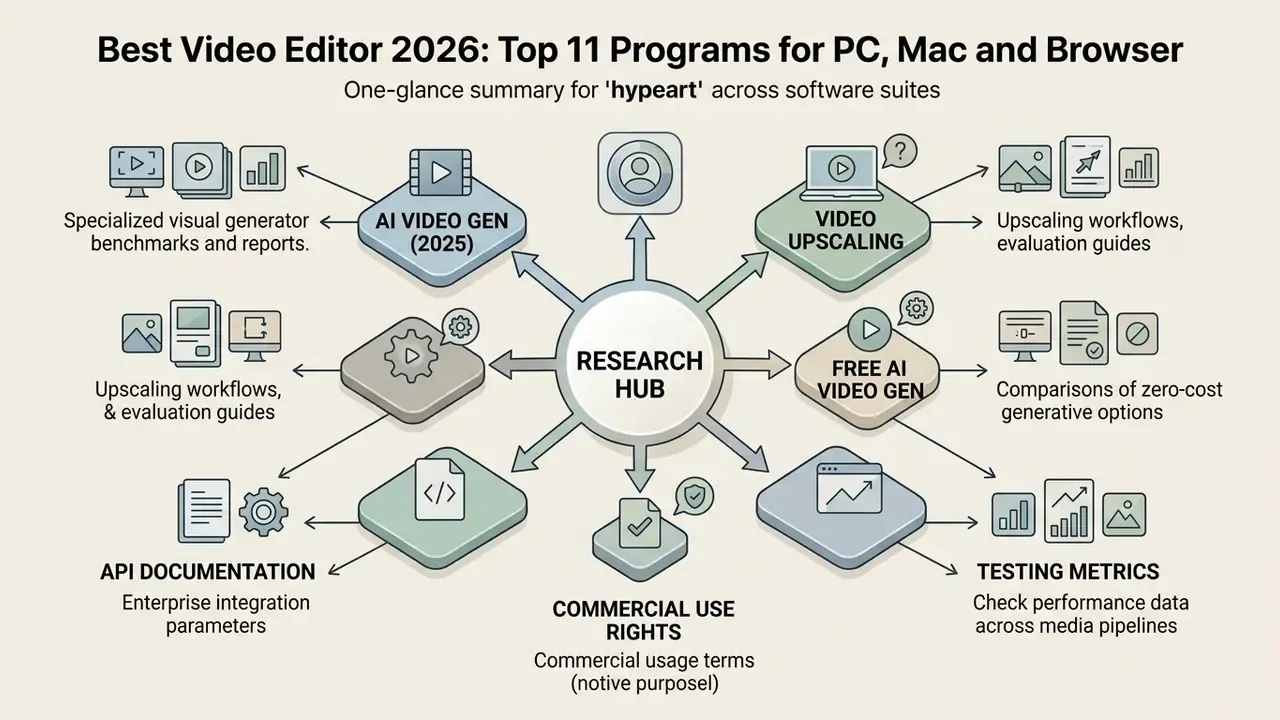
- For comparative analysis across software suites, see the overview in our main research hub.
- To review specialised visual generator benchmarks, check the best ai video generation tools 2025 report.
- To check image and video upscaling workflows, browse the best ai video upscaler evaluation guide.
- To compare zero-cost generative options, open the best free ai video generator comparison.
- For enterprise integration parameters, explore the hub for API documentation.
- For detailed commercial usage terms, verify the guidelines on commercial use rights.
- To check performance data across media pipelines, explore the hub for empirical testing metrics.