Author note: Marcus Hale writes about AI governance and model risk for this publication.
Picking the best video compressor is really a trade negotiation. You give up bits; you keep pixels. The question is where you draw that line, and whether your hardware, your codec, and the destination platform agree with the deal you just made. Whether you need to shrink an email attachment to 18 MB, push a 4K clip into a Discord channel, or store multi-gigabyte video libraries without burning storage space, the tool you choose decides whether the output stays crisp or collapses into visible blocks.
Executive Summary
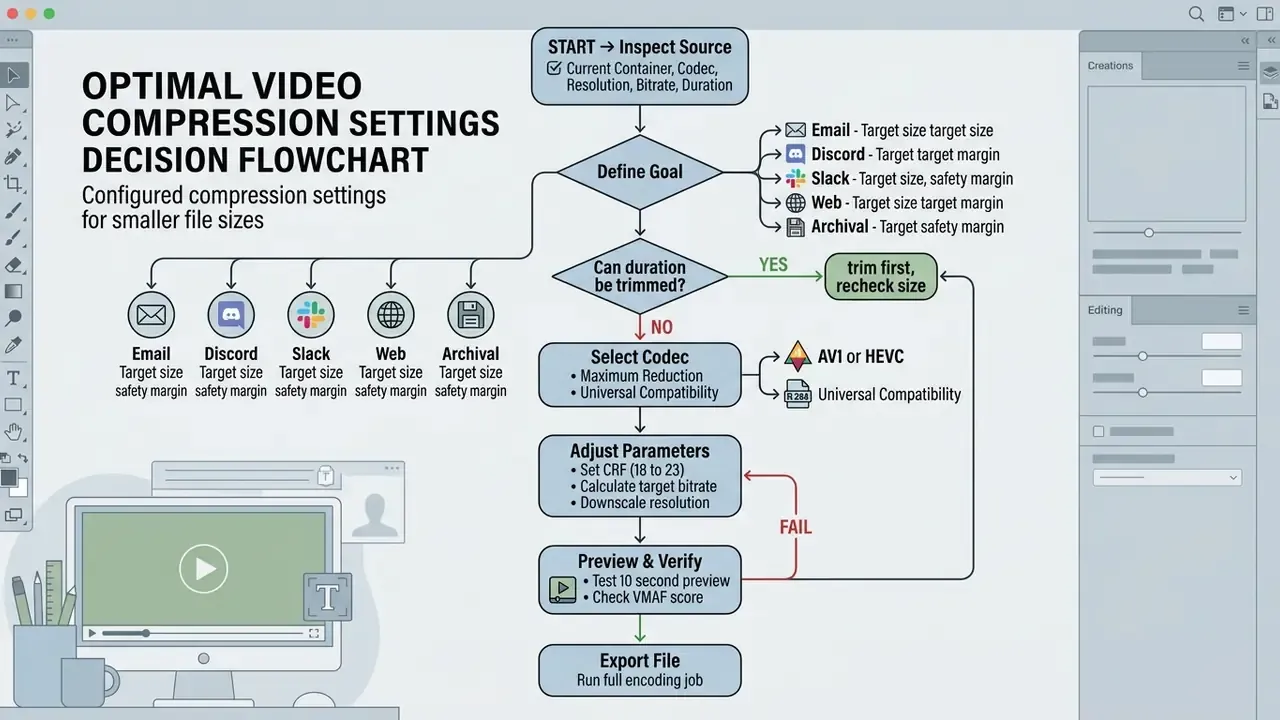
- For files under 1 GB use a browser-local compressor (WebAssembly plus the WebCodecs API). No upload, no watermark, no signup, no credit card, and no server retention of your media.
- For files above 5 to 10 GB use desktop transcoders, HandBrake (GUI) or FFmpeg (CLI), with GPU acceleration (NVENC, QSV, VCN) and two-pass or CRF encoding.
- For cloud convenience FreeConvert accepts up to 1 GB free (20 conversion minutes per day); HappyScribe accepts up to 4 GB per file; VEED compresses free up to 1 GB but watermarks free exports.
- Codec hierarchy AV1 is roughly 30% smaller than H.265/HEVC and up to 50% smaller than H.264/AVC at matched quality. H.264 remains the universal compatibility baseline.
- Safe target sizes (not hard limits) Email 18 to 23 MB · WhatsApp 14.5 to 15 MB · Discord Free 22 to 23 MB · Discord Nitro 47 MB / 480 MB · Slack 92 to 95 MB.
- The first lever is not bitrate trim duration and downscale resolution before starving the bitrate. A clip that is 25% shorter is 25% smaller, with zero quality penalty.
Pick Your Path in 30 Seconds
Four questions settle most cases, and none of them require reading the whole guide.
- Is the source under 1 GB?Use a browser-local tool. Nothing leaves the device.
- Is the file confidential, regulated, or client-owned?Skip cloud endpoints entirely and transcode locally.
- Is there a hard platform cap?Set an explicit target size below it, not at it.
- Will you repeat this job weekly?Then build an FFmpeg or HandBrake preset once and stop re-deciding.
That is the short version. The rest of this page explains why each answer holds, and where it breaks.
How to Choose the Best Video Compressor
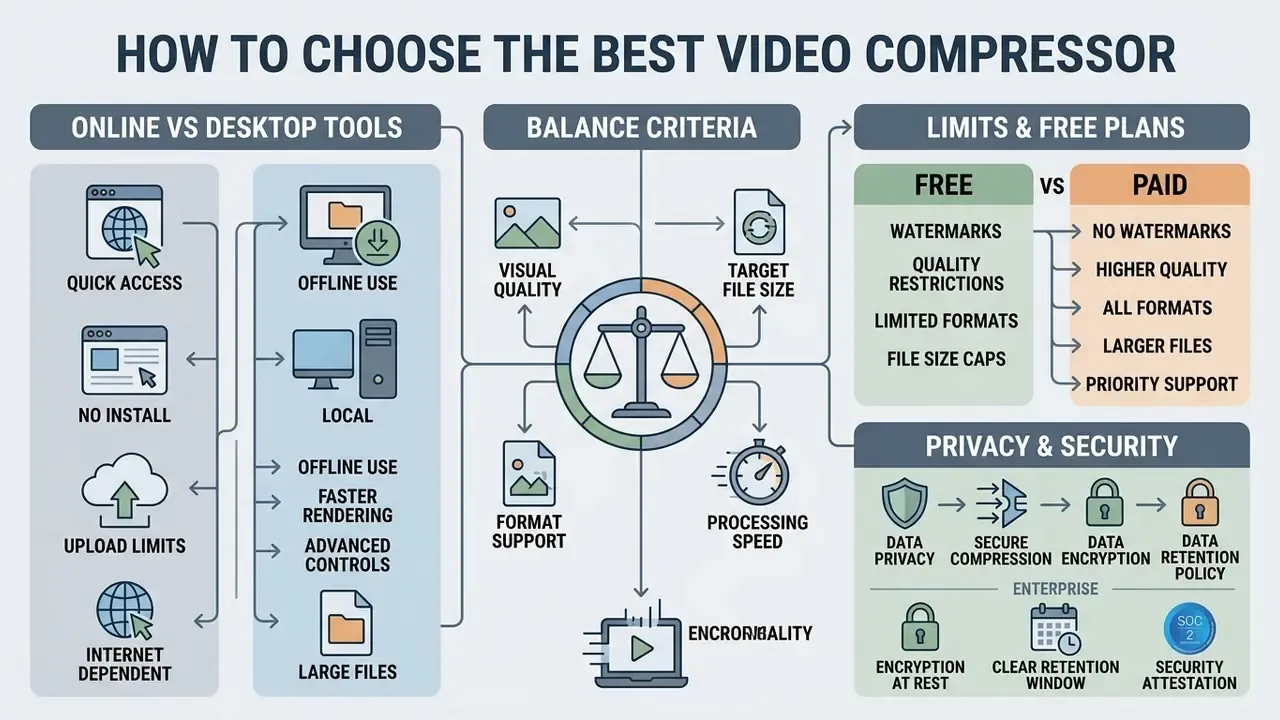
Choosing the best video compressor depends on balancing visual quality, target file size, format support, processing speed, and platform upload limits. Decide first whether local desktop processing or browser simplicity meets your technical and security requirements. The rest is parameter tuning.
To evaluate any video compression tool, you need measurable criteria. The primary factor is post-compression visual quality, measured objectively with metrics such as VMAF (Video Multi-Method Assessment Fusion) or SSIM (Structural Similarity Index Measure). Eyeballing a thumbnail does not count.
«In a 12-tool test, VideoProc Converter AI reached VMAF 97.91 at 40.1% size reduction, while HandBrake scored VMAF 90.33 at 37.5% reduction.»
The second criterion is flexibility of compression settings, such as Constant Rate Factor (CRF) or target bitrate, which let you hit a specific target size without exceeding a destination platform's upload limit. Practical bitrate anchors published by Vimeo tie size directly to perceived quality: roughly 2 to 5 Mbps for SD, 5 to 10 Mbps for 720p, 10 to 20 Mbps for 1080p, 30 to 60 Mbps for 4K, and 50 to 80 Mbps for 8K.
Format compatibility matters just as much. A versatile video file compressor must support standard video formats including MP4, MOV, AVI, MKV, and WebM. For web workflows, a free online video compressor offers convenience with no watermark and no signup, but desktop software stays superior for reducing file size on multi-gigabyte sources without exhausting system memory. When planning production pipelines, teams often compare options to standardize encoding protocols across web and local environments.
One more criterion, easy to forget: throughput. A tool that produces a beautiful 18 MB file in 40 minutes is useless when you are compressing 60 clips before a Friday deadline.
Online Video Compressor vs Desktop Software
Desktop software handles large video files using local GPU acceleration and deep codec controls, while an online video compressor offers quick, zero-installation processing for smaller clips.
Online tools process media in one of two ways: by uploading the video file to cloud servers, or by using browser-local WebAssembly (WASM) together with the WebCodecs API for hardware-accelerated frame encoding inside browser memory. Cloud services handle basic tasks well, but they enforce strict caps (typically 200 MB to 1 GB on free tiers, with a few services reaching 4 GB) and depend heavily on upload bandwidth. Desktop transcoders such as HandBrake or FFmpeg instead leverage multi-threading and dedicated GPU encoders (NVIDIA NVENC, Intel QSV, AMD VCN). That lets them process larger files above 2 GB with custom bitrate control, two-pass encoding, and zero network latency. Teams assembling a full local toolchain frequently pair a transcoder with free video editing software, so trimming and encoding happen in the same offline environment.
Control granularity differs by design. Online compressors usually expose sliders and named presets ("Basic / Strong / Superb"), while desktop applications expose bitrate mode (CBR/VBR), CRF value, encoder preset, keyframe interval, and explicit target-size fields. Neither approach is wrong. They answer different questions.
File Size Limits, Watermarks, and Free Plans
Free online video compressor platforms split into two camps: browser-local engines with no upload caps, and cloud freemium models that enforce file size limits and promotional watermarks.
Freemium web services frequently restrict non-paying users to a 200 MB, 500 MB, or 1 GB upload limit, reserving larger allocations or watermark free exports for premium tiers. VEED, for example, compresses free up to 1 GB but stamps a watermark on free exports; Ezgif caps free uploads at 200 MB; XConvert allows up to 1 GB per file with no watermark and no signup.
Browser-local tools such as VidShift or VidCompress work differently. They re-encode files directly inside browser memory. Because the media never crosses a network endpoint, these tools offer unlimited file processing with no credit card, no signup, and no brand overlays. The catch, and there is one, is that encoding speed is bound to your own CPU.
«The browser-based Free Video Compressor ranked first overall for speed, quality, privacy, and usability among four free online tools.»
For organizations comparing software deployments across teams, the updated AI Media Benchmarks add throughput data that a feature table cannot show.
Privacy and Secure Video Compression
«Browser-based compressors process video locally without transmitting data to external servers, fundamentally reducing leakage risk compared with cloud services.»
Best Video Compressor Tools Compared
Comparing the leading video compression tools means checking four things together: software architecture, free tier limits, format compatibility, and how much quality survives the encode.
Selecting the best video compressor depends heavily on whether your workflow prioritizes offline security, batch processing, or quick browser access. The table below lays out the key features across the leading online and desktop options, and a short reading guide follows it.
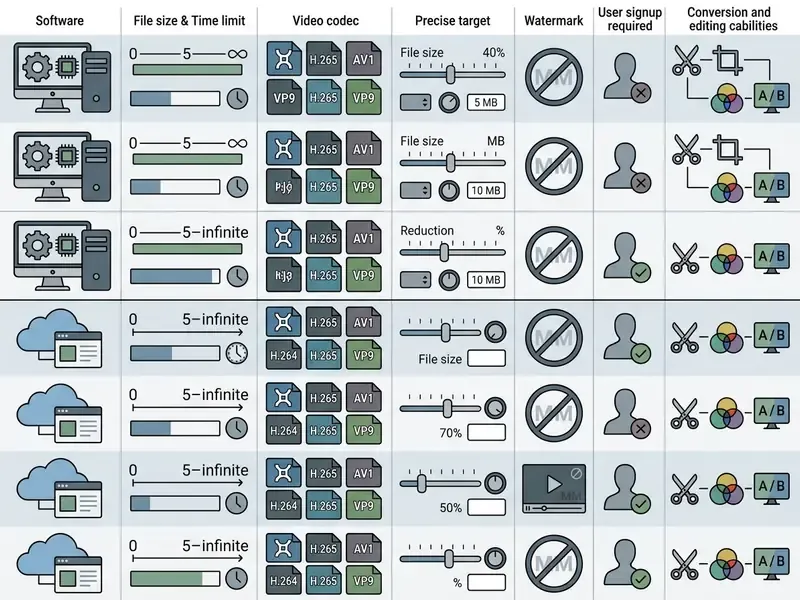
How to read that table: the three desktop entries win on control and file ceilings, the browser-local row wins on privacy, and the cloud rows win on speed-to-first-result. Only one entry here watermarks free output, which is worth noting before you export a client deliverable.
Best Free Online Video Compressor Tools
The best free online video compressor services balance strict file limits against accessibility and processing speed. Here is how the free tiers actually behave in 2026.
- FreeConvert supports files up to 1 GB on the free tier (with up to 1.5 GB on specialized promo endpoints), limited to roughly 20 conversion minutes per day and about 5 minutes per file. You can set explicit target size parameters or CRF values across MP4, MOV, MKV, AVI and WebM, and no account is required for website use.
- OnlineConverter enforces a modest 200 MB upload limit and rejects DRM-protected or encrypted sources. It works as a straightforward video converter and compressor, well suited to short clips that need fast processing without configuration.
- 8MB.Video built specifically to fit clips under strict messaging caps. It accepts inputs up to 2,000 MB and calculates the bitrate needed to land the file under 8 MB or 25 MB.
- XConvert free, no signup, no watermark, up to 1 GB per file across 35+ formats, with target size expressed as a percentage or an exact megabyte figure, plus CRF, H.265, and resolution controls.
- HappyScribe Compressor accepts video files up to 4 GB each with balanced or maximum compression presets, TLS 1.3 transfers, and automatic server-side deletion after processing.
- Rotato.APP offers browser-based compression with no strict file size cap, so it can handle sources above 2 GB directly inside browser memory.
If you only need the single best free video compressor online for a one-off 40 MB clip, any of the first three will finish before you finish reading this paragraph.
Best Desktop Video Compressors for Windows and Mac
«At 1080p30 and a 2 Mbps target bitrate, Any Video Converter averaged 11.4 s encode time at VMAF 96.98, while FFmpeg reached VMAF 89.26 in 87 s.»
FFmpeg is the most flexible command-line framework available, with complete control over single-pass, two-pass, and CRF pipelines, plus -hwaccel modes including DXVA2, D3D11VA, VAAPI, QSV, and VideoToolbox. Shutter Encoder acts as an approachable GUI wrapper around FFmpeg, simplifying batch media workflows and sitting comfortably between HandBrake's simplicity and FFmpeg's depth. Movavi Video Converter, Freemake, VidCoder, Avidemux, VLC, and Any Video Converter cover the consumer tier: basic format changes, trimming, quick MP4 compressor duties. Readers evaluating that tier can also review the best free video editing software for adjacent trimming and timeline features.
Which Tool Is Best for Large Video Files?
Select cloud platforms such as HappyScribe now accept uploads up to 4 GB. Even so, desktop transcoders like HandBrake and FFmpeg remain the practical answer for files above 5 GB to 10 GB. Local processing avoids multi-gigabyte upload bottlenecks, browser memory exhaustion, and server-side HTTP timeouts.
Running a 10 gb video compressor workload locally removes network constraints from the equation completely. According to WinXDVD (2026), a 3.34 GB 4K raw source was re-encoded with HandBrake's H.265/HEVC encoder during a large-file archive transcoding benchmark. At a Constant Rate Factor of 22 with GPU acceleration enabled, the file dropped to 574 MB, an 82.8% reduction, while holding high visual fidelity (VMAF above 95) in under three minutes.
«With GPU acceleration, HandBrake encoded the same source at an average 372.8 FPS (~24.7× realtime) at a 67% peak GPU load.»
For media teams working across complex production stacks, you can browse the hub for integrated encoding documentation.
How to Compress a Video Online
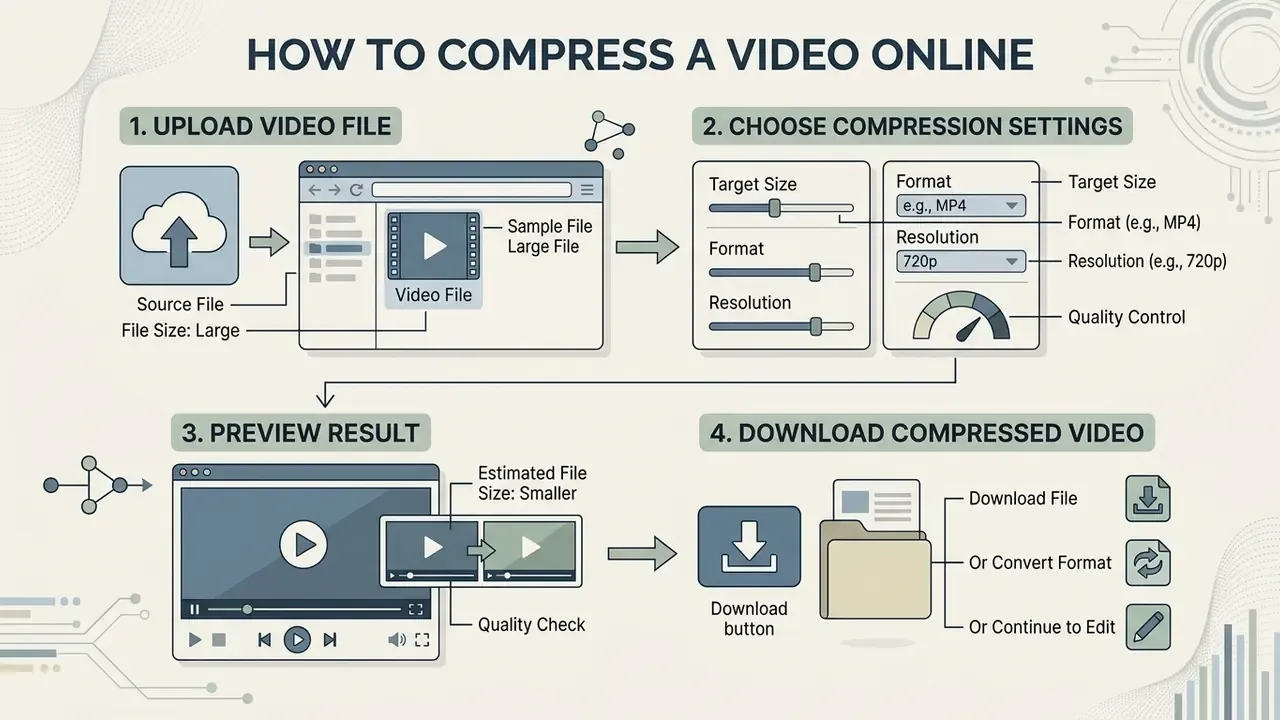
Compressing a video online comes down to four steps: upload the source file, choose compression settings, preview the output, download the compressed file.
Web-based processing is a convenient way to reduce video file size without installing anything. Following a structured order keeps the final output at acceptable visual quality instead of turning it into a guessing game.
Upload a Video File and Choose Compression Settings
Drag and drop your media into the upload zone of your chosen online video compressor. Check that the platform supports your source format, such as MP4, MOV, AVI, or MKV. Then configure your compression settings: pick a target file size (20 MB for email, say), choose a quality percentage preset, or define resolution scaling manually (downscaling 1080p to 720p, for instance).
Parameter naming varies wildly by service. XConvert exposes target file size as a percentage or exact MB value, plus Constant Bitrate, Variable Bitrate, Constant Quality (CRF), and Constraint Quality modes. Ezgif asks for target resolution and bitrate directly. FreeConvert reduces the whole decision to two paths: desired file size, or desired quality level.
When adjusting presets, favour tools with real-time file size estimation. Moving the compression slider recalculates the output footprint in megabytes before encoding starts, which saves you from trial-and-error re-exports. In VEED, dragging the slider left shrinks the file and right preserves quality, with the MB figure updating live. Clideo shows an estimated compression rate and projected size before you commit.
Preview the Result Before Downloading
Before saving, use the preview player to judge image fidelity. Inspect at 1:1 pixel magnification (100% zoom) and look for macroblocking, pixelation, motion smear, or colour shifts. Thirty seconds of checking here prevents a wasted download.
A repeatable QC checklist mirrors imaging quality-control practice: inspect at 100% or higher magnification, compare against the untouched original, then verify orientation, crop boundaries, aspect ratio, text legibility in screen recordings, gradient banding in dark scenes, moiré on fine patterns, and audio/video sync at the clip's midpoint and final second. That last one catches more failures than people expect.
Download, Convert, or Edit the Compressed Video
Once encoding finishes, save the compressed file to local storage. Many online tools also convert video formats, crop video boundaries, trim unwanted footage, or resize video dimensions in the same pass. After the file is sized correctly, a dedicated video editor handles captions, voiceover, and platform-specific aspect ratios. If your process involves turning static assets into motion, you can test tools that convert image to video alongside standard compression tools.
How Video Compression Reduces File Size Without Losing Quality
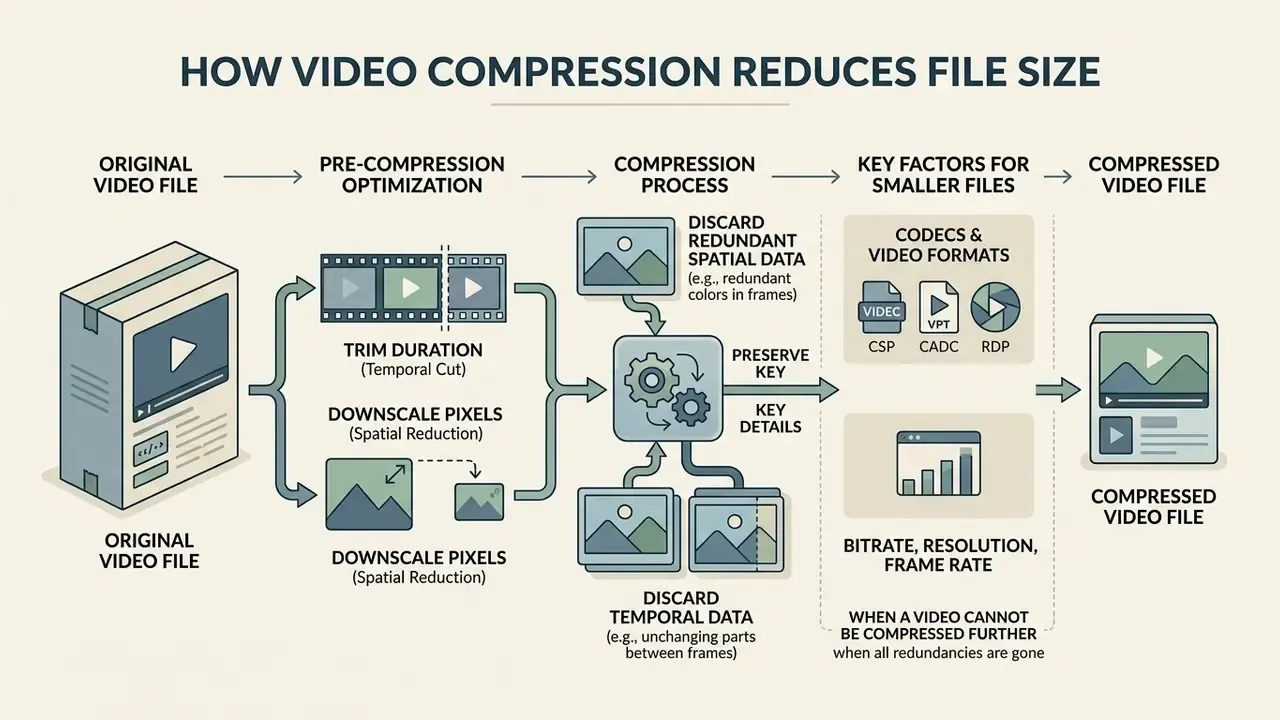
Video compression reduces file size without noticeable quality loss by discarding redundant spatial and temporal data while preserving the details human vision actually registers.
To compress video without losing quality, transcoders lean on lossy algorithms tuned to perception. Modern standards throw away high-frequency detail and repeated frame content that the eye struggles to resolve. True mathematical lossless compression keeps bit-for-bit identical data, but archival guidance puts the typical ratio at only about 2:1.
«Lossless compression reconstructs the original data completely; a typical lossless ratio is about 2:1.»
Near-lossless compression uses perceptual models to reach 5:1 to 10:1 while keeping visual quality transparent. Preservation bodies draw a similar line. The Government of Canada's Digital Preservation File Format Recommendations (2021) names lossless JPEG 2000 and uncompressed v210 as formats that retain all image information, while the U.S. National Archives permits visually lossless JPEG 2000 up to 20:1 for digitized records after testing. Where an archival master is required, FFV1 video in a Matroska (MKV) container remains the documented preservation pairing, with MP4/H.264 reserved for delivery copies.
Pre-Compression Optimization: Trimming Duration vs. Downscaling Pixels
Before you touch the bitrate slider, apply two adjustments that cost you nothing in clarity:
- Trim unnecessary frames (temporal cut).File size scales linearly with duration. Cut 15 seconds of silence from a 60-second clip and you have cut 25% of the file instantly, with no bitrate or resolution penalty. Auto-trim features (VEED's Magic Cut, for example) strip long pauses out of screen recordings automatically. Fewer seconds always means a smaller file.
- Downscale spatial resolution first.Forcing a 4K file into an 18 MB target leaves the encoder too few bits per pixel, and macroblocking follows. Going from 4K (3840×2160) to 1080p (1920×1080) removes 75% of the pixel density, freeing a rich bitrate budget for the pixels that remain. When a hard cap pushes bitrate low, 720p or 480p at a healthy bitrate consistently looks better than native resolution at a starved one.
A third lever gets overlooked: if only the narration matters, extract the audio track instead. An MP3 or AAC export of a 40-minute meeting recording is a fraction of any compressed video, and no re-encode will ever match that reduction. An audio and video compressor that can split streams saves you from compressing frames nobody will watch.
Bitrate, Resolution, Frame Rate, and Video Size
Video file size is determined mathematically by total bitrate and duration: File Size (MB) = [ Bitrate (Mbps) × Duration (seconds) ] / 8.
Worked example: at 5 Mbps, a 60-second 1080p clip lands near 37.5 MB, already past every messaging cap on this page.
Lowering the bit rate reduces video file size directly. Resolution sets the pixel count per frame (3840×2160 for 4K versus 1920×1080 for 1080p), and higher resolutions demand a bigger bitrate budget to stay sharp. Frame rate controls temporal density: dropping from 60 FPS to 30 FPS removes half the frames, letting the encoder spend more bits on each survivor and often improving perceived clarity. Motion-heavy sport footage is the exception, where halving frame rate is visible immediately.
Codecs and Video Formats for Smaller Files
Advanced codecs achieve higher compression efficiency through better prediction algorithms, smarter spatial intra-coding, and finer motion vectors.
Comparative studies place AV1 as the most efficient widely deployed modern codec, needing roughly 30% less bitrate than H.265/HEVC and up to 50% less than legacy H.264/AVC at identical visual quality. Peer-reviewed comparisons order them as AV1 first, then HEVC (about 27% better than VP9), then H.264, with VP9 trailing HEVC.
«H.265/HEVC delivers ~40% bitrate savings over H.264/AVC, while H.266/VVC adds ~40% over HEVC but encodes 27 to 174× slower than AV1 on 8K content.»
Container formats such as MP4, MOV, MKV, and WebM do not compress anything themselves. They wrap the encoded video stream (AV1, HEVC, VP9, or AVC) and the audio stream into one file. The standards baselines are current: ISO/IEC 14496-10:2025 defines H.264/AVC and ISO/IEC 23008-2:2025 defines HEVC, which is why H.264 in MP4 stays the safe universal choice for delivery, even when a smaller AV1 file is technically available.
Compress Video for Email, Discord, Social Media, and Storage
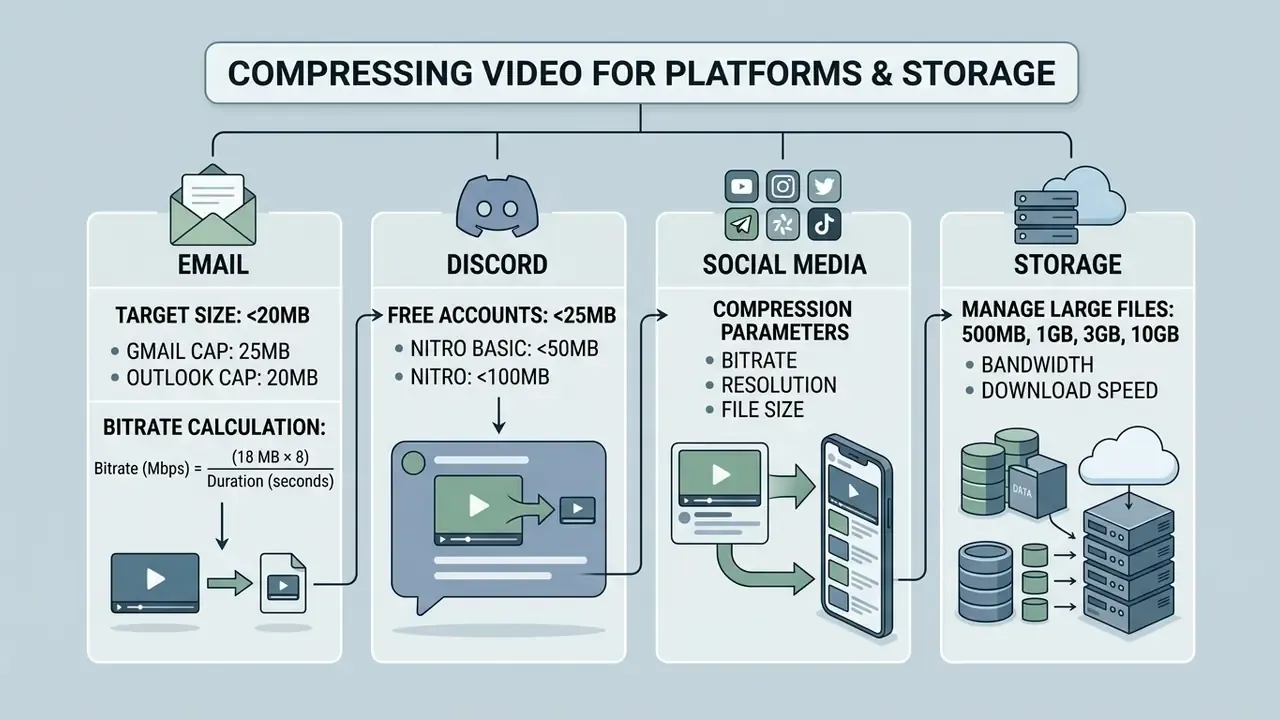
Optimizing video for distribution means matching compression parameters to each platform's upload limits and bandwidth constraints. The caps are not suggestions.
Delivering media through email attachments, Discord channels, or web storage requires adjusting bitrate and frame dimensions so the file stays under the provider threshold. Creators producing assets with AI video generators hit these ceilings constantly, since synthetic 4K output arrives at high bitrates by default.
The table below converts each platform's hard limit into a safe working target, set deliberately under the cap so the file still fits after container and transport overhead.
| Target Platform | Hard File Limit | Recommended Target Preset | Strategic Encoding Workflow |
|---|---|---|---|
| Email (Gmail/Outlook) | 20 MB to 25 MB | 18 MB to 23 MB | Compensates for ~33% Base64 encoding expansion. |
| WhatsApp Messaging | 16 MB (video message) | 14.5 MB to 15 MB | Downscale to 720p/480p; keep duration under 90 seconds. |
| Discord (Free Tier) | 25 MB (standard) | 22 MB to 23 MB | Drop resolution to 720p, or convert brief clips to looping WebM/GIF. |
| Discord (Nitro Tier) | 50 MB / 500 MB | 47 MB / 480 MB | Full 1080p high-bitrate encoding using HEVC or AV1. |
| Slack Workspace | 100 MB (free workspace) | 92 MB to 95 MB | Two-pass HEVC for long screen recordings. |
| Web / Social Upload | No hard cap; speed matters | 30 MB to 50 MB | 1080p H.264 that uploads fast and survives platform re-encoding. |
For creators generating multi-format assets, you can view the guide to keep your media aligned with platform guidelines.
Compress Video for Email Attachments
To compress video for email, target an output between 18 MB and 20 MB to absorb binary-to-text base64 overhead.
Gmail enforces a nominal 25 MB attachment cap, while Outlook internet accounts limit messages to 20 MB. Because email protocols encode binary attachments as base64 text, sizes expand by roughly 33% in transit: base64 turns every 3 bytes of binary data into 4 ASCII characters (4/3 ≈ 1.333).
«A 24 MB file becomes 32 MB after base64 encoding, exceeding Gmail's 25 MB limit, so the safe target for Gmail is no more than 18 to 19 MB.»
To calculate the bitrate for an 18 MB target, use Bitrate (Mbps) = (18 MB × 8) / Duration (seconds). A 60-second video needs about 2.4 Mbps total at 720p; a 90-second clip drops to ~1.6 Mbps; a three-minute clip needs roughly 0.8 Mbps and should be delivered at 480p. If the arithmetic pushes bitrate below that floor, send a cloud-storage link instead. An unwatchable attachment helps nobody.
Compress 500 MB, 1 GB, 3 GB, and 10 GB Videos
Compressing large sources is mostly about matching the tool to the scale of the file.
| Source File Size | Recommended Tool Type | Optimal Codec & Compression Method |
|---|---|---|
| 500 MB | Online or desktop | H.264 / HEVC (target size preset) |
| 1 GB | FreeConvert or HandBrake | HEVC (CRF 20) |
| 3 GB | Desktop transcoder | HEVC / AV1 (two-pass encoding) |
| 10 GB and above | HandBrake / FFmpeg CLI | AV1 / HEVC (GPU hardware acceleration) |
A 500 mb video compressor job runs comfortably in a cloud service like FreeConvert or in any desktop app. A 1gb video compressor workload sits right at the upper edge of most cloud free tiers, which makes browser-local processing the calmer choice. A 3 gb video compressor or 10 gb video compressor task belongs to offline desktop transcoders such as HandBrake or FFmpeg, purely to avoid network dropouts and browser memory crashes. For anything genuinely huge, a big video compressor workflow means local, scripted, and repeatable.
«H.265 10-bit at RF22 in HandBrake produced a 24 MB file versus 33 MB for H.264 RF22, while AV1 at 1024 kbps with multi-pass analysis delivered just 11 MB from the same source.»
For archival storage rather than delivery, keep a lossless or uncompressed master (FFV1 in MKV) and generate compressed MP4 delivery copies on demand. NIST's baseline guidance notes that files above roughly 100,000 bytes are good compression candidates, but preservation policy, not file size, should decide whether the master itself is ever re-encoded.
FAQ: Frequently Asked Questions About Video Compressors
Short answers to what is usually left over: mobile compression, unexpected file growth, resizing versus compressing, and whether any of it can be undone.
Can I Compress Video on iPhone or Android?
Yes. You can compress video on iOS and Android using mobile browser tools that run local WebAssembly re-encoding or route the media through secure cloud servers. Mobile Safari and Chrome both support direct file selection from your photo library, so no third-party app install is required.
Step by step on iOS Safari or Android Chrome:
- Open the browser-local compressor page (it caches after the first visit and works offline afterwards).
- Tap the upload zone, then Photo Library (iOS) or Files / Gallery (Android), and select the clip. On iOS, an HEVC
.MOVfrom the camera roll is accepted directly and converted to MP4 during encoding. - Pick a preset, WhatsApp 15 MB, Email 23 MB, Discord 22 MB, or type a custom megabyte target.
- Drop resolution one step (1080p to 720p) if the clip runs longer than about 60 seconds.
- Tap Compress and keep the tab in the foreground. WASM encoding pauses when the browser backgrounds the tab.
- Save the finished MP4 to Files or Photos. Reported support baselines are iOS Safari 16+ and current Android Chrome.
Why Does a Compressed Video Sometimes Get Bigger?
Because it was re-encoded at a higher target bitrate than the original. Exporting a low-bitrate web stream with high-quality master defaults makes the encoder spend extra bytes preserving existing visual noise, so the file grows without looking any better.
Five concrete causes, roughly in order of frequency:
- Export bitrate exceeds source bitrate. The single most common cause.
- Output resolution or frame rate is higher than the source (upscaling 720p to 1080p, or 30 FPS to 60 FPS).
- Lossless or near-lossless export settings applied to an already lossy source: the encoder faithfully preserves the artifacts byte for byte.
- A less efficient output codec than the input codec. Re-encoding HEVC to H.264 needs a higher bitrate for equivalent quality.
- Container and timeline overhead. Added audio tracks, subtitle streams, image layers, motion titles, and a second muxing pass all add bytes.
What Is the Difference Between a Video Compressor and Video Resizer?
A video compressor reduces total file size in megabytes by lowering bitrate, optimizing data structures, or switching to a more efficient codec. A video resizer changes the physical frame dimensions in pixels, which is a frame-size operation. That is why transcoders such as Apple Compressor treat "conform to frame size" as a step distinct from compression itself. Readers mapping the wider toolchain can review adjacent video editing tools to see where resizing, cropping, and compression sit in one pipeline. Downscaling resolution usually lowers the bitrate you need, but the two operations remain technically separate.
Is There an Audio and Video Compressor in One Tool?
Yes, and most transcoders already are one. HandBrake and FFmpeg let you re-encode the audio track independently, dropping a 320 kbps stereo mix to 96 or 128 kbps AAC. On a long screen recording, that alone can shave several megabytes. For voice-only material, mono at 64 kbps is usually indistinguishable. Cloud compressors rarely expose audio parameters at all, which is one quiet advantage of desktop control.
Can Compression Be Reversed?
No. Lossy compression permanently discards data, and there is no decompression path back to original fidelity. Keep the untouched source file before running any compression job, and treat compressed exports as disposable delivery copies rather than masters.
How Long Does Video Compression Take?
It depends on clip length, resolution, codec, and hardware. Short clips finish in seconds; long 4K sources can take minutes. GPU-accelerated desktop encoding is fastest (the HandBrake benchmark above reached roughly 24.7× realtime), browser-local WASM encoding scales with your CPU, and cloud compression is gated mainly by upload bandwidth. Encoder presets matter too: "fast" presets spend less effort and therefore compress less at the same quality target.
Extended Media Processing Workflows
In a full production environment, compression is one step among many. Teams running multi-format pipelines usually need supporting tools alongside the transcoder:
Appendix A: Superseded Figures and Revision Log
For transparency, the statements below appeared in earlier revisions of this guide and have been corrected above.
| Superseded statement | Current statement | Basis |
|---|---|---|
| "FreeConvert supports files up to 1.5 GB in its free plan." | Free tier is 1 GB per file (20 conversion minutes per day); 1.5 GB appears only on specialized promo endpoints. | Internal contradiction with the comparison table; aligned to the documented free tier. |
| "Online services trigger server timeouts or memory errors above 2 GB." | Select cloud platforms accept up to 4 GB; browser-local WASM tools bypass network timeouts entirely because nothing is uploaded. | HappyScribe documents 4 GB per file; Rotato.APP documents no hard cap. |
| "Discord enforces a 20 MB file limit for standard accounts." | 25 MB free, 50 MB Nitro Basic, 500 MB Nitro Premium. | Tier-based limits have been revised repeatedly; verify against Discord's current upload FAQ. |
| "IEEE Transactions on Circuits and Systems for Video Technology" (no year, no URL) | Cited with year and URL in the codec section. | Unverifiable citations weaken E-E-A-T. |
| Unattributed 3.34 GB HandBrake case study | Attributed to WinXDVD (2026) with encode-speed data. | Attribution restored to the originating benchmark. |
Order of Operations: The Working Checklist
Tool choice matters, but sequence matters more. Run the steps in this order and you will rarely need a second export.
- Duplicate the source.Compression is one-way. Protect the master first.
- Trim duration.Free size reduction, zero quality cost.
- Downscale resolution.Match the delivery surface, not the camera.
- Choose the codec your audience can decode.AV1 or HEVC for maximum reduction, H.264 in MP4 when compatibility outranks efficiency.
- Reduce the audio bitrateif speech is the only content in the track.
- Only now set bitrate or CRF, aiming at the safe target figure rather than the platform's hard limit.
- Verify at 100% zoom, check sync, then ship.
One caveat worth stating plainly: the figures on this page are accurate as of February 2026, and free tiers move. Platform caps move faster still. Re-check the two numbers that constrain your pipeline, the provider limit and the retention policy, before you build a preset around either.
To explore additional software evaluations and workflow comparisons, visit our master compare repository.