Choosing the best photo editor for Mac depends on one honest question: what is your bottleneck? Non-destructive RAW processing, pixel-level compositing, AI-driven automation, or simply cost. Modern macOS graphics applications lean on Apple Silicon hardware acceleration, unified memory, and system machine learning frameworks to push high-resolution image workflows through faster than the Intel era ever allowed. The catch is that no single app wins every category, and the marketing pages rarely admit it.
Quick Verdict: Which Mac Photo Editor Should You Pick?
- For studio and tethered commercial work Capture One Pro, with hand-calibrated camera profiles, sessions, and real-time tethering.
- For catalog management and travel workflows Adobe Lightroom and Lightroom Classic, still the industry standard for high-volume batch RAW editing and multi-device sync.
- For compositing and retouching Adobe Photoshop, with full raster layers, smart objects, and Firefly generative tools.
- For AI-first, one-click editing Luminar Neo, covering sky replacement, generative erase, and relighting, with a perpetual-license option.
- For subscription-free professional raster editing Affinity Photo 2, offering Photoshop-class layers and PSD compatibility for a one-time payment.
- For the cleanest high-ISO files DxO PhotoLab 9, combining DeepPRIME XD2 denoising with optical module corrections.
- For Apple-ecosystem simplicity Photomator (acquired by Apple in early 2025) or Apple Photos, both editing through native Core ML and Metal and syncing over iCloud.
- For zero-cost editing Apple Photos, GIMP, and RawTherapee. No license fees, full manual control, a steeper ramp.
Who This Guide Is For
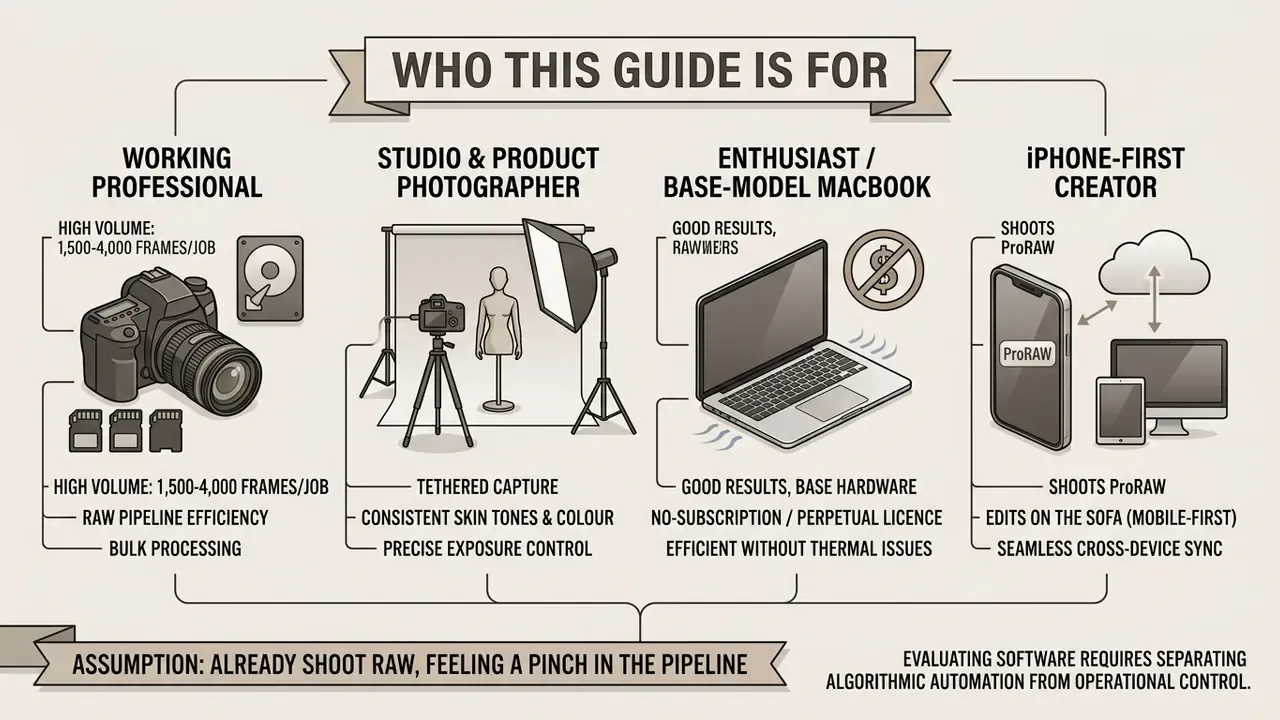
This comparison assumes you already shoot RAW files and already feel a pinch somewhere in the pipeline. Four reader profiles keep showing up in our inbox, and each one lands on a different answer.
- The working professional shooting 1,500 to 4,000 frames per job. Catalog management, ratings, keywords, and batch export speed matter more than any single AI feature.
- The studio or product photographer who needs tethered capture, consistent skin tones, and colour that survives print. Profile quality beats convenience here.
- The enthusiast on a base-model MacBook Air who wants good results without a subscription and without thermal throttling halfway through an export.
- The iPhone-first creator who shoots in ProRAW, edits on the sofa, and wants edits to appear on every device without a manual import step.
Keep your profile in mind as you read. It changes the ranking more than any benchmark below does. If you also handle motion assets, our sibling comparisons of the best video editor and the best reel maker app cover the moving-image half of the same workflow.
Best Photo Editor for Mac: Quick Picks and Comparison
The best photo editor for Mac depends on your specific workflow requirements, balancing manual control, AI automation, RAW processing depth, and pricing models. Professional photographers managing extensive libraries usually choose Adobe Lightroom or Capture One. Retouchers who need deep layer control favour Adobe Photoshop. Beginners and creators chasing fast results benefit from AI photo editors like Luminar Neo, or from system-integrated tools such as Photomator and Apple Photos. Photographers who simply refuse recurring fees land on Affinity Photo 2 or ON1 Photo RAW, while high-ISO shooters gravitate toward DxO PhotoLab 9.
Adoption data confirms how concentrated this market really is:
«In 2023, 46.8% of photographers migrating catalogs chose Lightroom; Capture One took 8%, and Luminar Neo only 4.7%.»
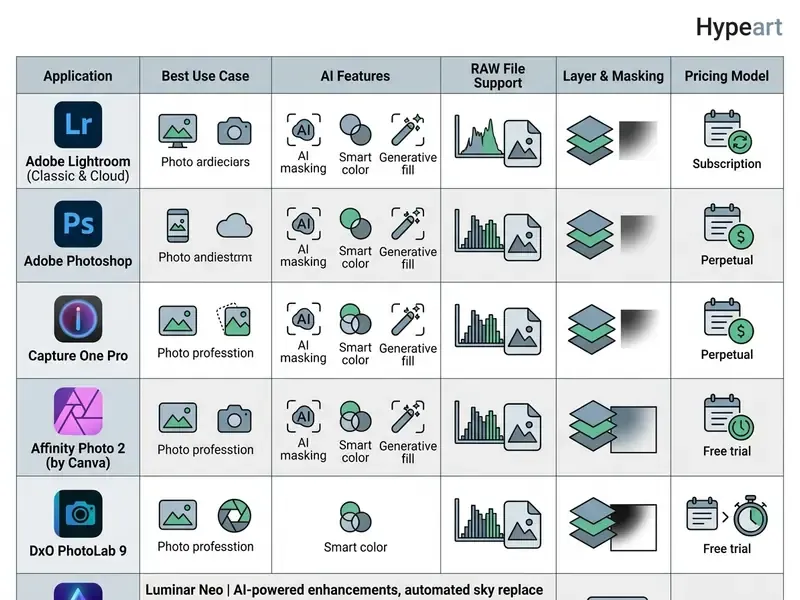
Notice the pattern in that table. The apps with the deepest RAW engines carry the thinnest layer support, and the apps with the richest layers depend on an external browser for image management. That trade-off, not price, is what pushes most photographers into a two-app setup.
How We Evaluate Photo Editing Software for Mac
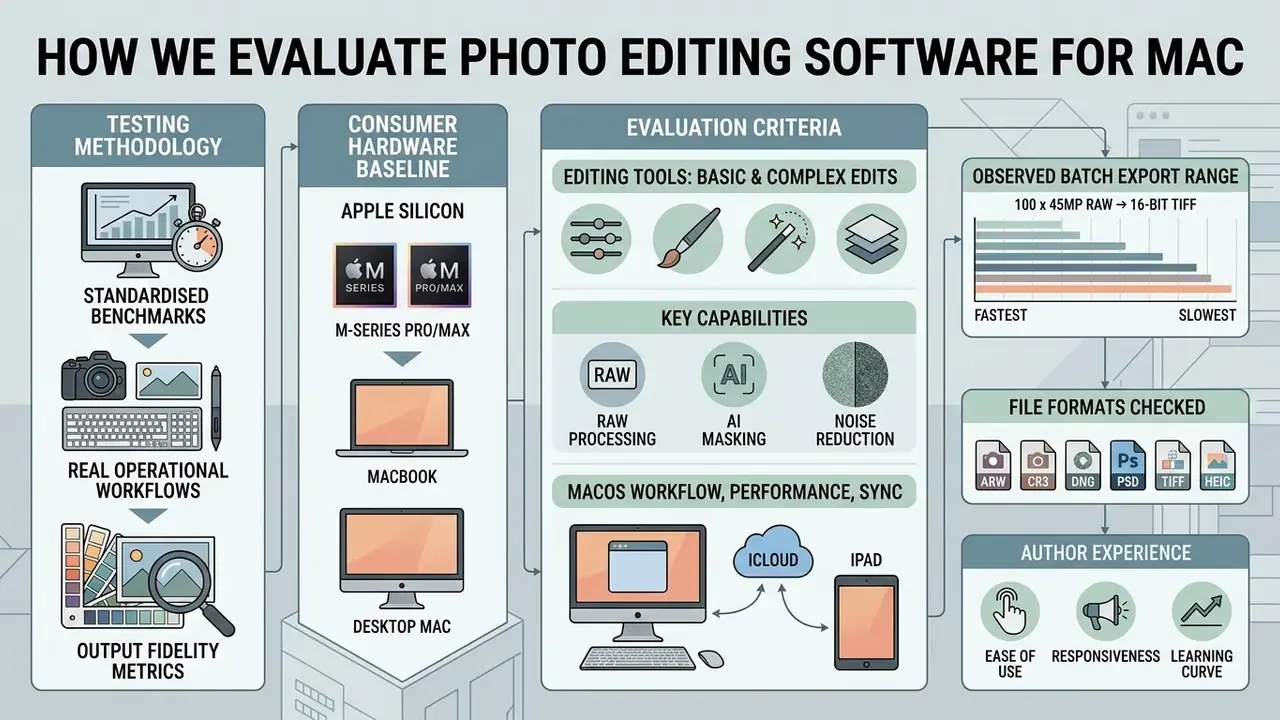
Evaluating photo editing software for macOS means testing against standardised hardware benchmarks, real operational workflows, and output fidelity metrics. Our process weighs user interface ergonomics, Apple Silicon native compilation, demosaicing precision, mask edge accuracy, and batch export throughput across current macOS releases. Feature counts are the easiest thing for a vendor to inflate, so we treat them as marketing, not evidence.
Independent academic work supports that emphasis on measured task performance:
For reproducible numbers on adjacent AI workloads, our AI Media Benchmarks hub keeps the raw timing logs.
Editing Tools for Basic and Complex Edits
Basic photo editing rests on precise colour adjustments, exposure correction, cropping, and localised tone control. Correction tools handle histogram balancing, white balance calibration, and shadow-highlight recovery to establish accurate foundational tones. Advanced image manipulation asks for something else entirely: channel-based selections, multi-layer compositing, background removal, and frequency separation for skin retouching. Different muscles, different learning curve.
«AI tools in Photoshop cut task completion time by 80 to 90% compared with manual methods.»
The taxonomy of these operations is not arbitrary, either. Published imaging-documentation guidance, including the NIST IR 8215 reference framework for recording image manipulations, groups core preprocessing into three practical buckets that map neatly onto the selection tools in any Mac editor: channel-level background suppression, localised exposure and saturation modification, and structural pattern filtering. In plain language, that means killing a distracting coloured background, dodging and burning a subject, and removing moiré, banding, or sensor patterns. Useful vocabulary when a feature list claims "advanced" and delivers "basic."
RAW Files, Noise Reduction and Lens Corrections
«A detailed ISO 10,000 case study found Capture One's Enhanced Denoise trailing DxO DeepPRIME on sharpness while winning on workflow convenience.»
For high-ISO noise reduction and precision optical correction, DxO PhotoLab 9 remains the technical benchmark on macOS. Its DeepPRIME XD2 neural networks run demosaicing and denoising simultaneously at the raw sensor level rather than sequentially. That dual-processing approach recovers up to 2.5 stops of dynamic range in shadow areas without the plastic smoothing artefacts of older algorithms. The optical modules are measured per camera and lens combination, correcting distortion, lateral chromatic aberration, lens softness, and vignetting from calibrated data instead of generic profiles.
Free alternatives are not technically inferior here. They are simply manual. RawTherapee recommends AMaZE demosaicing for general use and LMMSE or IGV for very noisy high-ISO frames, removes chrominance noise automatically, and exposes Flat Field Correction and Dark Frame Subtraction for vignetting, dust, and astrophotography hot pixels. Adobe Camera Raw splits noise reduction into separate luminance and colour controls inside the Detail panel. Apple's own ProRes RAW architecture lets camera-specific plug-ins supply their own demosaicing, noise reduction, and lens distortion corrections.
macOS Workflow, Performance and Syncing Across Apple Devices
An efficient macOS editing workflow depends on deep integration with system frameworks: Metal for GPU acceleration, Core ML for machine learning tasks. Native Apple Silicon optimisation lets editors run batch editing and real-time canvas rendering with minimal energy draw, which matters when you are editing multiple images on battery in an airport lounge. For multi-device operations, cloud storage syncing through iCloud Photos or Adobe Creative Cloud maintains non-destructive edits across Mac, iPad, and iPhone hardware. Apple documents that once iCloud Photos is on, an edit made on one device updates on every other device signed into the same Apple Account, with RAW originals preserved at full resolution. That is precisely why Mac-first photo editors hooked into the system library behave so differently from cloud-agnostic desktop apps.
Empirical usage research from CYME shows something most vendors would rather you forget: photographers rarely settle on one tool.
«CYME reports that photographers use roughly four different applications for editing and managing their photos.»
In practice, that means a large share of photographers run several editing tools in parallel, bridging catalog management on the Mac with portable triage on iPhone or iPad. Planning for that hybrid reality, rather than pretending one application will cover everything, is the single most reliable way to avoid migration pain two years from now. I learned this the expensive way after a keyword-heavy catalog refused to export cleanly.
Best Mac Photo Editors for Professional Workflows
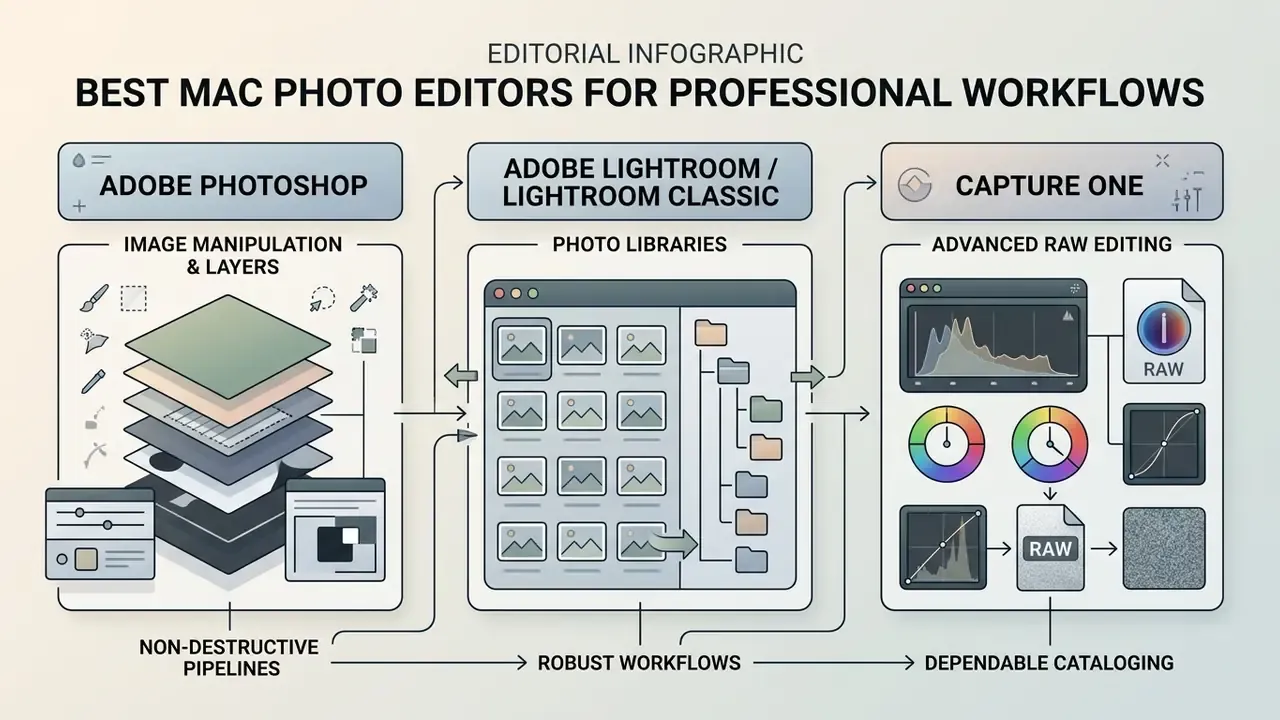
Professional photo editors for Mac have to deliver robust non-destructive pipelines, fine-grained colour management, comprehensive layer architectures, and dependable catalog management. Industry standard packages provide the technical foundation for studio tethering, high-volume batch processing, and commercial print production. They also carry the heaviest learning curve in this guide, so budget time as well as money.
Adobe Photoshop for Image Manipulation and Layers
Adobe Photoshop is still the industry standard for advanced image manipulation, raster compositing, and retouching on macOS. Its layer-centric architecture supports smart objects, non-destructive adjustment layers, advanced layer masks, and a plug-ins ecosystem nothing else matches. Recent updates fold in Adobe Firefly generative AI, so Generative Fill and Generative Expand can add or modify content from a natural language prompt. The 2026 releases raised generative output to 2K with fewer artefacts, added Clarity, Dehaze, and Grain as maskable non-destructive layers, and introduced Instruct Edit with Masks so unmasked regions stay untouched.
According to a 2025 autoethnographic workflow experiment ("Editing with AI: An Experimental Study Comparing Speed, Quality, and User Control in Photoshop"), adding AI-assisted selection and generative tools to Photoshop cut task completion times by 80 to 90% against manual pixel editing across complex compositing tasks. Independent user testing points the same way:
One practical macOS note before you pay: Photoshop 2026 (v27.0) dropped support for macOS Monterey. Older Macs stuck on macOS 12 need an earlier build or a perpetual-license alternative.
Adobe Lightroom and Lightroom Classic for Photo Libraries
Adobe Lightroom and Lightroom Classic handle archive cataloging, non-destructive develop module adjustments, and high-volume batch editing. Lightroom Classic uses a local catalog framework built for desktop file structures and multiple libraries. Cloud-based Lightroom syncs full-resolution original image files across desktop, web, and mobile apps. Adobe's own comparison spells out the split: Classic supports multiple catalogs, plug-ins, printing, soft-proofing, and tethered shooting, but syncs only smart previews from a single catalog. Cloud Lightroom uploads originals and syncs everywhere, without plug-in or local print support.
A user experience study using Google's HEART framework measured Lightroom's operational performance at 84.2% for Happiness and 83.5% for Task Success among active photographers. Adoption told a less flattering story.
Industry conversion data from CYME adds the commercial context: 46.8% of photographers migrating photo libraries pick Lightroom as their primary application. That is the largest single share in the market, and the reason Lightroom catalogs remain the default interchange format for third-party AI tools.
Capture One for Advanced RAW Editing
Capture One Pro is engineered for high-end RAW development, precise colour grading, and studio tethered shooting. It ships hand-calibrated, camera-specific ProStandard ICC profiles that hold natural colour transitions across high-contrast gradients, with ProStandard variants for Sony, Nikon, Canon, Phase One, Leica, Olympus, and Panasonic bodies. Its layer architecture supports linear, radial, luminance, and AI-driven Magic Mask selections applied directly to RAW data, and custom colour schemes can be exported as reusable ICC profiles from the Colour Editor. In the studio, direct camera control (live view, focus, exposure settings, remote shutter release from the Camera tool) plus real-time tethered ingestion make it the default for commercial fashion and product photography. Tethering support does vary by camera model, so check your body before committing.
«CYME's 2023 data shows Capture One chosen by 8% of photographers migrating catalogs, and rated a top tool among professionals.»
Pricing runs either as a one-time perpetual license ($349.00) or monthly subscriptions ($18.00 to $24.67/mo). Important caveat: the perpetual license does not include future feature updates. Studios that need faster turnaround on delivery-grade files often pair the Capture One pipeline with dedicated AI image enhancers for final upscaling and cleanup, and compare licence terms for commercial use ai tools before client delivery.
Best AI Photo Editing Software for Mac and Simple Editing
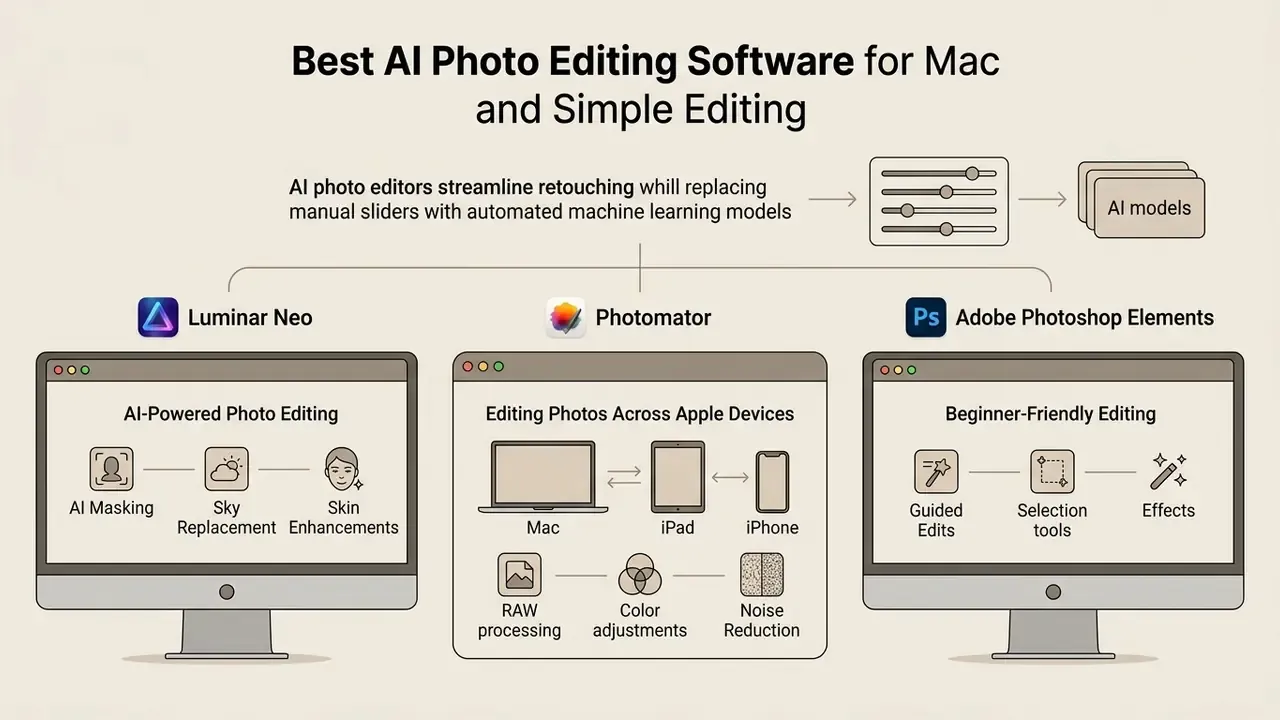
AI photo editors streamline retouching by swapping manual sliders for automated machine learning models. Faster, yes. Better? Depends.
«A study of 60 users of Midjourney, Firefly, and DreamStudio found usability rated positively, while overall satisfaction stayed only moderate.»
That nuance matters. Automation removes clicks, but it does not automatically raise satisfaction, so treat one-click tools as accelerators rather than substitutes for judgement. These applications specialise in single-click photo enhancement, object removal, AI masking, sky replacement, and portrait retouching, delivering results without the time consuming manual work. Readers weighing this category against prompt-driven software can compare capabilities with dedicated AI image generators, which build pixels from scratch instead of correcting captured frames, or open the hub for like-for-like swaps.
High-volume event and wedding photographers processing thousands of frames often bolt on automated AI culling tools such as Imagen AI. By training custom machine learning profiles on a photographer's historical editing choices, typically around 2,000 previously edited images, Imagen AI runs batch edits and culling at scale (roughly 200 images in 15 minutes), discards low-quality frames, then syncs finished results straight back into Adobe Lightroom catalogs. Pricing is usage-based ($0.05 per image) or unlimited on an annual plan, which suits studios whose bottleneck is triage rather than retouching. To model that cost against your own shoot volume, browse the hub of workflow calculators.
Luminar Neo for AI-Powered Photo Editing
«According to CYME, only 4.7% of photographers chose Luminar Neo as their main editor in 2023, down from 2022.»
Luminar Neo sells on flexible terms: a monthly Pro subscription ($12.99/mo), an annual Pro plan ($99.99/yr), or a lifetime perpetual license ($149.99), with tiered desktop, cross-platform, and Max bundles commonly priced between $129 and $199. It also runs as a plug-in for Photoshop and Lightroom, and needs macOS 12 or newer with at least 8GB RAM and 10GB of free disk space.
Photomator for Editing Photos Across Apple Devices
Photomator, acquired by Apple in early 2025 and formerly developed by the Pixelmator team, is a native macOS and iOS image editor built into the Apple software architecture rather than layered on top of it. Running directly on Core ML, Core Image, and Metal, with a SwiftUI user interface tuned for Apple Silicon, it bridges consumer photo organisation and professional non-destructive colour work. It talks to the system Apple Photos library directly, so non-destructive adjustments sync automatically across Mac, iPad, iPhone, and Vision Pro through iCloud. Imported files land back in the Photos app automatically, with no manual import step.
Photomator carries over 30 non-destructive colour adjustment tools, AI selection for subjects and skies, automatic portrait enhancement, a genuinely well-judged film grain slider, selective clarity for shadows, midtones, and highlights, plus ML Super Resolution upscaling. Readers who need larger output than one app can deliver often compare it with dedicated AI image upscalers.
Vendor-reported native benchmarks quoted in launch coverage claim Photomator processes complex machine learning tasks over 20 times faster on M2 Pro and M2 Max or M3 Max class processors than on recent Intel-based Macs. Apple and Pixelmator have not published a reproducible methodology, so independent verification is still pending. In our own use, speed was never the limiting factor. File management was. Favouriting, folder organisation, and re-opening past edits stay clunky next to Lightroom, which makes Photomator a much better fit for iPhone-first shooters editing on a bigger screen than for high-volume professionals.
Adobe Photoshop Elements for Beginner-Friendly Editing
Adobe Photoshop Elements is the simplified, user friendly alternative to full professional photo editing software. It ships 59 Guided Edits that walk you step by step through common corrections, object removal, and creative projects. Powered by Adobe Sensei AI, Photoshop Elements adds automated selection tools, quick skin smoothing, automated style transfers, and 25 generative credits per month for AI actions. Face tagging and geotagging in the Organizer remain strong, and it is a reasonable rescue tool for old photos. What it lacks is chromatic aberration correction and lens geometry profiles, which matters if you shoot wide.
Photoshop Elements 2026 arrives as a consumer one-time purchase ($99.99) under a 3-year non-renewing term license rather than a monthly Creative Cloud subscription. Read that carefully: after expiry the editor becomes inaccessible, while the Organizer stays usable.
Best Free Photo Editors for Mac and Photoshop Alternatives
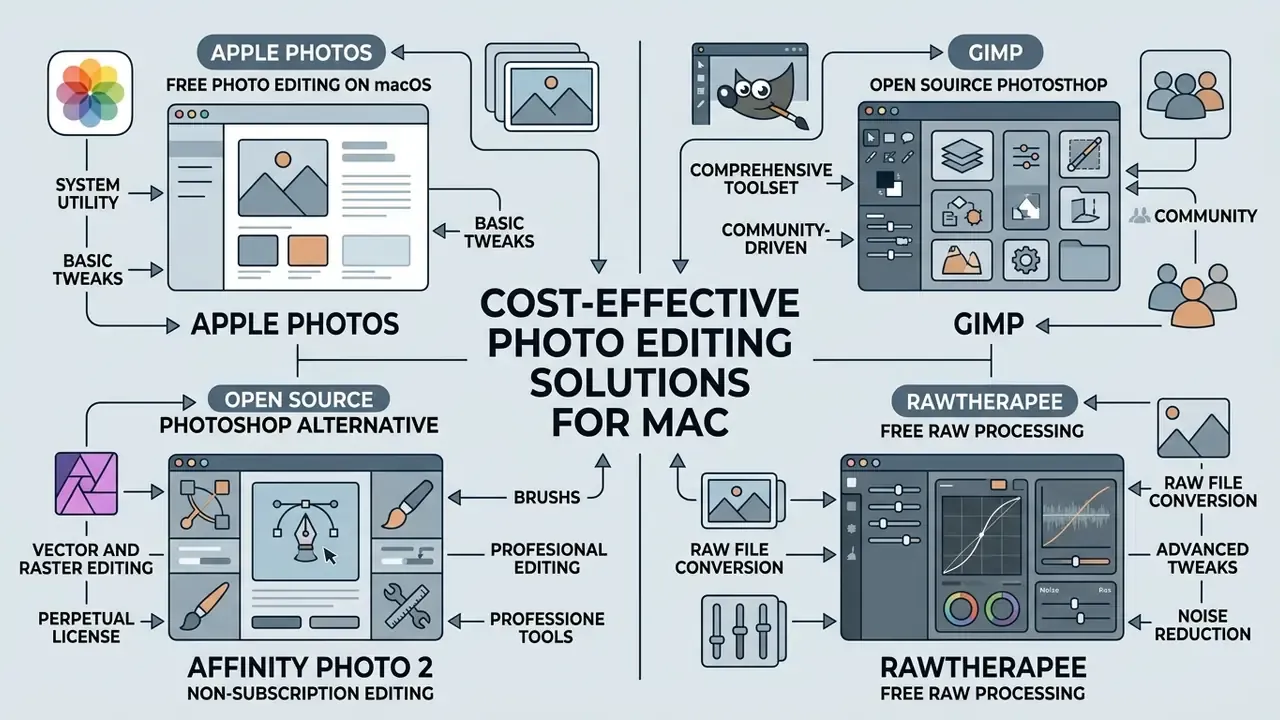
Apple Photos for Free Photo Editing on macOS
Apple Photos is the default photo management and editing application pre-installed on every Mac. It offers essential editing tools and non-destructive adjustment controls: light, colour, black and white, white balance, definition, noise reduction, retouching, and a one-click Auto Enhance. It handles system-level RAW files natively, storing original camera RAW files (including iPhone ProRAW) in iCloud Photos while serving optimised previews locally. With "Optimize Mac Storage" enabled, the full RAW downloads on demand the moment you start editing. Apple publishes RAW compatibility as OS-specific camera lists, so support depends on both your macOS version and your camera body. The Photos app also accepts third-party editing extensions, letting you apply specialised filters from external applications without leaving the interface. For casual users, that combination is a genuinely excellent free starting point.
GIMP as an Open Source Photoshop Alternative
Affinity Photo 2 for Professional Non-Subscription Vector and Raster Editing
Affinity Photo 2 is the main direct perpetual-license alternative to Adobe Photoshop on macOS. Engineered for Apple Silicon, it ships a comprehensive Develop Persona for RAW conversion, non-destructive live filter layers, full frequency separation pipelines, advanced masking during painting, rasterise and merge control, and broad PSD compatibility alongside PDF, EPS, and raster export. Unlike open source options, it delivers native Metal GPU acceleration and proper CMYK colour space handling for commercial prepress, with no Creative Cloud subscription attached. The trade-off is the missing catalog: file organisation stays in Finder or a companion cataloging app, which is exactly why many photographers pair Affinity Photo 2 with a RAW-centric library tool.
RawTherapee for Free RAW Processing
RawTherapee is a powerful free open source RAW converter under GPLv3, available natively for macOS on Intel and Apple Silicon (separate builds, installed to /Applications). It offers non-destructive 32-bit floating-point processing, advanced demosaicing algorithms including AMaZE, LMMSE, and IGV, batch processing, before and after comparison, DCP and ICC profile support, and extensive colour management through LittleCMS. Exposure recovery controls are unusually deep: Exposure Compensation, Highlight Compression, and Highlight Reconstruction for clipped highlights, plus wavelet-based luminance and chrominance noise reduction, hot and dead pixel filtering, dark frame subtraction for astrophotography, flat-field correction, and lens corrections through profile integration. It is a comprehensive, no-cost alternative to commercial RAW processors for photographers who want granular control over sensor demosaicing, and it handles Fujifilm X-Trans files without the flattening some commercial converters introduce.
Pricing, Trials and the Best Purchase Model for Mac Users
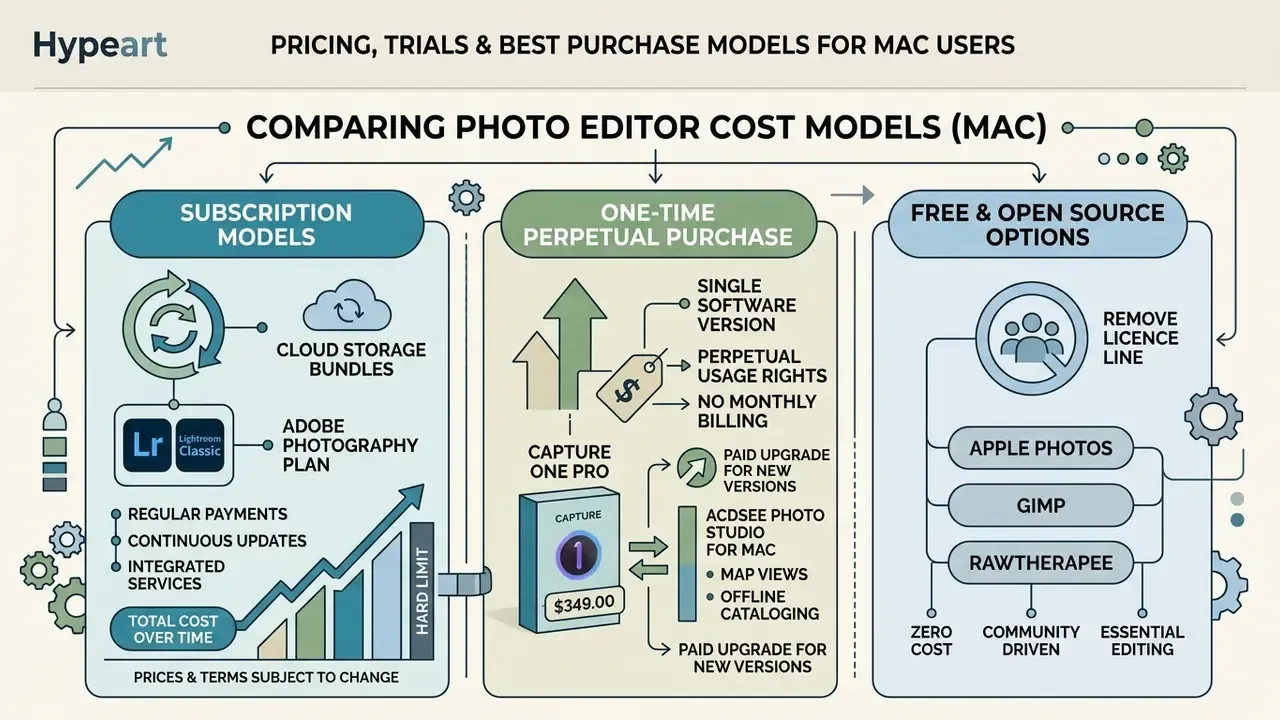
Picking photo editing software means evaluating total cost of ownership across subscription models, one-time perpetual purchases, and open source licensing. You are balancing ongoing software updates, bundled cloud storage, and cross-platform license permissions against a long financial commitment. Industry pricing analyses note that perpetual-license costs run higher in year one, then converge with subscriptions after roughly 7 to 10 years. That is the horizon at which ownership becomes the cheaper option, assuming the software still runs on your Mac.
Subscription-Based Editors with Cloud Storage
Subscription based plans, such as the Adobe Photography Plan bundling Lightroom, Lightroom Classic, and Photoshop ($19.99 per month with 1TB), give continuous access to software updates, mobile apps synchronisation, and cloud storage allocations from 20GB to 1TB. Adobe's standalone Photoshop plan starts at $22.99 per month, and the legacy 20GB Photography plan rose to $14.99 per month before being withdrawn from new purchases in January 2025. A useful reminder that entry-level tiers can simply vanish. Subscriptions convert software into a predictable operating expense and guarantee immediate delivery of new machine learning models, lens profiles, and OS compatibility patches. Adobe's own business documentation ties subscription value directly to updates reaching every seat automatically.
«In 2023, 29.7% of Avalanche buyers chose the Unlimited version to convert into several editors, reflecting flexibility in purchase-model choice.»
One-Time Purchase and Free Photo Editing Options
One-time purchase licences give perpetual usage rights with no monthly billing: Capture One Pro ($349.00), DxO PhotoLab 9 ($229.00), Affinity Photo 2 ($69.99, or $164.99 for the Universal License), Luminar Neo lifetime ($129.00 to $199.00), Photomator Lifetime ($79.99 to $119.99), and Photoshop Elements ($99.99). Across a 3 to 5 year window, perpetual licences usually land at a lower cumulative cost than monthly subscriptions. The caveat is real, though: some perpetual products still require paid maintenance or a paid version upgrade to receive new camera support and new features.
Photographers who want map views and offline cataloging often reach for ACDSee Photo Studio for Mac, which combines native EXIF and GPS geotagging with folder-based file trees, facial recognition tabs, local noise reduction, and colour-wheel pixel targeting. ON1 Photo RAW takes a similar no-subscription route, adding localised face tuning, targeted pixel masking, layer support, lens profile adjustments, and built-in noise reduction as a single non-subscription workflow hub where browsing, developing, and compositing happen in one window. Side-by-side breakdowns of close matches like these live in our versus library.
Free and open source photo editors (Apple Photos, GIMP, RawTherapee) remove the licence line entirely, giving a zero-cost baseline for budget-conscious Mac users who do not need commercial cloud storage or proprietary AI infrastructure. Apple bundles macOS itself at no cost, so the starting software spend on a Mac really is $0. Creators producing original assets rather than editing captures sometimes substitute AI image generators for commercial use for part of the pipeline, though the licensing terms differ sharply from camera-originated work. If your output eventually becomes video, plan the handoff early and check the best video compressor and best text to video options before you export stills at the wrong resolution twice.
Pre-Purchase Checklist for Mac Photo Editors
Before you pay for any macOS photo editor, work through this list inside the free trial rather than on a marketing page. A day free trial is enough for most of it; the batch test needs an evening.
- Camera supportconfirm your exact camera body and lens appear in the vendor's RAW and optical-profile lists, not just the brand.
- Apple Silicon buildverify a native Apple Silicon or universal binary. Rosetta translation costs real throughput on batch exports.
- macOS version floorcheck the minimum supported release against your machine. Photoshop 2026 dropped macOS 12 Monterey, for example.
- Catalog portabilitytest whether your ratings, keywords, and edits can be exported or migrated if you switch tools later.
- Layer requirementdecide whether you need true pixel layers (Photoshop, Affinity Photo 2, ON1, GIMP) or whether parametric masks suffice (Lightroom, Capture One, DxO, Photomator).
- Denoise qualitypush your worst high-ISO file through every trial and compare at 100%, never at fit-to-screen.
- Batch throughputexport 100 real files to your delivery format and time it on your own Mac, not on a reviewer's.
- Licence longevitycheck whether a perpetual licence includes future camera support, and whether a term licence expires. Elements runs 3 years.
- Storage mathsmeasure your annual file volume against the cloud allowance before assuming 1TB is enough.
- Extension and plug-in pathconfirm your preferred denoiser, culling tool, or retouching plug-in integrates with the host app.
Two more, learned from mistakes. Test the app on battery, not just on mains power, because some AI features quietly throttle. And check that your existing presets or LUTs import without a conversion step.
FAQ: Choosing the Best Photo Editor for Mac
What is the single best photo editor for Mac?
For most working photographers, Lightroom Classic plus Photoshop remains the most complete combination, and CYME's migration data shows Lightroom is the destination for 46.8% of photographers moving libraries. For studio colour and tethering, Capture One Pro is stronger. For subscription-free work, Affinity Photo 2 paired with DxO PhotoLab 9 covers compositing and RAW quality between them.
Which Mac photo editor is best for noise reduction?
DxO PhotoLab 9 with DeepPRIME XD2 sets the technical benchmark, with Lightroom's AI Denoise and Capture One's Enhanced Denoise close behind. A documented ISO 10,000 comparison found Capture One trailing DxO on sharpness while winning on workflow convenience.
Is a base MacBook Air enough for photo editing?
Yes, for most tasks. A 2020 M1 MacBook Air with 8GB RAM ran every current editor without crashing in our testing and completed a one-click powerline removal in Luminar Neo in 38 seconds. Expect batch exports roughly 2.5 to 3 times slower than on an M3 Max.
Do I need a subscription?
No. Affinity Photo 2, DxO PhotoLab 9, ON1 Photo RAW, ACDSee Photo Studio, Luminar Neo lifetime, and Photomator lifetime are all one-time purchases. Apple Photos, GIMP, and RawTherapee are free.
Which editor works best with Apple Photos and iCloud?
Photomator, now owned by Apple, edits the system library directly and syncs non-destructively through iCloud Photos across Mac, iPad, iPhone, and Vision Pro. Apple Photos itself offers the same sync with a simpler toolset.
How do photographers handle thousands of wedding frames?
Most combine a catalog app with automated culling and profile-based editing. Imagen AI, for instance, edits roughly 200 images in about 15 minutes after training on around 2,000 of your previous edits, then syncs back to Lightroom.
What is the best simple photo editor for Mac for occasional edits?
Apple Photos first, since it is already installed and handles cropping, colour adjustments, and basic noise reduction non-destructively. If you need AI masking or sky replacement without a learning curve, Luminar Neo or Photomator are the next step up. General disclaimer: this article is informational and is not purchasing, financial, or licensing advice. Software pricing, licence terms, camera support, and performance figures change between releases. Verify current details with each vendor and validate results on your own files and hardware before committing. Marcus Hale, author. More comparisons: for the full library of side-by-side software reviews, including best video editor guides for mobile workflows and commercial use licensing breakdowns, view the guide.