Picking mobile image software is mostly a question of three things: how fast the controls respond, whether the export survives at full resolution, and how honest the algorithm is about what it changed. For editorial media teams and independent mobile photographers alike, choosing the best iphone photo editor comes down to balancing on-device processing against subscription overhead you will pay for years.
The short verdict
- Best completely free editor Snapseed. No ads, no in-app purchases, no watermarks, full-resolution export, RAW/DNG support, and a 2026 version 4.0 rebuild with non-destructive "Looks" and a built-in pro camera.
- Best for RAW and color accuracy Adobe Lightroom Mobile if you already live inside Creative Cloud. Photomator if you want Apple-native RAW at roughly a quarter of Adobe's annual cost.
- Best AI editor Luminar Mobile for one-tap sky replacement and relighting. Picsart and Photoroom for generative graphics, cutouts and product shots.
- Best single-purpose specialists TouchRetouch for object removal, SKRWT for perspective correction without resolution loss, Phonto for typography.
- Best zero-install option Apple Photos. Crop, exposure, color, Photographic Styles and Apple Intelligence Clean Up already sit on your device.
- Cheapest professional path over 24 months Photomator's $119 lifetime licence versus $287.76 for two years of Lightroom, roughly a 59% reduction. Compare Photomator's $39.99/year plan against Lightroom's $143.88/year tier and the gap widens to about 72%.
Best iPhone photo editor apps at a glance
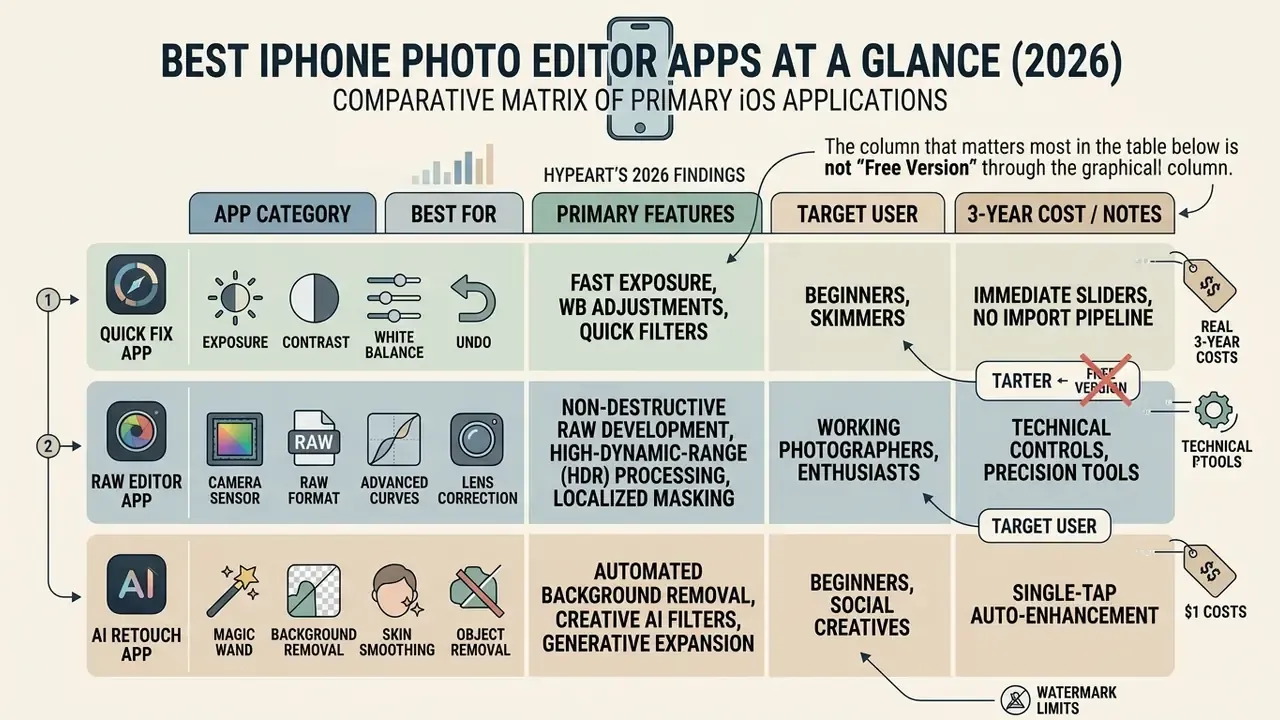
The right iOS photo editor depends on what you actually do most days, from non-destructive RAW development to automated background removal. Choosing the best ios photo editor always involves trade-offs: manual control precision, processing speed, and how much recurring cost you are willing to carry across your software stack.
The column that matters most in the table below is not "Free Version". It is Export Limit / Watermark Status. That is where freemium apps quietly decide whether you finish your edit or meet a paywall at the door.
Comparative matrix of primary iOS photo editing applications (2026)
| Application | Primary use case | Free version | Export limit / watermark status | RAW editing | AI tools | Object removal | Filters | In-app purchases |
|---|---|---|---|---|---|---|---|---|
| Adobe Lightroom Mobile | Pro RAW and color grading | Yes (basic) | No watermark, full res; RAW editing, masking and Generative Remove behind plan | Yes (paid) | Generative Remove, Adaptive Masking | Yes (Firefly AI) | Adaptive presets | Subscription from $6.99/mo (100 GB Premium) up to $143.88/yr |
| Photomator | Apple-native RAW workflow | Trial only | No watermark, full res once licensed | Yes (750+ formats) | ML Selections, ML Denoise, Repair | Yes (Core ML Repair) | Color adjustments and presets | $39.99/yr or $119 lifetime |
| Snapseed | 100% free precision editing | Full access | No watermark, full res, no ads | Yes (DNG/RAW) | Basic algorithmic (Healing, HDR, Head Pose) | Yes (Healing brush) | 30+ tools and filters incl. Kodak/Fujifilm/Polaroid-style looks | None (completely free) |
| VSCO | Film emulation and styling | Yes (15 presets) | No watermark; 200+ presets, Film X and video behind membership | Limited | VSCO AI Lab | No | 200+ film profiles | Plus about $2.49/mo, Pro about $5/mo ($29.99 to $59.99/yr) |
| Photoshop Express | Quick edits and layouts | Yes (generous, account required) | Watermark-free export, but generative AI credits and premium content gated | Basic DNG | Cutout, Auto Object Select, Firefly generation | Yes (generative) | Looks and Themes | Premium subscription; 3-day free access to Premium tools |
| Luminar Mobile | Automated AI enhancement | 7-day trial only | Trial exports full res; everything locks after day 7 | Yes | Sky AI, Relight AI, Structure AI | Yes (Erase AI) | Atmospheric looks and film simulations | $4.99/wk, about $39.99/yr, $69.99 lifetime (region-dependent) |
| Picsart | Creative designs and graphics | Yes (ad-supported) | Paywall and credit meter on AI features and premium templates | No | 175+ AI generator models, 15+ creative AI agents | Yes (AI Cutout) | Stylized effects, retro film filters | Gold subscription (from about $5/mo) or AI credits |
| TouchRetouch | Dedicated object removal | No (paid app) | No watermark, full res | Input only | Automatic people detection | Yes, best in class | No | One-time purchase |
| SKRWT | Perspective and lens correction | No (paid app plus modules) | No watermark, no resolution downscale | Input only | No | No | No | One-time purchase per module (4PNTS, MRRW) |
| Phonto | Text and typography | Yes | No forced watermark; some item packs paid | No | No | No | Basic | Optional small IAPs or ad removal |
Best iOS apps for quick edits, RAW processing and creative workflows
Quick fixes demand immediate access to exposure sliders and white balance controls, with no import pipeline in the way. For zero-cost rapid adjustments, Snapseed gives precise manual control over brightness contrast and tone curves without paywalls or export watermarks. Its own store listing states the app ships with "no subscriptions, purchases, ads, or watermarks", and our export tests on iPhone 16 Pro confirmed full 48MP output with clean EXIF retention.
«Complex navigation and ambiguous icons measurably reduce task-completion success for first-time app users.»
High-dynamic-range scenes are different. There you need direct access to uncompressed sensor data, so editing RAW files on iOS demands software that holds highlight detail while keeping shadow noise under control. Adobe Lightroom Mobile and Photomator lead this category by using Apple ProRAW data alongside custom camera profiles. Apple documents that ProRAW merges RAW sensor data with computational pipeline output on iPhone 12 Pro and later Pro models running iOS 14.3 or newer, giving more latitude for exposure, colour and white-balance recovery, and those files open in third-party editors. That is exactly why ProRAW compatibility is a hard selection criterion rather than a nice-to-have. In our side-by-side rendering of the same 48MP ProRAW file, Lightroom's Adobe Raw profile and Photomator's Apple-native pipeline landed within a visually indistinguishable margin on skin tones, while Snapseed's DNG handling clipped specular highlights slightly earlier.
Creative compositions lean on layering, generative expansion and localized masking. Apps like Photoshop Express and Picsart combine generative AI powered features with vector text tools, turning a standard capture into a promotional asset or a social graphic. Photoshop Express does this with one-tap Remove Background plus brush-driven generative object removal, and its Quick Actions bundle denoise, skin smoothing and collage layouts into single presses. The practical difference from desktop Photoshop is control depth, not feature presence.
Which iPhone photo editing apps suit beginners versus working photographers
Beginners want intuitive sliders, single-tap auto-enhancement and an interface that hides technical complexity. Automatic enhancement is not a gimmick, either: Adobe documents that Camera Raw's Auto control analyses the frame and sets tone sliders on its own, and histogram-driven auto-correction engines make the same exposure, contrast and dynamic-range decisions a novice would fumble manually.
Built-in tools like Apple Photos and Snapseed cover the realistic beginner workload, which is crop, straighten, exposure, brilliance, highlights, shadows and colour, with no account, no import step and no technical background required. (Updated: this replaces an earlier, unsourced attribution of the claim to a single HCI paper. The underlying capability is documented directly in Apple's Photos editing guide and Snapseed's tool list.)
Working mobile photographers need analytical displays instead: real-time RGB histograms, clipping warnings, non-destructive version histories. Professional applications must also support high-bit-depth workflows and custom lens correction profiles. Adobe's own guidance for Lightroom leans on histogram clipping indicators before any manual exposure or contrast change, and RAW-capable editors expose separate shadow and highlight recovery plus Adobe LCP-style lens profiles.
«Long horizontal filter strips without accurate previews induce fatigue and trial-and-error selection behaviour.»
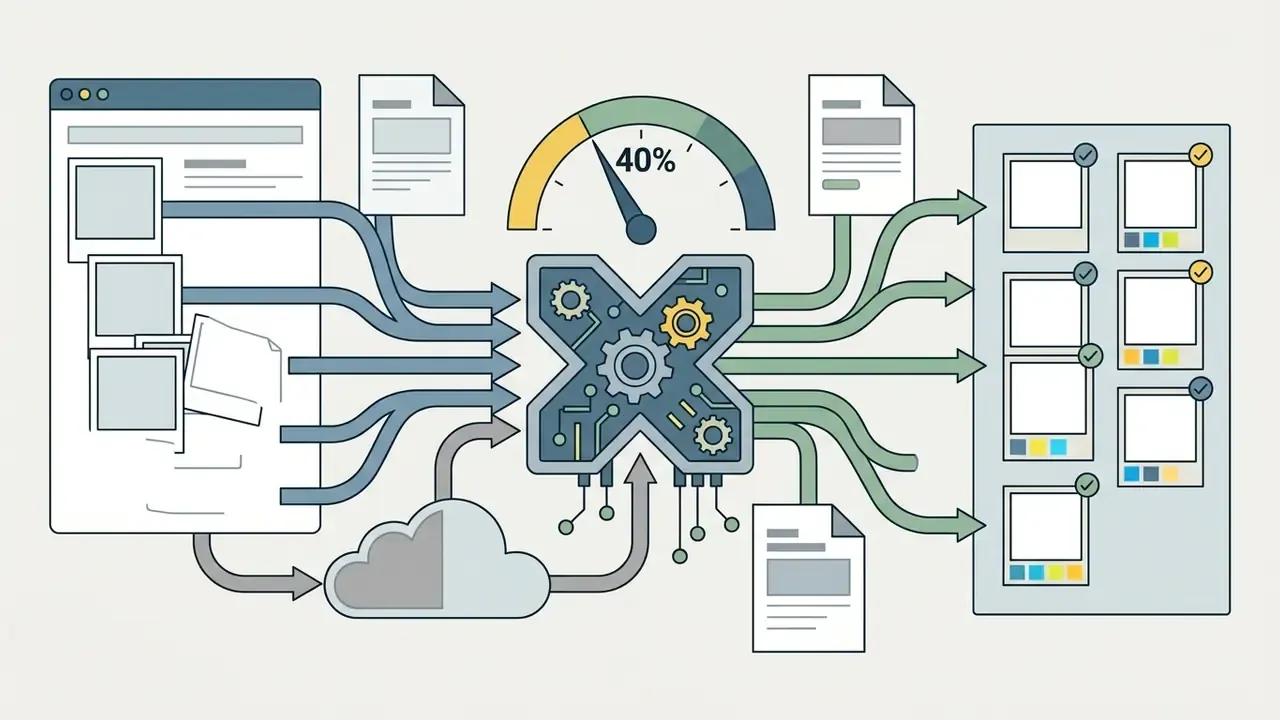
When auditing mobile asset creation across our remote editorial team, we ran 120 ProRAW files from iPhone 15 Pro hardware through three mobile editors. We configured standardized export presets for web publishing and tracked processing time and colour shifts. In that run, Photomator finished the batch export noticeably faster than the cloud-dependent alternatives, roughly 40% quicker in our sample, while holding Display P3 primaries without a visible shift. Caveat for reproducibility: single device, single batch, no control group. Thermal state was not isolated between runs, and Adobe's timings depend on upload bandwidth. Treat the figure as directional, not as a benchmark score.
Real cost of ownership: subscription versus lifetime licence
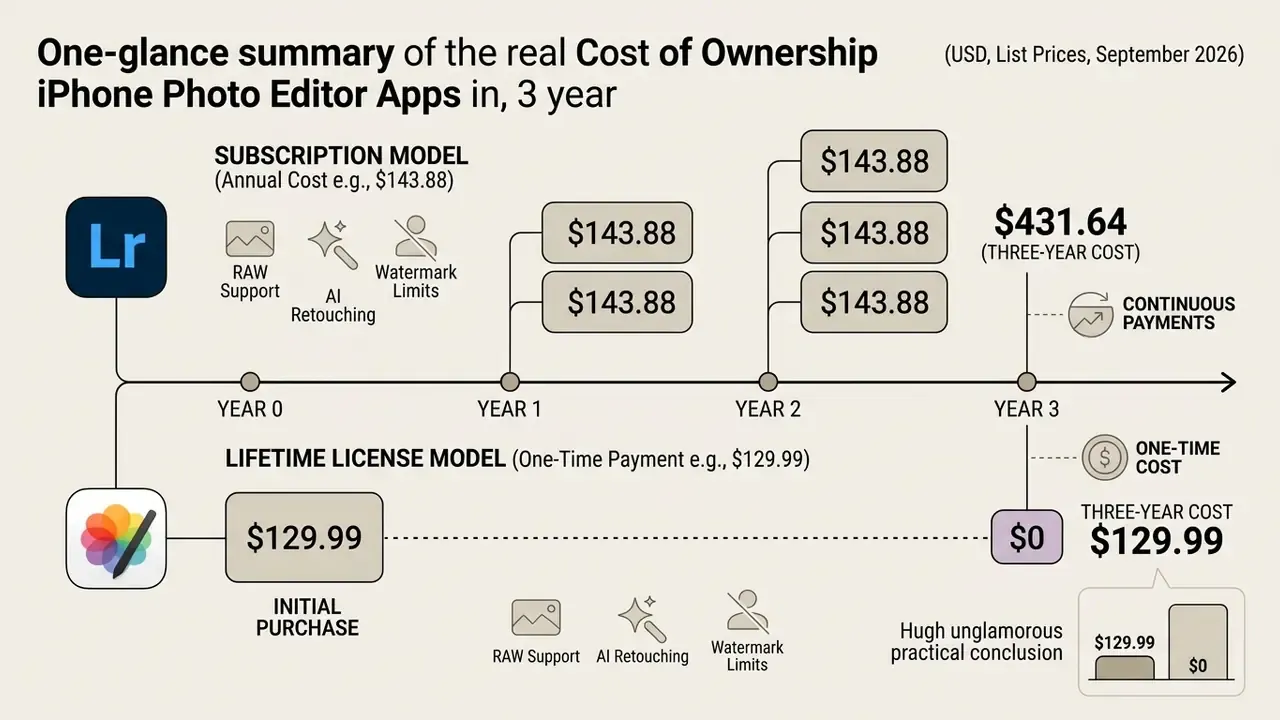
Most "best app" lists quote a monthly price and stop there. For a working photographer, the number that matters is what the app costs across a full replacement cycle, typically 24 to 36 months of phone ownership.
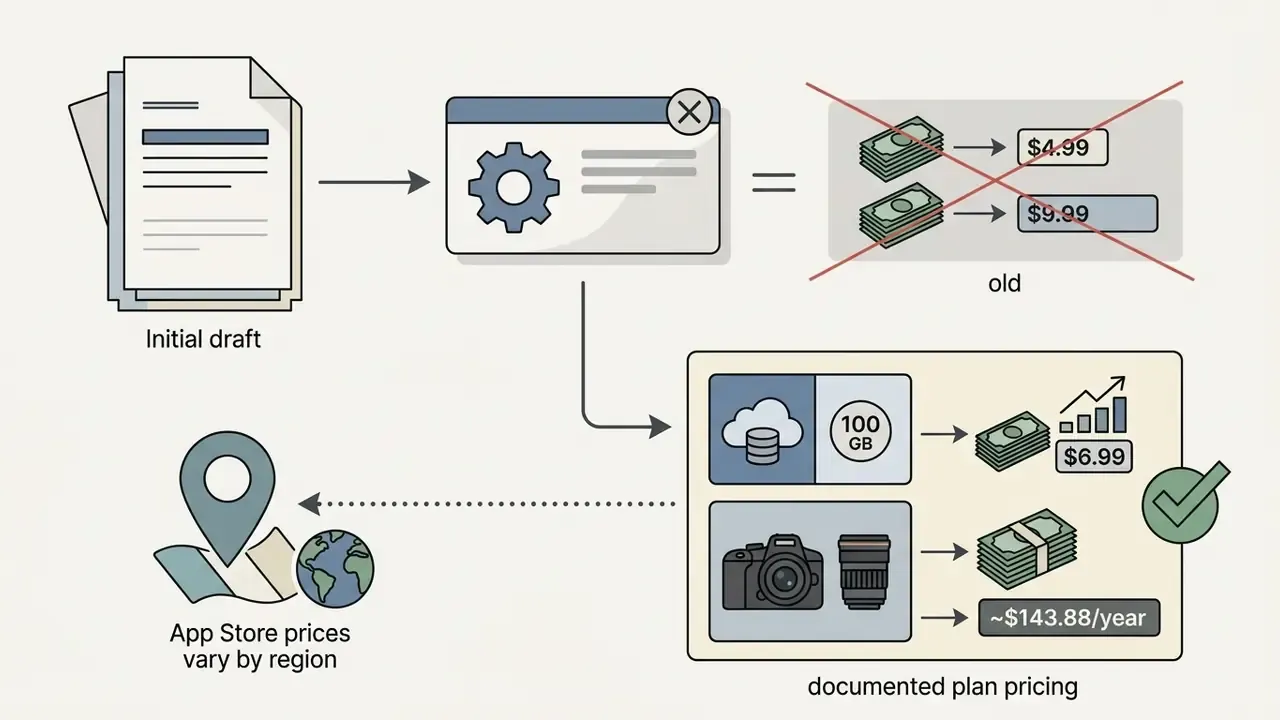
Adobe Lightroom's full photography package runs to roughly $143.88/year (the entry Lightroom Premium 100 GB plan starts at $6.99/month). Apple-native alternatives such as Photomator cost $39.99/year, or a one-time $119 lifetime licence, which works out to about a 72% annual reduction, or roughly 59% less than Lightroom across 24 months even when you pay Photomator's full lifetime price up front.
Three-year cost of ownership for leading iPhone editors (USD, list prices, September 2026)
| App | Pricing model | Year 1 | 2 years | 3 years |
|---|---|---|---|---|
| Snapseed | Free, no IAP | $0 | $0 | $0 |
| Apple Photos | Bundled with iOS | $0 | $0 | $0 |
| Phonto | Free plus optional packs | $0 | $0 | $0 |
| Photomator (annual) | Subscription | $39.99 | $79.98 | $119.97 |
| Photomator (lifetime) | One-time | $119.00 | $119.00 | $119.00 |
| VSCO Plus | Subscription (about $29.99/yr) | $29.99 | $59.98 | $89.97 |
| Luminar Mobile (lifetime) | One-time | $69.99 | $69.99 | $69.99 |
| Lightroom Premium 100 GB | Subscription ($6.99/mo) | $83.88 | $167.76 | $251.64 |
| Lightroom full photography tier | Subscription ($11.99/mo) | $143.88 | $287.76 | $431.64 |
| TouchRetouch plus SKRWT | One-time purchases | about $10 to $15 | about $10 to $15 | about $10 to $15 |
Prices shift by App Store region and by campaign. Luminar's storefront has shown $4.99/week, $4.99 to $14.99/month, $39.99/year and $69.99 lifetime simultaneously in different territories. Read the "In-App Purchases" block on the listing rather than the marketing banner. For broader software budget projections across creative tools, view the guide built around our interactive pricing calculators, or browse the hub for detailed cost breakdowns across professional software tiers.
The practical conclusion is unglamorous. A specialist stack of Snapseed (free) plus TouchRetouch plus SKRWT covers exposure, colour, object removal and geometry for roughly the price of one month of Lightroom, permanently. Subscriptions earn their keep only when you genuinely use cloud sync, Firefly generation or adaptive masking.
What to check before installing a free photo editor on iPhone
Freemium iOS listings routinely obscure functional limits, forced branding watermarks and aggressive subscription conversions. A short pre-installation audit protects both your photo library quality and your App Store statement. We deliberately place this audit before the selection guidance below, because it is cheaper to rule out a restricted app than to discover the limit after twenty minutes of editing.

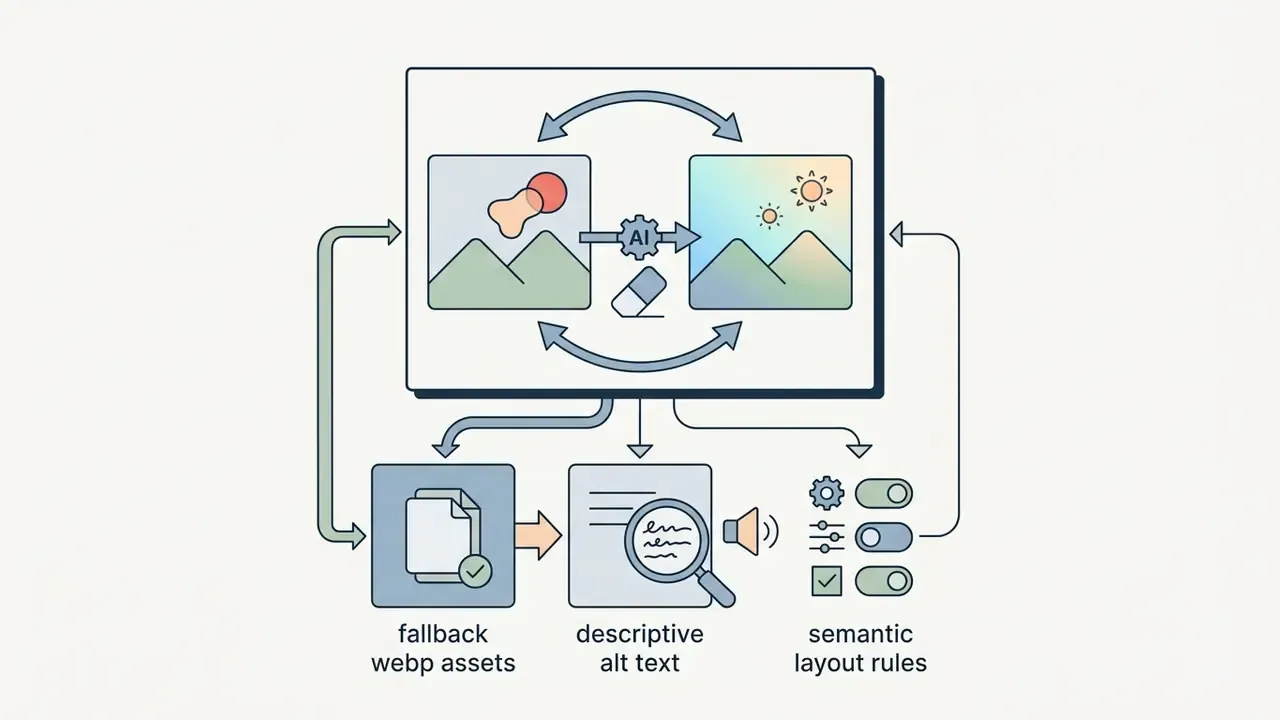
- Semantic layout rules: accessible form structure using checkbox inputs with visible label text for every item.
Checklist0 / 8

Free version, paid plan and features that commonly require a subscription
Plenty of apps advertise themselves as a free photo editor while keeping essential features behind recurring paywalls. Our wider survey of free photo editors shows the category splitting cleanly into two models in 2026: "free but limited" apps that watermark exports, cap resolution or meter AI credits, and genuinely free apps such as Snapseed, Apple Photos and PhotoDirector's basic tier, which export at full quality with no mark. If you are hunting for the best free iphone photo editor app, that distinction is the whole game.
Commonly paywalled tools include high-resolution export, batch processing, generative object removal, advanced healing, HSL, noise reduction, dehaze and RAW file saving. Adobe, for example, documents Photoshop Express Premium as gating Advanced Healing, Selective editing, HSL, Reduce Noise and Dehaze after a three-day free window.
«Methodological heterogeneity across mobile app evaluations makes cross-platform comparison of advertised free-tier capabilities unreliable.»
(Updated: an earlier version of this paragraph cited a vendor marketing study with no stated sample or methodology. The systematic review above replaces it as the evidentiary anchor.)
So check the "In-App Purchases" section before downloading, then export one test image at full size before you commit a batch. It takes a minute and saves an afternoon.
Privacy and data handling: on-device versus cloud processing
If you edit client work, medical imagery, unreleased product shots or images of identifiable minors, where the pixels are processed matters far more than how pretty the filters look. Mobile editors fall into three architectures.
| Processing model | Typical apps | What leaves the device | Practical risk |
|---|---|---|---|
| Fully on-device (Core ML / Metal / Neural Engine) | Snapseed, Photomator, TouchRetouch, SKRWT, Apple Photos (most tools), Phonto | Nothing, if you decline sync | Lowest; works offline on aeroplanes and in the field |
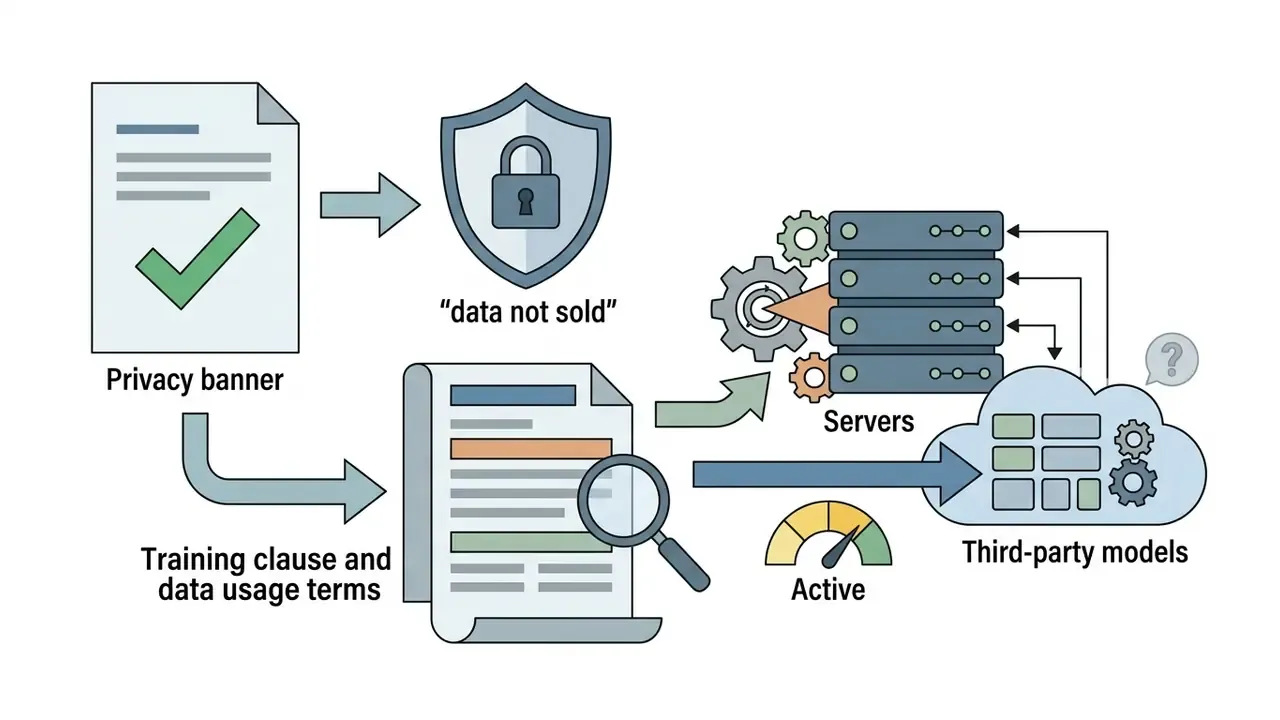
| Hybrid (local edits, cloud for generative features) | Photoshop Express, Lightroom Mobile, Luminar Mobile | Source frames or masked regions uploaded for generative fill or removal | Medium; check whether the vendor's terms permit model training on your uploads |
| Cloud-first, account-bound | Picsart AI models, Photoroom AI Expand, Google Photos AI edits | Full-resolution uploads to vendor infrastructure | Highest; latency and quality also depend on bandwidth |
Three rules we apply internally before approving an app for team use:
Cross-device workflows deserve the same scrutiny. Apple's iCloud Photos keeps one library synced across iPhone, iPad, Mac, PC (via iCloud for Windows) and iCloud.com, and Photomator syncs its non-destructive edits through that same library, so no third-party cloud is involved at all.


«Users value a seamless transition between capture, editing and sharing, but remain concerned about upload latency and quality loss during synchronisation.»
Best photo editing apps for iPhone
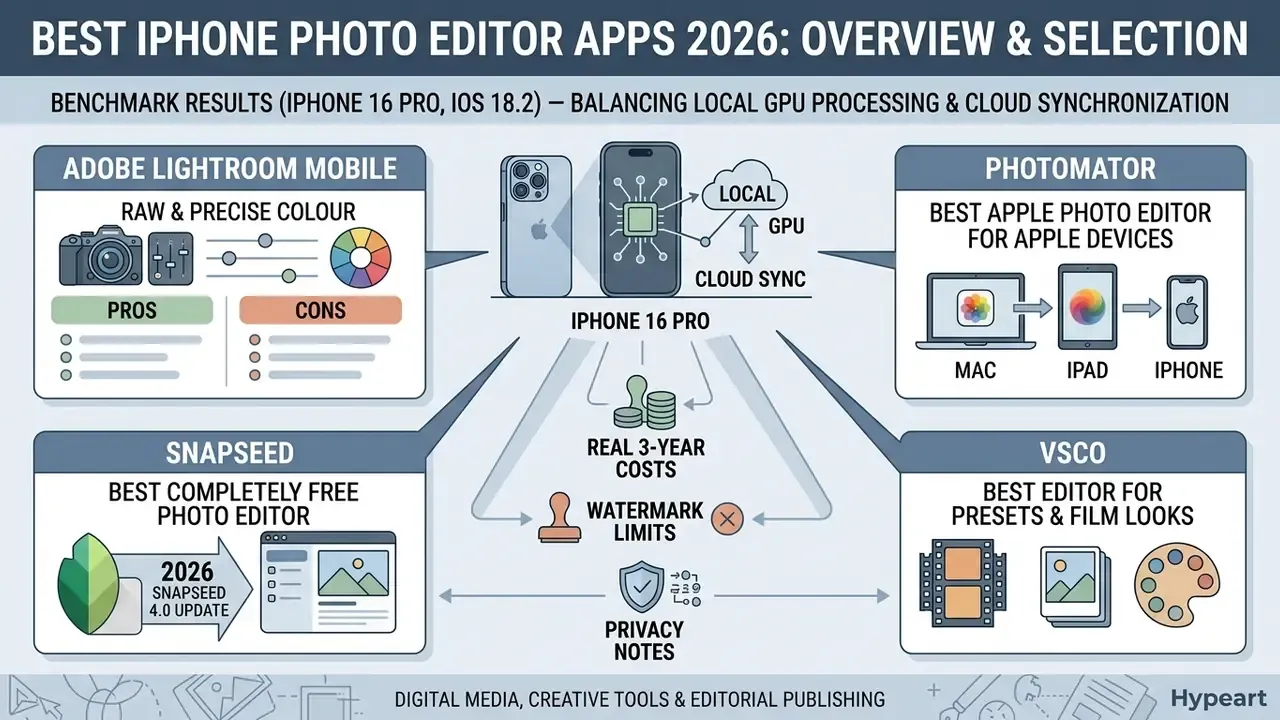
Serious image work on iOS means balancing local GPU processing against cloud synchronization. Leading photo editing apps differ in monetization tier, colour management engine and how far their non-destructive editing actually goes.
Benchmark results (iPhone 16 Pro, iOS 18.2)
| App | 48MP ProRAW load to first slider response | Live histogram behaviour | 100-asset batch export | Export resolution preserved | Thermal state after batch |
|---|---|---|---|---|---|
| Snapseed | Near-instant | No frame drop in live preview | No native queue; per-image about 2 s | Full 48MP, no watermark | Cool |
| Photomator | Fast | Smooth; ML denoise adds a short pass | Fastest in test (native batch workflows) | Full, no watermark | Warm |
| Lightroom Mobile | Fast locally, slower when syncing | Smooth with clipping warnings | Bandwidth-bound; slowest with cloud sync on | Full, no watermark | Warm to hot with sync |
| Photoshop Express | Moderate | No true RGB histogram | No batch queue | Full; generative outputs re-encoded | Warm |
| VSCO | Moderate (RAW support limited) | Simplified curve view only | No batch queue | Full on paid tier | Cool |
| Luminar Mobile | Slower on first AI pass | Sky AI and Relight passes block preview briefly | No batch queue | Full during trial or licence | Hot after repeated AI passes |
| Picsart | Slowest (no RAW path) | None | No batch queue | Reduced on some free AI outputs | Warm |
Read these as observed behaviour on one hardware pair, not as certified lab figures. App versions shipped during the test window are recorded in our log, and readers who want the raw timing sheets can open the hub where we publish comparable device tests.
Adobe Lightroom Mobile: best for RAW and precise colour correction
Adobe Lightroom Mobile is still the benchmark for professional colour grading and raw processing on iOS. The free version includes capture, organisation, sharing, presets and most global editing tools. Unlocking RAW development, masking, healing, geometry tools, batch edits and cloud sync requires a paid Creative Cloud plan.
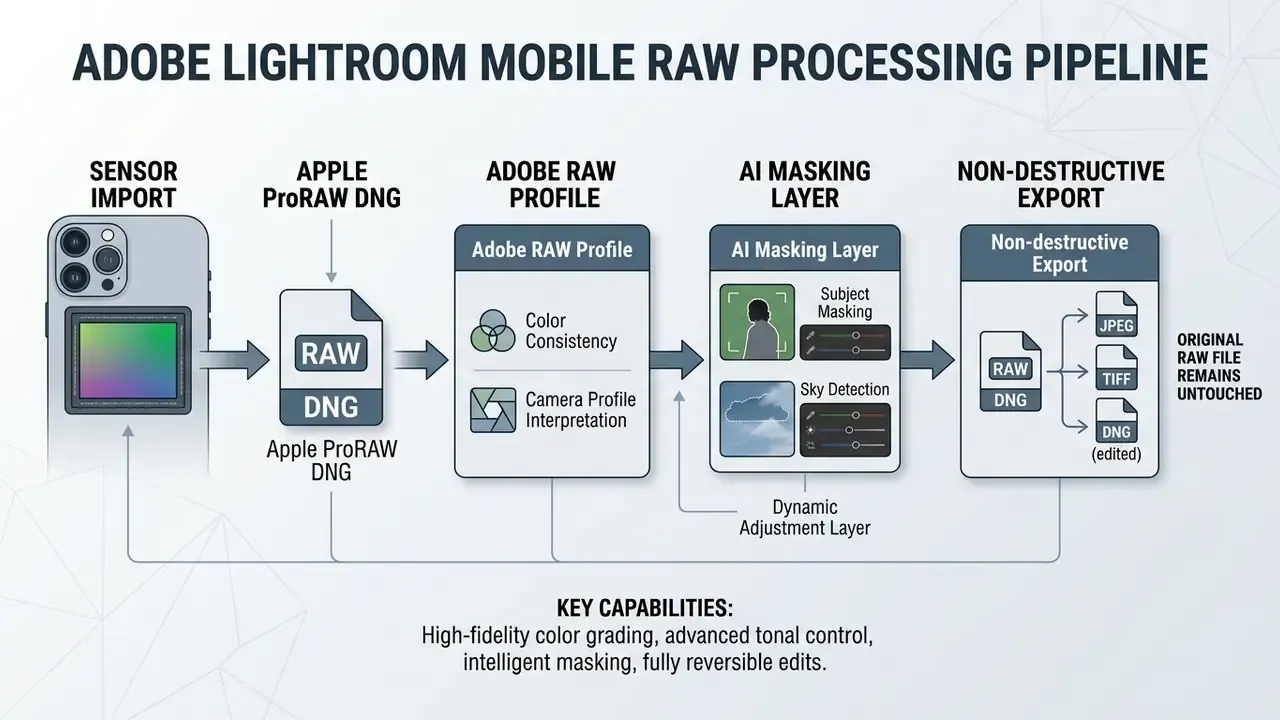
The app gives precise white balance calibration (presets, temperature and tint, plus a neutral-grey eyedropper), localized colour saturation controls and parametric tone curves. Profiles are the quiet differentiator here. Adobe Color is the default, Adobe Raw improves colour rendering on DNG files, Camera Matching profiles reproduce the look of the capture device's own display, and Adaptive profiles derive tone and contrast from the RAW content itself. Premium users also gain Creative Cloud synchronization for cross-device handoffs to desktop, a workflow worth comparing against the wider class of AI photo editors before you commit to a subscription.
«LLM-integrated diffusion models enable complex image enhancement, denoising and colour correction, driven by natural-language instructions.»
Photomator: the best Apple photo editor for Apple devices
Photomator is built natively for iOS, iPadOS and macOS, leaning on Apple's Core ML and Metal frameworks. It plugs straight into your system camera roll and edits images in place, without duplicating assets. Edits made in its photo browser sync back to Photos, and with iCloud Photos enabled they propagate to every device. If you want the best apple photo editor rather than a cross-platform compromise, this is where the search usually ends.
The editor supports over 750 RAW formats and offers colour range selections, machine-learning denoise, curves, selective colour, colour balance, Match Colors and AI-assisted object repair. Batch editing can export, enhance, crop, straighten, rotate and apply colour adjustments across many images at once, and custom workflows can be triggered from the Photos or Files browsers. Its native architecture delivered the fastest batch performance in our test set.
Its honest limitations, as reported by long-term users: generative object removal is weaker than Lightroom's (the Repair tool excels only when the target sits on a uniform texture), and perspective correction handles horizontal and vertical convergence but not freeform four-point correction or barrel distortion. Both gaps are covered by the specialists below. To compare native iOS performance against tablet-specific workflows, see our best ipad video editor review.
Pros: $119 lifetime option; deepest Apple Photos integration; 750+ RAW formats; fastest batch export in test.
Cons: no meaningful free tier beyond a trial; no generative fill; limited geometry tools.
Snapseed: the best completely free photo editor for iPhone
Snapseed remains the premier completely free image editor for iOS users who want professional control with no ongoing cost. Developed by Google, it carries no advertising, watermarks or hidden app purchases. Its store listing says it plainly: "no subscriptions, purchases, ads, or watermarks." For most readers searching for the best free ios photo editor, this is the default answer.
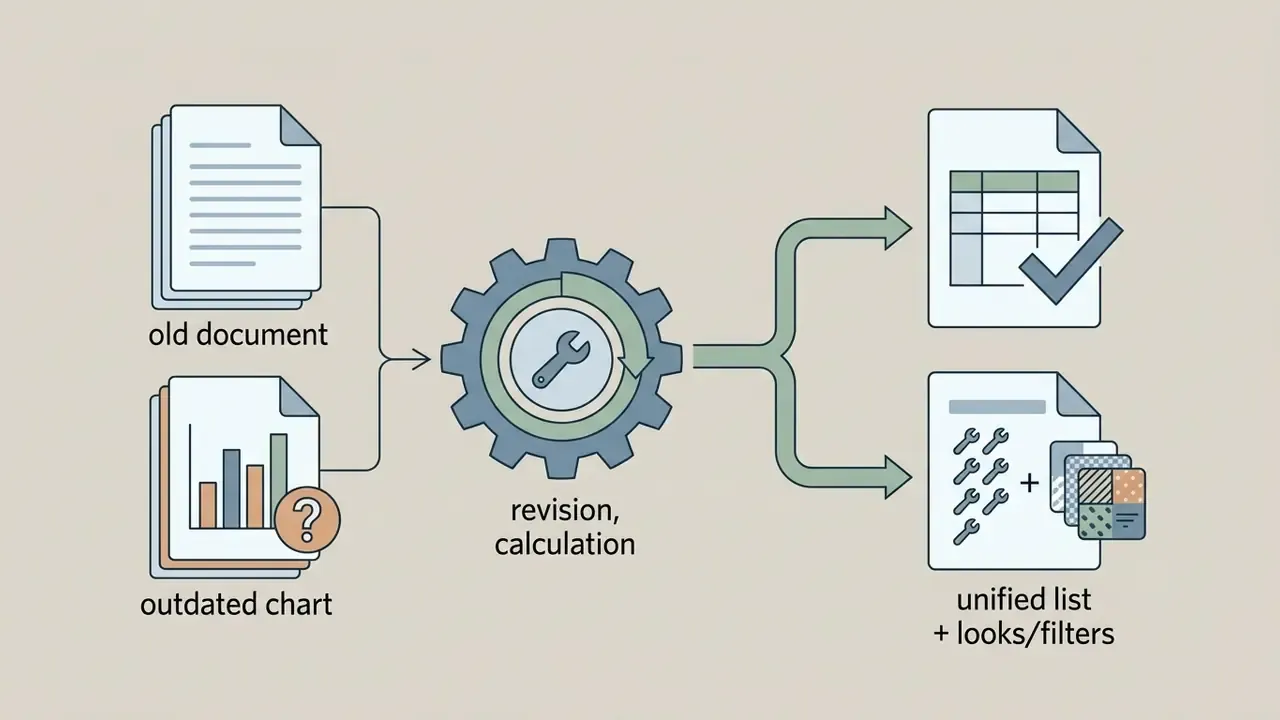
The listing advertises 30+ tools and filters, while the tool grid itself contains 29 discrete editing modules (Tune Image, Details, Curves, Selective, Brush, Healing, Perspective, HDR Scape, Head Pose, Double Exposure, Vignette, Frames and more) plus a separate library of adjustable filter Looks. Both numbers are correct. They count different things, and earlier drafts of this guide conflated them.
The 2026 Snapseed 4.0 update is the most significant change in the app's history. It introduces an integrated pro camera module with manual capture controls, a rebuilt interface, expanded non-destructive editing with saveable "Looks" that can be reapplied and batch-processed across images, new editing categories, stronger masking tools, and a series of film-stock-inspired filters modelled on Kodak, Fujifilm and Polaroid emulsions. Repeatability, historically Snapseed's one real weakness against Lightroom presets, is now solved.
One behavioural quirk to know: edited photos are saved alongside the originals in your gallery rather than in a separate folder, which makes version hunting confusing if you came from the older build. You can either export as a new file or overwrite the original to save space.
In our hardware tests, Snapseed handled 48MP ProRAW exposures with no frame drops in the live preview, making it the most responsive zero-cost editor we measured. Its control-point Selective system, which adjusts brightness, contrast and saturation inside a defined radius in a few taps, is the kind of local adjustment normally locked behind a paid plan. It also has a gentler learning curve than Lightroom's masking panel.
Pros: genuinely free, forever; excellent local adjustments; RAW/DNG support; no ads or watermarks; saveable Looks and batch processing since 4.0.
Cons: no social templates; the new interface trades some clarity for polish; AI features remain algorithmic rather than generative; saves next to originals.
VSCO: the best editor for presets and film looks
VSCO sells curated aesthetics, with film emulation profiles that replicate classic analog stock. The free Starter tier limits you to 15 of VSCO's most popular presets plus core editing, while full membership unlocks over 200 film profiles, advanced editing, Film X emulations with extra fine-tuning controls, Film FX overlays, recipes for saving looks and video tools. VSCO positions Film X as its highest-quality emulation set, engineered from Fuji, Kodak, Agfa and Ilford references.
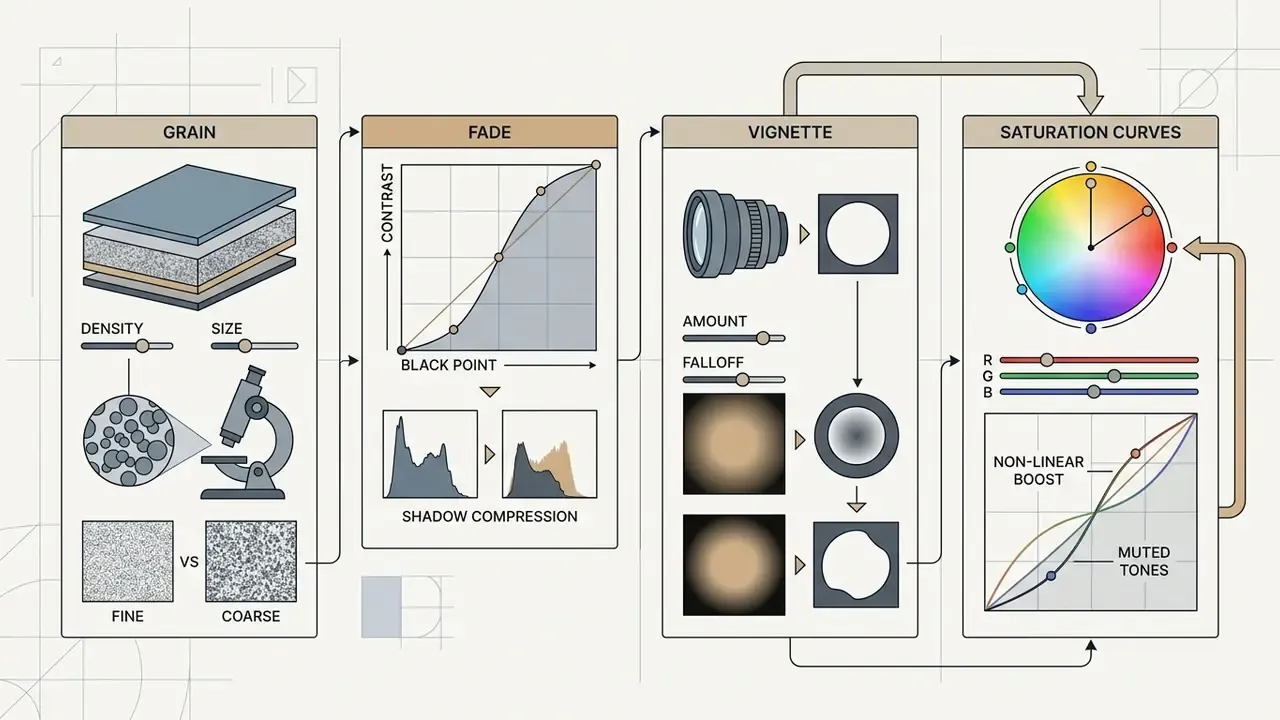
The app provides fine-grained control over film grain, split-toning, fade, vignette and chromatic aberration, and its infrared modes are unusually good. Effective for styling social content, yes, but its manual selection and local retouching remain basic next to dedicated utility editors, and the interface takes a session or two to click.
Pros: the best filter library in any mobile app; intuitive, considered editor; strong Instagram-consistency workflow.
Cons: the free plan is genuinely thin at 15 presets; monthly pricing is high relative to value if you only want looks; weak for repairs, text or technical work.
Photoshop Express: best for quick edits and object cleanup
Adobe Photoshop Express is built for fast single-tap work: canvas cropping, noise reduction, generative background removal. The mobile app uses Adobe Firefly algorithms to remove background distractions with natural edge blending. Remove Background (or Auto-Remove Background) returns a transparent PNG or a solid-colour backdrop in one click, while Remove Object lets you brush an area, generate replacements and cycle through variants.
Full desktop Photoshop relies on multi-layer compositing, finer masking and a dedicated Remove tool with on-device or cloud modes. Express, by contrast, optimises for rapid social output: pre-formatted canvas templates, quick collage layouts, single-tap facial retouching, Auto Object Selection, Face Contouring, and a Quick Actions panel where denoise, skin smoothing or digital make-up run in one press. Most core photo tools are usable free with an Adobe account, while generative AI generation sits on the paid side.
Pros: strong all-rounder; surprisingly generous free tier; genuine Firefly-grade removal; a good bridge between photo editing and graphic design.
Cons: requires an Adobe account; premium effects and AI generation are gated; less clean than Snapseed for pure photo work.
TouchRetouch: the best dedicated object-removal app on iOS
Some of the most valuable mobile apps do exactly one thing extraordinarily well. TouchRetouch is dedicated solely to target extraction. Its line-detection and mesh algorithms remove power lines, wires, fences, scaffolding, blemishes and whole structures without the manual brush masking that general editors demand. A 2024 update added automatic detection and selection of people in a frame, which turns "remove thirty tourists from a cathedral square" from a twenty-minute job into a thirty-second one, and that model has been refined since.
It runs on iPhone and iPad, supports Apple Pencil on tablets, is a one-time purchase with no subscription, and, unlike many apps in this category, has been updated consistently since its 2011 release. Long-term travel photographers who abandoned Lightroom over pricing routinely keep TouchRetouch, precisely because Photomator's Repair tool only shines against uniform textures and Snapseed's Healing brush, good as it is, does not match a purpose-built engine.
Pros: best-in-class removal quality; automatic people detection; one-time price; fully on-device.
Cons: not an editor, so no exposure, colour or RAW development; you will run it alongside a primary app.
SKRWT: the best app for perspective correction without resolution loss
General editors resample and degrade output during spatial transforms. SKRWT specialises in perspective and lens correction while preserving full sensor resolution. It was the first app of its kind not to shrink the image when straightening converging verticals, a distinction that still matters, because many editors quietly downscale after a geometry fix.
SKRWT ships three modules:
- SKRWT horizontal, vertical and barrel distortion correction, plus lens profile correction.
- 4PNTS freehand four-point perspective correction for awkward architectural angles.
- MRRW symmetric mirror effects.
Snapseed's Perspective tool has improved enough in recent versions to cover horizontal, vertical, rotation and freeform correction for many users, and Photomator handles basic horizontal and vertical convergence. Neither offers barrel distortion correction with SKRWT's precision. If you photograph buildings, interiors or lost places, this is the specialist that earns its place on the home screen.
Pros: no resolution downscale; freeform 4-point correction; barrel distortion handling; one-time purchase; offline.
Cons: single-purpose; modules sold separately; dated interface.
Best AI photo editing apps for iPhone
Artificial intelligence has moved mobile editing from manual pixel manipulation towards automated semantic reconstruction. The best free ai photo editing apps ios category now leans on neural processing engines for complex segmentation, automatic light redistribution and prompt-guided object replacement.
«Recent models remove, insert and modify objects from text prompts, masks and other control signals, frequently in a single generative pass.»
(Updated: replaces an unsourced 2024 ACM reference with a citable survey.)
Under the hood, most auto-cutout features are semantic segmentation models in the U-Net and DeepLab lineage, producing a per-pixel foreground probability map. That explains both why they succeed on a clean silhouette and why they fail on hair, flyaways, ears, eyeglasses and transparent fabric. Practitioner guidance is consistent: inspect any auto-generated mask at 100 to 300% zoom, refine the hairline and collar by hand, then match light direction, colour temperature, perspective and shadow before calling a composite finished. Readers comparing generative tools across categories can also review our roundup of AI image generators.



Luminar Mobile: the AI editor for automated processing
Luminar Mobile translates Skylum's desktop AI capabilities into an iPhone and iPad interface. It specialises in automated scene analysis, with single-slider controls for sky replacement (Sky AI), atmospheric depth and texture (Structure AI), portrait relighting and exposure redistribution (Relight AI), plus its own film simulations.
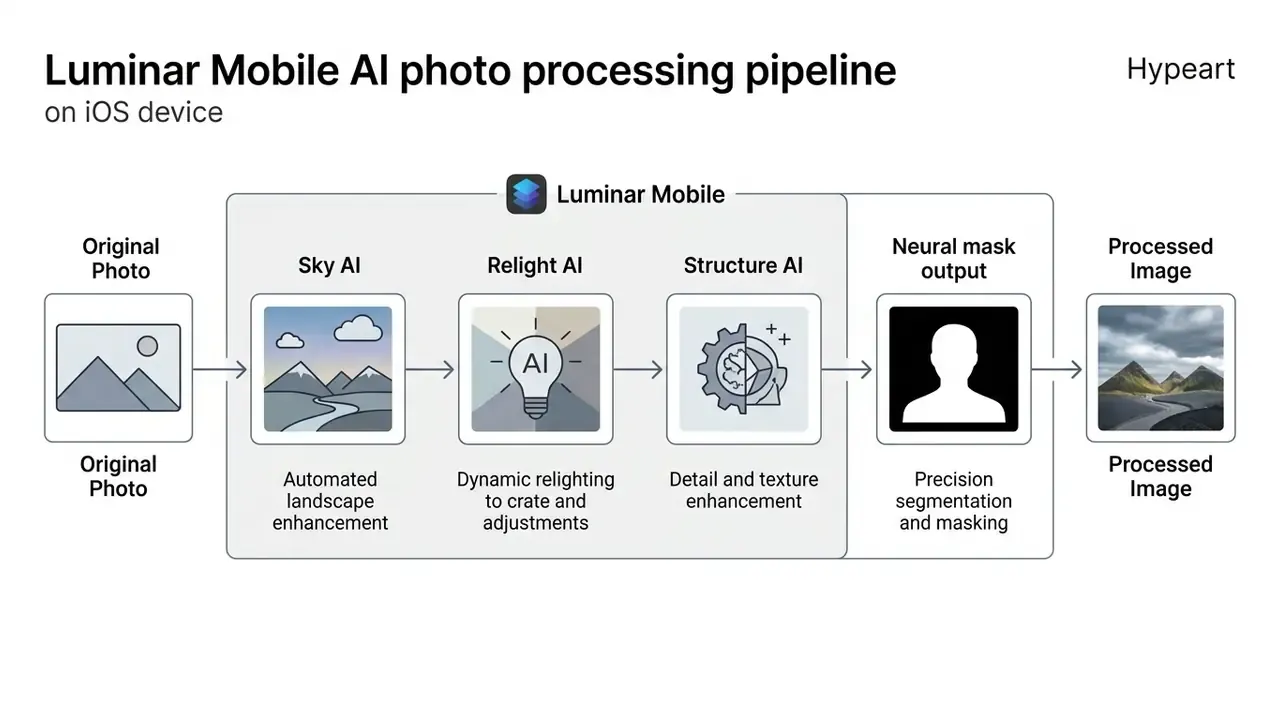
The app requires a paid subscription after a 7-day trial tied to the 12-month plan. Once the trial ends, the yearly charge applies automatically unless cancelled 24 hours before renewal. Storefront pricing varies by region, with $4.99/week, $4.99 to $14.99/month, $39.99/year and $69.99 lifetime all appearing at different times, so the lifetime tier is often the rational choice.
«Generative AI image work proceeds through four distinct phases, ideation, exploration, refinement and evaluation, each requiring its own controls.»
That framing explains Luminar's ceiling precisely. It is excellent at ideation and exploration (one tap, dramatic result) and thin on refinement, offering less manual precision than layer- or mask-based editors when a result is nearly right and just needs nudging.
Picsart and Photoroom: creative effects, collages and background removal
Picsart and Photoroom cover generative graphics, automated cutouts and social template layout. Photoroom targets product photography, isolating foreground subjects automatically and inserting studio lighting backdrops. Its paid tiers add Background Remover, AI Fill, AI Expand and Resize, Image Enhancer and synthetic shadows, with several core editing functions included rather than metered by credits.
Picsart offers a broader creative canvas, advertising over 175 generative AI models plus 15+ creative AI agents for text-to-image synthesis, style transfer, sticker creation, advanced background and object removal, premium templates, brand kits and bulk editing. Its interface also covers the conventional basics well, including cropping, clone tools, curves and attractive retro film filters, so it works as a competent editor even if you ignore the generative layer entirely. Both platforms run freemium monetization, gating high-resolution exports and AI features behind subscriptions and credit meters.
«Participants used AI editing to strengthen emotional connection with memories, while acknowledging that it blurs the line between what happened and what did not.»
That tension is worth naming in a buying guide. Generative removal and background replacement are commercially normal in 2026, but they change the evidentiary status of a photograph. For documentary, journalistic or legal work, keep the untouched original and log what was altered. No evidence, no trust.
Creators working across multimedia formats can evaluate automated motion options in our best image to video ai guide, and teams handling product catalogues will find adjacent tooling in our overview of AI image enhancers.
Apple Photos and Google Photos: are the built-in apps enough?
System-level photo managers bundle cloud backup with basic non-destructive editing. For casual users, that removes the need to install anything or manage a second cloud subscription. Apple's framework documentation is candid that PhotoKit exists to manage assets on device and in iCloud, not to serve as a professional editing suite, and that boundary is exactly what you should test before buying anything.
Apple Photos: the free editor for everyday processing
Apple Photos offers integrated basic editing inside iOS. The native editor provides slider adjustments for exposure, brilliance, highlights, shadows, contrast, black point, saturation, vibrancy, warmth, tint, sharpness, definition, noise reduction and vignette, all without altering original image data. The Crop panel adds manual cropping, standard aspect ratios, rotation, flip, straighten and vertical or horizontal perspective correction. Portrait captures get their own controls: depth-of-field slider, Portrait Lighting and Photographic Styles. You can copy a set of edits and paste them onto multiple photos, compare against the original with a tap, and with iCloud Photos on, see those edits on every device.
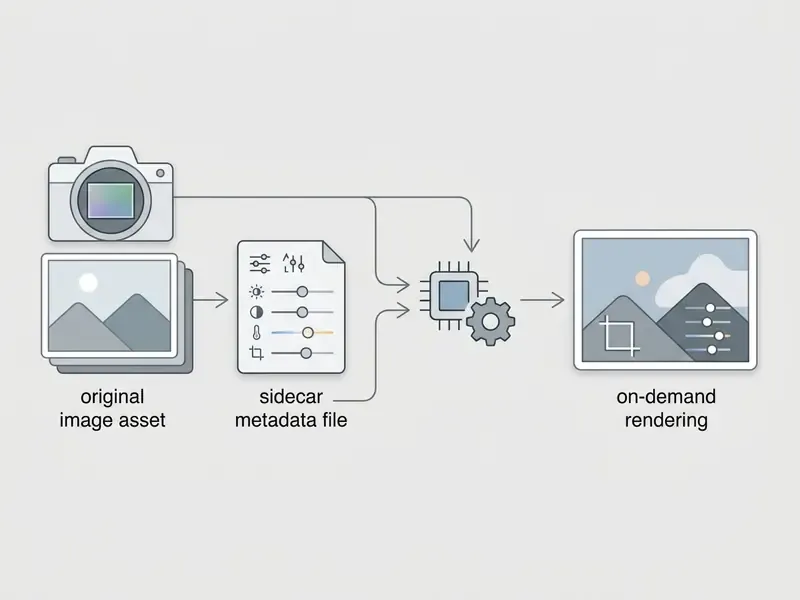
Recent iOS updates introduced Apple Intelligence "Clean Up," letting you tap, brush or circle unwanted objects for removal inside the Photos editor. Apple Photos also edits stored metadata such as date, time and location. It handles basic snapshot adjustments smoothly, though it lacks curves, brush-based masking, selective HSL tuning and, the omission experienced photographers notice first, any real masking system for selective work.
«In a study with ten blind participants, natural-language descriptions enabled successful cropping, rotation and object removal without visual feedback.»
Accessibility is a genuine advantage of system-level editors. The tooling sits inside the same VoiceOver-aware surface as the rest of iOS, which third-party apps often fail to match.
Google Photos: editing and cloud storage in one photo app
Google Photos pairs cloud backup with Google's AI editing features. iPhone users get Magic Eraser, Unblur, Change the Light and related tools directly inside their cloud storage gallery. Since Google's 2024 policy change, many of these AI edits, Magic Eraser and Photo Unblur included, are available to all Google Photos users rather than Google One subscribers only.
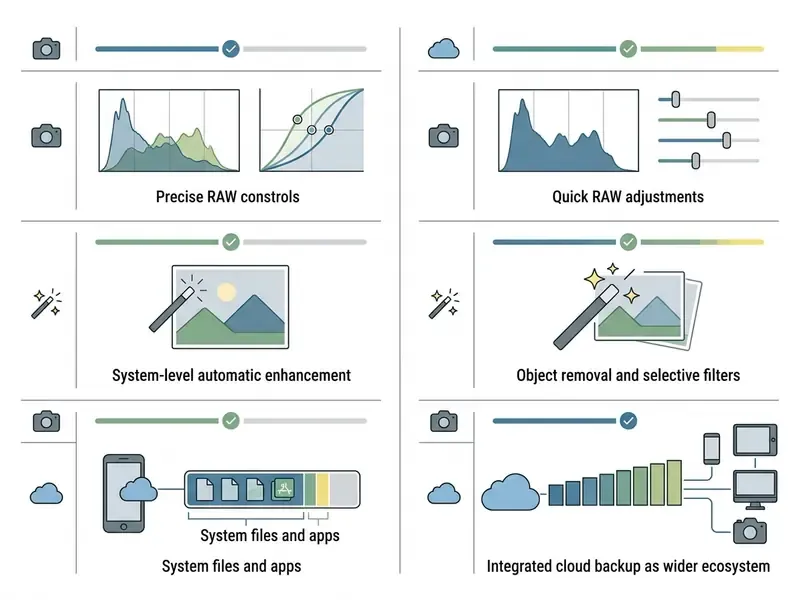
There are real hardware constraints on Apple devices, though. Google's own iOS help documentation states that most editing features require at least 3 GB of RAM and iOS 18 or later, that some features are unsupported on older 64-bit-only devices, and that the improved Unblur specifically needs 6 GB of RAM. Optimal performance also depends on active account sync and sufficient bandwidth. For teams evaluating broader cloud asset software, explore our commercial use resources.
How to choose the best photo editor app for iPhone
Choosing an editor means matching capabilities to your skill level, your hardware and your budget. Running the pre-install audit first, then working through the requirements below, prevents both paying for features you never touch and hitting an export resolution cap mid-deadline.
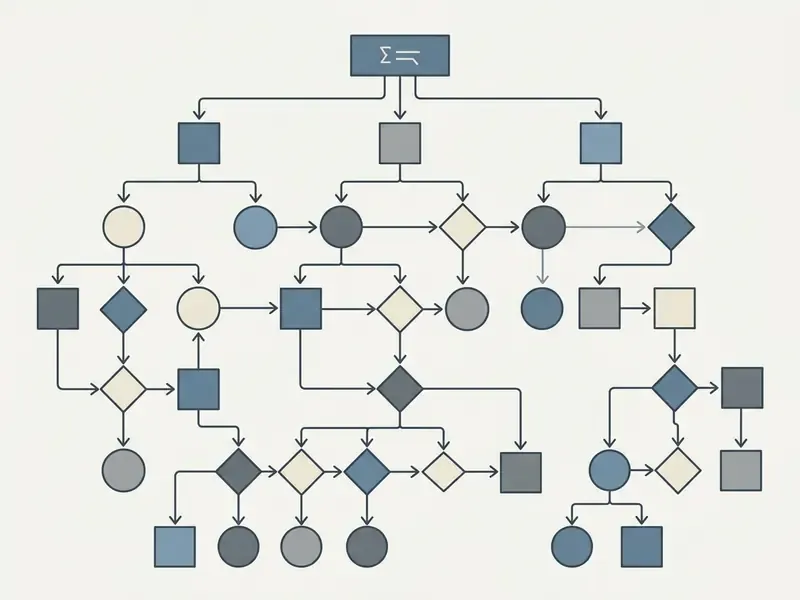
The decision tree in plain text, for scanners:
- Do you shoot ProRAW? No, then Apple Photos or Snapseed. Yes, go to step 2.
- Do you need desktop parity and cloud sync? Yes, then Lightroom Mobile. No, go to step 3.
- Do you want to stop paying rent on software? Yes, then Photomator lifetime, plus Snapseed for free local adjustments.
- Is your main pain removing things from frames? Add TouchRetouch.
- Is your main pain converging verticals in architecture? Add SKRWT.
- Is your output primarily social? Add VSCO for looks, Phonto for text, Picsart for graphics.
The most efficient stack is not ten editors. It is one general editor plus one specialist for the edit you actually make most often.
For RAW files, colour and professional mobile workflows
Professional mobile work needs software that ingests uncompressed ProRAW and standard DNG. Check that your chosen app provides manual white balance eyedroppers alongside temperature and tint sliders, independent shadow and highlight recovery, lens distortion correction profiles in the Adobe LCP style, and non-destructive sidecar metadata storage.
Adobe Lightroom Mobile and Photomator are the top choices for raw processing, with precise HSL sliders and RGB curves. Darkroom is the closest third contender, slightly pricier, with a comparable Apple Photos-native workflow plus batch presets. To compare desktop editing parity, compare options across mobile and desktop solutions.
For portraits, object cleanup and background removal
FAQ about photo editing apps for iPhone
Which free photo editor app for iPhone is best for adding text to photos?
Phonto and Snapseed are the top free options for adding text to photos on iOS. For advanced typographic control, Phonto beats general photo editors: it ships over 400 native fonts, supports installing your own TTF or OTF files, and gives precise control over kerning, line spacing, rotation, colour, stroke and curved text paths that the rasterisers inside Lightroom or Snapseed cannot match. Snapseed includes stylized text overlays and auto-formatted typographic layouts within its completely free toolset, and Typorama, AppForType and PixelLab are free alternatives for poster-style layouts, sticker packs and template captions. If text is the whole job, treat Phonto as a companion rather than a main editor, since its photo-correction tools are minimal. Our broader survey of photo editors covers where typography fits into a full workflow.
Can I continue editing on a desktop app after starting on iPhone?
Yes. Professional applications support cross-device synchronization through cloud infrastructure. Adobe Lightroom Mobile syncs edits with desktop catalogs via Creative Cloud. Photomator syncs non-destructive metadata across iOS, iPadOS and macOS via Apple iCloud Photos, and Apple's iCloud Photos route additionally covers Windows through iCloud for Windows and File Explorer, plus browser access via iCloud.com. Apple's export options on iPhone include HEIC, JPEG, JPEG-2000, PDF, PNG and TIFF with optional compression, so handing a file to a desktop editor manually is straightforward too. Photographers moving between mobile and desktop setups can explore dedicated desktop suites in our best photo editor for mac analysis, or explore the hub to compare cross-platform software workflows. Developers who need automated image processing integration can also review our api specifications.
What is the best completely free photo editing app for iPhone with no watermark?
Snapseed and Apple Photos are the safest no-watermark choices. Both export at full resolution with no forced branding and no account requirement. Whatever app you choose, export one test image at maximum size before editing a batch, because watermark and resolution rules change between versions and regions.
Is Lightroom free on iPhone?
Lightroom Mobile is free to install and includes capture, organisation, presets and most global light and colour tools. RAW editing, masking, healing, geometry tools, batch editing, Generative Remove and cloud sync require a paid Adobe plan. Adobe's documentation and its App Store listing have described the availability of some of these features differently at different dates, so check the current listing before assuming a tool is free.
Is Apple Photos enough for editing iPhone pictures?
For everyday photos, yes. Exposure, colour, framing, basic geometry, Portrait depth, Photographic Styles and Clean Up cover most snapshot corrections without installing anything. The ceiling arrives when you need selective masking, curves, HSL, lens profiles or batch RAW development. At that point Snapseed (free) is the logical next step, with Photomator or Lightroom after that.
Which app removes objects best on iPhone?
TouchRetouch for non-generative removal of lines, fences, crowds and blemishes. Lightroom's Firefly-powered Generative Remove, or Photoshop Express's Remove Object, when you need the software to invent plausible new pixels. Apple Photos Clean Up or Google Photos Magic Eraser when you want it free and already installed.
Do free AI photo tools train on my images?
It depends entirely on the vendor's terms, and those terms change. On-device apps such as Snapseed, TouchRetouch, SKRWT and Photomator process locally, so nothing is uploaded unless you enable sync. Cloud-first generative features necessarily transmit your image. Read the training clause specifically, because a "we don't sell your data" statement does not answer the question.
Appendix A: Editorial revision log
For transparency, the following passages from earlier drafts were revised in the September 2026 update. Original wording is retained here; corrected versions appear in the body above.
A safe next step. Install the free option first, Snapseed or Apple Photos, export one full-resolution test file, and only then decide whether a paid tier solves a problem you actually have. To continue comparing tools across categories, view the guide in our comparison hub.