Selecting the right app therefore depends on whether a user requires automated photo grids, design-polished template systems, or specialized AI-driven layouts for social media publishing. Modern mobile collage applications range from lightweight system gallery extensions to comprehensive design suites capable of multi-layered compositions, background removal, and high-resolution exports. Plenty of roundups still carry 2024 and 2025 labels; everything below reflects builds tested in early 2026.
Last updated: March 2026. Testing performed on iOS 18/19 (iPhone 14 Pro, iPhone 15) and Android 14/15 (Samsung Galaxy S24, Pixel 8).
Author note: Marcus Hale writes about AI governance and model risk for this publication.
Fast Answers by Use Case
| If you need… | Use this app | Why |
|---|---|---|
| Zero-install, zero-account grid | Apple Photos (iOS Shortcuts "Photo Grid"), Samsung Gallery | Fully on-device processing, no watermark, no upload |
| Fastest free grid with cloud library | Google Photos | Up to 6 photos on mobile / 9 on web, no watermark, instant share |
| Automatic grid suggestions + AI cleanup | PhotoGrid | 45+ grids, 250+ sticker sets, AI Background Remover, HD/4K export |
| Design-polished, brand-safe output | Canva | 1M+ templates, real-time collaboration, PDF Print export |
| Scrapbook and freestyle creative layouts | PicCollage | Freestyle canvas, layer lock, Magic Cutout, full-resolution web exports |
| Deep photo editing, effects, object erase | Picsart | AI Background Removal, AI Object Replace, vector drawing |
| Video collages for Reels & TikTok | InShot | Multi-clip video grids, AI Blend, platform aspect-ratio presets |
| Kawaii, sticker-heavy decorative style | LINE Camera | Enormous seasonal stamp library, no watermark on static photo exports |
| Portrait and event collages with retouching | YouCam Perfect | 500+ collage designs across retro, Polaroid, scrapbook categories |
| Maximum privacy (no cloud upload) | Apple Photos, Samsung Gallery, LINE Camera (local mode) | Images never leave the device |
Read the table as a shortlist, not a ranking. The sections that follow explain the trade-offs behind each pick: free-tier caps, watermark rules, export fidelity, data handling, and whether the app is safe for client or commercial work.
What Makes the Best Photo Collage App?
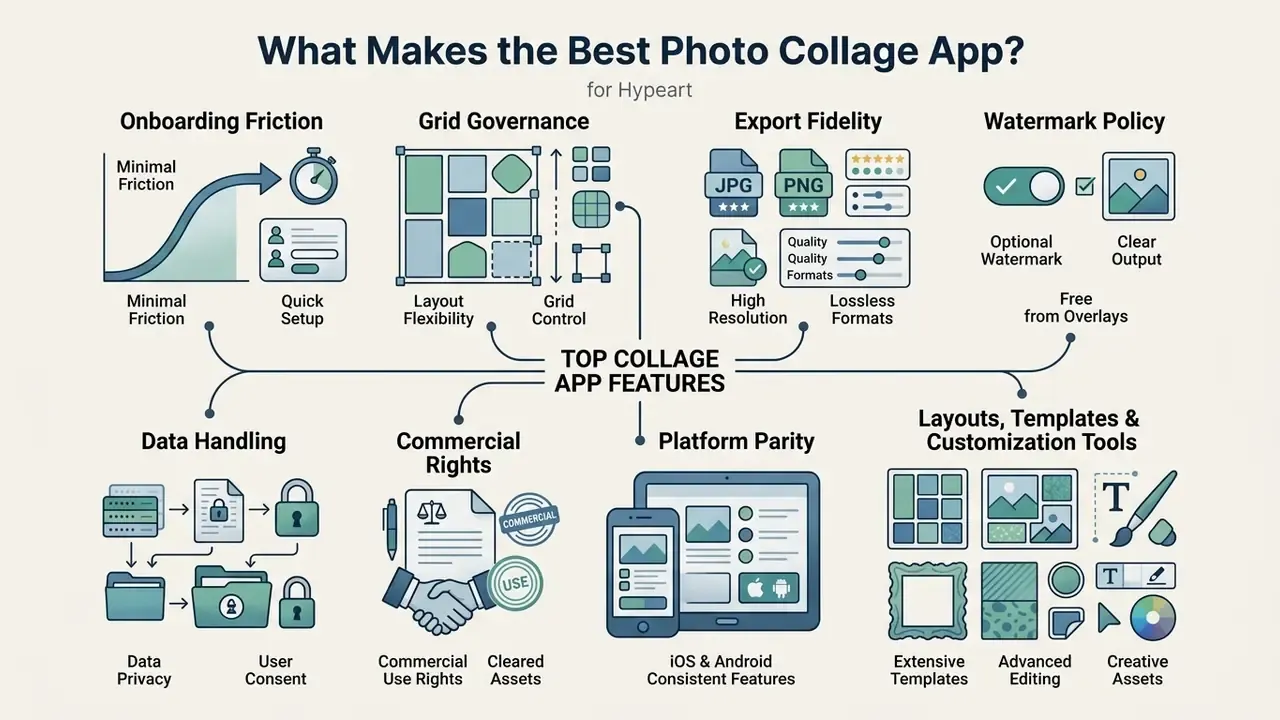
The best photo collage app balances a user friendly interface with deep layout customization, precise export controls, and robust cross-platform availability across iPhone and Android devices.
«Selecting the best photo collage app requires evaluating software by its output fidelity, layout governance, platform constraints, and privacy boundaries rather than promotional feature counts.»
Key evaluation criteria include interface learnability, structural flexibility of grid layouts, retention of high resolution export quality, and transparent free-tier policies without intrusive watermarks. Transparency and user control matter more as automation creeps deeper into editing pipelines.
«Transparency and control remain critical as automation grows: users expect AI decisions to be visible and reversible.»
Updated evaluation framework (2026). Instead of counting marketing features, score each candidate app on seven measurable axes:
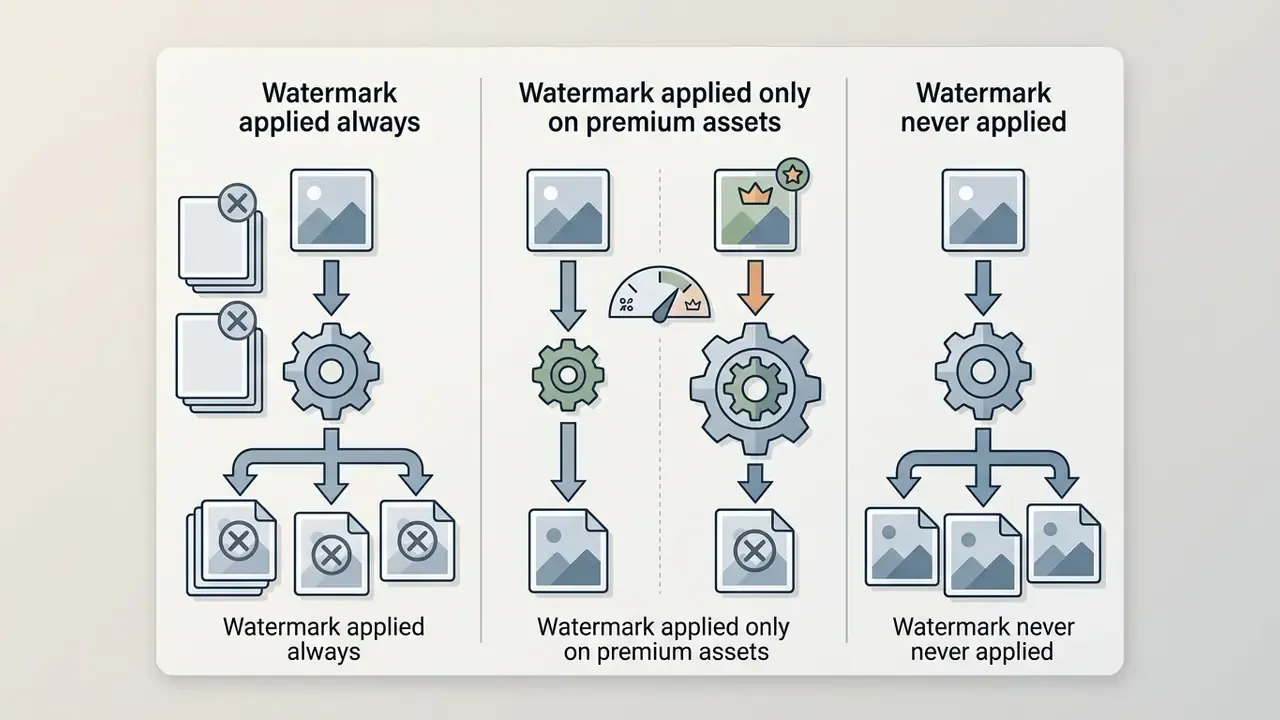
One practical note from testing: axes 4 and 6 decide more purchases than layout count. A free collage app with a beautiful grid engine is useless if every export carries a logo across the corner.

Layouts, Templates and Customization Tools
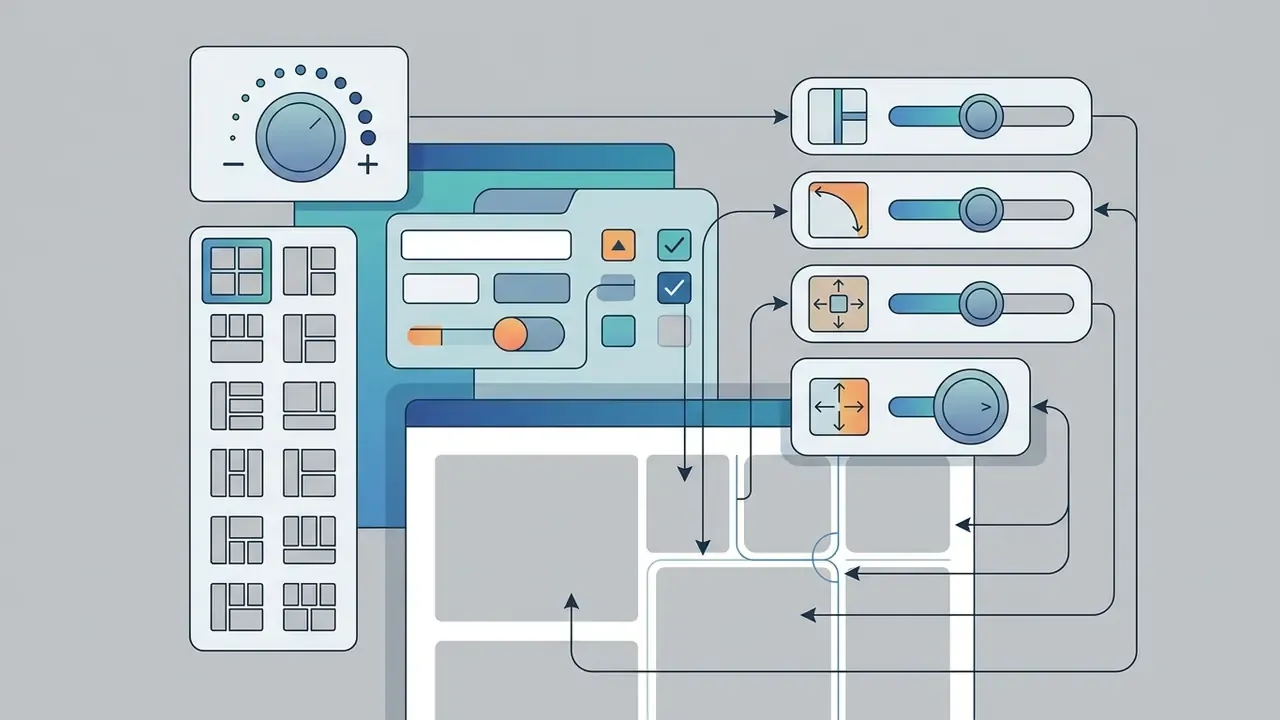
A top-tier collage app provides a wide variety of grid layouts, professionally designed collage templates, and granular customization controls. High-performing apps feature flexible photo placement, adjustable margin borders, custom aspect ratios, and full editing layers to add text, apply stickers text, insert stock photos, and implement photo effects. Current store listings quantify this: Collage Maker apps advertise 100+ frames and grids, Mixgram exposes hundreds of grids plus 40 effects, and FotoCollage lists 500+ different layouts with text, stickers, filters, and layer controls.
Research in human-computer interaction shows that mixed-initiative tools, where systems propose initial layout structures while allowing users full manual override, produce high satisfaction and steadier visual consistency.
«The AI system proposes layout variants under spatial constraints while leaving the user in full control of the final result.»
Modern photo collage templates encode design principles such as spatial balance, typographic hierarchy, and visual weight, which lets non-professional creators easily create cohesive mood boards and social media assets. A caveat, though: that claim reflects vendor documentation and hands-on testing rather than peer-reviewed measurement. Template libraries differ widely in how strictly they enforce grid alignment, and independent quantitative data on template quality is still thin.
Practical rule of thumb for template selection:
- Uniform photo sets (same orientation, same lighting) → symmetrical grids (2×2, 3×3).
- Mixed portrait and landscape sets → masonry or variable-height layouts.
- One hero image plus supporting shots → "1 large + 3 small" hierarchy layouts.
- Narrative sequences → horizontal filmstrip or carousel-slice templates.
- Single photo with heavy decoration → shaped frame plus stamp layers, not a grid at all.
Free Features, Export Quality and Mobile Availability
Evaluating a best free photo collage app mobile option involves inspecting export resolution limits, watermark policies, and cross-platform feature parity between the iOS App Store and Google Play. Readers comparing broader editing stacks can also review AI photo editors to see which layout tools double as full retouching suites, and the wider photo editor tools guide for pricing and commercial-workflow context.
Basic mobile gallery extensions produce quick picture collages and stop there. Dedicated applications vary widely in maximum export resolution, from capped 720p outputs up to uncompressed 4K or 300 DPI print-ready files. Creators who need to rescue low-resolution source shots before assembly should review AI image upscalers as a pre-processing step.
«Distilling diffusion models into compact GANs enables real-time image editing on mobile devices at substantially reduced storage cost.»
Documented free-tier behaviour as of March 2026:


Data Privacy, Commercial Rights and Shadow-IT Considerations
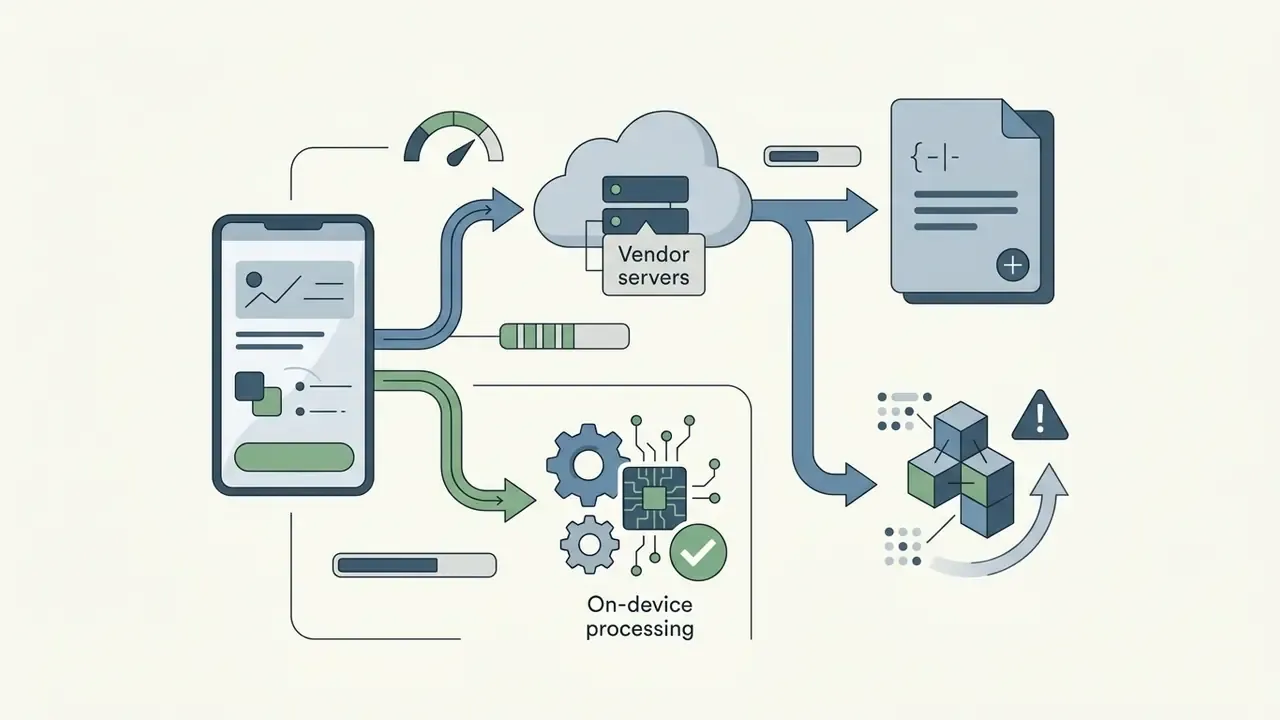
Because collage apps request access to the entire device photo library, permission scope and data residency deserve the same scrutiny as layout features. Three practical categories emerged in testing:
- Fully on-device processing Apple Photos, Samsung Gallery, and offline background-removal utilities process pixels locally; images never leave the handset. Several Google Play listings for offline background removers explicitly advertise "100% offline" operation, and an iOS equivalent states it works fully offline on iPhone.
- Hybrid (local editing, cloud assets) apps that render locally but stream templates, fonts, and stock media from vendor servers. Layout data may sync even when photos do not.
- Cloud-rendered web-first editors that upload originals for server-side rendering, AI cutout, or upscaling. Review retention windows and whether uploads may be used for model improvement.
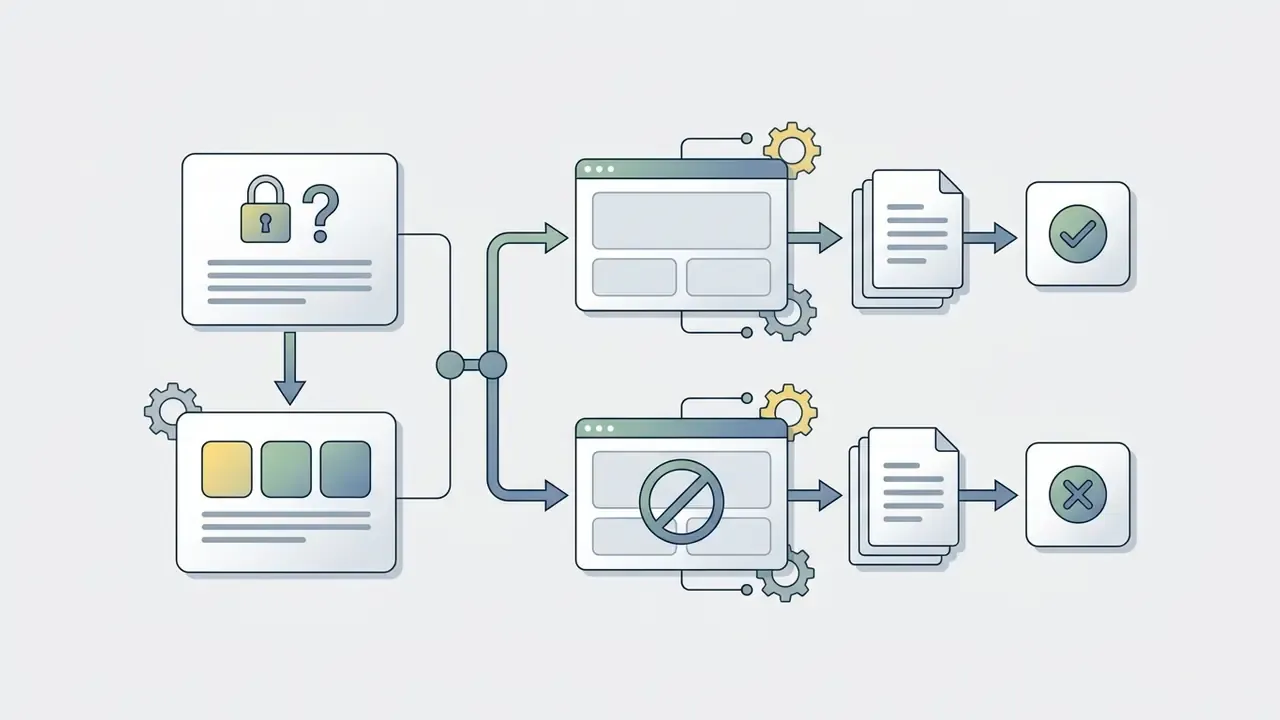
For commercial deployment, check three clauses before rollout: whether exported collages may run in paid advertising, whether bundled stock photos and stickers carry separate licensing, and whether the free tier grants any commercial rights at all. Teams that need a repeatable approval path should pair this with an internal asset-review step, so unmanaged installs do not quietly become a channel for confidential imagery. That risk is mundane and easy to miss. It is also the one procurement teams ask about first.
Best Photo Collage Apps at a Glance
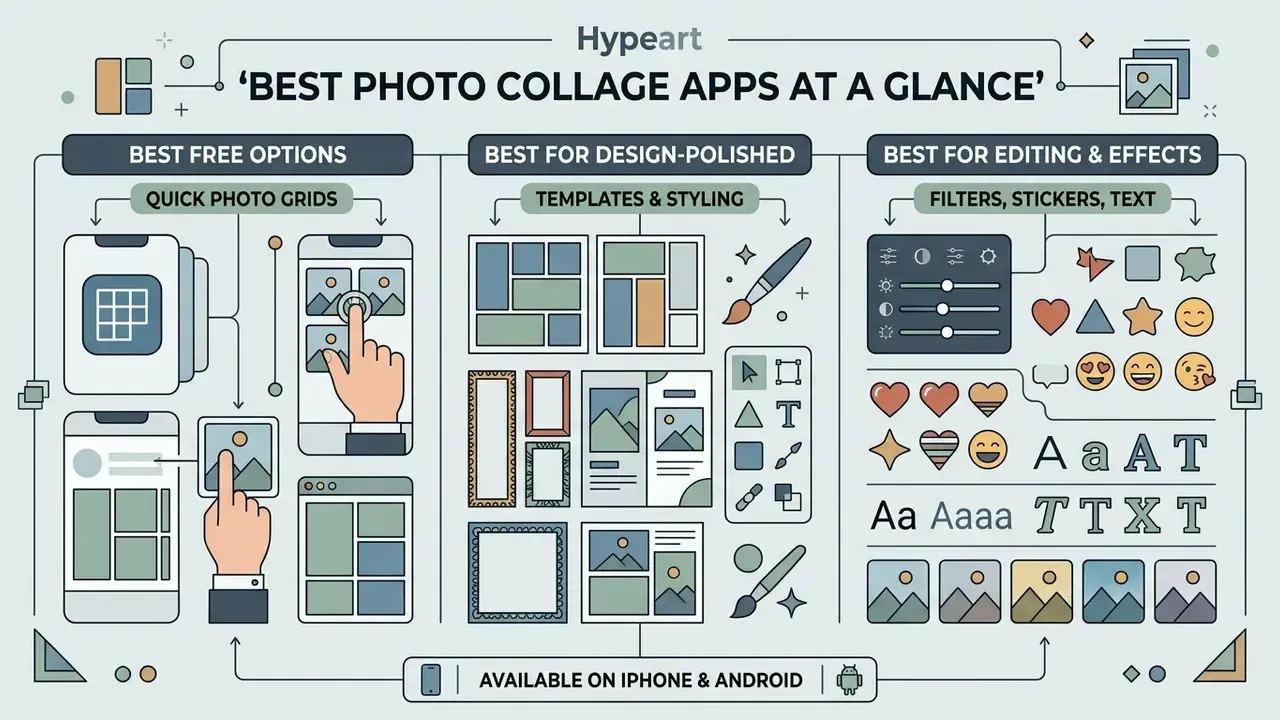
Choosing the best photo collage maker app means matching workflow requirements against app capabilities, platform availability, and export constraints. The table below outlines key features across the leading collage makers available on mobile and desktop; readers benchmarking adjacent generative tooling can also consult our AI image generators comparison. Apps are grouped by tier: professional and enterprise first, then native system tools, then creative and social picks.
Table: Comparative analysis of selected photo collage applications (March 2026).
| Application | Platforms | Free tier limits | Watermark in free tier | Grid layouts | Collage templates | AI tools | Video collages & limits | SVG / vector | Data processing & privacy | Primary use case |
|---|---|---|---|---|---|---|---|---|---|---|
| Canva | iOS, Android, Web, Desktop | Free tier includes 1M+ templates; Pro unlocks Resize & BG Remover | No watermark on free templates | Extensive adjustable frames & shape grids | Designer made social, poster & aesthetic layouts (20,000+ collage-specific) | Magic Studio, background eraser, Auto Focus, layout suggestions | Supported (timeline editor); video uploads up to 1 GB per clip | Yes: SVG 1.1, under 3 MB, 150-200 px base width | Cloud-rendered; account required; enterprise plans add admin controls | Design-polished social posts, brand assets, print PDFs |
| Apple Photos | iOS, iPadOS, macOS | 100% free; grid built via system Shortcuts & Memories | None | Basic automatic grids via "Photo Grid" shortcut | Memory-style compilations | On-device subject lift, people recognition | Memory videos only | No | Fully on-device; no upload, no account | Private, zero-install grids on iPhone |
| Samsung Gallery | Android (Samsung) | 100% free; up to 6 images or video clips per collage | None | Standard layouts with editable aspect ratio & border | Basic layout presets | Object eraser, remaster | Supports short video clips inside collage cells | No | Fully on-device; no account required | Instant built-in collages on Galaxy devices |
| Google Photos | iOS, Android, Web | 100% free; up to 6 photos (mobile) / 9 (web); new styled templates added in the 2024-2026 free tier | None | Standard automatic grids; border width, corner radius & border colour editable | Utilitarian plus newer styled arrangements | Face recognition, smart grouping, basic enhancement | Highlight reels only | No | Cloud library sync; Google account required | Instant, unadorned image combination |
| PhotoGrid | iOS, Android, Web | Watermarked export on some templated outputs; HD & 4K collage export available free; 100 MB cloud storage | Yes (removable via Pro or rewarded ads) | 45+ quick grids; custom border & frame sizing | 20,000+ material & layout assets; 250+ sticker sets | AI Background Remover, upscaling, auto-enhance | Supported (Video Grid); short-form clips | Limited (raster-first) | Hybrid: local editing, cloud AI tools & storage | Rapid social grids & automatic layouts |
| PicCollage | iOS, Android, Web | Free basic exports; web version offers full-resolution export | Small watermark on app exports; none on web full-res exports | Freestyle canvas & structured grid frames | Scrapbook themes, seasonal cards, cutout layers, hundreds of scrapbook templates | Magic Cutout (AI background removal), auto-align | Limited video clips | Limited | Hybrid: local canvas, cloud template library | Creative scrapbook layouts & memory boards |
| Picsart | iOS, Android, Web | Watermark/ads in free tier; Pro unlocks full AI suite | Yes on selected assets | Artistic grids, freestyle, shape masks | Large community template library | AI Background Removal, AI Object Replace, AI filters, AI backgrounds | Supported (multi-layer clips) | Yes: vector drawing & shape tools | Cloud-rendered AI features; account required | Deep image editing, stickers, visual FX |
| InShot | iOS, Android | Free tier includes watermarked video export | Yes on video exports | Adjustable video/photo grid frames | Basic social layout presets with platform ratios | AI Blend effects, Smart Tracking, Auto Cutout, Smart Collage | Advanced multi-clip video grids; MP4 export up to 4K/60 fps | No | On-device rendering; optional cloud assets | Dynamic video collages for Reels & TikTok |
| YouCam Perfect | iOS, Android | Free collage feature with premium template tier | Optional; removable in free flow | 1-9 photo grids plus freestyle layouts | 500+ collage designs across 10+ categories (retro, modern, scrapbook, daily life) | Auto-beauty, skin smoothing, AI retouch inside collage cells | Animated stickers; limited video | No | Hybrid: local retouch, cloud templates | Aesthetic portrait & event collages |
| LINE Camera | iOS, Android | Free access with optional paid sticker packs | No watermark on static photo exports | Standard rectangular grids & geometric shapes | Playful, character-themed and seasonal frames | Basic beauty filters & skin smoothing | Not supported | No | Largely on-device editing | Kawaii decorating with stamps & text |
How to read the table in one pass: the native tools (Apple Photos, Samsung Gallery, Google Photos) win on privacy and speed but lose on typography. Canva wins on design control and print output. PhotoGrid and Picsart sit in the middle as hybrid photo editor collage app options, trading some free-tier cleanliness for AI tools. InShot is the only entry built primarily for motion.
Best Free Options for Quick Photo Grids
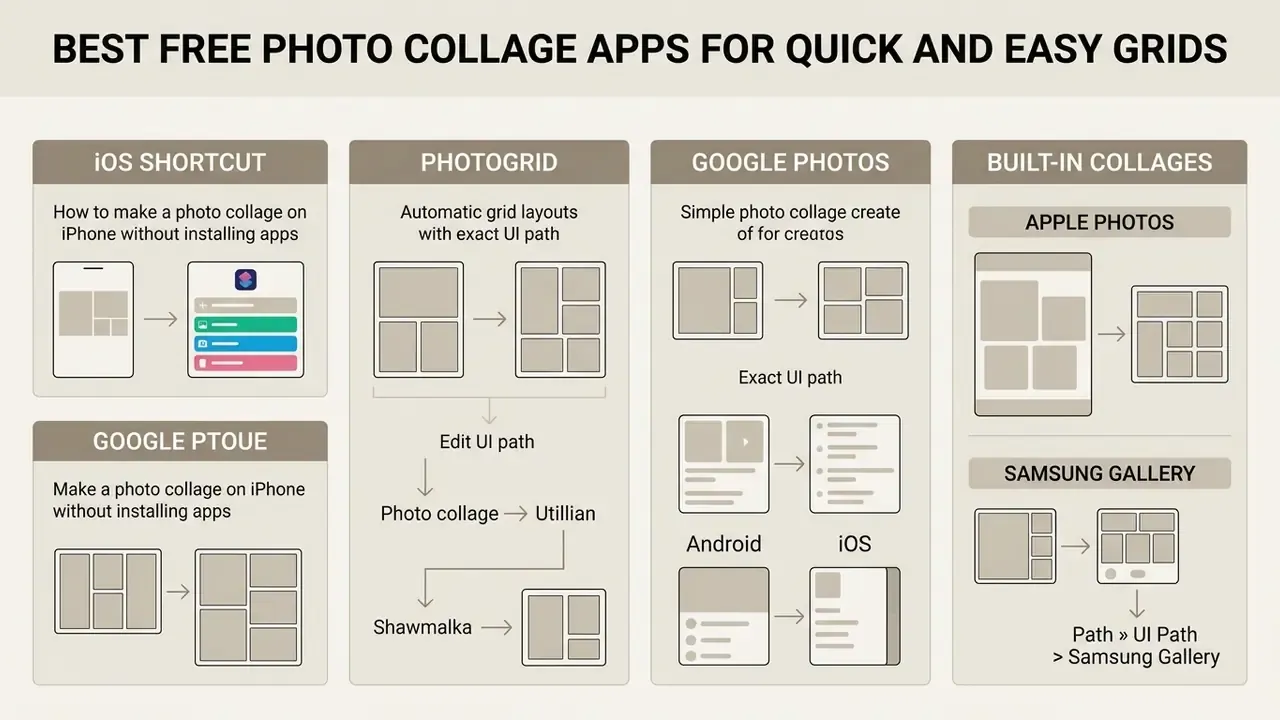
For straightforward picture combination without complex editing layers, native system options like Google Photos, Apple Photos, and Samsung Gallery offer the lowest friction. They process arrangements locally or through cloud sync and produce a clean photo grid without an extra download. On Samsung devices the exact path is: Gallery → select photos → tap More (⋮) → Create → Collage → choose layout → Save.
Best for: family shares, quick receipts-and-notes grids, anything where "good enough in ten seconds" beats "polished in ten minutes".
Best Apps for Design-Polished Collages
When a project calls for refined typography, brand palettes, and structured graphic elements, platforms like Canva lead the market. With thousands of professionally designed templates, they let non-designers build sophisticated mood boards and multi-page visual stories. To evaluate complementary layout and generation engines, creators often review AI Media Alternatives to assess workflow efficiencies.
Best Apps for Editing, Stickers and Effects
Users who need advanced retouching alongside layout assembly benefit from hybrid tools like Picsart and PhotoGrid. These applications integrate photo editor collage app functionality, so creators can remove backgrounds, run precision colour grading, add filters, and layer custom sticker elements inside the collage workspace. Picsart's help documentation describes Remove Background as detecting the main foreground object and exporting a clean PNG with a transparent or white background, while PhotoGrid exposes the same capability under AI Tools → Background Remover with HD transparent PNG or JPG output.
Best Free Photo Collage Apps for Quick and Easy Grids
The best free photo collage app for quick grid generation prioritizes immediate usability, zero-signup requirements, and automatic arrangement. These tools streamline assembly by calculating cell placement the moment photos are imported; Fotor, for example, states that smart auto-alignment detects image orientation and fills grid cells without manual resizing. If your only goal is to create photo collages fast, this is the whole category you need.
«Systems that automatically suggest layouts substantially reduce collage-creation effort while preserving manual adjustment.»
How to Make a Photo Collage on iPhone Without Installing Apps (iOS Shortcut Method)
Need a simple photo grid without downloading third-party software or registering an account? Use the native iOS Shortcuts app. Everything runs on-device, so no image leaves the phone:
- Open the Shortcuts app on your iPhone.
- Tap the Gallery tab in the bottom-right corner.
- Search for "Photo Grid" in the search bar and tap Add Shortcut.
- Return to My Shortcuts and tap Photo Grid.
- Select 2 to 9 photos from your Camera Roll and tap Add.
- The system assembles the grid automatically. Tap the Share button at the top right and choose Save Image.
Limitations to expect: the shortcut produces a plain equal-cell grid with no borders, no text layer, and no sticker support. It cannot reorder cells after generation, so to change the sequence you re-run the shortcut and select photos in the desired order, because the grid follows selection order. For anything decorative, a dedicated app is required.
PhotoGrid for Automatic Grid Layouts
PhotoGrid excels at automated grid generation, with over 45 dedicated grid structures and a library of 250+ sticker sets. Import multiple images at once and the app will automatically propose auto-aligned collage layouts with adjustable borders, background patterns, and corner radii.
Exact UI path: open PhotoGrid → tap Grid → select 2-15 photos → tap Next → swipe the layout carousel at the bottom to preview auto-generated arrangements → tap Border to set spacing, corner radius, and background → tap Save/Export → choose HD or 4K.
In hands-on editorial testing (methodology: 9 source JPEGs at 4032×3024, iPhone 15, PhotoGrid free tier, March 2026), a 9-photo event summary was assembled with the automatic grid engine. Applying unified border spacing and exporting at 4K took under 90 seconds from app launch to saved file. That is a single repeatable observation from our test protocol, not a statistically generalizable benchmark; timings shift with photo count, device, and network conditions once cloud AI tools are invoked. To explore detailed metric comparisons across creative utilities, technical leads can see the overview of system performance. Creators working from older or low-resolution source files can also review AI image enhancers before exporting at 4K.
Google Photos for Simple Photo Collages
Google Photos provides a completely free, built-in way to create collages across iOS, Android, and web browsers. Select up to six photos on mobile (or up to nine on desktop) and get an unadorned grid layout ready to share.
Exact UI path (Android/iOS): open Google Photos → long-press the first photo → tap up to 5 more → tap Create (or the + icon) → tap Collage → swipe through design templates → adjust border width, corner radius, and border colour → tap Save. On the web, select up to nine photos → click Create new → Collage.
Editing inside the Google Photos collage editor supports adding or replacing a photo, opening a single cell in the standard editor, rotating, zooming within a frame, and drag-and-drop reordering. No fonts, no stickers. That is the point.
Apple Photos and Samsung Gallery for Built-In Collages
Native gallery applications on modern iPhone and Android systems allow collage creation without third-party installs. Samsung Gallery includes an integrated collage builder supporting up to six images or video clips with customizable aspect ratios, while Apple Photos supports layout generation through system shortcuts and memory compilations.
Samsung Gallery path: Gallery → select up to 6 items → More (⋮) → Create → Collage → pick layout → adjust ratio and border → Save.
Apple does not currently publish an official Photos feature page documenting a dedicated collage builder on iPhone. The reliable native routes are the Shortcuts "Photo Grid" gallery shortcut described above and auto-generated Memories. Treat third-party claims of a hidden native collage tool with caution.
Best Collage Apps for Templates and Creative Freedom
Creators who want flexible canvas manipulation, scrapbook compositions, and large asset libraries turn to dedicated design engines. The best collage photo app options in this category emphasize creative freedom, with granular control over image layers, typography, and visual effects. Emotional resonance, not technical accuracy alone, often decides which edits users accept.
«Participants embraced edits that changed factual photo content when those edits made images feel more emotionally truthful.»
Canva for Professionally Designed Photo Collages
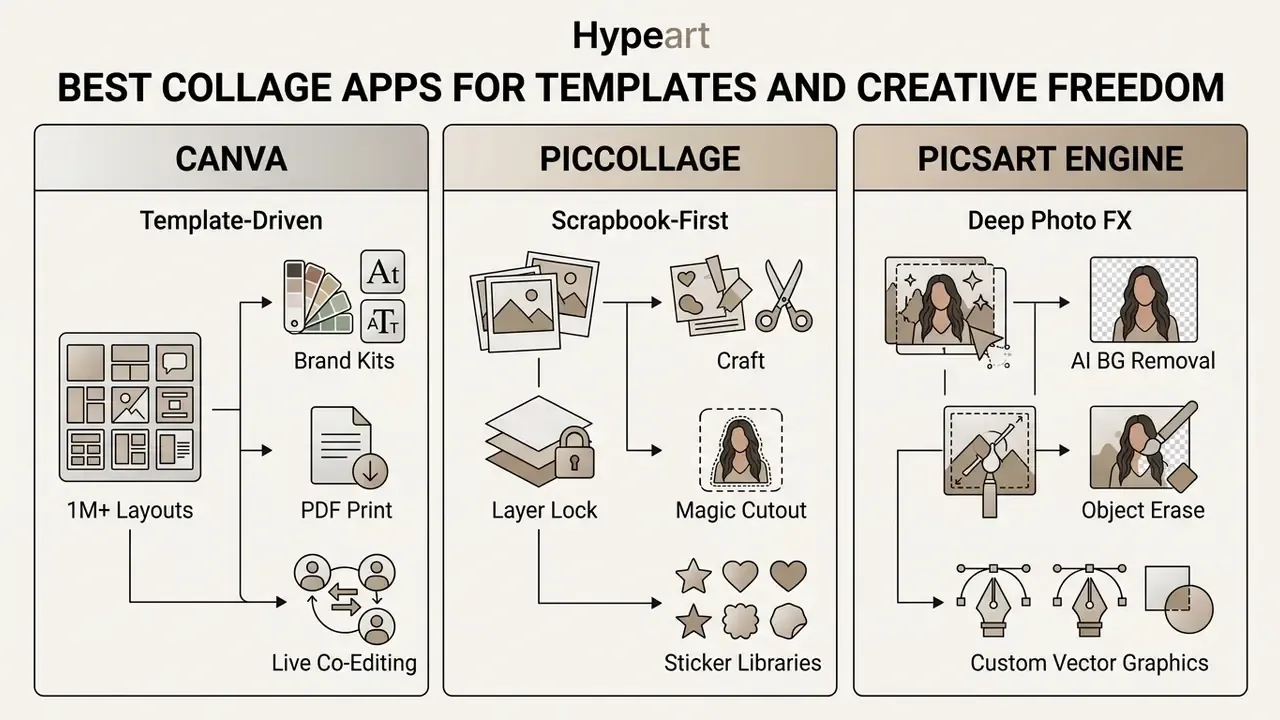
Canva works as a premier design environment, with over 20,000 photo collage templates inside a wider library exceeding one million designs, plus millions of stock media assets. Its drag-and-drop editor lets creators resize images, adjust frame geometry, add text with custom typography, and publish straight to digital channels or print formats. For a deeper breakdown of its generative feature set, see our Canva AI Generator overview.
Exact UI path: open Canva → search "Photo collage" → pick a template → click a frame → Uploads → Upload files → drag each photo into a frame → use Edit image → Auto Focus / BG Remover for cleanup → Share → Download → select PNG, JPG, or PDF Print.
Free-tier nuance worth knowing: most collage templates are free, individual elements can be resized by dragging handles or typing exact width and height values, but the design-level Resize function (reflowing a whole layout into another aspect ratio) is a Pro feature. Background removal is paid too.
PicCollage for Scrapbook and Creative Layouts
PicCollage focuses on scrapbook-style compositions, offering freeform canvas manipulation alongside structured grids. Features include layer locking, custom background textures, photo frame borders, and a cutout tool that isolates subjects for layered memory pages. Its help documentation confirms a Layer control for reordering scraps and a Lock Layers function that freezes individual elements while you keep editing others. Text controls extend to curved text, background shape and colour, letter spacing, outline, and alignment. That combination is what lets people create unique collages instead of another 2×2 square.
Exact UI path: open PicCollage → Freestyle → tap + → Photos → pinch and rotate to place scraps → tap a scrap → Layer to reorder or Lock to freeze → Backgrounds for paper textures → Cutout to isolate a subject → Save.
YouCam Perfect for Aesthetic Portraits and Event Collages
YouCam Perfect specializes in portrait retouching combined with template-driven layouts. It offers 500+ collage designs across more than ten categories, including Retro Film, Polaroid, Modern Art, Daily Life, and Scrapbook, and applies auto-beauty filters inside collage frames rather than forcing you to pre-edit each photo.
Exact UI path: open YouCam Perfect → tap Collage → select 1-9 photos → browse the template categories and tap a design → resize images inside the grid, then add stickers, text, or animation → tap Save at the top right.
Best for: birthday and wedding greetings, retro and Polaroid aesthetics, and portrait-heavy recaps where skin retouching matters as much as layout.
LINE Camera for Kawaii, Stamp-Heavy, and Decorative Collages
For users chasing playful, pop-culture, and Asian-aesthetic designs, LINE Camera offers an unmatched library of seasonal stickers, character stamps, and freehand drawing tools. It provides free frame borders with no mandatory watermark on static photo exports, though some premium stamp packs are paid.
Exact UI path: open LINE Camera → Collage → choose a grid or shaped frame → load photos → tap Stamp to browse stamp categories → Draw for handwritten accents → Text for captions → Save.
Best for: kawaii-style collages, fan edits, birthday cards, and decorative layouts where sticker volume outweighs layout precision. Its interface is denser than PicCollage's and layout flexibility is narrower. It is a decoration-first tool, not a structure-first one.
Picsart for Collage Editing and Visual Effects
Picsart operates as a full-featured collage photo editor app, combining layout assembly with advanced AI image processing. Creators can run background removal, apply artistic AI filters, erase unwanted objects, and draw custom graphic elements across multi-layered compositions. Its official documentation lists grid collages, freestyle collages, mood boards, and frames alongside AI-generated backgrounds and one-tap AI effects.
Exact UI path: open Picsart → + → Collage → Grid (or Freestyle) → select photos → Layout to change cell structure → tap a cell → Tools → Remove Background for cutouts → Effects/AI Effects for styling → Export → choose resolution.
Best AI Photo Collage Apps for Social Media and Instagram
An ai photo collage maker app uses machine learning to automate photo selection, optimize cell composition, and adapt graphic assets for specific social media aspect ratios. These tools exist to accelerate content production for Instagram Stories, carousels, and feed posts, and the good ones cut the resize step entirely.
«Users valued AI tools that helped realise emotionally meaningful images without technical expertise, while preserving transparency and control.»
Market context matters for tool longevity: mobile photo editing is projected to grow from roughly $7.2B in 2025 to $18.6B by 2034 (about 11.2% CAGR), with AI-powered editing the fastest-moving sub-segment at roughly 19.4% CAGR, while collage and layout tools held about 9.2% category share in 2025. Stable, specialized, unlikely to disappear.
AI Layout Suggestions and Automatic Collage Creation
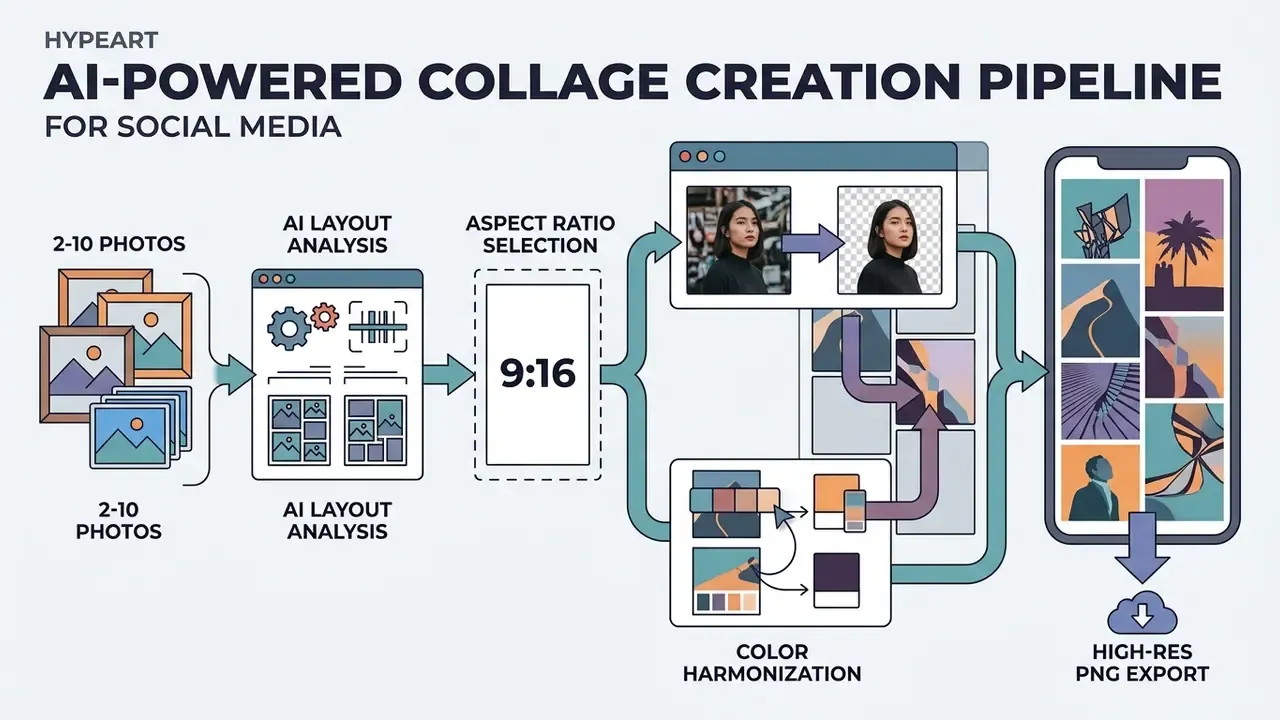
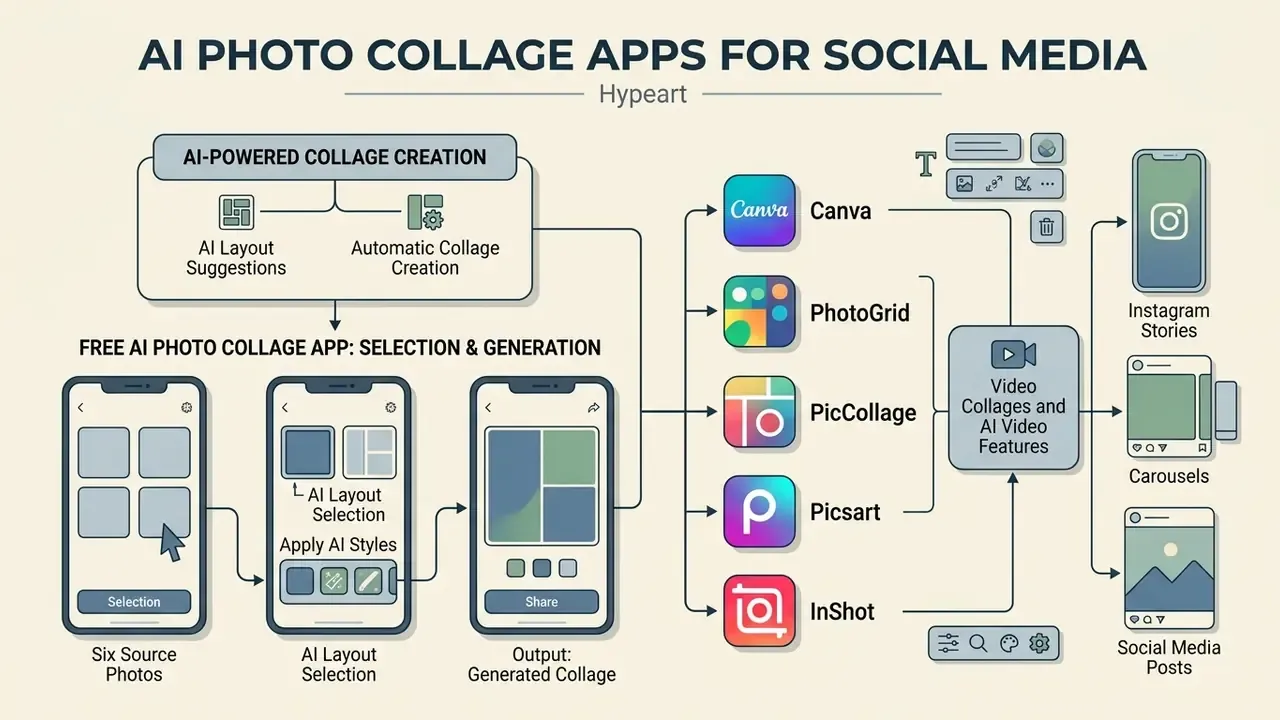
Modern best ai photo collage app solutions use ai powered spatial analysis to read uploaded image orientation and subject matter. The system will automatically propose balanced grid arrangements, aligning portrait and landscape photos without manual cropping or distortion, which is how most people create stunning results on the first attempt.
How to invoke these features by name:
- Canva Edit image → Auto Focus (subject-aware framing), BG Remover (Pro), Magic Studio suggestions.
- PhotoGrid AI Tools → Background Remover, AI Enhance, Upscale.
- PicCollage Magic Cutout for one-tap subject isolation.
- Picsart Remove Background, AI Object Replace, AI Backgrounds, AI Filters.
- InShot AI Blend, Auto Cutout, Smart Tracking.
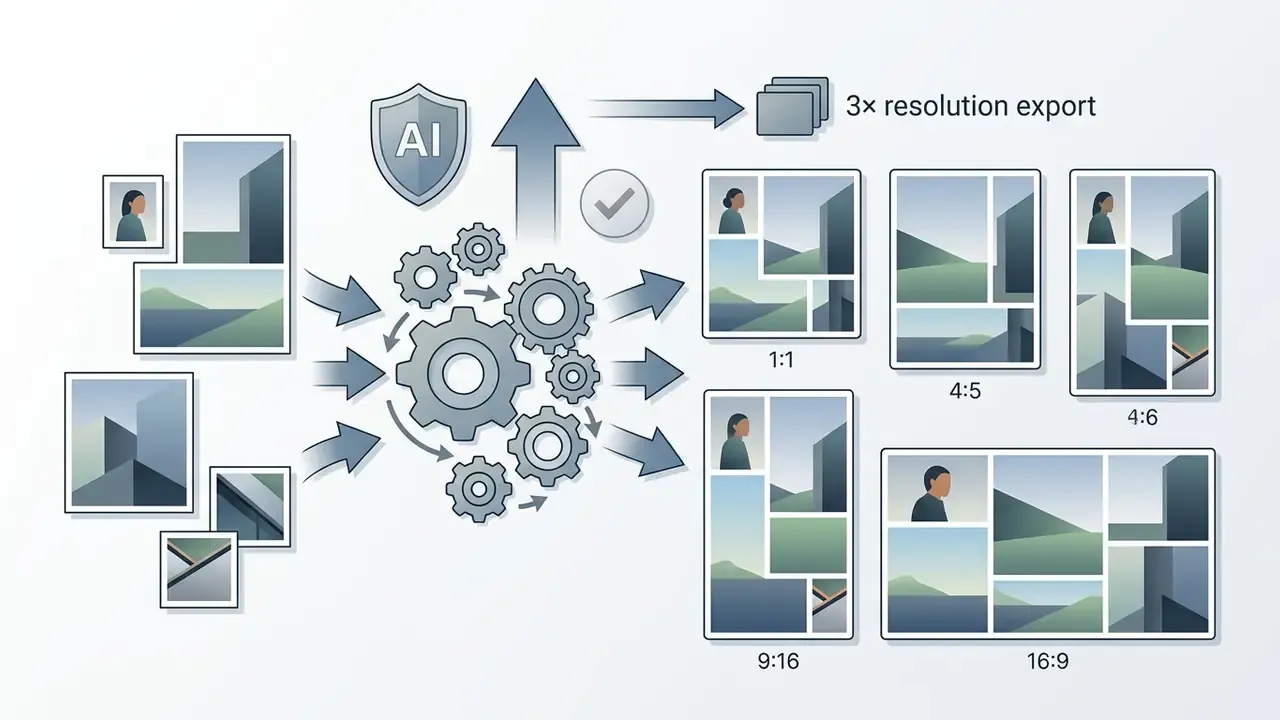
Typical AI pipelines accept 2-10 photos, arrange mixed orientations automatically, and expose ratio presets before export. Practical mapping observed across tools: two or three photos default to vertical or horizontal splits, four photos to a 2×2 grid or hero-plus-three hierarchy, seven to nine photos to a full grid, and mixed-orientation sets to masonry templates based on cell height.
Video Collages and AI Video Features
Applications like InShot and PicPlayPost combine static imagery with motion, creating dynamic video collages with synchronized audio. Teams exploring generative motion assets alongside layout tools can review free AI video generators for adjacent capability. These platforms add AI-assisted motion tracking, background removal, and transition effects tuned for short-form platforms; editors who need fuller timelines can also compare free video editing software options.
InShot's store listing names Make video collage, Smart collage, AI effects, and AI Blend effects directly, while PicPlayPost is positioned as a photo and video collage and slideshow maker with broader "AI video editing capabilities" rather than an itemized effect list. Verify specific effects in-app; marketing copy in this category ages fast.
Exporting Animated and Video Collages: MP4 vs. GIF Protocols
When a collage carries moving elements, keyframes, or background audio, the export container decides playback quality:
- MP4 (H.264 video + AAC audio) the default for Instagram Stories, Reels, and TikTok. Supports audio sync, 30/60 fps, and high-bitrate 1080p to 4K rendering. Adobe Express likewise exports animated collages as MP4 for social sharing.
- GIF use strictly for short, looping, soundless animations with transparent backgrounds under roughly 3 MB. Avoid GIF for real-world footage because of the 256-colour palette limit, which introduces banding across photographic gradients. Canva specifically recommends uploading transparent-background video as GIF.
- WEBM useful for web embeds where alpha channel plus small file size are both required; not accepted by most social apps.
- Bitrate guidance target 8-12 Mbps for 1080p social video and 35-45 Mbps for 4K, to avoid mosquito noise along collage cell borders, which are high-contrast edges and compress poorly.
Creators adding motion graphics to static compositions often evaluate free animation apps alongside standard layout tools, and the broader animation maker guide covers template and export trade-offs. To review platform capabilities for desktop post-production, editors can examine free video editing software mac tools. Mobile video teams can also compare dedicated apps via the free video editing index, while large exports may need a video compressor before upload.
How to Choose and Use a Photo Collage Maker App
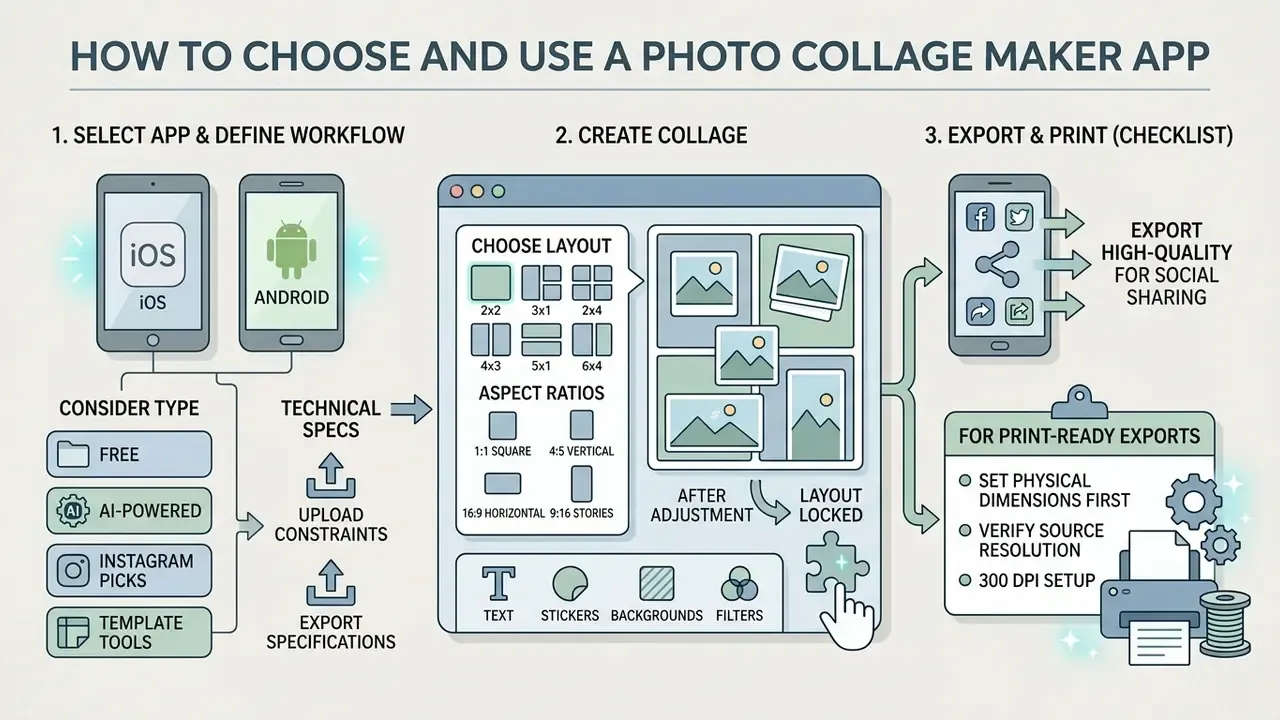
Running a photo collage editor app well is mostly about sequencing: align project scope with export configuration before you touch a template. Follow these steps.
- Define destination and formatidentify the primary distribution platform (Instagram Story 9:16, print poster at 300 DPI) and select a matching aspect ratio preset before importing assets. In Canva, use Create a design → Custom size; in InShot, tap Canvas and pick the platform preset; in PhotoGrid, set Ratio in the bottom toolbar.
- Select and upload your photosgather high-resolution originals and avoid heavily compressed screenshots or pre-cropped files. Use Uploads → Upload files (Canva) or + → Photos (PicCollage), so originals rather than re-exported copies enter the canvas.
- Select the template or grid structurechoose a layout based on image count. Symmetrical grids for uniform photos, masonry for mixed orientations. Swipe the layout carousel (PhotoGrid) or tap Layout (Picsart) to cycle arrangements.
- Customize your collageadjust cell margins with the Border or Spacing slider, modify background colours, add text captions with the Text tool, and apply one unified filter across all cells to harmonize tones.
- Verify aspect ratios and safe zoneskeep critical text and subjects inside platform safe zones, away from screen edges and interface overlays. Preview at actual device scale before export.
- Download your collage at native resolutionexport as high-resolution PNG or JPEG matching the platform's pixel target exactly. PNG when text or transparency must stay crisp; JPEG at quality 80-90 for photographic collages.
Technical Upload Constraints and Export Specifications
To prevent processing errors and aggressive compression artifacts during rendering, keep source assets inside the following documented limits:
| Asset Type | Supported File Formats | Maximum File Size | Dimension / Pixel Limits | Recommended Use |
|---|---|---|---|---|
| Static Images | JPEG/JPG, PNG, HEIC/HEIF, WebP (static only) | Under 50 MB per file | Max 250 million total pixels (width × height) | Standard photo grids |
| Vector Assets | SVG (saved with SVG 1.1 profile) | Under 3 MB per file | 150-200 px base width | Custom logos, badges, watermarks |
| Video Clips | MP4, MOV, MPEG, MKV, GIF, WEBM | Up to 1 GB per clip | 1080p / 4K at 30 or 60 fps | Reels, Stories, dynamic grids |
| Transparent Motion | GIF (preferred for alpha), WEBM | Under 3 MB (GIF) | 256-colour palette limit | Looping stickers, soundless accents |
| Print Exports | PDF (Print preset) | Uncapped | 300 DPI at final physical scale | Postcards, posters, photo books |
| Screen Exports | PNG (graphics/text), JPEG q80-90 (photos) | Uncapped | 1080 px minimum width for social | Feed posts, Stories, carousels |
Two operational notes from testing: WebP animation is commonly rejected even when static WebP uploads succeed, and exceeding the 250-megapixel ceiling usually fails silently. The upload spinner stalls instead of returning an explicit error, so downscale panoramas before import.
Choose a Layout Based on Photos and Aspect Ratios
Layout choice follows directly from the number and aspect ratios of your input photos. Two or three images work best in vertical or horizontal split grids, while four images align cleanly in a 2×2 square matrix. Mixed landscape and portrait sets benefit from asymmetrical masonry grids, and a single photo is better served by a shaped frame than a free grid.
«The AI system proposes layout variants under spatial constraints while leaving the user in full control of the final result.»
Documented grid-to-ratio conventions worth copying: two-image layouts map cleanly to 3:2 cells; three-image layouts work at 1:1, 3:4, 4:5, 3:2, 4:3, 5:4, or 2:3 depending on which image carries hierarchy; general-purpose grid systems commonly standardize on 1:1 square, 16:9 wide, and 4:3 standard cells. Where cell proportion and image proportion disagree, define the module from the image ratio first, then build columns and rows from that proportion. This is what eliminates the crop loss that produces decapitated subjects in auto-filled grids.
Customize with Text, Stickers, Backgrounds and Filters
Personalizing a collage means applying unified treatments across every contained photo. One colour grading filter across all cells harmonizes mismatched lighting, while subtle background textures and clean typography add context without swallowing the subjects.
Sequence matters. Work in this order to avoid rework:
- Layout locked → 2. Per-cell crop and rotation → 3. Background removal on hero subjects → 4. Global colour correction (saturation, brightness, warmth) → 5. Backgrounds and textures → 6. Stickers and stamps → 7. Text last, so typography is measured against the finished visual field.
Background removal is a genuine one-tap operation in current builds: Picsart detects the main foreground object and returns a transparent PNG, PhotoGrid exposes the same under AI Tools → Background Remover, and Office-style refinement tools allow manual keep and remove brushing when edges include hair or foliage. Several dedicated background removers on both stores advertise fully offline, on-device processing, which is the safest choice for sensitive imagery.
Export High-Quality Collages for Sharing
Exporting in high quality means matching output dimensions to distribution requirements, nothing more exotic. Digital social media posts need sRGB JPEG or PNG at 1080 px width minimum; physical print projects demand 300 DPI PDF output to prevent pixelation. Readers comparing zero-cost editing stacks can also review free photo editors for export-limit details.
«Compact GANs deliver real-time image editing on mobile devices, making high-resolution export practical even on free tiers.»
Practical note, replacing earlier model-architecture framing: rather than worrying about which network powers a feature, use the built-in AI upscalers in apps such as PhotoGrid or Canva to raise source images toward 4K before layout assembly. Upscaling after grid assembly amplifies border artifacts and text softness instead of recovering detail.
Accept one hard platform reality too. Social networks recompress uploads, so exporting far above the display size delivers no visible benefit. Match the target slot (1080×1080, 1080×1350, 1080×1920) instead of uploading 6000 px files.
Checklist for Print-Ready Collage Exports (300 DPI Setup)
When publishing mobile video without branding interference, creators inspect free video editing apps without watermark to maintain professional standards. Organizations assessing software adoption costs can see the overview of enterprise tiers, and teams standardizing a publishing pipeline can review our YouTube video editor workflow guide.
Best Photo Collage App FAQs
What is the difference between a free photo collage app and a free online collage maker?
A free photo collage app installs directly on a mobile device (iPhone or Android) and uses local hardware for offline editing and native photo library integration. A free online collage maker runs in a browser and needs an active connection to reach cloud-hosted template libraries, stock photos, and remote rendering servers. The practical trade-off is privacy and offline availability (apps) versus template breadth and cross-device continuity (collage online).
How do collage apps handle background removal, and is it available for free?
Modern collage applications use deep learning segmentation to detect foreground subjects and separate them from the background. Basic background removal is available in the free tiers of PhotoGrid (AI Tools → Background Remover) and Picsart (Tools → Remove Background), while Canva places BG Remover behind Pro. Advanced high-resolution edge refinement and batch object removal usually require a premium upgrade.
Can I export high-resolution collages without watermarks using free apps?
Yes. Native system applications like Google Photos, Apple Photos, and Samsung Gallery export watermark-free collages at no cost. PicCollage's web editor advertises full-resolution, watermark-free exports, and LINE Camera applies no watermark to static photo exports. Canva offers watermark-free exports on non-premium templates, whereas PhotoGrid, Picsart, and InShot apply watermarks on some free-tier exports unless unlocked via rewarded ads or paid plans.
What are the recommended aspect ratios for Instagram photo collages?
Instagram feed posts support square 1:1 (1080×1080 px) and portrait 4:5 (1080×1350 px). Instagram Stories and Reels require vertical 9:16 (1080×1920 px). Keeping consistent aspect ratios across every image in a carousel prevents automated cropping, and key content should stay out of the top ~14% and bottom ~20% of Story frames.
How do I make a collage on an iPhone with no app installed?
Use the built-in Shortcuts app: open Shortcuts → Gallery, search "Photo Grid", tap Add Shortcut, then run it from My Shortcuts, select 2-9 photos, and save the generated image via Share → Save Image. The output is a plain equal-cell grid with no text, borders, or stickers, and it runs entirely on-device.
Which collage apps work fully offline?
Apple Photos, Samsung Gallery, and the iOS "Photo Grid" shortcut process everything locally. Several dedicated background removers on Google Play and the App Store explicitly advertise 100% offline operation, and LINE Camera performs most decoration on-device. Browser-based collage makers always need a connection, because rendering happens server-side.
Which app has the largest sticker library?
LINE Camera and PicCollage lead here, both updated seasonally. LINE Camera skews kawaii and decorative with character stamps; PicCollage covers a broader design range and pairs stickers with a full freestyle canvas. PhotoGrid publishes 250+ sticker sets spanning birthdays, weddings, watercolour, and neon themes.
Which is the best free app for photo collage on both Android and iOS?
For parity across platforms, Google Photos and Canva are the safest picks: both ship near-identical features on iPhone and Android, plus a web editor. Google Photos wins on speed and zero cost; Canva wins on templates and typography. PhotoGrid is the strongest middle option when you want automatic grids plus AI tools in one app. Samsung Gallery and Apple Photos are excellent but platform-locked by definition.
Can I use free collage exports for commercial and client work?
It depends on both the app licence and the licence of every included asset. Check whether the free tier permits commercial distribution, whether bundled stock photos, fonts, and stickers carry separate terms, and whether AI-generated backgrounds or objects are cleared for paid advertising. Native gallery collages built entirely from your own photographs carry the fewest restrictions. For team deployments, document the approved app list and export settings, so unmanaged installs do not introduce licensing gaps.
Can collages be generated in batches or through an API?
Consumer collage apps are manual by design, but template-based platforms allow a repeatable pattern: build one master layout, duplicate it, and swap images per variant. For genuinely automated pipelines (recurring reports, catalogue grids, per-store creative) evaluate design platforms with programmatic access and bulk-create functionality, and validate export DPI and vector fidelity before committing. See our API automation guide for implementation considerations and cost structure.
Why does my collage look blurry after uploading to social media?
Three usual causes: source photos below 1080 px wide were upscaled by the platform; the export was saved at a non-native aspect ratio and then auto-cropped and rescaled; or a wide-gamut colour profile forced conversion. Fix it by exporting at the exact platform pixel size in sRGB, using PNG when the collage contains text or flat graphics, and JPEG at quality 80-90 for photographic grids.
References
- Patton, "AI-Augmented Feature to Edit and Design Mobile Applications", ACM Digital Library (2023). https://dl.acm.org/
- Apple Human Interface Guidelines, Photos and layout patterns (2026). https://developer.apple.com/design/human-interface-guidelines/
- Google Material Design, layout and grid specifications (2026). https://m3.material.io/
- Google Photos Help, "Create a collage" (updated 2026). https://support.google.com/photos/
- Samsung Support, "Create a collage in Gallery" (2024-2026). https://www.samsung.com/support/
- Canva Help Center, media upload requirements, resize and crop (2026). https://www.canva.com/help/
- Picsart Help Center, Remove Background documentation (2025). https://picsart.com/
- PhotoGrid product documentation, AI Tools and sticker library (2026). https://www.photogrid.app/
- PicCollage Help Center, layers, text controls, frames (2025-2026). https://piccollage.com/
- Shelby et al., "Seeing Like a Dataset
- Notes on AI Photography", ACM Digital Library (2023). https://dl.acm.org/
- Zeng et al., "I'm happy even though it's not real
- GenAI Photo Editing as a Remembering Experience", arXiv (2026). https://arxiv.org/
- "E²GAN
- Efficient Training of Efficient GANs for Image-to-Image Translation", arXiv (2024). https://arxiv.org/
Appendix A: Limitations, Open Questions and Revision Record
What this guide cannot yet prove:
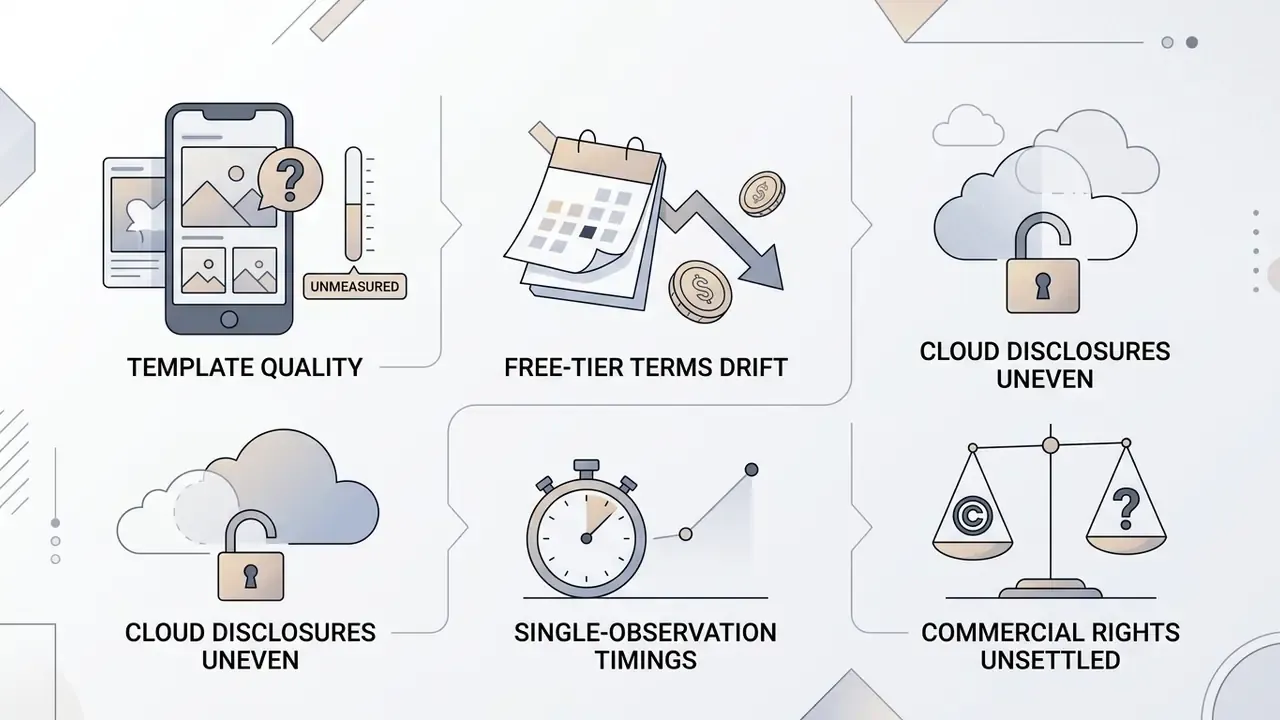
- Template quality is unmeasured. No independent, reproducible metric exists for "good layout". Our template guidance rests on vendor documentation plus hands-on comparison, not on controlled user studies.
- Free-tier terms drift monthly. Watermark rules and export caps observed in March 2026 may already differ by the time you install. Treat every limit in this guide as a hypothesis to re-verify in the store listing.
- Cloud processing disclosures are uneven. Several vendors describe "secure processing" without specifying retention windows or whether uploads train models. Where a vendor is silent, assume nothing.
- Single-observation timings. The 90-second PhotoGrid result is one run on one device. It illustrates feasibility; it does not benchmark the category.
- Commercial rights are not settled ground. Asset-level licensing, especially for AI-generated backgrounds inside paid advertising, remains the most common unresolved question we hear from teams.
Revision record, kept for transparency: earlier drafts cited academic sources parenthetically without quotation or methodology, and described the PhotoGrid timing test as an "operational assessment" without disclosing device, file sizes, or repeatability. Those formulations were replaced with quoted excerpts, publication details, explicit test conditions, and clear labelling of single-observation results.