The 30-second summary
- Horizontal flip = mirror left-to-right. This is the fix for reversed selfie footage, backwards t-shirt logos, reversed whiteboards and mirrored teleprompter recordings.
- Vertical flip = turn the frame top-to-bottom. Use it for upside-down camera mounts or deliberate reflection effects.
- Flip is not rotate. A flip reflects pixels and keeps frame dimensions identical; a 90°/270° rotation swaps width and height (1080×1920 becomes 1920×1080).
- Order matters. Flip first, then add captions, logos and lower thirds. Otherwise your text reverses along with the picture.
- Free is not licensed. "No watermark" is an export setting, not a commercial-use grant. Check the Terms of Service, resolution caps and bitrate limits before publishing.
- Where processing happens matters. Browser-local (WebAssembly/WebCodecs) pipelines never send your file to a server; cloud pipelines do. For confidential footage, that single distinction is the whole decision.
Last updated: 2026. Editorial review: media workflow and AI-governance desk.
What does it mean to flip or mirror a video online?
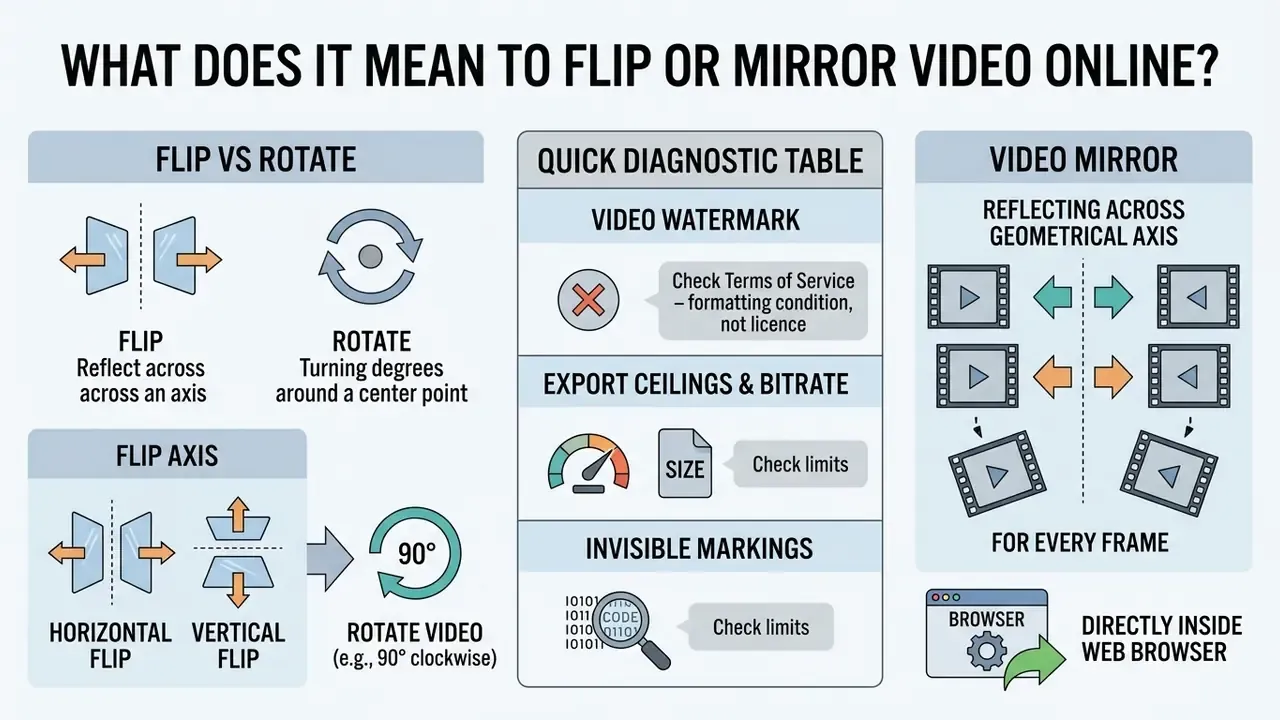
Flipping or mirroring a video online means reflecting every frame of a video file across a chosen geometrical axis directly inside a web browser. The operation changes spatial orientation, swapping left with right or top with bottom, without touching clip duration or frame rate.
«A horizontal flip reverses handedness and makes on-screen text read backwards; a vertical flip inverts gravity cues. Both preserve frame dimensions.»
When you use an online video flipper, you execute a reflection transformation rather than an angular rotation. A horizontal reflection swaps left and right coordinates, reversing readable text, directional gestures, and selfie-camera perspectives. A vertical reflection turns the clip upside down across the horizontal centre line. Modern browser tools handle these pixel transformations with client-side WebAssembly runtimes or cloud-based processing pipelines.
«WebAssembly runtimes consume roughly 20-30% less energy than JavaScript on compute-intensive media workloads.»
| Operation | Direction of geometric change | Visual result for viewer | Typical use case in video editing |
|---|---|---|---|
| Horizontal flip | Reflection across vertical axis; left and right swapped, top/bottom unchanged | Scene appears mirrored left-to-right; text becomes reversed; handedness changes | Correcting selfie camera mirroring, aligning visual focus, creating mirror effects |
| Vertical flip | Reflection across horizontal axis; top and bottom swapped, left/right unchanged | Scene appears upside down; gravity cues reversed; horizon flips vertically | Fixing inverted camera mounts, technical upside-down correction, artistic inversion |
| Mirror video | Reflection across vertical axis across full or partial frame | Viewer experiences content as seen in a physical mirror reflection | Front-facing camera alignment, virtual meeting feeds, side-by-side split reflections |
| Rotate video | Angular rotation around frame centre (usually 90°, 180°, 270°) | Scene turns by fixed angle; portrait converts to landscape orientation | Correcting sideways phone captures, reorienting handheld camera footage |
| Both flips at once | Horizontal + vertical reflection applied together | Visually identical to a 180° rotation, reached through two reflections | Fully inverted camera rigs, action-cam footage recorded upside down |
Underneath the graphical user interface, a horizontal flip swaps horizontal pixel coordinates (x becomes W-1-x), leaving vertical position y intact. A vertical flip executes the mirror of that (y becomes H-1-y), keeping x constant. Rotation modifies both coordinate axes using trigonometry or index transposition matrices, which is why a 90-degree turn changes the aspect ratio and a flip never does.
Horizontal flip, vertical flip and video mirror
A horizontal flip swaps the left and right sides of your frame across a central vertical axis to produce a mirrored video online. This transformation is the standard choice when you need to flip video horizontally online to correct front-facing webcam recordings or selfie footage.
A vertical flip reflects the image across a central horizontal axis, turning the entire clip upside down. Horizontal flipping preserves natural gravity and upright posture; vertical flipping reverses top and bottom cues completely. Research on video processing shows that geometric transformations like flipping have to preserve spatial alignment when downstream systems scan I-frame coefficients.
«The proposed scheme outperformed prior geometrically robust methods by 12.8% in normalized correlation under geometric attacks such as flipping and rotation.»
Applying an online video flip lets creators restore natural reading direction or match a specific layout requirement across web platforms. One practical shortcut for identifying which axis you need: after a horizontal flip, words read backwards; after a 180° rotation, the same words read upside down. Two seconds of squinting saves a wasted render.
Flip versus rotate a video
Flipping reflects a clip across an axis and changes its handedness. Rotating turns the frame by a fixed angle around its centre point. You should mirror a video online when text or gestures are reversed, and rotate the video file when sideways footage needs portrait-to-landscape correction.
A 90-degree or 270-degree rotation alters frame dimensions, converting a 1080×1920 vertical video into a 1920×1080 horizontal clip. An online video flipper, by contrast, maintains exact pixel dimensions and frame aspect ratios, so a 9:16 clip is still 9:16 after mirroring. Applying a double flip (both horizontal and vertical) yields a layout that looks like a 180-degree rotation, yet the underlying operations differ in memory structure and index mapping: one is a rotation, the other is a composition of two reflections. Pedantic? Maybe. It matters once you start scripting batch jobs.
When comparing tools, reviewing free video editing software with export limits, scanning our AI Media Comparison hub, or checking licence wording on the AI Media Commercial-Use Hub, picking the correct geometric operation prevents unintended stretching or clipping.
Quick diagnostic table
| What the footage looks like | Correct operation |
|---|---|
| Text, logos or shop signs read backwards | Horizontal flip |
| Your left and right hands are swapped on camera | Horizontal flip |
| Picture reflected top-to-bottom, like water under a horizon | Vertical flip |
| The camera itself was mounted upside down | Both flips (equivalent to 180°) |
| Portrait footage sitting sideways inside a landscape frame | Rotate 90° / 270°, not flip |
| You want a symmetrical kaleidoscope effect | Flip a duplicate clip and pair it with the original |
Is flip video online free and without a watermark?
«Modern watermarking algorithms are designed to survive compression, filtering and geometric attacks; the absence of a visible logo does not guarantee the absence of embedded markings.»
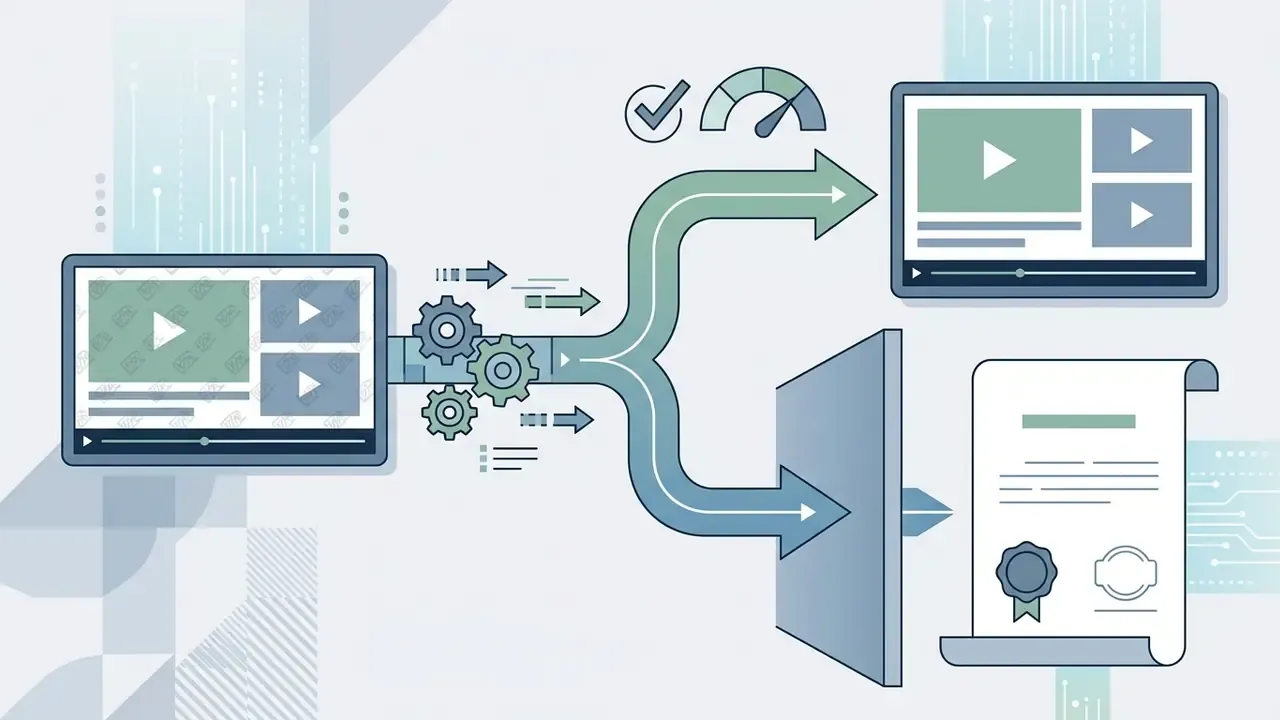
Watermark and commercial-use verification checklist

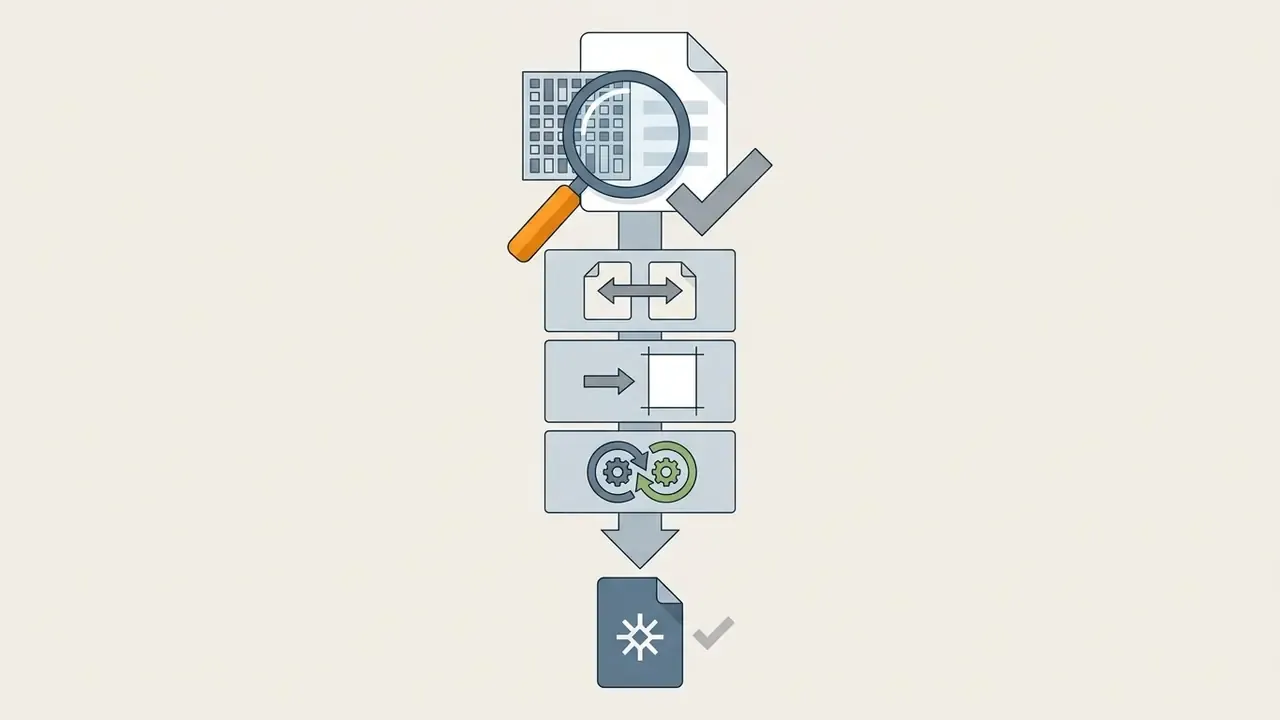
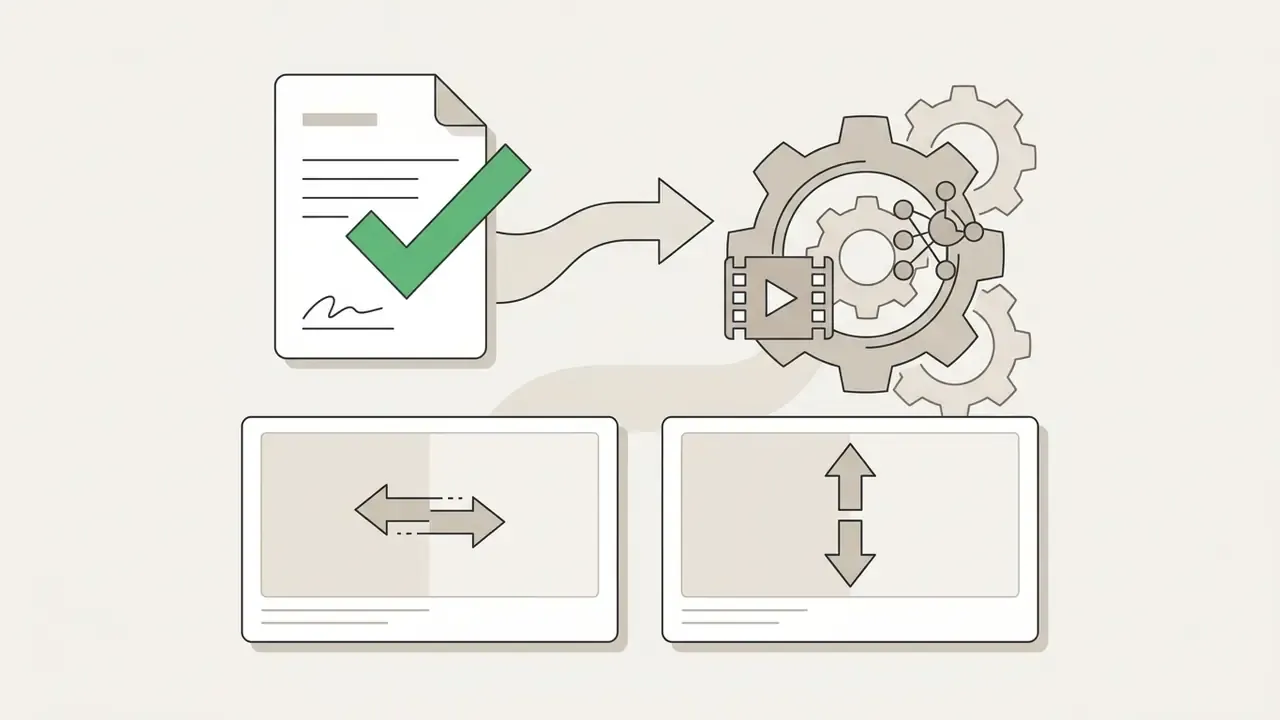
«Providers must embed machine-readable markings in synthetic media outputs using watermarking, metadata or cryptographic techniques, as required by Article 50(2) of the EU AI Act.»
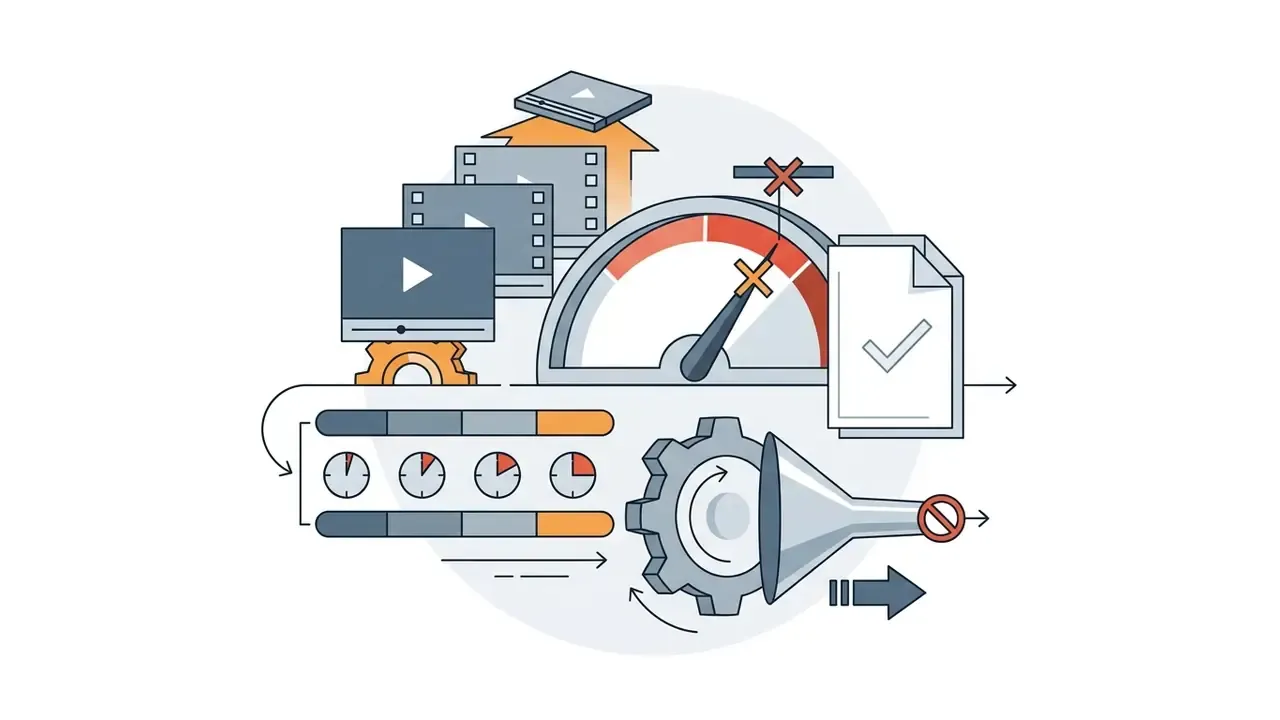
When you use a video flipper online labelled free, separate UI accessibility from export rights. Our guidance on commercial usage rights for AI and media tools explains how those grants are normally worded, and the AI Litigation and Case Timelines tracker records where disputes over generated and edited media are heading. Free tools often enforce file size caps, export duration limits, or reduced output bitrates. A side-by-side view of the best free video editors and their export limits makes those ceilings easier to compare. To weigh platform costs and feature tiers across media tools, consult our pricing documentation.
Case study - multi-region campaign, 150 clips (illustrative)
Situation: A digital marketing team needed to mirror 150 promotional clips for a multi-regional campaign without unexpected licensing fees or visible branding overlays.
Action: The team audited three browser-based video flippers against official ToS documentation, testing export resolutions and checking for embedded transform-domain metadata.
Result: They selected a WebAssembly-based editor that offered clean 1080p MP4 exports with explicit commercial distribution rights, which removed the post-production compliance question from the launch checklist.
What to check before downloading a mirrored video
Before downloading a mirrored video online free, verify four technical parameters: visible watermarks, resolution limits, bitrate compression, and commercial usage rights. Checking them upfront prevents forced re-exports and quality loss.
- Visible overlay branding: preview the export frame to confirm no company logo or text stamp is burned into the lower corners.
- Export resolution caps: check whether the free tier limits output to 720p or 480p, or allows native 1080p/4K rendering.
- Bitrate and compression: make sure the tool does not crush your video file, which introduces pixelation artifacts on re-encode.
«Repeated low-bitrate re-encoding accumulates visible artifacts; JND-aware coding minimises perceptible quality loss in adaptive streaming pipelines.»
- Terms of Service and licensing: verify that the platform allows commercial distribution if the clip is destined for client projects or monetised channels.
- Audio integrity: confirm the audio track passes through untouched. Flipping is a purely spatial operation and should never alter sound.
If you hit export failures or encoding errors during download, our AI Media Support and Troubleshooting section lists the diagnostic steps in order.
Privacy and data security when you flip video in a browser
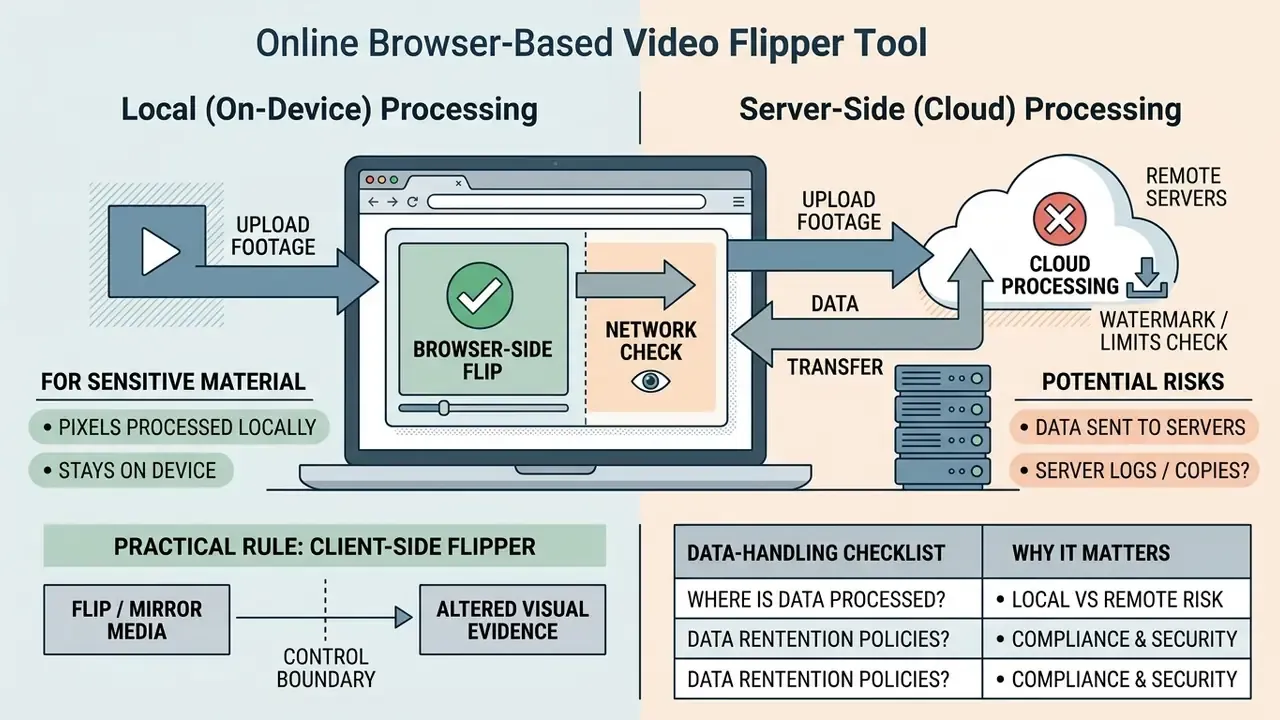
Before you upload footage that contains customers, internal dashboards, medical screens or unreleased product designs, establish where the pixels are actually processed. Browser video flippers fall into two architectural categories, and the difference is the entire risk profile.
- Local (on-device) processing. The clip is decoded, reflected and re-muxed inside the browser tab using WebAssembly and the WebCodecs API. No bytes leave the machine. Tools built on browser-native pipelines say so explicitly: "The selected video is flipped locally in this browser with the Mediabunny/WebCodecs pipeline", meaning the file is never transmitted to the vendor's servers for that workflow.
- Server-side (cloud) processing. The file is uploaded, transcoded on a render node, then returned as a download link. This model handles heavy formats a browser cannot decode natively (legacy AVI, WMV, some MOV/ProRes variants), but a third party temporarily stores your media.
Data-handling checklist for regulated and enterprise footage
| Question to answer | Why it matters |
|---|---|
| Is processing local or server-side? | Local processing keeps confidential frames on the device and removes transfer risk entirely. |
| What is the stated retention period for uploaded files? | Server-side tools should publish an automatic deletion window; unspecified retention is a red flag. |
| Is the transfer encrypted (TLS) and is storage encrypted at rest? | Prevents interception and unauthorised access to temporary render copies. |
| Does the vendor publish a DPA or GDPR position, or a compliance attestation? | Required for processing personal data of EU subjects on behalf of an organisation. |
| Are files re-used for model training or analytics? | Media used as training data is a common shadow-AI exposure route. |
| Does the export carry invisible provenance metadata? | Relevant for synthetic or AI-edited media under disclosure rules. |
| Who owns the decision to approve the tool? | Named ownership turns an ad-hoc browser upload into a reviewable control. |
Practical rule: for sensitive material, choose a client-side flipper and confirm with your browser's network inspector that no multi-megabyte upload request fires when you press Flip. If a cloud pipeline is unavoidable, strip identifying metadata first, trim the clip to the minimum necessary footage, and delete the server-side project after download.
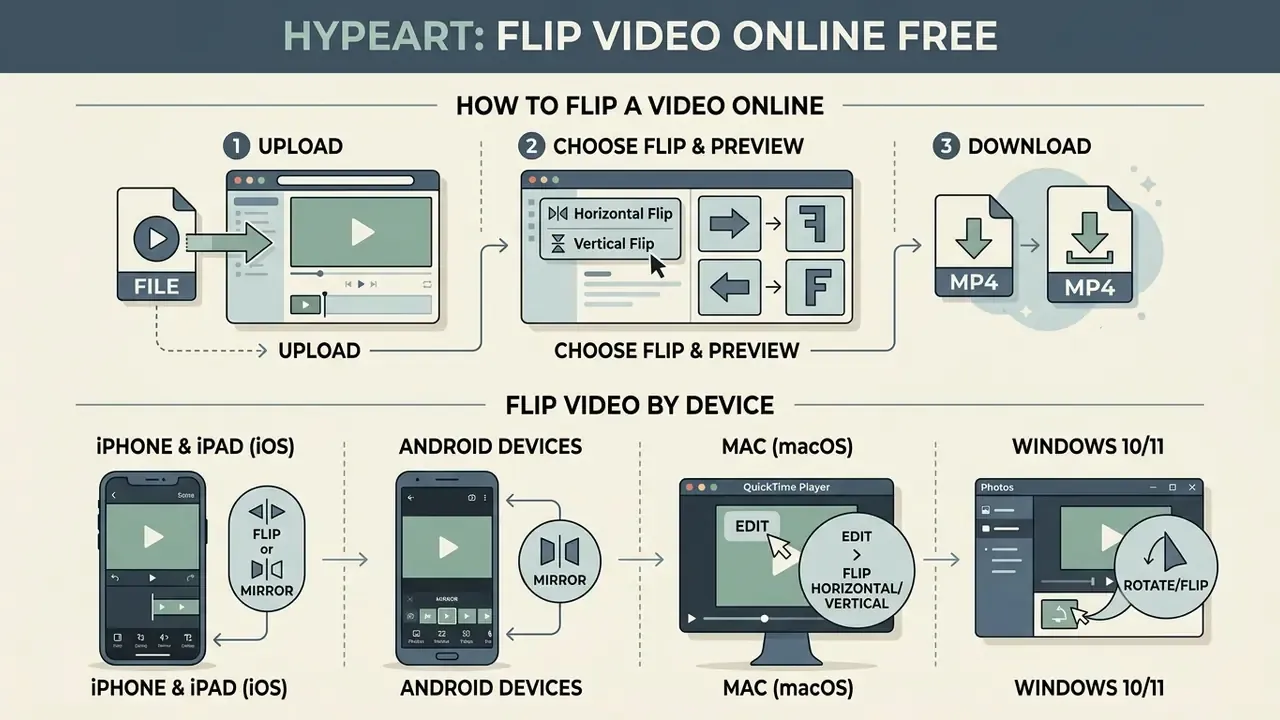
How to flip a video online
To flip a video online, upload your file to a browser-based flip video editor, select horizontal or vertical reflection, preview the live transformation, and export the processed file. Modern browser editors run these steps locally or on high-speed cloud nodes.
Processing pipeline at a glance
① Upload video file → ② Select flip direction (horizontal / vertical / both) → ③ Verify in live preview → ④ Render and download MP4
Each stage stays non-destructive until step four. Nothing is written to disk until you export, so you can switch axes as often as you like without accumulating compression loss.
Follow this sequential workflow to flip video horizontally online or vertically inside your web browser:
- Select and upload: open the online video flipper interface and choose your source clip.
- Configure reflection: click flip video horizontally online to swap left and right, or choose vertical flip to invert top and bottom. Applying both produces a fully 180-degree mirrored frame.
- Inspect preview: play the live preview and check readable text, facial alignment, and framing.
- Export and save: click download to generate and save the transformed MP4 or WebM file to your device.
Upload a video file to the online video editor
Start by clicking the upload button, dragging the clip into the browser canvas, or importing media directly from cloud storage such as Google Drive and Dropbox. Modern web editors use streaming file APIs to fetch remote assets over secure URLs, which removes the need to pull large media down to your local disk before editing. Some services also accept a direct web link to a hosted video, the fastest route when the source already lives on a CDN.
Practical size ceilings differ sharply by provider, so check them before you commit to a long render:
| Ingestion method | Typical limit in browser tools | Notes |
|---|---|---|
| Local drag-and-drop | ~500 MB on many free tiers | The most common free-plan cap |
| Cloud import (Drive/Dropbox/URL) | Up to 4 GB on paid tiers of mainstream converters | Avoids a local download step |
| Premium/lifetime plans | Up to 8 GB per file, with processing-time limits (~20 min) | Suited to 4K and long-form footage |
| Client-side WebCodecs pipelines | Bounded by device RAM, not a server quota | Large 4K files may exhaust tab memory |
When you send media into an online mirror video utility, browser memory buffers handle ingestion. Large video files may take longer to buffer depending on upload bandwidth and available RAM. Lightweight tools lean on WebAssembly to start decoding frames the moment the buffer lands, without a full server round-trip.
«WebAssembly runtimes begin decoding media as soon as the buffer is in memory, reducing first-frame latency compared with server round-trip pipelines.»
Developers wiring custom upload components into media apps will find request patterns and error codes documented in our AI Media API Guides.
Choose horizontal or vertical flip and preview the result
After uploading, decide between a horizontal reflection and a vertical inversion, then inspect the result in the live preview window. The preview player shows spatial changes in real time, before any encoding happens.
Selecting flip video horizontally online mirrors the clip across the vertical axis, which is the right call for inverted webcam feeds or selfie recordings. If the clip was recorded upside down, choose vertical flip. Human-computer interaction studies stress that instant visual feedback during editing lowers error rates and cognitive load.
Scrub through key frames in the preview and confirm that logos or background signs sit in their intended orientation. Pay particular attention to frames with writing on them: whiteboards, product labels, jersey numbers and shop signage expose a mirrored recording instantly.
Download the flipped or mirrored video
Once the preview looks right, click download to render and save your mirrored video online. The tool encodes the flipped frames into a final container file and writes it to local storage.
During export, the flip video maker processes frame buffers and applies the selected audio/video multiplexing parameters. Open the downloaded file in a desktop media player and check that audio-video sync survived; our overview of the modern video editor for browser-based workflows explains how muxing settings affect that sync. If you plan to script automated workflows for flipping media streams, the YouTube video editor workflow guide walks through the chaining logic.
How to flip a video on iPhone, Android, Mac, and Windows
The steps to mirror a video file depend on your operating system and native media tools:
- iPhone and iPad (iOS) the native Photos app flips videos horizontally (Edit → Crop → Flip icon). It cannot perform a vertical flip. To reverse a clip top-to-bottom on iPhone, upload the file to a browser-based flipper in Safari and export the rendered MP4 back to your Photos library.
- Android devices most stock Android gallery apps lack any horizontal or vertical video mirror tool. Open Chrome, select your MP4 or WebM file, apply the reflection, and download the corrected clip without installing third-party APKs.
- Mac (macOS) QuickTime Player handles basic 90-degree rotations but needs extra steps for reflection, and iMovie forces a full project export. An online WebAssembly flipper in Safari or Chrome flips clips without creating a new library asset.
- Windows 10/11 the default Clipchamp or Photos app requires a multi-step timeline import to mirror footage. Processing files straight through a browser skips installation and spares system RAM. Note that Clipchamp's free tier has historically capped exports at 480p, so verify the resolution of the output file.
- Any device, same result because a browser tool runs the identical WebCodecs or WebAssembly pipeline everywhere, the flip you preview on a phone is byte-for-byte the operation performed on a desktop.
Correcting mirrored footage: Zoom, TikTok, and teleprompters
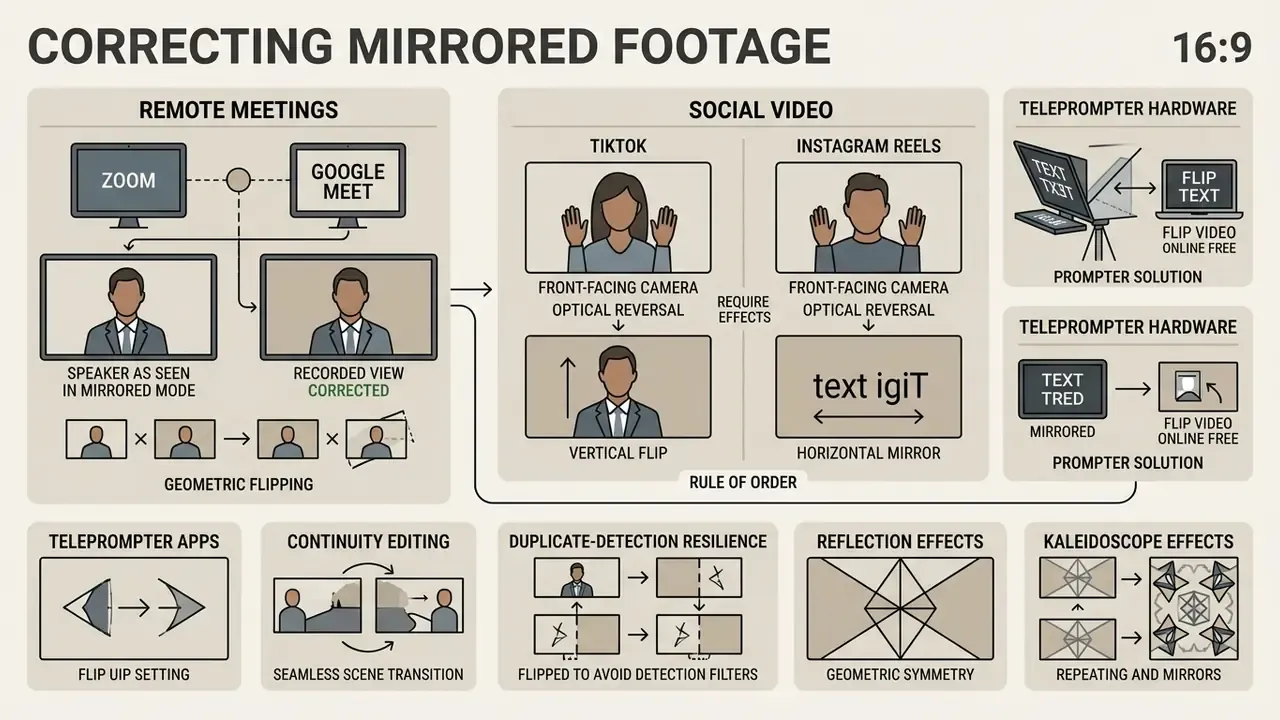
Geometric flipping solves specific optical reversal problems created by front-facing cameras and prompter hardware. These three scenarios account for most real-world flip requests.
Zoom and Google Meet recordings
During a live call, Zoom's "Mirror my video" setting only adjusts your local self-view preview. It does not change what remote participants see in real time. However, if you record a webinar locally or to the cloud while the mirrored preview is being captured, the output file may show background whiteboards, physical books, printed slides or text presentations in reverse. Upload the recorded MP4 to an online video flipper and apply a horizontal flip to restore natural reading orientation for your audience. Google Meet, Teams and most webcam capture apps behave the same way: the mirror control is applied at preview time, and whether the saved file inherits it depends on the capture setting.
A useful mental model comes from capture APIs themselves. Mirroring can be configured for the preview only, or for preview, playback and the saved file together. If your recorder exposes that choice, set preview-only mirroring so the stored file never needs correcting. If it does not, one post-production flip is the fix. Nothing more.
TikTok, Instagram Reels, and teleprompter video
Front-facing smartphone cameras capture mirrored images by default. When you publish social content, any printed text (t-shirt slogans, storefront signs, book covers, product labels) shows up backwards.
- Rule of order run the online video flip on raw footage before adding captions, text overlays or sticker graphics. Flip after burning in subtitles and the subtitle text reverses with the picture. Tooling built around an ai caption generator still cannot rescue letters that were baked in the wrong way round.
- Teleprompter apps mobile autocue apps reflect text onto a sheet of glass. If your recording app saves the raw prompter mirror stream instead of the corrected view, a single horizontal reflection makes the presenter's background and printed graphics readable again.
- Continuity editing mirroring one shot changes which direction a subject faces, which can rescue an eyeline mismatch between two clips cut together.
- Duplicate-detection resilience re-sharing an identical file can trip content-matching systems on some platforms; a horizontal flip makes a re-share visually distinct without re-shooting.
- Reflection and kaleidoscope effects duplicate the clip, flip the copy, and place the two side by side to build symmetrical visuals for music videos and social posts.
Because flipping never changes frame geometry, a 9:16 vertical clip stays 9:16 after mirroring. If the footage also needs reframing, treat cropping to the platform ratio and trimming duration as separate steps.
Video formats and files supported by an online video flipper
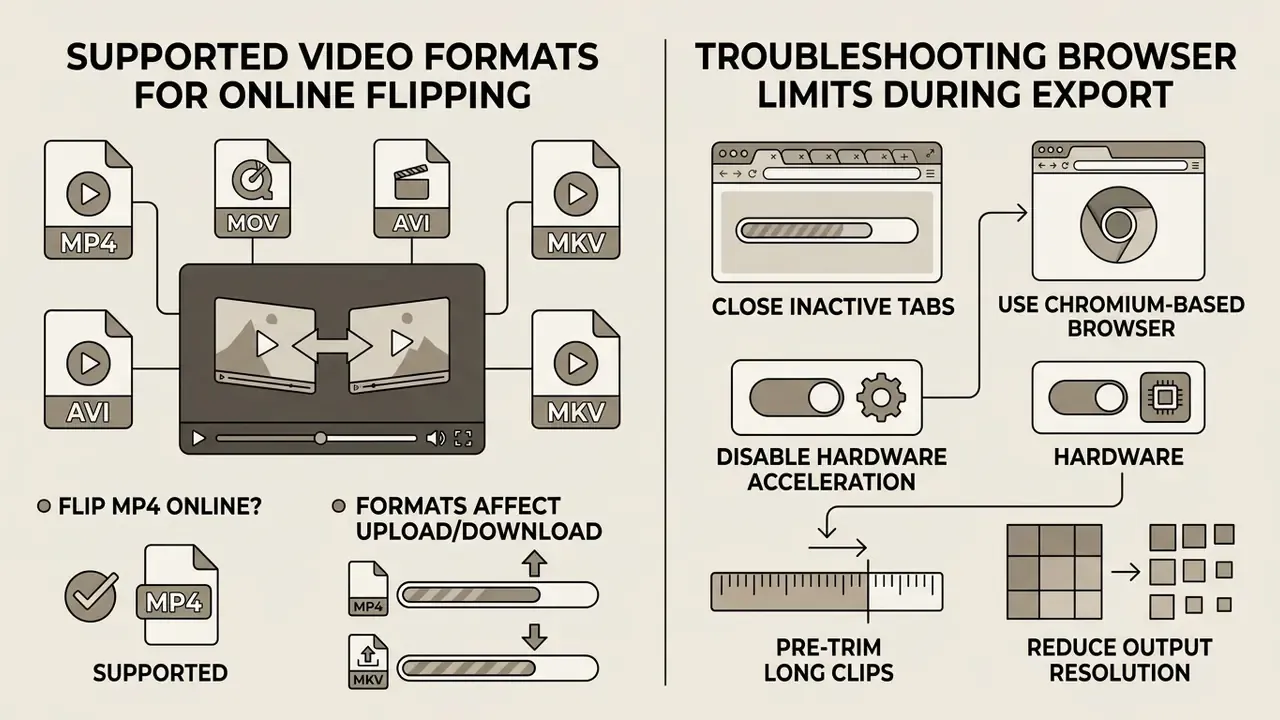
Most web-based video flippers support popular video formats including MP4, WebM, MOV, MKV, M4V and AVI. Broad container compatibility means you can process files from smartphones, webcams, or professional cameras without pre-conversion.
| Video Format | Primary Codecs | Browser Upload Support | In-Browser Flipping Feasibility | Recommended Export Target |
|---|---|---|---|---|
| MP4 | H.264 / AVC, H.265 / HEVC, AV1 | Native across all modern browsers | Excellent (direct hardware decoding) | Primary target for maximum cross-platform playback |
| WebM | VP8, VP9, AV1 | Native in Chrome, Firefox, Edge | Excellent (optimised web rendering) | Ideal for web-native streaming and lightweight sites |
| MOV | H.264, ProRes, Apple codecs | Native on Safari; variable on others | Good (may require container repackaging) | Export as MP4 for universal device compatibility |
| MKV / M4V | H.264, H.265, VP9 | Partial; MKV often needs remuxing | Good with server-side or WASM transcoding | MP4 for players and social platforms |
| AVI / WMV | MPEG-4, DivX, Raw RGB, WMV3 | Limited native browser support | Moderate (requires WebAssembly or cloud transcoding) | Convert to MP4 during export for efficient storage |
Format compatibility depends on both container structure and the underlying video codecs. The .mp4 extension describes a wrapper, not a single codec, so two MP4 files can behave very differently in the same browser.
«HTTP adaptive streaming relies on MP4 and fragmented MP4 as its baseline containers, which makes the format the most universal choice for browser upload and export.»
Can you flip an MP4 file online?
Yes. You can flip video online using MP4 files in virtually all modern browser video utilities. MP4 with H.264 video and AAC audio remains the standard format for web playback, streaming, and editing.
Because browsers ship native hardware acceleration for H.264 decoding, processing an MP4 in an online video flipper delivers fast render times and modest memory use. When you mirror video online free with an MP4 clip, the editor decodes frames, applies the coordinate matrix transformation, and re-encodes into a clean MP4 container. Worth noting: the container survives, but the elementary streams are usually rebuilt. Transcoding pipelines accept a wide range of input codecs (AV1, H.264, H.265, VP9) yet emit a narrower output set, so codec identity is rarely preserved byte-for-byte. Audio is normally passed through untouched, since a spatial flip does not affect the sound track at all.
How video formats affect upload and download
Your choice of input and output video formats shapes upload speed, browser rendering latency, and final export file size. Uncompressed or high-bitrate containers demand more transfer bandwidth and longer client-side decoding.
High-efficiency codecs such as H.265/HEVC or AV1 give you smaller files at equivalent quality compared with older H.264 material, but they burn far more CPU during frame decoding and dramatically more time during encoding.
«AV1 and H.265 deliver smaller files at equivalent quality, but require substantially more computation to decode and encode in the browser.»
When exporting your flipped clip, MP4 keeps you compatible across social platforms, desktop players, and editing software. If you are also weighing output ceilings, see our notes on free video tools and their export limits. For bitrate maths, compression ratios and estimated export sizes, the interactive AI Media Calculators do the arithmetic for you.
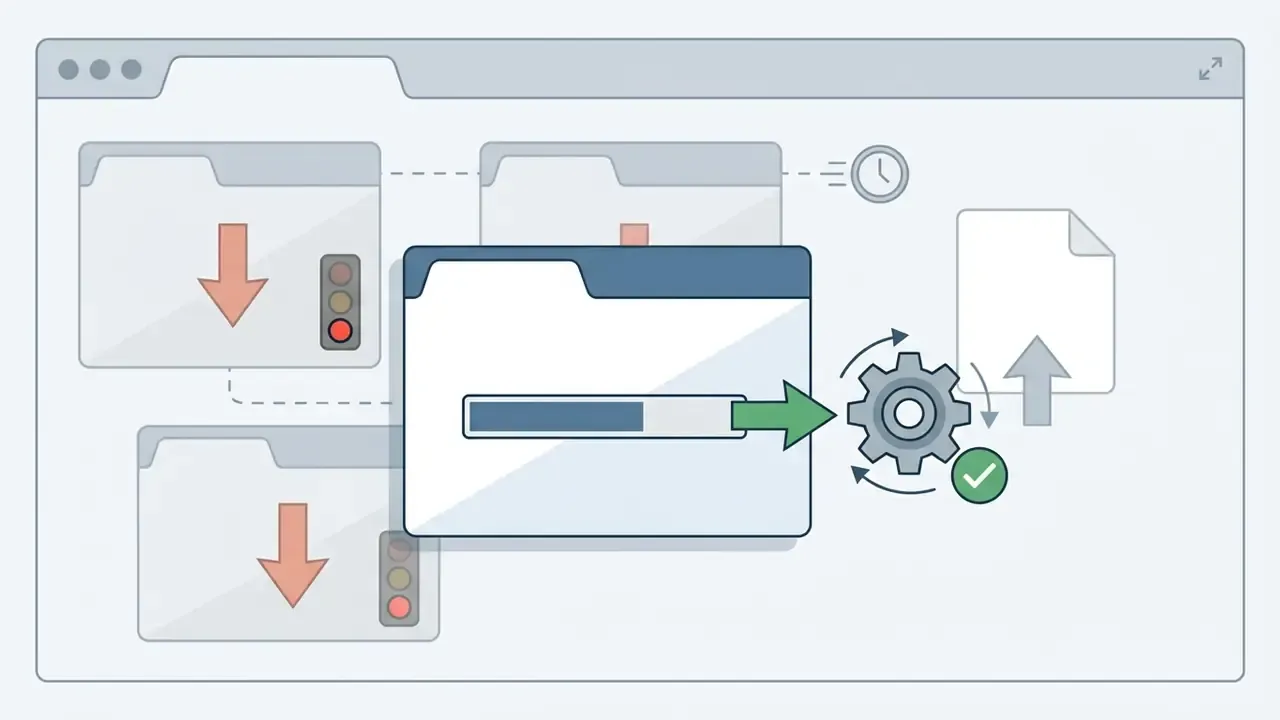
Troubleshooting browser memory limits during export
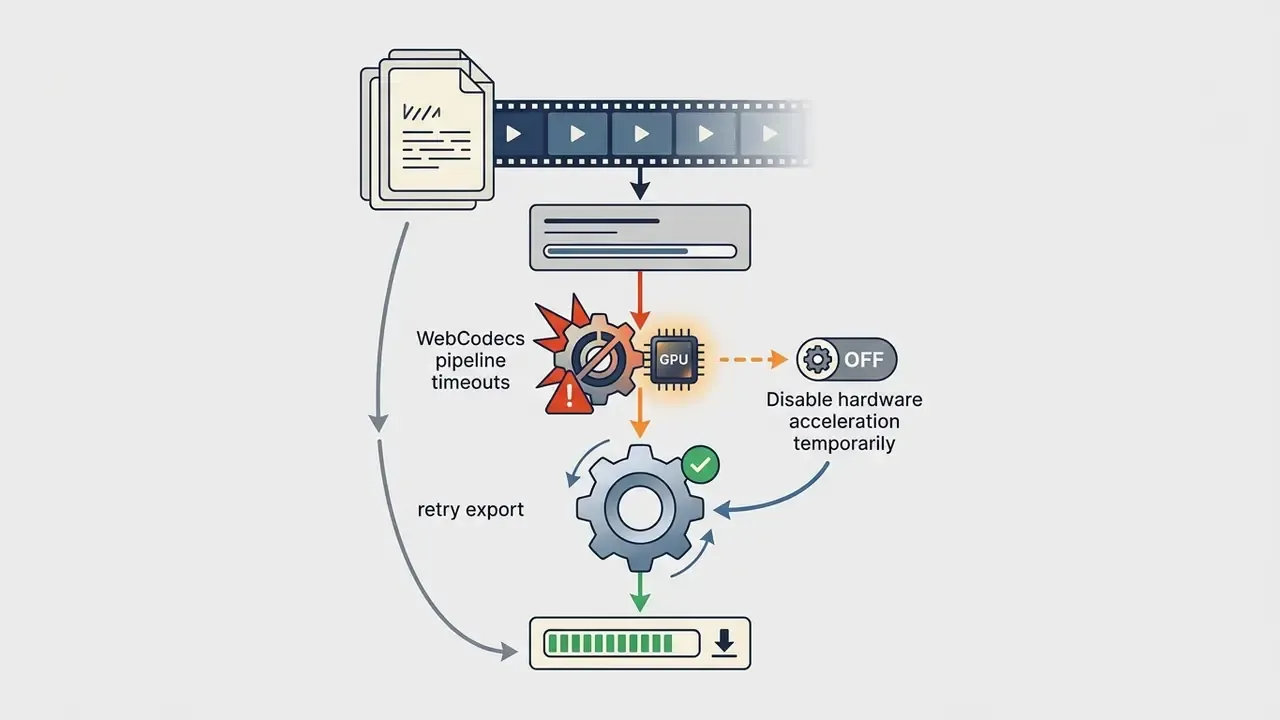
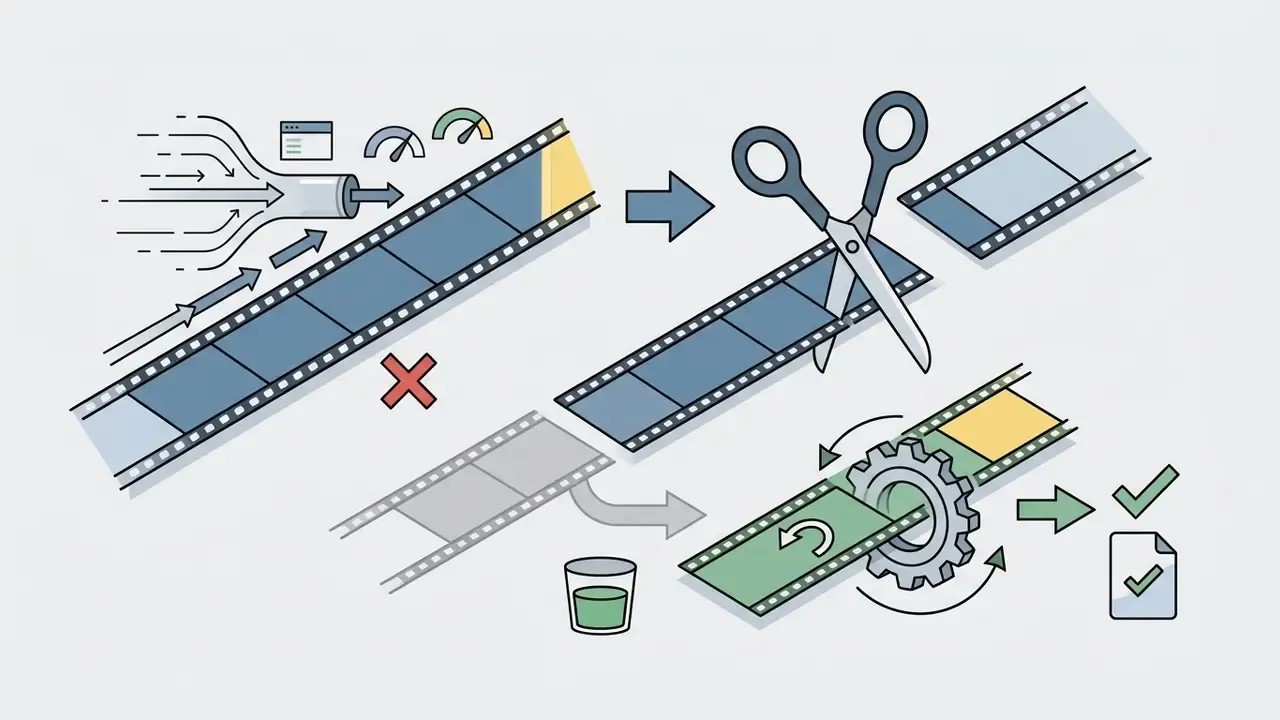
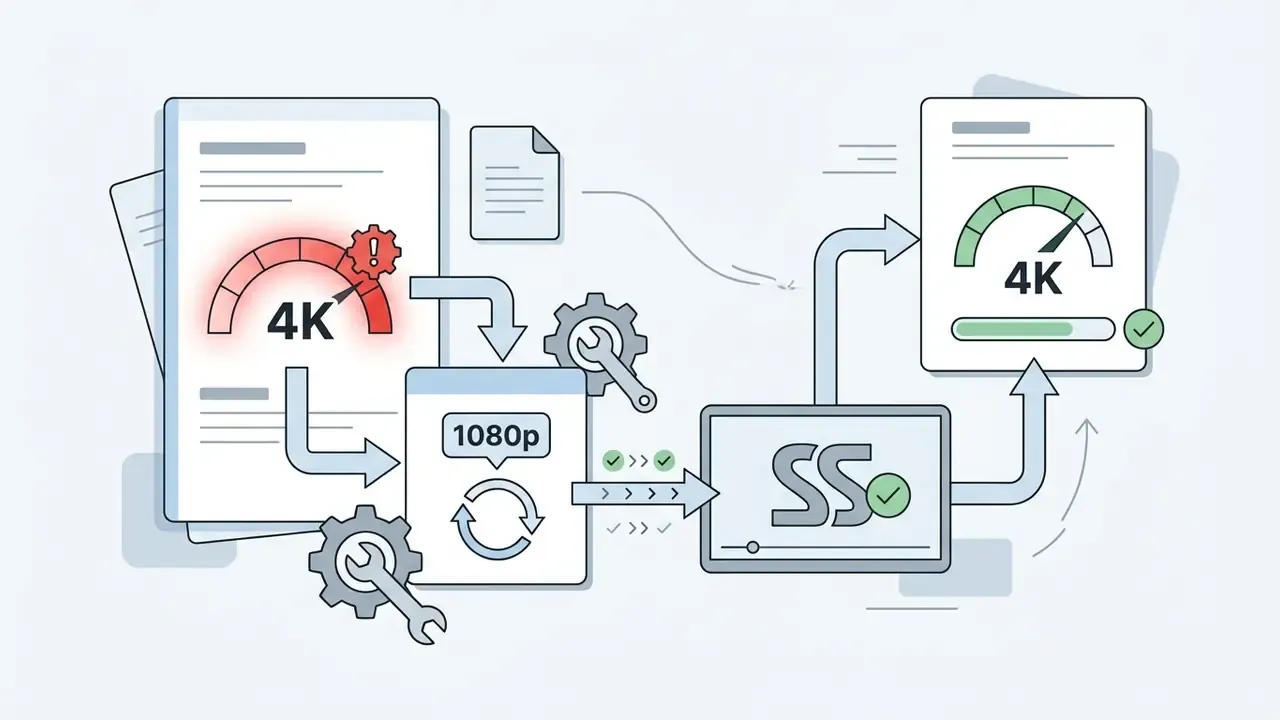
If the tab freezes, stalls at 90%, or crashes during WebAssembly rendering of a large file (over 1 GB, or 4K resolution), work through these steps in order:
If a browser-local pipeline still fails, a server-side flipper is the fallback, with the privacy trade-off described in the data-security section above.
Continue video editing after you mirror a video
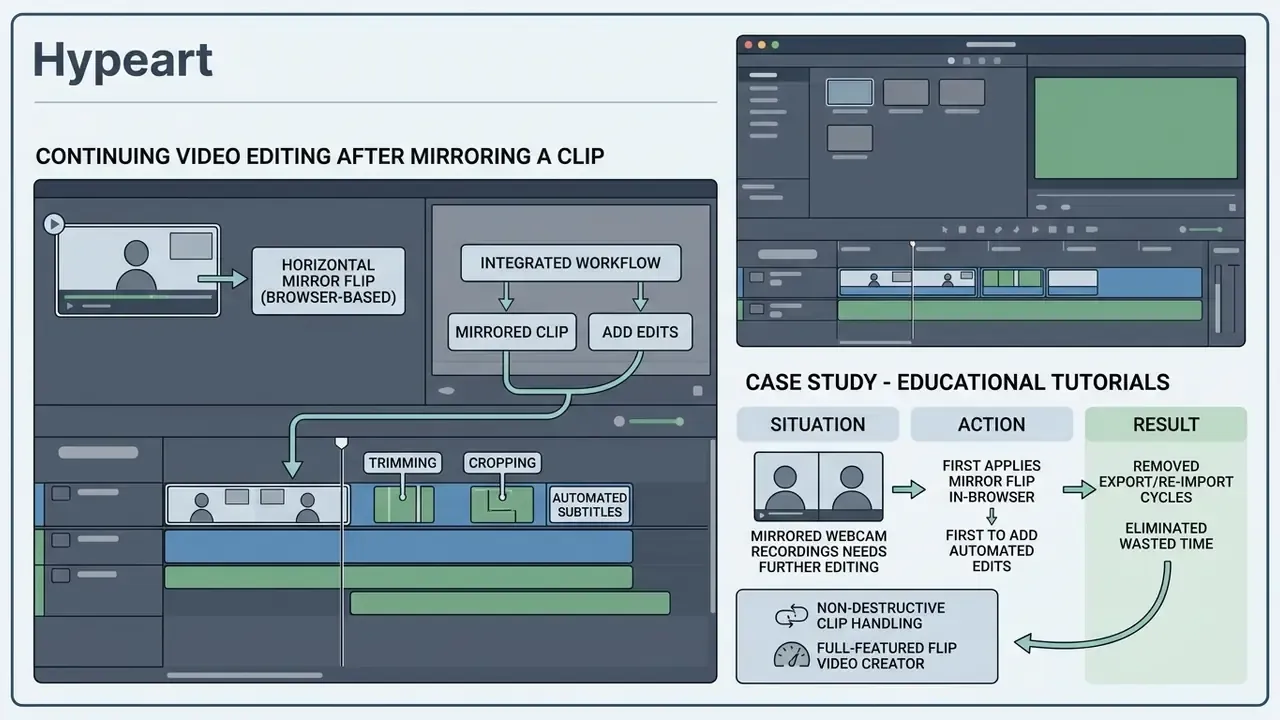
Use flip video creator for a complete editing workflow
A full-featured flip video creator pairs basic mirror operations with trimming, cropping, and canvas resizing. That combination keeps production tidy and cuts the number of files you have to track.
Using one browser platform to flip video maker content also avoids repeated lossy re-encoding.
«Every additional transcoding pass accumulates compression artifacts; minimising the number of exports preserves source quality.»
After a mirror flip video online, adjust crop boundaries to fit 16:9 widescreen or 9:16 vertical social formats, then apply video compression for social platforms as the final step rather than the first. A sensible operation order: flip → rotate (if needed) → trim → crop/reframe → colour and filters → captions and graphics → audio → single final export. Teams that also produce static collateral in the same campaign sprint, say a sales one-pager built with an ai brochure maker or a set of contact assets from an ai business card generator, tend to reuse this same "transform first, decorate second" rule.
Add edits after creating a mirrored video
Once you have a mirrored video online, layer on the post-processing: voiceovers, background audio, visual filters, animated captions.
Adding text after flipping is not optional. Burn text into a clip before a horizontal flip and the letters end up reversed and unreadable. Run your online video flip first, then overlay subtitles, logos, and lower-third titles.
«An example-driven interface built from simple components is especially valuable for novices, reducing errors when editing operations are applied in sequence.»
Once the orientation is correct, keep the remaining edits in the same tab: clip trimming, canvas aspect-ratio adjustment (16:9 widescreen to 9:16 for Shorts and Reels), subtitle generation in WebVTT, filter grading, and an added or replaced audio track. Accessibility guidance treats captions and sound-effect labelling as a required media-editing step, not a nice-to-have, so plan for them in the same session. Product-visual pipelines follow the same discipline: whether the asset started as footage, as output from an ai cad drawing tool, as a render from an ai car generator, or as a name concept from an ai business name list, the geometry gets fixed before the branding goes on. Processing edits sequentially in a single browser session avoids multi-pass generation loss and keeps caption timing locked to the flipped footage.
FAQ & Topic Summary
What is the difference between flipping and mirroring a video?
In web editing software, "flipping" and "mirroring" describe the same geometric reflection. A horizontal flip reflects the video across a vertical axis, producing a mirror image that swaps left and right.
How do I un-mirror a selfie or front-camera video?
Apply a single horizontal flip. Front cameras save the mirrored preview image, so reflecting the clip left-to-right restores logos, signs and printed text to their correct reading direction.
Does flipping a video online reduce its visual quality?
Flipping pixels mathematically does not degrade the frame. It is a lossless geometric change, and the audio track stays untouched. Re-encoding during export can introduce compression artifacts if you pick low bitrate settings, so choose high-quality MP4 export parameters to preserve sharpness.
Can I flip a video on my mobile phone browser?
Yes. Modern browser-based video flippers are responsive and run on mobile web browsers across iOS and Android without any native app install.
How do I flip a video on an iPhone?
The built-in Photos app mirrors a clip horizontally via Edit → Crop → Flip, but it cannot flip vertically. For a top-to-bottom inversion, open a browser flipper in Safari, apply the vertical flip, and save the export to your camera roll.
How do I flip a video on Android?
Stock Android gallery apps generally have no flip function. Open Chrome, load the file into a browser-based flipper, choose horizontal or vertical, and download the result. No APK required.
Why is my Zoom or webcam recording mirrored, and how do I fix it?
Some capture configurations save the mirrored self-view, which reverses whiteboards, slides and printed text. Upload the recording and apply a horizontal flip so everything reads correctly in the final file. Zoom's own "Mirror my video" toggle affects only your local preview, never what participants see live.
Should I add subtitles before or after flipping?
Always after. Burned-in captions, logos and stickers reverse along with the frame if you flip afterwards.
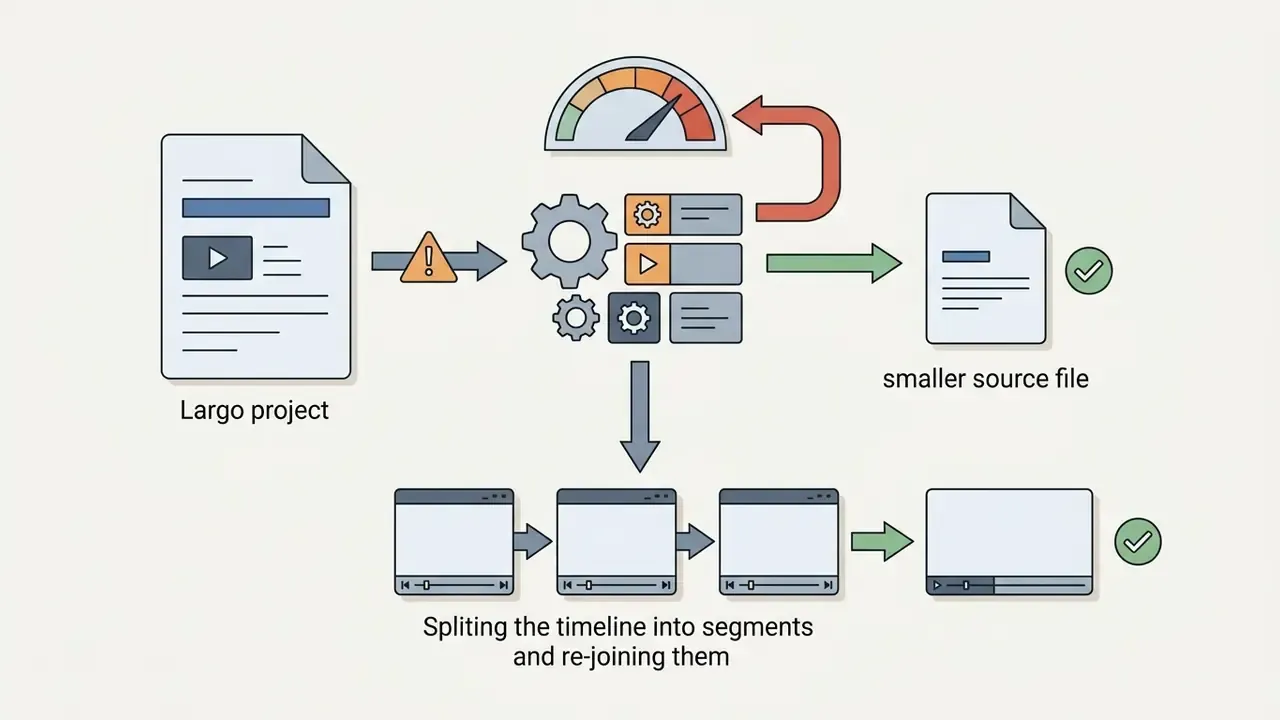
Can I flip only part of a clip?
Yes. Split the timeline first, flip the selected segment, then re-join the segments. This is also how symmetrical reflection effects are built: flip a duplicate and place it beside the original.
Are my files uploaded to a server?
It depends on the architecture. Client-side tools built on WebCodecs or WebAssembly process the file entirely in the tab and upload nothing; cloud converters transmit the file to a render node. Check the vendor's stated processing model and retention policy before uploading confidential footage.
What should I try if a large file fails to export?
Use a smaller source, close other heavy tabs, lower the resolution or trim the duration first, switch to a Chromium-based browser, and keep the tab in the foreground until the render finishes.
Can I import from Google Drive or Dropbox?
Many online flippers support cloud import via Google Drive, Dropbox or a direct URL, which spares you from downloading a multi-gigabyte source to local disk first. Free-tier size caps still apply.
Appendix: sources and technical references
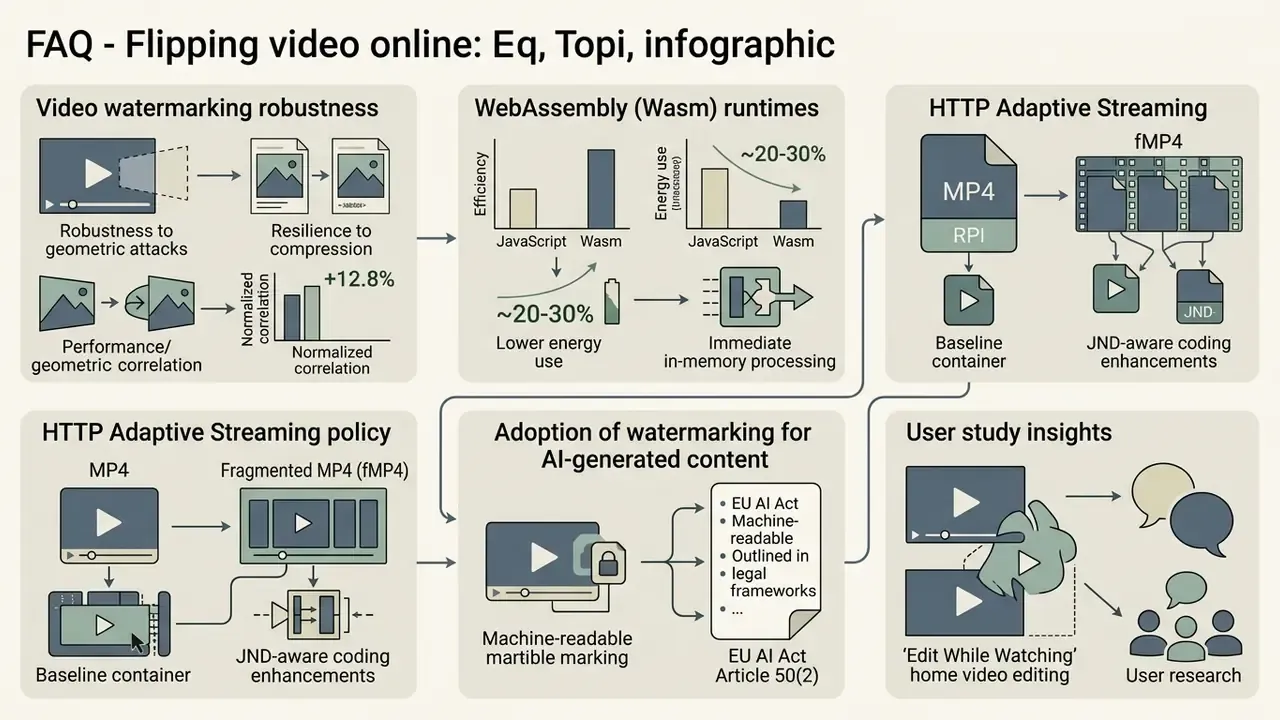
- An et al. - Multipurpose Video Watermarking (robustness to geometric attacks, +12.8% normalized correlation), Multimedia Tools and Applications, 2024. https://doi.org/10.1007/s11042-024-18590-3
- Aberna & Agilandeeswari - Survey on Digital Image and Video Watermarking (resilience to compression, filtering and geometric attacks), 2024.
- Du et al. - Survey on WebAssembly Runtimes (20-30% lower energy use than JavaScript; immediate in-memory decoding), 2024.
- Video Coding Enhancements for HTTP Adaptive Streaming (MP4/fMP4 as baseline containers, JND-aware coding, AV1/H.265 compute trade-offs, generation loss), 2023.
- Adoption of Watermarking Measures for AI-Generated Content (EU AI Act Article 50(2) machine-readable marking obligation), arXiv preprint, 2025.
- Snoek et al. - Edit While Watching home video editing user study (8 participants, Philips HomeLab), ACM.
- Wünsche et al. - Supporting Video Authoring for Communication of Research Results, ACM IMX, 2023.
Note on sourcing: earlier drafts of this page cited forward-dated vendor and archival documents that could not be verified at the time of publication. Those references have been replaced with the peer-reviewed and standards-based sources listed above.
- doi.org
- - An et al. - Multipurpose Video Watermarking (robustness to geometric attacks, +12.8% normalized correlation), Multimedia Tools and Applications, 2024.
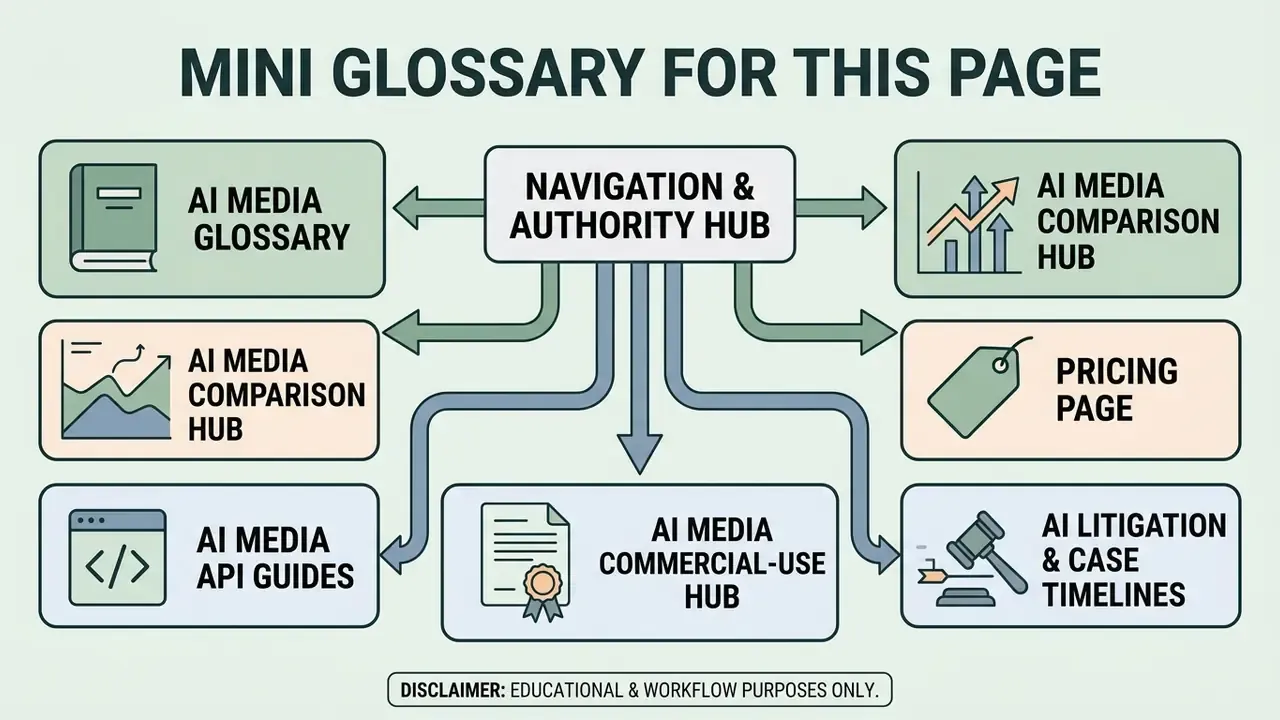
Mini glossary for this page
- Flip (reflection) a transformation that mirrors pixel coordinates across one axis while preserving frame width and height.
- Handedness the left/right orientation of a scene. A horizontal flip reverses it, which is why watch hands and printed text look wrong.
- Muxing combining encoded video and audio streams into one container such as MP4 or WebM.
- WebCodecs a browser API that exposes low-level encoders and decoders to JavaScript, enabling local video processing.
- WebAssembly (WASM) a portable binary instruction format that lets compiled media libraries run at near-native speed inside a tab.
- Generation loss cumulative quality degradation caused by repeated decode and re-encode cycles.
- Transform-domain watermark an invisible marking embedded in frequency coefficients, which typically survives flipping, cropping and re-compression.