So the real question is not whether a tool is free. It is what the free tier quietly takes back at export time.
What Movie Maker Free Is and Whether It Is Really Free
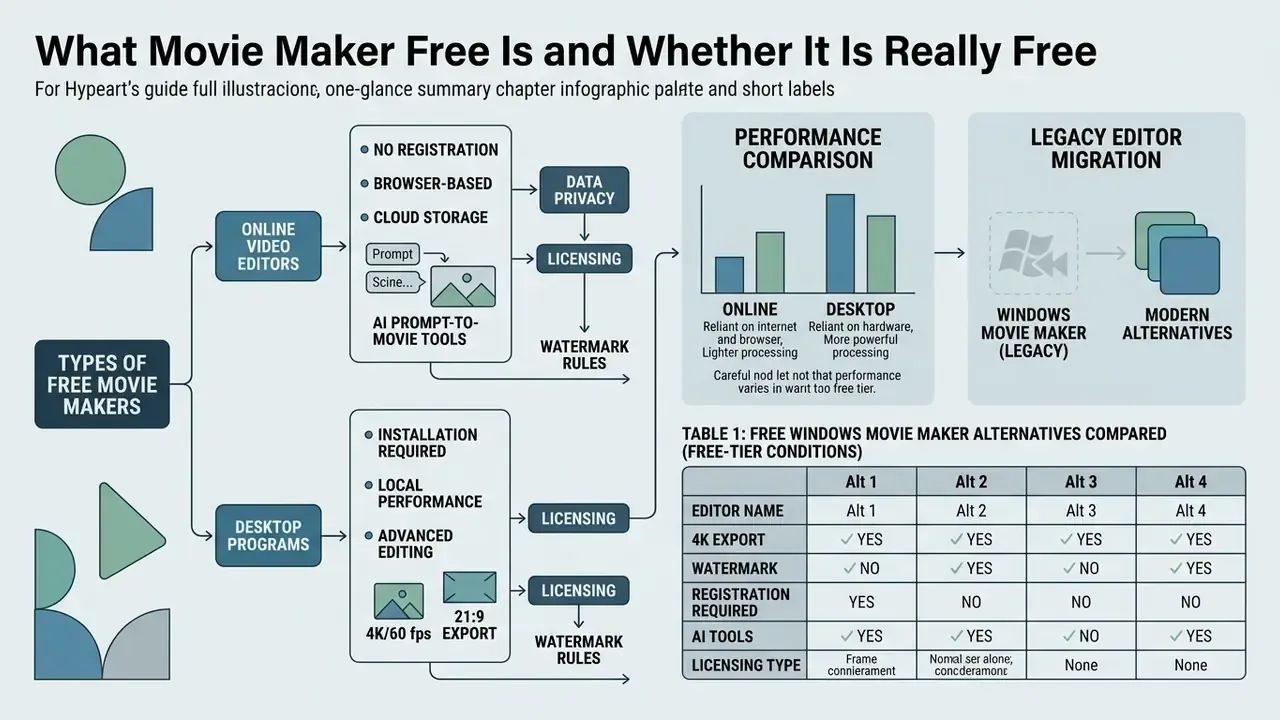
A free movie maker provides basic video editing, clip trimming, and media assembly at zero upfront financial cost, though nearly every free-tier service enforces specific functional limits. Commercial providers usually run a freemium model: foundational tools stay open, while premium assets, cloud rendering speed, or export parameters sit behind the paywall. If you have ever wondered is movie maker free in any absolute sense, the honest answer is "free with conditions attached."
Understanding whether a tool is truly free requires distinguishing between three different commercial models:
- Permanent free tier.Perpetual access with structural caps: export ceilings (commonly 720p or 1080p), watermarks, monthly minute or file quotas, or limited cloud storage. Adobe Express Free, for example, provides basic editing tools, a limited asset library, 5 GB of storage, and 10-day version history. Microsoft Clipchamp's free personal plan exports 1080p HD without a watermark, but blocks export of projects containing paid stock or premium features until the asset is removed or the plan is upgraded.
- Time-limited trial.Full features for a fixed window, often with credit-card capture and automatic conversion to a paid plan. Movavi's trial pattern is instructive: a 7-day limit, a 60-second export cap, partial audio saving, and disabled advanced features. Microsoft Clipchamp's one-month premium trial requires a payment method and converts automatically unless cancelled.
- Open-source desktop software.Full feature access with no subscription costs and no watermarks, using local hardware for processing (OpenShot, Shotcut, Kdenlive, VSDC Free Video Editor). DaVinci Resolve is proprietary, yet its free edition is unusually capable for this bracket.
Permanent free plans allow perpetual access but often apply export caps or embed branding watermarks. Open-source desktop programs behave differently: full features, no subscription, no watermark, all processing handled by your own CPU and GPU. Template libraries are the other major differentiator for beginners, and often the deciding one.
«Template structure and video guidance are especially useful for novices thanks to a simple design and intuitive components.»
Account requirements are an underrated cost. CapCut and Clipchamp tie projects to cloud sync or a Microsoft account, while local editors and a subset of web tools work with no sign-in at all. For a person editing one memorial slideshow, that difference matters more than any effects library.
Free Online Movie Maker vs. a Desktop Program for Your Computer
A browser-based online free movie maker runs inside modern web browsers using technologies such as WebAssembly, the WebCodecs API, or server-side cloud rendering, so nothing gets installed. Desktop editing programs install onto local hardware and use system RAM and graphics processors to drive complex multi-track timelines.
Browser tools provide frictionless access across operating systems, which makes them ideal for quick edits on Chromebooks, macOS, or Windows machines. No installer, no admin rights, no IT ticket.
«Browser tools such as Pub2Vid run on any HTML5-compatible device, from desktop to tablet to smartphone, with no software installation.»
On performance, stated carefully: client-side browser execution can consume substantial CPU and memory during multi-layer video creation. Published browser-engine benchmarking shows WebAssembly is designed for near-native speed yet still trails native desktop code on CPU-heavy workloads, and browser execution carries the highest cold-start latency with reduced throughput in image and video processing compared with cloud execution. Practically: cloud rendering offloads heavy compute to remote infrastructure, so your laptop mainly handles UI and streaming, while a fully client-side WebAssembly editor keeps both the load and the media on your own device.
Local desktop editors remain superior for heavy 4K footage, complex colour grading, and offline environments. Readers comparing specific products can start from our overview of free AI video generators and free-tier video tools. When choosing a desktop editor for Windows or macOS, check for native ARM64 support (Apple Silicon M-series, Snapdragon X Elite). Native builds avoid x86 emulation overhead and measurably reduce power draw and render time on 4K timelines compared with translated execution. Mac users who also touch stills in the same pipeline can compare a dedicated photo editor mac alongside their video suite.
Windows Movie Maker: What to Use Instead of the Legacy Editor
Microsoft officially retired Windows Essentials 2012, which included the classic Windows Movie Maker, on January 10, 2017, ending security updates and official downloads. Anyone searching for windows movie maker online free now has to move to modern software alternatives or built-in operating system tools. Legacy installers circulating on third-party sites are not official Microsoft distribution channels and carry real security risk. Do not run them.
On Windows 11, Microsoft Clipchamp serves as the official inbox video editor, offering timeline editing, screen recording, webcam capture, and 1080p export without watermarks on its free personal plan. On Windows 10 the Photos app's Video Editor filled the same role. For users who prefer traditional desktop applications, cross-platform open-source editors such as OpenShot, Shotcut, Kdenlive, and VSDC Free Video Editor deliver robust offline capability, and VideoProc Vlogger remains an actively maintained free option. These tools offer modern interfaces, multi-track timelines, and keyframe animation controls without forcing cloud account integration, which is a useful property for teams that cannot upload footage to third-party clouds. For a category-level primer on editing tools and terminology, see the AI Media Glossary. When building custom media production tools, engineers can reference AI Media API Guides to integrate automated video processing features.
Migration note. Legacy .wlmp project files are not readable by Clipchamp, OpenShot, Shotcut, or VSDC. The practical migration path: locate the original source media, re-import clips into the new editor, rebuild the timeline order, then re-apply titles and music. If only the rendered .wmv output survives, treat it as a source clip rather than a project and re-cut from it. Slightly annoying, but it works.
Table 1. Free Windows Movie Maker alternatives compared (free-tier conditions)
| Tool | Watermark on free export | Free export ceiling | Account required | Best fit |
|---|---|---|---|---|
| Microsoft Clipchamp (free personal plan) | No watermark on free plan | 1080p HD; export blocked if paid stock or premium features are used | Yes (Microsoft account) | Windows 11 default workflow, quick social clips, autocaptions with SRT export |
| OpenShot (open source) | None | No vendor-imposed resolution cap; 4K limited only by hardware | No | Unlimited tracks, keyframes for position, scale, rotation, opacity, volume |
| Shotcut (open source) | None | No cap; wide codec support including 4K/60 fps | No | Offline editing, broad format support, hardware-accelerated encoding |
| VSDC Free Video Editor | None on the core free feature set | High-resolution export supported; some tools reserved for Pro | No | Windows-only projects, masks, chroma key, non-linear canvas |
| DaVinci Resolve (free edition) | None | Up to 4K UHD in the free edition; some codecs and features are Studio-only | Optional | Colour grading, Fairlight audio, feature-length and 21:9 cinematic projects |
Table 2. Online movie makers versus desktop video editing software
| Aspect | Online movie maker (browser-based) | Desktop video editing software |
|---|---|---|
| Launch and access | Opened from a browser URL on any device supporting HTML5 standards (Pub2Vid, ACM IMX, 2023). | Installed locally as a desktop client on specific operating systems such as Windows or macOS. |
| Need for download or installation | No installation required; project files process in the browser or on cloud infrastructure. | Requires a local executable download, disk installation, and driver compatibility. |
| Browser and OS support | Runs across Windows, macOS, Linux, ChromeOS, and mobile web browsers. | Tied to specific system requirements, OS versions, and GPU or ARM64 architectures. |
| Export quality and watermarks | Free plans frequently cap exports at 720p or 1080p and may append vendor watermarks; some tools export watermark-free. | Open-source desktop tools typically allow unlimited export resolution (4K/60 fps) with no watermark. |
| Hardware resource load | Offloads heavy rendering to cloud servers or relies on client-side WebAssembly RAM usage. | Uses local hardware, so sufficient CPU, RAM, and dedicated GPU power matter. |
| Data handling | Media may be uploaded to vendor infrastructure; retention windows and processing region vary by provider. | Footage never leaves the workstation unless you export or sync it deliberately. |
Features of a Free Movie Maker for Creating Videos
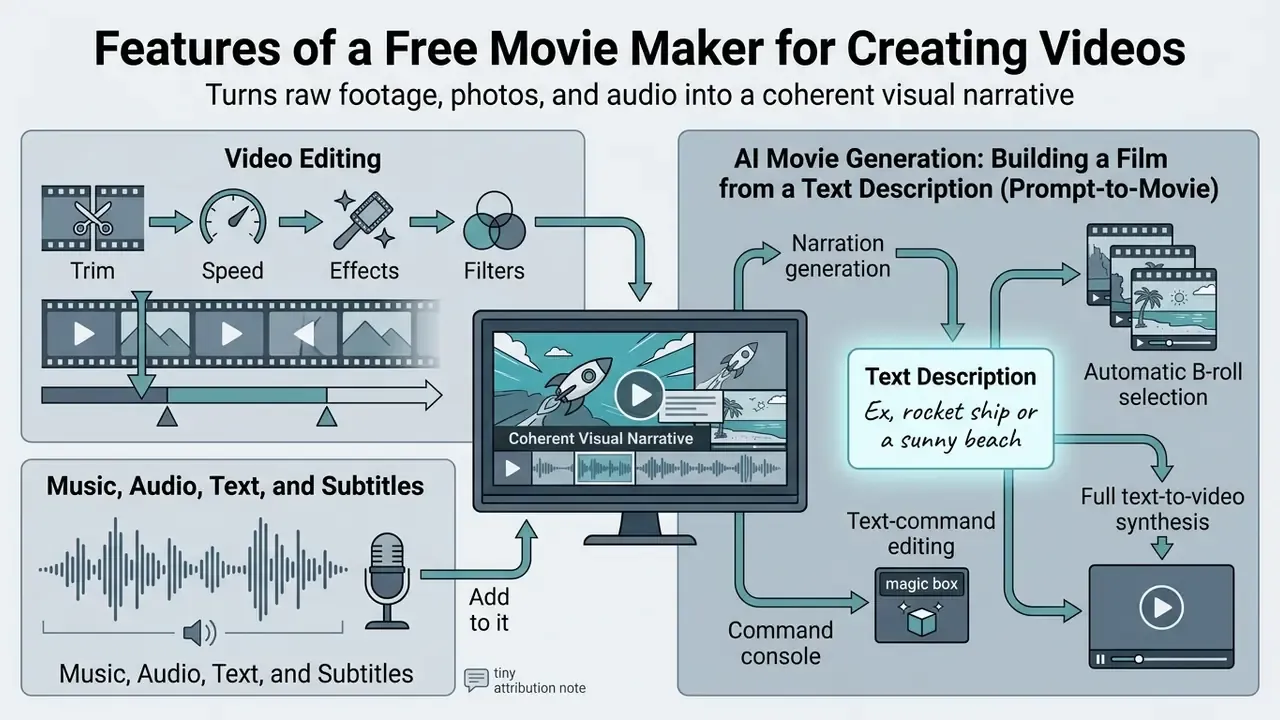
A free video movie maker provides the essential capabilities to turn raw footage, still photos, and audio clips into a coherent visual narrative. Modern applications combine traditional timeline tools with automated processing to speed up content production, and the gap between a paid suite and a good free one has narrowed for short-form work.
Core editing capabilities across free tools let you trim video segments, synchronize background audio, overlay text titles, and apply visual transitions. Advanced platforms add artificial intelligence to generate automatic captions, remove background noise, clean up audio, cut out backgrounds, and suggest scene arrangements from a script. OpenShot, for instance, supports unlimited tracks, frame-accurate trimming, snapping, and waveform display, while cloud editors such as Kapwing layer transcript-based editing and B-roll assembly on top of the same fundamentals.
Video Editing: Trim, Speed, Effects, and Filters
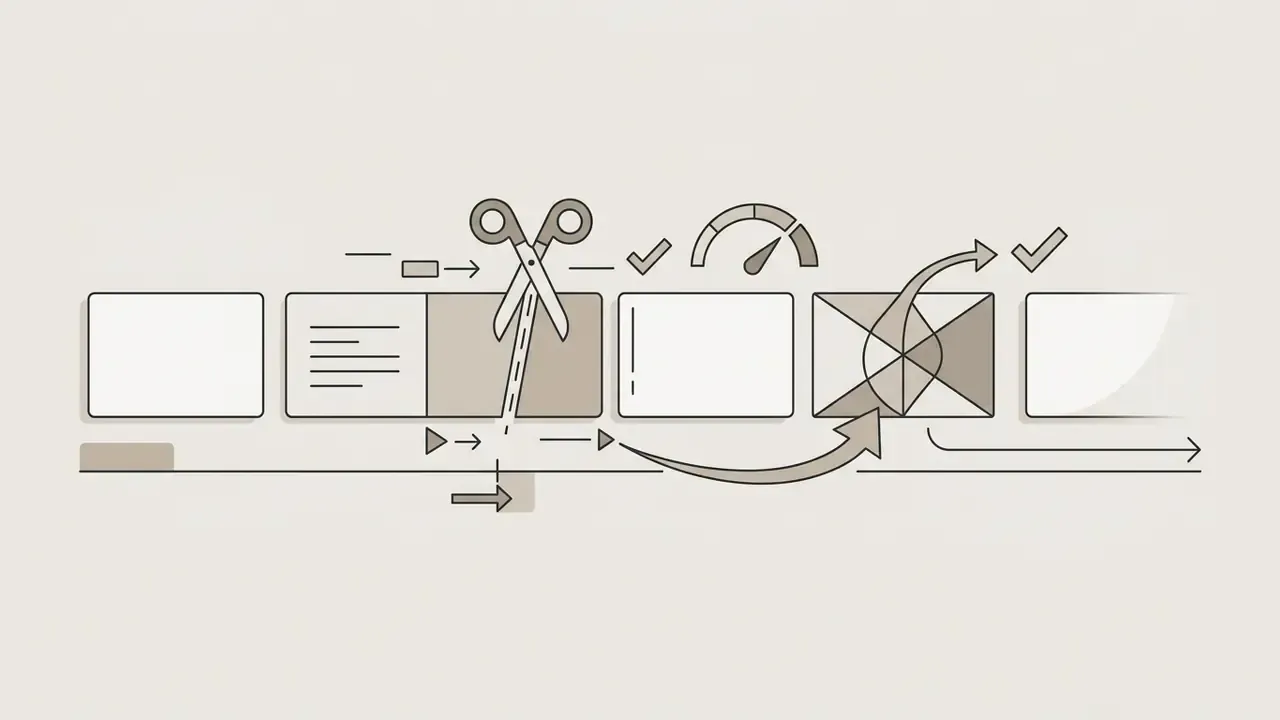
Video editing in a movie maker free video editor centres on trimming clip boundaries, adjusting playback speed, and applying visual filters to set narrative pacing. Trimming tools let creators cut unwanted footage and snap adjacent scenes together on a single timeline. Clipchamp's help documentation treats trim, crop, effects, filters, colour adjustment, and speed editing as distinct actions. Adobe Express describes the same primitives as "cut, crop, and trim" plus speed and duotone or colour filters.
Speed adjustments enable slow-motion highlights or fast time-lapse sequences, and they add rhythm variety at almost no cost in editing time.
«Novices edited more efficiently and generated more ideas when using multimodal commands instead of manual timeline manipulation.»
Modern editors also ship pre-built colour filters, exposure adjustments, and artistic effects such as background blur or zoom transitions, so most beginner projects never require manual keyframing at all.
Music, Audio, Text, and Subtitles in the Movie
Audio work in a movie maker and video editor involves adding background music tracks, recording voiceover narration, and balancing volume across multiple channels. Synchronizing music beats with visual scene cuts creates rhythmic flow and, in practice, does more for perceived quality than any filter pack.
Text tools let creators insert opening titles, lower-third captions, and closing credits with customizable fonts and colours. Automated subtitle generation converts speech to text and aligns captions with the audio waveform. Clipchamp's autocaptions detect speech, let users pick the transcription language, and export an .SRT file, while Kapwing and CapCut expose editable transcripts with timing and style controls.
On accessibility standards, with attribution corrected: captions must stay on screen in precise synchronization with spoken dialogue and account for music and other significant sounds. That requirement lives across several documents rather than one specification. W3C's Making Audio and Video Media Accessible (2024) advises planning captions, transcripts, and audio description from the start (https://www.w3.org/WAI/media/av/); ATSC A/343 defines caption and subtitle track timing for broadcast delivery; and GOST R 57767-2017 requires subtitles to appear and disappear in sync with speech, holding short phrases on screen for at least two seconds. Users producing narration without a microphone can compare synthetic-voice options in our guide to AI voice generators, and anyone editing companion marketing graphics can consult our guide on photo editor software for asset creation.
AI Movie Generation: Building a Film from a Text Description (Prompt-to-Movie)
Modern online editors now embed generative neural networks that return a finished rough cut from a written script or prompt. The user supplies a plot description, a style (documentary, cinematic, anime, or 3D animation), a target platform, and a narration voice. What comes back is an assembled timeline rather than an empty project.
AI now automates the following stages:
- Narration generation with neural speech synthesis, including accent and delivery selection.
- Automatic B-roll selection from stock libraries plus generation of unique AI visuals. Google Vids advertises millions of free high-quality media files and template starting points, while Descript exposes stock video, images, music, and sound effects directly in the editing panel.
- Text-command editing through a "magic box." Instead of dragging clips, you type instructions such as "delete the third scene," "change the accent to British," "make the music more dynamic," or "add cinematic subtitles," and the editor re-renders the affected segments.
- Full text-to-video synthesis. OpenAI's 2026 video documentation describes prompt-based generation with Sora 2, which means entire shots can be produced without any source footage.
«Twelve content creators rated the tool above the baseline, reporting higher satisfaction with final videos and better understanding of differences between variants.»
Practical caveat, and it is a big one: generative features are the most aggressively metered part of any free plan. Expect AI credit quotas, watermarks on AI exports, or an outright export block until you upgrade. Comparative limits for these tools are tracked in our review of free AI video generators.
Photos, Templates, Slideshows, and Animation
Building a movie video maker project from static photos relies on keyframe animation, pan-and-zoom motion effects, and automated slide transitions. Template libraries supply pre-designed layouts that position images, apply smooth crossfades, and sequence clips to match the background audio. PowerPoint for the web documents exactly this flow: choose a photo-slideshow template, replace placeholders with photos, videos, and captions, then apply transitions and music. Dedicated slideshow platforms document crossfade, fade-out, and directional transitions with adjustable animation speed.
These capabilities let creators generate dynamic slideshows from a photo collection without setting animation parameters frame by frame. Anyone who wants richer motion graphics, animated titles, or character animation on top of a slideshow can compare dedicated animation makers and motion-graphics tools. If the source stills need cleanup first, a photo editor to remove blemishes belongs earlier in the pipeline, before the images ever hit the timeline.
How to Choose a Simple Free Video Movie Maker
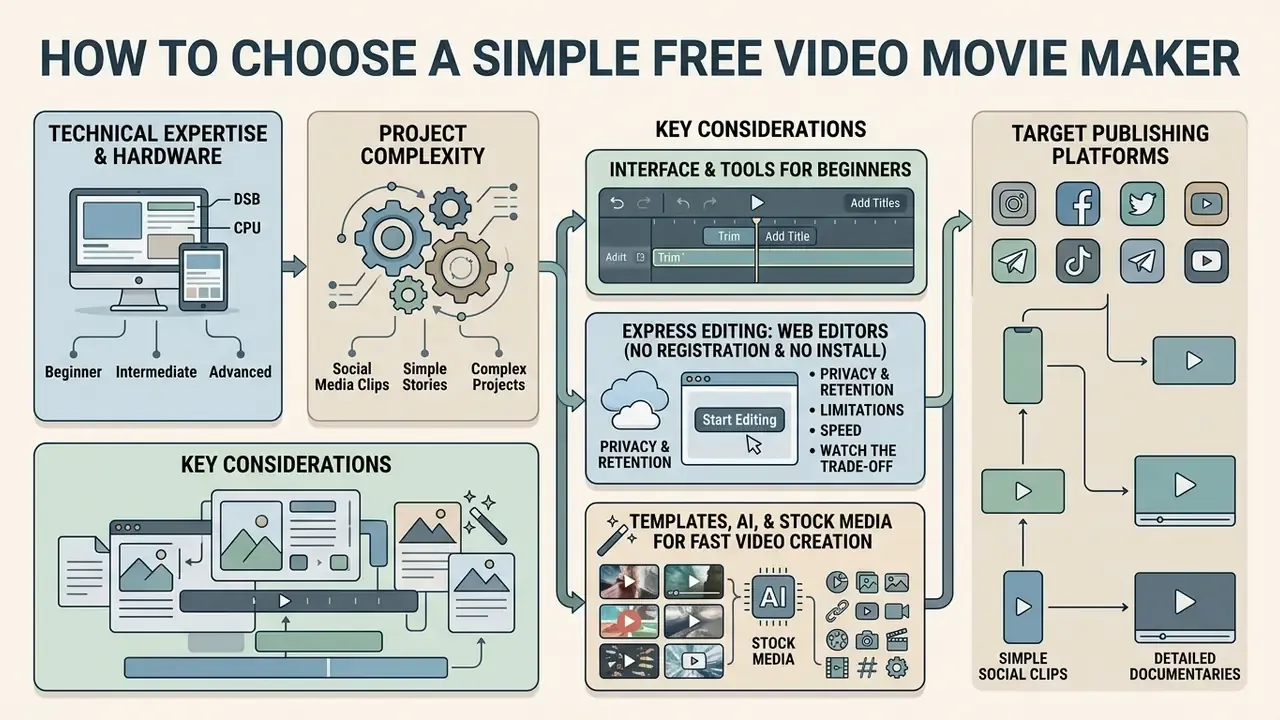
Selecting a free simple movie maker depends on technical expertise, hardware, project complexity, and target publishing platforms. Beginners benefit from intuitive drag-and-drop layouts. Experienced creators need multi-track timelines and proper audio controls. Very few tools serve both groups equally well, and the marketing pages rarely admit it.
When evaluating software, the criteria that actually predict satisfaction are interface clarity, template libraries, AI assistance, accessibility support (captions, keyboard operability, no forced autoplay), and support for the aspect ratios you publish in. Checking a tool's feature set against your project requirements first prevents wasted effort on platforms with restrictive free-tier limitations. A video and movie maker that cannot export vertical video is useless for Reels, however elegant its timeline looks.
Interface and Tools for Beginners
An accessible interface for making videos uses a clean timeline, a visible preview panel, and drag-and-drop media insertion. Simple layouts reduce cognitive load by ordering tools logically: import media, edit clips, add titles, export video. Guided three-step wizards (source input, settings, generate or export) reduce that load further by deferring decisions until they matter.
«Participants ranging from novices to experienced editors reported that the LLM-based agent positively affected the creative process and the sense of co-creation.»
Standard reference, corrected: W3C WCAG 2.2 requires that any function using a dragging movement also be achievable with a single pointer without dragging, unless dragging is essential (Success Criterion 2.5.7, Dragging Movements), W3C WCAG 2.2 Guidelines, published October 2023. https://www.w3.org/TR/WCAG22/ A video editor movie maker that meets this bar offers click-to-place and keyboard alternatives alongside the timeline, plus keyboard control of playback, volume, and captions as recommended in university accessibility guidance.
Express Editing: Web Editors With No Registration and No Install
If the task is only trimming a clip, joining two files, or laying music over a slideshow, several web services expose the timeline immediately on page load: a no-registration workflow with drag-and-drop intake and no email confirmation. That is often all a movie creator video editor needs to be.
What working without an account means in practice:
- Privacy and retention.Files process in the browser cache or on a server, and download links are frequently short-lived. MovieMakerOnline, for example, deletes the generated download link one hour after creation.
- Limitations.There is normally no way to save a project to the cloud and resume it later from another device, and collaboration features are absent.
- Speed.The barrier to entry is minimal: drag files in, cut, render. Ideal for one-off fixes and last-minute social posts.
- Watch the trade-off.Some no-registration services export watermark-free at Full HD or even 4K; others cap free output at 480p to 720p or stamp a logo. Confirm before you invest editing time, not after.
Templates, AI, and Stock Media for Fast Video Creation
Built-in template collections, integrated stock libraries, and AI creation tools accelerate video creation for non-professional editors. Pre-built templates supply styled text overlays, transition sequences, and colour schemes tuned to specific genres. Movie trailers, channel intros, memorial slideshows, and award-ceremony openers are the common presets, and a competent video film maker template will already respect safe margins for captions.
Integrated stock libraries grant direct access to royalty-free video clips, stock photos, sound effects, and background music inside the editing interface, with catalogues in this segment running into millions of assets. AI-assisted tools then draft an initial cut from a text prompt or script, choosing stock footage and arranging clips automatically. Comparative research on AI draft variants (VideoDiff, arXiv:2502.10190, 2025) found creators were more satisfied with final videos when they could inspect alternative cuts side by side. To evaluate asset costs across creative software, explore our detailed AI Media Pricing Guides.
How to Make a Movie in a Free Movie Maker: Step-by-Step
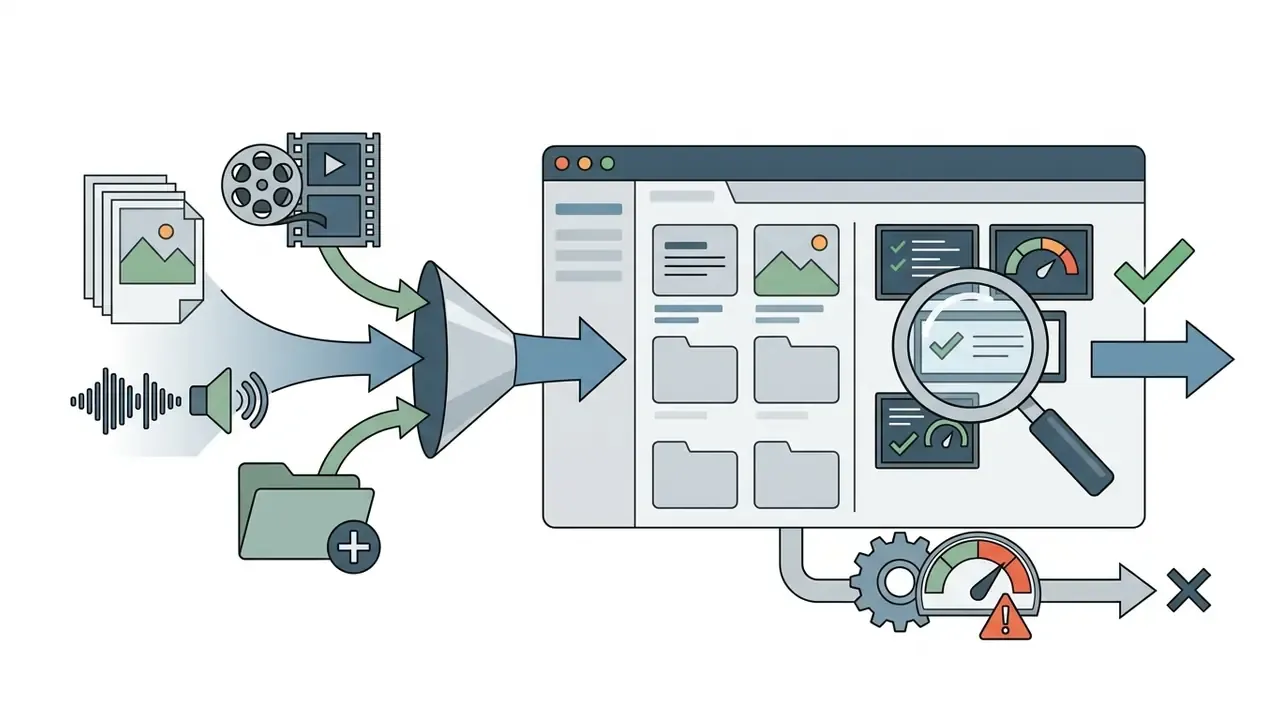
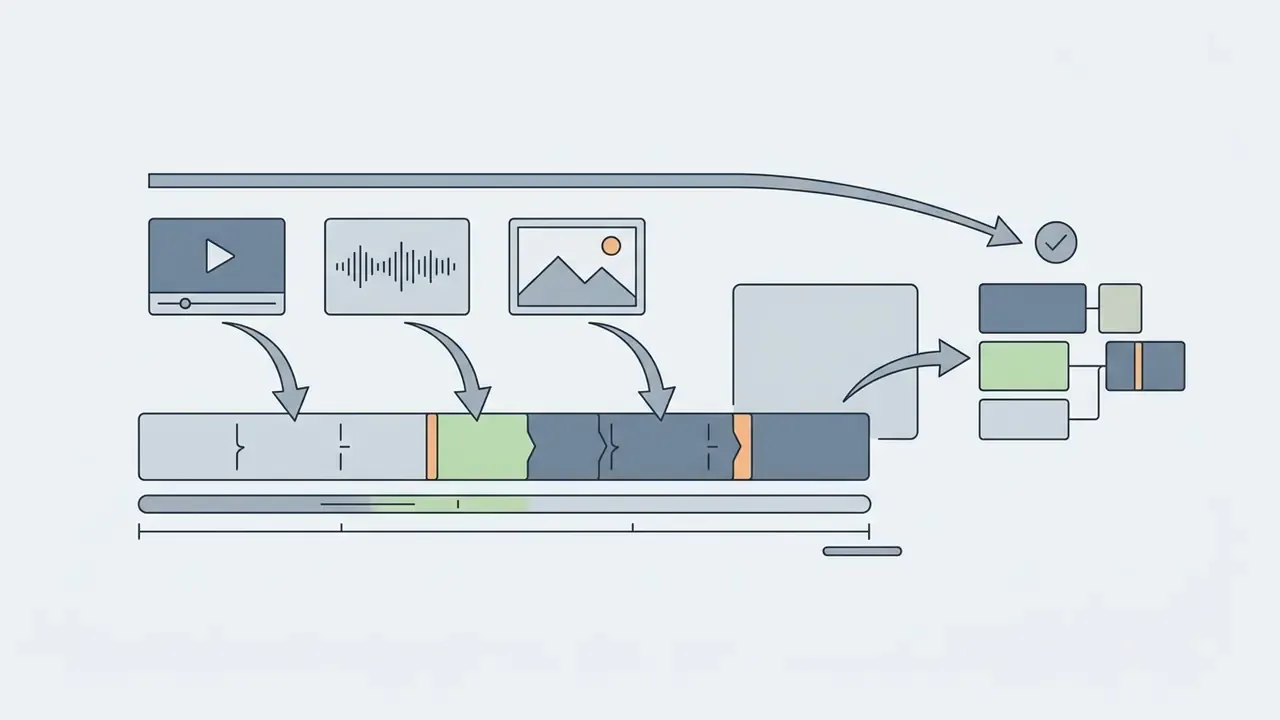
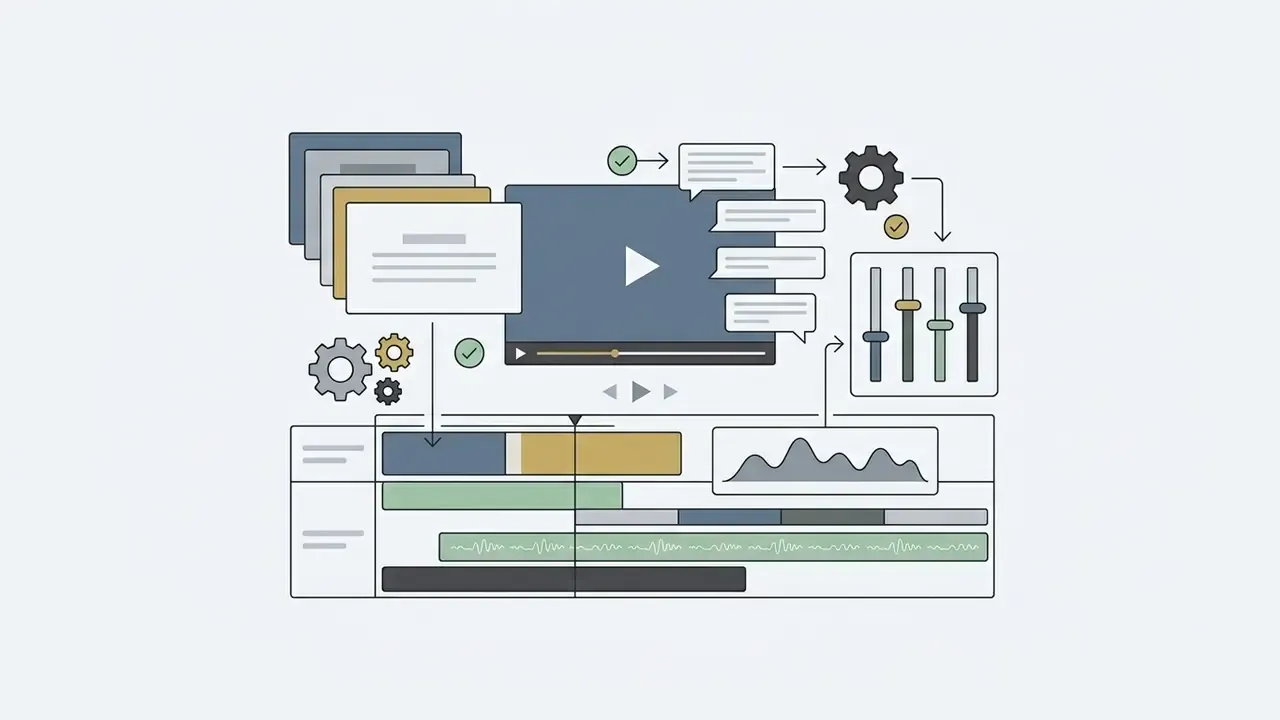
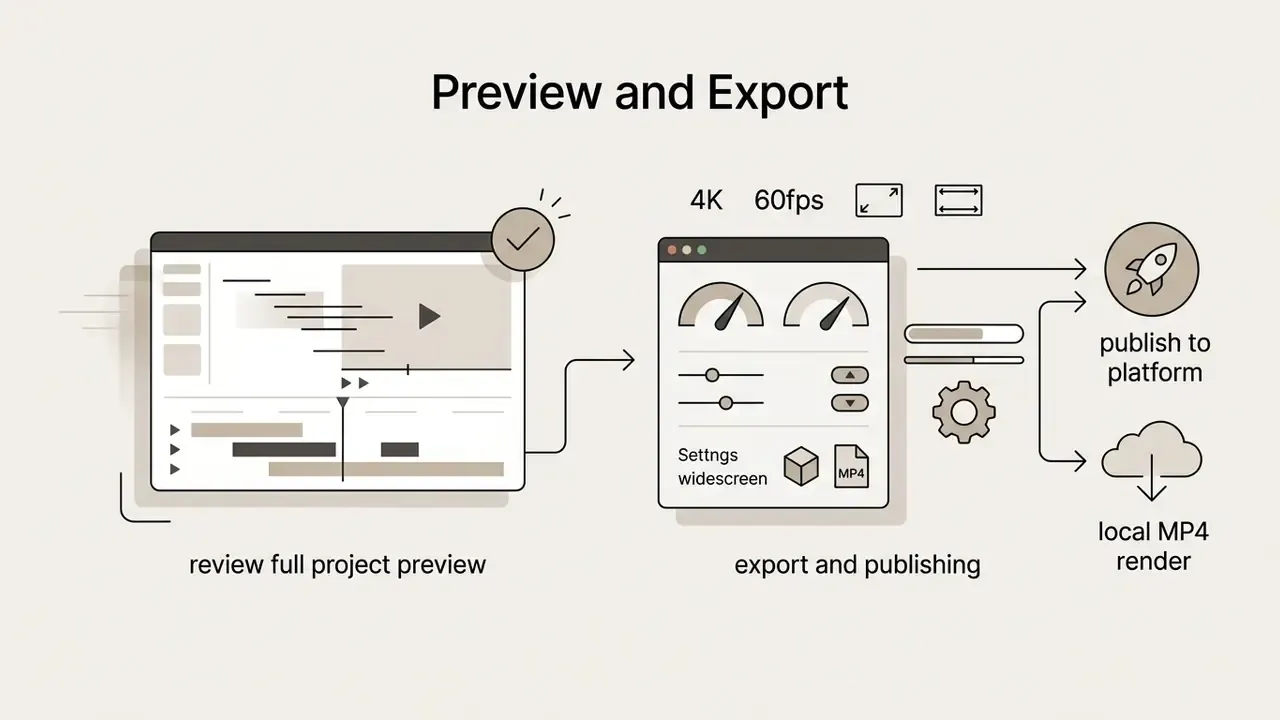
Creating a movie in a movie creator free video editor follows a standard post-production sequence: import assets, edit the timeline, apply audio and text overlays, render the output file. VEED, Clideo, CapCut, and Clipchamp all publish essentially the same three-phase flow, upload, edit, export, which is a useful sign that the sequence is not vendor marketing but craft.
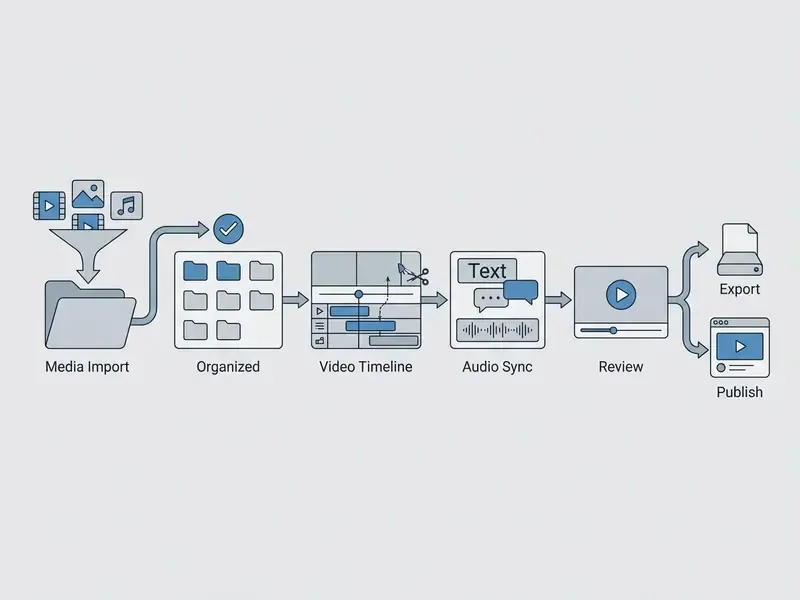
That is the whole loop. Everything else is refinement.
Add Videos, Photos, Music, and Other Media
Production starts by importing media into the software's media bin or canvas. Free editors support standard container formats: MP4 and MOV for video, JPG and PNG for images, MP3 or WAV for audio. Vendor documentation frequently adds codec-level constraints on top of container support, for example H.264 Baseline Profile Level 3.0 (up to 640×480 at 30 fps) or MPEG-4 Part 2 Simple Profile for certain upload pipelines. A file with the right extension can still be rejected if the codec profile differs, which surprises people more often than it should.
Organizing files into structured folders or bins before timeline assembly improves editing efficiency, and professional ingest practice adds one more step: copy, verify, and log source files in controlled storage before editing begins. Many online platforms allow importing directly from Google Drive or Dropbox. For developers building media intake pipelines, our AI Media Comparison Matrices provide comparative specifications.
Edit Scenes, Text, and Effects
Once raw media sits on the timeline, the work shifts to scene order and narrative polish. Trimming removes silent pauses, unwanted camera movement, and dead footage at clip ends. Animated text overlays create title sequences, chapter markers, and lower-third speaker identification. Visual filters unify colour palettes across clips shot under different lighting.
Documented workflow order, replacing an unverified case study: major editors converge on the same stage sequence, and it is worth copying even in a free tool. Adobe's Premiere Pro guidance places Titles, Graphics, and Captions as a distinct stage after the core sequence edit. DaVinci Resolve's editor guide keeps audio clips and titles in separate bins so closing titles are dropped in after media organization. The Kdenlive manual documents starting in the timeline, then adding video and audio effects and filters, then creating titles and subtitles, and only then rendering. In transcript-first tools such as Kapwing or Descript, the order collapses further: cutting text in the transcript removes the corresponding footage, which is the fastest known route from a long interview recording to a short executive summary without a dedicated video engineer.
Create, Download, and Publish the Finished Movie
The final phase renders the edited timeline into a single file. Users configure output settings: container (typically MP4 with H.264 compression), target resolution (720p, 1080p, or 4K), and frame rate. Adobe's social-export guidance specifically recommends H.264 with the Match Source, High Bitrate preset for social platforms.
When rendering finishes, the software saves the file locally or provides a direct download link, which is what most people mean when they search for movie maker online free download. Many web platforms also offer publishing integrations: OAuth account linking followed by an API publish call that pushes the rendered file to connected YouTube, TikTok, Instagram, Facebook, X, or LinkedIn accounts. HubSpot documents an "Export to social" action that clones the edited video into a social post while leaving the original untouched, and video APIs such as Shotstack advertise distribution directly to hosting and social platforms. Creators optimizing a channel-specific pipeline can follow our workflow guide to YouTube video editors and publishing steps.
Data Residency, Privacy, and Cloud Security in an Online Movie Maker
Free Usage, Download, and Rights to Finished Videos
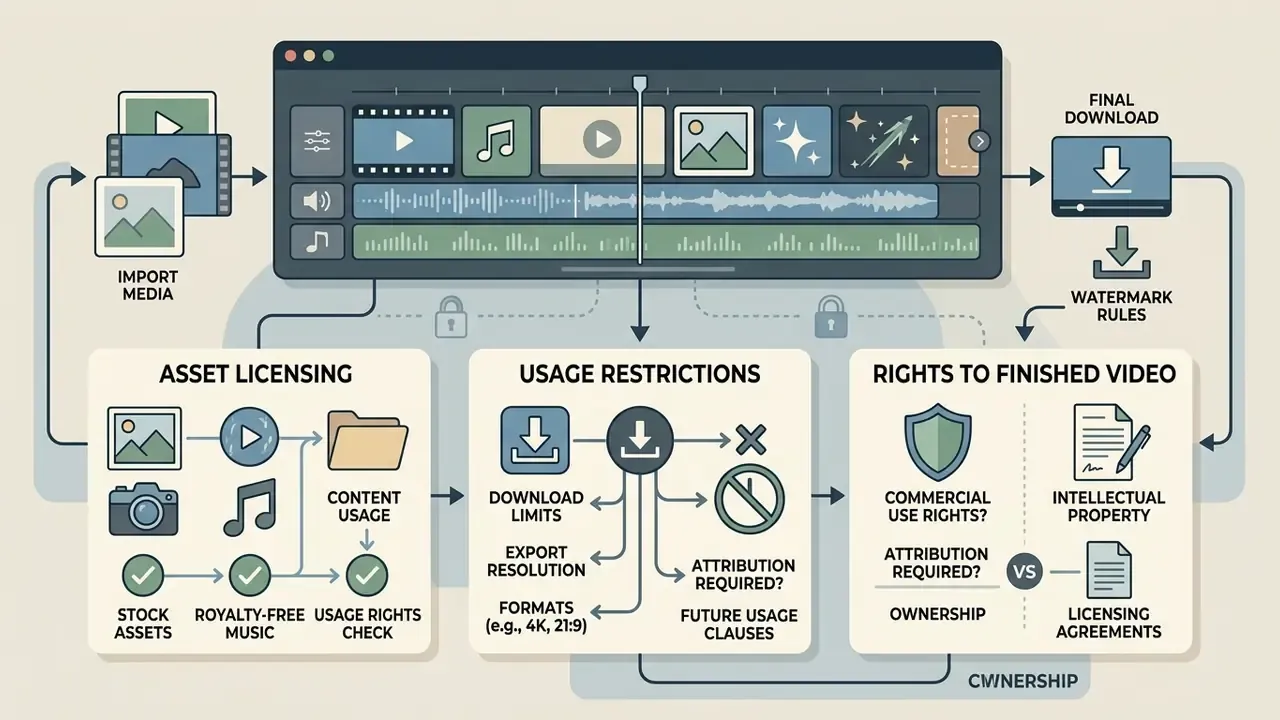
Using an online free movie maker means evaluating licensing agreements, download restrictions, and asset usage rights before the timeline fills up. Free plans routinely build in operational trade-offs designed to encourage an upgrade at the least convenient moment.
Creators should verify whether finished videos will carry a visible platform watermark or a resolution cap before starting a major project. Using stock media or commercial soundtracks inside free projects also requires strict adherence to copyright policy, otherwise a distribution block on a public video host is a realistic outcome.
What to Check Before Downloading the Finished Video
Checklist0 / 8
For desktop still-image alternatives and their free-tier limits, see our guide on free photo editors and companion free-tool overviews.
E-E-A-T compliance verification:
Stock Photos, Royalty-Free Music, and Content Usage
Bringing third-party stock photos, graphics, and background music into a project requires understanding the licences attached to them. Creative Commons Attribution 4.0 (CC BY 4.0) permits sharing and adaptation for any purpose, including commercial use, provided proper creator attribution is given (https://creativecommons.org/licenses/by/4.0/).
Commercial stock media bundled inside free editors often carries a more restrictive end-user licence agreement. Generalized statement, unverified attribution removed: standard stock licences usually allow use of assets inside finished media distributed publicly, but prohibit redistributing or reselling raw media assets in a form that lets third parties download or extract them. Audio frequently requires an extended licence for film, broadcast advertising, SVOD, apps, games, or point-of-sale displays. Assets flagged "editorial use only" are excluded from general commercial creative use altogether.
Video hosting platforms enforce this on their own terms. YouTube instructs creators to upload only content they created or are authorized to use, scans uploads against rights-holder databases, and lets the rights holder block, mute, or monetize a video through Content ID and music claims. TikTok's Music Terms require that any track not selected from its licensed library be one you authored or for which you hold all rights and permissions, and its Intellectual Property Policy prohibits infringing uploads.
Checklist0 / 7
For legal considerations around generative AI media assets, review AI Litigation and compliance coverage, and for business licensing rules see the AI Media Commercial-Use Hub.
Disclaimer: this information is general in nature and does not constitute legal advice or replace consultation with a qualified specialist.
FAQ About Free Movie Makers and Online Video Editing
Can I use a movie maker online free without installing anything?
Yes. A modern movie maker online free runs entirely inside the browser with no local install. Cloud-based video editors use browser engines, the WebCodecs API, and server infrastructure to handle media processing, clip trimming, and rendering online.
«Pub2Vid works as a web application on any HTML5-compatible device without installation, confirming that full editing in the browser is technically feasible.» Wünsche et al., Pub2Vid, ACM IMX (2023). https://pub2vid.web.app/ These browser tools store projects in cloud accounts, so creators can reopen a project from any compatible internet-connected computer. The practical limits are large-file handling, upload bandwidth, device variability, and restricted access to low-level hardware on 4K or 8K multi-effect timelines. Users looking for related online image tools can explore our online photo editor overview.
Do I need to register an account to edit a video?
Not always. Several web editors expose the timeline immediately with drag-and-drop intake, no email confirmation, and no time limit on individual projects. The trade-off is that projects cannot be saved to the cloud and download links may expire within an hour. Account-based platforms such as CapCut and Clipchamp require sign-in because they sync projects and assets, which is precisely what enables cross-device editing and collaboration.
Is a free movie maker suitable for videos made from photos and music?
Yes. Free editors handle this scenario well: import image files, position them on the timeline, set frame durations to match the soundtrack, and apply animated pan-and-zoom motion. Adding background audio with automatic fade-in and fade-out produces smooth musical transitions with almost no manual work.
«Photo2Video automatically converts a photo series into video, selecting camera motions and synchronizing clips to the music rhythm based on content analysis.» Photo2Video System, ACM Multimedia. https://dl.acm.org/ Creators interested in stylized photo transformations can read about photo to cartoon tools.
Can I export in 4K or in a 21:9 cinematic ratio for free?
On desktop, yes. Open-source and free-edition desktop editors render up to 4K UHD at 60 fps and support ultrawide 21:9 timelines, limited mainly by your CPU and GPU. In the browser, free plans usually cap output at 1080p and 30 fps, with 4K export reserved for paid tiers. A small number of no-registration services accept 4K sources yet still re-encode to a lower output ceiling. The reliable pattern: rough-cut in the browser, finish and master on the desktop.
Can I share finished videos on social media?
Yes. Videos exported from free movie editors download as standard MP4 files and upload to YouTube, Instagram, TikTok, and Facebook without extra conversion. Most editors provide pre-configured canvas aspect ratios (16:9, 9:16, 1:1) tuned for social publishing. Many online platforms also include direct social integrations via OAuth account linking, letting users publish rendered videos to connected channels through API publish endpoints. Teams evaluating AI-driven production for social output can compare options in our free AI video generator comparison. To estimate storage requirements for high-resolution exports, use our online calculators.
Is it safe to upload confidential footage to a free online editor?
Treat it as a data transfer, not a convenience. Free consumer tiers rarely publish data-residency commitments, and they seldom offer SSO, audit logs, or admin-controlled deletion. For internal interviews, unreleased products, customer footage, or anything containing identifiable individuals, use an offline desktop editor or a vendor with a signed data-processing agreement, and re-read the retention terms described in the data residency section above.
Appendix A: Editorial Revisions and Corrections
Appendix B: How This Guide Was Evaluated
Every free-tier condition in this guide was checked against three sources in order: the vendor's own pricing or help page, the vendor's terms or data-processing documentation, and peer-reviewed HCI research where it exists. Where the three disagreed, vendor documentation won on commercial terms and research won on usability claims. Where none of the three covered a question, for example the exact retention period of a no-registration render link, the guide says so instead of guessing. Free-tier limits move quickly, sometimes monthly, so treat every number here as a snapshot rather than a contract, and re-verify before a commercial release.
Additional Resources & Ecosystem Links
- For help with video technical issues or platform usage, visit AI Media Support and Troubleshooting.
- To shrink 4K masters for web delivery without visible quality loss, compare video compressors.
- For image scaling and canvas preparation before video editing, check photo size editor.
- For narration without a microphone, see our guide to AI voice generators.
- For motion graphics, animated titles, and character animation, see animation makers.
- For commercial media asset usage rights and business licensing rules, explore the AI Media Commercial-Use Hub.
- Access the complete terminology reference at the AI Media Glossary.
Last updated: 2026. Reviewed by the AI Media Hub editorial board against vendor documentation, W3C accessibility guidance, and the peer-reviewed HCI research cited above. This article is informational and does not constitute legal, financial, or security advice.