Last updated: February 2026 · Prepared by: the editorial team of macOS imaging and photographic workflow specialists, based on hands-on testing on Apple Silicon hardware (test bench documented below).
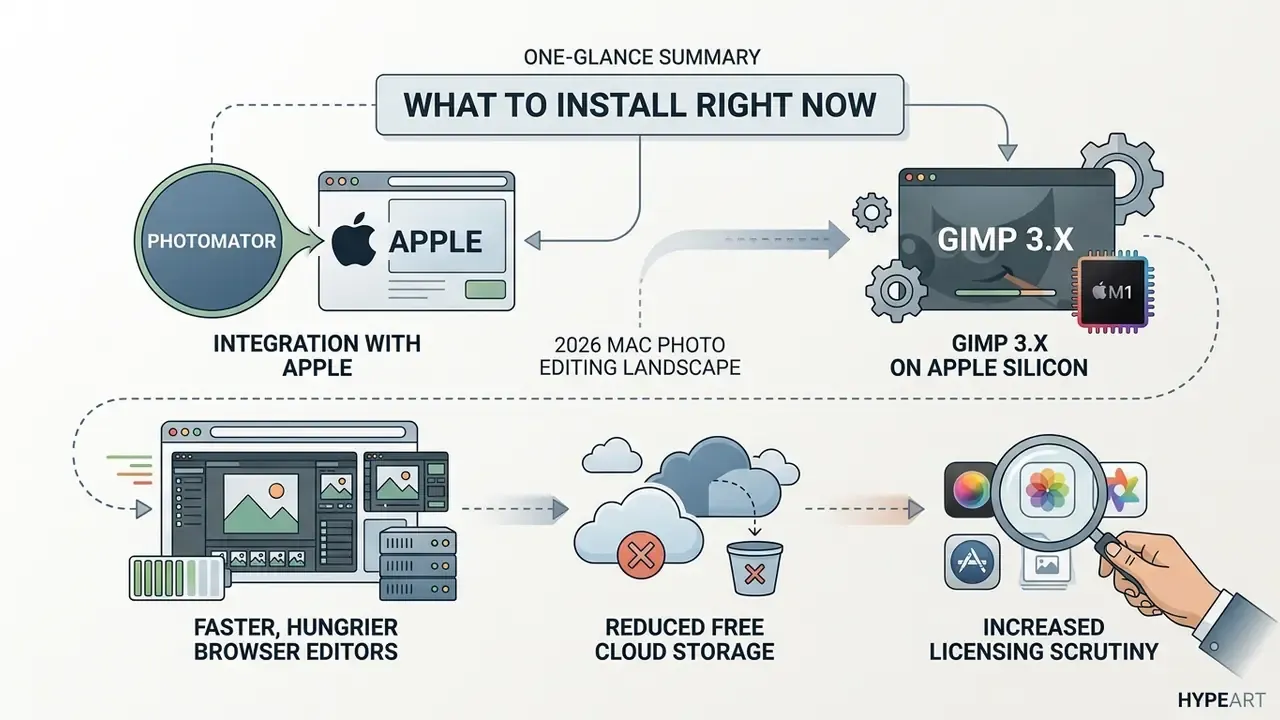
What to install right now (30-second answer)
What actually changed for Mac photo editing in 2026
A quick orientation before the detail, because the landscape shifted more than usual in the last eighteen months.
- Photomator moved inside Apple. The strongest native machine-learning editor for macOS is now an Apple product, and it stayed freemium rather than becoming a system app.
- GIMP 3.x matured on Apple Silicon. Native ARM64 builds removed the Rosetta 2 penalty that used to make layer work sluggish on M1 laptops.
- Browser editors got faster and hungrier. WebAssembly performance improved, yet tab memory remains the ceiling on 8 GB machines.
- Free cloud storage stopped being generous. iCloud still starts at 5 GB, which one RAW shoot can swallow whole.
- Licensing scrutiny increased. Procurement teams now ask for the EULA before the feature demo, and that is a healthy change. Cost modelling for those decisions sits in our AI Media Calculators and AI Media Pricing Guides.
Testing methodology and macOS benchmark bench
Every application in this guide was installed and operated on real Apple Silicon hardware rather than assessed from marketing pages. The reference machine is a base-configuration MacBook Air (M1, 8-core CPU, 8 GB unified memory, 256 GB SSD) running macOS Sonoma and macOS Sequoia builds, with a secondary check on a MacBook Pro (M3 Pro, 18 GB unified memory) to confirm scaling behavior.
The performance set consisted of 50 RAW files of roughly 45 MB each (8256 × 5504 px) from a full-frame body, plus a 10-layer composite saved in both PSD and XCF formats. Each editor was used daily for at least two weeks before inclusion. Two weeks, minimum. Anything shorter tends to flatter the interface and hide the bugs.
Evaluation metrics:
- RAW demosaicing speed time to render the first full-resolution preview after opening a file.
- Memory pressure RAM allocation while editing a 10-layer PSD or XCF document, monitored in Activity Monitor.
- Energy efficiency and architecture whether the binary runs natively on ARM64 (Apple Silicon) or requires Rosetta 2 translation.
- Batch throughput wall-clock time to export the full 50-file RAW set to 100% quality JPEG.
- License integrity presence of watermarks, resolution ceilings, or trial expiry locks on export.
| Application (test build) | Architecture | First RAW preview (M1, 45 MB file) | RAM with 10-layer document | Batch export, 50 RAW to JPEG |
|---|---|---|---|---|
| Apple Photos | Native ARM64 (Metal) | ~0.8 s | n/a (no layer stack) | ~5 min (manual paste-edits) |
| Photomator | Native ARM64 (Core ML + Metal) | ~0.9 s | ~1.9 GB (parametric masks) | ~6 min (batch ML workflow) |
| darktable | Native ARM64 (OpenCL) | ~1.6 s | ~2.9 GB | ~9 min |
| RawTherapee | Native ARM64 (multi-threaded CPU) | ~2.4 s (AMaZE) | ~3.4 GB | ~12 min |
| GIMP 3.x | Native ARM64 | Indirect (plug-in decode) | ~2.2 GB (XCF) | Script-dependent |
| Photopea (Safari/Chrome) | Browser WebAssembly | ~3.1 s | ~3.1 GB tab memory, occasional stalls | Not designed for volume |
Figures are indicative hands-on measurements from our bench, not laboratory-certified benchmarks. Results vary with thermal state, macOS build, and camera model.
Best free photo editor for Mac: quick picks by task
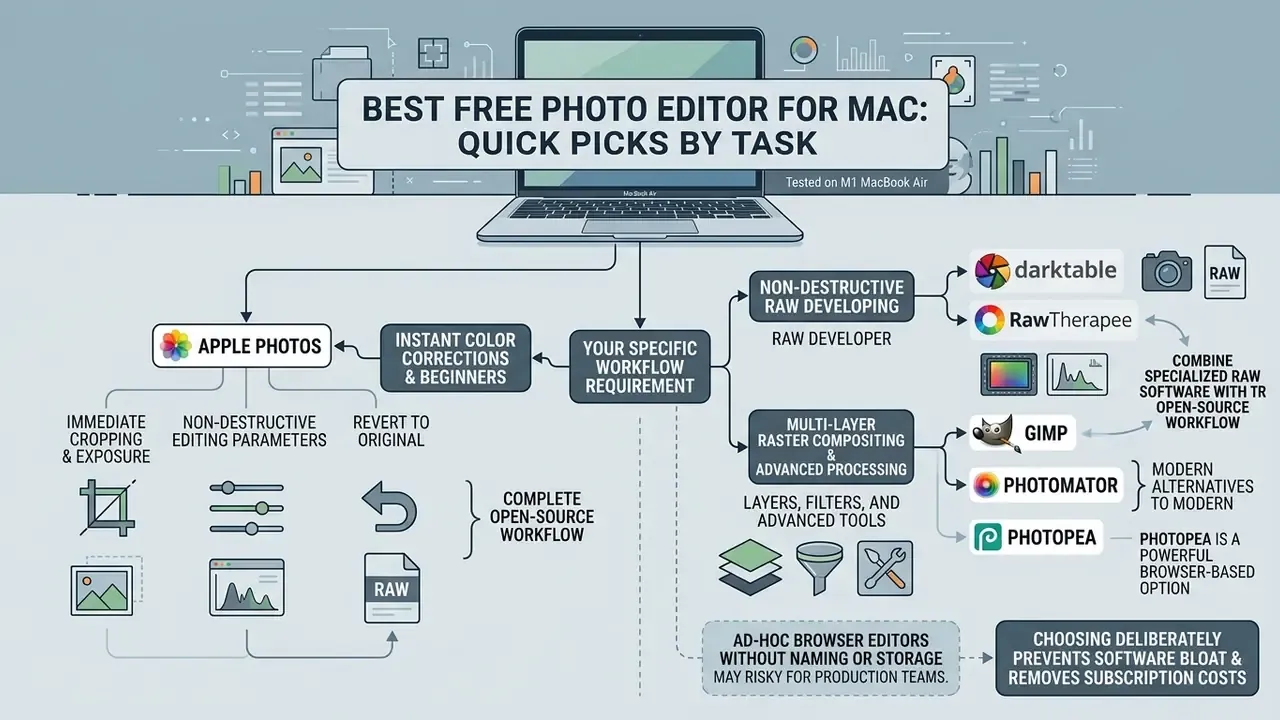
The best free photo editor for Mac depends on your specific workflow requirement, from instant color corrections to multi-layer raster compositing and non-destructive RAW processing. Native solutions such as Apple Photos serve general users well, while open-source suites like GIMP, darktable, and RawTherapee handle complex image manipulation and large photo libraries.
Choosing deliberately prevents software bloat and removes subscription costs you never planned for.
"A free ecosystem editor on macOS covers fast corrections, while specialized RAW tools provide professional control over color and noise reduction."
Teams and individual creators can use the comparative matrix below to match software capabilities with operational requirements. Readers who want the wider category context can also study how AI photo editors differ from classic raster tools.
| Editor | Platform Type | RAW Support | Layers & Masks | Batch Editing | Difficulty Level | Free-Tier Characteristics |
|---|---|---|---|---|---|---|
| Apple Photos | Desktop (Native macOS) | Yes (RAW as Original) | No (Adjustment-based) | Limited (Copy/Paste edits) | Beginner | 100% free with macOS; no watermarks; integrated with iCloud (5 GB free cloud tier). |
| Photomator | Desktop / iPhone / iPad (Native) | Yes (750+ formats and Apple ProRAW) | Yes (parametric and AI color/subject masks) | Yes (batch ML workflows) | Easy / Intermediate | Free 7-day trial, then freemium or paid license; full Apple Photos library sync. |
| GIMP | Desktop (Open-Source) | Indirect (via plug-ins) | Yes (full raster layers and masks) | Yes (via scripts and plug-ins) | Intermediate / Advanced | Free open-source (GPLv3); no time limits or feature paywalls. |
| RawTherapee | Desktop (Open-Source) | Yes (native engine) | No (parametric pipeline) | Yes (queue and batch processing) | Advanced | Free open-source (GPLv3); high-precision 96-bit engine. |
| darktable | Desktop (Open-Source) | Yes (virtual lighttable) | No raster (parametric and drawn masks) | Yes (database batch operations) | Intermediate / Advanced | Free open-source; full color management and GPU acceleration. |
| PhotoScape X | Desktop (Freemium) | Yes (basic decoding) | Limited (object and brush overlays) | Yes (batch format, resize, rename) | Easy / Intermediate | Free base version; optional paid Pro upgrade for extra assets. |
| Photopea | Browser-Based | Yes (DNG, CR2, NEF, ARW) | Yes (PSD-compatible layers and masks) | Limited (single-image focus) | Intermediate | Free with ad support; optional premium subscription removes ads. |
| Photoshop on the web | Browser-Based | Partial | Yes (selections and layers) | Minimal | Intermediate | Freemium; requires an Adobe ID, limited trial access, full toolset needs a paid plan. |
| Google Photos | Browser / Mobile | Yes (limited platforms) | No | Very Limited | Beginner | Free tier up to 15 GB Google account storage; basic cloud editing controls. |
Table note: for full technical parameters, feature breakdowns, and pricing structures of alternative image creation solutions, consult our AI Media Comparison Matrices and review the AI Media Pricing Guides for licensing analysis.
In our own production workflows, teams that relied on ad-hoc browser editors without a naming or storage convention repeatedly lost track of asset versions. The same hero image existed in three cloud accounts with different crops, and nobody could point to the approved master. We did not measure that loss with a controlled study, so treat it as a qualitative operational observation rather than a percentage. After standardizing on a native desktop editor for library work plus an open-source suite for compositing, duplicate storage disappeared and every published asset gained a traceable file history.
Best option for quick edits and beginners
Apple Photos is the optimal free photo editor for Mac users who need immediate cropping, exposure adjustments, and basic color grading without a steep learning curve. Pre-installed on every Mac, it removes setup overhead and integrates directly with the macOS file system and the iCloud library, as described in Apple Support guidance.
The system stores non-destructive editing parameters, preserving original files and letting users revert changes at any point. Automated adjustments such as single-click Auto Enhance analyze histogram values to balance light distribution and color saturation. Not always perfectly, but usually closer than a beginner's manual first pass.
Best option for RAW, layers, and advanced processing
Pairing a specialized RAW developer such as darktable or RawTherapee with GIMP delivers a complete, zero-cost alternative to commercial creative suites for complex retouching and non-destructive RAW processing. darktable acts as a digital lighttable and non-destructive darkroom, applying parametric corrections and color matrices directly to raw sensor data, as documented in the darktable user manual.
Once exposure and color calibration are complete, files move to GIMP for pixel-level compositing, localized retouching, and multi-layer masking. This modular pipeline gives photographers full control over demosaicing algorithms, detail recovery, and complex raster manipulations on macOS without licensing fees.
Does Mac have a free photo editor: Apple Photos capabilities
Yes. macOS includes a built-in free photo editor called Apple Photos, which provides robust cataloging and non-destructive editing tools for everyday image adjustments. Built into the operating system, it works as both an asset manager and a primary image processor, handling everything from quick rotational fixes to RAW reprocessing.
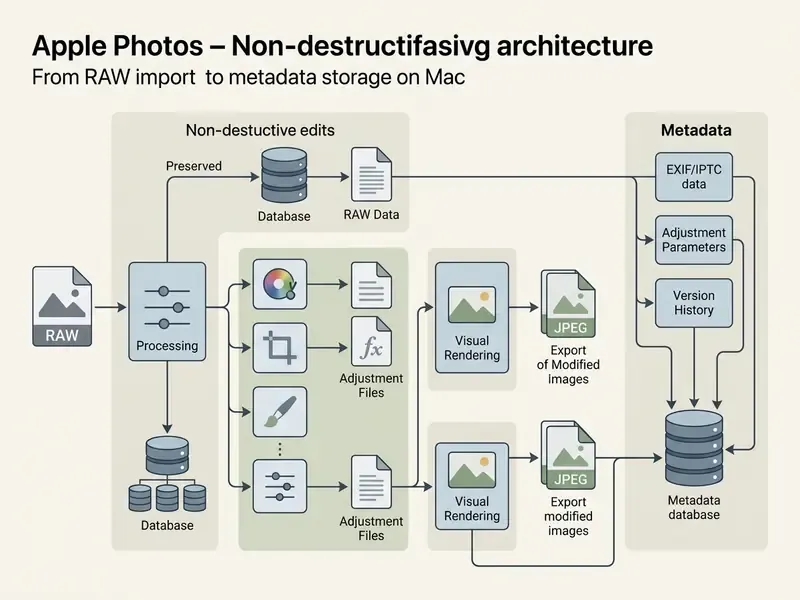
The application uses Apple's native image-processing framework to apply real-time modifications without altering source files.
"A non-destructive pipeline lowers the perceived risk of experimentation and encourages iterative learning among beginners."
Users can organize collections into hierarchical structures, apply spatial edits, and synchronize adjustments across the Apple ecosystem.
What edits are available in Photos on Mac
Apple Photos replaced the discontinued iPhoto and Aperture packages in 2015, merging library cataloging with basic non-destructive editing in a single window. The app ships free with every Mac, but its cloud synchronization is bounded by iCloud storage limits rather than by editing features.
The free iCloud tier provides only 5 GB of storage. Working with heavy RAW libraries in the cloud requires an iCloud+ upgrade:
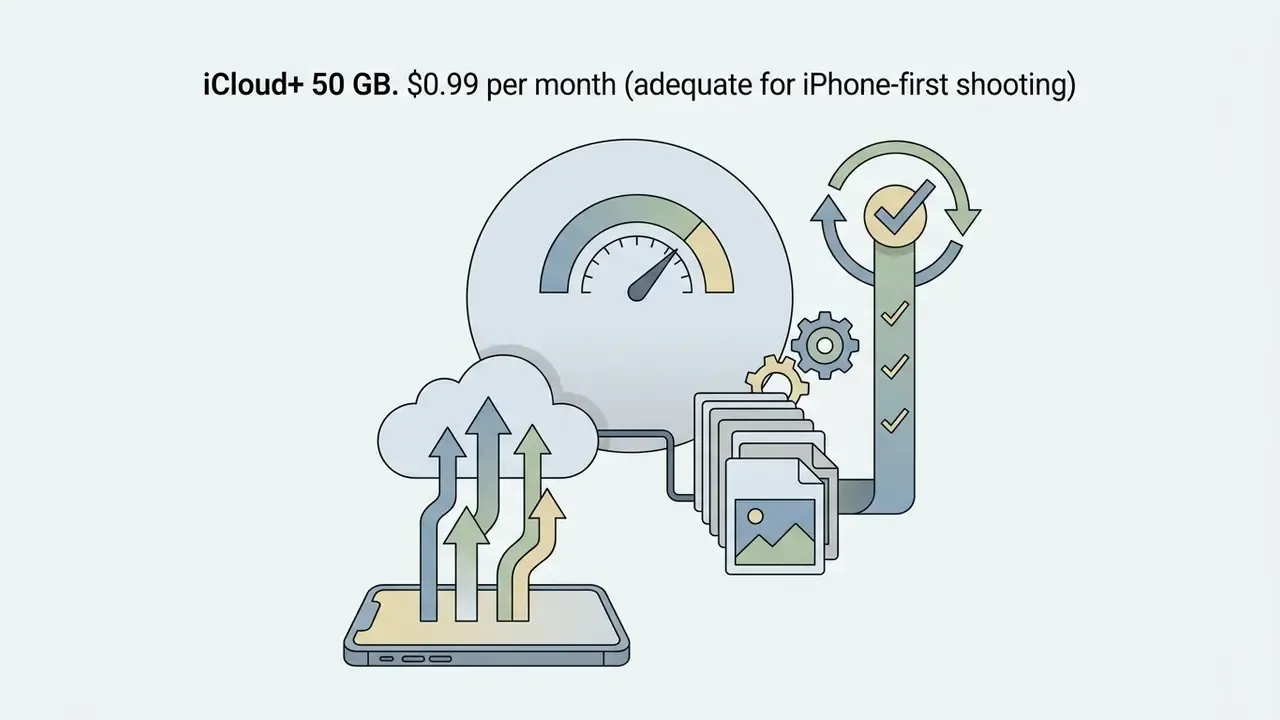
If the budget does not allow for cloud tiers, switch Apple Photos to local-only storage by disabling iCloud Photos, or keep the archive in an open-source catalog such as darktable or digiKam on an external SSD.
Apple Photos provides a complete suite of adjustment sliders, selective color controls, and automated enhancement tools inside a clean, single-window interface. The built-in editing environment includes the following core functions:
For users expanding their knowledge of native and cloud-based editing environments, our comprehensive guide to online photo editors breaks down additional cross-platform features and cloud workflow options.
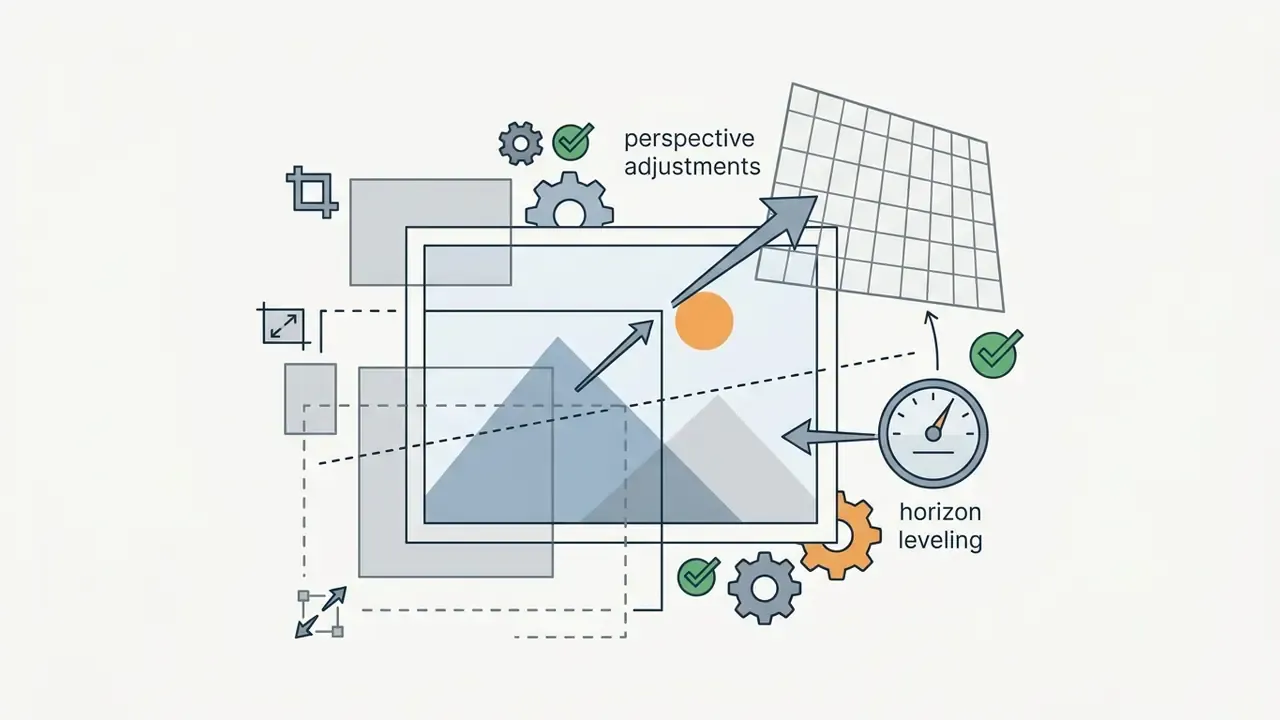
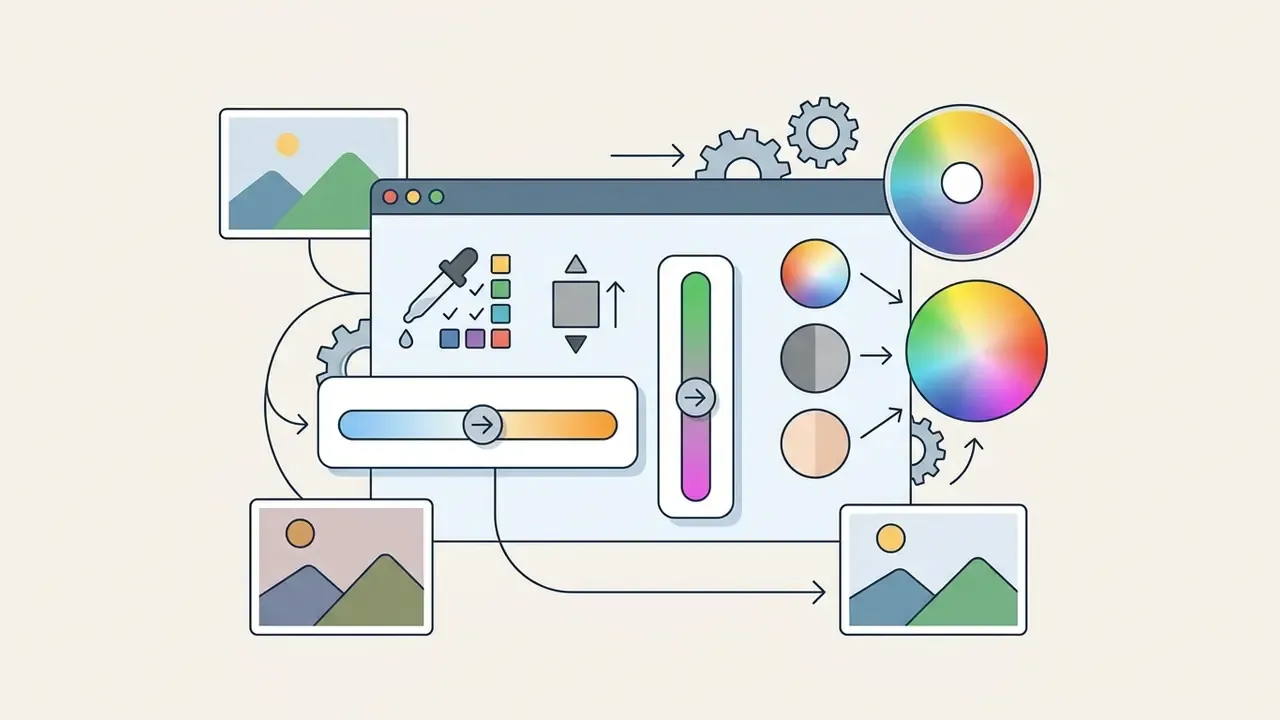
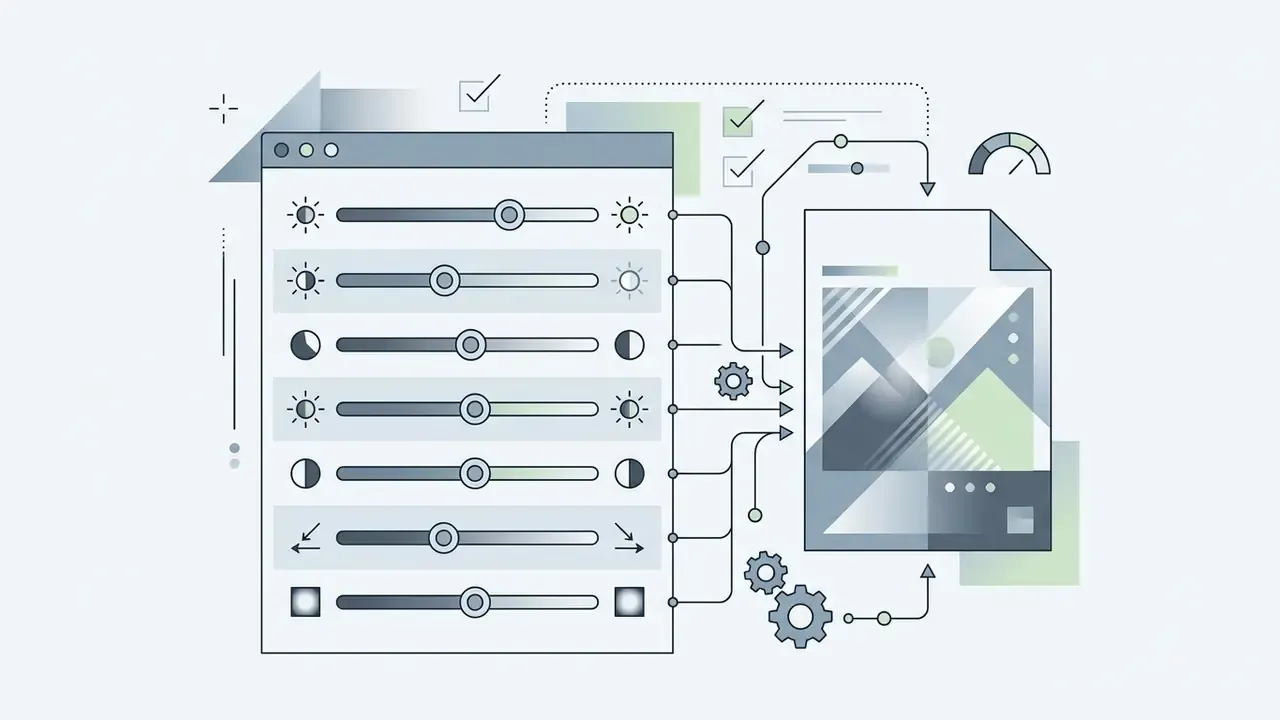
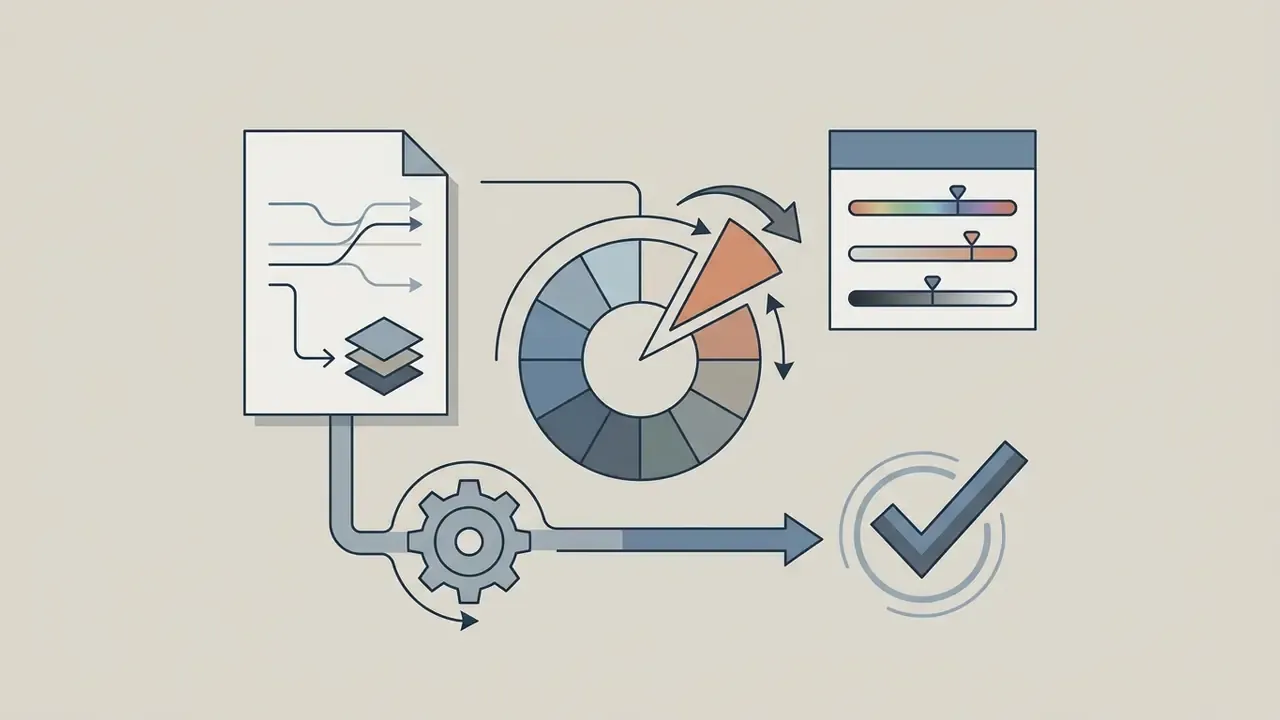
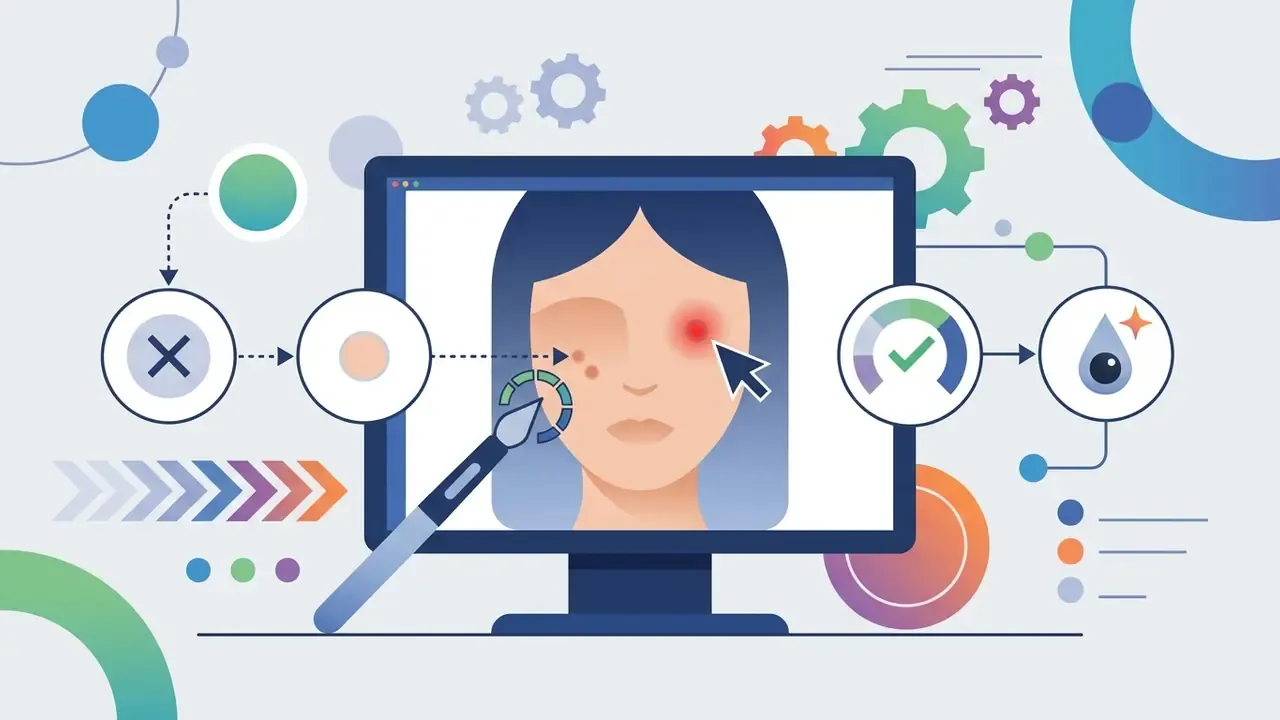
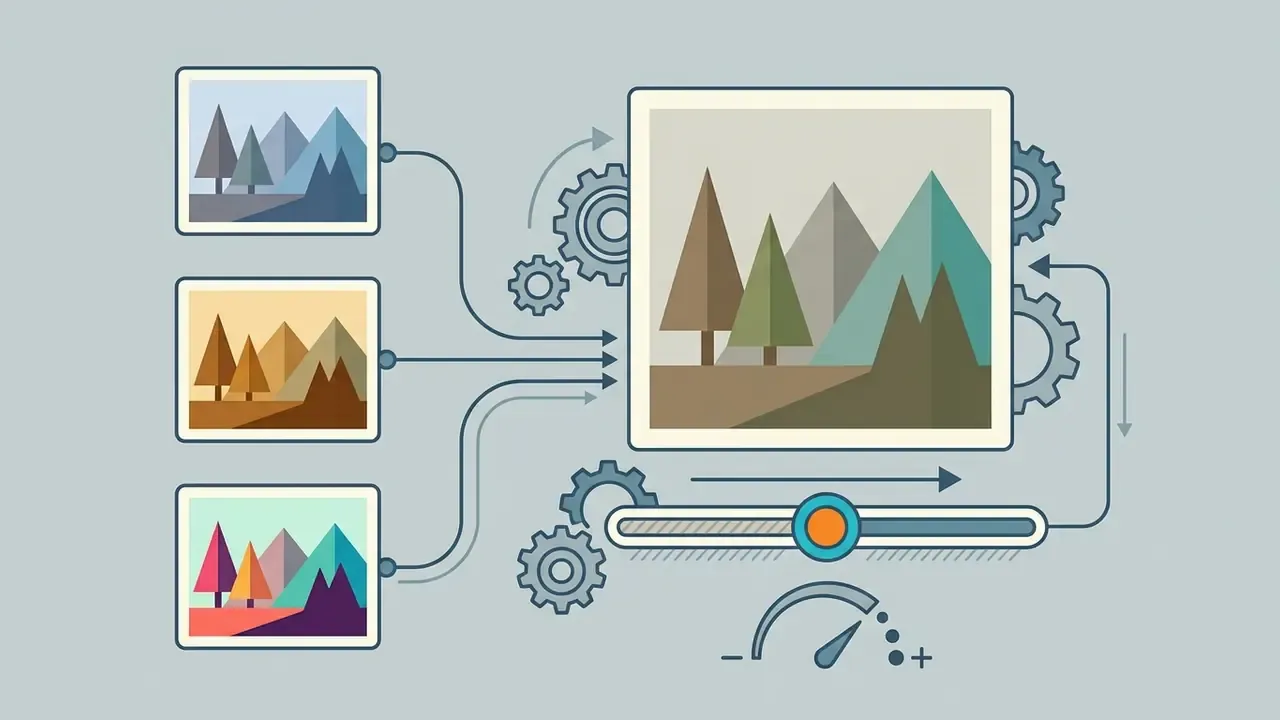
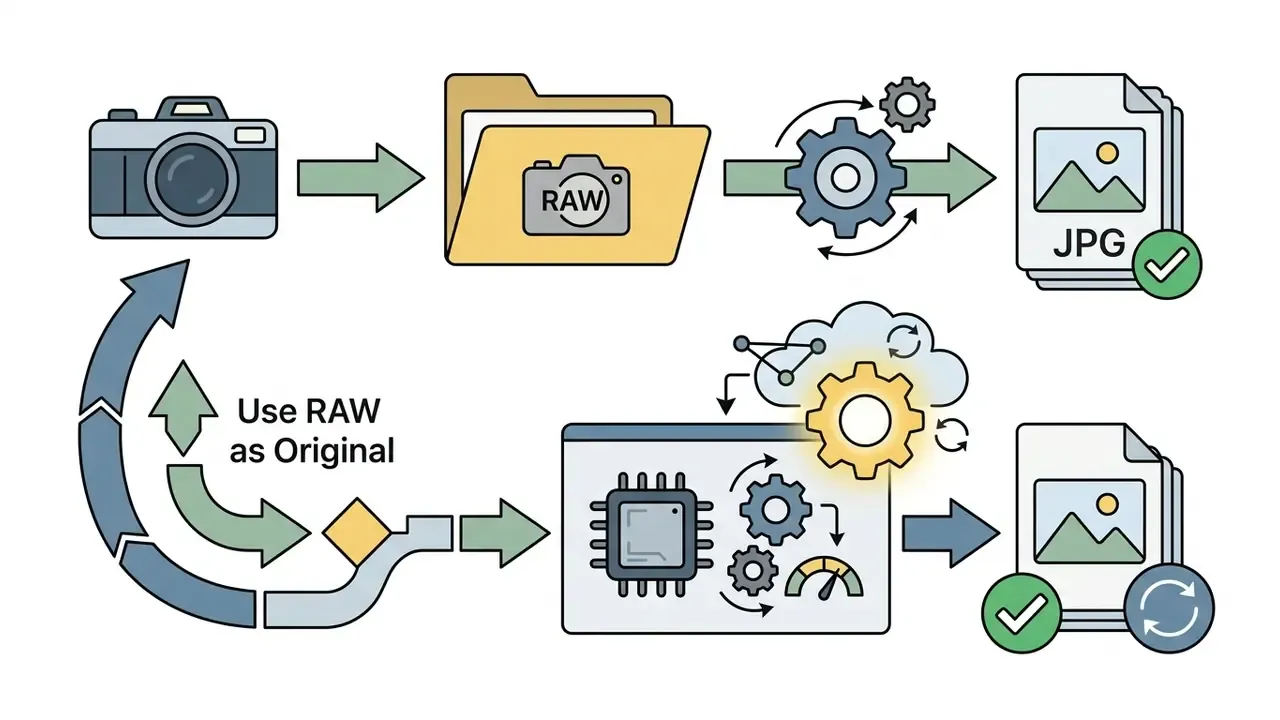
Image > Use RAW as Original) and to re-render them with the latest Apple RAW pipeline via Image > Reprocess RAW.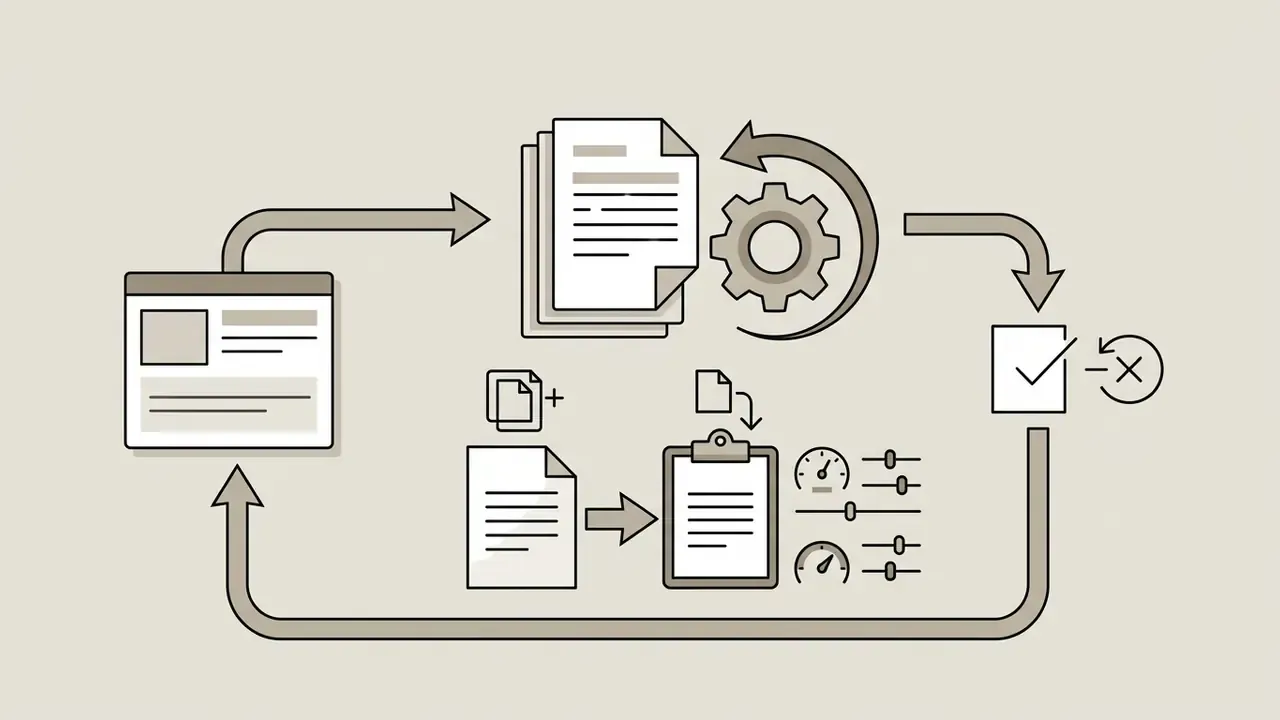
When Apple Photos should be replaced by a dedicated editor
Apple Photos becomes insufficient the moment a project requires multi-layer compositing, frequency separation, automated background removal, or high-volume batch processing.
"Apple Photos does not support a traditional layer stack, blend modes, or arbitrary raster selections required for complex retouching."
Because Apple Photos operates on a parametric adjustment model, subject lift produces a transparent cut-out rather than an editable layer hierarchy, and repeated adjustments must be pasted image by image instead of queued as a true batch job.
When a workflow demands precise object removal or batch file conversions across hundreds of photos, dedicated software becomes unavoidable. Switching to an open-source desktop tool such as GIMP or darktable, reviewed in depth in our guide to free photo editors, provides full raster control, customizable demosaicing pipelines, and the automation scripts professional media operations rely on.
Free photo editor for Mac like Photoshop: editors with layers and masks
For Mac users seeking a free photo editor like Photoshop, open-source desktop applications and modern browser-based editors provide complete layer management, selection masks, and non-destructive compositing. These options let creative teams execute detailed retouching, background removal, and multi-asset graphic design on macOS without an Adobe subscription.
"GIMP is positioned as a free open-source alternative to Photoshop with full layer and mask support and an extensible plug-in architecture."
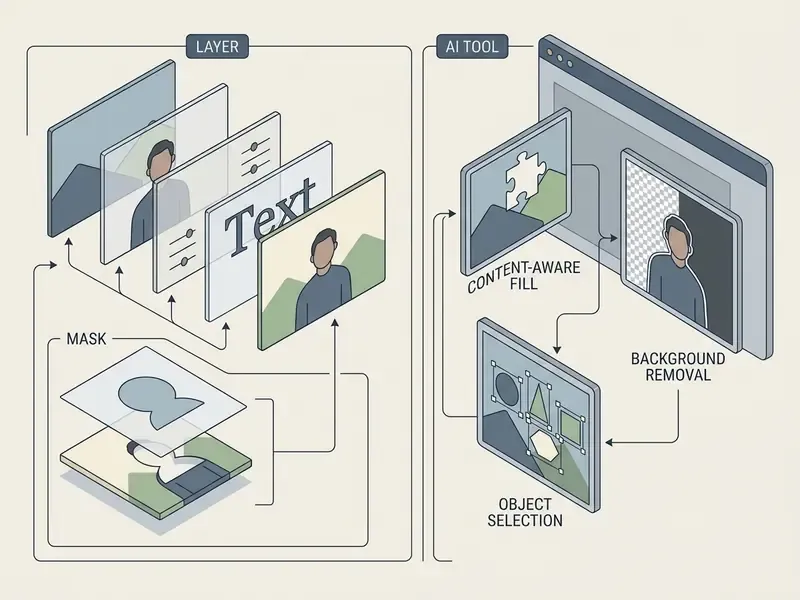
Choosing between desktop software like GIMP and web suites like Photopea depends on system specs, privacy requirements, and whether offline reliability matters to you.
GIMP for complex image editing
GIMP (GNU Image Manipulation Program) is the primary free open-source alternative to Photoshop for macOS, offering full raster editing, layer masks, channel adjustments, and an extensible plug-in architecture according to the official GIMP documentation. Running natively on Apple Silicon and Intel Macs, GIMP supports complex compositing pipelines and advanced retouching, and the GIMP 3.x documentation covers layer groups, layer masks, merge and duplicate operations, and selection arithmetic in a platform-neutral way.
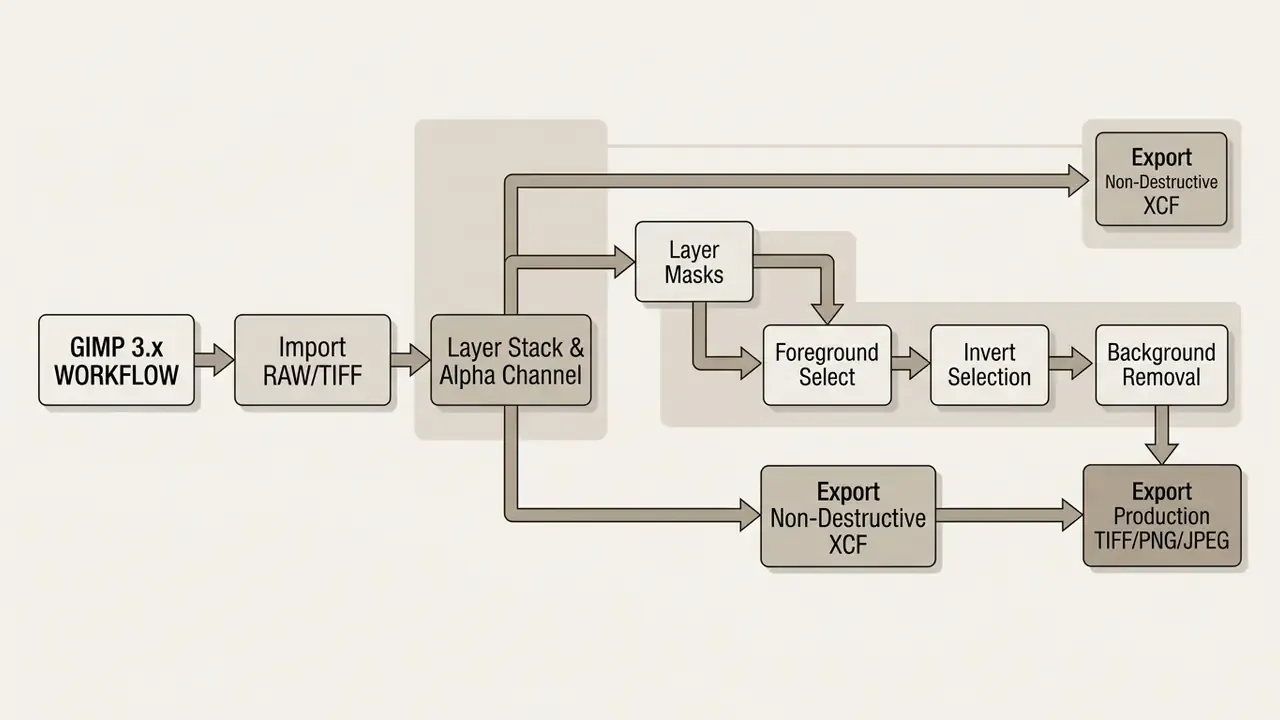
The application includes specialized selection mechanisms, among them Foreground Select, Free Select, Select by Color, and Intelligent Scissors, which let users isolate subjects and build precise masks. To clear an image background in GIMP on Mac, follow this established sequence:
The same task in Photopea (browser): open the file, choose Select > Subject for an automatic AI selection, click Select > Inverse (Shift + Cmd + I), press Delete, then use File > Export as > PNG. Photopea also imports Photoshop smart objects, though it rasterizes some proprietary layer effects. Check type layers and layer styles after import, before you deliver client files.
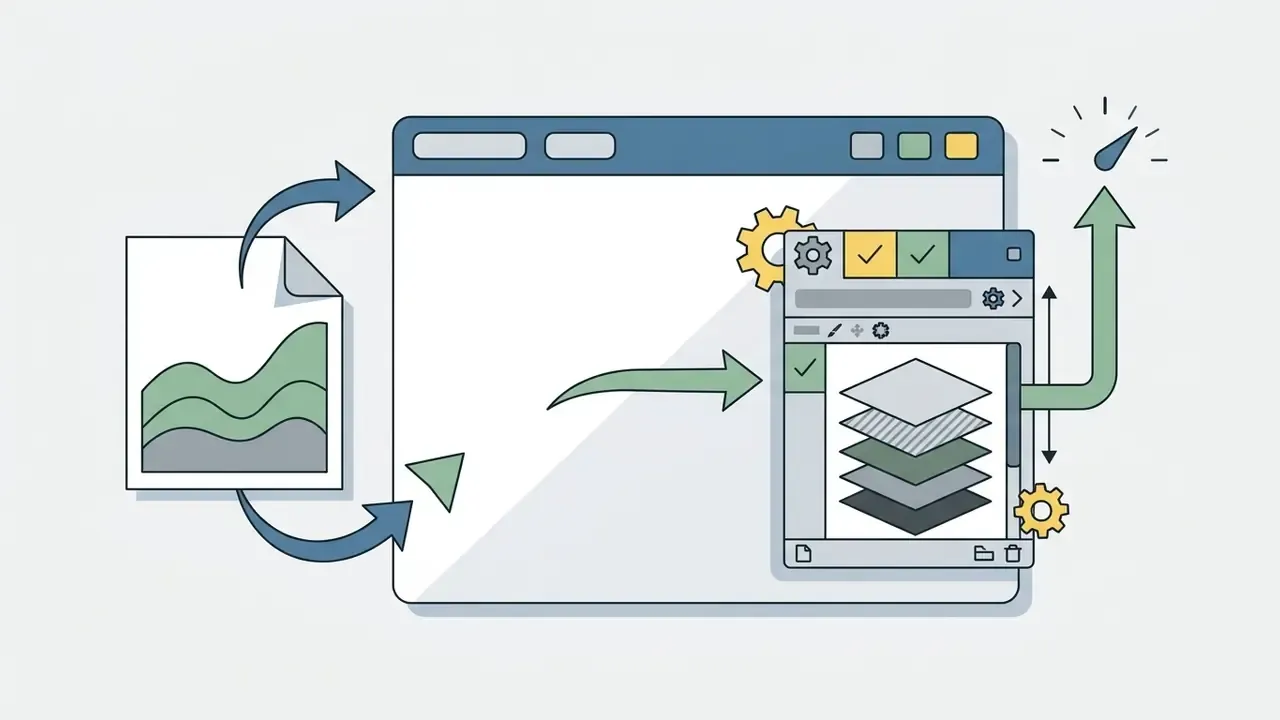
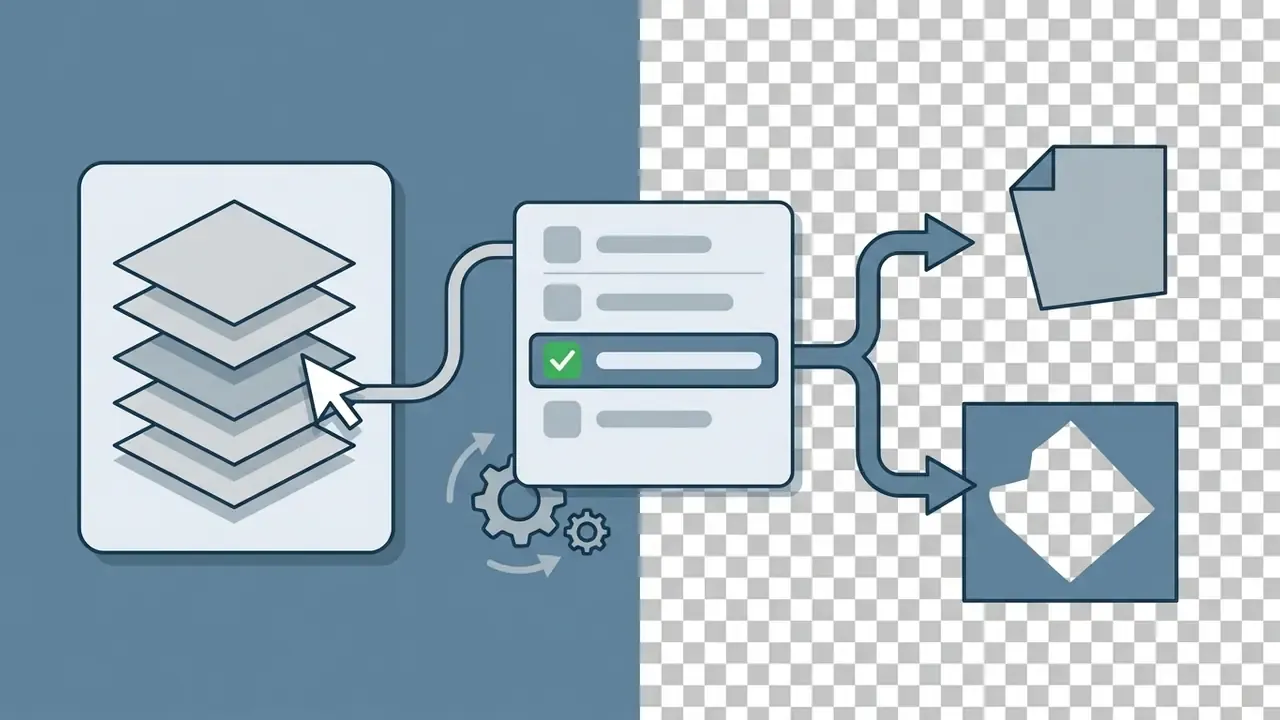
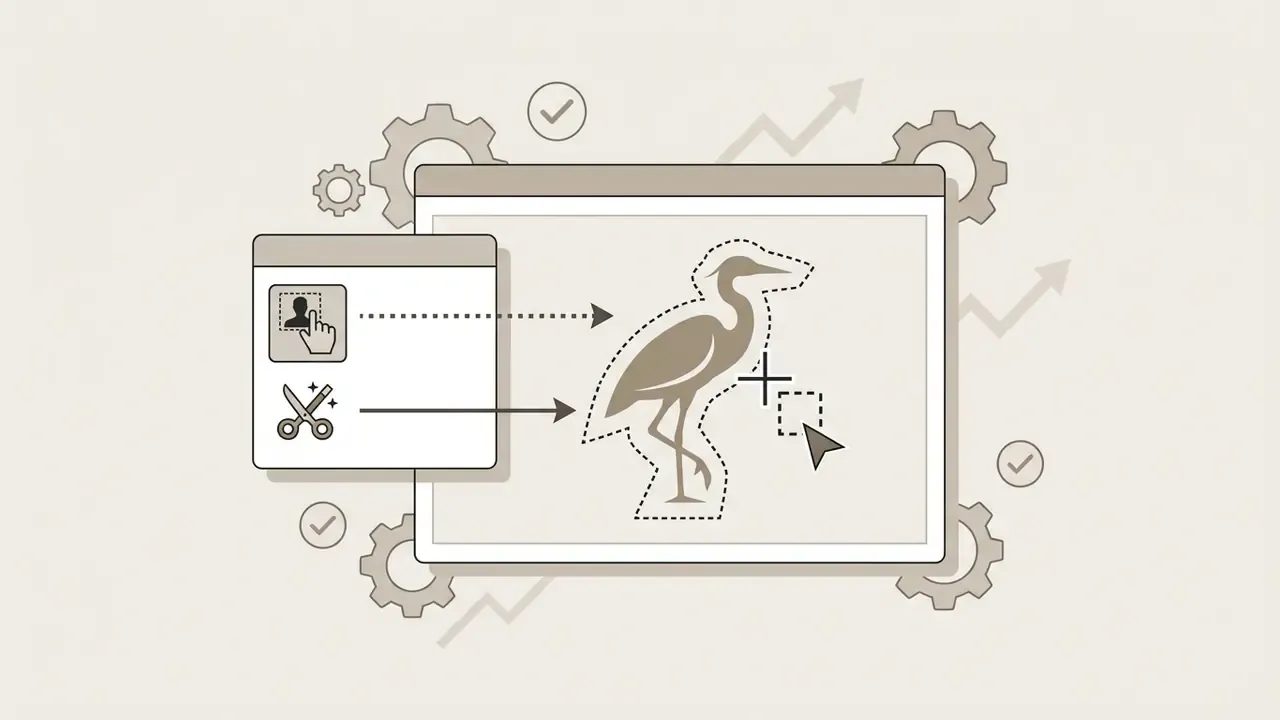
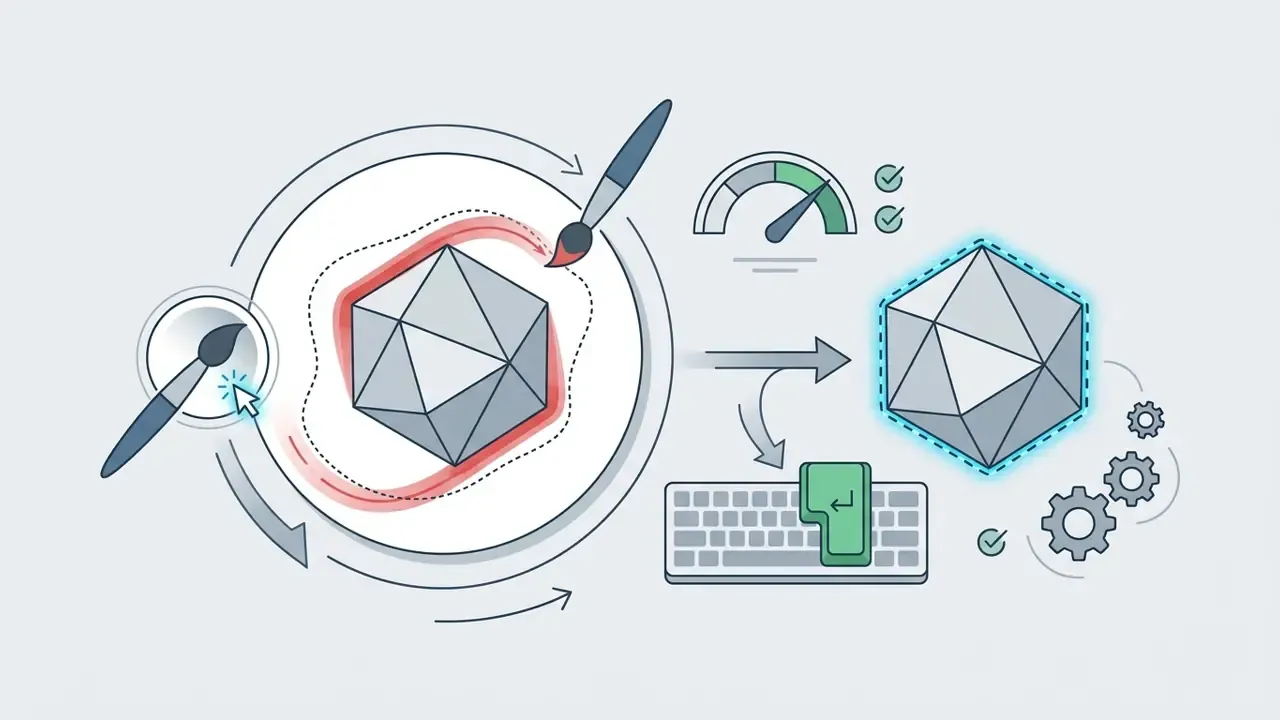
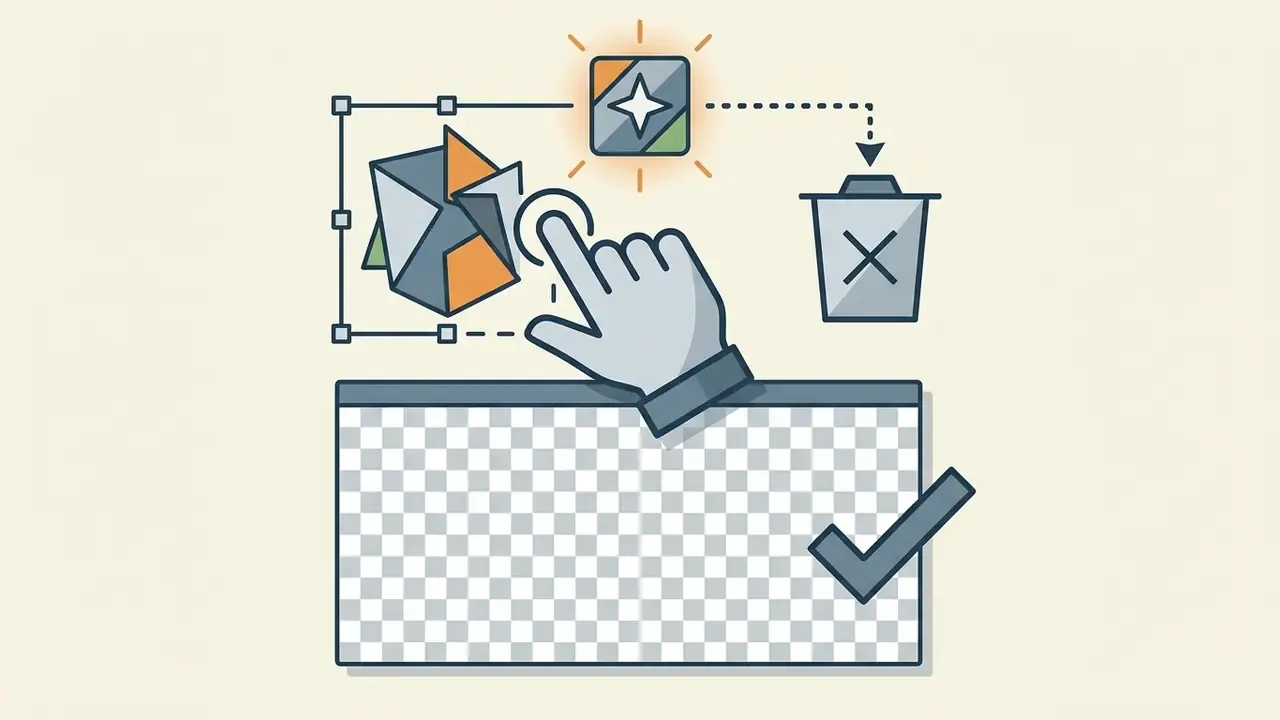
Cmd + I) and press Delete to clear the background. The checkerboard pattern confirms real transparency.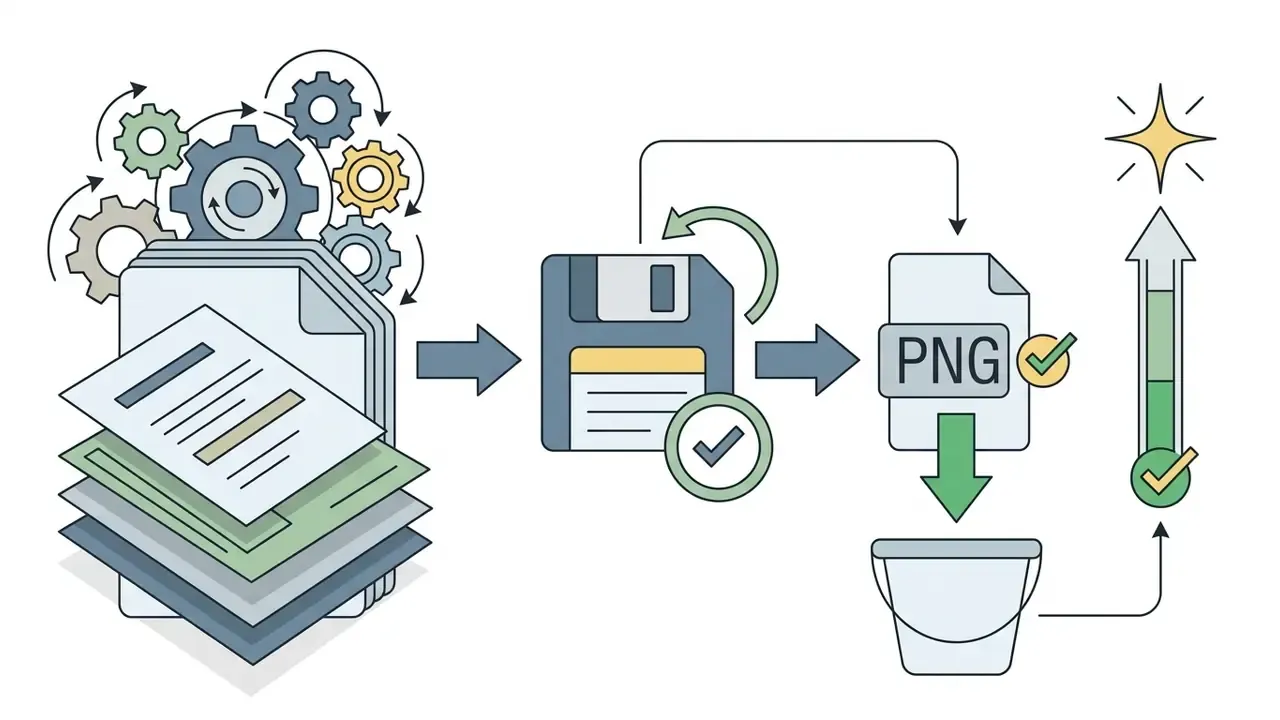
Shift + Cmd + E), keeping the layered .xcf master for future revisions.Photomator: the native AI editor for the Apple ecosystem
After the Pixelmator team joined Apple in 2025, Photomator became the reference image editor for macOS, iOS, iPadOS, and Vision Pro. It is built on SwiftUI, Core Image, Core ML, and Metal, delivering hardware-accelerated handling of 750+ RAW formats, including Apple ProRAW, without noticeable lag even on entry-level M-series chips.
Key native processing capabilities:
- ML Super Resolution and Denoise: resolution increases without edge blurring, plus camera-noise and compression-artifact removal computed on the Apple Neural Engine.
- Automatic subject detection: one-click Select Subject, Select Sky, and Select Background operations that generate non-destructive masks instead of flattened cut-outs.
- Texture-aware color adjustments: multi-channel curves, wheel-based color balance, Selective Clarity for shadows, midtones and highlights, and LUT import that machine learning converts into individual adjustments.
- Repair tool: removes small imperfections or entire objects while reconstructing complex backgrounds.
- End-to-end synchronization: direct editing of the Apple Photos library plus native Apple File System access to external drives and cloud folders, with no import step required.
- Batch workflows: user-defined chains that apply presets, auto-enhance, crops, denoise, and watermarks across hundreds of images.
On our M1 bench, Photomator rendered the first full-resolution RAW preview in roughly 0.9 s and applied ML Denoise in about 4 s per 45 MB frame. The trade-off is licensing and file management. The app offers a 7-day free trial, then costs $7.99 monthly, $29.99 yearly, or $119.99 as a one-time purchase, and its folder and favoriting model is noticeably less robust than a dedicated catalog such as darktable. Treat Photomator as freemium, not truly free when planning commercial work.
Seashore, Photopea, and other browser editors for simple Photoshop-style tasks
Seashore is a lightweight open-source desktop editor built specifically for macOS, offering essential layer-based editing, gradient fills, anti-aliased brushes, Core Image effects, and alpha channel support in a streamlined Mac-native interface. Unlike heavier suites, Seashore launches almost instantly and consumes minimal system memory, which makes it a sensible pick for quick retouching on entry-level Mac laptops.
When browser accessibility outranks desktop installation, Photopea provides a near-complete Photoshop clone inside any web browser. It supports native PSD files, smart objects, layer styles, and adjustment layers in browser memory, without shipping private image data to remote servers.
For express edits without installing anything, Fotor and Pixlr complement Photopea. Fotor is convenient thanks to built-in templates and batch processing, although its free version serves intrusive ad banners and gates advanced beauty-retouch features behind a paywall. Pixlr offers browser layers and a familiar toolbar, yet it caps free daily exports and depends on a permanent internet connection, which is a poor fit for field work or air-gapped environments. Adobe's browser Photoshop sits in the same category: it now requires an Adobe ID and, beyond the limited trial window, a paid plan for the full toolset. Users comparing this class of cloud tools with the Google stack can read our breakdown of the google photo editor feature set.
Limitations of free Photoshop-like solutions
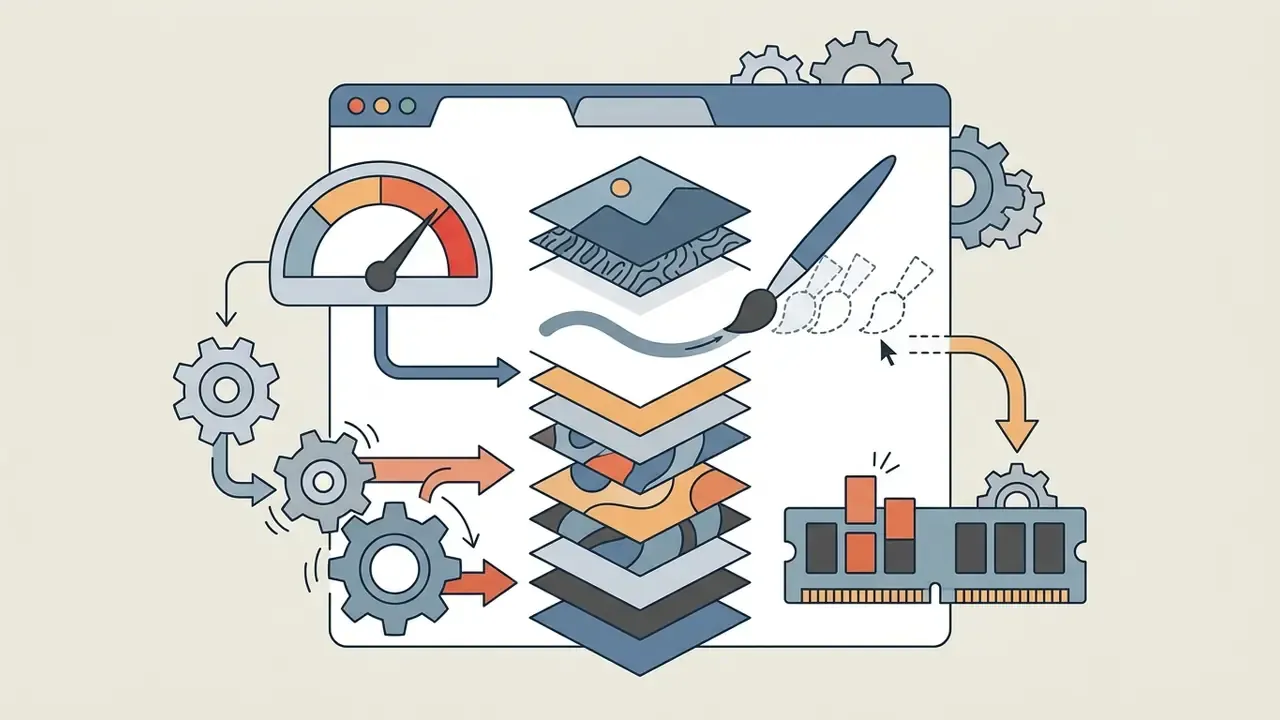
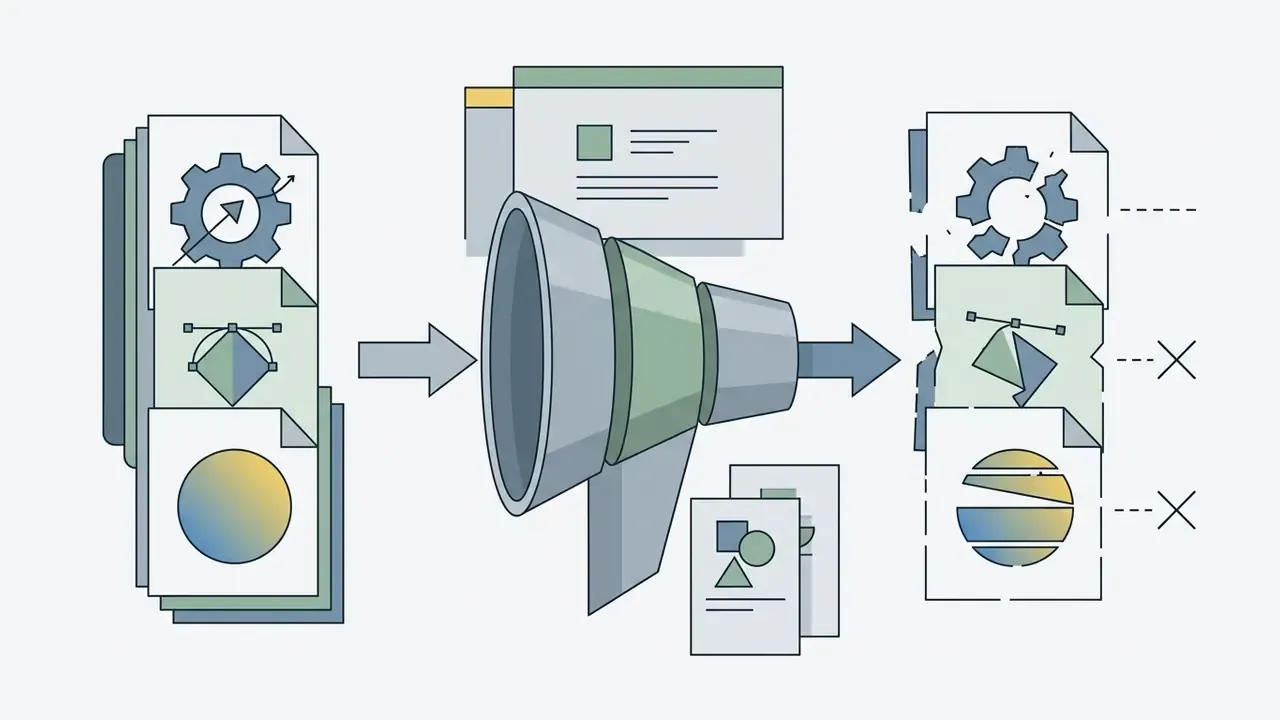
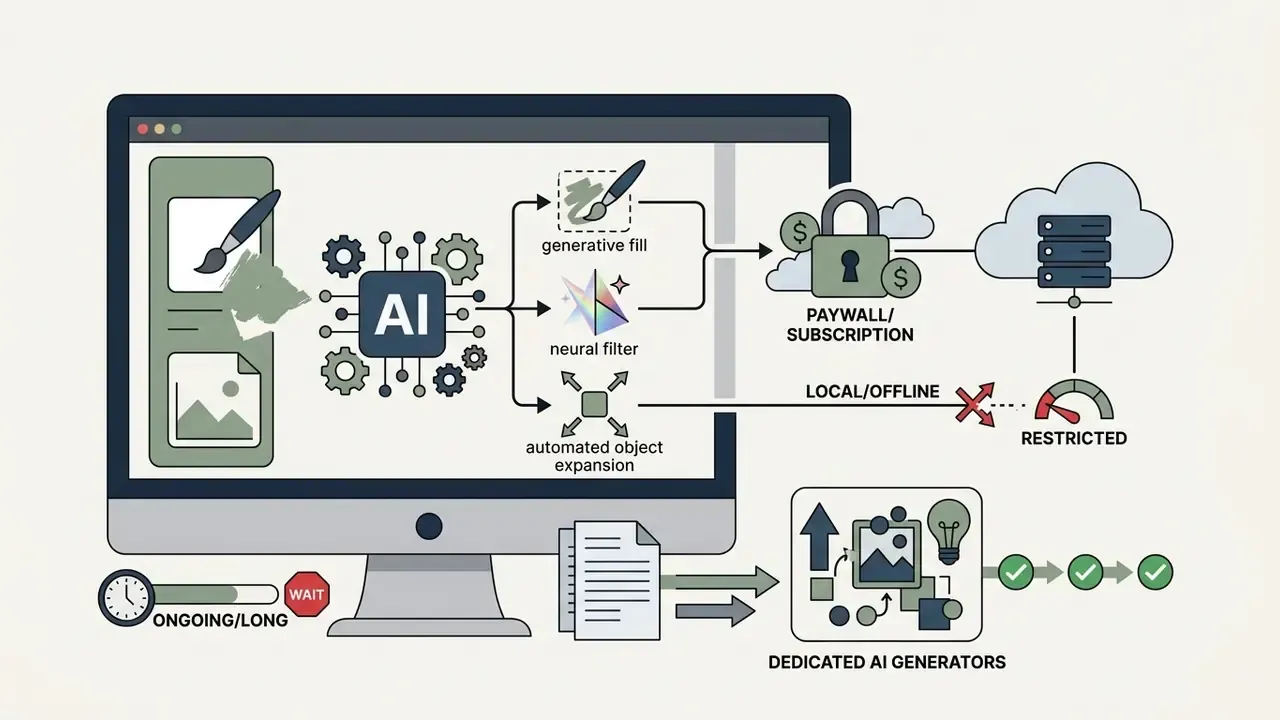
Free Photoshop alternatives are powerful, but they carry specific limitations in user experience, system performance, and advanced automation. Open-source desktop tools and browser editors both demand trade-offs:
- Interface complexity: open-source tools like GIMP use non-standard keyboard shortcuts and menu structures that lengthen training time for teams raised on Adobe software.
"Complex interfaces reduce learnability and increase error rates among inexperienced users."
For organizations evaluating broader creative-software procurement, cost models and licensing terms are analyzed in our AI Media Pricing Guides and the AI Media Commercial-Use Hub.
Best free Mac photo editors for RAW and photographers
Professional photographers on macOS need high-precision demosaicing, floating-point processing engines, and non-destructive pipelines to pull maximum dynamic range out of camera RAW files. Free specialized desktop applications such as darktable and RawTherapee deliver professional color management, lens profile corrections, and batch export without recurring costs.
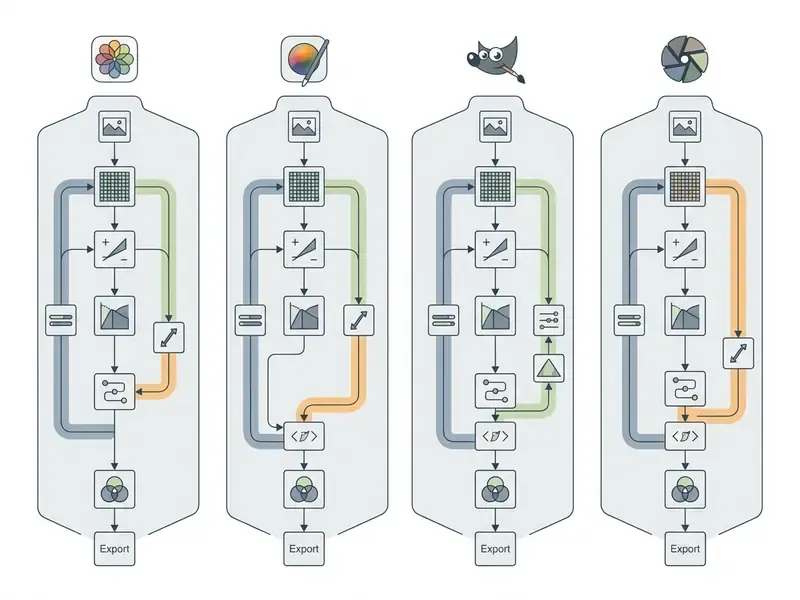
The RAW engine you pick determines color accuracy and how much digital noise survives to the print. The matrix below compares the leading free and freemium RAW editors for Mac across key technical parameters.
| Parameter | RawTherapee | darktable | Photomator | Apple Photos |
|---|---|---|---|---|
| Engine Architecture | 96-bit floating-point processing | Non-destructive database lighttable | Core Image and Core ML engine | System CoreImage framework |
| Demosaicing Algorithms | AMaZE, DCB, AHD, LMMSE, IGV, Mono | RCD, PPG, AMaZE, VNG | Apple system pipeline plus ML enhancement | Apple default system pipeline |
| RAW Format Coverage | Broad, camera-matrix based | Broad, camera-matrix based | 750+ formats including Apple ProRAW | System-supported cameras |
| Color Management | CIECAM02, ICC profiles, L*a*b* | ICC profiles, filmic RGB, color calibration | Display P3, extended RAW dynamic range | System ColorSync and Display P3 |
| Noise Reduction | Wavelet decomposition, Impulse, Lab | Non-local means, profiled noise reduction | ML Denoise (Neural Engine) | Basic single-slider denoising |
| Batch Capabilities | Queue management, dynamic profiles | Database history propagation, mass export | Batch ML workflows with presets and watermarks | Manual copy and paste edit adjustments |
| Hardware Acceleration | Multi-threaded CPU optimization | Full OpenCL GPU acceleration | Full Metal and Neural Engine acceleration | Apple Silicon Metal acceleration |
| License | Free, GPLv3 | Free, open source | Trial, then paid or freemium | Free with macOS |
| Target Audience | Advanced technical photographers | Professional workflow-driven photographers | iPhone-first and hybrid shooters | Beginners and casual users |
Photographers who need to enlarge archival frames for print can pair these RAW engines with dedicated AI image upscalers, since neither darktable nor RawTherapee performs neural super-resolution natively.
RawTherapee for detailed RAW processing
RawTherapee is a free, cross-platform RAW image processor engineered around a high-precision 96-bit floating-point engine, according to RawPedia documentation.
"RawTherapee uses a 96-bit floating-point engine and supports AMaZE, DCB, AHD, and LMMSE algorithms to minimize demosaicing artifacts."
Built for maximum detail extraction, RawTherapee hands photographers granular control over demosaicing algorithms to suppress moiré and color-interpolation artifacts, and it is released under GPLv3, which permits unrestricted commercial output.
The software features advanced tonal and color controls, including CIECAM02 color appearance models, L*a*b* adjustment curves, RT-spot local adjustments for elliptical regional corrections, and wavelet-based noise reduction. Wavelet denoising splits images into 5 luminance and 6 chrominance decomposition levels, letting users suppress high-frequency sensor noise while preserving edge sharpness and fine texture. The documented workflow is to set Detail Recovery to 0, raise Luminance until the noise smooths out, then restore micro-texture with Detail Recovery.
darktable for a photographic workflow
darktable operates as a complete digital lighttable and non-destructive darkroom, letting photographers catalog, rate, color-grade, and export large volumes of RAW photos on macOS.
"darktable stores edit history in a database without modifying original RAW files and uses OpenCL GPU acceleration to render complex module chains."
Built around a database architecture, darktable tracks image history stacks, applies metadata and tags automatically at import, reads embedded or user-supplied ICC profiles, uses camera-specific color matrices for RAW files, and provides filmic RGB and color calibration modules for scene-referred grading.
The application leverages OpenCL GPU acceleration to render complex module chains almost instantly on modern Mac hardware. Its manual also includes a dedicated memory and performance tuning chapter, which genuinely matters on 8 GB machines. Photographers handling high-volume event shoots can organize metadata, propagate a saved calibration profile across hundreds of frames shot under identical lighting, and manage print workflows with full soft-proofing support.
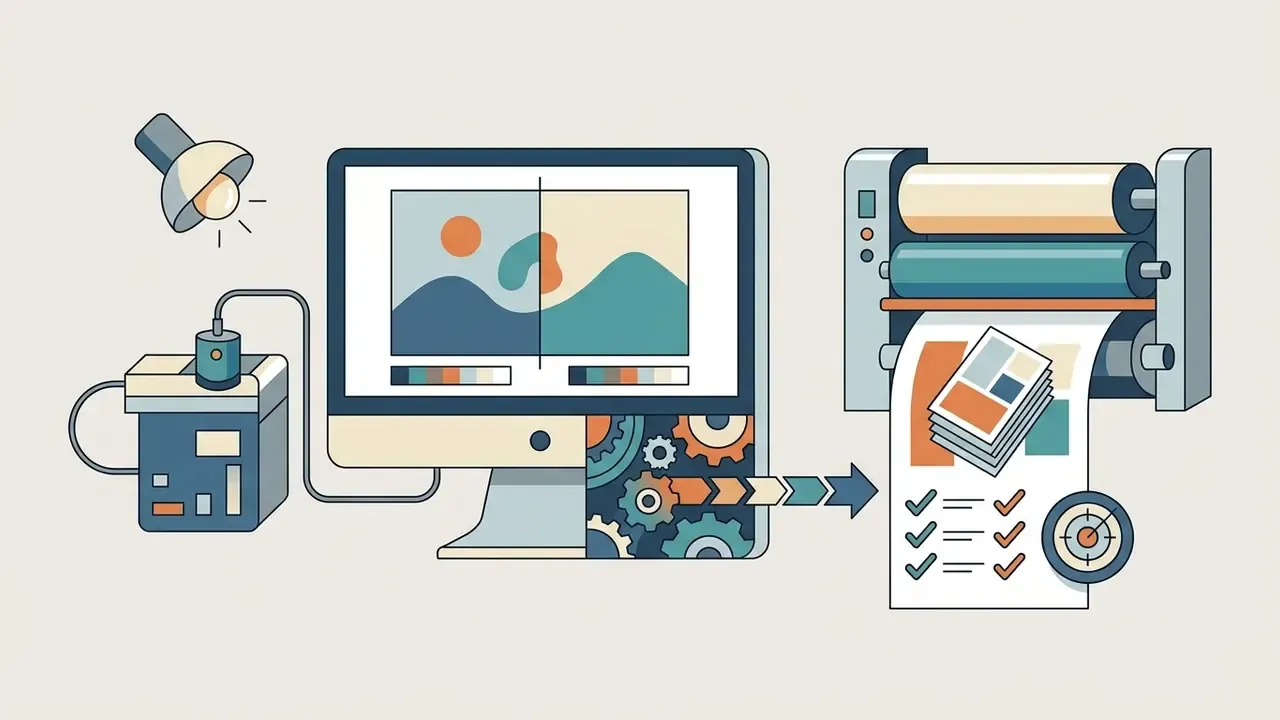
In our studio testing, moving from an uncalibrated editor to darktable's filmic RGB pipeline with standardized ICC display profiles removed the recurring mismatch between on-screen client previews and final commercial prints, and cut the number of re-grading rounds noticeably. We deliberately avoid attaching a percentage to that improvement. The comparison was operational rather than controlled, and outcomes depend on monitor calibration hardware and print provider profiles.
How to choose a RAW editor by skill level
Selecting a RAW editor depends on technical experience, volume, and how much time you are willing to spend learning the software. Beginners should start with Apple Photos and master exposure, white balance, and composition inside a simple interface.
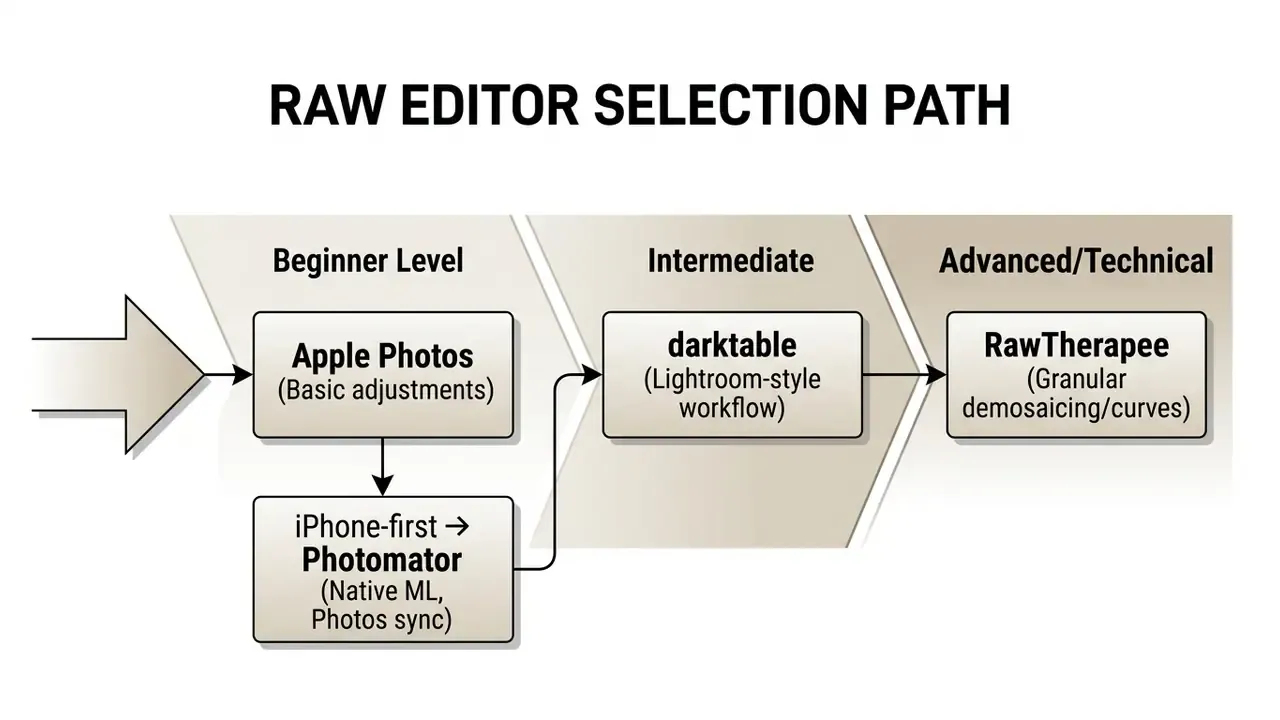
Intermediate users who want Lightroom-style cataloging alongside parametric masking should pick darktable for its library management and modular processing chain. Advanced technical photographers who demand absolute control over demosaicing algorithms, wavelet decomposition, and custom color appearance models will find RawTherapee the most capable free tool on macOS. Shooters whose library lives mainly in Apple Photos, and who value speed over granular control, will get further faster with Photomator, provided the licensing cost is acceptable.
PhotoScape X, Adobe Express, and Google Photos for everyday editing
For creators focused on social assets, marketing graphics, collages, and quick batch edits, all-in-one desktop suites and cloud editors offer accessible tools with minimal technical overhead. Applications such as PhotoScape X handle local graphic creation and batch conversions, while web platforms like Adobe Express and Google Photos streamline cloud storage and cross-device publishing.
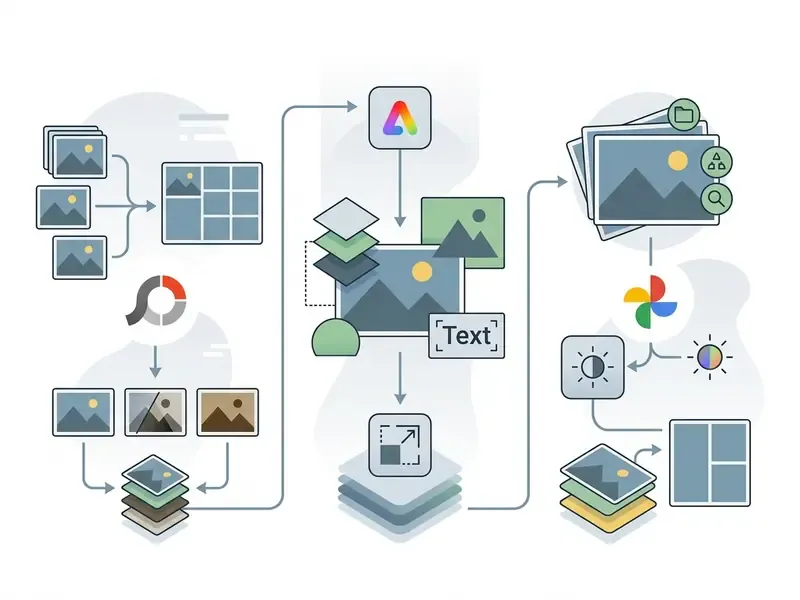
Picking the right tool lets content managers assemble promotional materials, apply consistent brand filters, and process bulk uploads without babysitting each file.
PhotoScape X for collages, filters, and batch edits
PhotoScape X is an all-in-one desktop photo editing suite for macOS with a dedicated Photo Viewer, Editor, Batch Processor, Cut Out tool, Collage builder, Combine module, animated GIF Creator, screen capture, and color picker, according to official PhotoScape X specifications. The software offers more than a thousand built-in filters, frame templates, and color transformation presets designed for rapid content creation, and it requires macOS 13 or later.
"PhotoScape X includes Viewer, Editor, Batch, Cut Out, Collage, and GIF Creator modules with RAW support and more than a thousand filters for fast content production."
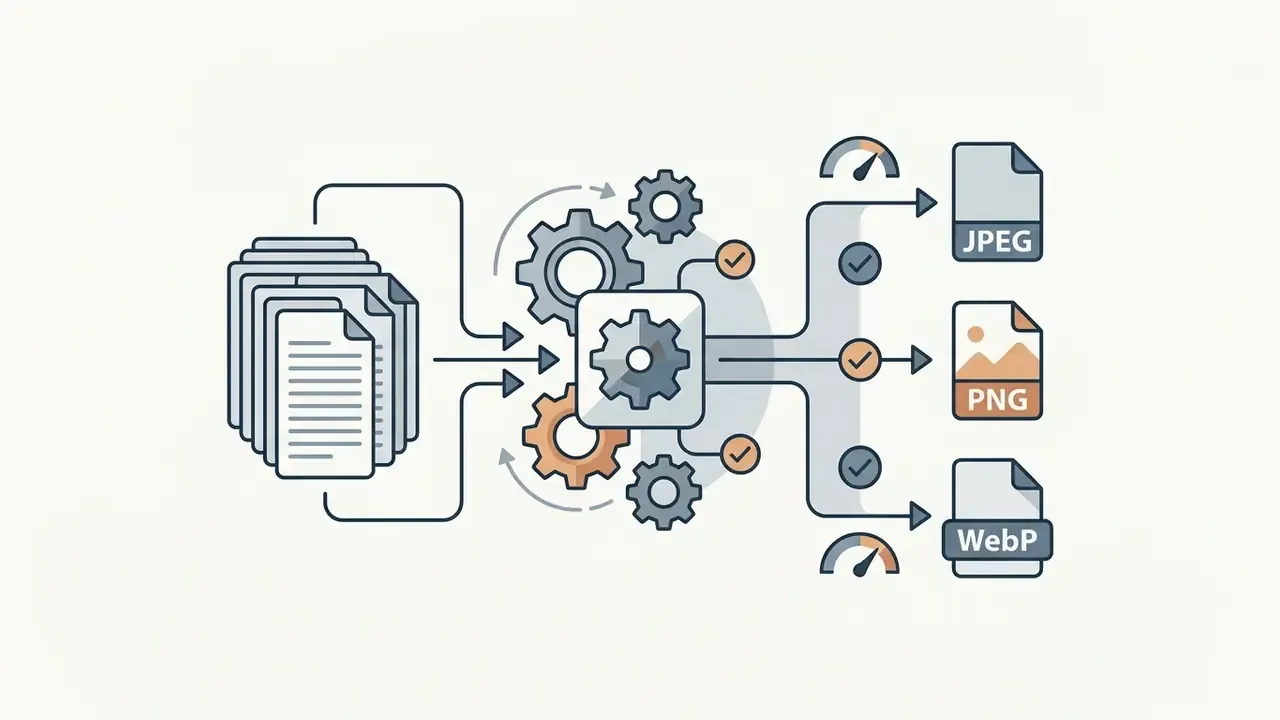
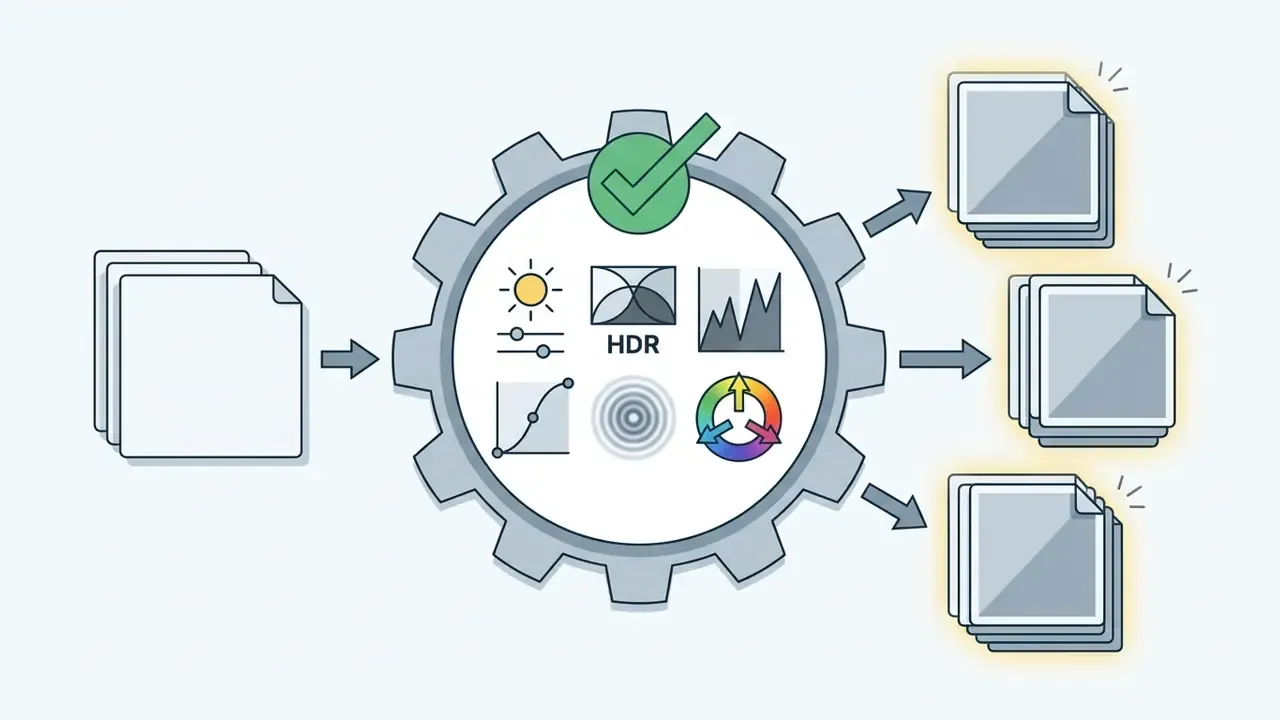
The Batch module applies bulk edits across hundreds of images at once. Within a single automated batch run on Mac, you can execute the following actions:
Adobe Express and Google Photos for web and cloud editing
Adobe Express provides a cloud design environment accessible from any Mac browser, combining stock templates, quick background removal, one-click resizing for platform-specific social formats, brand kits, and export presets. Non-professional designers can build promotional graphics, banners, and short animations quickly. Teams that need to improve low-quality source photos before templating can also evaluate dedicated AI image enhancers alongside Express filters, while marketing teams producing motion assets from the same library often compare a google ai video workflow with a conventional editor.
Google Photos works as a cloud media archive with built-in editing features, focused on synchronization, automated album curation, and basic exposure fixes, backed by 15 GB of free Google account storage versus 5 GB on the free iCloud tier. It handles cropping, filter overlays, and automated brightness corrections on the web, yet its desktop editor lacks multi-layer support and serious batch processing.
"The usability of cloud image-processing platforms is determined by clarity of feedback, task completion speed, and correct error handling."
For detailed breakdowns of online editing platforms and cross-platform feature sets, read our complete guide to online photo editors. Content teams that also assemble decks or audio from the same asset library can extend the toolkit with a google slides ai generator or a google ai podcast generator.
Free editor, free trial, or paid software: what to choose for commercial work
Deploying image editing software in commercial environments means distinguishing between open-source freeware, permanently free applications, and time-limited commercial trials. Using software with ambiguous licensing or unverified trial terms in client work creates legal exposure, workflow interruptions, and copyright compliance risk.
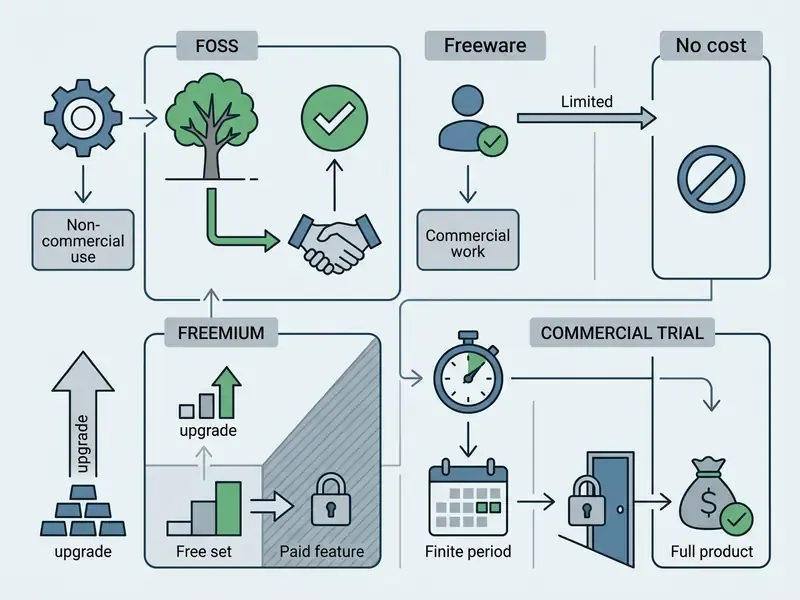
Understanding licensing is what keeps a creative team operational while it weighs free tools against commercial suites.
How truly free software differs from a free trial
Truly free software, meaning open-source (FOSS) and permanent freeware, grants unrestricted rights to run, modify, and distribute the application for personal and commercial projects without expiration or mandatory fees. Readers weighing similar questions for generative tools can compare our analysis of commercial use of AI image generators, where output rights, not software rights, become the binding constraint. Ongoing disputes about training data and output ownership are tracked in our AI Litigation and Case Timelines.
A free trial, by contrast, is a temporary marketing license for evaluating commercial software before purchase, governed by strict usage limits:
- Time restrictions
- commercial trials, such as a 30-day trial of a paid suite, expire automatically after a set calendar window, disabling export or locking access to saved project files.
- Feature restrictions
- functional trials may apply watermark overlays to exports, disable high-resolution output, or lock advanced AI batch tools behind payment gateways.
- Commercial prohibitions
- many trial licenses explicitly forbid using trial output for client work or revenue-generating activity before a full license is purchased. Some vendor terms state that unauthorized post-expiry use can trigger compensation claims well above the standard license fee.
- License durability
- open-source software licensed under GPLv3 or MIT guarantees perpetual operational rights, which removes the risk of sudden paywalls or service shutdowns.
"ON1 Photo RAW offers a 30-day unrestricted trial, after which export is blocked until a license is purchased."
The same pattern repeats across the category: Photomator ships a 7-day trial, Adobe's browser Photoshop requires an Adobe ID with limited free access, and Capture One and Luminar Neo gate export or plugin functionality once the evaluation window closes. For a detailed analysis of free editor limitations, privacy terms, and upgrade paths, review our guide to free photo editors.
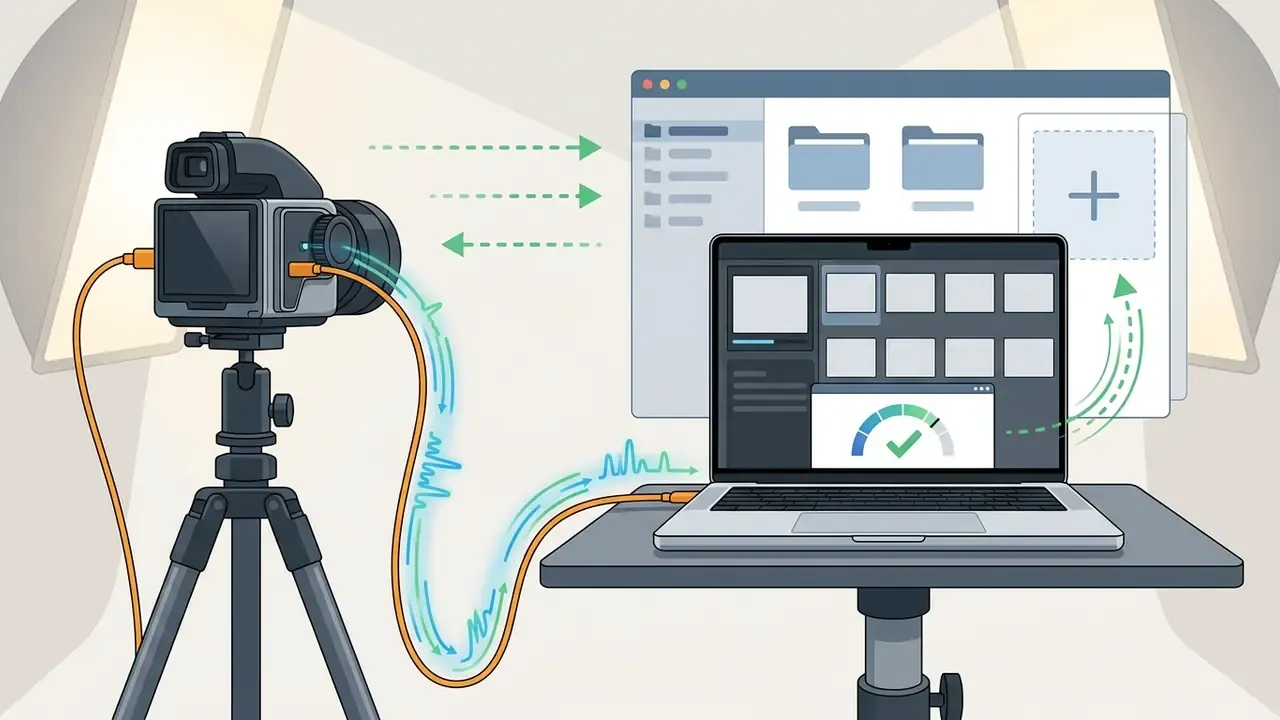
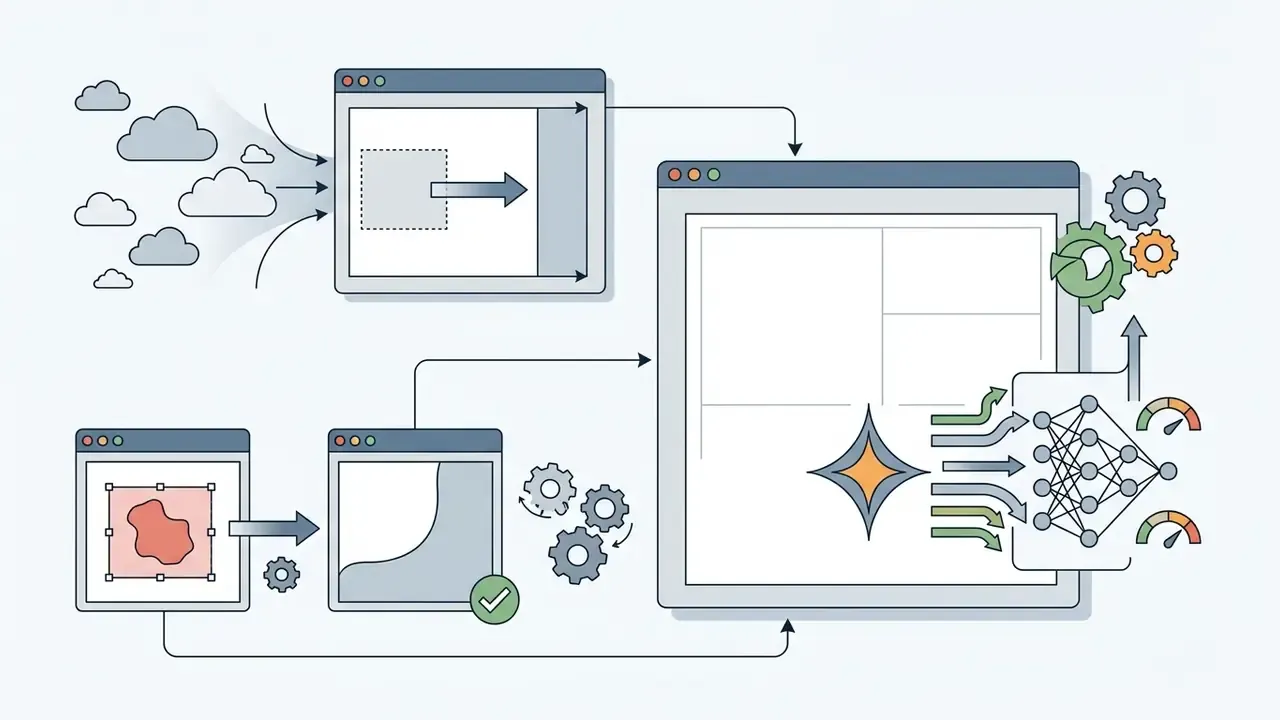
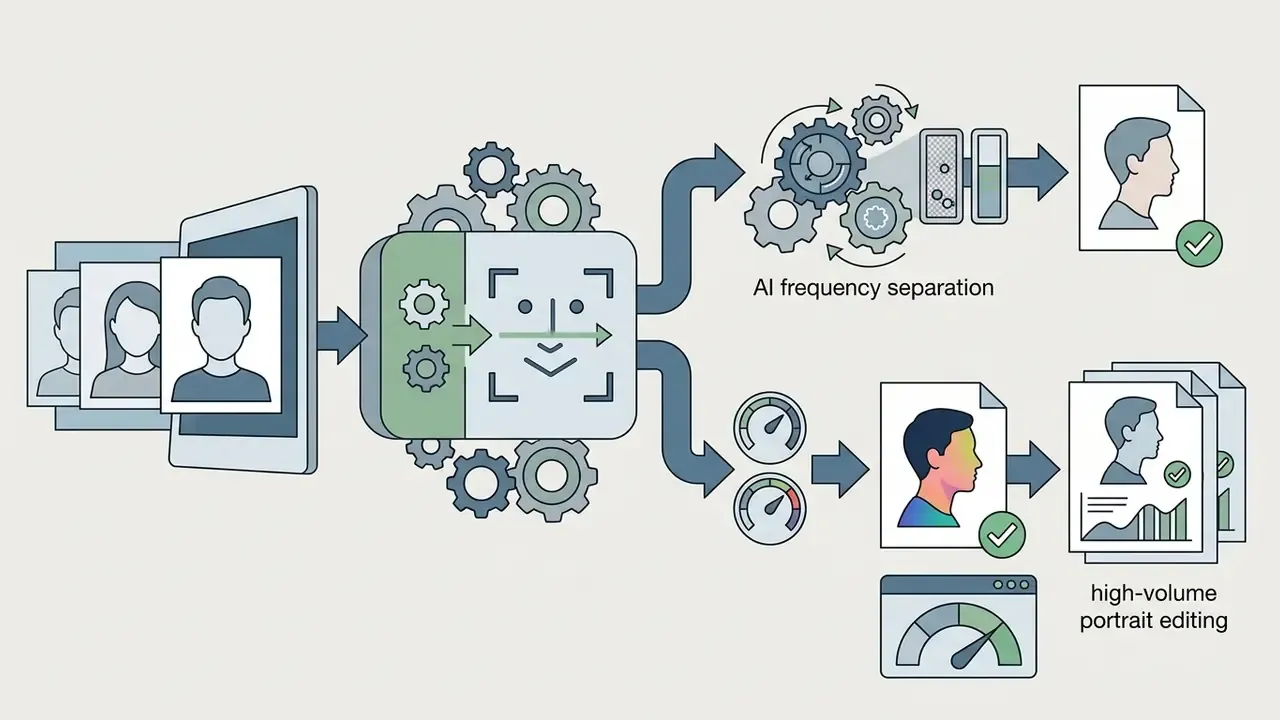
When paid editors are justified for professional workflows
How to choose a photo editor for MacBook and MacBook Pro
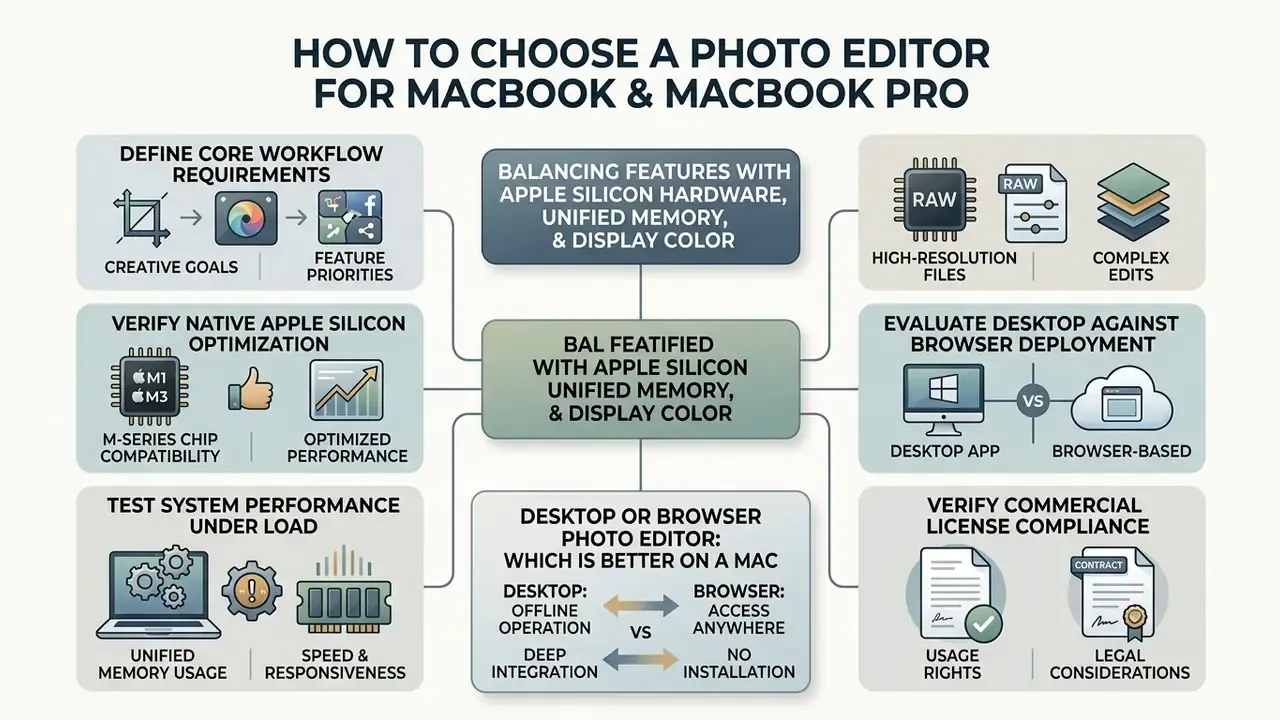
Selecting the optimal photo editor for a MacBook or MacBook Pro means balancing software features against Apple Silicon hardware, available unified memory, display color accuracy, and battery efficiency. Native applications built for M-series chips use onboard Neural Engines and GPU cores, which keeps performance smooth through long editing sessions.
"darktable relies on OpenCL GPU acceleration while RawTherapee leans on multi-threaded CPU optimization, which matters when matching an editor to specific MacBook hardware."
To evaluate candidate software for your MacBook setup systematically, run the verification process below:
Define core workflow requirements
determine whether your primary task is rapid social media fixes, RAW sensor decoding, multi-layer compositing, or high-volume cataloging.Verify native Apple Silicon optimization
confirm that the binary runs natively on Apple Silicon (M1, M2, M3, M4) without Rosetta 2 translation, which protects battery life and execution speed. Check the minimum macOS build too, since several current editors require macOS 13 or later.Audit RAW and layer architecture needs
check whether the software natively decodes your camera's RAW formats and supports raster layers, masks, and adjustment stacks if compositing is required.Evaluate desktop against browser deployment
choose offline desktop installation for data privacy and location independence, or browser deployment for quick cross-platform access.Test system performance under load
process a sample batch of high-resolution images or multi-layer projects while monitoring RAM allocation and thermal behavior in macOS Activity Monitor. On 8 GB machines, watch swap usage rather than CPU percentage.Verify commercial license compliance
confirm that the license permits commercial use without watermarks, unexpected export resolution limits, or time-based trial lockouts.Desktop or browser photo editor: which is better on a Mac
Choosing between a native desktop application and a browser-based photo editor on macOS involves offline performance, memory consumption, data privacy, and cross-platform flexibility. The trade-offs between the two deployment models:
Data governance checklist for web-based editors
Before approving any browser editor for client or internal media, run this five-point check. It takes under ten minutes per tool.
- Network inspectionopen Safari Web Inspector or Chrome DevTools, go to Network, load an image, and confirm whether the file body is transmitted to a remote host or processed entirely in WebAssembly memory.
- Storage auditcheck Application, then Local Storage and IndexedDB, for cached image data or thumbnails that persist after the tab closes. Clear-on-exit behavior should be documented in the vendor's policy.
- Metadata handlingexport a test file and read its EXIF and IPTC data with
exiftool. Verify whether GPS coordinates, camera serial numbers, and client copyright fields are preserved, stripped, or silently replaced. - Account and sharing defaultsconfirm that new projects are private by default and that no public share link is generated automatically.
- Shadow IT controlrecord which browser tools staff actually use, then replace unsanctioned services with an approved local pair, for example GIMP plus darktable, for anything covered by an NDA.
Features to verify before download
Before installing any photo editing software on a MacBook or MacBook Pro, technical leads and individual creators should verify four benchmarks:
- Apple Silicon architecture: ensure the installer contains Universal 2 or native ARM64 binaries to maximize performance and preserve battery life. Check the app entry in System Information, then Applications, where the Kind column should read "Apple Silicon" or "Universal".
- Layer and non-destructive masking support: confirm that the editor supports non-destructive adjustment layers, vector paths, and alpha channel masks if complex compositing is required.
- Batch processing efficiency: look for automated folder monitoring, batch renaming, resizing, and multi-threaded export queues to handle large image sets.
- Local AI feature acceleration: evaluate whether AI tools such as background cutout or noise reduction execute locally on Apple's Neural Engine, or depend on paid cloud API tokens.
Creators who also produce portraits, animations, or narrated media on the same Mac can extend their toolkit through our guides to AI headshot generators and animation makers, while teams shipping large image sets to the web should review file-weight tactics in our video compressor guide, where the same codec and quality-ceiling logic applies.
FAQ about free photo editors for Mac
Does macOS include a built-in free photo editor for desktop editing?
Yes. Every Mac includes Apple Photos, a built-in application that provides non-destructive image editing, RAW file reprocessing, selective color controls, crop and straighten tools, and library management. It functions completely offline and applies no export watermarks or resolution restrictions.
Can free photo editors on Mac process camera RAW files without paid upgrades?
Yes. Open-source desktop software such as darktable and RawTherapee decode camera RAW files natively using advanced demosaicing algorithms. Apple Photos also processes RAW natively when you select "Use RAW as Original" under the Image menu, and it can re-render older imports with "Reprocess RAW".
Do free Mac photo editors add watermarks or restrict export resolution?
Truly free and open-source applications such as GIMP, darktable, RawTherapee, and Apple Photos never apply watermarks or restrict export resolution. Freemium browser tools such as Fotor and Pixlr, and commercial trial downloads such as Photomator, ON1 Photo RAW, and Luminar Neo, may cap daily exports, watermark output, or block saving once the trial ends.
Is it legal to use free photo editors for commercial client work on macOS?
Yes, provided the software's license permits commercial output. Open-source software licensed under GPLv3 or MIT explicitly permits commercial use. Corporate users must avoid using time-limited commercial trials for paid client work, since this often violates trial license agreements and can lead to retroactive license claims.
What is the best free photo editor like Photoshop for Mac users needing layers and masks?
GIMP is the most complete free desktop alternative to Photoshop on Mac, offering full raster layer stacks, layer masks, blend modes, and advanced selection tools such as Foreground Select and Intelligent Scissors. For quick browser-based tasks, Photopea provides a PSD-compatible layer environment inside the browser.
Do browser-based photo editors require a continuous internet connection on Mac?
Most browser editors need an active connection to load application scripts, fonts, and cloud processing features. Some tools like Photopea cache resources locally and keep running in-browser after loading, yet native desktop applications such as GIMP, darktable, and Apple Photos offer far better offline reliability.
How do free photo editors perform on low-spec MacBooks or older Intel Macs?
Lightweight native applications like Apple Photos and Seashore run smoothly on entry-level or older hardware thanks to low memory overhead. In our 8 GB M1 testing, darktable stayed responsive with OpenCL enabled, while a 10-layer PSD opened in a browser editor consumed over 3 GB of tab memory and began to stall. Heavy RAW batch conversions on older Intel Macs are best queued rather than run interactively.
Do these applications run natively on Apple Silicon without Rosetta 2?
Apple Photos, Photomator, GIMP 3.x, darktable, and RawTherapee all ship Apple Silicon native or Universal 2 builds, so they execute on M1 through M4 chips without Rosetta 2 translation. To verify any app, open System Information, then Applications, and check that the Kind column reads "Apple Silicon" or "Universal". Intel-only builds run under Rosetta 2 with higher power draw and slower exports. Some older GIMP plug-ins may still be Intel-only even when the host app is native.
Is Photomator free now that Apple owns it?
No. Photomator, formerly a Pixelmator product and acquired by Apple in early 2025, offers a 7-day free trial, then requires $7.99 monthly, $29.99 yearly, or a $119.99 one-time purchase. It is the strongest native AI editor for the Apple ecosystem, with 750+ RAW formats, ML Super Resolution, Denoise, Repair, and automatic subject, sky, and background selection, but it belongs in the freemium category rather than the truly free one.
How much iCloud storage do I need for a RAW library in Apple Photos?
The free iCloud tier provides 5 GB, which a single RAW shoot can exhaust. iCloud+ costs $0.99 per month for 50 GB, $2.99 per month for 200 GB, and $9.99 per month for 2 TB. Photographers who prefer not to pay can disable iCloud Photos, keep masters locally or on an external SSD, and catalog them with darktable or digiKam.
Where can I find additional documentation and support resources?
For troubleshooting guides and software documentation, explore our AI Media Support and Troubleshooting resource center and browse the comprehensive AI Media Glossary.
Editorial verification and update log
- February 2026: re-tested every application on macOS Sequoia builds, refreshed Photomator pricing, and re-checked iCloud+ tiers.
- Open questions we have not resolved: whether Photomator's Apple ownership will eventually fold its ML tools into system Photos, and how quickly free editors will gain locally executed generative fill. Both remain hypotheses, not forecasts.
- What we could not measure: long-term archive stability of XCF and PSD masters beyond our two-year internal sample, and print accuracy across providers we have not profiled.
Internal navigation and resource links
- Primary reference hub: AI Media Glossary
- Free editor deep dive: Guide to free photo editors
- Online editor deep dive: Guide to online photo editors
- Commercial use and licensing hub: AI Media Commercial-Use Hub
- Software pricing and license analysis: AI Media Pricing Guides
- Cost modelling: AI Media Calculators
- Software comparison matrices: AI Media Comparison Matrices
- Automation and integrations: AI Media API Guides
- Legal tracking: AI Litigation and Case Timelines
- Image quality tooling: AI image upscalers · AI image enhancers
- Support and technical troubleshooting: AI Media Support and Troubleshooting