In short: Rotating video online is a three-step browser workflow. Upload the file, apply a 90°, 180° or 270° transform (or a freehand 360° angle for tilt correction), then export. Rotation that only rewrites the container's orientation flag is lossless. Physically rotating pixels requires re-encoding and should match the source bitrate. Converting 16:9 into 9:16 is a separate operation: use center-crop, blurred background fill, or AI smart reframing with face tracking instead of a bare rotation. Before using a free rotator for commercial assets, verify watermark-free export, file-size limits (typically 500 MB, 2 GB, or up to 4 GB for client-side WebAssembly tools), retention policy, and commercial licensing.
Digital media processing runs into spatial alignment errors whenever mobile devices or browser cameras capture footage under miscalibrated orientation sensors. These metadata mismatches disrupt downstream video pipelines: portrait clips render sideways, and landscape presentations appear inverted. Evaluating web-based video rotators lets enterprise teams correct frame angles, standardize asset inventories, and prepare clips for multi-channel distribution without installing local desktop software. Small problem, real cost. A single sideways clip in an approved campaign can hold up an entire publishing slot.
What Does It Mean to Rotate Video Online and When Is It Required?
To rotate video online means adjusting the spatial angle of a digital video file, most commonly in 90-degree increments (90°, 180° or 270°), directly inside a browser interface. The operation corrects footage recorded sideways or upside down because of smartphone orientation sensor errors or EXIF metadata mismatches. An online video rotate pass makes sure the visual content lines up with standard display aspect ratios across desktop and mobile screens.
Orientation discrepancies usually start with hardware orientation flags written at capture time. According to the W3C Screen Orientation API (2020), a physical device rotated 90° clockwise maps to a 270° angle in standard screen coordinate models, which is exactly why the same physical correction may be labelled "90° left" in one interface and "270° counter-clockwise" in another. Confusing? It is, slightly, and it explains most support tickets on this topic. The Google Android ExifInterface documentation adds that video containers rely on specific internal rotation constants (90, 180, 270) to communicate framing properties to media players. When an ingested video file lacks accurate orientation tags, web-based tools run a video rotation operation to re-orient the raster geometry or update the internal metadata header fields.
90°, 180° and 270° Rotation: Choosing the Correct Orientation
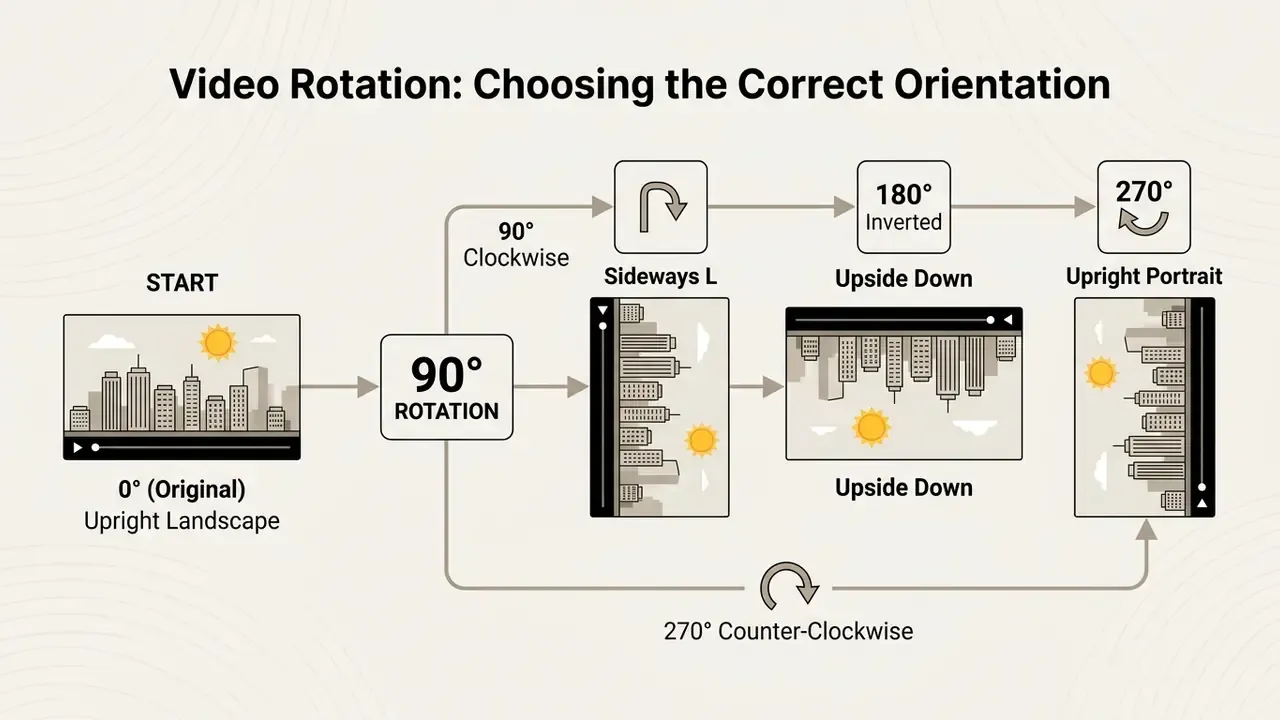
The correct rotation angle depends entirely on the physical orientation error of the original source clip. Rotating a clip 90° clockwise, or 270° counter-clockwise, fixes sideways footage recorded while holding a phone horizontally with portrait lock enabled. Applying 180° flips upside-down video back upright without touching its baseline aspect ratio.
| Source defect | Correct angle | Resulting orientation change |
|---|---|---|
| Clip recorded on its side (left edge down) | 90° clockwise | Landscape ↔ portrait swap |
| Clip recorded on its side (right edge down) | 270° counter-clockwise | Landscape ↔ portrait swap |
| Clip fully inverted (upside down) | 180° | Orientation unchanged, frame flipped |
| Horizon tilted by a few degrees | Freehand 1°–15° | Minor geometric correction, slight crop |
A 90° or 270° rotation effectively turns a horizontal video into a vertical video layout, or the reverse, because the width and height values of the raster are exchanged. Research on mobile content processing, published in the International Journal of Research in Marketing, frames the payoff plainly:
"Mobile users process vertical video ads more fluently, experiencing less effort because watching does not require turning the phone."
The same research programme reports that age moderates the effect: younger cohorts show the largest fluency advantage for vertically aligned mobile creatives. Picking the precise degree setting therefore keeps the clip aligned with genuine viewing habits, with no letterboxing bolted on afterwards.
Rotating vs. Flipping Video: Key Differences
Rotating a video changes its spatial angle around a central geometric axis. Flipping mirrors the image pixels across a vertical or horizontal plane. A free video flip and rotate online utility lets operators fix inverted perspectives or correct mirrored webcam recordings. As detailed in Adobe Help Center transform documentation (2025), rotation is an angle transform that preserves image chirality and text legibility, while flipping is an axis-reflection transform: "Flip Horizontal" mirrors the frame left to right, "Flip Vertical" mirrors it top to bottom, reversing handedness.
The distinction matters beyond mechanics, because format geometry now carries its own visual language:
"The verticalization of screens has prompted new visual, spatial and aesthetic grammars, challenging conceptions anchored in horizontal cinema and television."
Illustrative scenario (composite example, not a named client case). During a corporate training intake review, a media team receives roughly fifty mobile video submissions recorded with mirrored front-facing cameras, which renders background slide text unreadable. The operator applies a horizontal flip across the batch to restore readability, then a 90° clockwise rotation to normalise orientation. This standardised intake sequence clears spatial orientation issues across every clip in minutes, with no desktop re-encoding involved. Teams that also prepare still assets from the same footage tend to keep a windows photo editor open alongside the browser rotator for frame grabs.
Arbitrary 360° Freehand Rotation and Keyboard Shortcuts
Beyond the standard 90-degree presets, advanced browser editors expose freehand 360-degree controls. Operators can fix minor horizon tilts, say a 2° or 5° camera slant, by dragging a rotation handle directly on the canvas preview. To speed up desktop work, professional online rotators assign direct hotkeys: R rotates the active clip 90° clockwise, Shift + R rotates counter-clockwise, and holding Alt while dragging on the canvas enables precise 1-degree micro-adjustments. Keep one thing in mind. Non-90° angles enlarge the bounding rectangle of the frame, so the editor either crops slightly into the image or fills the exposed corners with a solid colour, a blurred duplicate, or transparency.
How to Rotate a Video Online: Upload, Adjust and Export
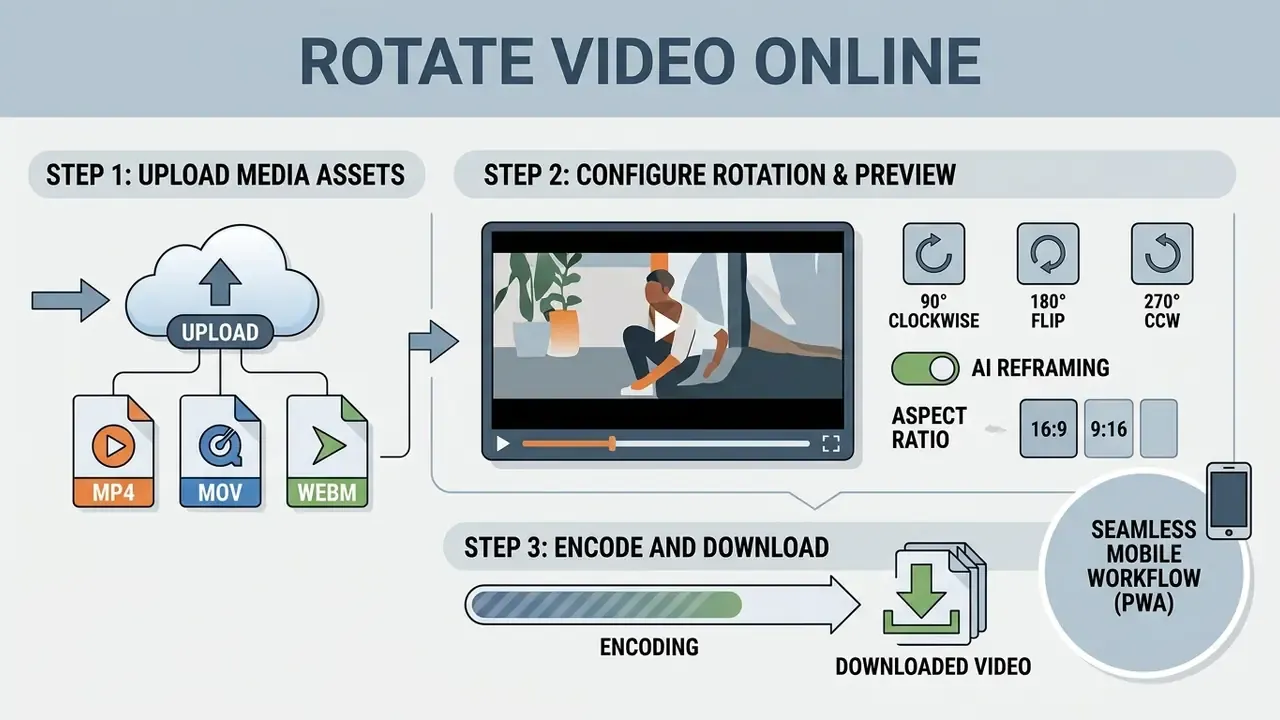
Learning how to rotate a video online comes down to a three-step browser workflow: upload the media asset, configure the rotation angle, export the updated file. An online video editor rotate tool removes desktop software dependencies and gives immediate visual feedback through a browser canvas preview. This lightweight flow supports rapid asset remediation across distributed teams, including contributors who never touch a full windows video editor.
Step-by-step checklist for rotating video online free
- Import the source video file.Load the clip from local storage via the "Choose file" control, drag and drop it into the upload zone, or connect a cloud account (Google Drive, Dropbox) to pull assets without a local copy.
- Select the angle and direction.Tap the clockwise or counter-clockwise control, where each tap advances the frame by 90°, or drag the freehand handle for a custom angle. Use
RandShift + Rto move faster on desktop. - Verify framing in the preview player.Confirm that the subject sits inside the safe zone, that no unintended black bars appear at the edges, and that on-screen text reads correctly. That last check is the quickest way to spot an accidental flip instead of a rotation.
- Choose the output container and export.Pick MP4 (H.264/AAC) for universal playback, start processing, then download the finished asset or save it straight back to cloud storage.
Step 1: Uploading Media Assets to an Online Video Rotator
Importing media into an online video rotator means dragging assets into the upload zone or selecting files through the browser file picker. Professional browser utilities run MIME type verification at intake, confirming compatibility before any server upload begins. Updated: according to Google Gemini API file-handling documentation (2024/2025), media APIs validate video container structures, for example video/mp4, video/quicktime, video/webm, video/x-flv, video/mpeg, video/wmv and video/3gpp, and enforce per-file caps (2 GB on the free tier, up to 20 GB on paid tiers) before processing. Consumer web rotators apply their own thresholds, most often 200 MB, 500 MB, or 2 GB for unauthenticated free sessions.
Step 2: Configuring Rotation Angle and Real-Time Preview
Step 3: Encoding and Downloading the Rotated Video
The final stage renders the re-oriented frame and delivers the asset to local storage. Depending on the online video tool, the export pipeline either updates container metadata flags or runs client-side WebAssembly re-encoding. Clicking download transfers the finished MP4, giving you an immediately deployable asset for mobile or enterprise media systems. To confirm the orientation was written correctly, inspect the delivered file's rotation metadata or display matrix with a probing utility such as ffprobe, MediaInfo or ExifTool. Some legacy players ignore the rotate flag entirely, so metadata-only rotations should always be spot-checked on a target device.
Seamless Mobile Workflow via Progressive Web Apps (PWA)
Modern web rotators run as desktop-class Progressive Web Apps inside mobile Safari or Chrome on iOS and Android. Operators scan a QR code on a web dashboard to hand off mobile-captured clips instantly, apply hardware-accelerated WebGL rotations, and save formatted files straight into the native photo library, with no App Store or Google Play download involved. That removes the classic friction point: shipping footage to a desktop just for a five-second orientation fix.
Search demand for this workflow is not English-only. Spanish-language queries such as "rotar video online", "girar video online" and "convertir video horizontal a vertical online" describe the same browser task, which is worth remembering when localising help content or product copy.
How to Convert Horizontal Video to Vertical Online (and Vice Versa)
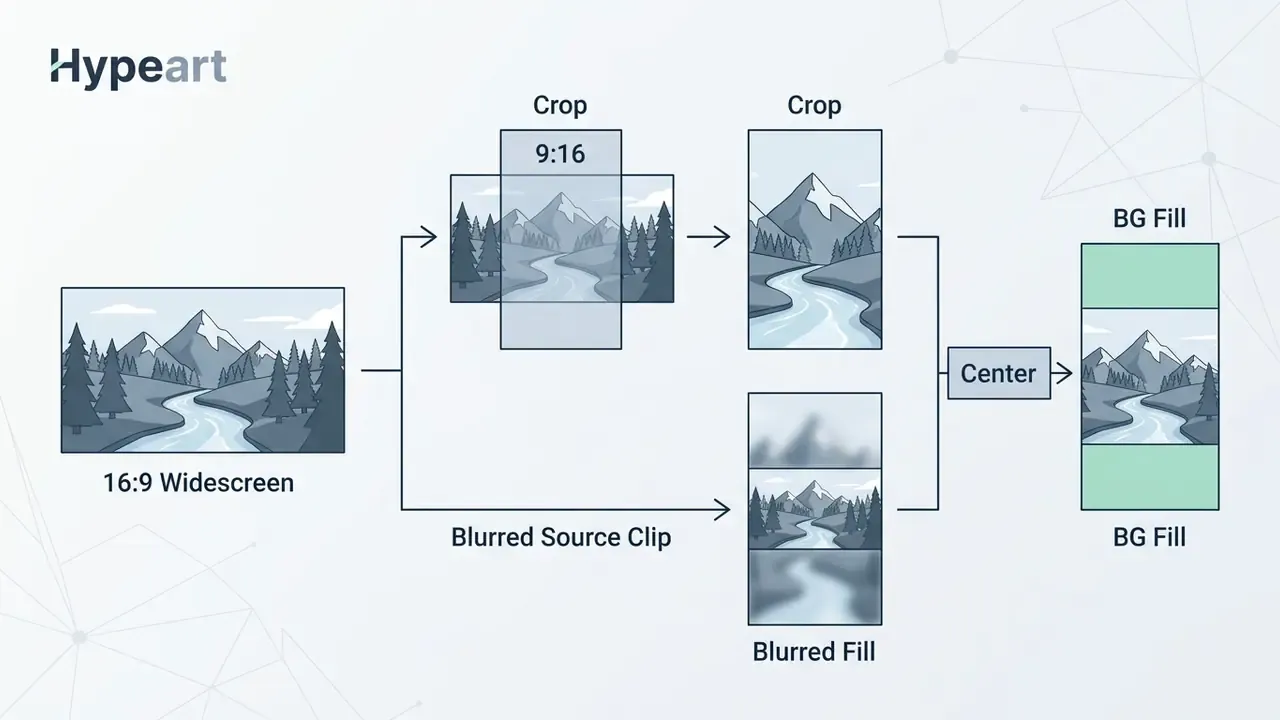
A convert horizontal video to vertical online task means adapting the underlying canvas aspect ratio from 16:9 widescreen to 9:16 portrait. Simply applying a 90° rotation turns horizontal clips sideways and then demands secondary framing work to avoid awkward viewing angles. Purpose-built editing tools let creators make vertical video horizontal online, or convert landscape assets, while keeping key visual subjects centered.
Three operations get confused constantly, and picking the wrong one is the single most common cause of a broken deliverable:
[ 90° ROTATION ]        [ CROP ]                  [ PILLARBOX / LETTERBOX ]
Orientation changes     Aspect ratio changes      Aspect ratio changes
Aspect ratio unchanged  Edges of image removed    Full image preserved
No pixels lost          Subject may be cut off    Bars added at sides/top
Microsoft's display documentation defines letterboxing as fitting a widescreen image into a narrower frame with black bars above and below, with pillarboxing as the reverse case (bars at the sides). The W3C MediaStream cropping specification, by contrast, describes crop-aspect-ratio as converting 4:3 to 16:9 by cutting image areas rather than preserving them with bars. Rotation touches neither. It reorients content without altering the width-to-height proportion.
Adapting Widescreen 16:9 Content for 9:16 Vertical Platforms
To convert horizontal video to vertical free online, editors fit widescreen 1920×1080 footage into a 1080×1920 vertical canvas built for TikTok, YouTube Shorts and Instagram Reels. According to the narrative literature review by Navarro-Güere (2023) in Revista Mediterránea de Comunicación, verticalization has established a distinct spatial grammar optimised for single-hand mobile consumption. Operators reach that layout through one of three documented methods: center-cropping primary subjects, applying blurred background fills to pillarboxed borders, or scaling the full frame inside the 9:16 canvas with padding above and below.
Manual Cropping vs. AI-Powered Smart Reframing (Face Tracking)
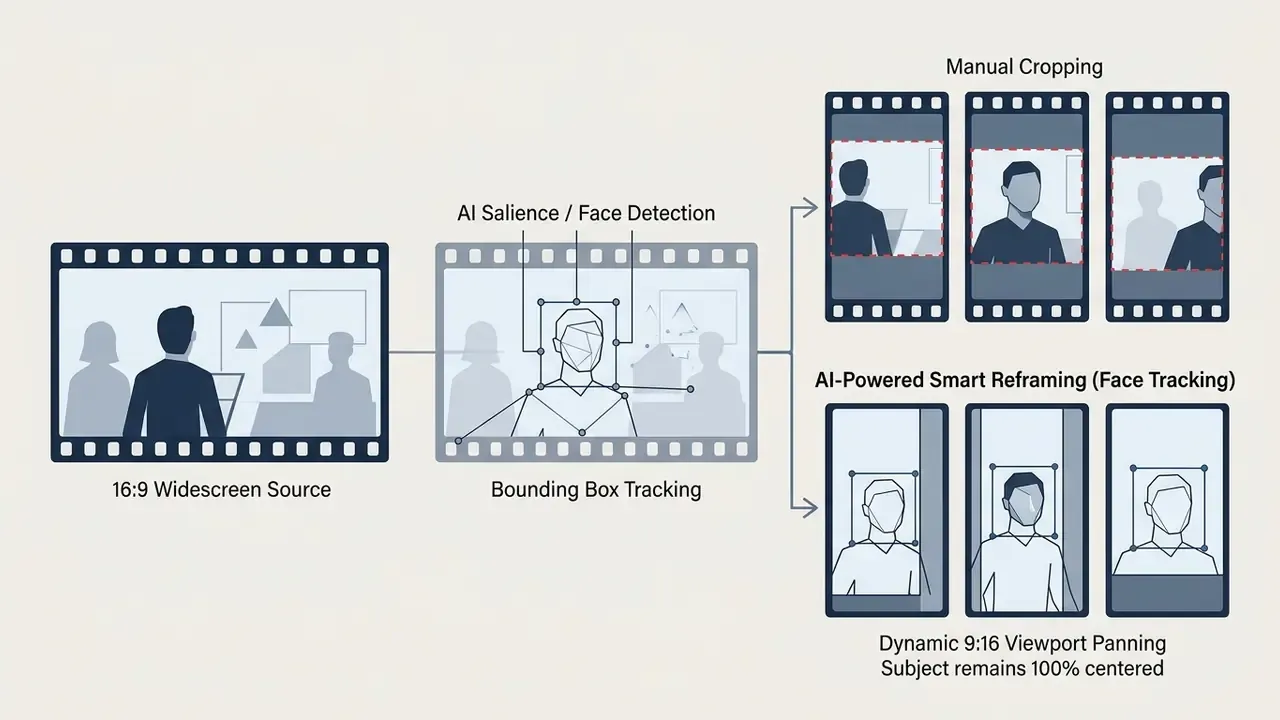
Traditional vertical conversion leans on static center-cropping, which cuts off any subject who steps outside the middle third of the 16:9 frame. The legacy remedy was manual keyframing in a desktop NLE: animating the position of the source clip frame by frame, slow and error-prone, and prone to jerky pans whenever a keyframe landed a few pixels off.
Modern browser-based editors integrate computer vision models instead (MediaPipe, or WebGPU-accelerated YOLO variants) to run AI Smart Reframing. The algorithm calculates continuous bounding boxes around primary human faces or high-salience motion vectors, then pans the 9:16 viewport automatically to keep active subjects centered, with no black letterboxing bars and no manual keyframes.
Practical guidance for smart reframing: keep the subject's eyeline in the upper third of the vertical frame, reserve the bottom 15% for platform UI overlays and captions, and review the AI-generated pan on a phone-sized viewport before publishing. Since more than eight in ten social feed views start muted, pairing the reframed export with burned-in or animated subtitles measurably improves retention. If part of the creative is text-driven, a word art generator can produce vertical-safe title cards that survive the crop.
Automated reframing is still automation, and it deserves the same scepticism as any other model in the stack. Debates about creative displacement, from why is ai art bad to will ai create more jobs, are unresolved. For a rotation pipeline, the practical stance is narrower: keep a human reviewer on the final frame before publication.
Converting 9:16 Vertical Assets to Widescreen 16:9 Without Distortion
Understanding how to convert vertical video to horizontal online without image distortion means placing 9:16 portrait assets into a 16:9 landscape canvas using pillarboxing or background expansion. Stretching a vertical image across a widescreen canvas creates severe aspect distortion, and the non-negotiable rule is simple: never scale width and height independently. As outlined in CapCut framing guides (2026), intelligent reframing and 16:9 ratio presets preserve natural subject proportions while filling side margins with complementary graphics or blurred video overlays. Where that side space must contain real image data rather than a blur, generative video outpainting, first demonstrated in CVPR workshop research on frame extension, synthesises plausible content beyond the original borders without distorting the source pixels.
Illustrative scenario (composite example). A digital communications team adapts vertical smartphone interviews for a widescreen corporate portal. Instead of stretching the 9:16 assets, the editor places them on a 16:9 canvas with blurred background side-bars, prepares supporting still frames in an online photo editor, and exports at native 1080p. The reframing keeps subject resolution intact, satisfies portal playback standards, and eliminates aspect ratio distortion across every internal video channel.
Container Formats, Encoding Quality and File Sizes in Video Rotation
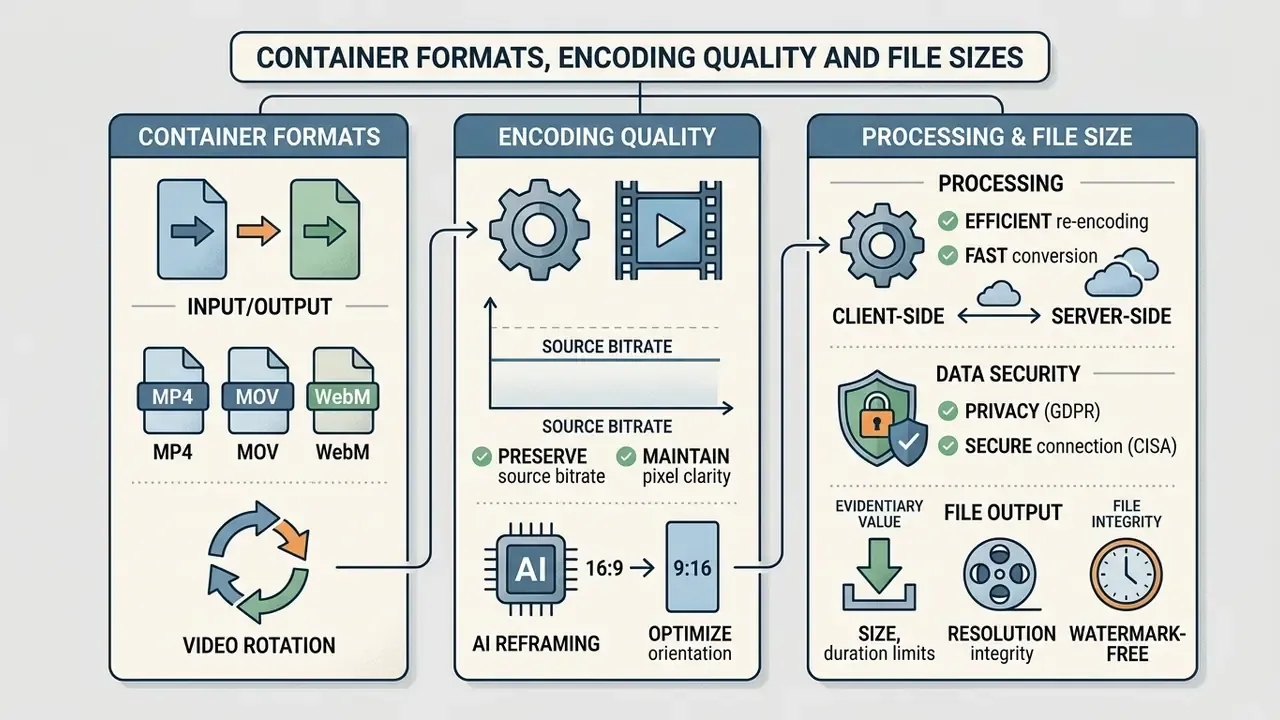
The technical performance of an online video rotator free utility rests on container format support, codec efficiency, and the re-encoding parameters you choose. Rotating a video file happens either losslessly, by altering container metadata flags, or destructively, through frame re-encoding. Understanding container mechanics is how you keep visual quality while controlling output file size.
Supported Input and Output Video Containers
Modern web rotators accept a wide array of input video formats: MP4, MOV, WebM, AVI, MKV, WMV, M4V, FLV, HEVC-encoded streams, and animated GIF. As documented in Cloudinary Video Transcoding Specifications and the MDN Web Docs video codec guide, MP4 container files paired with H.264 video and AAC audio deliver universal playback compatibility across operating systems and browsers, whereas AVI is frequently upload-supported but not delivery-supported. Most browser utilities therefore default to MP4 export, guaranteeing smooth distribution across web channels.
Preserving Source Bitrate and Pixel Clarity During Rotation
Preserving source quality during a rotation is best achieved through stream copying paired with metadata modification. According to the FFmpeg formats documentation, setting -metadata:s:v:0 rotate=0 alongside stream copy flags (-c copy) updates orientation parameters instantly without touching pixel data. Genuinely lossless, because no frame is decoded or re-encoded. When physical frame transformation is required, via the transpose filter or for any non-90° angle, re-encoding becomes unavoidable, and output fidelity then depends entirely on the codec settings you pick.
"IEEE 1857-2023 defines subjective methodologies and objective metrics for evaluating the quality of traditional and AI-based video codecs."
Following those quality-evaluation principles, keep the target bitrate aligned with the original source resolution, roughly 10–15 Mbps for 1080p H.264, to prevent visible compression artifacts, banding and blocking after a re-encode.
| Video format | Lossless rotation (metadata) | Export compatibility | Bitrate setting | Recommended scenario |
|---|---|---|---|---|
| MP4 (H.264 / AAC) | Supported (rotate tag) | High (all browsers) | Match source (10–15 Mbps at 1080p) | Universal web export and social media |
| MOV (ProRes / H.264) | Supported (display matrix) | Medium (Apple ecosystem) | Automatic / high-quality preset | Professional editing and camera originals |
| WebM (VP8 / VP9) | Limited | High (browsers) | Dynamic (VBR) | Web apps and online interfaces |
| AVI / MKV | Requires re-encoding | Low (conversion needed) | Depends on H.264 target | Archival sources and legacy recordings |
| Animated GIF | Not applicable (frame rewrite) | High (all browsers) | N/A (palette-based) | Short loops, stickers, UI demos |
A practical rule for enterprise pipelines: if the pixels are already correct and only the display flag is wrong, change the metadata. Reserve re-encoding for cases where the raster itself must change. Teams handling large batches often pair the rotator with a video compressor to normalise bitrates after transformation, and automate the whole hand-off through documented endpoints described in the AI Media API Guides.
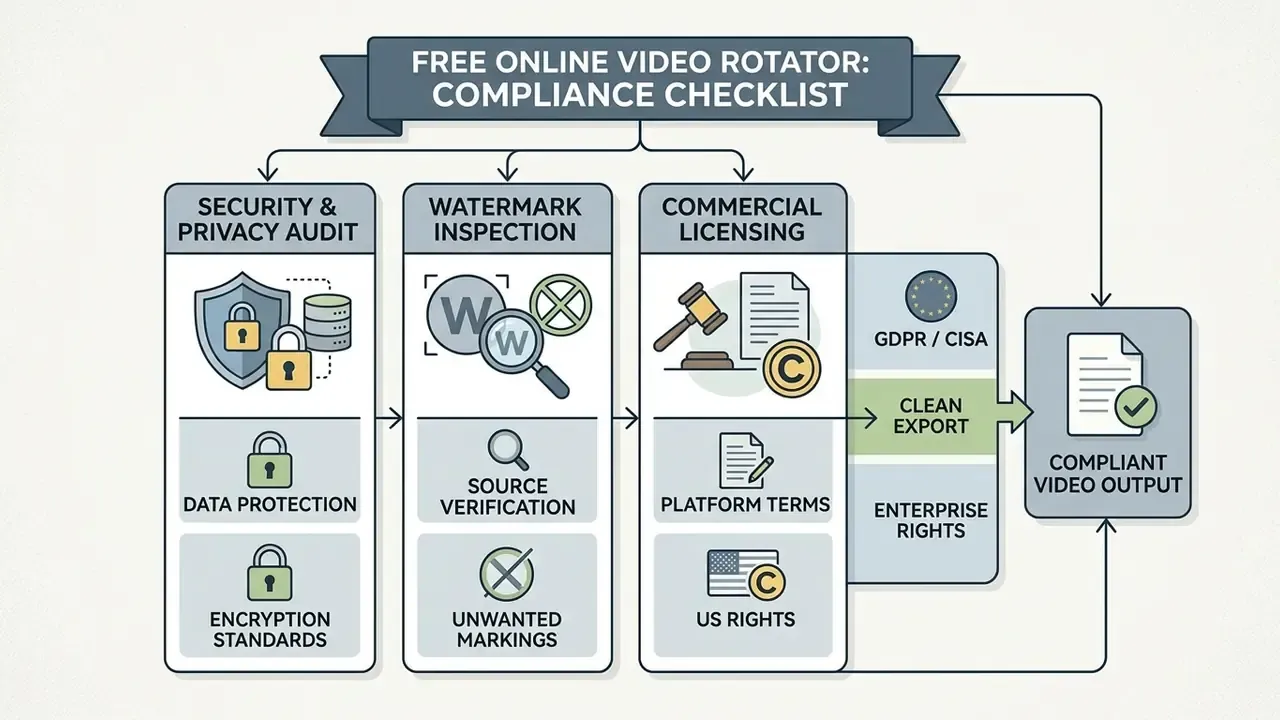
Free Online Video Rotators: Commercial and Enterprise Compliance Checklist
Limitations and Open Questions
Two honest caveats. First, metadata-only rotation depends on player behaviour, and behaviour varies. A clip that looks correct in Chrome may still play sideways in an embedded corporate viewer or an older set-top decoder, which is why device-level spot checks stay in the process. Second, AI reframing accuracy is not uniform: crowded scenes, fast lateral motion and multiple speakers still produce occasional mistracked pans, and published benchmarks for salience-based cropping are thin.
There is also an unresolved procedural question. Who owns the record of what was changed? In regulated publishing, the rotation itself is trivial, but the audit trail (who transformed the file, when, with which tool, and whether the original was retained) matters more than the transform. Where that evidence does not exist yet, treat the workflow as provisional rather than approved.
FAQ: Rotating Video Online
These edge cases come up most often when media teams handle unusual content formats with an online video rotator. Questions cluster around platform URLs, animated images, partial-timeline edits, and multi-step aspect ratio changes.
Can you rotate a YouTube stream or DRM-protected asset online?
Direct URL rotation of hosted YouTube clips is blocked by cross-origin domain boundaries and Digital Rights Management protocols. As detailed in YouTube embedding documentation, embedding is controlled at the domain level, and age-restricted videos redirect viewers back to YouTube on most third-party sites. Third-party tools therefore cannot alter cloud-hosted streams. Creators must download or retain the original source files, process them locally, and re-upload the finished media.
Can you rotate only part of a clip?
Standard online rotators apply geometric transformation matrices globally across the whole timeline, so there is no one-click way to rotate a single scene. To fix one inverted segment inside a long recording, run a non-destructive split at the boundary timestamps, apply the 90° or 180° rotation to that segment only, then re-join and export the combined track in a full timeline editor.
Can you rotate animated GIFs and preserve transparency?
Browser-based rotators fully support animated GIF files at 90°, 180° and 270°, and many also allow custom angles. Because non-90° rotations enlarge the canvas bounding rectangle, the tool must either fill the exposed corners with a solid background or preserve PNG-style alpha transparency to avoid edge distortion.
What are the cloud import and file size limits?
Enterprise-grade utilities connect directly to Google Drive and Dropbox through OAuth2 APIs, bypassing local upload bottlenecks. Free unauthenticated tiers usually cap uploads between 500 MB and 2 GB, while client-side WebAssembly tools handle files up to roughly 4 GB entirely in browser memory, with no remote transfer delay.
Does rotation change resolution or quality?
A metadata-only rotation preserves the original resolution and bitrate exactly. A 90° or 270° pixel rotation swaps width and height (1920×1080 becomes 1080×1920) but does not resample the image, provided the export bitrate matches the source. Quality loss shows up only when the encoder is set below the source bitrate, or when the container moves to a less efficient codec.
Can you rotate video on iPhone or Android without installing an app?
Yes. Open the rotator in mobile Safari or Chrome, upload from the camera roll, apply the rotation, and save the export back to the photo library. Progressive Web App installation is optional and needs no App Store download.
Is a preview available before saving?
Reputable tools render a preview in an HTML5 player before export. It is the fastest way to catch an accidental mirror flip or an unintended 180° inversion before you commit to a render.
Can automated tools also handle captions and titles?
Partly. Reframing engines position the viewport, not the text. Caption timing and title layout still come from a separate step, whether that is a subtitle track or a word ai generator used to draft on-screen copy, then reviewed by an editor before burn-in.
A Safe Next Step
Start narrow. Pick five representative clips, run them through a candidate rotator, and check three things: whether the export carries a watermark, whether the rotation flag survives on your target players, and whether the vendor's terms actually permit commercial use. Document the results. That short test tells you more than any feature list.
For deeper technical work, the AI Media Comparison Matrices map tool capabilities across enterprise environments, and the AI Media Glossary defines the container, codec and orientation terms used throughout this guide.
Social Media Aspect Ratio Reference Table
Rotation and reframing decisions ultimately follow the destination placement. The matrix below consolidates frame geometry, resolution, adaptation method, and the bitrate window publishing teams request most often.
Platform ingest ladders published by major hosts back these ranges up: 1080p sources are typically ingested at 10–15 Mbps, while 4K sources climb to roughly 44–85 Mbps depending on codec and frame rate. Ad-serving specifications are stricter, capping the longest side at 1920 pixels and accepting target bitrates from as low as 120 kbps up to about 7000 kbps. If you need to model storage or delivery costs across a batch, the AI Media Calculators cover the arithmetic.