Last updated: August 2026 · Reviewed for: Veo 3.0, Veo 3.1, Veo 3.1 Fast, Veo 3.1 Lite · Audience: marketing operations, AI governance, model risk, and developer teams
Key takeaways
- Veo 3.1 generates 4, 6, or 8-second clips at 24 FPS in 720p, 1080p, or 4K, with 16:9, 9:16, and 1:1 framing and synchronized native audio.
- Consumer tiers (Google AI Pro, AI Plus) are capped at roughly three generations per day; full-fidelity 4K and multi-reference workflows require Google AI Ultra or paid API access.
- API billing runs at $0.75 per second of generated video and audio, meaning $6.00 for an 8-second clip.
- Every output carries invisible SynthID watermarking plus C2PA content credentials, which matters for regulated marketing review.
Why this guide matters for a regulated marketing or risk function
What Google Veo is and what it can create
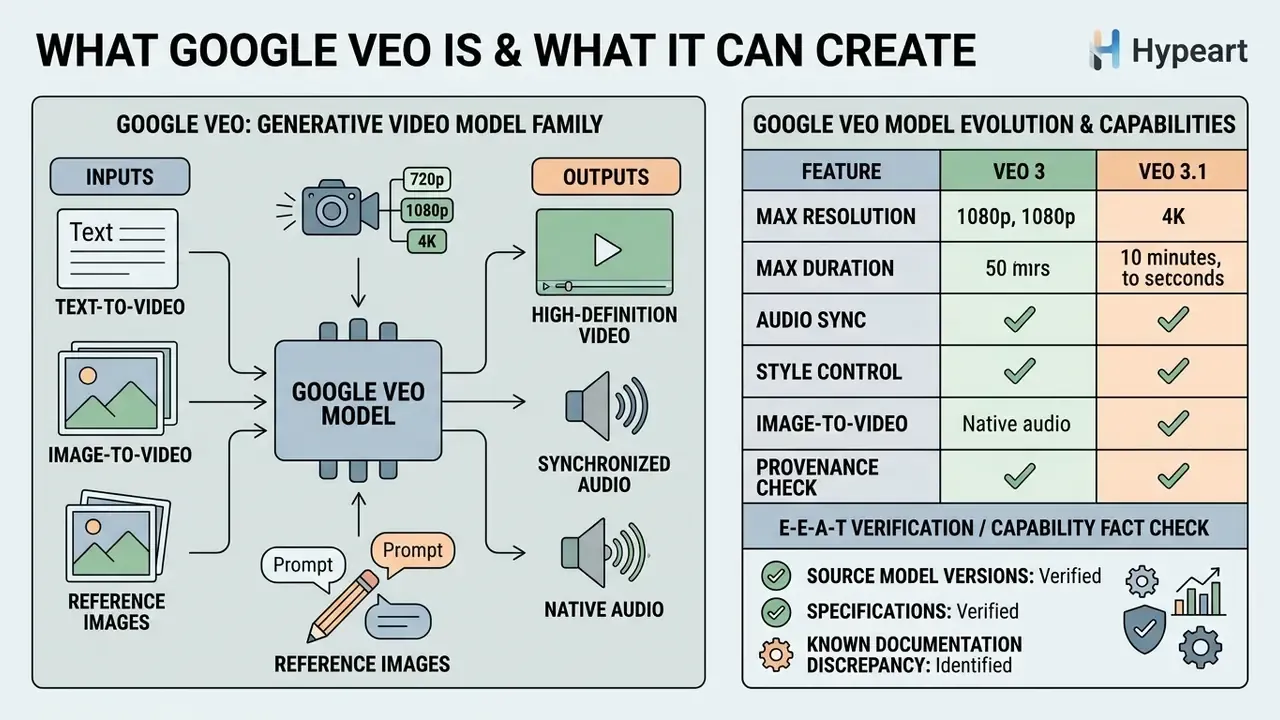
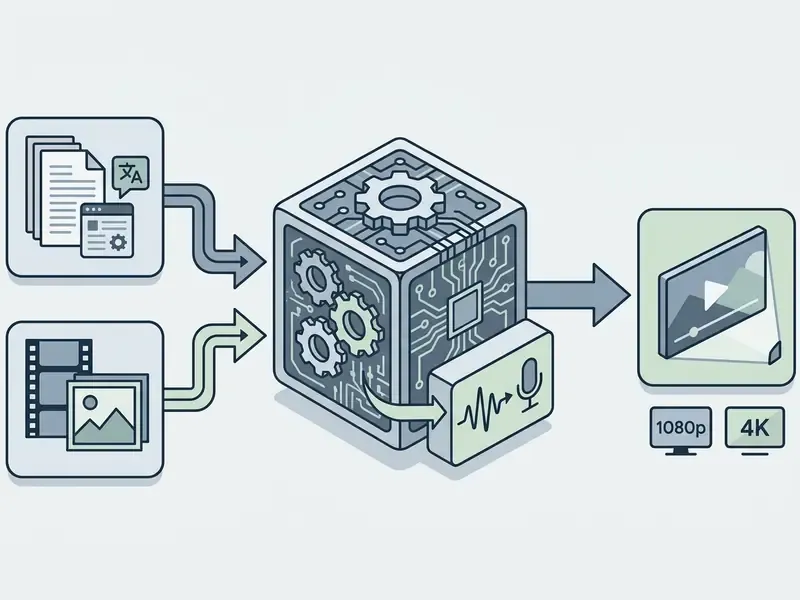
Google Veo is a generative video model family that synthesizes high-definition 720p, 1080p, and 4K video clips with synchronized native audio. Compared with other AI video generators, Veo's defining differentiator is that sound is produced inside the same generative pass rather than added afterwards. Built on diffusion architecture, Veo models process natural language prompts and reference images to generate motion sequences with realistic lighting and camera behavior.
«Veo synthesizes high-resolution video using a diffusion model conditioned on text or images, trained on large multimodal datasets.»
The model family includes Veo 3 and Veo 3.1, designed to handle cinematic text-to-video, image animation, and multi-shot continuity.
«Veo 3 solves segmentation, edge detection and super-resolution tasks zero-shot, without task-specific fine-tuning, measured across 18,384 generated videos.»
Comparative matrix: Google Veo model evolution
| Feature / Capability | Google Veo 2 | Google Veo 3.0 | Google Veo 3.1 (Latest) |
|---|---|---|---|
| Max Resolution | 720p | 1080p | 4K Native |
| Native Audio Synthesis | Not Supported (Silent) | Synchronized Ambient & Speech | Advanced Multi-track Soundscapes |
| Reference Image Support | None | Single Start Frame | Up to 3 Reference Images |
| Shot Control Mechanics | Basic Prompt Only | Camera Motion Syntax | First/Last Frame, Outpainting & Inpainting |
| Base Clip Durations | 5s - 8s | 8s | 4s, 6s, 8s (extendable to 141s) |
| Character Consistency | Low | Moderate | High (via @ tag and multi-reference) |
| Prompt Adherence | Imprecise; limited lighting and depth-of-field variation | Improved camera movement and text-to-video detail | Enhanced continuity tools and precise editing controls |
| Release Status (2026) | Stable | Stable | Newer; subject to change, some restrictions |
Model availability differs by access surface. A developer calling Veo 2 through Vertex AI may see capabilities that a consumer using the same model name in the Gemini app does not. Resolution and clip duration are also interdependent, so a 4K request may constrain available durations. Worth checking before you promise a client 4K vertical at eight seconds.
Text-to-video, image-to-video and reference images
Veo supports text-to-video generation from detailed descriptive prompts, image-to-video animation from single still frames, and reference-guided video creation. In text-to-video mode, the video generation model translates natural language instructions into multi-second clip outputs, which is the canonical behavior of text-to-video AI systems. Image-to-video generation uses a static image as an initial keyframe, extrapolating motion, camera movement, and environmental changes while keeping the original subject intact; this makes image-to-video generation the preferred route for product and brand assets that already exist as photography. Veo 3.1 extends these capabilities by accepting up to three reference images to maintain character and subject consistency across generated videos.
One nuance teams miss: reference images constrain identity, not physics. A locked face can still move in ways your brand guidelines would reject.
Audio, visual style and creative control in Veo
Veo integrates native audio synthesis, generating synchronized dialogue, ambient noise, and sound effects within the same generative pass as the video.
«Veo 3 natively generates rich audio, including dialogue, sound effects and music, synchronized with video in a single pass, removing external editing steps.»
This single-pass architecture prevents audio-visual desynchronization. Creative control comes from explicit prompt instructions specifying visual style, camera movement, lens focal length, lighting, and camera angles. According to the Sci-VBench benchmark study (2026), Veo 3.1 achieved a Visual Trustworthiness score of 4.10 out of 5 and a Physical Grounding score of 2.83, which suggests strong rendering of realistic motion but weaker handling of strict physical causality.
«Sci-VBench evaluated 16 frontier models, including Veo 3.1, on scientific video prompts across visual trustworthiness, scene consistency and physical grounding.»
E-E-A-T Verification / Capability Fact Check
How to access Google Veo AI video generator
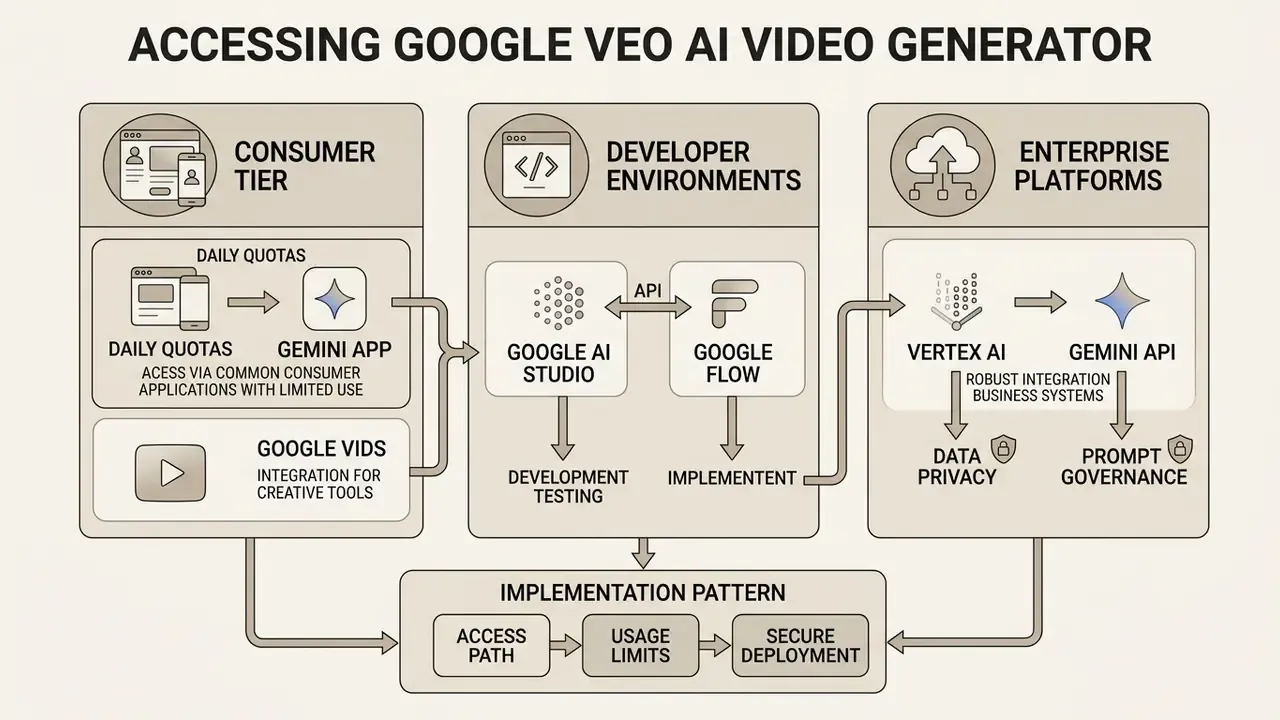
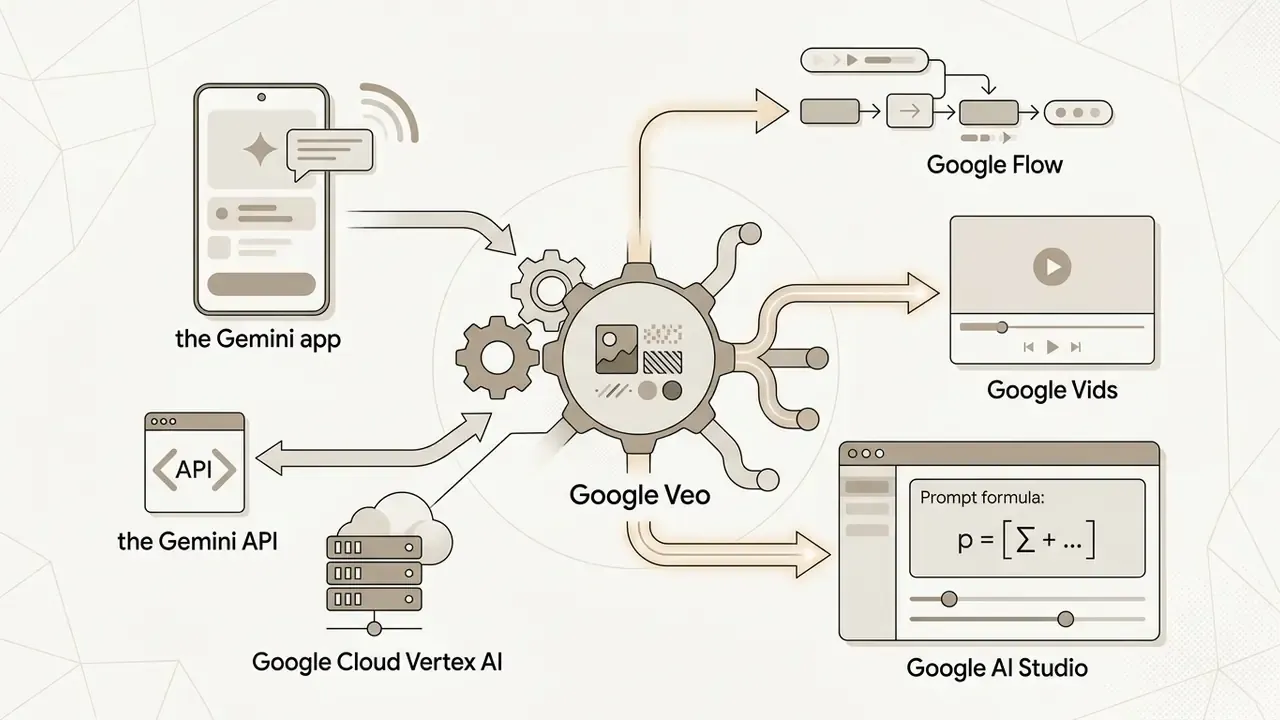
Google Veo is accessible across consumer applications, developer environments, and enterprise cloud platforms, depending on required scale, programmatic control, and security posture. Users can choose between simplified consumer interfaces, interactive workspaces, developer APIs, or enterprise cloud infrastructure. Teams that also benchmark leading AI video generators should map each route against their governance model before granting access, and our broader AI Media Comparison Matrices are a reasonable starting point for that mapping.
| Access Path | Primary Target Audience | Interface Type | Typical Clip Output & Resolution | Control Level | Core Enterprise Use Cases |
|---|---|---|---|---|---|
| Gemini app | Individual creators & business users | Web / Mobile Chat UI | ~8 seconds; 720p / 1080p | Basic prompt controls | Rapid visual previews, short social clips |
| Google Flow | Creative teams & video editors | Interactive workspace with timeline | Short clips & extended multi-shot sequences | Medium; timeline refinement & scene extension | Storyboarding, multi-scene video production |
| Google Vids | Workspace business teams | Collaborative video editor | ~8 seconds; 1080p | Medium; in-app text-to-video | Corporate explainers, internal updates, presentation B-roll |
| Google AI Studio | Developers & technical prototypers | Web IDE for Gemini API | 8-second clips; 720p / 1080p / 4K | High; direct parameter & model selection | API prompt engineering, model testing |
| Gemini API | Software engineers & automation teams | Programmatic HTTP / SDK | 8 seconds base; extendable to 141 seconds | Very High; asynchronous operational control | Automated content pipelines, app integration |
| Vertex AI | Enterprise IT & Model Risk teams | Google Cloud APIs & Console | 4, 6, or 8 seconds; up to 4K resolution | Very High; enterprise IAM, storage & audit logs | Scalable commercial video generation |
| Gemini Enterprise Agent Platform | Business unit leaders | Cloud Console with task templates | 4 to 8 seconds; 720p / 1080p / 4K | Medium-High; reference images & safety controls | Product demos, branded marketing assets |
Using Veo in Gemini app, Google AI Studio, Google Flow and Google Vids
Individual users access Veo in the Gemini app by opening the Tools menu, selecting Create video, then submitting text prompts, a template, or up to three reference files. Google Flow provides a creative workspace where teams create a new project, select a generation mode (Text to Video, Frames to Video, or Ingredients to Video), and organize generated clips on an interactive timeline. Google Vids embeds Veo inside the Workspace editor, which suits explainers, onboarding material, internal announcements, and presentation B-roll produced collaboratively by non-specialist teams; the same surface pairs well with an ai slide generator when a training module needs both deck and motion assets. Google AI Studio serves developers prototyping video applications, offering direct model controls for Veo 3.1 alongside parameter adjustments for aspect ratio and resolution.
A small practical note. Sharing one Ultra seat across a team is a common shortcut, and it quietly destroys attribution, because every generation appears under a single identity.
Using Veo through Vertex AI and Gemini API
Enterprise teams deploy Veo programmatically through Google Cloud Vertex AI or the Gemini API for automated media workflows.
«Vertex AI makes Veo available to enterprises, generating high-quality video from text or image prompts for embedding directly into production content pipelines.»
How to use Google Veo 3: step-by-step video generation workflow
Generating video in Google Veo 3 requires a structured operational sequence, from initial scene design to final clip export. This is the section most people mean when they search for how to use Google Veo 3 video generation in practice.
«Veo 3.1 generates eight-second videos at 720p, 1080p or 4K with native audio; scene extension raises total runtime to 141 seconds.»
A standardized workflow keeps visual quality consistent, prevents aspect ratio mistakes, and makes prompt iteration cheap rather than random.
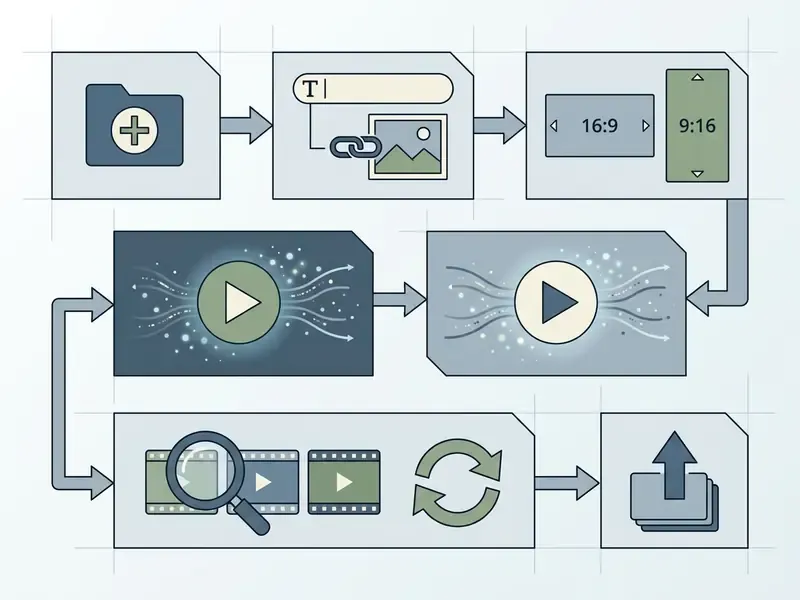
Step-by-step workflow sequence
- Initialize ProjectOpen the designated interface (Gemini app, Google Flow, Google Vids, Google AI Studio, or Vertex AI console) and create a new project session.
- Configure Input AssetsSupply the text prompt or upload up to three reference images for image-to-video guidance.
- Set Framing & FormatSelect output aspect ratio (16:9 for landscape, 9:16 for vertical, 1:1 for square social feeds), target resolution (720p, 1080p, or 4K), and clip duration (4, 6, or 8 seconds).
- Execute GenerationTrigger the generation job and monitor the asynchronous prediction operation until execution reaches completion.
- Evaluate & RefineReview generated videos against prompt adherence and physical motion criteria; adjust prompt syntax or reference parameters if necessary.
- Export MediaDownload the finished MP4 file containing embedded native audio for post-production assembly.
Set up the scene, format and aspect ratio
Scene configuration begins by defining a single visual focus and selecting the target output frame. Standard landscape delivery requires a 16:9 aspect ratio, social media distribution relies on vertical 9:16 formatting, and square 1:1 output suits Instagram and LinkedIn feed placements. Updated: set framing guidelines before generation so that primary subjects remain centered within active viewing zones.
«EBU R 155 defines safe framing and cropping zones for professional video production, ensuring correct presentation across all delivery screens.»
The recommendation is practical: overlay framing graticules matching the target output ratio, keep the cropping area centrally aligned within the 16:9 raster, and for vertical masters either rotate the image into a 16:9 raster or place the 9:16 frame bottom-centre inside a black 16:9 frame without rotation. Higher resolutions such as 1080p or 4K preserve enough visual detail for professional distribution and for later reframing.
Generate, compare and refine video clips
Executing a generation job yields candidate video clips that must be evaluated for prompt adherence and physical plausibility. Evaluators examine subject motion, lighting consistency, and audio synchronization. Research practice offers a usable scoring template: benchmark studies rate semantic adherence on a five-point scale (whether the entities, actions, and relations named in the prompt actually appear) and score physical common sense as a separate binary pass or fail, then generate several prompt variants per shot and compare outputs side by side.
If the model shows visual artifacts or ignores prompt elements, refine by isolating camera motion commands from subject descriptions or by reducing scene complexity. Generating two to four variations per prompt before judging the model is standard practice, because single-pass evaluation misrepresents model capability. Keep the winning prompt text in a shared library; that library becomes your real asset, more than any individual clip.
Export clips and prepare them for video editing
Finalized clips are exported as MP4 files with embedded native audio. Because Veo generates discrete short-form clips (typically 8 seconds), long-form video production requires importing exported assets into non-linear video editors. Teams without licensed tooling can start with free video editing software or a dedicated YouTube video editor for platform-specific delivery. Editors combine clips, apply color grading, add secondary audio tracks, and trim transitions to build complete video products. For accessibility and compliance delivery, export H.264 MP4 at 1920×1080 (or 1280×720 as a fallback) and produce separate caption and transcript files alongside the video.
How to write Google Veo prompts for high-quality video
Prompt engineering for Google Veo requires a structured syntax that separates cinematography instructions, subject descriptions, action details, environmental context, visual style, and audio specifications.
«Veo has an advanced understanding of natural language and visual semantics, following complex prompts and cinematic terms such as "timelapse" or "aerial landscape shot".»
Structured prompts prevent prompt overload and produce predictable model behavior.
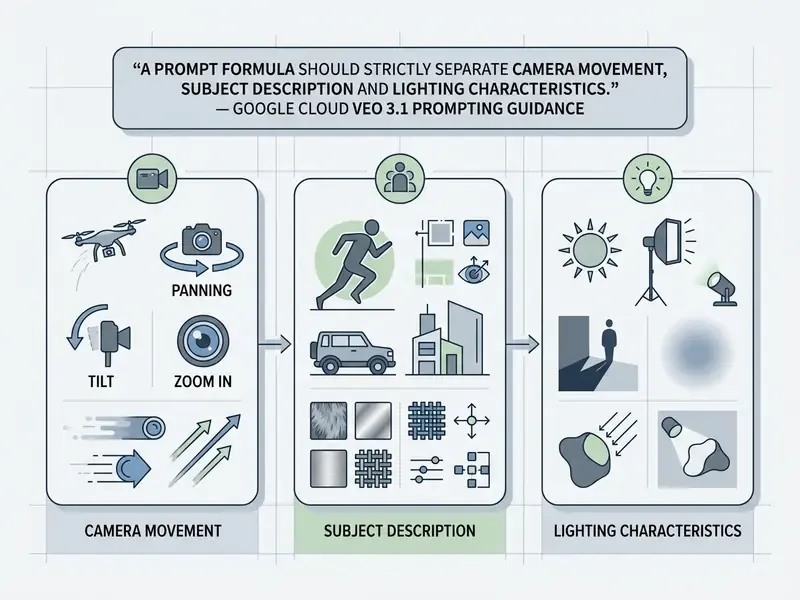
Prompt formula for one clear scene and controlled motion
High-quality video generation relies on a five-part prompt formula: [Cinematography] + [Subject] + [Action] + [Context] + [Style & Ambiance].
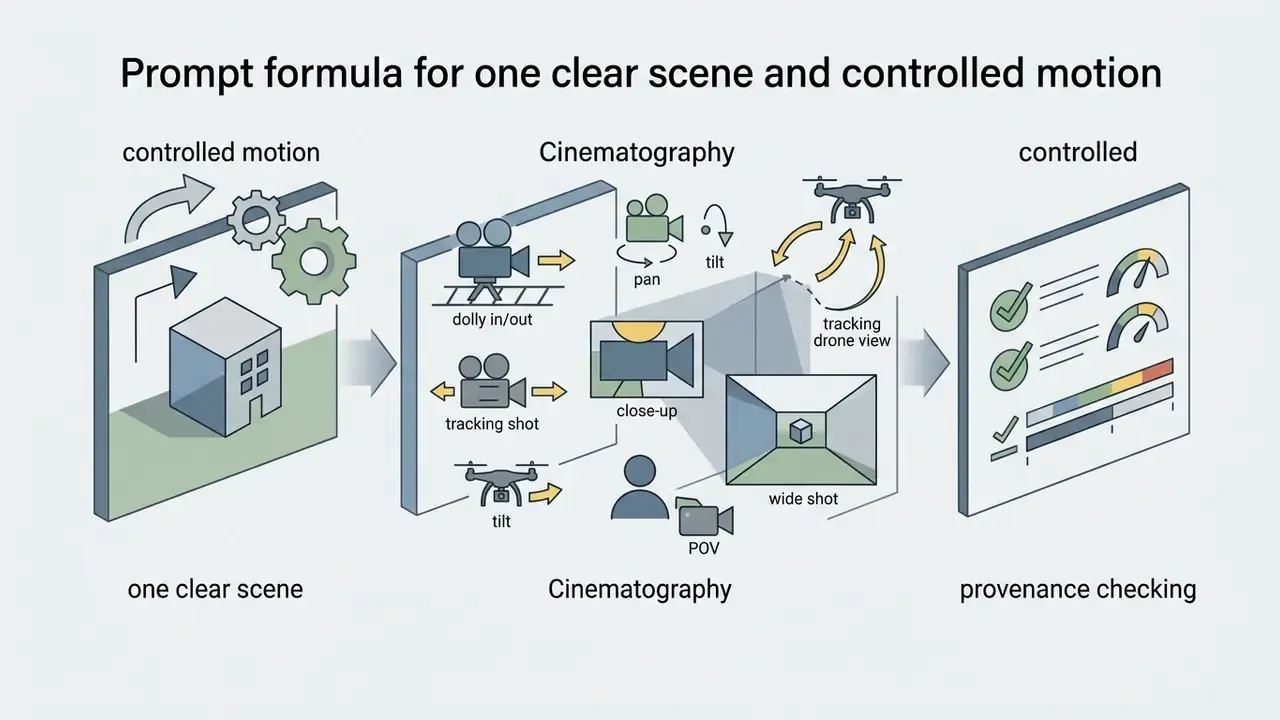
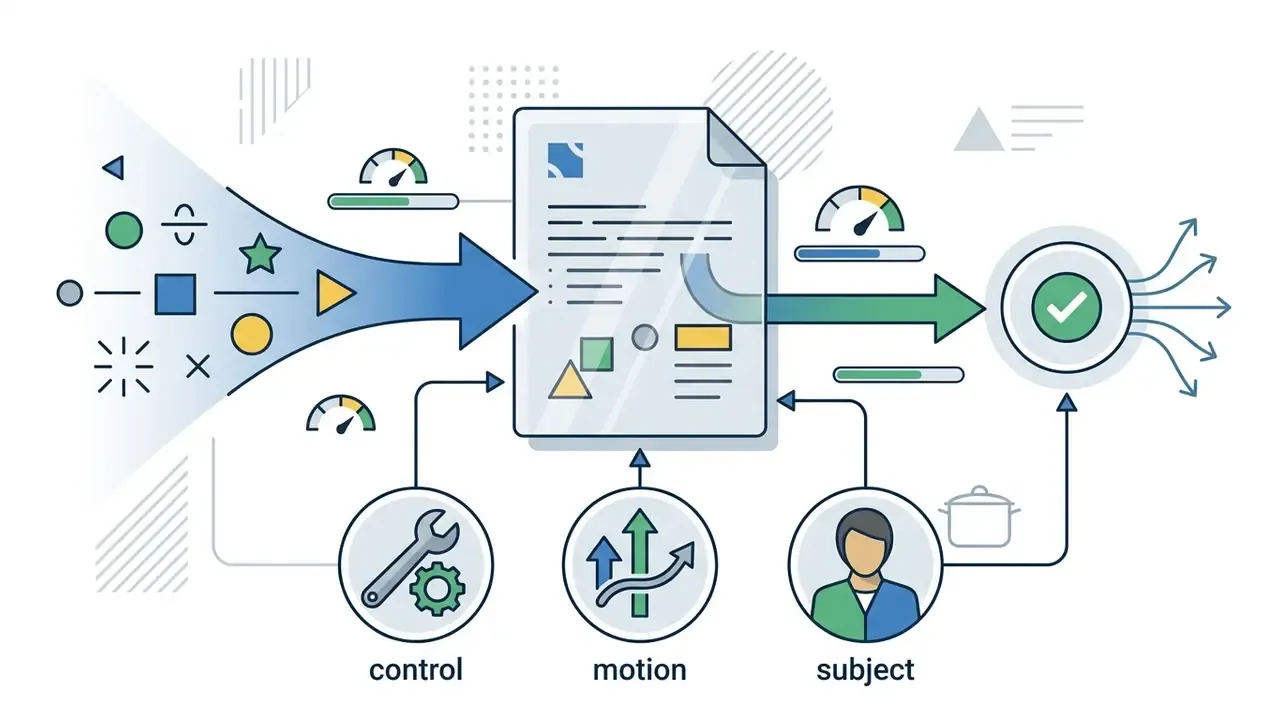
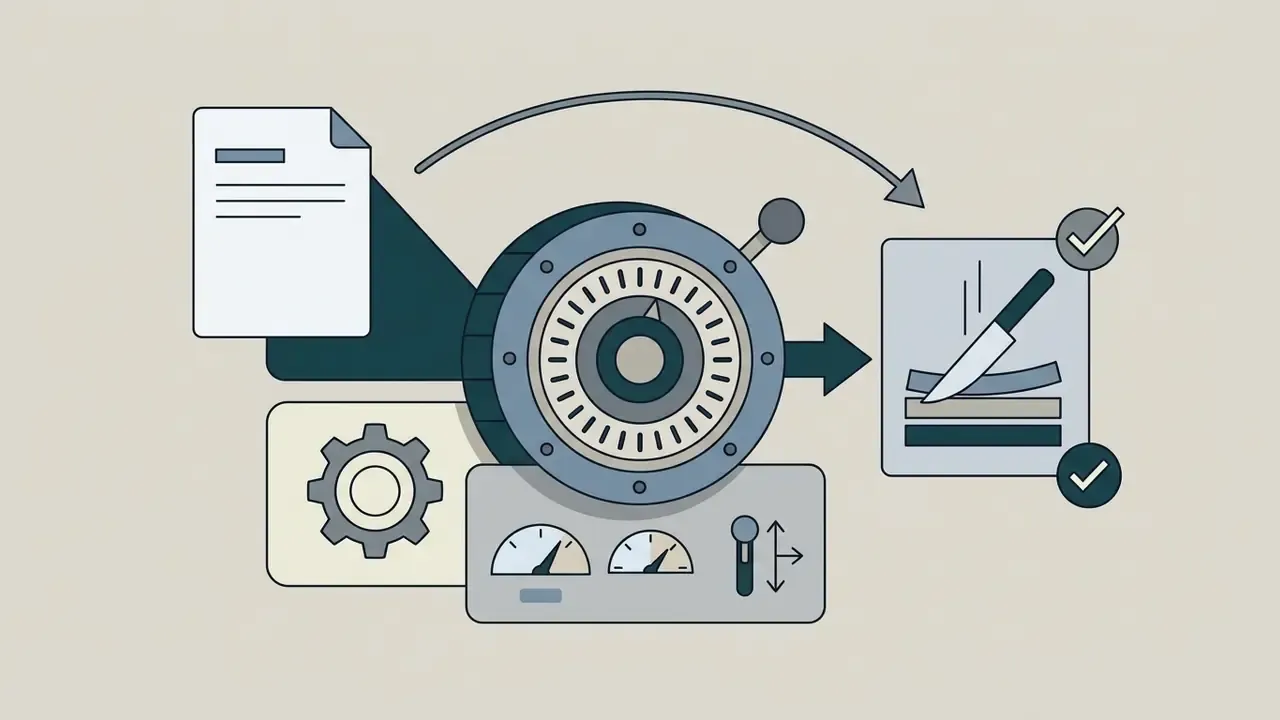
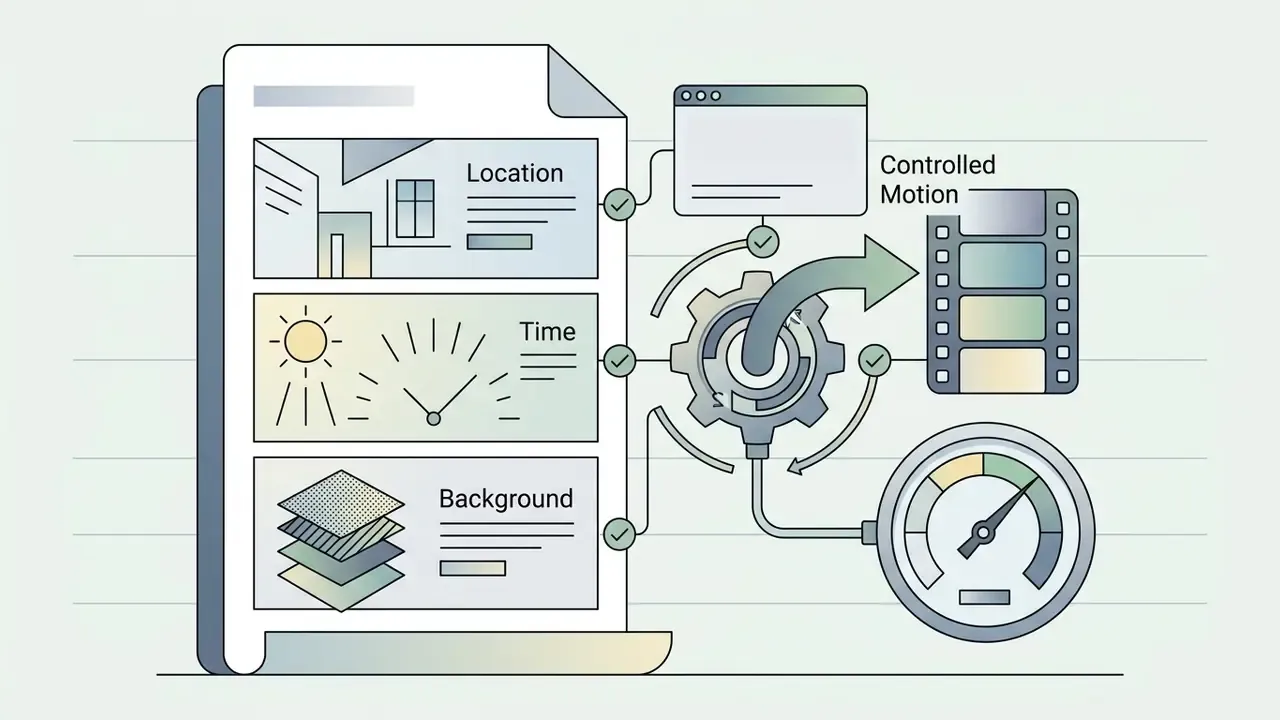
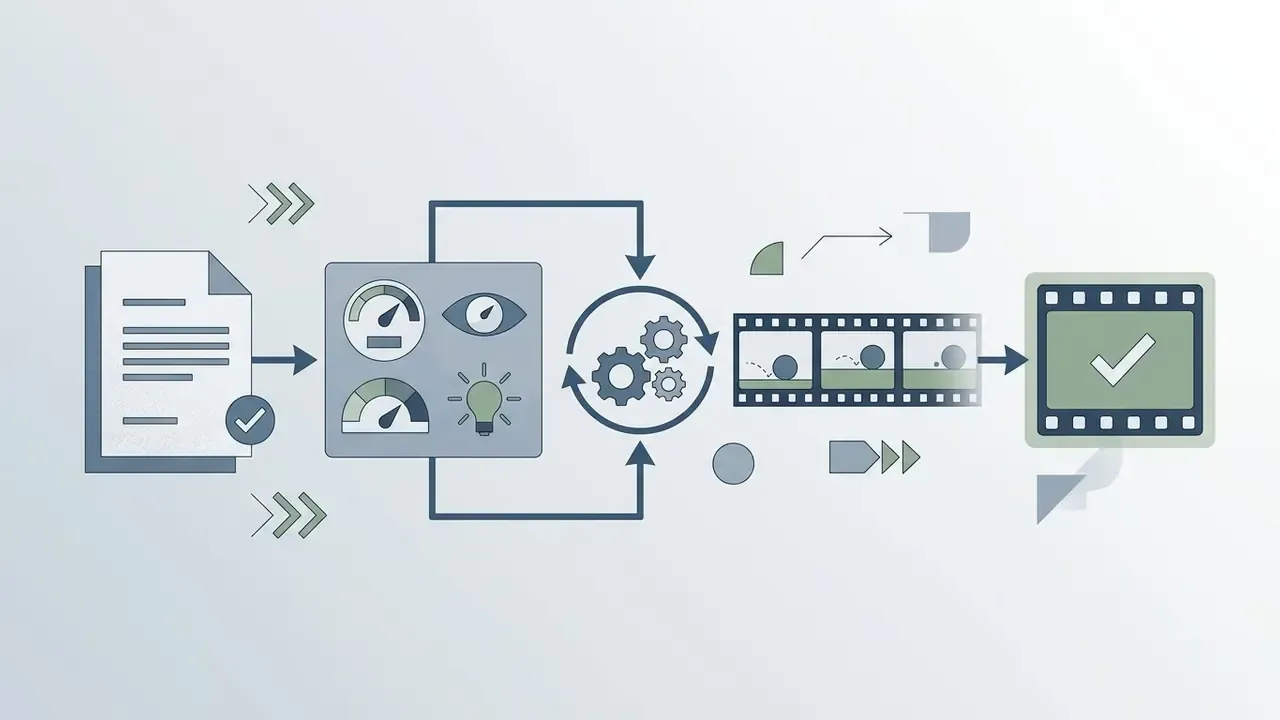
Separating camera movement verbs (dolly, pan, tilt, tracking) from subject descriptors minimizes visual hallucination and improves prompt adherence. Field testing consistently shows the model performs best on static shots or subtle movement such as a slow pan or dolly. Abrupt multi-scene changes produce less consistent results, and no amount of adjective stacking fixes that.
The same discipline transfers across formats. Copy teams running an ai product description generator already know the pattern: one claim per sentence, no competing instructions.
How to prompt native audio, dialogue and ambient noise
Native audio generation is controlled by adding explicit audio sentences to the text prompt. Dialogue must be enclosed in quotation marks (for example, "The chef says, 'Precision is essential in cooking'"). Ambient sound effects and background noise must be explicitly specified (for example, "Sound of a sharp knife chopping on wood, subtle background kitchen hum, no background music"). Keeping audio instructions aligned with visible actions prevents sound desynchronization, and Google's prompting guidance recommends writing audio instructions as separate sentences rather than clauses buried inside visual description.
For fully scripted narration, many teams still record or synthesize voice separately and compare quality against a dedicated ai voice generator before committing to model-generated dialogue.
How to use Google Veo 3 image-to-video with reference images
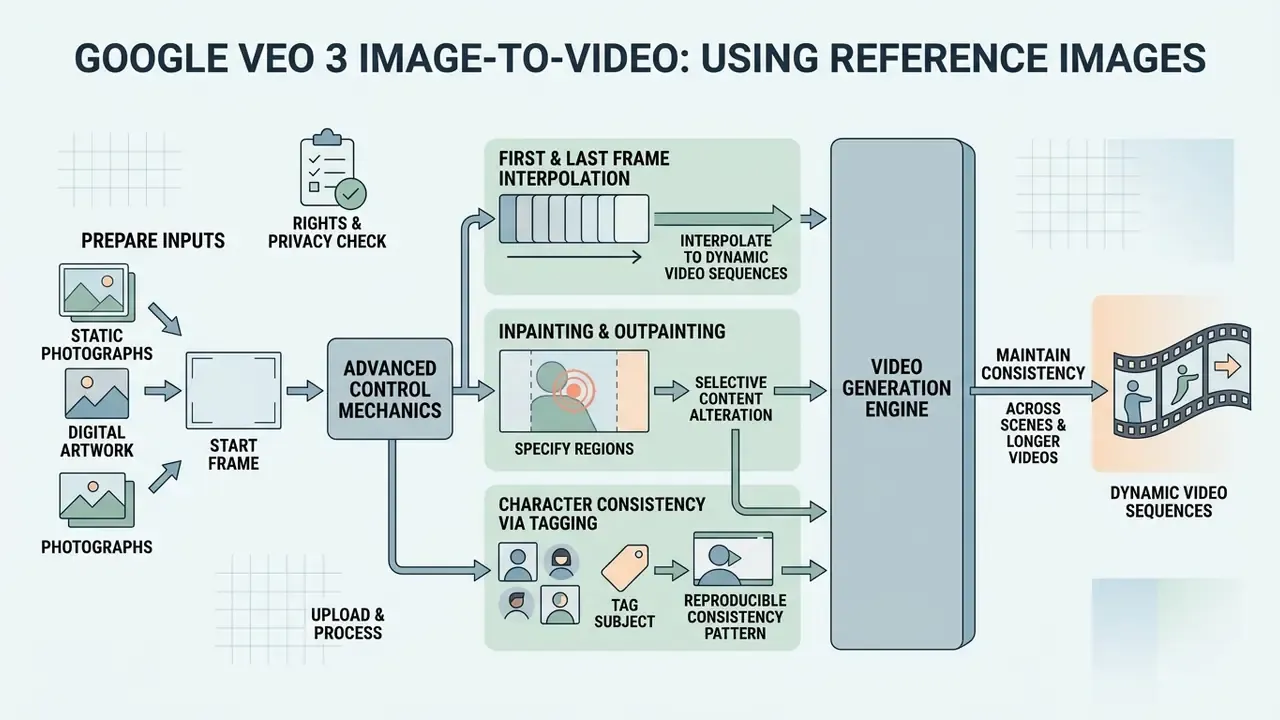
Veo 3 image-to-video mode turns static photographs and digital artwork into dynamic video sequences while preserving subject identity. Reference images give precise visual control over character design, product details, and environmental aesthetics.
Prepare reference images and the start frame
Reference image preparation requires uploading high-resolution assets that represent the intended subject or start frame. Google AI documentation specifies an image size limit of 20 MB per file, supporting PNG and JPEG formats in 16:9, 9:16, or 1:1 aspect ratios. For visual stability, reference images should feature clear lighting, distinct subject separation, and matching aspect ratios relative to the desired video output. Start and end images should also share scene geometry, lighting direction, and lens character; mismatched framing is the most common cause of jarring interpolation.
Where source photography is thin, an upstream ai product image pipeline or a controlled ai image training workflow can produce consistent reference sets before any video job runs.
Rights and privacy check before upload. Reference images are inputs to a commercial generation pipeline, so treat them as regulated assets: confirm you hold rights or a model release for any identifiable person, avoid uploading images containing personal data or confidential product roadmaps, and exclude third-party copyrighted artwork or protected brand marks. The same logic applies to commercial imagery pipelines described in our guide to commercial usage rights for AI-generated content.
Advanced control mechanics: first/last frame, inpainting, and character tagging
Veo 3.1 introduces precise spatial-temporal controls that go beyond basic text prompts:
- First and Last Frame InterpolationUsers can define both the opening frame (Image A) and the closing frame (Image B) using the dedicated Start and End upload slots. Veo 3.1 synthesizes the intermediate motion, producing smooth transitions between predetermined storyboard beats. Supplying a single image in both slots produces a seamless loop.
- Inpainting and OutpaintingExpand aspect ratios without reshooting (outpainting) or select specific bounding boxes within a generated video to swap objects, alter wardrobe, or remove visual distractions (inpainting). Camera controls and motion controls operate alongside these edits to preserve overall scene integrity.
- Character Consistency via TaggingIn multi-scene workspaces such as Google Flow and partner integrations, users can assign a handle (for example
@Spokesperson1) to an uploaded reference character. Reusing this tag across sequential prompts locks visual features, facial geometry, and clothing across distinct scenes. Teams building a recurring presenter may also compare this route with a purpose-built ai avatar video pipeline, which offers stricter identity control at the cost of cinematic flexibility.
Maintain consistency across scenes and longer videos
Multi-scene consistency is achieved by reusing identical reference image sets across multiple generation prompts. Veo 3.1 allows up to three reference images to lock subject appearance across different shots.
«Veo 3.1 accepts up to three reference images to preserve a character's appearance across multiple scenes, and supports first-to-last-frame transitions.»
To create longer videos, users apply Veo 3.1 scene extension, which uses the final second of a previous clip as the starting condition for the next generation, maintaining continuous camera trajectories and character styling. Chained extensions reach up to 141 seconds through the API, while the Flow interface commonly caps practical extension around one minute.
Reproducible consistency pattern. Instead of an unattributed case study, here is the four-part discipline used across multi-part explainer series: (1) build one master character sheet and upload the same three high-resolution references to every generation; (2) append a standardized visual style block, covering lighting axis, lens, colour palette and wardrobe, verbatim to each prompt; (3) keep a single dominant lighting direction across shots; (4) generate sequential 8-second clips and audit identity fidelity, wardrobe stability, stylistic continuity, and motion coherence as four separate checks before assembly. Published research on multi-shot generation supports the underlying mechanism of sharing features between shots to stabilize characters, though your own consistency rate should be measured rather than assumed.
Google Veo workflows for enterprise marketing, social media and product demos
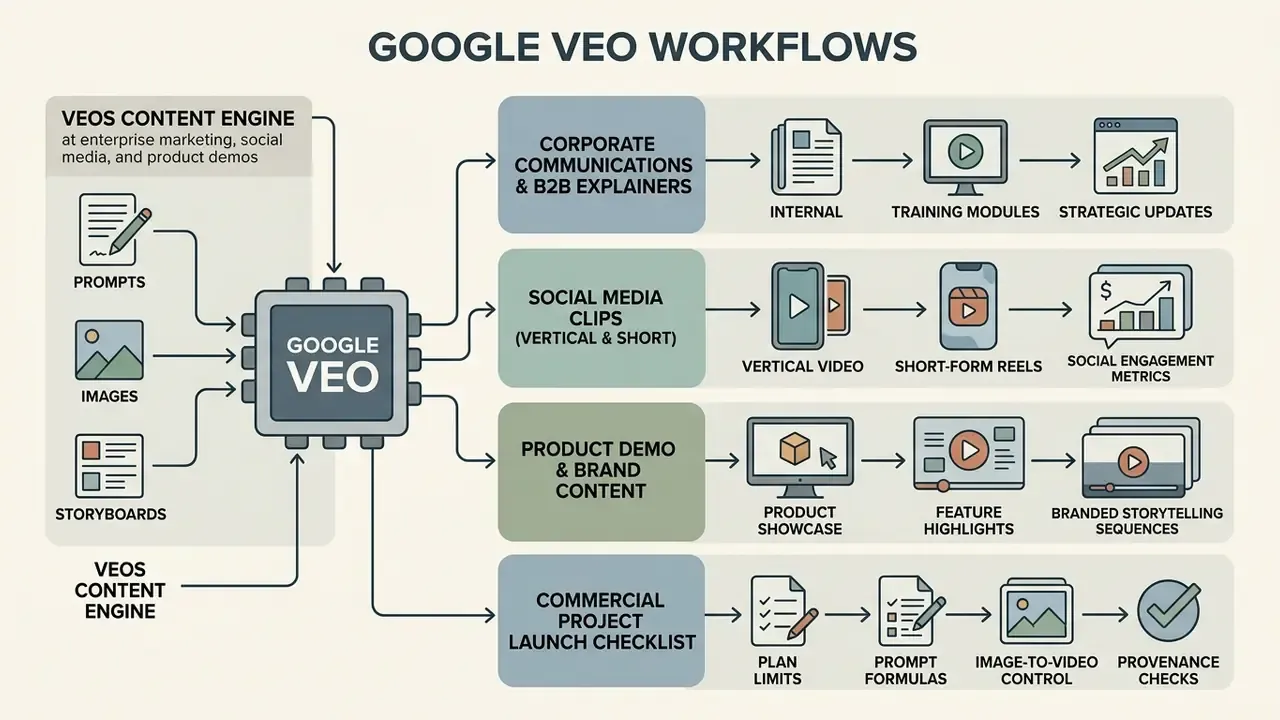
Enterprise marketing teams deploy Google Veo to accelerate content production for commercial campaigns, customer education, corporate communications, and product demonstrations. Google Cloud has explicitly named social media advertising and product demos as customer-facing Veo use cases, and positions the Fast variants for high-volume creative iteration. Generative video shortens asset turnaround while keeping brand alignment intact, assuming review does not become the new bottleneck. Teams comparing budget options can weigh Veo against best free AI video generators before committing to paid API volume, and model the per-second spend using our calculators.
Corporate communications, training and B2B explainers
For regulated and B2B environments, the highest-value applications are internal and client-facing explainers rather than trend-led social content: onboarding modules, policy change announcements, quarterly market update clips, sales enablement B-roll, and narrated product demonstrations. Google Vids is the natural surface here, because generation happens inside a collaborative Workspace editor with existing document governance. Vertex AI is preferred when output must land in a managed bucket with audit logs attached.
In financial services, healthcare, and legal marketing, each generated asset should enter the same review queue as any other promotional material, with the model ID, prompt, and reference assets logged for reconstructability. One question to settle early: who owns a clip after the campaign ends, marketing or records management?
Building a product demo and brand content workflow
Product demonstration workflows combine physical product photography with controlled camera motion prompts. Teams upload studio product photos as reference images and prompt Veo to generate dynamic orbiting camera moves, highlighting material textures and product features. Keep the original reference photography at the highest practical resolution, record any image alteration and scaling, and store the final delivery as H.264 MP4 so the asset can move through product catalogues and partner portals without re-encoding. Commerce teams already running AI Product Photography will find the reference discipline almost identical.
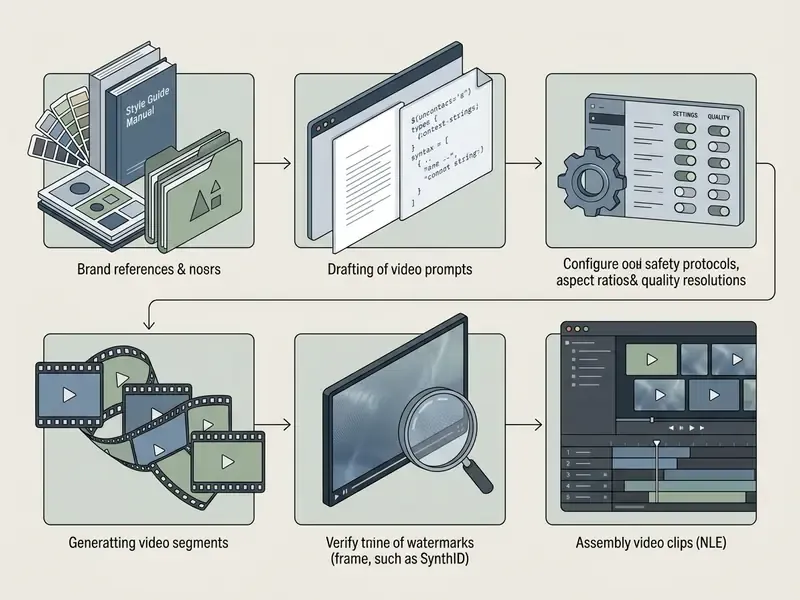
Commercial video project launch checklist
Checklist0 / 8
Google Veo pricing, free access and commercial-use checks
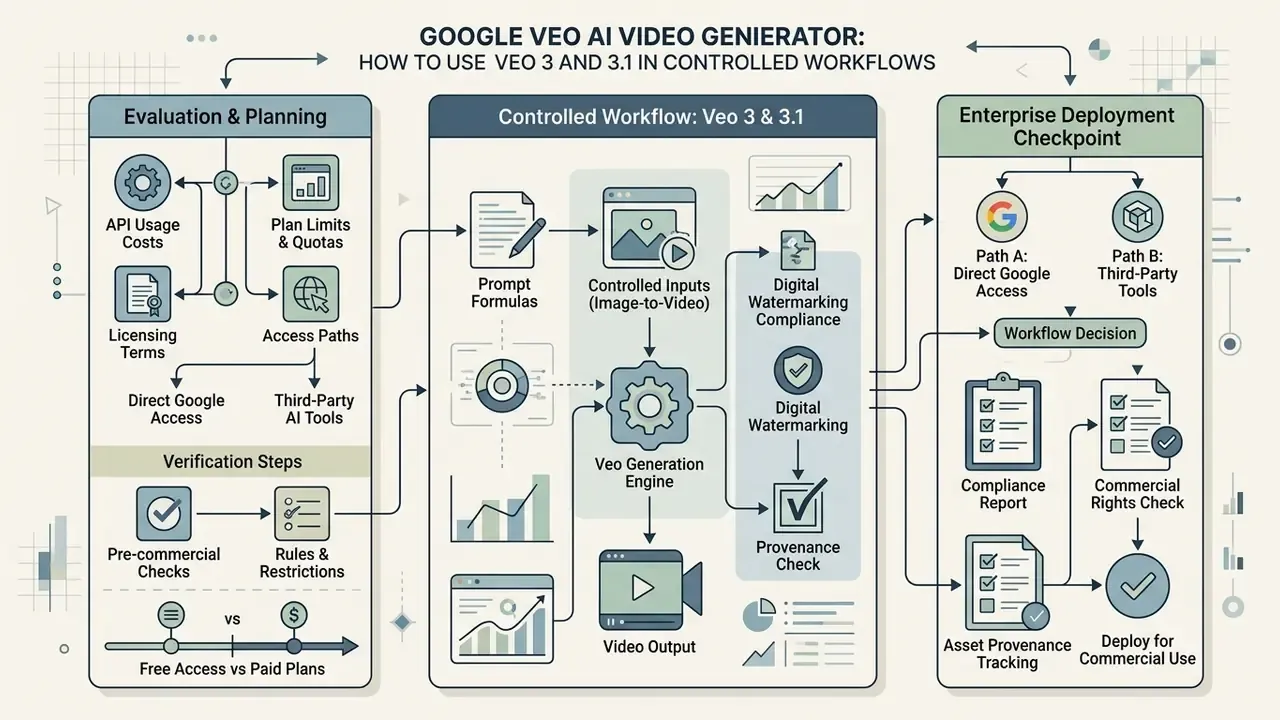
Evaluating Google Veo for enterprise deployment means analyzing API usage costs, licensing terms, digital watermarking compliance, and commercial usage rights. Teams asking how to use the Google Veo AI video generator free of charge should separate that question from production planning; the free surfaces exist, but they are evaluation tools, not delivery infrastructure.
What to check before using Veo for commercial video content: rules, watermarking and licensing
Google Veo API usage is billed at $0.75 per second of generated video and audio output. An 8-second video generation costs $6.00.
«Veo 3 is priced at $0.75 per second of video and audio; Veo 3 Fast offers a faster, lower-cost alternative for high-volume workloads.»
Limited testing features exist within consumer subscription tiers, but enterprise production requires paid Gemini API or Google Cloud Vertex AI access. There is no permanent free tier for API video generation, so teams exploring no-cost routes should evaluate free AI video generators separately from production planning.
All videos generated by Google Veo include invisible SynthID digital watermarks embedded directly into the visual and audio frames.
«All Veo 3 outputs carry SynthID digital watermarks identifying AI generation, reducing the risk of misinformation and misuse.»
SynthID watermarking provides verifiable AI provenance and persists through post-production editing, and Vertex AI additionally attaches C2PA content credentials to generated files. Commercial deployment rights are governed by the applicable Google Cloud or Gemini API terms of service. Enterprise customers using Vertex AI paid tiers retain commercial usage rights for AI-generated content for generated outputs, subject to compliance with Google's Generative AI Acceptable Use Policy; broader licensing questions sit in our AI Media Commercial-Use Hub. Note that preview-labelled products may carry explicit restrictions against commercial or production use, so verify the release status of the specific model ID before shipping a campaign.
Compliance verification path. Before publication, a reviewer should (1) confirm the file retains its C2PA manifest by inspecting content credentials in a supporting viewer or the Vertex AI job metadata, (2) verify SynthID presence using Google's detection tooling where available to the account, and (3) record both checks against the asset ID in the marketing review log. Regulated advertisers, including firms subject to SEC marketing rules or FINRA communications review, should also confirm whether internal policy requires visible disclosure that a promotional video was generated with AI, because watermark provenance is machine-readable rather than consumer-visible.
This information is general in nature and does not replace advice from a qualified legal or compliance professional. Licensing terms, model release statuses, and pricing change frequently; verify against current Google terms before commercial deployment.
Choosing between direct Google access and third-party AI tools
Organizations must choose between direct Google Cloud infrastructure and third-party AI wrappers. Direct Google access provides native parameter controls, enterprise IAM security, transparent per-second billing, and direct storage integration. Third-party platforms offer simplified interfaces or bundled subscriptions, but typically impose pricing markups and limited parameter customization. Functionally, resellers expose the same underlying Veo model. The difference is packaging, not capability, and third-party quoted prices and limits diverge because each wrapper applies its own billing layer and update cadence.
For procurement, one test settles most debates: ask the vendor for written retention, logging, and regional routing terms. If those answers are vague, the markup is not the real risk.
Google Veo troubleshooting: common generation issues
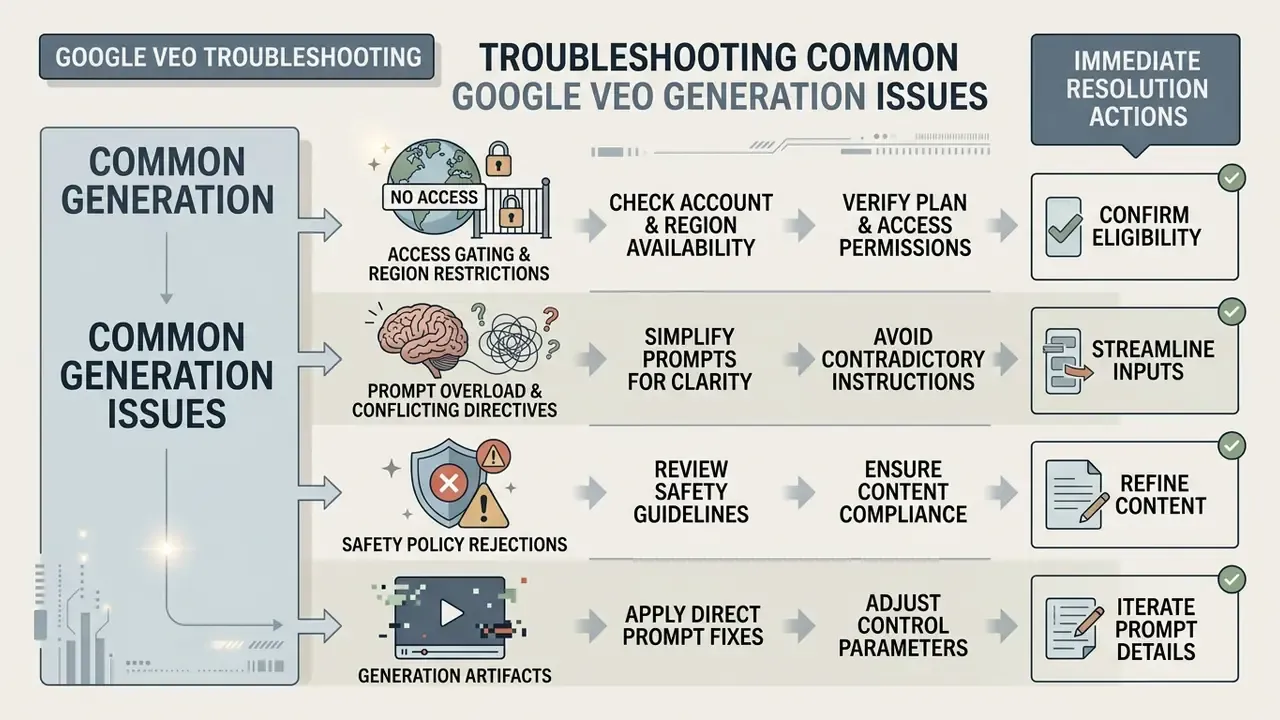
Understanding common generation errors and failure modes lets operational teams keep media production moving instead of filing tickets.
Why Veo is not showing or the result does not match the prompt
Missing model options or prompt mismatches typically trace back to three root causes:
- Access Gating & Region Restrictions: Veo model IDs (for example
veo-3.1-generate-preview) require active Google Cloud project enablement and region availability. API requests returning403 PERMISSION_DENIEDindicate unverified accounts or restricted geographic access; community reports link this specific error to missing phone verification, disabled 2-Step Verification, or incomplete age verification on the account. - Prompt Overload & Conflicting Directives: Prompts containing multiple complex actions or conflicting physical statements degrade model performance. Simplifying to one primary subject action and one camera movement usually restores prompt adherence.
«Zero-shot evaluation of Veo 3 exposed weak areas: depth maps, surface normals and tasks requiring precise force vectors.»
Direct prompt fixes for common Veo generation artifacts
| Observed Failure Mode | Root Cause | Exact Prompt Modification / Negative Operator |
|---|---|---|
| Unwanted Text / Logos | Model hallucinating ambient signage | Append: --no text, watermark, overlays, blurry captions |
| Facial Distortion / Morphing | Excessive subject motion or close lens | Change framing to a wider shot; add: locked-off camera angle, static subject framing |
| Jittery / Unstable Camera | Conflicting camera movement verbs | Isolate a single vector: replace "pan and tilt dynamic zoom" with slow horizontal pan right |
| Audio Desynchronization | Dialogue missing visual cues | Enclose spoken words in explicit quotes and link them to visible mouth movement: "The actor speaks directly to camera: 'Welcome'" |
| Ambiguous Product Rendering | Under-specified material and colour | Name brand colour, finish, and texture: matte navy aluminium casing, brushed finish |
| Aspect Ratio Cropping | Reference image ratio mismatched to output | Match reference and output ratio before generating (16:9, 9:16, or 1:1) |
Google Veo 3.1 vs alternative AI video generators
Choosing the right video model depends on production criteria such as native audio, multi-image consistency, and enterprise safety.
| Feature Matrix | Google Veo 3.1 | OpenAI Sora 2 | Kling AI 2.0 | Runway Gen-3 Alpha |
|---|---|---|---|---|
| Native Audio | Yes (Synchronized) | No (Silent / Post) | Partial | No |
| Max Output Resolution | 4K | 1080p | 1080p | 1080p |
| Multi-Reference Images | Up to 3 Images | Single Image | Single Image | First / Last Frame |
| Enterprise Provenance | SynthID + C2PA | Custom Metadata | None | Watermark Option |
| API Availability | Vertex AI / Gemini API | Enterprise Beta | Public API | Public API |
Other frequently compared models include Seedance 2.0, Wan 2.1, Pika, and Grok Video. There is no universally "best" model. Veo leads where synchronized sound, 4K delivery, and provenance metadata are mandatory; alternatives may win on stylized animation, per-clip cost, or motion-control features that Veo does not expose on every surface. Benchmark your shortlist on the same three prompts, a dialogue shot, a product orbit, and a physics-heavy action shot, before standardizing. Our AI Media Benchmarks and Review Proof datasets follow that structure, and your internal results should be logged the same way.
FAQ: legal, compliance and IT security questions
Does Google train its models on our prompts and reference images in Vertex AI?
No. Under Google Cloud's data processing terms, Vertex AI inputs and outputs are treated as customer data and are not used to train Google's general-purpose foundation models. Consumer-tier usage in the Gemini app is governed by different consumer terms, which is why enterprise deployments should be routed through Vertex AI or the paid Gemini API rather than personal accounts.
How can compliance verify that a video carries a SynthID watermark before publication?
Check the Vertex AI job metadata and the attached C2PA content credentials for the generated file, and use Google's SynthID detection tooling where it is enabled for your account. Record the verification result against the asset ID in the marketing review log, because SynthID is invisible to viewers and cannot be confirmed by visual inspection alone.
Can Veo videos be used in paid advertising and regulated marketing?
Enterprise customers on paid Vertex AI or Gemini API tiers retain commercial usage rights, subject to Google's Generative AI Acceptable Use Policy and the release status of the specific model ID. Preview-labelled models may prohibit production use. Regulated advertisers should additionally confirm internal disclosure requirements for AI-generated promotional material.
What are the hard limits we should design our pipeline around?
Base clips of 4, 6, or 8 seconds at 24 FPS; up to four outputs per prompt; 720p, 1080p, or 4K; 16:9, 9:16, and 1:1 framing; a 20 MB ceiling per reference image; up to three reference images; and chained scene extension to roughly 141 seconds. Consumer Pro and Plus plans are additionally capped near three generations per day.
Who owns the copyright in a Veo-generated clip?
Output ownership is governed by the applicable Google terms rather than a blanket grant, and the copyrightability of purely AI-generated material varies by jurisdiction. Where a clip must be protected as a company asset, combine generated footage with human-authored editing, scripting, and design contributions, then document that authorship.
Why does a model appear for one team member but not another?
Availability differs by country, account type, subscription tier, age verification status, and Workspace admin policy. Managed Workspace accounts frequently require explicit admin authorization before video generation appears in the interface.
Summary and key recommendations
Google Veo 3 and 3.1 provide capable AI video generation, combining high-resolution visual output with native synchronized audio and precise camera control. Integrating Veo into enterprise media workflows takes structured prompt engineering, disciplined reference image preparation, and steady adherence to governance and licensing frameworks. The unresolved part, honestly, is longitudinal: model IDs retire, pricing shifts, and preview labels move. Treat every specification here as a snapshot to re-verify.
Recommended next steps
- Audit Technical RequirementsDecide whether current production needs require direct Gemini API endpoints or Google Cloud Vertex AI infrastructure, and document the chosen Google Veo API implementation path in your architecture record.
- Establish Prompt StandardsImplement the five-part prompt formula across content creation teams to standardize output quality.
- Verify Compliance ControlsEnsure all commercial outputs retain SynthID provenance watermarks and C2PA credentials, and comply with corporate model risk guidelines.
- Register Model VersionsRecord exact model IDs and their documented retirement dates in the AI inventory, since feature scope is version-specific.
- Gate Reference UploadsApply a rights-and-privacy checklist to every reference image before it enters the generation pipeline.
- Name an OwnerAssign one accountable owner per pipeline, with a defined escalation path and a documented way to switch generation off.
Internal resource directory
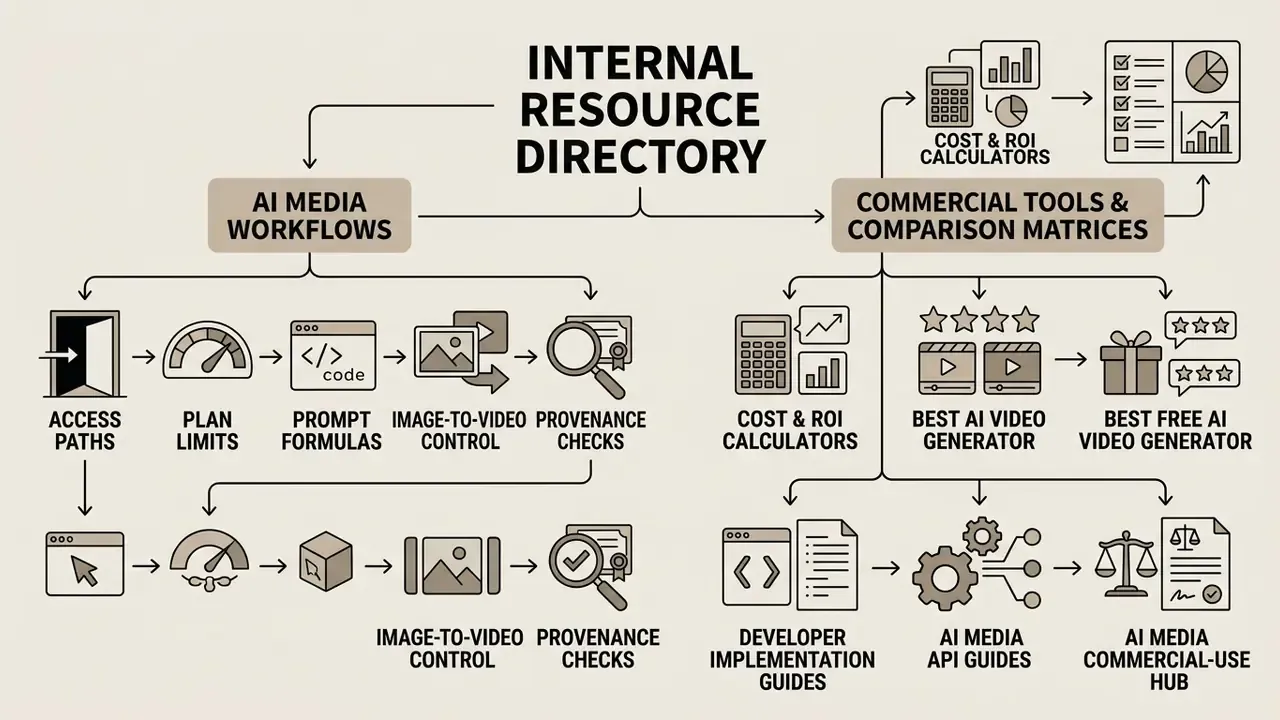
AI media workflows
- /workflows/ai-avatar-video-generator/ - implementation guide for digital avatar creation.
- /workflows/ai-image-training/ - custom model training workflows for enterprise assets.
- /workflows/ai-product-description-generator/ - automated product text generation.
- /workflows/ai-product-image-generator/ - generative product photography pipelines.
- /workflows/ai-product-photography-for-ecommerce/ - e-commerce image optimization.
- /workflows/ai-slide-generator-for-teachers/ - educational presentation automation.
- /workflows/youtube-video-editor/ - editing and publishing workflows for YouTube delivery.
Commercial tools and comparison matrices
- /calculators/ - interactive cost and ROI calculators for AI media workflows.
- /compare/ - comprehensive AI Media Comparison Matrices and evaluations.
- /compare/best-ai-video-generator/ - comparative evaluation of leading AI video generators.
- /compare/best-free-ai-video-generator/ - free AI video generators by quality, limits, and licensing.
- /api-guides/ - guides for developer implementation and AI Media API Guides.
- /commercial-use/ - legal and operational guides in the AI Media Commercial-Use Hub.
- /benchmarks/ - enterprise AI Media Benchmarks and Review Proof datasets.
- /glossary/video-compressor/ - file-size reduction and format support for generated clips.
- /glossary/ai-voice-generator/ - voice quality, language support, and commercial licensing.