Choosing the right video editor for Mac is less about brand loyalty and more about arithmetic. You are weighing operating system optimization, system resource requirements, licensing terms, data-handling practices, and the specific production workflows your team repeats every week. Whether you produce short-form media for social platforms, record screen tutorials for internal training, or assemble multi-cam commercial projects, macOS covers all three with native tools, open-source utilities, and professional non-linear editing suites.
In this guide: selection criteria by skill level · free editors compared · paid editors compared (price, licensing, 3-year cost) · Apple silicon vs Intel hardware guidance · task-to-tool matrix · data security and on-device vs cloud AI · step-by-step macOS workflow · common mistakes and risks · FAQ.
How to Choose a Video Editor for Mac for Your Needs
Selecting the optimal video editing software for Mac depends on matching software capabilities to user expertise, hardware constraints, and output goals. Independent reviewers apply the same segmentation logic when testing macOS editors.
«Video editing apps for macOS fall into beginner, enthusiast, and professional categories based on interface structure, feature depth, and operating speed.»
Before comparing individual applications, it helps to see how YouTube video editing workflows differ from broadcast, social, and internal-training pipelines. The task, not the brand, determines the required feature set. A compliance team recording a 12-minute system walkthrough needs almost nothing that a wedding colorist needs.
Beginner creators want an intuitive interface with a short learning curve. Professional editing demands multi-track control, advanced color correction, and precise motion tracking. And system resources, especially unified memory and storage throughput, dictate how smoothly a Mac handles high-bitrate media. That last part gets ignored far too often.
For Beginners: Simple Interface and Basic Editing
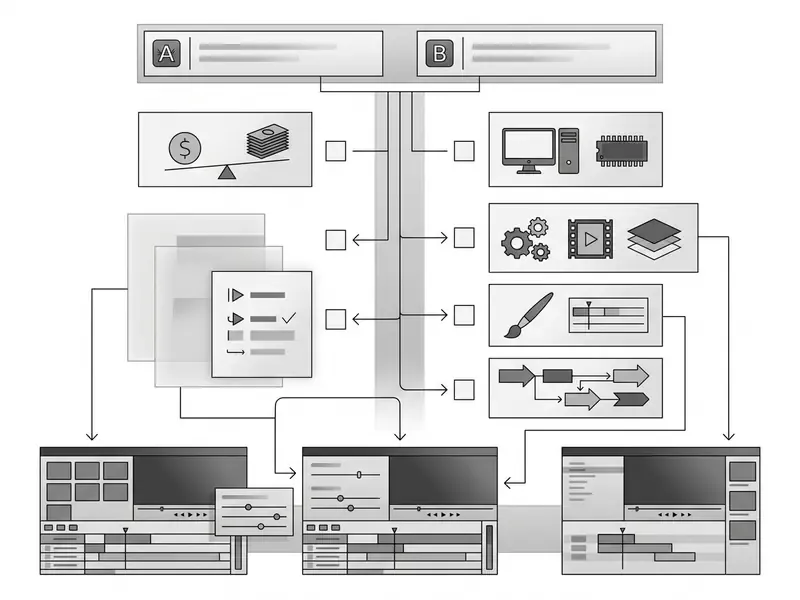
Beginner friendly video editors keep the focus on straightforward clip trimming, media organization, and basic video assembly. Standard non-linear editors split the workspace into three zones: a project bin, a preview monitor, and a timeline holding separate video tracks and audio tracks.
For basic editing, users select clips, drag edges to trim unwanted footage, and layer audio tracks for background music or voiceovers. Tools with a shallow learning curve hide advanced compositing panels, so new mac users can edit videos and export clear media without technical friction. Two commands cover most entry-level cuts: dragging the left or right edge of a clip, and splitting the clip at the playhead before deleting the unwanted segment. That is genuinely it for a first project.
One small practical note. Beginners often hunt for a "free movie maker for mac" and land on a cloud tool, when iMovie is already installed on the machine.
For Professional Editing and Complex Projects
Professional video editing requires a deeper feature set: precise color correction, secondary color grading, optical motion tracking, and robust chroma keying. High-end workflows rely on complex timelines supporting multi-camera angles, raw media profiles, and custom visual effects.
Integration with dedicated motion graphics software enables complex title animations, keyframe control, and visual masking. Platforms like Final Cut Pro and DaVinci Resolve give pro level editors full control over spatial audio, log color transforms, and multi-layer compositing. Apple documents object tracking, hue/saturation curves, LUT support, spill suppression, and light wrap as native Final Cut Pro capabilities, while Motion handles template-driven animation that scales to clip duration.
Hardware requirements scale with those features, not with ambition. Apple's technical specifications recommend a minimum of 16 GB of memory and 2 GB/s storage read speed for demanding formats, with 32 GB required for Apple Immersive Video processing in Final Cut Pro.
Task-to-Tool Matrix: Matching Scenario, Software, and Learning Curve
| Production Task | Recommended macOS Tool | Learning Curve | Cost Model |
|---|---|---|---|
| Quick trims and reordering of a single clip | QuickTime Player (built in) | Minimal | Free with macOS |
| Family archives, simple 1080p/4K assembly | iMovie | Low | Free with macOS |
| Screen recordings and software tutorials | Screenshot app (Shift-Command-5), QuickTime Player, Screen Studio | Low to medium | Free / paid utility |
| Vertical social clips (TikTok, Reels, Shorts) | CapCut, Adobe Express, Final Cut Pro vertical project duplication | Low to medium | Free tier / subscription / one-time |
| YouTube long-form with captions and chapters | Final Cut Pro, DaVinci Resolve | Medium to high | One-time / free tier |
| Professional color grading and finishing | DaVinci Resolve, DaVinci Resolve Studio | High | Free / $295 one-time |
| Multi-cam commercial and client delivery | Final Cut Pro, Adobe Premiere Pro | High | $299.99 one-time / subscription |
| Motion graphics, titles, compositing | Apple Motion, Adobe After Effects | High | Bundled / subscription |
Key Takeaway: the cheapest workable tool is usually the one whose feature ceiling sits just above your recurring task, not the one with the longest specification sheet.
Best Free Video Editors for Mac
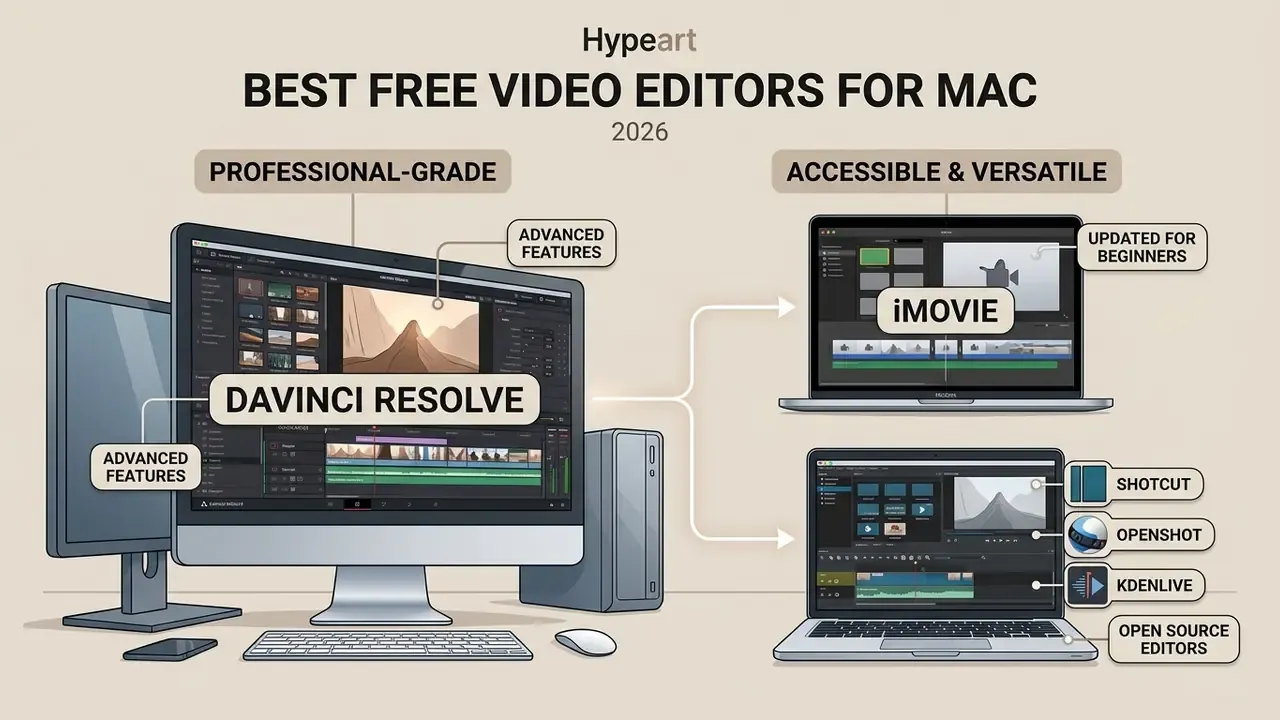
Mac users can reach genuinely powerful free video editing software, from completely free open source applications to full-featured zero-cost versions of professional suites. The choice between a proprietary free tier and an open source project usually comes down to one question: does the project need advanced color grading, or lightweight cross platform utility? Teams that also evaluate generative pipelines can cross-reference this list with our comparison of free AI video generators, where template-based automation replaces manual editing entirely.
| Video Editor | Primary User Level | Basic Editing Capabilities | Professional Capabilities | Open Source | Minimum RAM | Supported macOS |
|---|---|---|---|---|---|---|
| DaVinci Resolve (Free) | Advanced / Professional | Full multi-track timeline editing | Professional color grading, multi-cam, Fusion VFX | No | 8 GB (16 GB for Fusion) | macOS 15.0 or later |
| Apple iMovie | Beginner | Guided templates, simple drag-and-drop | Basic chroma key, green screen, 4K export | No | 4 GB | macOS 14.6 or later |
| Kdenlive | Intermediate | Full timeline editing, clip filters | Multi-track effects, custom render profiles | Yes | 8 GB (16 GB for 4K) | macOS 12.0 or later |
| Shotcut | Intermediate | Multi-format timeline editing | Filter stacks, audio processing | Yes | 4 GB | macOS 12.0 or later |
| OpenShot | Beginner / Intermediate | Drag-and-drop clip assembly | Title templates, basic keyframing | Yes | 4 GB | macOS 11.0 or later |
Key Takeaway: DaVinci Resolve delivers unmatched professional capabilities without software fees, but it expects modern Apple silicon hardware. iMovie remains the accessible starting point for entry-level mac users who just need a free video editor macos already ships with.
DaVinci Resolve: Free Professional-Grade Editor
DaVinci Resolve bundles professional video editing, industry-standard color grading, Fairlight audio editing, and Fusion visual effects into a single completely free package. Few free options in any software category are this generous.
«DaVinci Resolve sits in the professional tier: professional-grade color, unrestricted multicam, motion tracking, and 8K support with a 16 GB RAM minimum.»
According to Blackmagic Design's official specifications, the free version exports up to Ultra HD 3840x2160 at 60 frames per second on macOS. The current Mac App Store listing requires macOS 15.0 or later on Apple silicon, with a 1440×900 minimum display.
This powerful video suite does place heavy demands on system resources, though not always the ones users expect.
«Resolve export speeds on an M4 Pro Mac mini never exceeded 1 GB/s and typically ran 500-750 MB/s; storage, not the CPU, was the bottleneck.»
iMovie: Free Video Editor for Beginners on Mac
Apple iMovie is a pre-installed, beginner friendly video editor built for entry-level mac users and quick content assembly. It uses a trackless timeline that simplifies basic editing tasks such as clip trimming, title placement, and audio track balancing.
«iMovie earns an Excellent rating as the best choice for beginners, with the caveat of a two-video-track limit and no multicam editing.»
iMovie supports 4K video editing, picture-in-picture modes, green screen keying, 1080p at 60 fps, trailer and storyboard templates, and project transfer between iOS and macOS devices. The current Mac App Store listing states macOS 15.6 or later, 4 GB of memory, and roughly 3.5 GB of free disk space. Its ceiling is real, though: two video tracks, no multi-camera editing, no motion tracking, and no third party plugin integration. Apple also warns that media inside older iMovie libraries may need updating before it opens on current macOS releases.
Open Source Editors: Shotcut, OpenShot, and Kdenlive
Open source applications provide cross platform free editing options with no licensing costs, no account creation, and no export watermarks. OpenShot's own project documentation describes distribution as "100% free," without subscriptions, watermarks, or project limits. Kdenlive, built on the MLT framework, offers advanced multi-track non-linear editing, configurable interface layouts, and flexible rendering profiles for macOS users.
Shotcut and OpenShot give creators a simple interface that handles wide codec varieties natively without prior transcoding, and Shotcut can even run portably from an external drive. Broad file compatibility is a real advantage. But, to correct a common assumption, platform parity is not guaranteed. Updated: Kdenlive's own release announcements have described macOS-specific issues in individual release candidates, including crashes when dragging items in the effect stack and theme rendering problems. Shotcut's download page notes that Macs from 2013 or earlier may show preview color problems after Apple's Metal migration. Stability therefore varies more than with native Mac applications, and macOS builds occasionally trail the Linux release line.
Apple Silicon vs Intel Mac: Hardware Guidance Before You Install
Hardware generation now decides which editors are even installable. DaVinci Resolve's current Mac App Store build is Apple silicon only, and several Final Cut Pro features, including Magnetic Mask, spatial video editing, and accelerated ProRes RAW handling, depend on M-series media engines.
| Hardware Tier | Realistic Editing Ceiling | Recommended Editors | Notes |
|---|---|---|---|
| Intel Mac (pre-2020) | 1080p, light 4K with proxies | iMovie, Shotcut, older Resolve/FCP releases | New Resolve builds and some FCP features are unavailable; expect fan noise and longer exports |
| M1 / M2, 8 GB unified memory | 1080p multi-track, single-stream 4K | iMovie, CapCut, Resolve with proxies | 8 GB is the documented minimum, not a comfortable working figure for layered 4K |
| M1 Pro–M4, 16 GB | Multi-track 4K, Fusion, color grading | DaVinci Resolve, Final Cut Pro, Premiere Pro | 16 GB matches vendor "recommended" guidance across FCP and Resolve |
| M3 Max / M4 Pro or Max, 32 GB+ | Multi-cam, HDR finishing, immersive video | Final Cut Pro, Resolve Studio | Apple requires 32 GB for Apple Immersive Video processing; fast NVMe storage matters more than extra cores |
Apple's own business documentation reports that video editing on the 14-inch MacBook Pro with M3 runs up to 60% faster than on the 13-inch MacBook Pro with M1. That is a useful yardstick when deciding whether a hardware refresh will actually shorten delivery times, or just move the bottleneck somewhere else. Teams modelling that trade-off against license spend can sanity-check the numbers with our interactive calculators.
Paid Video Editing Software for Mac: What to Choose Instead of Free Versions
Moving from free video editing software to commercial applications buys deeper system optimization, multi-user collaboration tools, and expanded asset libraries. Commercial licensing splits cleanly into two camps: one time purchase perpetual licenses, or continuous Creative Cloud style subscriptions.
| Paid Editor | Price (2026) | Licensing Model | 3-Year Cost | Apple Media Engine Optimization | Team Collaboration | AI Features |
|---|---|---|---|---|---|---|
| Final Cut Pro | $299.99 | One-time purchase (Mac App Store) | $299.99 | Native, built for M-series ProRes/HEVC engines | Basic library sharing, no cloud co-edit | Magnetic Mask, Transcribe to Captions (on-device) |
| Apple Creator Studio bundle | $12.99/mo or $129/yr | Subscription (includes Final Cut Pro, Logic Pro, Motion, Compressor, Pixelmator Pro, MainStage) | ~$387 | Native | Same as Final Cut Pro | Same as Final Cut Pro plus bundled apps |
| Adobe Premiere Pro | from $22.99/mo | Creative Cloud subscription | ~$827 | Good, but cross-platform first | Team Projects shared timelines | Speech-to-text, generative extensions (cloud) |
| DaVinci Resolve Studio | $295 | One-time purchase | $295 | Strong, storage-bound on export | Multi-user project server | Neural Engine tools, mostly local |
| Adobe Premiere Elements 2026 | $99.99 | One-time purchase, 3-year license term | $99.99 | Basic | None | Guided Edits, auto reframe |
| CyberLink PowerDirector 365 | $59.99/yr | Subscription | ~$180 | Moderate | Cloud asset library | AI masking, templates |
| CapCut Pro | $9.99/mo or $89.99/yr | Subscription | ~$270 | Moderate | Cloud projects | Heavy AI toolset (cloud-processed) |
Key Takeaway: over a three-year horizon, Final Cut Pro's perpetual license costs roughly a third of a Premiere Pro subscription. Premiere Pro, in exchange, buys cross-platform parity and shared-timeline collaboration that Apple's ecosystem does not replicate.
Final Cut Pro for the Apple Ecosystem and Professional Work
The earlier framing of "up to three times faster on identical Mac hardware" overstated the methodology. DPReview compared different systems, so the result demonstrates a platform-level advantage rather than a controlled same-hardware benchmark. Worth keeping straight when a vendor quotes it back at you.
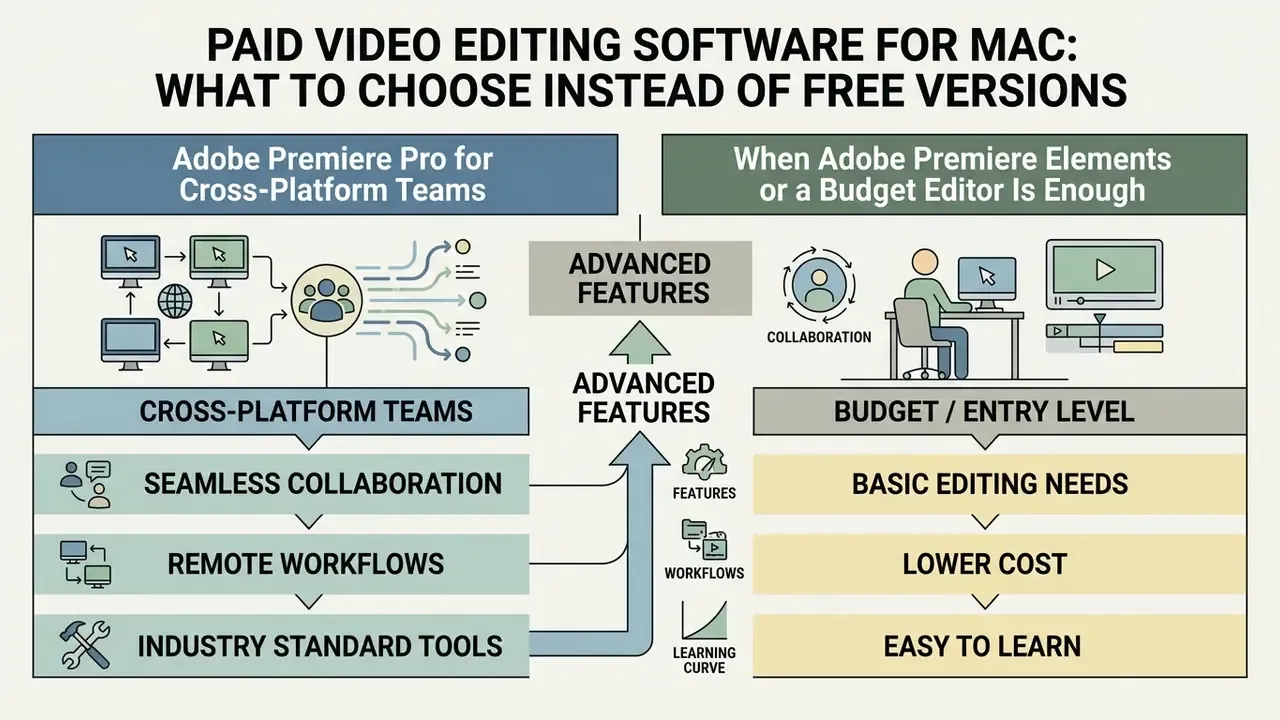
Adobe Premiere Pro for Cross-Platform Teams
Adobe Premiere Pro remains the industry reference for multi-platform production and collaborative team workflows. On a Creative Cloud subscription, Premiere Pro links directly with After Effects for motion graphics and Audition for detailed audio post-production.
Premiere Pro supports Team Projects, letting remote editors work on shared timelines simultaneously. Adobe's current documentation states this is available across Creative Cloud subscriptions, including Individual plans. Its wide range of editing tools covers speech-to-text auto-captions, generative AI extensions, Motion Graphics templates (.mogrt) synced through Creative Cloud Libraries, and Lumetri color wheels. Teams blending traditional editing with synthetic assets often pair it with AI video generation APIs from the broader AI Media API catalogue, plus AI voice generators for localization passes.
Cross-platform parity carries a measurable cost on Mac hardware:
«Desktop PCs outperformed an M3 Max MacBook in PugetBench for Premiere Pro by 50-120%, with the largest gaps in GPU effects and AI-accelerated features.»
When Adobe Premiere Elements or a Budget Editor Is Enough
Adobe Premiere Elements sits in the middle for creators who want structured editing tools without recurring monthly fees. Sold as a $99.99 license valid for three years, Elements offers Quick, Guided, and Advanced modes, automated reframing, and simplified audio adjustments.
Budget editors bridge the gap between basic tools like iMovie and full pro level software. They suit creators who want user friendly controls for family archives or casual video content without micromanaging system resource allocation. Adobe's own comparison positions Elements as "basic and intuitive" against Premiere Pro's customizable professional toolset, which is an honest summary of the trade-off. Similar reasoning applies when weighing a template-first animation maker against a full non-linear editor.
Data Security, Licensing, and Shadow AI Risks on macOS
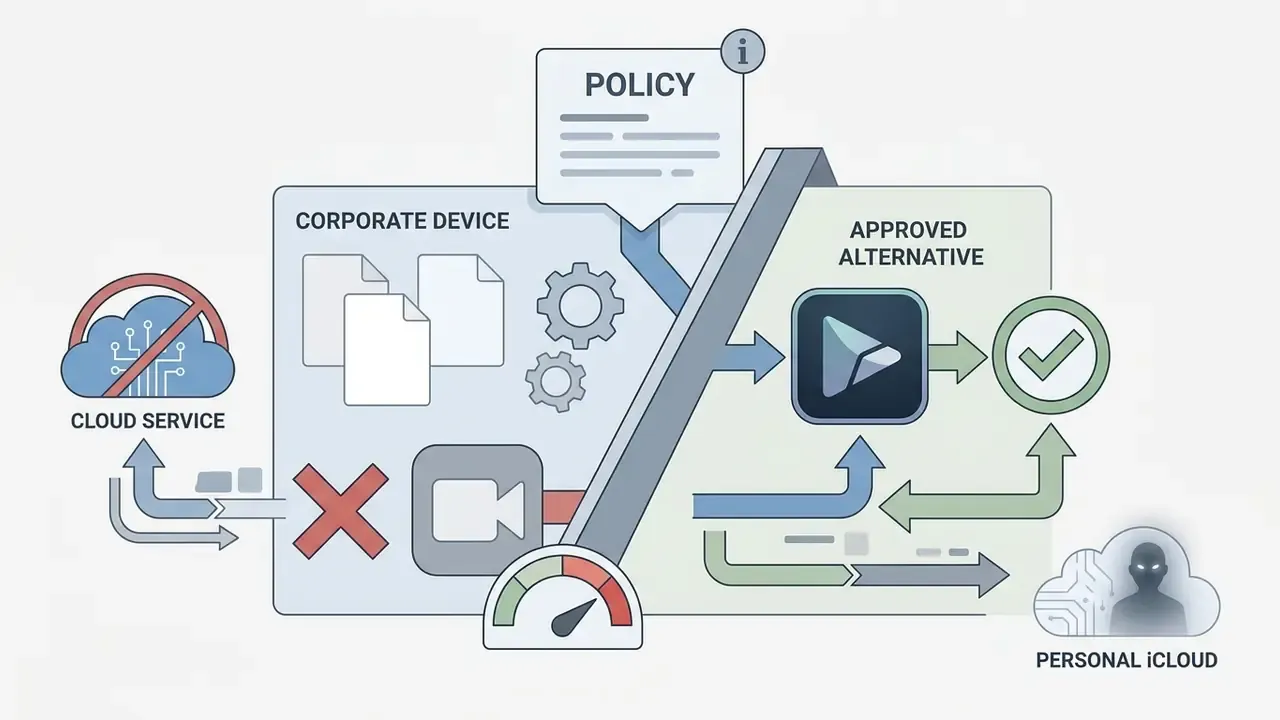
Corporate and regulated teams face a selection criterion consumer reviews rarely cover: where the footage is processed, and who retains rights to it. Internal screen recordings, model documentation walkthroughs, and executive briefings frequently contain confidential material. So the difference between on-device and cloud AI processing becomes a governance question, not a convenience one.
| Processing Model | Typical Tools | Where Media Travels | Practical Risk |
|---|---|---|---|
| Fully local (native app, on-device AI) | Final Cut Pro (Magnetic Mask, Transcribe to Captions), DaVinci Resolve, Screen Studio with local Whisper or Apple Speech Recognition on macOS 26.0+ | Media stays on the Mac | Lowest exposure; limited by local hardware |
| Local editor with optional cloud services | Premiere Pro with generative extensions, PowerDirector 365 | Selected clips or transcripts uploaded when AI features run | Requires feature-level policy; audit which AI panels are enabled |
| Browser or cloud-first editor | CapCut web, Clipchamp, Flixier, Adobe Express | Full source media uploaded to vendor servers | Highest exposure; review retention and training terms before uploading internal footage |
| Local-processing browser editor | WebCodecs/File API based tools | Media processed in-browser, not uploaded | Low exposure, but verify vendor claims in network logs |
Disclaimer: this section describes general technical considerations, not legal advice. Vendor terms, data-retention policies, and regional regulations change frequently. Confirm current licensing and processing terms with the software vendor and your own compliance function before deploying any editor on managed devices.


Which Editor to Choose for YouTube, Social Media, and Screen Recording
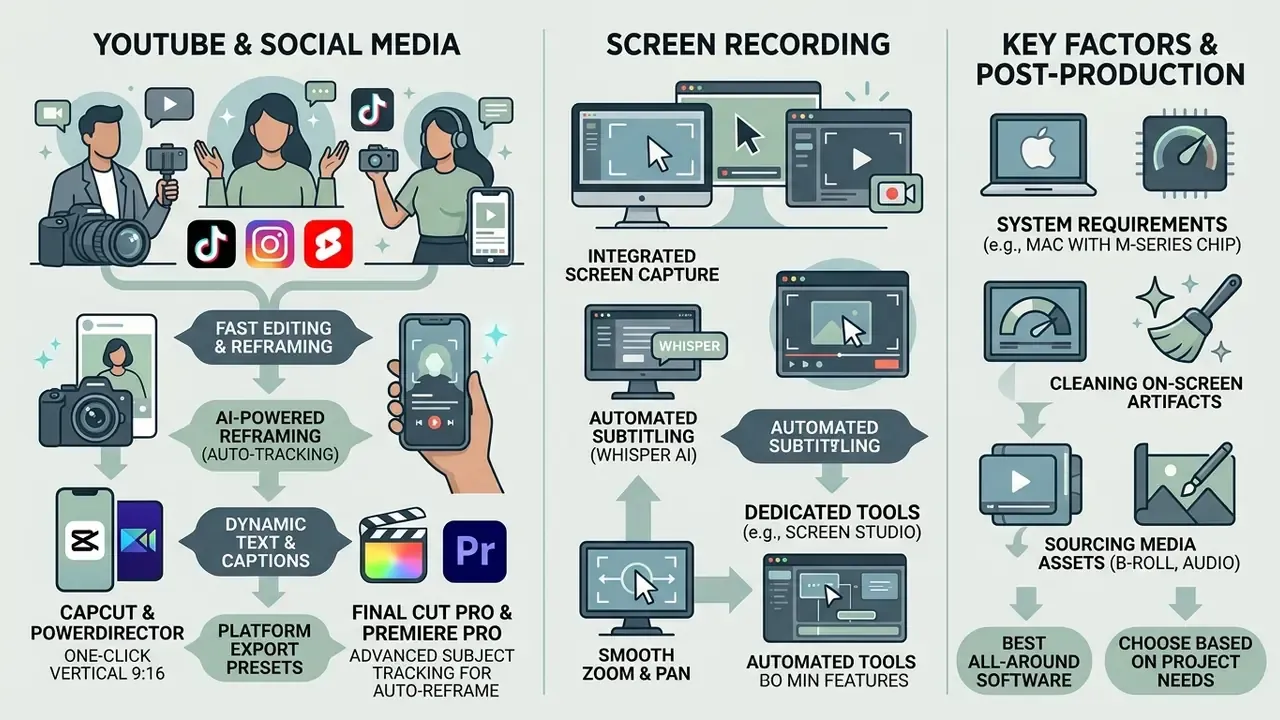
Modern video content for online platforms needs tools with AI features, platform-specific export presets, automatic caption generation, and integrated screen recording. Content creators rarely need all four at once, but they do need them in the right order.
Screen Recording, Subtitles, and Educational Videos
Educational creators and software trainers lean on screen recording tools paired with automated subtitling and annotation. macOS includes native screen capture via Shift-Command-5 and QuickTime Player, which records high-resolution desktop footage straight into the editor timeline. QuickTime also trims, reorders, and rotates clips without a separate editor.
«QuickTime ranks among the simplest screen recording options, with ease of use as its defining advantage.»
Dedicated tools like Screen Studio generate smooth automatic zooms, on-device Whisper-based subtitle transcripts (with Apple Speech Recognition available on macOS 26.0 and later), transcript editing, caption styling, and cursor highlighting. Multi-source recorders such as iShowU add 4K/60 fps capture, picture-in-picture layouts, webcam overlays, and live annotation tools for tutorial-style content.
Two housekeeping tasks follow almost every tutorial recording: cleaning up on-screen artifacts and sourcing stills. Guides on how to remove text from an image, and on how to remove ai images from google search, handle both cases when documentation screenshots need correcting before publication.
How to Start Video Editing on Mac: Basic Workflow
An organized video editing workflow keeps system performance stable, speeds up clip assembly, and protects your export settings from last-minute guesswork. Apple's own Final Cut Pro documentation describes the same six-stage sequence: import, organize into events, create a project, edit, add effects and transitions, then share or export.
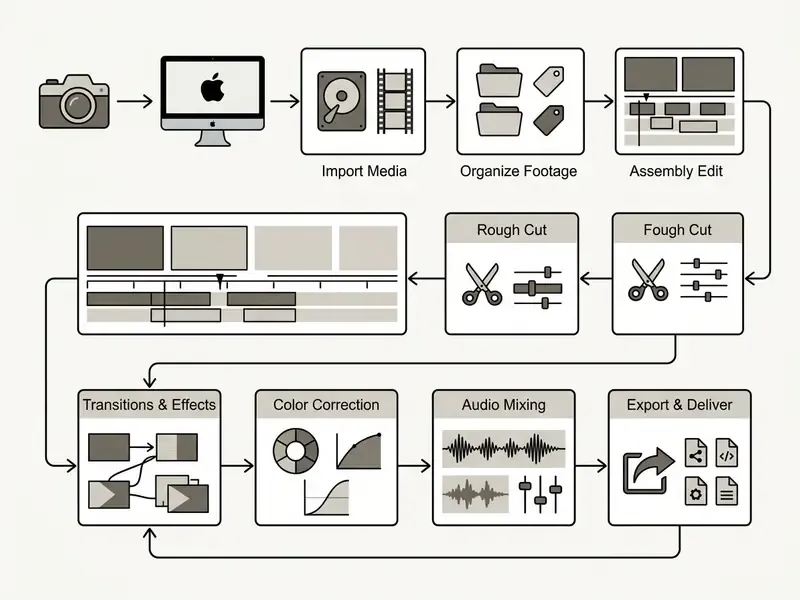
Media Import, Clip Editing, and Audio Work
- Import MediaTransfer raw video clips, audio tracks, and graphic assets into organized project bins inside your video editing software. Dragging a folder into the project panel creates a matching bin in Premiere Pro, which is the fastest way to preserve camera-card structure.
- Timeline AssemblyDrag primary footage onto video tracks to establish narrative structure and a rough cut, keeping footage, audio, graphics, and sequences in separate bins.
- Clip TrimmingApply basic editing techniques with blade tools or edge-trimming commands to cut unnecessary frames.
- Audio BalancingSeparate voice recordings onto dedicated audio tracks, then apply gain normalization and noise suppression.
When preparing large media packages for remote collaborators, editors often consult guides on how to send large video files online free to streamline transfers without compressing masters twice.
Color, Effects, and High-Quality Export
- Color CorrectionBalance white balance, exposure, and contrast across clips using Lumetri or Color Inspector wheels. Apple's recommended order is Balance Color, then Match Color, then manual correction.
- Apply Visual EffectsInsert clean transitions, title overlays, and motion graphics templates where they serve the story.
- Final Quality AuditPreview playback to verify frame pacing, audio mixing headroom, and text alignment.
- Master ExportSelect target delivery codecs, such as H.264 for web streaming, HEVC for efficient 4K delivery, or Apple ProRes 422 for archival mastering, then export high quality video files. Final Cut Pro's share formats also include MXF and uncompressed 10-bit 4:2:2, and Compressor's HEVC encoding requires macOS 10.13 or later.
Export speed is usually a storage problem rather than a processor problem:
«Final Cut Pro and DaVinci Resolve rarely exceed 300% CPU utilization; export speed is capped by storage bandwidth, typically 500-750 MB/s.»
Choosing between mezzanine and delivery codecs gets easier with a working knowledge of video compression formats, since bitrate targets, not resolution alone, determine both file size and perceived quality.
Common Mistakes and Risks When Editing Video on a Mac
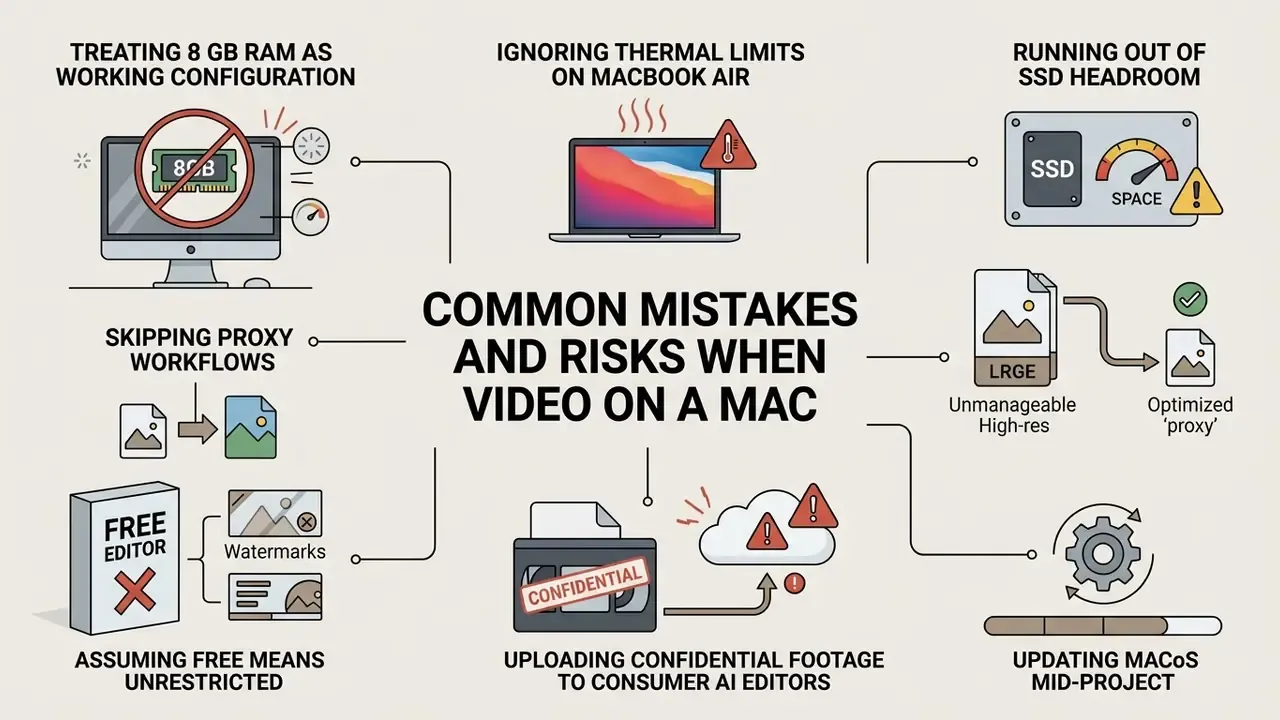
- Treating 8 GB as a working configuration. HP's feature matrix lists 16 GB as the practical minimum for DaVinci Resolve; multi-layer 4K timelines on an 8 GB machine page to disk and stall playback.
- Ignoring thermal limits on MacBook Air. Apple confirms the Air has no fans, so long exports and heavy effects passes trigger throttling. Schedule batch renders on a fan-equipped Mac, or split them into shorter segments.
- Running out of SSD headroom. Cache files, optimized media, and proxies can exceed the size of the original footage. Keep at least 15-20% of the boot volume free, and move cache to fast external NVMe storage when possible.
- Skipping proxy workflows. Generating proxies costs minutes once and saves hours of stuttering scrubbing on high-bitrate HEVC from phones and mirrorless cameras.
- Assuming free means unrestricted. Free tiers can cap resolution (DaVinci Resolve free tops out at UHD 60 fps), gate codecs, or reserve content rights. Verify commercial terms before using free output in client or corporate deliverables.
- Uploading confidential footage to consumer AI editors. The fastest caption tool is not always the compliant one. Check whether processing happens on-device before dropping internal recordings into a browser editor.
- Updating macOS mid-project. Vendor minimums move independently of Apple's release cadence. Confirm your editor supports the new OS before upgrading a machine with active deliverables.
FAQ About Video Editors for Mac
Can You Edit Video on Mac Without iMovie?
Yes. Mac users can edit videos without iMovie using a long list of free and paid alternatives on macOS.
«DaVinci Resolve is named both the best free and the best professional editor for Mac, with confirmed native Apple silicon support.» - MacHow2, Best Video Editing Software for Mac (2026). https://www.machow2.com/
Free applications like DaVinci Resolve offer professional-level non-linear editing and color grading, while open source tools such as Shotcut, OpenShot, and Kdenlive provide lightweight multi-track editing with no fee structure at all. Lightworks also offers a free tier with multi-track editing and export options.
Commercial options, including Final Cut Pro, Adobe Premiere Pro, and budget editors like Filmora, add advanced tools, AI automation, and plugin ecosystems that comfortably exceed iMovie's two-track limit. Comparing perpetual, subscription, and freemium tiers side by side is easier alongside the pricing breakdowns in our YouTube video editor guide.
Is a Free Video Editor Suitable for MacBook Air?
Note: the guidance below is general. Real-world performance depends on your configuration, and vendor system requirements change with each release. Verify current minimums on the publisher's site.
A free video editor for MacBook Air works well, provided the editing tasks respect the laptop's passive cooling and unified memory limits. Light applications such as iMovie handle 1080p and basic 4K video clips efficiently without excessive heat or heavy system resource use.
Advanced free software like DaVinci Resolve runs natively on Apple silicon MacBook Air models. Still, multi-layer 4K editing or heavy visual effects can trigger thermal throttling unless proxy media workflows are in place.
«DaVinci Resolve's documented minimum is 16 GB of RAM; an 8 GB MacBook Air will hit limits on multi-layer 4K timelines without proxies.» - HP, Complete Guide to Video Editing Software (2024). https://www.hp.com/
Apple also advises using laptops on stable, ventilated surfaces within a 10°-35°C ambient range, and notes that Activity Monitor identifies which process is saturating the CPU during a slow export.
How Does a Web-Based Video Editing App Differ from a macOS Program?
A web-based video editing app runs inside a browser and leans on cloud server infrastructure for processing. A native macOS program installs locally and uses the Mac's hardware directly. Web applications need consistent connectivity and involve upload time, but they minimize local storage use.
«Clipchamp is a browser-based tool with minimal system requirements (4 GB RAM) but no professional color grading, multicam, or advanced plugin support.» - HP, Complete Guide to Video Editing Software (2024). https://www.hp.com/
Native macOS editing software offers faster local timeline scrubbing, deeper integration with Apple silicon media engines, offline operation, and advanced controls for spatial audio, log color grading, and multi-cam editing. For data-sensitive teams there is a second distinction: cloud editors place raw clips on provider servers, while native apps, and a small number of local-processing browser editors built on WebCodecs, keep footage on the device.
Which Mac Video Editor Is Best for Auto Subtitles?
For on-device captioning, Final Cut Pro's Transcribe to Captions and Screen Studio's local Whisper or Apple Speech Recognition pipelines generate transcripts without uploading audio. Cloud options, including Premiere Pro speech-to-text, CapCut, Clipchamp, and Movavi, are often faster and support more languages, but audio leaves the machine. Educational workflows built on LMS platforms such as Kaltura also produce automatic captions that can be edited before publishing.
Is DaVinci Resolve Studio Worth $295 Over the Free Version?
The paid Studio license adds higher-resolution and higher-frame-rate delivery beyond the free UHD 60 fps ceiling, extra Neural Engine tools, advanced noise reduction, HDR grading, and multi-user collaboration through a project server. For solo creators delivering 4K web video, the free version is generally sufficient. For HDR finishing, remote conform, or team-based grading, the one time Studio purchase still costs less over three years than most subscription editors.
Which Mac Video Editor Fits a Regulated Corporate Environment?
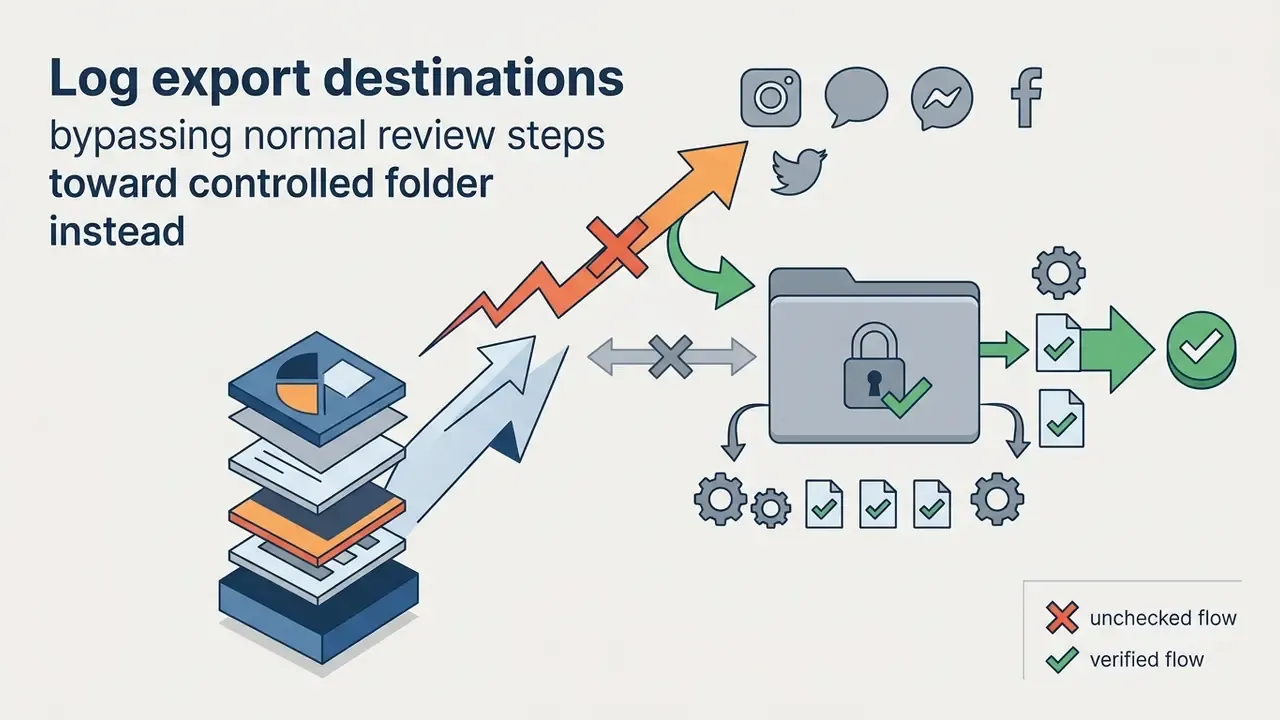
Native, locally processed editors fit best. Final Cut Pro and DaVinci Resolve keep media and AI processing on the machine, which simplifies evidence for internal audit and reduces exposure when footage contains client or model documentation. Two practical additions: standardize one approved editor per task type, and record who exported what, where. Uncertainty remains around vendor AI panels that toggle cloud processing per feature, so feature-level policy beats app-level policy here.
Additional Media Management and Processing Tools
For creators managing specialized asset pipelines alongside desktop video editing, a handful of utility applications remove repetitive work:
- Graphic Overlay Prep: When building static lower-thirds and title cards, teams usually stage assets in a photo editor or a free photo editor before importing them into the timeline.
- Delivery and Archiving: Reduce master files for review copies and internal distribution using the format and bitrate guidance in our video compressor guide.
- Mobile Assets: Mobile video creators frequently check guides on how to save live photo as video to extract clips for vertical social timelines.
- Voice and Localization: Add narration or translate existing tracks with the tools compared in our AI voice generator guide.
- Resource Audits: For benchmark matrices and software comparisons, consult the AI Media Benchmarks and Review Proof index.
- Feature Evaluations: Compare asset and generation tools across categories in our AI Media Comparison breakdown, including the best free AI video generators for template-driven production.
Appendix A: Superseded Statements
For transparency, two earlier formulations in this guide were revised after verification:
- Previous wording: "Performance benchmarks by Larry Jordan in 2024 showed that Resolve's rendering throughput on Apple silicon is frequently bound by SSD storage bandwidth rather than CPU cores." Retained as directionally correct, now replaced in the main text with measured figures (500-750 MB/s export throughput, sub-300% CPU utilization).
- Previous wording: "Controlled DPReview benchmarks showed Final Cut Pro exporting H.265/HEVC master files up to three times faster than competing non-native editors on identical Mac hardware." The cited test compared an M1 iMac against a Razer Blade 15, not identical hardware. The main text now states the actual result: roughly three minutes faster on the same export task.