Executive Summary
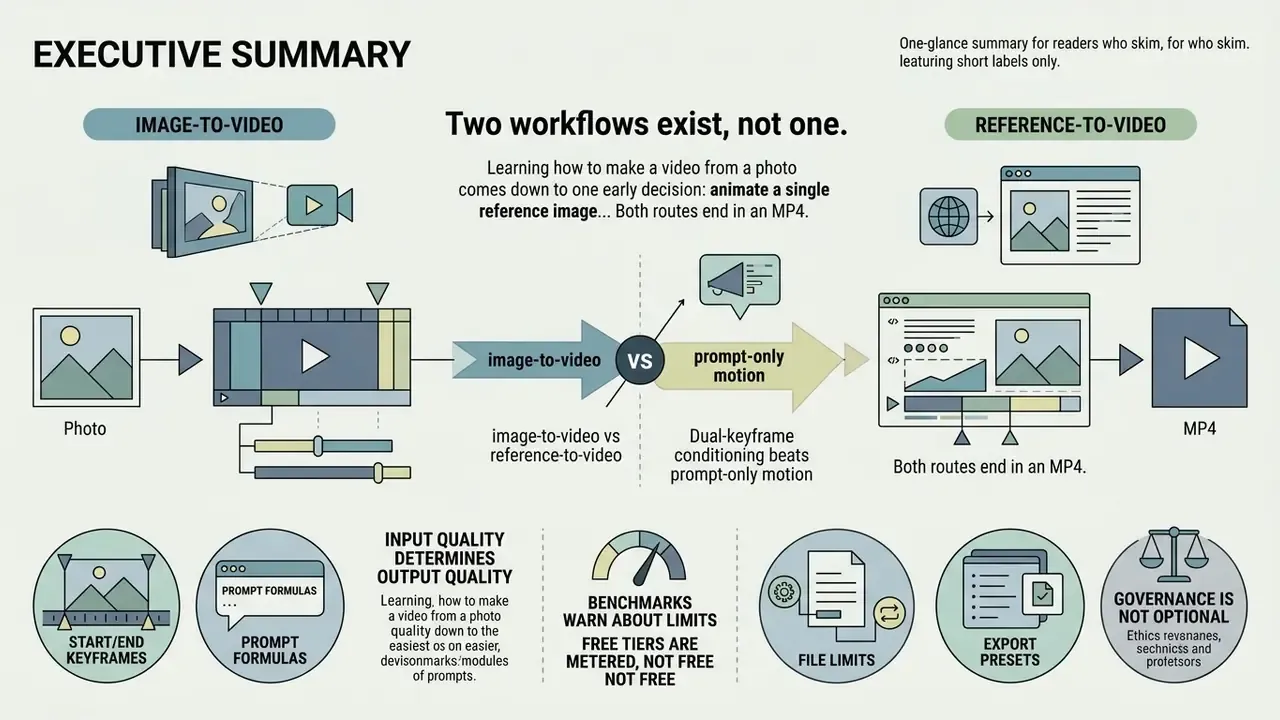
- Two workflows exist, not one. Generative image-to-video (I2V) models synthesize motion from a single still frame. Timeline editors sequence multiple photos with deterministic transitions, text and audio. Pick I2V for motion you cannot film; pick a timeline editor for exact timing and brand-locked layouts.
- Input quality determines output quality. Upload uncompressed JPG/PNG assets at or above 1024×1024 px, keep edge dimensions in multiples of 16 px, and match the aspect ratio to the destination platform (9:16 for TikTok, Reels, Shorts; 16:9 for YouTube long-form).
- Dual-keyframe conditioning beats prompt-only motion. Supplying a Start Frame and an End Frame locks composition and prevents perspective drift across 8 to 15 second renders.
- Image-to-Video is not Reference-to-Video. I2V anchors literal pixels of Frame 0. Reference-to-Video (R2V) carries identity, meaning a face, a product or a set, across multiple generated shots.
- Benchmarks warn about limits. Most generators execute fewer than 20% of requested compositional changes. That single number is why step-by-step instructional content is safer to assemble on a timeline than to generate end-to-end.
- Governance is not optional. Purely AI-generated output is not copyrightable in the United States, likeness use requires written consent, and uploading corporate photography to unvetted public SaaS models creates Shadow AI exposure. Log model version, seed, prompt and motion intensity for every render.
- Free tiers are metered, not free. Expect credit caps, 720p ceilings and watermarks on most free generative plans. Browser editors export watermark-free only when every asset in the project is licence-clean.
Learning how to make a video from a photo comes down to one early decision: animate a single reference image with generative artificial intelligence, or assemble several photos on a video editor timeline. Generative image-to-video (I2V) models synthesize motion, dynamic depth and camera pathways from one still picture. Timeline-based online video editors sequence separate images, adding transitions, text overlays and audio tracks to produce structured clips.
Both routes end in an MP4. They do not end in the same risk profile, and that is the part most teams discover late.
Choose the Right Way to Make a Video from a Photo
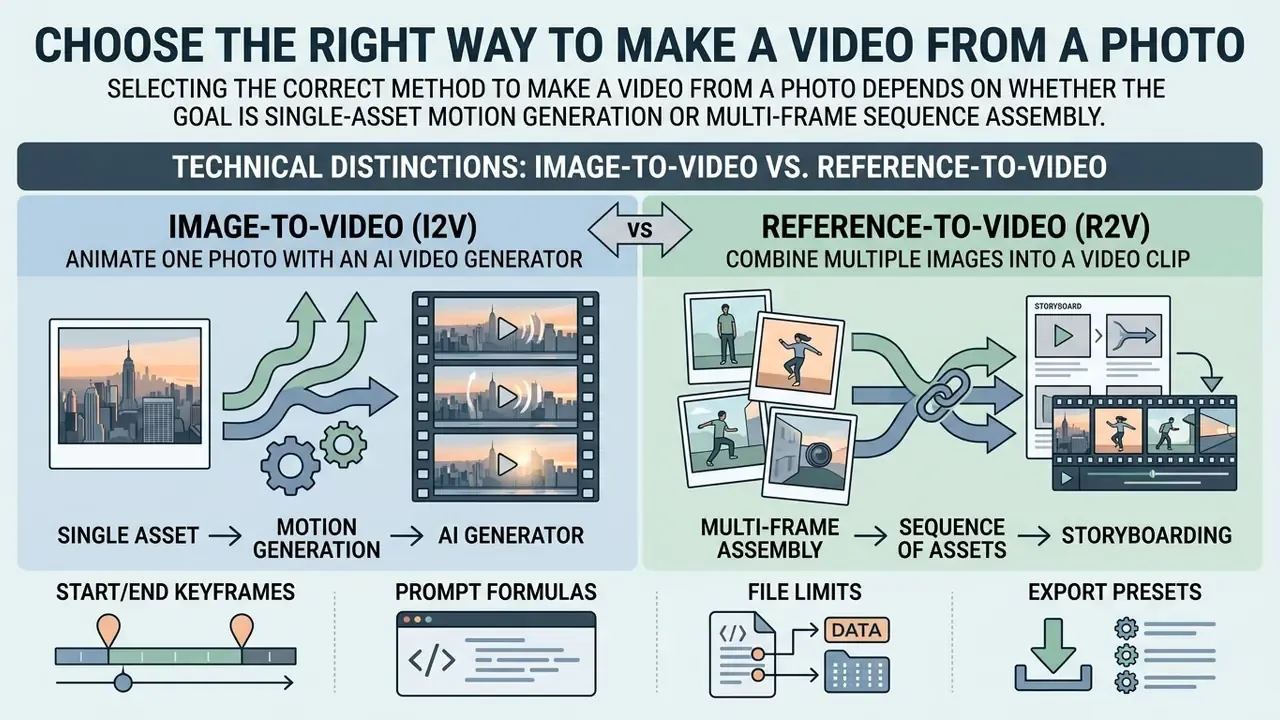
Selecting the correct method to make a video from a photo depends on whether the goal is single-asset motion generation or multi-frame sequence assembly. Generative AI video generators transform a single photo into a dynamic video clip by predicting camera movement and pixel trajectories. Timeline-based video makers sequence multiple photos to build structured stories for social media, product showcases, birthday greetings or education video modules.
«Most video generators execute fewer than 20% of requested compositional changes, which makes conventional timeline editing more reliable for step-by-step narratives.»
Table: Comparison of Single-Photo AI Animation vs. Multi-Image Video Assembly
| Operational Dimension | Single-Photo AI Animation (Image-to-Video) | Multi-Image Video Assembly (Timeline Editing) |
|---|---|---|
| Source Material | One reference photo (JPG or PNG) plus an optional text prompt. | Multiple photos arranged in a linear timeline sequence. |
| Motion Control | Generative neural network infers camera path and subject physics. | Deterministic slide transitions, pan/zoom effects and timing cuts. |
| Processing Speed | Varies by model scale; single-step latent models render in seconds. | Near real-time browser rendering and encoding. |
| Editing Control | Requires prompt re-generation or seed adjustments to alter motion. | Direct timeline adjustments to frame duration, text and layer order. |
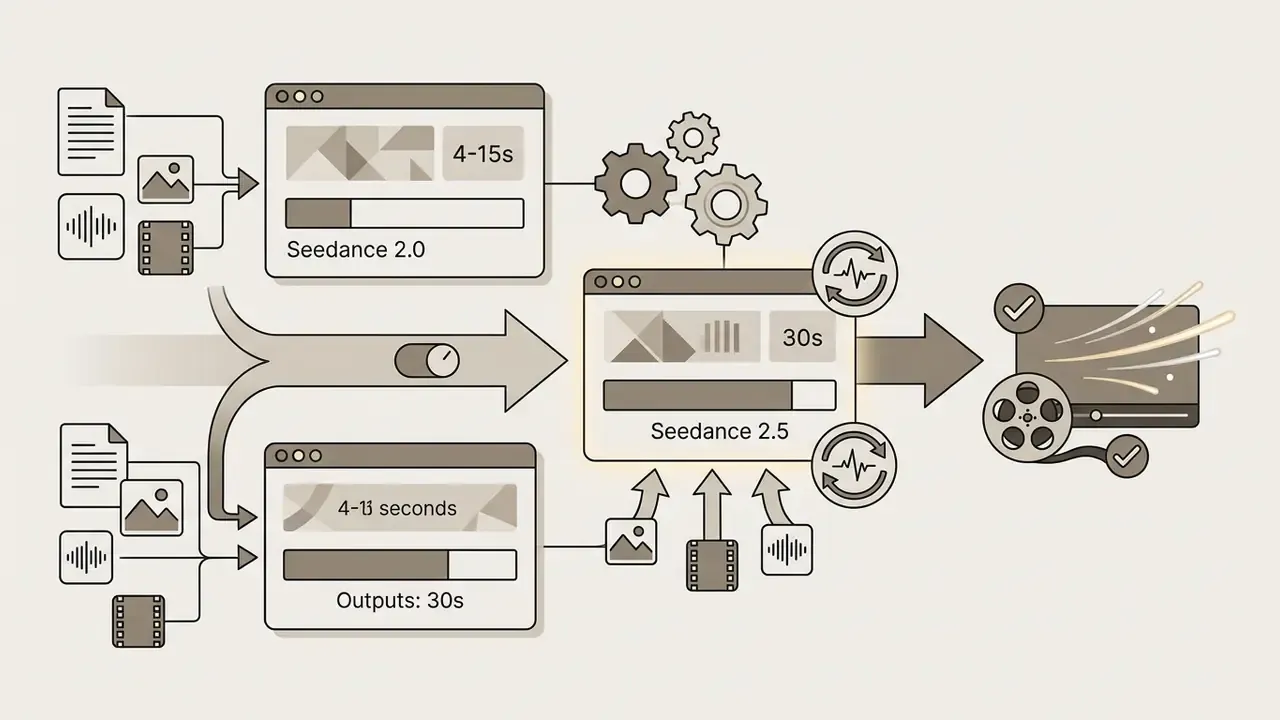
| Clip Length Ceiling | 4 to 15 seconds per generation on most engines; 30 seconds on extended-context models. | Unlimited: length equals number of images × per-frame duration. |
| Primary Use Cases | Scroll stopping ad creative, ai portrait animation, dynamic product shots. | Explainer slideshows, product galleries, training modules, event recaps. |
The takeaway in plain words: AI invents movement, a video editor schedules it. If a stakeholder must approve the exact second a price appears on screen, you want the second column.
Technical Distinctions: Image-to-Video vs. Reference-to-Video
Creators frequently conflate two different conditioning mechanisms. The distinction decides whether visual identity survives past a single clip.
The practical rule: I2V preserves the same pixels, R2V preserves the same identity. Start/end frame chaining works well for one self-contained clip. Beyond one generation it drifts, because chaining only reads the last still frame and re-derives lighting, camera position and geometry from scratch on every pass. Reference conditioning reads the entire prior clip plus locked references, so atmosphere and identity carry forward instead of resetting.
- Image-to-Video (I2V)
- Treats the uploaded image as the absolute pixel anchor for Frame 0. The model projects motion exclusively from this visual state and never looks beyond it. Ideal for single-take clips of 4 to 10 seconds generated from an approved photo.
- Reference-to-Video (R2V)
- Extracts semantic features, such as character face topology, brand visual design and product geometry, then propagates them across multiple generated frames and shots. Use R2V when building multi-shot commercial video where a character or product must hold its identity across different backgrounds, lighting setups and camera angles.
Animate One Photo with an AI Video Generator
Generative AI converts a single reference photo into a moving video clip by synthesizing subject motion, background depth and camera paths. Modern diffusion models use the uploaded image as a first-frame anchor while executing text-guided motion. Practical comparisons of image-to-video AI tools show that this anchoring behaviour, not prompt length, is the dominant factor in visual fidelity.
«Spatiotemporal attention to the first frame and noise initialization from the low-frequency band substantially improve layout consistency throughout the clip.»
When you work out how to create a video from a single photo, the underlying model reads the visual structure of the picture to predict how lighting, textures and geometry should evolve across successive frames. Nothing more. It has no idea what your product actually does.
Vendor documentation for advanced I2V architectures, including Adobe Firefly's image-to-video feature pages and Google's Gemini API video-generation reference (both updated through 2026), confirms that creators can animate photos without manual keyframing, defining camera motion (pan, zoom, tilt, directional movement) as a parameter rather than as hand-drawn keyframes. These are product manuals, not peer-reviewed sources, so treat the performance claims as vendor-stated capability.
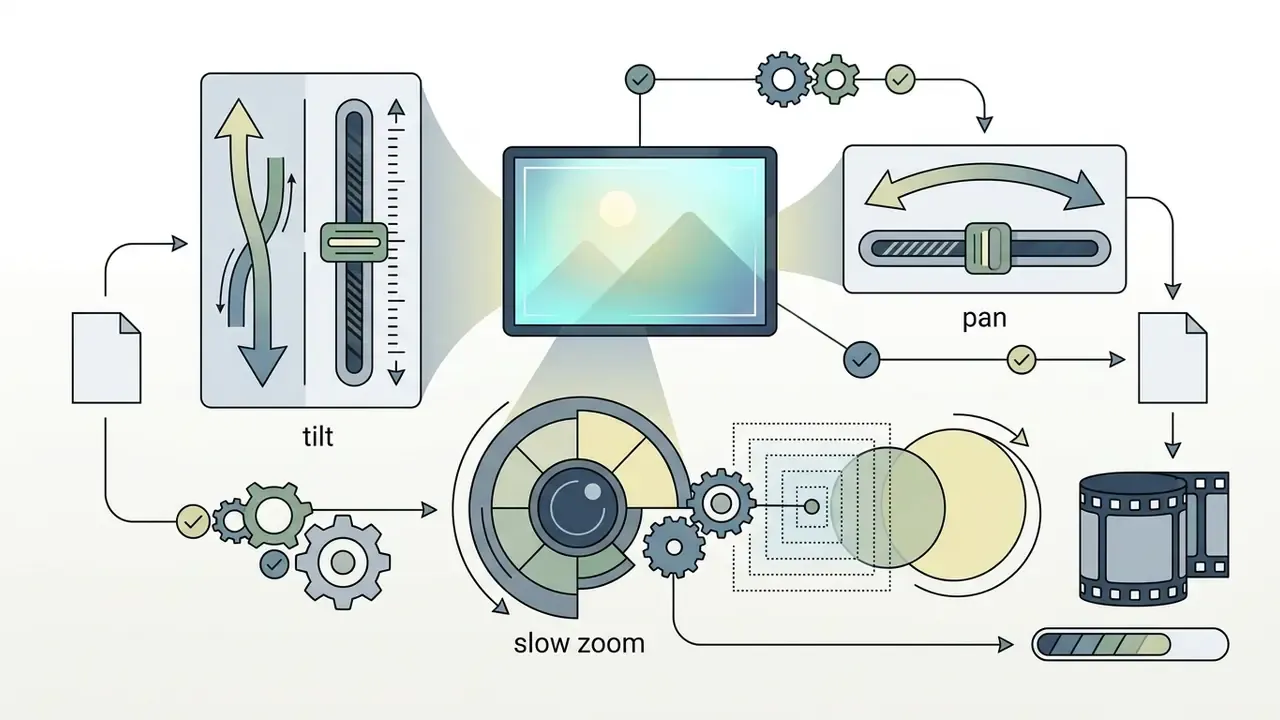
You can specify distinct camera movement, such as a slow zoom or a lateral pan, while keeping the video background stable. For technical execution details, review our guide on ai video creation, and compare entry-level options in our roundup of free AI video generators.
Combine Multiple Images into a Video Clip
Timeline assembly combines multiple photos into a coherent video clip using structured sequence order, timing transitions, text overlays and audio sync. This traditional editing approach gives creators full control over clip duration and narrative structure, with no editing surprises on the tenth revision.
When evaluating how to make a video from images, placing photos on an editing track lets you apply consistent branding, lower-third graphics and background music across the whole run.
Online platforms automate much of this with a professionally designed template, which makes it easy to convert images into social media clips, music videos or commercial slideshows without desktop editing software. Academic testing supports the engagement case for motion: a University of British Columbia study of video abstracts found comprehension did not differ between slideshow and animated formats, but viewers rated animation as significantly more engaging (University of British Columbia, 2023).
Prepare Photos for High-Quality Video Generation
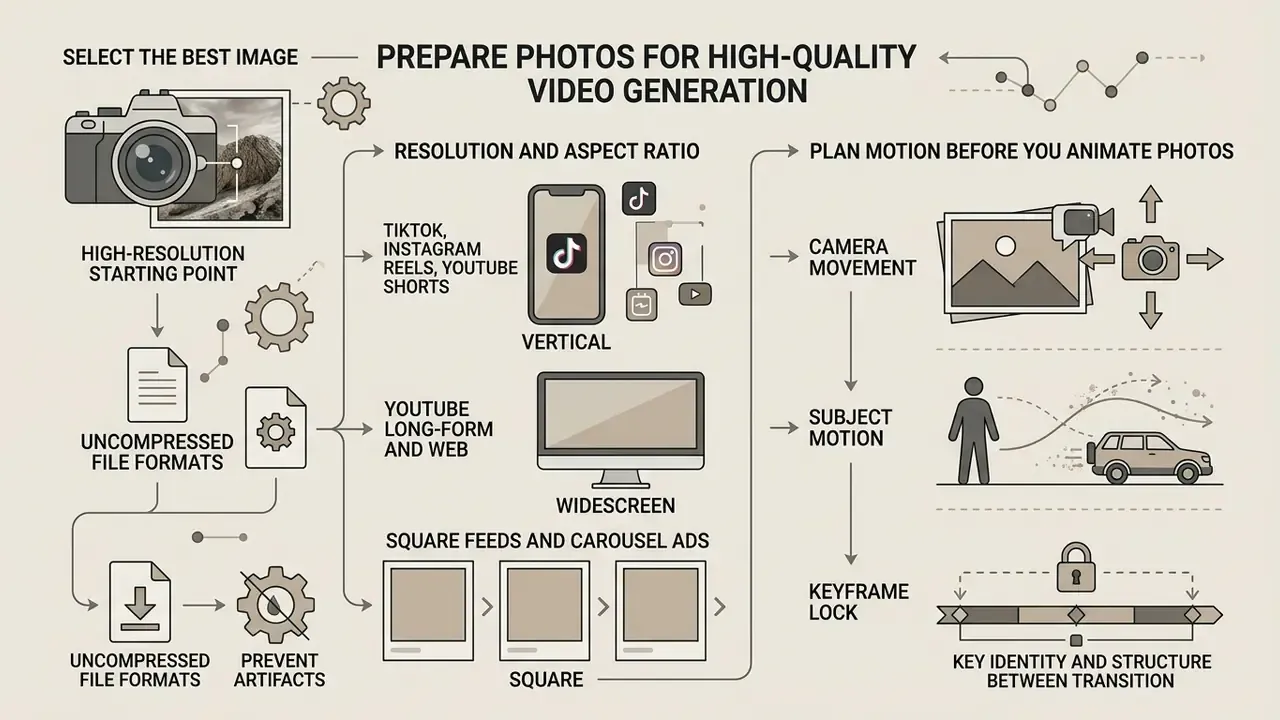
Preparing high res source images with the right aspect ratio and uncompressed file formats prevents visual artifacts and identity distortion during video generation. Generative models need clean visual inputs to establish accurate spatial boundaries and motion fields.
Select the Best Image, Resolution, and Aspect Ratio
Optimal image selection means choosing clear, high quality JPG or PNG assets whose aspect ratio already matches the target distribution channel. Low-resolution photos with heavy compression create ambiguity, and ambiguity is what pushes generative networks into unwanted blurring or facial warping. Remediating those inputs with AI photo editors before generation is faster than regenerating a failed render five times. Cheaper, too.
Platform standards dictate specific pixel dimensions and frame ratios:
- TikTok, Instagram Reels and YouTube Shorts vertical 9:16 aspect ratio (1080×1920 pixels).
- YouTube long-form and web horizontal 16:9 aspect ratio (1920×1080 pixels).
- Square feeds and carousel ads 1:1 aspect ratio (1080×1080 pixels).
As documented in OpenAI API Asset Guidelines (2025 to 2026), custom inputs for neural processing perform best when edge dimensions are multiples of 16 pixels, staying within total pixel boundaries of 655,360 to 8,294,400 pixels, with neither edge exceeding 3840 px and long-to-short edge ratios no wider than 3:1.
High-contrast images with distinct subject-background separation yield the highest visual fidelity when you choose image assets for AI animation. A cluttered background is not a style choice here; it is invented geometry waiting to happen.
«VBench++ introduces an Image Suite with adaptive aspect ratios, confirming that a mismatch between input image format and target platform lowers quality scores.»
Table: Technical Ingestion Limits for Photo-to-Video Assets
| File Format | Max File Size | Pixel Boundary / Specs | Optimization Recommendation |
|---|---|---|---|
| JPG / JPEG | 50 MB (20 to 30 MB on several generative platforms) | Max 250M total pixels (w × h) | Uncompressed sRGB baseline colour space; avoid re-saved social exports. |
| PNG | 50 MB | Max 250M total pixels (w × h) | 24-bit depth; flatten transparent alpha channels for I2V models. |
| WEBP / HEIC / HEIF | 50 MB | Static files only (animated WebP unsupported) | Convert to PNG-24 if latent edge artifacts appear during render. |
| SVG (vector) | 3 MB | 150 px to 200 px base width | Save under the SVG 1.1 profile, then rasterize before upload. |
| Source video (for reference conditioning) | 1 GB | MOV, MP4, MPEG, MKV, WEBM, GIF | Use GIF for transparent-background reference images. |
Plan Motion Before You Animate Photos
Defining explicit camera trajectories before running generative models prevents unnatural physical warp and background jitter. Deciding whether the camera or the subject moves keeps the generative process constrained, and constraint is the whole game.
«CamCo uses Plücker coordinates and epipolar attention for precise camera-pose control, delivering 3D consistency when animating a single photo.»
To get cinematic output from a product shot or an ai portrait, define a single primary motion vector:
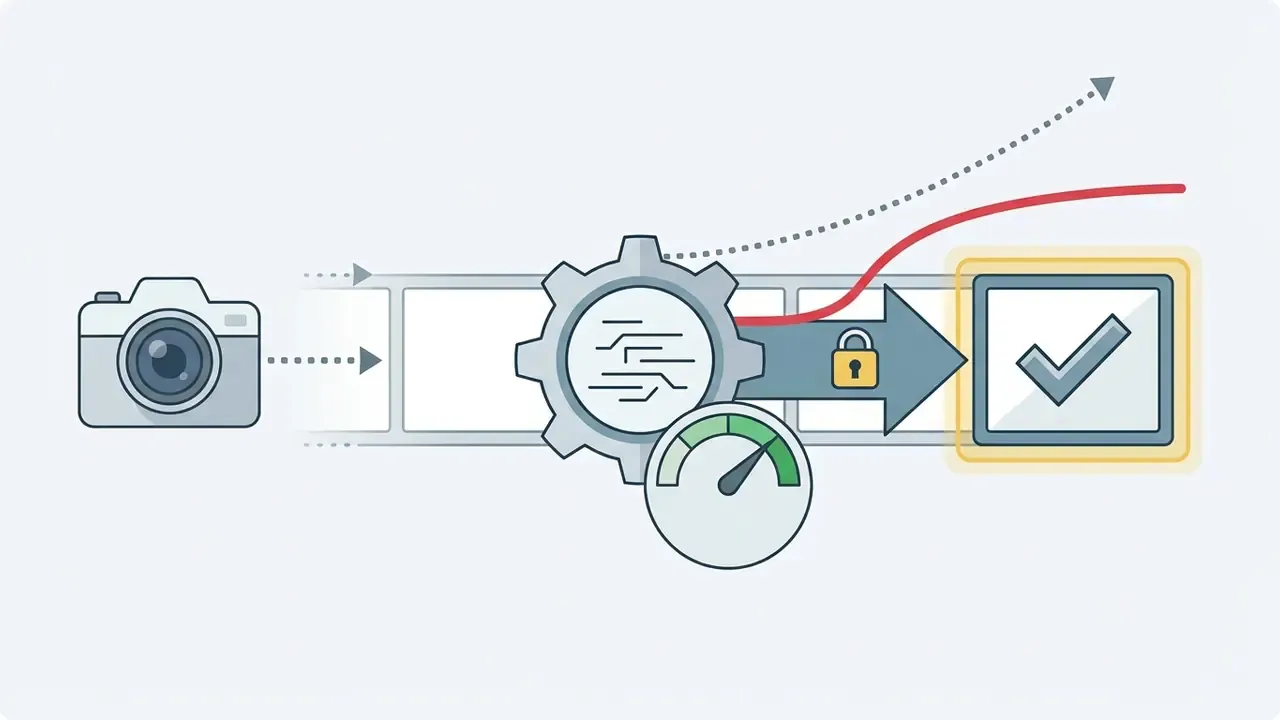
One pre-generation discipline borrowed from Ken Burns-style editing pays for itself: write down the start-frame scale and position, the end-frame scale and position, the duration and the easing curve before you open the generator. One movement per shot. Mixing pan, zoom and orbit inside a single 8-second render is the most common cause of perspective distortion I see in review queues.
Fact Check: acceptable source assets for commercial video
How to Create a Video from a Single Photo with AI
Creating a short video from a single image involves uploading a high-resolution reference photo, entering a structured text prompt for motion, selecting an AI video model, then executing generation.
- Upload source photoselect a clear JPG or PNG image and import it into the AI video generator as the first-frame reference.
- Set target aspect ratiochoose 9:16 for vertical social channels or 16:9 for landscape display.
- Formulate motion promptwrite a concise text prompt specifying subject action, camera movement and visual style.
- Select AI model parameterschoose the engine (for example Seedance, Kling or Gemini Omni) and set motion intensity limits.
- Click generateprocess the image-to-video transformation.
- Inspect output qualityreview the generated video for temporal flickering, identity distortion or unnatural physics.
- Export high res videodownload the final video clip in MP4 format at native resolution.
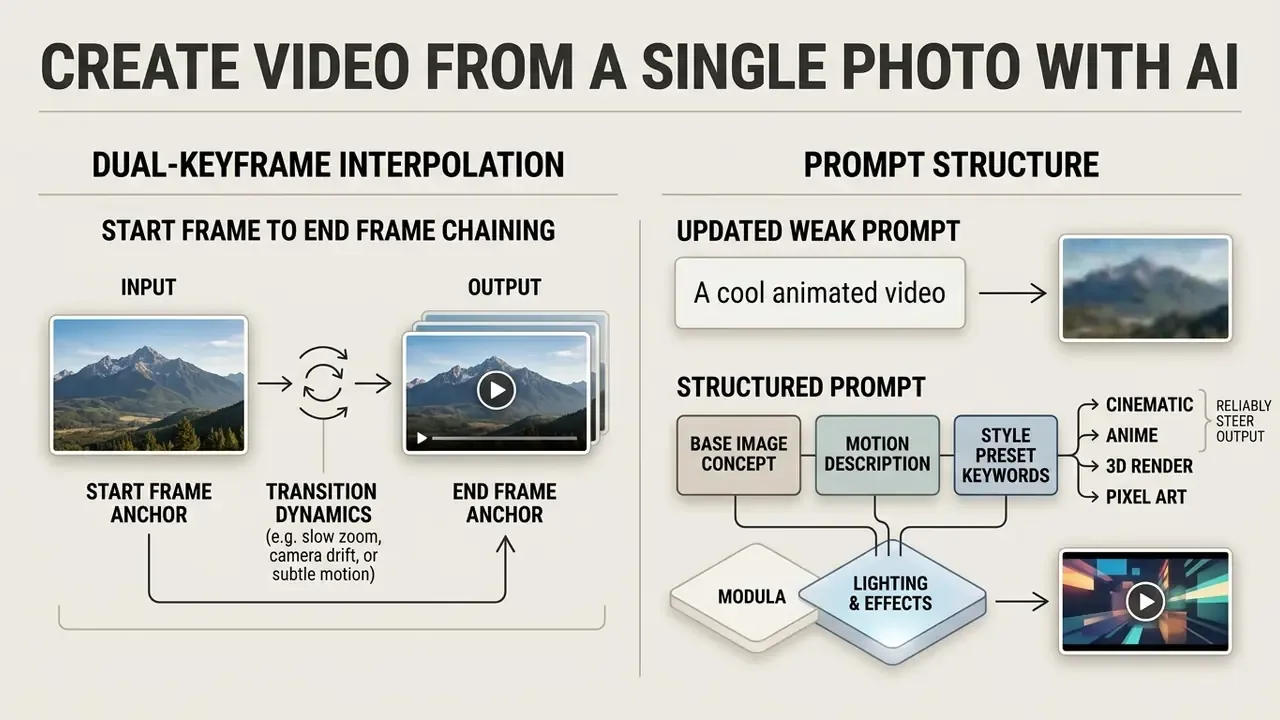
Dual-Keyframe Interpolation: Start Frame to End Frame Chaining
When you animate motion between two distinct visual states, single-image prompting produces unpredictable camera behaviour, because the model has to invent a destination. Modern engines support dual-keyframe conditioning with explicit Start Frame and End Frame upload slots:
- Start frame anchorestablishes initial composition, subject placement and lighting environment. This is the literal Frame 0 of the render.
- End frame anchorlocks the final spatial state, preventing perspective drift over extended renders of 8 to 15 seconds.
- Transition dynamicsspecify the target vector in the prompt, for example "morph geometry smoothly from Start Frame to End Frame over 5 seconds, constant easing, no camera roll".
Practical constraints: most platforms accept JPG, JPEG, PNG or WEBP keyframes up to roughly 20 MB each, and both frames should share identical pixel dimensions and aspect ratio. Mismatched keyframe ratios force the model to letterbox or crop mid-render, which reads on playback as a visible jump.
When dual-keyframe wins: transformation reveals (before/after renovation, packaging redesign, seasonal product variant), logo build-ups and morph transitions between two approved brand stills.
When it fails: multi-shot sequences. Chaining three clips end-to-end compounds drift, because each generation inherits only the last still frame. Switch to Reference-to-Video conditioning at that point.
Write a Text Prompt That Describes Motion
«Motion-I2V splits image-to-video into two stages: predicting a pixel-level motion field, then propagating reference-image features through motion-augmented temporal attention.»
When executing how to make a video from one photo, combine four explicit prompt elements:
[Camera Trajectory] + [Subject Action] + [Environmental Dynamics] + [Style/Lighting]
- Weak prompt: "Make this photo move."
- Structured prompt: "Slow camera zoom in on the product shot, subtle steam rising from the coffee cup, soft natural morning sunlight, cinematic 4K detail."
Precise commands control how the generator turns static visual data into fluid motion without altering core subject identity. Vague commands hand that decision to a random seed.
Style preset keywords that reliably steer output:
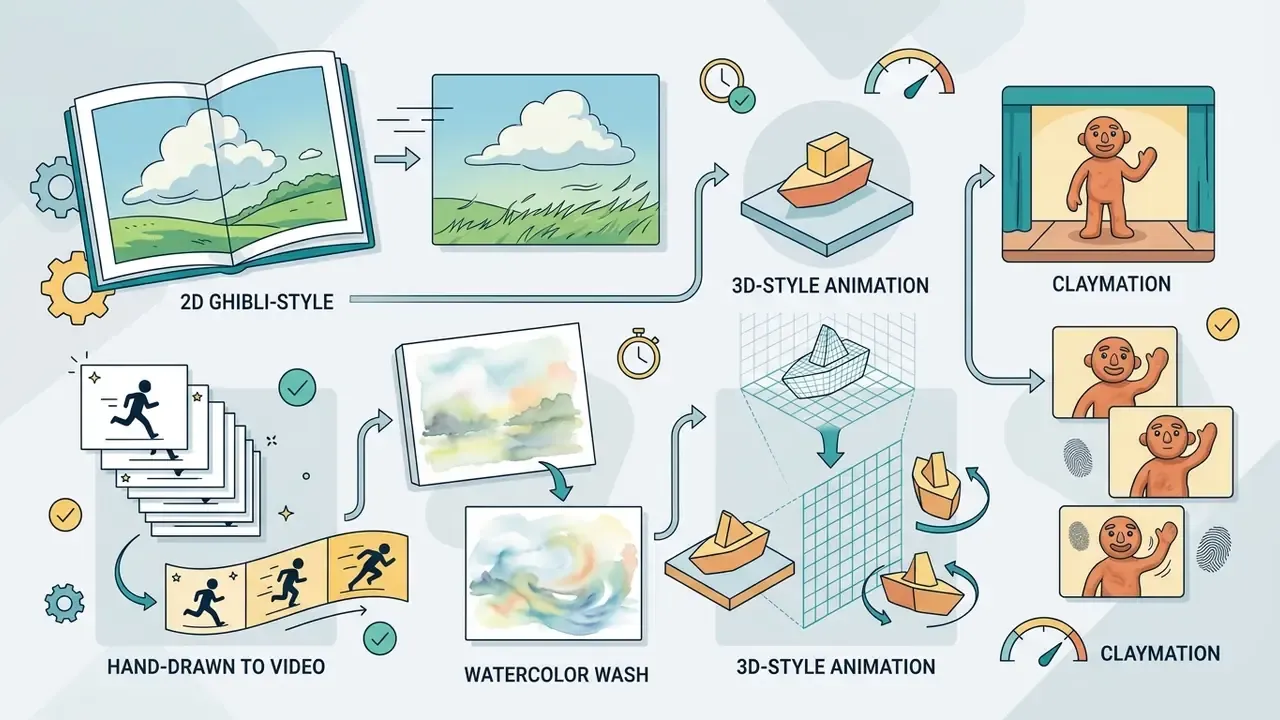
2D Ghibli-style, hand-drawn to video, watercolor wash, 3D-style animation, claymation
cyberpunk neon, arcade CRT scanlines, 1970s film grain, photobooth strip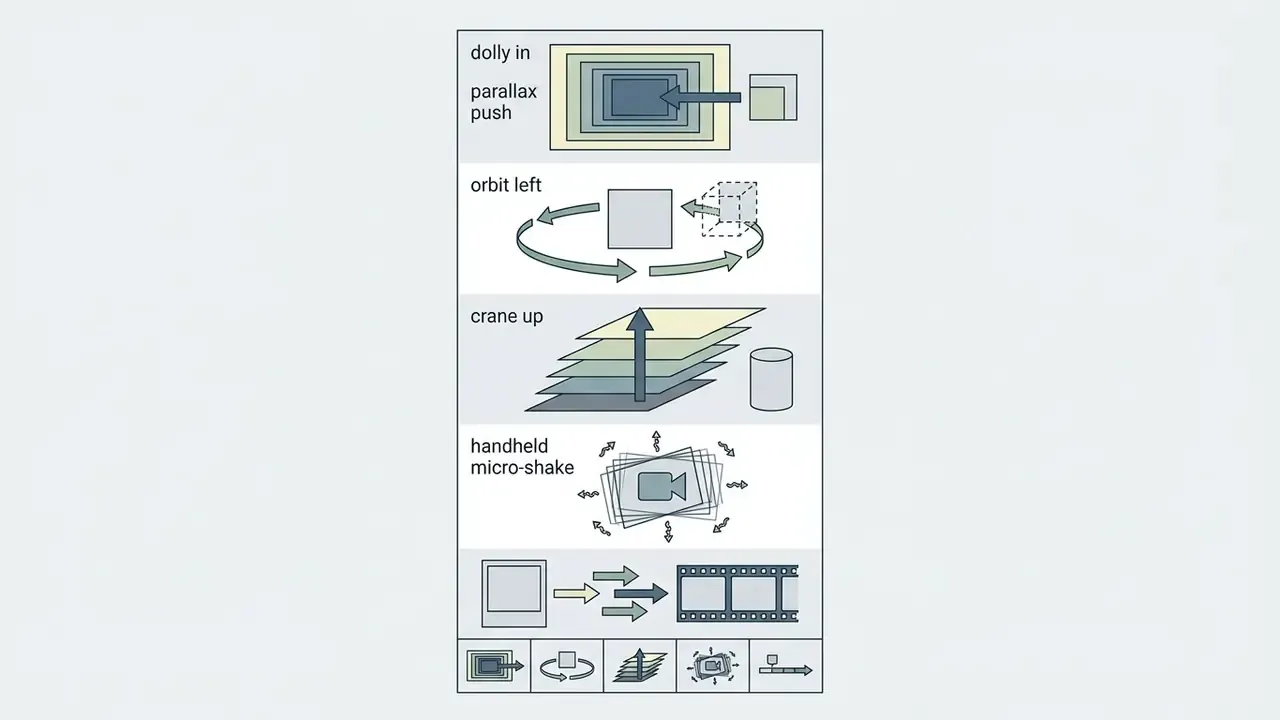
dolly in, orbit left, parallax push, crane up, handheld micro-shake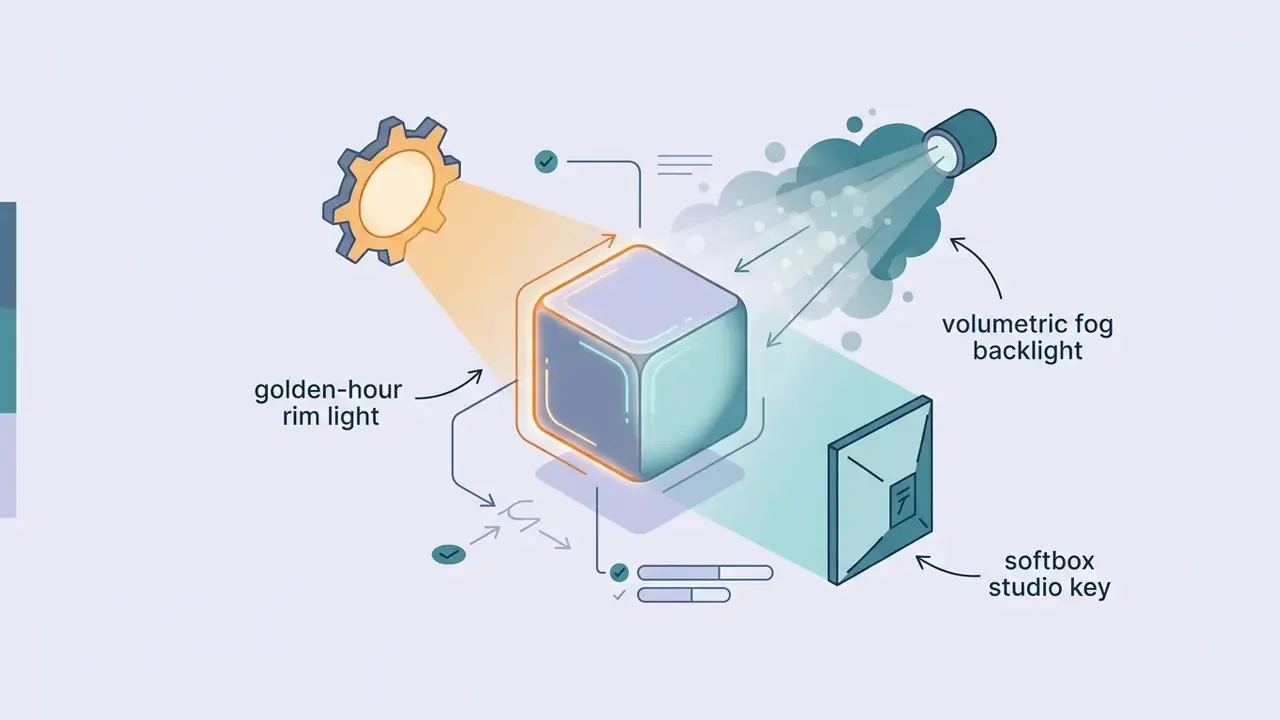
golden-hour rim light, softbox studio key, volumetric fog backlightChoose AI Video Models and Generate the Clip
Selecting the appropriate ai video models depends on required clip length, resolution, motion complexity and multimodal conditioning capability.
None of these vendors publish a shared benchmark table for animation realism, micro-detail or motion smoothness, so cross-model claims should be validated on your own reference assets. Independent academic benchmarking transfers better:
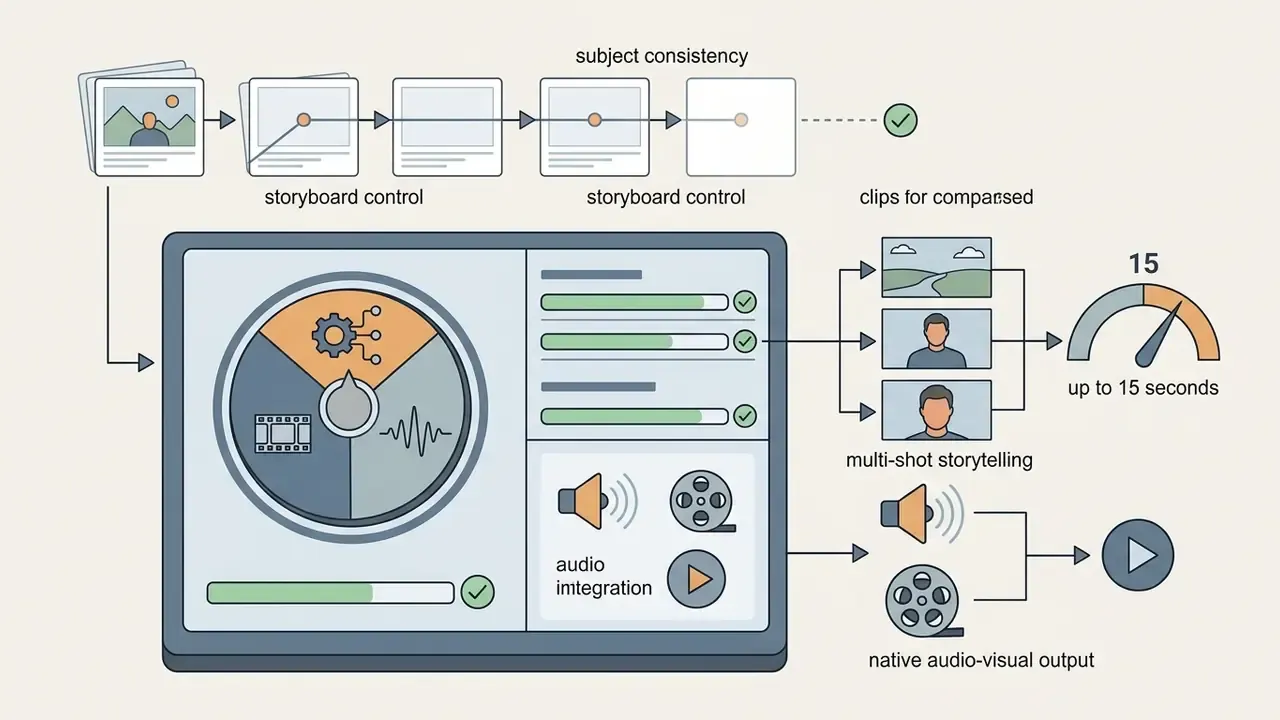

«OSV reaches FVD 171.15 in a single generation step, outperforming 8-step AnimateLCM (FVD 184.79) and approaching 25-step Stable Video Diffusion (FVD 156.94).»
For multi-model evaluation and technical comparisons, consult our AI Media Comparison Matrices, our ranking of the best AI video generators, our guide to best free AI video generators, and the credit-burn calculators if you are budgeting a campaign rather than a single test render.
Review, Regenerate, and Export the Video
Reviewing generated output means assessing visual fidelity, temporal consistency and prompt alignment before you touch export settings.
«AIGCBench evaluates image-to-video algorithms with 11 metrics across four dimensions: control-signal-to-video alignment, motion effects, temporal consistency and overall quality.»
If facial features warp or background structures flicker, adjust motion intensity or regenerate with a modified random seed. Apply a three-way triage before burning credits:
- Repair the source when the defect originates at an ambiguous edge, an occlusion or a low-detail region of the input photo.
- Regenerate unchanged when the setup is sound and the defect looks random. This tests whether the artifact is seed-dependent.
- Regenerate with exactly one variable changed (prompt clause, motion intensity or model) when the same defect reproduces across two seeds.
When exporting the final ai generated video, select a high-bitrate MP4 container using the H.264 or H.265 codec. Industry-standard export bitrates are 10 to 20 Mbps for 1080p and 20 to 50 Mbps for 4K. H.265 delivers a better quality-to-size ratio, while H.264 maximizes device compatibility. Keep a high-bitrate master at native aspect ratio and native frame rate, then derive platform deliverables from it with a video compressor rather than re-exporting from the generator.
Audit trail and reproducibility. Before archiving a render, record the following in your asset management system or DAM metadata. This is the minimum evidentiary set for model-risk review and internal audit.
| Field | Example value | Why auditors ask for it |
|---|---|---|
| Model + version | Seedance 2.5 | Output cannot be reproduced across versions |
| Seed / generation ID | 4471902 | Distinguishes random artifacts from systematic failure |
| Prompt text (verbatim) | "Slow dolly in, steam rising…" | Demonstrates human creative direction for copyright claims |
| Motion intensity / duration | 0.6 / 8 s | Explains motion-physics defects in review |
| Source asset ID + licence | SKU-4412.jpg, stock licence #… | Proves ingestion rights |
| Reviewer + approval date | J. Ortega, 2026-02-11 | Human-in-the-loop evidence |
Six fields. Thirty seconds per render. It is the cheapest control in this entire guide.
How to Create a Video from Multiple Images Online
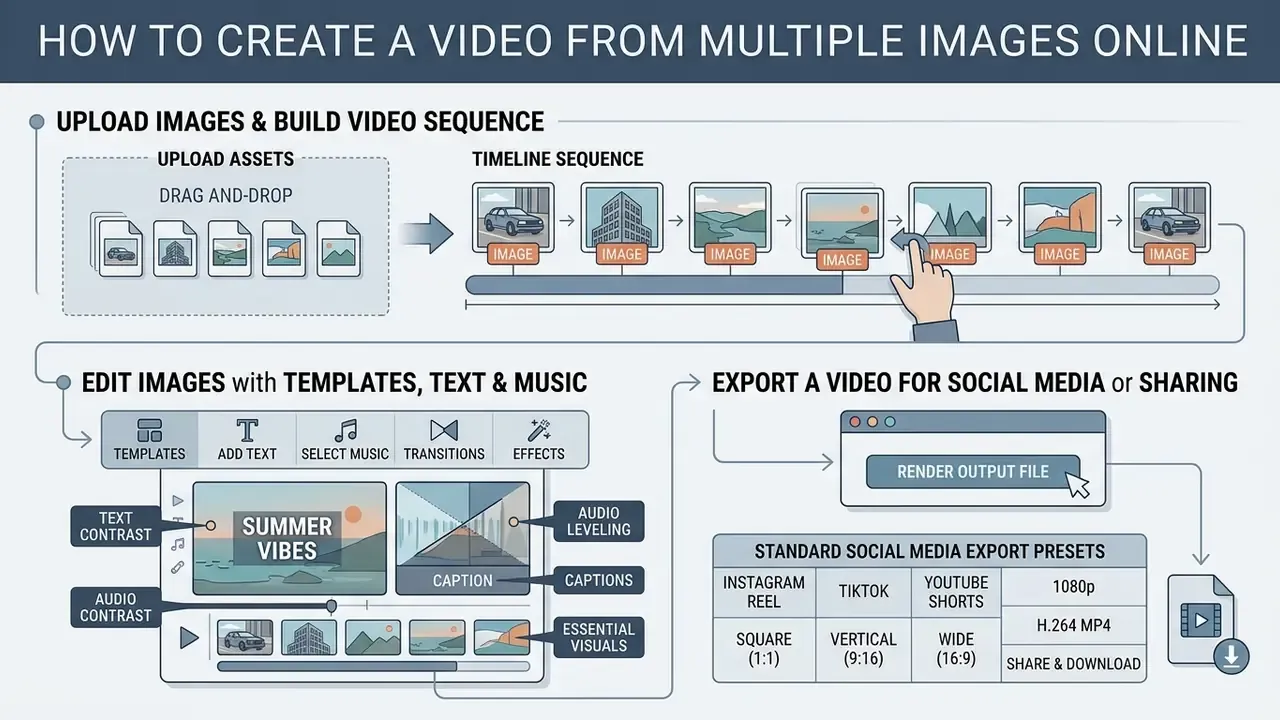
Assembling a multi-photo video clip online requires uploading visual assets, arranging sequence order on a timeline, applying transitions and text, then rendering the output file.
Upload Images and Build a Video Sequence
Building a photo sequence involves importing image files, establishing frame order on the editor timeline and adjusting individual slide display durations.
To assemble a multi-image sequence efficiently:
- Import your selected photos into the browser-based video editor.
- Drag and drop images onto the main timeline track in sequential order.
- Set individual frame display times. Default is typically 3 to 5 seconds per photo, and several editors default to exactly 4 seconds per still.
- Apply standardized dissolve or wipe transitions between adjacent media clips.
- Add a subtle pan, push or mirror effect per still, so static frames read as motion rather than as a paused video.
Total runtime follows a simple formula: number of images × per-image duration, adjusted for transition overlap. Systematic timeline assembly lets creators make a video out of images while holding precise timing control over every frame. If you still need to choose a platform, start with our comparison of free video editing software.
Generative interpolation is quietly closing the gap between slideshow and animation:
«AniSora uses a spatiotemporal mask module for frame interpolation and localized animation, trained on more than 10 million animation samples.»
Edit Images with Templates, Text, and Music
Enhancing a photo-based video relies on a professionally designed template, accessible text overlays and synchronized background audio. One-click template application handles layout; accessibility does not come for free with it.
Applying Web Content Accessibility Guidelines (WCAG 2.2) keeps your video content readable across every screen:
- Text contrast maintain a minimum 4.5:1 contrast ratio between text overlays and video backgrounds.
- Audio leveling keep background music at least 20 dB below spoken voiceover to preserve speech intelligibility. W3C notes that is roughly four times quieter. Alternatively, make the background track mutable.
- Captions add synchronized closed captions for channels where users watch with sound muted, and publish a transcript for prerecorded assets.
- Essential visuals if a frame carries text, a chart or a diagram, describe it in the voiceover or in on-screen text. Never rely on the image alone.
You can combine automated narration with visual assets using modern ai voiceover tools.
Compare Free Online Video Makers and AI Video Tools
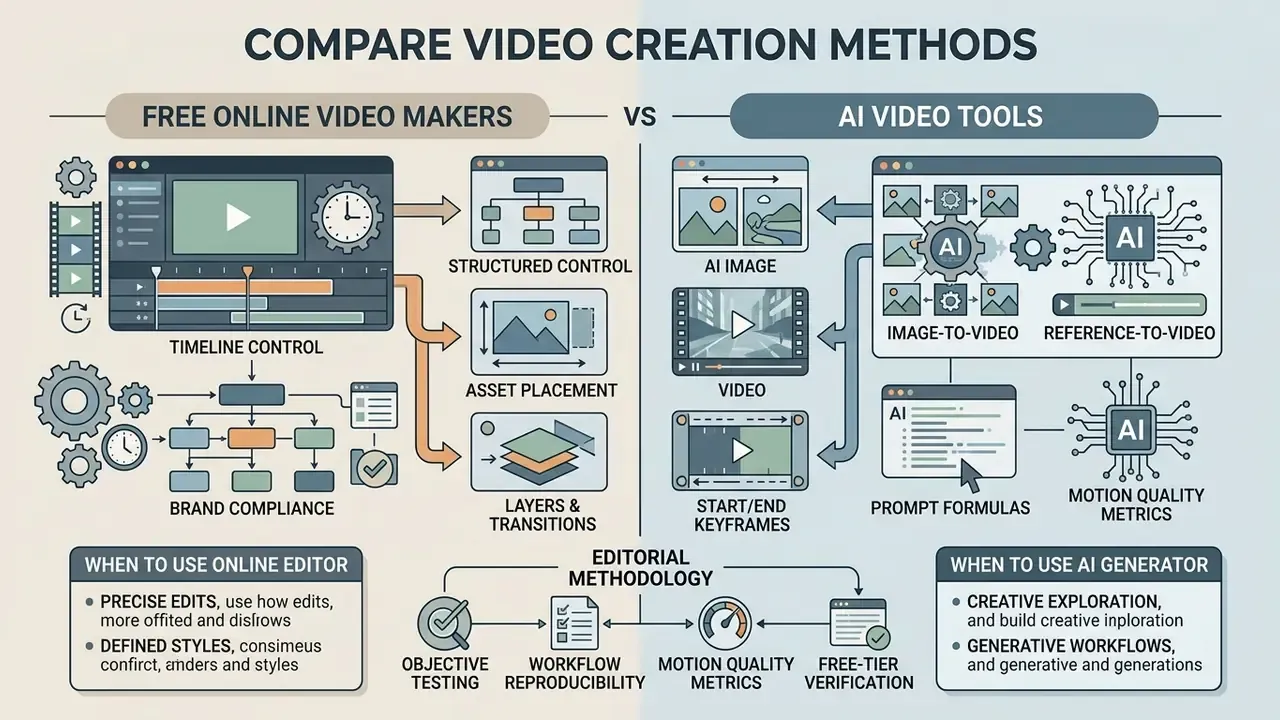
Free online video editors excel at structured timeline control and brand compliance. AI video generators automate complex single-frame motion, at the cost of metered free credits and watermarks. Neither category wins outright, which is why the comparison below is by criterion rather than by brand.
«UI2V-Bench found that many image-to-video models show limited semantic understanding of the input image across four dimensions: spatial understanding, attribute binding, category understanding and reasoning.»
Table: Tool Category Matrix, AI Video Generators vs. Online Video Editors
| Evaluation Criterion | Generative AI Video Tools | Traditional Online Video Editors |
|---|---|---|
| Single-photo motion generation | Advanced: creates artificial motion vectors and 3D depth from one photo. | Basic: limited to 2D keyframe scaling, panning and crop movement. |
| Multi-image sequence control | Experimental: generative frame interpolation between distinct keyframes. | Native: direct timeline ordering, precise trimming, clip sequencing. |
| Start / end frame conditioning | Supported on most 2026 engines as dedicated upload slots. | Emulated manually with scale/position keyframes at clip head and tail. |
| Text prompt integration | Core driving feature: synthesizes scene changes from descriptive prompts. | Secondary: used mainly for title generation and caption formatting. |
| Free tier limitations | Metered daily or monthly credits; output resolution often capped at 720p; clip length capped at 4 to 10 s. | Feature-restricted; free exports may include vendor watermarks. |
| Watermark conditions | Common on free plan exports; removed on paid tiers. | Watermark-free exports available when using native free visual assets. |
| Commercial rights | Governed by platform AI model terms and input training-data provenance. | Full commercial rights retained for user-owned assets and stock libraries. |
| Data privacy and enterprise security | Varies sharply: check whether uploads train the model, whether retention is time-boxed, and whether SOC 2 / ISO 27001 / GDPR alignment and private API endpoints are offered. | Generally lower exposure, since assets stay in a project workspace, but SSO, audit logs and regional data residency still require a business tier. |
Adjacent tool classes overlap with both columns. Text-to-video AI generates footage with no source photo at all, which is the right choice when no approved still exists yet.
When to Use an AI Video Generator
An ai powered tool of this class is ideal for converting static images into dynamic creative where manual frame editing is impractical or simply impossible.
Key application scenarios:
- Generating scroll stopping motion graphics from a single product shot.
- Animating historical photos or portraits for documentary storyboards, a job also served by lighter-weight animation makers.
- Creating eye catching dynamic backgrounds and visual effects for short-form ads.
- Building high-volume variant tests for social media ad campaigns.
- Producing localized variants of one creative across multiple markets at batch scale.
When rapid motion creation matters more than strict timeline editing, generative AI offers the fastest production path, and engines such as PixVerse AI sit at the low-friction end of that spectrum. For workflow automation strategies, explore our AI Video for YouTube Shorts guide and the ai youtube shorts generator documentation.
When an Online Video Editor Is the Better Choice
An online video editor wins when precise timing, multi-frame ordering, exact text layout and strict brand governance are non-negotiable.
Key application scenarios:
- Assembling structured multi-step tutorials and educational presentations.
- Producing corporate communications with mandatory logo safety zones, lower-third restrictions and no-watermark rules.
- Creating precise multi-image slideshows synchronized to voiceover tracks.
- Editing long-form video content against established publishing templates.
For complete feature breakdowns of browser-based platforms, see our analysis of the Canva AI Generator and our YouTube Video Editors Guide.
Licensing, Copyright, and Enterprise Data Governance
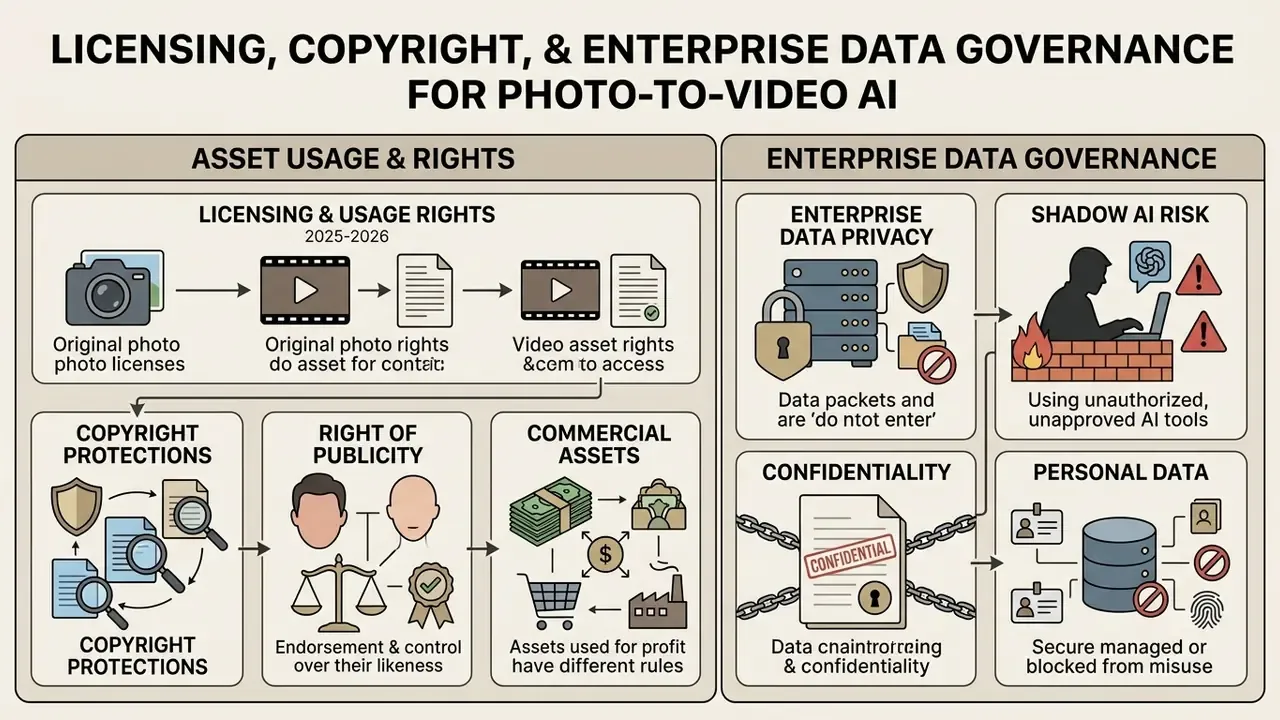
Fact Check: licensing and usage rights for photo-to-video assets (2025 to 2026)
Enterprise Data Privacy and Shadow AI Risk
Photo-to-video adoption inside organizations usually begins as Shadow AI. A marketer uploads a pre-release product render. An HR coordinator uploads a staff portrait. A field engineer uploads a site photo. All three go to a consumer-grade free tool with no procurement review, and nobody logs it.
Three exposures follow, and all three are controllable:
- Confidentiality. Unreleased packaging, facility layouts, screenshots containing customer records and internal dashboards become third-party uploads. Verify in writing whether the vendor trains on customer inputs, how long assets are retained, and whether deletion is honoured on request. Several consumer tools state that uploads are purged on a schedule. Treat such statements as contractual only when they appear in the terms you actually signed.
- Personal data. Employee and customer photographs are biometric-adjacent personal data in many jurisdictions. Written consent plus a lawful basis must exist before the image reaches the model, not after the video ships.
- Rights leakage. Free tiers frequently restrict commercial use, watermark output, or grant the vendor a broad licence to display generated work. Enterprise plans typically restore commercial licensing, add SSO and audit logs, and offer private endpoints with no training on submitted data.
Minimum control set: an approved-tool allowlist; a classification rule banning confidential or personal imagery from public generators; a consent register for likeness use; and the audit-trail fields listed earlier attached to every published render. Four controls, one owner, one escalation path. No evidence, no autonomy.
Create Videos from Photos for Business, Ads, and Social Media
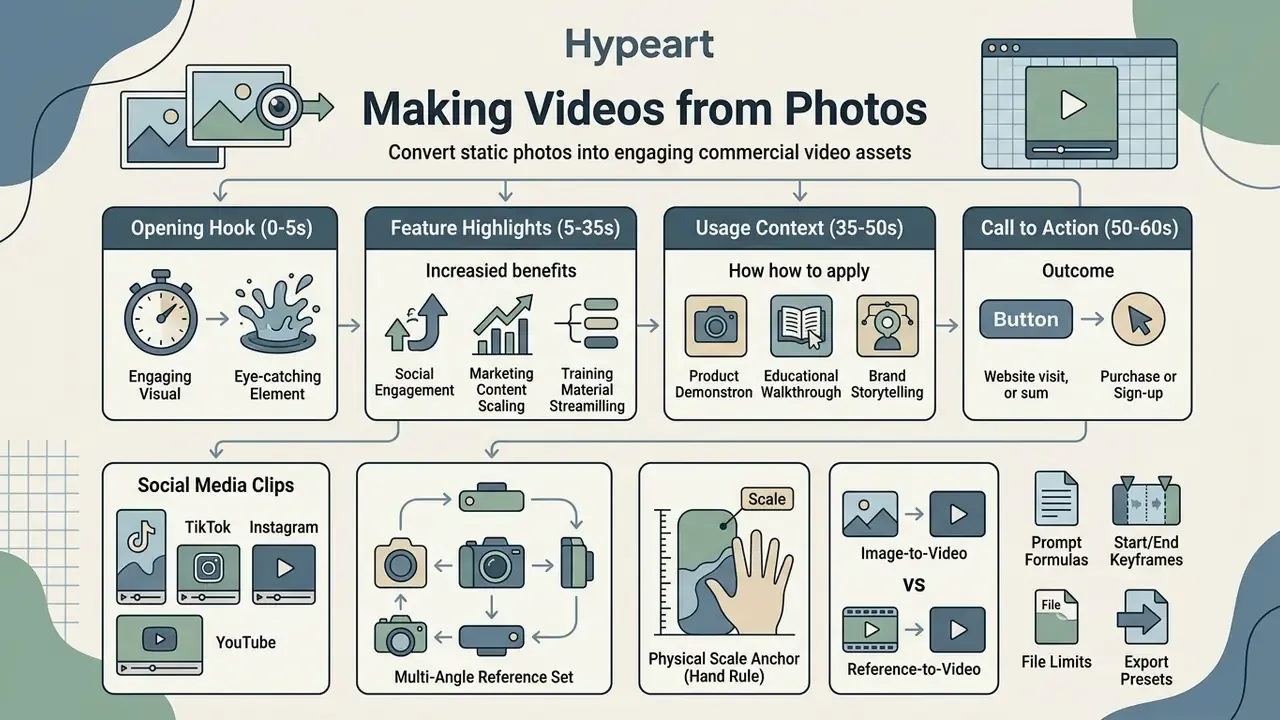
Turning static photos into commercial video assets lets businesses scale marketing content, lift engagement across social platforms and streamline training material without booking another shoot.
Product Videos, Product Demos, and Commercial Video
«Sora and Lumina-T2X show preliminary capability for high-quality editing and consistent 3D views, yet the review warns of physical-law violations and safety issues.»
A structured 60-second product demo sequence, built from 6 to 10 shots of 5 to 10 seconds each, looks like this:
Two conditioning techniques raise e-commerce output quality more than any prompt tweak:
The same pattern extends to a product launch teaser, a real estate walkthrough built from listing stills, or a birthday greetings clip stitched from family photos. Different intent, identical mechanics.
- Opening hook (0 to 5 s)
- high-impact animated product hero shot.
- Feature highlights (5 to 35 s)
- sequential multi-angle images showing three or four key details.
- Usage context (35 to 50 s)
- animated lifestyle photo demonstrating the product in use.
- Call to action (50 to 60 s)
- end frame with brand logo, pricing and purchase link.
- Multi-angle reference set
- load front, side, back and a close-up as reference images, so every subsequent clip in the campaign reads from the same locked source instead of re-inventing packaging typography.
- Physical scale anchor, the Hand Rule
- when you turn product photography into AI motion, neural networks frequently misjudge physical dimensions and render a 40 ml bottle at the size of a fire extinguisher. Upload a secondary reference photo showing the product held in a human hand. That single frame gives the model spatial scale context and prevents giant-or-microscopic rendering in moving scenes.
Explainer, Education, and Onboarding Videos
Explainer video and onboarding material built from photos needs clear visual structure, synchronized captions and short chapter segmentation to hold retention.
Federal digital accessibility standards (U.S. Section 508 Guidelines, 2026) require training videos to include text transcripts and screen-reader accessible captions. Educational-video guidance adds two structural rules: open with an overview, close with a summary, and never deliver essential information through the image alone. Narration for a new employee onboarding module can be produced with AI voice generators where in-house recording is unavailable.
When converting corporate documents or product photos into training clips, segment the material into modules of 30 seconds to 3 minutes. This improves comprehension and makes future content updates a re-render of one module instead of the whole course.
The practical consequence of the TC-Bench finding cited earlier is worth stating plainly: generate the atmosphere with AI, meaning title cards, transitions and concept visualizations, but assemble the procedure on a timeline, where step order and on-screen duration stay deterministic and reviewable.
Common Problems When Turning Photos into Videos
Common failure modes in photo-to-video conversion include geometric facial deformation, unnatural motion physics, temporal flickering, style drift on illustrated assets, and plain prompt mismatch.
Table: Troubleshooting Common Photo-to-Video Artifacts
| Observed Artifact | Primary Root Cause | Recommended Corrective Action |
|---|---|---|
| Facial warping / lip jitter | Ambiguous source resolution or excessive facial motion prompting. | Crop input photo closer to the face; apply landmark-supervised diffusion models. |
| Background flickering | Unconstrained generative noise initialization across adjacent frames. | Lower motion intensity; use low-frequency band noise locking. |
| Unnatural motion physics | Model failing physical commonsense constraints. | Simplify the prompt; switch to physics-grounded engines such as PhysGen. |
| Perspective distortion | Conflicting camera trajectory instructions in the text prompt. | Isolate a single motion vector, for example slow zoom only; lock start and end frames. |
| Style drift on illustrations | Model defaults to photorealistic rendering of non-photographic input. | Inject explicit style, palette and linework anchors into the prompt. |
| Product scale errors | No spatial reference for physical dimensions in the source photo. | Add a reference frame showing the product held in a hand. |
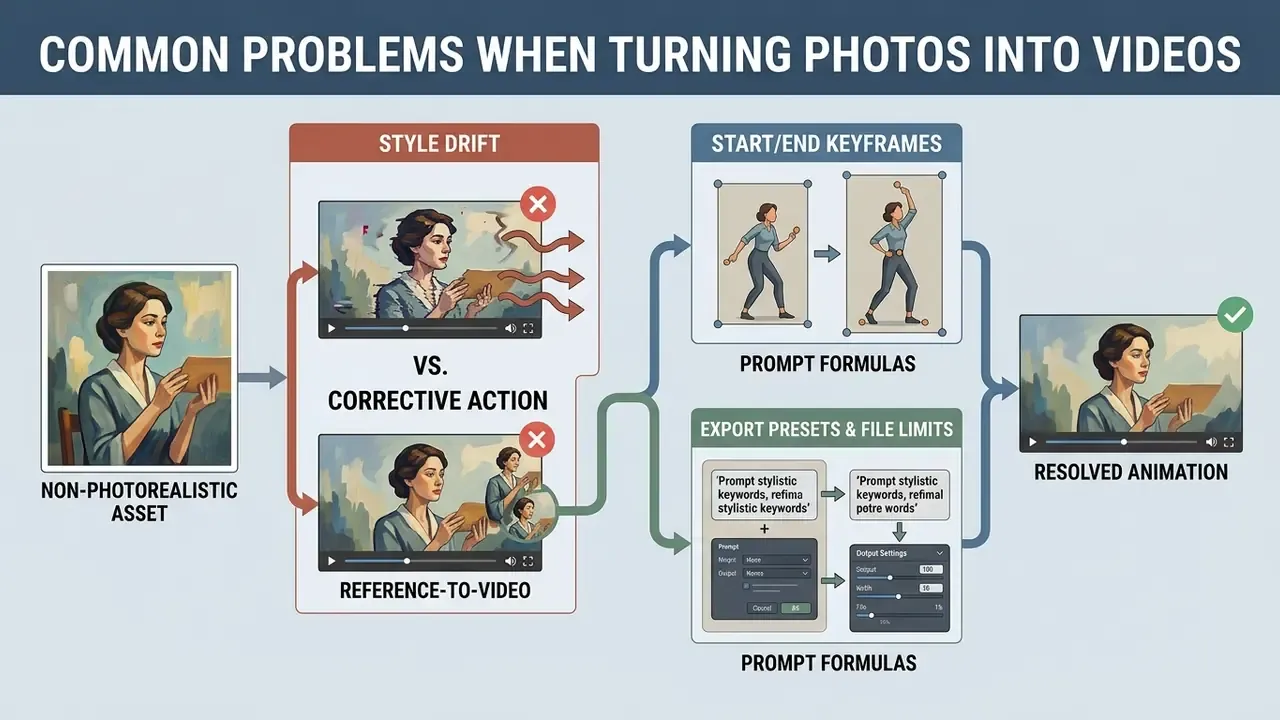
Fixing Style Drift in Non-Photorealistic Assets
Most generative AI video models default to photorealistic spatial rendering. Upload vector illustrations, 2D art, watercolour images, hand-drawn sketches or stylized 3D renders, and the network tries to force realistic textures and lighting onto them. The output then looks like neither your style nor a clean photograph. Real photographs rarely show this failure, because the model is already working in its native domain.
Corrective action:
- Override default photorealism by injecting explicit style anchors into the text prompt with the pattern
[Source Style] + [Color Palette Lock] + [Linework/Texture] + [Lighting Engine]. - Describe palette, texture and lighting in words instead of trusting the reference image to carry the aesthetic.
- Example prompt: "2D Ghibli-style illustration motion, maintaining flat colour palette, hand-drawn linework, subtle background breeze, painted cloud texture, no photorealistic rendering, no depth-of-field blur."
- Keep motion minimal. Illustrated assets tolerate parallax, breeze and shallow pushes. They break under orbital camera moves that demand invented 3D geometry.
Fix Unnatural Motion and Inconsistent Details
«PhysGen integrates rigid-body simulation with diffusion-based video generation, using an image-understanding module to infer geometry, materials and physical parameters from a single photo.»
When animating portraits, choosing models that enforce 3D landmark tracking removes lip jitter and holds facial identity across the full clip using AI. Peer-reviewed work on audio-driven single-image talking-face animation (Scientific Reports, 2026) reports that landmark supervision combined with a Transformer temporal module improves stability and reduces distortion in non-speech facial regions.
Improve Image Quality Before and After Generation
«UI2V-Bench confirms that blurred object boundaries and ambiguous attributes in the input photo cause spatial-understanding and attribute-binding errors in the generated video.»
After generation, a dedicated video enhancer, an AI image enhancer applied to extracted frames, or a super-resolution pass raises clip resolution toward native 4K without adding motion artifacts. Multi-frame super-resolution methods reconstruct a higher-resolution result from several low-resolution observations, with reported improvement scaling roughly as √N from N frames. Worth knowing: upscaling fixes softness, never invented geometry.
Enterprise Video Launch Checklist
Run this list before any photo-derived video is published or served as paid media.
Checklist0 / 16
FAQ: Making Videos from Photos
Can I make a video from a single photo for free?
Yes. Multiple online platforms offer free tiers that let you generate a short video clip from one photo using AI credits, or basic pan and zoom timeline effects. Free tier exports may carry resolution caps (often 720p), clip-length limits of 4 to 10 seconds, weekly minute allowances, or vendor watermarks. Browser editors can export watermark-free and even free HD, but usually only when every element in the project, image, clip and music track, comes from the free asset library.
What is the best aspect ratio for TikTok and Instagram Reels?
The optimal format for TikTok, Instagram Reels and YouTube Shorts is a vertical 9:16 aspect ratio rendered at 1080×1920 pixels. YouTube Shorts additionally accepts 1:1 square, and Instagram allows uploads between 1.91:1 and 9:16, but full-screen vertical remains the native presentation.
Do I own the copyright to AI-generated videos made from my photos?
Under U.S. Copyright Office Guidance (2025 to 2026), purely AI-generated video outputs lack human authorship and cannot be copyrighted independently. You do retain ownership of your original uploaded reference photos, and your own creative selection, arrangement and editing may be claimed as human-authored contributions if documented. General information, not legal advice.
How do I stop faces from distorting when animating a portrait?
Use high-resolution source images, simplify the motion text prompt, lower the generator's motion intensity setting, and pick AI models equipped with 3D landmark supervision. Cropping tighter to the face also helps, since it reduces the ambiguous background the model would otherwise invent.
Should I chain start and end frames, or use reference conditioning?
For a single self-contained clip where you already know the opening and closing composition, start and end frame chaining is the better tool. Past one clip it drifts, because chaining inherits only the final still frame and re-derives lighting, camera and geometry each time. Reference-to-video reads the whole prior clip plus locked references, so identity and atmosphere carry forward across an entire ad or scene sequence.
How long can an AI clip from one photo be?
Duration is model-bound. Typical 2026 ceilings are 4 to 15 seconds on Seedance-class engines, up to 30 seconds on extended-context versions, around 8 seconds on Veo-class models, and around 10 seconds on Kling and Runway. Longer deliverables are produced by auto-splitting a script into model-sized clips and stitching them, so a 30-second video is usually several generations underneath.
What file formats and sizes can I upload?
Most platforms accept JPG/JPEG, PNG and WEBP, with HEIC/HEIF supported by some browser editors. Typical limits are 20 to 50 MB per image and no more than 250 million total pixels. SVG vectors are usually capped near 3 MB and 150 to 200 px base width under the SVG 1.1 profile. Reference video uploads are commonly limited to 1 GB across MOV, MP4, MPEG, MKV, WEBM and GIF.
Is it safe to upload company photos to a free AI video tool?
Not by default. Unvetted free tools may retain uploads, use them for model training, or grant themselves display rights. Before uploading pre-release product imagery, facility photos or employee portraits, confirm retention and training terms in the signed agreement, prefer enterprise plans with SOC 2 or ISO alignment, GDPR commitments and private endpoints, and keep confidential classes of imagery off consumer tiers entirely.
About the Editorial Desk
Appendix A: Source Attribution Notes
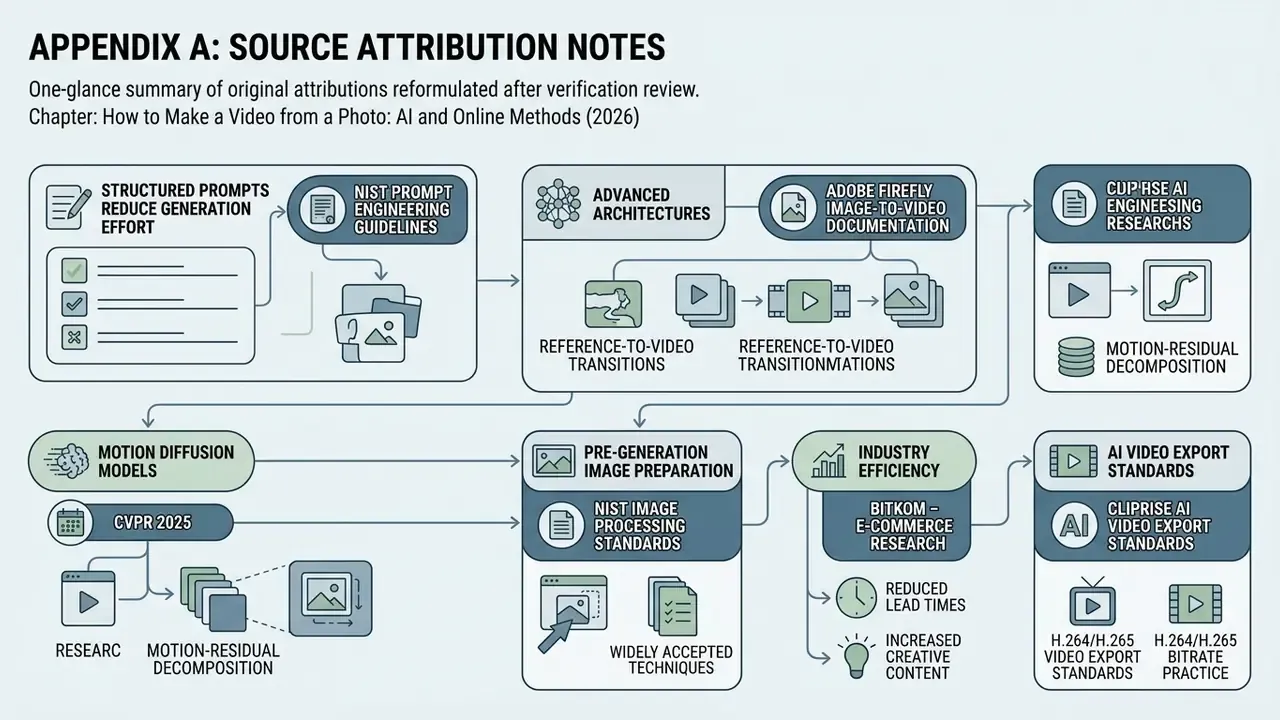
For transparency, the following original attributions were reformulated in this edition after verification review. The claims themselves remain in the text in updated form.
- "According to NIST Prompt Engineering Guidelines (2024 to 2026), structured prompts reduce generation ambiguity." Retained as a reference to published NIST generative-AI prompt-engineering materials and Stanford's GenAI Prompt Guide, with the mechanism additionally supported by Motion-I2V (arXiv, 2024).
- "Tools utilizing advanced architectures, such as Adobe Firefly Image-to-Video Documentation (2026) and Google Gemini API Documentation (2026)." Retained and labelled as vendor product documentation rather than peer-reviewed evidence.
- "Research published in CVPR 2025 (Motion Diffusion Models)." Retained as motion-residual decomposition research, with physics-grounded conditioning evidence supplied by PhysGen (ECCV 2024).
- "Pre-generation image preparation guidelines (NIST Image Processing Standards)." Retained as widely accepted image-preparation practice consistent with NIST facial-image processing guidance.
- "According to Bitkom E-Commerce Research (2026) … reduced media production lead times while increasing click-through rates." Retained with the workflow description intact and the quantified performance claim flagged as unpublished, requiring first-party A/B validation.
- "Cliprise AI Video Export Standards, 2026." Retained as industry-standard H.264/H.265 bitrate practice rather than a proprietary standard.
Social Media Clips for TikTok, Instagram, and YouTube
Scroll stopping social media clips rely on vertical 9:16 formatting, a rapid visual hook in the first frame, dynamic motion and concise pacing.
To optimize short video performance across channels:
One generated video can serve TikTok, Instagram and YouTube Instagram cross-posting, provided you export each preset from the master rather than regenerating the clip per channel.