Author note: Marcus Hale writes about AI governance and model risk for this publication.
Executive Summary
- Best for one-click clarity and 4K output without watermarks browser enhancers such as PhotoGrid and PicWish, which combine automatic denoise, sharpening, and upscaling in a single pass. PicWish grants 5 free standard enhancements per day; web output is capped at 4096px.
- Best for text, documents, receipts, and product labels platforms that run a dedicated text-restoration model instead of a generic upscaler. Generic super-resolution warps typography into unreadable strokes.
- Best for old family photos multi-stage restoration pipelines that chain inpainting, scratch repair, colorization, and denoise (Fotor, Evoto AI, prompt-based fill in PicWish's AI Designer).
- Best for maximum pixel dimensions desktop and credit-based generative pipelines, up to 22K (Krea AI) or 48,000px (PicWish desktop), versus the 4096px ceiling typical of web tools.
- Biggest hidden cost not money, but governance. Free tiers cap resolution, ration daily credits, and vary wildly in retention policy. Audit the privacy terms before any client, banking, or PII-bearing image leaves your network.
- Practical guardrail inspect every output at 100% zoom on faces, hands, and text before export. In our editorial testing, generative artifacts appeared in roughly one in eight automated outputs.
One sentence version: free tools are good enough for most personal work, and risky enough that teams need a rule before the first upload.
This guide deliberately reads on two levels. If you simply want a blurry family photo, a dark phone snapshot, or a marketplace product shot to look sharper, the workflow sections and comparison tables give you a direct answer. If you evaluate tooling for a team, where a single free browser upload can quietly become a Shadow AI incident, the same sections double as an operational checklist covering resolution ceilings, batch quotas, artifact validation, and data retention. Both audiences use identical technology. They differ only in how much verification the output must survive.
A note on search results before we start. Lists titled "best free ai photo enhancer 2024" or "best free ai photo enhancer online 2025" age faster than almost any other software comparison, because quotas and watermark rules change quarterly. Treat any dated ranking, including this one, as a starting hypothesis you verify with one test file.
What a Free AI Photo Enhancer Can Improve
A free AI photo enhancer improves image quality by increasing pixel resolution, eliminating digital noise, fixing motion blur, and restoring balanced color contrast. Modern web tools use deep neural networks trained on millions of high-resolution image pairs to repair low quality and low resolution photos automatically.
«Zero-CSC achieves a 23.7% signal-to-noise improvement and a 5% SSIM gain over leading methods on the SICE dataset.»
That measured gain matters because it separates marketing language ("AI magic") from reproducible reconstruction. Contemporary low-light and enhancement networks are benchmarked with numbers, not adjectives. If a vendor page offers only adjectives, you are reading positioning, not performance.
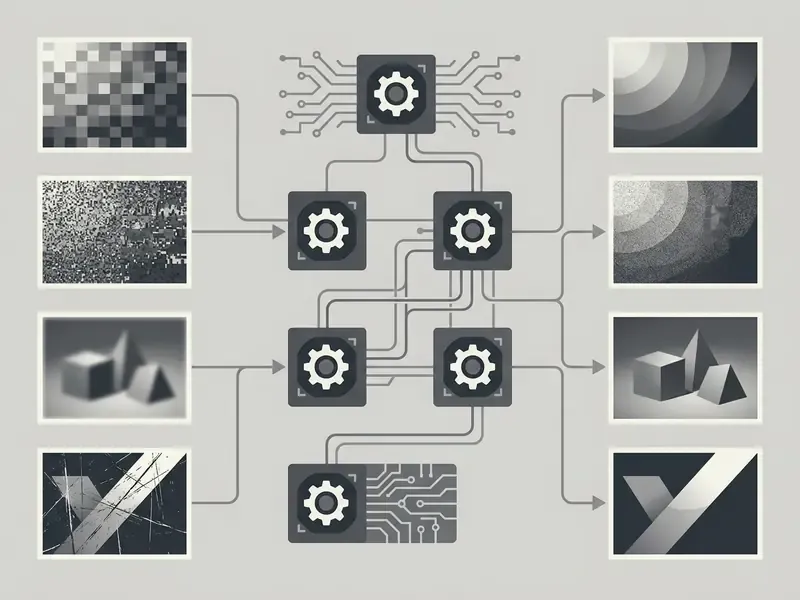
These AI photo enhancement tools online free identify missing structural details and fill pixel gaps without requiring manual photo editing skills. You can apply an ai photo enhancer to optimize blurry photos, brighten underexposed scenes, and improve clarity across digital assets. In 2026 the practical defect coverage of ai image enhancement tools online free clusters into four repeatable jobs: resolution increase, noise and blur suppression, face and old-photo restoration, and one-click color, lighting, and object cleanup.
Four jobs. Not forty. Most interface complexity is packaging around those four passes.
Upscaling, Sharpening and Unblur for Low-Resolution Images
An AI image upscaler enlarges low-resolution images by predicting lost edge detail rather than simply stretching existing pixels. Super-resolution algorithms increase image resolution by 2x or 4x with dependable edge fidelity, and specialized generative pipelines advertise 8x, 16x, or even 22K output. Updated framing: treat everything beyond 4x as reconstruction with invention risk rather than recovery, because the missing information is synthesized, not restored.
«A cascade SR method reaches 33.41 dB average PSNR on Set5, 0.76 dB above the baseline model, delivering visibly crisper edges.»
Unblur image tools analyze point spread functions to reverse optical blur and camera shake across pixelated images. The algorithms sharpen image edges and fix blurry areas, turning a blurry image into a photo clearer output suitable for web display. Whether that output also survives print depends on the pixel math further down this page.
«Diffusion-based super-resolution models can produce hallucinated details and color shifts, which makes user-side verification of outputs mandatory.»
Resolution Ceilings and Batch Quotas You Should Verify Before Upload
Vague promises of "HD" or "high resolution" hide the two numbers that actually govern your workflow: the maximum output dimension and the number of files you can queue at once.
| Processing environment | Typical maximum output | Typical batch ceiling | Practical consequence |
|---|---|---|---|
| Browser (free tier) | 4096px on the long edge; many tools normalize to 4K | 1 file; up to 20 to 30 files on generous tiers | Web engines cap the canvas to protect server memory and WebGL/WebGPU buffers |
| Browser (credit/paid) | 4K to 8K, generative modes advertised up to 22K | 30 files per queue | Higher ceilings consume daily credits fast |
| Desktop application | Up to 48,000px for large-format and industrial printing | Up to 10,000 files per sequence | Local RAM and GPU VRAM, not server policy, become the limit |
While web-based processing commonly caps output at 4096px to preserve server memory, dedicated desktop pipelines scale up to 48,000px for industrial printing. Read that claim as desktop-only, since a browser cannot hold a 48,000px buffer client-side. Web batching typically accommodates up to 30 assets simultaneously, whereas enterprise desktop utilities handle up to 10,000 files per sequence. If a source page states only "batch supported," assume single-digit limits until proven otherwise. Teams that need throughput numbers for procurement can cross-check vendor claims against published benchmarks rather than landing-page copy.
AI Restoration for Old, Dark and Noisy Photos
AI photo restoration neural networks recover old family photos by repairing physical surface scratches, removing scanner grain, and correcting faded color dyes. Deep learning architectures separate high-frequency sensor noise from true structural content, which lets you remove grain without losing fine details.
«Pik-Fix, which combines restoration, color matching, and colorization, significantly outperforms prior models on synthetic and real old-photo datasets.»
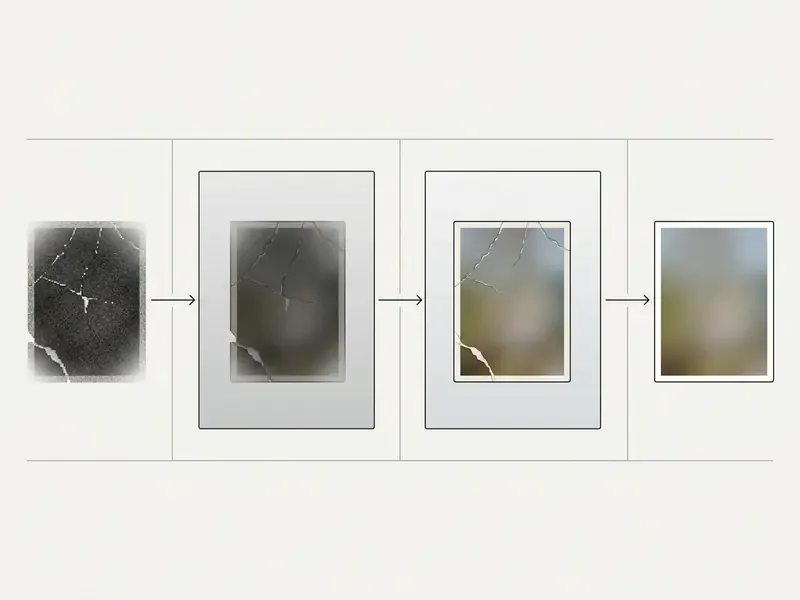
In low light captures, specialized AI models boost dark exposure values while applying intelligent noise reduction filters. Peer-reviewed night-restoration work such as D2HNet (2022) confirms the practical rule: joint denoising and deblurring recovers dark frames better than either operation alone. This restoration process restores clarity to historical photos, transforming dark black-and-white media into vibrant color photos.
Newer restoration modules add prompt-based editing: when a vintage print has a torn corner or a missing edge, you describe the missing content in natural language and the model inpaints it intelligently instead of smearing neighboring pixels. Phrasing matters here more than most users expect, and the craft overlaps with generative prompting in general; the patterns in our roundup of the best ai prompts transfer directly to fill instructions. This is the most aggressive form of restoration available in free tiers, and also the one that most clearly produces new content rather than recovered content. Label such outputs accordingly in archival contexts.
How to Choose the Best Free AI Photo Enhancer Online
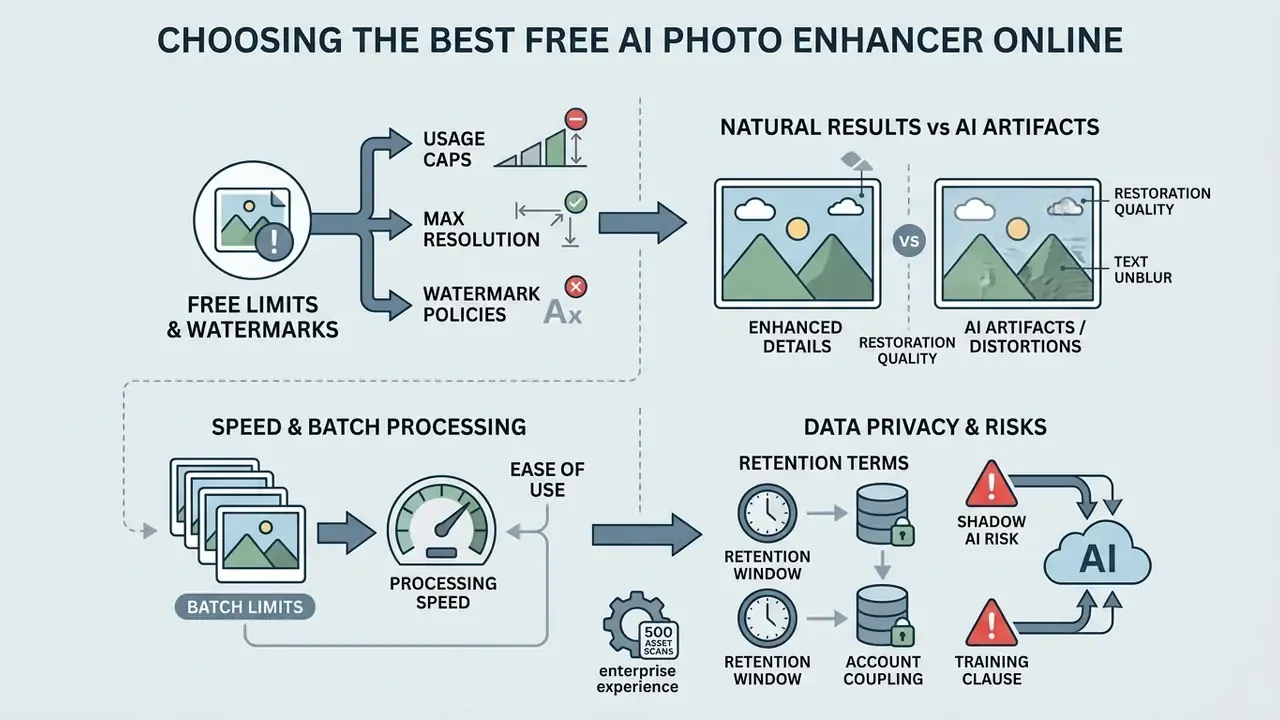
Selecting the best free ai photo enhancer online requires evaluating usage caps, watermark policies, maximum export resolution, file format compatibility, and data privacy terms. Operational limitations vary widely between platforms, which makes pre-upload verification essential for efficient workflow planning. Buyers comparing entry-level options should also review how general-purpose free photo editors restrict exports, since enhancement tools inherit the same monetization patterns.
| Evaluation Criterion | Free Tier Quota / Limit | Watermark Policy | Max Free Resolution | Upscaler Capability | Unblur & Sharpen | Photo Restoration | Batch Processing | Formats Supported | Export Options |
|---|---|---|---|---|---|---|---|---|---|
| Quota & Access | 1 to 5 daily edits or credit limits | No watermark on basic exports; logo on pro tools | 720p to 1080p standard HD | 2x to 4x neural enlargement | Automated sharpening filter | Scratch inpainting and colorize | Single file or limited batch | JPG, PNG, WebP, HEIC | Compressed web download |
| Output Quality | Daily reset or one-time welcome credits | Clear canvas export without visual overlays | 4K image exports (often paywalled) | 8x to 16x generative upscaling | Deep deblurring and face recovery | Advanced noise reduction | Bulk folder export (ZIP) | RAW, TIFF, BMP, JPG, PNG | Uncompressed high resolution |
Evaluating an online photo enhancer means balancing immediate convenience against output quality restrictions. Free access tiers frequently cap high resolution downloads or reserve advanced features such as batch processing for subscription tiers. If you want to see how far the paid step actually moves the ceiling, explore the hub covering plan structures across media tools.
Free Limits, Watermarks and Download Quality
Free photo enhancement free online tiers routinely apply operational boundaries such as daily download caps, queue wait times, or explicit watermark overlays. Several tools advertise no watermark exports, yet the privilege may apply only to standard web resolutions rather than high resolution files.
Concrete 2026 quotas illustrate the spread. PicWish grants 5 free standard enhancements per day and 5 free daily downloads on its portrait unblur module. Krea AI issues 100 compute units per day with no credit card required. Evoto AI provides 15 welcome credits that are consumed at export. Fotor releases 2x downloads free while gating 4x behind membership. Adobe Express offers a free plan with a limited pool of generative credits and a 40 MB per-file ceiling on background removal. EzEnhancer-class tools refresh a daily quota that cannot be stacked across days.
Higher export tiers offering 4k image downloads typically require account creation, daily credit consumption, or paid subscription plans. Anyone arriving from a "best free ai image enhancer 2025" or "best free ai photo enhancement tools 2025" listicle should confirm whether export resolution caps compress output files below acceptable printing or display standards, because those rankings rarely record quota changes. Watch for contradictory vendor pages as well: PhotoGrid's tool pages advertise watermark-free 4K downloads, while its pricing page describes watermarked exports on the free plan. Verify with a real test file before committing a workflow.
Natural Results Versus AI Artifacts
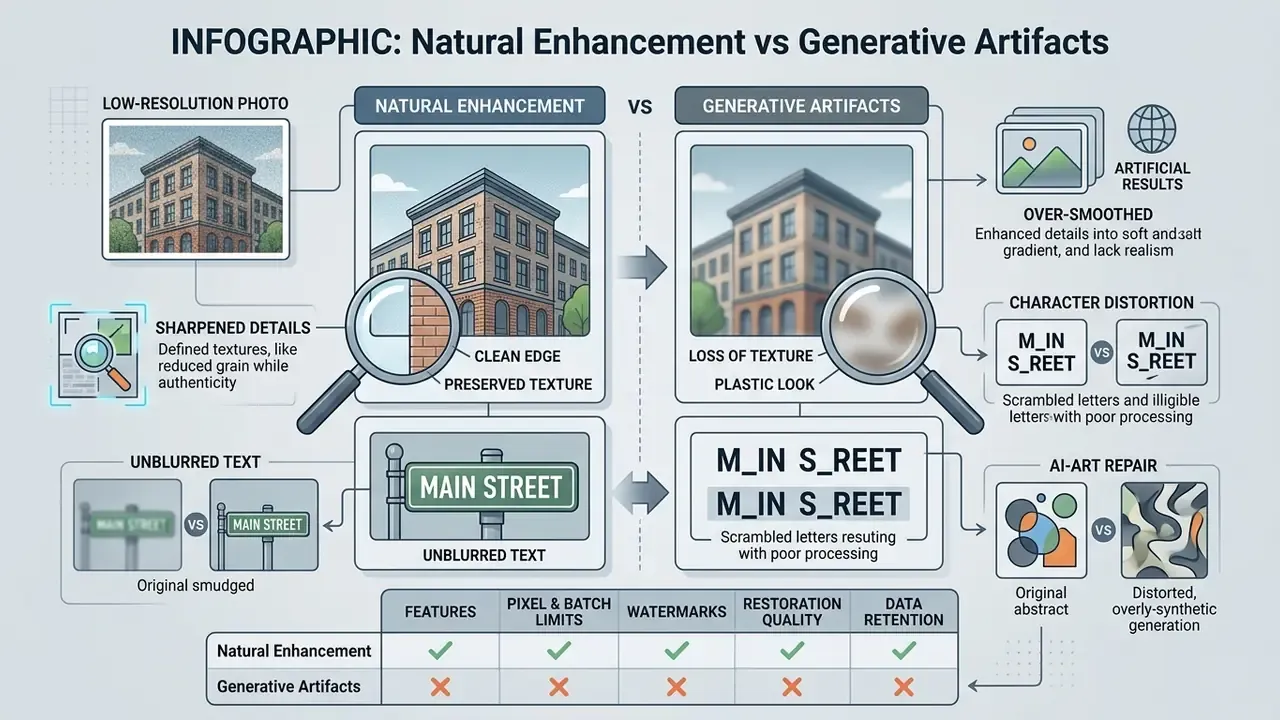
An effective AI photo enhancer improves photo quality while preserving the natural texture of faces, clothing, and background environment elements. Over-processed images often exhibit synthetic AI artifacts: hyper-smoothed skin, distorted text characters, or unnatural edge halos.
Generative upscaling models can hallucinate details when processing severely degraded low resolution photos. That risk is highest on faces, which is also where viewers notice it first.
«Diffusion super-resolution models face explainability issues, color shifts, and hallucinated details that can alter the semantic content of an image.»
Choosing an enhancer free tool with adjustable processing intensity prevents artificial distortion and maintains authentic image character. Portrait work deserves extra caution, and readers evaluating synthetic alternatives to a real shoot can compare that path with the best ai professional headshot generator options before deciding whether to enhance or regenerate.
Speed, Batch Processing and Ease of Use
Browser-based online AI processing provides fast execution without consuming local system hardware resources. Many platforms offer one click enhancement interfaces that analyze and adjust exposure, sharpness, and noise in seconds.
For multi-image workflows, batch enhancement capabilities let you upload image groups simultaneously. Multi-file processing saves time when managing e-commerce inventories or digital photo archives. In practice, web queues accept 2 to 30 files depending on plan, while desktop batching scales to thousands.
Self-hosted models such as Real-ESRGAN or Upscayl remove both the quota and the upload risk, at the cost of local GPU time. That trade is why privacy-sensitive teams increasingly treat local upscaling as the default and web tools as the exception. Teams with engineering capacity often skip interfaces entirely and wire enhancement into their pipeline through an api, which also makes usage logging far easier to audit.
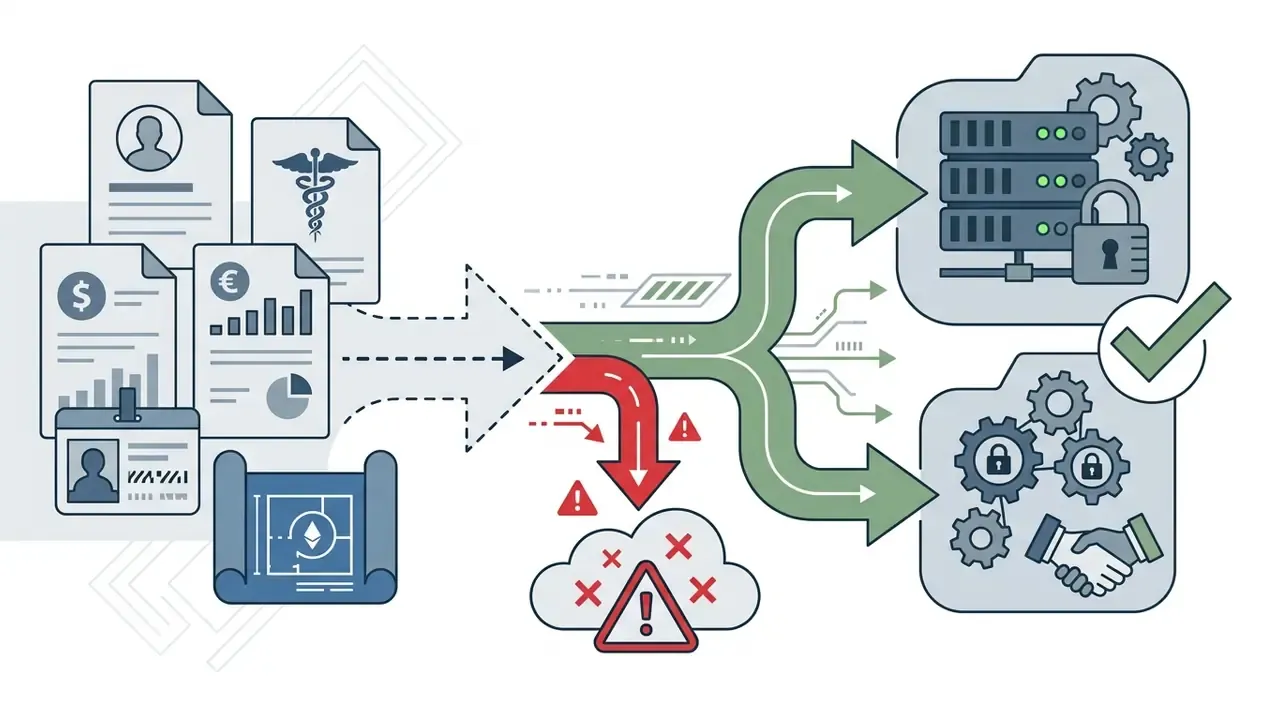
Data Privacy, Retention and Shadow AI Risk
Data Safety Checklist before the first upload
One more question worth asking internally: who owns the decision? A named owner, an approved use case, and a retrievable log turn an ad-hoc upload into a controlled step. Without them, the enhancement itself may be flawless and the process still fails review.


Best Free AI Photo Enhancement Tools Compared
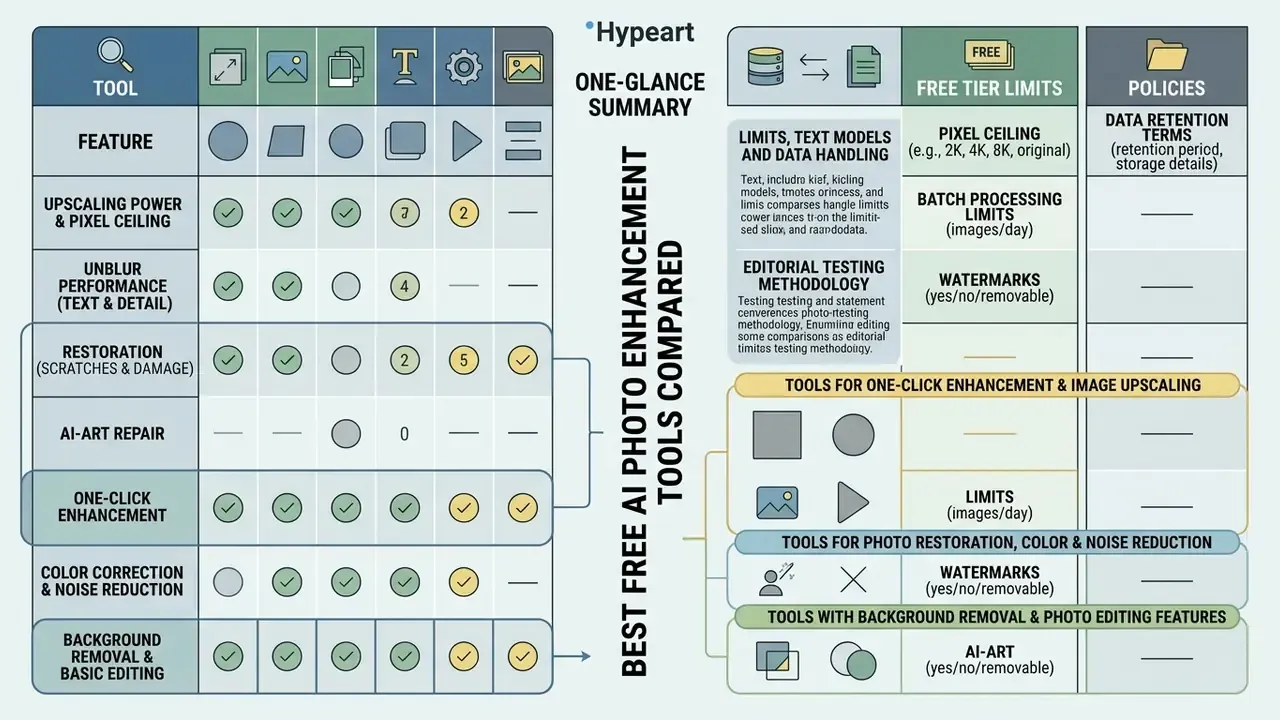
Comparing the best free ai photo enhancement tools requires analyzing upscaling power, unblur performance, restoration tools, watermark policies, batch limits, pixel ceilings, and data-handling terms. Evaluating these parameters helps you choose the optimal platform for a specific image editing task, and organizations reviewing tooling for production use can extend the analysis with our overview of AI image enhancers for commercial workflows.
| Service Name | AI Image Enhancer | Photo Upscaler | Unblur & Denoise | Photo Restoration | Background Removal | Free Tier Watermark | Batch Support | Supported Formats |
|---|---|---|---|---|---|---|---|---|
| PhotoGrid | Yes (one-click) | Up to 4K output | Sharpening included | Basic enhancement | Integrated tool | No watermark on basic | Up to 10 images | JPG, PNG |
| PicWish | Yes (auto-clarity) | 2x, 4x, up to 16x | Unblur and denoise | Face restoration | Automated removal | No watermark on basic | Up to 30 images | JPG, PNG, WebP |
| Adobe Express | Yes (auto-adjust) | Quick resize options | Sharpen Quick Action | General editing | Free PNG export | No watermark on free | Single file processing | JPG, PNG, HEIC |
| Fotor | Yes (1-click detail) | Up to 2x (4x paid) | Dedicated unblur | Old photo repair | AI Background Remover | No watermark on basic | Paid plan feature | JPG, PNG, WEBP |
| Krea AI | Yes (generative) | Up to 22K scale | Denoise and bloom | Creative enhancement | Separate module | No watermark (credits) | Limited batch | JPG, PNG, WebP |
| Evoto AI | Yes (portrait focus) | High-res export | Skin and grain denoise | Old photo restoration | Smart mask removal | Free edit, credit export | Desktop batching | JPG, PNG, TIFF |
Read the table as a shortlist generator, not a verdict. Two tools can share a feature row and still differ by a full grade on the same blurry portrait, because training data and default intensity differ. Broader vendor-level context lives in our AI Media Alternatives collection, and head-to-head pairings are easier to scan if you browse the hub of versus comparisons.
Limits, Text Models and Data Handling (Extended Matrix)
| Service Name | Documented Free Quota | Max Pixel Dimension | Dedicated Text Unblur Model | Batch Ceiling (Web / Desktop) | Privacy & Non-Training Signals |
|---|---|---|---|---|---|
| PhotoGrid | Free access, no sign-up claimed | Up to 4K (≈3840px) | Text enhancement mode advertised | ~10 to 50 / n/a | No published non-training clause |
| PicWish | 5 standard enhancements/day; 5 unblur downloads/day | 4096px on web; up to 48,000px via desktop upscaler | Yes, dedicated text/character model | 30 / up to 10,000 | Policy review required; no explicit non-training statement |
| Adobe Express | Free plan with limited generative credits; 40 MB per file | Quick-action resize, no published ceiling | No dedicated text model | 1 / n/a | Enterprise-grade terms; review Firefly training terms |
| Fotor | 2x export free; 4x requires membership | HD to 4K on free tier | Unblur tool, not text-specific | Paid feature / paid feature | No explicit non-training statement |
| Krea AI | 100 compute units/day, no card required | Advertised up to 22K generative | No dedicated text model | Limited / n/a | Credit-based; review generative data terms |
| Evoto AI | 15 welcome credits, spent at export | High-res export incl. TIFF | No dedicated text model | n/a / desktop batching | Desktop processing reduces upload exposure |
| Class reference (EzEnhancer-type) | Daily quota, non-stackable | Up to 4K | Text clarity mode | 2 to 20 / n/a | States uploads are not used for model training; temporary files auto-deleted per retention policy |
| Local open-source (Upscayl / Real-ESRGAN) | Unlimited, offline | 2x to 8x, 4K and beyond | Depends on model | n/a / unlimited local | No upload at all, the strongest privacy posture |
No matching rows Clear one or more filters to restore the matrix.
"Image content evaluation must systematically verify focus, depth of field, sharpness, compression artifacts, and compositing consistency across all processed media." — Digital Image Quality and Authentication Guidelines, NIST, 2026.
To translate those criteria into numbers, competitive benchmarks publish explicit quality targets:
«In efficient 4× super-resolution on DIV2K_LSDIR, the target PSNR sits around 26.9 to 26.99 dB while minimizing computational cost.»
Editorial Testing Methodology:
Our comparative evaluation tested each platform using a standardized benchmark dataset of 50 test files. The dataset included low resolution photos, motion-blurred portraits, degraded old family photos, e-commerce product images, and synthetic AI generated artwork. Each tool was evaluated on reconstructed detail clarity, color fidelity, freedom from generative artifacts, processing execution speed, watermark application, and final export resolution limits. Sharpness was assessed on both slanted-edge test regions and real-world content. Watermark and quota behavior was verified on live free accounts rather than marketing pages, which is where most published rankings quietly fail.
Tools for One-Click Enhancement and Image Upscaling
Platforms built for one click enhancement specialize in immediate resolution multiplication and contrast correction without manual slider adjustments. An automated ai upscaler processes input files through deep learning models to upscale images up to 4x while preserving original edge geometry.
Tools such as PhotoGrid and PicWish deliver rapid online ai photo processing for social media assets and web graphic conversions. They expand low resolution files efficiently and produce crisp visual outputs for general media display. Teams comparing throughput and licensing across vendors can consult our breakdown of AI image upscalers, and if you need to model cost per thousand assets, the calculators section handles the arithmetic faster than a spreadsheet rebuild.
Tools for Photo Restoration, Color and Noise Reduction
Dedicated restoration platforms feature targeted neural modules for AI photo colorization, digital scratch removal, and grain denoise functions. These tools analyze historical media to repair physical surface tears while recovering authentic facial textures.
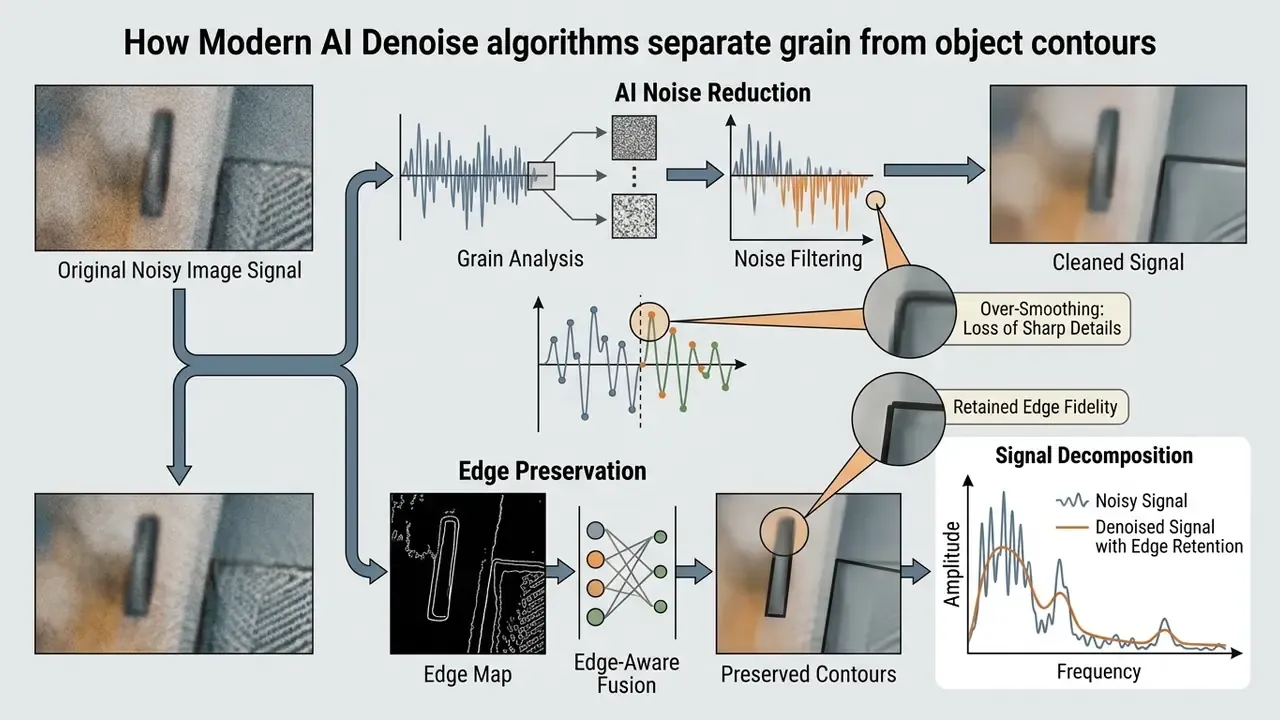
By isolating sensor noise and surface degradation, advanced restoration tools restore old photos without blurring underlying features. These specialized functions revive muted tonal ranges and bring historical color photos back to life. Prompt-driven fill modules extend the same pipeline to physically missing regions, letting the operator specify what belonged in a torn corner instead of accepting a generic smear.
Tools with Background Removal and Photo Editing Features
Multi-functional web applications integrate automated background remover engines alongside standard enhancement modules. You can isolate primary subjects, run an object remover pass, and apply smart cropping inside a single online image editor interface.
Platforms such as Adobe Express combine background removal with comprehensive photo editor controls, exporting transparent PNGs from files up to 40 MB on the free tier. These integrated workflows let creators convert enhanced subjects into transparent PNG graphics for promotional design projects, including slide decks assembled with the best ai presentation maker 2024 tools that still dominate that category.
AI Photo Enhancer Features That Matter for Image Quality
Matching the correct AI module to a specific visual defect is what actually improves image quality. Applying a generic upscaler to a motion-blurred file enlarges the blur artifact rather than restoring sharp focus. Bigger blur. Same blur.
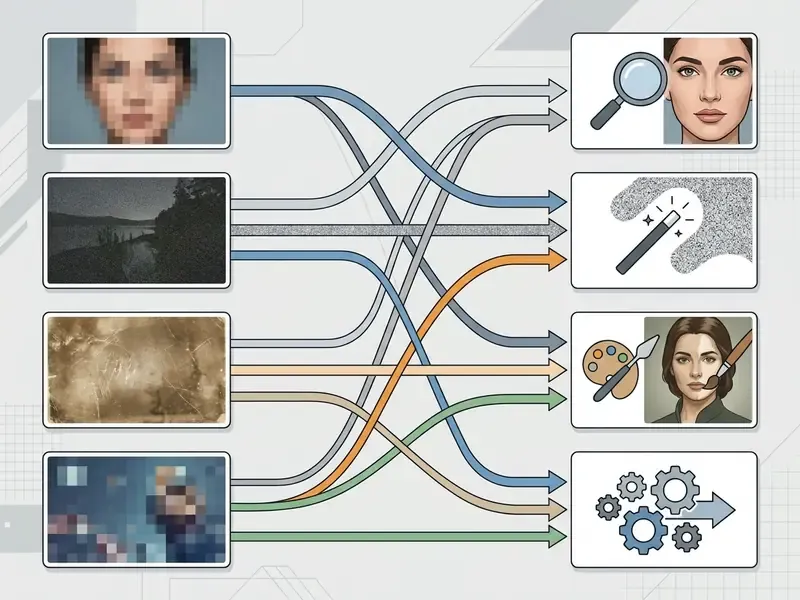
Selecting the appropriate processing mode ensures that neural networks target the primary defect, whether the file needs resolution multiplication, noise suppression, or tonal recalibration.
«Datasets with low compression-artifact levels and high intrinsic object diversity significantly improve super-resolution model performance on downstream tasks.»
That finding explains an otherwise puzzling user experience: two tools with identical interfaces can differ sharply in output quality because their training corpora differ in cleanliness and diversity. You cannot see a dataset. You can only see its fingerprints in the output.
When to Use an AI Image Upscaler
An AI image upscaler is required when an image has small pixel dimensions that prevent clear display on high-definition screens or print media. Upscaling algorithms analyze existing visual patterns to enlarge images up to 4K image quality without inducing heavy pixelation.
«NTIRE 2024 showed that 2× RAW image upscaling under unknown noise and blur is achievable with minimal color artifacts and improved edge detail.»
This feature is critical when preparing web graphics for high-resolution displays or commercial printing formats that demand 300 DPI density. Applying an upscaler gives low resolution files the pixel density they need while retaining edge sharpness.
Print-on-Demand Math: Turning Pixels into Inches at 300 DPI
For Print-on-Demand (POD) applications, upscaling must hit a native density of 300 DPI at the final trim size. The arithmetic is simple and non-negotiable: divide pixel dimensions by 300 to get printable inches.
| Source file | Upscale pass | Output pixels | Printable size at 300 DPI |
|---|---|---|---|
| 1920×1080 (web capture) | 4x neural | 7680×4320 | ≈25.6 × 14.4 in poster |
| 1024×1024 (AI art) | 4x neural | 4096×4096 | ≈13.6 × 13.6 in square print |
| 4096px web ceiling | none | 4096px long edge | ≈13.6 in long edge |
| 12,000px desktop pass | 4x from 3000px | 12,000px | ≈40 in banner |
| 48,000px desktop pass | industrial | 48,000px | ≈160 in large-format display |
Set the print target explicitly to 300 DPI and match width and height to the final trim size before exporting. Upscaling after the layout is locked usually forces a second, lossier pass. Jagged edges must be eliminated in the enhancement step, because no press-side correction recovers a raster staircase.
When Unblur and Denoise Tools Give Better Results
Unblur and denoise modules beat upscaling when an image suffers from motion blur, missed camera focus, or high-ISO sensor noise. Unblur image algorithms estimate optical displacement to fix blurry contours and bring soft subjects back into focus.
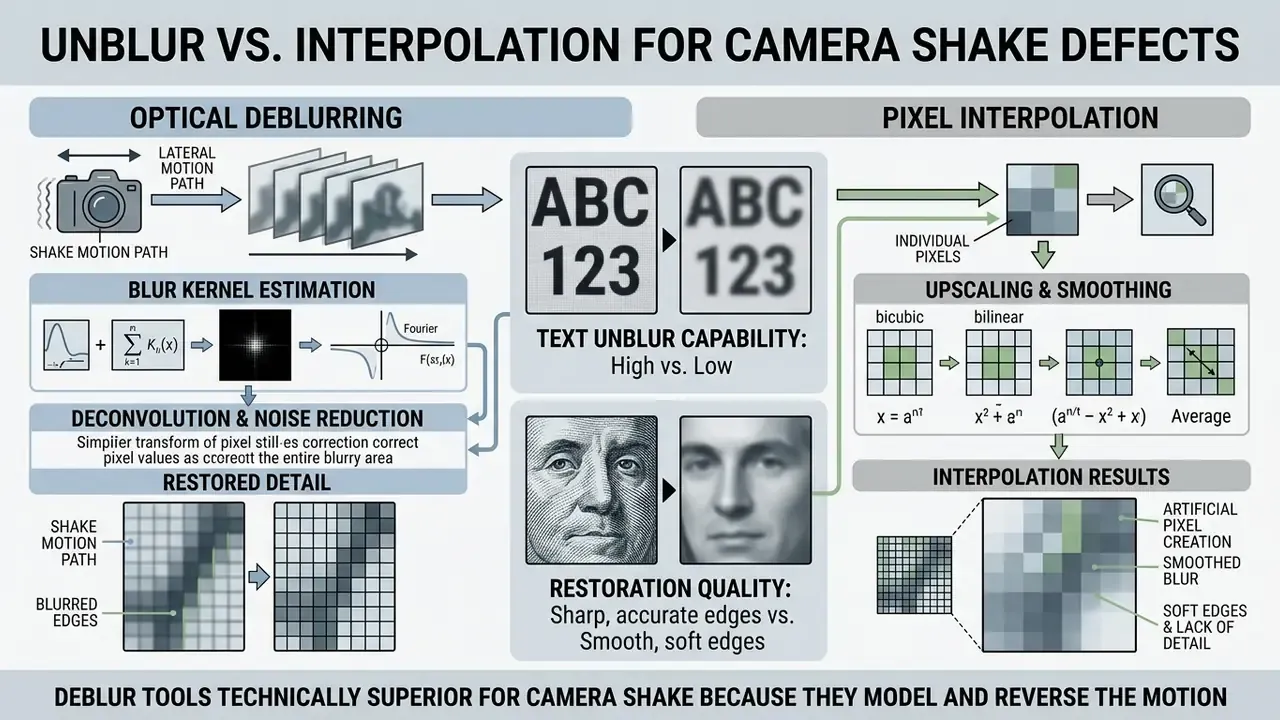
Denoise filters isolate unwanted digital grain caused by low light shooting conditions, so you can remove grain smoothly. Applying them before upscaling prevents neural networks from amplifying sensor noise into solid visual artifacts. Peer-reviewed capture-pipeline research is unambiguous on the split: blur demands deblurring, high-ISO grain demands denoising, and a resolution shortfall demands super-resolution. Using the wrong module multiplies the defect instead of removing it.
Enhancing Text Clarity in Scans, Receipts, and Labels
Unblurring text requires neural models trained on character geometry rather than natural photo textures. Standard upscalers interpolate typography into unreadable strokes, closing counters in letters such as "e" and "a" and merging thin serifs. Dedicated text enhancement passes reconstruct character edges on low-resolution screenshots, blurred documents, handwritten notes, receipts, and product labels, restoring OCR readability without reshaping the original letterforms.
«Diffusion-based text image super-resolution frameworks use L1, LPIPS, and character-recognition losses to improve clarity and structural text accuracy simultaneously.»
Practical rules for text work: choose a text-specific model if the platform exposes one; keep the processing intensity gentle, since aggressive modes invent plausible-but-wrong characters; export lossless PNG or TIFF so JPEG blocking does not re-blur the strokes you just recovered; and never treat an enhanced document as an evidentiary original. Retain the unedited scan alongside it, with a timestamp.
Repairing Generative AI Art Distortions
Generative art carries a distinctive artifact class that ordinary enhancement cannot fix. Midjourney, DALL·E, and Stable Diffusion outputs frequently suffer anatomical errors such as warped faces, extra fingers or limbs, misaligned eyes, melted jewelry, and nonsensical background text, plus a synthetic skin gloss often described as the "plastic look." An AI detail-repair pass isolates structural anatomy, corrects warped features, resolves duplicated digits, and replaces plastic sheen with believable pore and fabric texture while preserving the artistic composition, palette, and lighting intent.
Sequence matters. Repair anatomy and textures first, then upscale. Reversing the order magnifies the defect into a high-resolution, unmistakable error. Creators who need cleaner source material in the first place can start from the best ai text to image with high quality output models, which reduces repair work downstream. For extending canvases or reframing generated artwork, AI outpainting tools complement the repair-then-upscale pipeline, and our review of the best ai to expand images covers edge-continuity behavior in more depth. Specialty niches follow the same rules: even a design generated through the best ai tattoo generator needs line repair before any print-scale enlargement.
When Restoration and Color Enhancement Are Needed
Photo restoration and color enhancement features are necessary when physical prints display fading, yellowing, surface scratches, or extreme shadow underexposure. Color calibration modules balance exposure curves, adjust saturation levels, and revive colors naturally across dark areas.
Restoration engines use deep inpainting networks to bridge physical gaps caused by creases, dust, or moisture damage. These features let archivists restore old family photos toward their original visual condition, and a broader comparison of AI photo editors helps match restoration depth to project scope.
Best AI Photo Enhancement Tool for Different Image Types
Different image categories, from personal family portraits to commercial e-commerce products, social media graphics, and synthetic AI art, require tailored AI processing strategies. Choosing a tool optimized for your subject matter is what produces reliable visual fidelity. Vendor model menus reflect this: general, portrait, object, scenery, pets, anime, and text presets exist because each content class carries a different prior.
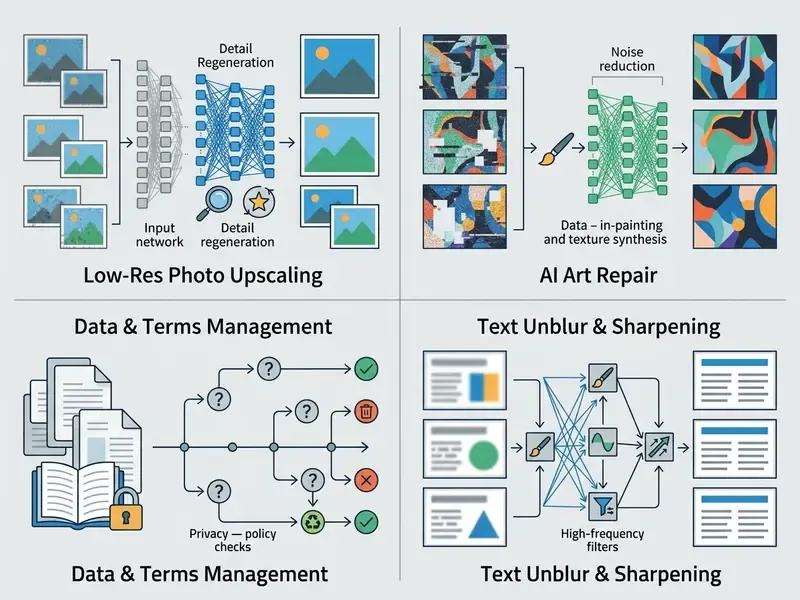
For institutional teams managing commercial asset libraries, selecting tools that maintain strict policy compliance and data protection is paramount. Our guide to online photo editors covers core features, pricing, platform support, and commercial workflows, which helps align media tooling with operational governance standards. If licensing is the open question, compare options by usage rights rather than by feature count.
Restoring Family Photos and Historical Images
Restoring historical family photos requires tools engineered for facial reconstruction, scratch removal, and accurate colorization. Archival best practice dictates preserving unedited digital master scans while applying AI enhancement tools exclusively to access copies. Damaged prints should be captured at higher resolution than intact ones, and faded black-and-white prints digitized at 16-bit grayscale or 24-bit color before any enhancement pass.
"Preservation master files should remain unedited lossless captures, while derivative access copies may undergo digital restoration, scratch repair, and tonal adjustment." — Digitization Manual for Archival Materials, ICA, 2024.
«Pik-Fix applies three modules, restoration, color matching, and colorization, and significantly outperforms prior models on real old-photo datasets.»
These specialized restoration modes repair paper creases and severe fading without distorting original facial structures. The resulting access copies provide crisp, colorized representations suitable for digital sharing and family archives. Keep the TIFF master untouched, log which enhancement passes produced each derivative, and mark prompt-filled regions as reconstructed rather than recovered. A single line in a sidecar text file is enough; the point is that someone in ten years can tell invention from recovery.
Enhancing Product Images, Social Media and AI Art
E-commerce product photos, social media graphics, and synthetic AI generated artwork demand crisp edge definition, precise background isolation, and vibrant color accuracy. Online marketplaces impose strict display standards that require clean product presentation on seamless backgrounds. Amazon expects realistic main images with a minimum 500px long side in RGB and no cropped product, while Walmart specifies 1:1 square images at 2200×2200px with a 1500px minimum for zoom.
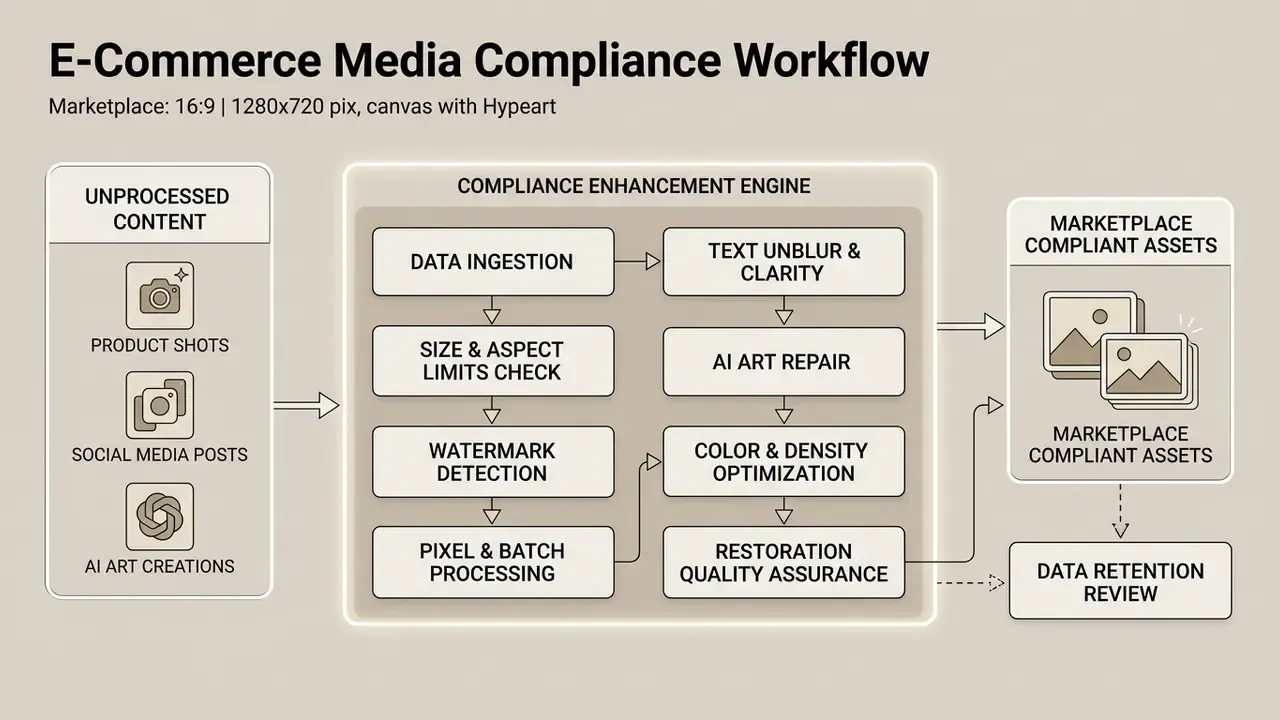
An automated background remover combined with sharp upscaling produces professional-grade product images that comply with commercial marketplace guidelines. Catalog teams reworking existing shots can also evaluate image-to-image AI generators for consistent scene and lighting variants. For digital creators, upscaling synthetic AI art cleans up compression artifacts and prepares visuals for high-resolution printing. Anime, illustration, and game-capture assets deserve their own model presets: line-art content collapses under photographic denoise settings, while UI text in stream thumbnails needs the text-specific pass described above.
How to Enhance a Photo Online for Free
Enhancing photos through an online ai photo platform requires a systematic workflow to achieve high quality results. A structured process improves feature selection and prevents accidental export of distorted media.
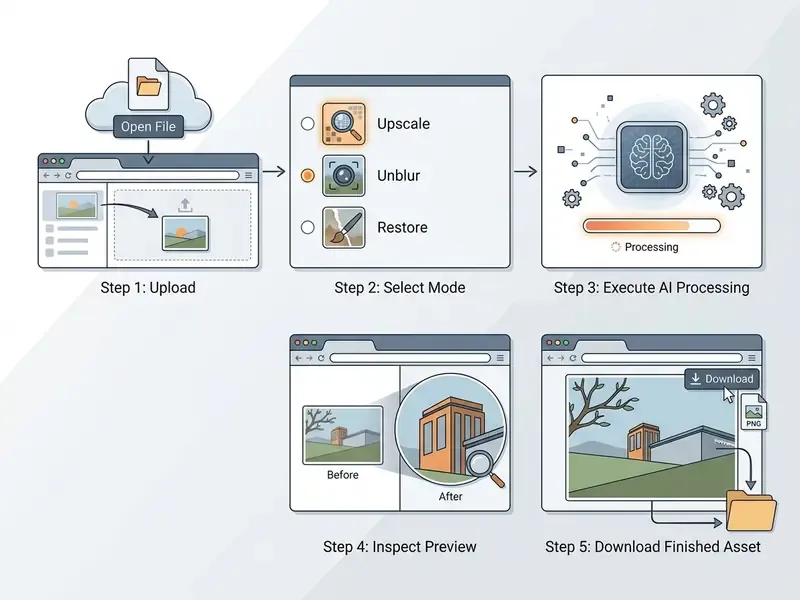
Executing these sequential steps lets you maximize image clarity while managing resolution limits and watermark constraints.
«SR4IR uses a task-driven perceptual loss, producing enhanced images that improve segmentation, detection, and classification accuracy over standard SR models.»
In plain terms: enhancement tuned for a downstream task, such as reading a label or recognizing a face, outperforms enhancement tuned only for visual prettiness. Choose the mode that matches your purpose, not the one that looks most dramatic in the preview. Previews flatter. Exports do not.
Upload an Image and Select the Right Enhancement Mode
- Upload the input file.Drag and drop your JPG, PNG, or WebP file into the web workspace. Confirm the platform's per-file size ceiling, commonly 10 to 40 MB, and its supported set. HEIC, AVIF, BMP, TIFF, and RAW support is inconsistent.
- Analyze the primary defect.Inspect whether the file suffers mainly from low resolution, focus blur, sensor grain, or color fading.
- Select the processing mode.Choose the corresponding AI module: AI Upscaler, Unblur, Denoise, Text Clarity, or Photo Restoration. Content presets (portrait, product, scenery, pets, anime, text) refine the prior further.
- Configure processing intensity.Set enhancement scales (2x or 4x) or select gentle processing modes to avoid generative artifacts. Gentle modes are mandatory when small text or fine textile detail must survive.
- Choose the export format deliberately.Select lossless PNG or TIFF for print, archival masters, and text documents. Choose compressed WebP or JPG for web delivery and social feeds, where file weight affects load performance. Never re-encode an already compressed JPG twice through the same pipeline.
Matching the precise mode to your visual flaw prevents unnecessary processing passes that could degrade fine details.
Preview Results Before You Download
- Open the split-screen preview. Use side-by-side or sliding comparison tools to evaluate original versus enhanced output.
- Inspect details at 100% zoom. Zoom into critical areas: eyes, teeth, hands, text characters, edge contours, and background gradients.
- Check for AI artifacts. Verify that facial features remain natural, that hands and fingers are anatomically correct, that repeated textures and straight lines stay continuous, and that no over-smoothing or character distortion has occurred.
- Confirm watermark and resolution. Ensure the output canvas meets your resolution requirements and stays free of unwanted watermarks before you trigger the download enhanced photo action. Verify the actual exported pixel dimensions, not the preview label, because web pipelines silently resize anything above their ceiling.
Defect to Best Free Tool Cheat Sheet
| Primary defect | Correct module | Free-tier pick pattern | Watch-out |
|---|---|---|---|
| Small pixel dimensions | AI upscaler, 2x to 4x | One-click 4K enhancers; desktop above 4096px | Web ceiling silently resizes output |
| Motion blur or missed focus | Unblur (deconvolution) | Dedicated unblur tool, not upscale | Aggressive modes invent edges on faces |
| High-ISO grain or night shots | Denoise, then upscale | Joint denoise plus enhancement pass | Over-smoothing creates plastic skin |
| Blurry text, receipts, labels | Text-specific SR model | Platforms with a dedicated text model | Generic upscalers reshape characters |
| Scratches, fading, creases | Restoration plus colorize (plus prompt fill) | Multi-stage restoration pipelines | Keep the unedited master file |
| Dull, flat color | Color and contrast enhancement | Auto-adjust or low-light enhancement | Saturation overshoot on skin tones |
| Marketplace product shots | Background removal plus edge-safe upscale | Bulk editors with ZIP export | Check platform pixel and ratio specs |
| Warped AI-generated art | Detail repair, then upscale | AI-art repair mode | Never upscale before fixing anatomy |
| Confidential or PII imagery | Local model (Upscayl / Real-ESRGAN) | Offline, unlimited, no upload | GPU time replaces cloud quota |
Free AI Photo Enhancer FAQ
Short answers to the operational questions that decide whether a free tool fits your workflow: installation, mobile access, quotas, watermarks, and data handling.
Do I Need to Install Software to Enhance Photos?
No software installation is required to use a web-based online photo enhancer. Modern platforms run neural network processing directly inside web browsers via cloud servers or client-side WebGPU acceleration. This browser architecture gives you cross-platform availability across Windows, macOS, iOS, and Android. You can upload image files from a phone or a desktop instantly without managing local installs. The trade-off is jurisdictional and architectural: browser tools send your file to a third-party server, while desktop and open-source models keep processing local and remove both quotas and upload exposure.
Are My Uploaded Photos Used to Train AI Models?
It depends entirely on the provider, and the honest answer is that most free pages do not say. The strongest published positions state that uploads are used only to process the requested task, are never used for model training without explicit consent, and that temporary processing files are deleted automatically, commonly within 24 hours for guest sessions. Observed retention practice in 2026 ranges from 1-day input deletion to 180-day output storage to 30-day blanket retention from upload. Before uploading anything sensitive, locate the training clause and the retention window in writing. If either is absent, treat the tool as unsuitable for client, personal, or regulated material and use a locally hosted upscaler instead.
Can AI Enhance Text, Faces and Fine Details?
AI algorithms can unblur text, sharpen facial features, and enhance fine details as long as sufficient underlying structural information exists in the source file. Deep learning models use trained pattern priors to sharpen character edges and smooth skin textures naturally. However, when processing extremely degraded low resolution photos where source detail is completely absent, AI models cannot authentically recreate lost information. In such cases, generative algorithms may produce hallucinated character shapes or artificial skin textures, which makes manual inspection of output quality non-optional.
«Diffusion-based text super-resolution must strictly preserve character accuracy and stylistic authenticity, a harder constraint than natural-image SR.» - Boosting Diffusion-Based Text Image Super-Resolution (2025) For identification, evidentiary, or compliance contexts, the enhanced image supports review but never replaces the unedited original. Increased-resolution generative output can look convincing while quietly altering the very features under examination.
How Many Free Enhancements Do I Actually Get Per Day?
Documented 2026 quotas cluster between one and five free operations per day, with credit-based alternatives. Representative figures: 5 standard enhancements per day and 5 unblur downloads per day on PicWish; 100 compute units per day on Krea AI; 15 one-time welcome credits on Evoto AI; free 2x exports with paywalled 4x on Fotor; a limited generative-credit pool on the Adobe Express free plan; and non-stackable daily quotas on EzEnhancer-class tools. Daily quotas reset but do not accumulate, so plan batch work against a single day's allowance or move to a self-hosted model.
Will the Free Version Add a Watermark?
Frequently, though not universally, and vendor pages contradict themselves. Several enhancers genuinely export watermark-free at standard web resolutions while reserving clean high-resolution files for paid tiers. Others watermark every free export. PhotoGrid is the clearest example of mixed messaging, advertising watermark-free 4K downloads on tool pages while its pricing page describes watermarked free exports. Test with a throwaway file before building a workflow on the promise.
Can I Enhance Photos on a Phone?
Yes. Browser-delivered enhancers run in mobile browsers on iOS and Android without installation, and W3C accessibility guidance explicitly treats mobile web apps as first-class web applications. Expect two mobile-specific constraints: per-file upload size limits, and lower effective ceilings when the platform relies on client-side WebGPU rather than server GPUs.
Which Module Should I Try First?
Start with the general enhancer for overall clarity. Switch to the upscaler when you specifically need larger output, use unblur or denoise when blur or grain dominates, choose the text model for documents and labels, and reserve restoration for damaged or aged prints. Results always depend on the source: resolution, blur severity, compression level, lighting, occlusion, and how much visual information physically survives in the file.
Is a Free Tool Acceptable for Regulated or Client Work?
Usually not, and the reason is process rather than pixels. A free public endpoint gives you no contract, no retention guarantee, no deletion evidence, and no log you can hand to an auditor. For anything covered by client confidentiality, personal data rules, or internal record-keeping policy, run a local model or a contracted vendor with written terms. Keep the free web tools for low-stakes personal and marketing assets, where a mistake costs a re-export rather than an incident report.

Appendix A: Superseded and Revised Statements
Retained for transparency, since editorial revisions to technical claims should be auditable rather than silent.
- Original claim: "Super-resolution algorithms increase image resolution by 2x, 4x, or up to 8x while maintaining crisp edge definition." Updated claim: 2x to 4x is reliable recovery; 8x and above is generative reconstruction that requires output verification, because the added information is synthesized rather than restored.
- Original phrasing: "batch enhancement capabilities allow users to upload image groups." Updated phrasing: quantified ceilings, 2 to 30 files in web queues and up to 10,000 files in desktop sequences, replace the qualitative description.
- Original phrasing: generic "hallucinated details." Updated phrasing: enumerated generative failure modes, including warped faces, extra fingers and limbs, plastic skin gloss, and nonsensical background text, with a repair-before-upscale sequencing rule.
- Original phrasing: general mention of auditing data policies. Updated phrasing: explicit retention ranges (24-hour guest purge, 30-day upload retention, 180-day output storage), a five-point data safety checklist, and a Shadow AI warning.
For the full library of side-by-side tool assessments across image, video, and document workflows, view the guide.