And here is the part most teams skip. Even a tool that costs nothing still processes corporate footage, brand assets, and licensed audio. That is exactly why marketing, compliance, and governance functions should treat "free" browser editors as managed software rather than casual consumer apps.
Key Takeaways in 60 Seconds
- Watermark-free 1080p on a free plan Microsoft Clipchamp and Adobe Express export 1080p HD without vendor branding. Canva exports watermark-free only when the project contains exclusively free elements. VEED caps free output at 720p with a watermark, and Kapwing allows 1080p but stamps a watermark on it.
- Hard upload boundaries matter video containers (MP4, MOV, GIF, MPEG, MKV, WEBM) are generally capped at 1 GB per file, raster images at 50 MB and 250 million total pixels, and SVG vectors at 3 MB (150-200 px wide, SVG 1.1 profile).
- AI is now a baseline feature, not a premium extra expect auto-subtitles in 80+ languages, 400+ synthetic voices with pitch and speed control, prompt-to-video scene generation, background removal, and AI noise suppression.
- Recording is built in browser-native screen and webcam recorders with picture-in-picture capture replace third-party capture utilities for tutorials and training decks.
- Licensing is the real risk royalty-free does not mean unrestricted. Redistribution, resale as standalone files, template inclusion, trademark use, and Content ID registration are typically prohibited.
- Data governance confirm whether rendering happens locally (WebCodecs) or on vendor servers before uploading confidential footage into an unapproved SaaS editor.
What this guide covers: selection criteria for a free online video maker, technical upload and file-format limits, music and royalty-free track rules, free-plan boundaries, enterprise privacy and shadow AI exposure, the core editing tools for music videos and social media, screen and webcam recording, color correction and brand kits, advanced AI features, a step-by-step workflow for creating a video with text and music online, template and format choices per platform, an FAQ, and the testing methodology behind every claim.
How to Choose a Free Online Video Maker with Music and Effects
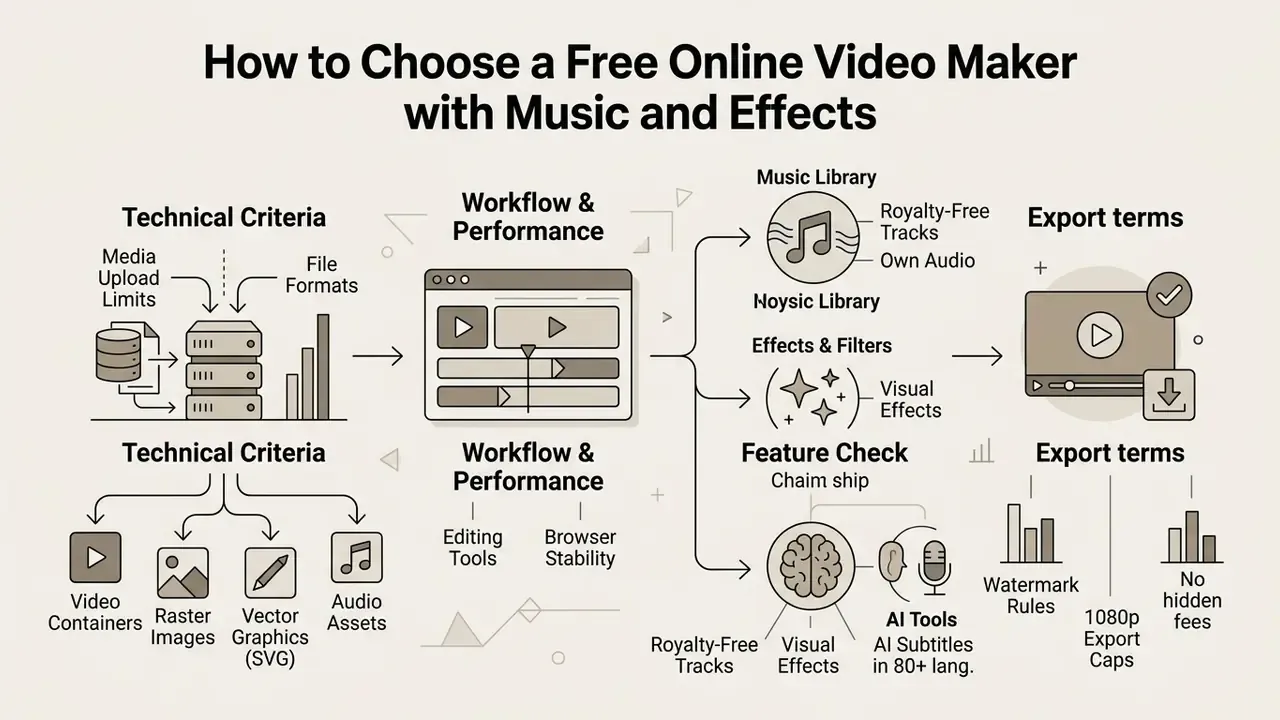
Choosing a free online video maker comes down to finding platforms with unrestrictive editing tools, stable browser performance, transparent export terms, and clean royalty-free media. Match the tool against your actual content requirements first, and you avoid the paywall that appears at the worst possible moment: export.
When you analyze video editing tools, inspect two layers at once, the visual editing capabilities and the licensing framework behind the assets. Platforms such as Microsoft Clipchamp, Adobe Express, and Canva run cloud-based video editing directly in Google Chrome or Microsoft Edge, which removes local hardware bottlenecks for teams on standard laptops.
Free tiers, though, differ substantially in watermarks, stock library access, and maximum resolution output. For a deeper platform evaluation, creators can compare feature matrices before production starts, or review dedicated roundups of free video editing software to match feature sets against project scope. Budget owners who want to model cost per finished asset can also open the hub of planning calculators before locking a toolchain.
Table 1. Comparative criteria for selecting a free online video editor
| Editor Platform | Watermark Policy | Max Free Export Quality | Stock Asset Access | Aspect Ratio Presets | Built-in Screen Recorder |
|---|---|---|---|---|---|
| Microsoft Clipchamp | No watermark on free tier | 1080p HD (4K requires a paid plan) | 1M+ royalty-free tracks & clips | 16:9, 9:16, 1:1, 4:5, 2:1 | Yes, screen, tab, window + webcam |
| Canva | No watermark (free assets only) | 1080p HD (MP4/GIF) | Curated free stock library | Custom & automated resize | Yes, presentation/webcam recorder |
| Adobe Express | No watermark (free assets only) | 1080p HD | Free Adobe Stock library | Standard social presets | Limited (mobile/desktop capture) |
| VEED.io | Watermark applied | 720p HD (≈10-minute export cap) | Limited free stock tracks | 16:9, 9:16, 1:1 | Yes, browser recorder |
| Kapwing | Watermark applied | 1080p HD | Standard free assets | Multi-canvas reframing | Yes, screen + camera studio |
As the table shows, free-tier behaviour is anything but uniform. Clipchamp and Adobe Express support watermark-free 1080p exports under free conditions, while VEED and Kapwing either brand the output or cap free rendering at 720p. Premium stock elements inside Canva trigger upgrade prompts or watermarked exports at download time, which is a nasty surprise when a campaign is already scheduled. Teams that need broader context on feature tiers can consult a reference overview of video editors and their pricing models.
Technical Media Upload Limits and File Format Specifications
Before starting a browser-based edit, match your raw assets against the platform's upload boundaries. Cloud editors push media through client-side memory and GPU pipelines, so container and file size restrictions exist to keep the timeline fluid rather than to annoy you:
- Video containers and limits supported input formats include MP4, MOV, GIF, MPEG, MKV, and WEBM. Maximum free-tier file size is capped at 1 GB per clip across major platforms such as Canva and Adobe Express. Clips with transparent backgrounds are best uploaded as GIF, since most browser editors do not preserve alpha channels inside MP4 containers.
- Raster image assets upload PNG, JPEG/JPG, WebP, and HEIC/HEIF files under 50 MB per image, with total canvas bounds not exceeding 250 million total pixels (width × height). Animated WebP files are commonly rejected, only static WebP is supported.
- Vector graphics (SVG) vector files must be under 3 MB, formatted between 150 px and 200 px wide, and saved using the SVG 1.1 profile to prevent WebGL rendering glitches.
- Audio assets MP3, WAV, OGG, M4A, and AAC are the most widely accepted upload formats. Vimeo additionally lists M4P, WMA, and ADTS, while Clipchamp recommends MP3, WAV, and OGG for reliable waveform rendering.
- Practical implication oversized 4K phone footage often blows past the 1 GB boundary in under two minutes of runtime. Pre-compressing source clips with a video compressor prevents failed imports and timeline stuttering.
Music Library, Royalty-Free Tracks and Own Audio Files
A capable online video maker ships an integrated royalty-free audio library and still lets you bring your own music as an audio file in MP3, WAV, or OGG. That combination is what makes it realistic to pair commercial background tracks with a custom voiceover recorded on a laptop mic.
Modern web editors organize built-in audio repositories by genre, mood, and tempo, which cuts the search time for free music down to a minute or two.
"37% of creators use AI to select music, and 36% use AI to generate voiceovers."
Microsoft Clipchamp includes over 1 million stock media assets, with royalty-free music tracks approved for personal and commercial distribution. YouTube Studio adds a royalty-free Audio Library with production music and sound effects for creators publishing straight to the platform. When a custom soundtrack is required, users upload local audio files directly to the timeline and mix them against the stock bed. Advanced users exploring generated compositions can review options to find the best ai music software, or examine how AI voice generators license synthesized narration for commercial release.
Fact Check / License Verification
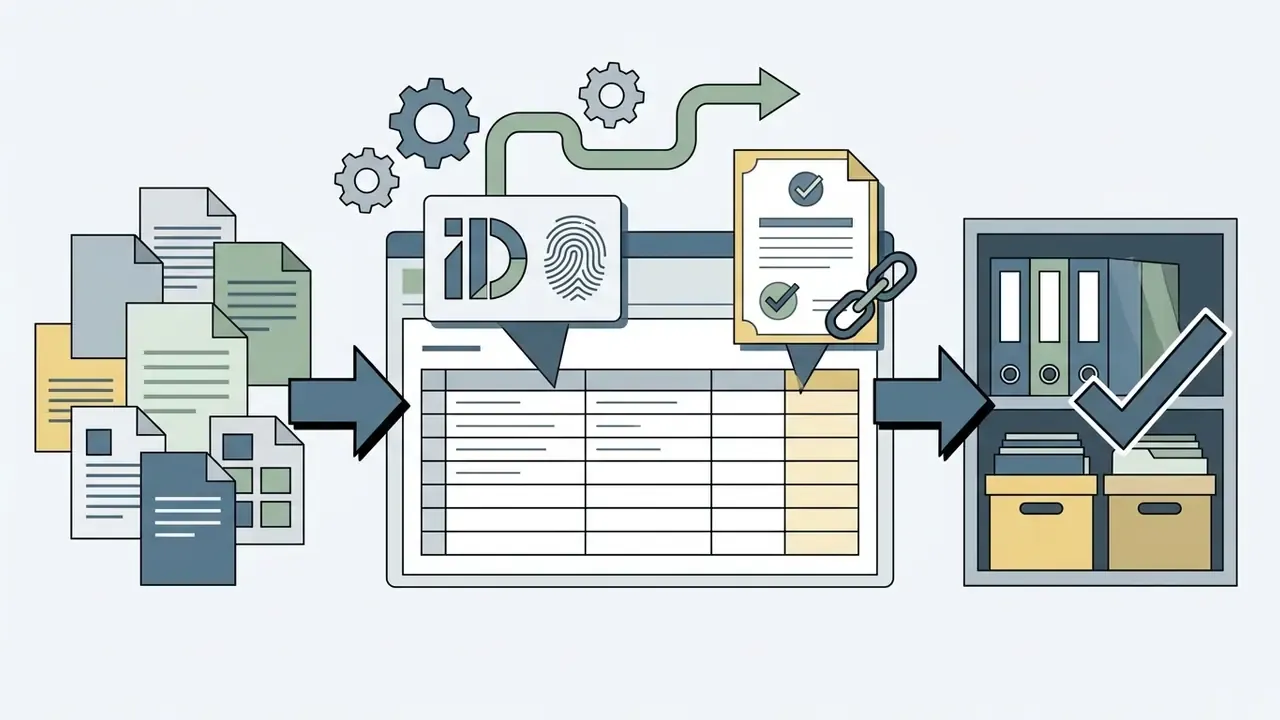
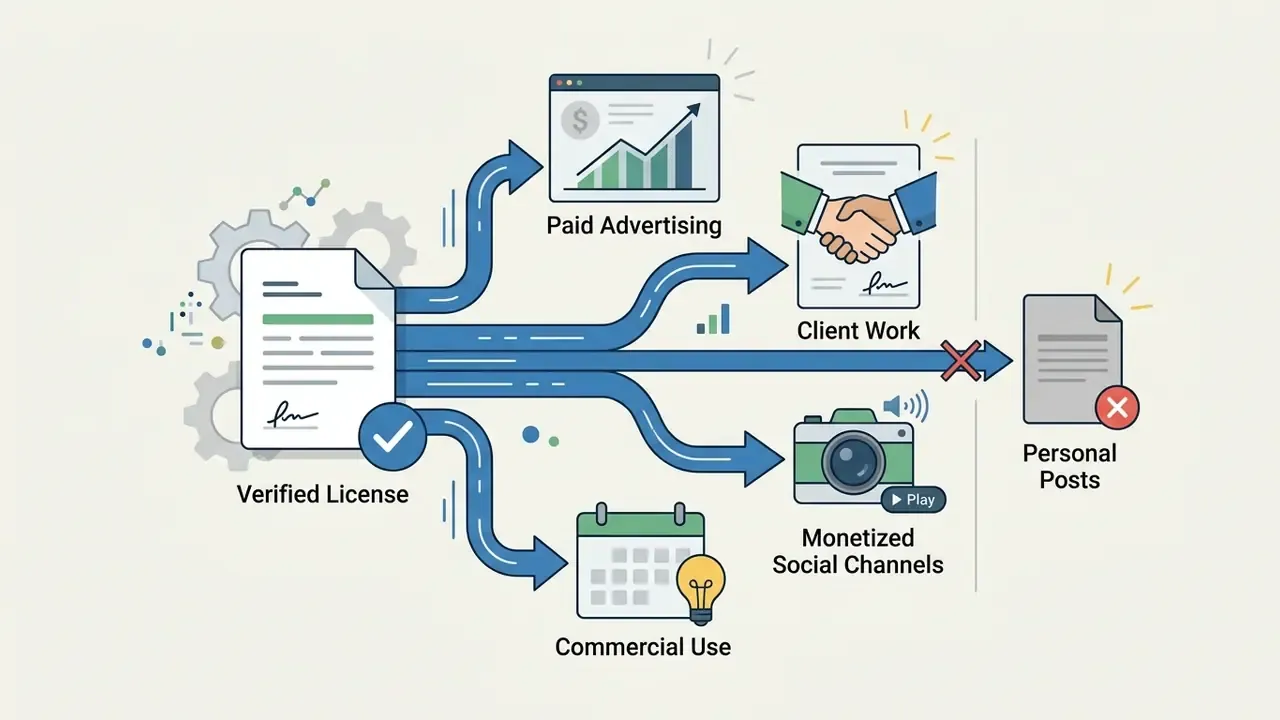
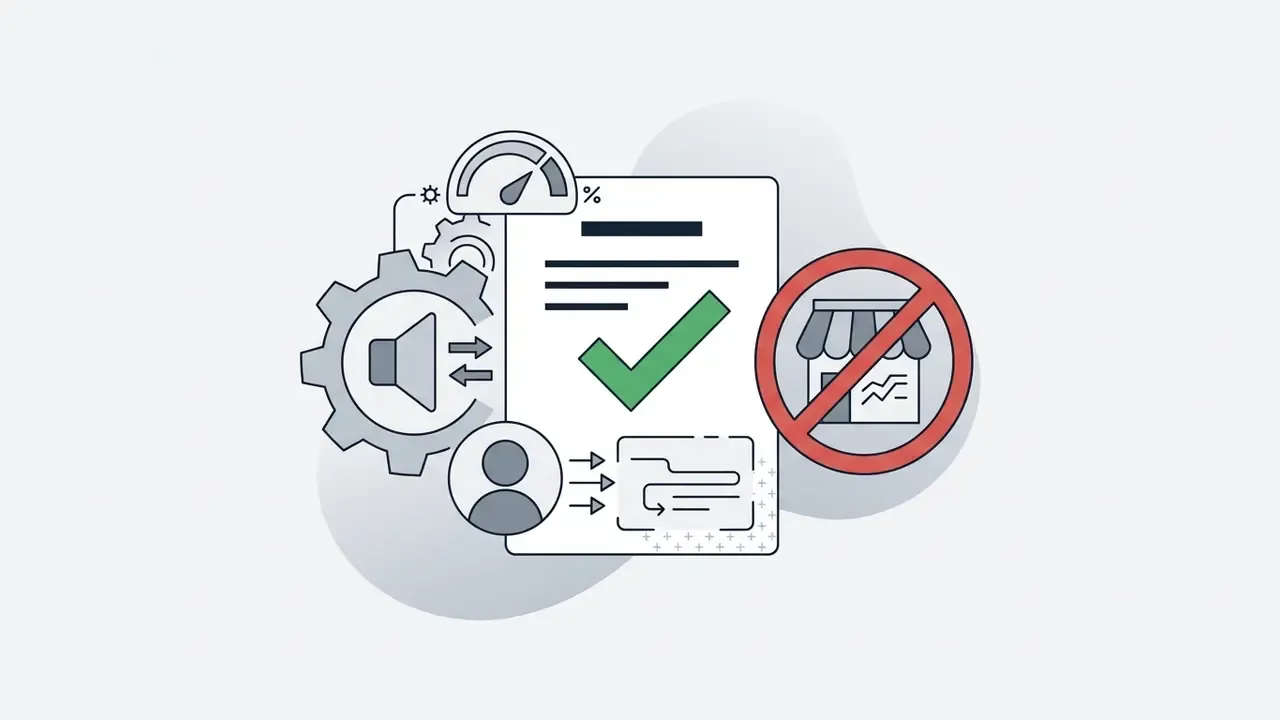
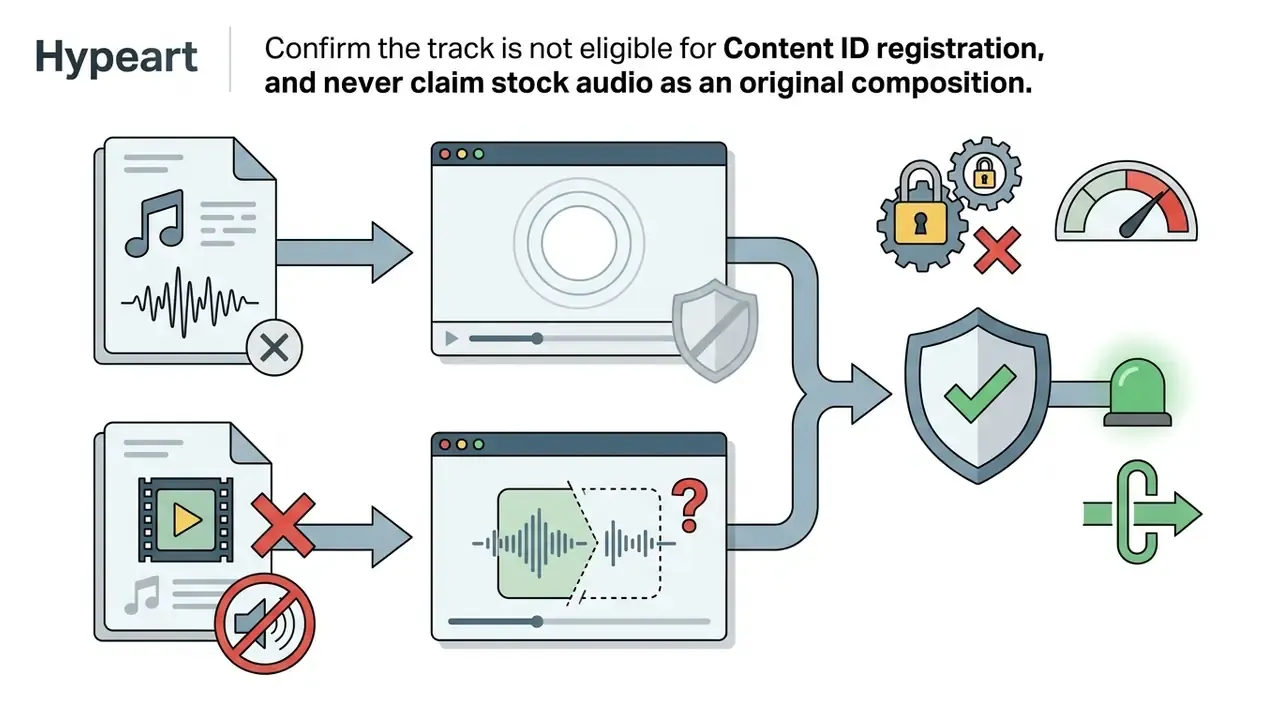
Before publishing commercial video projects, verify the exact licensing terms of every stock music track, video clip, and image. Royalty-free licenses grant reuse across multiple projects without per-view royalties, but major providers such as Adobe Stock and Getty Images explicitly prohibit redistributing raw files, folding stock media into resale templates, or registering stock music in Content ID protection systems. Adobe Stock states that licensed royalty-free audio may be reused "as many times as you like, for as long as you like, anywhere in the world," while barring its inclusion in templates, logos, or corporate branding. Pixabay permits broad commercial use but restricts music to embedded use inside a larger creative work rather than standalone distribution. Always confirm whether monetization is permitted under the free-tier stock license.
Text, Filters, Animated Effects and Transitions
Visual styling tools, meaning text overlays, color filters, animated effects, and transitions, turn static footage into dynamic social media content. Web editors apply these adjustments in real time through JavaScript and WebGL rendering, so the preview reflects the final render closely enough for pacing decisions.
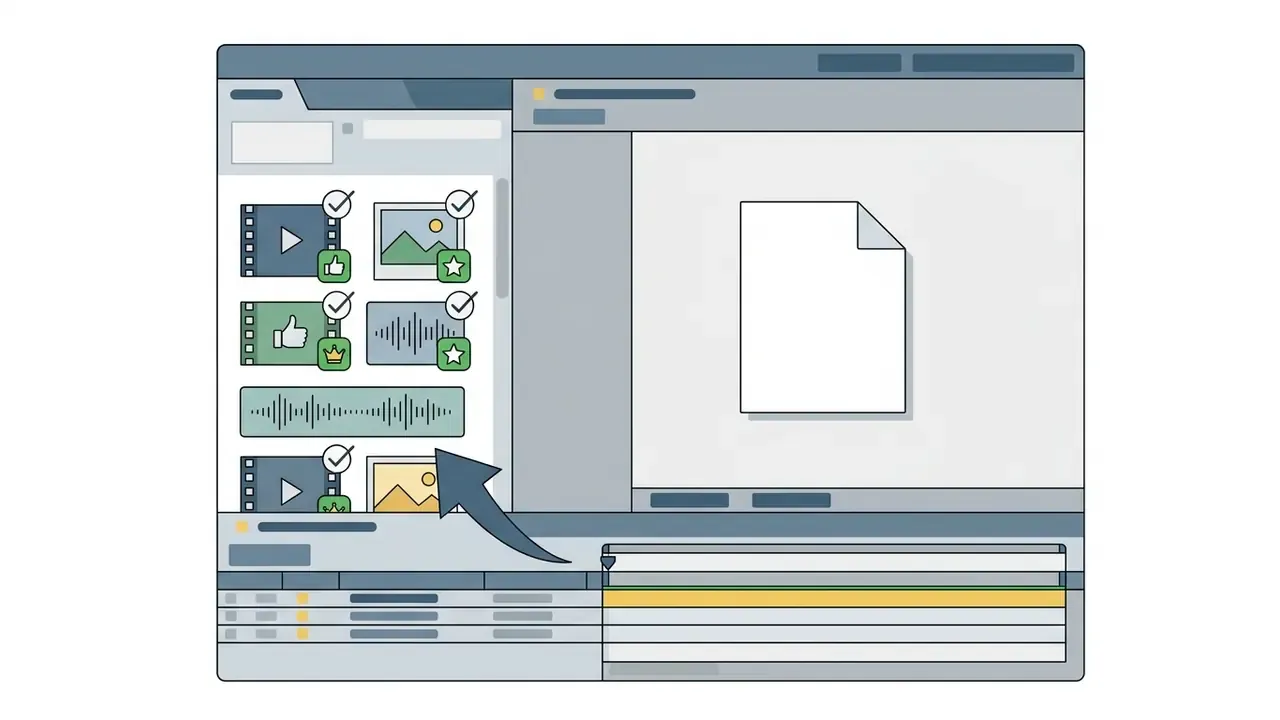
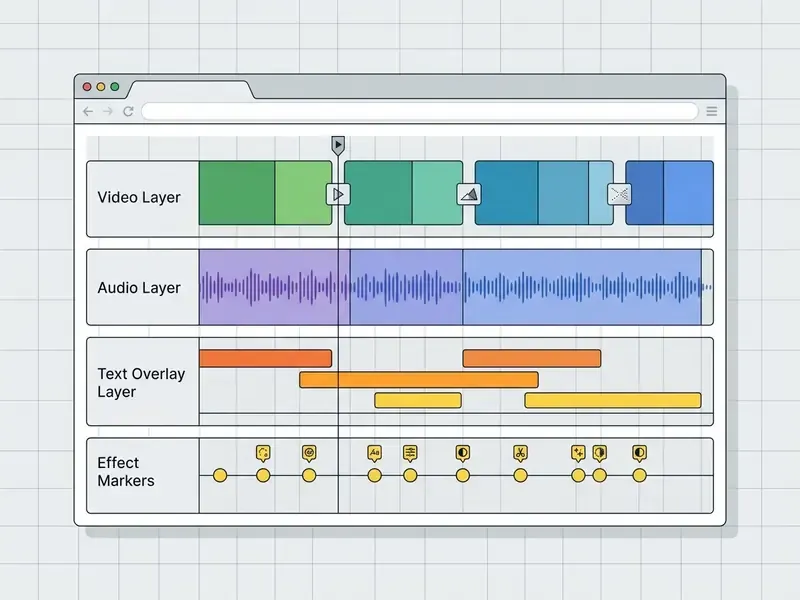
Browser-based editors use multi-track timelines where text overlays, lower thirds, and animated titles sit above the video clips. Font typography, drop shadows, and motion presets are adjustable with single-click controls. Built-in color filters handle brightness, contrast, and saturation per clip, while transitions such as cross-fades, dissolves, and slides smooth the cuts between adjacent scenes. Duotone treatments and grayscale mask transitions extend the toolkit further: in open-source editors like OpenShot, any grayscale image can serve as a transition mask, and the same logic underpins wipe presets in commercial cloud editors.
Research into multimodal editing interfaces suggests that intuitive visual controls measurably lower creation friction for non-technical users.
"Language-based prompts reduced the effort of finding the right footage and strengthened the sense of co-creation, even among novices."
Free Plan Limits: Watermarks, Export Quality and Browser Access
Free online video plans impose specific technical boundaries: export resolution caps, vendor watermarks, cloud storage limits, and gated premium assets. Knowing them in advance keeps the workflow from stalling at the download step.
Microsoft Clipchamp provides unlimited 1080p exports without watermarks on its free tier, with 4K reserved for premium subscribers. VEED caps free projects at 720p with a roughly 10-minute export limit. Kapwing permits 1080p on free accounts but applies a visible watermark unless you upgrade, and FlexClip's free tier combines 720p output with a watermark plus project count limits. For teams planning scalable deployment budgets, reviewing AI Media Pricing structures clarifies long-term operational cost across tools, while the functional overview of video editors and their pricing models shows which capabilities realistically sit behind the paywall.
Enterprise Data Privacy and Shadow AI Considerations
Essential Video Editing Tools for Music Videos and Social Media
Core editing tools for social and music video work are few and stable: trim frames, split clips, adjust speed, balance multi-track audio, capture the screen, and lean on AI automation where it actually helps. Get these right and the pacing follows.
"The Ditto model scored 82.58 on style edits but only 19.66 on object removal across eight tested video editing models."
That spread is the practical reason to keep manual tools within reach. AI excels at stylistic and cosmetic transformations, while structural operations such as object removal still need human correction and frame-level review.
Trim, Split, Speed Adjustment and Video Dimensions
Trimming and splitting remove dead footage and create tight scene changes, while speed controls and aspect ratio presets adapt the same master to different platform screens. Pacing drives retention more than any filter does.
- Trimming drag the outer handles of a clip inward to shorten its start or end point without cutting the underlying asset.
- Splitting position the playhead at a specific frame and click the split (razor) tool to divide one clip into two independent segments.
- Speed adjustment playback speed is numeric. 100% is original speed, above 100% creates fast-motion time-lapses, below 100% produces slow motion, and clip duration changes inversely to the speed value.
- Video dimensions canvas aspect ratios map output frames to 16:9 for YouTube widescreen, 9:16 for vertical TikTok and Instagram Reels, and 1:1 for square feeds, while crop handles refine the visible area inside the frame.
"56% of creators save more than 30 minutes per video thanks to AI editing tools."
Screen & Webcam Recording Tools
Integrated web recorders remove the need for third-party capture software by recording the display, a browser tab, or an external webcam straight into browser memory.
- Dual-stream capture record system displays together with a picture-in-picture webcam feed for tutorials, product walkthroughs, and virtual lesson decks.
- Capture scope options choose an entire screen, a single application window, or one browser tab, which avoids exposing unrelated notifications, internal dashboards, or confidential tabs mid-recording.
- Resolution and watermark rules Microsoft Clipchamp allows unlimited recording retakes saved at 1080p HD with no watermark on the free plan.
- Immediate timeline handoff recorded takes land directly on the multi-track timeline, so trimming dead air, adding captions, and layering brand overlays all happen in the same session without an intermediate file export.
Audio Editing: Add Music, Voiceovers and Remove Background Noise
Audio tools balance background music against spoken voiceovers while suppressing ambient noise so speech stays intelligible. Get the balance wrong and the soundtrack masks the narration, which is the single most common amateur audio mistake.
Good audio workflows follow settled sound engineering practice. Background music should be ducked, lowered by roughly 6 dB to 12 dB, whenever narration occurs. Dartmouth College's media production guidelines for iMovie recommend keeping secondary tracks below the primary vocal track, enabling "lower volume of other clips," and then fine-tuning clip volume bars by hand. Noise cleanup follows a two-step method borrowed from desktop audio suites: sample a noise profile from a silent passage, apply the reduction filter, then audition the result before committing.
"Amateurs valued automatic results, while professionals demanded precise control and parameter-level adjustment."
Online editors now include one-click AI noise suppression that analyzes waveforms, isolates hiss, mic static, or room hum, and applies digital noise gates inside the browser. Useful for fast turnaround. Still worth overriding manually the moment dialogue artifacts appear.
Shot-to-Shot Color Correction & Brand Kit Overlays
Keeping visual consistency across mismatched sources needs color management plus centralized brand assets.
- Shot matching color correction advanced cloud editors provide exposure, contrast, saturation, temperature, and duotone controls to unify grading across stock clips, screen recordings, and smartphone footage. InVideo treats this as a dedicated finishing step, since mismatched white balance is the most visible marker of amateur editing.
- Brand kit integration upload vector logos, primary hex palettes, and custom OTF/TTF typography to auto-watermark output videos and apply corporate styling in one click. Teams still building that identity can shortlist a best ai logo tool before locking the kit.
- Governance benefit a locked brand kit reduces version drift across distributed marketing teams, because fonts, logo lockups, and approved color values are enforced at template level instead of reapplied per project.
Advanced AI Tools: Voice Synthesis, Auto-Subtitles, and Prompt-to-Video
Modern AI pipelines convert raw scripts and unstructured audio into polished scenes through a mix of browser-level and cloud machine learning models:
- Multilingual AI subtitles cloud models transcribe speech into searchable captions across 80+ languages and regional accents, with transcript downloads, styling controls, and SRT export for accessibility compliance.
- Text-to-speech voice synthesis integrated generators turn written text into natural-sounding voiceovers, offering over 400 distinct AI voices with adjustable pitch, speed, and emphasis.
- Prompt-to-video generation prompt engines parse a topic script, generate a structured scene breakdown, pull matching stock footage from libraries such as iStock, Shutterstock, or Storyblocks, and layer background music synced to the cuts.
- Auto-compose and highlight reels automated composition scans uploaded media, picks usable segments, and assembles highlight or slideshow edits in a chosen style, including bulk generation for campaign variants.
- Background removal and smart reframing one-click background removal isolates subjects without a green screen, while smart reframing re-centers the subject when a 16:9 master becomes a 9:16 or 1:1 deliverable.
According to a 2024 Adobe Express creator study, 71% of digital creators use AI video tools, and 56% report saving more than 30 minutes per video.
"41% of creators use AI video tools weekly, and 10% save more than four hours per project."
Web editors combine browser-level WebCodecs APIs with cloud pipelines to generate auto-captions, synthesize narration, and remove video backgrounds. Creators after specialized visual styling can test the best ai photo editor to prepare static assets before video assembly, or study how AI photo editors automate retouching for thumbnails and title cards.
Legal note: this information is general in nature and does not replace consultation with a qualified attorney regarding media licensing and copyright matters.
How to Create a Video with Text and Music Online
Creating a video online follows a short, repeatable sequence: import media or pick a template, arrange clips on the timeline, add text overlays and background music, apply effects, then export. Running the steps in order protects render quality and saves a re-export later.
- Select a template or upload raw media.Start from a ready made video template, or import local video clips, photos, and audio files from your device. Teams testing generative workflows can first shortlist AI video generators to decide whether footage should be generated or filmed.
- Set canvas dimensions.Choose the target aspect ratio (16:9 widescreen, 9:16 vertical, or 1:1 square) to match the distribution platform.
- Arrange clips on the timeline.Drag clips onto the video track, pull trim handles, and apply splits to establish visual rhythm.
- Add text overlays and motion titles.Insert titles, lower thirds, or subtitles on the text track and adjust display duration.
- Incorporate background music and voiceovers.Upload an audio file or choose a stock track, then set track volumes for a clean balance.
- Apply filters, effects, and transitions.Insert cross-fades between clips and apply color presets to unify the look.
- Run color consistency and license checks.Match exposure and white balance across shots, then confirm every asset is cleared for your publication scenario.
- Preview, export, and download.Play the project back end to end, select 1080p MP4 (H.264), and render the final file.
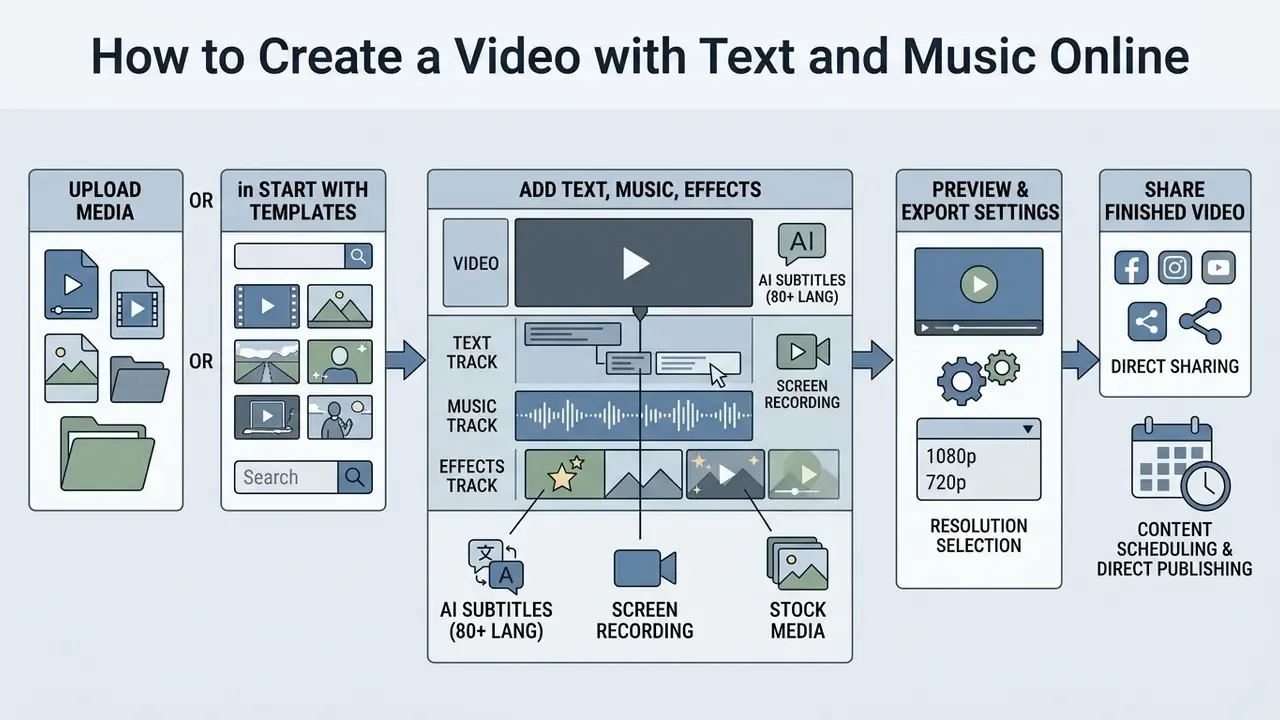
Upload Media or Start with Ready-Made Video Templates
Starting a project means either uploading original videos images and photos, or selecting a pre-designed template that already contains layouts, motion graphics, and audio placeholders. Templates shave real time off assembly, especially for recurring formats.
Web-based editors import media from local drives, cloud storage, or mobile devices via QR code pairing. From scratch, users drop MP4, MOV, PNG, and JPG files into the project asset bin. Adobe Express and Canva, by contrast, offer thousands of ready-made video templates sorted by industry and content goal, so swapping placeholder assets for custom footage takes a few clicks.
"Five AI video tools were scored on visual quality, relevance, coherence, authenticity, and usability using a five-point scale."
One template caveat deserves attention. Stock-licensed footage and music generally cannot be redistributed inside templates you share or sell. Adobe Stock's contributor rules require video templates to be built from fully owned assets, which is why agency teams should separate "internal working template" from "client-deliverable template" from day one.
Add Text, Music and Effects in the Editor
Editing on a web-based multi-track timeline means placing video, text, and audio on dedicated horizontal layers. Drag-and-drop controls let you land a visual action exactly on a musical beat.
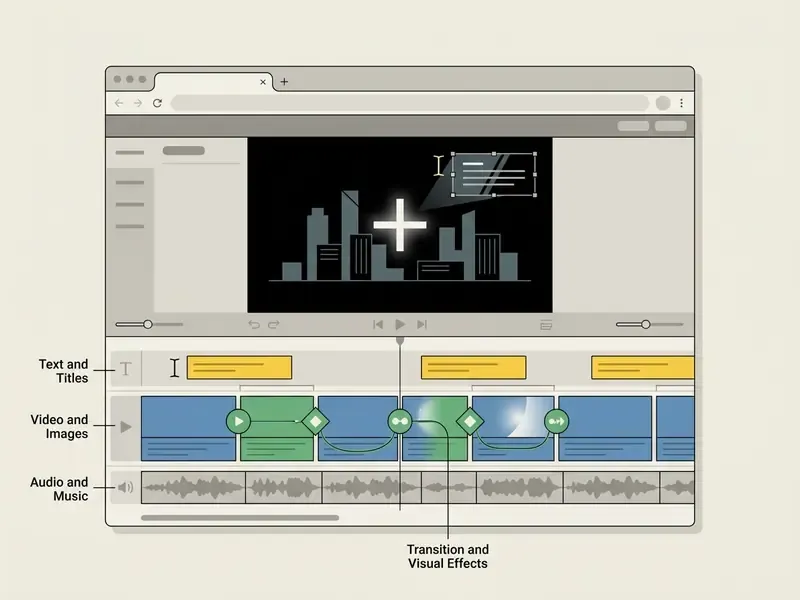
Text elements such as animated titles, caption blocks, and lyric overlays sit above the video track so they stay visible. Background music goes on an independent audio track below the main sequence, which allows isolated volume attenuation plus fade-in and fade-out control. Voiceover, music, and sound effects should each occupy their own track, so ducking hits one layer without touching narration. Filters and grading presets can be applied per clip or globally across the timeline for consistency.
Video Templates and Formats for Different Content Goals
Templates and aspect ratios should follow the content objective, whether that is vertical short-form social video, a music synchronization clip, a photo slideshow video, or a structured corporate promo. Correct platform specs protect engagement before the algorithm ever sees the file.
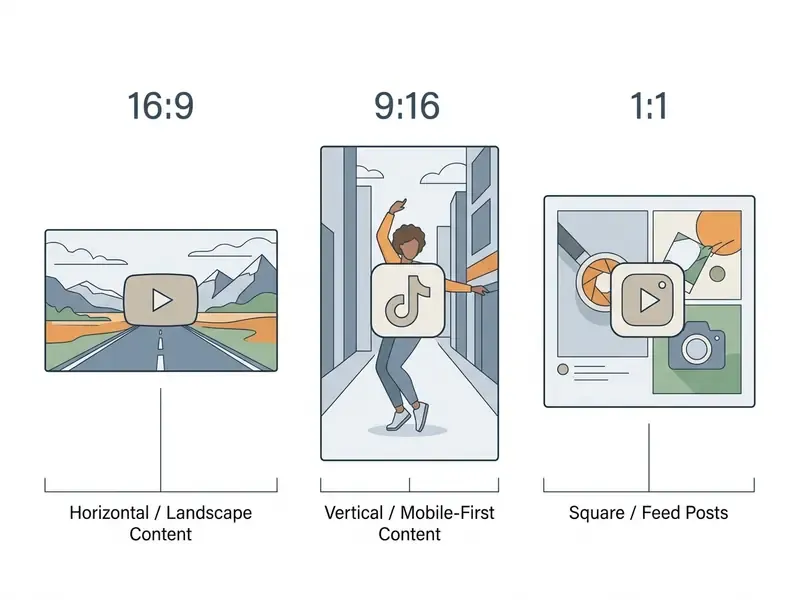
Instagram Reels, TikTok Video and YouTube Video Formats
Each social media platform expects specific aspect ratios, frame resolutions, and duration windows to display video without letterboxing or cropping the focal subject.
| Social Platform | Recommended Aspect Ratio | Frame Resolution | Preferred Container | Ideal Duration |
|---|---|---|---|---|
| Instagram Reels | 9:16 (Vertical) | 1080 × 1920 px | MP4 / MOV | 15-90 seconds |
| TikTok Video | 9:16 (Vertical) | 1080 × 1920 px | MP4 / MOV | 15-60 seconds |
| YouTube Shorts | 9:16 (Vertical) | 1080 × 1920 px | MP4 (H.264) | up to 60 seconds |
| YouTube Video | 16:9 (Widescreen) | 1920 × 1080 px | MP4 (H.264) | 3-15 minutes |
| LinkedIn Feed | 1:1 / 4:5 / 16:9 | 1080 × 1080 px | MP4 | 30-120 seconds |
Sticking to these dimensions keeps social networks from force-cropping or downscaling the upload, which is where sharpness quietly disappears.
"Short-form video analysis identified three affordance levels, facial expression (low), spatial relations (medium), and performative techniques (high), consistent across platforms."
In practice, that hierarchy explains why close-up talking-head framing, deliberate spatial staging, and performative devices such as jump cuts and beat-synced reveals outperform widescreen footage cropped into a vertical frame.
Music Videos, Lyric Videos and Photo Slideshows
Music-driven content, meaning official music videos, lyric videos, and photo slideshows, depends on synchronization between audio beat markers, graphic transitions, and on-screen text. Rhythmic alignment is what holds attention past the first four seconds.
To create an engaging lyric video or an audio slideshow, sync visual cuts and text animations to musical transients and drum hits rather than to round-number timecodes.
"CutClaw uses musical structure to drive cut points, aligning frames with rhythm and dynamic sections across hours-long recordings."
Earlier academic work on automatic music-visual composition established the same principle for slideshows: photo switching follows detected beats, and slide order is chosen by matching emotional features of music and imagery while preserving visual coherence between successive photos. Creators who want automation here can review dedicated platforms and select a specialized best ai music video generator for complex audio-visual projects, or compare an earlier generation of tools in the best ai music generator roundup.
Promo Videos, Marketing Videos and Explainer Videos
Marketing promo clips and explainer videos follow a structured narrative: hook, problem, solution demonstration, then a clear call to action. Pre-configured marketing templates keep that sequence intact under deadline pressure.
Instructional design research from higher education recommends keeping asynchronous educational and promotional videos short. Promotional clips run 30-60 seconds, and Stony Brook University's promo brief requires an introduction, mission statement, closing CTA, and closed captioning. Short asynchronous teaching videos work best under roughly 3 to 5 minutes before attention drops off. The University of Texas at Austin's short-video template sequences the same logic as "Hook & Teaser → Overview of Subject → Instructor Introduction," while Vanderbilt University's guidance stresses complementary audio and visuals plus explicit signaling of key ideas.
"HIVE identifies engaging openings and tension-building endings using multimodal narrative understanding to imitate professional editors' decisions."
Templates pre-formatted with lower-third callouts, animated bullet points, and branded palettes let marketing teams ship professional promo content fast. To inspect the broader creative automation ruleset, creators can see the overview of commercial AI licensing, including how commercial use of AI image generators affects title cards and thumbnails inside paid campaigns.
FAQ: Frequently Asked Questions About Free Online Video Makers
Do I Need Video Editing Experience to Start?
No prior video editing experience is required. Web-based platforms are built around drag-and-drop interfaces, ready made templates, automated AI captions, and guided workflows, so a first-time user can upload media, add text, apply background music, and render a complete video project within minutes. Adobe Express states plainly that "no prior video editing or creating skills are necessary," and Clideo frames its flow as upload, edit on the timeline, export. In other words, no experience required is a fair claim for most consumer-grade editors across skill levels. User experience evaluations in human-computer interaction research also indicate that natural language controls and visual template systems lower technical barriers substantially, letting beginners produce clean, professional-looking media without learning keyframing.
"Fifty multimodal editing commands showed users can specify complex temporal and spatial edits in natural language without timeline expertise." ExpressEdit: Video Editing with Natural Language and Sketching, arXiv (2024)
Can I Use an Online Video Editor on Any Device?
Yes. Online video editors run on desktops, laptops, tablets, and smartphones through standard browsers such as Google Chrome, Microsoft Edge, Safari, or Mozilla Firefox, with no desktop install. Modern web editors depend on HTML5, WebGL, and WebCodecs APIs for real-time rendering across operating systems.
"60% of professionals used cloud workflows before the pandemic; 84% recorded growth during lockdowns, and 58% expect further expansion." Blackbird & Caretta Research, Global Cloud Production Survey (2023-2024) Capability, though, is browser and device dependent. WebCodecs supports only a subset of codecs on any given device, and mobile browsers have historically handled HTML5 media less consistently than desktop builds. Complex multi-track editing and high-resolution rendering stay faster and more stable on desktop hardware with GPU acceleration and a solid broadband connection. To review hardware performance across media workflows, analysts can inspect AI Media Benchmarks for processing metrics, or compare export ceilings and watermark rules across free AI video generators.
Can I Use My Own Music and Stock Media in a Free Video?
Yes. Most free online video makers let you upload your own music, video clips, and photographs, and also use built-in free stock media inside the same project. With original music or personal footage, you keep full copyright ownership of what you uploaded. Platform-provided stock music, stock videos, and stock images on a free tier are governed by the vendor's royalty-free license agreement. Free stock assets can usually be published to public platforms like YouTube or TikTok, but redistributing the underlying audio files, reselling stock clips as standalone files, or using stock music inside protected trademark branding is prohibited. Microsoft's terms permit incorporating stock media into saved videos for commercial and non-commercial projects while forbidding download, redistribution, reuse in other editors, or resale of individual files. Anyone publishing synthetic narration should also verify the license attached to their AI voice generator output.
"The 2024 comparative study of AI tools scored authenticity explicitly: whether animated characters or synthesized voices appear artificial and unnatural." AI Video Content Generation Tools Comparative Study (2024) Developers building custom integrations can review AI Media API Guides for automated workflows, and product teams can consult a functional overview of AI video generators before committing to an API-level pipeline.
Which Free Editor Exports 1080p Without a Watermark?
Microsoft Clipchamp exports unlimited 1080p HD with no watermark on the free plan, with 4K reserved for premium subscribers. Adobe Express and Canva also export watermark-free at 1080p, provided the project uses only free elements, images, footage, and music. VEED (720p, watermark) and Kapwing (1080p, watermark) require an upgrade for clean output.
Can I Record My Screen Inside a Browser Video Editor?
Yes. Clipchamp, Kapwing, and VEED include browser-native recorders that capture a full screen, a single window, or one browser tab, optionally with a simultaneous picture-in-picture webcam feed. Clipchamp allows unlimited retakes, saves recordings at 1080p without a watermark, and drops takes straight onto the editing timeline.
What Happens If I Add a Premium Asset by Accident?
Free plans generally block export rather than silently downgrading quality. Clipchamp prevents saving until the premium asset is removed or the account is upgraded, and Canva watermarks designs that contain paid elements. Auditing the asset panel for "premium" labels before rendering avoids a blocked export at deadline.
Testing Methodology and Editorial Notes