Author note: Marcus Hale reviews imaging software. Benchmarks, hardware configurations and workflow cases come from the published lab protocol.
Desktop photo editing software in 2026 asks you to balance four things at once: computational performance, RAW conversion quality, catalog governance, and AI-assisted automation. Choosing the optimal editor depends on whether your operational priority is speed, pixel-level manipulation, or color fidelity under controlled studio lighting. Most buyers pick on feature lists. That is usually the mistake.
To evaluate digital media production toolsets across commercial workflows, you can compare options and establish performance baselines before committing budget to a license.
On this page: quick comparison table, AI execution and data privacy, professional editors, RAW and noise reduction, AI editors and AI governance, subscription-free and free options, plugins, how to choose (including soft-proofing), FAQ, fact-check appendix.
Best photo editor programs: quick comparison for desktop users
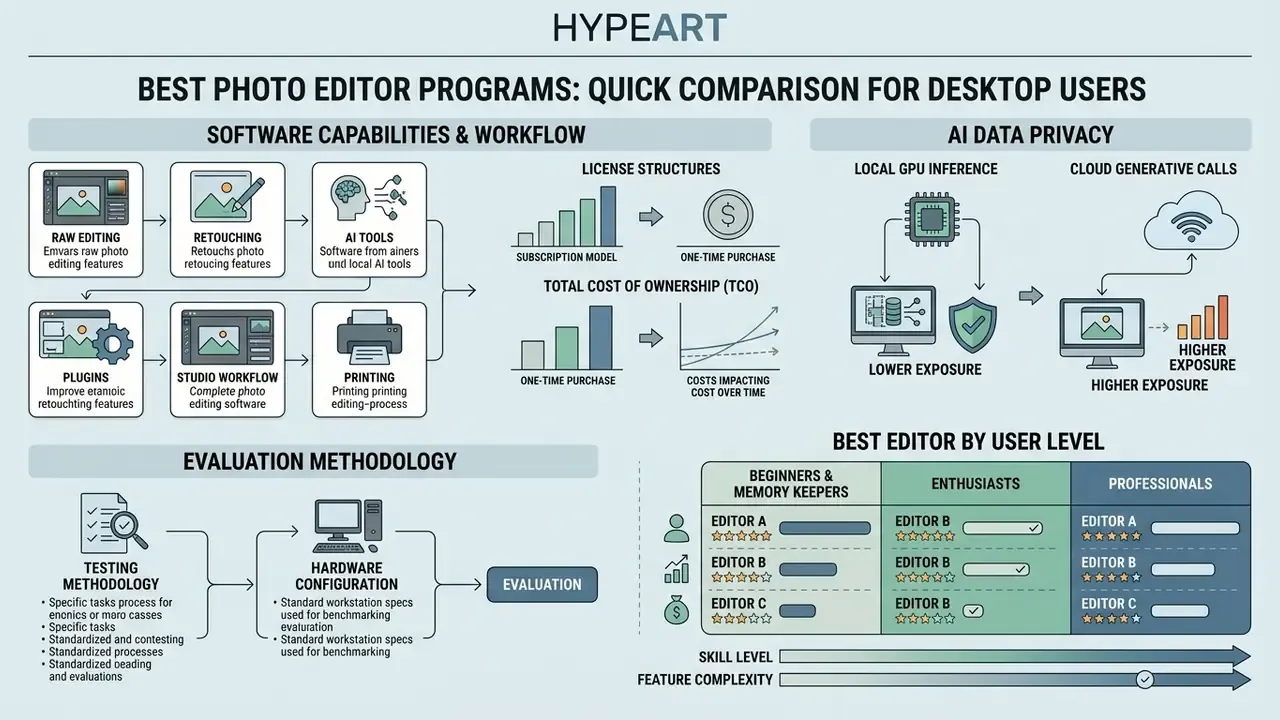
Selecting desktop photo editor programs means matching software capabilities to specific workflow requirements, OS environments, and license structures. Current market options run from subscription-based industry standards to perpetual high-resolution RAW processing engines. If you are new to the category, our reference guide to the photo editor explains core feature sets, pricing tiers and commercial-use terms before you compare individual products.
The table below is a high-level photo editor software comparison across primary desktop platforms.
Major desktop photo editor programs in 2026: roles, capabilities, licensing and AI execution model
| Software | Primary role | RAW processing | AI tools | AI execution / data dependency | Local adjustments | Tethered shooting | License model | Supported OS | Free trial |
|---|---|---|---|---|---|---|---|---|---|
| Adobe Lightroom Classic | Catalog management and RAW processing | Full engine (Camera RAW) | AI Masking, AI Denoise | Local GPU for Denoise/Masking; cloud only for synced collections | Parametric and brush masks | Native (select bodies) | Subscription ($14.99/mo) | Windows, macOS | 7 days |
| Adobe Photoshop | Pixel retouching and compositing | Via Adobe Camera RAW | Generative Fill (Firefly), AI Select | Hybrid: Firefly generative calls processed in Adobe cloud; selection AI local | Full layers and masks | No native support | Subscription ($10.00–$22.99/mo) | Windows, macOS | 7 days |
| Capture One Pro | Studio tethering and color grading | Dedicated RAW engine | AI Masking and Select | Local processing; no generative cloud dependency | Layers and local masks | Advanced (150+ models) | Perpetual ($299–$349) or subscription (from $18/mo) | Windows, macOS | 14 days |
| DxO PhotoLab 9 | Optical correction and denoise | DeepPRIME XD3 engine | DeepPRIME 3 ML Denoise | Fully local GPU inference; optical modules downloaded once | U-Point local tech | No native support | Perpetual ($149.99–$239.99) | Windows, macOS | 30 days |
| ON1 Photo RAW 2026 | All-in-one RAW plus layers | Full native RAW | NoNoise AI, Brilliance AI, Restore AI (MAX) | Most AI tools execute locally on host GPU | Layer-based masking | Basic tethering | Perpetual ($99.99) or subscription | Windows, macOS | 14 days |
| Skylum Luminar Neo | AI creative enhancements | Standard RAW conversion | GenErase, Sky AI, Relight AI | Mixed: some generative extensions require online activation or processing | Basic local masks | No native support | Perpetual or subscription (Pro Plan) | Windows, macOS | 7 days |
| Affinity Photo 2 | Subscription-free retouching | Develop Persona engine | ML edge detection | Local ML; Canva-hosted AI features require account or subscription | Unlimited adjustment layers | No native support | Perpetual (from $69.99) | Windows, macOS, iPadOS | 30 days |
| Adobe Photoshop Elements 2026 | Guided editing for hobbyists | Basic RAW (no lens geometry profiles) | Guided Edits, object removal, 25 AI credits/mo | Hybrid: guided AI effects local, generative credits cloud-based | Layers and simple masks | No native support | 3-year term license ($99.99) | Windows, macOS | 30 days |
| Corel PaintShop Pro | Budget Photoshop alternative (Windows) | Built-in Camera RAW Lab | AI Denoise, AI Upsampling, AI Style Transfer | Local execution only | Layers, masks, vector tools | No native support | Perpetual (approx. $79.99–$99.99) | Windows only | 30 days |
| CyberLink PhotoDirector | Hybrid desktop and mobile effects suite | Basic RAW development | Sky replacement, AI object removal, AI body shaper | Hybrid desktop/mobile; several effects stream from CyberLink cloud | Layers and guided masks | No native support | Perpetual or subscription | Windows, macOS (plus mobile apps) | 30 days |
| Excire Foto 2027 / Excire Search 2026 | AI cataloging and semantic photo search | Reads RAW previews (no development) | AI keywording, face grouping, natural-language search | 100% local indexing; no uploads required | N/A (organizer) | N/A | Perpetual | Windows, macOS | 14 days |
| GIMP 3.2 | Open-source raster editing | Requires plug-in (Darktable / RawTherapee) | External plug-in scripts | Fully local; no telemetry or account required | Non-destructive filters | No native support | Free (open source) | Windows, macOS, Linux | N/A (free) |
AI data privacy: local GPU inference versus cloud processing
How the photo editing software was evaluated
Which editor is best for beginners, enthusiasts and professionals
Beginners benefit from streamlined user interfaces with automated tools, while professionals need advanced color space management and non-destructive layering. Enthusiasts sit in between: they want granular manual control without giving up batch processing.
Research on user satisfaction shows that complex interfaces lower usability scores for entry-level editors. A study using the End User Computing Satisfaction (EUCS) framework recorded a 66% overall satisfaction score for Adobe Photoshop, while ease of use scored only 54% because of the program's steep learning curve.
"An EUCS-based evaluation recorded 66% overall satisfaction for Adobe Photoshop, with ease of use at just 54% due to its high entry barrier."
Practical segmentation in 2026 looks like this:


Best overall photo editing software for professionals
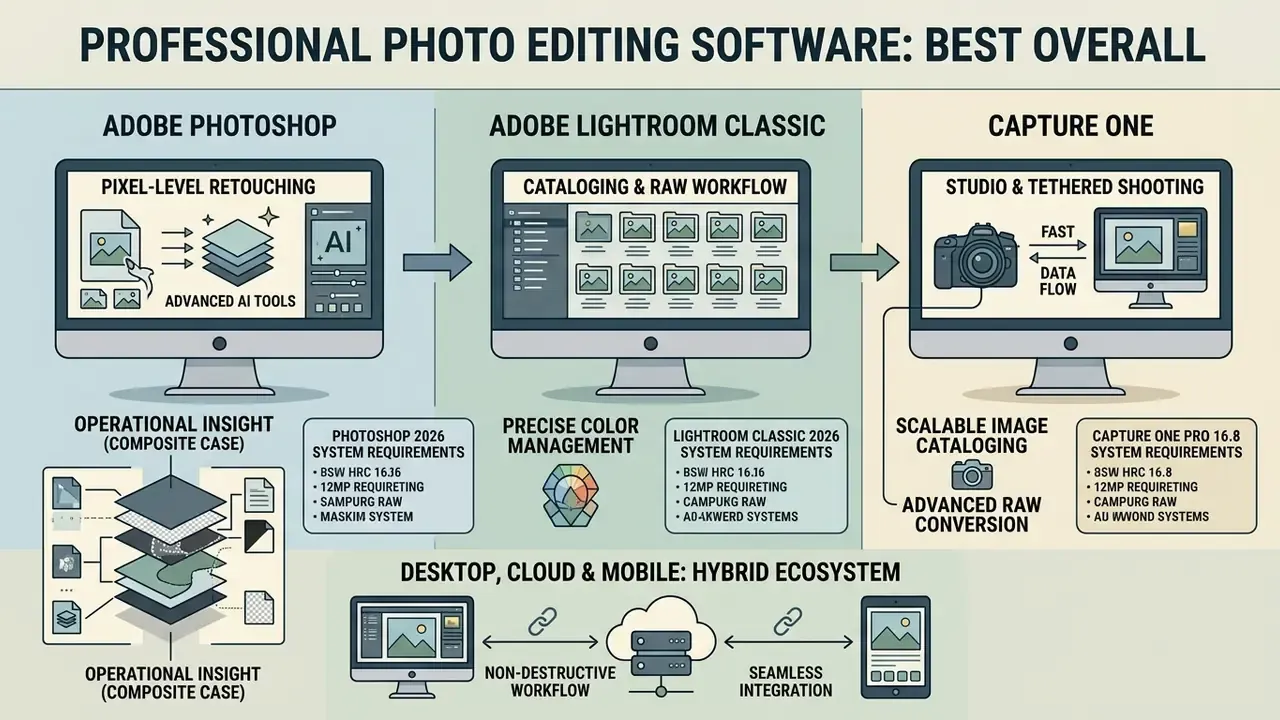
Professional digital imaging relies on robust non-destructive workflows, precise color management, and scalable image cataloging. The combination of Adobe Photoshop, Adobe Lightroom Classic, and Capture One Pro is still the core toolkit for enterprise and commercial studio environments.
Selecting the best photo editor for professional photographers means weighing catalog database stability against pixel-level manipulation depth. They are not the same job, and one application rarely wins both.
Adobe Photoshop: best professional photo editor for pixel-level retouching
Adobe Photoshop is the best professional photo editor for complex layer-based manipulation, precise selection, and advanced compositing. It works as a raster-level editor built on non-destructive adjustment layers, smart objects, and editable vector masks. The 2026 build adds non-destructive adjustment layers for texture, atmosphere, sharpness and light, each fully mask-aware for pinpoint control.
The August 2026 release (version 27.0) integrates Adobe Firefly generative tools directly into selection boundaries, and also introduces the AI Assisted Editor (Beta). These generative features produce 2K resolution outputs with improved edge preservation and fewer structural artifacts, and Adobe states that generative operations respect mask boundaries for targeted edits. Photographers who want to benchmark these capabilities against dedicated synthesis tools can review our comparison of AI image generators.
Adobe Lightroom Classic: best for cataloging and RAW workflow
Adobe Lightroom Classic remains the industry benchmark for high-volume cataloging, non-destructive RAW processing, and batch workflow automation. It uses a centralized SQLite database catalog that records metadata, edit histories, and preview cache data without altering original RAW files. Only one catalog can be open at a time, which turns catalog architecture into a planning decision rather than an afterthought.
"A HEART-framework UX study recorded 84.2% satisfaction, 79.3% engagement and 83.5% task success among Lightroom users."
Lightroom Classic offers advanced local adjustment tools, including AI-driven subject, sky, and scene masking, plus batch application through import presets, Quick Develop and Develop-module sync. Adobe's own performance guidance notes that Spot Removal and the Local Corrections Brush are not designed for hundreds or thousands of corrections per image. That is precisely where a round trip to Photoshop becomes the correct decision.
For organizations evaluating technical throughput across content platforms, you can review our performance benchmarks to inspect hardware rendering speeds.
Capture One: best for studio photographers and tethered shooting
Capture One Pro is engineered for commercial studio environments that need real-time tethered capture and high-precision color management. It supports wired and wireless tethering for over 150 camera models, including Canon EOS R5 Mark II, EOS R1, Panasonic LUMIX S1RII, Leica, and Hasselblad X2D architectures, with version 16.8.3 adding native Hasselblad X2D II 100C RAW support.
The software ships specialized skin-tone editing balance wheels, hand-calibrated per-camera ICC color profiles, Next Capture Adjustments, and live view preview overlays for on-set client evaluations. Its High Dynamic Range tool recovers extreme highlight data without flattening midtone contrast.
"Capture One was rated best at recovering highlights without losing midtone punch, ahead of Lightroom and DxO PhotoLab."
Migration note for teams switching platforms: Capture One imports Lightroom catalogs (into Catalogs, not Sessions), preserving collections, ratings, labels, keywords and IPTC plus basic edits such as crop, white balance, exposure, saturation and contrast. Smart Collections and several advanced adjustments do not carry over, so the handoff is partial rather than lossless. Budget a pilot migration of one project folder before moving an archive.
Desktop, cloud and mobile: choosing a hybrid ecosystem
Many 2026 editors now ship as hybrid products, and confusing the variants is the most common purchasing mistake:
- Lightroom Classic (desktop-centric) originals stored locally or on NAS and external drives, full printing, soft-proofing, tethering and plug-in support, with selective sync to the Lightroom cloud ecosystem rather than full catalog mirroring. Correct choice for terabyte archives and 60 MP+ files.
- Lightroom (cloud-centric) simpler interface, reliable cloud storage and sync across desktop, web, iOS and Android, identical light, color and detail engine, but no local printing, no plug-ins and no tethered capture. Adobe has added local-storage options, yet the product stays cloud-first.
- CyberLink PhotoDirector desktop suite paired with mobile apps, useful for creators who finish social deliverables on a phone and archive on a workstation.
- Affinity Photo 2 desktop plus a genuinely full-featured iPadOS version using the same file format, so tablet retouching on location and desktop output at the studio share one document.
Teams mixing stills with motion deliverables can align asset handling with our YouTube video editor workflow guide so naming, metadata and export presets stay consistent across media types. Creators who also cut short-form video on a phone often pair a desktop editor with one of the best free mobile video editing apps 2025 for the same reason: consistent filenames beat clever ones.
Best photo editors for RAW processing, high-resolution images and noise reduction
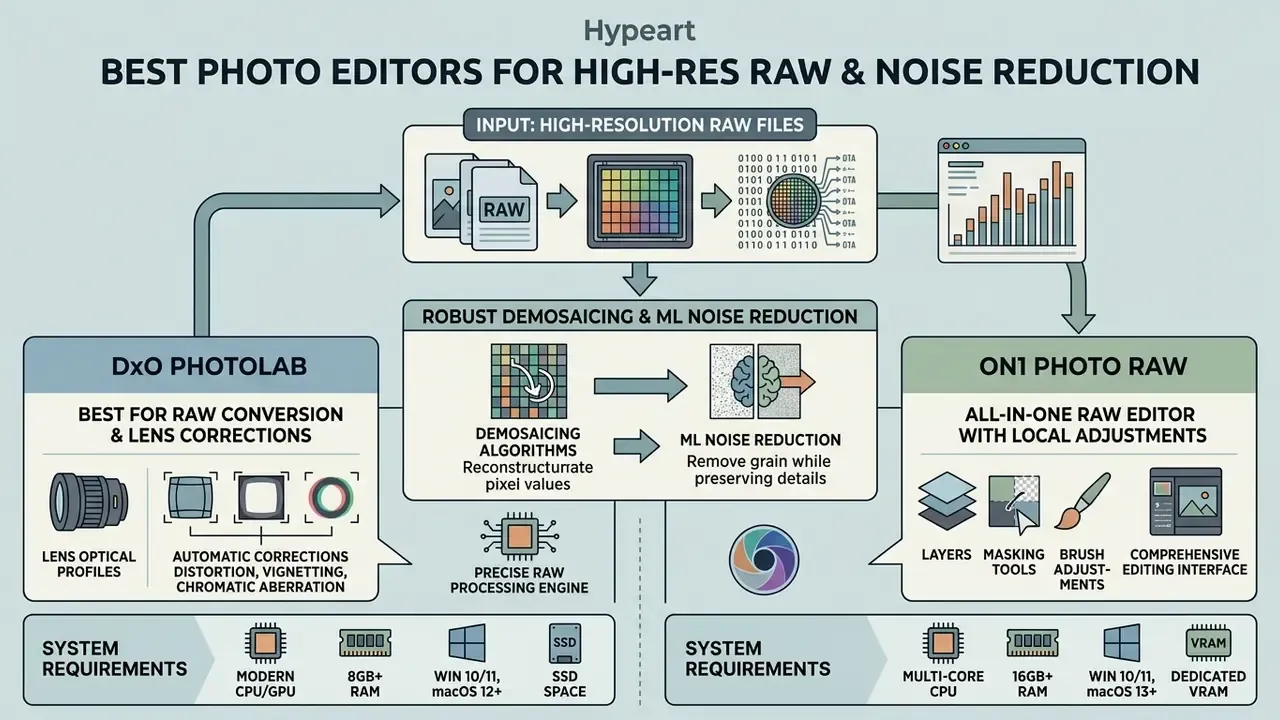
Processing high-resolution RAW files needs robust demosaicing algorithms and machine-learning noise reduction that preserve fine detail at high ISO values. Specialized converters such as DxO PhotoLab and ON1 Photo RAW are the ones that squeeze maximum dynamic range from high-megapixel sensors.
Finding the best photo editor for high resolution images comes down to optical module calibrations and GPU-accelerated debayering pipelines.
DxO PhotoLab: best for RAW conversion and lens corrections
DxO PhotoLab 9 is an optical conversion specialist. It uses lab-calibrated camera and lens profiles to correct distortion, vignetting, chromatic aberration, and lens softness automatically. DxO Modules are built from thousands of laboratory measurements per body-and-lens pair, and PhotoLab downloads the matching module for you. Its DeepPRIME 3 and DeepPRIME XD3 machine-learning engines perform demosaicing, denoising and chromatic aberration correction simultaneously at the RAW stage.
DeepPRIME XD3 supports both Bayer and Fujifilm X-Trans sensor architectures since version 9.6. Photographers preparing large-format prints from cropped frames often pair this conversion stage with dedicated AI image upscalers for final output sizing.
DxO states that DeepPRIME 3 delivers roughly two extra stops of usable ISO detail, while DeepPRIME XD3 reaches three stops or more compared with conventional RAW conversion. Comparative testing confirms that DeepPRIME XD3 recovers up to 3 stops of exposure detail in high-ISO files relative to standard demosaicing routines.
ON1 Photo RAW: all-in-one RAW editor with local adjustments
ON1 Photo RAW 2026 works as an all-in-one RAW engine, browser, and layer-based editor sold under a perpetual license with no mandatory subscription. It folds Develop, Effects, Portrait AI, Sky Swap AI, NoNoise AI, Resize AI, Photo Keyword AI, Generative Erase, Perspective Correction and HDR into a single non-destructive editing workflow. Restore AI stays exclusive to the Photo RAW MAX edition.
The application lets photographers perform local masking, adjustment layers, and sky replacements without exporting to external raster software. Most AI operations execute locally on the host GPU with no external cloud processing, and NoNoise AI ships with models tuned for wildlife, portraits, astrophotography and scanned film. For a one time purchase, that is a wide feature surface.
What matters when editing high-resolution RAW images
Editing uncompressed 60 MP+ RAW files demands real hardware. Demosaicing 4K and 8K sensor data consumes up to 8 MB of system RAM per megapixel during active linear processing for Linear DNG or four-shot files, versus roughly 2 MB per megapixel for standard Bayer data (FastRawViewer Technical Documentation, 2025).
"Files processed through DxO PureRAW showed markedly fewer high-ISO artifacts than the same frames developed in Lightroom or exported from Capture One to TIFF."
Before / after: RAW denoise and optical correction (ISO 12,800, Sony A7R V, 61 MP)
| Evaluation parameter | Unprocessed RAW capture | After DxO DeepPRIME XD3 plus optical module |
|---|---|---|
| Luminance noise (SNR, mid-gray) | Coarse grain across shadow zones | Shadow SNR improved by ~2–3 stops equivalent |
| Chroma noise | Visible color mottling in dark tones | Chroma blotches removed at RAW stage |
| Edge detail (MTF50) | Softened by noise-driven smearing | Fine feather and fabric structure retained |
| Chromatic aberration | Purple-green fringing at frame edges | Corrected via lab-measured lens profile |
| Corner sharpness / vignetting | Falloff and softness present | Normalized by DxO Module for the body-lens pair |
Optimal RAW processing workflows want dedicated GPUs with at least 8 GB of VRAM for 4K/UHD-class debayering (Adobe Camera Raw lists 4 GB or more VRAM as a floor), 16-bit per channel color pipelines, and working color spaces such as ProPhoto RGB to prevent gamut clipping before print or export. Studios delivering web-ready derivatives frequently finish this chain with AI image enhancers to standardize output sharpness across mixed camera sources.
Best AI photo editing software for faster edits
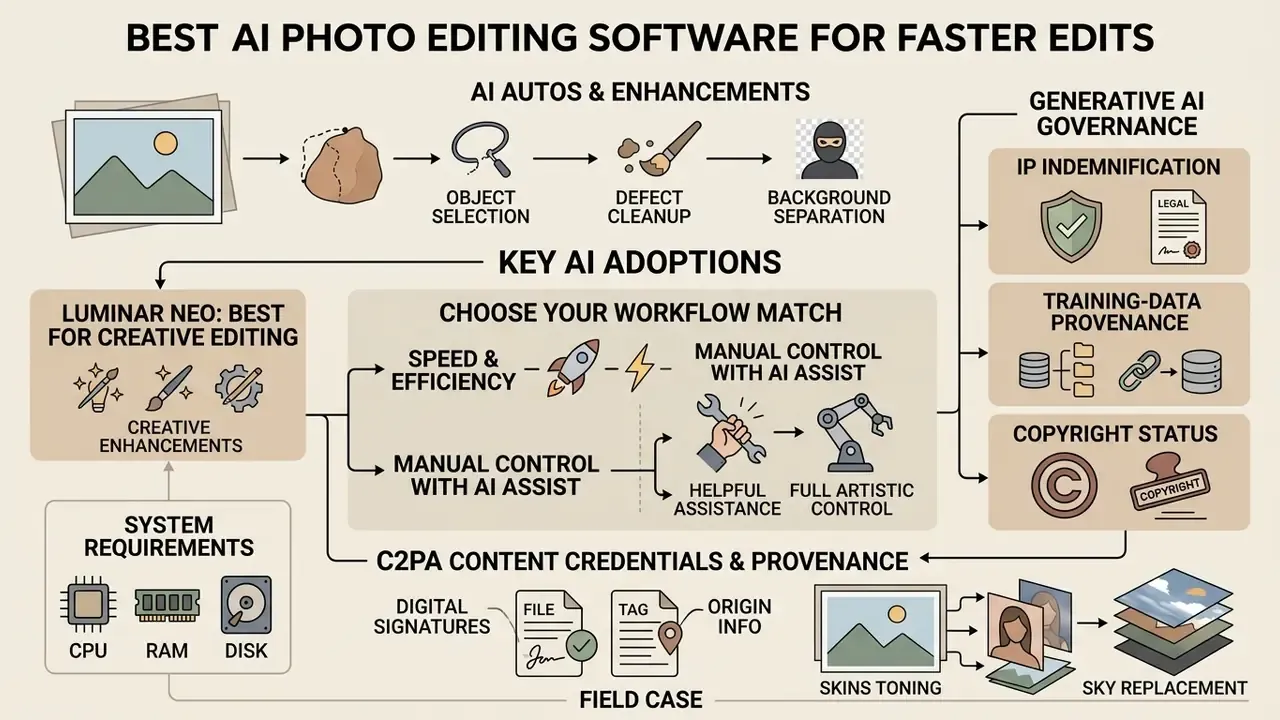
AI powered tools in modern photo editing software mostly automate the boring parts: object selection, defect cleanup, background separation. Selecting the best AI photo editor means choosing between creative generative tools and parametric utility algorithms.
Luminar Neo: best AI editor for creative photo editing
Skylum Luminar Neo is built around automated AI extensions that shortcut complex creative edits. Key capabilities include GenErase for content-aware object removal, Sky AI for atmospheric replacement with horizon and blend controls, Relight AI for 3D spatial illumination adjustments, plus Face AI, Body AI and Portrait Bokeh. Creators who need to change aspect ratios for print or social placements often combine these with dedicated AI outpainting tools.
The software runs both as a standalone desktop application and as a plug-in for Adobe Photoshop and Lightroom Classic. Extensions such as Magic Light AI are bundled for Pro Plan subscribers and owners of the Extensions Pack; a lifetime license plus Upgrade Pass is the subscription-free route. Fast creative iteration, yes. But its core RAW demosaicing controls are less granular than dedicated engines like DxO or Capture One.
Which AI photo editor matches your workflow
Use this decision matrix instead of trial-and-error downloads:
| If your priority is… | Volume per session | Preferred execution | Recommended stack |
|---|---|---|---|
| Batch culling, keywording and consistent delivery | 500+ frames | Local GPU | Lightroom Classic (plus Excire for semantic search) |
| Layered compositing and commercial retouching | 1–50 frames | Hybrid (Firefly optional) | Photoshop 2026 plus Nik Collection |
| Maximum RAW quality at high ISO | 50–300 frames | Local GPU only | DxO PhotoLab 9 or DxO PureRAW |
| Fast creative transformations (skies, relight, object removal) | 1–100 frames | Mixed local and cloud | Luminar Neo |
| Subscription-free ownership | Any | Local | ON1 Photo RAW 2026 or Affinity Photo 2 |
AI tools that help photographers without replacing manual control
Effective AI editing tools augment photographer control rather than replacing judgment. Adobe AI Masking, ON1 Super Select AI, and Camera RAW AI Denoise all run early in the edit sequence, leaving final color, contrast, and crop parameters to you. Adobe's own documentation frames this as "managing AI edits" and prescribes an order of operations, with Denoise and Raw Details first and masking after global adjustments, so AI output stays editable rather than final.
"Generative Fill and Generative Expand accelerated several creative tasks by more than ten times on average compared with traditional tools."
Survey data points the same way on task distribution. A 2025 workflow study found culling that previously took 4 to 6 hours can finish in 20 to 30 minutes with AI first-pass filtering, and practitioner guides restrict generative edits to aspect-ratio expansion and distraction cleanup on commercial jobs. Industry reporting attributed to the VSCO Photography Industry Report (2026) suggests roughly 74% of professional creators use AI mainly for culling, defect removal and noise reduction rather than full scene generation. That figure is an industry estimate with no published methodology, so treat it as directional rather than audited.
Generative AI governance: IP indemnification, provenance and C2PA content credentials
Commercial studios and in-house creative teams now need a policy layer above the toolset. Generative pixels carry legal and disclosure obligations that traditional retouching simply does not.
Best subscription-free and free photo editing software
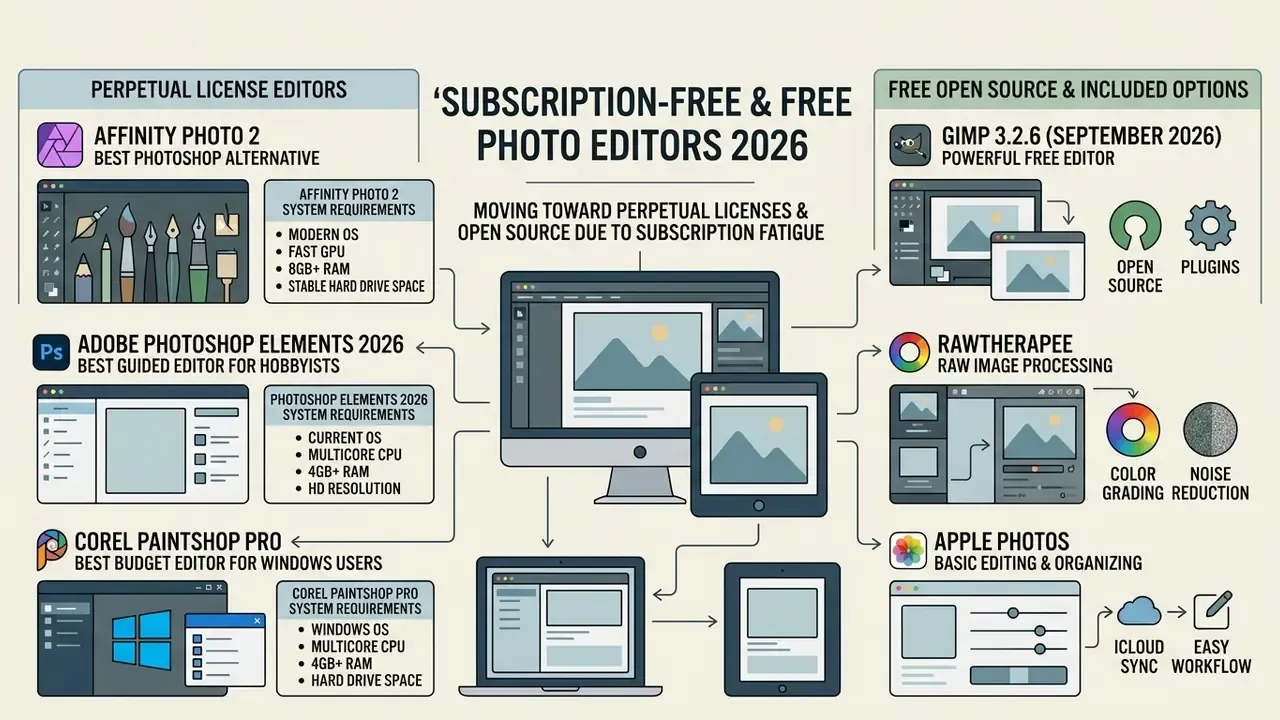
Subscription fatigue is real, and it has pushed demand toward perpetual licenses and open source desktop editors. Photographers searching for the best free photo editor or a one time purchase have solid alternatives that avoid recurring monthly fees.
Affinity Photo: best Photoshop alternative with a perpetual license
Serif Affinity Photo 2 is a genuinely capable good photo editor software alternative to Adobe Photoshop, sold under a single one time purchase license. Perpetual desktop pricing starts at $69.99, with a Universal License covering all platforms at around $169.99 (standard pricing before promotional cycles, bundle packages or the post-Canva pricing changes rolled out during 2024–2026). Readers comparing zero-cost options first can consult our breakdown of the best free photo editor category, including export limits and privacy terms, and our glossary entry on the free photo editor for definitions.
It offers PSD open, import and export with masks, groups and adjustments preserved in most cases (smart objects and some advanced filters may flatten), non-destructive adjustment layers, unlimited live filters, HDR merge, panorama and focus stacking, batch jobs, macros, and dedicated RAW processing through its Develop Persona.
"Affinity Photo 2 provides full layer compositing and live filter performance without forcing creative studios into recurring SaaS overhead."
Affinity Photo uses GPU hardware acceleration on macOS (Metal) and Windows (DirectX 12), so complex adjustment stacks and blend modes render in real time. Every adjustment, filter and layer effect updates live rather than through a render queue. Two caveats: newer AI features are tied to a Canva account or subscription, and the app still lacks a built-in RAW cataloging browser.
Adobe Photoshop Elements 2026: best guided editor for hobbyists
Built for casual creators and family archivists, Photoshop Elements swaps complex layer pipelines for Guided Edits that walk you through each step. It provides automated background blur, object removal, motion effects, face and geotagging, and a smart Organizer for collection management, without manual alpha masking or channel work.
Trade-offs are explicit. There are no chromatic aberration corrections or lens geometry profiles, cloud storage for web and mobile sync is minimal, only 25 AI credits per month are included, and, critically, the standalone license is valid for three years from activation rather than indefinitely. Elements also bundles with Premiere Elements for creators who shoot both stills and video, which makes the pair a reasonable entry-level creative package.
Key specs: 3-year term license ($99.99), Windows and macOS, integrated Organizer, Guided Edits library.
Corel PaintShop Pro: best budget editor for Windows users
PaintShop Pro is the long-standing perpetual-license competitor to Photoshop for Windows-only studios and cost-sensitive buyers. It delivers layers, masks, a Camera RAW Lab, vector drawing tools, script automation, AI Denoise, AI Upsampling, AI Artifact Removal and AI Style Transfer, all executed locally, with no subscription and no cloud dependency.
Weaknesses are equally clear: the interface stays inconsistent across its Manage, Adjust and Edit workspaces, some operations are noticeably slower than Adobe equivalents on large files, and there is no macOS build. For photographers who want Photoshop-adjacent capability at roughly the cost of four months of Creative Cloud, it is still the strongest budget pick.
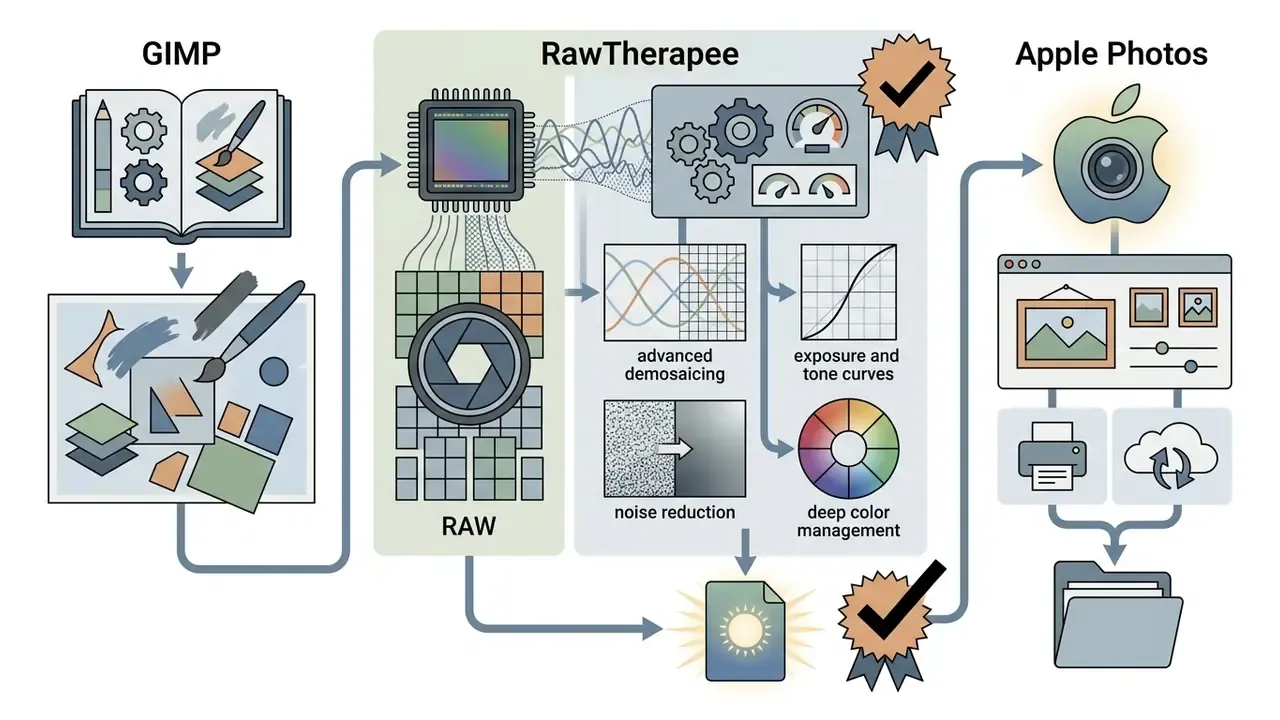
GIMP, RawTherapee and Apple Photos: free options for different needs
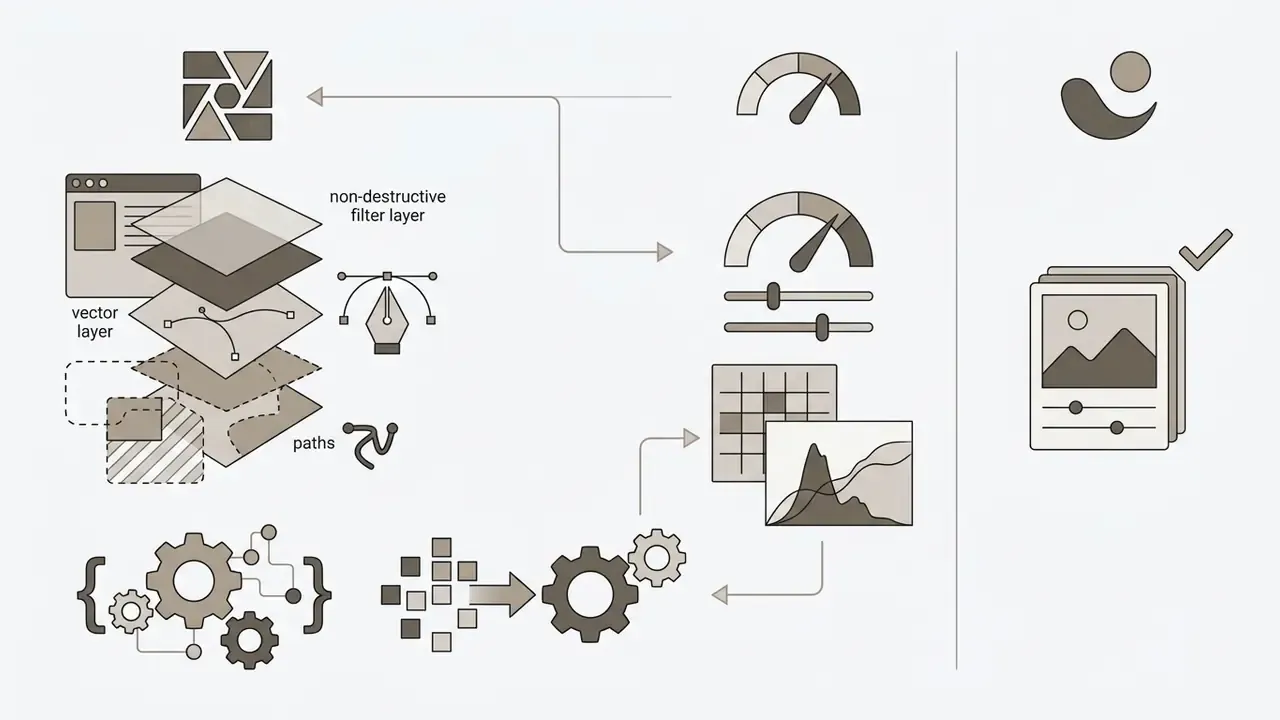
Open source and bundled photo editors cover a surprising amount of ground across operational tiers:

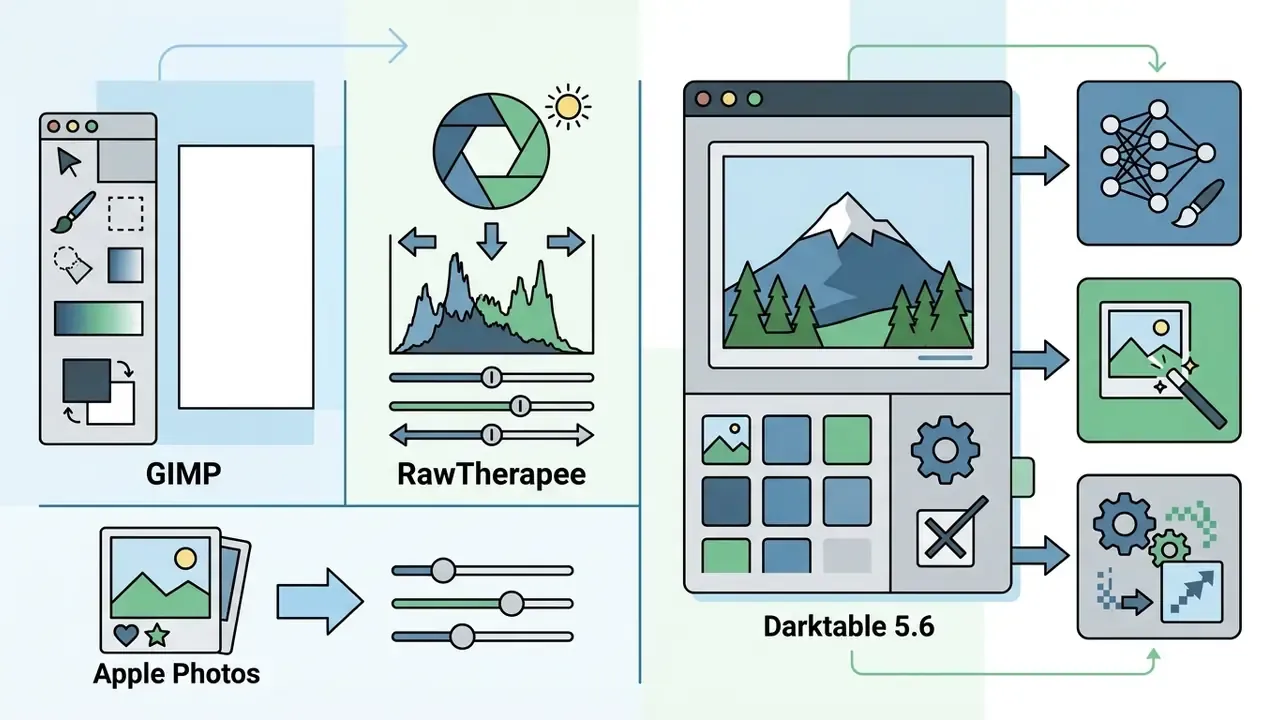

"In a student survey, 80.95% of respondents named ease of use the most important factor when choosing a photo editor, and 48.2% had abandoned tools because of confusing controls."
That usability barrier explains why so many free tools go unused. Capability is rarely the limiting factor; interface friction is. Creators building free-first stacks across media often apply the same logic to motion work, comparing the best free app for video editing alongside their editor choice, and adding a best free ai voice generator for narration on portfolio reels.
Excire Foto 2027 and Excire Search: AI cataloging and semantic photo search
Cataloging is a different problem from editing, and it becomes the bottleneck long before pixel quality does. Excire Foto 2027 runs as a standalone AI-powered organizer, while Excire Search 2026 installs as a Lightroom Classic plug-in.
Both index images entirely on the local machine, with no uploads and no cloud account, then generate AI keywords, group faces, detect duplicates, and support natural-language and example-based search ("find photos similar to this one", "portraits at sunset"). For photographers with decade-deep archives and inconsistent legacy keywording, this class of tool retroactively makes an unstructured library searchable, and it does so under a perpetual license.
One-time purchase vs subscription model: what to compare before buying
Choosing between a subscription model and a perpetual license is a Total Cost of Ownership (TCO) calculation over a multi-year window. Nothing more mysterious than that.
Subscription versus perpetual license: operational comparison
| Comparison metric | Subscription model (SaaS) | Perpetual license (one time) |
|---|---|---|
| Upfront expense | Low ($10.00 to $22.99) | Moderate to high ($69.99 to $349.00) |
| 3-year total cost | $360.00 to $827.00 | $69.99 to $349.00 (excluding optional upgrades) |
| Feature updates | Continuous rolling releases | Version-locked; major upgrades require paid upgrade or new license |
| Generative AI access | Bundled with monthly cloud credits | Limited, or local GPU features only |
| New camera and lens RAW profiles | Delivered continuously | Often limited to the purchased build generation |
| Support window | Included while the term is active | Fixed window or separate annual maintenance contract |
| Early termination penalties | Annual-plan-paid-monthly cancellations after day 14 incur a fee of roughly 50% of the remaining contract value | None, since there is no ongoing commitment to terminate |
| Software access on cancellation | Terminated at billing cycle end | Indefinite usage of the purchased build version |
Subscriptions guarantee immediate access to cloud generative AI and new camera RAW profiles; perpetual software offers long-term financial predictability for stable studio hardware. Enterprise buyers should also note that SaaS TCO comparisons often favor subscriptions once infrastructure and administration costs are included. A 20-seat ERP model published by Acumatica (2024) showed cloud SaaS at $144,000 in year one versus $242,000 for a perpetual on-premises deployment. That math inverts for single-workstation photo editing, where there is no server infrastructure to offset. Run your own numbers in our calculators before signing anything.
Best photo editing plugins for specialized workflows
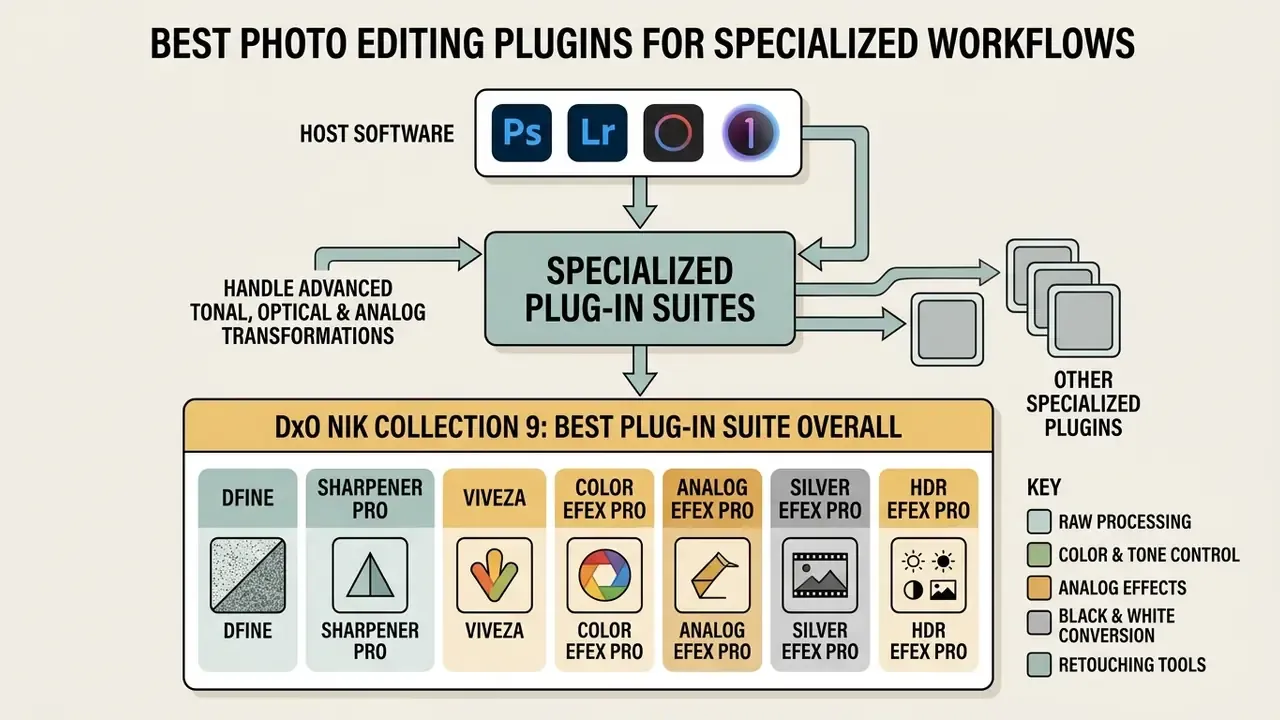
While standalone applications manage catalogs, specialized plug-in suites handle advanced tonal, optical and analog transformations inside host software such as Photoshop, Lightroom Classic, Affinity Photo, DxO PhotoLab and Capture One. Plugins are how experienced editors extend a fixed toolchain without migrating platforms.
DxO Nik Collection 9: best plug-in suite overall
Originally developed by Nik Software, sold to Google, and now owned by DxO, the Nik Collection ships seven dedicated modules that work standalone (on TIFF and JPEG) or as plugins inside supported hosts:
- Dfine targeted control of spatial luminance and chroma noise, applied selectively rather than globally.
- Sharpener Pro capture and output sharpening tuned to viewing distance and print medium.
- Viveza U Point driven local control of color, brightness, structure and warmth without manual masks.
- Color Efex Pro landscape micro-contrast, graduated filters, tonal contrast and stylized color recipes.
- Analog Efex Pro film-camera simulations including lens defects, plate edges, bokeh and light leaks.
- Silver Efex Pro widely regarded as the most extensive black and white photo conversion tool available, using historical film grain engine algorithms and zone-system controls.
- HDR Efex Pro HDR merging and tone mapping with per-zone control.
Digital Camera World rates Nik Collection 9 the best plug-in package on the market, noting it would be worth buying for Color Efex and Silver Efex alone. Trial versions are available for both Windows and macOS.
DxO FilmPack 7: analog film emulation
FilmPack reproduces the look of analog photography using lab-measured film density and spectral sensitivity profiles from iconic stocks, including Kodak Tri-X 400, Fuji Velvia 50 and Ilford HP5. Beyond presets, it lets photographers build custom film-based presets that combine grain structure from one stock with the color response of another, plus creative vignetting, light leaks and frame borders. It runs standalone or as a plugin, and its renderings are also embedded inside PhotoLab for users who prefer a single application.
How plugins fit into a host workflow
Sequence matters as much as selection. The reliable order: RAW conversion and denoise in the host or DxO, then geometry and optical corrections, then global tone and color, then the plugin round trip as a 16-bit TIFF in ProPhoto or Adobe RGB, and finally local retouching and output sharpening back in the host. Round-tripping in 8-bit sRGB is the single most common cause of banding in plugin-heavy pipelines.
How to choose photo editing software for your workflow
Selecting the right best software photo editor means matching tool capabilities against primary creative output formats, operating system requirements, and hardware configurations.
Desktop photo software selection flow
| Step | Question | If yes | If no |
|---|---|---|---|
| 1 | Do you need a managed catalog or DAM with keywording and batch sync? | Lightroom Classic, Capture One, ON1, ACDSee, Darktable (plus Excire for AI search) | Go to step 2 |
| 2 | Do you need pixel-level compositing, layers and frequency separation? | Photoshop, Affinity Photo, PaintShop Pro | Go to step 3 |
| 3 | Is maximum RAW quality at high ISO your first priority? | DxO PhotoLab or PureRAW, RawTherapee | Go to step 4 |
| 4 | Do you shoot tethered in a studio with client review on set? | Capture One Pro | Go to step 5 |
| 5 | Which licensing model must you use? | Subscription: Creative Cloud. Perpetual: DxO, ON1, Affinity, Corel. Free: GIMP, Darktable, RawTherapee | Revisit step 1 |
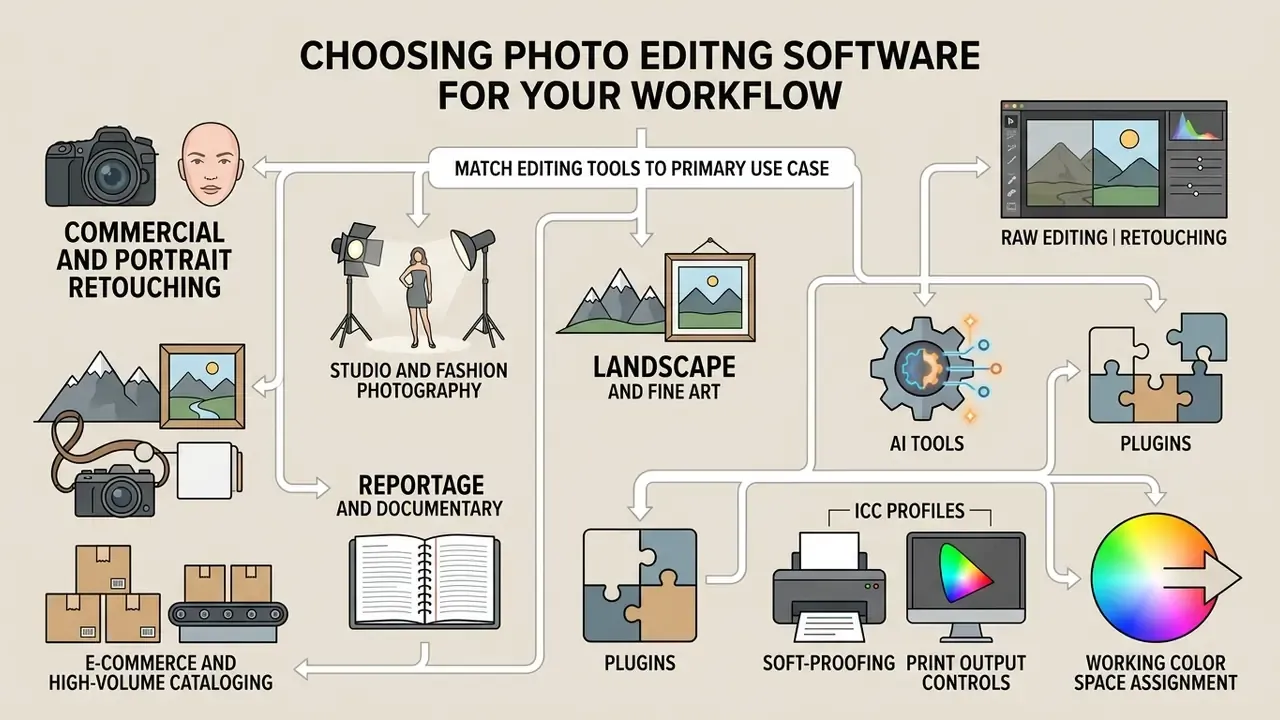
Match editing tools to your primary use case
Different photography genres demand different toolsets:
- Commercial and portrait retouchingneeds pixel-level layer masking, frequency separation, heal, clone, dodge and burn discipline, and the precise retouching tools found in Adobe Photoshop or Affinity Photo. Studios producing corporate portrait sets at volume sometimes supplement this with AI headshot generators for internal directory assets.
- Studio and fashion photographydemands real-time tethered shooting, ICC profile accuracy, Next Capture Adjustments, and the skin-tone balance wheels in Capture One Pro.
- Landscape and fine artneeds advanced RAW demosaicing, optical aberration removal and high-ISO noise reduction (DxO PhotoLab), plus creative tonal control via Nik Color Efex and Silver Efex. Sky replacement and relighting belong to Luminar Neo.
- Reportage and documentaryprioritizes minimal correction, series-level consistency of exposure, white balance and contrast, and strict avoidance of generative edits for authenticity reasons. Lightroom Classic sync and Capture One's Next Capture Adjustments both serve that constraint.
- E-commerce and high-volume catalogingneeds batch metadata keywording, parametric preset synchronization across multiple images, background isolation and database management in Lightroom Classic or ON1.
That volume profile explains why background-removal automation, not creative grading, dominates commercial catalog pipelines.
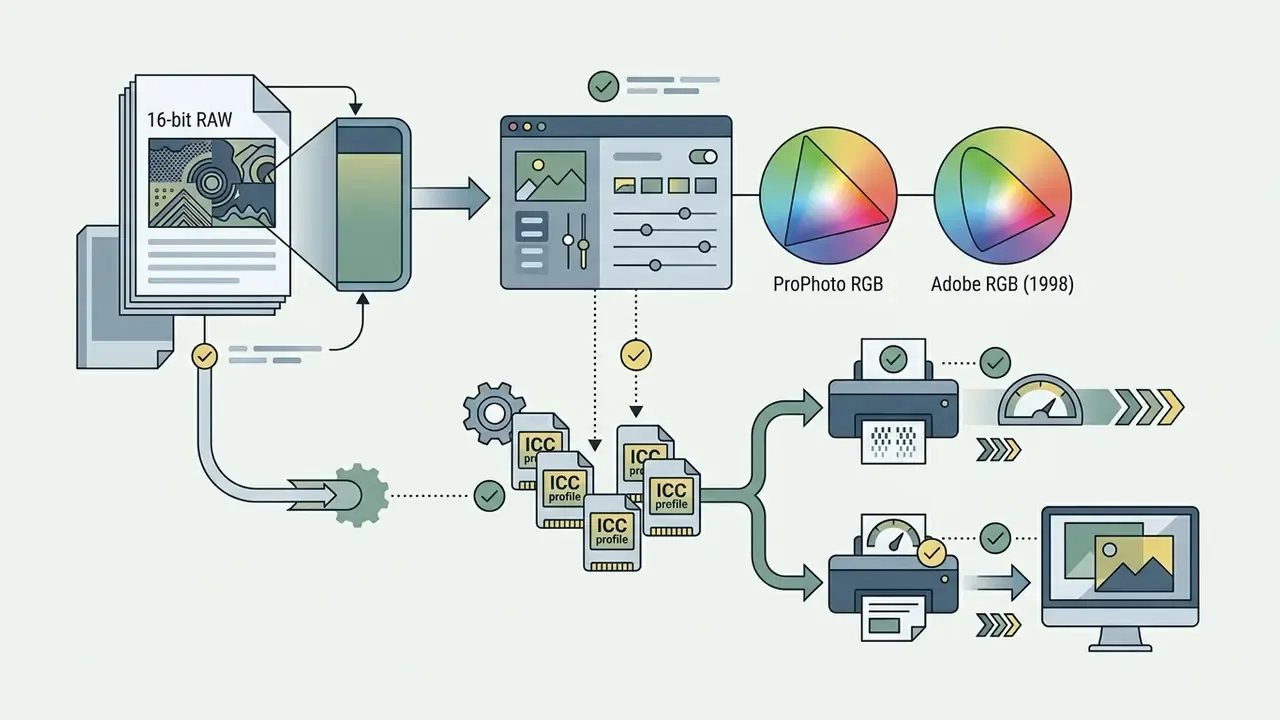
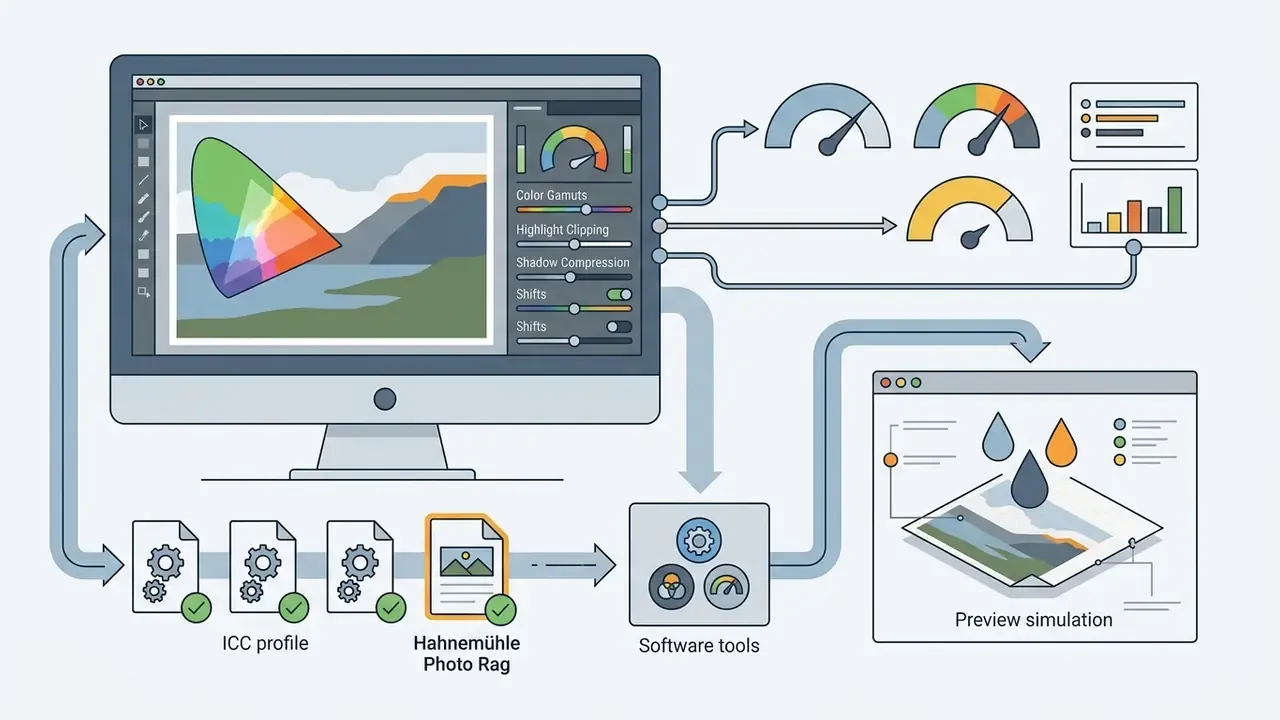
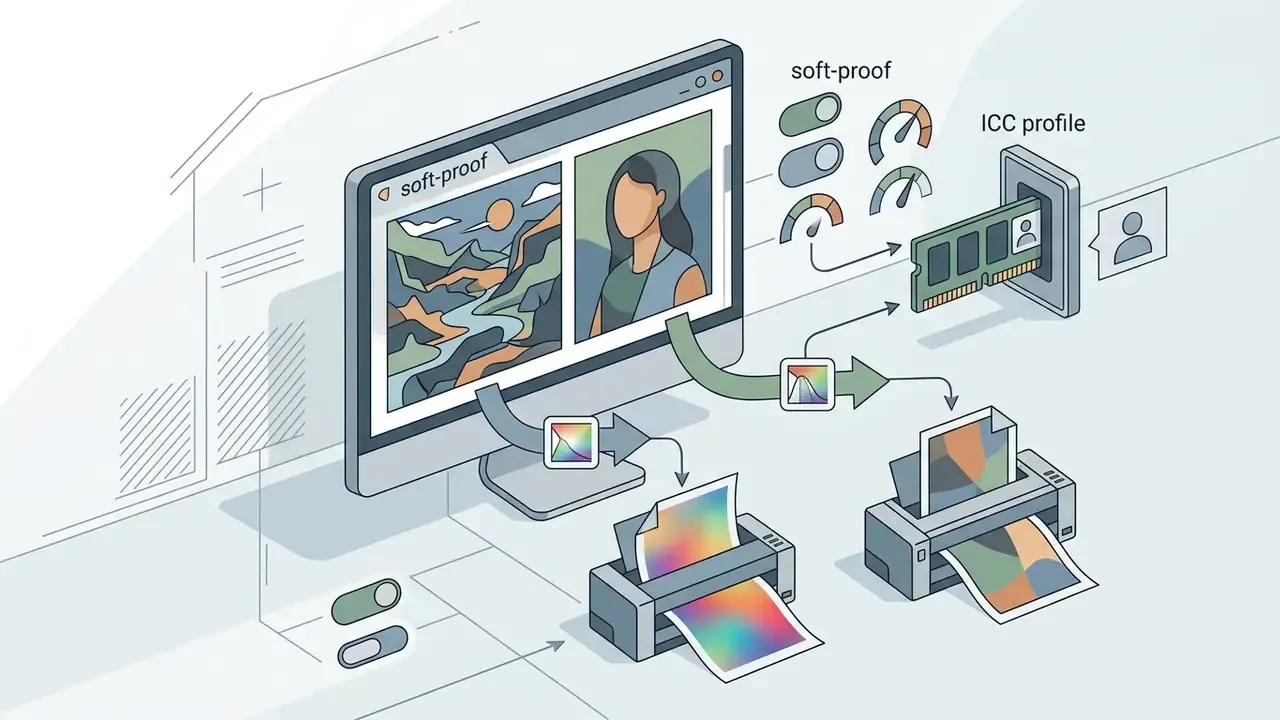
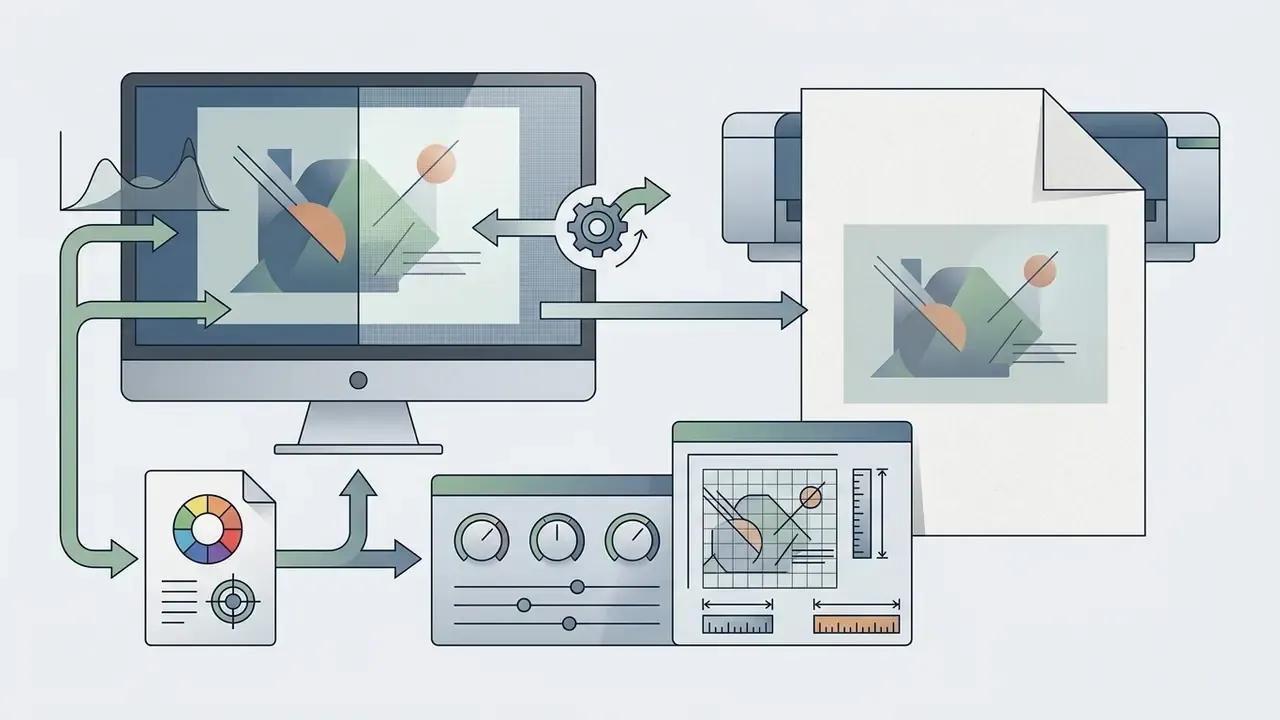
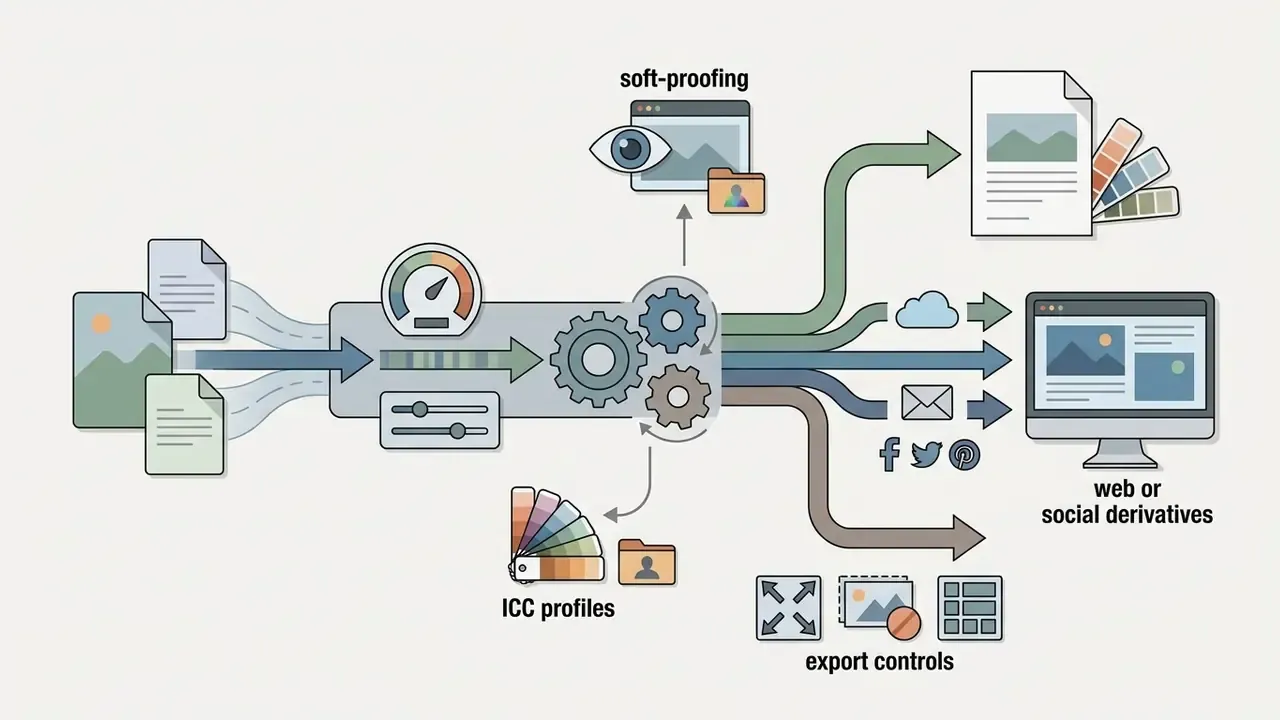
Soft-proofing, ICC profiles, and print output controls
Professional photo editing ends at physical output, and print is where uncontrolled color management becomes visible and expensive. Verify accuracy across five stages:
A calibrated, profiled display is the precondition for all five steps. Soft-proofing on an uncalibrated monitor produces confident, repeatable, wrong decisions.
Check desktop compatibility, performance and file workflow
High-resolution imaging software has specific minimum hardware needs. Adobe 2026 system requirements specify a 64-bit multi-core CPU (Intel 8th Gen or AMD Ryzen equivalent, Apple M-series), 16 GB RAM minimum (32 GB recommended for 60 MP+ RAW files), and dedicated GPUs with DirectX 12 or Metal support and at least 4 GB VRAM. Adobe's published floor is 8 GB RAM and 1.5 GB VRAM, which is a minimum for launch rather than a target for production.
Storage architecture should pair high-speed local NVMe SSDs for active catalog databases and scratch disks with secure secondary cloud storage or NAS for long-term RAW archiving. Adobe explicitly requires installation and temporary files on local disks, not removable flash volumes or case-sensitive filesystems, which rules out several convenient but unsupported configurations. Worth checking before you buy that external SSD.
Use a free trial before committing to a photo editor
Before purchasing a commercial license, test the software with a structured free trial checklist grounded in usability measurement practice: effectiveness, efficiency and satisfaction on real tasks.
Checklist0 / 8
Testing the editing features on your own workstation is the only way to confirm performance stability before financial commitment. Teams comparing several products side by side can browse the hub of head-to-head evaluations while trials run in parallel.
FAQ: frequently asked questions about photo editor programs
Is Adobe Photoshop still the industry standard for professional photo editing?
Yes. Adobe Photoshop remains the primary industry standard for professional pixel-level retouching, graphic design, and commercial compositing. Market-tracking estimates place Photoshop between roughly 35% and 42% of the professional graphics and design software market, though these figures come from technographic website tracking rather than audited user surveys, and category definitions differ between trackers. Treat the range as directional.
"Adobe leads competitors across many areas: most RAW applications, including DxO and Luminar Neo, trail it on overall image-processing feature depth." Seim Effects, DxO PhotoLab 8 vs Lightroom Torture Test (2024), cited in the Evidence-Based Desktop Software Guide Its integration with Adobe Lightroom Classic lets photographers manage catalogs in Lightroom while making non-destructive round-trip adjustments to layered PSD files in Photoshop. The edited file returns to the catalog automatically and the original is preserved. Specialized alternatives such as Capture One and DxO PhotoLab win in niches like studio tethering and RAW noise reduction, but the Photoshop and Lightroom pair is still the baseline across commercial media workflows.
What is soft-proofing, and why is it necessary before printing photos?
Soft-proofing simulates printed output on a calibrated monitor using the ICC profile of the target printer-and-paper combination. It exposes out-of-gamut colors, highlight clipping and shadow compression that the display would otherwise hide, so you can adjust contrast, saturation and brightness before committing to physical media. Lightroom Classic, Capture One and PaintShop Pro include soft-proofing; the cloud-based Lightroom does not. Skipping this step is the main reason prints come back darker, flatter and less saturated than the screen version.
Are there financial penalties for cancelling an Adobe Creative Cloud subscription early?
Yes. Cancelling an annual Creative Cloud subscription paid monthly after the 14-day return window triggers an early termination fee of roughly 50% of the remaining contract obligation. Annual plans paid upfront and month-to-month plans behave differently, and regional consumer-protection rules can change outcomes. Read the product-specific licensing terms before enrolling a team, and consider perpetual alternatives (DxO, ON1, Affinity, Corel) if contract flexibility matters more than continuous feature delivery.
Can open-source photo editors like GIMP replace Adobe Photoshop for commercial retouching?
Partly. GIMP 3.2 handles complex raster editing, layers, masks, color channels, paths, vector layers and non-destructive filters, and it is genuinely capable for web-destined commercial work. The limits are structural: no native 16-bit CMYK color management for commercial print pipelines, no non-destructive RAW development without external tools such as Darktable or RawTherapee, and no vendor-backed generative AI with IP indemnification. For print-critical or SLA-bound retouching, a paid perpetual editor such as Affinity Photo remains the safer substitution.
What hardware component impacts RAW noise reduction performance the most?
Dedicated GPU VRAM and tensor execution cores set the execution times. AI demosaicing and denoise algorithms (DxO DeepPRIME XD3, Adobe AI Denoise, ON1 NoNoise AI) lean on FP16/INT8 hardware acceleration rather than CPU single-core clock speed. Plan for 8 GB or more of VRAM for 4K/UHD-class debayering, and remember that RAM scales with resolution: roughly 2 MB per megapixel for Bayer data and up to 8 MB per megapixel for Linear DNG or multi-shot files during active linear processing.
Do perpetual license photo editors include free annual version upgrades?
No. Perpetual licenses (DxO PhotoLab, Affinity Photo, ON1 Photo RAW, Corel PaintShop Pro, Capture One's one-off option) grant permanent use of the purchased build only. Major annual version updates require a discounted upgrade fee or a new license, and new camera or lens support is frequently limited to current builds. Capture One's perpetual option, for example, does not include ongoing feature updates; those are tied to subscription or upgrade purchases. Factor one upgrade every 24 to 36 months into any honest perpetual-license TCO model.
Verification and documentation sources
- Adobe Systems Technical Requirements (2026): Photoshop and Lightroom Classic System Specifications, Adobe Help Center (page last updated 9 September 2026).
- Adobe Photoshop Release Notes (2026): version 27.0, August 2026 feature set including AI Assisted Editor (Beta), Adobe Help Center.
- Adobe Product Specific Licensing Terms (20 August 2026): Adobe Legal.
- Capture One Support Documentation (2026): Tethered Camera Support, Supported Cameras, System Requirements, Terms and Conditions, Capture One.
- DxO Labs Technical Whitepaper (2025–2026): DeepPRIME 3 / DeepPRIME XD3 Demosaicing and DxO Modules Optical Correction Architecture, DxO Research.
- ON1 Photo RAW 2026 User Guide: module list, licensing and AI execution notes, ON1.
- Serif / Affinity Help (2026): supported file formats, layer types, PSD fidelity and performance documentation.
- Skylum Luminar Neo Documentation (2026): Sky AI, GenErase, AI Assistant, plan and system requirements pages.
- GIMP 3.2.6 (10 September 2026) and RawTherapee 5.13 (26 July 2026): official release documentation.
- UL Benchmarks (2025): UL Procyon Photo Editing Benchmark Methodology, UL Solutions.
- ImgEdit-Bench (2025): instruction adherence, editing quality and detail-preservation evaluation criteria.
- FastRawViewer Technical Documentation (2025): RAW RAM consumption per megapixel and GPU processing notes.
- Acumatica ERP TCO Paper (2024): SaaS versus perpetual multi-year cost modelling (20-user scenario).
- Evidence-Based Desktop Software Guide (2024–2026): aggregated citations for EUCS, HEART, Chris Wright, Life after Photoshop, Edward Peck, Adobe/Pfeiffer, Worldmetrics and Seim Effects findings referenced above. To test specialized workflow metrics or model licensing math across enterprise creation suites, you can use our interactive TCO tools or browse the technical api documentation for automation endpoints.
Appendix A: fact-check notes and superseded claims
Appendix B: team rollout, license administration and archive migration
Single-user buying decisions rarely survive contact with a five-person studio. If you deploy across seats, plan these five items before purchase:
- Seat assignment and ownership.Record who owns each license key or Adobe admin seat, and who can reassign it when someone leaves. Perpetual keys tied to a personal email address are a common and avoidable failure point.
- Version parity across workstations.Mixed builds break preset and catalog compatibility. Lock the team to one minor version per quarter, then update deliberately rather than automatically.
- Catalog and preset governance.Store develop presets, export presets and ICC profiles in one versioned repository. Name them by output target (for example
client_print_A2_HahnemuhlePhotoRag), not by author initials. - Archive migration rehearsal.Before moving from Lightroom Classic to Capture One or ON1, migrate one closed project first, then compare ratings, keywords, crops and white balance against the source. Expect partial fidelity and document what did not carry over.
- Offboarding and data retention.Define where RAW originals, sidecar .XMP files and layered PSD or .afphoto masters live after delivery, and how long you keep them. Clients ask two years later. They always do.
None of this is glamorous. It is, however, the difference between a toolchain and a pile of installed applications.