Key Numbers at a Glance
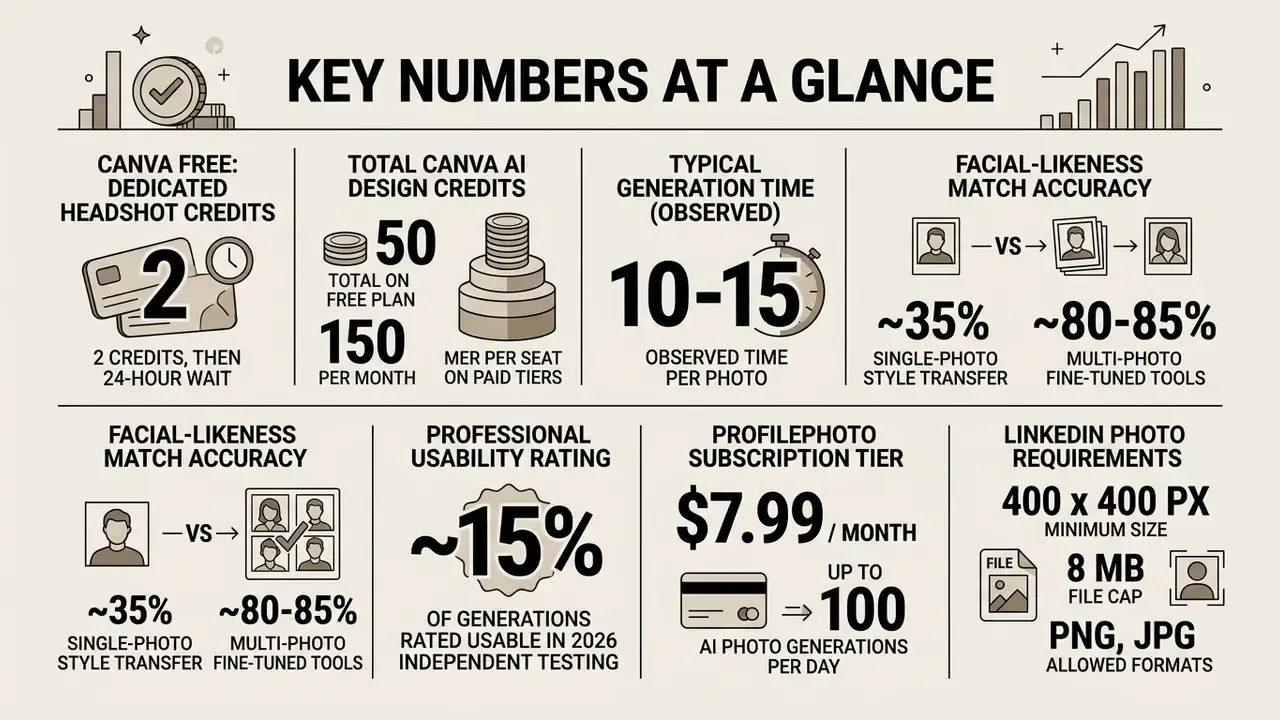
Before the detail, the figures that usually decide the question:
- 2 dedicated headshot credits on Canva Free, then a 24-hour wait.
- 50 total Canva AI design credits on the Free plan; 150 per month per seat on paid tiers.
- 10-15 seconds typical generation time (observed, not an official SLA).
- ~35% facial-likeness match on single-photo style transfer; ~80-85% on multi-photo fine-tuned tools.
- ~15% of generations rated usable at professional standards in independent 2026 testing.
- $7.99/month for the ProfilePhoto subscription tier, up to 100 AI photo generations per day.
- 400 × 400 px LinkedIn minimum, 8 MB file cap, PNG or JPG only.
Keep those seven numbers in mind. Most of the disagreement you will read online about this tool disappears once the two separate credit pools are untangled.
The Canva AI Headshot Generator is an artificial intelligence application embedded within Canva's Magic Studio ecosystem that converts reference photos or text prompts into business-style portraits. In 2026, enterprise professionals, job seekers and corporate teams use these automated photo features to produce visual assets for LinkedIn profiles, corporate directories, resumes and executive presentations.
Because the tool sits inside a mainstream design suite rather than a specialist portrait pipeline, its value proposition is speed and accessibility, and its trade-offs are identity fidelity, customization depth and enterprise-grade control. This guide covers both sides: the exact workflow, the credit economics, the measurable quality ceiling, the privacy questions a risk owner will ask, and the specific situations where a specialized multi-photo generator is the correct choice instead.
What Is the Canva AI Headshot Generator and Which Tasks Is It For?
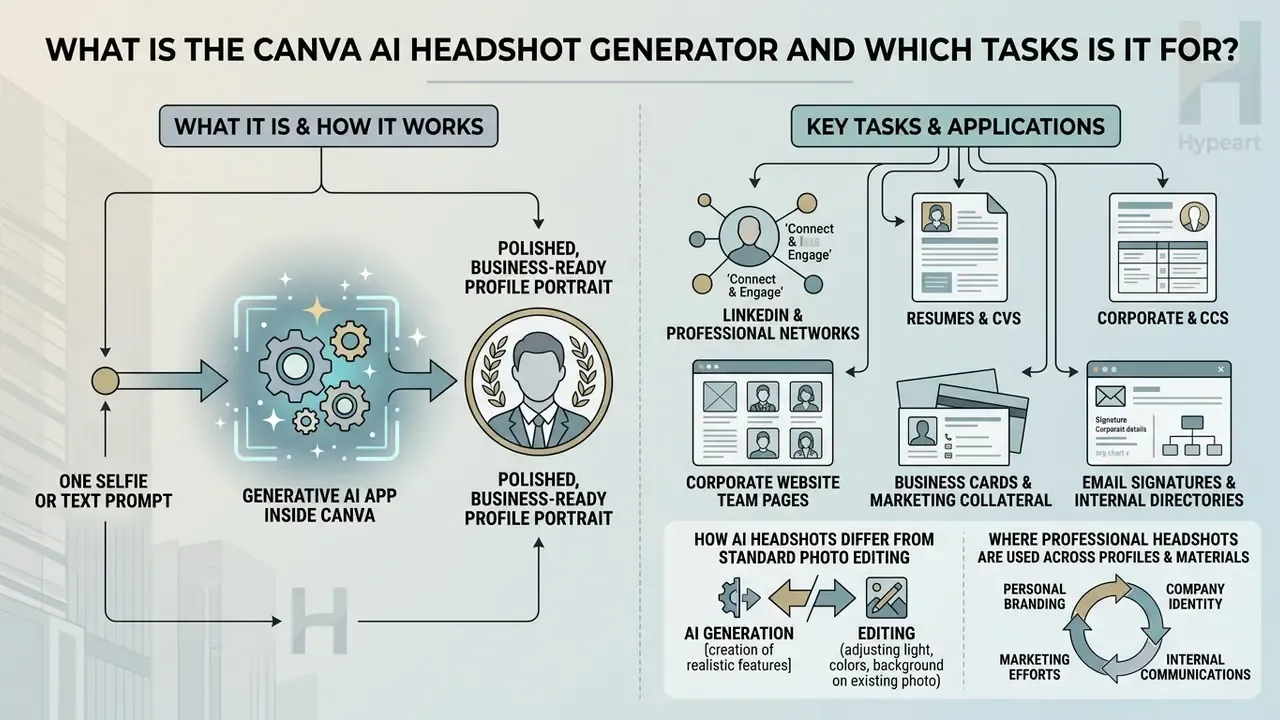
Short answer: it is a generative AI app inside Canva that turns one selfie (or a text prompt) into a polished, business-ready profile portrait. Its primary job is unifying your visual identity across professional platforms without booking a studio session.
The Canva AI Headshot Generator transforms single user selfies or text prompts into business-ready profile portraits. It is designed primarily to help users build a consistent visual identity across professional platforms without paying for studio photography. Canva's own official description frames the output as an AI-generated headshot created "to enhance your image and build your professional network," and its localized product pages extend the same tool to social media icons, workplace profile images and AI resume photos.
A primary application of the Canva AI Generator suite is upgrading social media avatars into polished corporate images. The business case is measurable:
«LinkedIn profiles with photos receive 21× more profile views, 9× more connection requests and up to 36× more messages than profiles without photos.»
«Professional headshots increase perceived competence by approximately 75.93% compared with non-professional photos.» Morphed, LinkedIn Profile Picture Statistics (2026), citing PhotoFeeler test data. https://www.morphed.ai/linkedin-profile-picture-statistics/
The behavioural trend is equally relevant for governance teams drafting policy:
«The share of AI-edited or AI-generated LinkedIn profile photos grew 38% between 2023 and 2025; roughly 9% of job seekers now use AI for portraits.»
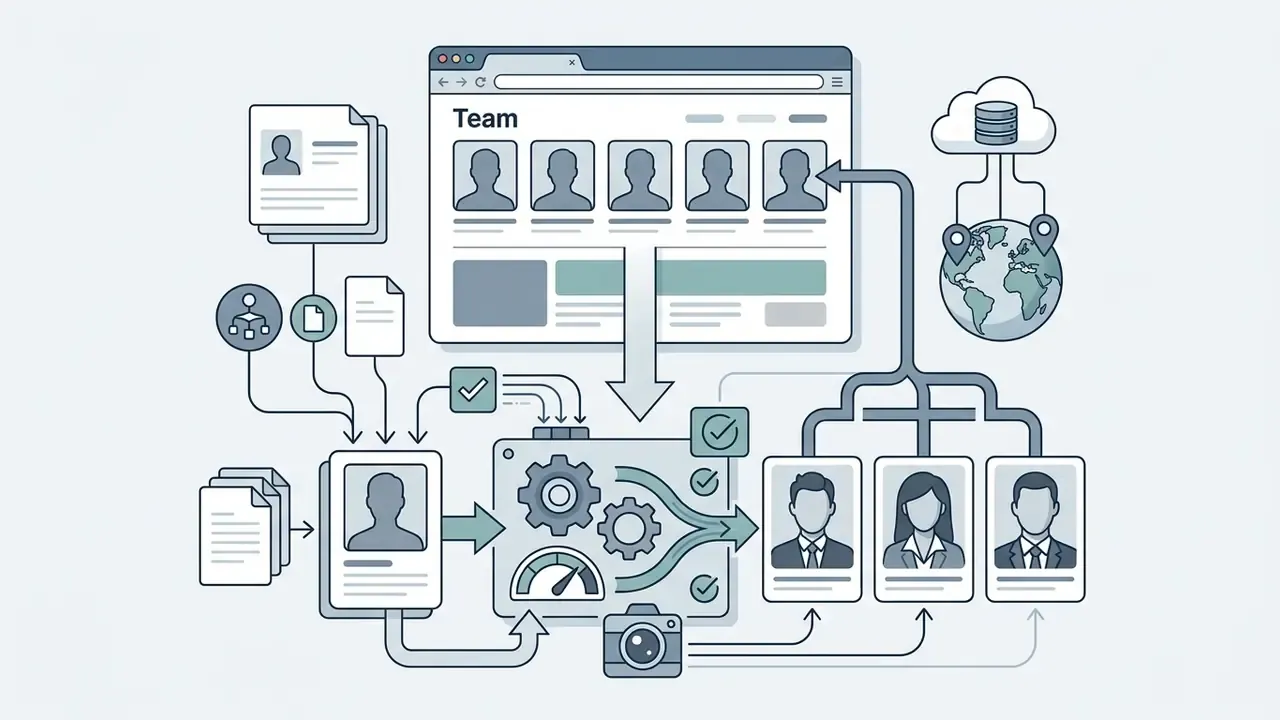
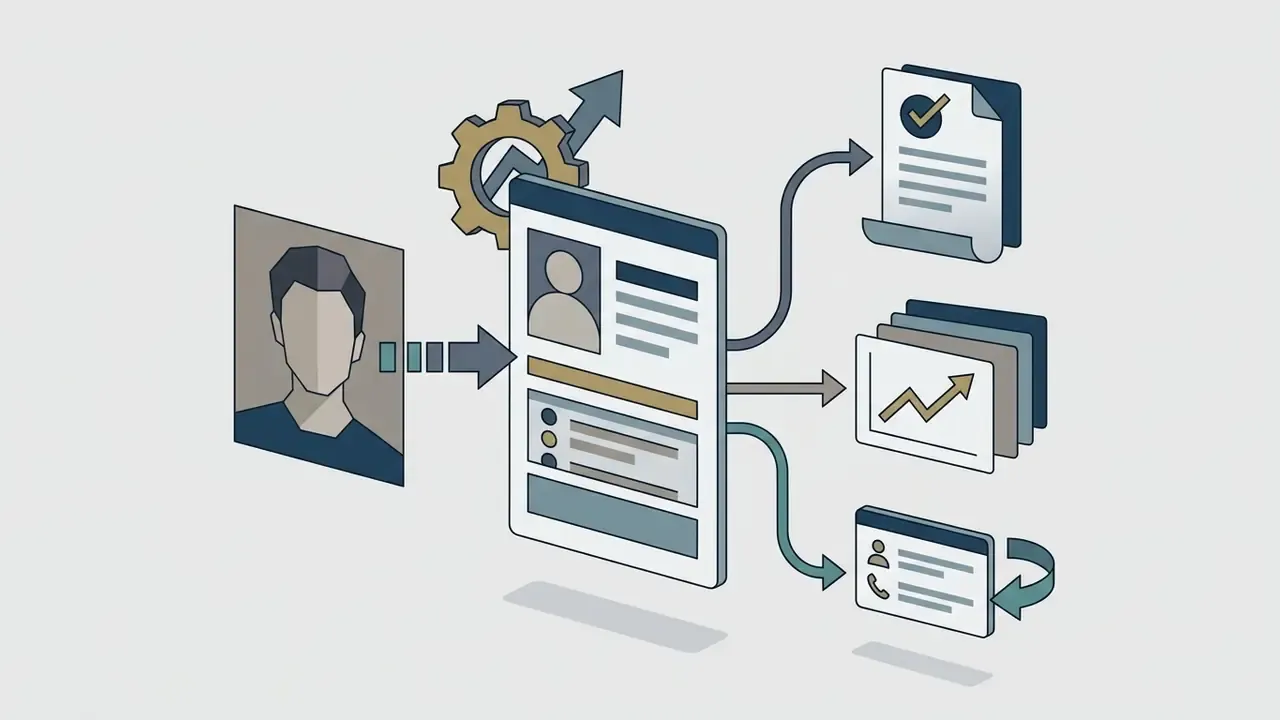
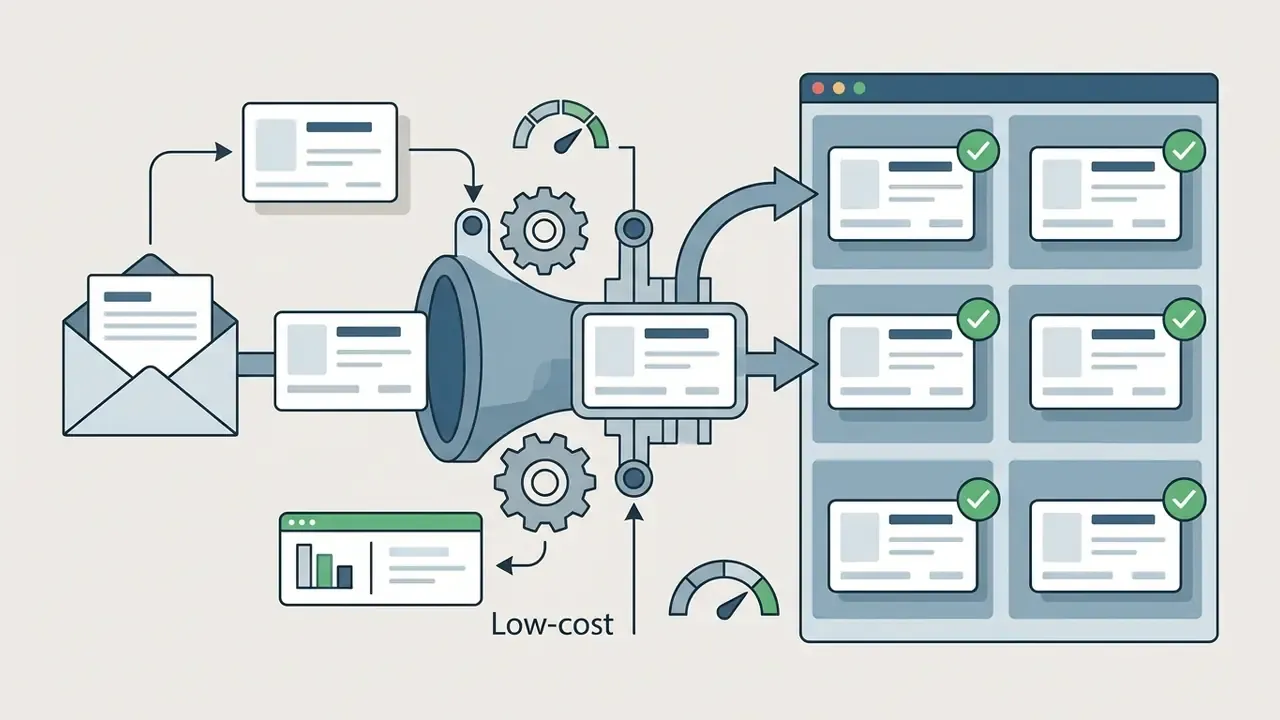
Organizations use the canva ai professional headshot generator to streamline visual asset creation across several channels:
If you are still choosing a category of tool rather than a specific vendor, our reference overview of AI headshot generators explains the difference between style-transfer apps, fine-tuned identity models and enhancement-only retouch tools.
How AI Headshots Differ from Standard Photo Editing in Canva
An AI headshot generated in Canva relies on generative image synthesis, whereas standard photo editing manipulates an existing photographic pixel layer. Traditional editing tools in Canva, such as brightness adjustments, colour filters, cropping and manual retouching, apply post-processing directly to the original photo source. The underlying facial geometry, background elements and environmental lighting stay fundamentally unchanged.
In contrast, the ai headshot generator canva workflow uses diffusion-based models inside Canva's Magic Studio pipeline. The model ingests a reference photo or text description and generates an entirely new portrait; the mechanics of this class of tooling are covered in our guide to image-to-image AI generators. This generative synthesis can re-render lighting, modify background scenery, replace casual attire with formal business wear and adjust overall composition.
Experimental research in psychological science shows how far generative synthesis diverges from manual retouching:
«Participants classified AI faces as human about two thirds of the time, more often than real faces, an effect the authors term "AI hyperrealism".»
«Diffusion-generated faces received a mean trust rating of 4.70/7 versus 4.03/7 for real photographs, a statistically significant difference (d = 0.64).» McGuire et al., AI-Generated Faces Are Becoming More Trustworthy, Journal of Vision (2026). https://jov.arvojournals.org/article.aspx?articleid=2802234
Conventional filters and retouching operate on captured pixels, so they cannot reproduce the systemic shift in perceived trustworthiness documented by McGuire et al. (2026). That shift arises specifically because diffusion models synthesize facial structure from a learned probabilistic distribution rather than adjusting an existing face. A double-edged effect, really: the same mechanism that makes synthetic portraits look "confidently professional" is what pulls them away from your actual appearance.
Where Professional Headshots Are Used Across Profiles and Materials
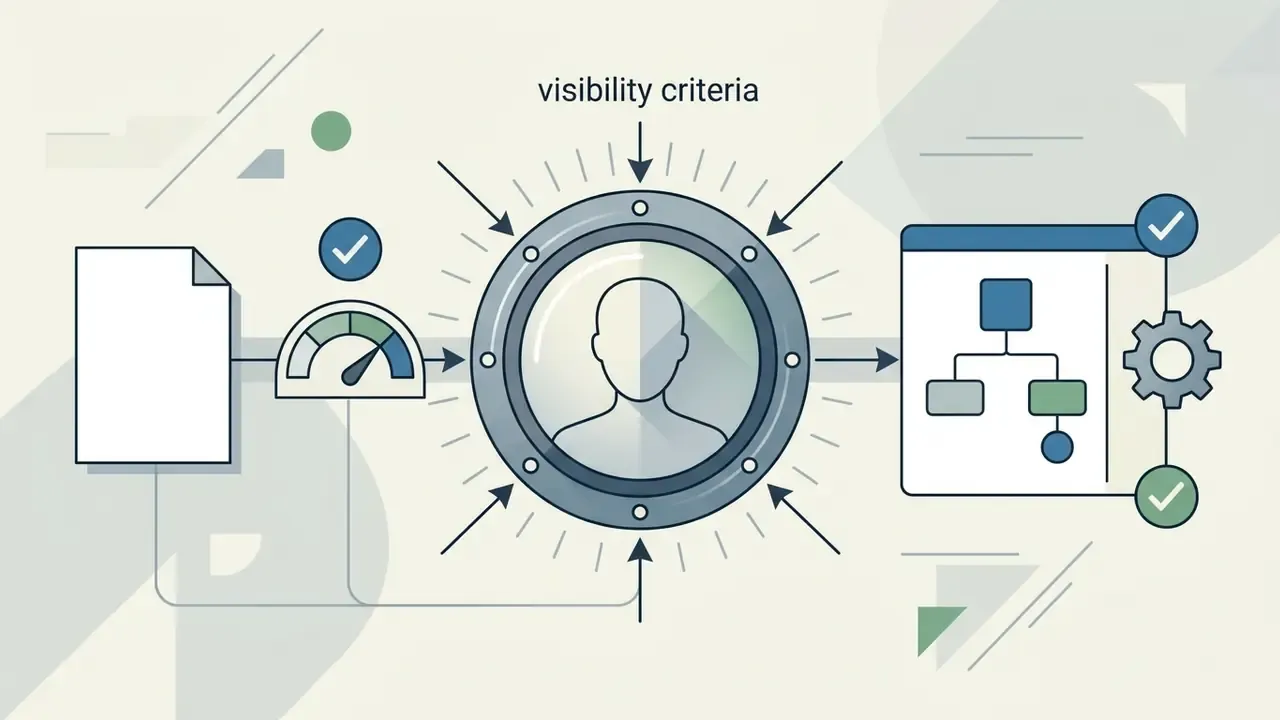
Professional headshots work as visual trust markers across corporate communication channels. On platforms such as LinkedIn, official guidelines specify that profile images must accurately reflect the user's physical likeness while staying visually clear. Non-compliant elements, including company logos, animal pictures, group photos, emojis, landscapes, flags, baby photos, stock imagery or heavily stylized graphic avatars, can be flagged or removed under platform user agreements. LinkedIn Help also documents concrete technical specifications: a 400 × 400 px minimum, a 7,680 × 4,320 px maximum, an 8 MB file cap, and PNG or JPG format only (GIF is not supported).
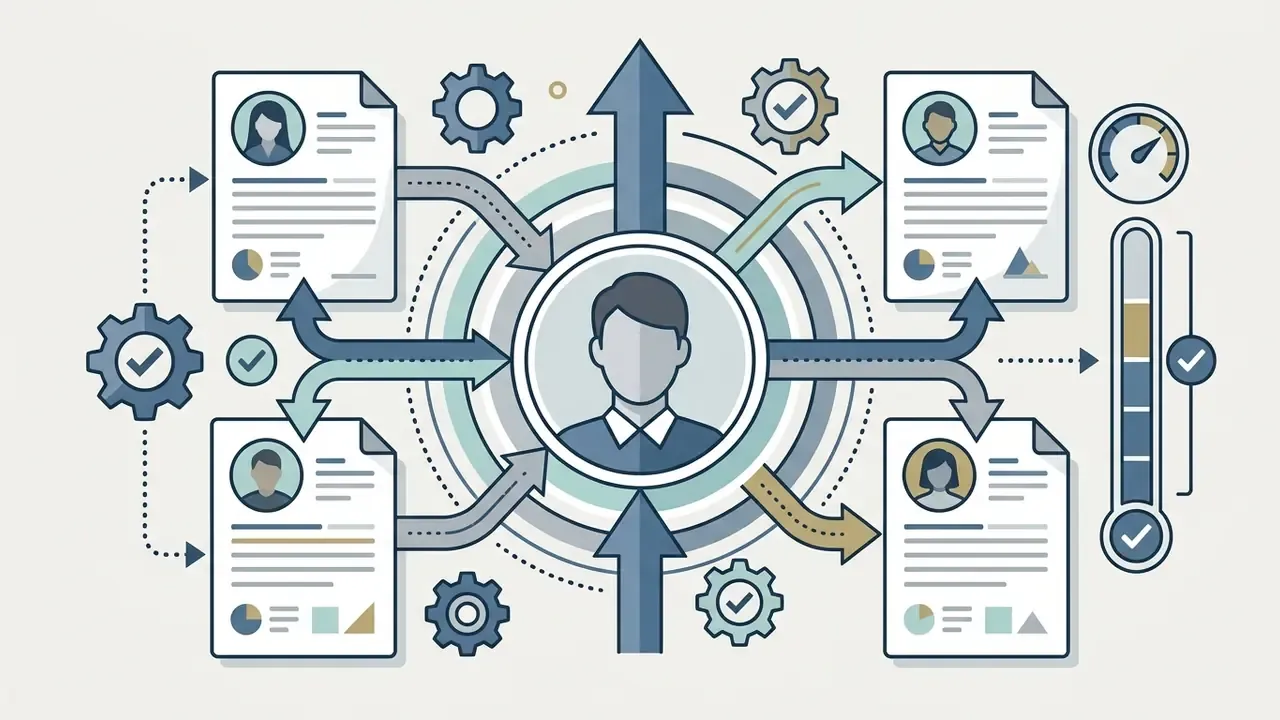
For internal team directories and executive bios, visual consistency across employees reinforces corporate brand identity. When deploying generative portraits across enterprise marketing collateral, organizations consult structured comparison guidelines in our AI Media Comparison Matrices to evaluate identity consistency against specialized portrait engines.
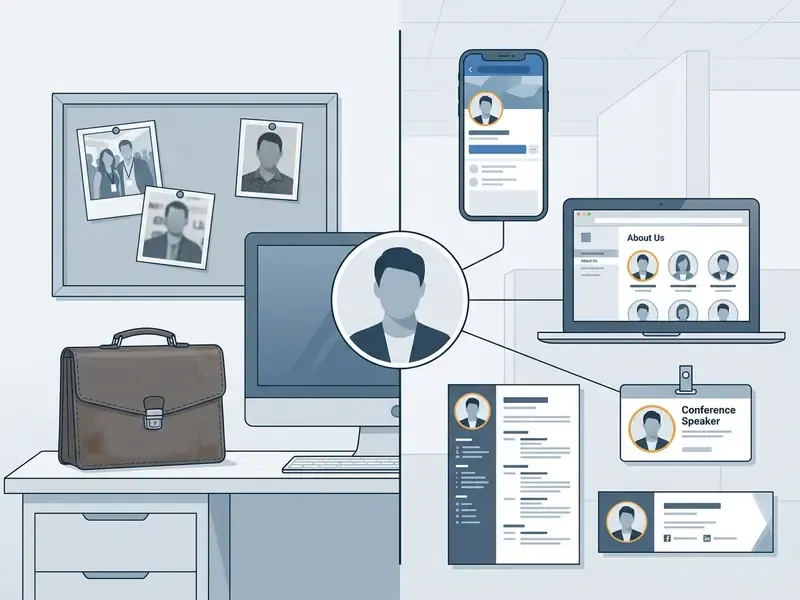
Image file: /images/canva-ai-headshot-before-after.jpg (1200 × 600)
Where to Find the Canva AI Headshot Generator: Link, Magic Studio and Access
You can reach the Canva AI Headshot Generator through Canva's Magic Studio hub, the central AI workspace described in more depth in our overview of the Canva AI Generator, or via dedicated app directory paths in the web and mobile interfaces. Finding the tool requires entering the Canva editor or navigating to Canva's official app ecosystem.
To locate the official canva ai headshot generator link, go to canva.com/magic/ for Canva's unified AI suite, to the feature page at canva.com/features/ai-headshot-generator/, or to the dedicated app endpoint canva.com/apps/AAGYf5NxALM/ai-headshot-maker (also discoverable by searching "AI Headshot Maker" or "ProfilePhoto" inside canva.com/apps/). The tool runs inside the cloud-based Canva editor and needs an active Canva account on desktop web browsers, the macOS or Windows desktop apps, or iOS and Android mobile apps.
How to Open the AI Headshot Tool in the Canva Interface
Opening the AI headshot workflow follows the same navigation sequence in web browsers and mobile apps:
- Log in to Canvasign in to your existing account or register a new profile at
canva.com. - Access Magic Studio or Appsfrom the main dashboard side menu, select Magic Studio or click Apps.
- Search for the toolin the search bar, enter terms such as
canva – ai headshot generator,canva's ai headshot generatororProfilePhoto. - Launch the appclick the AI Headshot Maker or ProfilePhoto icon to open the workspace.
- Select design contextchoose whether to generate the portrait inside an existing canvas project or as a standalone image design.
- Mobile parityon iOS and Android the entry point is identical. Open the Canva app, tap Apps, search for the headshot tool, then upload a selfie straight from the camera roll.
Canva's Help Center notes that if an AI tool is not visible in the editor side panel, users should open Apps and search for it by name. That single step resolves most "the feature is missing from my account" support tickets.
For developers and workflow architects building custom visual pipelines, reviewing the api specifications gives technical insight into automated image generation limits and external model integrations.
Which Photos to Upload for More Accurate Results
Output quality of a canva ai headshot depends heavily on the quality and framing of the input reference photo. Because Canva's consumer headshot app typically ingests a single reference image rather than training an extensive multi-photo LoRA (Low-Rank Adaptation) model, input selection dictates facial accuracy.
Technical guidelines for reference photo selection:
- Facial pose the subject should face the camera directly with eyes open and a neutral or naturally smiling expression. Facial Identification Scientific Working Group (FISWG) guidance for frontal capture allows no more than ±5 degrees of variance in roll, pitch and yaw from true frontal orientation.
- Lighting distribution use photos taken in diffuse daylight or balanced two-point indoor lighting. Even illumination on both sides of the face prevents shadow artifacts; avoid harsh top-down shadows, strong backlighting, coloured neon and direct flash glare across the cheekbones.
- Resolution and sharpness upload uncompressed images with a minimum resolution of 480 × 600 pixels (2000 × 2400 pixels recommended for submission-grade quality). Institutional face-image standards vary between 425 × 566 px and 480 × 600 px minimums; higher is always safer. Crisp focus on the iris and pupil detail avoids synthetic blur, and NIST-related face-image guidance specifies that focus and depth of field should resolve facial details smaller than 2 mm.
- Obstructions remove sunglasses, hats, heavy scarves and face masks. Make sure hair does not cover the jawline, eyebrows or facial contours.
- No pre-applied filters beauty filters and skin-smoothing presets strip the pixel variance the model needs to reconstruct realistic skin, which compounds the "waxy" output effect described below.
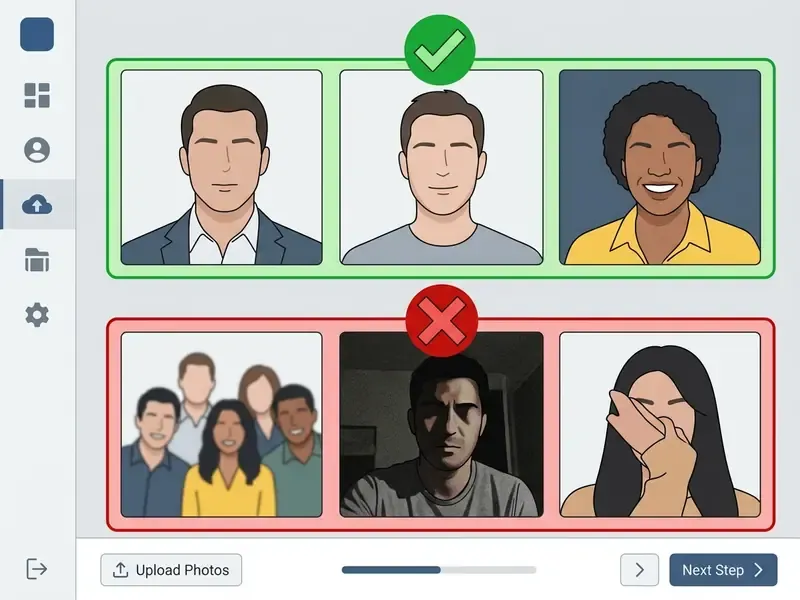
Image file: /images/canva-ai-headshot-magic-studio-walkthrough.jpg (1200 × 750)
How to Create an AI Headshot in Canva: Step-by-Step Process
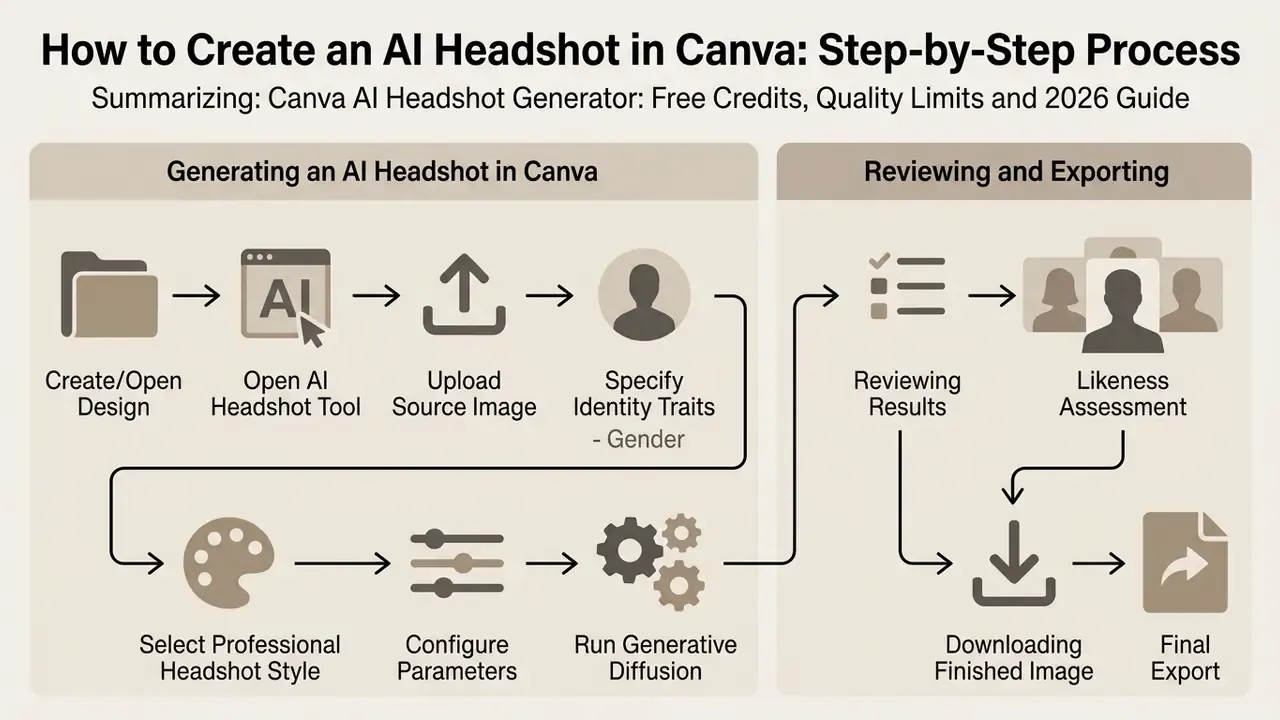
Generating an AI headshot in Canva means selecting reference media, configuring gender and style parameters, running the generative diffusion pass and exporting the final image asset. The end-to-end workflow takes minutes, not hours.
When you launch a generation pass with canva's ai headshot generator, the engine processes facial geometry, isolates the subject from the source background and maps the features onto the chosen professional style template.
Uploading Photos and Selecting a Professional Headshot Style
The process starts with reference visual data and target style traits:
- Corporate Studio: classic dark grey, navy or off-white backdrop with formal business suit rendering.
- Modern Office: soft-focus blurred office interior with smart casual attire (blazer, collared shirt).
- Creative Minimalist: clean solid-colour background with contemporary lighting and casual business wear.
- Upload source imageclick Upload in the AI Headshot application panel and select a clear, frontal reference selfie from your device.
- Specify identity traitsselect the gender identity parameters (for example Male, Female, Non-Binary) so the model renders plausible neck, shoulder and attire proportions.
- Choose a visual stylepick a background and attire preset from the style library.
- Trigger generationclick Generate Headshot to consume the required credits and start processing.
Note that Canva's public documentation does not enumerate a fixed, exhaustive style catalogue for this app, and available presets have changed between releases. Treat any third-party "complete style list" as a snapshot rather than a specification.
Reviewing Results and Downloading the Finished Image
Once the model finishes, Canva displays generated portrait variations in the editor preview window. Evaluate these outputs for facial fidelity and structural artifacts before you export anything.
If the output shows unnatural skin smoothing or distorted eyes, import the generated asset into Canva's main editor for fine-tuning. The main editor offers Magic Edit, Face Retouch sliders and colour balance adjustments. Canva's Help Center describes Face Retouch as smoothing skin texture, removing blemishes and creating a more even complexion, with a slider for real-time control. Keep that slider low. Over-smoothing is the single most common cause of an obviously synthetic result. If you prefer to finish the portrait outside Canva, our comparison of free photo editors lists tools with comparable retouch controls at no cost.
When satisfied, click Share → Download, select the file format (PNG for high-quality digital display or transparency, JPG for compressed web uploads, SVG or PDF for print) and save the file. For portraits destined for print collateral or large-format speaker banners, review our guide to AI image enhancers before upscaling beyond native output resolution.
Numbered workflow checklist (multimedia block, ordered list):
- Create or open a design launch Canva and open a blank design or an existing project canvas.
- Open the AI headshot tool in the side editor menu click Apps, search for AI Headshot Generator and launch the app.
- Upload a reference photo select a clear, front-facing selfie that meets the lighting and resolution requirements.
- Configure style and identity choose gender orientation and a professional style template (Studio, Corporate or Creative).
- Execute AI generation click Generate and wait roughly 10 to 15 seconds.
- Inspect and retouch review outputs at 100% zoom, then apply Canva filters or Face Retouch if needed.
- Export the image asset click Share > Download, select PNG or JPG and save the file.
Canva AI Headshot Generator Free: What Is Available for Free and How Free Credits Work
Canva offers free access to its AI headshot features through a credit-based limit system, so you can test the service before paying for a subscription. Understanding these allowance rules prevents unexpected interruptions mid-workflow.
The exact, reconciled numbers. There are two separate credit pools, and conflating them causes most of the confusion online:
- Dedicated headshot credits Canva's official AI Headshot Generator feature page states the tool provides 2 free credits; once both are consumed, free generation resumes after 24 hours. Additional credits can be purchased from the app page inside the editor. Canva's related LinkedIn profile-picture generator page describes the same 2 free daily credits, with an optional $7.99/month ProfilePhoto subscription unlocking up to 100 AI photo generations per day.
- General Canva AI design credits Canva's pricing page lists "Generate a design with Canva AI" at 50 total credits on the Free plan, 150 credits per month on paid individual tiers and 150 credits per month per person on team tiers. Higher Magic Media allowances, up to roughly 500 generations per month, apply on some seat agreements and promotional plans.
Some third-party reviews state "1 free credit per day" instead of 2 per 24 hours. Canva's own feature page is the primary source and documents the 2-credit / 24-hour rule.
What Is Included in the Free AI Headshot Generator
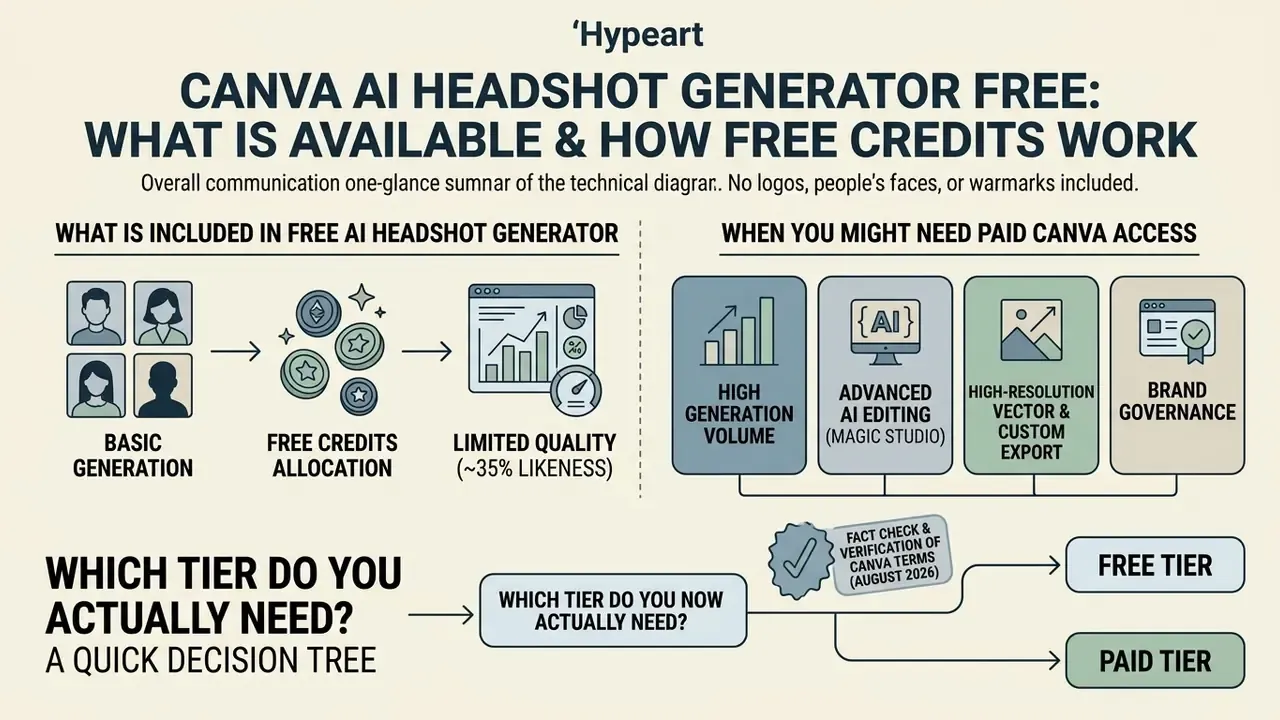
The free access path for canva's free ai headshot generator includes the core generative features with specific operational constraints:
- Credit allocation: 2 dedicated headshot credits, then a 24-hour cooldown; separately, 50 total Canva AI design credits on the Free plan.
- Style availability: access to basic corporate and studio presets.
- Resolution output: standard web-resolution export (PNG/JPG). Canva does not publish a guaranteed free-tier output resolution.
- Editing options: basic Canva photo editor tools, crop functions, standard filters and Face Retouch smoothing.
For alternative free tools, or to compare limitations across platforms, our detailed guide on the best free AI image generators provides comparative evaluations.
When You Might Need Paid Canva Access
Upgrading to Canva Pro or Canva for Teams expands AI limits and unlocks advanced retouching. A paid subscription becomes necessary in these conditions:
- High generation volume paid tiers remove the 24-hour lock after 2 headshots and raise monthly AI credit ceilings (150 per month per seat, higher on some plans).
- Advanced AI editing (Magic Studio) access to Magic Edit, Magic Grab, Magic Expand and Background Remover.
- High-resolution vector and custom export custom pixel dimensions via Magic Switch, SVG vector export and SVG transparency controls. For resolution needs beyond Canva's export ceiling, compare dedicated AI image upscalers.
- Brand governance Brand Kit enforcement with locked corporate colours, fonts and background gradients. This is what makes multi-employee consistency achievable at all.
| Feature / Dimension | Canva Free Plan | Canva Pro Plan (~$13/mo) |
|---|---|---|
| Dedicated headshot credits | 2 credits, then 24-hour cooldown | Expanded pool plus purchasable credits; ProfilePhoto Pro tier up to 100 generations/day ($7.99/mo) |
| General Canva AI credits | 50 total credits (Free plan allowance) | 150 credits/month per seat (higher on select plans) |
| Outfit / background change | ❌ Not available | ✅ Magic Edit, Magic Grab, Background Remover |
| Export formats and resolution | Standard PNG / JPG, web resolution | High-resolution PNG/JPG, SVG with transparency, custom sizing via Magic Switch |
| Brand Kit consistency (teams) | ❌ | ✅ Locked brand colours, gradients, templates |
| Commercial usage rights | Permitted under Canva Free License Terms | Permitted under Canva Pro License Terms |
To position Canva against the wider market before committing budget, see our ranked comparison of the best AI art generators.
Fact check and verification of Canva terms (August 2026):
Which Tier Do You Actually Need? A Quick Decision Tree
- Need one usable avatar in 15 seconds, at zero cost → Canva Free
- Need to swap the outfit, replace the background, or export at high resolution or SVG → Canva Pro
- Need 80%+ photographic likeness for executive bios, HR directories, press kits or investor decks → a multi-photo generator (Aragon AI or BetterPic)
- Need standardized portraits for 10+ remote employees under a brand standard → Canva for Teams (Brand Kit) plus the corporate workflow below
For seat-and-credit modelling across a whole department, our AI Media Calculators let you sanity-check the monthly spend before you raise a purchase request.
How to Get a High-Quality and Realistic AI Headshot in Canva
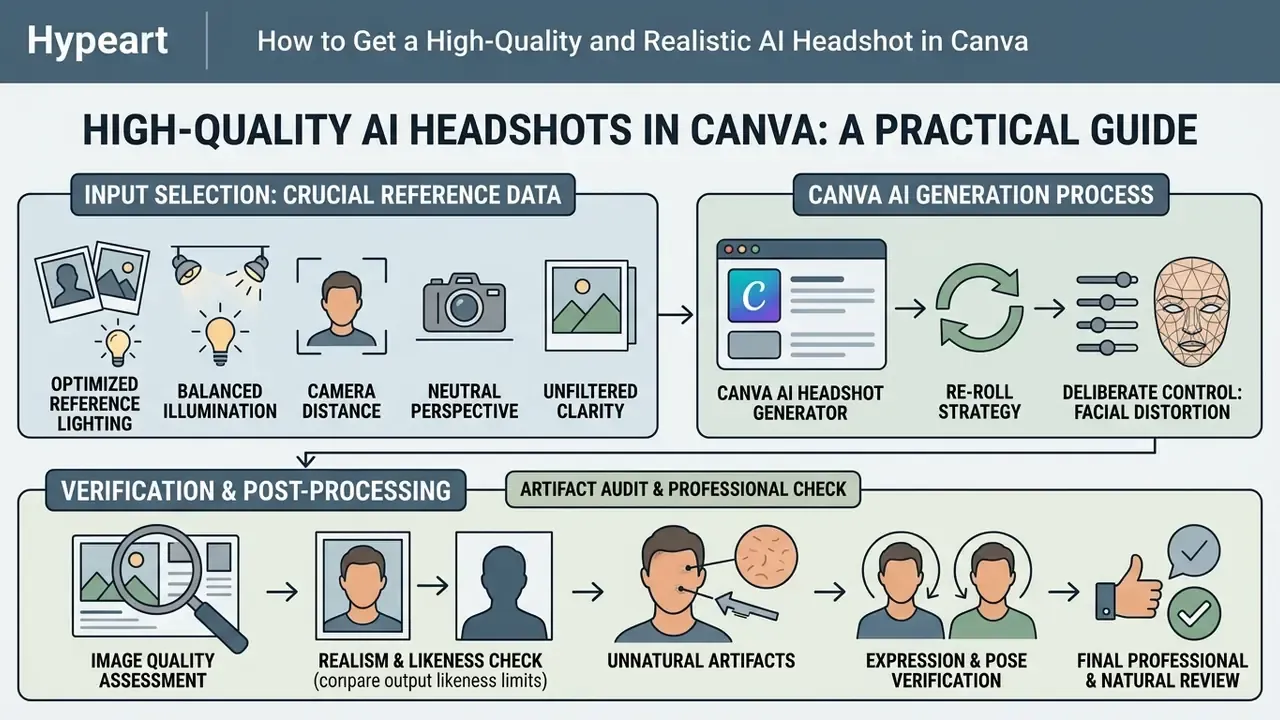
Realistic, studio-quality AI headshots in Canva require optimized reference lighting, deliberate control of generative facial distortion and an artifact audit of every output.
The primary technical limitation of consumer single-reference portrait generators is identity drift:
«Canva achieves roughly a 35% facial-feature match using single-image style transfer, while specialist multi-photo trained tools exceed 80%.»
So anyone running canvas ai headshot generator workflows has to manage inputs and post-processing carefully to keep the portrait an accurate physical representation.
Which Photos and Lighting Deliver the Best Output
Synthesized output quality correlates directly with reference photo clarity. Diffusion models build fine facial micro-textures from pixel variance in the source image.
To optimize the input:
- Lighting balance: position the face opposite a diffuse light source, such as an open window or ring light. Avoid top-down ceiling lights that cast dark shadows under the eyes and nose. Three-point or two-sided balanced lighting removes asymmetric facial shadows.
- Camera distance and perspective: mount the camera at eye level roughly 3 to 5 feet away. Close-up wide-angle smartphone selfies skew facial proportions by enlarging nose geometry relative to ear placement.
- Unfiltered clarity: avoid source photos with heavy beauty filters, skin-smoothing presets or heavy compression artifacts. Raw, unedited camera captures give the model accurate skin texture signals.
- Re-roll strategy: usable-output rates are low on single-image tools, so plan for multiple attempts. Morphed's 2026 testing found only about 15% of Canva AI headshot generations were usable at professional standards, which is why the 2-credit free ceiling is often not enough for a publishable result.
How to Verify Whether a Headshot Looks Professional and Natural
Before publishing an AI-generated portrait on public professional networks, inspect the image at 100% zoom against a quality verification checklist.
That same study identified five categories of synthetic implausibility: anatomical errors, stylistic artifacts, functional errors, physics violations and sociocultural errors. Inspecting those specific areas is what gets a headshot through visual scrutiny. ICAO portrait-quality guidance adds two hard requirements that generated portraits frequently fail: both eyes naturally open with pupils and irises clearly visible, and visible skin-texture gradation with reasonable contrast on each facial patch.
| Evaluation criterion | Professional standard requirement | Common AI artifacts to inspect |
|---|---|---|
| Facial and eye sharpness | Sharp focus on pupils, symmetrical iris geometry, crisp catchlights. | Mismatched iris shapes, asymmetric catchlights, blurred or partially merged pupils. |
| Skin micro-texture | Natural pore visibility, realistic tonal variation across cheeks and forehead. | Over-smoothed "waxy" or plastic skin, erased jawline boundaries, airbrushed 3D-render look. |
| Lighting consistency | Directional light source aligns across face, shoulders and background shadows. | Physics violations: light hitting the face from the left while the shoulder shadow also falls left. |
| Clothing and collar geometry | Symmetrical lapels, realistic fabric weave, logical button and seam placement. | Asymmetric jacket lapels, floating collar buttons, warped fabric patterns, collars merging into the neck. |
| Background separation | Clean, natural transition along hair edges without halos or jagged cutouts. | Fuzzy hair halos, merged background artifacts near ears, smudged edges around glasses. |
| Identity fidelity | Recognizable as the same person by a colleague at thumbnail size. | Altered nose width, changed eye spacing, "younger stranger" effect, altered ethnicity cues. |
In plain terms: the first five rows decide whether the image looks like a photograph, and the last row decides whether it looks like you. Fail the last row and the other five stop mattering. For manual artifact cleanup, consult our guide to online photo editors, which also covers region-selective repair brushes in AI-assisted editors.
Realistic Expectation Check: Why Canva AI Headshots Can Look Synthetic
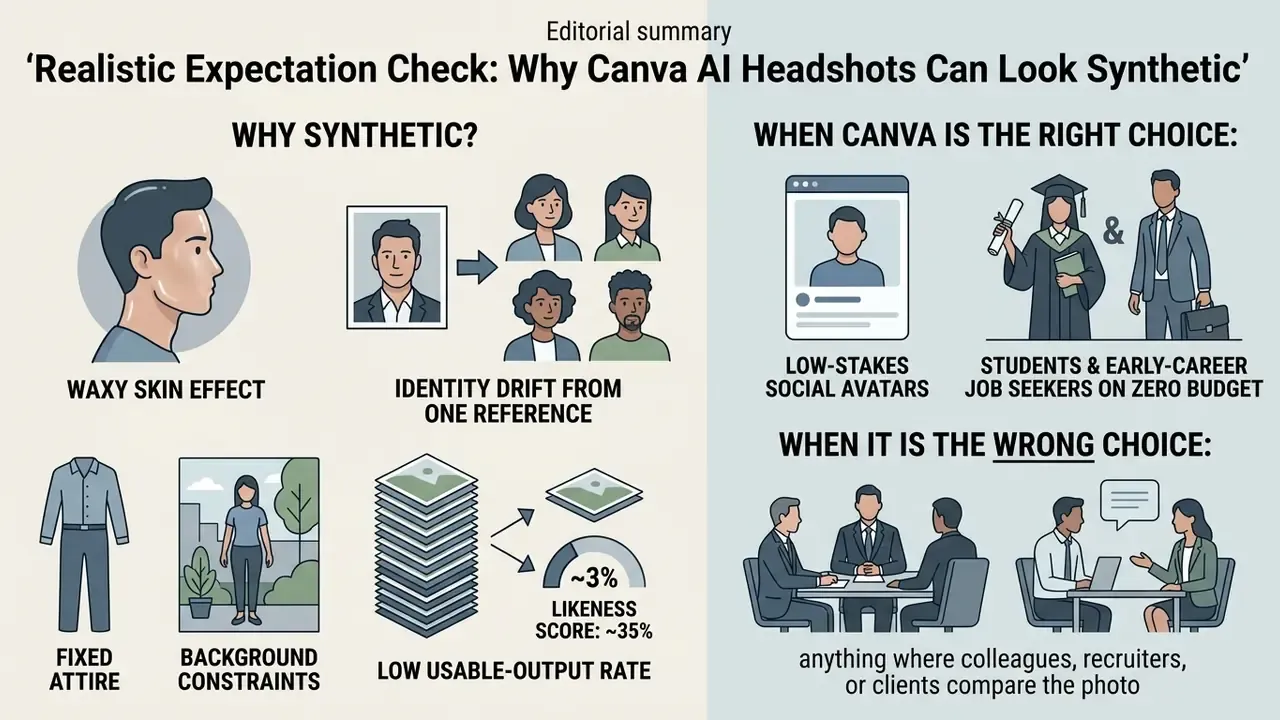
This is the section most reviews skip. Canva's headshot app is fast and free, but its architecture imposes a hard quality ceiling, and independent hands-on testing is blunt about it. One reviewer who spent over $3,000 testing headshot generators described the Canva output as looking "like one of those earlier-day Instagram photos with all filters" and "completely AI-generated, 3D character," scoring it 1.1/5 overall. A separate review site rated it 7/10 for simplicity and speed but deducted points because "no outfit or background changes" are possible in the free version.
Why does this happen?
- The "waxy skin" effect. Single-image diffusion has no additional reference data to reconstruct pore-level detail, so it over-smooths. The result reads as a 3D render rather than photographed skin, precisely the artifact category Kamali et al. (ACM CHI 2025) label a stylistic implausibility.
- Identity drift from one reference. With a single input, the model infers facial geometry it cannot verify. Recent diffusion research is explicit about both cause and cure: PortraitBooth (CVPR 2024) enforces an identity loss during training to preserve the source face, Diff-PC (2026) adds a 3D-aware facial prior because pose, expression and background mismatch degrade likeness, and multi-reference identity encoders (2026) improve fidelity by fusing several photos of the same person. Canva's consumer app uses none of these multi-reference mechanisms.
- Fixed attire and background constraints. On the free tier you select a preset. You cannot specify a suit cut, shirt colour or brand-hex backdrop without Canva Pro's Magic Edit brush and Background Remover.
- Low usable-output rate. Expect to discard most generations. With 2 free credits per 24 hours and roughly 15% professional-grade yield in independent testing, a publishable free-tier result often takes several days of re-rolls.
- Likeness score in plain numbers. Plan for a 30-40% facial geometry match. If absolute photographic precision is required, as in executive bios, regulated financial disclosures, press kits or HR badge photos, use a multi-image generator that reaches roughly 80% or better.
When Canva is the right choice: low-stakes social avatars, students and early-career job seekers on zero budget, quick internal Slack or Teams profile pictures, placeholder imagery in decks, or testing whether a portrait upgrade changes engagement before paying for one.
When it is the wrong choice: anything where a colleague, recruiter or client will compare the photo to the real person on a video call within days.
Canva vs Aragon AI vs BetterPic: Single-Photo Style Transfer vs Multi-Photo Fine-Tuning
The core architectural distinction is simple. Canva performs single-image style transfer: it reads one photo and paints a professional aesthetic over an inferred face. Aragon AI and BetterPic perform multi-photo fine-tuning (LoRA-style personalization): they ingest 6 to 15 images from varied angles, learn your actual facial geometry, then generate portraits from that learned identity. More input data, more time, more money, and dramatically higher likeness.
| Specification / Parameter | Canva AI Headshot Generator | Aragon AI | BetterPic |
|---|---|---|---|
| Required selfies | 1 photo | 6+ photos, varied angles | 10-15 photos |
| Generation time | 10-15 seconds | ~30 minutes (email notification) | 20-60 minutes |
| Facial likeness accuracy | ~35% (30-40% range) | ~80%+ | ~85%+ |
| Free access | 2 credits / 24 hours | Free tier included with account (waitlist during high demand) | Paid only |
| Outfit and background variety | Presets only; Pro needed to change | 20+ outfits and backgrounds on paid tier; limited on free | Extensive, with built-in editor |
| Manual editing | Yes, full Canva Pro editor (Magic Edit, Magic Grab) | No, batch generation output | Yes, built-in editor |
| Stated security posture | Enterprise design platform; see privacy section below | AES-256 encryption, SOC 2® Type II certified (audited via Vanta), user-initiated account and data deletion | Vendor-published policy; verify per contract |
| Team and consistency features | Brand Kit plus Canva for Teams workspace | Consistent team portraits for remote staff | Portfolio-oriented |
| Best-fit intent | Fast social avatar, zero budget | Official resume, LinkedIn, corporate directory | Premium portfolio and personal branding |
Aragon states that its models were developed by AI researchers from MIT, Meta and Google, and cites PetaPixel coverage of a 2024 study in which recruiters preferred AI headshots over traditional ones at roughly a 3-to-1 ratio, a claim consistent with the Ringover recruiter data below. One caveat worth stating plainly: specialist vendors are commercially motivated to compare favourably against free tools. Treat likeness percentages as directional benchmarks, and run your own side-by-side test with identical reference photos before standardizing on a vendor.
Can You Use Canva AI Headshots for LinkedIn and Commercial Tasks?
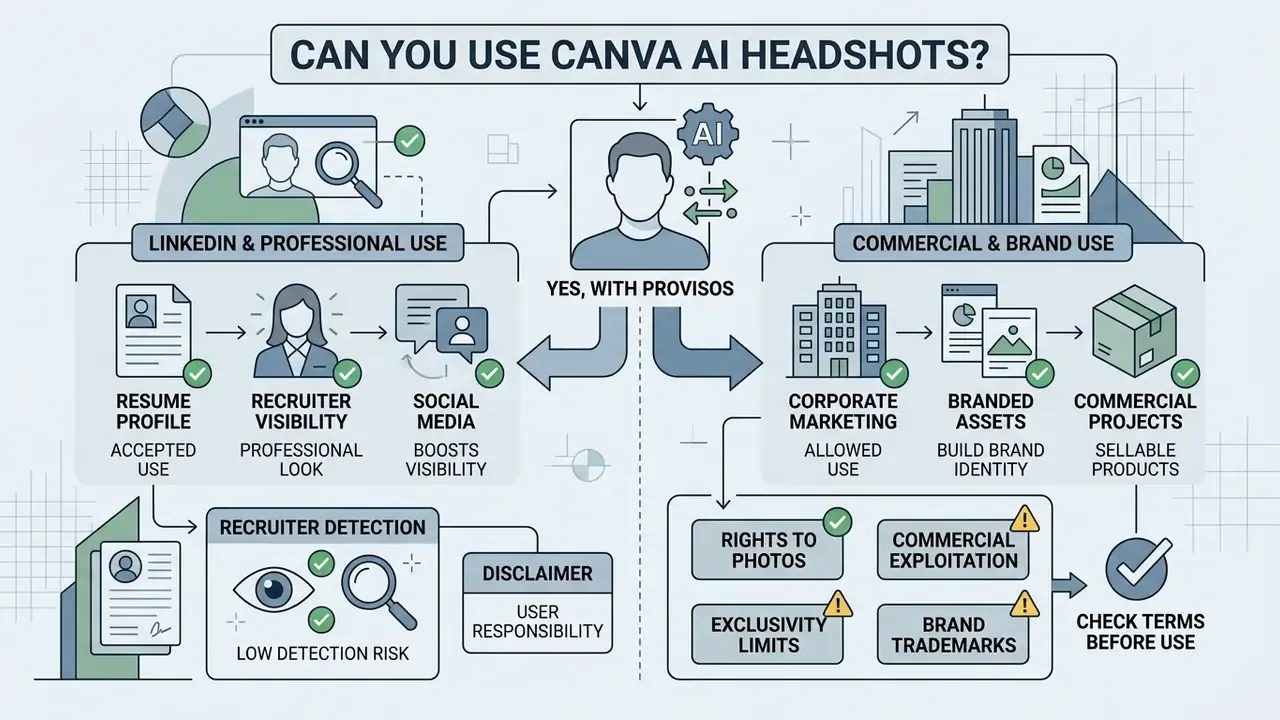
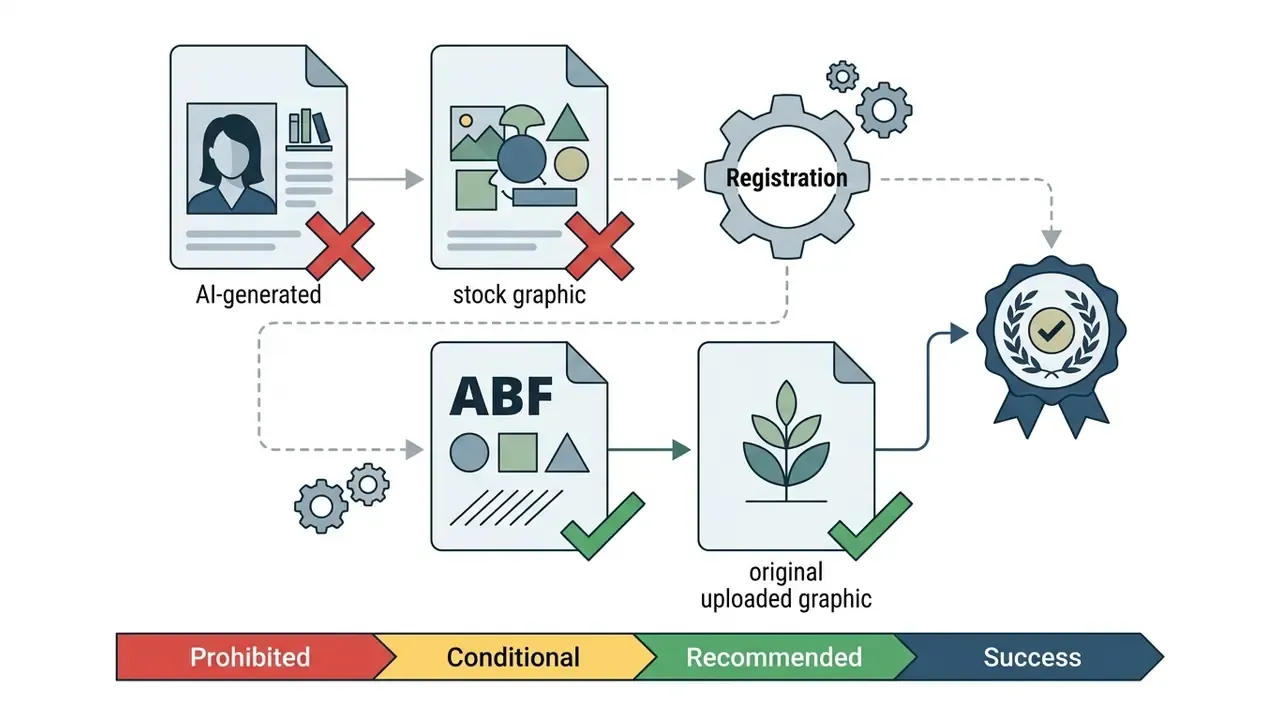
Yes. Portraits generated with Canva's AI tools may be used for LinkedIn profiles, corporate marketing materials, resumes and commercial projects, provided they conform to platform rules and to Canva's Content License Agreement and AI Product Terms.
When evaluating free ai headshot generator canva outputs for business deployment, check both platform policy compliance and commercial usage terms.
Rights to AI Photos and What to Check Before Commercial Use
Under Canva's AI Product Terms and Content License Agreement, users retain ownership of uploaded Input images and generated Output "to the extent permitted by law," and Canva explicitly states it will not make a copyright ownership claim over either. Canva's Help Center confirms that AI-generated images "can be used for any lawful purpose, including selling them," provided the AI Product Terms are followed.
Key legal and commercial conditions:
Alert: check commercial usage terms before deployment.
One further consideration for consumer-facing brands: exposure to idealized synthetic portraits is not psychologically neutral.
«Viewing AI influencer images negatively affected body image regardless of disclosure; the informed group showed a sharper decline in trust in technology (p = 0.010).»
To review legal frameworks governing synthetic media and intellectual property disputes, consult our resource on AI Litigation and Case Timelines, and for cross-platform licensing rules see the AI Media Commercial-Use Hub.
Standardizing Remote Team Headshots via Canva: A Corporate Workflow
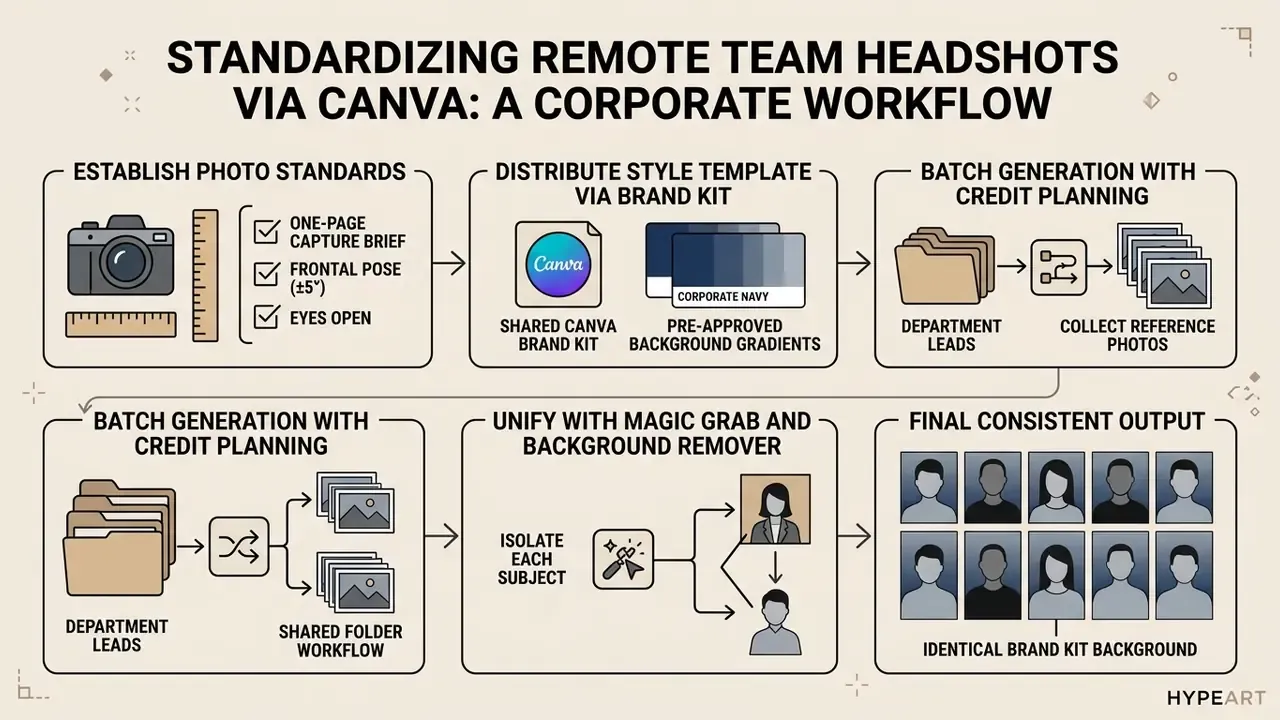
Consistency, not individual beauty, is what makes a team page look credible. A directory where five portraits share a lighting direction and background colour outperforms ten individually "nicer" but mismatched photos. Here is a repeatable workflow for distributed teams.
1. Establish a photo standard before anyone generates anything.
Issue a one-page capture brief to every employee: frontal pose within ±5° of true frontal, eyes open, neutral or lightly smiling expression, diffuse daylight from a window in front of the subject, camera at eye level 3 to 5 feet away, plain wall behind, no hats, sunglasses or lanyards, minimum 2000 × 2400 px, no filters. Ask for the unedited file, not a messaging-app copy. Compression destroys texture.
2. Distribute a style template via Brand Kit.
Create a shared Canva Brand Kit containing pre-approved background gradients (for example corporate navy #1E293B), crop ratio and export preset. Lock these assets so department leads cannot drift from the standard. Document one approved style preset and prohibit mixing "Corporate Studio" with "Creative Minimalist" in the same directory.
3. Batch generation with credit planning.
Have department leads collect reference photos into a shared Canva for Teams folder and run them through the AI Headshot app from a single team workspace. Budget realistically: at 2 free credits per person per 24 hours and a low usable-output rate, a 20-person roster exhausts free allowances immediately. Purchase credits or provision Pro seats before the deadline, and store approved and rejected outputs in separate folders for auditability.
4. Unify with Magic Grab and Background Remover.
Use Magic Grab to isolate each subject, then place all cutouts onto the identical Brand Kit background for full colour consistency across the web directory. Standardize head size and eye-line height across the grid. Mismatched crop scale is the most visible flaw on team pages. Export every file with the same format, dimensions and naming convention.
5. Consent and record-keeping. Do not skip this.
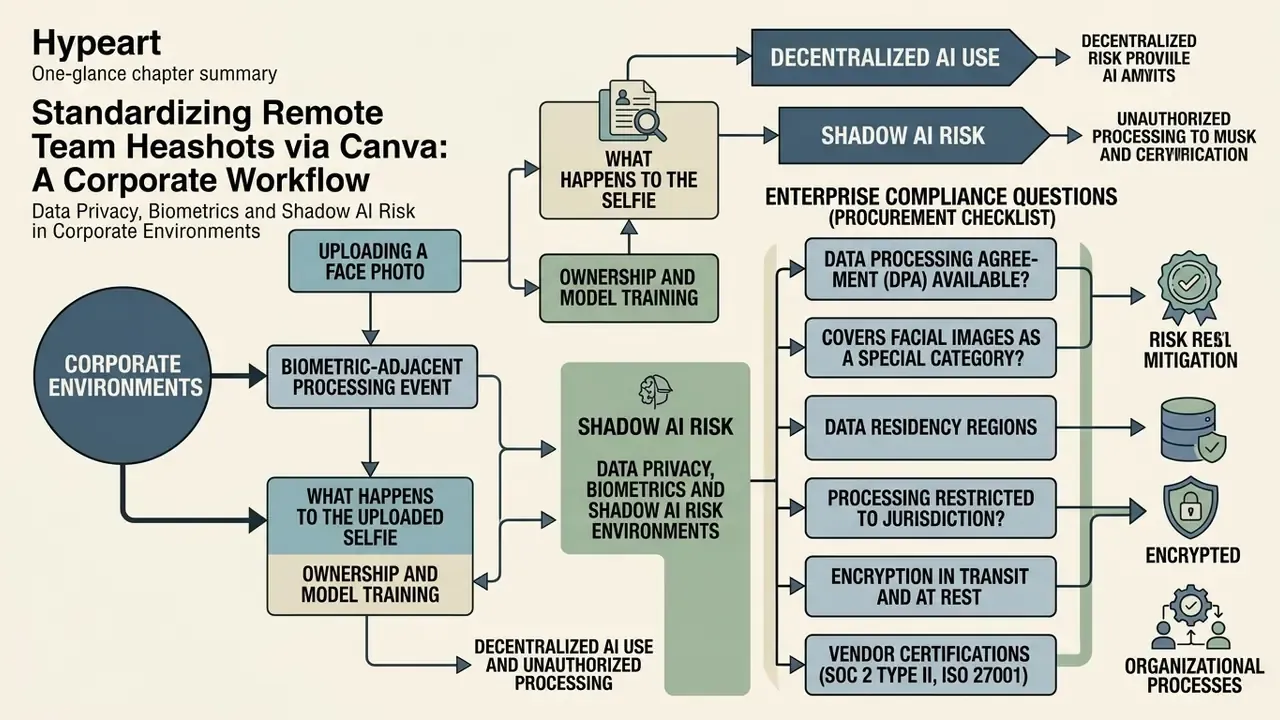
Collect written consent from each employee covering: (a) upload of their photo to a third-party AI service, (b) generation of a synthetic likeness, (c) publication channels and duration, and (d) the right to withdraw and request deletion on departure. Keep source photos and consent records together, and name the person responsible for deleting both when an employee leaves.
Quality gate before publishing: review every portrait at 100% zoom against the artifact table above, then apply one blunt test. Would a colleague recognize this person from the thumbnail? If not, re-shoot the reference photo or escalate that individual to a multi-photo generator.
Data Privacy, Biometrics and Shadow AI Risk in Corporate Environments
FAQ About Canva AI Headshot Generator
How Much Time Does AI Headshot Generation Take?
Generating an AI headshot in Canva typically takes between 10 and 15 seconds per processing pass, according to 2026 hands-on testing (Morphed, 2026, https://www.morphed.ai/canva-ai-headshot-generator/). Other 2026 measurements report a 5 to 30 second range depending on plan, prompt complexity and server load, and note that generations can approach a minute at peak usage. Canva publishes no official processing-time SLA for this app, so treat every figure as an observed average rather than a guarantee. If generation exceeds 30 seconds, the slowdown is usually caused by browser cache overload, an active VPN connection, an unsupported or outdated browser, unstable connectivity or heavy background tabs. Those are the same factors Canva's own "Canva is lagging" troubleshooting page lists. For persistent loading delays, consult our dedicated resource for AI Media Support and Troubleshooting.
Why Generated Images Might Not Look Like the Person
An AI-generated portrait may fail to resemble the source person because of limited identity training data, poor reference photo quality or conflicting prompt parameters. Consumer tools like Canva generate images from a single reference upload using prompt-based style transfer rather than building a dedicated multi-photo identity model. That is exactly the gap recent diffusion research addresses with identity loss functions, 3D-aware facial priors and multi-reference identity encoders. If likeness is non-negotiable, compare architectures in our roundup of the best AI art generators and in the alternatives table above. To fix identity mismatch:
- Upload a higher-resolution reference photo with clear frontal lighting and unobscured facial features.
- Avoid glasses, heavy makeup, hats and filters in the reference photo.
- Make sure the selected style template suits your natural face shape and body structure.
- Regenerate several times and select the closest output, then verify at 100% zoom, not at thumbnail size.
- If three or more attempts still miss, switch to a multi-photo generator instead of burning more credits.
Can You Change the Background and Style After Generation?
Yes, but the useful tools sit on the paid tier. After generating the portrait, click the image in the Canva editor and apply:
- Background Remover (Pro): strips the generated background so you can insert custom corporate gradients or office interiors.
- Magic Grab (Pro): isolates the subject from the image layer for independent resizing, repositioning or background swapping. Essential for team-page consistency.
- Magic Edit (Pro): brush over specific areas such as clothing, necklines or accessories and type a prompt to modify attire or add elements.
- Face Retouch: smooths skin texture and evens complexion, with a slider for real-time control. Use sparingly.
- Magic Switch (Pro): resizes and increases pixel dimensions for custom output sizes. On the free tier you are limited to crop, filters, colour adjustments and basic retouch. For broader editing platforms and vector tools, read our detailed guide to the pixlr photo editor.
Is the Canva AI Headshot Generator Completely Free?
Canva provides 2 dedicated AI headshot credits; once both are used, free generation resumes after a 24-hour wait, and extra credits can be purchased from the app page in the editor. Separately, the Canva Free plan includes 50 total Canva AI design credits, while paid tiers provide 150 credits per month (per person on team plans).
What Image Resolution Can I Download From Canva?
Free accounts export standard web-resolution PNG and JPG files, and Canva does not publish a guaranteed free-tier output resolution. Canva Pro unlocks custom high-resolution scaling via Magic Switch and SVG vector export with transparency.
Can I Use Canva AI Headshots on My Official LinkedIn Profile?
Yes. LinkedIn permits AI-generated or AI-enhanced photos provided they accurately reflect your real-world physical likeness. Images that do not resemble the account holder may be removed. Files must be PNG or JPG, at least 400 × 400 px and under 8 MB.
Can I Change My Outfit or Background on the Free Plan?
No. Outfit swaps and background replacement require Canva Pro tools: Magic Edit, Magic Grab and Background Remover. The free app offers preset styles only.
Does Canva Keep My Uploaded Selfie?
Uploaded reference photos are stored in your account's Uploads library and can be deleted by you from that panel. For statements about model training, retention periods and certifications, verify the current Canva AI Product Terms and Privacy Policy, and request a DPA for corporate deployments.
Is Canva Good Enough for an Executive Bio or Press Kit?
Usually not. At roughly 30-40% facial likeness and a low usable-output rate, Canva suits low-stakes avatars. For executive bios, HR directories and press kits, multi-photo generators such as Aragon AI or BetterPic reach approximately 80-85% likeness.
Do I Need Employee Consent to Publish AI Headshots of My Team?
Yes. Obtain explicit written consent covering upload to a third-party AI service, generation of a synthetic likeness, publication channels, retention, and the right to withdraw and request deletion. Biometric-privacy statutes in some jurisdictions require informed written consent before collection.
Appendix A: Superseded Statements and Correction Log
Retained for transparency and version traceability.
- Credit figures (superseded)an earlier version of this guide stated "2 free credits on the app and 50 general Magic Media credits" in one section, while the verification box referenced "150-500 credits for Pro" without distinguishing the two pools. Current standard: 2 dedicated headshot credits with a 24-hour cooldown; 50 total Canva AI design credits on the Free plan; 150 credits per month (per person on team plans) on paid tiers, with higher Magic Media allowances on select seat agreements.
- Editorial attribution (removed)an earlier version opened with a quotation with an inaccurate authorship note. Both have been replaced with research-backed sourcing and a named editorial team byline.
- Processing time (clarified)"10-15 seconds" is now presented as an observed third-party measurement, with the 5 to 30 second range and the absence of an official Canva SLA stated explicitly.
- Unverified figure flaggedtrust and body-image findings from Filtering Trust: Disclosing the Role of Artificial Intelligence in Influencer Images (2024) are cited without a published URL in the reviewed dataset and require verification against the original publication.
- Media placeholders (converted)bracketed image placeholders are now rendered as labelled text placeholders with alt text and captions, so the descriptions remain readable without markup.