Compressing large media assets is a routine operational task. Content creators, web publishers, and enterprise communications teams all hit the same wall: the file is fine, the channel is not. When you need to compress 2gb video online, a substantial reduction in file size without visible damage to perceptual quality depends on three levers, resolution, bitrate, and where the transcode actually runs.
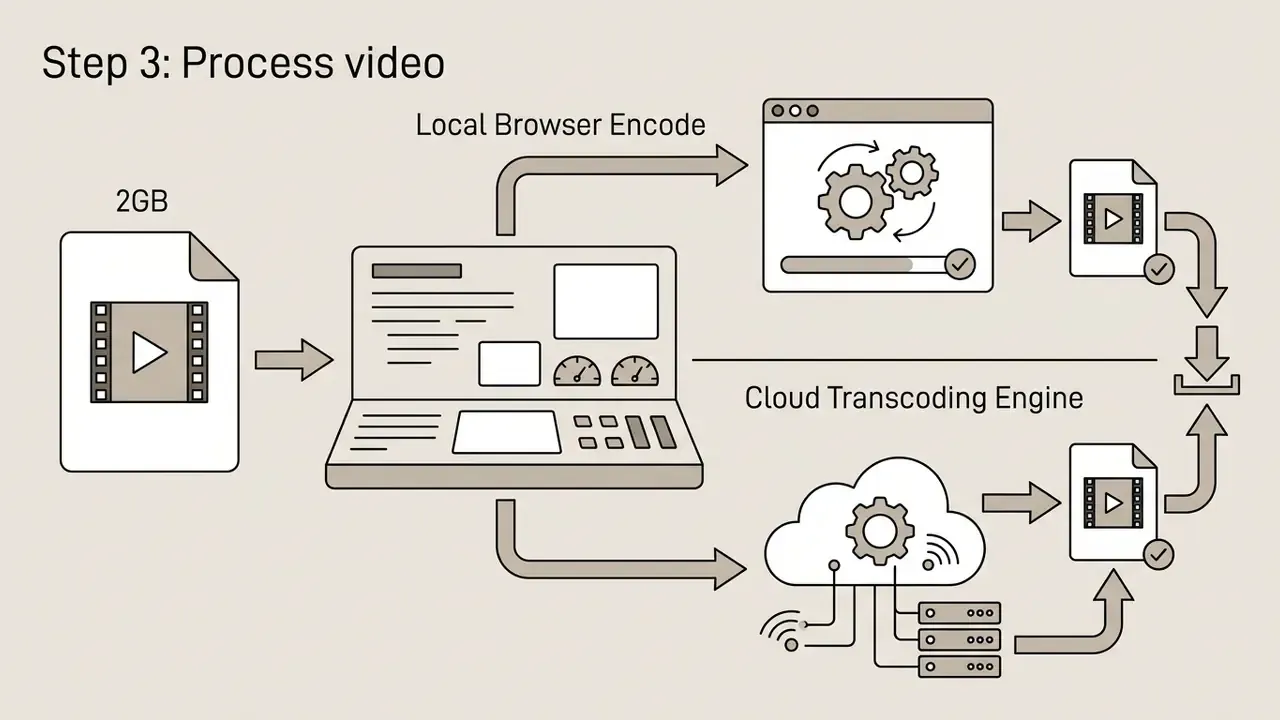
That last part matters more than most guides admit. A browser-local encode and a cloud queue behave differently, cost differently, and carry different data-handling obligations.
Quick answer for a 2GB video
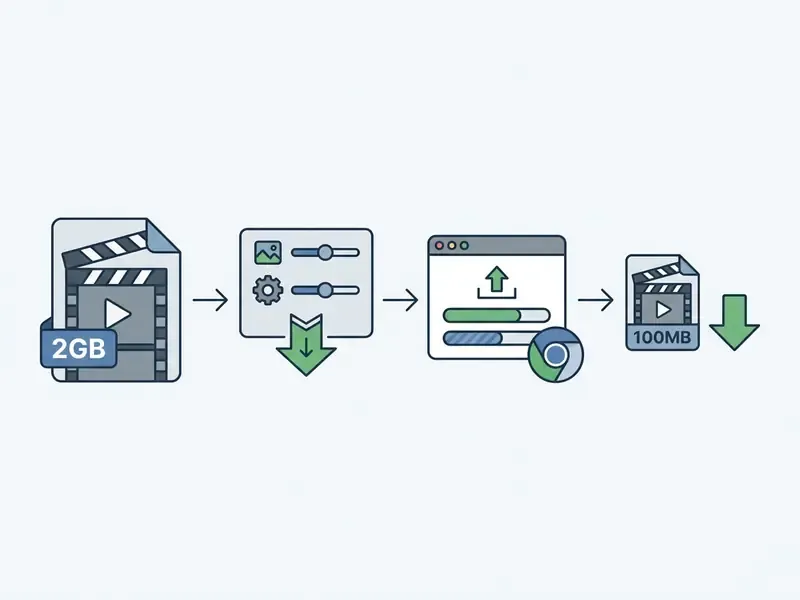
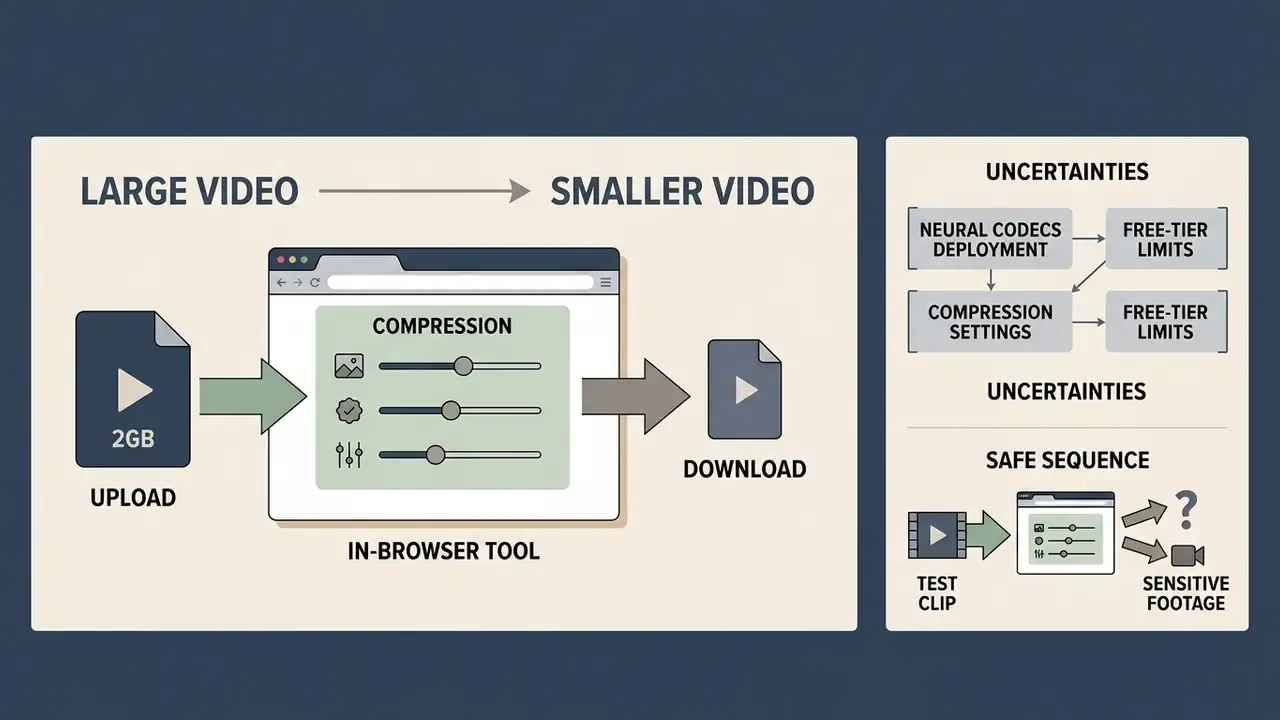
- Workflow Drop the file into a browser compressor, pick a preset or a target size, let WebAssembly (FFmpeg.wasm) or a cloud queue re-encode, then compare before and after and download.
- Realistic outcome A 2 GB 1080p recording drops to 15 to 25 MB at 720p / 1.5 to 2.5 Mbps (email-ready), or to 150 to 300 MB at 1080p / 6 to 8 Mbps (social-ready).
- Hard ceiling Client-side WebAssembly addresses a maximum of 2 GB of memory, so anything above that must be routed to server-side processing.
- Mobile caveat Android Chrome handles large local encodes through WebCodecs. iOS Safari terminates tabs near roughly 1.4 GB of allocated RAM, so 2 GB local encodes on iPhone should use cloud processing or a pre-trimmed sub-1 GB input.
- Platform limits to hit Gmail and Outlook 25 MB, WhatsApp inline 16 MB, Discord free tier 10 MB, WhatsApp document up to 2 GB, TikTok and Reels 72 to 500 MB.
- Compliance Verify auto-deletion windows (1 to 24 hours), TLS 1.2+ transport, cryptographic erasure, SOC 2 and DPA coverage, plus no-watermark output terms before uploading confidential footage.
Who is this written for? Two groups, mainly. Creators who want a smaller file in five minutes, and operations or compliance staff who need to know what happens to the source file after upload. Both questions get answered below.
How to compress a 2GB video online
To compress 2gb video online, you upload your video file to a browser-based application, select a compression level or target file size, allow the encoder to process the bitstream, and download the optimized output. Modern browser tools use WebAssembly (FFmpeg.wasm) or secure cloud endpoints to transcode files up to 2 GB inside the web browser, with no desktop installation at all.
«Real-time 1080p neural video decoding on a mobile device with competitive quality is achievable.»
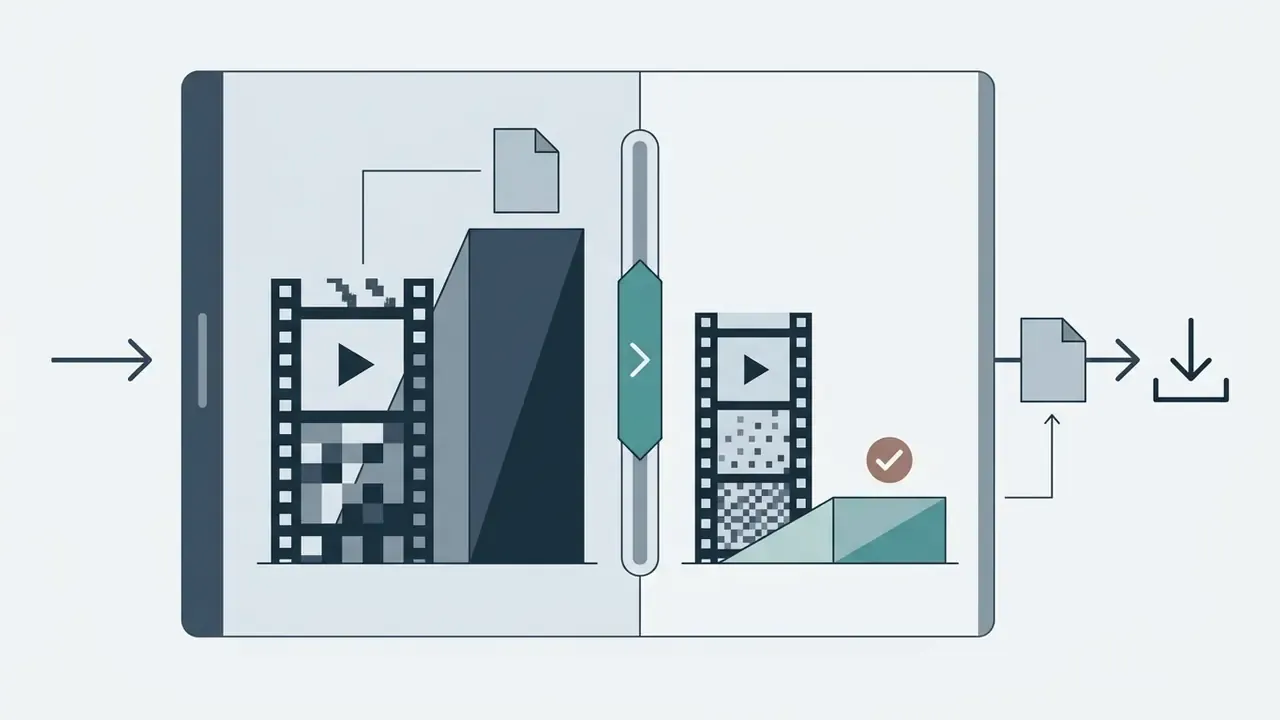
Upload or drag and drop a large video file
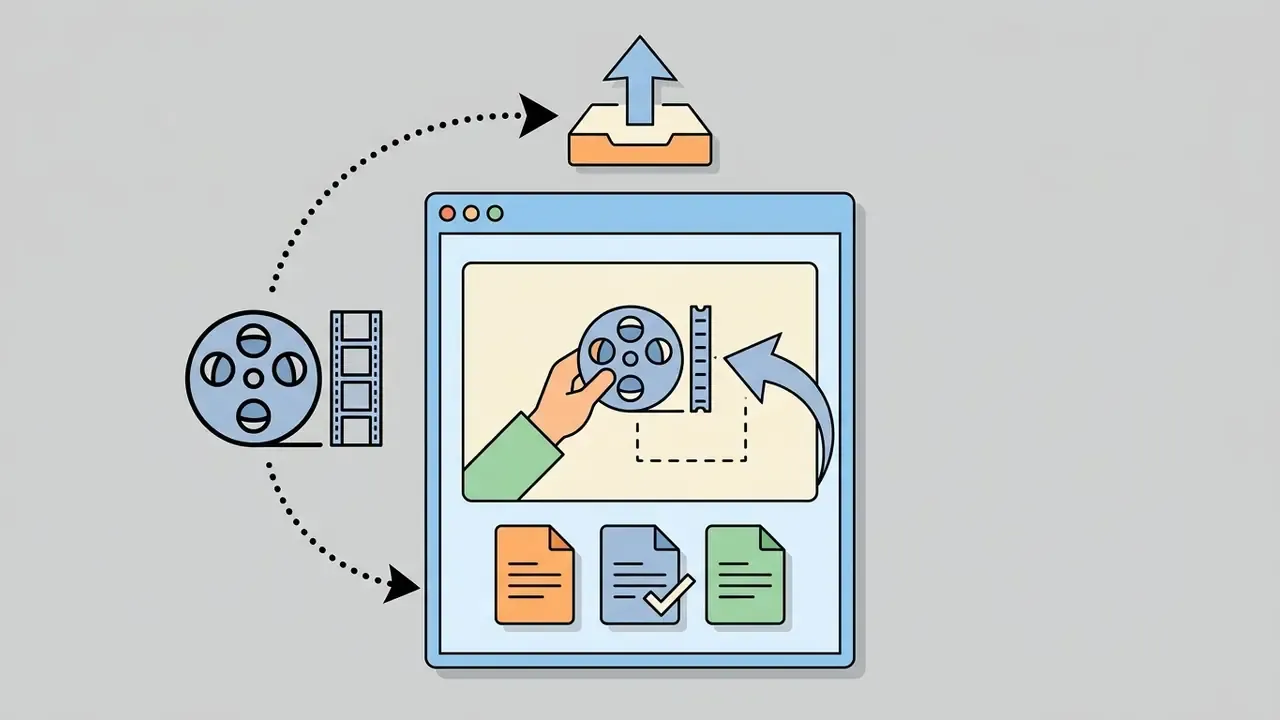
Start by selecting your source through the file picker, or drag and drop a large video straight into the browser drop zone. Client-side input handlers run a byte-size validation against configured system limits, confirming the file sits inside the supported video compressor up to 2gb threshold before any decoding starts. The check reads the File.size property in bytes; stricter implementations also inspect duration and container type at the same moment. Validating size first is what prevents browser memory overflow when loading high-bitrate video files.
Small detail worth noting: a file that looks like "2 GB" in the operating system may be 2.14 GB in raw bytes. Binary versus decimal rounding rejects more uploads than you would expect.
Choose compression level and target video size
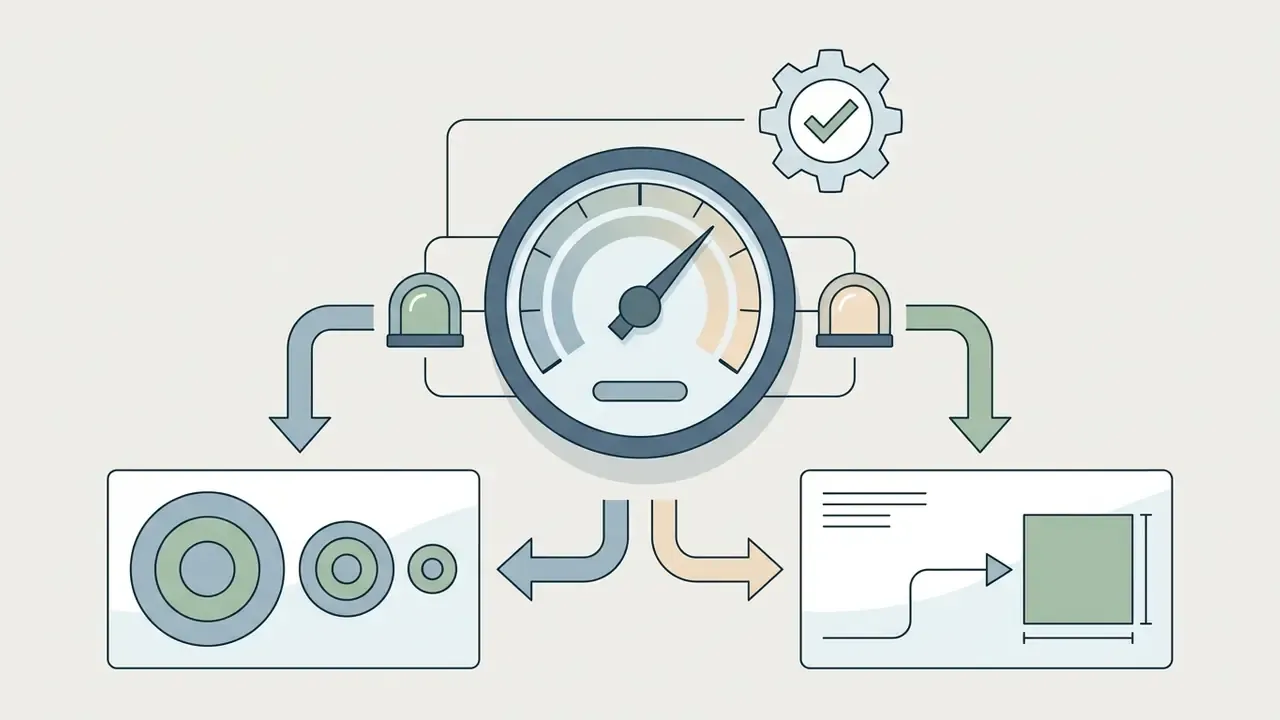
Your compression setting decides the trade between output file size and perceptual quality. Preset levels hide the rate-control maths behind three practical choices:
- Minimum compression keeps maximum spatial detail and the original resolution, producing a larger file with almost no artifacts (typically 30 to 40% smaller than the source).
- Medium compression applies a balanced CRF (Constant Rate Factor) with moderate bitrate reduction, the default for general web distribution (typically 50 to 60% smaller).
- Maximum compression cuts bitrate hard and may downscale resolution, yielding a smaller file built for strict attachment caps (typically 70 to 85% smaller).
If the source recording still needs trimming, cropping, or audio cleanup, our overview of free video editing software covers timeline prep first. Cutting dead air is still the cheapest form of compression anyone has invented. Rough numbers help too: our AI Media Calculators let you sanity-check duration, bitrate, and target size before you commit compute.
Download and check the compressed video
2GB video compressor limits, free access and pricing confidence
A 2gb video compressor limit defines the maximum input file size a browser-based or cloud service accepts for single-file processing. Free tiers frequently cap single uploads between 500 MB and 2 GB. Premium tiers lift storage bounds, allow batch queuing, and expose advanced encoding controls.
| Scenario / Tier | Max input file size | Signup required? | Free mode available? | Primary technical and operational limits |
|---|---|---|---|---|
| Basic free tier | 500 MB to 1 GB | No | Yes | Single-file processing, standard H.264 export, basic resolution options. |
| Standard 2GB limit | Up to 2 GB | Optional | Yes | WebAssembly browser memory bounds; standard processing speed. |
| Expanded / high capacity | 4 GB to 10 GB | Yes | Limited / trial | Cloud queue, server-side storage, possible credit consumption. |
| Credit-metered freemium | 1 GB to 10 GB | Yes | 30 credits/month typical | Credit burn scales with duration, codec, and compression ratio. |
| Enterprise / commercial | Unlimited / custom | Yes | Paid tier | Batch processing, API integration, custom bitrates, multi-codec support. |
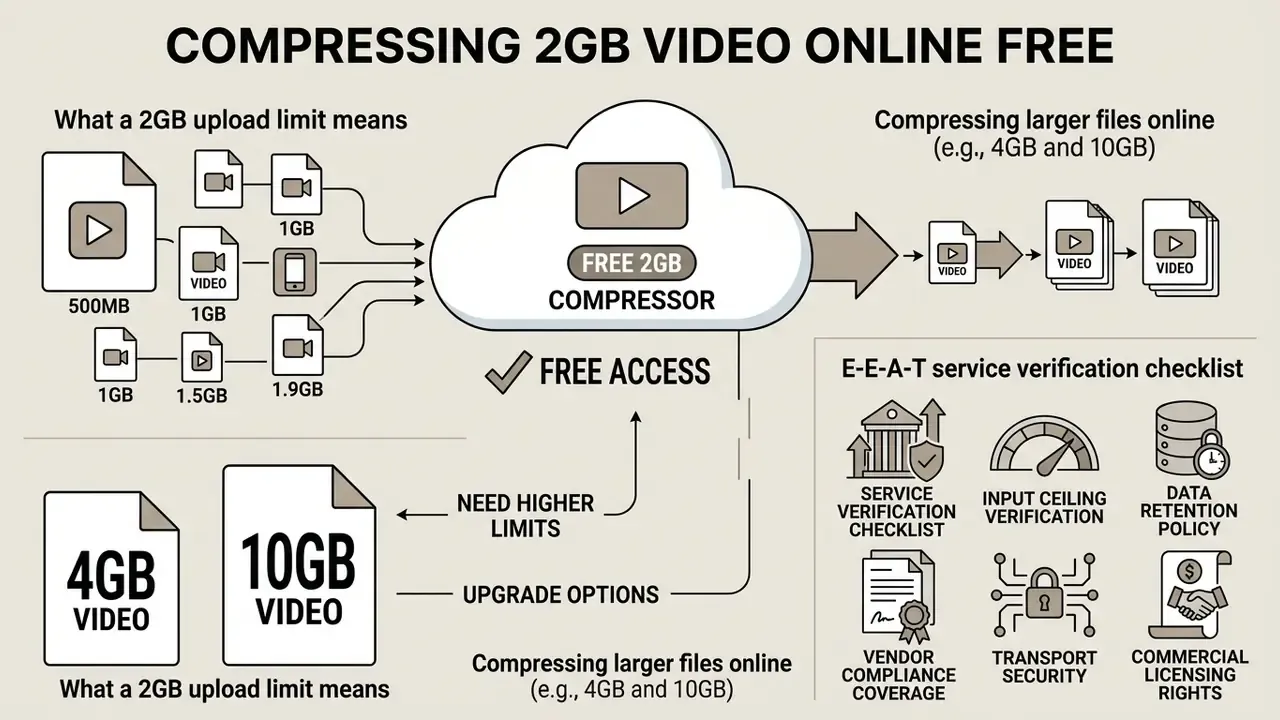
For a full breakdown of engine types, codec support, and quality-loss behaviour, see our reference guide to video compressors and file-size reduction. Knowing the operational ceiling in advance prevents workflow delays on deadline. When you compare vendors, inspect the AI Media Pricing Guides and AI Media Comparison Matrices to weigh credit consumption against fixed subscriptions, and confirm how compute credits are metered per minute of encoded footage.
What a 2GB upload limit means
A video compressor up to 2gb cap applies strictly to the source input before encoding. If the clip exceeds 2.0 GB in byte size, browser file-input validation rejects it before transcoding starts. Once accepted, an online video compressor 2gb engine re-encodes the bitstream and produces a much smaller output based on your targets. Source size is a product of duration, resolution, frame rate, and bitrate. Output size is a product of the new bitrate and resolution you assign. That is precisely why a 2 GB input can legitimately become a 20 MB output at identical duration.
Compressing 4GB and 10GB video files online
Files larger than 2 GB, the case behind searches such as compress 4gb video online and compress 10gb video online free, push browser-local memory past standard WebAssembly execution caps. The wasm32 architecture is physically bounded at 4 GB of 32-bit addressable space, yet most browser engines allocate no more than a single contiguous 2 GB block per module. Loading containers above that into a browser virtual filesystem can freeze threads or trigger out-of-memory aborts. Tools advertising a video compressor unlimited size, or a video compressor more than 2gb, therefore route work to cloud infrastructure instead of encoding locally. Same story for a video compressor more than 1gb on weaker hardware: the bottleneck is RAM, not marketing. Vendor claims of "no size limit" usually describe device-specific testing, not a shared browser standard.
Practical alternative for a 10 GB archive master: split by chapter, encode each segment under 2 GB locally, then concatenate. Slower to set up, but nothing leaves the machine.
Free use, no signup and commercial-use checks
How video compression reduces file size without excessive quality loss
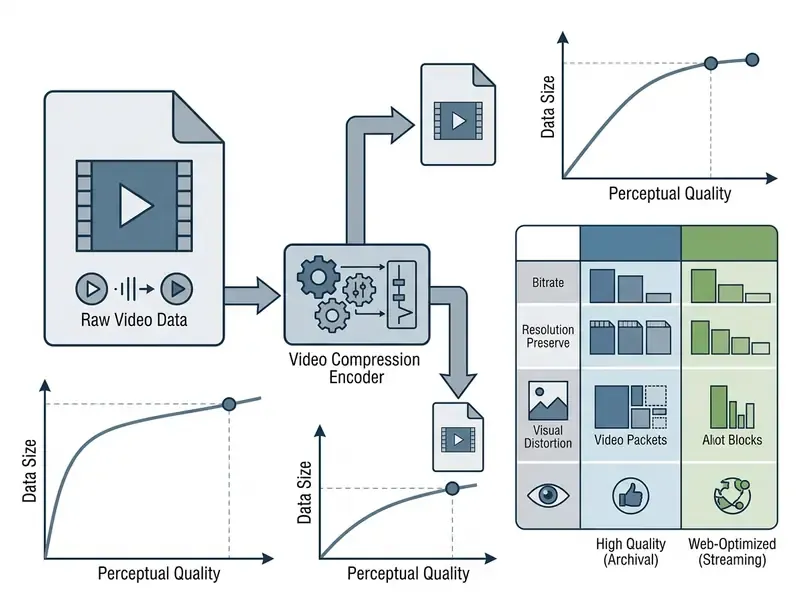
Video compression cuts file size by removing temporal redundancy between consecutive frames and spatial redundancy inside each frame. Codecs combine motion-compensated inter prediction, block transforms such as the Discrete Cosine Transform, quantization, and entropy coding to squeeze raw media into compact bitstreams.
«VVC delivers up to 40% bitrate savings over HEVC at comparable subjective Full HD quality.»
| Target bitrate (H.264) | 1080p perceptual result | 720p perceptual result | Practical verdict |
|---|---|---|---|
| 0.5 to 1.0 Mbps | Heavy blocking, mushy motion | Soft but coherent | Downscale to 720p or 480p |
| 1.5 to 2.5 Mbps | Visible banding on gradients | Near-transparent for talking heads | 720p wins for email delivery |
| 3 to 4 Mbps | Good for static or screen content | Effectively transparent | Either works; pick by screen size |
| 6 to 8 Mbps | Effectively transparent | Bitrate wasted | Keep 1080p for social upload |
Reading the curve: below roughly 2 Mbps the quantizer, not the resolution, becomes the dominant source of visible damage. That is why spatial downscaling recovers more perceived quality than stubbornly holding 1080p.
Why a compressed video can lose quality
Quality loss happens mainly at quantization, where transform coefficients are rounded to fit a lower bitrate budget. In DCT-based coding, quantization is the irreversible stage and the principal source of information loss. Research in Frontiers in Signal Processing (2023) shows that low bitrate allocations amplify blocking, spatial blurring, colour distortion, and ringing. Subjective testing on AVC and AVS content attributed roughly 96% of quality-degradation variance in CIF sequences to those artifact families alone.
«At low bitrates, spatial and temporal subsampling suppresses compression artifacts more effectively than retaining full resolution.»
Repeated lossy re-encoding compounds generational loss, so degradation shows up even at moderate targets. Every extra pass discards information the previous pass had already approximated. Keep the master. Always.
Why some videos get bigger after compression
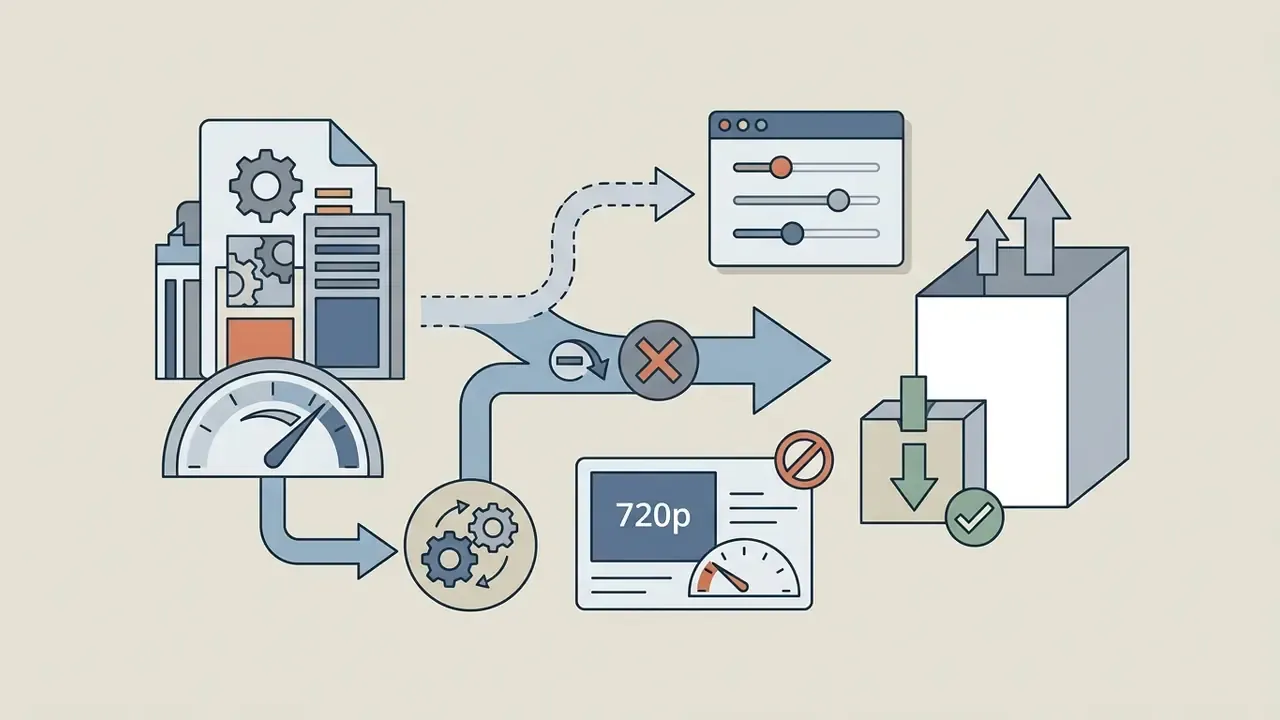
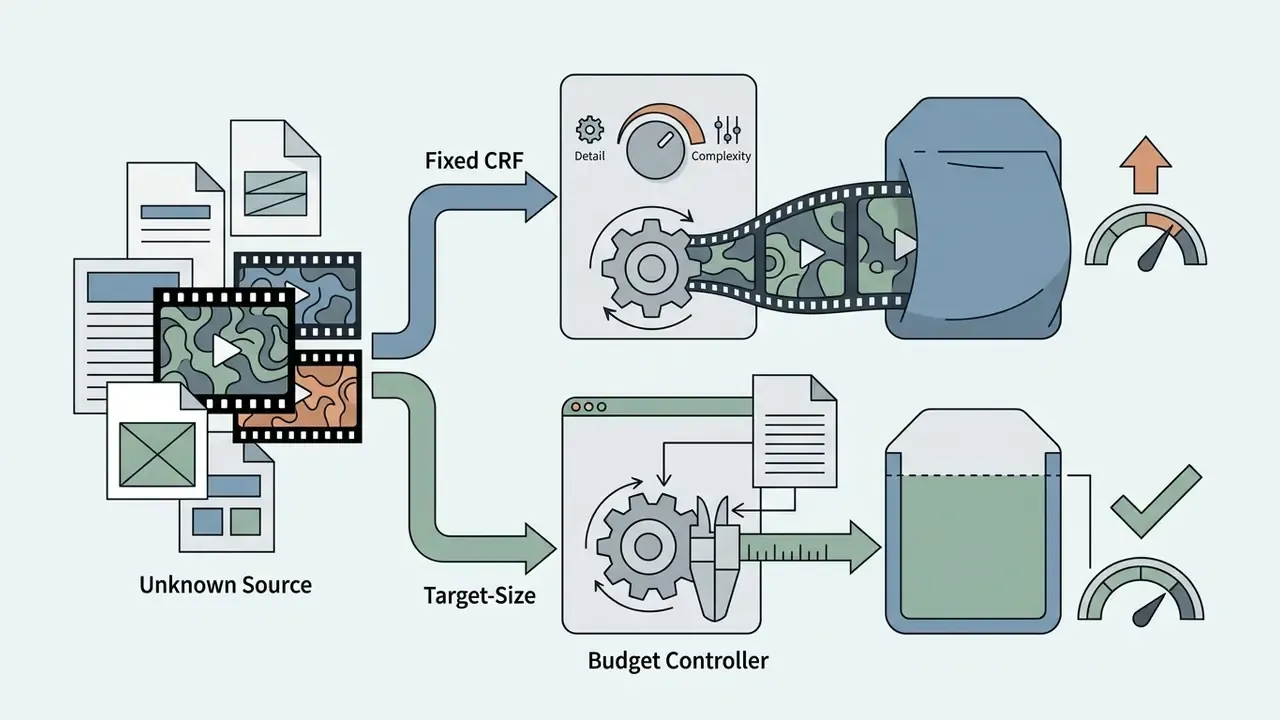
A recurring anomaly deserves its own explanation, because it confuses people badly: sometimes the "compressed" output is larger than the input. This happens when the source is already heavily compressed at a low bitrate, say a clip previously exported for a messaging app. Feed that into an encoder with an aggressive quality target (CRF 18, or a high-profile H.264 configuration with dense reference structures) and the encoder faithfully reproduces the existing blocking, mosquito noise, and banding as though they were real detail. Reproducing noise is expensive. The output grows.
Three rules prevent file inflation:
How to choose settings for a smaller file
Optimal settings follow from your display target and content complexity, not from a universal preset:
- Resolution selection.Downscaling 1080p (1920 × 1080 = 2,073,600 pixels) to 720p (1280 × 720 = 921,600 pixels) removes roughly 56% of the pixel count, which unlocks large bitrate savings with little visible sharpness loss on phone and tablet screens.
- Bitrate and CRF tuning.Constant Rate Factor is the practical control for perceptual consistency. Browser encoders built on FFmpeg commonly expose an 18 to 28 range, with CRF 23 as the default balance point. Values in the low twenties protect screen recordings and interviews; 26 to 28 favours aggressive size reduction on low-motion footage. Validate on your own material, since perceived quality at a fixed CRF shifts with grain, motion, and resolution.
- Frame rate adjustments.Dropping 60 fps to 30 fps on static or dialogue-heavy clips cuts data volume without hurting the viewing experience.
- Ultra-low bitrate (360p).Needed for legacy email gateways capped at 10 MB, low-bandwidth field uploads, and remote-site transfers. A 360p export can save up to 85% of the payload; Apple's iPhone export guidance places 360p output near 6 to 9 MB per minute, which lets multi-minute clips fit a 10 MB cap.
Findings from the ITU-T Technical Report JSTR-OPTR (2023) indicate that below 2 Mbps, downscaling from 1080p to 720p delivers higher subjective Mean Opinion Scores than holding 1080p with heavy quantization. The same work places acceptable smartphone-viewing quality for 640 × 360 content in the 384 to 768 kbit/s band (ITU-T Study Group 12, JSTR-OPTR, January 2023, https://www.itu.int/pub/T-TUT-OPTR).
Supported video formats and secure online processing
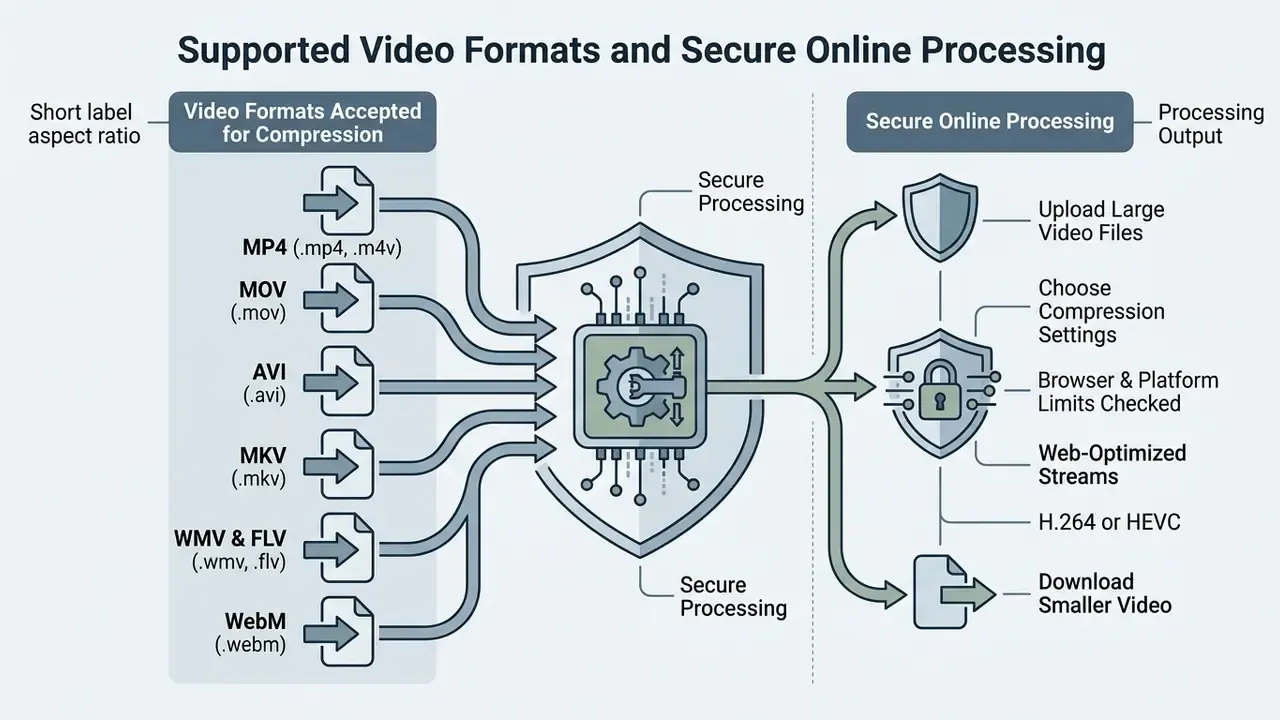
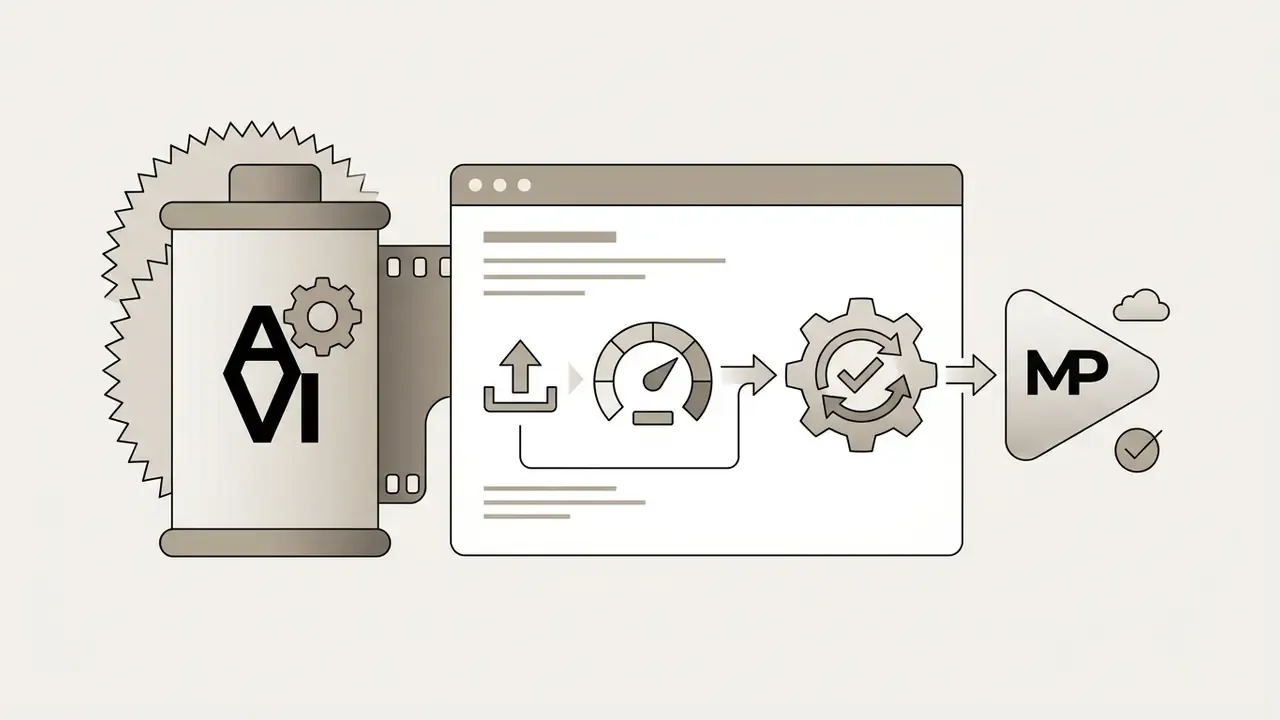
Online compressors accept a broad set of container standards, converting MP4, MOV, AVI, MKV, WMV, FLV, and WebM inputs into web-optimized H.264 or HEVC streams. Cloud and browser pipelines then apply encryption controls to protect assets in transit and during execution.
| Stage | Client-side (FFmpeg.wasm / WebCodecs) | Server-side (cloud queue) |
|---|---|---|
| File intake | Byte-size check in browser; file stays in page memory | Chunked TLS 1.2+ upload to ingest endpoint |
| Memory boundary | Single wasm module, up to 2 GB addressable space | Instance RAM or GPU; 4 to 10 GB inputs supported |
| Encoding | Local CPU or GPU via the WebCodecs hardware path | Transcoder farm, batchable, credit-metered |
| Data at rest | None, nothing leaves the device | Temporary encrypted object storage |
| Deletion | Closing the tab frees memory | Scheduled purge, 1 to 24 h, cryptographic erase |
| Best for | Confidential footage, up to 2 GB, no queue wait | 4 GB+ files, batch jobs, weak client hardware |
No matching rows Clear one or more filters to restore the matrix.
Video formats accepted for compression
Most online video compressor tools ingest a wide array of containers before normalising them into standard delivery streams:


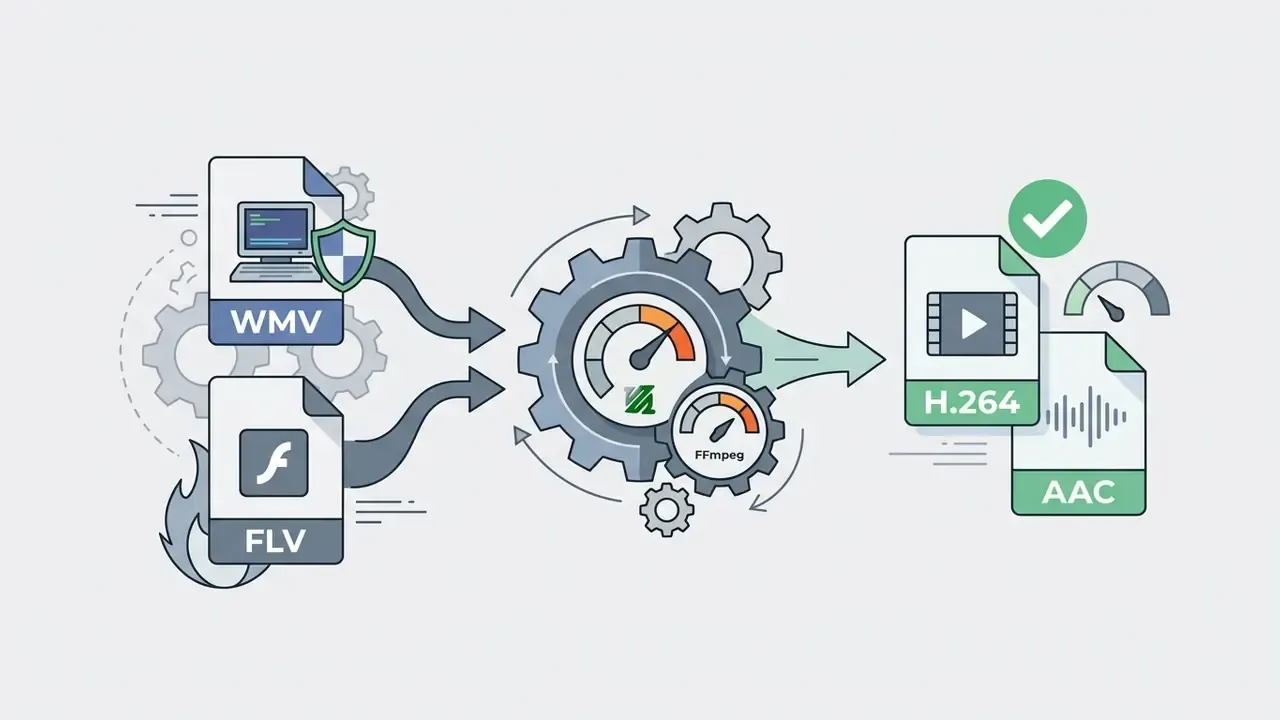
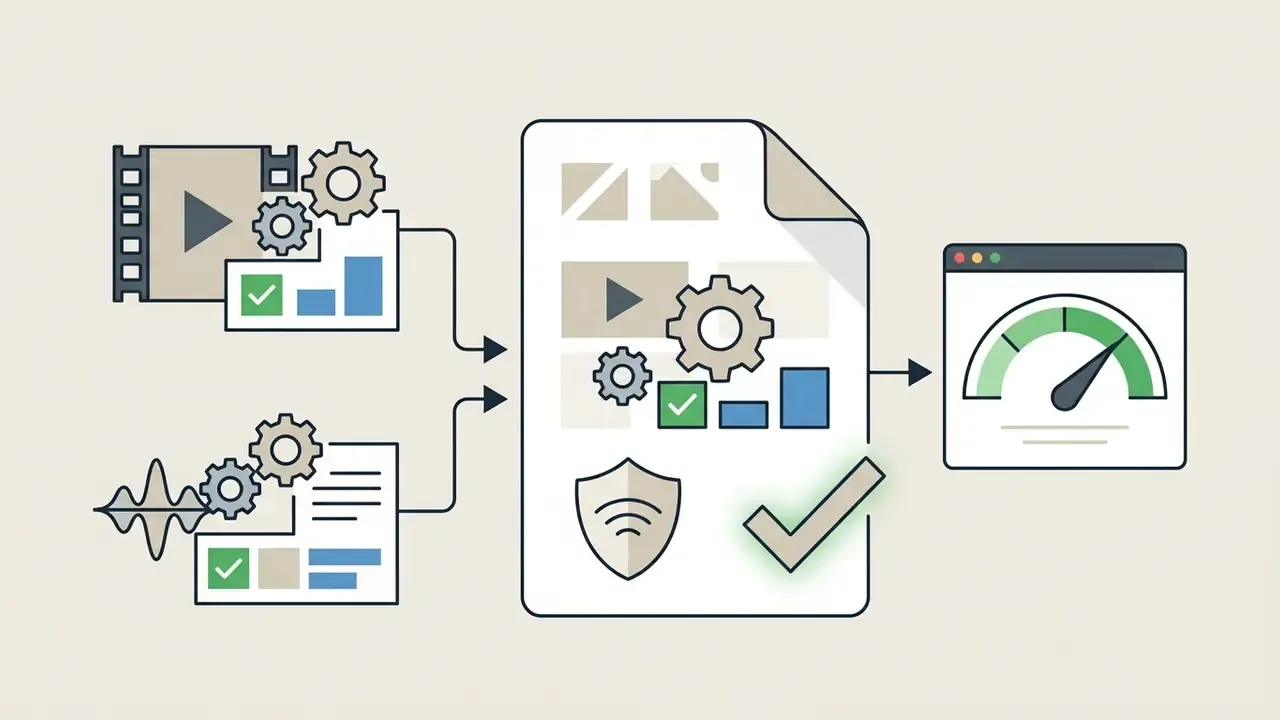
Cloud VOD platforms extend the same ingestion matrix to TS, MXF, MPG, F4V, 3GP, and ASF, which is how enterprise pipelines normalise mixed archives into one H.264 delivery profile. Creators assembling footage from generated assets can compare workflows in our overview of free AI video generators, since generated exports follow identical multi-format ingestion and re-encode logic. Stylised outputs behave the same way; if you convert video to an animated look, the render still needs a delivery-profile pass before sharing.
What happens to uploaded video files
Security here rests on clear data-handling protocols, not reassurance. Client-side tools running FFmpeg.wasm process everything inside browser memory, so your large video never leaves the device. Routing large files through cloud servers changes the obligation set: end-to-end transport protection via TLS 1.2+ and strict sanitization on deletion. Per NIST SP 800-209 cloud security guidance, sensitive data in storage should be encrypted end to end, encryption keys must not sit alongside the data they protect, and deletion requests should specify object identifiers, timing, and method, which enables cryptographic erasure when auto-delete fires (https://doi.org/10.6028/NIST.SP.800-209).
«Two-factor encryption adds only 200 to 380 ms of upload latency, a 5 to 20% overhead versus unencrypted transfer.»
That overhead figure matters operationally. Strong encryption is not why a 2 GB job feels slow. Encoding compute and upload bandwidth dominate the timeline, so the security controls can stay switched on without a meaningful throughput penalty.
Target video sizes for sharing, email and social platforms
Channels enforce different ceilings, and compression settings should be chosen backwards from the destination rather than forwards from the source.
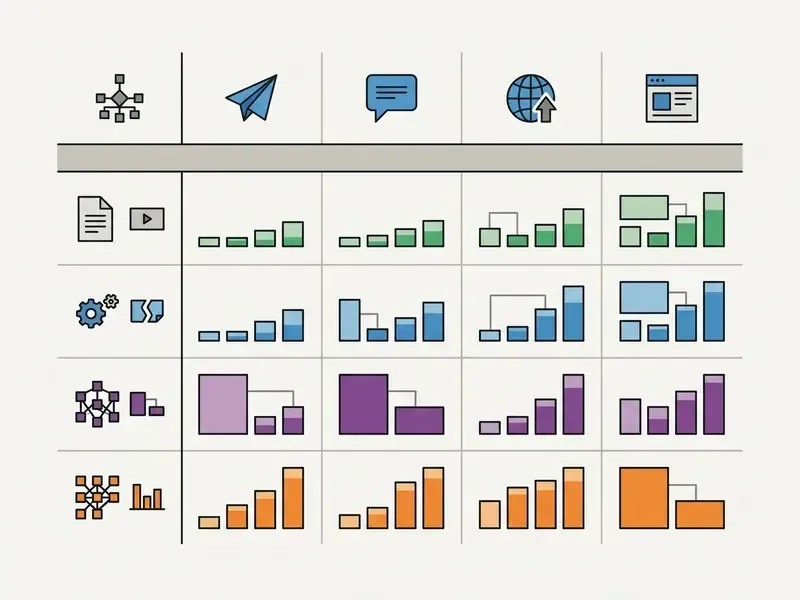
| Channel / Platform | Attachment or upload limit | Recommended target size | Recommended settings and codec |
|---|---|---|---|
| Email attachments | 20 to 25 MB (Gmail, Outlook) | 18 to 22 MB | 720p or 480p, H.264, 1.5 to 2.5 Mbps. |
| Legacy or strict email gateways | 10 MB | 8 to 9.5 MB | 480p or 360p, H.264, 0.6 to 1.0 Mbps, mono AAC 64 to 96 kbps. |
| WhatsApp inline media | 16 MB | 10 to 15 MB | 720p, H.264, stereo AAC at 128 kbps. |
| Discord free tier | 10 MB | 8 to 9.5 MB | 720p or 480p, H.264, bitrate capped at 1.2 Mbps. |
| Messaging document | Up to 2 GB (WhatsApp document) | Source size, up to 2 GB | Original resolution preserved, moderate H.265 re-encode. |
| Social mobile post | 72 to 500 MB (TikTok, Reels) | 50 to 100 MB | 1080p vertical 9:16, H.264 or HEVC, 30 fps, 6 to 8 Mbps. |
| Web and video portals | 512 MB to 256 GB (YouTube, X) | 100 to 500 MB | 1080p or 4K, maximum bitrate allocation, high profile. |
For specialised production workflows, such as running a convert image to video ai generator or exploring how to convert image to video online free, correct export targets prevent downstream upload rejections. The same applies to short-format tricks; if you convert video to a Live Photo, the duration and container constraints are tighter than any bitrate concern. Long-form publishers can cross-check container and bitrate expectations in our YouTube video editor workflow guide.
Compress a large video for email and messaging
Email gateways reject messages above 20 to 25 MB total, envelope overhead included. To send a recorded clip by email, use a free video compressor 2gb tool to drop spatial resolution to 720p or 480p and cap the output under 20 MB. Microsoft's own Office guidance recommends the 480p "Standard" preset when space is constrained. Messaging apps behave similarly: WhatsApp inline transfers need files under 16 MB, and when you exceed that, sending the clip as a document bypasses media preview transcoding and allows up to 2 GB.
Discord needs its own calculation. The free tier accepts a maximum of 10 MB per attachment, and the platform performs no compression of its own, so the sender must deliver a file that already fits.
Practical recipe for a 10 MB Discord clip: trim to the essential segment, downscale to 720p (480p if the clip runs past 60 seconds), set a 9 MB target size, keep audio at 96 to 128 kbps AAC, then check the byte count before dragging it into the channel.
Limitations, open questions and a safe next step
FAQ about online 2GB video compression
Can I compress a 2GB video on a phone?
Partially, and the answer splits by operating system. Android Chrome supports client-side WebCodecs with hardware-accelerated encoding and can chew through large local files, slower than a desktop but reliably. iOS Safari enforces strict per-tab memory ceilings, with WebProcess termination typically triggering near 1.4 GB of allocated RAM, so decoding and re-encoding a full 2 GB bitstream locally will usually kill the tab. On iPhone and iPad, use a server-based compression service, or trim and downscale the input below 1 GB first; Apple's iMovie export presets (720, 540, 360) work well as a pre-step. Either way, a mobile encode needs free local storage roughly equal to the source plus the output.
«MobileNVC decodes 1080p YUV420 video in real time on a mobile device with competitive PSNR and MS-SSIM.» MobileNVC, WACV (2024). https://openaccess.thecvf.com/content/WACV2024/papers/van_Rozendaal_MobileNVC_Real-Time_1080p_Neural_Video_Compression_on_a_Mobile_Device_WACV_2024_paper.pdf If your mobile workflow is content creation rather than pure file reduction, our comparison of the best AI video generators covers tools that export web-ready sizes directly, which removes the compression step entirely.
Can a compressed video be restored to its original quality?
No. Lossy video compression is technically irreversible. Algorithms discard spatial and temporal data through quantization, which is defined as an irreversible operation in DCT-based coding. Once that information leaves the bitstream, decompression cannot reconstruct the original raw signal. AI upscalers can plausibly re-synthesize detail, and sometimes convincingly, but they do not recover discarded data. Keep the master file.
Why does my video get bigger after compression?
Because the source was already compressed. Re-encoding a low-bitrate file at a higher quality target forces the encoder to preserve existing artifacts and noise, and that costs more bits than the original detail ever did. Set the target bitrate at least 20% below the source, or switch to target-size mode, and skip re-encoding entirely when the file already meets the destination limit.
Do free video compressors add watermarks or degrade audio?
Browser-local compressors that process on-device generally add no watermark and no size-based branding, and many state this in their terms. Cloud freemium tiers vary more: some brand unpaid exports, several cap audio at 64 kbps or downmix stereo to mono to hit target sizes. Run one short test clip, then inspect the corner frames and the audio track before processing a full batch.
Why does compression take longer for a large video?
Processing time scales with total frame count, spatial resolution, codec complexity, and available compute. Re-encoding a 2GB video means evaluating millions of pixel blocks across thousands of frames. Advanced codecs such as HEVC or VVC, and slower quality presets, raise the motion-search cost per frame compared with fast baseline H.264. Cloud jobs add upload bandwidth and queue placement to the same equation, and codec conversion or frame-rate changes cost measurably more than a pure bitrate change.
«Rendering and encoding a 10-second 4K 60fps clip (600 frames) takes 14 s on a MacBook Pro M3 Max and 39 s on an Intel Core i7 with a GTX 1660, in-browser.» Architecting Client-Side 4K 60fps Video Renders in TypeScript (2024). Extrapolate those benchmarks and a multi-minute 1080p re-encode usually finishes in one to four minutes on modern hardware. Older laptops without a WebCodecs hardware path fall back to software encoding and can take several times longer. Hub navigation and resource directory:
- AI Media Glossary
- AI Media Calculators · AI Media Support · AI Litigation and Case Timelines
- Complete reference: video compressors and file-size reduction
- Editing and export: video editors · free video editing software comparison · YouTube publishing workflows
- Generation pipelines: AI video generators · free AI video generators · best AI video generators compared
- Cost planning: what are compute credits? · AI media pricing guides · developer API guides