Converting a video clip into an iPhone-ready Live Photo means pairing a still key frame (usually HEIC or JPEG) with a short QuickTime MOV clip that carries a matching metadata identifier. Native iOS camera capture creates those two assets at the same instant. Browser tools and mobile apps rebuild the same structural pairing from footage you already have.
One caveat before the how-to. If the footage belongs to a client, an employer, or a regulated process, the conversion tool becomes part of your data path. That single fact changes which converter you should pick, and it is why this guide includes a pre-upload checklist rather than a bare list of buttons.
Four Things to Know Before You Convert
- A Live Photo is two files, not one.A still frame (HEIC or JPEG) and a QuickTime
.movclip are linked by the shared metadata atomcom.apple.quicktime.content.identifier. Break that link and iOS shows a flat, static image. - Keep the motion between 1.5 and 3.0 seconds.Apple's native capture window is roughly 1.5 seconds before and after the shutter (about 3 seconds total). Browser tools may allow 6 to 15 seconds, but iOS Lock Screen wallpapers behave best at 2.0 to 2.5 seconds.
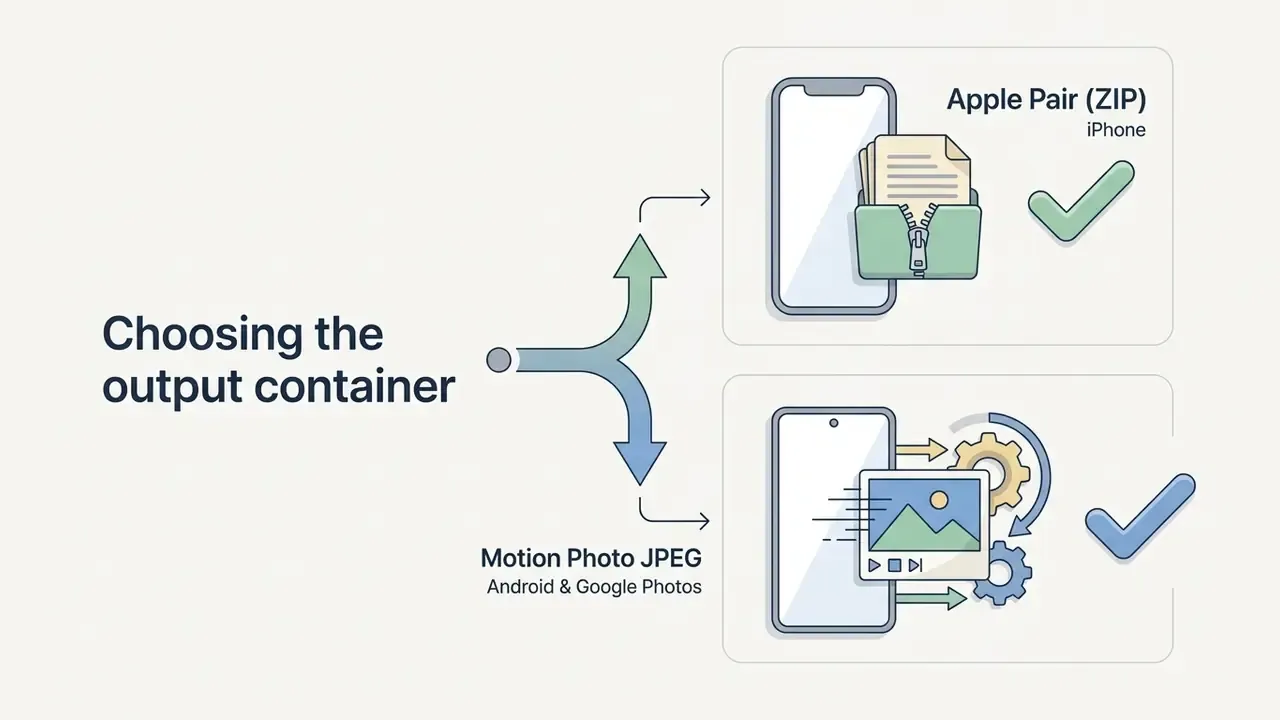
- Choose the right output container for your platform.Apple Pair (ZIP) gives you HEIC/JPG plus MOV for iOS Photos and the Lock Screen. Motion Photo JPEG embeds the motion segment inside one JPEG via XMP metadata for Google Photos, Samsung Gallery, and other Android galleries.
- Privacy depends on where the decode happens.Client-side WebAssembly conversion keeps raw video inside browser RAM. Server-side conversion uploads your footage to a third party operating under its own retention rules.
Who This Guide Is For
Three readers, three different questions. The casual iPhone owner just wants to turn video to live photo for a Lock Screen wallpaper and needs the fastest safe route. The content creator wants watermark-free output and clarity on commercial rights. The third reader sits in marketing operations, legal, or IT and has to answer a harder question: is this browser utility acceptable for footage the organization does not want leaving the device?
All three paths run through the same technical pipeline, so the guide covers the mechanics first, then the free-tier limits, then the failure modes. Skip ahead if you only need one layer.
What Is a Live Photo and How Does Video Conversion Work?
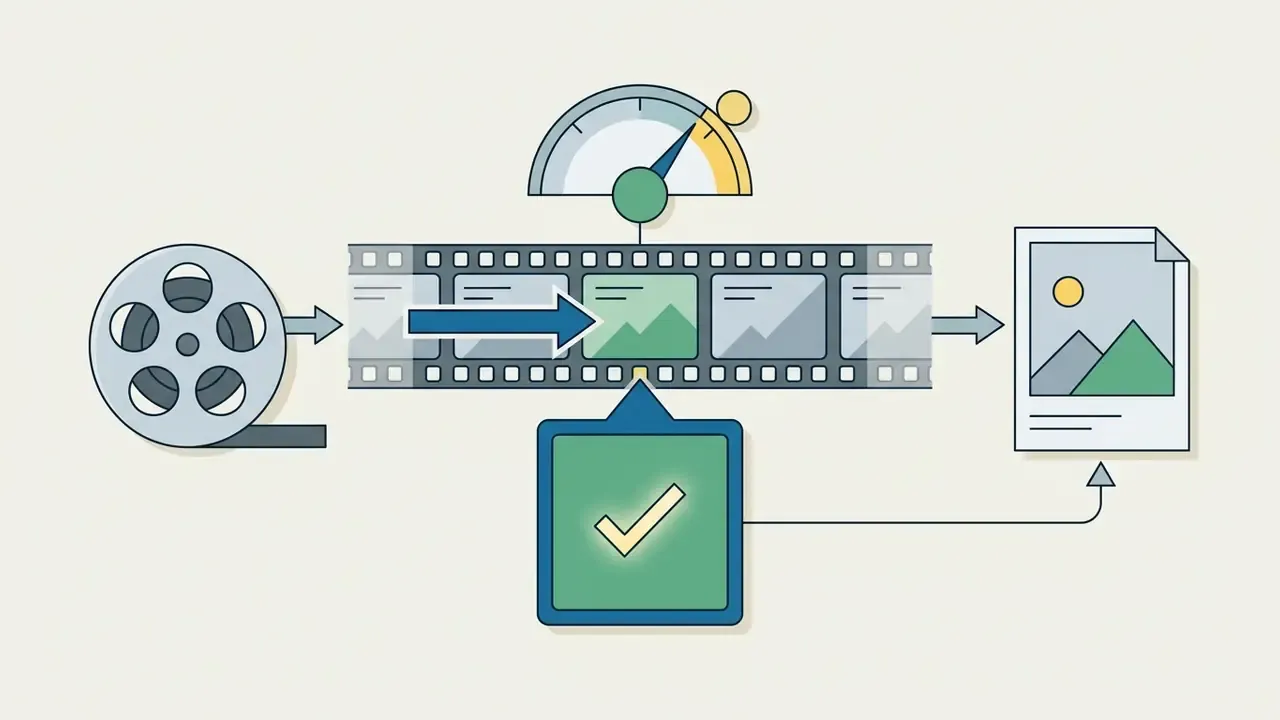
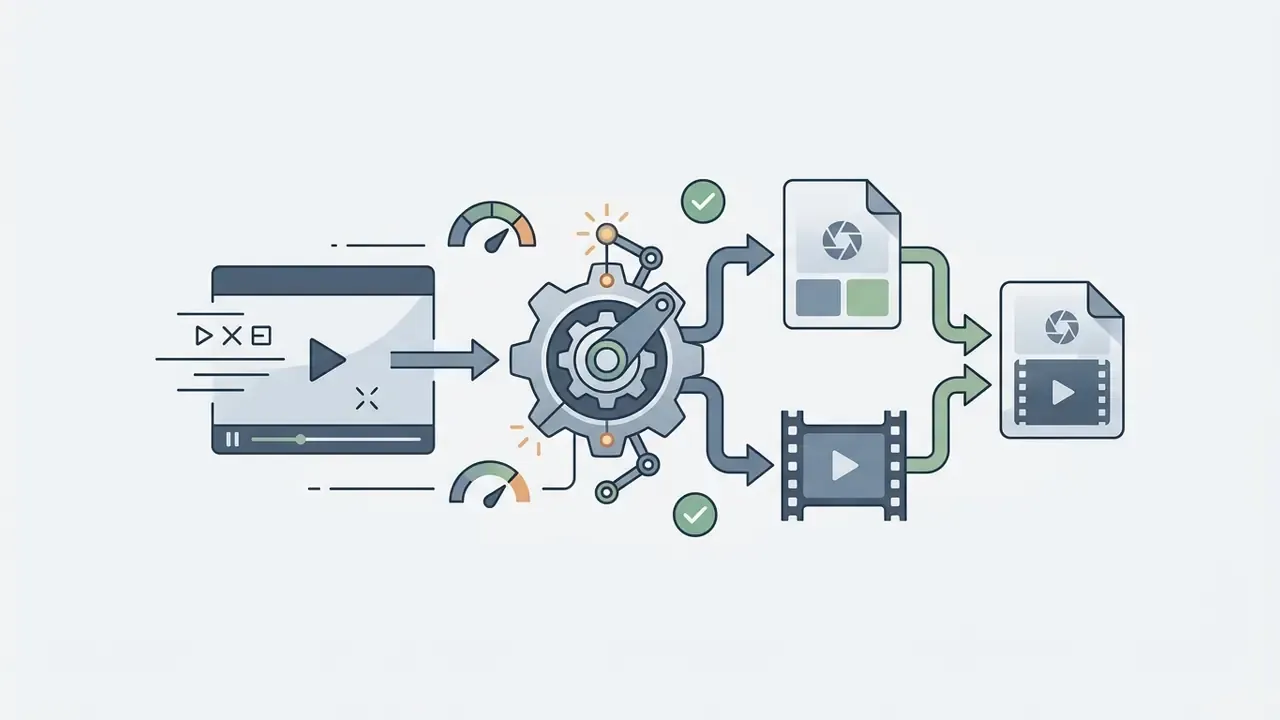
Converting a video into a Live Photo turns a continuous file into a dual-asset container: a still key frame plus a 1.5 to 3-second motion clip. On Apple hardware, the iOS Photos app scans metadata for a shared asset identifier string. When it finds a match, it binds the still image to the QuickTime MOV file and presents them as one interactive element that animates on touch-and-hold.
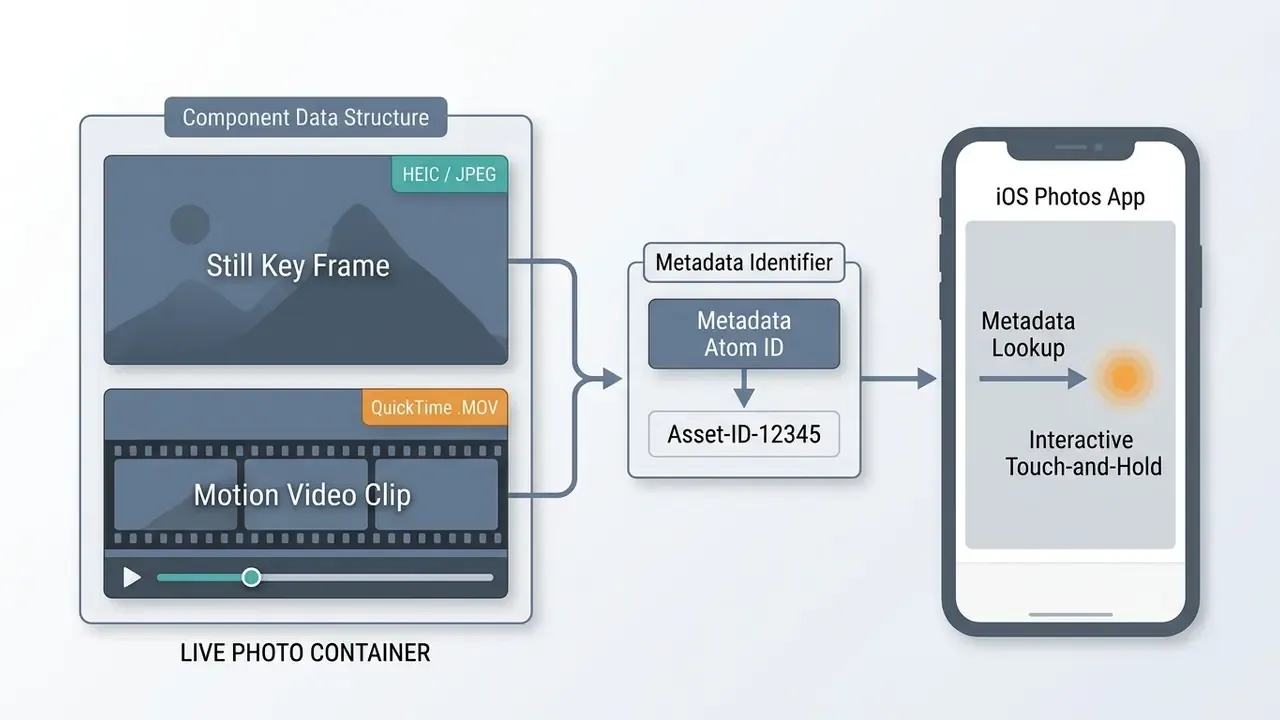
When you convert a video, the software extracts one selected frame to serve as the primary photo and encodes the surrounding temporal segment into a paired MOV file. Neither file contains the other. According to technical documentation on Live Photo HEIC and MOV pairing, Apple's media framework relies on the shared metadata lookup atom to trigger dynamic playback, nothing more exotic than that.
If that link is missing or severed during export or transfer, the operating system treats the pair as two unrelated items. Apple's WWDC guidance describes the movie asset as nominally three seconds long, roughly 1.5 seconds before and 1.5 seconds after the still frame. That is precisely why converters trim aggressively instead of wrapping your whole clip.
Live Photo vs. Video, GIF, and Static Image
A Live Photo differs from standard MP4/MOV video, animated GIFs, and static HEIC/JPEG images in three ways: storage architecture, interaction model, and playback mechanics. Standard video plays continuously with controls. GIFs loop automatically and carry no audio. Live Photos show a high-resolution still and reveal motion plus sound only when pressed and held inside a supported gallery.
Research on multimedia information retrieval documents the same dual structure: an HEIC key image alongside a 1080p QuickTime MOV motion clip.
Total storage footprint lands around 3 MB to 8 MB per asset, typically a 1 to 3 MB still frame plus a 2 to 5 MB motion clip. Much lighter than uncompressed video, with full color depth, preserved audio, and frame rates that a 256-color GIF cannot approach. For a wider view of motion formats and frame-based animation, see our guide to animation makers and motion formats.
| Media Format | Asset Structure | Audio Support | Playback Trigger | Typical File Size | Primary Use Case |
|---|---|---|---|---|---|
| Live Photo (Apple Pair) | HEIC still + MOV clip, matched IDs | Yes | Press-and-hold / Lock Screen wake | 3 MB to 8 MB | iPhone Lock Screen, interactive gallery |
| Motion Photo JPEG | Single JPEG with embedded motion payload (XMP) | Yes (in embedded segment) | Tap or hold in a motion-aware gallery | 3 MB to 7 MB | Google Photos, Samsung Gallery, Android |
| Standard Video | MP4 / MOV container | Yes | Manual play button or auto-play | Varies (10 MB+ per 10s) | Media streaming, full playback |
| Animated GIF | Single-file raster loop | No | Automatic infinite loop | 5 MB to 15 MB (low efficiency) | Web memes, messaging reactions |
| Static Image | Single JPEG / HEIC frame | No | None (static) | 1 MB to 3 MB | Printing, digital photography |
Note on video-to-Live versus image-to-Live workflows. Video conversion extracts real recorded frames: the motion actually happened in front of the lens, and the audio track is authentic. Photo-to-Live tools work differently. They either apply a synthetic pan-and-zoom (the Ken Burns effect) to one still frame, or they use generative models to invent intermediate frames that never existed. Both produce something playable. Only video conversion preserves genuine temporal information, which matters for documentary, evidentiary, or client-deliverable footage. Same logic applies to any synthesis tool, whether it is an ai sketch generator redrawing a photo or an ai smile filter adjusting an expression: the output looks real, but it is not a record of an event.
Which Devices Can Open and Use Live Photos?
Full native rendering and interactive touch-and-hold playback belong to Apple devices running iOS, iPadOS, and macOS. Non-Apple systems, Android and Windows included, do not parse the QuickTime metadata identifier linkage that binds the pair.
Official Apple Support documentation confirms that iPhones on iOS 17 or later can use Live Photos as animated Lock Screen wallpapers that play on wake. Apple's iPhone guide adds two constraints: the feature works on all iPhone models except iPhone SE, and the animation appears on the Lock Screen only, never on the Home Screen.
Move an Apple-paired Live Photo to Android or Windows and you usually get two unlinked files: a static HEIC or JPEG image, plus a separate MOV. Android users chasing a similar effect should export a Motion Photo JPEG instead (covered below), or convert the clip into a live-wallpaper video format supported by their gallery launcher.
Choose a Video to Live Photo Converter: Online Tool, App, or Desktop Software
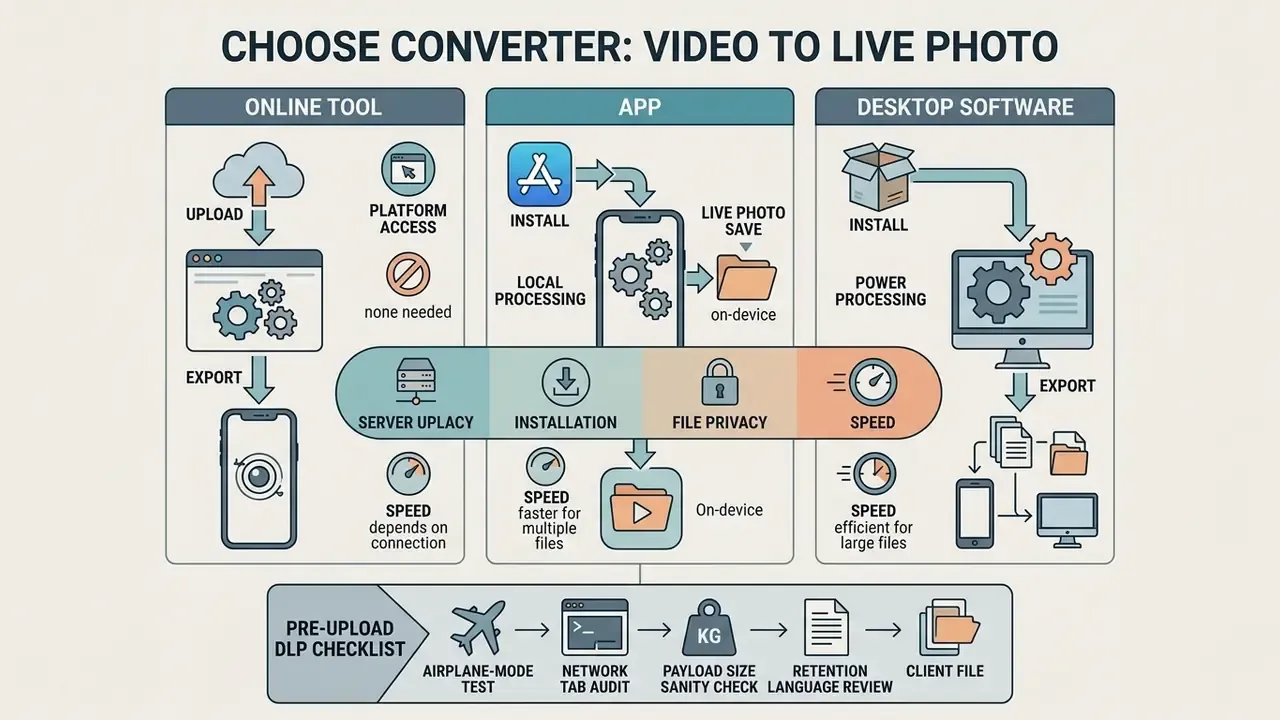
Picking the right video to live photo converter comes down to four variables: platform access, installation constraints, file privacy, and how fast you need the result. Browser converters need no install. Dedicated iOS apps integrate with the media library. Desktop software handles batch work and heavy source files.
To compare technical workflows across digital asset pipelines, consult our AI Media Comparison guide, review free-tier ceilings in our breakdown of free video generators and their export limits, and inspect cost structures in the AI Media Pricing Guides.
| Converter Category | Installation Required | Processing Environment | Privacy and Data Handling | Supported Input Formats | Direct iPhone Import | Free Export Constraints |
|---|---|---|---|---|---|---|
| Online Web Converter | None (runs in browser) | Server-side or client-side (WebAssembly / in-browser FFmpeg) | Uploaded to a cloud server, or processed in local browser RAM | MP4, MOV, WebM, AVI, M4V | Requires manual download and an iOS import step | Upload caps commonly 50 to 100 MB (some up to 300 to 500 MB), possible watermarks |
| Mobile iOS App | Yes (App Store download) | Local on-device CPU/GPU | Fully on-device; files do not leave local storage | MP4, MOV, HEVC, MKV, WebM | Direct one-tap save to the iOS Photos library | Feature locks, resolution caps, premium upgrades |
| iOS Helper / Bridge App | Yes (small utility app) | Local on-device packaging | Local only; receives the file from Files or the Share Sheet | .mov exported by a web tool | Yes, writes paired metadata and saves to the Camera Roll | Usually free with optional paid tiers |
| Desktop Software | Yes (Mac/PC installation) | Local workstation hardware | Fully local workstation processing | Broad format matrix (MP4, MOV, MKV, ProRes, MXF) | Requires AirDrop, cable, or cloud sync | Trial export caps or license fees |
Convert Video to Live Photo Online Without an App
You can convert video to live photo online directly in Safari or Chrome, with no third-party install. Modern browser tools accept a video upload, expose a trimming timeline, and output paired assets formatted for iOS. That is the whole appeal of learning how to turn video into live photo without app downloads: nothing lands on the device except the finished file.
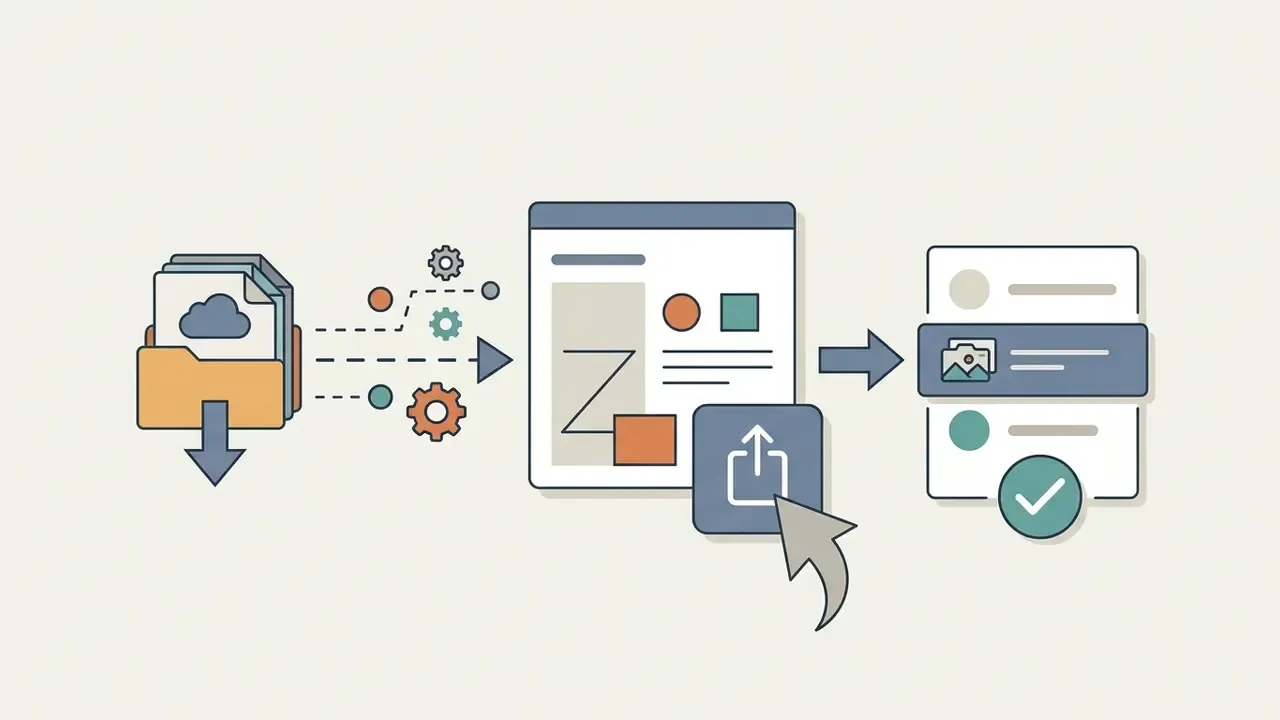
The tool returns either a zipped package holding the paired HEIC/JPEG and MOV, or a formatted QuickTime file designed for a native iOS shortcut. Web tools cannot push assets straight into the Camera Roll, because browser sandbox boundaries forbid it. So you download the output and save it into Photos using the iOS Share Sheet, a "Save Live Photo" Shortcut, or a helper app.
No clip ready? Many browser converters ship short public sample clips (pets, northern lights, city at night, product shots, dance motion) that load instantly. Run a 5-second sample first. It is the fastest way to confirm that your browser decodes, trims, and exports correctly before you feed it a personal or client file.
When an iPhone App Is More Convenient
Native iOS apps integrate with the system library in ways web tools cannot. They talk directly to Apple's PHPhotoLibrary framework, reading PHAsset and PHAssetResource objects, which enables automated reads, clean metadata encoding, and one-tap export into Photos.
Apps such as intoLive or VideoToLive remove the download-and-transfer dance by writing the required QuickTime asset lookup metadata straight onto the device storage layer. The asset is immediately available for Lock Screen customization. Because the app works inside the Photos sandbox, it also sidesteps the metadata-stripping habits of messaging apps and generic cloud uploads.
Teams running media transformations at scale usually want standardized asset workflows first. Ours are documented in the AI Media Commercial-Use Hub, with publishing steps in the YouTube video editor workflow guide.
Privacy: Local Processing or File Upload to a Server
Privacy risk here reduces to one question: does the video decode inside client memory, or on someone else's server? Uploading sensitive footage to a cloud converter exposes it to that operator's retention rules, server logging, and whatever compliance posture they happen to hold.
Client-side browser processing runs binary code inside a sandboxed virtual machine. The W3C WebAssembly Core Specification defines the runtime as having no ambient access to the host: every I/O and OS call must pass through imports controlled by the embedder. Tools built on WebAssembly or in-browser FFmpeg therefore decode, trim, and package frames entirely within local browser memory, so raw video never crosses a network boundary.
Two caveats deserve attention from anyone with a governance mandate. First, the WebAssembly Web API specification states plainly that the format itself provides no integrity or privacy guarantees; transport protection must come from HTTPS. Second, sandboxing does not eliminate hardware-level side channels. Local processing shifts risk to the device boundary. It does not delete the risk.
Pre-Upload DLP Checklist for Corporate and Client Media
Before pushing confidential footage (NDA product demos, unreleased campaign cuts, HR recordings) through any browser tool, verify local-only processing empirically. Marketing copy is not evidence.
- Airplane-mode test.Load the converter page, switch on airplane mode or drop Wi-Fi, then run a full conversion. If the export completes offline, processing is genuinely client-side.
- Network tab audit.Open DevTools, go to Network, filter by
XHR/Fetch, and confirm that no multipart upload request carries your file payload after you select it. - Payload size sanity check.Compare outbound bytes against source file size. A 90 MB clip that emits a few kilobytes of telemetry was not uploaded.
- Retention language review.If the tool does upload, confirm a documented purge window (24 hours is the common commitment) and the absence of secondary-use or sub-licensing clauses.
- Vendor scope check.Confirm whether the tool sits on your organization's approved list. Unsanctioned browser utilities are a classic shadow IT vector for media leakage.
- Output inspection.Before distribution, open the exported
.movin a metadata viewer. Check that no unexpected identifiers, GPS coordinates, or device names survived.
Six steps, maybe ten minutes. Cheaper than an incident report.
How to Convert a Video to Live Photo Online
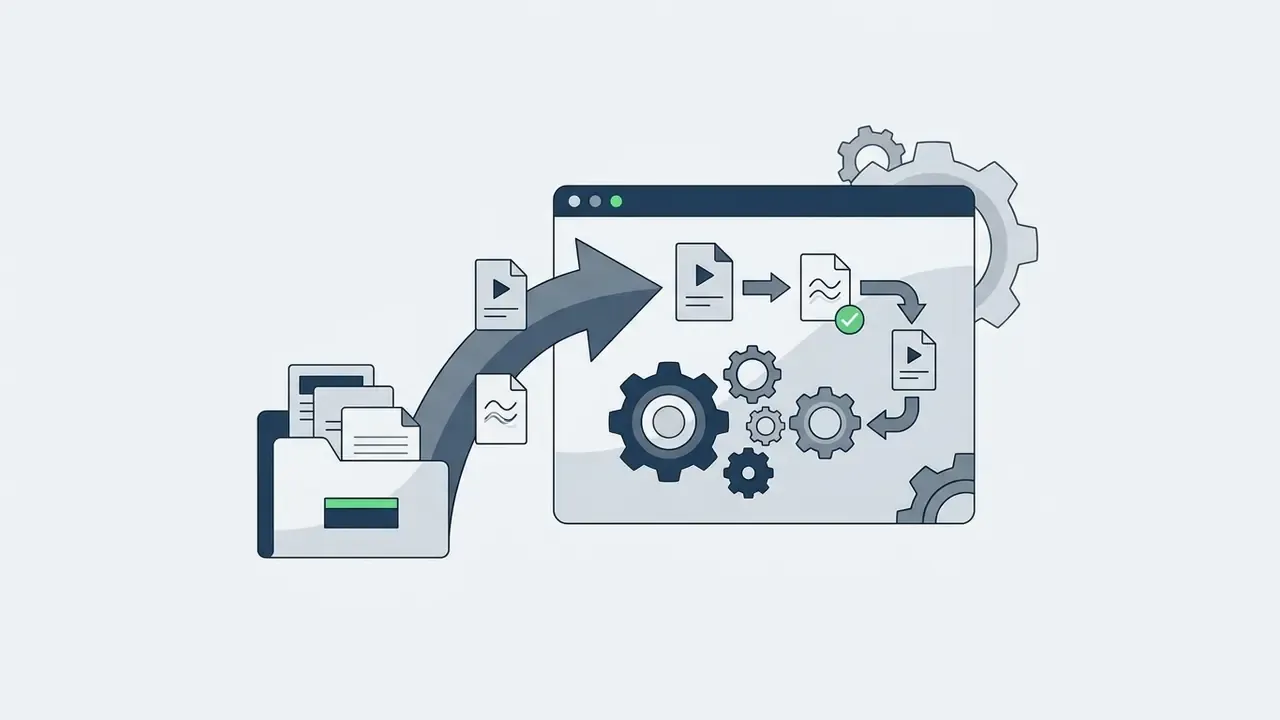
Converting a video into a working Live Photo through a web tool follows a fixed sequence: upload the source, preview it, trim the timeline, encode the dual assets, import to iOS Photos. For adjacent tasks such as color, captions, or resizing, see our overview of photo and media editing tools.
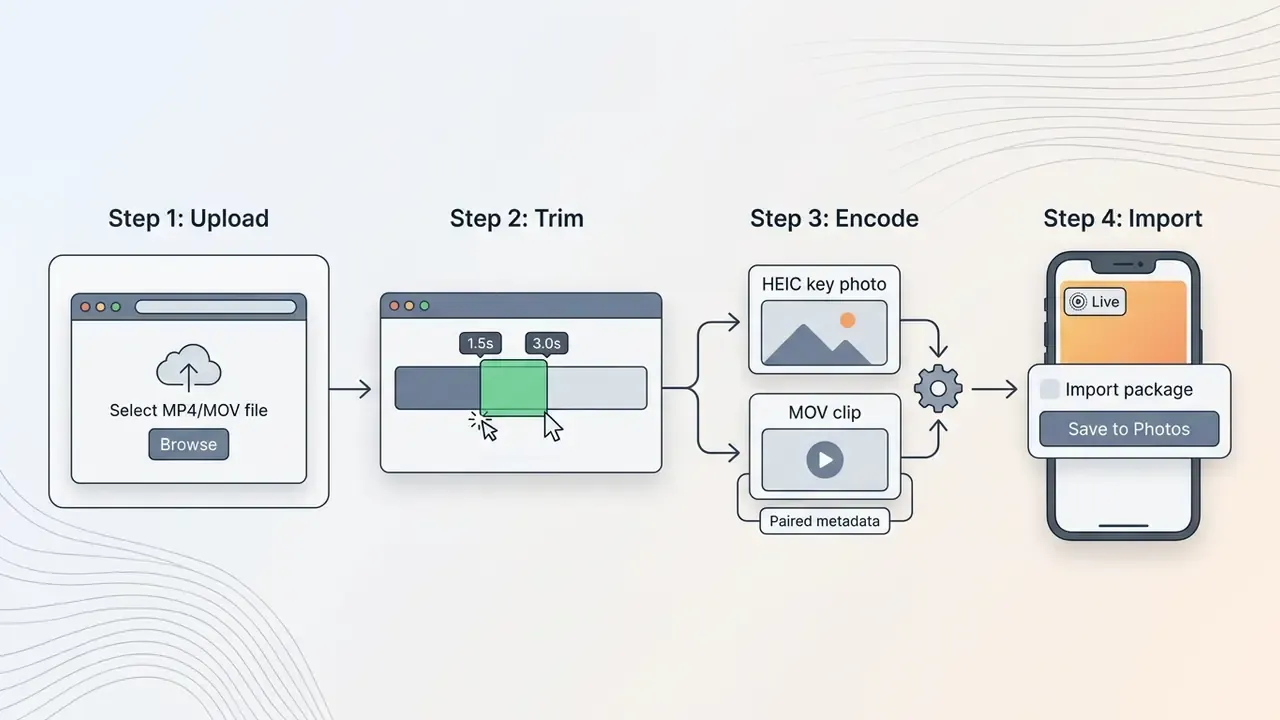
Work through this checklist and the failure rate drops sharply:
Upload Your Video and Preview the Clip
Start by uploading a source file into the converter interface. To keep browser decoding efficient and avoid timeouts, use H.264 or HEVC inside a standard MP4 or MOV container.
Encoding guidance from major video platforms is consistent: preserve the native resolution and native constant frame rate of the source, use square pixels (1:1 pixel aspect ratio), and avoid variable frame rate before any conversion step. Supported frame rates typically include 24, 25, 30, 48, 50, and 60 fps. A short vertical 1080p clip gives the best balance of clarity and processing time in a browser pipeline.
A small field example. During an asset migration project, a digital marketing team dropped a 4K ProRes master into a client-side browser editor. The tab crashed on memory exhaustion, twice. They re-encoded the source to an 8-megabit 1080p MP4 first, a job any standard video compressor handles, and the converter then decoded frames smoothly and finished the export in under five seconds. Same tool, same footage, different preparation.
Trim the Video and Choose the Best Moment
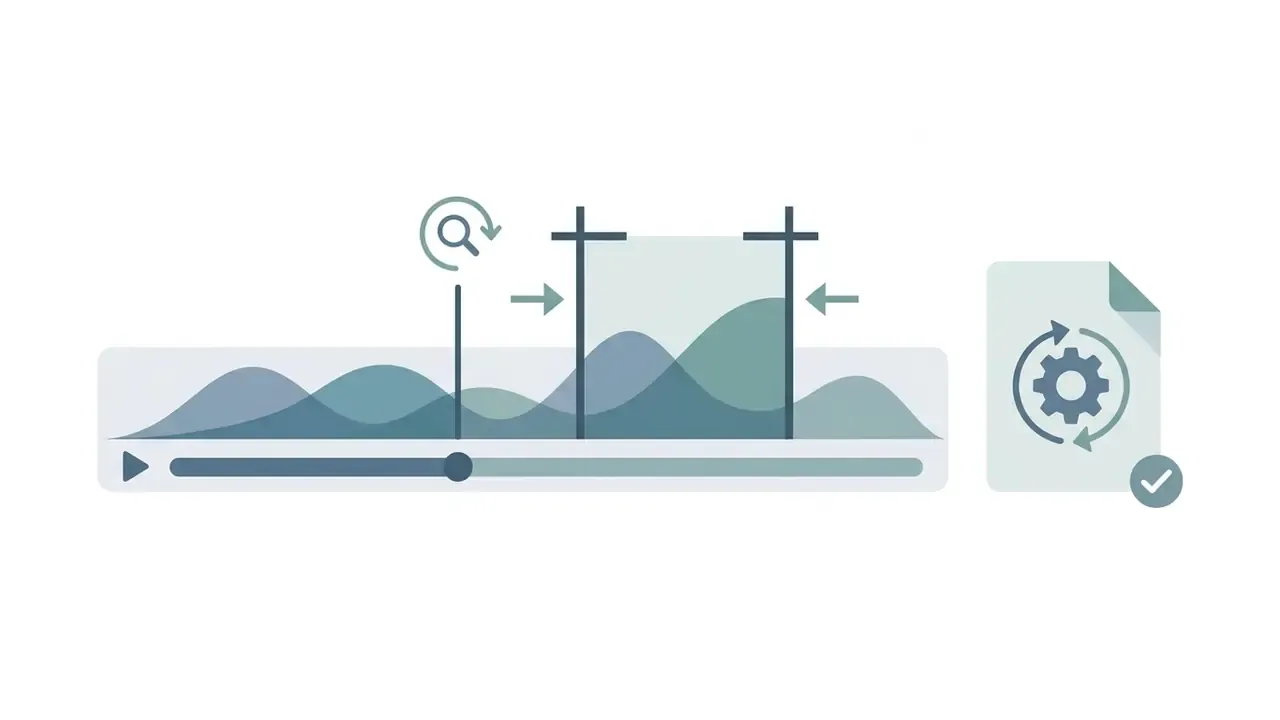
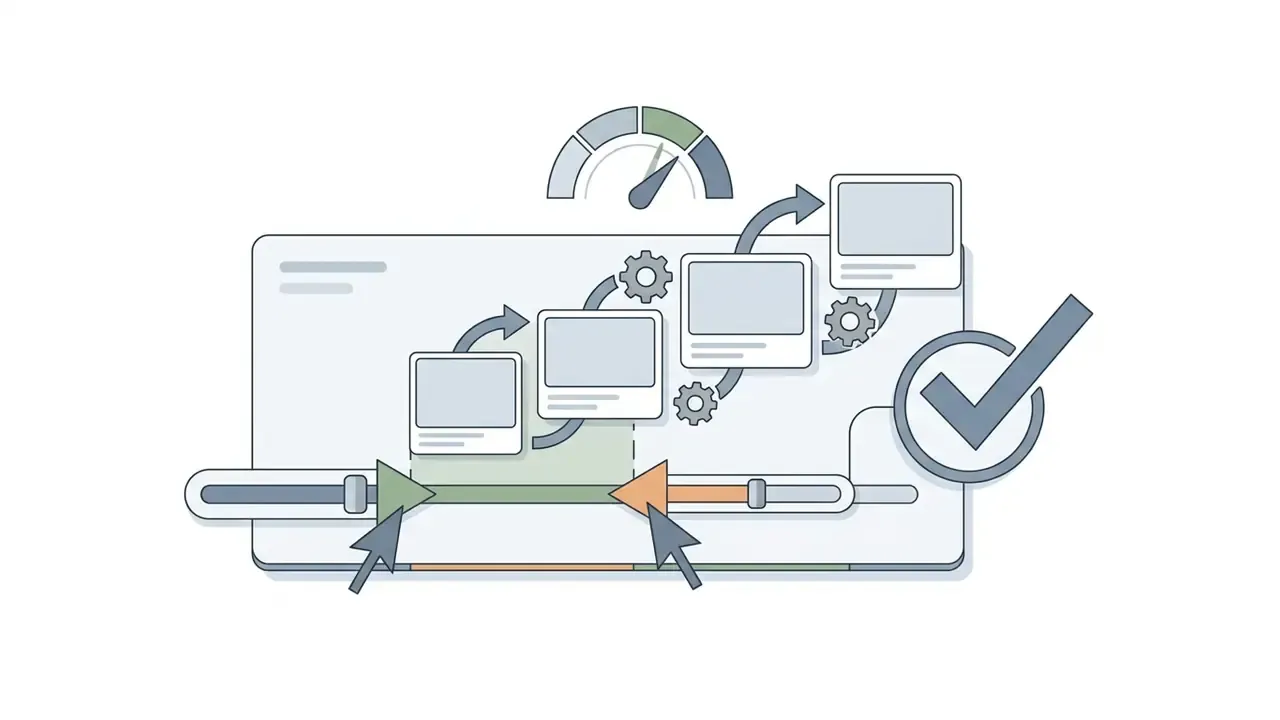
Trimming matters because native Live Photos are built around compact three-second motion windows. Picking a clear, high-contrast cover frame keeps the static thumbnail sharp in a photo grid. Apple's own editing model mirrors this: drag either end of the frame viewer to choose which frames play, move the white frame to the moment you prefer, then tap Make Key Photo.
Anchoring motion with a high-salience static frame improves visual comprehension. Isolate a clean 1.5 to 3.0-second window with distinct subject movement, a changing facial expression or a dynamic background shift, and the animation responds well on the Lock Screen. Avoid camera shake. Handheld pans read as jitter, not motion, once squeezed into a two-second loop. Short video to live photo conversions are unforgiving that way: two seconds hides nothing.
Convert, Download, and Save the Result to iPhone
Running the conversion produces the matched HEIC still and MOV motion clip carrying identical asset identification metadata. The service then hands you a download link.
To save the asset correctly on iOS:
- Tap the download link inside Safari to open the file or ZIP archive in the iOS Files app.
- Unpack the archive if the tool delivered a ZIP, then open the file context menu and select Share.
- Tap Save Image or Save to Photos. Apple Community guidance notes that Photos rebuilds a Live Photo only when the matching still and movie are imported together. If one component already sits in the library, Photos imports only the missing half and no pairing occurs.
- Open Photos, select the imported item, and press and hold the screen. Confirm the "LIVE" badge appears and the animation plays cleanly.
Alternative Workflow: iOS Helper Applications
Safari's security sandbox does not always hand a paired media package to the Photos framework intact. On older iOS releases, this is the single most common failure point. If Safari fails to trigger the native Share Sheet image linkage, use a small iOS bridge app (for example LiveFrame, LivePix, or Liveify):
Two operational notes. The web page does not hand the file to the helper app automatically; you re-select the exported file inside the app. And because packaging happens on-device, the helper route generally yields more reliable Lock Screen behavior than a raw ZIP import, at the cost of one extra install.
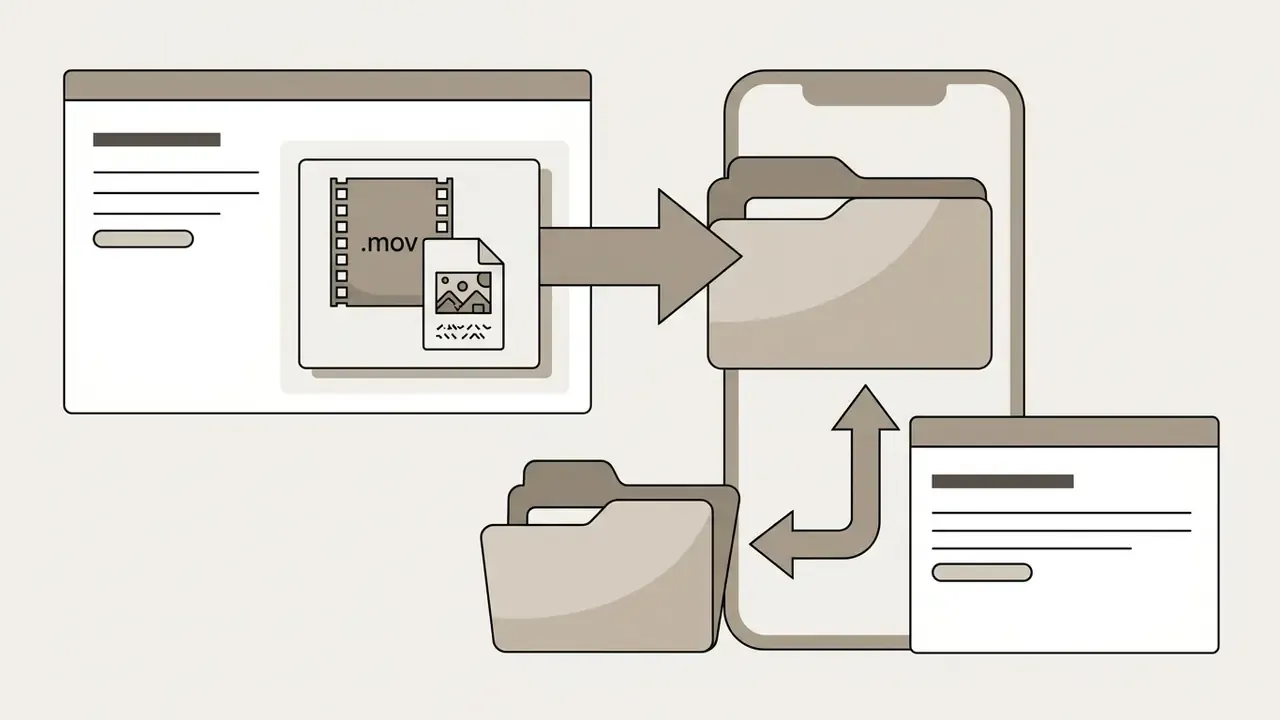
.mov package from the online converter to the device Files app, or AirDrop it from a desktop browser.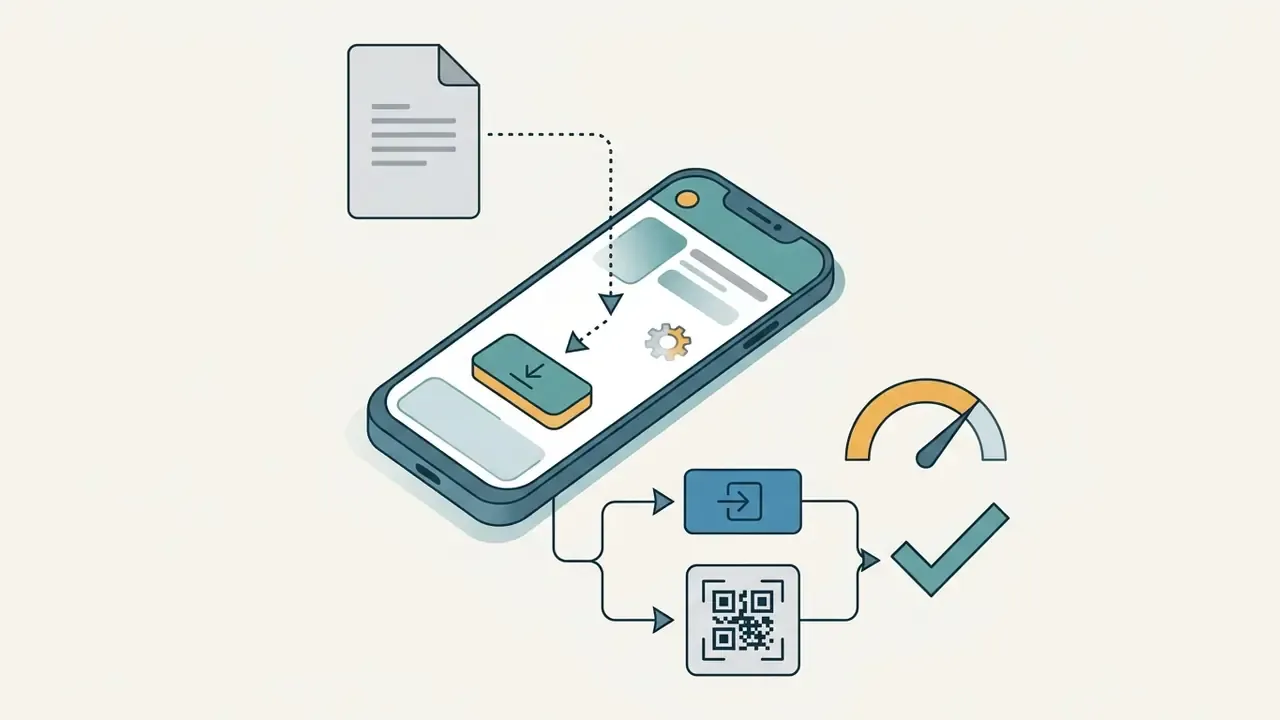
.mov. Some tools also offer a "Continue in app" button or a QR code that opens the helper directly.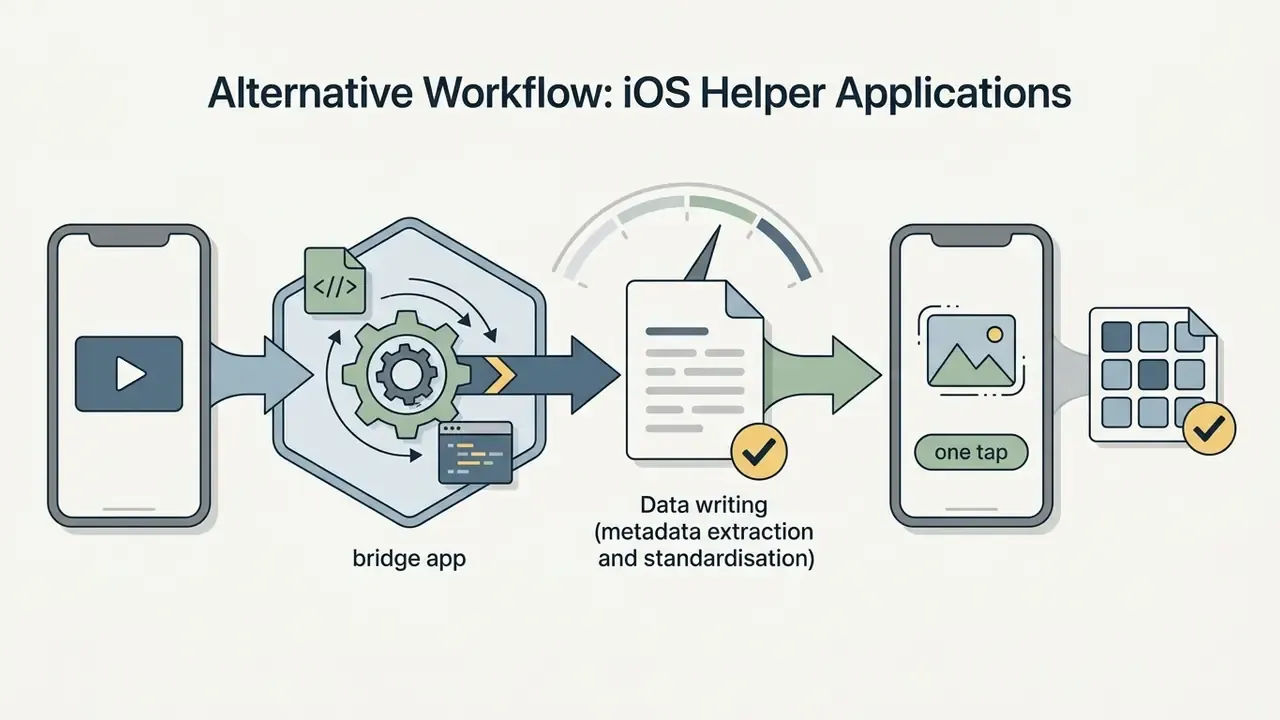
com.apple.quicktime.content.identifier metadata into local iOS storage and saves the functional Live Photo to your Camera Roll in one tap.Video Formats and Export Settings for an iPhone-Ready Live Photo
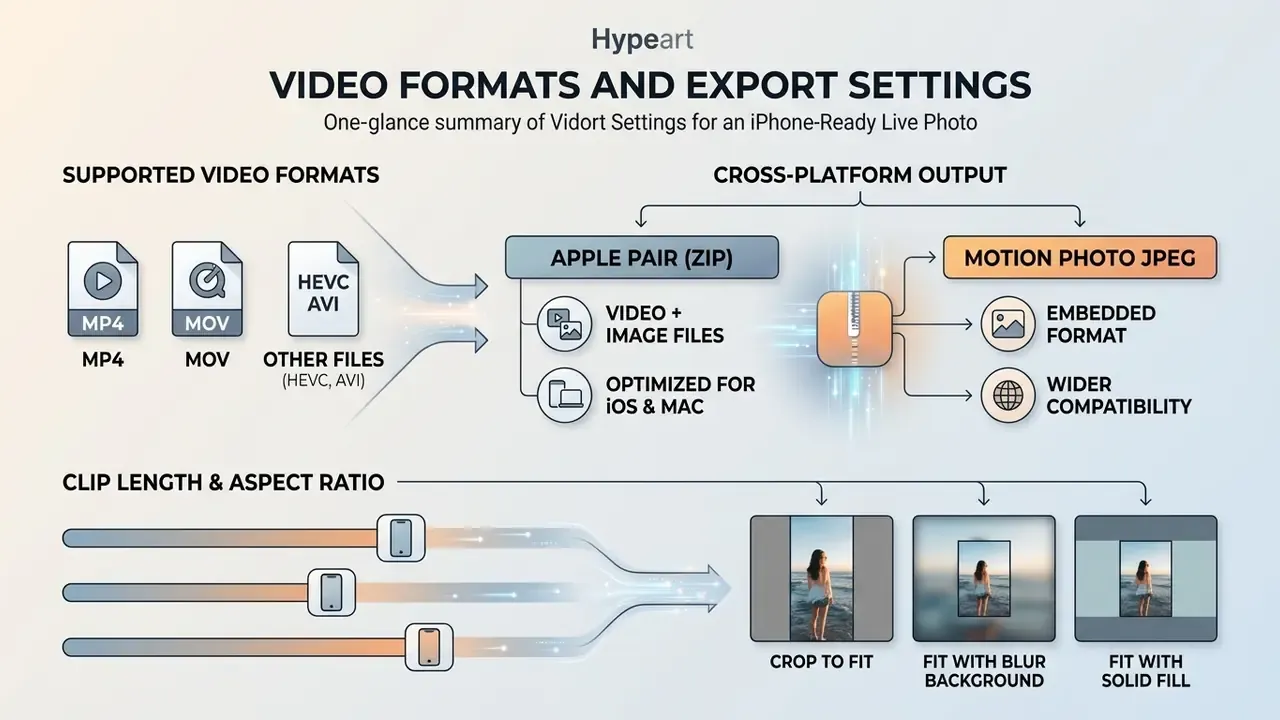
A fully functional Live Photo depends on export parameters that match iOS media architecture. The output MOV stream needs a supported codec, correct container metadata, a matching aspect ratio, and a valid frame rate. Miss one and the asset renders static. If your source frames are soft or undersized before conversion, review resolution-recovery options in our guide to AI image expansion and resolution tools.
For pipelines that need automated media generation at volume, developers can evaluate the AI Media API Guides, and estimate throughput cost with the AI Media Calculators.
| Export Parameter | Technical Requirement | Recommended Setting | System Failure Risk If Invalid |
|---|---|---|---|
| Container Format | QuickTime Movie (.mov) paired with HEIC/JPEG | .mov for the video component | Photos shows a static image or an unlinked video |
| Video Codec | H.264 (AVC) or H.265 (HEVC) | HEVC (High Efficiency) | Black screen rendering or playback failure on iOS |
| Clip Duration | 1.5 to 3.0 seconds total | 2.5 seconds | Lock Screen wallpaper fails to animate or truncates motion |
| Aspect Ratio | Matches the target display canvas | 9:16 (vertical for iPhone) | Black letterbox bars or aggressive scaling crop |
| Frame Rate | Constant frame rate (CFR) | 30 fps or 60 fps | Jittery playback or audio desynchronization |
| Asset Identifier | QuickTime metadata atom com.apple.quicktime.content.identifier | Unique UUID matched across both files | Loss of hold-to-play interactivity in iOS |
| Output Package (Apple) | HEIC/JPG + MOV delivered together | Apple Pair inside a ZIP | Photos imports one half; no Live pairing |
| Output Package (Android) | Motion segment embedded via XMP | Single Motion Photo JPEG | Apple Photos may render a still image only |
| Final Assembly on iOS | Metadata written on-device when Safari strips linkage | Helper app (LiveFrame / LivePix) | "Motion Not Available" or static render |
Supported Video Formats: MP4, MOV, and Other Files
Desktop and online converters accept a wide input range: MP4, MOV, AVI, MKV, WebM. The exported video stream, though, must sit inside a QuickTime MOV container, because the iOS media stack expects the QuickTime metadata atom structure to resolve asset pairing references.
Per Apple device format specifications, importing non-standard containers such as WebM or AVI straight into the native Photos library without transcoding throws format errors. Apple's support guidance for unplayable media on iPhone and iPad advises finding an app that supports the specific extension, which tells you playback is codec-driven rather than extension-driven. Standardizing your input on MP4 (H.264/AAC) or MOV eliminates most container decoding failures, in browser tools and native apps alike.
Cross-Platform Output: Apple Pair (ZIP) vs. Motion Photo JPEG
Configure the export package around the target device:
- Apple Pair (ZIP) produces a matched
.heic/.jpgstill and a.movclip carrying identical content identifiers. Required for iOS Photos, AirDrop sharing, and animated iPhone Lock Screen wallpapers. Import both files together or pairing fails. - Motion Photo JPEG encapsulates the video payload inside standard XMP metadata within a single
.jpg. Ideal for Google Photos, Samsung Gallery, and Android lock-screen wallpaper engines, and convenient because there is only one file to move.
Practical advice: unsure which gallery the recipient uses? Export both. The Motion Photo JPEG degrades gracefully, since non-aware viewers simply display a normal still. An Apple Pair split across two transfers, by contrast, frequently arrives as two orphaned assets. Also worth remembering that some apps strip embedded motion during re-compression or re-sharing, so keep the original export as your master copy.
Clip Length, Aspect Ratio, and Background
Setting spatial and temporal dimensions before export prevents surprise cropping, distortion, or black fill on mobile displays. For iPhone Lock Screen use, set the output canvas to vertical 9:16.
If the source is horizontal 16:9, converters usually offer three fill options:
- Crop to Fit zooms and crops the frame to fill the 9:16 canvas, discarding side content.
- Fit with Blur Background keeps the full horizontal frame and fills top and bottom with a blurred copy of the video.
- Fit with Solid Fill adds letterbox padding bars (black, white, or a gradient) above and below the frame.
Some Live Photo makers also expose fit / fill / scale / mirror canvas modes and allow trimming windows up to 15 seconds. Those longer windows help for GIF or MP4 exports. For Live Photos, keeping motion under 3.0 seconds trims file weight and preserves the immediate playback response people expect from native camera assets. Anything beyond roughly 3 seconds gets truncated when applied as a Lock Screen wallpaper anyway.
Sound, Motion, and Import into iOS Photos
The MOV component keeps the full audio track recorded alongside the motion. Inside Photos, press and hold and you get both movement and ambient sound, and audio can be toggled per asset.
Apply that same converted Live Photo as a Lock Screen wallpaper, however, and iOS mutes audio automatically, so waking the device never blasts sound across a room. Make sure the visual motion transitions smoothly across your chosen segment, because wake animations depend entirely on fluid frames, not audio cues. Apple Developer documentation adds a detail that trips up custom-interface builders: Live Photo motion effects are not provided for custom UI. The smoothness you see in Photos comes from the captured motion segment itself, not from post-applied easing.
If the original audio is unusable, replacing it is a separate craft. Voice and music synthesis tools such as an ai singing generator or a free-tier option like an ai song creator free can supply a replacement bed, though a generated track carries its own licensing questions and will not play on the Lock Screen regardless.
Convert Video to Live Photo Free: Limits, Watermarks, and Commercial Use
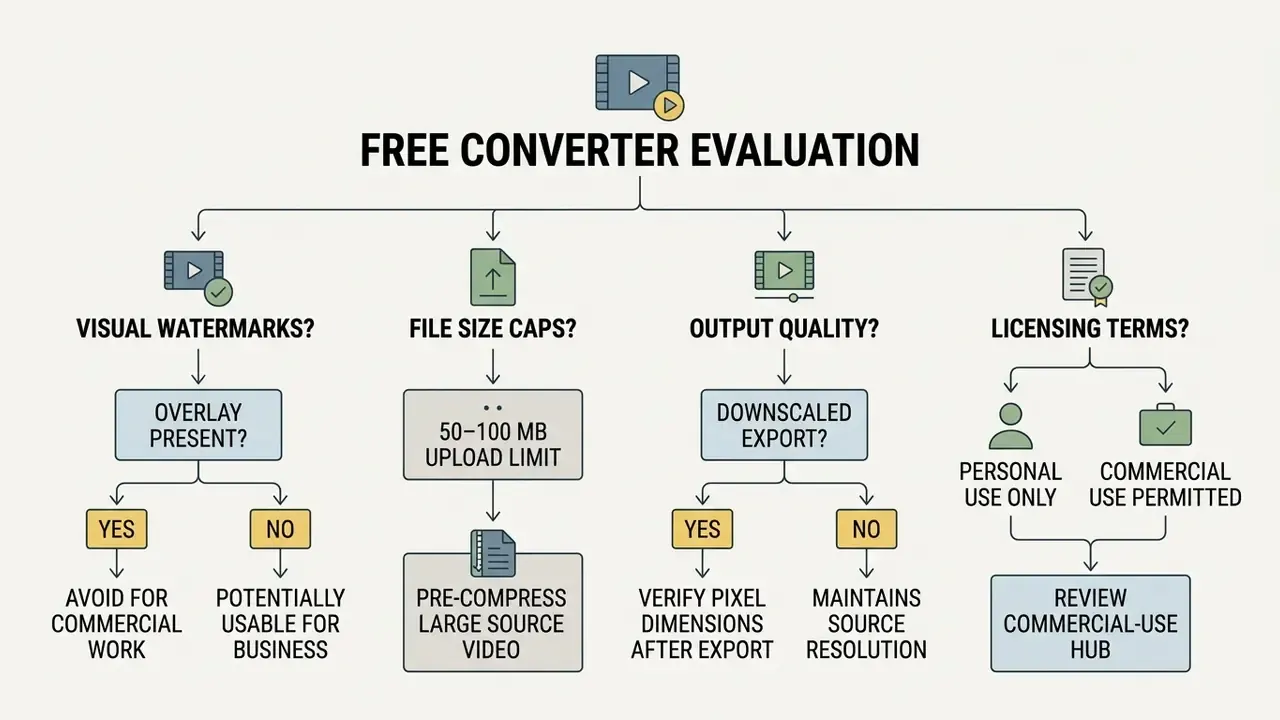
Freemium converters and mobile apps are a reasonable entry point. They also come with constraints that surface at the worst moment, usually right before delivery. Knowing the shape of free-tier limits protects your workflow from quality degradation, intrusive overlays, and licensing trouble. Comparable patterns across adjacent categories appear in our guide to free photo editors and their export restrictions.
What "Free" Means in an Online Live Photo Converter
Watermarks, Source Rights, and Sharing the Result
Free converters often stamp brand overlays or subtle digital watermarks onto exported frames. Visible logos usually park themselves in a corner, which makes the output unusable for professional or commercial distribution.
Put plainly: these signatures survive re-compression and cropping. You cannot reliably crop out an embedded watermark, and trying it wastes an afternoon. When converted media heads into marketing or public branding, confirm you hold clear source copyright licenses and that the conversion software explicitly grants commercial usage rights for exported assets. Copyright in audiovisual content arises automatically at creation in the EU and most jurisdictions, with no registration required, so reusing third-party footage demands ownership or a documented license. For broader treatment of usage rights in generated and processed media, see our commercial licensing overview.
Personal versus commercial licensing, the practical distinction:
| Use Case | Typical Free-Tier Permission | What You Must Verify |
|---|---|---|
| Personal Lock Screen wallpaper | Almost always allowed | Nothing beyond source ownership |
| Sharing with friends via AirDrop | Almost always allowed | Source footage rights |
| Organic brand social post | Often restricted | Tool ToS grants commercial use; watermark-free export |
| Paid advertising or client deliverable | Usually requires a paid tier | Written commercial license, royalty-free clearance of source, model and location releases |
| Resale as a wallpaper pack | Rarely permitted on free tiers | Explicit redistribution rights in the vendor license |
Fact check and verification protocol
Why a Converted Live Photo May Not Work and How to Fix It
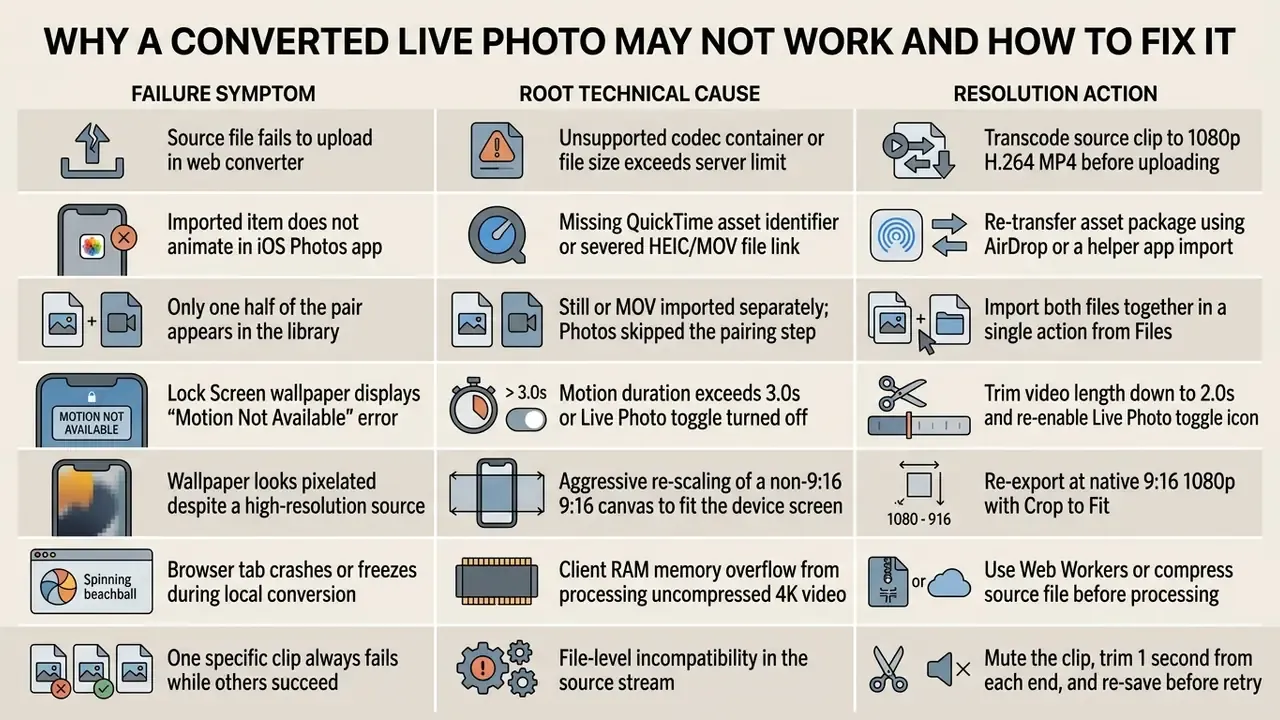
Errors during conversion or import show up as static images, upload failures, or a Lock Screen that refuses to animate. The matrix below maps symptoms to root causes and fixes.
The Source Video Will Not Upload or Open
Upload failures happen when the source uses a non-standard codec, a proprietary container, or exceeds the server's size allocation.
Microsoft Clipchamp support documentation attributes "unsupported file type" errors to add and upload failures, and recommends two remedies: update the browser, then convert the source file, specifically to MP4, and add the new version. Google's upload help gives the same diagnosis, noting that "wrong format" errors appear when the file type is unsupported and advising a browser update before retrying. Its supported-formats reference lists MP4, MOV, AVI, WMV, WebM, HEVC, and ProRes as accepted containers and codecs. Standardizing on H.264 video with AAC audio inside MP4 resolves most cases. If one clip still fails while others sail through, treat it as file-level incompatibility: mute the audio track, trim a second from each end, re-save, retry.
The Result Does Not Animate or Save as a Live Photo
When an imported file renders as a plain photo or a separate video with no hold-to-play behavior, iOS failed to establish the asset metadata lookup link.
This usually traces back to transfers through messaging apps or cloud platforms that strip metadata tags or convert HEIC to JPEG. To keep the link intact:
- Transfer converted files between Apple devices using AirDrop.
- Avoid SMS and email platforms that re-encode media attachments.
- Import the still frame and the MOV in the same operation so Photos can merge them into one asset.
- If the Live badge vanished after editing, open the asset in Edit and re-enable Live. Turning Live off collapses the asset to its key photo.
- Confirm the Live Photo toggle is switched on inside the Lock Screen wallpaper customization menu.
- If Safari keeps failing to link the pair, fall back to the helper-app workflow above.
The Browser Is Slow or Runs Out of Memory
When a client-side converter chews through high-resolution or high-framerate video locally with WebAssembly, frame buffering can exhaust the tab's memory allocation.
That ceiling assumes disciplined threading, though. Web Workers run scripts on background threads so heavy decode and encode passes complete without blocking the interface, and transferable objects move ownership of large binary buffers off the main thread instead of copying them. Without workers, heavy file reading, rendering, or encoding can freeze the tab or kill it outright. If an editor stutters, close the extra tabs, drop the source to 1080p, shorten the clip, update to a current Chrome or Safari build, and check that the device actually has free system RAM.
FAQ About Video to Live Photo Conversion
Can I Use a Converted Live Photo as an iPhone Lock Screen Wallpaper?
Yes. Converted Live Photos work as animated Lock Screen wallpapers on compatible iPhone models running iOS 17 or later (iPhone SE excluded). Animation plays on the Lock Screen only, never on the Home Screen. For adjacent mobile editing capabilities, see our overview of photo editing tools and feature sets. To set it up:
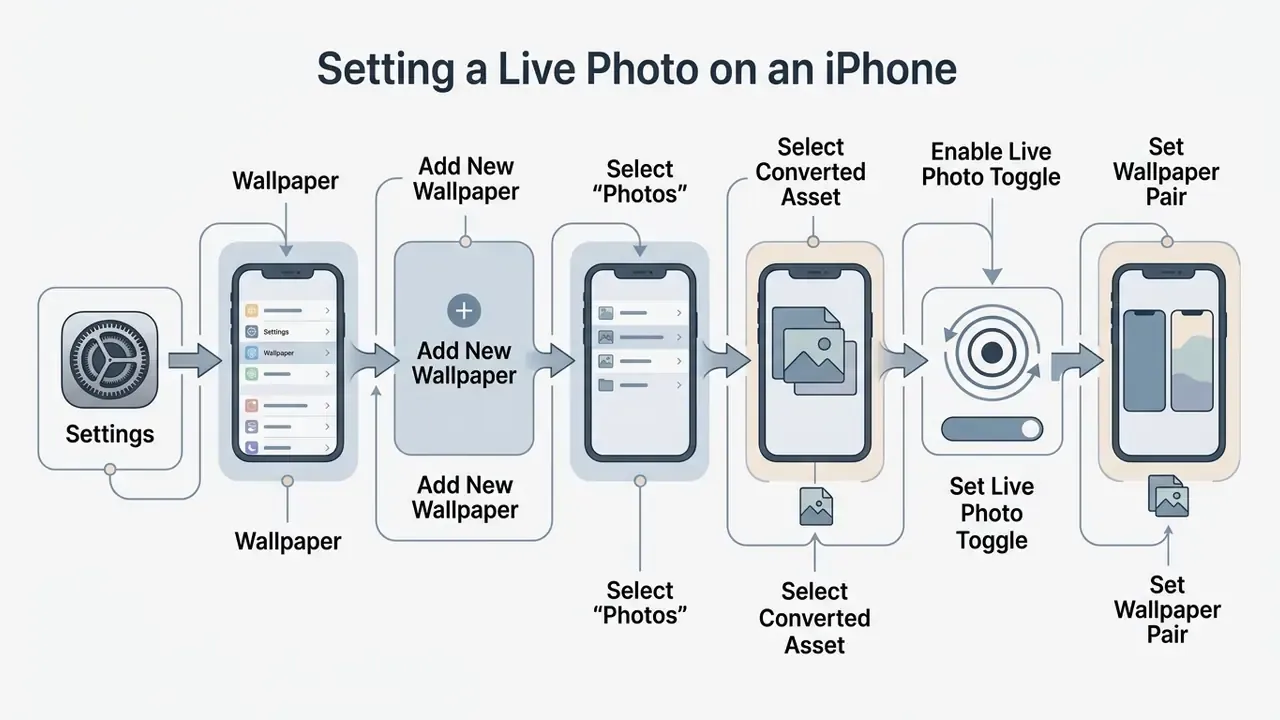
- Open Settings and tap Wallpaper.
- Tap Add New Wallpaper, then select Photos.
- Choose your converted Live Photo from the library.
- Tap the Live Photo play icon at the bottom of the preview to confirm animation is active.
- Tap Add in the top-right corner, then choose Set as Wallpaper Pair. Wake the screen and the wallpaper animates briefly before settling on the static key frame.
Will Converted Live Photos Retain Background Audio?
Yes. The MOV component keeps the original AAC or PCM track, and pressing and holding the asset in Photos plays motion and sound together. Audio can be toggled per asset. One exception: iOS mutes Lock Screen wallpapers on wake to avoid unexpected sound.
How Long Can the Converted Video Clip Be?
Native Live Photos capture roughly 1.5 seconds before and after the shutter, about 3.0 seconds of motion in total. Browser converters commonly allow trimming windows of 1 to 6 seconds, and some makers accept source clips of 10 to 15 seconds before trimming. Clips longer than about 3.0 seconds get truncated as Lock Screen wallpapers, so 2.0 to 2.5 seconds is the practical sweet spot.
What Is the Difference Between Apple Pair (ZIP) and Motion Photo JPEG?
Apple Pair delivers a separate HEIC or JPEG cover image alongside a MOV clip with matching content-identifier metadata, the structure iOS Photos requires. Motion Photo JPEG embeds the motion segment inside a single JPEG via XMP metadata, the design used by Google Photos, Samsung Gallery, and many Android galleries. Apple Pair gives the most reliable iPhone behavior. Motion Photo JPEG is easier to transfer and falls back to a still image in unsupported viewers.
Can I Convert TikTok or Instagram Reels Videos into Live Photos?
Yes. Download the Reel or TikTok file, remove any platform watermark, confirm the clip is genuinely vertical 9:16, and pick a steady two-second key segment during trimming, ideally with the action inside the central 60% of the frame so the Lock Screen clock does not cover it. Trim the last 1 to 2 seconds to drop end-cards. Confirm you hold rights to the footage before publishing anything.
Why Does My Browser Download a .ZIP File Instead of a Live Photo?
Safari's security sandbox blocks direct injection of media into the Camera Roll, so browser tools ship the components as an archive. The ZIP holds both the cover frame and the MOV. Unpack it in the Files app and import both files together, AirDrop it from a desktop, or pass the .mov to a helper app such as LiveFrame or LivePix for on-device assembly.
Do Live Photos Work on Android or Windows?
Not natively. Neither platform parses Apple's QuickTime content-identifier pairing, so an Apple Pair lands as an unlinked still plus a video. Export a Motion Photo JPEG instead for Google Photos and Android galleries, or convert the clip into a live-wallpaper video your launcher supports.
Does Converting a Video to a Live Photo Reduce Quality?
Some loss is normal, because the clip gets re-encoded and usually scaled to the target canvas. To keep it minimal: start from the original camera or editor export rather than a re-shared copy, hold the native frame rate with constant frame rate encoding, export at 1080p in the 9:16 ratio you actually intend to display, and skip free tiers that downscale output (some cap width at 640 px). Vendor claims of "no quality loss" are marketing language, not a published technical standard. Check pixel dimensions on the exported file yourself.
Can I Turn a Single Still Photo into a Live Photo?
Yes, but it is a different operation. Image-to-Live tools apply a synthetic pan-and-zoom (Ken Burns) or generate frames that were never recorded. The output plays like a Live Photo, though the motion is fabricated. Video conversion extracts real recorded frames and authentic audio, which makes it the preferable route whenever the footage documents an actual event.
Do I Need to Upload My Files to Convert Them?
Not with client-side tools. Converters built on WebAssembly or in-browser FFmpeg decode, trim, and package everything inside browser memory, so the source never leaves the device. Server-side converters do upload your footage and subject it to the operator's storage, logging, and retention rules. If the difference matters to you, run the airplane-mode and network-tab checks in the DLP checklist above.
How Do I Reverse the Process and Turn a Live Photo Back into a Video?
On iPhone, open Photos, filter by Media Types, then Live Photos, select the asset, open the share menu, and choose Save as Video. Apple treats this as an explicit conversion and produces a standard video file rather than a paired asset. Exporting a Live Photo out of Photos instead yields two separate files, a still image and a MOV, which must be reimported together to reconstruct the pairing.
Technical Knowledge Expansion
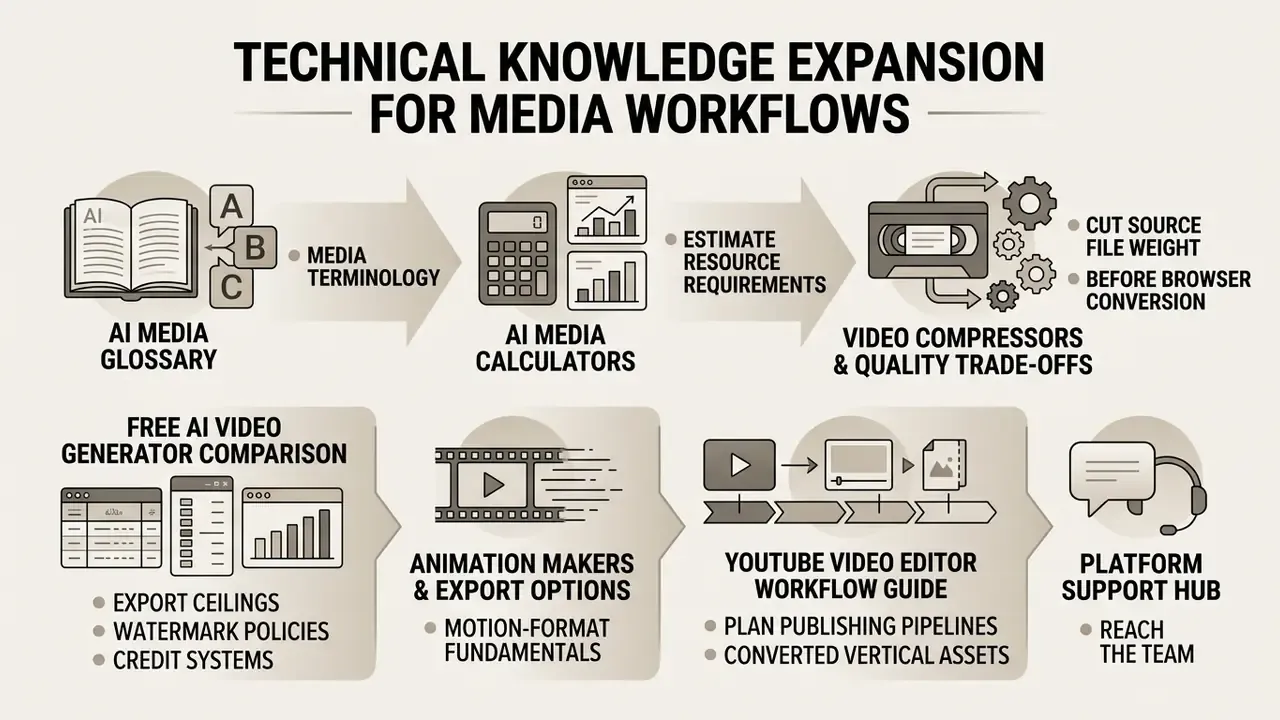
To go further into media transformation, automated asset processing, and creative workflows across the platform, these resources help:
- Browse media terminology in the AI Media Glossary.
- Estimate project resource requirements with the AI Media Calculators.
- Cut source file weight before browser conversion using our guide to video compressors and quality trade-offs.
- Compare export ceilings, watermark policies, and credit systems in the free AI video generator comparison.
- Review motion-format fundamentals in our guide to animation makers and export options.
- Plan publishing pipelines for converted vertical assets with the YouTube video editor workflow guide.
- Reach the team through our platform support hub.
Editorial Note and Update Log
January 2026 revision. Duration guidance, free-tier ranges, and container recommendations were re-checked against Apple Support, Apple Developer documentation, and vendor pricing pages current at the time of writing. Free-tier limits change often, so treat every number here as a starting point for your own verification rather than a fixed specification.
Author note. Marcus Hale, author.