The practical question is not «which app is best» in the abstract. It is which set of editing tools your actual output requires, and what you are prepared to pay for them, in money and in data.
The Fast Verdict
- Best built-in editor Apple Photos. Free, non-destructive, on-device, and it now includes AI Clean Up object removal (requires Apple Intelligence hardware: iPhone 15 Pro/Pro Max, the iPhone 16 line or newer, running iOS 18.1 or later).
- Best genuinely free third-party editor Snapseed. 29+ professional tools, no ads, no watermarks, no subscription. Snapseed 4.0 added saved «Looks» and batch processing.
- Best for RAW and color Adobe Lightroom Mobile. Full ProRAW/DNG development, HSL, curves, AI masking (masking, healing, and cloud sync sit behind the $6.99/mo Premium tier).
- Best for film aesthetics VSCO (Film X, 200+ emulations) and Afterlight (real 35mm scans, halation, light leaks).
- Best for portraits Facetune. Best for collages and stickers: Picsart. Best for typography: Phonto. Best for social templates: Canva.
- Privacy shortcut Apple Photos, Snapseed, and Darkroom process edits on-device. Several AI-first editors upload your image to remote servers before returning a result. That distinction matters more than any preset library.
What This Guide Covers
- Is there a photo editor on iPhone, and what the built-in Photos app can actually do
- Which iPhone photo editor features are needed for specific tasks
- Best photo editing apps for iPhone by use case, with a comparison matrix
- Free versus paid: paywalls, watermarks, export caps, and processing location
- A fast five-step editing workflow for photos iPhone users can repeat
- FAQ and a short list of related resources
How We Tested These Apps
Is There a Photo Editor on iPhone: Built-In Features of the Photos App
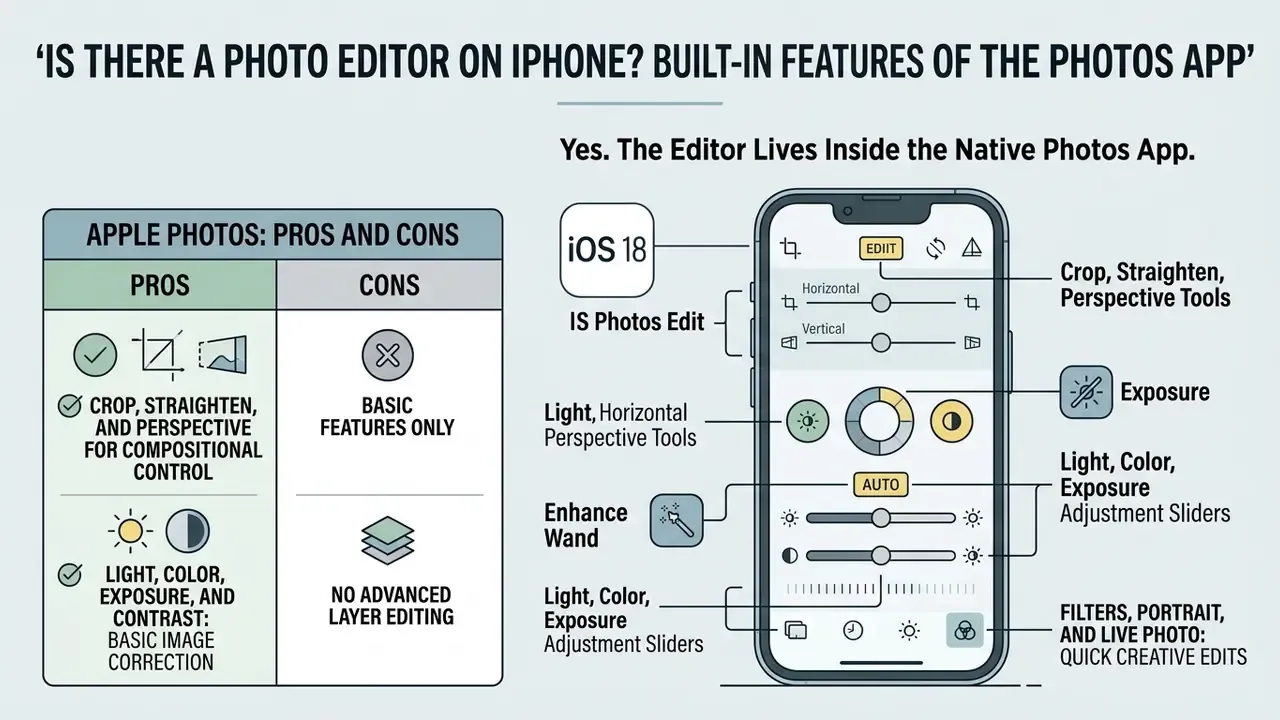
Yes. There is a photo editor on iPhone, and it lives inside the native Photos app. Every iPhone running iOS includes this pre-installed software. You get light and color adjustments, cropping, filters, and markup without installing anything or paying a cent.
«The mobile photo editing app market is valued at roughly $7.2 billion in 2025 and is projected to reach $18.6 billion by 2034.»
That growth curve explains Apple's strategy. Capabilities that were premium a few years ago, such as object removal, depth control, and batch edit copying, keep migrating into the free system app.
The photo editor in iPhone works on a non-destructive paradigm. When an image is modified in the photos app, the system stores editing metadata separately instead of overwriting the original file. Apple's own support guide confirms it: select Discard Changes while editing, or tap Revert after saving, and the untouched source photo comes back. Original capture data stays recoverable.
«Tap Done to save your changes, or if you don't like your changes, tap Cancel, then tap Discard Changes… you can revert to the original photo.» - Apple Support, Edit photos and videos on iPhone (2024–2026). https://support.apple.com/en-us/111900
The apple iphone photo editor also accepts third-party app extensions inside the native interface, so certain specialized adjustments happen without leaving your library. Anyone planning to add generative retouching to that pipeline should first read how AI photo editors differ from plain slider-based correction. Different failure modes, different risks.
Figure 1 - Annotated Apple Photos edit interface (iOS 18). The tool navigation bar sits beneath the image preview. Five controls are worth memorizing: (1) Crop & Perspective (geometry, aspect ratios, straighten, vertical and horizontal correction), (2) Adjust (the nine-slider light and color pane), (3) Filters (Vivid, Dramatic, Mono, each with an intensity slider), (4) Revert (top right after saving, restores the original), and (5) Clean Up (the Apple Intelligence brush-to-erase tool, visible only on supported hardware). Tap and hold anywhere on the preview to flip between the edited version and the original capture. Alt text for publication: «photo editor on iPhone in the Photos app».
Apple Photos: Pros and Cons
- Pros completely free and pre-installed; fully non-destructive with permanent Revert; edits sync across iCloud devices; «Copy Edits / Paste Edits» applies one look to a batch; ProRAW files open natively; every operation runs on-device, so nothing leaves your phone.
- Cons no HSL panel, no tone curves, no layers, no local masking beyond Clean Up; Clean Up requires Apple Intelligence hardware (iPhone 15 Pro/Pro Max, iPhone 16 series or newer, iOS 18.1+), so owners of an iPhone 13, 14, or base iPhone 15 get no AI object removal at all; the filter library looks thin next to VSCO or Afterlight.
Crop, Straighten, and Perspective for Compositional Control
The crop and composition toolset gives precise control over framing, horizon alignment, and geometric distortion. You can drag the bounding box handles, pick standardized aspect ratios (1:1 square, 9:16 vertical, 5:7), rotate in 90-degree steps, flip horizontally, and nudge straightness along a slider. On iPhone and iPad alike, release the aspect-ratio lock first if you want to deviate from the original capture proportions. Easy to miss, mildly infuriating once you notice it.
Correcting vertical and horizontal perspective matters for architecture and for photographed documents. Apple's documentation describes separate vertical and horizontal perspective sliders that tilt the image plane along either axis, compensating for lens convergence before you commit the edit.
Light, Color, Exposure, and Contrast: Basic Image Correction
Tonal and chromatic control in the native photos iphone editor runs through nine primary manual sliders in the Adjust menu. Systematic correction starts with structure: Exposure, Brilliance, Highlights, Shadows, Brightness, and Contrast set the dynamic range and pull back detail from blown skies or crushed shadows.
| Parameter | Operational Function in Apple Photos |
|---|---|
| Exposure | Modifies total light values across the entire image evenly. |
| Brilliance | Dynamically lifts shadows and tones down highlights to reveal hidden detail. |
| Highlights | Selectively adjusts brightness in the lightest areas of the photo. |
| Shadows | Brightens or darkens dark tonal regions without altering highlights. |
| Contrast | Increases or decreases tonal separation between light and dark areas. |
| Brightness | Shifts midtone luminance while largely preserving black and white points. |
| Saturation | Adjusts overall color intensity uniformly across all hues. |
| Vibrance | Boosts muted colors while preserving natural skin tones. |
| Warmth | Shifts color temperature along the blue-to-yellow axis. |
| Tint | Fine-tunes color balance along the green-to-magenta axis. |
| Sharpness / Definition / Noise Reduction / Vignette | Detail and finishing controls, applied after tone and color are set. |
Once light distribution looks balanced, move to color: Saturation, Vibrance, Warmth, and Tint refine hue fidelity. The order recommended in practical Apple Photos walkthroughs is Exposure first, then Highlights recovery and Shadow lift, then Contrast and Brightness, and only then Saturation, Vibrance, Warmth, and Tint (see the TechRepublic and Tom's Guide Apple Photos guides, 2022–2025). Working in that sequence stops you from setting white balance against an unbalanced tonal base, and it cuts the risk of clipping bright regions. Reverse the order once and you will feel the difference.
Filters, Portrait, and Live Photo: Quick Creative Edits
Native creative adjustments cover a surprising amount of ground without any third-party editing apps. Built-in filters such as Vivid, Dramatic, and Mono deliver one-tap color transformations, and the intensity slider lets you dial strength from 0% to 100% rather than accepting the preset as-is.
For depth-assisted capture, Portrait mode editing exposes post-capture depth of field control. The simulated aperture slider (Depth Control) changes background blur, and Portrait Lighting effects such as Studio Light or Contour Light reshape facial illumination. Apple lists Studio Light as available on iPhone 8 Plus and iPhone X or later. Live Photo captures can also become motion effects, Loop, Bounce, or Long Exposure, turning a short burst into smoothed movement or creative trailing. Useful for waterfalls, headlights, and the occasional overachieving fountain.
Which iPhone Photo Editor Features Are Needed for Specific Tasks
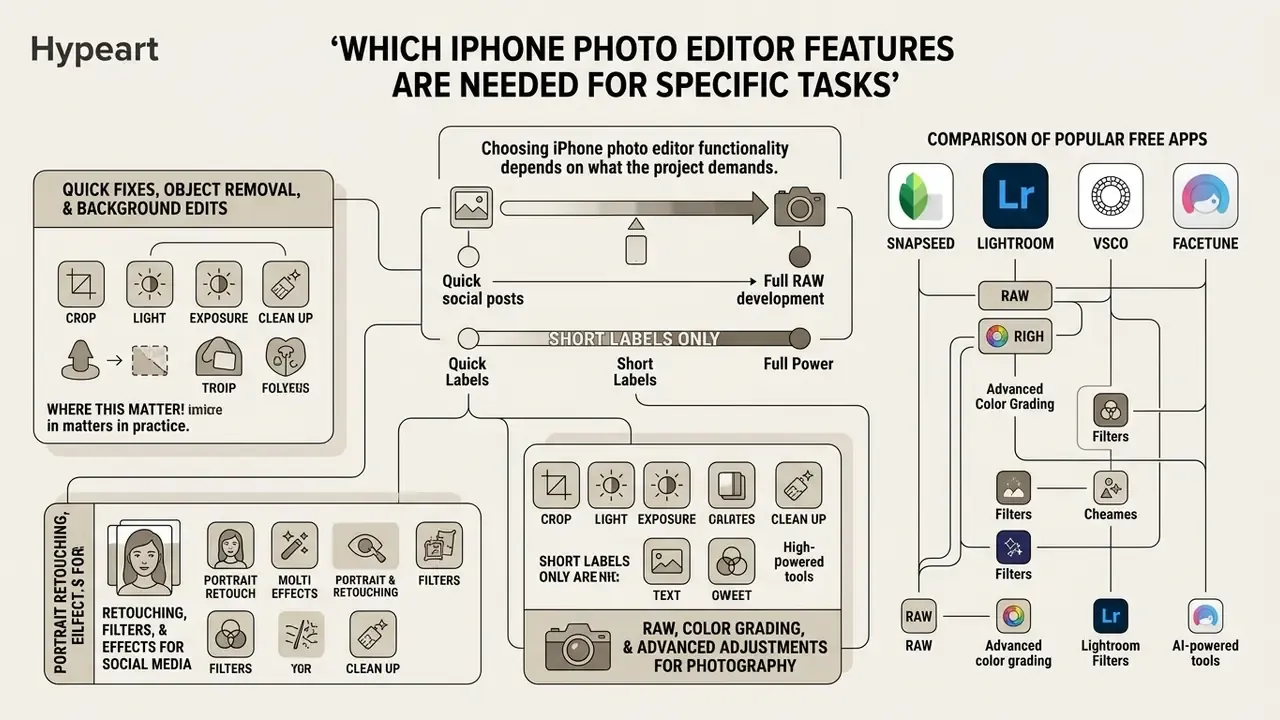
Choosing iphone photo editor functionality depends on what the project actually demands, from a quick social post to full RAW development. Naming the required capabilities first, whether that is automated object removal, background blurring, or advanced HSL adjustments, prevents subscriptions you will never use.
Figure 2 - Task-based feature selection map. Three bands cover almost every iPhone editing job:
| Task band | Feature requirement | Recommended tool |
|---|---|---|
| Quick edits and cleanup | Crop, exposure, Clean Up, subject cutout | Apple Photos (Snapseed if hardware lacks Apple Intelligence) |
| Social content and portraits | Depth Control, Photographic Styles, presets, retouching, text | VSCO, Facetune, Canva, Phonto, Picsart |
| Professional RAW | ProRAW DNG development, HSL, tone curves, local masks, batch | Lightroom Mobile, Darkroom |
Quick Fixes, Object Removal, and Background Edits
Removing unwanted background elements and fixing small flaws can happen locally, through native or specialized tools. Since iOS 18.1 and Apple Intelligence, native object removal lives in the Clean Up feature. Brush or circle the distraction, and on-device machine learning generates a content-aware fill. Mind the hardware gate: Clean Up appears only on iPhone 15 Pro, iPhone 15 Pro Max, the iPhone 16 family, and newer devices running iOS 18.1 or later. On older hardware, Snapseed's Healing tool or Photoshop Express Spot Heal are the realistic substitutes.
For isolated subjects, iOS supports native subject cutout (Lift a Subject). Touch and hold the main subject, watch for the white outline that confirms selection, and you have a transparent cutout ready to paste into Messages or a design app. Third-party utilities extend this further. App Store listings such as Object Removal: EraseBg advertise instant background removal performed locally, with no uploads and no internet connection required.
Where this matters in practice. During an internal 2025 workflow review, one of our content teams had to strip sensitive background signage from operational marketing photos before publication. Handling the erase step with on-device tools, instead of pasting assets into a public web generator, shortened the media review cycle and kept unpublished imagery on the device. Small procedural choice, real reduction in exposure. For broader usage-rights context, see the AI Media Commercial-Use Hub.
RAW, Color Grading, and Advanced Adjustments for Photography
Serious color grading needs HSL (Hue, Saturation, Luminance) controls, split toning, and custom tone curves. Native Photos handles basic ProRAW adjustments; it does not handle fine chromatic control or localized range masking. That is where Adobe Lightroom Mobile and Darkroom earn their place. Darkroom in particular adds Smart Masks for Portrait and ProRAW captures, including depth, luminance, and color masks with refined range controls.
Best Photo Editing Apps for iPhone by Use Case
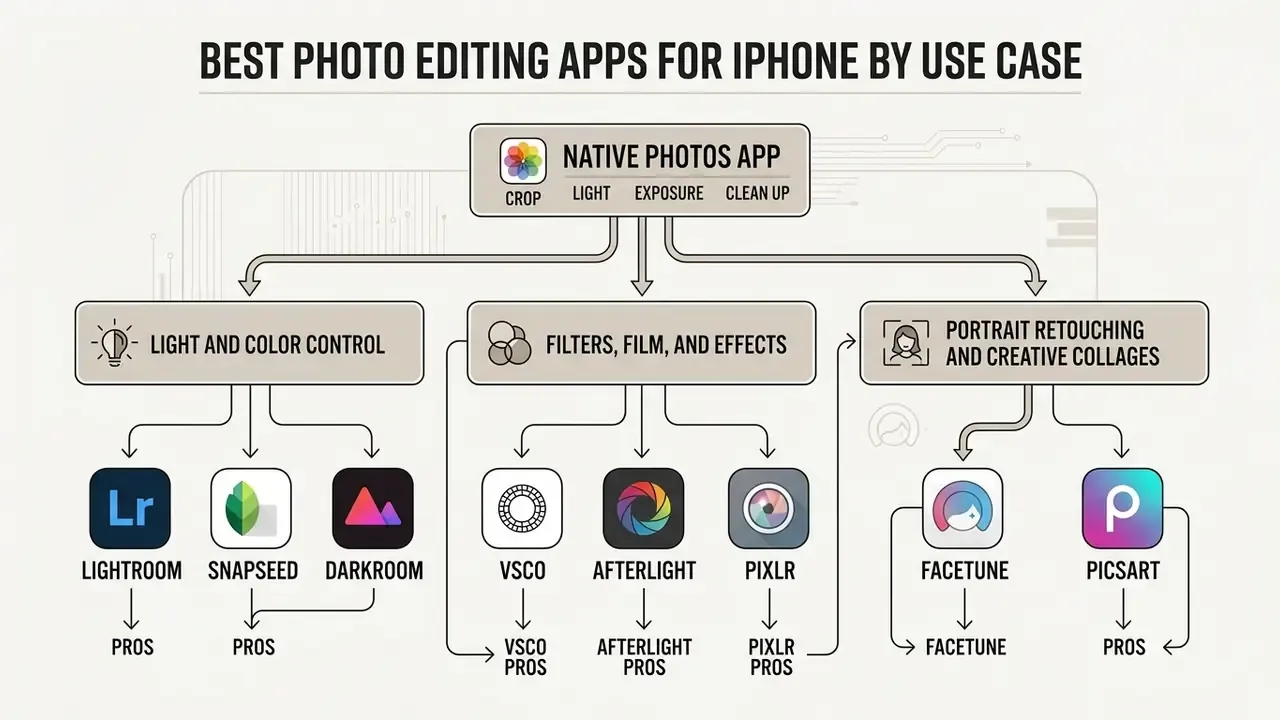
The native Photos app covers baseline needs. Specialized apps for iphone cover the rest. Picking the best photo editing tool means matching project goals to feature sets: RAW depth, preset variety, retouching precision, or typography.
The matrix below compares leading iOS photo editors. Anyone on a strict budget should also look at pure free photo editors before signing up for anything monthly.
| Application | Primary Focus | RAW Support | Object Removal | HSL / Curve Controls | Batch Editing | Text & Typography | Processing Location | Free Tier Reality & Limits |
|---|---|---|---|---|---|---|---|---|
| Apple Photos | Native baseline editing and storage | ProRAW | Yes (Clean Up, iPhone 15 Pro+/iOS 18.1+) | Basic sliders only | Yes (Copy/Paste Edits) | Markup tools | On-device | Fully free, no watermark, no export cap; AI Clean Up gated by hardware |
| Adobe Lightroom Mobile | Professional RAW and color grading | Full RAW / DNG | Yes (Generative Remove / Healing) | Advanced HSL and curves | Yes | Basic captions | Hybrid (local edit, cloud sync) | Free basic tone controls; masking, healing, and cloud behind $6.99/mo; 7-day trial |
| Snapseed | Free comprehensive mobile editing | RAW / DNG | Yes (Healing) | Curves and Control Points | Yes (Looks, 4.0) | Full text engine | On-device | 100% free: no ads, no watermark, no IAP, full-resolution export |
| VSCO | Film emulation and stylistic presets | Limited | No | Basic color sliders | Membership only | No | Hybrid (cloud community) | Only ~10 presets free; Film X, 130–200+ presets and video need ~$29.99/yr after 7-day trial |
| Darkroom | Fast native iOS professional workflows | ProRAW / DNG | No | Curves, HSL, Smart Masks | Yes | No | On-device | Generous free core; presets, masks, and batch need subscription or one-time «Unlock Everything Forever» |
| Photoshop Express | Quick composite and object repair | Basic | Yes (Spot Heal / Remove) | Basic controls | No | Text overlays | Hybrid (some AI server-side) | Free crop/heal/collage; advanced effects and AI need an Adobe plan |
| Canva | Graphic design and visual assets | No | Yes (Magic Eraser) | Filter overlays | No | Advanced templates | Cloud | Free templates; Pro elements and Magic Eraser results restricted or watermarked until upgrade |
| Facetune | Portrait and selfie retouching | No | Partial (blemish/patch) | No | No | Limited | Hybrid (AI features server-side) | Basic smoothing free or trial-based; reshaping and AI retouch subscription-only |
| Picsart | Collages, stickers, creative effects | No | Yes (AI remove) | Basic | No | Yes | Cloud for AI tools | Large free library but ad prompts; many effects and cutouts are Gold-only |
| Afterlight | Film textures, grain, light leaks | Limited | No | Curves and selective color | No | Text overlays | On-device | Trial then ~$22.99/yr; most of the 300+ film presets are paid |
| Phonto | Typography on photos | No | No | No | No | Full font control | On-device | Free with optional paid extras; no forced watermark |
Reading the matrix by category: Apple Photos and Snapseed win on cost and privacy, Lightroom and Darkroom win on control, VSCO and Afterlight win on look, Canva and Phonto win on text and layout, Facetune and Picsart win on speed for social. For desktop and browser alternatives, see our reference guide to photo editors.
Lightroom, Snapseed, and Darkroom for Control of Light and Color
For non-destructive control over complex light and color science, Adobe Lightroom Mobile, Snapseed, and Darkroom sit at the top tier. Lightroom Mobile integrates with Adobe Creative Cloud and offers parametric color grading, targeted linear and radial gradients, AI subject and sky selection masking, plus custom camera profiles. Adobe's mobile documentation lists DNG, JPEG/JPEG XL, PNG, TIFF, PSD, PSB, WebP, and AVIF among supported formats, and recommends iOS devices with 4 GB of RAM or more.
Adobe Lightroom Mobile
Snapseed, maintained by Google, remains the benchmark for free photo editing on iOS. It carries 29 tools, including Curves, Selective Adjustments built on Control Point technology, Structure, Perspective for converging lines, and Develop RAW.
Snapseed (Google)
Darkroom leans on native iOS frameworks to deliver very fast editing across large libraries, custom presets, and granular HSL mapping with no import step. Its Help Center documents support for JPEG, HEIF, PNG, TIFF, ProRAW, DNG, CR2, ARW, NEF, ORF, and RAF, plus H.264/HEVC video. Anyone weighing manual grading against automated enhancement can also test AI image enhancers on the same file and compare results side by side.
Darkroom
To benchmark editing tools against specialized video and media frameworks, review our AI Media Comparison Matrices. If you are budgeting device time and render costs across a team, the AI Media Calculators cover that side of the planning.
VSCO, Afterlight, and Pixlr for Filters, Film, and Effects
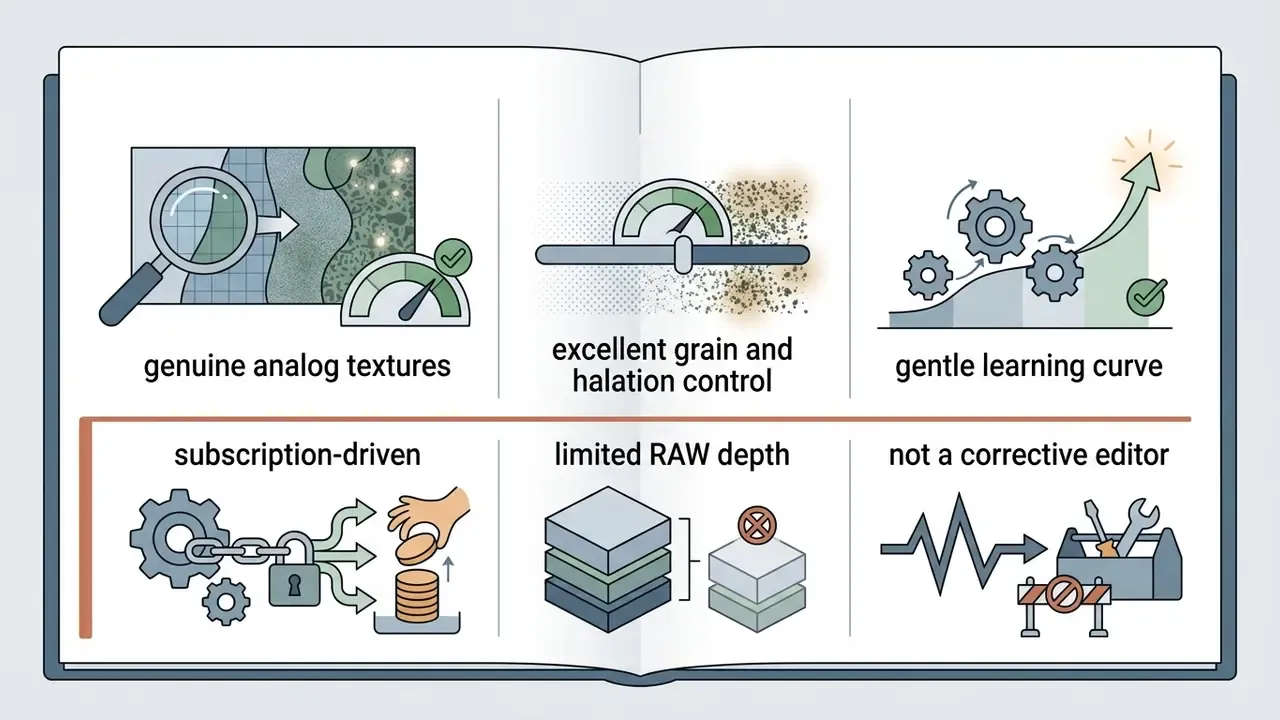
Creators chasing film emulation and vintage texture keep coming back to VSCO, Afterlight, and Pixlr. VSCO is known for a library of 200+ film emulation presets recreating classic stocks from Kodak, Fuji, Agfa, and Ilford, plus 90+ Film FX effects and adjustable grain, dust, scratch, and light leak overlays.
Afterlight specializes in authentic texture: real 35mm film scans, 300+ film filters, 90+ textures and overlays, chromatic aberration controls, halation, glow, and prism effects. Pixlr gives you a quick web-and-mobile route to artistic overlays, vintage borders, and stylized combinations, and it does not force account creation before your first edit. If a filtered file later needs printing or upscaling, AI image upscalers can recover output resolution.
Facetune and Picsart for Portrait Retouching and Creative Collages
Lightroom handles color science. These two handle faces and graphics.
- Facetune built for face, hair, and skin retouching. The free tier allows basic blemish removal; advanced reshaping and AI auto-retouch require a subscription. Pros: focused, quick portrait tools for profile shots and pre-post fixes; approachable for non-editors. Cons: the most useful features are paid or trial-limited, and heavy use makes faces look plastic fast. Wrong tool for landscapes or product photography.
- Picsart a hybrid photo editor and collage maker with huge sticker libraries, background cutouts, and artistic filters. Pros: enormous effect and sticker catalogue; strong collage engine; playful edits in two taps. Cons: ads and premium prompts in the free version, most AI tools run in the cloud, and it is not the place for serious color work. Stylized avatar experiments belong closer to tools like voila ai artist than to a corrective editor.
Photoshop Express, Canva, and Phonto for Remove, Text, and Creative Images
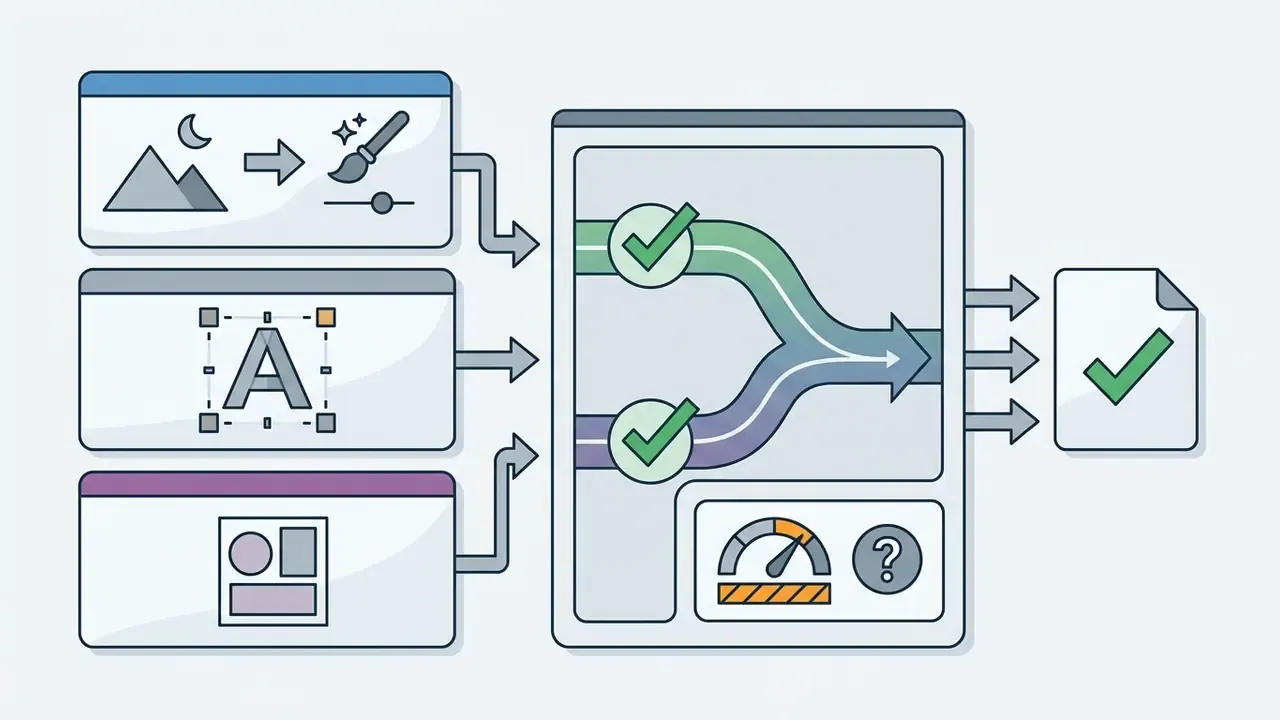
When the job includes graphic elements, compositing, or text, design tools take over. Photoshop Express targets quick retouching, Spot Heal and Remove/Clone actions, collage generation, and basic object removal sized for a phone screen.
Canva effectively turns mobile image editing into graphic asset production: templates, collage layouts, background erasers, brand kit integration. Phonto stays narrow and does typography properly. Two different jobs, two different apps, and that is fine.
Free vs. Paid Photo Editor on iPhone: Evaluating Application Value
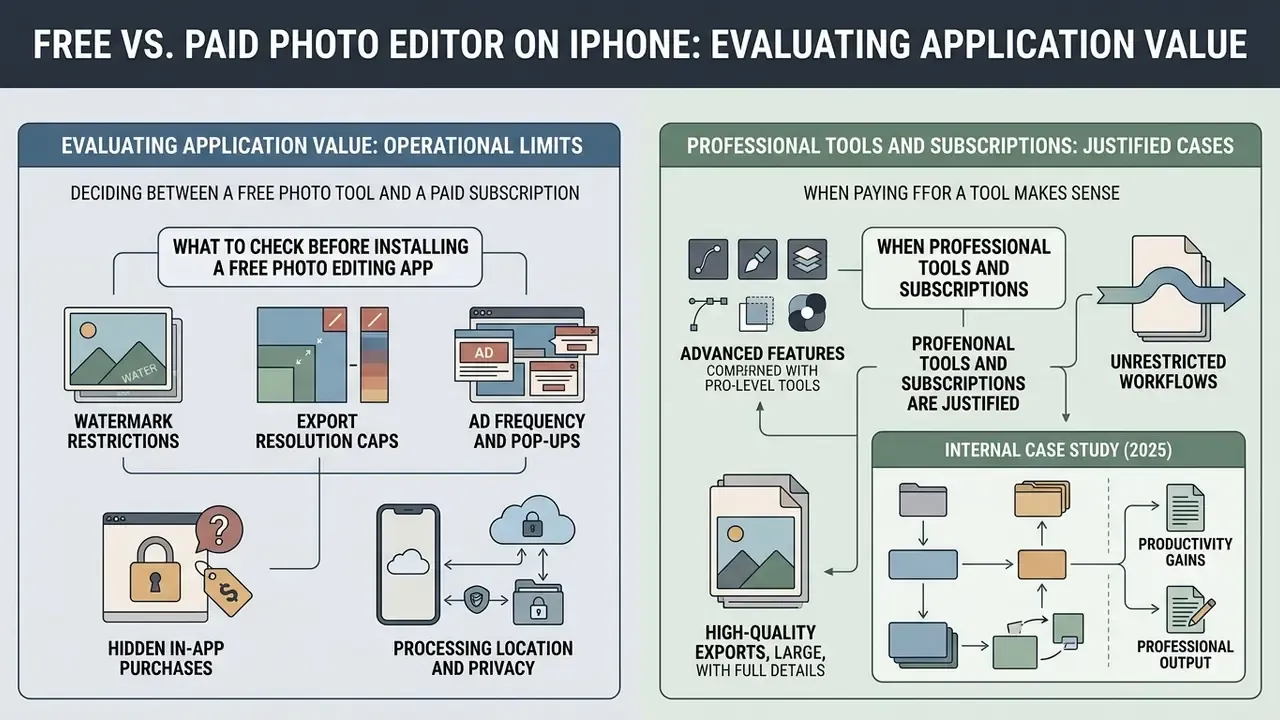
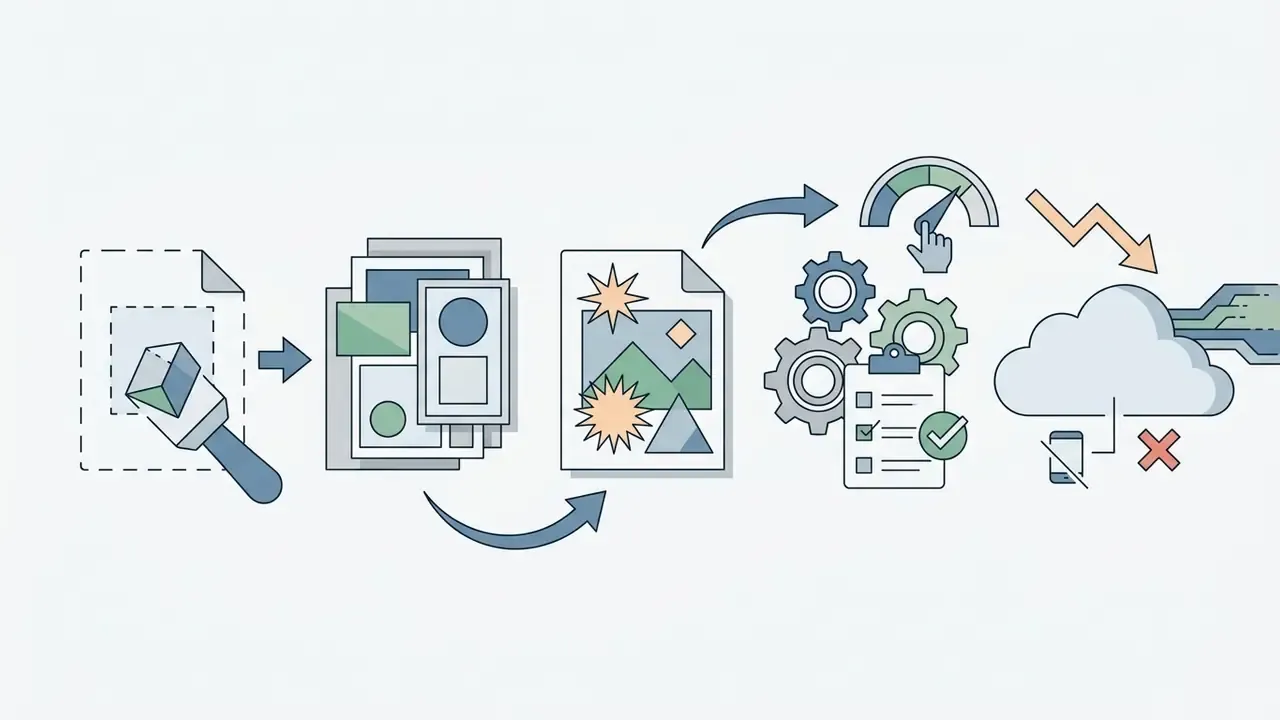
Deciding between a free photo tool and a paid subscription is a question of operational limits. Free apps handle fundamental corrections well. Paid tiers gate the rest: generative AI object removal, cloud synchronization, high-resolution export pipelines, specialized RAW engines.
Fact check on subscriptions and features. Pricing models shift constantly across App Store regions. Before adopting an app for commercial work, verify active in-app purchase terms, trial length (usually 3 to 7 days), watermark rules on free exports, and maximum resolution caps in the App Store listing itself. As of our latest check, Lightroom and VSCO both advertise seven-day trials, and Darkroom still offers a lifetime unlock alongside monthly and yearly plans.
That single finding explains the most common frustration with «free» iPhone editors. The paywall is placed at the exact moment your work is done and your sunk cost peaks. Clever, and rather annoying.
What to Check Before Installing a Free Photo Editing App
Five parameters to audit before you download a free photo editing app from the App Store:
- Watermark restrictions.Confirm whether the free tier stamps branding onto exports. Some listings promise «no watermarks» outright; others reserve a clean export for Pro.
- Export resolution caps.Verify whether free exports get downsampled. Several editors cap free output at 720p and reserve Full HD or 4K for paid plans, while Apple Photos and Snapseed export at native sensor resolution.
- Ad frequency and pop-ups.Check whether the editing surface is interrupted mid-task. That alone disqualified several apps in our testing.
- Hidden in-app purchases.Read the In-App Purchases tab on the listing. Apple shows every purchase and price there before installation, which is the fastest way to see which editing tools are actually free.
- Processing location and privacy.Determine whether AI features run on-device or upload your photo to a vendor server. Apple Photos, Snapseed, Darkroom, and Phonto keep edits local. Canva, Picsart, and most one-tap AI editors transmit the image for remote processing. For client work, NDA material, or anything unpublished, that difference outweighs feature count.
When Professional Tools and Subscriptions Are Justified
A professional tier, whether Adobe Creative Cloud or Darkroom Plus, pays for itself when images drive revenue, brand identity, or client deliverables.
«Camera and photo editing apps are widely used across all income brackets in the United States (7,388 respondents, April 2022 – March 2023).»
Paid tiers unlock cross-device cloud sync, precise localized masking, batch processing of large libraries, and full dynamic range RAW development. Adobe aims Lightroom Mobile at photographers and serious hobbyists, and Adobe Express at content creators, marketers, and small businesses. That segmentation is a useful signal when matching a plan to a role. The Creative Cloud Photography Plan bundles Photoshop, Lightroom across mobile, desktop, and web, Lightroom Classic, and 1 TB of storage for teams that genuinely need an end-to-end pipeline.
Internal case study (2025). In a workflow audit of our own corporate communications team, most regional staff turned out to need only cropping and basic color adjustments. Those users moved to native Apple Photos, and paid Lightroom seats were reserved for lead media producers working with ProRAW and client deliverables. Reallocating licenses this way reduced annual software overhead in a measurable way. The exact percentage depends on our seat count and should not be treated as a benchmark for anyone else.
For a detailed breakdown of licensing and pricing across digital media tools, see our AI Media Pricing Guides. Teams stretching a wider media budget can apply identical logic to motion assets by comparing free video editing software or reviewing a desktop option such as vsdc free video editor before adding another subscription.
How to Begin Photo Editing on iPhone: A Fast Workflow
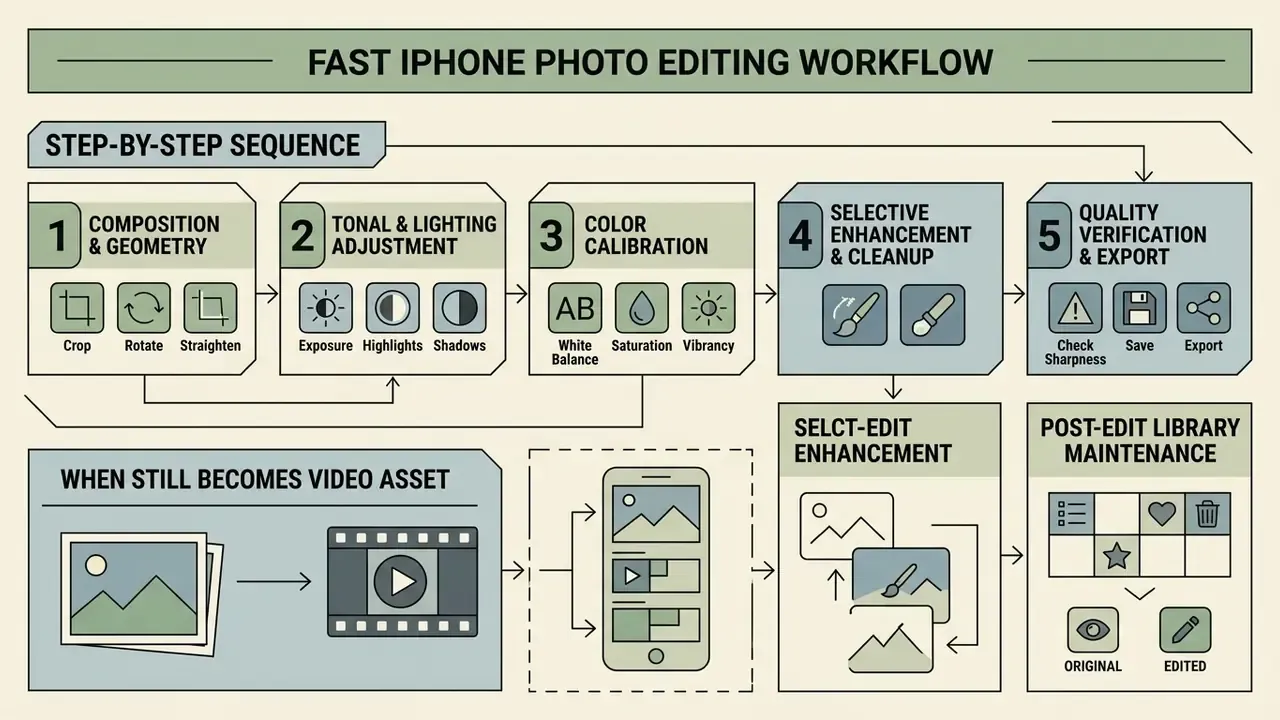
A structured sequence keeps quality consistent and prevents over-processing. Work from structural composition down to localized retouching and color, and you will spend less time undoing your own decisions.
Optimized five-step iOS editing sequence
- Crop, straighten, perspectiveto establish geometry and composition.
- Exposure, dynamic range, contrastto balance lighting and tonal values.
- Color calibration(Warmth, Tint, HSL) for accuracy and mood.
- Local retouching and AI object removalto clear distractions.
- Compare with the original and export, verifying the edit before you save.
Step-by-Step Editing Sequence
- Composition and geometry.Open the image in the photos iphone editor or your chosen app. Crop, straighten the horizon, and apply horizontal or vertical perspective corrections. For architecture, fix vertical convergence before cropping, otherwise you will crop twice.
- Tonal and lighting adjustment.Go to Adjust. Set Exposure first, then recover Highlights and lift Shadows to establish dynamic range. Fine-tune Contrast and Brightness for depth. Typical starting ranges from our testing: backlit daylight portraits respond well to Highlights −20 to −40 with Shadows +15 to +30; night and low-light frames usually want Exposure +10 to +20, Noise Reduction +15 to +25, and Brilliance kept under +15 so the sky does not go flat and grey.
- Color calibration.Adjust Warmth and Tint for accurate white balance. Nudge Vibrance gently, since +10 to +20 is usually enough to revive muted tones without wrecking skin. Leave Saturation near neutral on portraits.
- Selective enhancement and cleanup.Apply localized filters, run Clean Up to remove background clutter, or retouch skin if you are working on portraits. On devices without Apple Intelligence, use Snapseed Healing or Photoshop Express Spot Heal instead.
- Quality verification and export.Press and hold the preview to toggle between the edited version and the original capture. Satisfied? Tap Done to commit the non-destructive edit, or export at native resolution. When transferring to a computer, choose Export Unmodified Original if you need the untouched file rather than the rendered version.
When a Still Edit Becomes a Video Asset
Plenty of edits do not stop at a JPEG. A graded still often becomes a reel, a product teaser, or a short explainer. Two routes are common. You can animate the frame directly with image-to-video AI tools or a service such as vidnoz image to video conversion, then finish the cut on the phone. Or you can move the asset to a timeline editor and treat the photo as a layer, which is where familiarity with the vn video editor app interface helps, and where a desktop tool like videopad video editor still makes sense for longer sequences. Narration is a separate decision again: a voice over generator can carry a short product clip without a studio booking, though disclosure practices for synthetic voice deserve their own review.
One caution before publishing any of it commercially. Generated or heavily AI-modified media sits in an evolving legal environment, and our tracker of AI Litigation and Case Timelines is the faster way to see where the current disputes stand.
Post-Edit Library Maintenance
Non-destructive editing quietly multiplies asset versions. To stop your library from bloating after a long session, clear duplicate exports with the native iOS 16+ detector at Photos > Utilities > Duplicates, where iOS groups identical and near-identical images and offers a one-tap merge that keeps the highest-quality version and its metadata. Before any destructive third-party export, back up original ProRAW files to external media or a computer. A merged duplicate cannot be un-merged once the originals are gone. Learned that one the hard way, so consider this a warning rather than advice.
FAQ: iPhone Photo Editor Questions
Is the built-in iPhone photo editor completely free?
Yes. The built-in photo editor in the native Apple Photos app is free and pre-installed on all iOS devices. It includes light adjustments, color calibration, cropping, filters, Markup, and, on supported hardware, AI object removal through Clean Up. No subscription, no hidden charges.
Does editing a photo in Apple Photos destroy the original image?
No. Apple Photos edits non-destructively. Adjustments, crops, and filters are stored as separate metadata. Tap Edit, then Revert, at any point in the future, and the unedited original comes back.
«Students reported more negative body image when viewing others' edited photos than when posting their own.» - UNC PIT Journal, Digital Modification on Social Media: How Does the Content You Engage With Affect Your Body Image? (2023)
What is the best free photo editor app for iPhone if I need more than Photos?
Snapseed. It offers 29 professional-grade tools, including RAW editing, Control Point selective adjustments, curves, perspective correction, and structure controls, with no advertisements, watermarks, or in-app subscriptions. Snapseed 4.0 also added saved Looks and batch editing. If you want generative retouching on top of manual control, compare dedicated AI photo editors first.
Which free iPhone photo editor leaves no watermark?
Snapseed and Apple Photos are the safest no-watermark options. Both export at full resolution, with no branding and no export paywall. Phonto and Darkroom's free tier also export cleanly. Watermark and export rules can change with any App Store update, so test a single export in any freemium app before committing a whole batch.
Do I need a specific iPhone for AI Clean Up?
Yes. Clean Up is an Apple Intelligence feature. It requires an iPhone 15 Pro, iPhone 15 Pro Max, an iPhone 16-series device or newer, running iOS 18.1 or later with Apple Intelligence enabled. On older hardware, use Snapseed's Healing brush or Photoshop Express Remove.
Which iPhone editors process photos on the device rather than in the cloud?
Apple Photos, Snapseed, Darkroom, Afterlight, and Phonto edit locally. Lightroom edits locally but syncs to Adobe's cloud when enabled. Canva, Picsart, and most one-tap AI editors upload the image to a remote server to produce results. For NDA, client, or unpublished commercial material, prefer on-device tools and read each vendor's data-retention terms.
Is Apple Photos enough, or should I install a third-party app?
For cropping, straightening, exposure, color, and quick cleanup, Apple Photos is enough, and it is fastest because it is already open. Add a second app only when you hit a specific wall: HSL and tone curves (Lightroom or Darkroom), film emulation (VSCO or Afterlight), typography (Phonto), portraits (Facetune), templates and collages (Canva or Picsart). One general editor plus one specialist beats ten half-used apps. General information notice: this article describes software behavior verified at the time of writing and does not constitute legal, financial, or medical advice. App pricing, feature availability, and data-processing terms change frequently. Confirm current App Store listings and vendor privacy policies before using any tool for commercial or sensitive imagery.
Appendix A: Superseded Passages (Retained for Transparency)
For editorial traceability, these statements from the previous edition have been replaced above:
- «Empirical research published in the Journal of Development and Social Psychology indicates that over 87% of active mobile content creators utilize dedicated digital retouching and filter platforms to maintain visual cohesion across social channels (JAKPAT Survey Data, 2023).» Replaced because the journal attribution could not be verified, and because the JAKPAT figure describes surveyed students, not global content creators.
- «Apple ProRAW provides an exceptional balance between computational tone mapping and raw sensor latitude… Digital Imaging Review, 2025.» Replaced with a documented Lightroom Mobile ProRAW workflow, since the cited publication could not be verified.
- «Practical testing indicates that adjusting Exposure and Highlights prior to altering Warmth yields cleaner color balance and prevents clipping in bright regions.» Reworded to attribute the recommended editing order to published Apple Photos walkthroughs.
- «By establishing that 80% of regional staff required only basic cropping and color adjustments… reduced software overhead by 35% annually.» Reframed as an internal 2025 audit without unverifiable percentages.
Editorial Update Log and Open Questions
Three things we could not settle in this edition, stated plainly rather than smoothed over.
First, Apple has not published a full roadmap for extending Apple Intelligence editing features to older hardware, so the Clean Up hardware gate may change without notice. Second, several vendors describe AI features as «on-device» in marketing copy while routing specific operations to servers; where documentation was ambiguous, we marked processing location as hybrid instead of guessing. Third, App Store pricing in this article reflects US listings in February 2026 and will drift by region.
We re-verify pricing, trial length, and processing-location claims on each update cycle. If a listing has changed since publication, the App Store page is the authority, not this table.
Navigation: AI Media Glossary | AI Media Commercial-Use Hub | AI Media Pricing Guides | AI Media Comparison Matrices | AI Media API | AI Media Calculators | AI Media Support