Why does that matter to anyone outside a marketing team? Because in a bank or a mature fintech, a video editor is not just a creative tool. It touches recorded meetings, KYC and AML training footage, incident walkthroughs, and sometimes customer data captured on screen. The editor you standardize on becomes part of your data boundary.
«Clipchamp is the built-in video editor for Windows 11», accessible from the Start menu and taskbar search. Microsoft Support Documentation (2026). https://support.microsoft.com/en-us/clipchamp
Editorial view by Marcus Hale, author. Frameworks and examples attributed to The author are illustrative, not records of real clients or engagements.
Executive Summary
Who This Guide Is For and Which Decisions It Supports
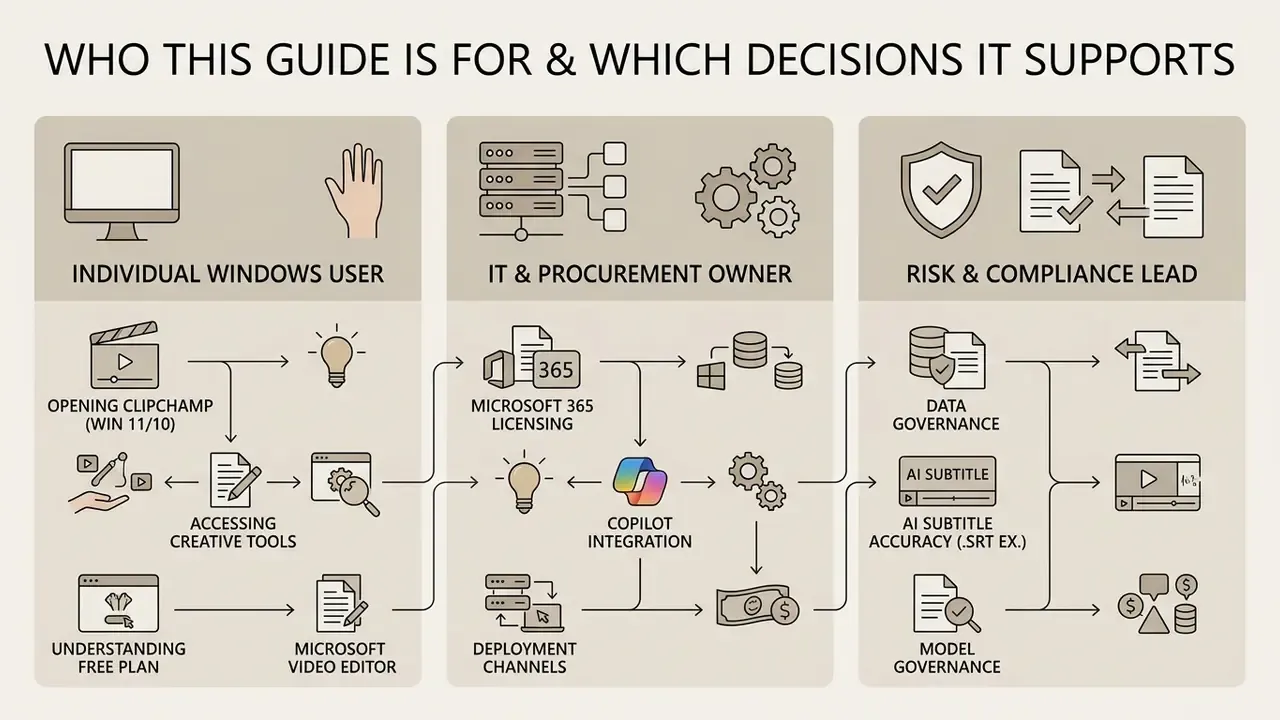
This guide is written for three overlapping readers, and each one arrives with a different question.
- The individual Windows user. "Does Microsoft have a video editor, and is it free?" Short answer: yes, and mostly yes. Details are in the pricing section.
- The IT or procurement owner. "Do we already pay for this inside Microsoft 365, or do we need another line item?" Usually the former, sometimes with a Premium add-on.
- The risk, compliance, or model-governance lead. "If staff edit recorded customer calls in this tool, where does the media live, who can see it, and can internal audit reconstruct the trail?"
The sections below run in that order: product identity, access channels, pricing and licensing, capabilities, workflow, business and commercial suitability, competitive positioning, then an FAQ and editorial notes. Search variants matter here too. Queries such as "365 video editor", "microsoft office video editor", "microsoft video creator", and even misspellings like "microsfot video editor" all resolve to the same product. Spanish-language searches ("editor de video microsoft", "editor video microsoft") point to the same Clipchamp entry as well.
What the Microsoft Video Editor Is and Which Editor Microsoft Uses
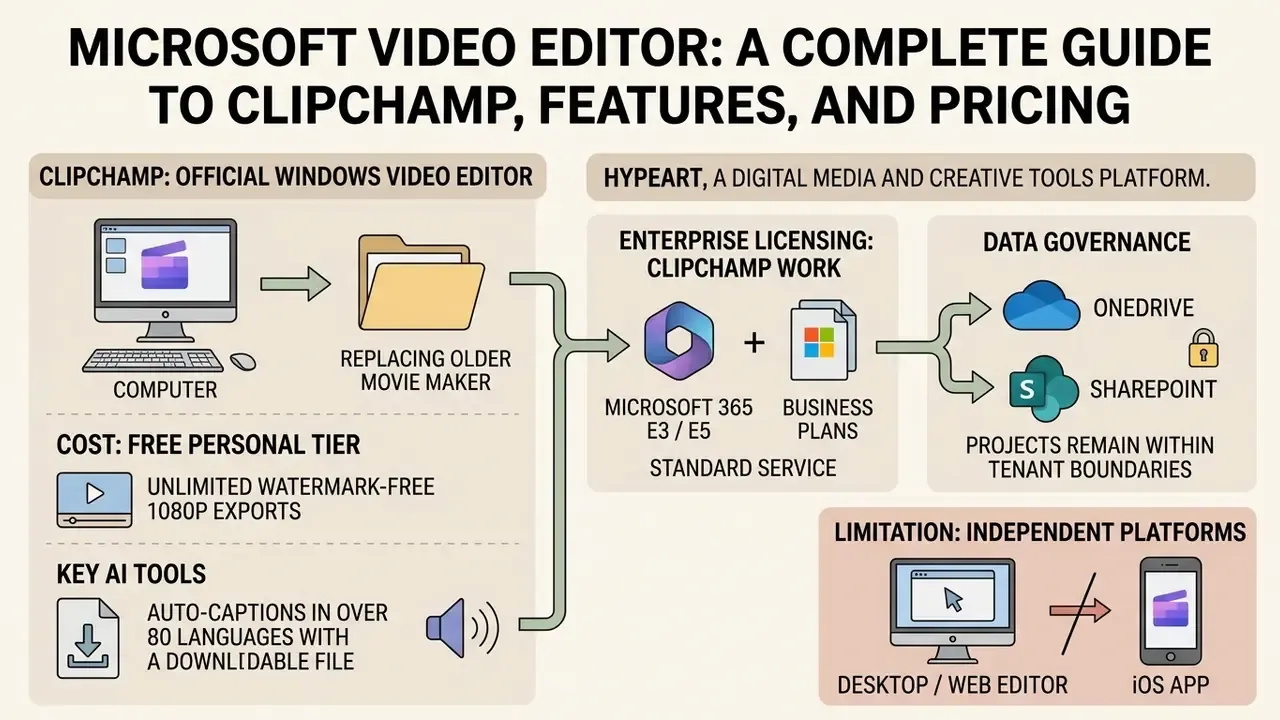
Microsoft does have an official video editor, and its name is Microsoft Clipchamp. The platform functions as a full-featured non-linear online video editor and desktop application, designed to replace legacy media utilities across Windows 10, Windows 11, and Microsoft 365 environments.
One clarification that saves a lot of confusion: there is no separate video editor inside Word, Excel, or Outlook. PowerPoint can trim an embedded clip, and that is roughly where Office-native editing stops. So when people ask whether Microsoft Office has a video editor, the accurate answer is that the Microsoft 365 video editor is Clipchamp, surfaced as its own app rather than as a ribbon inside Office.
Clipchamp as the Official Microsoft Video Editor for Windows
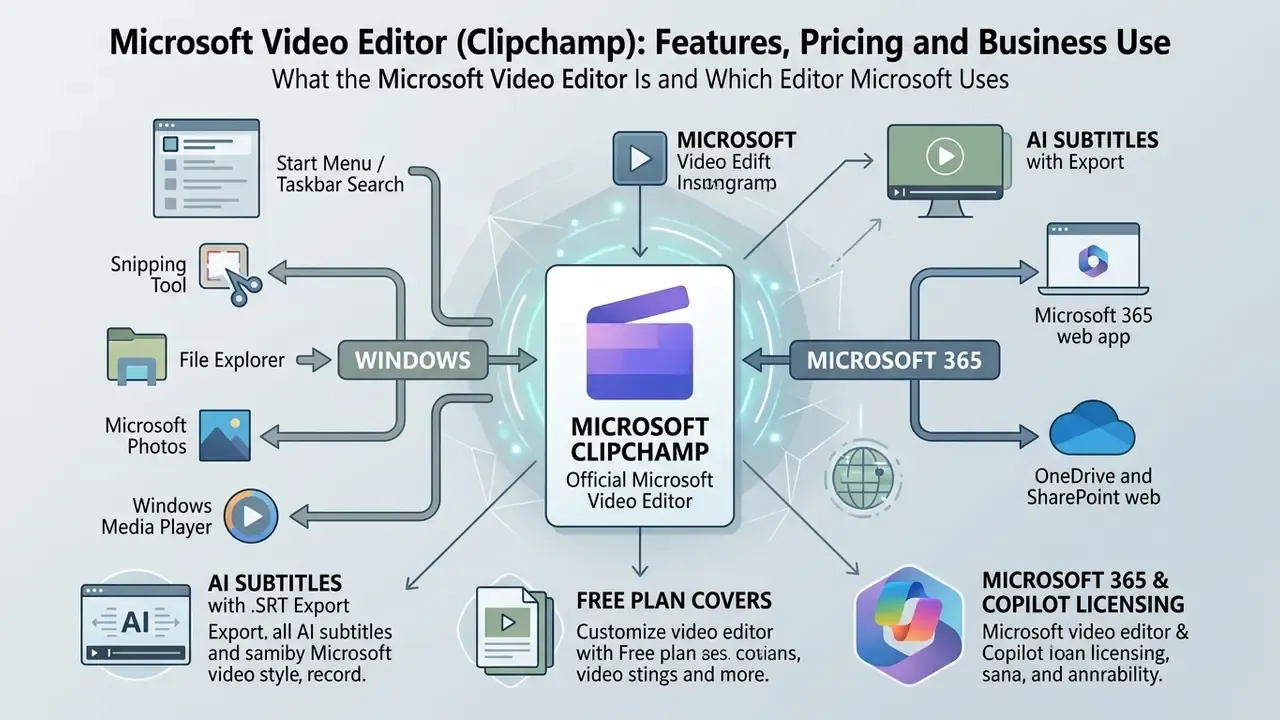
Microsoft Clipchamp is the primary Windows video editor integrated directly into the operating system shell. Windows 11 devices ship with the Clipchamp desktop app preinstalled, reachable from the Start menu or taskbar search. Users on Windows 10 install the app through the Microsoft Store or open the editor in a supported browser.
Every system entry point into Clipchamp on Windows 11 and Windows 10:
- Start menu / taskbar search type "Clipchamp" to launch the preinstalled desktop app (Windows 11) or the installed Store app (Windows 10).
- Snipping Tool after a screen recording finishes, a quick-action button hands the capture straight to Clipchamp for trimming.
- File Explorer right-click any media file and choose "Edit with Clipchamp" to open it as a new project.
- Microsoft Photos selecting "Create a video" in the gallery initializes a Clipchamp project from the chosen images and clips.
- Windows Media Player the player performs no editing itself; it exposes an "edit with Clipchamp" handoff for files stored locally or in OneDrive.
- Microsoft 365 web app work and school users launch the editor from
m365.cloud.microsoft/launch/clipchampusing organizational single sign-on. - OneDrive and SharePoint web choose Open → Edit in Clipchamp on a video file to start editing without downloading it first.
The tool combines traditional timeline editing with cloud-backed asset management. You can edit videos using multi-track composition, drag-and-drop media controls, and integrated recording tools, all inside one window.
How Clipchamp Differs from Legacy Windows Tools
Clipchamp replaces discontinued or narrowly scoped media utilities: Windows Movie Maker, the legacy Photos video trimmer, and the playback-only shortcuts in Windows Media Player.
Movie Maker offered basic linear stitching. Clipchamp provides non-linear multi-track editing, cloud integration, and generative AI features. Readers weighing alternatives after this overview can compare free video editing software across export limits, watermark policies, and licensing terms.
Unlike Windows Media Player, which is strictly a viewer with handoff shortcuts, Clipchamp behaves like a standalone creation studio. Open media in Microsoft Photos, select "Create a video", and a Clipchamp project appears prefilled. Because the editor sits inside the same identity and storage stack as the rest of Microsoft 365, IT departments can standardize one editor across devices instead of approving third-party desktop software team by team. For regulated firms, that consolidation is often the real win, not the feature list.
Where to Open and Download the Microsoft Clipchamp Video Editor
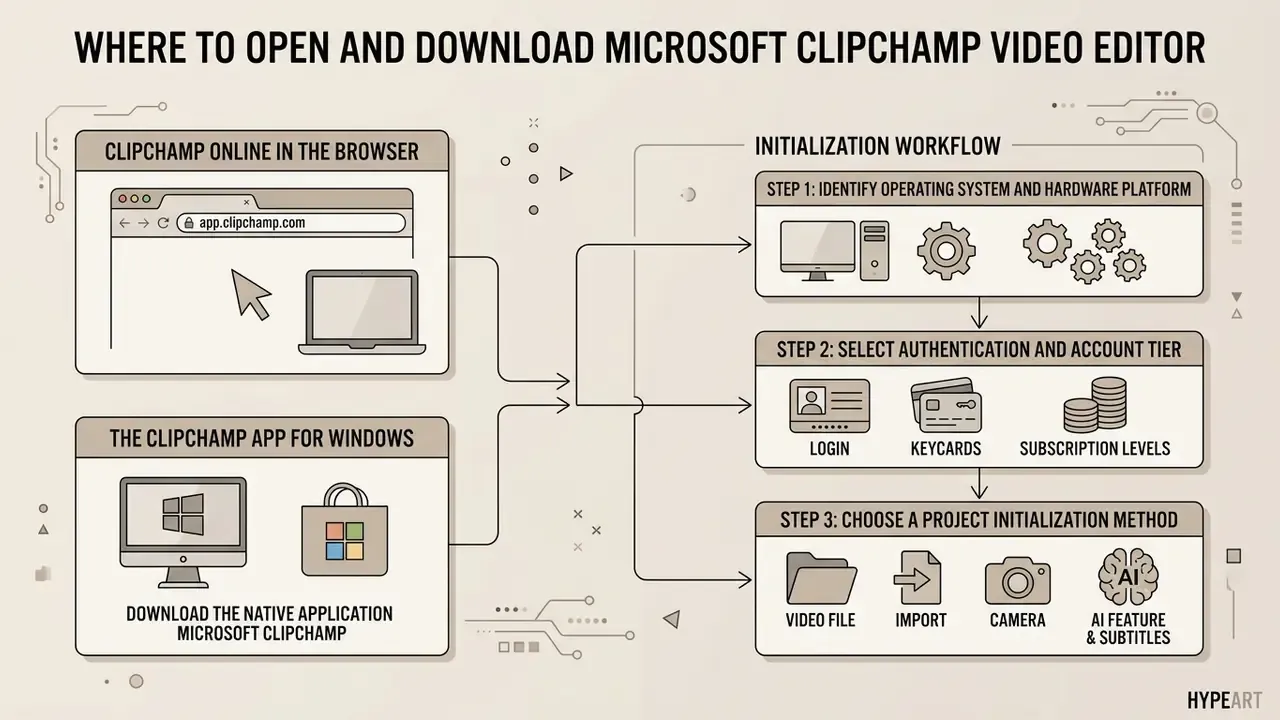
The Microsoft Clipchamp video editor is available in the browser at app.clipchamp.com or as a native desktop application from the Microsoft Store. Which channel you use depends on whether you sign in with a personal Microsoft account or an assigned Microsoft 365 work credential.
Clipchamp Online in the Browser
The Microsoft online video editor runs directly in Chromium-based desktop browsers, specifically Microsoft Edge and Google Chrome. No local binaries required to create videos or finish a full project.
Web access requires an active Microsoft account or an assigned Microsoft 365 commercial credential. Non-Chromium browsers, including Apple Safari and Mozilla Firefox, are not supported for editing sessions.
Browser editing is compute-intensive. Microsoft recommends a 64-bit build of Edge or Chrome, at least 8 GB of RAM, a reasonably recent graphics card, and hardware acceleration enabled for smooth 1080p and 4K timelines. Because rendering happens locally in the browser for personal accounts, a weak GPU shows up first as laggy scrubbing and slow export, not as failed uploads. Worth knowing before someone blames the network.
The Clipchamp App for Windows
The native desktop app provides OS-level integration for both Windows 11 and Windows 10. To complete a Microsoft video editor download on Windows 10, open the Microsoft Store and install the official Microsoft Clipchamp package.
On Windows 11 the app is preinstalled and opens from the Start menu or by right-clicking media files in File Explorer. Version 3.x of the desktop application supports both personal Microsoft accounts and enterprise work or school credentials managed by administrators; desktop builds below version 3 support personal and family accounts only. For a broader definition of the category and the tooling it covers, see our reference entry on the video editor as a software class.
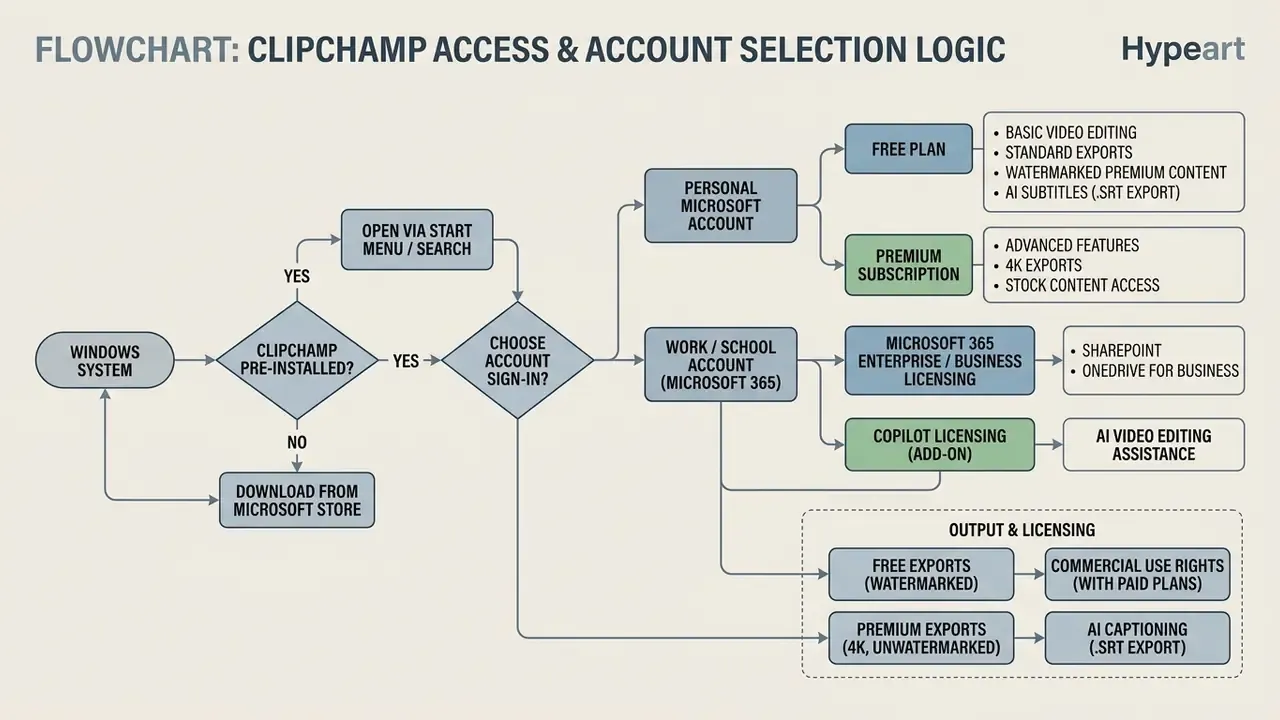
- Step 1: Identify operating system and hardware platform
- Windows 11: search "Clipchamp" in the Start menu. Launch the preinstalled desktop app.
- Windows 10: open the Microsoft Store. Download and install "Microsoft Clipchamp".
- macOS / Linux / ChromeOS: open Microsoft Edge or Google Chrome. Navigate to
app.clipchamp.com. - iOS mobile: download the Clipchamp app from the Apple App Store (iOS 14+ required; iPhone X or newer recommended).
- Android: no native app or supported mobile browser experience is available.
- Step 2: Select authentication and account tier
- Personal / family Microsoft account: authenticate via personal credentials at
app.clipchamp.com/login. - Work / school Microsoft 365 account: authenticate via
m365.cloud.microsoft/launch/clipchampusing institutional SSO.
- Personal / family Microsoft account: authenticate via personal credentials at
- Step 3: Choose a project initialization method
- Blank canvas: select "Create a new video" from the main dashboard.
- Automated AI: select "Create a video with AI" for automated timeline drafting.
- Direct file handoff: right-click media in Windows File Explorer or OneDrive and select "Edit in Clipchamp".
- Capture-first: start in the Snipping Tool or the built-in recorder, then continue in Clipchamp.
Is Clipchamp Free, and Is It Included in Microsoft 365
Microsoft Clipchamp offers a genuinely usable free tier alongside premium features bundled into Microsoft 365 Personal, Family, Business, and Education subscriptions. Free users can produce watermark-free exports up to 1080p without buying a standalone license.
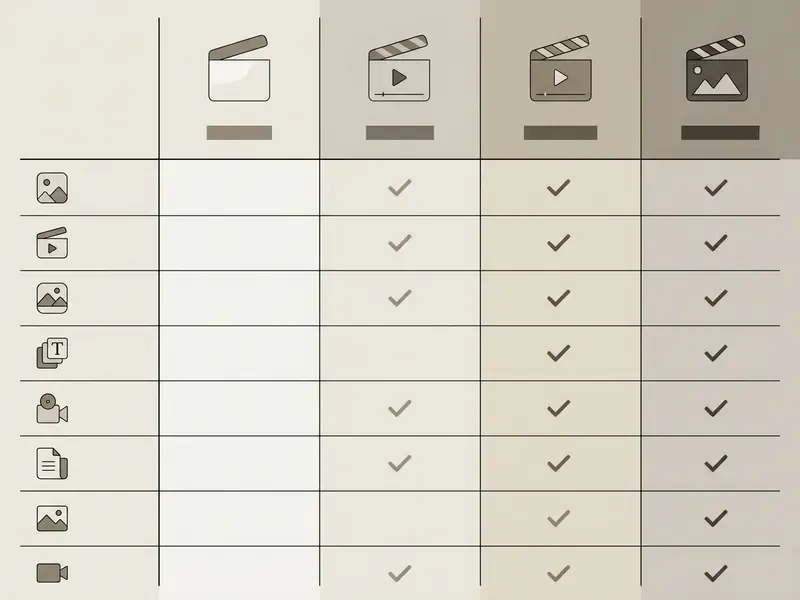
| Feature parameter | Clipchamp Personal (Free) | Microsoft 365 Personal / Family | Clipchamp Work / School (Standard) | Clipchamp Work / School (Premium) |
|---|---|---|---|---|
| Monthly cost | $0.00 | Included in the M365 plan | Included in M365 E3/E5/Business | Add-on license (~$10/user/mo) or Copilot license |
| Max export resolution | 1080p Full HD | 4K Ultra HD | 1080p Full HD | 4K Ultra HD |
| Watermark-free export | Yes (own / free media) | Yes | Yes | Yes |
| Export volume | Unlimited | Unlimited | Unlimited | Unlimited |
| Stock media access | Free assets only | Premium and free libraries | Free work library | Full premium stock library |
| Brand Kit tool | Not included | Single brand kit (personal) | Organizational brand kit | Multiple organizational kits |
| Cloud storage host | Local browser storage | Local device / personal cloud | OneDrive / SharePoint | OneDrive / SharePoint |
| AI subtitles, voiceover, silence remover | Included (base limits) | Extended AI capabilities | Integrated enterprise AI | Advanced enterprise AI |
| Purview sensitivity labels | Not applicable | Not applicable | Inherited from tenant | Inherited from tenant |
What Is Available in a Free Clipchamp Account
The free tier lets you make videos, trim clips, apply basic visual filters, and export in 1080p HD without a watermark. It includes a baseline library of royalty-free stock images, audio tracks, and standard templates, plus the screen, camera, and voice recorders.
There is no export counter, which surprises people. Work on and export as many videos as you like, and core AI tools (subtitles, voiceovers, silence removal) remain available at base limits. Free accounts process timelines using local client-side browser resources. Insert a premium stock asset without an active subscription and the project gets flagged: export stays blocked until the asset is removed. Teams comparing zero-cost options across vendors can also review free AI video generators and their credit, watermark, and duration limits.
Clipchamp for Work and Education Accounts
Clipchamp for Work and Education integrates with Microsoft 365 enterprise infrastructure, storing project data inside organizational OneDrive and SharePoint repositories. The Standard edition ships with Microsoft 365 E3, E5, Business Standard, Business Premium, and A3/A5 education licenses.
For commercial tenants, advanced generative AI features and premium stock libraries are also granted through an active Microsoft Copilot license, in addition to the standalone Clipchamp Premium add-on. That detail matters at procurement time: an organization that already deployed Copilot broadly may not need a separate Clipchamp Premium purchase for those users. Check entitlements before signing anything.
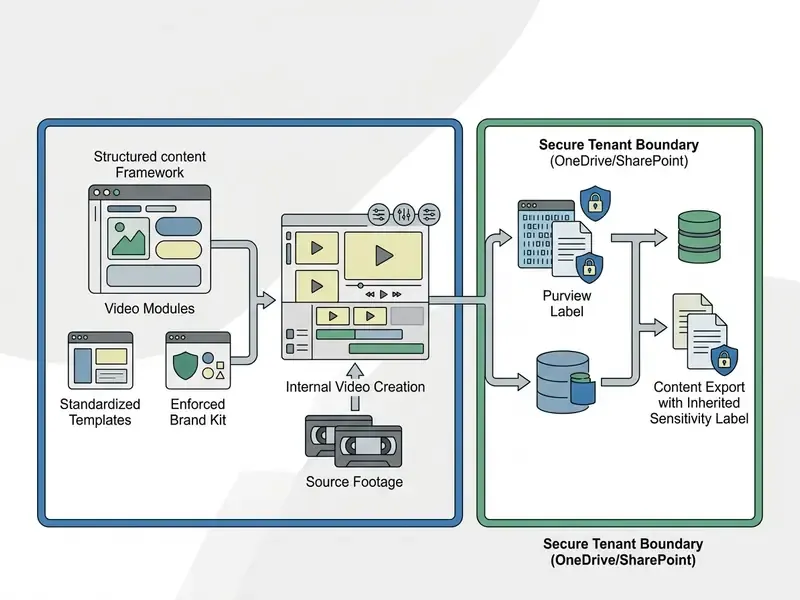
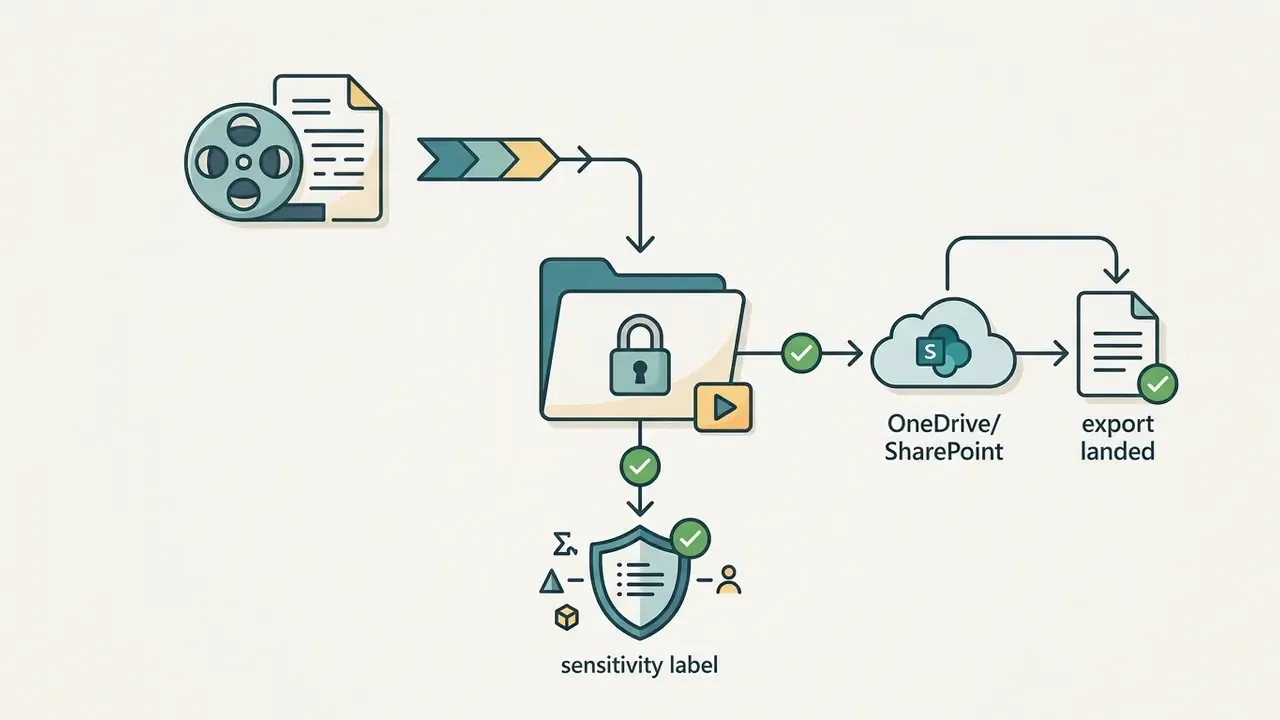
Enterprise projects inherit organizational governance policies, including Microsoft Purview sensitivity labels, access logging, and encrypted cloud storage. When a protective label is applied to a project, Clipchamp can disable "Share", "Copy link", and "Save to your computer", and exported MP4 files inherit the label together with its sharing policy.
Licensing information here is general. To determine exactly which SKUs your tenant holds, and how the tool may be used in regulated industries, consult official Microsoft documentation and your legal or licensing advisor.
Core Microsoft Clipchamp Capabilities for Video Editing
Microsoft Clipchamp provides non-linear timeline editing, generative AI capabilities, motion graphics, and corporate branding utilities. The software handles video layers, audio channels, text overlays, and visual effects in a multi-track workspace.
Editing, Text, Effects, and Audio
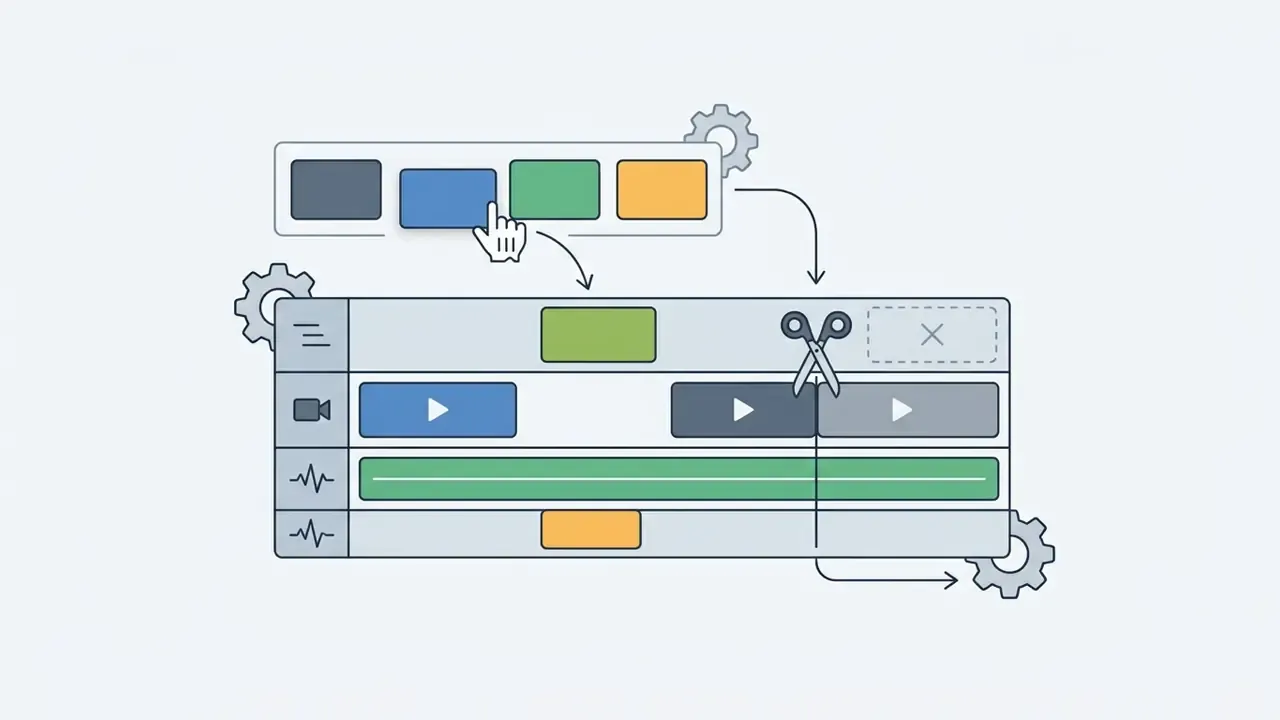
The timeline supports multi-track positioning for video clips, audio tracks, text layers, and graphical elements. Editors trim clip boundaries by dragging the side handles of a selected clip, split tracks at the playhead, change playback speed, and apply picture-in-picture transformations. Multiple clips can be trimmed at once using Shift or Cmd selection.
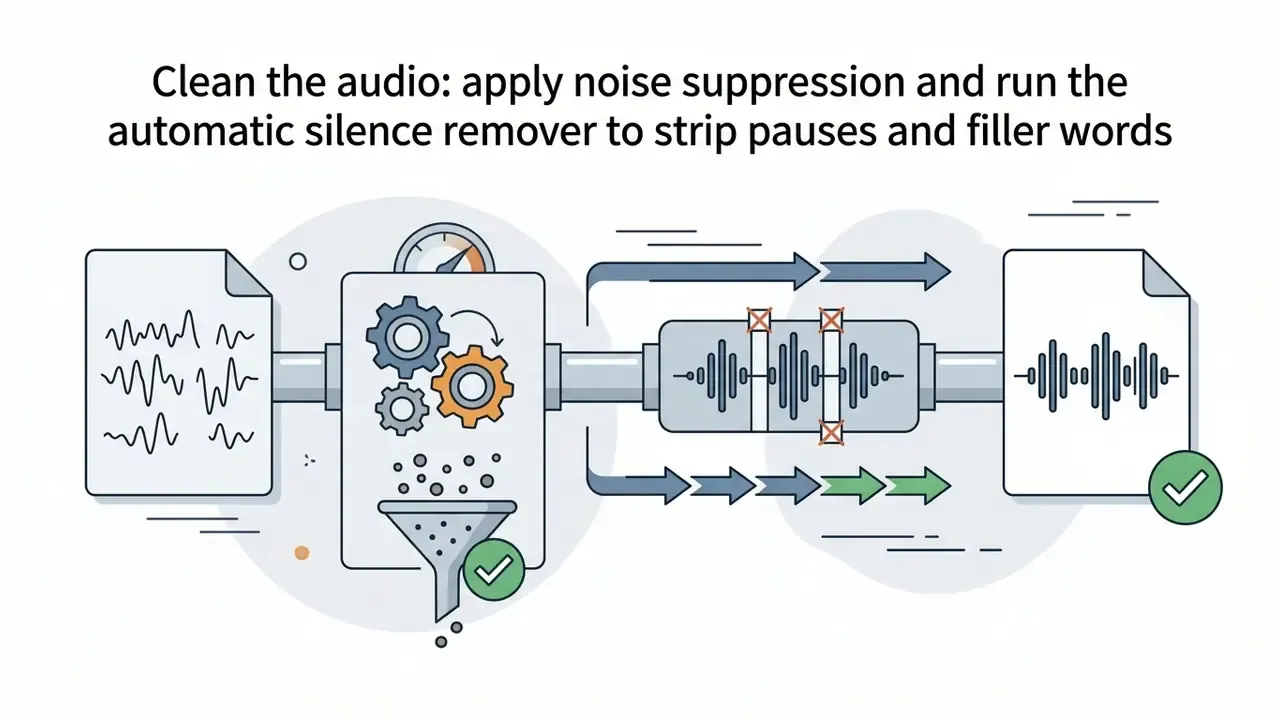
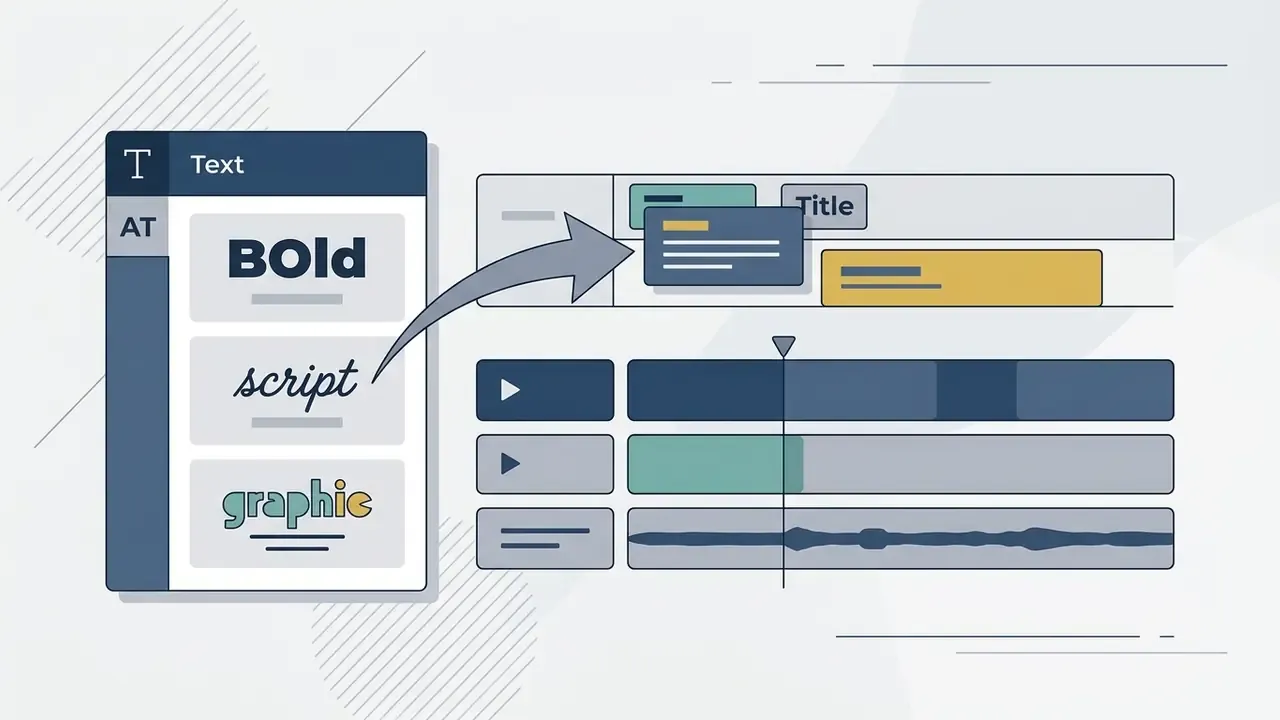
Audio tools include independent track splitting, volume normalization, background noise suppression, audio detachment from video, and clip fades. Visual styling comes from a library of pre-built color filters, speed controls, and transitions inserted from the Transitions tab, plus property-panel color correction across saturation, contrast, temperature, and tone. Text and animated titles are added from the Text tab and placed on a dedicated layer above the video track.
Templates, Stock Assets, and Brand Kit
Clipchamp offers a categorized template repository built for social platforms, business presentations, and educational explainers, including ready-made YouTube and Instagram formats plus intro and outro templates. Aspect ratios toggle between 16:9 widescreen, 9:16 vertical, 1:1 square, and custom cinematic dimensions.
The Brand Kit tool stores official logos, hex color codes, and custom typography for one-click application. Microsoft recommends keeping brand kits and projects in OneDrive so assets follow the signed-in user across devices. For broader strategic evaluation of corporate content tooling, visit our AI Media Commercial-Use Hub.
AI Video: Subtitles, Voiceover, Silence Removal, and Auto-Compose
Clipchamp uses AI to speed up subtitle creation, narration, and rough assembly. The Smart AI subtitle generator transcribes spoken audio into customizable closed captions across more than 80 languages and many regional accents, with profanity filtering plus style, font, and color controls.
Transcript export: AI-generated captions are not limited to burned-in subtitles. Transcripts download as a standalone .SRT file for upload to YouTube, LinkedIn, a learning management system, or any third-party player that expects an external caption track. For accessibility documentation, that file is often the artifact auditors actually ask for.
Automatic silence remover: the algorithm detects prolonged pauses, dead air, and filler words across the audio track and strips them from the whole project in one action. For recorded meetings, lectures, and screen walkthroughs, this is usually the single biggest runtime reduction available without manual cutting.
The Natural AI voiceover generator turns text scripts into synthetic speech, with hundreds of voice models and adjustable pitch, speed, and emotional tone. Scripts drafted with an ai sentence generator or an ai seo content generator still need a named human reviewer before narration, particularly for anything describing a regulated product.
That absence of published accuracy metrics is worth flagging. If captions support an accessibility obligation or a training attestation, someone has to proofread them. Readers benchmarking narration quality across vendors can compare capabilities in our guide to AI voice generators, including language coverage and commercial licensing terms.
The AI auto-compose feature analyzes uploaded assets, picks highlights, and builds a formatted draft in a chosen visual style. Copilot-initiated video creation produces a draft timeline that can then be refined manually. Additional utilities include image background removal and AI-based background noise removal. For a category-level view of automated video assembly, see our overview of AI video generators.
How to Edit Videos in Microsoft Clipchamp: The Basic Workflow
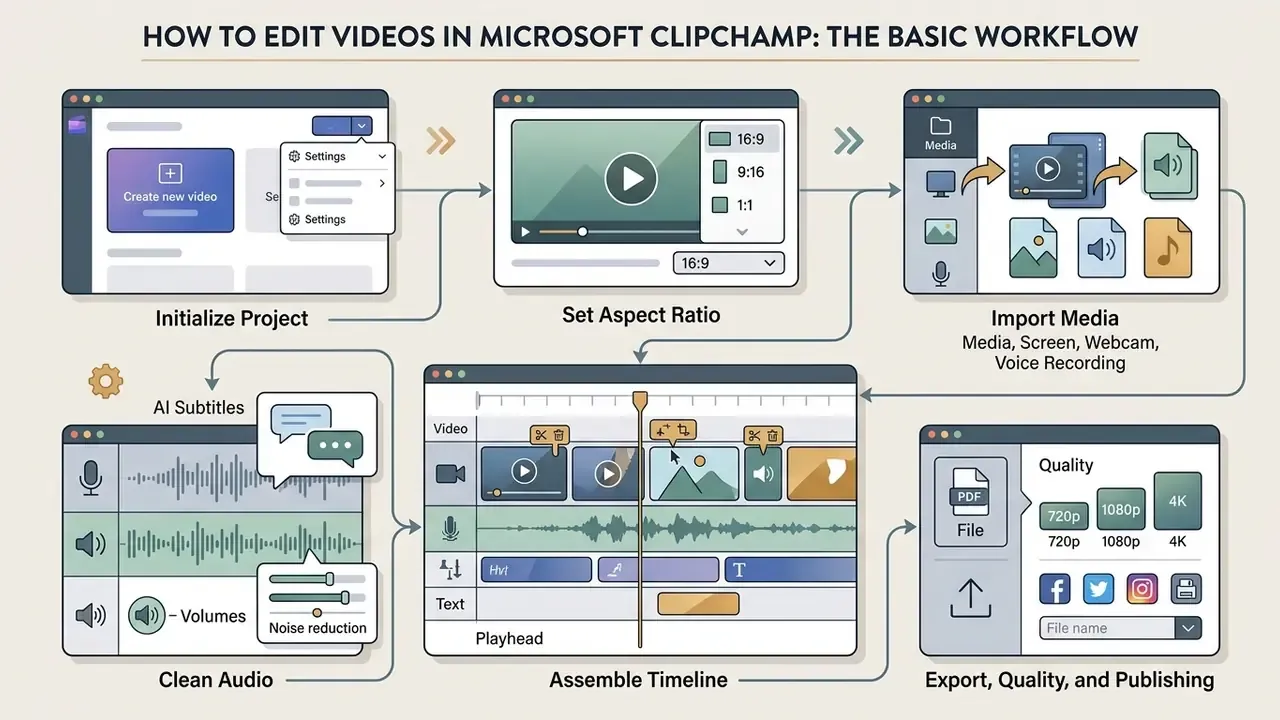
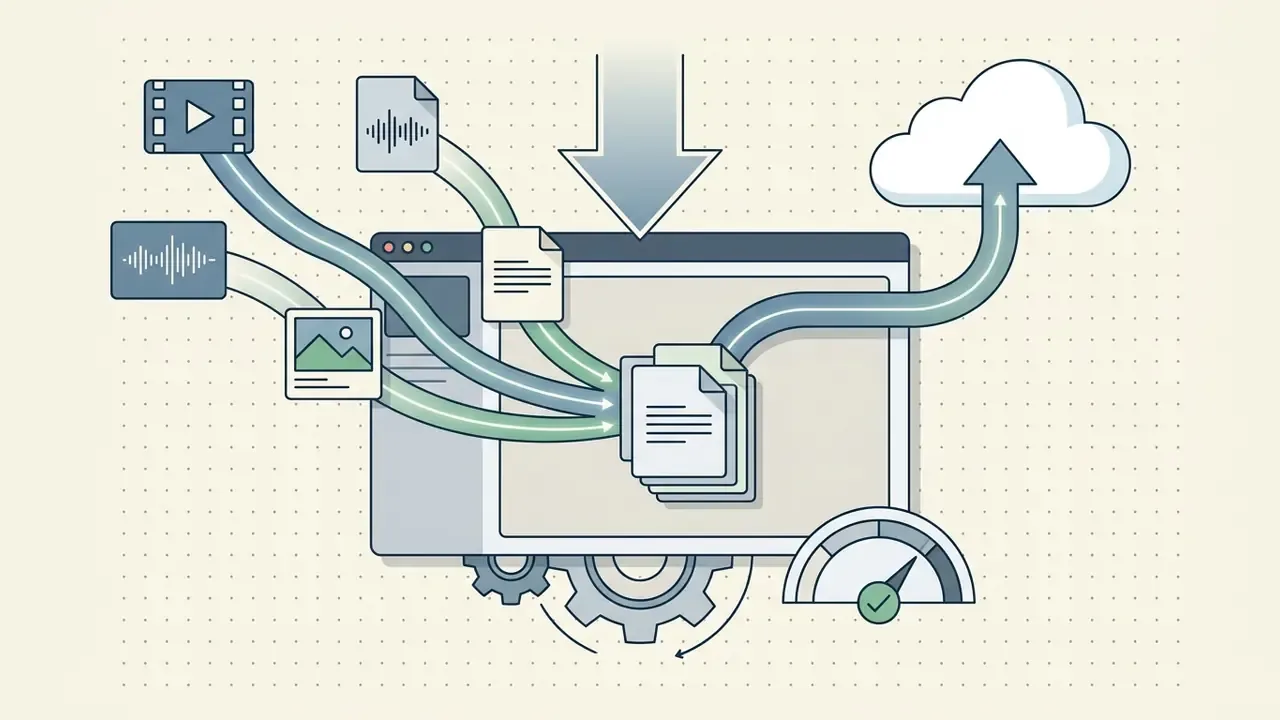
Editing in Clipchamp follows a predictable pipeline: import media, arrange timeline assets, apply audio and visual changes, render the file.
Importing Media or Starting from a Template
Start by selecting "Create a new video" or picking a pre-formatted aspect ratio template from the dashboard. Local files come in by drag-and-drop into the "Your media" panel, or connect straight from Microsoft OneDrive.
Supported input formats include video containers (MP4, MOV, WEBM, AVI, DIVX, FLV, 3GP, WMV, VOB, MKV), audio files (MP3, WAV, OGG), and still imagery (JPEG/JPG, PNG, TIFF, BMP, GIF, SVG). Oversized source files can be prepared in advance with a video compressor to cut upload time and keep browser-side rendering responsive.
Screen, Webcam, and Voice Recording
Clipchamp includes capture tools under the "Record & create" tab. Record the desktop screen, a single window, a browser tab, a webcam feed, or a simultaneous picture-in-picture presenter view, with unlimited retakes and watermark-free saves.
There is an integrated teleprompter for narration, plus direct presentation recording for Microsoft PowerPoint decks, including Cameo placement of the presenter's camera in a fixed position on the slides. Standalone voiceover tracks record directly onto the audio timeline from a local microphone, and audio-only exports are available for narration reuse.
Export, Quality, and Publishing
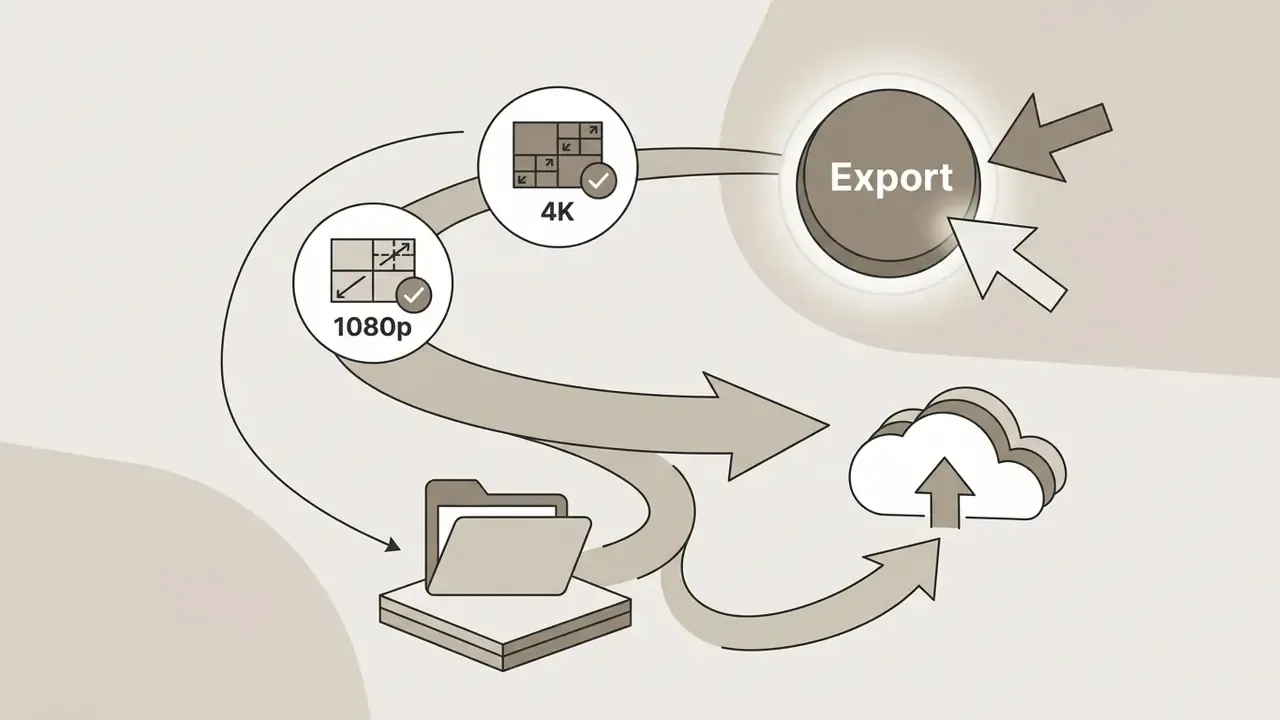
Export converts timeline projects into standardized MP4 files at 30 fps. Audio-only exports save as .m4a, and short clips up to 15 seconds can export as GIF. Target resolutions: 480p (draft), 720p (HD), 1080p (Full HD), or 4K Ultra HD for premium plan holders.
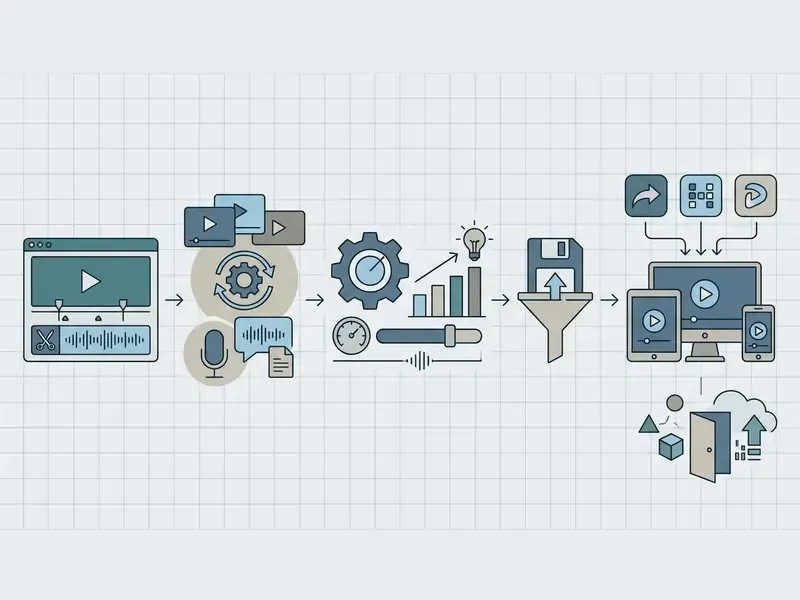
Finished files save to local storage or share directly to Microsoft OneDrive, Google Drive, YouTube, TikTok, Dropbox, and LinkedIn. One caveat: LinkedIn sharing is supported for company pages rather than personal profiles. Enterprise accounts route exports to secure SharePoint video hubs, where a player page is generated for internal viewing. Creators publishing regularly to a channel can also review platform-specific workflows in our guide to YouTube video editors.
One more practical note for engineering-minded teams: Clipchamp has no public rendering API, so batch or programmatic video assembly needs a different vendor. Options and integration patterns are covered in our AI Media API Guides.
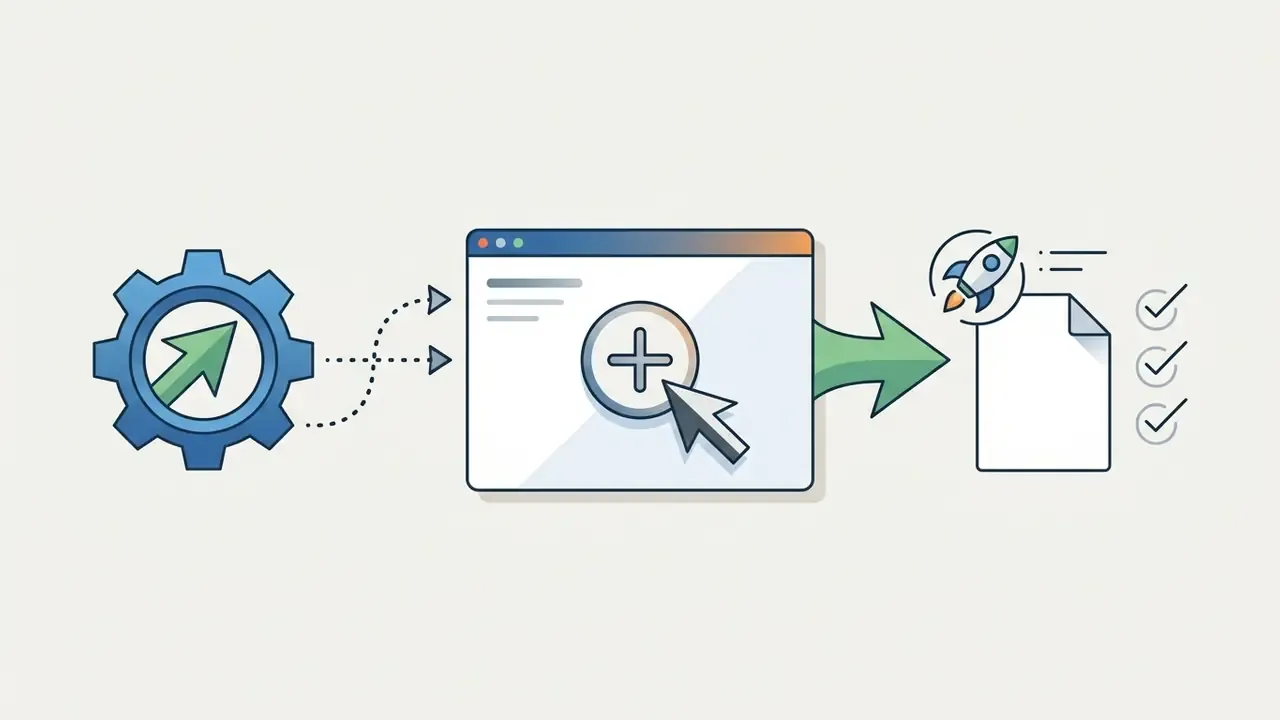
app.clipchamp.com. Click "Create a new video".
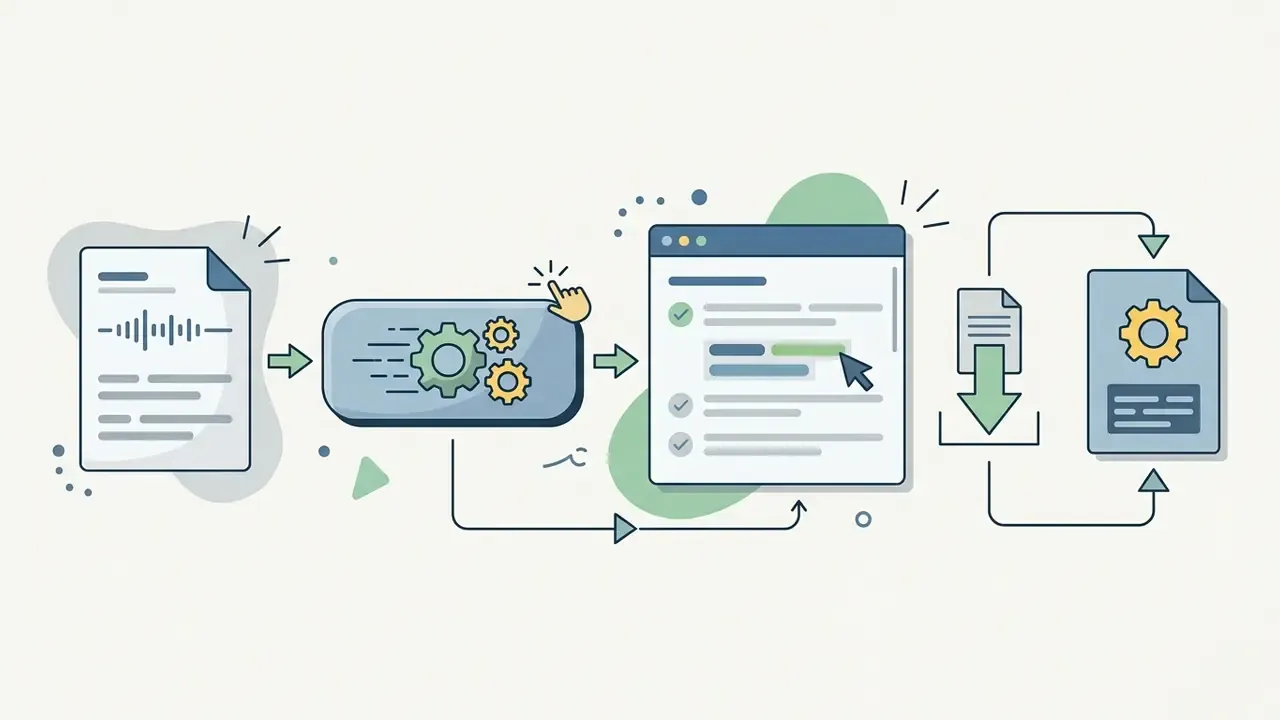
.SRT file if the destination platform needs an external caption track.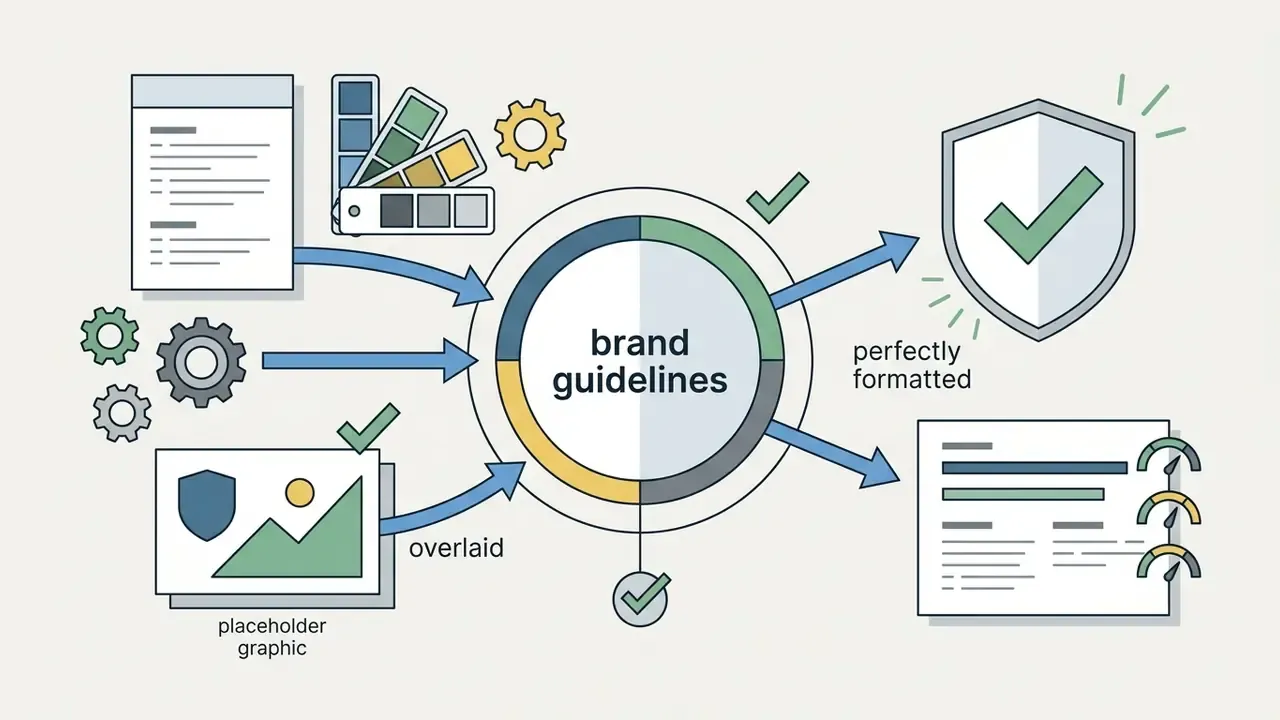
Is Microsoft Clipchamp Suitable for Work, Business, and Commercial Content
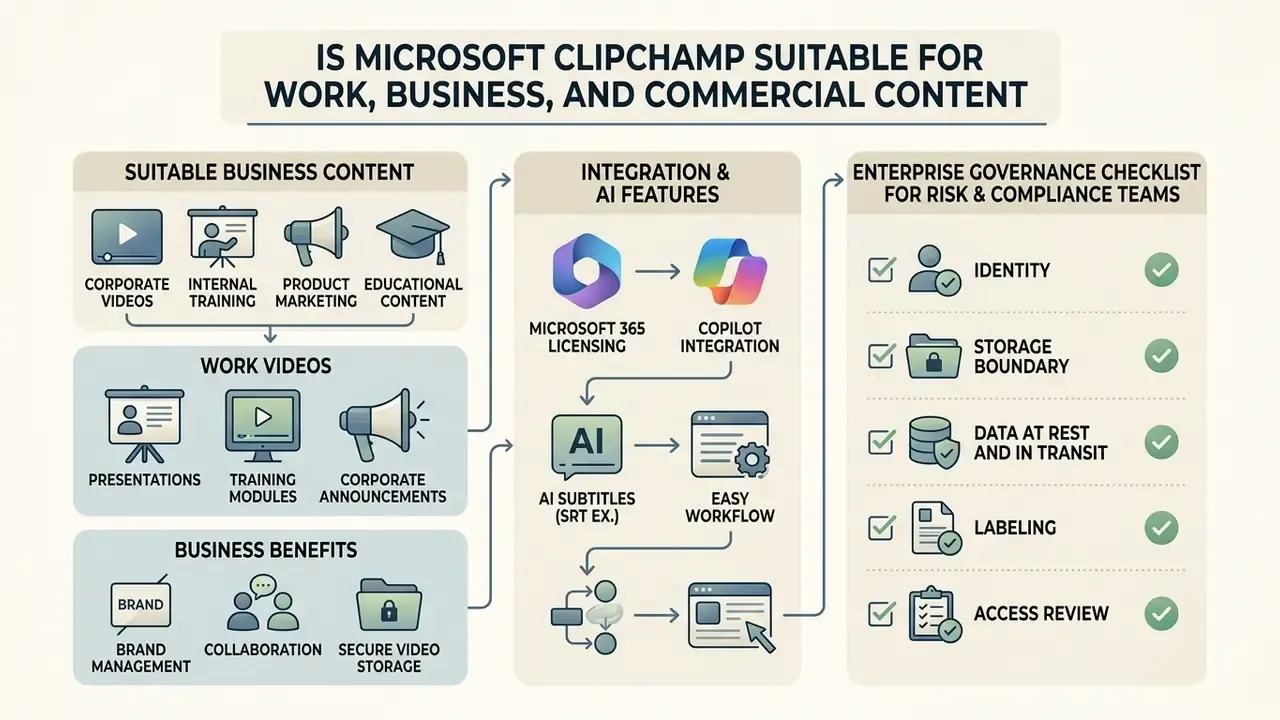
Clipchamp is suitable for corporate video production, internal training modules, product marketing, and educational content. Its native integration with Microsoft 365 makes it a defensible choice for enterprises that want controlled media workflows rather than a scatter of desktop installs.
Work Videos: Presentations, Training, and Corporate Content
Organizations use Clipchamp for employee onboarding modules, product demonstrations, HR and compliance training, and executive announcements. Microsoft's own documentation highlights product demos and explainers, onboarding videos, and internal training as primary work scenarios, combining screen-and-camera recording with AI voices, subtitles, and stock media.
The built-in screen and camera recorder lets subject matter experts document software workflows and slide decks without external tooling, while lower-third overlays and text callouts keep output aligned with corporate communication standards. Decision-makers benchmarking Clipchamp against dedicated platforms can consult our comparison of the best AI video generators for feature and licensing trade-offs.
Brand, Collaboration, and Secure Video Storage
Commercial content depends on brand consistency and disciplined data governance. Clipchamp's Brand Kit enforces design guidelines across departmental teams, keeping logos, palettes, and fonts correct without a design review for every asset. Teams standardizing on Microsoft's wider creative stack often pair it with the Microsoft AI Image Generator for thumbnails and supporting visuals. Synthetic portraits from an ai selfie generator, on the other hand, are a poor fit for compliance-facing training, where viewers should be able to trust that a presenter is real.
Information about commercial use of stock media and AI-generated content is general and does not replace review of the Microsoft licensing agreement or advice from qualified counsel. Copyright exposure around generative media is still moving, and active litigation in the US may change what "safe to publish" means for synthetic assets.
Project sharing runs through Microsoft 365 cloud infrastructure. Instead of parking sensitive footage on external third-party servers, projects live inside the tenant's OneDrive or SharePoint boundary, which keeps them inside existing security policy.
Enterprise Governance Checklist for Risk and Compliance Teams
This block replaces earlier promotional filler with material a governance reviewer can actually use:
- Identityconfirm Clipchamp access is granted through the tenant's existing SSO and conditional access policies, not through personal Microsoft accounts used on corporate devices.
- Storage boundaryverify that work projects and exports resolve to the organization's OneDrive/SharePoint domain, so retention and eDiscovery policies apply automatically.
- Data at rest and in transitfiles in OneDrive and SharePoint are encrypted in transit and at rest, and SharePoint applies external-sharing controls and malware scanning to stored media.
- Labelingdecide which sensitivity labels apply to raw footage versus published exports, then test that a protected label really blocks local save and link copying.
- Access reviewtreat video libraries like any other document library in access reviews. Recorded training and incident footage frequently contains customer or employee data.
- AI usage policydocument which AI features (voiceover, auto-compose, captions) are approved for which data classifications, and note that generated narration still needs human review before publication.
- License mappingrecord which users hold Standard, Clipchamp Premium, or Copilot entitlements, because feature availability, and therefore output quality expectations, differs per user.
- Change controltrack Clipchamp desktop app versions, since work and school account support requires version 3.x or later.
- Shadow IT checkcompare tenant usage against unmanaged editors installed on endpoints. If staff are exporting call recordings through a consumer tool, the editor question just became an incident question.
Clipchamp Versus Camtasia, Adobe Express, and CapCut
Internal tier comparisons answer only half the procurement question. The table below positions Clipchamp against the tools most often shortlisted alongside it for business video.
| Criterion | Microsoft Clipchamp | Camtasia | Adobe Express | CapCut |
|---|---|---|---|---|
| Primary strength | Native Windows and Microsoft 365 integration | Deep screen-recording and software tutorials | Fast branded social graphics and short video | Trend-driven social video and effects |
| Free tier | Yes, 1080p, watermark-free, unlimited exports | Trial only | Yes, with feature limits | Yes, with feature limits |
| Enterprise identity/SSO | Inherited from Microsoft 365 tenant | Managed separately | Adobe enterprise identity | Limited enterprise controls |
| Storage/data boundary | Tenant OneDrive / SharePoint | Local device by default | Adobe cloud | Vendor cloud |
| Compliance labeling | Microsoft Purview sensitivity labels | Not applicable natively | Adobe enterprise governance | Not designed for regulated data |
| Typical cost model | Bundled with M365; Premium add-on or Copilot | Perpetual license per user | Free or monthly subscription | Free or Pro subscription |
| Best fit | Microsoft-standardized organizations, training, internal comms | Documentation and e-learning teams | Marketing and design-led teams | Consumer and social-first creators |
Positioning is directional and based on vendor-published capabilities; confirm current pricing and enterprise terms with each vendor before purchase. Regulated organizations should assess data residency and retention terms for any non-Microsoft option that stores media outside the tenant.
FAQ: Microsoft Video Editor and Clipchamp
Which Browsers and Devices Does Clipchamp Work On?
Microsoft Clipchamp works on Windows, macOS, Linux, and ChromeOS devices through desktop web browsers. Official browser support is limited to Chromium-based browsers, specifically Microsoft Edge and Google Chrome, kept updated to current versions.
On mobile, Clipchamp offers an iOS app for iPhone. Native Android browser and application versions are not available.
Microsoft states explicitly that the desktop editor «cannot be used on mobile devices, tablets or smartphones»; the iOS app requires iOS 14 or later, with iPhone X or newer recommended. Microsoft Support, "Which devices does Clipchamp work on" (2026). https://support.microsoft.com/en-us/clipchamp
Can I Export in 4K, and Are My Accounts Linked Across Devices?
4K Ultra HD export is supported for Microsoft 365 Personal or Family subscribers, Clipchamp Premium standalone plans, and commercial Clipchamp Work Premium licenses. Free account exports are capped at 1080p Full HD.
You can sign into the same Microsoft account on desktop and iOS, but project files do not sync between them. Desktop projects stay on desktop; mobile projects stay stored locally on the iOS device.
Microsoft confirms that «the mobile and desktop apps operate separately and will not show the same projects»; timeline synchronization between devices is not implemented. Microsoft Support, "Create and access a Clipchamp account" (2026). https://support.microsoft.com/en-us/clipchamp
Technical assistance and service parameters are covered in AI Media Support and Troubleshooting. If the mobile gap blocks your workflow, compare alternatives in our review of free video editing software.
What Should I Do If a School Account Shows "Clipchamp Is Not Available to You"?
That error usually reflects a pending background activation rather than a missing license. Clipchamp for education is available to institutions with Microsoft 365 A3 or A5 subscriptions assigned to staff or students, and activation can be nudged along:
- Sign in at
app.clipchamp.com(or the Microsoft 365 launch page) with the school account holding the A3 or A5 subscription. - Select the Blank video button at the top of the page to attempt to start a new project.
- If "Clipchamp is not available to you" appears, that action prioritizes your activation in Microsoft's queue.
- Return later the same day and click Blank video again. Repeat over the following hours; Microsoft states that checking back helps as its systems process activation batches.
- If access is still blocked after a day, ask the tenant administrator to confirm license assignment and that Clipchamp is enabled as a service for the user.
Is Clipchamp the Best Alternative to Windows Movie Maker?
For most Windows users, yes. Clipchamp is the official Microsoft video editor and, per Microsoft's documentation, covers everything Movie Maker offered plus multi-track editing, transitions, stock media, AI captions, AI voiceover, and watermark-free export. Movie Maker projects cannot be migrated, so legacy .wlmp files have to be rebuilt from source media.
Do Clipchamp Videos Have a Watermark?
No. Videos export without watermarks on every tier, including the free plan. The one caveat: if a project contains premium stock or uses a feature outside the current plan, export is blocked until the asset is removed or the account is upgraded.
Do I Need a Copilot License to Use Clipchamp AI Features at Work?
Not for the baseline. Standard work and school access includes core editing plus integrated AI. Clipchamp premium features and expanded AI video creation for commercial tenants come with a Clipchamp Premium add-on or a Microsoft Copilot license, so many organizations already running Copilot will find those capabilities enabled for licensed users.
Where Are My Work Videos Stored, and Can IT Audit Them?
Work and school projects and exports are stored in the organization's OneDrive or SharePoint. That means the same encryption, retention, access-logging, eDiscovery, and Purview labeling controls apply as to any other Microsoft 365 content. Exported MP4 files inherit the sensitivity label applied to the project.
Does Microsoft Office Include a Separate Video Editor?
Not as a distinct Office application. PowerPoint can trim embedded media and record slide narration, but full timeline editing lives in Clipchamp, which is the Microsoft 365 video editor for personal, commercial, and education accounts alike.
Appendix A: Editorial and Version Notes
- Removed unverified vendor claim. A previously published governance note referenced an unverified third-party service with no relationship to the Microsoft ecosystem. It has been removed and replaced with a generalized vendor-risk directive in the licensing alert box, because unverifiable vendor claims should not appear in guidance used by compliance teams.
- Attribution correction. An earlier editorial framing quote attributed to a non-existent persona has been replaced with direct citations to Microsoft's own product and support documentation.
- Metric correction. The illustrative financial-services scenario previously cited a specific percentage reduction in production cycles. That figure was not independently verified and is now stated in directional terms only.
- Heading correction. The free-account section heading was corrected for grammar and now reads "What Is Available in a Free Clipchamp Account".
- Navigation change. A static list of contents was replaced with an audience-and-decision framing block, which is more useful to readers arriving from procurement or governance queries.
- Scope note. Availability of Clipchamp Standard for Office 365 Education A3/A5 and government SKUs has shifted with Microsoft's phased rollout; treat any SKU list as a snapshot and validate against your tenant's license blade.
Disclaimer: This article is informational and does not constitute legal, licensing, financial, or security advice. Pricing, SKU inclusion, and feature availability for Microsoft 365 and Clipchamp change over time and by region and tenant type. Verify current terms in official Microsoft documentation, and consult your licensing partner, compliance function, or legal counsel before deploying the tool for regulated content or commercial distribution.
Footer / Hub Navigation