The short version for busy readers
- A free online background noise remover extracts the audio track from your uploaded video, applies a neural denoiser, then remuxes the cleaned soundtrack back into the same video. The picture is never re-edited.
- Free tiers usually mean 720p exports, watermarks, 150–900 MB file caps, personal-use only. Market benchmarks for paid access start around $0.02 per processed minute (pay-as-you-go) or $6.99/week to $19.99/month (unlimited).
Who this guide is for and how to read it
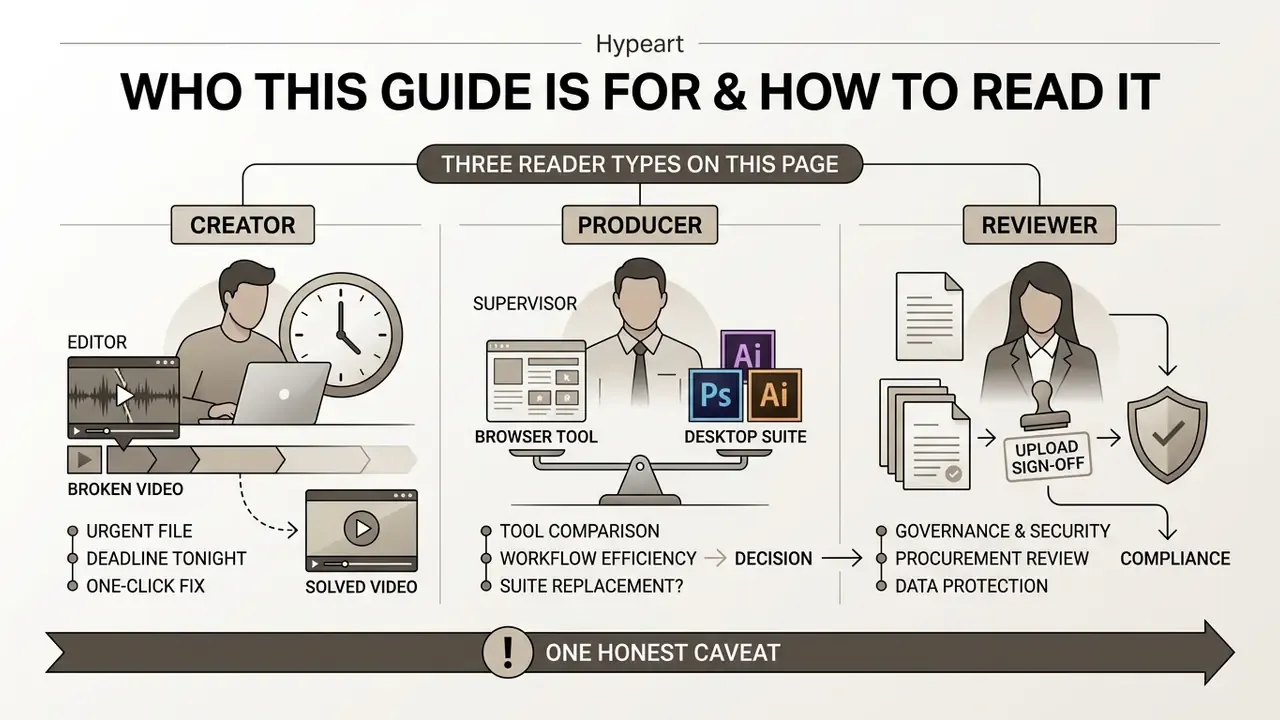
Three types of reader land on a page about how to remove background noise from video for free, and they need different things.
The first is a creator with one broken file and a deadline tonight. Start with the step-by-step section, set the slider to roughly 65%, preview, export. Done.
The second is a producer or media operations lead deciding whether a browser tool can replace a desktop suite. Read the comparison table against Premiere Pro and DAWs, then the section on what noise can actually be removed, because that is where most tooling decisions are really made.
The third is a governance, security or procurement reviewer who has to sign off before anyone uploads a customer recording. Skip to file handling, retention windows and commercial-use terms. Those three paragraphs matter more than any PESQ score.
One honest caveat before we go further. Every number in this guide comes from published research or vendor documentation, and where evidence is thin, we say so out loud.
How to remove background noise from video online for free
Removing background noise from video online for free requires uploading a supported media container (or recording directly in the browser), configuring an automated AI noise reduction model, and previewing the isolated audio prior to downloading the file. The browser-based workflow allows non-technical users to clean video audio online free, without installing a specialized digital audio workstation (DAW).
- Upload or record a video file.Drag and drop your MP4, MOV, MKV, AVI or WebM media file into the secure browser interface, or capture a fresh take with the built-in browser recorder.
- Apply AI noise removal.Select the automated noise reduction model and adjust the suppression intensity slider to target ambient noise, room echo or electrical hum.
- Preview clean audio.Play back the processed clip timeline, toggle the effect on and off to A/B the result, and verify voice clarity plus the absence of digital artifacts.
- Export and download.Choose your output video format and export the re-encoded media file straight to your local device.
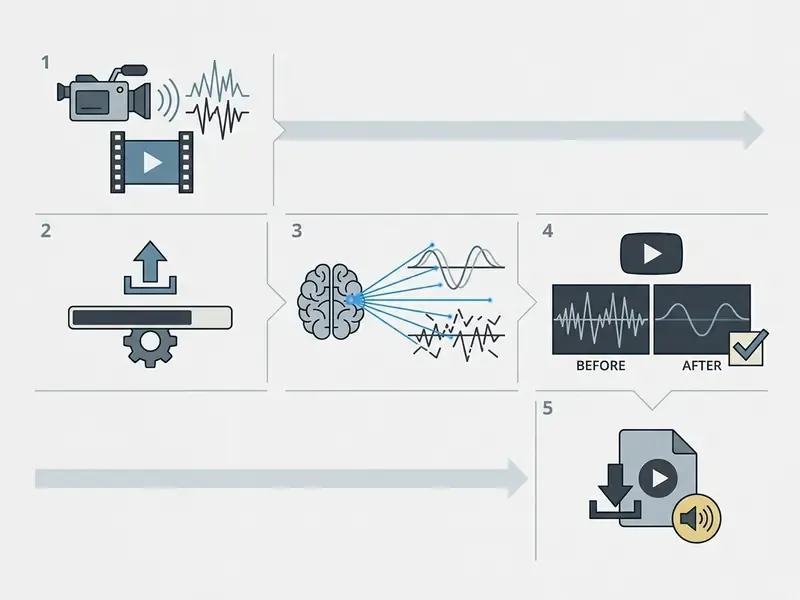
Upload or record a video file
Uploading or recording a video file passes the embedded soundtrack into browser memory, or into a secure server decoding pipeline, using standard media containers. Most web tools accept MP4, MOV, MKV, AVI and WebM, alongside standalone audio formats like WAV, MP3, M4A, FLAC and AAC.
Native browser compatibility relies on H.264 video with AAC audio, or WebM containers paired with VP8, VP9 or AV1 video and Opus or Vorbis audio, according to W3C-aligned HTML media format documentation. Updated: the earlier reference to a "2026 W3C standard" has been corrected to the published W3C Web Audio API and HTML media element specifications, which define these container and codec pairings today.
You do not have to arrive with a file at all. A browser-based noise-free recorder captures the take through getUserMedia(), applies permission-gated microphone access, and hands the raw stream straight to the denoiser. Useful for voice notes, screen tutorials and quick re-records when the original take was simply unsalvageable.
Users working with large high-bitrate media files can review our video compressors for file-size optimization to shrink media before browser ingestion. Updated: instead of an unverified anonymous case study, here is the mechanism behind the recommendation. Cloud media pipelines scale latency with bitrate and duration. In one measurement study of cloud packaging, average processing time was 1.0 second for 600 kbps content and 1.8 seconds for 4,000 kbps content, so lowering bitrate before upload shortens both transfer and compute time while leaving 1080p visual fidelity intact.
Apply AI noise removal and adjust the result
Applying AI noise removal involves selecting a neural model and adjusting a suppression intensity slider to balance ambient noise removal against voice naturalness. Modern web interfaces expose adjustable noise suppression parameters, typically scaling from 0 to 100, or using decimal intensity ratios from 0.0 to 1.0.
LiveKit documents a noise-suppression level from 0 to 100 with a default of 75 that can be changed after the processor starts. NVIDIA's Maxine Audio Effects SDK exposes an effect intensity ratio from 0.0f to 1.0f for its denoiser and room-echo removal, where higher values mean stronger suppression (LiveKit Docs, docs.livekit.io; NVIDIA Maxine Audio Effects SDK, docs.nvidia.com).
Lower settings preserve subtle room ambience and acoustic warmth. Higher settings aggressively remove stubborn HVAC hums or street rumble, and that aggression has a cost we cover further down. Creators building automated funnels can wire a browser-based media converter into onboarding with an ai landing page tool, while production teams can plug denoising into an existing pipeline through a RESTful api endpoint.
Preview, export and download clean video audio
Previewing the processed soundtrack lets you verify voice clarity across specific timeline regions before full media re-encoding. The preview player plays the isolated audio track synchronized with original video frames in real time. Toggling the cleanup effect off and on is the fastest A/B test available in a browser, and it costs nothing.
Once satisfied, you trigger export, which multiplexes the cleaned audio stream into a downloadable video file. Professional desktop tooling separates these controls explicitly: in Adobe Media Encoder, Export Video and Export Audio flags independently determine whether each track lands in the output. Good online editors mirror that logic with format, resolution and audio-inclusion choices at export.
Content creators publishing to platforms can reference our YouTube video editing workflow guide for export encoding settings, or check our AI Media Support and Troubleshooting page for playback resolution tips.
Online AI noise removal vs. Adobe Premiere Pro and DAWs
Professional desktop workstations and NLEs like Adobe Premiere Pro, Adobe Audition, DaVinci Resolve or Final Cut Pro offer precise multiband suppression. They also demand manual spectral editing, noise-profile capture, layered effect chains (DeNoise, DeReverb, De-hum) and real computing power. Online AI noise removers automate that in seconds through browser-based neural inference, with no keyframing, no plugin installation and no heavy local rendering.
The practical difference is the number of decisions you have to make.
| Criterion | Online AI noise remover | Premiere Pro / Audition / Resolve |
|---|---|---|
| Setup | Browser tab, no install | Install, license, plugin management |
| Noise profile | Learned by the model automatically | Often manual: select a noise-only sample, then apply reduction |
| Controls | One intensity slider (0–100) | Multi-parameter chains, adjustment layers, keyframes |
| Skill required | None | Audio post-production experience |
| Speed on short clips | Seconds, server- or worklet-side | Minutes, plus local render time |
| Precision on hard cases | Model-limited | Higher, via spectral repair and manual band control |
| Best for | Talking heads, interviews, meetings, social video, tutorials | Feature-grade restoration, surgical repair, complex multitrack mixes |
In Neat Video and Audition-style workflows the operator must first build a noise profile from a flat, featureless region, then apply reduction. FFmpeg-based guides warn that denoising is destructive and recommend a low-strength first pass on a short test clip before full export. A browser tool compresses that entire discipline into a slider and a preview toggle, which is why teams comparing free video editor noise reduction features often check free video editing software options and general-purpose video editors side by side before committing to a paid desktop suite.
Free online background noise remover for video: what it does
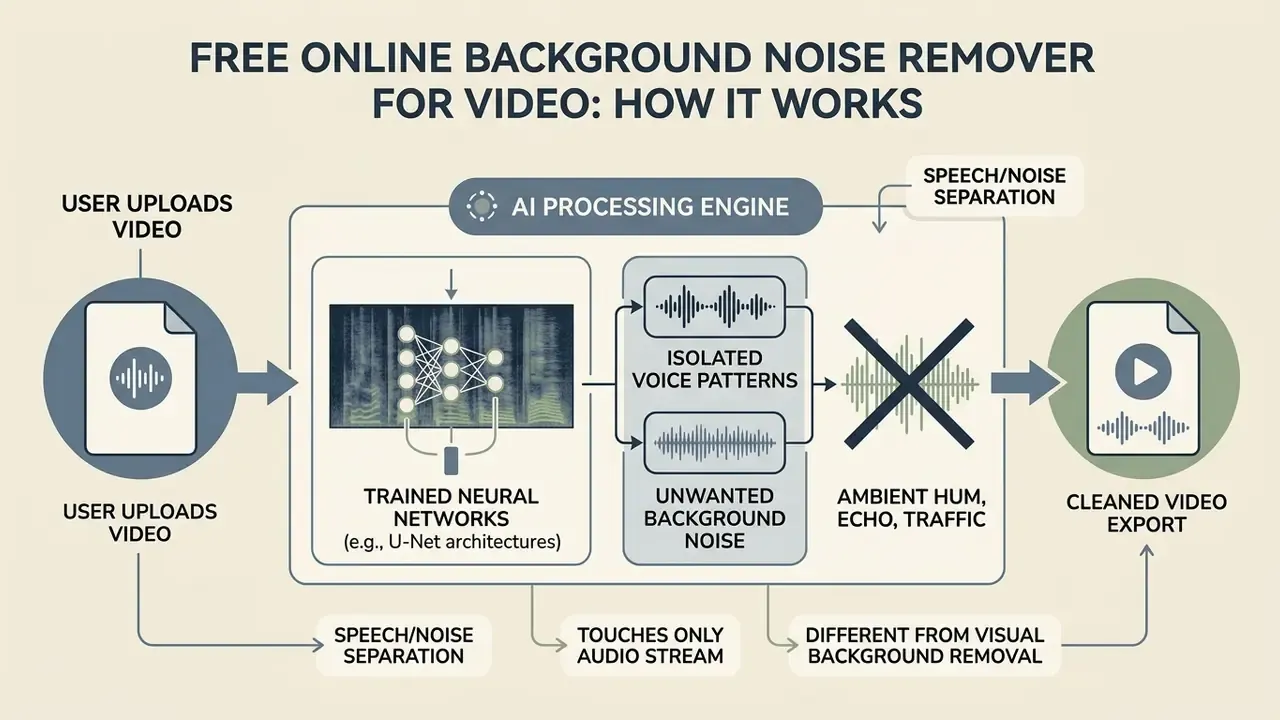
A free online video background noise remover extracts the embedded audio track from an uploaded media file, applies artificial intelligence to isolate unwanted acoustic interference, and re-synchronizes the cleaned soundtrack back into the original container. The software targets acoustic disturbances inside the soundtrack without altering the visual presentation or the video frames. The objective is plain: better voice clarity and higher speech intelligibility for the listener.
This is a different operation from visual background removal. Audio cleanup edits the soundtrack embedded in the MP4, MOV or AVI container and returns the picture untouched. Visual background removal edits the image layer and does not denoise speech at all. Confusing the two is the single most common misunderstanding in support tickets, and it produces a lot of disappointed first sessions.
How AI noise reduction separates voice and background sound
AI noise reduction separates voice from ambient background sound by applying trained neural networks that estimate time-frequency masks or transform raw digital waveforms. Deep learning models replace traditional digital signal processing (DSP) filters by treating noise suppression as a supervised learning problem: the network trains on mixtures of speech, speaker identity data and background noise, then predicts the separation filter or mask directly.
Architectures like U-Net analyze complex audio spectrograms to tell human speech patterns apart from persistent ambient noise.
«U-Net achieved SNR improvements exceeding +364% on real-world noisy datasets, CMGAN reached a PESQ score of 4.04, and Wave-U-Net improved speaker verification by +27.38%.»
What background noise can be removed from a video
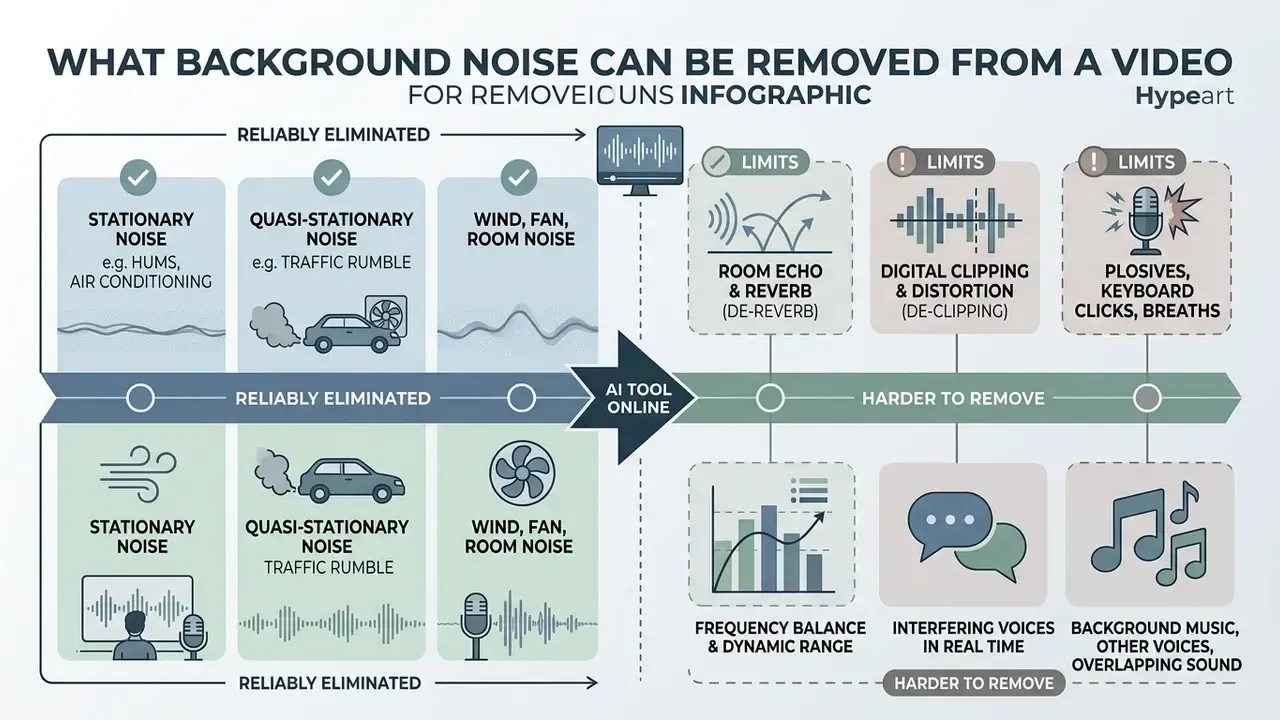
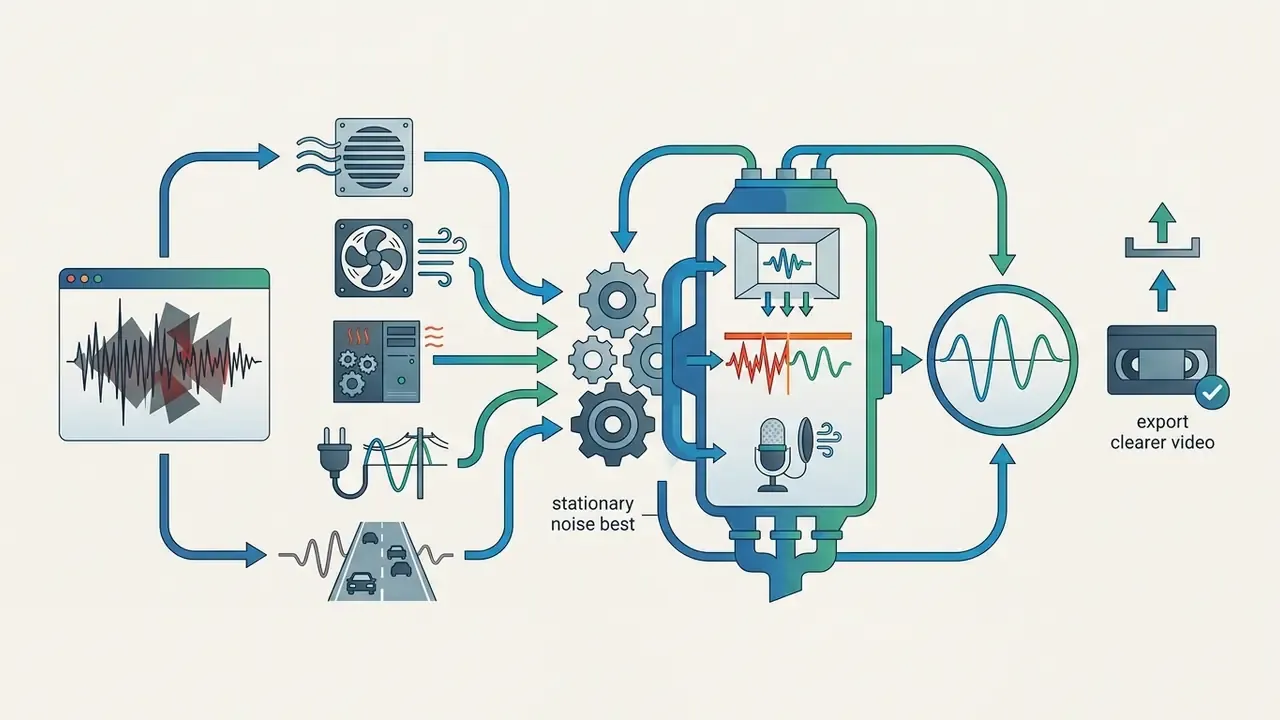
Modern AI noise removers reliably eliminate stationary and quasi-stationary sounds like fan hums, air conditioning and traffic rumble, while running into physical limits with dynamic, overlapping acoustic sources. Understanding noise classification helps creators and media operations teams judge whether an automated web tool can restore a distorted field recording, or whether the take needs to be shot again.
Video noise research groups signal degradation into families: Gaussian, Poisson, multiplicative, additive and impulsive on the image side; stationary, quasi-stationary, transient and reverberant on the audio side. The audio families are what a noise remover actually addresses, and each one behaves differently under neural suppression.
Wind, traffic, fan, hum and room noise
Stationary background noises, including HVAC units, electric fans, computer hums, 50/60 Hz electrical buzz, steady low-frequency traffic and tape hiss, produce consistent acoustic frequency profiles that deep learning models isolate with high precision. Neural noise suppression frameworks are good at identifying static spectral distributions and attenuating them without degrading adjacent speech frequencies.
«Top-performing systems improved composite subjective quality scores by 0.145 over noisy baselines.»
Efficiency matters as much as raw quality when the work happens in a browser tab or on a phone battery.
«aTENNuate outperforms previous real-time models in PESQ while using fewer parameters, fewer MAC operations and achieving lower latency.»
Mild room tone and constant hums are smoothly attenuated, leaving audio suitable for broadcast or a corporate presentation. Reported field results for well-tuned suppression modules sit around 10 to 12 dB of background-noise reduction on natural speech. That is enough to move an air-conditioned home office from "distracting" to "publishable."
Room echo, digital clipping and mic pops
Advanced AI denoising engines go beyond static background noise to target dynamic room acoustics and waveform damage:
- Room echo and reverb (de-reverb). Attenuates boundary reflections from untreated spaces such as closets, tiled bathrooms and glass-walled conference rooms, tightening vocal presence. Research separates early reflections from late reverberation and treats late reverberation as the primary suppression target; diffusion-based enhancement models now remove noise and reverberation jointly from the same noisy, reverberant recording (NTT Communication Science Laboratories Open House, 2025; DAFx, Speech Dereverberation Using Recurrent Neural Networks, 2019).
- Digital clipping and distortion (de-clipping). Reconstructs flattened waveform peaks caused by excessive input gain, reducing harsh harmonic distortion. Note the hard limit: severely clipped samples cannot be restored to their original values, only plausibly interpolated.
- Plosives, keyboard clicks and breaths. Smooths heavy microphone pops (p- and b-sounds), key presses, mouth clicks and intrusive breath noise without muffling spoken words.
- Frequency balance and dynamic range. Rebalances thin, tinny or boomy dialogue toward broadcast targets, compresses peaks and lifts quiet passages so levels stay consistent across a long recording.
- Interfering voices in real time. Personalized enhancement models can remove background noise, reverberation and competing speakers simultaneously in live conditions (INTERSPEECH, 2023).
Background music, other voices and overlapping sound
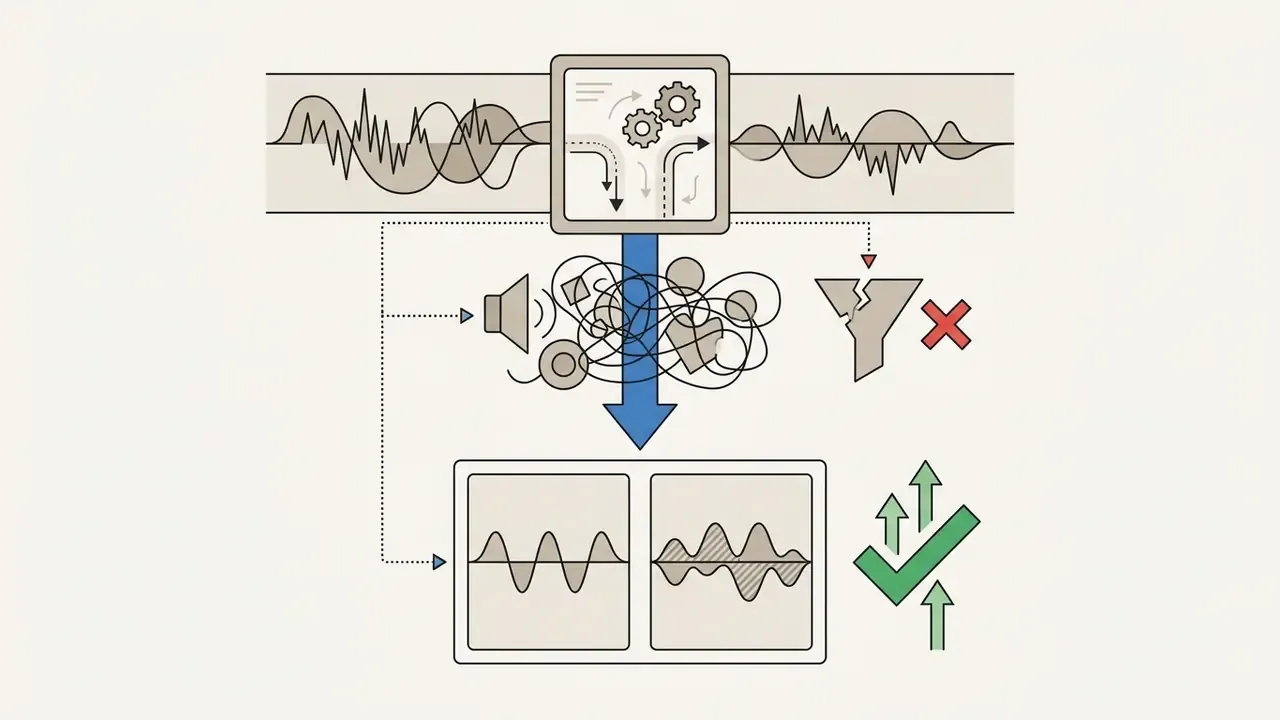
Overlapping background music, secondary chatter and simultaneous speakers share the same acoustic frequency bands as the target speech, which makes source separation far harder. When music or a competing voice overlaps primary dialogue, standard noise reduction algorithms struggle to split the sources without introducing phase distortion.
Recent multi-task audio source separation models, such as JRSV, isolate speech from background music to improve recognition accuracy.
«JRSV separates a mixed audio stream into speech and singing voices, significantly improving recognition accuracy for each track over baseline models.»
Even so, multi-speaker rooms and loud non-stationary music remain among the toughest acoustic challenges for a general-purpose noise reducer.
«Overlapping speech, strong broadband noise and high reverberation remain the hardest conditions for speech enhancement systems.»
Classical speech-music separation methods exploited repeating musical structure, which is precisely why they fail on arbitrary overlapping dialogue or a non-repeating score. Web producers evaluating complex audio projects often consult our AI Media Commercial-Use Hub, or use a specialized AI Voice Isolator to pull speech away from background tracks before any denoising is applied.
Vocal and instrumental stem separation
When background music is heavily mixed into dialogue, standard filtering may simply fail. No intensity setting will rescue it, because the interfering signal occupies the same bands as the voice. In that scenario, multi-stem AI models split the mix into two independent stems: a vocal stem and an instrumental or background stem. You can then mute the background entirely, duck it under dialogue, or re-balance music levels without distorting the speech.
Practical uses of stem separation in a video workflow:
- Interview shot in a bar or club. Isolate the vocal stem, drop the music stem by 12 to 18 dB, then re-mix to taste.
- Licensed-music problem. Remove the instrumental stem entirely to avoid rights issues, then layer royalty-free music from a stock library.
- Karaoke, covers and demos. Keep the instrumental stem and discard the vocal stem, which is the inverse of the same operation.
- Dialogue rescue before denoising. Separate first, denoise the vocal stem only, and you avoid asking one model to solve two problems at once.
Teams working across audio and generative video pipelines can also compare adjacent output tooling in our list of free AI video generators.
When noise reduction cannot fully restore audio quality
Noise reduction cannot restore heavily clipped, muted or completely masked voice signals where the original speech information was lost at the microphone. Severe interference corrupts the underlying waveform beyond what deep learning can recover. Classical speech-enhancement theory sets a hard ceiling here: maximum processing gain is unity, so suppression attenuates both speech and noise, and information that was never captured cannot be invented.
In zero-shot speech recognition experiments using SAM-Audio preprocessing and Whisper, denoising improved cleanliness metrics such as peak signal-to-noise ratio (PSNR) from 32.28 dB to 35.99 dB, yet word error rates got worse.
Is a free video background noise remover really free?
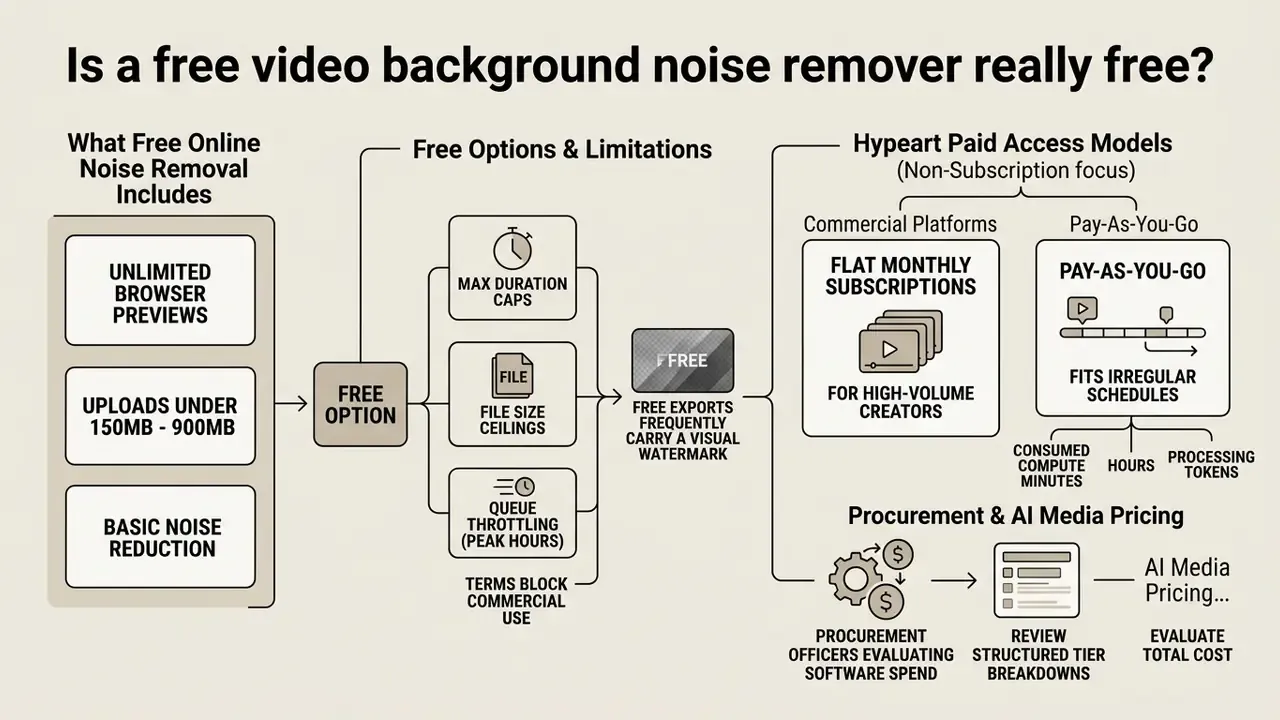
Most free online video noise reduction tools use a freemium model: basic web previews or limited exports cost nothing, while unwatermarked, high-resolution processing sits behind a paid plan. Knowing the feature limits helps you decide whether a free tool meets your production standard or whether you need a commercial tier.
| Feature / Tier | Free account / trial | PRO Unlimited | Pay-As-You-Go |
|---|---|---|---|
| Price benchmark (market) | $0, preview always free | From $6.99 / week or $19.99 / month | From $0.02 / minute (pay-per-use token or hour packs, e.g. 5 h ≈ $11, 10 h ≈ $20, 30 h ≈ $45) |
| Processing limit | 1 to 3 trial files, or ~5 min/mo (some tools: 60 free min/mo) | Unlimited processing minutes | Billed per minute or token bundle |
| Export resolution | Capped at 720p HD | Full HD (1080p) and 4K UHD | Full HD (1080p) and 4K UHD |
| Watermark | Visual watermark on video | No watermark | No watermark |
| Commercial license | Personal / educational only | Full commercial rights included | Full commercial rights included |
| File size cap | 150 MB to 900 MB (mobile Safari often 300 MB) | Up to 2 GB+ | Up to 2 GB+ |
| Best for | One-off tests, quality checks | Steady weekly publishing, teams | Irregular projects, seasonal campaigns |
Prices are market benchmarks observed across audio-cleanup vendors and they change often. Always confirm on the provider's current pricing page. Read the table this way: the free column buys you certainty about quality, the PRO column buys predictability, the metered column buys flexibility.
What the free online noise removal option includes
Free trial, PRO Unlimited and Pay As You Go options
Commercial web platforms build paid access around flat monthly subscriptions for high-volume creators, or meter-based Pay-As-You-Go pricing for occasional media tasks. Subscriptions give predictable monthly cost and unlimited playground access, which suits steady content production. Readers comparing tiers may also want to review free video editing software as a baseline before subscribing to anything.
Pay-As-You-Go charges by consumed compute minutes, hours or processing tokens, which fits irregular schedules. Updated: the unverifiable vendor-plan citation has been replaced by the observable market pattern: freemium entry (for example 60 free minutes per month), fixed-term trials (7-day trials on speech-enhancement services), per-download microcharges (a free preview plus roughly $0.50 to download a full file), per-minute rates from about $0.02, and hour bundles priced around $11 for 5 hours, $20 for 10 hours and $45 for 30 hours. The decision rule is simple. Clean audio nearly every week, and flat-rate unlimited wins. Clean audio in bursts around campaigns, and metered billing wins.
Procurement officers evaluating software spend can review structured tier breakdowns in our AI Media Pricing Guides and model cost per processed minute with our AI Media Calculators.
Watermarks and commercial-use decision
How to clean video audio without hurting voice quality
Cleaning video audio without degrading voice quality means conservative suppression thresholds, preserved speech envelope dynamics and no aggressive frequency gating. Balance the removal of background noise against vocal warmth and the output still sounds like a person, not a codec.
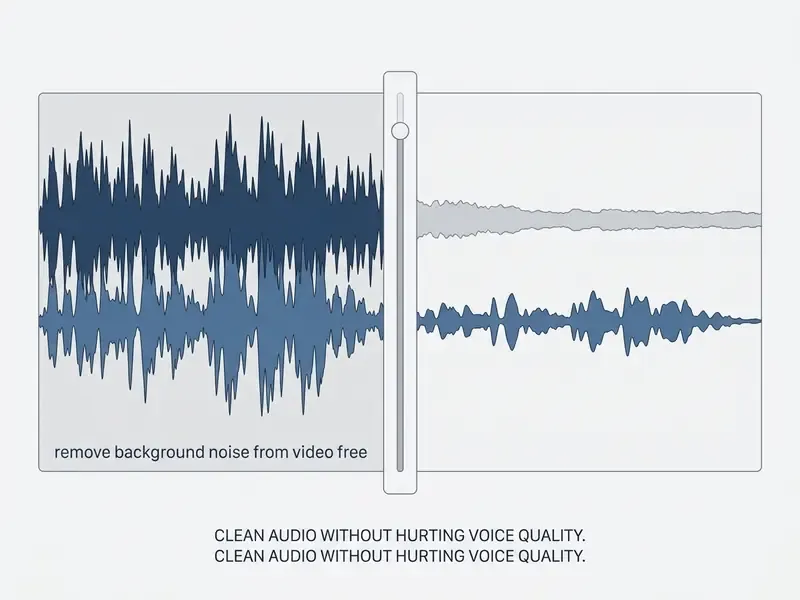
| BEFORE: raw recording | AFTER: AI noise removal at 65% |
|---|---|
| Noise floor high, broadband hiss across 0 to 8 kHz | Noise floor lowered by roughly 10 to 12 dB, hiss no longer audible between words |
| Constant 50/60 Hz hum plus HVAC energy below 200 Hz | Hum and low-frequency rumble attenuated, speech band preserved |
| Voice formants partially buried, consonants blurred | Voice formants and sibilants intact, timbre unchanged |
| Peaks near 0 dBFS with occasional clipped tops | Peaks normalized to about -6 dBFS with headroom restored |
How to read the comparison: a Before/After check is a two-state A/B test on one signal. You are not listening for "less sound." You are listening for three specific things: the noise floor dropping, the spectral balance of the voice staying where it was, and the dynamic range (the decibel ratio between the highest and lowest useful level) tightening without the voice sounding squeezed. If the voice moves as much as the noise does, the setting is too high. Lower it and listen again.
Preserve voice clarity during background noise removal
Preserving voice clarity during background noise removal depends on neural models that condition noise filters on speaker embeddings and temporal speech envelopes. Advanced speech enhancement frameworks analyze vocal formants and pitch trajectories to split human speech from surrounding noise. A 2024 framework reports better clarity and naturalness by extracting speaker embeddings and re-synthesizing the voice from those components, while related work optimizes objective functions around jitter, shimmer and spectral flux, the micro-features that make a voice sound human rather than synthetic.
Post-processing such as sliding window temporal smoothing refines model outputs and delivers consistent gains in short-time objective intelligibility (STOI) and PESQ.
«Sliding-window post-processing on CRN and CDAE outputs consistently improves STOI and PESQ across a wide range of noise types and input SNRs.»
A complementary approach from applied DSP is to make suppression adaptive rather than absolute. Speech-present regions are modified as little as possible, while speech-absent regions are attenuated but retained as low-level natural masking noise. That residual floor is what prevents the "pumping" effect of gates that slam fully shut between sentences. Keeping the speech envelope continuous prevents abrupt vocal cutoffs, and dialogue stays natural.
Avoid artifacts, clipping and over-processing
Digital artifacts, phase distortion and that "underwater" sound appear when noise reduction filters aggressively suppress spectral regions containing voice harmonics. Excessive filtering causes phase shifts and group-delay distortion, which listeners perceive as audible artifacts.
«Group-delay distortion around 1 to 2 ms can be perceptible, with sensitivity strongest near 2 kHz.»
Improve the recording before applying a noise reducer
Fixing the acoustic environment before you record beats any post-production filter. Close microphone placement, directional polar patterns and physical wind protection do more for audio quality than a slider ever will. Moving the microphone closer to the speaker increases the direct-to-reverberant ratio, which cuts room echo and ambient capture sharply; microphone-selection guidance describes close miking as producing a "dryer," clearer sound and recommends shortening the distance in reverberant spaces.
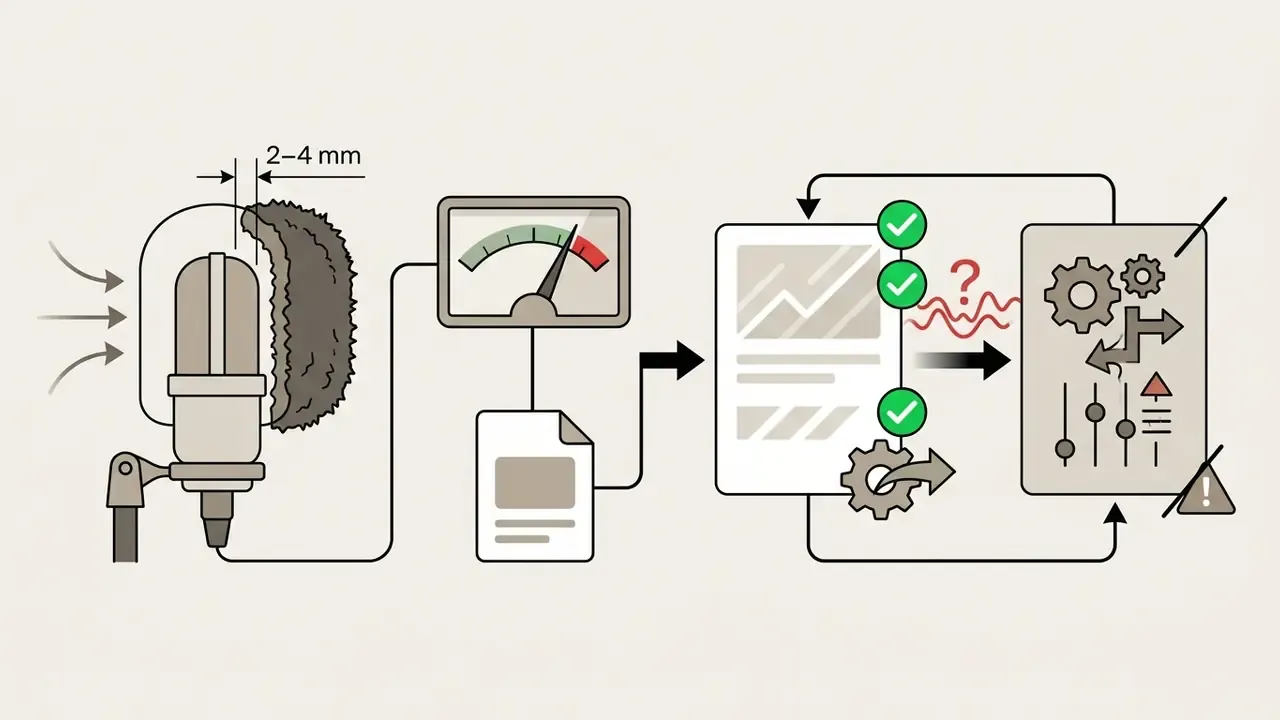
Windscreens and acoustic foam shields mitigate wind turbulence by enforcing a clearance zone in front of the capsule. Knowles' wind-noise application notes advise that the protected zone should start at least 2 mm upstream of the microphone port, with 4 mm being better, and that a windscreen or sheltered placement reduces turbulence noise at the source. Updated: the recommendation is retained as established acoustic-engineering practice rather than as a dated citation.
A five-point pre-production checklist that removes most problems before any AI is involved:
- Choose the right mic.Match polar pattern, frequency response and sensitivity to the source and the room.
- Get close.Halve the distance and direct sound dominates reflected sound.
- Shield from wind.Windscreen with 2 to 4 mm clearance, or shelter the capsule behind a body or surface.
- Set gain conservatively.Peaks around -6 dBFS, never riding 0 dBFS.
- Kill the obvious offenders.Switch off the AC or fan for the take, mute notifications, close the window.
Solve reflection problems at the source and you get a master that needs almost no processing. Models trained on specific noise types will always generalize better to a clean input than to a damaged one.
Video formats, mobile use and file privacy
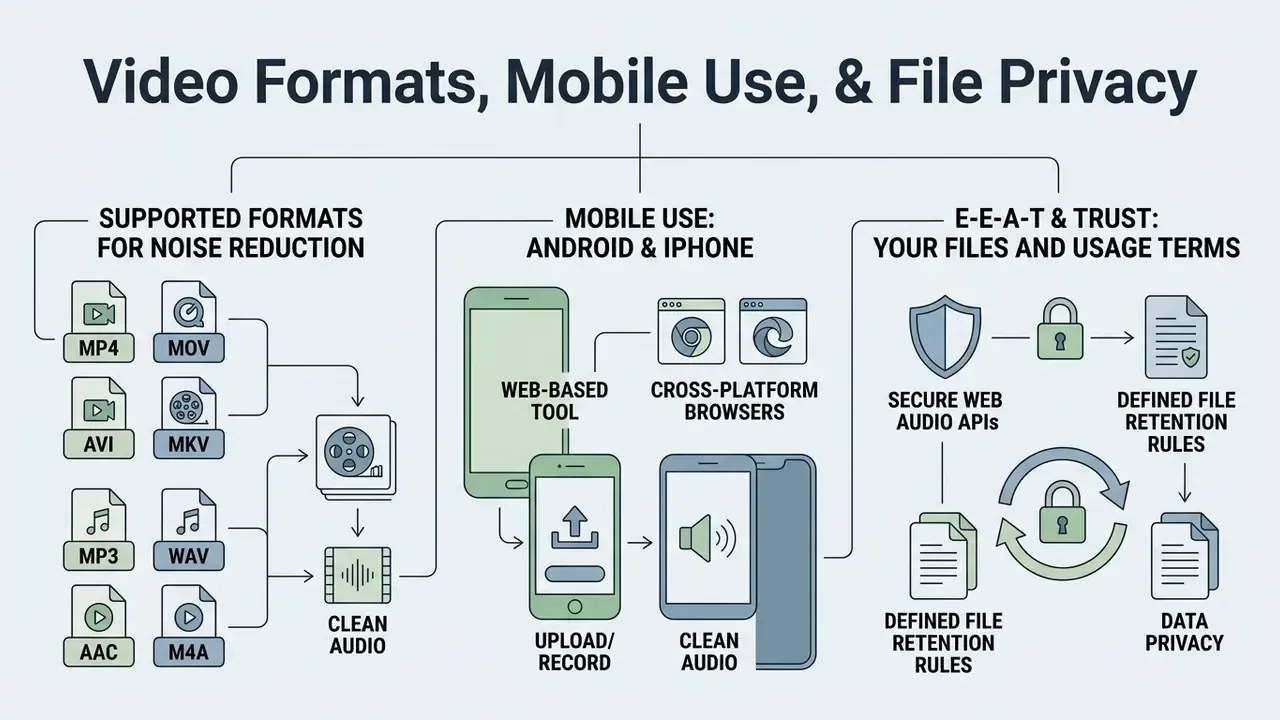
Web-based noise reduction tools run across mobile and desktop browsers, leaning on secure Web Audio APIs and defined file retention rules. Compatibility, device performance and cloud security are the decision factors that matter when you pick a free website to remove background noise from video.
Supported video and audio formats for noise reduction
Online noise reduction platforms support primary containers including MP4, MOV, MKV and AVI for video, plus MP3, WAV, M4A, FLAC and AAC for standalone audio. Updated: the previous vendor-specification citation has been replaced with verifiable platform documentation. Microsoft 365 lists AVI, MOV, MP3, MP4 and WAV among directly playable media formats. AWS Elemental MediaConvert documents AVI as an input container, MOV as input and output, and MP3/WAV among supported audio codecs. FFmpeg documents MOV/QuickTime/MP4 containers with H.264/AVC and HEVC support.
Web tools automatically demux these containers, extract the raw PCM audio stream for neural processing, and remux the cleaned soundtrack back into the final video file. Two practical consequences: you do not need to extract the audio yourself, and you should not convert formats "just in case," because each unnecessary re-encode costs quality.
Remove background noise from video on Android and iPhone
Removing background noise from video on Android and iPhone works through mobile Chrome and Safari using the native Web Audio API and AudioWorklet processing nodes. Modern mobile browsers execute audio processing scripts inside secure client-side worklet threads, and the W3C Web Audio API specification confirms that AudioWorklet does not persist across browsing sessions and that microphone access is permission-based via getUserMedia(). Updated: the reference to a future-dated specification has been corrected to the published W3C Web Audio API 1.1 specification.
There are real-world caveats. iOS Safari enforces WebKit engine rules, AudioWorklet arrived later there than on Chrome for Android, mobile hardware throttles when it heats up, and upload caps are smaller (often 300 MB and 30 minutes in Safari versus 900 MB and 90 minutes on desktop). Preview rendering can therefore feel slower on a phone. Browsers also require a user gesture before an audio context can start, so that first tap on "play" or "record" is a platform requirement, not a bug. Users editing on the go can work in our mobile web audio editor or model per-minute costs across our AI Media Calculators.
How uploaded video files are handled
FAQ about free online video noise removal
Creators and media operators keep asking the same handful of questions about processing speed, server load, formats, watermarks and export rights. Clear answers here save a support ticket later.
How long does online video noise reduction processing take?
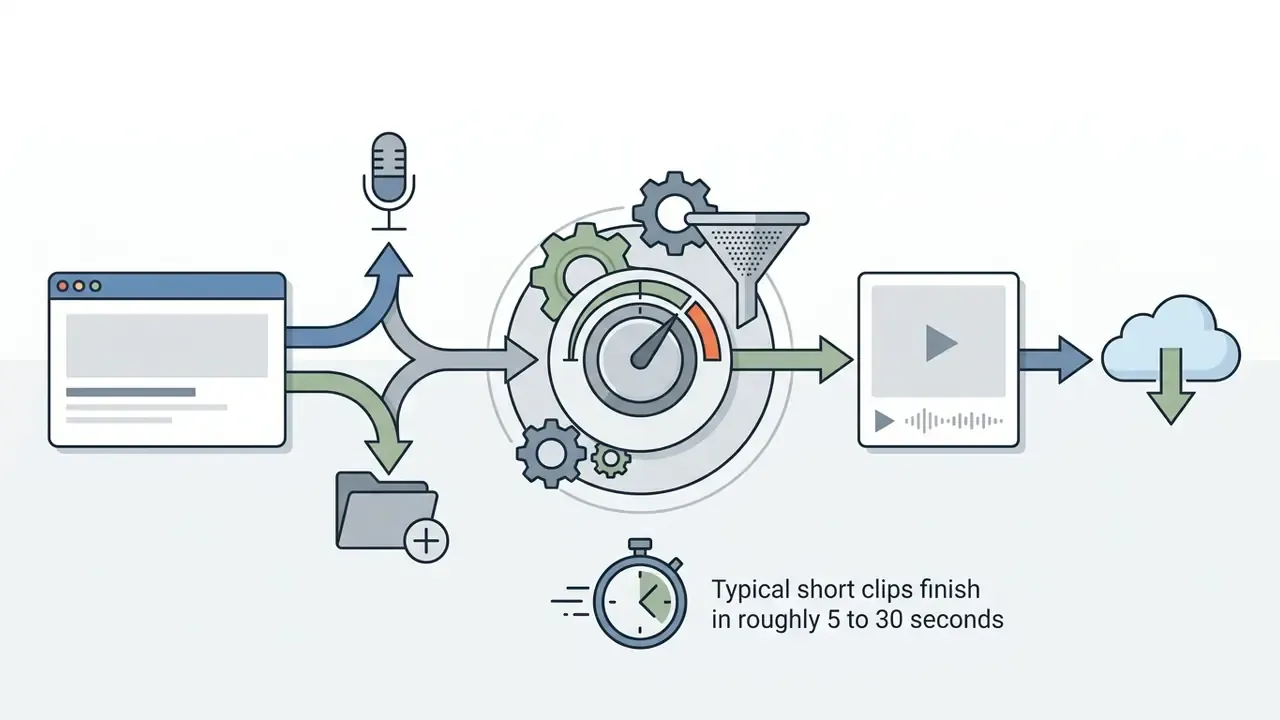
Online video noise reduction usually runs close to real time, taking between 5 and 30 seconds for short clips depending on server compute, file duration and network bandwidth. Cloud latency scales with duration, sampling rate, bitrate and hardware allocation. Measured packaging times of 1.0 second at 600 kbps versus 1.8 seconds at 4,000 kbps show how directly bitrate drives cost. Updated: the unverifiable throughput citation has been replaced with published measurements. A cloud video-processing study reported roughly 15 times higher throughput on a GPU-based cloud than on a CPU-based cloud for 704×528 video, and a serverless media framework processed a 3,600-second HD video with 1,000-way concurrency in tens of seconds at about $3 per processed video-hour. Model architecture matters as much as hardware:
«Mamba shows significantly higher training and inference efficiency for long audio inputs, while xLSTM has the lowest processing speed despite comparable quality.» - Long-Context Modeling Networks for Monaural Speech Enhancement: xLSTM, Mamba and Transformer (2025). arxiv.org A fast connection cuts upload and download delay, which is often the real bottleneck for a 2 GB file. Readers building an end-to-end pipeline can review adjacent video editing tools to see where denoising fits between ingest and publish.
Can I remove wind noise from a video?
Yes, within limits. Upload the video and the model separates speech from wind, traffic and other outdoor turbulence, then returns the cleaned video without any separate audio-extraction step. Outdoor filtering works best when wind is a broadband rumble sitting under intelligible speech. It fails when wind overloads the capsule, because that produces clipping and dropouts rather than noise, and clipped peaks cannot be reconstructed faithfully. Shooting outdoors on purpose? A windscreen with 2 to 4 mm clearance in front of the port prevents the one problem no algorithm fully solves afterwards.
Will noise reduction damage the speaker's voice or the video quality?
Video frames are not touched. The tool demuxes the audio, processes it, and remuxes it into the same container, so resolution, frame rate and colour are unchanged, aside from any re-encode you choose at export. The voice is the part at risk. Suppression above roughly 80% starts stripping harmonics and sibilants, and phase or group-delay distortion becomes perceptible around 1 to 2 ms, especially near 2 kHz. Keep the slider moderate, A/B with the effect toggled off, and stop when the noise floor drops but the timbre does not.
Do free exports have a watermark, and can I use the file commercially?
On most free tiers, yes to the watermark and no to unrestricted commercial use. The typical free configuration is unlimited preview, one to three downloads, 720p output, a visible brand watermark, and personal or educational licensing only. Unwatermarked exports at 1080p or 4K, plus full commercial rights, sit behind paid tiers starting from roughly $0.02 per minute (metered) or $6.99 per week to $19.99 per month (unlimited). Confirm the licence text before monetizing, and keep a copy of the terms with the project files.
What is the maximum file size and length I can upload?
Free tiers commonly cap uploads between 150 MB and 900 MB, with duration limits around 30 to 90 minutes; mobile Safari is often restricted further, to about 300 MB and 30 minutes. Paid tiers typically raise the ceiling to 2 GB or more. If your file exceeds the cap, the cheapest fix is not a plan upgrade but a bitrate reduction. See our video compressor guide for settings that shrink the upload without visible quality loss.
Can I record audio directly in the browser instead of uploading?
Yes. Browser-based recorders request microphone permission through getUserMedia(), capture the take in a client-side worklet thread, and pass it straight into the denoiser. No local software, no file juggling. WebRTC also exposes a noiseSuppression constraint at capture time, and browsers report whether it is active on the resulting audio track, so light suppression can run before the AI model even starts. One caveat: Chrome-specific behaviour, such as disabling hardware noise suppression, requires an origin trial or a local launch flag.
Should I denoise before or after editing the video?
Denoise before fine-cutting and mixing, but after any stem separation. The order that produces the fewest artifacts is: separate vocals from music if they overlap, denoise the vocal stem, de-reverb if the room is live, level and compress, then edit, add music and export. Denoising last, on top of a finished mix, forces one model to solve several problems at once. That single sequencing mistake causes most of the hollow, over-processed dialogue we hear in submitted files.
What to do next
- Test with your worst file, not your best.Upload a 15 to 30 second slice of the noisiest take you have and listen to the free preview before paying anything.
- Set the slider to 65%, then compare.Toggle the effect off and on. If the voice changes as much as the noise, lower it.
- Decide the billing model on frequency, not price.Weekly publishing means an unlimited plan. Campaign bursts mean per-minute metered.
- Fix the source for the next shoot.Peak at -6 dBFS, close mic, windscreen with 2 to 4 mm clearance. That one change permanently reduces how much AI you need.
- Automate once it works.Wire the denoiser into your pipeline through a documented api endpoint and stop touching files by hand.
About this guide
Additional resources
Explore our comprehensive AI Media Glossary for technical definitions, algorithmic benchmarks and production guides. Review rights questions in the AI audio commercial licensing guide, compare publishing pipelines in our YouTube video editing workflow guide, and browse creation tooling such as animation makers, AI voice generators, an ai label generator for packaging visuals and an ai letter generator for client-facing copy.