That last point is why this page matters beyond the marketing team. In a US bank or a mature fintech, a "quick resize" of an internal town hall, a customer call recording, or a model-review screen capture is a data-transfer decision. It touches vendor risk, retention policy and audit evidence, not just pixel dimensions. Shadow IT rarely starts with a rogue platform. It starts with a free tool that worked in thirty seconds.
Last updated: February 2026. Reviewed against current platform specifications and published W3C and IEEE media standards.
Adapting video content for modern web distribution requires precise control over pixel dimensions, aspect ratios and compression parameters. Whether you are preparing assets for enterprise marketing pipelines, branch digital signage, or cross-platform social media campaigns, the right video resizing workflow protects visual quality and playback performance. Modern browser-based media utilities let you modify video files directly inside a web interface, with no complex local installation and no admin rights request.
How to Resize Video Online
To resize video online, you upload your media file to a browser-based editing platform, choose target pixel dimensions or an aspect ratio preset, adjust the spatial framing, and export the processed file. Modern cloud and client-side web tools compress that sequence into a direct, non-destructive workflow.
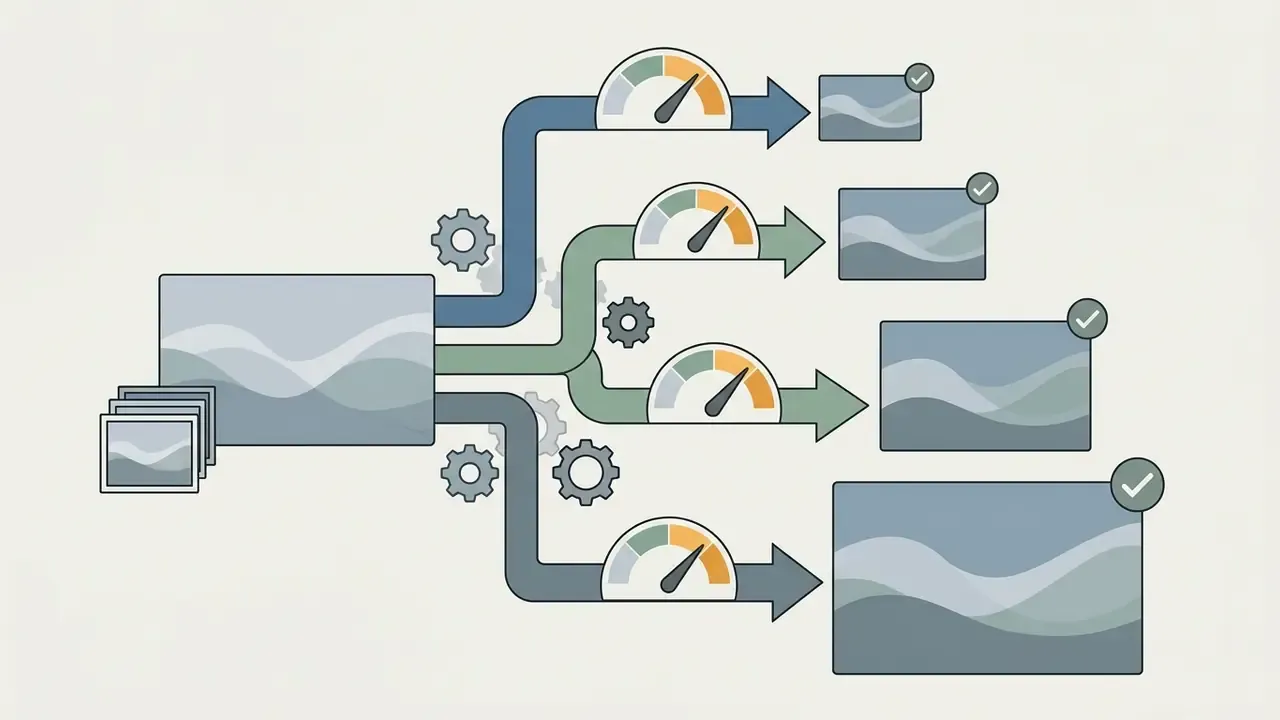
Cloud transcoding pipelines follow the same three-phase job lifecycle regardless of vendor: prepare (ingest and validate the source stream), transcode (decode, rescale, re-encode) and package (write the output back to storage for download). Google Cloud Transcoder, Huawei Cloud MPC and Tencent Cloud all expose variants of one upload, process, store, download sequence. They differ mainly in how much of the internal job model they show you.
Pre-export checklist (run this before you hit render):
- Confirm the target platform's required aspect ratio and pixel dimensions.
- Verify orientation (portrait, landscape or square) matches the placement.
- Check that key subjects, logos and text sit inside the safe area, not under platform UI overlays.
- Decide between crop (tighter framing, content loss) and fit or pad (full content, added bars).
- Select output container and codec: MP4 with H.264 video and AAC audio for maximum compatibility.
- Confirm bitrate target: roughly 8 to 12 Mbps for 1080p at 30 fps, 13 to 20 Mbps for 4K at 30 fps.
- Preview the first and last three seconds to catch padding, stretching or letterboxing errors.
- Verify the export carries no watermark if the asset is destined for commercial publication.
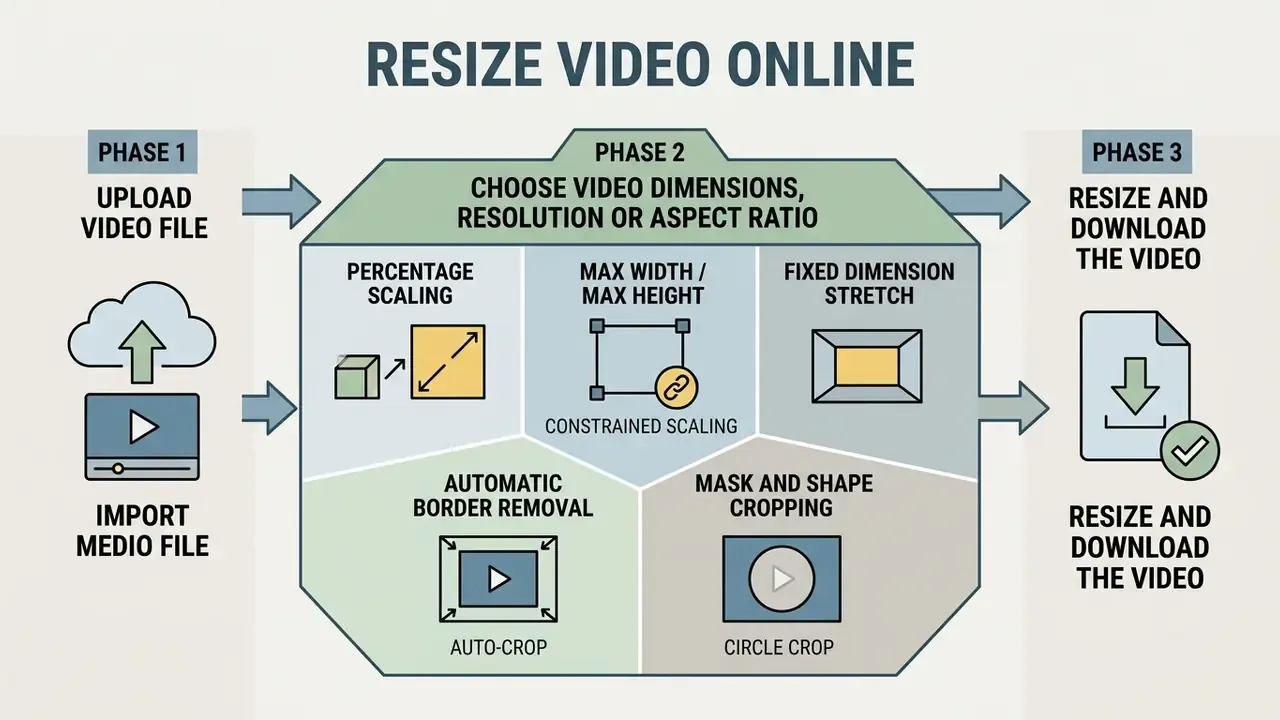
Upload a Video File
To start, upload a supported video file from local storage or a connected cloud drive into the online video resizer canvas. Browser-based interfaces use standard web file APIs to ingest formats such as MP4, MOV or WebM into memory. Teams comparing capabilities across browser tools can review our reference guide to the modern video editor feature landscape before standardising a workflow on a single vendor.
Upload capacity varies substantially by vendor and processing model, so treat published caps as vendor policy rather than a universal web standard. Server-based services impose fixed ceilings: documented limits in this category range from 200 MB (Ezgif, OnlineConverter) through 1 GB and 2 GB (Adobe Express, depending on entry point and account tier). Tools that process media locally in the browser have no server-side cap at all; the practical ceiling is device RAM and available GPU memory. Enterprise upload portals frequently standardise on a 2 GB per-file limit with broad container support including MP4, MOV, AVI, MKV, OGV, WebM and 3GP.
One small practical note. If your file sits at 1.9 GB and the tool caps at 2 GB, trim the clip first. A failed upload at 97% is a genuinely irritating way to spend eight minutes.
Choose Video Dimensions, Resolution or Aspect Ratio
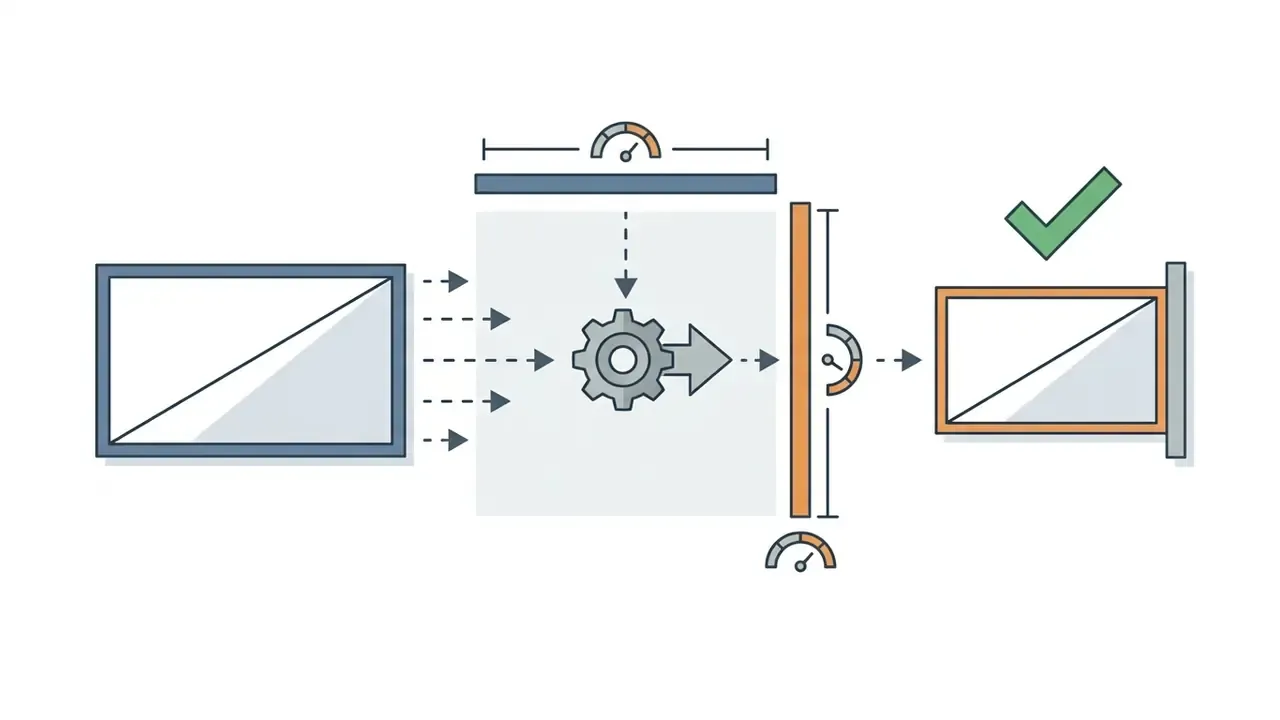
Configuring video size means specifying target pixel dimensions (width × height) or selecting a fixed aspect ratio standard. You can type custom width and height values, or pick common display presets such as 16:9 widescreen and 9:16 vertical.
Proportional accuracy follows one relationship: width divided by height equals the aspect ratio (W / H = AR). Equivalently, for any fixed ratio x:y, every size kx × ky preserves identical frame geometry, which is why 3:2 and 600:400 describe the same shape. When you are assembling creative media rather than adapting it, a modern video editing workflow often pairs an ai diagram generator or an ai design generator to draft visual layouts before final video framing is locked.
Advanced online video resizers, and most credible online video aspect ratio changer tools, offer five distinct spatial scaling behaviours:
Standard landscape resolution options typically include 640 × 480 (480p SD, 4:3), 1280 × 720 (720p HD), 1920 × 1080 (1080p FHD) and 2560 × 1440 (1440p QHD). Portrait equivalents mirror those values: 480 × 640 (3:4), 720 × 1280, 1080 × 1920 and 1440 × 2560 at 9:16. Supported display aspect ratio conversions commonly cover 16:9, 9:16, 4:3, 1:1, 5:4 and 4:5.
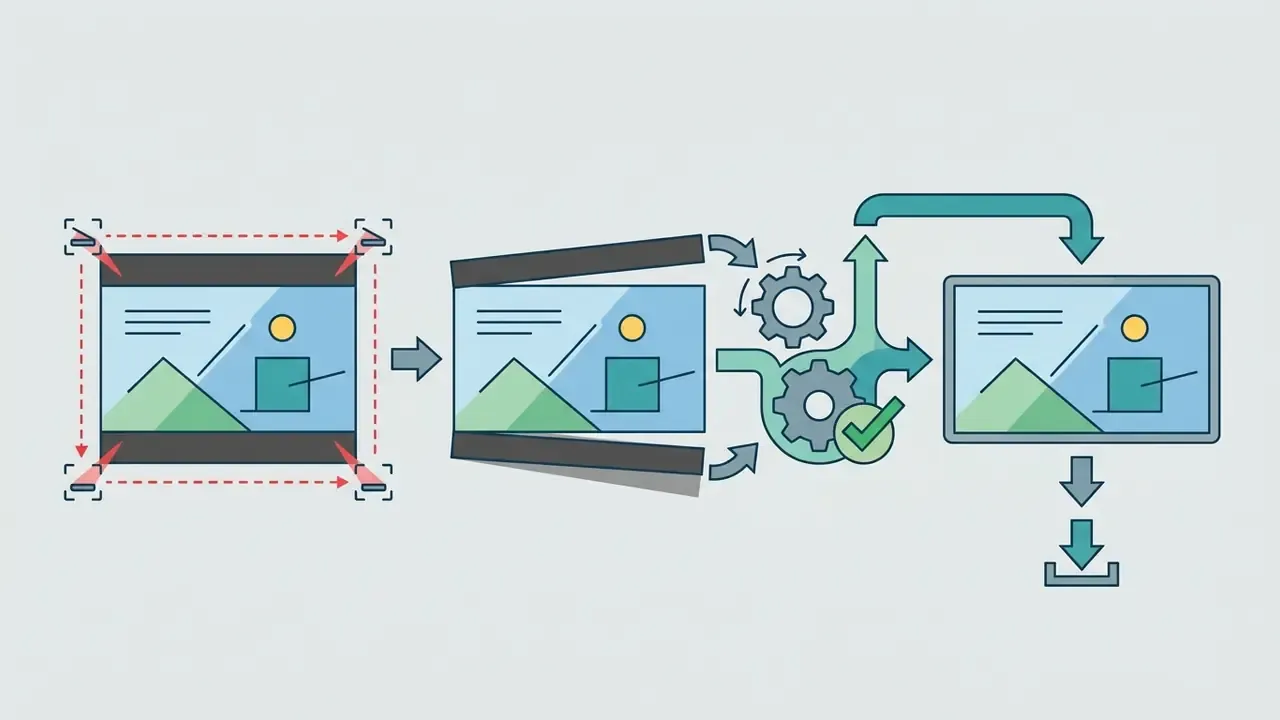

Resize and Download the Video
After setting dimensions and checking the preview frame, trigger rendering to encode and download the finished video file. The system applies your scaling parameters either through cloud transcoding servers or through client-side WebAssembly execution.
Interactive framing and canvas adjustment. To refine frame boundaries manually after selecting a preset:
- Zoom and scale click and drag any corner handle of the video bounding box to zoom in or out.
- Refine focus click inside the frame and drag to centre primary subjects in the active target canvas, so faces and product shots stay inside the visible crop.
- Mobile touch controls on iOS and Android touchscreens, pinch to zoom for scale and drag with one finger to align focal points inside 9:16 vertical boundaries.
During final processing, server pipelines run quality checks before writing the output stream to storage. Once the job completes, you download the resized video file straight to your device for publication or archiving.
Resize, Crop and Change Video Aspect Ratio: What Is the Difference?
Resizing scales the overall pixel grid. Cropping removes selected outer regions of the frame. Changing the aspect ratio alters the proportional balance between frame width and height. Keeping those three apart is what prevents stretched faces, clipped logos and the sort of distortion that gets an asset pulled from a campaign.
| Operation | Primary Function | Effect on Frame Geometry | Pixel Scaling Impact |
|---|---|---|---|
| Resize | Scales active resolution up or down | Maintains original ratio unless overridden | Resamples pixel grid to new target size |
| Crop | Cuts away frame edges and margins | Alters visible framing and canvas bounds | Retains original pixel density in cropped area |
| Change aspect ratio | Modifies width-to-height ratio | Forces new frame proportions (16:9 to 9:16, for example) | Requires cropping, letterboxing or stretching |
In practice the three operations are sequential rather than competing. Crop sets framing and composition, aspect ratio conversion sets frame shape, resize sets final delivery dimensions. Do them in that order and you rarely need a second pass.
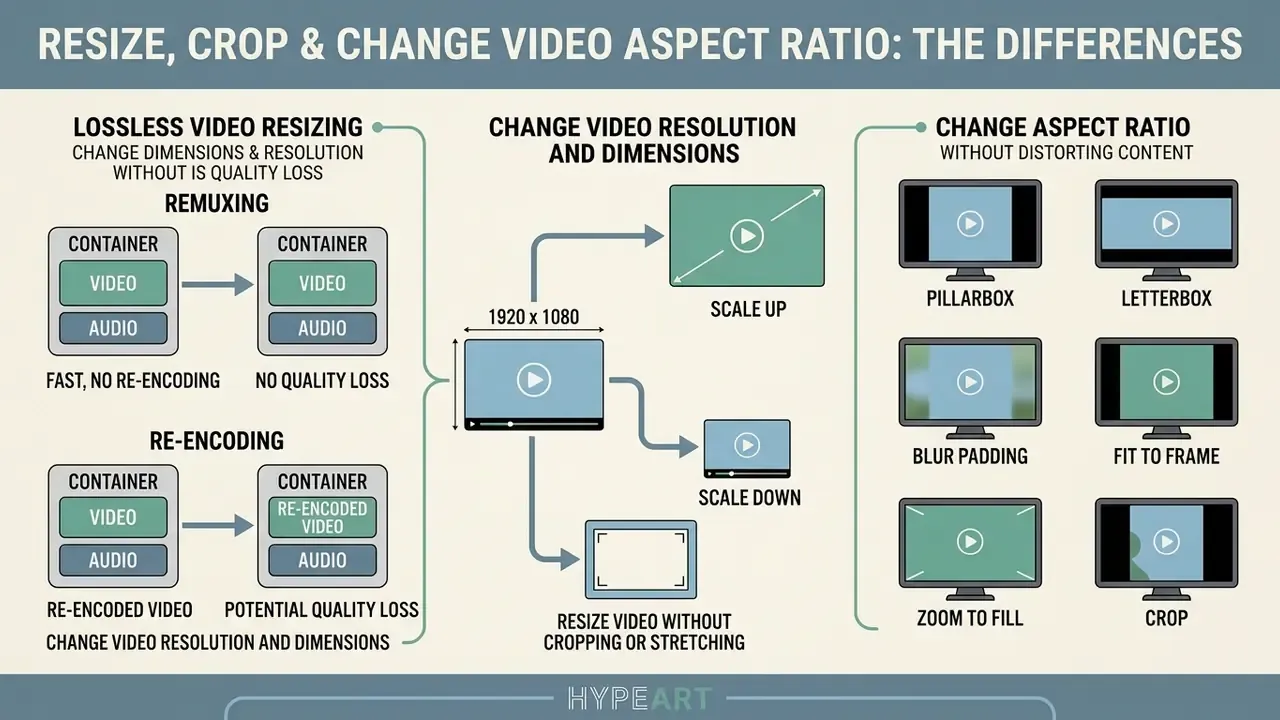
Lossless Video Resizing: Remuxing vs. Re-Encoding
When you only need a different container format, or corrected metadata dimensions, and the spatial pixel grid stays the same, choose Copy Original (remuxing). Remuxing rewrites header metadata and stream containers (MOV to MP4, for instance) without decoding and re-compressing the underlying frames. Visual fidelity is preserved at 100%, with zero generational loss. Because there is no decode-encode cycle, remuxing is also dramatically faster and barely touches CPU or GPU.
Conversely, when scaling resolution (4K to 1080p) or shifting aspect ratios, tools apply re-encoding through H.264, HEVC or AV1. Re-encoding resamples the pixel matrix and applies spatial noise reduction to balance smaller file size against bitrate efficiency. Some compression loss is unavoidable here, though output is optimised for the target resolution.
A related technique, sometimes called smart rendering or copy mode, re-encodes only the segments whose parameters differ from the source and stream-copies everything else. Lossless export in this mode requires matching dimensions, codec profile, levels and extradata between input and output. For genuinely lossless intermediate deliverables, professional pipelines render to a mezzanine codec: ProRes, or the ISO/IEC-standardised JPEG XS, defined as a visually lossless, low-latency lightweight coding system for audiovisual mezzanine workflows.
Change Video Resolution and Dimensions
Changing video resolution adjusts the total number of pixels in each frame. Changing video dimensions redefines frame geometry for display rendering. Move a file from 1920 × 1080 to 1280 × 720 and you cut total pixel count while keeping the 16:9 proportional geometry intact.
Resolution is formally defined as absolute pixel count expressed as width × height in pixels: 720 × 480, 1280 × 720, 1920 × 1080 (Adobe Video Standards Manual; Carnegie Mellon University pixel aspect reference). Display dimensions describe the physical or rendered canvas bounds on screen, meaning screen size and pixel resolution behave as two separate spatial metrics (MIT CS&AI Lab display fundamentals). Formal quality benchmarking of resolution changes sits under published standards:
"IEEE Standard 1857.2-2023 defines the methodology for subjective and objective video quality assessment across conventional and AI-based codecs."
That distinction matters when someone asks you to "make the video bigger". Bigger canvas and more pixels are not the same request.
Resize Video Without Cropping or Stretching
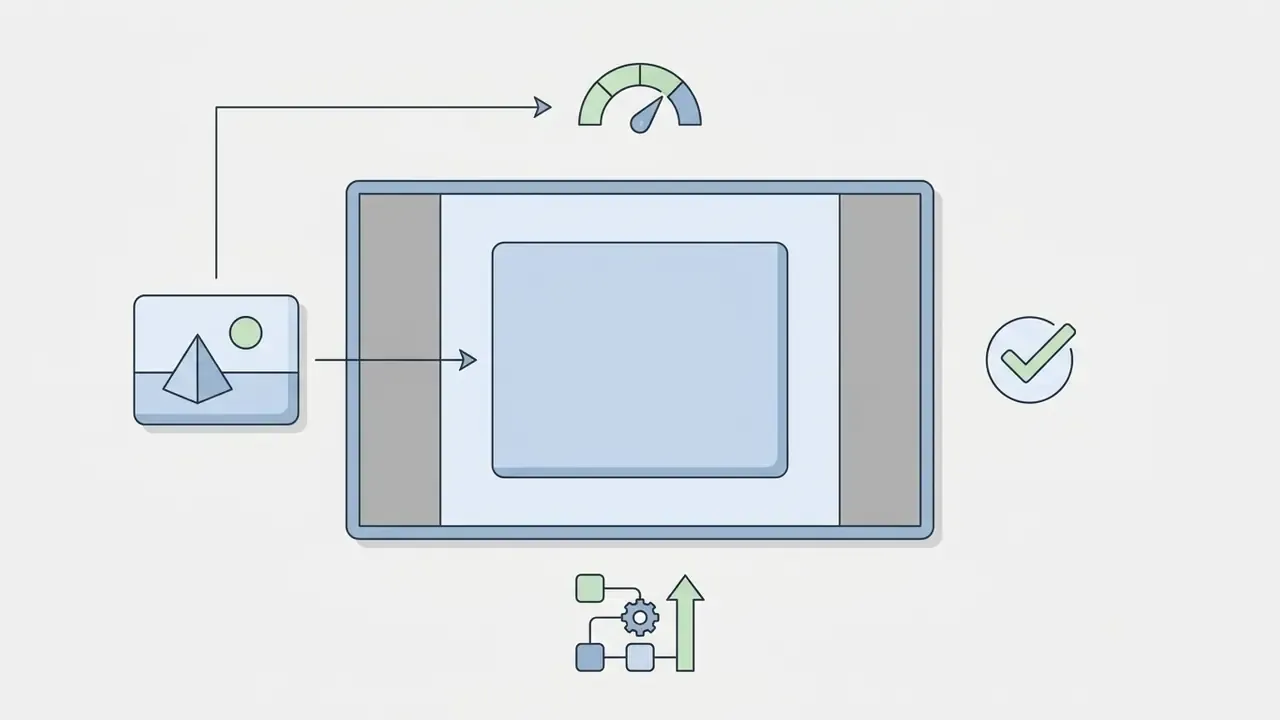
To change a video's aspect ratio without cropping away visual detail or stretching the picture, online tools apply padding: pillarboxing, letterboxing or blurred background fills. These no crop video online methods preserve 100% of original visual content inside a new frame boundary.
"Content-adaptive downsampling models generalise across codecs and upsamplers, delivering improved coding efficiency while preserving subjective quality."



When to Downscale Video to Preserve Quality
Downscale video online when you need a smaller file, lower streaming bandwidth, or a high-resolution master adapted for a smaller display target without visible softness. Downscaling preserves perceived sharpness because low-pass filtering removes high-frequency spatial noise before pixel resampling (ScienceDirect, 2024).
"Intelligent resolution reduction before encoding cuts bitrate by 6–12% while maintaining objective quality metrics such as PSNR and SSIM."
Research on Scale-Arbitrary Compressed Video Super-Resolution confirms that downscaling before secondary encoding reduces bitrates by 6.06% to 12% across standard test sequences while holding objective quality metrics such as PSNR and SSIM (SA-CVSR, 2025; CVPR, 2023). IEEE Standard 1857.2-2023 further establishes that downsampling preserves spatial edge structures more reliably than upscaling reconstruction algorithms (IEEE, 2023). Content-adaptive downscaling kernels can produce visibly crisp, noise-free output with minimal aliasing and sharper text rendering than naive reduction (ACM SIGGRAPH Asia, 2013).
Upscaling works the other way round, and worse. Enlarging low-resolution video to a high-resolution target requires mathematical interpolation to invent missing pixel data. Experimental research indicates that arbitrary upscaling cannot recover lost spatial detail and frequently introduces artifacts such as edge softening, pixelation and blockiness (EURASIP, 2009).
"Arbitrary upscaling does not restore lost spatial detail and introduces artifacts, edge softening and blocking."
Nearest-neighbour scaling is the clearest illustration: downscaling with it produces severe aliasing, while pixel-copy upscaling produces pixelization and blocking. Codec documentation adds that resolution resampling is non-invertible and can propagate drift through reconstructed video, affecting temporal consistency as well as per-frame fidelity. For static assets where interpolation is acceptable, an AI image upscaler applies learned edge restoration instead of naive interpolation. The same limit on invented detail still applies, though. A model can plausibly guess a texture; it cannot retrieve information the encoder already threw away.
Video Size and Aspect Ratio Presets for Social Media
Social platforms mandate specific aspect ratio and pixel resolution standards to keep playback clean across desktop feeds, mobile apps and vertical story surfaces. Match the preset and your content renders as intended, with no surprise auto-crop and no unwanted letterboxing.
| Platform / Use Case | Placement Target | Aspect Ratio | Recommended Resolution | Orientation | Container / Codec | Target Bitrate |
|---|---|---|---|---|---|---|
| Reels & Stories | 9:16 | 1080 × 1920 px | Portrait | MP4 (H.264 + AAC) | 8–12 Mbps @30 fps | |
| Instagram / Facebook | Portrait Feed Post | 4:5 | 1080 × 1350 px | Portrait | MP4 (H.264 + AAC) | 6–10 Mbps @30 fps |
| Main Feed Post | 1:1 | 1080 × 1080 px | Square | MP4 (H.264 + AAC) | 6–10 Mbps @30 fps | |
| TikTok | Main Feed & Ads | 9:16 | 1080 × 1920 px (min 540 × 960) | Portrait | MP4 (H.264 + AAC) | 8–12 Mbps @30 fps |
| YouTube | Standard Video | 16:9 | 1920 × 1080 (1080p) / 3840 × 2160 (4K) | Landscape | MP4 (H.264 / AV1 + AAC) | 8–12 / 13–20 Mbps |
| YouTube | Shorts | 9:16 | 1080 × 1920 px | Portrait | MP4 (H.264 + AAC) | 8–12 Mbps @30 fps |
| Feed Video | 16:9 / 1:1 | 1920 × 1080 / 1080 × 1080 px | Landscape / Square | MP4 (H.264 + AAC) | 5–10 Mbps @30 fps | |
| QHD Monitors / Web | High-Res Web Streaming | 16:9 | 2560 × 1440 px (1440p) | Landscape | MP4 / WebM (H.264, VP9) | 12–18 Mbps @30 fps |
| Legacy & Tablets | Standard SD / iPad | 4:3 | 1440 × 1080 / 640 × 480 px | Landscape | MP4 (H.264 + AAC) | 2–6 Mbps @30 fps |
| Classic Square | Social Ads & Banner Maps | 1:1 | 1080 × 1080 px | Square | MP4 (H.264 + AAC) | 6–10 Mbps @30 fps |
| Messaging / Email | Lightweight Share | 16:9 | 854 × 480 (480p) / 640 × 360 (360p) | Landscape | MP4 (H.264 + AAC) | 1–2.5 Mbps @30 fps |
Duration limits differ by platform and by upload surface, mobile app versus desktop studio, and they change often. Verify current caps on the destination platform before you finalise a long-form cut. For regulated advertisers there is a second reason to check: disclosure text has to remain legible at every delivery size you publish.
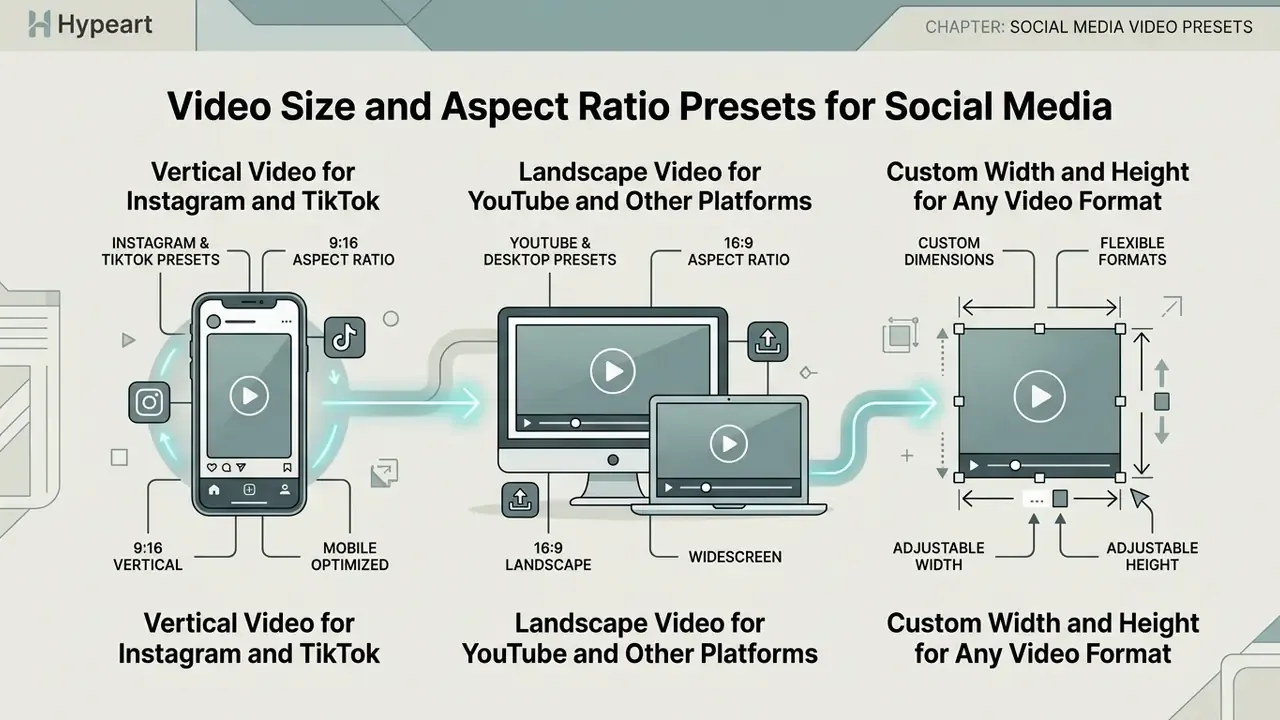
Vertical Video for Instagram and TikTok
Vertical video, 9:16 orientation at 1080 × 1920 pixels, is the primary technical format for mobile-first distribution on Instagram Reels, TikTok and YouTube Shorts. Full-screen portrait delivery uses the whole handset display and aligns with mobile feed discovery behaviour.
"Empirical analysis of viral TikTok advertising found an average clip length of 26 seconds, with product or action demonstration as the dominant genre."
Empirical studies on short-form vertical video indicate that viral social content averages 26 seconds and leans heavily on full-screen portrait presentation (SpringerLink, 2024). Converting horizontal 16:9 assets into vertical 9:16 files demands careful focal-point alignment, or background blur padding, so central subjects are not sliced. TikTok ad specifications document a 540 × 960 px minimum with 9:16 recommended, while 1080 × 1920 px remains the standard HD delivery size on both platforms. When you are packaging the same clip with written commentary for community or internal channels, an ai discussion post generator can draft the accompanying copy while the render finishes.
Landscape Video for YouTube and Other Platforms
Landscape video at 16:9 remains the global standard for YouTube, desktop browsers, television displays and corporate presentations. Standard HD is defined as 1920 × 1080 pixels (1080p); Ultra HD is 3840 × 2160 pixels (4K). Creators building a repeatable publishing pipeline can pair these specs with a dedicated YouTube video editor workflow.
YouTube player interfaces default to a 16:9 widescreen layout, and current YouTube Creator Guidelines recommend a minimum resolution of 1280 × 720 for standard 16:9 playback. Commercial media distribution, meaning videos offered for sale or rental, requires a minimum frame size of 1920 × 1080 pixels under fixed 16:9 spatial formatting (Google YouTube Creator Guidelines). Resolution choice also interacts with delivery quality on the viewer's side:
"Adaptive bitrate coordination raises average QoE by 23–65% compared with baseline streaming policies."
Custom Width and Height for Any Video Format
Custom width and height configurations let publishers generate video for non-standard display dimensions: website banner overlays, embedded player frames, branch lobby signage. Custom spatial sizing sidesteps fixed social templates and matches precise UI layout constraints instead.
Digital signage design guidance treats aspect ratio as width divided by height, with 4:3, 16:9 and 9:16 as the standard layout families. Landscape submissions are typically 1920 × 1080 and portrait submissions 1080 × 1920. Custom video zones, such as horizontal half-screen banners at 1920 × 540 or vertical display split zones at 960 × 1080, are calculated with the proportional canvas formula zone width = display width × percentage / 100 (digitalsignage.com image optimization guidance; Visix design standards; City Tech CUNY signage guidelines). Typing exact pixel values is how editors produce pixel-perfect assets for specialised hardware displays, including odd ultra-wide panels that no preset covers.
Supported Video Formats and File Size Considerations
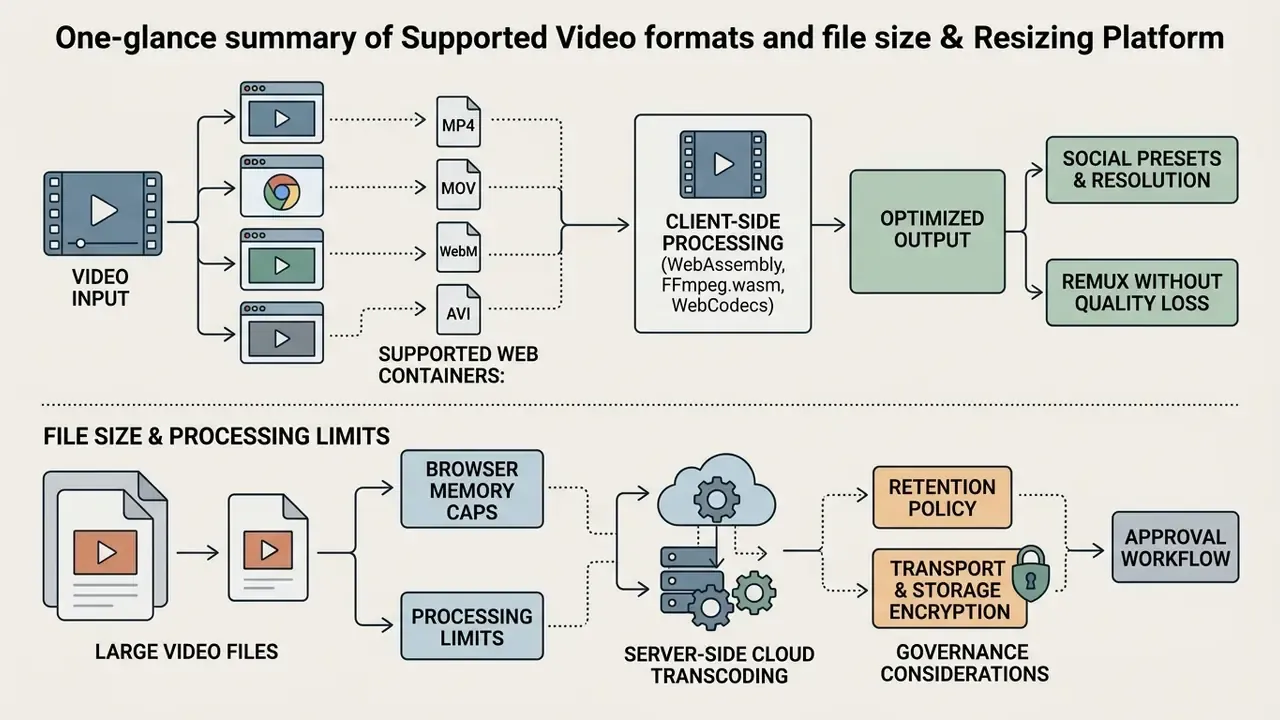
Online video resizers support standard web containers including MP4, MOV, WebM and AVI, subject to browser memory caps and processing limits. Container compatibility governs how efficiently files upload, transcode and download inside a web interface. Broader ingest lists commonly extend to MKV, FLV, WMV, 3GP, M2TS, MTS, VOB, ASF, DivX, RM and RMVB, with MP4 as the normalised export container. Encrypted or DRM-protected files are generally rejected outright by browser-based converters, which is worth knowing before you spend twenty minutes on a failed job.
Resize MP4 and Other Video Files Online
MP4 is the most universally compatible video file format for browser-based resizing, cloud streaming and social publishing. Most online converter resize video tools normalise everything to it for exactly that reason.
The MP4 file format derives from the ISO Base Media File Format and is standardised as ISO/IEC 14496-14 (published January 2020). It is optimised for efficient web delivery when combined with H.264 video encoding. Note the practical distinction, because it trips people up: the standard defines only the container, while platform ingest policy defines codec, resolution, frame rate and file-size limits. That is why one "universal" MP4 export still needs per-platform resizing.
Browser-based editors also accept MOV, WebM and AVI sources, converting them into standardised MP4 output during export. For enterprise media operations assessing automated licensing and usage rules, our AI Media Commercial-Use policies set out how to keep a media pipeline compliant.
How to Handle Large Video Files
Processing large video files, 4K footage or anything past 500 MB, inside a browser means managing memory overhead and bitrate settings so the tab does not die mid-render. Lowering target bitrate or reducing frame dimensions cuts memory pressure directly. Anyone searching for a large video resizer online free option runs into this ceiling quickly, and for size-only objectives a dedicated video compressor is usually the smarter next step than a second resize pass.
According to WebCodecs performance guidance, exceeding available GPU memory can crash the playback context, so implementations should cap in-flight frames at roughly ten (W3C WebCodecs, W3C Recommendation). Target bitrates for 4K rendering sit at 13 to 20 Mbps at 30 fps and 20 to 30 Mbps at 60 fps, balancing visual fidelity against operational file size. Two further optimisations matter: render at or below the display target resolution, since oversized inputs get downscaled during playback anyway, and match codec to content, because browsers support 4K broadly while 8K playback generally depends on H.265 or AV1 availability.
Browser support matrix for client-side processing:
| Environment | WebCodecs (VideoEncoder) | WebAssembly Transcoding | Practical Notes |
|---|---|---|---|
| Chrome / Edge (desktop) | Supported | Supported | Most complete target for in-browser encode pipelines |
| Firefox (desktop) | Partial | Supported | Verify codec configuration before encoding |
| Safari (macOS) | Supported in current versions | Supported | Check per-version compatibility tables |
| Safari (iOS 16.4–18.7) | Partial | Supported | Historic fullscreen playback behaviour on iPhone |
| Safari (iOS 26.0+) | Supported | Supported | In-page pipelines viable on newer builds |
| Chrome (Android) | Supported | Supported | Ceiling set by device RAM and codec availability |
Always gate encoding on a runtime capability check such as VideoEncoder.isConfigSupported() rather than user-agent sniffing. User-agent strings lie; capability checks do not.
Data Privacy and Enterprise Security When Resizing Video Online
Free Online Video Resizer: Access, Limits and Commercial Use
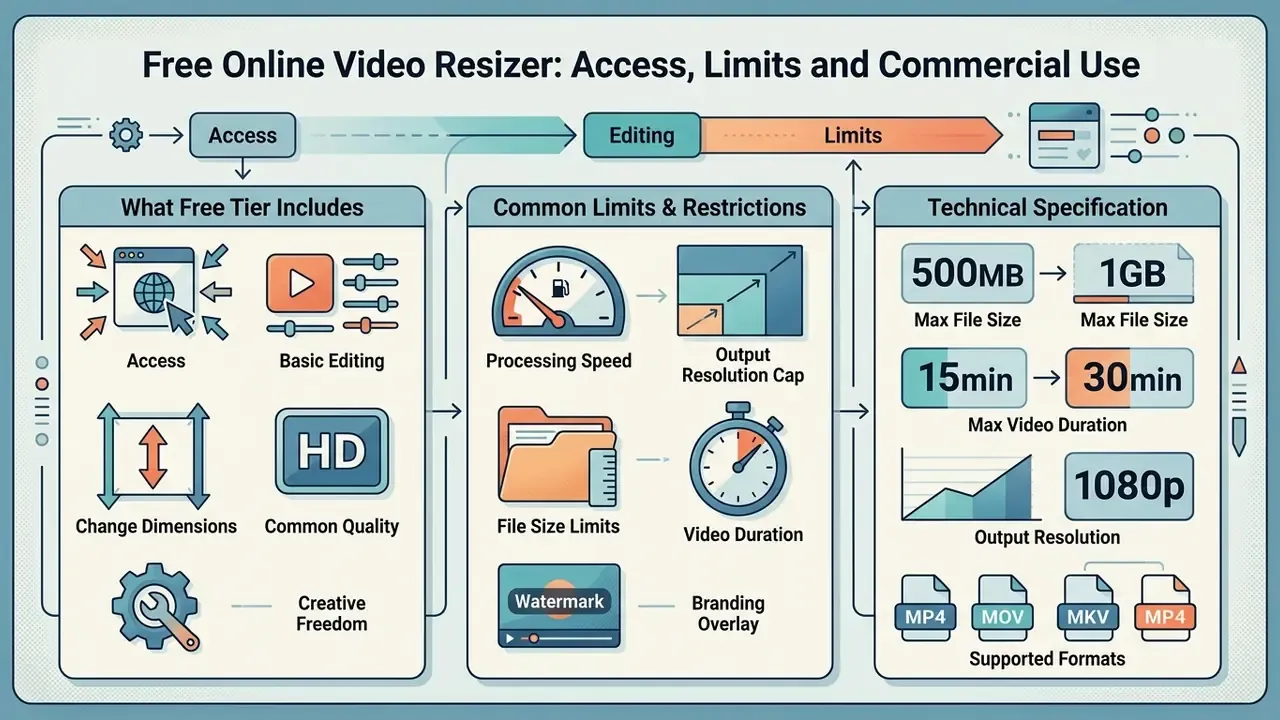
Free online video resizer utilities give you accessible, browser-based editing, and they almost always enforce operational limits: file size, processing speed, output resolution, or a watermark. Check the ceilings against your actual workflow before you build a publishing routine on top of a free video resizer online free tier.
What a Free Video Resizer Includes
A free tier usually covers fundamental aspect ratio conversion, standard resolution scaling up to 1080p, basic trimming and direct download, with no upfront subscription. Faster processing and advanced features sit behind paid plans. Teams looking for zero-cost production alternatives, rather than adaptation, can also evaluate a free AI video generator for asset creation.
- Free capabilities: aspect ratio presets (16:9, 9:16, 1:1, 4:5), pixel resolution downscaling, canvas framing adjustments, percentage scaling, auto border removal, standard file exports.
- Common limits: upload caps (200 MB to 500 MB per file is typical), export ceilings at 720p or 1080p, watermark overlays, queued cloud processing.
Technical specification for browser-based free tiers. Free online resize video tools generally operate under these execution parameters:
For a side-by-side view of capability ceilings, see our comparison of free video editing software. If you are evaluating licensing structures or subscription tiers, the pricing pages set out service levels, and technical teams can be reached through support channels.
Using Resized Videos for Business and Brand Content
More Video Editing Tools Available After Resizing
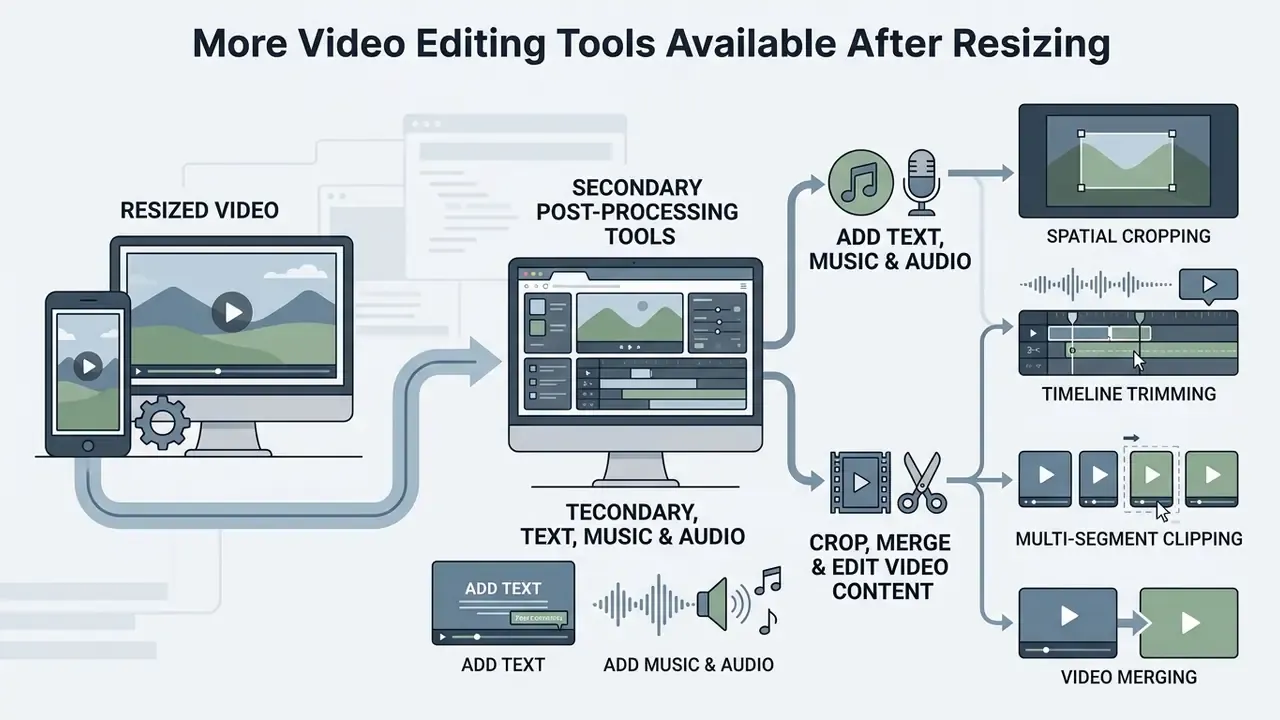
Once the file is resized, web-based media suites offer secondary post-processing to get content publication-ready. Typical follow-on tasks: text overlays, closed captions, background audio, trimming, and merging several clips. Where you need new footage rather than adapted footage, an AI video generator can produce native-ratio assets directly and skip the resize step entirely.
The standard post-resize sequence runs: resize or aspect-ratio adjustment, then background fill or colour, then text and caption overlay, then audio track, then trim and merge, then compression, then final render and export.
Add Text, Music and Audio to the Video
Text overlays, lower-third graphics, closed captions and background soundtrack all improve comprehension, and captions carry accessibility obligations too. Most mobile viewers watch with sound off, so captions are not a nice-to-have.
Under Web Content Accessibility Guidelines (WCAG 2.1) and Section 508 standards, synchronised captions must represent all verbal speech plus essential non-speech audio cues such as music and sound effects (W3C WAI, 2024; U.S. Section 508 guidance). Captions differ from dialogue-only subtitles precisely because they also convey sound effects, laughter, speaker identification and location. Section 508 guidance adds concrete rendering rules: synchronise captions to the audio track, limit them to two lines and 45 characters per line, place them in the lower third where possible, and style speaker labels, sound effects and music consistently. W3C planning guidance further notes that audio description or a transcript is required when visual content is not conveyed by the audio track.
When generating automated voiceover or synthetic speech during editing, teams often use an ai dialogue generator for custom audio assets. For music-led social edits, novelty formats such as an ai diss track generator show how far generated audio has moved into short-form workflows. Whether that belongs in regulated brand content is, frankly, a separate conversation with your compliance team.
Crop, Merge and Edit Video Content
Finishing an asset usually involves spatial cropping, timeline trimming and concatenating clips into one continuous stream. Doing all of it in a single browser session, rather than three tools, is what makes it possible to edit video size online without a desktop suite.
- Spatial cropping cuts away outer frame areas to adjust composition or emphasise a focal point, using pre-defined aspect ratios or freeform bounds.
- Timeline trimming sets precise start and end markers to remove unwanted footage, either by dragging handles or typing exact timecodes.
- Multi-segment clipping extracts several separate ranges from one source and reorders them before output.
- Video merging joins multiple resized clips sequentially into one unified file, with optional per-clip mute.
For teams comparing multi-tool creative software capabilities, our AI Media Comparison Matrices help identify the right feature set across browser utilities.
FAQ: Resizing Video Online
Browser-based video editing operates under standardised web media protocols, API constraints and client hardware limits. The questions below cover the ones that come up most often.
Can I Resize a Video Online on a Phone?
Yes. You can resize a video online in mobile browsers such as iOS Safari or Android Chrome, with no native app install. Mobile workflows are still bound by operating system memory limits and platform-specific playback behaviour. On iOS Safari, video playback historically defaulted to system fullscreen modes on iPhone, where height and width attributes affected page layout rather than in-page playback. Modern iOS versions (16.4 and later) added partial WebCodecs support, with full support reported in Safari 26.0 and later (MDN Web Docs browser compatibility data). Android Chrome is the more complete target for web-based media workflows, though codec availability still depends on the device. Web utilities run feature checks such as VideoEncoder.isConfigSupported() to confirm your browser and hardware can handle client-side encoding before processing begins. On touchscreens, pinch to zoom scales the frame; a single-finger drag repositions the subject inside the target canvas.
Can I Resize a Video Without Losing Quality?
Yes, if you avoid re-encoding. Copy Original / remuxing rewrites the container and header metadata while stream-copying the video essence, so the original bitstream is preserved exactly. Any change to resolution or aspect ratio requires re-encoding, which introduces minimal but non-zero compression loss. To keep that loss small, encode once from the highest-quality master instead of resizing an already-compressed export, and avoid repeated compression cycles.
Will Downscaling Reduce Video Quality?
Downscaling reduces total pixel count while retaining high per-pixel quality, and low-pass filtering before resampling generally preserves perceived sharpness while suppressing aliasing. Research on scale-arbitrary compressed video super-resolution reports bitrate reductions of 6.06% to 12% at maintained PSNR and SSIM. Upscaling behaves differently: it cannot recover discarded detail and tends to introduce edge softening, pixelization and blocking.
How Do I Remove Black Bars From a Video?
Use the auto-crop / remove bars option. The tool scans the top, bottom, left and right perimeters, detects uniform black letterbox or pillarbox regions, and crops them so only the active picture survives before scaling to your target dimensions. This is the correct fix for footage that was previously padded into a mismatched ratio.
Do Free Resizers Add a Watermark?
It depends on the vendor. Several documented free tools export without watermarks and without signup; other free tiers watermark output unless you use licensed assets or upgrade. Verify watermark policy before producing commercial deliverables, and inspect the first and last frames of the export rather than trusting the preview.
Can I Resize Multiple Videos at Once?
Batch behaviour varies. Some services expose bulk converters that queue several files against one parameter set; most single-purpose free resizers process one file per session. For repeatable multi-file pipelines, programmatic transcoding through an API is more reliable than a browser UI, because it applies identical scaling, bitrate and container parameters across an entire asset library, and it leaves a log.
What Aspect Ratio Should I Choose?
Match the destination placement. 9:16 (1080 × 1920) for Reels, TikTok and Shorts. 16:9 (1920 × 1080) for YouTube, websites and presentations. 1:1 (1080 × 1080) for square social ads. 4:5 (1080 × 1350) for portrait feed posts. 4:3 for legacy SD and tablet contexts. When repurposing one master across several placements, resize from the original file each time rather than resizing an already-resized copy.
Why Does My Resized Video Look Stretched?
Almost always because a fixed dimension stretch was applied to a source with a different native ratio. Faces widen, circular logos turn oval, and text spacing goes odd. Re-export using constrained scaling, or convert the ratio with padding instead. If the stretch came from the source itself, check for non-square pixel aspect ratio metadata in legacy DV or anamorphic footage.
Troubleshooting Common Resize Errors
Most failed exports trace back to one of six causes. Work through them in order before re-rendering.
| Symptom | Likely Cause | Fix |
|---|---|---|
| Upload stalls near completion | File exceeds vendor cap, or connection timeout on a server-side tool | Trim or compress first, or switch to a client-side tool with no server cap |
| Browser tab crashes mid-render | GPU memory exhausted by in-flight frames | Lower target resolution or bitrate, close other tabs, cap frames in flight |
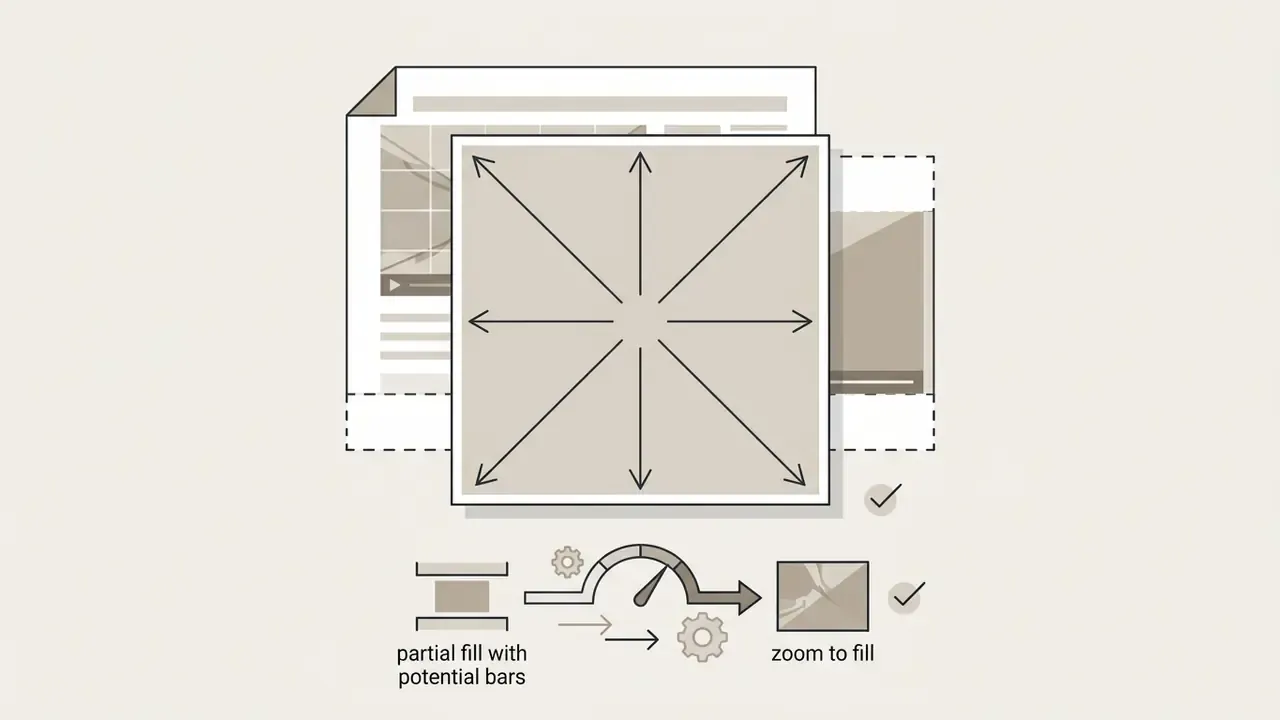
| Output has unexpected black bars | Ratio conversion applied with fit or pad instead of fill | Re-export with zoom to fill, or run auto border removal |
| Subject or logo cut off | Focal point not repositioned after preset change | Drag inside the frame to recentre before export, and check the safe area |
| Audio out of sync after export | Variable frame rate source re-encoded to constant frame rate | Convert to CFR first, then resize |
| Export rejected by the platform | Codec, frame rate or file size outside ingest policy | Re-encode to MP4, H.264, AAC at the platform's documented spec |
Key terms, briefly. Remuxing rewrites the container without touching the video essence. Transcoding decodes and re-encodes, which always costs some quality. Pixel aspect ratio describes the shape of an individual pixel and can distort playback independently of frame dimensions. Safe area is the region of the frame guaranteed to be visible under platform UI overlays.
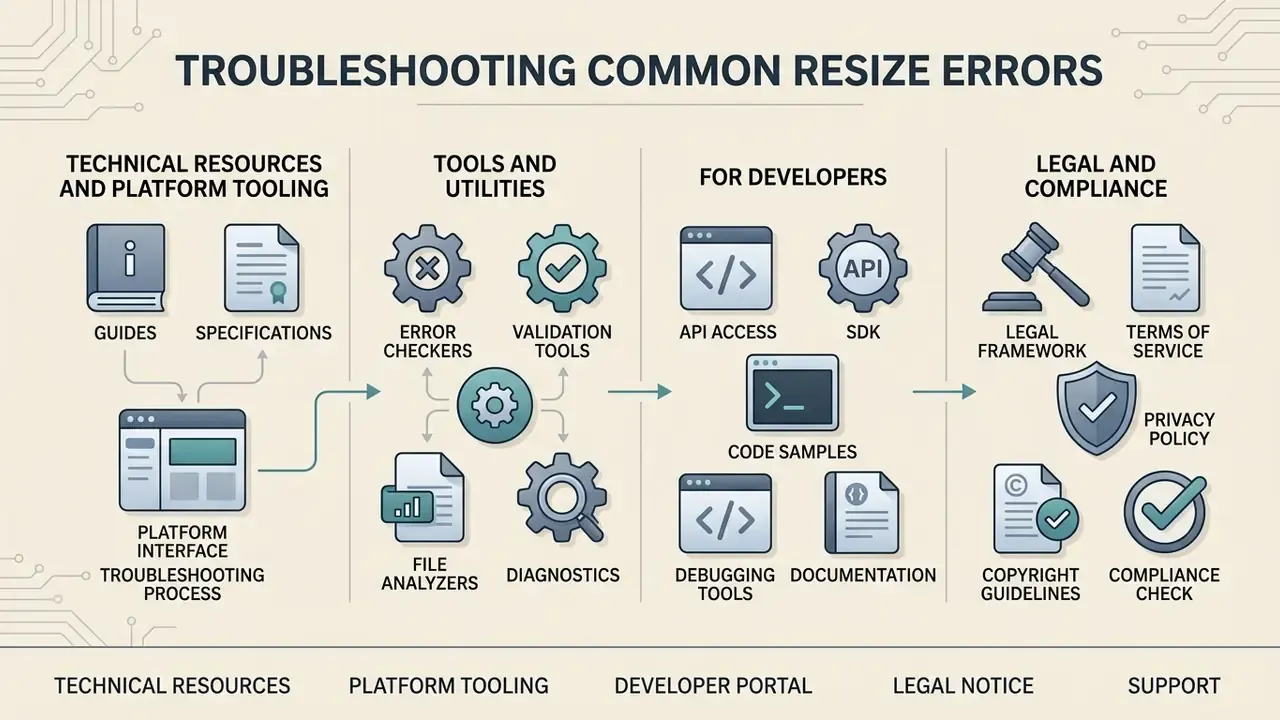
Technical Resources and Platform Tooling
For developers and technical teams building automated media processing workflows, these guides and utilities go deeper on implementation:
Tools and utilities
- Work out asset sizing formulas with AI Media Calculators.
- Reduce output weight after reframing using a video compressor.
- Explore creative asset synthesis with ai digital art generators.
For developers
- Access programmatic integration specs in the AI Media API Guides.
Legal and compliance
- Review AI Media Commercial-Use licensing policies before publishing resized assets.
- Track legal framework developments around digital media assets at AI Litigation and compliance monitoring.