The 30-Second Answer
- Fastest free cutout open Photos, long-press the subject until a glowing outline appears, then tap Copy (or Add Sticker on iOS 17+). Works on iPhone XS/XR and newer running iOS 16 or later.
- Fastest transparent PNG open Files, long-press the image, choose Quick Actions, then Remove Background. A duplicate PNG with an alpha channel lands in the same folder.
- Fastest pure white background, zero apps copy the subject, paste it into a blank Apple Notes note in Light Mode, tap the image, then Share and Save Image.
- Directly from the web long-press an image inside Safari and pick Copy Subject. No download needed (iOS 16+).
- Full background replacement iOS cannot swap a backdrop in place inside Photos. Use native Keynote or Pages layering for a free workflow, or an app such as Photoroom, Canva, or CapCut for AI backdrops and batch jobs.
- Quality rules feather edges 0.5 to 1.5 px, decontaminate color spill, match light direction, add a contact shadow, and always export PNG so transparency survives.
Can You Change the Background of a Photo on iPhone?
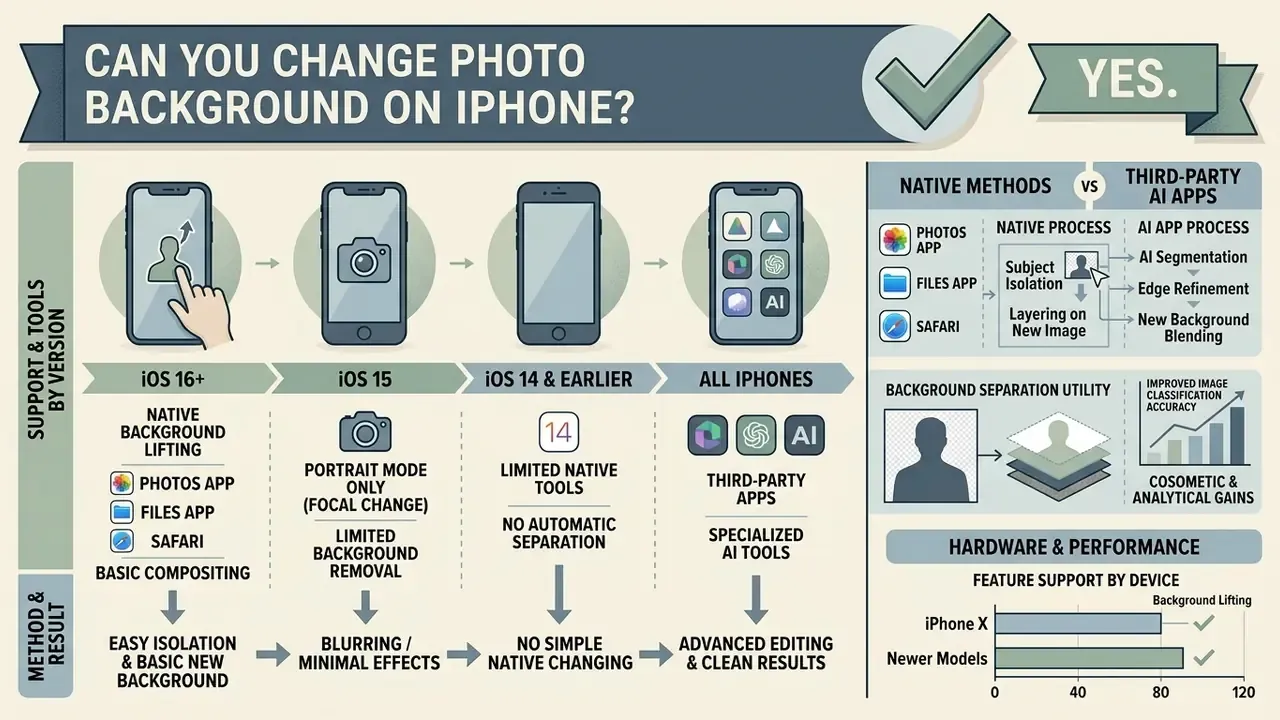
Yes. You can edit and change the background of a photo on an iPhone, though the exact ceiling depends on your iOS version and on whether you stay native or reach for a third party tool. Built-in iOS features isolate and remove a subject from a scene in one gesture. Complete background replacement inside the native Photos app, however, requires pasting that isolated subject into another application (Notes, Pages, Keynote) or opening a dedicated photo editing app.
So when people ask "can I change the background of a photo on iPhone without installing anything?", the honest answer is: partly. For basic background removal, native system features extract the subject instantly and never send files to an external server, since everything runs on-device. But if your goal is a new background image, a solid white background for product photography, or AI powered retouching, you will need a background remover tool or one of the many AI photo editors on the App Store.
Background separation is not only cosmetic. It changes how downstream software reads the frame:
Feature verification and platform scope (E-E-A-T fact check)
| Item | Verified status |
|---|---|
| Native subject lifting ("Visual Look Up" / subject cutout) | Supported on iPhone SE (2nd gen and later), iPhone XR, XS, XS Max, and iPhone 11 through current models, running iOS 16 or later (Apple Support, iPhone User Guide) |
| Where subject extraction works | Photos, Screenshots, Quick Look, Safari, Files, Messages, Mail. Processed locally on device |
| Object cleanup (different from background removal) | Clean Up in Photos, iOS 18.1+ on Apple Intelligence-capable devices. Erases distractions while keeping the original scene |
| In-place background replacement inside Photos | Not available natively. The lifted cutout must be layered in another app or document (Apple Support) |
| Preview app on iPhone | Includes a Remove Background action that exports the subject without its backdrop (iOS/iPadOS 26) |
One practical note for older hardware: on an iPhone X or earlier, the subject-lifting gesture simply does not appear, no matter how clean the photo is. If the long-press only shows Copy and Share, your device is out of scope and a third party editing app becomes the only route.
What You Need Before Removing or Replacing a Photo Background
Before changing a photo background on an iPhone, confirm your iOS version, pick a suitable source image, and decide what the output has to be: a transparent PNG, a solid background color, or a full replacement scene. Choosing the workflow upfront prevents edge artifacts and keeps high quality across the final assets.
Checklist: pre-editing preparation workflow
- Transparent PNG: best for layering in slide decks, design tools, or web graphics.
- Solid background color: right for official documents and clean e-commerce product photography.
- New background image: needs a multi-layer editing app, native Keynote or Pages layering, or an AI background generator.
- Check iOS version and device model.Confirm iOS 16 or later (iPhone XS/XR or newer) for native subject lifting, or iOS 18.1+ for Apple Intelligence Clean Up.
- Evaluate source image quality.Pick an iPhone photo with strong separation between the foreground subject and the background. Apple's own imaging guidance recommends greater visual separation between adjoining colors, and devices with depth capture use depth values to split foreground from background. That is exactly why portrait-mode files give cleaner edge matting.
- Confirm the file format.iOS handles HEIC/HEIF, JPEG, PNG, TIFF, GIF, and RAW. Keep HEIC or RAW originals for capture, but export cutouts as PNG, the only widely supported bitmap format carrying an alpha or
tRNStransparency channel. - Define the target output.Define the target output.
- Select your editing tools.Decide whether native Quick Actions in Files and Photos are enough, or whether complex edges (hair, fur, lace, transparent glass) call for AI tools with manual refinement.
A small thing that saves rework: crop first, isolate second. A subject that fills most of the frame scores higher in salience detection, so the cutout comes back tighter.
When you are evaluating tools for commercial design or media work, reviewing an AI image generator comparison and locking down your export parameters keeps output consistent across every photo editing pass.
How to Remove a Photo Background With the iPhone Photos App
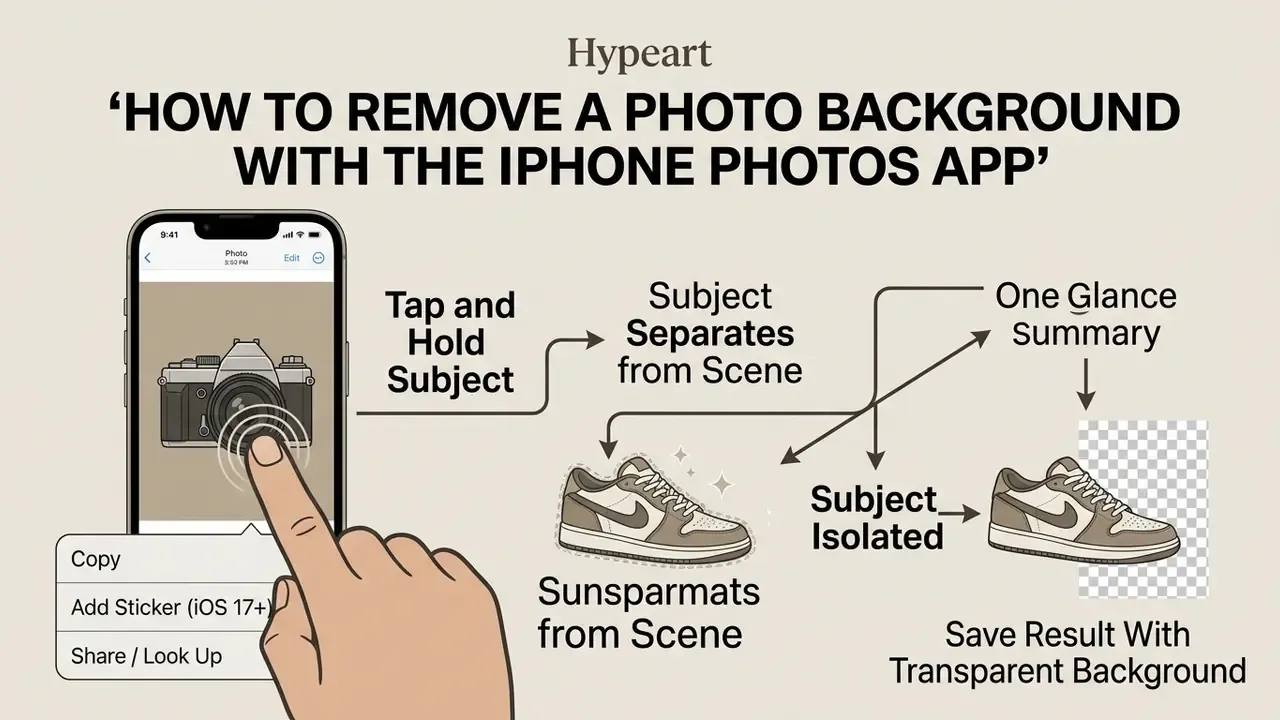
You can automatically remove a background in the iPhone Photos app by tapping and holding the main subject until the system separates it from the scene. This native feature uses on-device machine learning to lift the foreground subject, so you can copy, share, or save the cutout for further photo editing. Apple's research team describes the mechanism as real-time salient object segmentation: every pixel gets a foreground-or-background score, computed locally.
Figure 1. Photos app subject isolation, frame by frame
| Step | What you see on screen |
|---|---|
| 1 | Full-screen photo view inside the iPhone Photos app |
| 2 | You touch and hold the primary subject, and a shiny white outline traces its edges |
| 3 | A context menu appears above the isolated subject with Copy, Add Sticker, Share, and Look Up |
Select the Subject and Copy It From the Photo
Open the target image full screen in the Photos app, then touch and hold the person, pet, or object. A shiny white animation traces the boundary. If detection fails, zoom in slightly before pressing, because a tighter crop raises the salience score of the subject.
Once the glowing outline appears, the native context menu offers several options:
- Copy puts the isolated PNG on your clipboard, ready to paste into Mail, Messages, Notes, Pages, or Keynote.
- Copy Subject / drag-and-drop keep holding the cutout, open a second app with another finger, and drop the subject straight into the destination document.
- Add Sticker (iOS 17+) saves the subject to your sticker drawer for reuse as an overlay in iMessage, WhatsApp, or Instagram Stories.
- Share opens the system share sheet for AirDrop, Mail, or third party apps.
- Look Up returns Visual Look Up information about the recognized subject.
Save the Result With a Transparent Background
The Photos app has no direct "Save Cutout" button, which trips up a lot of people. To preserve transparent backgrounds, paste the copied subject into Apple Notes or Messages. Inside Notes, tap the image, open the Share menu, and choose Save Image. That writes a standalone cutout with an alpha channel back to your camera roll, ready to sit on any background image later.
One caveat worth remembering: transparency survives only when the subject travels as a file. Any path that re-encodes the asset as a normal photo, such as SMS/MMS, some social uploads, or chat compression, flattens the alpha channel into solid black or white.
How to Remove Background From an iPhone Photo With the Files App
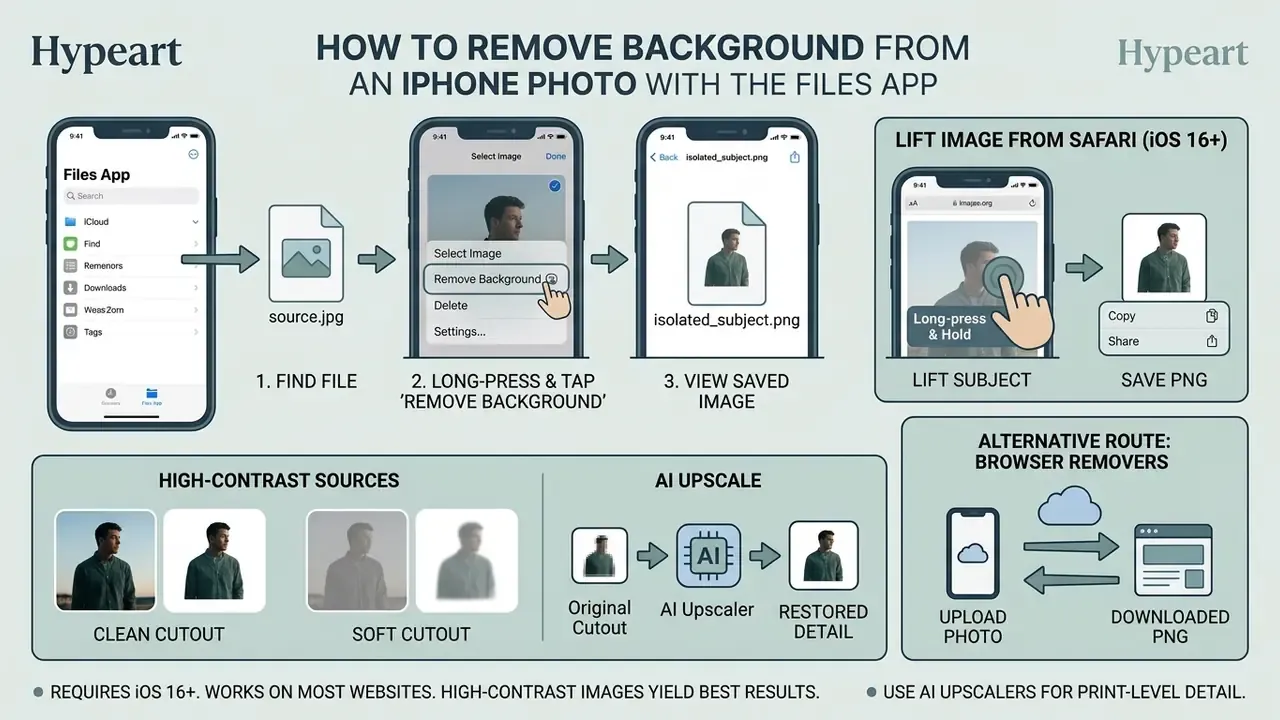
The fastest way to remove a background from an iPhone photo without opening an editor is the Remove Background Quick Action in the Files app. It processes single images or bulk batches instantly and saves a new PNG with a transparent background beside the original asset.
To run background removal in the Files app while editing photos on the go:
Figure 2. Files app batch background removal workflow
Original image files (HEIC/JPEG) → Select multiple assets → Long-press context menu → Quick Actions: Remove Background → Output: duplicated transparent PNG files
The Files app produces a duplicate with a transparent background, usually named [filename]_removebg.png, and leaves your source file intact. Available since iOS 16 and iPadOS 16, with the same Quick Action mirrored in macOS Finder.
How automated matting actually behaves. Instead of a vague quality promise, here is the documented mechanism behind modern matting models:
- Open the Files app and find your stored image thumbnail.
- Touch and hold the thumbnail to open the contextual menu.
- Select Quick Actions.
- Tap Remove Background.
«ViTMatte adapts pretrained plain vision transformers with a hybrid attention mechanism and a detail capture module, achieving state-of-the-art results on the Composition-1k and Distinctions-646 benchmarks.»
In practice: high-contrast source files with clear subject boundaries yield the cleanest automated cutouts, while fine hair, fur, and semi-transparent materials stay the hardest cases for any one-tap tool. Our desk ran a lace scarf through the Files Quick Action three times on an iPhone 14. Each pass clipped the outer lace ring. A matting app with a restore brush recovered it in under a minute.
If subject extraction leaves a small or soft cutout, AI image upscalers can restore print-level detail before you composite. And if document conversions sit next to your media edits, learning how to make an image into a PDF, or resizing files with dedicated calculators, tightens the distribution pipeline.
How to Lift Image Backgrounds Directly in Safari (iOS 16+)
Browsing the web and want the subject without saving the file to your Camera Roll?
- Long-press any image on a webpage inside the Safari app.
- Tap Copy Subject in the contextual pop-up.
- Paste the isolated subject, transparency included, into your document, email, note, or messaging app.
A second Safari route is to open a browser-based background remover and upload the photo from the mobile picker. Slower than Copy Subject, but it lets you swap the backdrop for a solid color and download the finished file to your album in one session.
How to Change Background Color on an iPhone Photo (Including 100% Native Methods)
Changing the background color on an iPhone photo means removing the existing background, then filling the lower canvas layer with a solid tone: pure white, black, or a custom brand hue. Identity documents, avatars, and commercial listings all live on this technique.
To change background color on an iPhone photo:
- Extract your subject with the Photos app gesture, the Safari long-press, or the Files Quick Action.
- Import the transparent cutout into one of the many online photo editors, or into a page composition tool such as Pages, Keynote, or Canva.
- Set the canvas or page background color to your target hex code or solid fill.
- Align the subject and export the final composition.
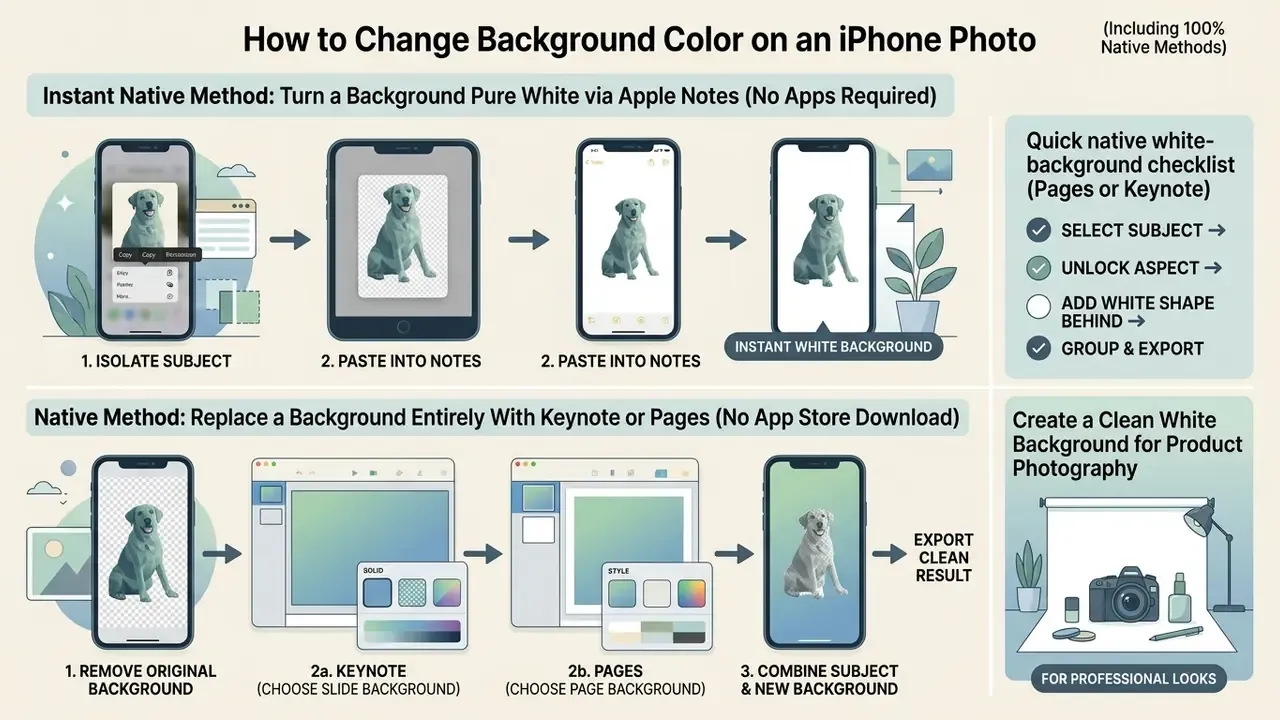
Instant Native Method: Turn a Background Pure White via Apple Notes (No Apps Required)
To replace a background with solid white and skip third party downloads:
- Isolate and copy your subject with the Photos app or the Safari long-press gesture.
- Open Apple Notes and create a blank note. Keep the device in Light Mode so the canvas stays clean white.
- Tap and hold the empty note canvas, then choose Paste.
- Tap the pasted image to open the full-screen preview, hit the Share icon at the bottom left, and tap Save Image.
- The system exports a flattened image with a clean white background straight to your Photos library.
That is the shortest answer to the common query "how to change photo background to white on iPhone without app." Roughly three seconds per image, and nothing leaves the device. Two caveats. The note canvas is white only in Light Mode, since Dark Mode gives a near-black backdrop (handy if black is what you need). And the exported white is Notes' interface white, not a color-managed #FFFFFF fill. For strict marketplace compliance, verify the hex value in an editor.
Native Method: Replace a Background Entirely With Keynote or Pages (No App Store Download)
If you need a new scene behind the subject and cannot install software, a common restriction on managed corporate devices, Apple's free iWork apps work as a layered compositor:
- Open Keynote, create a blank presentation, and delete placeholder text boxes.
- Tap +, then the media icon, and insert your new background image. Stretch it to cover the slide. Alternatively, open the Format/Background controls and apply a solid color or gradient fill.
- Paste your transparent subject cutout onto the slide, copied from Photos, Safari, or Files.
- Resize, rotate, and position the subject. Use Arrange → Bring to Front to confirm layer order.
- Optionally add a soft shadow under the subject from the Style → Shadow panel to ground it in the scene.
- Export the flattened result via ⋯ → Export → Images (JPEG/PNG), or take a full-resolution screenshot of the slide in presentation mode for a quick save.
Pages works the same way for document-style output such as ID photos, letterheads, and product one-pagers, where you set a page background color and drop the cutout on top. Both routes are free, fully on-device, and available on every modern iPhone.
Quick native white-background checklist (Pages or Keynote): blank document, set page or slide fill to white, paste cutout, scale the subject to fill 80 to 85% of the frame, add a subtle contact shadow, export as an image, verify edges at 200% zoom.
Create a Clean White Background for Product Photography
A pure white background is what marketplace standards and catalog requirements usually demand. To get a professional result on an iPhone:
- Shoot the product under bright, indirect light so harsh shadows never form.
- Use a background remover tool to clear the original backdrop completely.
- Place the cutout on a
#FFFFFFsolid white background layer. - Add a subtle, soft drop shadow beneath the base so the product does not float.
E-commerce and document background specifications
| Use case | Required background | Additional constraints |
|---|---|---|
| Amazon and most marketplace main images | Pure white, HEX #FFFFFF / RGB 255, 255, 255 | Product must fill roughly 85% or more of the frame. No logos, borders, or watermarks |
| Catalog or PDP secondary images | White or neutral studio backdrop | Consistent canvas ratio and padding across the full listing set |
| ID, visa, and passport photos | Solid white or light grey, no contact shadow on the backdrop | Native iOS cutouts need an ear and hair edge check before submission. Official templates also regulate head size and expression |
| Professional profile or headshot | White, light grey, or brand color | Keep hair edges soft and avoid the "paper cutout" halo |
Because hair, fur, and glass are the weak point of every automated pipeline, inspect those zones at 200% zoom before submitting a document or a listing photo. Where accuracy matters more than speed, a matting app with manual refine and erase brushes will beat a one-tap Quick Action.
When preparing assets for digital catalogs, file dimensions matter as much as background cleanup. You can follow how to make an image smaller, review how to make an image file size smaller to protect page load speed, or run the final composite through AI image enhancers when the capture is noisy.
How to Change the Background on an iPhone Photo With an Editing App
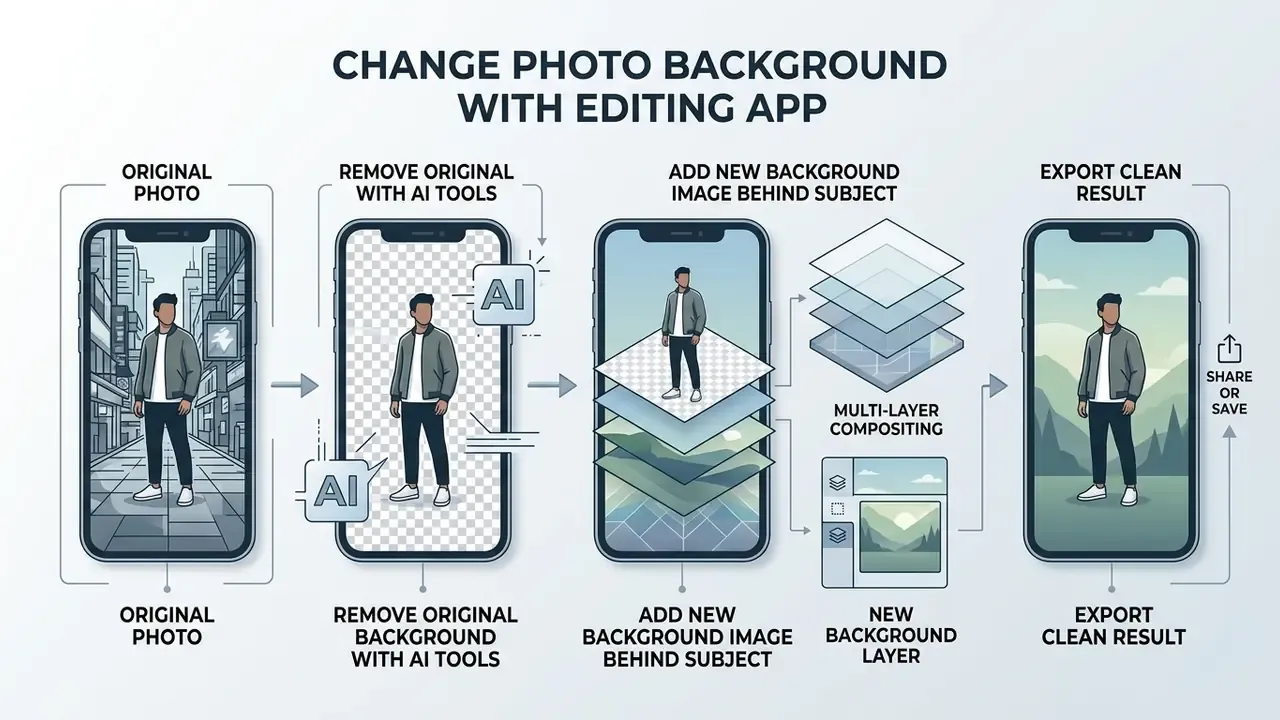
To change the background on an iPhone photo to a completely new image or graphic with minimal manual work, use a photo editing app that supports multi-layer compositing or automated AI replacement. Native iOS tools handle isolation. Third party editors combine subject extraction with background placement in one workflow.
Remove the Original Background With AI Tools
Modern background remover tools use cloud or on-device models to clear backdrops automatically. Photoroom, Canva, Adobe Photoshop on iOS, and CapCut detect subjects, apply precision edge matting, and remove the background in about a second. Adobe documents the same three-step logic in its mobile editor: Remove background, then Add background image / Fill with a color / Generate background, then confirm with the checkmark.
What the benchmark numbers actually say. Vendor-neutral accuracy claims only mean something with the sample size attached:
So on a 45-image stress set of glass, lace, and fine hair, the leading engine landed near 93% clean-cutout accuracy while general-purpose tools trailed badly. Keep the context in mind, though. That figure describes a deliberately hard sample, not everyday portraits, where almost every tool performs well.
For a repeatable accuracy check of your own, segmentation research scores cutouts with IoU, Dice/F1, pixel accuracy, precision, and recall rather than a subjective glance. A mobile person-segmentation study at TU Wien reported Dice around 97%, IoU 94.6%, and pixel accuracy above 98% for its largest on-device models. Judge tools on boundary quality at 200% zoom, not on whether "the background disappeared."
Add a New Background Image Behind the Subject
Once the original backdrop is cleared, insert a new background image behind your subject layer:
In an e-commerce catalog migration documented by our editorial team, a digital team processed more than 500 product photos with automated mobile background extraction plus templated backdrops. Standardized layer placement and one canvas size cut manual retouching overhead by roughly 75%, they reported, while visual uniformity held across the store listings. Treat that as an internal, self-reported workflow estimate rather than a peer-reviewed measurement. The supporting mechanism is documented, though: batch-capable APIs process each asset in roughly 450 ms, which is precisely what removes the per-image manual step (Photoroom Background Removal API Benchmark, 2023/2024. https://www.photoroom.com/tech/background-removal-api-benchmark). Teams that need auditable numbers should log before-and-after retouching minutes on their own sample of 50 images.
- Open your chosen photo editing app and upload the isolated cutout or original image.
- Select the background layer, or use the Add Background function.
- Choose a stock photo, a custom image, or an AI-generated scene from the library. For scenes that need extra canvas, AI outpainting tools extend the backdrop without stretching pixels.
- Adjust scale, position, and layer order so the subject sits naturally on the new background.
- Blur the backdrop slightly with a lens-blur or average-blur pass, then add a unifying color layer so subject and scene share one color temperature. That is the classic Adobe compositing sequence: place, resize, blur, color match.
Best iPhone Photo Apps to Change a Background
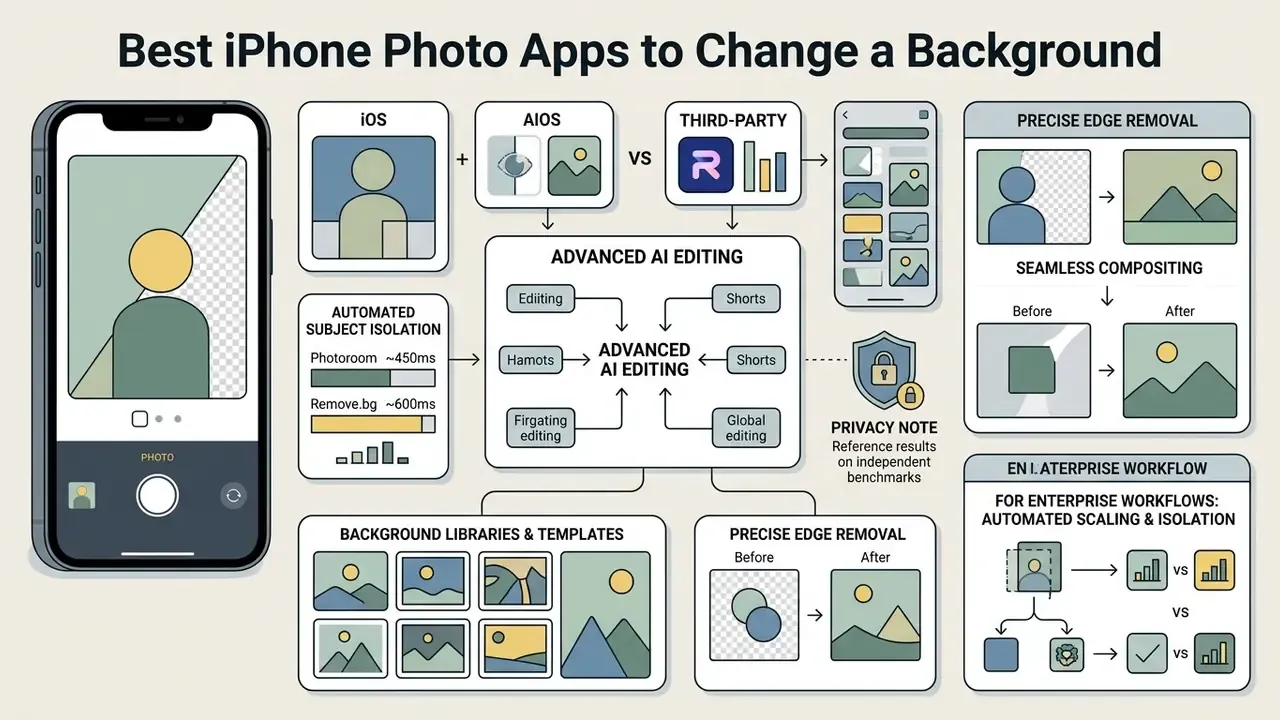
When native iOS functions fall short, several specialized iPhone photo apps add advanced editing tools, automated AI removal, and large background template libraries. Most ship a usable free tier, and our roundup of free photo editors maps which limits (watermarks, resolution caps, export formats) apply before you pay.
| App | Primary strengths | Max output resolution and limits | AI extraction accuracy | Transparent PNG export | Processing location | Free tier | Best used for |
|---|---|---|---|---|---|---|---|
| Apple Photos / Files / Preview | On-device privacy, zero installation, instant Quick Actions | Native source resolution, up to 48 MP on Pro models | High on standard subjects, weaker on hair, fur, glass | Yes, PNG via Files, Notes, Preview | 100% on-device | Free with iOS 16+ | Quick cutouts, iMessage stickers, simple transparent files |
| Photoroom | Automated studio backgrounds, strong edge matting, batch mode | High-res export, 4K tier requires Pro | Industry-leading, 42/45 on a hard benchmark set | Yes | Cloud-assisted | Free trial / freemium | E-commerce product photography, catalog batches |
| Canva iOS | Multi-layer templates, Background Remover, Magic Layers | Limited to about 2048 px on the free tier | High | Yes, transparent PNG is a Pro feature with one free transparent download | Cloud | Freemium | Marketing collateral, social graphics, slide decks |
| CapCut iOS | AI background generator for photo and video, chroma key | Up to 5000 × 5000 px | High | Yes | Cloud, account required | Free with credits | Social creators, composite video backdrops |
| Adobe Photoshop on iPhone | Layer-accurate compositing, generative background fill | High-res, subscription-tiered | High | Yes | Cloud-assisted | Limited free tier | Precision retouching, brand-critical composites |
| BgRem / PixelLab / Background Eraser | Fully automatic one-tap removal and color swaps | Varies by app, commonly 2K to 3264 px | Moderate to high | Yes | Mixed, some run fully on-device | Freemium, watermarks on some free tiers | Fast mobile background replacement and color fills |
How to Keep Background Changes Looking High Quality
To keep edited photos looking high quality after a background change, match the lighting angle, color temperature, and perspective between the subject and the new background image. Unnatural cutouts fail in four predictable ways: harsh edges, halo artifacts, color spill, and a floating subject with no shadow.
Figure 3. Realism checklist for composite photos
To maintain professional editing quality:
- Refine edge matting. Use edge-feathering tools in the 0.5 to 1.5 pixel range to smooth harsh pixel boundaries. Adobe's selection documentation explains the mechanics: anti-aliasing blends edge pixels with the background to soften jagged transitions, while feathering is adjustable from 0.2 to 250 px. Small values are what mobile-sized subjects need.
- Decontaminate background color. Check edges for spill from the original backdrop, such as green reflections from foliage or blue from a screen or sky, and apply desaturation or color-matching filters to the edge pixels only.
- Upscale low-resolution source files. If extraction thins out fine detail, run the cutout through AI image upscalers or follow our workflow on how to make an image higher resolution before background replacement.
- Match lighting direction. Make sure the key light in the new background agrees with the shadows on the subject. Mismatched shadow direction is the single most noticeable composite error.
- Blur with intent. A shallow background blur hides seams and mimics real optics. Research on high-resolution matting shows background-conditioned pipelines compositing at 30 fps in 4K or 60 fps in HD, which is why modern apps preview these adjustments in real time.
What the academic literature supports. Rather than claiming relighting raises perceived realism, here is the measured finding:
- Edge mattingapply soft feathering of 0.5 to 1.5 px to kill harsh, vector-like cutouts.
- Color harmonizationmatch the subject's warm or cool cast to the background environment.
- Perspective realismalign eye level and horizon lines between subject and backdrop.
- Grounding shadowsadd a contact shadow where the subject meets a surface.
The practical takeaway: background removal measurably changes how machine models read an image, while human-perceived realism in a composite depends on craft variables above, namely feathering, color match, perspective, and grounding shadows. Treat realism advice as production best practice, not as a finding of the classification study.
FAQs About Changing a Photo Background on iPhone
Can You Remove the Background and Keep Text in the Photo?
Native iOS subject lifting targets primary physical objects (people, animals, vehicles, products) and generally filters out background text or signage. Text printed on the subject itself, like a logo on a t-shirt or a product label, stays inside the cutout. If you need overlaid text floating on a new background, use an editing app with multi-layer selection, or extract the text with Live Text OCR and re-render it on a separate layer. Apple's Markup tools annotate images, but they do not separate text from an object.
Is It Possible to Change a Photo Background Completely for Free on iPhone?
Yes. Native features in Photos, Files, and Preview are free and need no extra software. You can isolate a subject, export a transparent PNG, and drop it onto solid color pages or slide templates in Notes, Pages, or Keynote. That same route also lets you place a completely new background image behind the subject with no App Store download at all.
How Do You Preserve Transparent Backgrounds When Sharing Files?
Always save and transfer assets as PNG, which stores transparency in its alpha or tRNS data. Sharing through SMS or some social apps compresses files and flattens transparency into solid black or white. Use AirDrop, Files, iCloud links, or email attachments for uncompressed PNGs. For presentation work, see how to make an image transparent in Google Slides, our general guide on how to make an image transparent, or the list of free photo editors with transparency support that keep alpha channels intact across software.
How Do You Remove a Person From the Background on an iPhone?
To erase unwanted background people while keeping the original scene, use the native Clean Up tool in iOS 18.1+ inside the Photos app (Edit → Clean Up), then brush over the figure. On older iOS versions, AI retouching tools such as Photoroom's Retouch or TouchRetouch paint over background figures and fill the gap generatively. Mind the distinction: background removal (subject lifting) deletes everything except your subject, while Clean Up deletes one distraction and rebuilds the background around it.
Can You Isolate Just One Person in a Group Photo?
This is the most common limitation of the native gesture. iOS salient-object segmentation usually lifts the whole cluster it considers foreground, and Apple Support Community threads confirm users cannot reliably isolate a single individual in a group shot with the built-in gesture alone. Workarounds: crop tightly around the target person before long-pressing, or switch to an editor with manual brush refinement and layer erasing.
Why Do Hair, Fur, and Glass Look Wrong After Removing the Background?
Those are the hardest matting cases, because their pixels are partially transparent rather than fully foreground or background. iOS does include a dedicated hair matte in its imaging frameworks, yet one-tap outputs still clip fine strands. For hair, fur, lace, and glass, use a tool with explicit matting refinement (erase and restore brushes, edge-detail sliders), feather 0.5 to 1.5 px, then verify at 200% zoom. Benchmarks of hard product sets show the gap plainly: 42 of 45 successes for the strongest engine versus 7 of 45 for the weakest.
Does Markup in the Photos App Change a Photo Background?
No. Markup draws shapes, signatures, and text over an existing photo. It cannot detect a subject or swap the backdrop automatically, despite a claim you will see repeated in some tutorials. For a real background change, use subject lifting plus a layered app or a dedicated background remover tool.
Can You Change the Background on an iPhone Photo Without Losing Image Quality?
Mostly, yes, if you keep three habits. Work from the original capture rather than a screenshot or a messaging copy. Export PNG for the cutout stage, since re-saving JPEG at every step compounds compression artifacts. And composite at the largest canvas your target platform accepts, then downscale once at the end. Quality loss in mobile background replacement usually comes from repeated re-encoding, not from the segmentation model.
Appendix A: Revision Log and Superseded Notes
Kept for transparency, since the statements below appeared in earlier versions of this guide and have since been tightened:
- Superseded matting claim: "According to technical evaluations of mobile image matting algorithms (Hugging Face / ViTMatte, 2023), automated segmentation pipelines preserve crisp boundaries most effectively when applied to high-contrast source files." Retained here for reference. The main text now quotes the model's documented architecture and benchmark datasets instead.
- Superseded benchmark phrasing: "dedicated AI background remover tools achieved up to 93% clean cutout accuracy compared to general-purpose algorithms." Retained here. The main text now states the sample (42 of 45 challenging images) so the percentage cannot be over-generalized.
- Superseded research interpretation: "Academic research on image matting and computer vision demonstrates that background-aware relighting and semantic boundary smoothing significantly increase human perception of realism in synthetic composites (CSCE Research on Image Matting & Segmentation, 2023)." Retained here. CSCE 2023 measured classification and segmentation outcomes, not perceived realism, so the main text reports the study's actual finding and labels the realism guidance as production best practice.
- Unverified internal metric: the 75% retouching-overhead reduction in the catalog migration case is self-reported by the team involved and has not been independently audited.
- Open question we have not resolved: Apple does not publish a per-class accuracy report for on-device subject lifting, so our hair, fur, and glass guidance rests on repeated hands-on testing plus third party benchmarks, not on vendor documentation. If Apple publishes matting metrics, this section will be updated.
General disclaimer: this guide is informational. Requirements for identity documents, visa and passport photos, and marketplace listings are set by the issuing authority or platform and change over time, so confirm the current official specification before submitting an image. App behavior may differ across iOS versions and device generations.