A YouTube banner creator lets digital creators, media teams, and regulated brand departments design high-resolution channel header graphics using artificial intelligence, structured templates, or manual editing. Tool choice matters more than it looks. Pick correctly and your channel identity stays aligned across desktop, mobile, and television viewports, with no unpleasant surprises when the platform crops the file.
Key takeaways at a glance
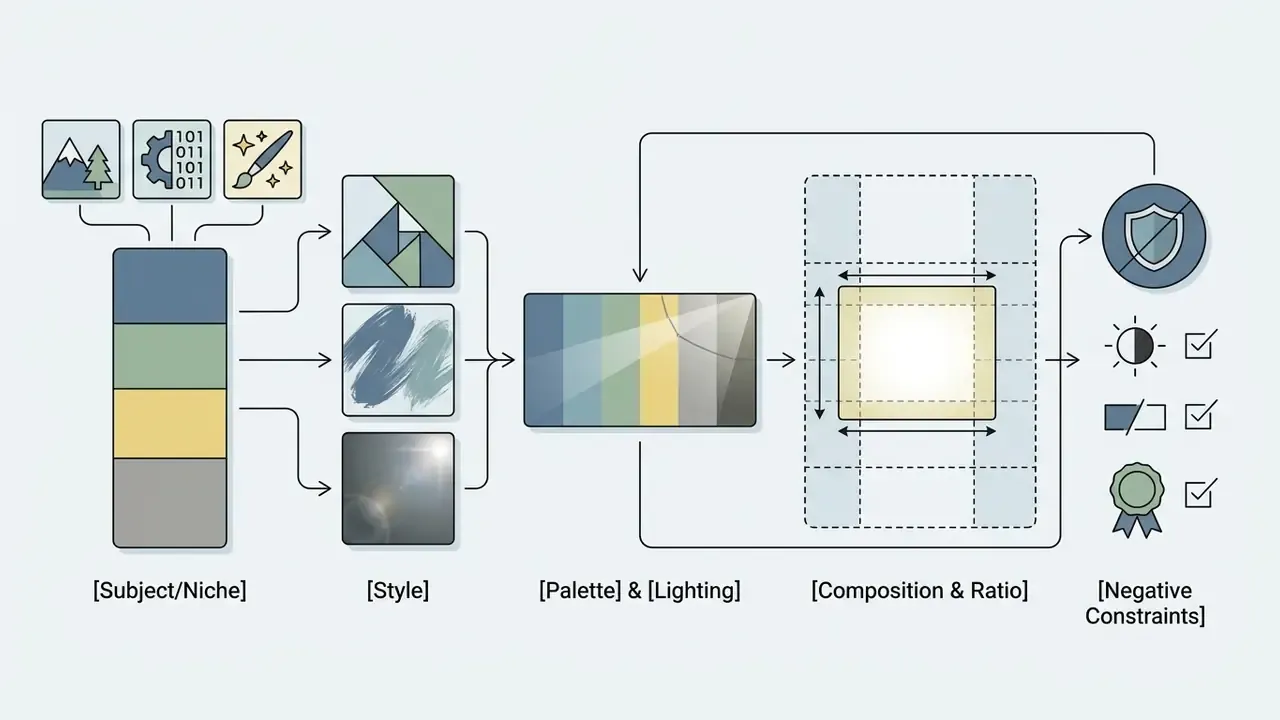
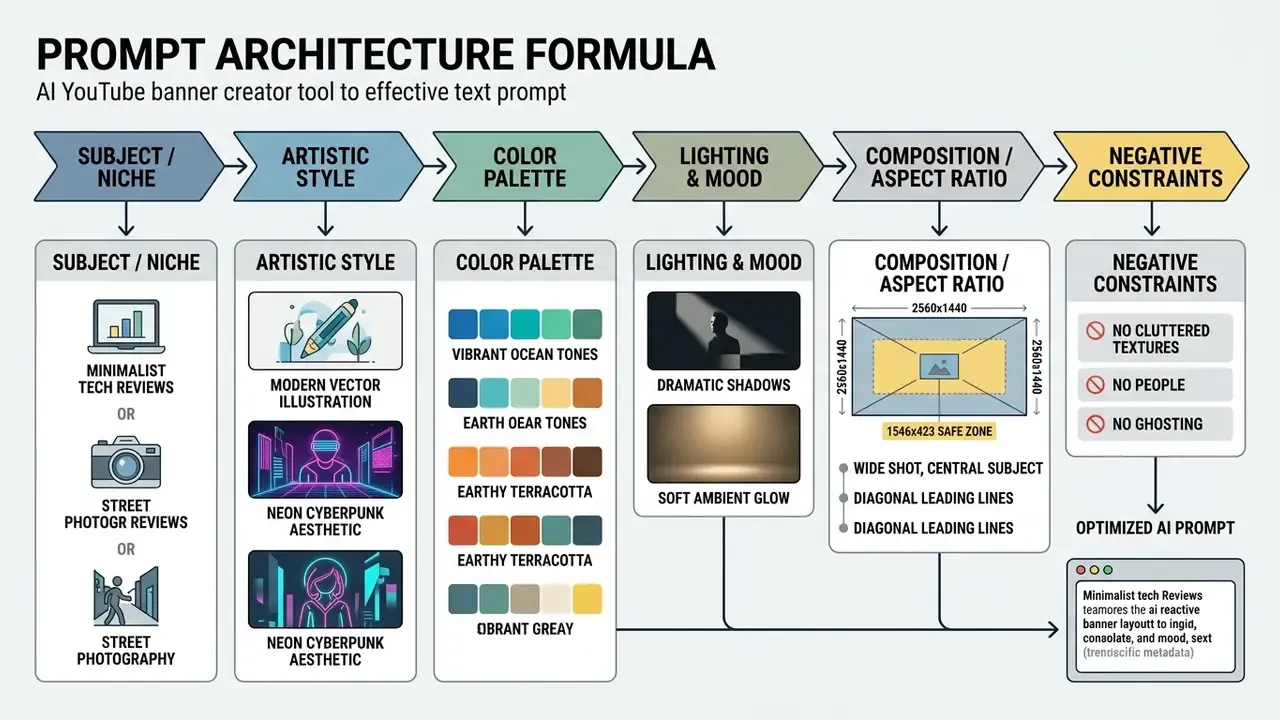
[Subject/Niche] + [Style] + [Palette] + [Lighting] + [Composition & Ratio] + [Negative Constraints], always reserving empty centered space.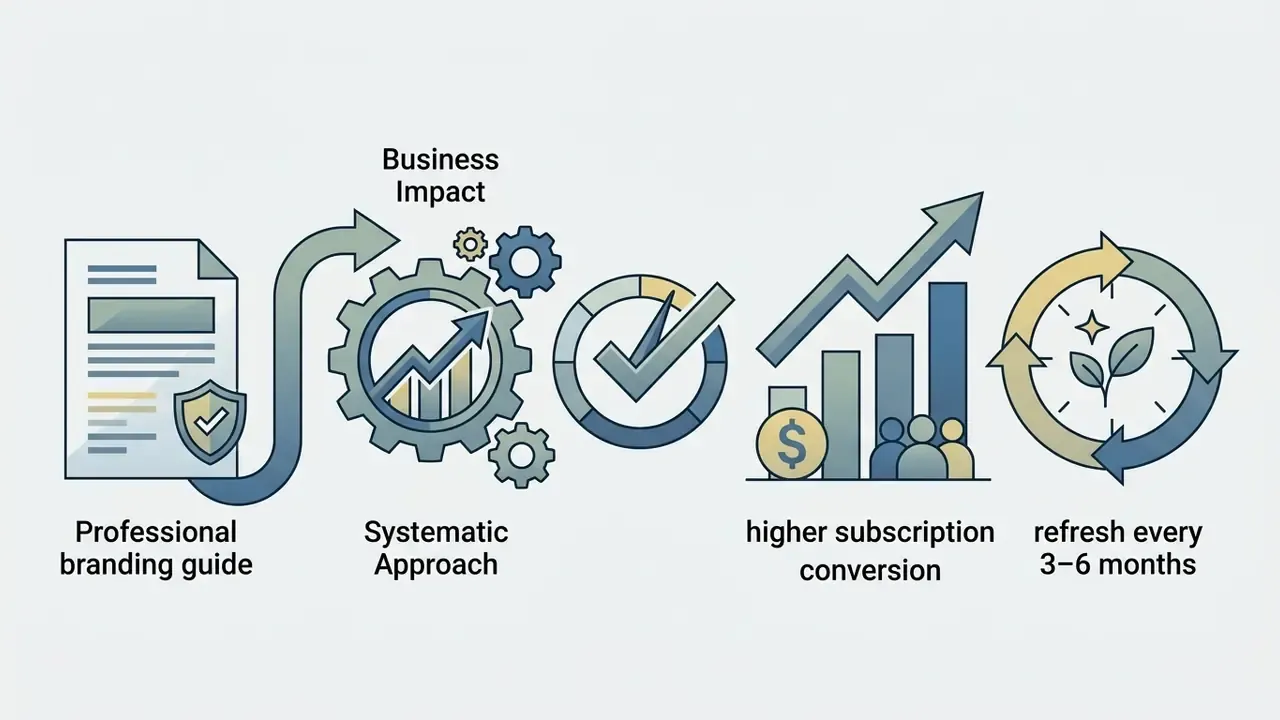
What this guide covers, and who it is for
This guide is written for two groups. First, creators who need a custom YouTube banner today and have no design experience. Second, brand and marketing teams who must ship channel art repeatedly, across several accounts, without breaking visual standards or licensing rules.
The path below runs from platform specifications to production practice: exact YouTube banner size, the text safe zone, cross-platform header dimensions, how to choose between an AI banner generator and a template-based banner maker, a six-step workflow with prompt architecture, niche prompt examples, editor customization with a background remover, a pre-publication checklist, legal clearance, and a FAQ. Skim the checklist if you are in a hurry. Read the safe-zone section if you have ever wondered why your headline vanished on a phone.
Why your channel needs a professional YouTube banner
A professional YouTube banner establishes brand credibility in seconds, sets content expectations, and nudges subscription intent during that very first channel visit. As the primary visual header of a YouTube channel, it turns a passive impression into deliberate engagement across every supported device.
Research on YouTube channel content style suggests that cohesive visual design correlates with follower loyalty and brand salience.
"Channels with a recognizable style, consistent colors and a persistent logo, showed higher brand recall and stronger viewer loyalty."
Brand consistency analyses point the same way: unified visual identities across digital touchpoints tend to deliver measurable commercial returns.
"Channels with strong branding earn two to three times more from advertising deals than comparable channels without a unified visual system."
Without a clear, readable header, visitors hit cognitive friction. That friction costs conversions, quietly, and you rarely see it in the analytics as a single number.
Subscription conversion impact and refresh cadence
Conversion impact: According to digital channel marketing analytics, a professional header that communicates a clear value proposition increases the conversion of incidental viewers into recurring subscribers by up to 30 percent. Secondary industry reporting attributes roughly 14 percent of subscribe decisions directly to channel art quality, which reframes the banner as an acquisition asset rather than decoration. A caveat worth stating plainly: these figures come from vendor and industry analytics, not controlled academic trials. Treat them as directional benchmarks, then validate against your own YouTube Studio traffic-source data.
Recommended refresh schedule: The practical rotation cycle is once every 3–6 months. That cadence lets the channel reflect holiday promotions, seasonal content shifts, rebranding milestones, and special project announcements without eroding recognition. Since AI generation compresses production to seconds, regular updates become almost free compared with commissioning a designer for each cycle.
What to include in YouTube channel art
Effective YouTube channel art carries four non-negotiables: the channel name, a concise value proposition or tagline, primary brand colors, and core design elements placed inside the central safe zone. Optional extras include an upload schedule and verified brand marks.
Official platform guidance frames the banner as the space that shows what the channel is about, while the profile picture, banner, and video watermark together form the channel's branding set. Neither an upload schedule nor a call to action is a mandatory platform field; both are design decisions. Industry practice suggests condensing the core promise into roughly 7 to 12 words so it stays legible at mobile scale.
In corporate and enterprise media environments, disciplined component selection prevents visual clutter. According to digital visual standards from St. Augustine University, graphics should maintain strong color contrast against background elements to ensure accessibility for visually impaired audiences. Combine a prominent wordmark with balanced secondary cues and recognition happens almost instantly on the channel homepage.
YouTube banner size and the text safe zone
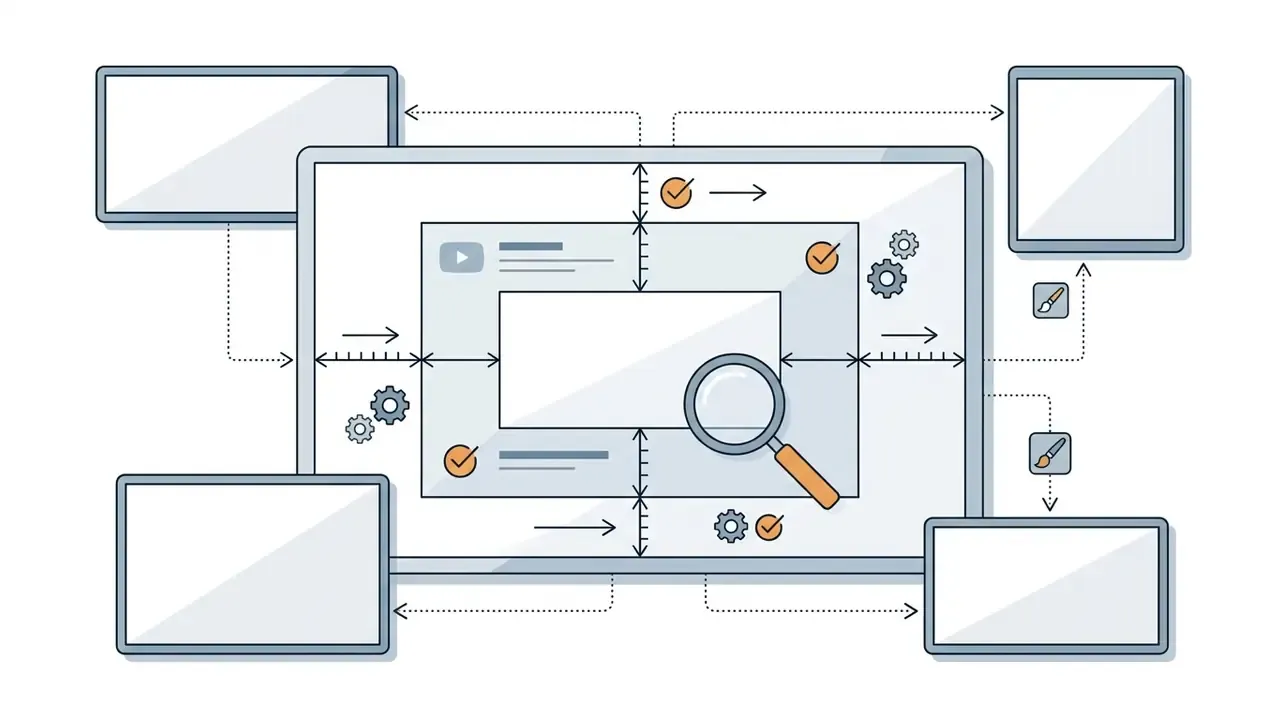
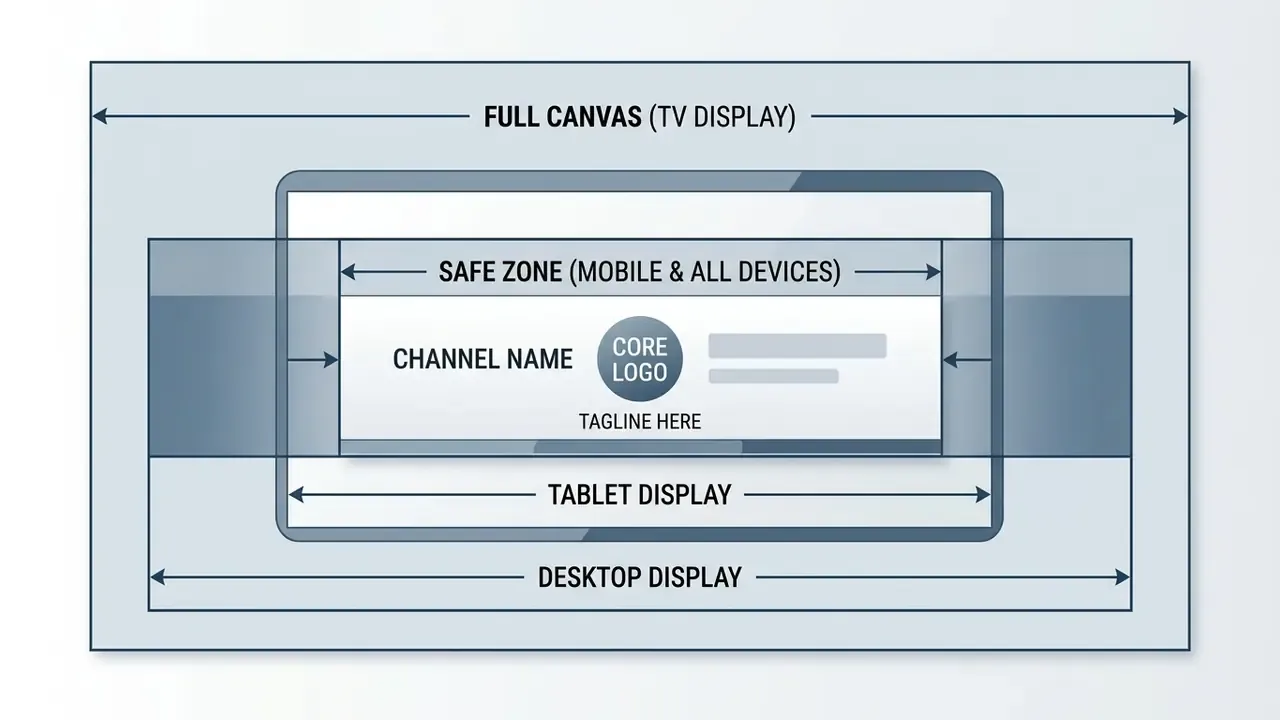
The recommended size for a YouTube banner is 2560 × 1440 pixels, with a 6 MB file cap in JPG, PNG, GIF, or BMP format. Critical text, logos, and focal design elements must fit inside the 1546 × 423 pixel central safe zone to stay fully visible on mobile, tablet, desktop, and smart TV screens.
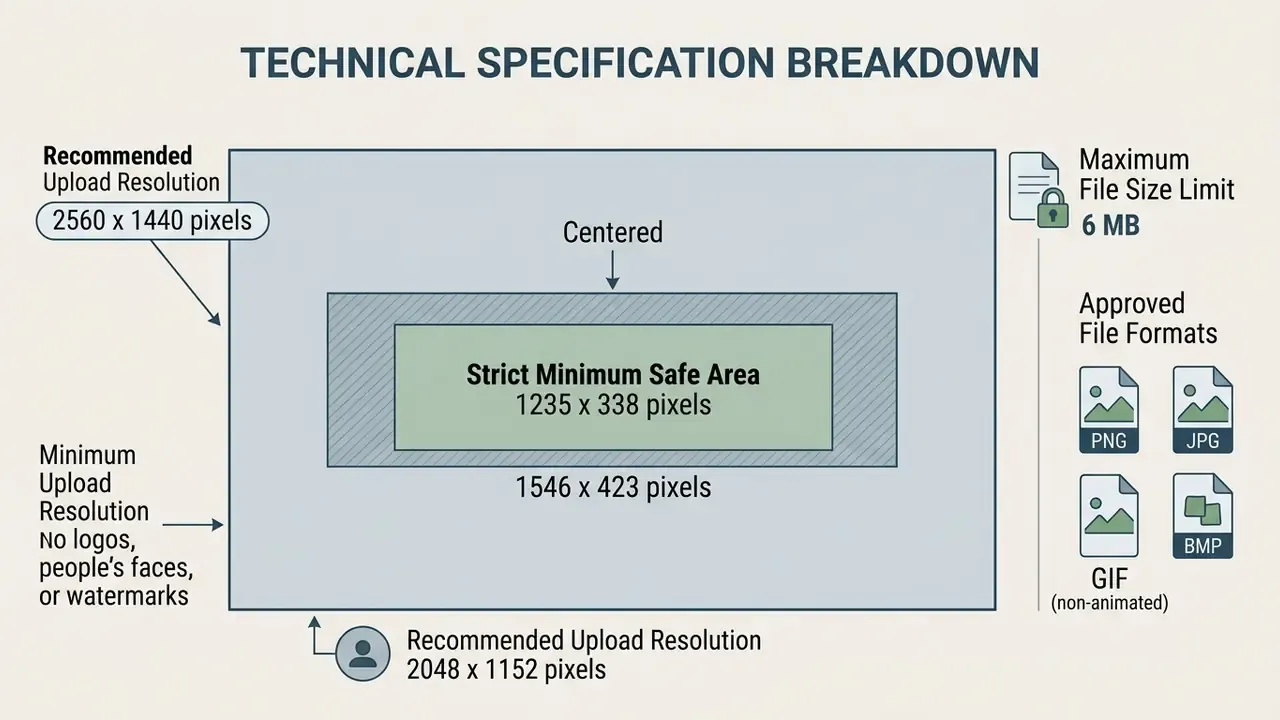
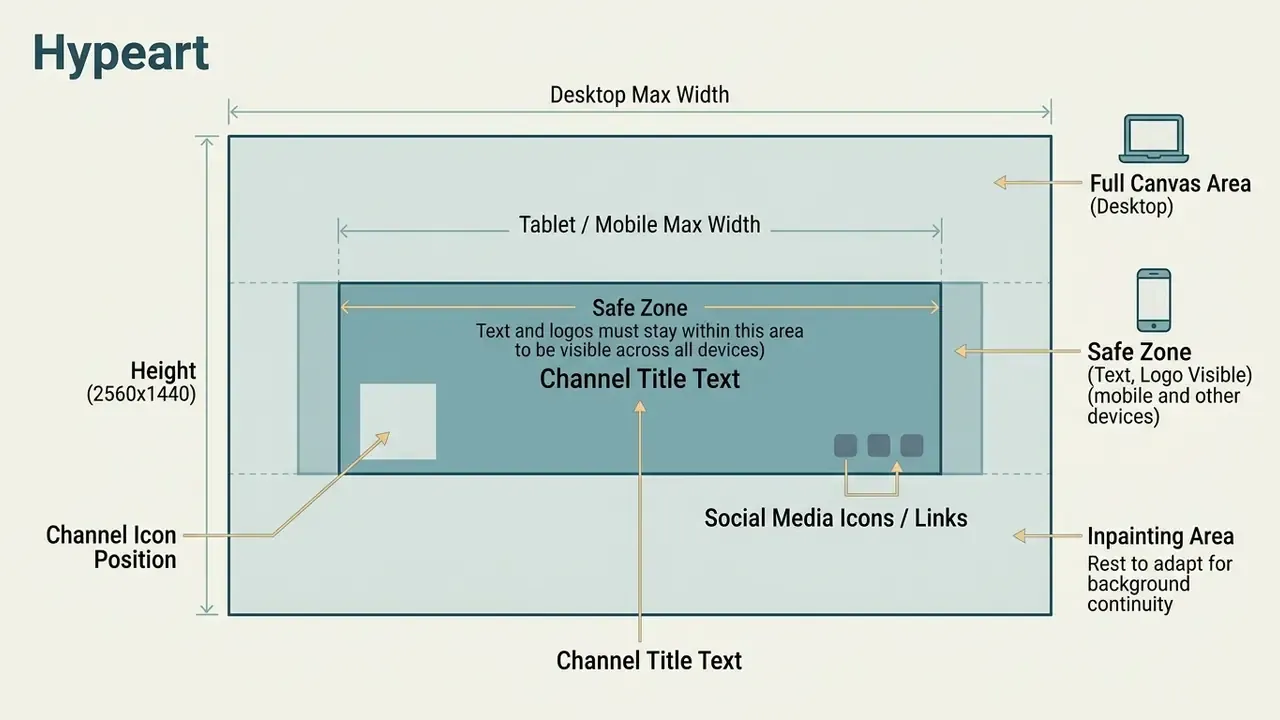
Official platform documentation specifies that TV displays render the complete 2560 × 1440 pixel image, while mobile devices crop the asset heavily from the outer margins.
"Minimum upload size is 2048 × 1152 pixels; the safe area for text and logos is the centered 1235 × 338 pixel region."
One clarification that saves confusion: 1546 × 423 px and 1235 × 338 px are not two different regions. They describe the same centered safe area, expressed relative to the recommended canvas and to the minimum upload canvas. Platform guidance also advises against decorative embellishments baked into the file, such as drop shadows, borders, or frames, because device cropping can truncate them asymmetrically. Place text outside the central area and you risk severe truncation on smaller viewports. Reviewing how layout assets translate across screen sizes before publishing cuts revision cycles sharply.
Where to place text, logo, and key design elements
Logos, primary text, and critical design elements belong strictly inside the centered 1546 × 423 pixel rectangle. Reserve the outer margins for decorative background textures, gradients, or extended scenery.
To avoid interface collisions, keep the lower-left area of the safe zone clear of critical wording, since the circular avatar and channel badges often sit there on mobile layouts. The right edge and the lower-right region should also stay free of essential copy, because subscribe buttons and platform controls may render over them. Structured composition rules keep brand assets legible even when the interface drops dynamic overlays on top of your artwork.
How to choose an AI YouTube banner generator or banner maker
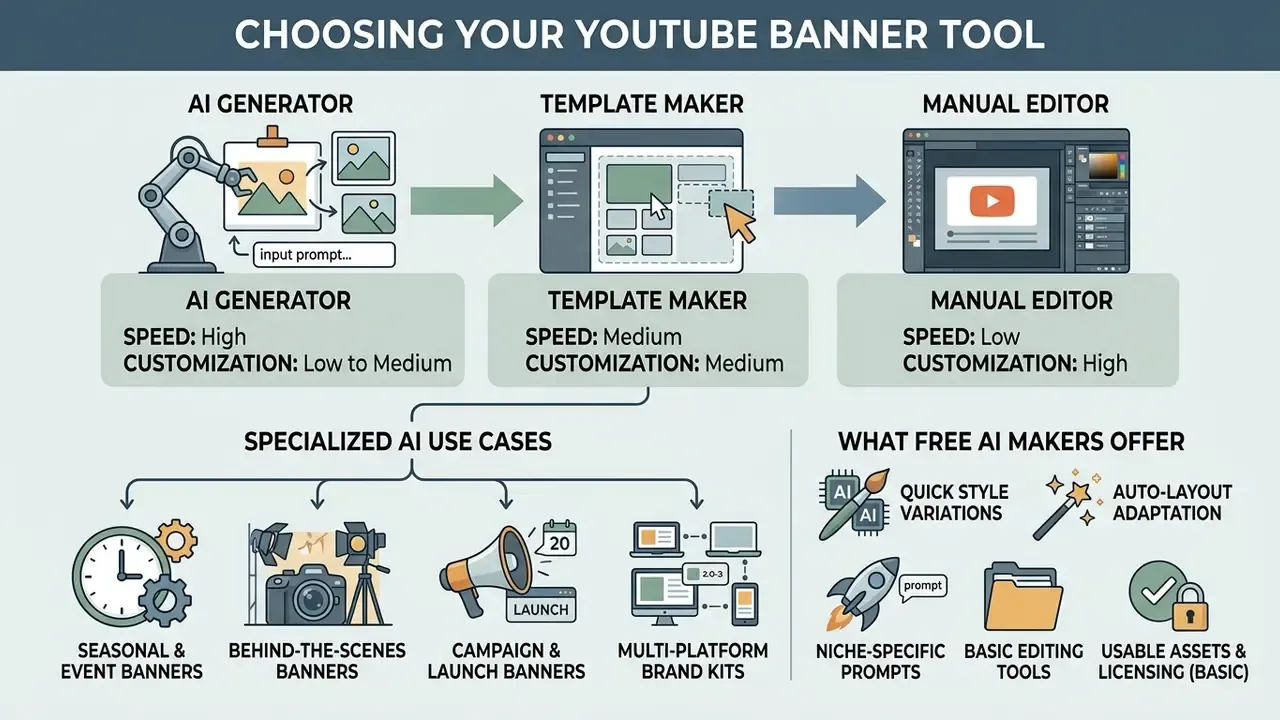
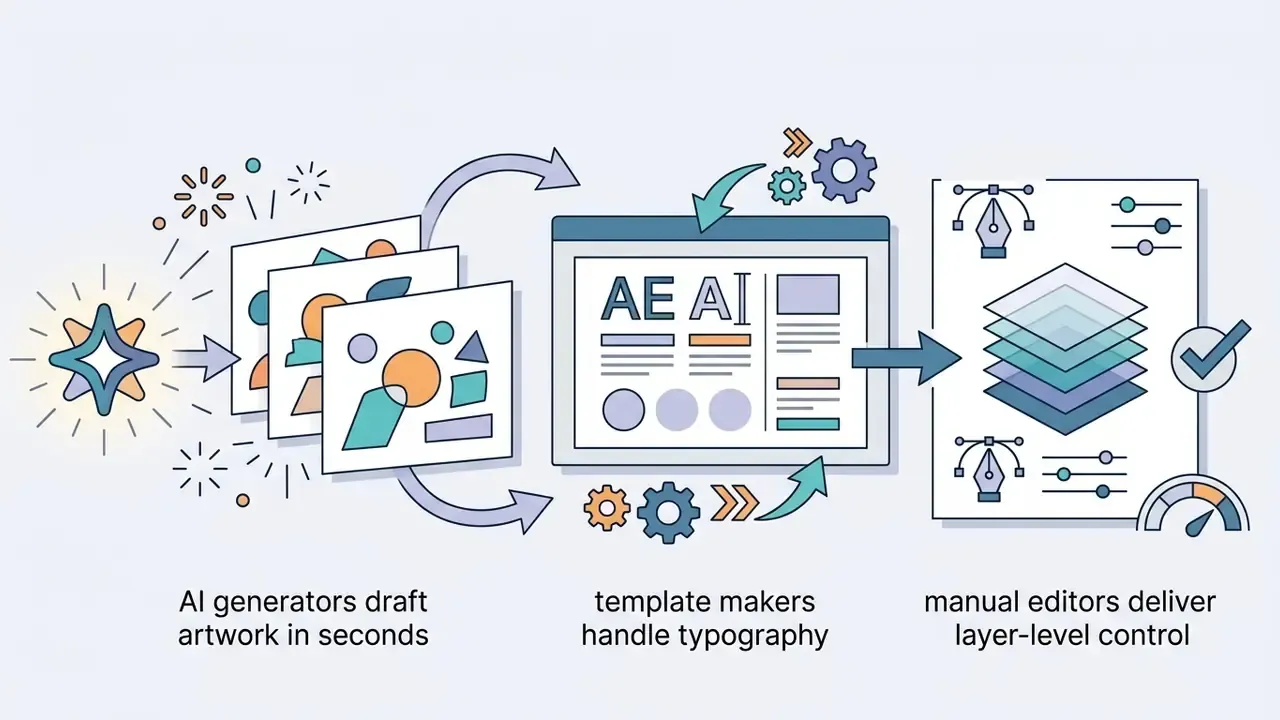
Choosing between an AI YouTube banner generator, a template-based banner maker, and a manual graphic editor comes down to three variables: creation speed, customization flexibility, and existing design experience. AI banner generators deliver automated drafts in seconds. Manual editors give granular layer-level control to technical creative teams.
| Selection criterion | AI banner generator (Midjourney, DALL·E 3, Stable Diffusion, Recraft) | Template banner maker (Canva, Adobe Express, Piktochart, Venngage, Kittl) | Manual editor (Photoshop, Illustrator, Figma) |
|---|---|---|---|
| Creation speed | High (10–30 seconds) | Medium (3–10 minutes) | Low (1–3 hours) |
| Skill requirements | No design experience | Minimal (drag-and-drop) | High, professional |
| Customization flexibility | Prompt-dependent | Limited by template | Absolute (layers, vectors) |
| Safe-zone accuracy | Automatic or prompt-driven | Pre-configured presets | Manual guides and rulers |
| Typography control | Weak (text often malformed) | Strong (font libraries, kerning) | Complete (OpenType, variable fonts) |
| Free plan availability | Common (credits or daily caps) | Widely available | Limited trials only |
| Best for | Background art and concept ideation | Finished banners with clean text | Enterprise brand compliance |
An evaluation of digital asset automation indicates that AI-driven design tools compress content production schedules substantially. Vendor documentation supports the claim: template-first platforms advertise thousands of editable YouTube banner layouts and AI-generated templates produced "in a few moments," while building from scratch remains a separate, slower route. What the public evidence does not include yet is a controlled study comparing time, cost, and output quality across all three methods. Available material is product documentation describing workflow efficiency, not comparative benchmarking. Worth keeping in mind before quoting a productivity number to a stakeholder.
A naming note, since search results are noisy. Vendors label near-identical products as an ai youtube banner creator, an ai youtube cover generator, an ai channel banner generator, an ai youtube channel art generator, or plainly an ai yt banner maker. Feature sets overlap far more than the labels suggest; compare capabilities, not marketing vocabulary.
Enterprise teams, however, must verify whether generated outputs meet institutional licensing standards. Organizations evaluating software platforms should inspect tool capabilities through the AI Media Workflows directory and the comparison of AI image generators to select tools that balance generative speed with explicit governance controls. Broader stylistic surveys such as the best AI art generator comparison and the Canva AI Generator overview clarify which engines pair rendering quality with usable commercial terms.
What free AI YouTube banner makers offer
Free AI YouTube banner maker tiers typically provide basic text-to-image generation credits, access to standard banner templates, and light background editing. Advanced features, uncompressed 4K exports, background removal, and commercial rights management, usually sit behind premium plans. Readers comparing entry-level options can review the roundup of free AI image generators, the free AI art generator comparison, and the free photo editor guide before committing to a paid tier.
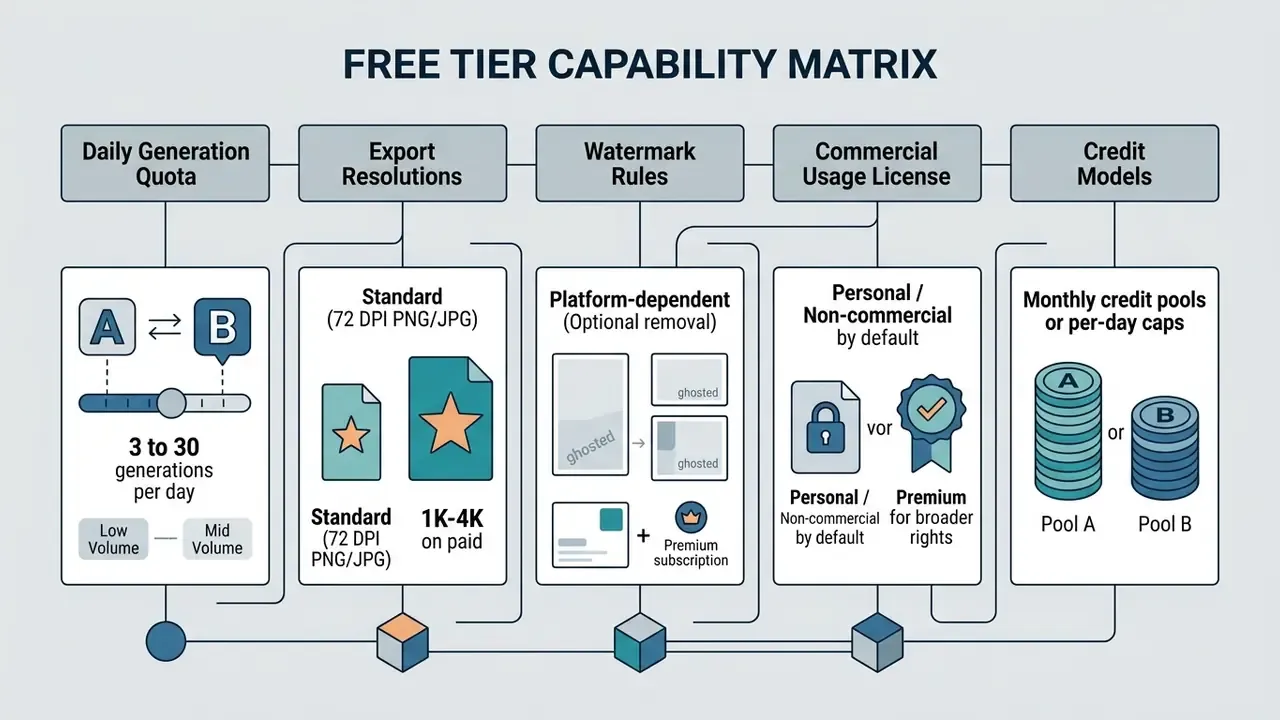
Published free-tier models diverge sharply by vendor. Some advertise no watermark and no sign-up. Others cap usage at roughly five free generations per day with high-resolution downloads, and a few allow up to thirty daily generations exported as JPG or PNG. Several platforms list 1K, 2K, and 4K output tiers while tying watermark-free downloads and higher volumes to paid plans. Requires further data: free-plan terms change frequently and live on marketing pages rather than in audited documentation, so verify current limits on the product's pricing page before planning a production run.
When working inside a free plan, account for export restrictions and resolution caps early. Checking service terms up front ensures the generated graphic meets YouTube's technical upload limits without an unplanned upgrade at the worst moment.
How to create a YouTube banner with AI: full workflow and prompt writing
Creating a YouTube banner with AI follows a six-step structured workflow: define channel positioning, formulate a descriptive prompt, generate initial candidates, customize text and brand layers, validate safe zone boundaries, and export the final high-resolution file.
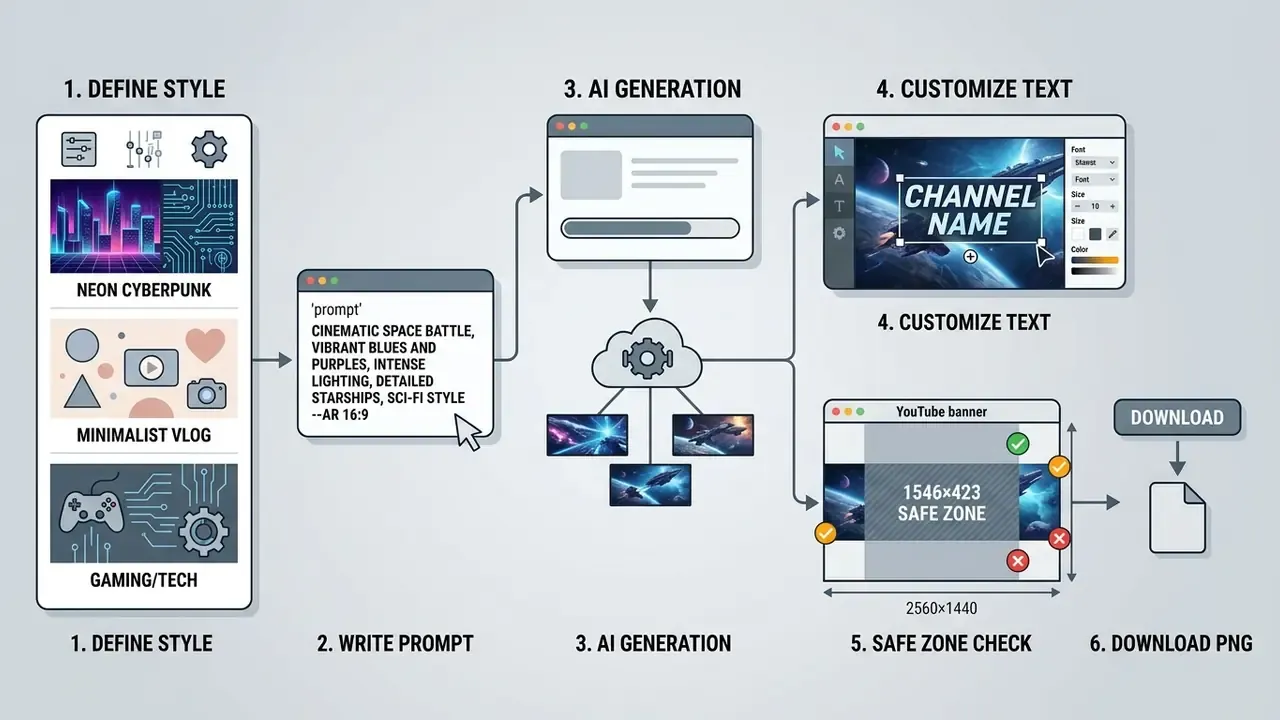
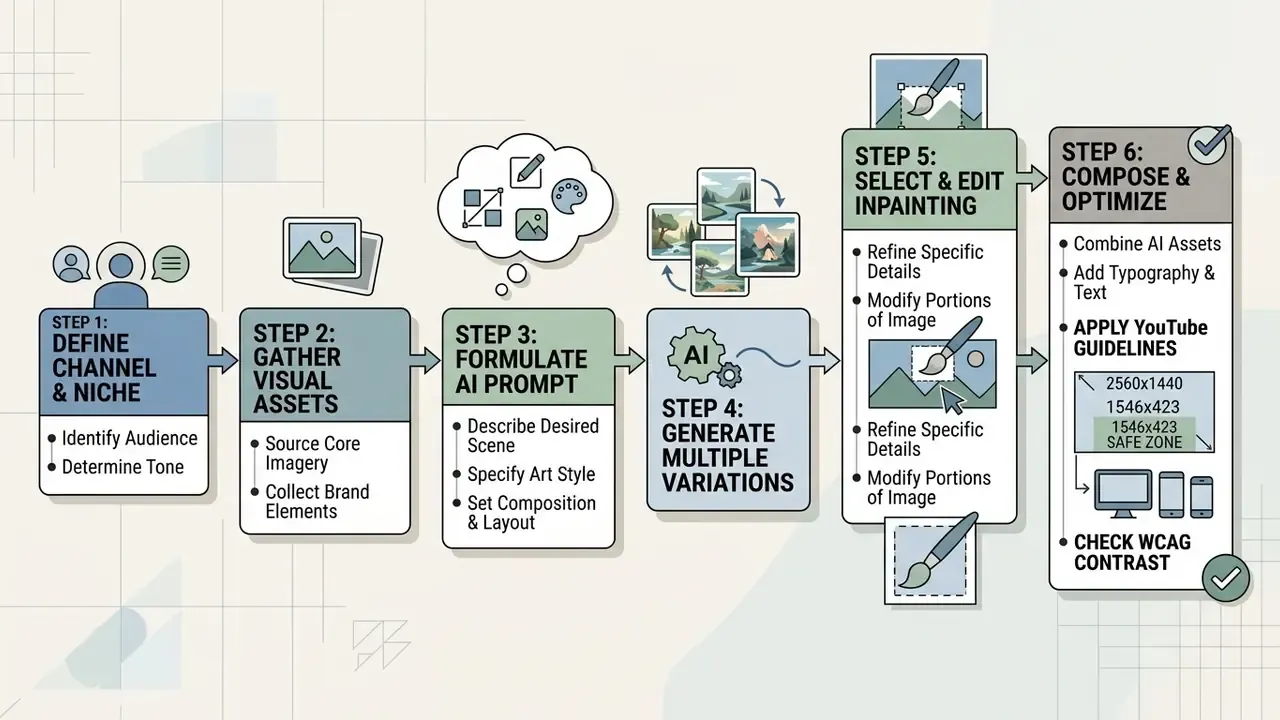
A systematic method minimizes trial-and-error cycles. Treat generative tools as controllable asset production pipelines and outputs stay consistent with your wider social media assets, including thumbnails and profile picture.
Step 1. Define channel style and objective
Before launching any AI generator, define the core topic, the target audience, and the primary brand palette of the channel. Whether the channel represents a corporate entity, an educational project, a gaming hub, or a personal vlog shapes the entire aesthetic.
Pre-generation checklist:
- Positioning State in one sentence what the channel is about. Platform guidance treats the banner as exactly that statement, rendered visually.
- Core task Decide whether the banner must drive subscriptions, announce a schedule, or establish institutional authority.
- Visual style Lock exact hex codes, two typography styles (display plus body), and a mood keyword set.
- Legibility constraint Confirm the message survives the mobile crop, since the platform trims the outer canvas on several views and devices.
Documenting brand guidelines before generation prevents unfocused prompt iterations. Fixing hex codes and typography in advance also simplifies the customization step later in the online editor.
Step 2. Write the prompt for the AI generator
An effective prompt combines subject details, artistic style, background environment, lighting conditions, and explicit negative space constraints into one clear instruction.
Prompt engineering research shows that structured instructions containing specific background, lighting, and composition terms produce noticeably higher image-target alignment.
"Participants working with more capable models wrote longer, more descriptive prompts, which itself improved output quality alongside model capability."
Negative prompts such as "no text, no blurry details, no visual clutter" prevent unwanted artifacts inside the primary viewing region. According to generative model guidance from Google Cloud Vertex AI (2026), prompts that establish scene context before detail parameters produce cleaner background compositions, and any in-image text should stay extremely short, roughly 25 characters or fewer, two to three phrases maximum. Reserving negative space in the canvas center keeps the generated art from fighting your headline.
Component breakdown. A robust banner prompt states the channel's industry theme, specifies medium aesthetics (for example "minimalist 2D vector art" or "cinematic studio photography"), lists two or three brand colors, describes lighting by source, direction, and quality (soft diffuse, rim light, backlighting, golden hour), fixes framing and viewpoint (wide shot, eye-level, rule of thirds), and requests a wide 16:9 panorama.
Security-checked Example Prompt Structure: "Wide panoramic banner background for a financial technology channel, minimalist 3D geometric abstract shapes, navy blue and metallic gold palette, soft ambient studio lighting, clean horizontal composition with empty centered space, 8k resolution, no text, no logos."Specifying "empty centered space" tells the diffusion model to keep the critical safe zone clean, so complex objects stop interfering with typography overlays. Practitioner guidance also warns that very long prompts dilute the weight of individual descriptors. A compact, ordered stack beats a sprawling paragraph almost every time.
Step 3. Generate the first AI banner candidates
Running the initial prompt in the generator returns several raw background images, or fully composited drafts, at the targeted 16:9 aspect ratio. Established design-research guidance recommends three to nine seed variations before committing, then short optimization loops rather than one long refinement session.
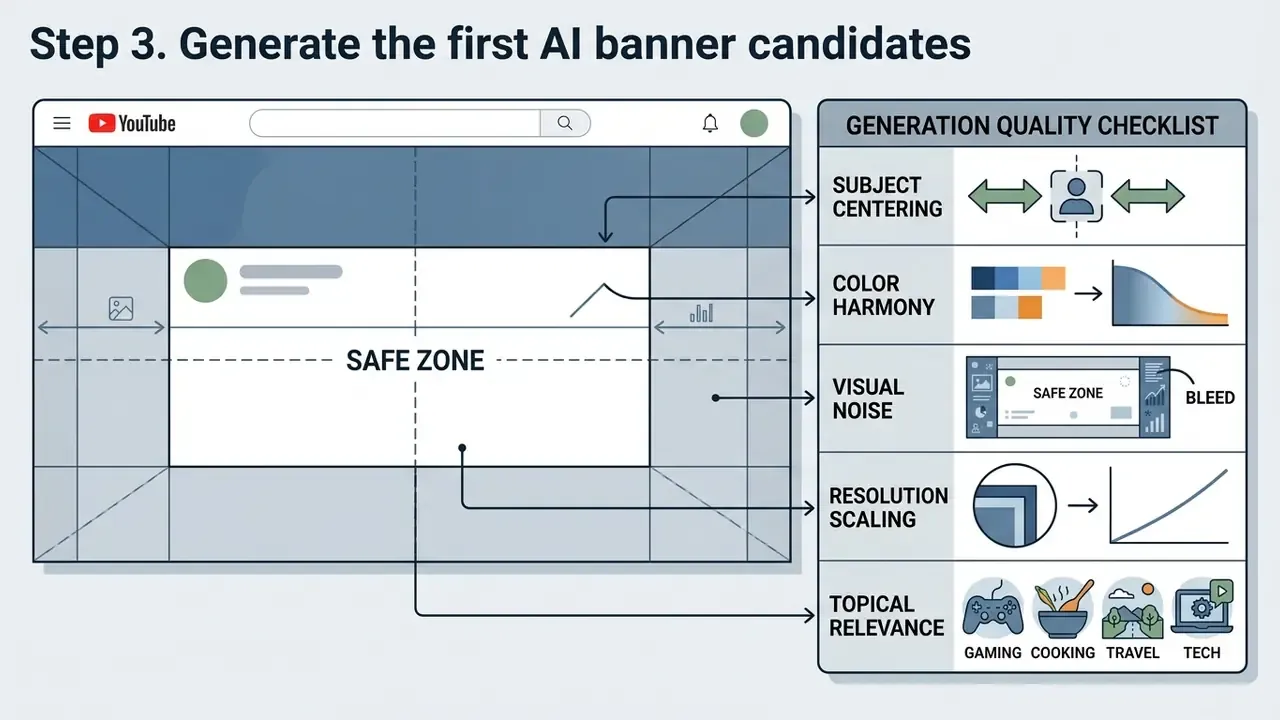
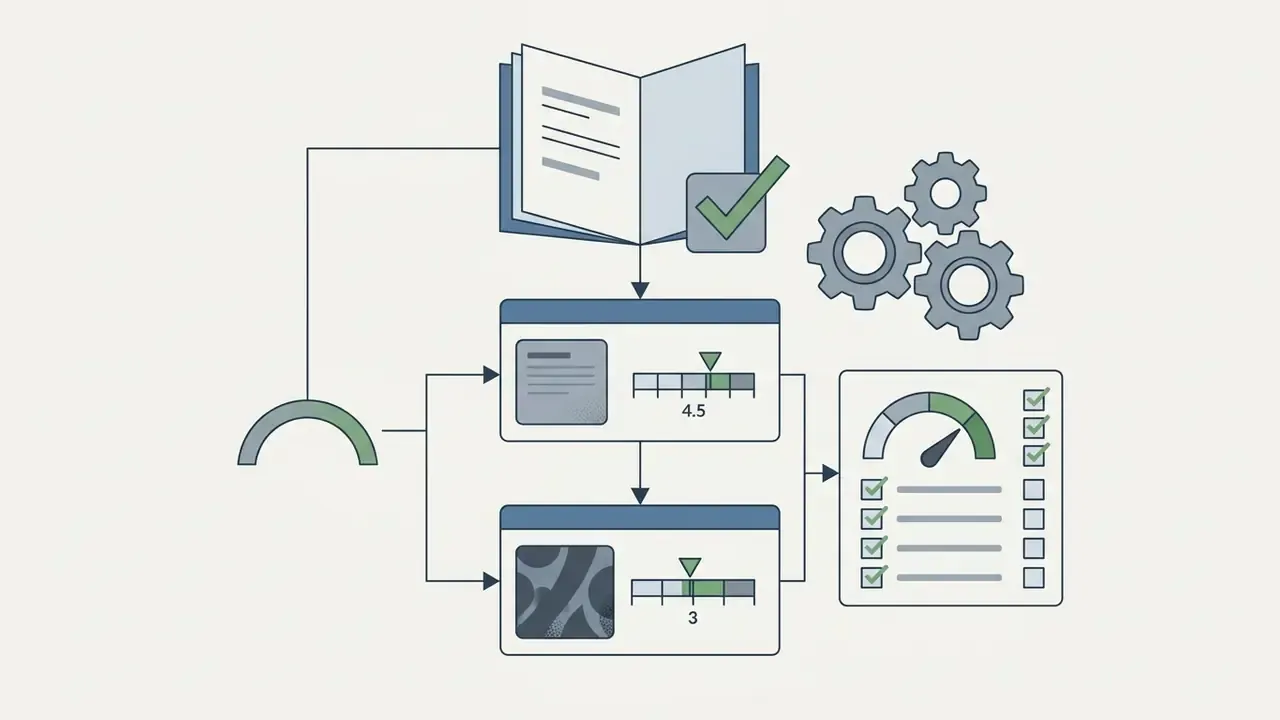
How to score candidates. Evaluation frameworks converge on a fixed rubric plus documented human judgment, not intuition alone. Score each candidate on a 0 to 10 relevance scale against the prompt intent and channel topic, and write one sentence justifying the score. Relevance is inherently subjective; the written rubric is what makes selection repeatable across a team. Reviewing the batch this way also makes it easier to discard unbalanced compositions and distorted artifacts early. A clean visual foundation simplifies every text overlay that follows.
Step 4. Niche prompt library: gaming, education, business, and vlog
Different niches demand tailored prompt structures to match their visual norms and audience expectations. Each example below keeps lettering out of the generation and preserves centered negative space.
- Gaming YouTube
"Cyberpunk esports gaming banner background, glowing neon purple and electric blue lighting, high-contrast dark futuristic city skyline, energetic digital aesthetic, centered empty space, 16:9 aspect ratio, hyper-detailed, no text." - Education / Tech
"Clean minimalist tech channel header background, modern isometric server racks and soft circuit patterns, slate gray and teal color palette, diffuse lighting, professional corporate design, uncluttered center." - Business / Finance
"Executive financial analysis banner, abstract dark blue stock charts with subtle golden growth vectors, polished corporate aesthetic, ultra-clean composition, dark moody background, high resolution." - Vlog / Lifestyle
"Warm aesthetic lifestyle banner background, soft pastel peach and beige watercolor textures, gentle golden hour sunlight, cozy organic mood, minimal visual noise, 16:9 aspect ratio." - Cooking / Food
"Wide banner background for a cooking channel, warm red and orange tones, rustic wooden kitchen surface with scattered utensils out of focus at the edges, soft window light, clean empty center, no text." - Travel
"Panoramic travel vlog banner, vibrant scenic coastline and distant landmarks toward the frame edges, saturated daylight, adventurous mood, wide 16:9 composition, empty centered space." - Fitness
"Energetic fitness channel banner background, dark gym interior with dramatic rim lighting on equipment at the margins, bold orange accents, high contrast, clear center for typography, no lettering."
Business and finance channels should confirm output rights before deployment. Review the guidance on AI image generators for commercial use and the Google AI Image Generator usage terms before publishing branded assets. To pair banner generation with video production, creators can also evaluate how to create a video with pictures for channel trailers.
Step 5. Refine and iterate after the first generation
Improving the first output means iterative prompt refinement: adjusting color descriptors, modifying composition parameters, or applying region-based inpainting to clear clutter inside the safe zone.
Research on iterative prompt engineering indicates that human-driven refinement cycles substantially increase target image similarity.
"Stepwise prompt adjustments substantially improved similarity to the target image, confirmed by both subjective ratings and quantitative similarity metrics."
If the output crowds the center, append instructions such as "reduce clutter in middle third" or mask the region for inpainting. Contemporary diffusion-editing literature splits refinement into three operations that map directly onto banner cleanup: region inpainting (replace the flawed area), boundary harmonization (blend the repaired edge into surrounding art), and pixel-level post-processing (fix chromatic shifts, texture mismatches, and visible seams introduced by latent compression). Masking only the artifact and supplying a reference crop usually outperforms regenerating the whole frame, and it preserves a background you already approved.
Step 6. Finalize, validate, and export
The final step: import the chosen visual into an online editor, apply text overlays, fine-tune color saturation, inspect safe zone alignment, and export a lossless PNG under 6 MB.
Format decision rule: choose PNG when the banner is text-heavy or contains sharp vector logos, since it preserves crisp type edges. Choose JPEG when photographic or painterly AI art dominates and file weight matters. Export at maximum quality, then confirm the result stays under the 6 MB ceiling. Re-open the exported file at full 2560 × 1440 px and re-check the safe-zone crop before uploading.
To streamline multi-asset creation, explore how tools integrate with broader publishing pipelines through AI Media Workflows. Teams shipping heavy media libraries alongside banners may also need a video compressor to keep companion assets within platform limits. For broader automated content creation, review how to create a website with AI for unified digital branding.
Customizing a finished YouTube banner in an editor
Setting up a completed AI YouTube banner in a graphic editor means importing custom assets, applying a background remover to photos or logos, tuning typography contrast, and standardizing brand colors against official guidelines.
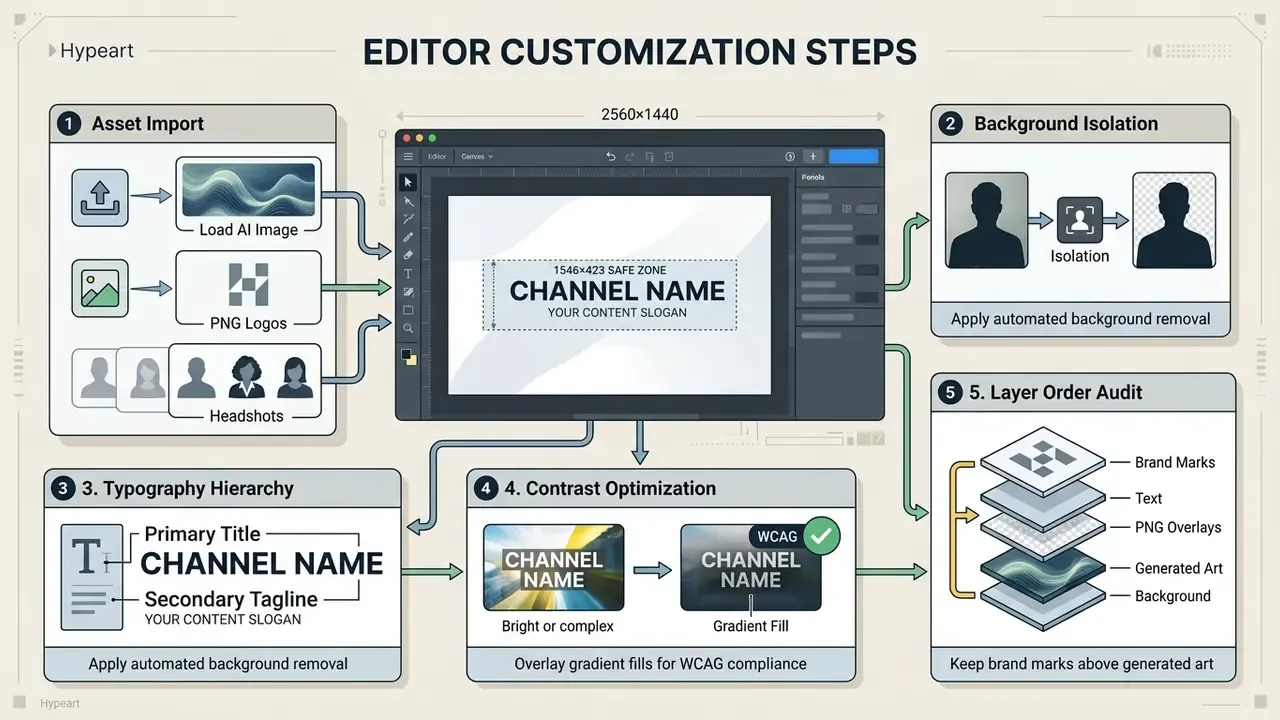
When integrating portraits or product shots, creators usually need to isolate subjects from the background. Specialized AI photo editors handle layer adjustments smoothly, and the broader online photo editor guide compares core feature sets and commercial workflows across platforms.
How to add photos, logos, and profile pictures to the design
To place an author headshot, company logo, or profile picture into a banner design, upload high-resolution transparent PNG files into the editor canvas, position them inside the safe zone, and apply subtle drop shadows or stroke outlines so they separate from the background. Creators without an existing mark can build one first using AI logo generators, while presenter portraits can be produced with AI headshot generators when no studio photo exists.
Background-removal sequence, consistent across major editors:
- Open a blank canvas in the editor and upload the logo, headshot, or avatar into the media panel.
- Place the asset on the canvas and select Remove background from the quick actions.
- Review the cutout edges, refining hair and semi-transparent regions manually if needed.
- Download or place the result as a transparent PNG, then position it inside the safe zone.
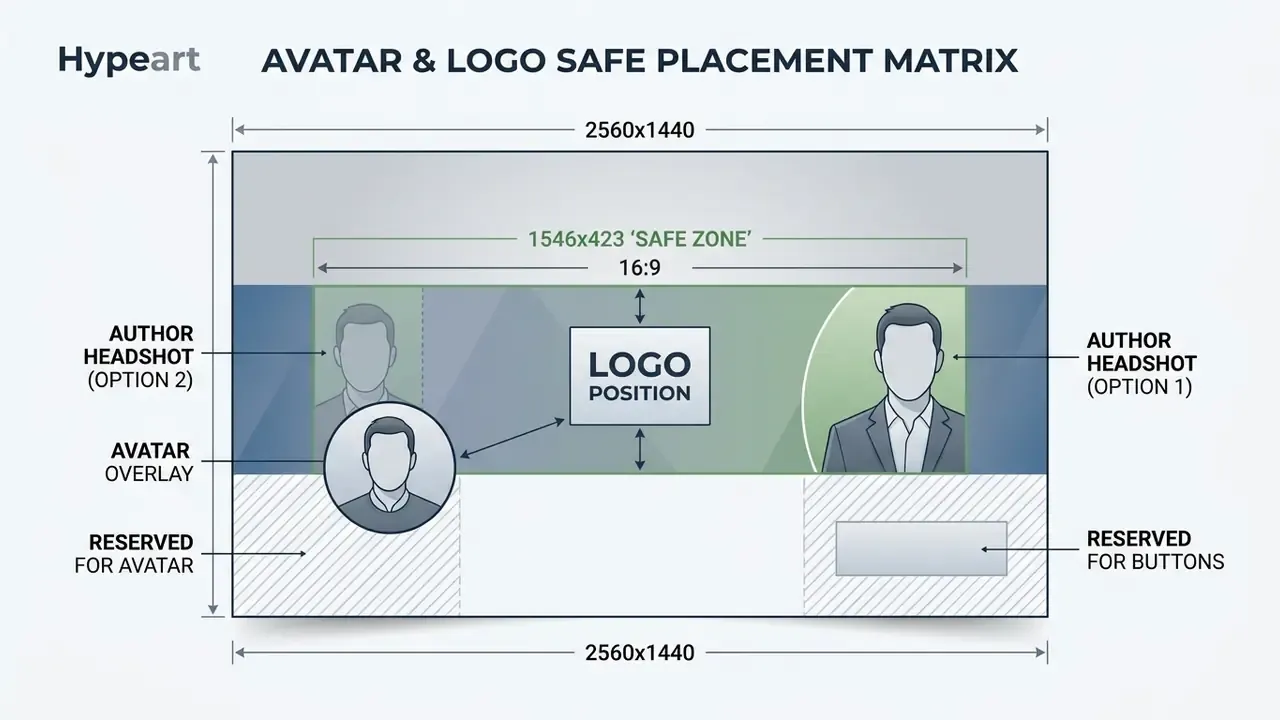
When positioning headshots, have subjects face inward toward the banner text rather than outward toward the screen margins. Directional gaze lines pull viewer attention to the headline, which is a cheap trick that keeps working. If the design includes a subscribe prompt, leave breathing room around the platform's own subscribe control rather than drawing a competing button that will sit right beside it.
Pre-publication checklist
Copy this list and run it before every banner upload:
Checklist0 / 14
Three-step legal clearance before production use
- Log the prompt and workflow.Save the exact prompt, model version, seed, and every human edit. That record is what substantiates a claim of human creative contribution.
- Screen for trademarks and look-alikes.Check that generated shapes, mascots, or logo-like marks do not reproduce protected brand assets; a reverse-image search tool helps detect unintended similarity.
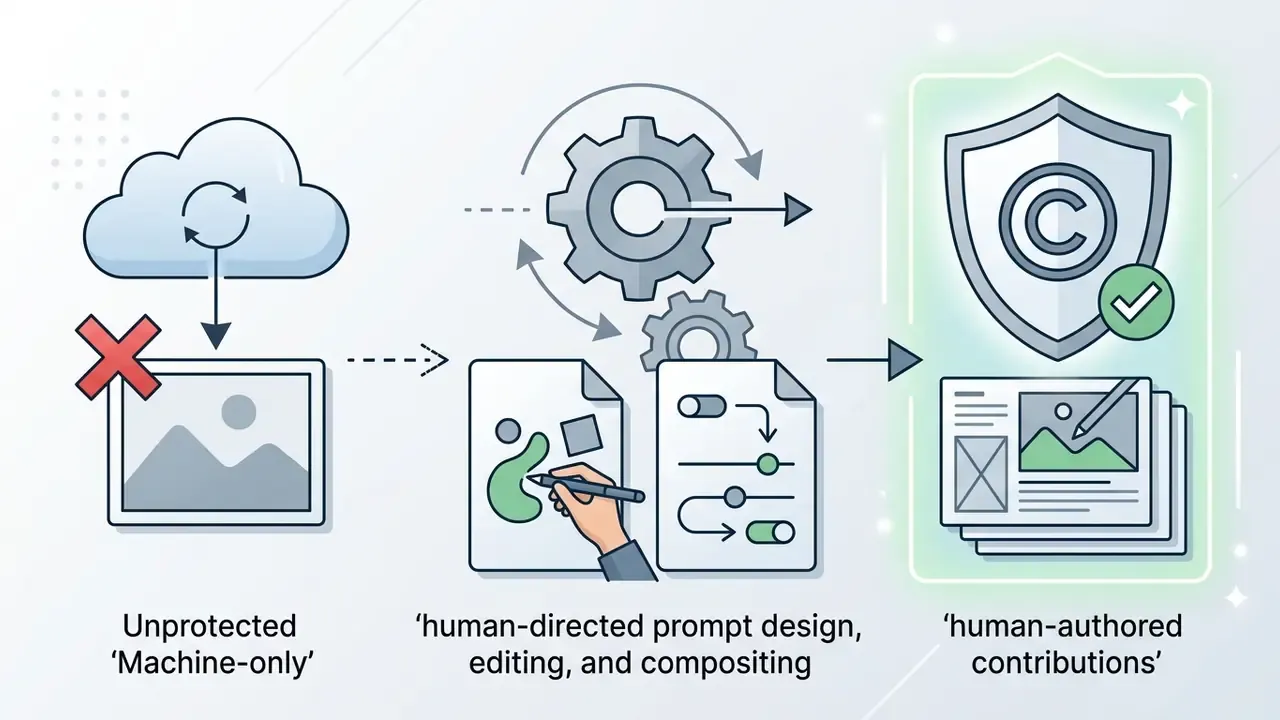
- Apply meaningful human authorship.Composite, retype, recolor, and lay out the final asset yourself rather than uploading a raw generation, and confirm the vendor's licence permits commercial use on your current plan.
Additional enterprise and calculator tools
To calculate visual asset parameters, estimate generation credit consumption, or build customized creative workflows, review the platform calculators section for technical planning tools. Enterprise media teams standardizing channel art across multiple brands should pair those calculators with the governance checks in the AI Media Commercial-Use directory.
Appendix A. Superseded source citations (change log)
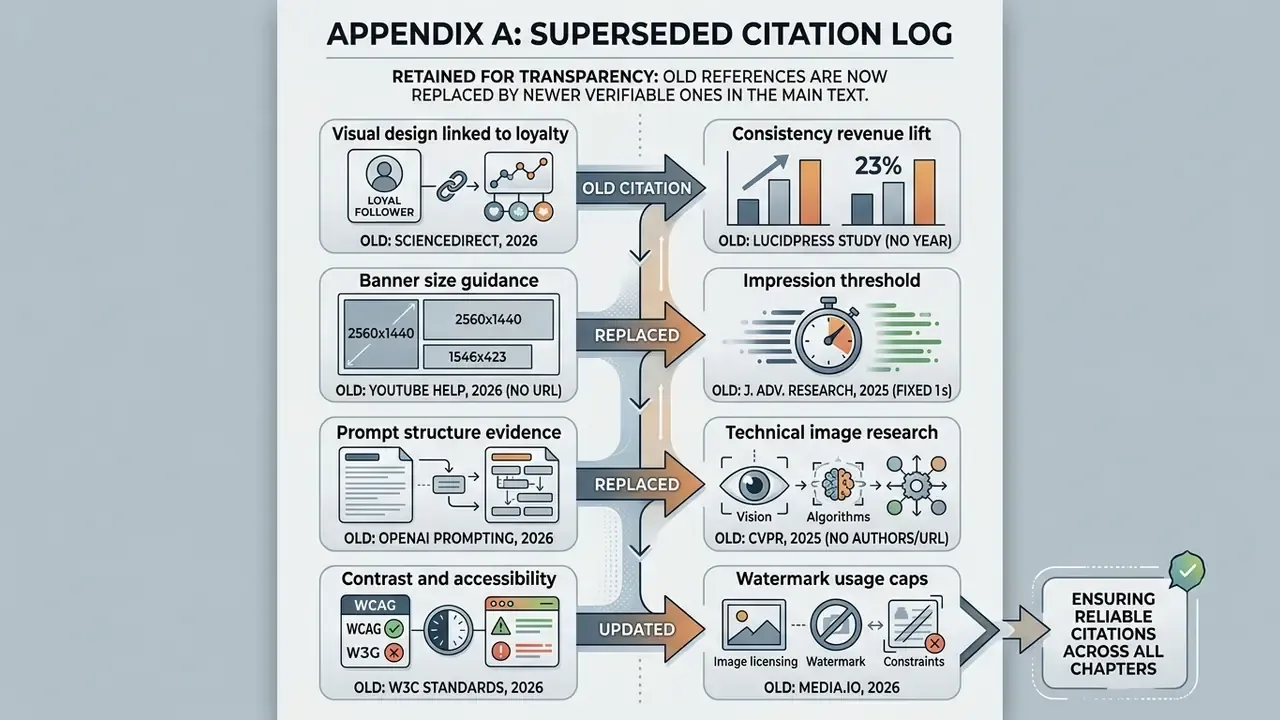
Retained for transparency; the main text now uses the updated, verifiable references above.
- Earlier version cited ScienceDirect, 2026 for the link between cohesive visual design and follower loyalty. Superseded by Branding with Vlogs, Factors Affecting Their Success (2024) because the original lacked a study title, authors, and methodology.
- Earlier version cited Lucidpress Brand Consistency Study (23 percent revenue lift) without a year or URL. Supplemented by the Mark Studios Brand System Guide (2024) for a verifiable, context-bearing figure.
- Earlier version cited YouTube Help, 2026 without a URL. Superseded by the linked YouTube Help, Manage your channel branding page.
- Earlier version cited Journal of Advertising Research, 2025 for a fixed "1.0 second" impression threshold. Replaced by the linked mobile eye-tracking validation study, with the threshold reframed as an approximation.
- Earlier version cited OpenAI Prompting Guide, 2026 as evidence for prompt structure. Superseded by Holtz, arXiv (2024), an empirical study rather than a corporate guide.
- Earlier version cited Computer Vision and Pattern Recognition, 2025 without authors or a URL. Superseded by the linked arXiv (2025) iterative-refinement paper.
- Earlier version cited W3C Standards, 2026. Superseded by the direct WCAG 2.2 specification link.
- Earlier version cited Media.io, 2026 for watermark and usage caps. Retained as directional vendor information and flagged as requiring further verification.