An online AI video enhancer uses trained deep learning models to upgrade low-resolution, noisy, or blurry footage directly inside a web browser. No plugin, no local render farm. By evaluating spatial frames and temporal motion patterns together, these systems reconstruct missing detail, remove compression artifacts, correct exposure, stabilize handheld movement, and upscale resolution toward 4K without manual frame-by-frame work.
Whether you are handling legacy archives, social media content, or enterprise video assets, an ai video enhancer online free lets you verify model performance through side-by-side previews before you commit budget or compute. That single habit, preview first, saves more money than any pricing plan.
Executive Summary
- What it does Browser-based neural pipelines fix four to five degradation classes at once. Low resolution, sensor noise and codec blocking, underexposure, motion blur, and camera shake are handled in one pass, then re-encoded. Your original audio track is never re-synthesized.
- What free tiers really give you Unlimited previews and core presets, but typically 720p exports, 10 to 60 second duration caps, and watermarks. Paid tiers unlock 1080p to 4K, unlimited length, watermark-free masters, and priority GPU queues.
- Practical input limits to expect roughly up to 1 GB per file, up to 5 minutes duration, up to 60 FPS, source resolution up to 4K, with MP4, MOV, WebM, AVI, MKV and VOB containers, plus optional Google Drive, Google Photos, or Dropbox import.
- The governance caveat neural models synthesize statistically plausible pixels. They do not "remember" lost data. Free consumer endpoints may retain uploads, use them for model training, or publish no SOC 2, ISO 27001, or GDPR guarantees at all. Never upload confidential, regulated, or evidentiary footage to an unvetted free tool, and never treat AI-restored frames as forensic proof.
Who Should Read This and Why It Matters
Two very different readers land on this page. One is a creator with a grainy phone clip and zero budget. The other sits in a bank or a mature fintech and has to answer a harder question: can staff run internal video through a public AI endpoint at all?
Both questions get answered here. The consumer workflow is genuinely simple, and we cover it step by step. The institutional workflow is not simple, because a free browser upload of a recorded board briefing or a KYC verification call is a data transfer decision, not a design decision. If you own model risk, AI governance, or vendor oversight, the sections on shadow AI, data lineage, and non-evidentiary labelling are the ones that matter to your control framework. Everything else is craft.
What Is an AI Video Enhancer Online and What Can It Improve?
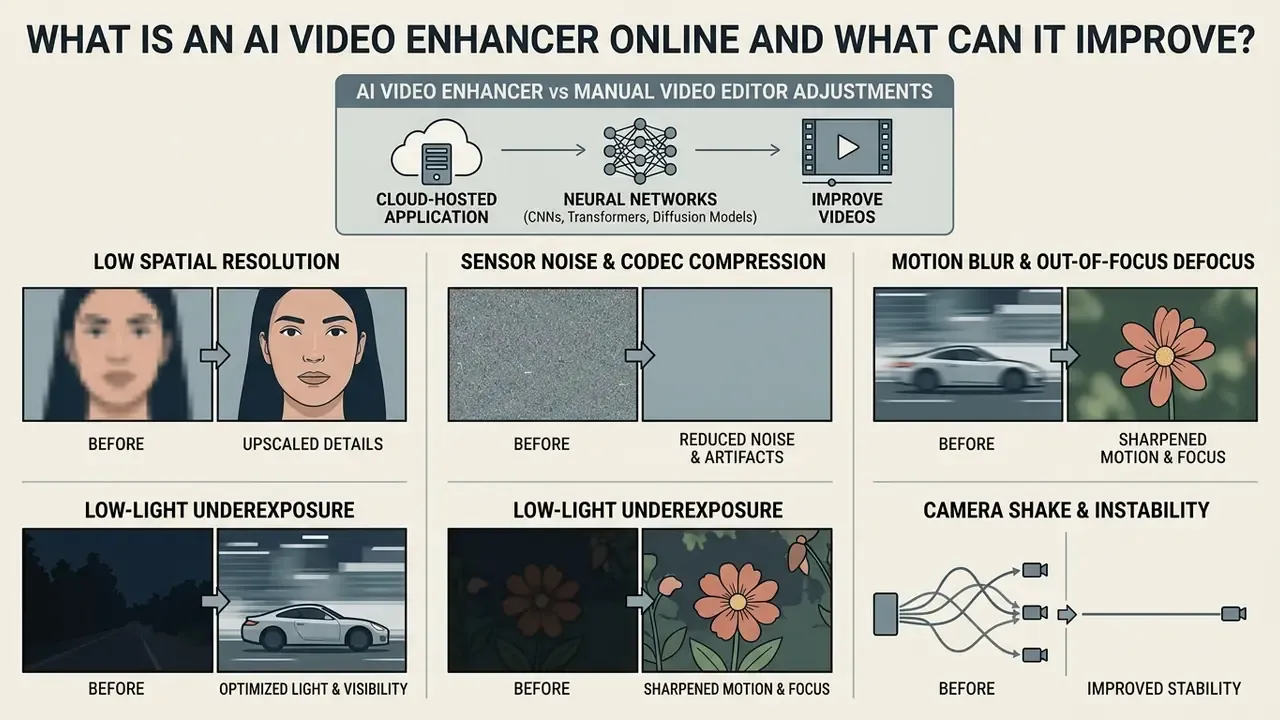
An online AI video enhancer is a cloud-hosted application that applies neural networks, including convolutional neural networks (CNNs), transformers, and diffusion models, to restore and improve digital video files. Basic filters push global color adjustments across the whole frame. An ai video enhancement online system does something different: it analyzes structural patterns across neighboring frames, isolates defects, suppresses noise, and synthesizes realistic high-frequency edge detail only where the model believes detail belongs.
Choosing an ai video enhancer online free lets creators and organizations deliver clear video quality online without buying expensive local GPU hardware. These systems process raw or compressed footage and return ai enhanced videos with better visual clarity, balanced contrast, and fewer compression artifacts. Practically speaking, you can also ai video enhance online in a single browser tab while your source master stays untouched on disk.
Research taxonomies sort these systems into domain-translation, self-supervised, and blind-spot or noise-modeling families. Commercial vendors then repackage the same algorithms as one-click presets with friendlier names. That mismatch between research vocabulary and marketing vocabulary is the main reason two tools advertising "AI enhancement" behave completely differently on identical footage. Same label, different model, different failure mode.
AI Enhancement vs Manual Video Editor Adjustments
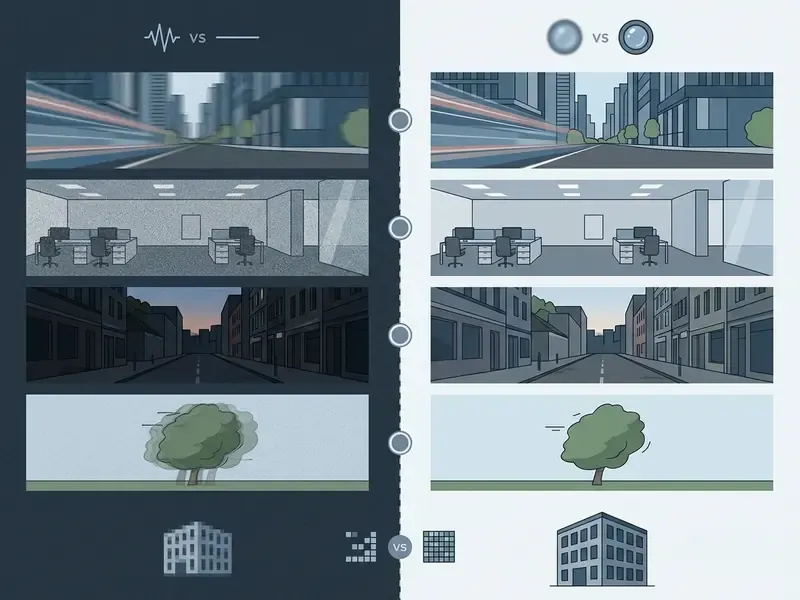
Video Issues AI Can Fix: Blur, Noise, Darkness, Shake and Low Resolution
How to Enhance Video Quality with AI Online
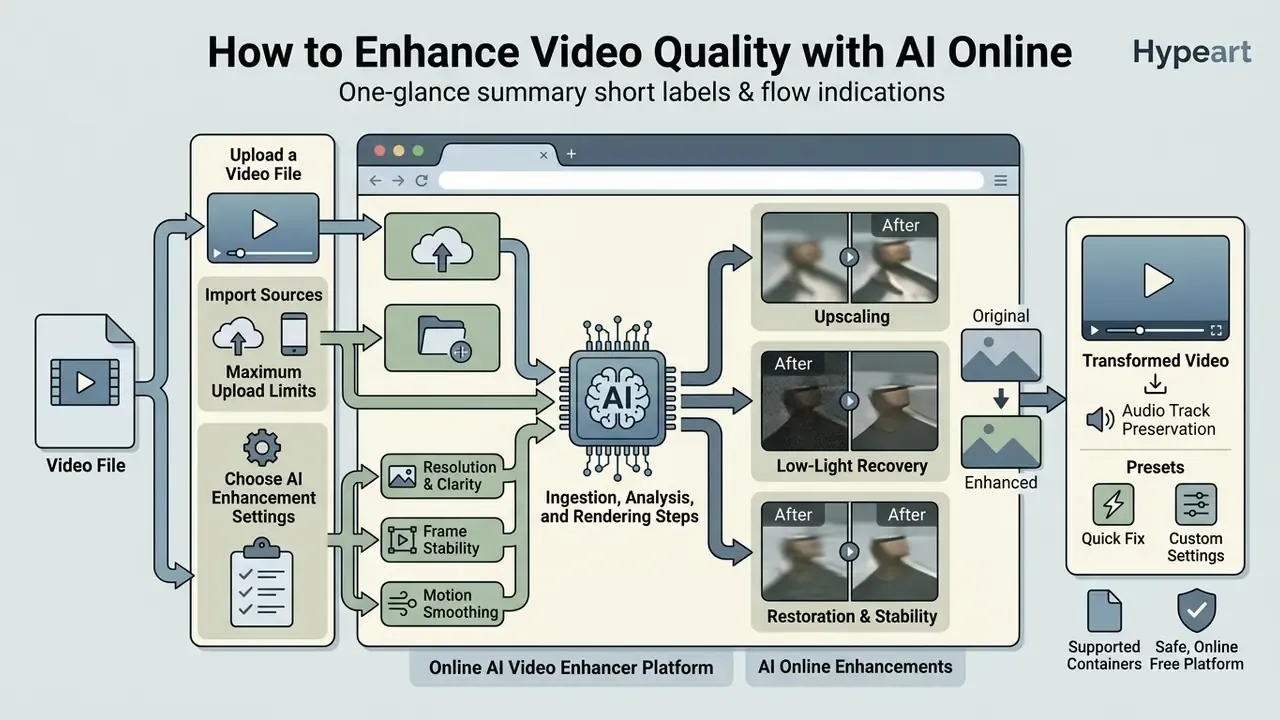
To enhance video online, cloud platforms compress the technical ingestion, analysis, and rendering steps into one browser interface. Understanding that workflow is how you pick output parameters that suit your specific source file instead of guessing.
An automated platform lets you enhance videos with ai without configuring neural network parameters locally or wrestling with dependencies. The software handles model selection, frame alignment, and final encoding behind a clean screen. You still make the important calls: which defect to fix first, and how hard.
Upload a Video File and Choose AI Enhancement Settings
The process starts when you complete a video upload by dragging your source file into the web application. Cloud platforms accept standard video formats including MP4, MOV, WebM, and AVI up to a stated size threshold.
Technical ingestion specifications and cloud import
Before uploading, confirm your source file fits standard browser rendering thresholds:
- Supported containers MP4, MOV, WebM, AVI, MKV, VOB. H.264, H.265/HEVC, AV1, MPEG-4 and ProRes streams are the most widely accepted codecs.
- Maximum upload limits up to 1 GB file size, up to 5 minutes duration, frame rates to 60 FPS, and source resolution to 4K on mainstream consumer endpoints. Enterprise ingestion paths differ sharply. Some indexing services cap direct browser uploads at 2 GB while allowing 30 GB through a signed storage URL, so always check which path you are actually using.
- Import sources local drag-and-drop, paste-a-URL ingestion, or one-click cloud sync from Google Drive, Google Photos, and Dropbox. Cloud import spares you from re-uploading multi-gigabyte masters over a slow office connection.
- Audio track preservation the enhancement engine isolates and processes video streams only. Your original audio (AAC, MP3, PCM) stays untouched and frame-synchronized with the enhanced picture, so dialogue, music beds, and timecode-locked narration will not drift.
Once the file lands, you select an AI model preset matched to your primary target:
- General restoration. Balances noise reduction with light edge sharpening for everyday clips.
- Low-light recovery. Applies gamma adjustment and temporal noise filtering to dark scenes.
- High-magnification upscaling. Uses deep spatial super-resolution to enhance video resolution online free up to 4K.
- Animation and CGI. Preserves clean line art and flat color boundaries without adding photographic grain that was never there.
- Concert and live event mode. Amplifies stage lighting contrast while recovering blurred facial detail under fast-shifting spotlights, the classic fan-shot scenario where handheld zoom plus low light destroys clarity.
- Portrait and beauty retouching. Enhances natural skin texture and facial micro-detail without producing a waxy, synthetic look.
- Gaming and CGI streams. Sharpens high-contrast HUD overlays and vector elements while rendering smooth 60 FPS motion interpolation for fast gameplay capture.
- E-commerce and product cards. Brightens shadow zones on product textures so weave, grain, and metal finish read clearly on commercial landing pages.
- Text and signage mode. Boosts contrast on titles, logos, watermarks, and large captions. Note the hard limit covered in the FAQ: this improves legibility of medium and large glyphs, not microscopic document text.
Preview, Process and Download the Enhanced Video
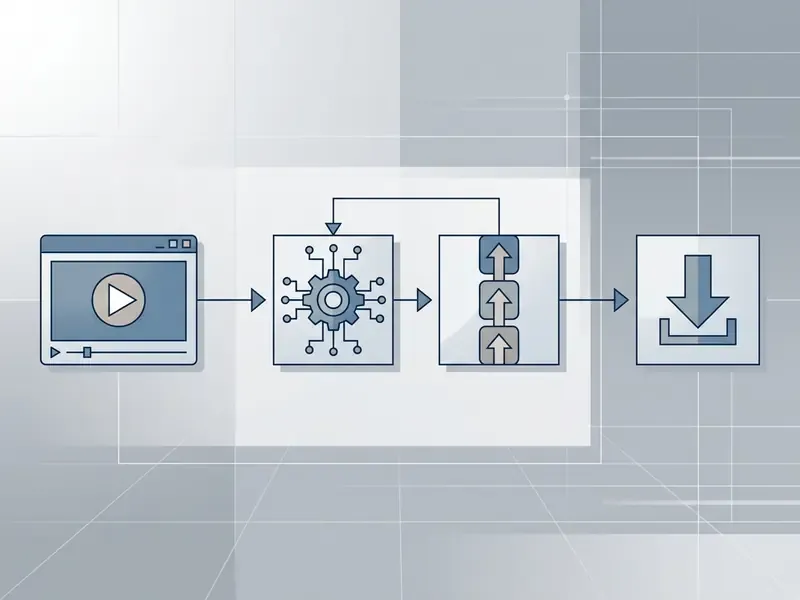
Before you spend render time on a full clip, generate a short real-time preview. A split-screen comparison shows you detail preservation, color accuracy, and artifact suppression in seconds. Preview renders are temporary files. Desktop-class pipelines can reuse them at export, but many cloud services discard the preview and re-render the master from scratch, which explains why export often takes longer than the preview suggested.
Once you approve the look, the platform processes the full file on remote GPU clusters. After rendering, download the enhanced video to local storage or push it back to the same cloud drive it came from. Typical delivery targets are 1280x720, 1920x1080, 2K, and 3840x2160 UHD, encoded to H.264 or H.265 for platform compatibility. For teams running script production alongside video pipelines, an ai script generator helps align pre-production dialogue with high-definition visual output.
Which Video Quality Improvements Are Available?
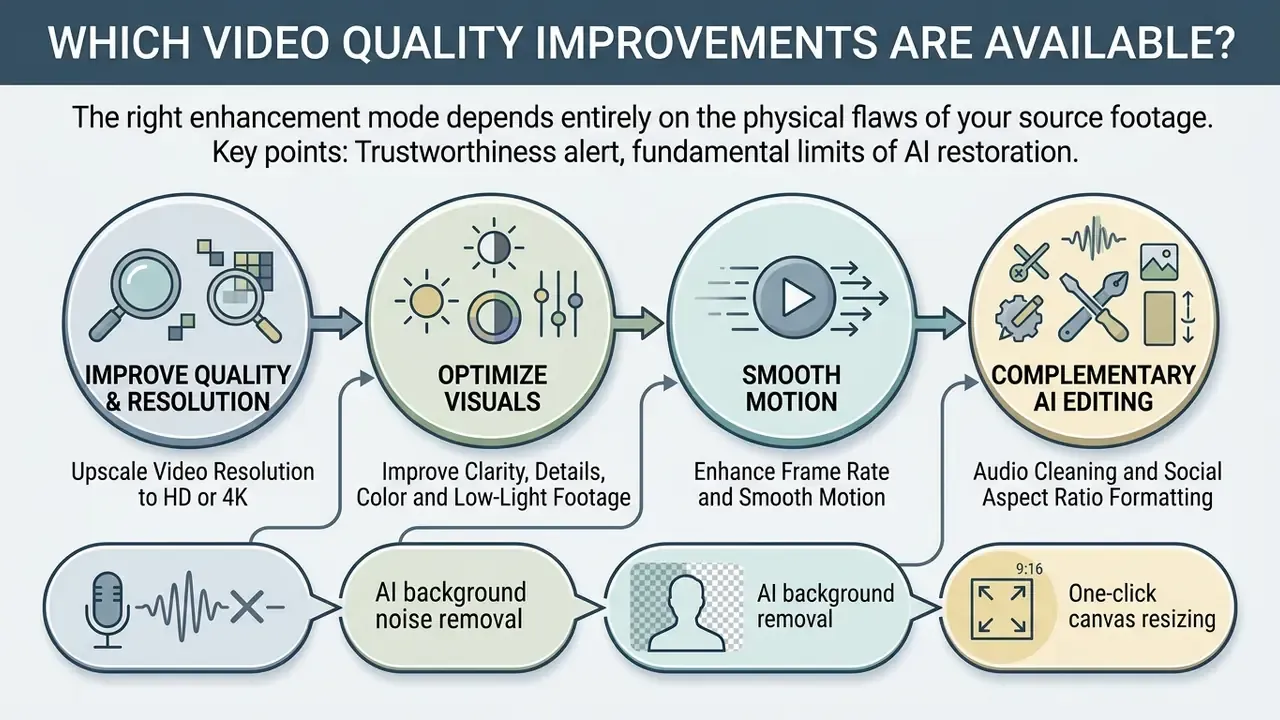
The right enhancement mode depends entirely on the physical flaws of your source footage. Modern web tools bundle several specialized neural tasks into distinct operational modes, and picking the wrong one wastes a render cycle.
Understanding the modes lets you decide whether you need spatial upscaling, frame-rate smoothing, stabilization, or color restoration to ai make video better quality for your intended distribution platform.
Trustworthiness alert, fundamental limits of AI restoration:
Upscale Video Resolution to HD or 4K
Spatial upscaling converts low-definition content into high-definition output. Traditional bicubic interpolation simply duplicates existing pixels, which is why you get soft edges and stair-stepped artifacts.
Neural super-resolution behaves differently. Models analyze high-frequency texture learned from thousands of trained image pairs and use consistency-preserved networks to reconstruct plausible hair, fabric, and architectural detail while suppressing flicker across sequential frames.
Vendor implementations mirror that research split. Dedicated hardware pipelines expose separate modes for lossy, compression-damaged input and for high-bitrate lossless input, because the correct denoising strength differs by roughly an order of magnitude between the two. Industry test specifications for intelligent video processing systems formalize 2x (SD to HD) and 4x (HD to UHD) targets and require the upscaled output to retain source clarity rather than merely look sharper. This is how you ai make video hd cleanly from a compressed master. The same mathematics powers a still-image AI image upscaler, minus the temporal-consistency constraint that makes video so much harder.
Improve Clarity, Details, Color and Low-Light Footage
Underexposed footage from mobile phones or legacy camcorders usually carries heavy digital grain and flat, muddy color. Raising global exposure in conventional software just amplifies the hidden sensor noise along with the image.
Deep learning low-light models treat exposure correction, deblurring, and noise suppression as one joint optimization problem, lifting local luminance while holding natural shadow contrast.
Complementary work on adaptive gamma correction (2025) shows that deriving the gamma value automatically from scene luminance and average color preserves detail, natural contrast, and color distribution better than a fixed global lift. To assess project costs across media workflows, consult our AI Media Pricing Guides. If your project mixes stills and motion, an AI image enhancer applies the same denoise-then-sharpen logic to thumbnails and key art.
Enhance Frame Rate and Smooth Motion
Video frame interpolation (VFI) synthesizes entirely new intermediate frames between recorded keyframes. That converts 24 fps or 30 fps clips into fluid 60 fps or 120 fps masters.
By calculating optical flow and motion vectors across sequential frames, VFI models suppress temporal judder and produce clean slow-motion replays. Some published pipelines combine interpolation with super-resolution in a single pass, turning 2K/30 fps sources directly into 4K/60 fps deliverables.
Is an AI Video Enhancer Online Free and Does It Require Sign-Up?
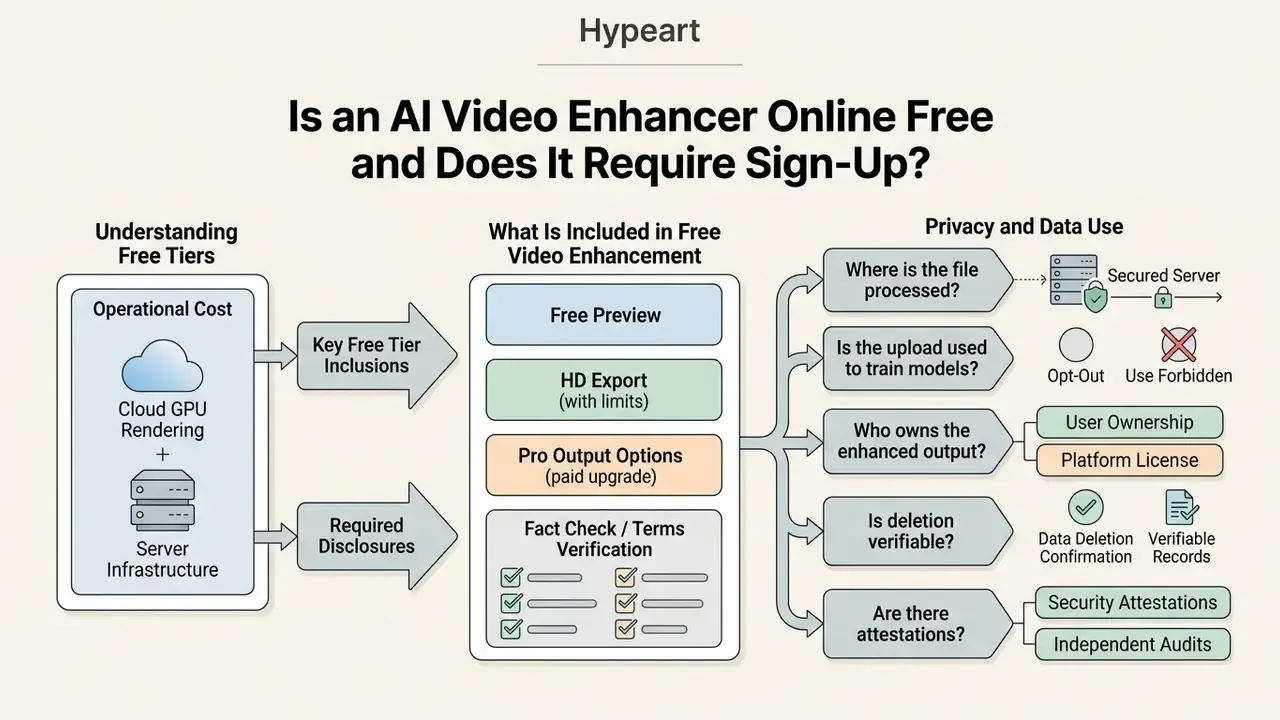
Navigating free tiers means understanding the operational cost of cloud GPU rendering. Plenty of platforms advertise an ai video enhancer online free no sign up experience, and the offer is often real, but free access carries functional boundaries designed to balance server demand. Readers weighing adjacent options can also compare a free AI video generator if the goal is creating new footage rather than repairing existing clips.
Knowing those limits tells you whether you can enhance video free online for this project or whether a paid output plan is unavoidable. A free video tier is a testing environment first and a production tool second.
What Is Included in Free Video Enhancement
Most cloud platforms open core restoration algorithms to anyone, with no upfront payment. Free tiers let you enhance video quality online free and judge model performance before subscribing.
Typical free-tier features:
- Unlimited side-by-side preview generation on short clips. Some services cap the free preview at a single second at 360p, which is barely enough to judge anything.
- Full access to core denoising, deblurring, stabilization, and exposure presets.
- Export restricted to standard definition or 720p HD, frequently with a 2 to 3 minute or even 4 to 10 second ceiling depending on vendor.
- Web-based rendering with no local installation.
Documented examples show how sharply the caps vary. One browser tool restricts free upscaling to MP4 clips of 10 MB and 10 seconds. Another allows signed-in free users four video enhancements per 24 hours. A third grants complimentary credits where higher-resolution exports simply burn more credits. A fourth is fully free with no registration at all. Compare the specific numbers, never the marketing headline. That is also how you find the best free online video enhancer for your particular clip length rather than for someone else's demo reel.
Free Preview, HD Export and Pro Output Options
The operational gap between free previews, free exports, and paid Pro tiers sits in render resolution, processing priority, watermarking, and, for organizations, in data rights.
| Feature / Capability | Free Preview Mode | Free Export Tier | Pro / Premium Output |
|---|---|---|---|
| Max render resolution | Real-time viewport (360p to 720p) | 720p HD | 1080p HD to 4K UHD |
| Export clip duration | Short previews (1 to 5 seconds) | 10 to 60 seconds | Unlimited full-length files |
| Watermark policy | Visible evaluation overlay | Small corner watermark | Watermark-free clean master |
| Account requirement | No sign-up required | Optional / basic account | Mandatory registered profile |
| GPU processing speed | Shared queue, standard speed | Standard priority queue | Dedicated high-speed GPU tier |
| Batch / queue processing | Not available | Usually single file at a time | Parallel batch queues |
| Data ownership of output | Often ambiguous in ToS | Usually retained by user, licence granted to vendor | Explicit user ownership, commercial licence documented |
| Model training opt-out | Rarely offered | Sometimes an opt-out in settings | Contractual opt-out or no-training clause common |
| Upload retention window | Frequently undocumented | Hours to 30 days on shared CDN | Configurable retention, deletion on request |
| Security attestations | Typically none published | Typically none published | SOC 2 / ISO 27001 / DPA available on enterprise plans |
Read the table bottom-up if you work in a regulated environment. The resolution rows decide how the clip looks. The last four rows decide whether you are allowed to upload it.
Fact check and terms verification:
Shadow AI, Data Privacy and Safe Testing of Free Tools
How to Choose the Best Online Video Enhancer AI
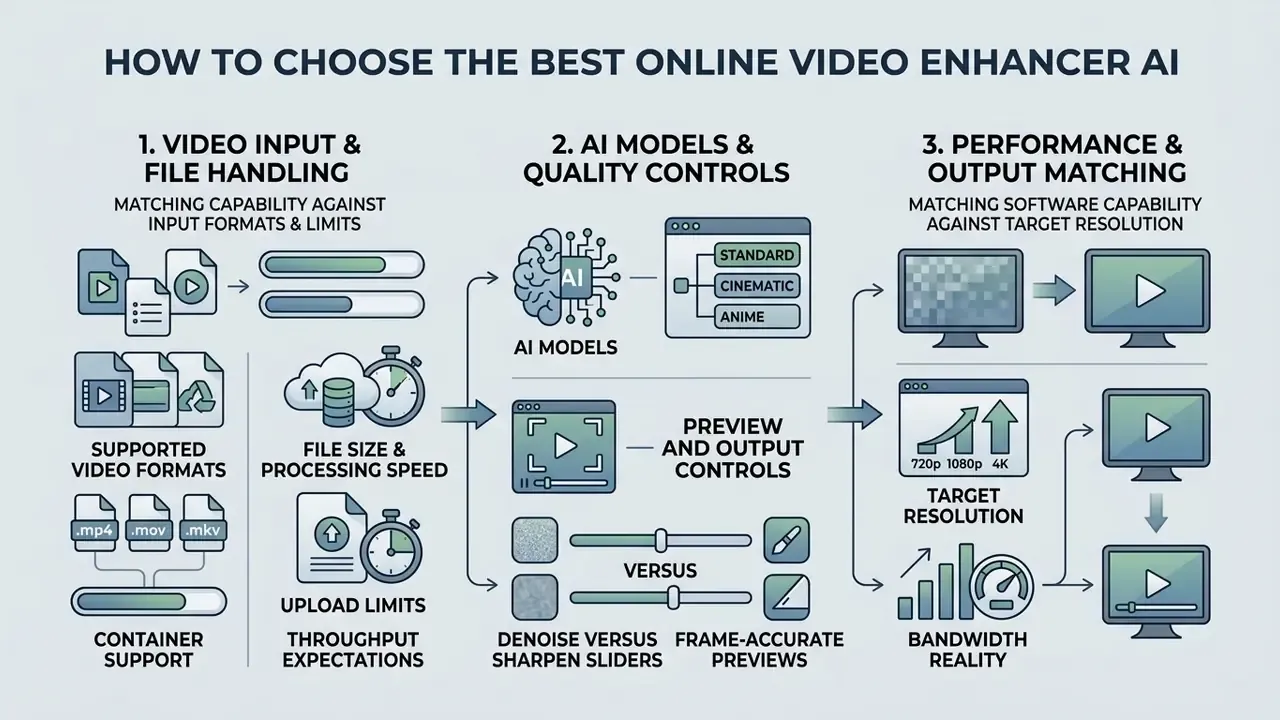
Choosing the best online video enhancer ai comes down to matching software capability against your input formats, target resolution, and bandwidth reality. Check the technical metrics first and you avoid failed renders and degraded exports later. If your requirement extends into synthetic footage creation, our roundup of the best AI video generators covers that adjacent generative category.
A structured evaluation gets you a reliable video enhancer that can actually handle your clip inventory, not just the vendor's sample file.
Supported Video Formats, File Size and Processing Speed
Web platforms lean on cloud servers to transcode uploads. Before committing, confirm ingestion limits and container support:
- Container support. Look for native compatibility with MP4, MOV, WebM, AVI, MKV, plus legacy VOB and WMV if you handle archival media.
- Upload limits. Free tiers often cap direct uploads at 100 MB to 2 GB, while enterprise cloud pipelines accept much larger files through direct storage URLs, up to 30 GB in some indexing services. Duration caps of 60 seconds to 5 minutes and frame-rate caps of 30 to 60 FPS are just as common and just as decisive.
- Encoding codecs. Confirm efficient H.264, H.265 (HEVC), or AV1 output so quality survives without file bloat. Keep a constant frame rate on ingest. Variable frame rate is the single most frequent cause of audio drift after processing.
- Throughput expectations. Most vendors publish no deterministic render speeds. A short clip usually finishes in under a minute on a shared queue. Large or heavily degraded files, 4x upscales, and frame interpolation multiply that substantially.
Developers wiring these pipelines into automated application workflows should review our AI Media API Guides.
AI Models, Preview and Output Quality Controls
Better platforms give you specialized neural models instead of one black-box algorithm. Look for granular control over model behavior:
- Denoise versus sharpen sliders. Lets you dial back aggressive edge sharpening when skin texture starts looking overprocessed.
- Frame-accurate previews. Lets you scrub high-motion scenes and verify temporal consistency before a full render starts.
- Grain retention options. Reintroduces subtle film grain over smoothed surfaces to keep a natural, cinematic texture.
- Named operating points. Documented presets, for example "Normal" 2x versus "Strong" 4x reconstruction, or a texture-preserving "natural" mode, make results reproducible across a team. Regulatory guidance for AI-enabled software functions expects exactly this: predefined operating points plus documented input-quality criteria and pre- and post-processing methods.
- Input quality gates. The best tools warn about or reject unsuitable input, such as variable frame rate, interlaced fields, or extreme compression, instead of silently producing artifacts you discover at export.
When to Use AI Video Enhancement for Personal, Social and Professional Content
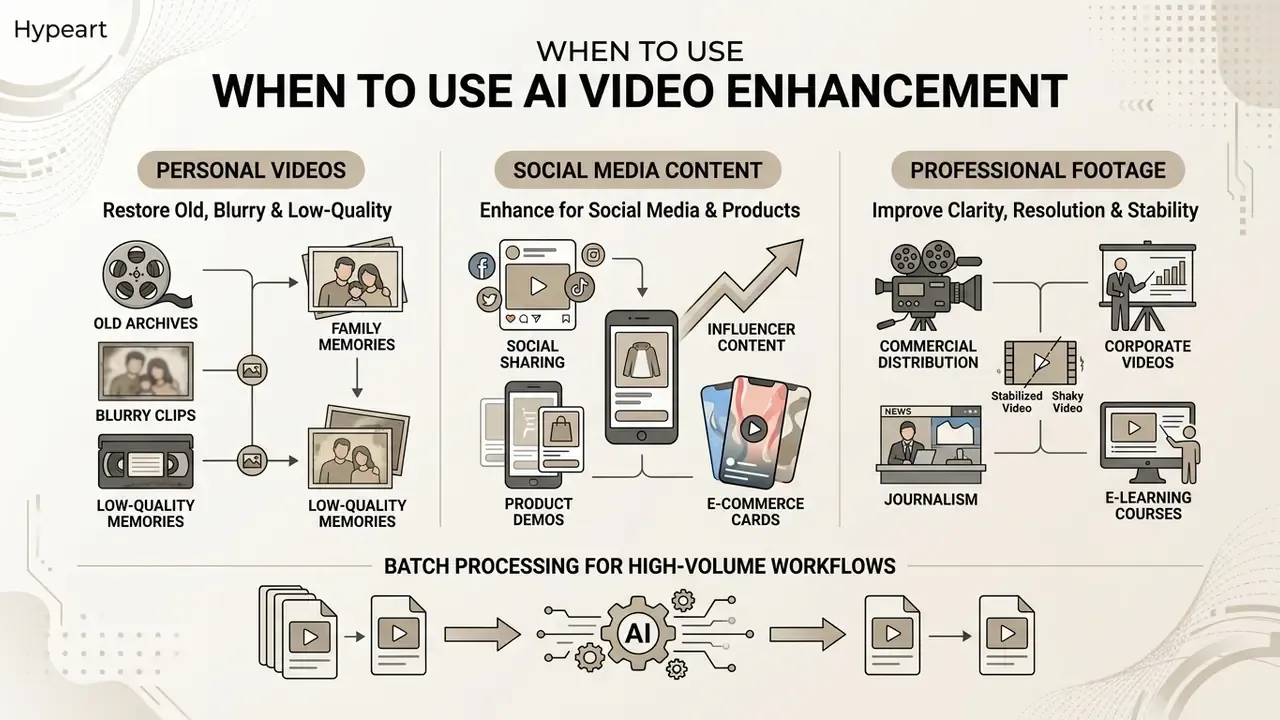
Neural video restoration spans personal archives, marketing campaigns, and commercial distribution. The use cases below run in a deliberate order: consumer and social workflows first, then commercial pipelines, then archival and enterprise contexts where governance requirements dominate the decision.
Knowing when to reach for an enhancer video online is how creators upgrade existing assets for modern high-resolution displays instead of reshooting.
Restore Old, Blurry and Low-Quality Personal Videos
Digitized VHS tapes, early 2000s camcorder clips, and low-resolution mobile recordings tend to suffer from interlace lines, tape mistracking, dust, scratches, and heavy compression grain. All at once, usually.
Archival restoration studies using Swin-UNet architectures (Swin-UNet Analog Video Restoration, 2023) show that multi-frame neural models exploit temporal redundancy across consecutive frames to rebuild missing image structure.
Related film-restoration research feeds three consecutive frames into a U-Net to detect dust, stains, and temporal inconsistencies, then applies video inpainting to fill the masked regions. That capability is what lets families and archivists recover facial detail and stable color from badly degraded historical recordings.
Preservation bodies attach an important procedural caveat. IASA-TC 06 and FADGI guidance both treat digitization and format stability as the primary obligation: capture at the highest feasible quality, prefer HD over SD, use mathematically lossless compression where compression is unavoidable, and keep the authentic original untouched. Enhancement is a secondary, derivative step. It must never overwrite or replace the preservation master.
Enterprise, Archival and Audit Workflows
Regulated organizations use enhancement for a narrower, stricter set of purposes: making legacy training material presentable on modern displays, improving legibility of recorded board briefings, standardizing archive formats before migration. Three controls should be non-negotiable here:
- Immutable originals.The unmodified capture stays the record of truth. Enhanced files are derivatives with their own identifiers.
- Documented data lineage.Record tool, model, version, preset, parameter values, operator, and timestamp for every derivative, so the transformation chain is reproducible during audit.
- Explicit non-evidentiary labelling.Enhanced frames contain synthesized pixels and must be excluded from forensic, disciplinary, or litigation use unless independently validated by a qualified specialist.
Ownership matters as much as tooling. Name one accountable owner for the enhancement workflow, define who may approve exceptions, and set an escalation path when someone asks to enhance footage tied to a dispute. No evidence, no autonomy.
Realistic Expectations: What AI Video Enhancement Cannot Fully Restore
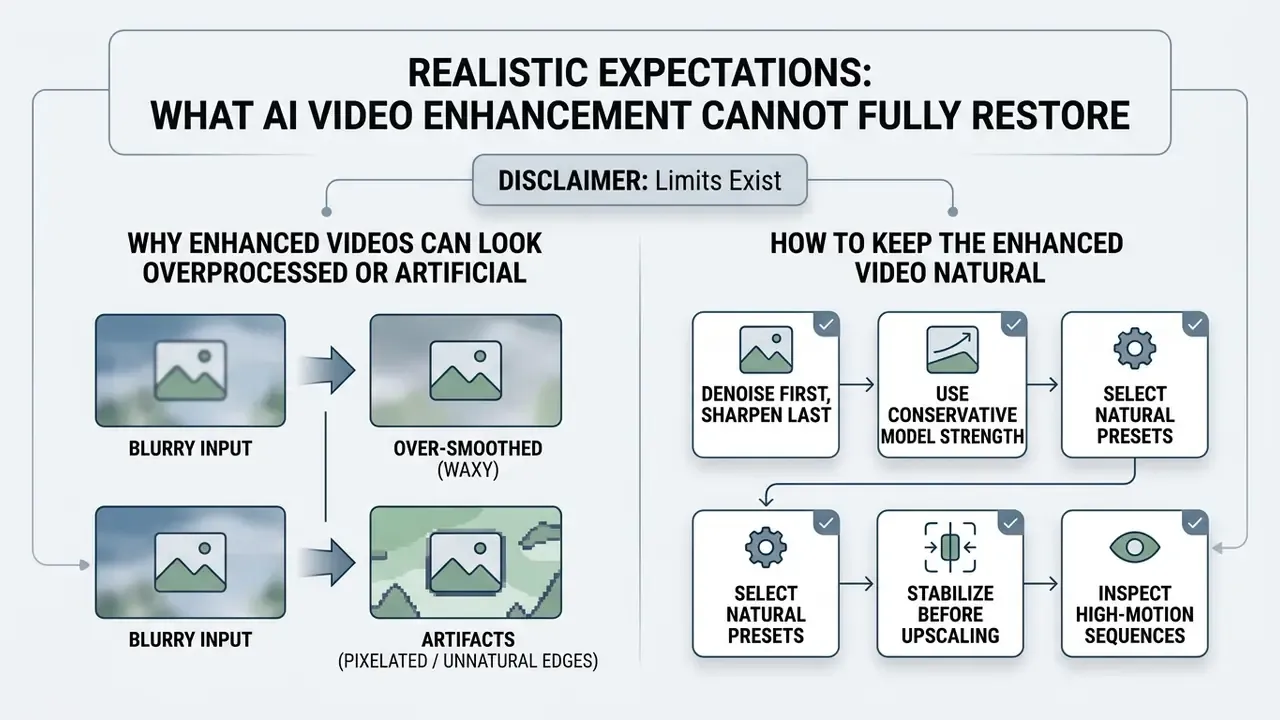
Neural restoration delivers real, visible quality gains. Knowing the physical limits is what keeps expectations sane when the source media is severely damaged.
Recognizing those boundaries also helps you pick settings that improve footage without adding distracting artificial artifacts. One practical afterthought: enhanced files grow substantially, so a 4K master often needs a video compressor pass to hit platform bitrate ceilings without visible re-compression damage.
Why Enhanced Videos Can Look Overprocessed or Artificial
Aggressive super-resolution or noise reduction produces that unnatural, plastic, obviously synthetic look. It happens when the network mistakes organic texture, human skin, foliage, film grain, for unwanted digital noise.
Push noise reduction too high and the model smooths micro-texture into flat, waxy surfaces. Push edge sharpening too hard and you get visible halos around high-contrast objects. The effect compounds with scale: 4x to 6x upscaling multiplies invented detail, and a final output-sharpening pass stacked on top drives the image into full plastic territory. Any attempt to ai make video quality better past that point starts working against you.
There is also a measurable reconstruction-versus-perception trade-off. Methods that maximize PSNR frequently look blurry and detail-poor to human viewers, while perceptual methods that synthesize convincing detail can degrade temporal consistency and introduce motion artifacts that propagate through a model's hidden state across frames. Neither branch is a free win. Human sensitivity to synthetic-looking video is real and measurable, and over-enhanced footage often reads as "AI" long before a viewer can explain why.
How to Keep the Enhanced Video Natural
To keep authentic texture while removing genuine defects, use these configuration guidelines. They are also the fastest route if you want ai to make video quality better without a telltale synthetic finish:
- Denoise first, sharpen last.Clean background sensor noise before boosting edge contrast, and run temporal denoising before upscaling. Upscaling noisy footage amplifies noise into structured artifacts. Save light unsharp masking for the final step.
- Use conservative model strength.Keep enhancement sliders between 30% and 50% rather than at maximum. Prefer 2x reconstruction over 4x when the source is only mildly soft.
- Select natural presets.Choose presets labeled "Proteus Natural" or "Texture Preservation" for close-up human faces. They are explicitly tuned for softer output that preserves texture and source character.
- Stabilize before upscaling.Removing jitter first gives the super-resolution model consistent edges to work from across neighboring frames.
- Inspect high-motion sequences.Always scrub the fast-moving sections in preview to confirm there is no temporal ghosting, flicker, or motion tearing.
- Compare at 100% zoom, not fit-to-screen.Waxy skin and halo rings are invisible on a scaled-down preview and glaring on a 4K display.
FAQ About Free AI Video Enhancer Online
Can an AI Video Enhancer Improve Text, Documents and Fine Details?
An ai video enhancer online free can improve edge sharpness and contrast on large title cards, logos, watermarks, and high-contrast text overlays. But if fine document text or small alphanumeric characters are completely blurred or pixelated beyond recognition in the source, neural models cannot reliably reconstruct the exact underlying characters. Peer-reviewed OCR research does show real gains on moderately degraded text. A blurred-document OCR system built on bidirectional LSTM networks reported a 12.3% character error rate against 38.9% for a leading commercial OCR engine on the same blurred data (High Performance OCR for Camera-Captured Blurred Documents with LSTM Networks, NUST, 2020), and CNN-based direct text deblurring outperformed blind deconvolution on both image quality and OCR accuracy (Convolutional Neural Networks for Direct Text Deblurring, BMVC, 2015). Attention-based OCR combined with Mask R-CNN has been applied specifically to small, irregular text in blurred video frames. The critical distinction: improved legibility is not verified accuracy. Where characters are destroyed rather than merely softened, the model substitutes plausible-looking synthetic glyphs that may not match the original document. Any claim that an enhancer "reads documents in video" is marketing, not capability. Readers needing specialized document processing should review our dedicated guides in the AI Media Glossary.
Does AI Enhancement Affect the Original Audio Track?
No. The process operates on visual streams only. The original audio is passed through unchanged and stays synchronized with the enhanced picture. If you also want cleaner sound, run a separate AI noise-removal or vocal-isolation pass rather than expecting a video model to touch audio.
Can I Enhance Several Videos at Once?
Some services process strictly one file at a time. Others support batch queues or full-folder uploads. Batch processing is usually restricted to paid plans because it consumes parallel GPU capacity. Validate your preset on a sample clip before queuing a full catalogue.
How Long Does Enhancement Take?
It depends on file size, duration, target scale factor, and queue priority. A short standard-definition clip commonly finishes in under a minute. A five-minute 4x upscale with frame interpolation can take substantially longer, especially on a shared free queue. Vendors rarely publish deterministic throughput figures, so plan with a buffer.
Can I Enhance Video Quality Free Online Without Losing Commercial Rights?
Sometimes, but check the licence text rather than the pricing page headline. Free tiers that let you enhance video quality free online occasionally grant the vendor a broad reuse licence over processed media, or restrict output to non-commercial use. Paid tiers normally document explicit user ownership and commercial rights. For campaign assets, that documentation is worth the subscription on its own.
Will the Enhanced Video Look Fake?
Not if you control the strength. Keep enhancement between 30% and 50%, use texture-preserving presets on faces, and inspect high-motion sections. The "AI look" comes from stacked over-sharpening plus hallucinated micro-texture, not from enhancement itself.
Can AI Fix Badly Shot Footage Completely?
Partly. Stabilization, denoising, exposure correction, and moderate deblurring reliably improve watchability. Severe underexposure, extreme optical defocus, and crushed compression cannot be truly reversed. The information is physically absent, and whatever the model shows you in those regions is a prediction.
Do Free Tiers Add Watermarks?
Often, yes. Several browser tools advertise watermark-free output with no sign-up, while trial-based desktop-linked products watermark exports and cap them at around 30 seconds. Verify on the vendor's own pricing page immediately before processing, not from a review published last year.
Is It Safe to Upload Confidential Footage to a Free Tool?
Assume it is not, unless the vendor explicitly documents retention limits, a no-training clause, deletion procedures, and relevant security attestations. Follow the safe-testing checklist above, and move to an API or on-premise deployment for regulated media.
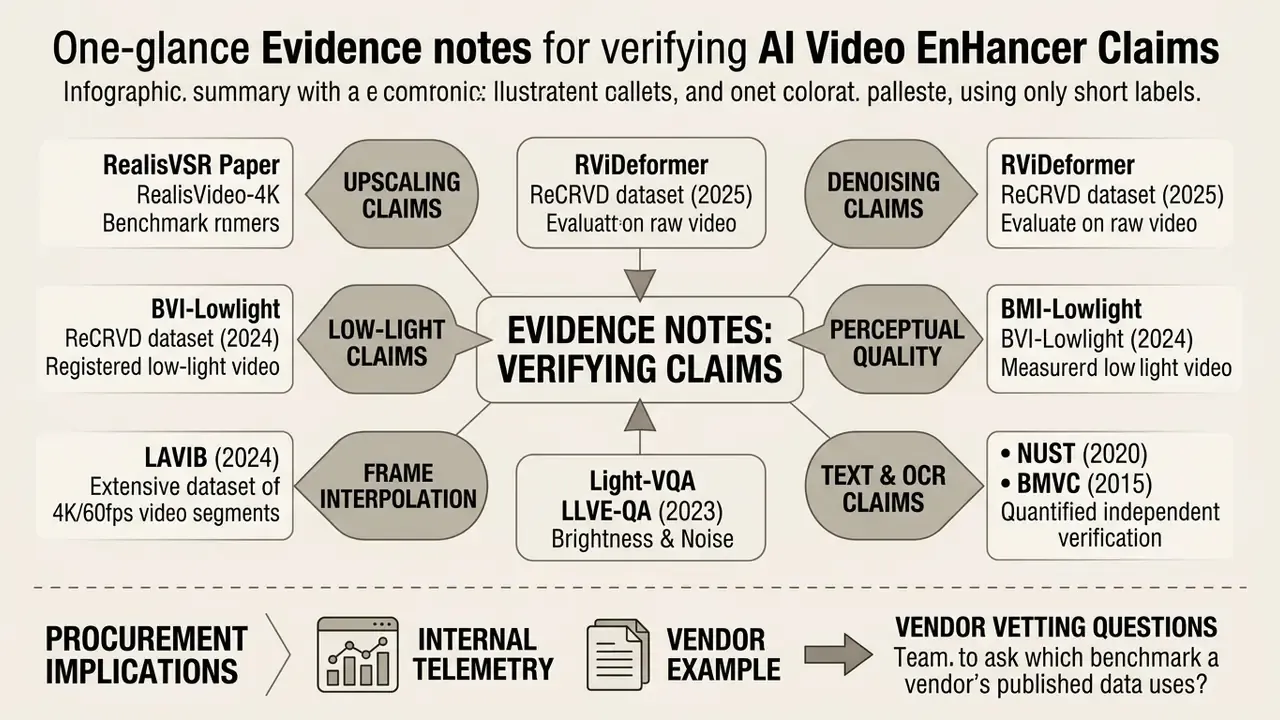
Evidence Notes: How These Claims Were Verified
Additional Creator Tools and Resources
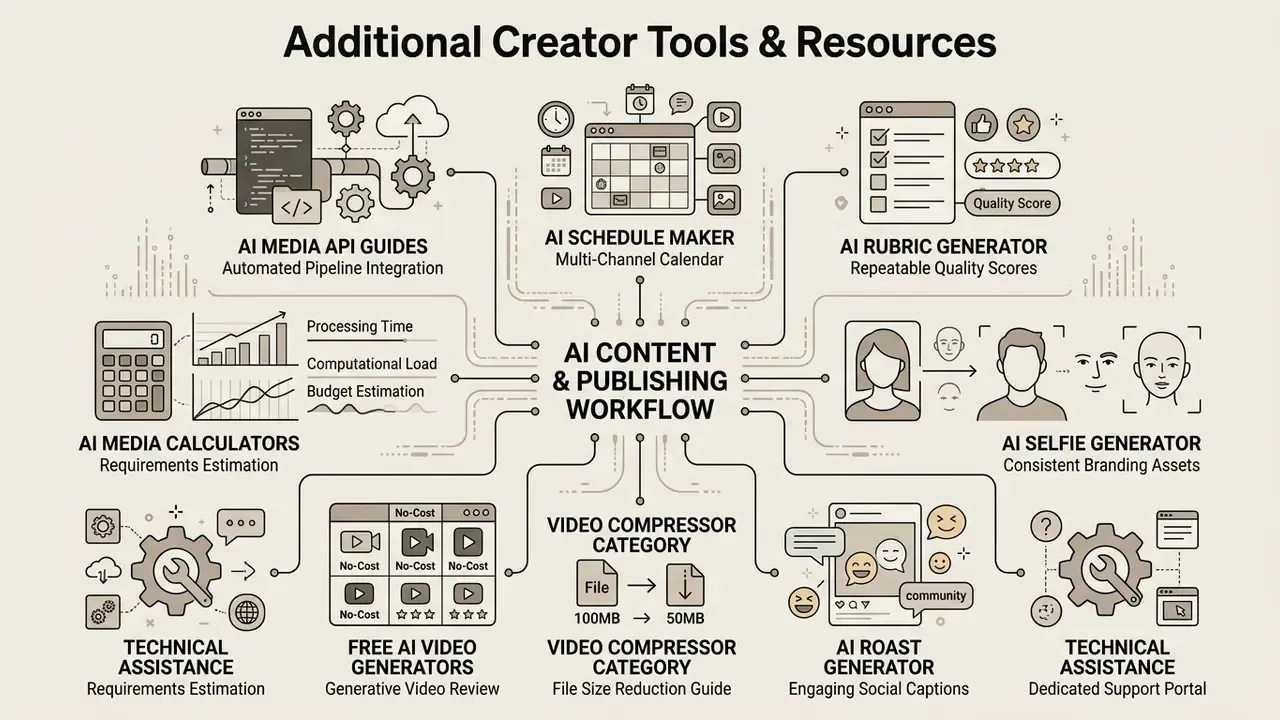
- Plan multi-channel publishing calendars with our ai schedule maker.
- Build a repeatable scoring sheet for enhancement quality using an ai rubric generator, so preset choices stop being a matter of taste.
- Generate consistent portrait assets for channel branding with an ai selfie generator.
- Write light-hearted social captions for community clips with an ai roast generator, keeping brand tone in mind.
- Reduce final file sizes without visible quality loss using our guide to the video compressor category.
- Compare no-cost generative options in our review of free AI video generators.
- Estimate computational requirements and processing budgets with our AI Media Calculators.
- Integrate enhancement into automated pipelines via our AI Media API Guides.
- Reach technical assistance through our dedicated support portal.
- Review legal precedents and intellectual property frameworks in our AI Litigation and Case Timelines.
- Look up any term used above in the AI Media Glossary.