«AVS Video Editor has a friendly user interface and there is no learning curve. It is a great choice for beginners, while still packing color correction, stabilization, overlay and chromakey for experienced editors.»
Trusted by over 20,000,000 users worldwide and rated "Very Good" across independent software portals including Softonic (Clean Award and Safety Award), Chip.de ("First Impression: Very Good"), Capterra, and GetApp. The vendor's own review counter lists 659,133 customer reviews, and the independent review desk at GeekByter scored the 2026 release 8.1/10, ranking it #9 in its video editor category.
One practical note before the details. Search traffic for this product arrives misspelled surprisingly often: "asv video editor", "avs4u video editor", "video avs video editor". All of them point to the same Windows application from the AVS4YOU suite, so if you landed here from one of those queries, you are in the right place.
Executive Summary for Fast Decisions
For readers who need a verdict in 60 seconds:
- What it is A Windows-only, timeline-based desktop video editor from Online Media Technologies Ltd. (founded 2004, Riga, Latvia), sold as part of the AVS4YOU multimedia suite.
- Current build Version 26.0.2.17, released February 19, 2026, installer size roughly 204.82 MB, distributed as
AVSVideoEditor.exefromavs4you.com. - Free vs paid All editing tools are unlocked in unregistered mode with no time limit, but every exported file carries a "Made by AVS Video Editor" watermark. A paid AVS4YOU subscription (1-Year or Unlimited, licensed per computer) removes the watermark and grants commercial rights.
- New in 2026 An optional AI Plugin adds text-to-video clip generation plus AI image restoration and stylized effects (Spiral, VHS) directly inside the timeline.
- Processing model Fully local. Editing, rendering, capture, and export happen on the workstation. No project media is uploaded to a cloud service. Internet access is required only for download and license activation.
- Main limitation A single primary video track, no native macOS, Linux, or mobile builds, and full re-encoding on export.
- Best fit Individual creators, training and internal-communications teams, and SMB marketing units that need low-cost, offline, deterministic video assembly.
- Poor fit Multi-cam broadcast pipelines, collaborative cloud editing, and macOS-standardized creative departments.
Budget owners who want to model total cost across several workstations before approving a purchase can sanity-check the numbers with our AI Media Calculators and cross-reference vendor plans in the AI Media Pricing Guides.
What Is AVS Video Editor and What Tasks Is It Suitable For
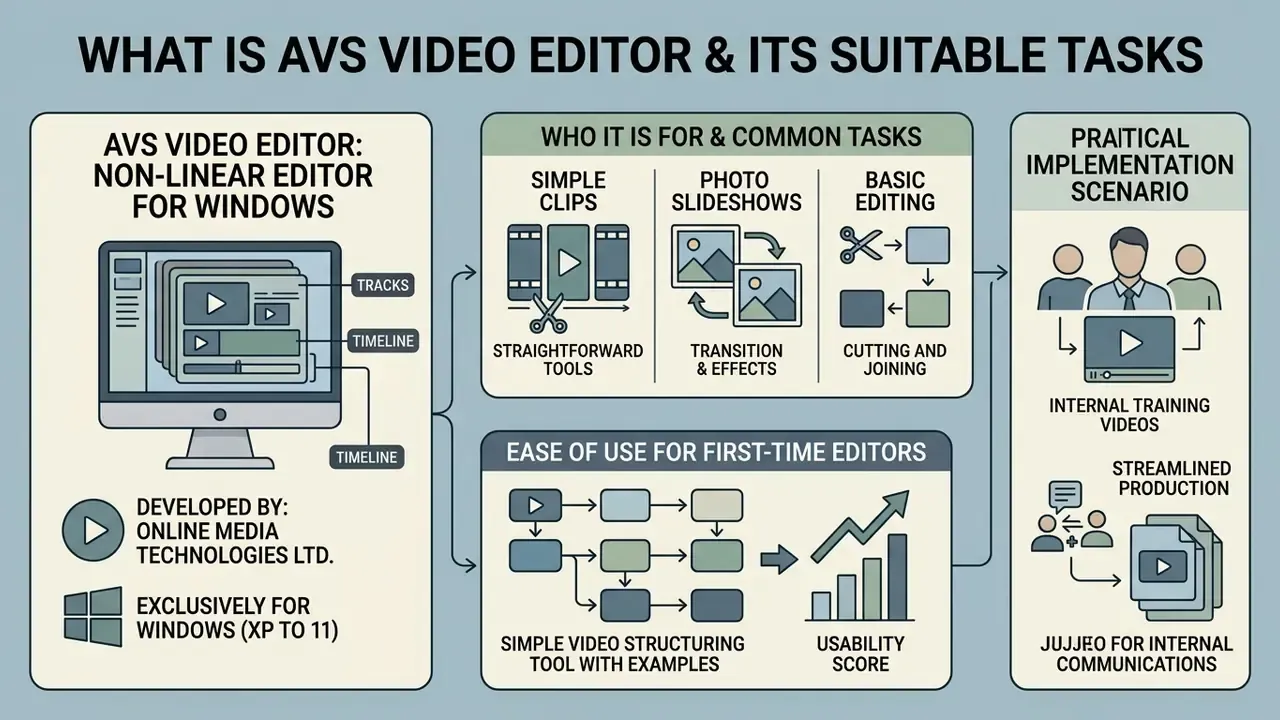
AVS Video Editor is a non-linear video editing software application developed by Online Media Technologies Ltd. for the Windows operating system. Non-linear simply means you rearrange clips freely on a timeline instead of recording in sequence. It targets entry-level and intermediate video creation, letting users cut, trim, split, merge, and enhance video content with visual effects, audio tracks, and transitions (AVS4YOU Official Product Page, 2026).
AVS Video Editor as a Video Editor for Windows
AVS Video Editor operates exclusively as desktop software for Windows 11, 10, 8.1, 8, 7, Vista, and XP environments. A dedicated video editor matters for desktop media processing because it delivers timeline-based precision and hardware acceleration that browser scripts cannot match. Readers who want the wider category context can review how video editors for Windows differ from browser-based tools in rendering control and data locality. As a native Windows tool, the editor handles local media files directly on consumer and workstation hardware, with no cloud upload and no subscription-based browser processing in the loop.
That last point is not a minor detail. For a compliance team, "the file never left the laptop" is a much easier sentence to write than a data-transfer questionnaire.
Who the Editor Is For: Basic Editing, Clips, and Slideshows
This video editor is tailored for users who need a straightforward tool to edit videos, compile photo slideshows, and produce social media clips without the steep learning curve of professional suites. Users can import digital photos, combine image files with background music, insert titles, and save the finished video project in multiple output formats. Family and event projects fit the same pattern: the workflow is close to what a dedicated birthday video maker automates, only here you keep manual control over every cut. Teams comparing entry-level options can also benchmark it against other free video editing tools before committing to a subscription.
Usability research supports the value of simple, example-driven structuring tools for first-time editors:
In a practical implementation scenario, a corporate communications team needed twenty internal training videos built from raw screen captures and voiceover tracks. The team used timeline splitting, volume normalization, and built-in transition filters to assemble clean 1080p MP4 presentations. This standardized workflow enabled repeatable clip assembly across the quarterly production cycle without external post-production vendor contracts. No independently audited time-saving percentage has been published for that workflow, so measure the benefit internally against your own baseline cycle time. Treat the example as illustrative, not as a documented result.
Where to Download AVS Video Editor and How to Choose the Latest Version
Official Download and Installation of AVS Video Editor
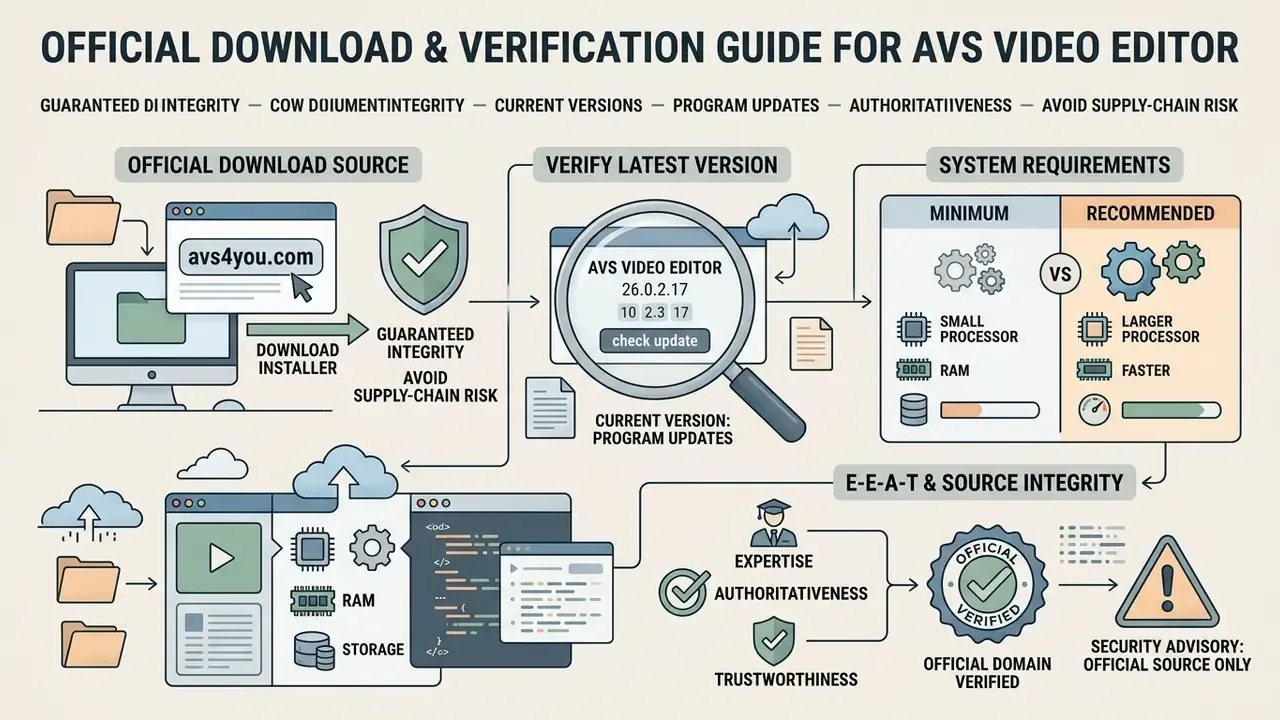
To download AVS Video Editor safely, open the official website and take the primary setup executable (AVSVideoEditor.exe). The installer wizard walks through language selection, license agreement acceptance, destination folder choice, and desktop shortcut creation (Create desktop icon), finishing with the Install step. Administrative privileges on Windows are required during setup so the package can register DirectShow filters and video processing components properly.
A free AVS Video Editor download from the vendor and a "free avs video editor download" from a random mirror are two very different things. The first is a signed installer. The second is an unknown binary.
System Requirements: Minimum vs Recommended
| Component | Minimum System Requirements | Recommended System Requirements |
|---|---|---|
| Operating System | Windows 11, 10, 8.1, 8, 7, Vista, XP (32/64-bit) | Windows 11 / 10 (64-bit) |
| Processor | Dual Core (Intel Core 2 Duo or AMD equivalent) | Quad Core (Intel Core i5 series or AMD equivalent) |
| RAM | 2 GB or higher | 4 GB or higher |
| Graphics Card | Intel HD Graphics, NVIDIA GeForce, AMD Radeon Graphics | NVIDIA GeForce / Intel HD Graphics with GPU acceleration enabled |
| DirectX | Microsoft DirectX 9.0c or later | Microsoft DirectX 11 or later |
| Sound & Media | Windows-compatible sound card; Windows Media Player 11+ for WMV playback | 16-bit Windows-compatible sound card (Windows 11/10/8.x/7) |
| Optical & Capture | CD recorder for CD import; DVD recorder for DVD import and Video DVD creation; capture device required for capturing | Same, plus dedicated capture card for analog/VHS digitizing |
| Other | Administrative permissions for installation; internet connection for activation | Same; SSD storage recommended for HD/4K cache performance |
How to Check the Latest Version and Program Updates
Users can verify their installed build against the latest version by opening the program's "About" dialog or checking the official AVS4YOU forum patch notes and release blog. The current official release as of February 2026 is version 26.0.2.17, which includes critical bug fixes, updated unicode support, GPU encoding stability improvements, and interface refinements (AVS4YOU Forum, 2026). Historical patch notes show a consistent publication pattern: fix-releases and patch-releases are announced on the forum (for example, builds 11.1.3.4 in October 2025 and 11.1.4.3 in November 2025), while blog posts document critical fixes such as the CUDA out-of-memory error. One earlier release also documented a fix for a buffer overflow vulnerability that caused application crashes, which is a direct argument for keeping builds current rather than freezing an old installer in your software repository.
Third-party catalogs and mirrors often list older builds (the 11.x branches) or repackaged installers. Where mirrors and the vendor disagree, the official AVS4YOU download page is authoritative. Always.
E-E-A-T Verification & Source Integrity:
IT Security, Telemetry, and Enterprise Compliance Checklist
Before an IT or risk function approves installation on a managed workstation, document these boundary conditions:
- Local-only media processing. Import, editing, rendering, capture, and export run on the local machine. Project media is not required to leave the workstation, which materially reduces data-residency exposure compared with browser-based editors.
- Network dependency. Internet access is needed for the initial download and for license-key activation, plus optional update checks and the downloadable AI effects package. Editing itself works offline. The vendor FAQ confirms that "all edits and video enhancement procedures are made on a PC."
- Installation privileges. Administrative rights are mandatory during setup because the installer registers system-level media filters and codec components. Package the installer through your software distribution system rather than allowing end-user installs.
- Vendor jurisdiction. The developer is domiciled in Latvia (EU), which is relevant for procurement questionnaires and third-party risk registers in regulated sectors.
- Content compliance. AVS4YOU states explicitly that its programs "do not allow you to copy protected material" and may be used only on content you own or are licensed to copy. Teams tracking how courts treat generated and repurposed media can follow the AI Litigation and Case Timelines hub.
- Model-risk classification. The base editor is deterministic software: fixed filters, codecs, and render pipelines, with no generative model in the loop. The optional AI Plugin is the only component that introduces generative behavior. Organizations with Model Risk Management obligations can therefore approve the base editor as conventional software and treat the AI Plugin as a separate, opt-in component subject to its own review and owner.
- Hash and source verification. Download only from
avs4you.com, check installer size (about 204.82 MB for build 26.0.2.17), and block third-party mirrors and "APK" packages at the proxy level.
AVS Video Editor Free: Free Version, Licensing, and Commercial Use
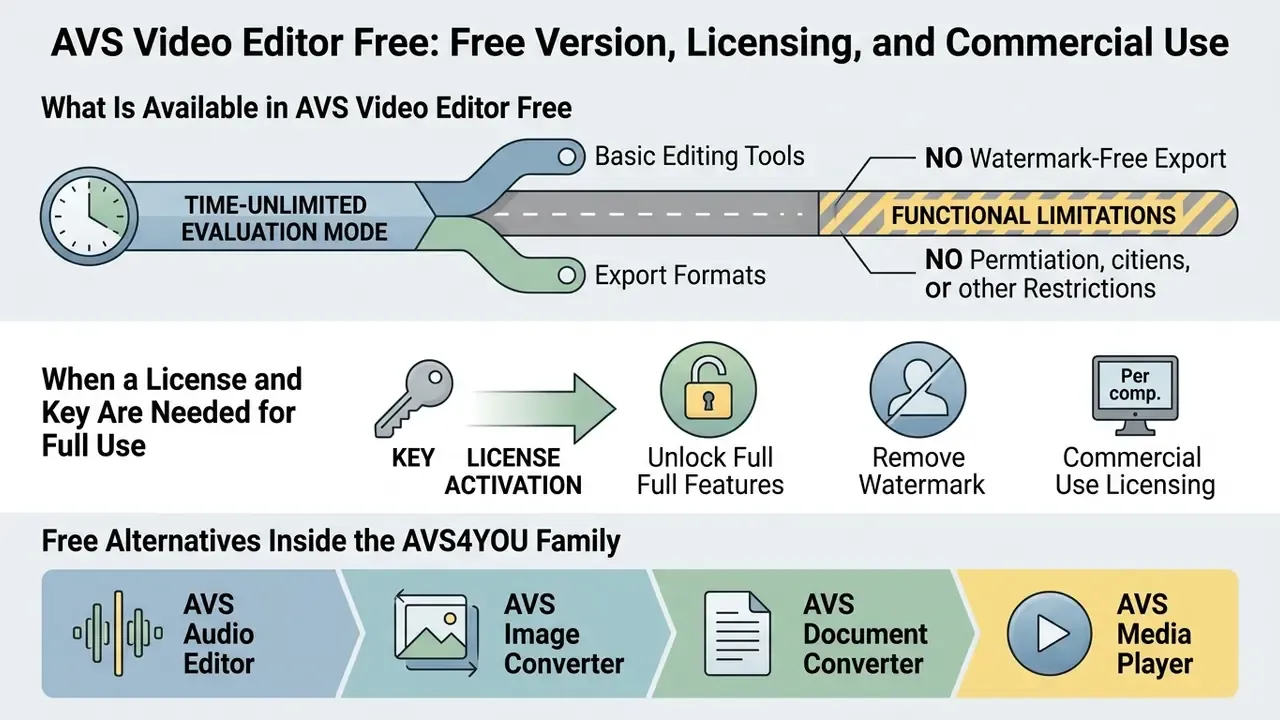
The free version of AVS Video Editor works as a time-unlimited evaluation mode. It grants full access to every editing tool but stamps a central watermark on all exported video files. Removing that logo and securing commercial distribution rights requires an active AVS4YOU license key (AVS4YOU License Terms, 2026).
What Is Available in AVS Video Editor Free
In the free evaluation build, users can test every timeline feature, import unlimited media files, apply video effects, record voiceovers, and try hardware acceleration options. AVS4YOU's own support statements describe non-activated programs as having "no feature or time limitations", with the single trade-off being the watermark applied to output files.
So, is AVS Video Editor free for commercial output? No. The software allows full feature testing, but the mandatory "Made by AVS Video Editor" mark on saved output blocks formal commercial or client-facing delivery unless the program is registered with a valid key. Note also that the watermark cannot be stripped retroactively from files already exported in unregistered mode. You activate first, then re-export the project. Creators weighing similar trade-offs elsewhere can review how other free video tools handle export restrictions and check licensing boundaries in the AI Media Commercial-Use Hub before choosing a stack.
When a License and Key Are Needed for Full Use
A paid license key is required to activate the software, eliminate export watermarks, receive priority technical support, and gain legal commercial usage rights. AVS4YOU offers subscription models, 1-Year and Unlimited, licensed per computer, so every additional workstation needs its own key. Once activated online, the program removes all output branding immediately, with no project re-editing required. The key arrives by email after purchase and can be recovered through the vendor's license-recovery form if lost. The official EULA ties upgrades, updates, network use, and email support to the period for which a subscription was purchased. The vendor uses the word "Unlimited", not "lifetime", even though third-party pages sometimes swap in the latter. Worth reading before you quote a renewal figure to finance.
Research into software monetization shows that unrestricted feature access during trial periods builds proficiency and trust:
| Aspect | Free / Unregistered Version | Licensed Version (AVS4YOU Key) |
|---|---|---|
| Editing Tools & UI | Unrestricted access to timeline, effects, and capture | Unrestricted access to timeline, effects, and capture |
| Export Watermark | Watermark added to center of exported files | Clean export without any watermark |
| Commercial Usage Rights | Restricted to non-commercial evaluation | Commercial and client use permitted per EULA |
| Updates & Codec Support | Basic installation; manual updates | Free upgrades and updates during the subscription term |
| Technical Support | Community forum access | Direct email and ticketing technical support |
| Licensing Scope | Evaluation on any number of test machines | One license per computer; separate key per workstation |
| Suite Coverage | Trial access across companion utilities | Full activation across all AVS4YOU media apps in the package |
This information is general in nature and does not replace advice from a qualified professional. Licensing terms change; verify the current EULA and subscription conditions on avs4you.com before any commercial deployment.
Free Alternatives Inside the AVS4YOU Family
Not every task requires a paid key. Within the same suite, AVS Video Converter and AVS Media Player are offered free, and AVS Audio Converter is likewise distributed as a free component. Teams that only need format conversion, playback, playlist creation, snapshots, or audio transcoding can stay on the free tier and reserve the paid subscription strictly for watermark-free editorial output. A small marketing unit with one publishing workstation, for instance, may need exactly one license instead of five.
Key Features of AVS Video Editor for Video Editing
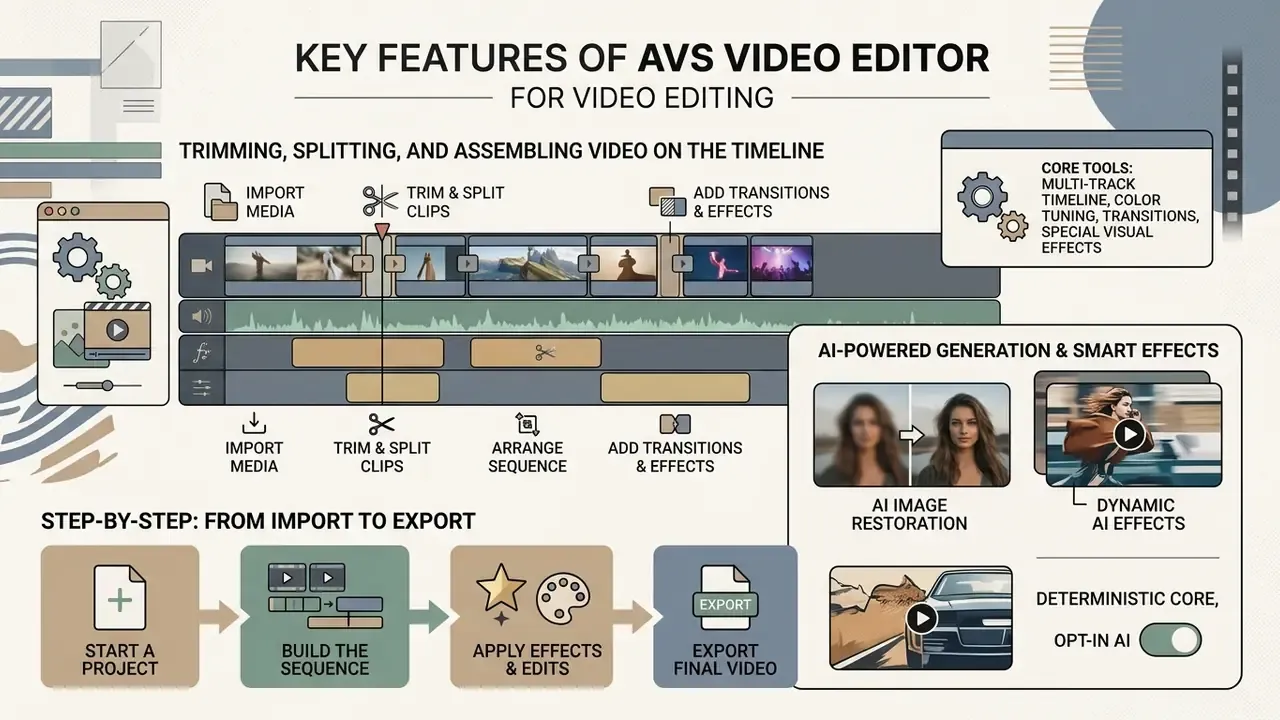
AVS Video Editor provides a solid set of core tools for multi-track timeline organization, color tuning, transitions, and special visual effects. The editor balances functional depth with interface simplicity, which lets users process high-definition projects without a long onboarding period (GetApp Review Analysis, 2026).
Interface simplicity also matters for accessibility. Academic work on text-based editing interfaces documents a measurable reduction in effort for users with low vision:
AI-Powered Video Generation and Smart Effects
AVS Video Editor 26.0 introduces a dedicated AI Plugin that enables text-to-video generation inside the timeline interface. Users type a prompt, generate a short synthetic clip matching the project theme, then keep editing that clip with the standard built-in tools, transitions, and effects.
The release also integrates AI-driven restoration and stylized neural filters, delivered as a downloadable effects package:
Research on AI-assisted editing suggests these assistive layers lower the entry barrier rather than replacing manual control:
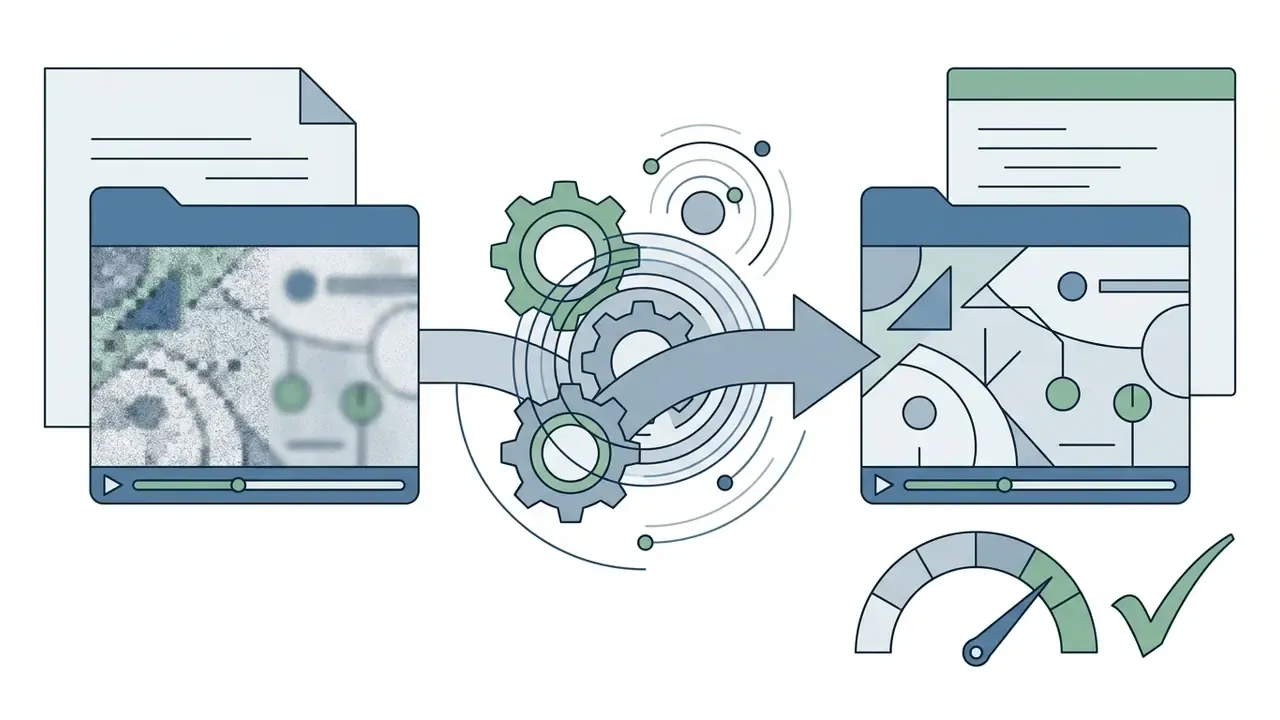
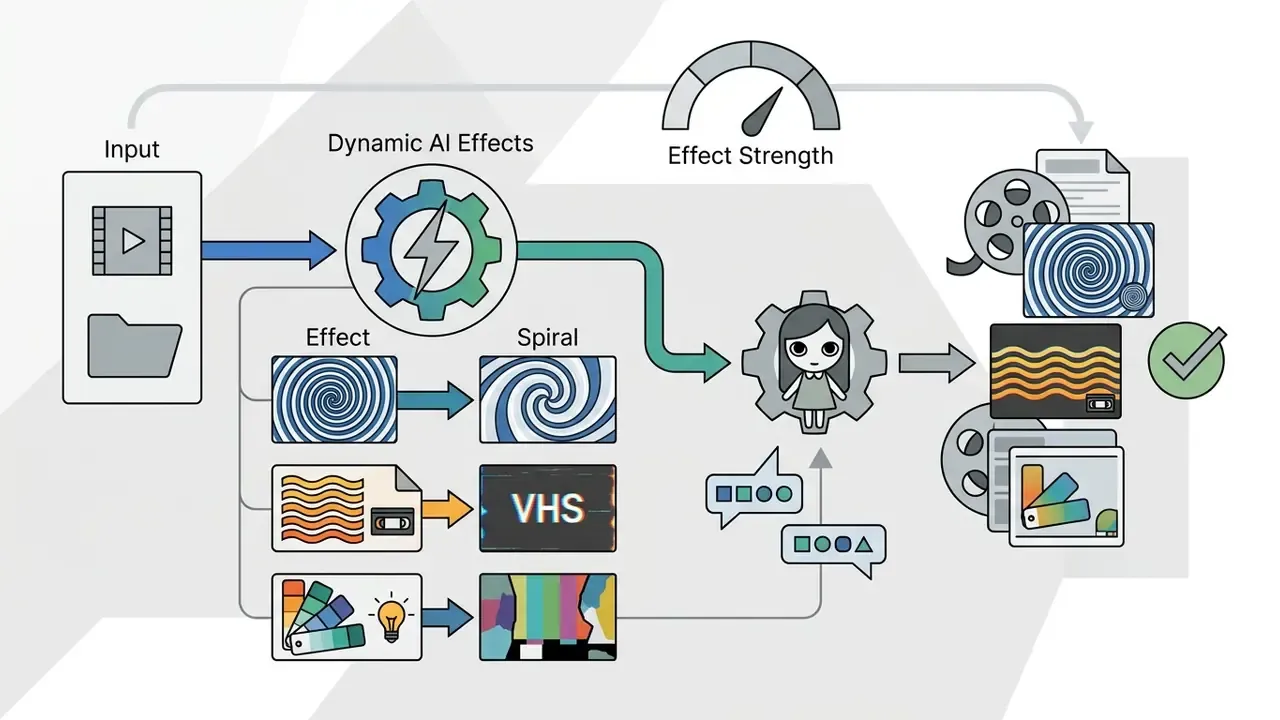
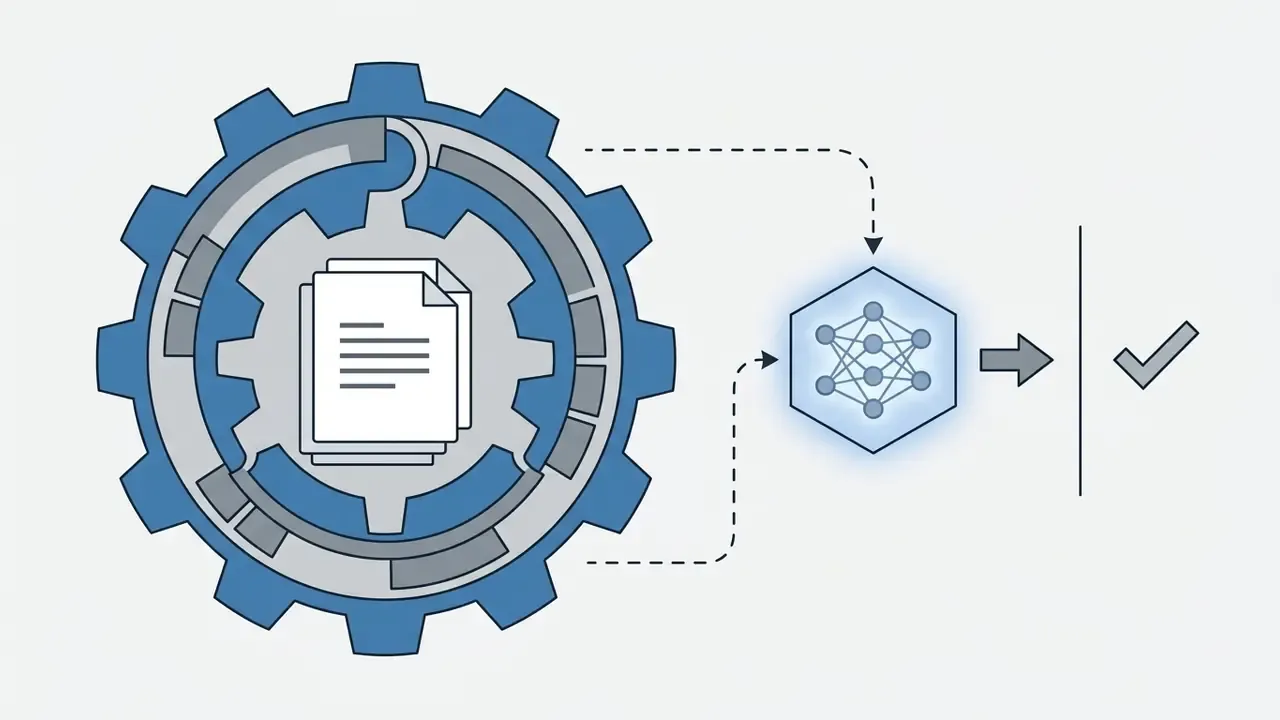
Note that AVS Video Editor exposes no public automation interface. Studios that need scripted, queue-driven rendering should look at pipelines described in the AI Media API Guides instead of expecting batch orchestration here.
Trimming, Splitting, and Assembling Video on the Timeline
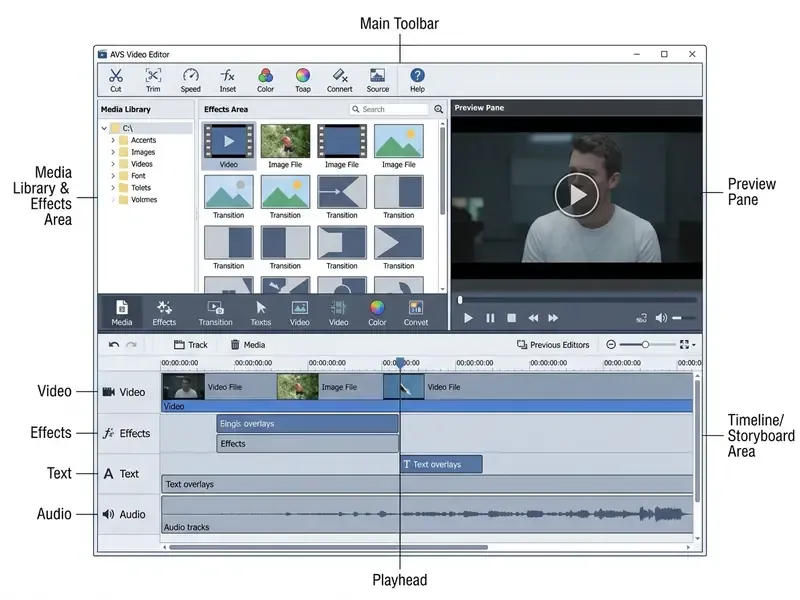
The core workflow centers on trimming unwanted footage, splitting long clips at precise frames, and combining media items on the main video track. Users place the playhead at the target timestamp and press the "Split" button, or the F8 shortcut, documented in official help as "Split at current position". Unnecessary segments are removed with the Delete key, and remaining scenes re-align automatically so the project keeps continuity.
The Trim tool, opened from the Timeline toolbar, works on bounds instead of cuts. Mark in sets the left boundary and discards everything before it; Mark out sets the right boundary and discards everything after it. For interior removals the official sequence is: move the slider to the start of the unwanted segment, split, move to the end of the segment, split again, select the isolated block, press Delete.
Step-by-Step: From Import to Export
- Start a project.Launch the editor and choose Import, Capture, or Screen Capture from the left navigation panel. Imported assets land in the Current Project folder inside the Media Library.
- Build the sequence.Drag clips from the library onto the Timeline in playback order. Switch between Timeline view (separate lines for Video Effects, Text, Video Overlay, and Audio Mix) and Storyboard view for quick reordering.
- Cut and clean.Use Trim (Mark in / Mark out) for head-and-tail cleanup, then F8 splits plus Delete for interior removals.
- Correct the image.Open Color Correction from the toolbar to adjust brightness, temperature, contrast, saturation, gamma, hue, and sharpness, or apply Auto Color Correction.
- Add effects and text.Drag an effect onto the Video Effects line, set start point and duration, then double-click the effect block to open its properties panel. Use the Text button for titles, captions, and scrolling credits.
- Control speed.Press Speed on the Timeline toolbar and move the slider for slow motion or fast motion, adjusting or muting the associated audio.
- Mix audio.Drop music onto the Audio Mix line, balance levels in the Volume and Balance window, and add Fade In / Fade Out or Mute where needed.
- Save the project file.Use
Project → Save Current Projectso the edit decision list survives a crash or a late revision request. - Produce the output.Click Produce, pick the destination category (File, Device, Disc, or Web), select the preset and codec, and render.
Transitions, Effects, Titles, and Image Correction
Background Blur for Vertical-to-Horizontal Video Conversion
When vertical smartphone footage (9:16) enters a widescreen project (16:9), black sidebars appear by default. AVS Video Editor answers this with the Background Blur effect: the subject stays sharp while a scaled, blurred copy of the same frame fills the background and hides the bars. The effect also works in reverse, converting horizontal footage into a vertical Shorts or Reels frame. Users adjust the blur level and the central focus zone, defined as a fraction of frame width and height plus X/Y shift, to keep the subject positioned correctly. If you only need this single operation on one file, a browser tool that can blur video online may be faster than opening a full project.
Short-form output deserves one caution. Fast, high-volume vertical formats, the kind produced by a brainrot video generator or assembled from brainrot ai images, still need brand-safety review before publication. A watermark-free export does not make the content approved.
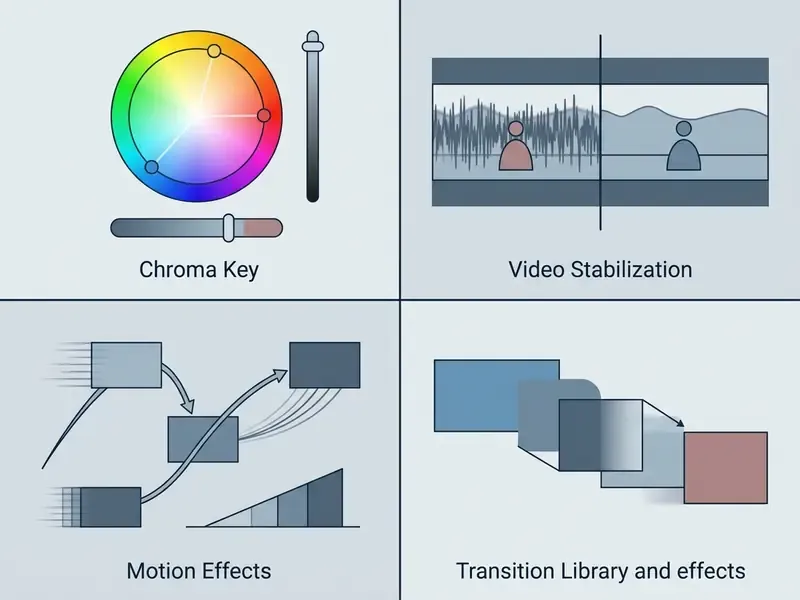
Motion Effects, Chroma Key, and Video Stabilization
Advanced manipulation tools include Chroma Key background removal, playback-speed motion effects, and digital video stabilization. Chroma Key operates on the Video Overlay line: enable the Chromakey checkbox, sample the background color with the picker, add extra shades with Append Color, and move the tolerance slider until the green or blue screen turns transparent over the background track. The built-in stabilization tool analyzes camera shake and applies a Compensation slider to smooth erratic handheld movement, with a Split Preview mode for before-and-after comparison. Motion behavior itself is handled through the Speed control (slow motion, fast motion) plus Pan & Zoom and Motion Blur effects, rather than a single module labelled "Motion Effects". The naming in marketing copy is looser than the naming in the UI.
Limitations and Drawbacks of AVS Video Editor
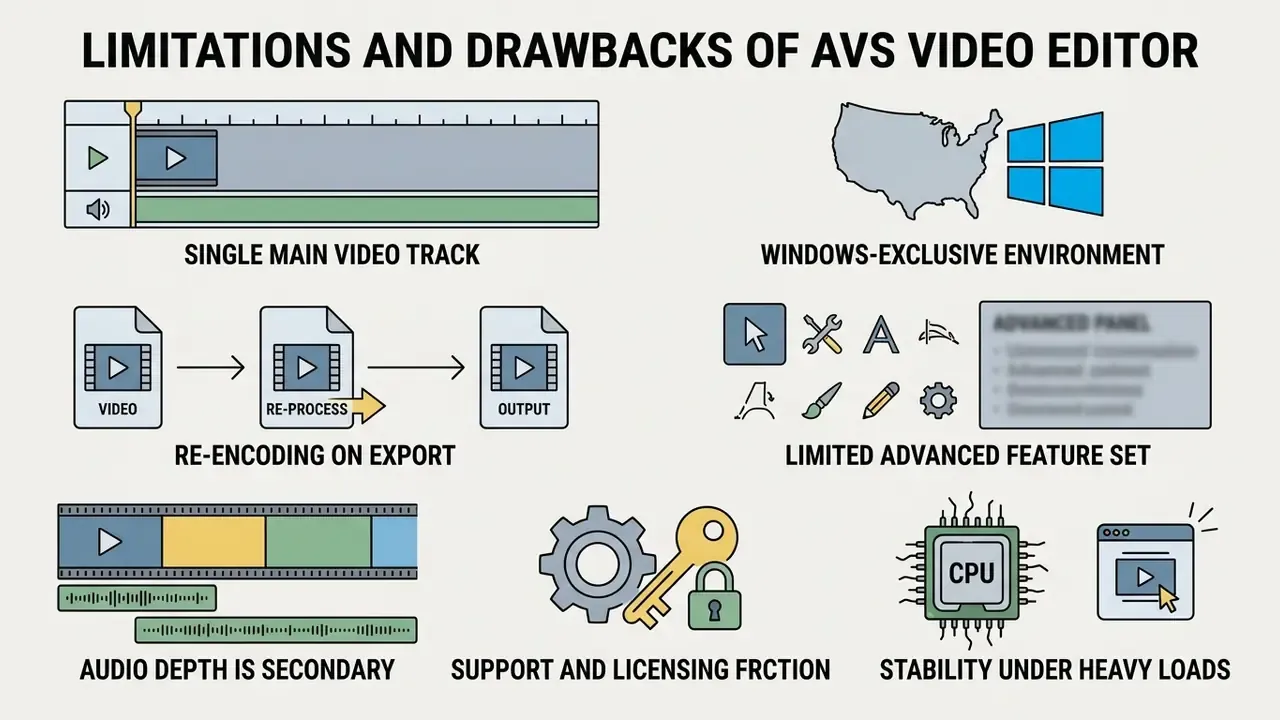
AVS Video Editor performs well on entry-level and intermediate tasks. Before standardizing on it, weigh the architectural boundaries:
- Single main video track. The timeline is built around one primary video line for sequential editing, with an additional overlay line for picture-in-picture and chroma key. Complex multi-cam layering and the layered compositing typical of professional NLEs are not practical here. Independent reviewers list "single video editing track" as the product's main structural drawback.
- Windows-exclusive environment. There is no native build for macOS, Linux, Android, or iOS. Mobile output is produced on the desktop through device presets, not by editing on a phone.
- Re-encoding on export. Timeline changes require a full project render. For pure cut-and-join work where quality must be preserved bit-for-bit, AVS Video ReMaker is the right tool instead.
- Limited advanced feature set. Reviewers note the absence of professional-grade tooling: node-based grading, deeper keyframing, unverified 3D editing. Treat the editor as unsuitable for professional post-production.
- Audio depth is secondary. In-editor audio work covers import, mixing, trimming, volume, and simple effects. Deeper restoration needs the separate AVS Audio Editor.
- Support and licensing friction. Aggregated reviews report mixed experiences with response times and with transferring a per-computer license after a hardware change. Plan license inventory before a large rollout, and record which key sits on which machine.
- Stability under heavy loads. User reports mention crashes or freezes on complex projects and heavy 4K renders. Keeping GPU drivers and the application build current mitigates most of these cases, though not all of them.
Working with Audio, Screen Recording, and Video Capture
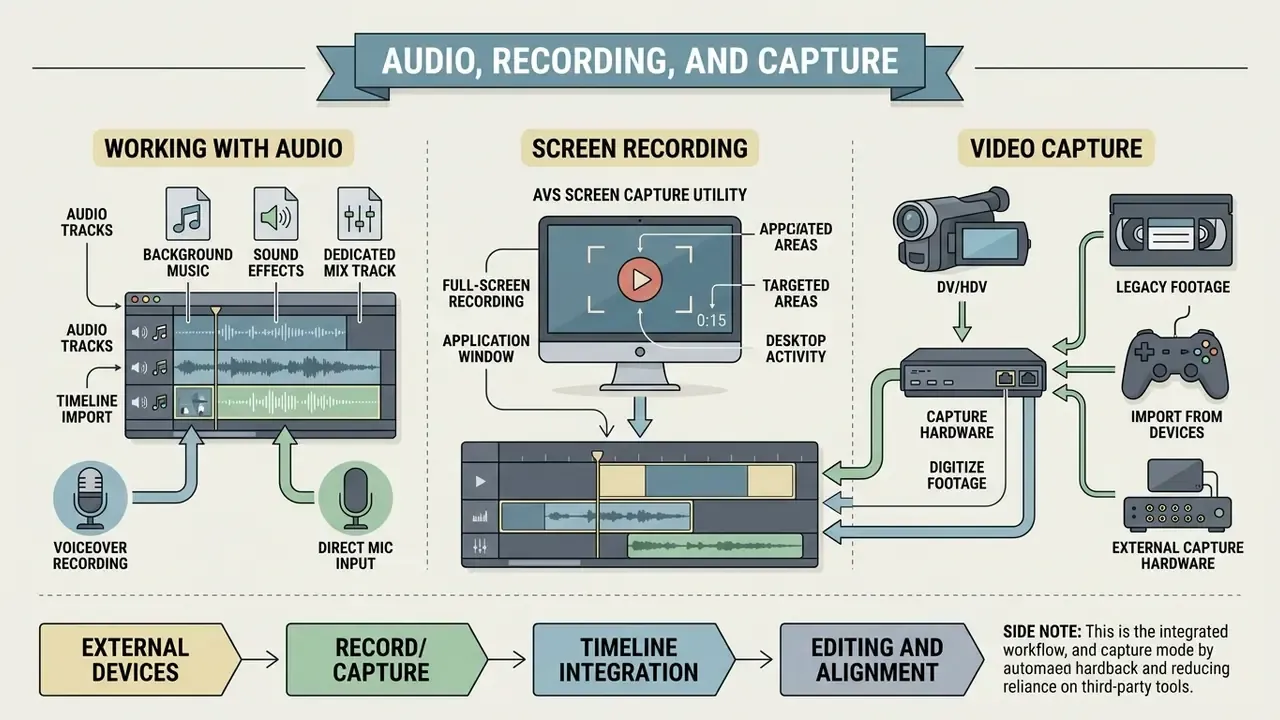
AVS Video Editor bundles multi-track audio mixing, direct microphone voiceover recording, and desktop screen capture, which reduces dependence on secondary third-party recording software.
Adding Audio, Music, and Voiceover to Video
Users import audio files straight into the timeline's dedicated Audio Mix track for background music, sound effects, or narration. The software includes volume envelope adjustments, fade-in and fade-out curves, normalization, amplification, compression, a simple equalizer, and Mute for silencing original camera sound. The Extract Audio command exports a clip's soundtrack as .mp3 or .wav and returns it to the Audio section automatically. Voiceovers can be recorded live through the Voice Record panel (Start Recording / Stop Recording) while watching the project preview in real time (AVS4YOU Online Help, 2026). Teams that need consistent narration at scale often pair such workflows with AI voice generators for voiceover instead of re-recording every revision.
In educational settings, hands-on media practice with audio-visual alignment measurably improves digital production skills:
«Across 30 non-technical students, mean post-workshop editing knowledge scores reached 3.97-4.05 out of 5». - Journal of Media Education Study, quantitative pre/post design with 30 students (2024). https://doi.org
Video Capture and Screen Recording for Further Editing
The built-in AVS Screen Capture utility records desktop activity, full-screen applications, or targeted window regions, writing to FLV, WMV, or AVI. It supports drawing tools during recording (text annotations, circles, rectangles, arrowed lines), cursor highlighting, mouse click effects and animation, instant snapshots to JPEG, PNG, or BMP, and direct audio capture from system sound or a microphone. Recordings can split automatically by file size or duration and stop at a defined limit. Gameplay creators who buy video game titles digitally often use exactly this path: capture the session locally, then cut highlights on the timeline.
The software also connects to external capture hardware to digitize legacy footage from VHS tapes, DV and HDV camcorders, miniDV cameras, or webcams. For archive digitization projects that alone can justify the license.
File Formats, Video Quality, and Exporting the Final Project
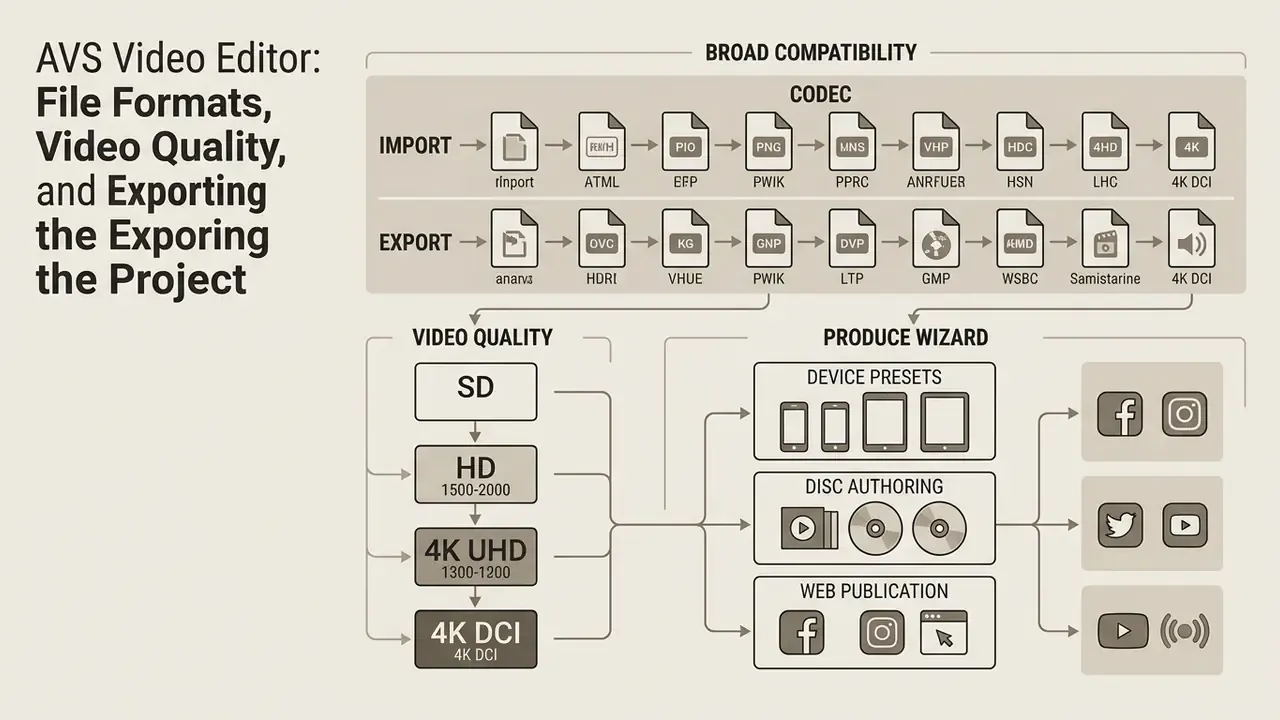
AVS Video Editor supports broad input and output compatibility across major containers, audio codecs, and resolutions from Standard Definition up to 4K Ultra HD and DCI 4K (AVS4YOU Technical Specifications, 2026).
Supported Formats, Codecs, and HD Videos
How to Save Video for Device, Disc, or Web Publication
Export runs through a structured Produce wizard with presets for specific destination channels. Users can save master files to local storage, render web-optimized files for YouTube, TikTok, Instagram, Facebook, and Vimeo, apply presets for iOS and Android devices, or author interactive menus for DVD and Blu-ray burning. Creators publishing regularly to a channel can compare this flow with dedicated editors for YouTube publishing to see where preset automation actually saves time.
| Export Scenario | Target Format & Codec | Processing Mode | Recommended Application |
|---|---|---|---|
| PC Master File | MP4 (H.264/AVC + AAC) or MKV | Full Timeline Re-render | AVS Video Editor |
| Web & Social Media | MP4 (H.264) or WEBM (VP9) | Web Preset Optimization | AVS Video Editor |
| Vertical Shorts / Reels | MP4 (H.264), 9:16 with Background Blur | Aspect-ratio adaptation + render | AVS Video Editor |
| Physical Media (Disc) | MPEG-2 (DVD) or M2TS (Blu-ray) | Menu Authoring & Burning | AVS Video Editor / AVS Video Burner |
| Lossless Fast Cut | Original Container (e.g., MP4) | Direct Stream Copy (No Re-encode) | AVS Video ReMaker |
| Batch Device Conversion | Preset profiles (iPhone, iPad, Galaxy, Xperia, PlayStation, Xbox, Android) | Multi-file Batch Processing | AVS Video Converter |
AVS Video Editor in the AVS4YOU Ecosystem: Editor, Converter, and Media Player
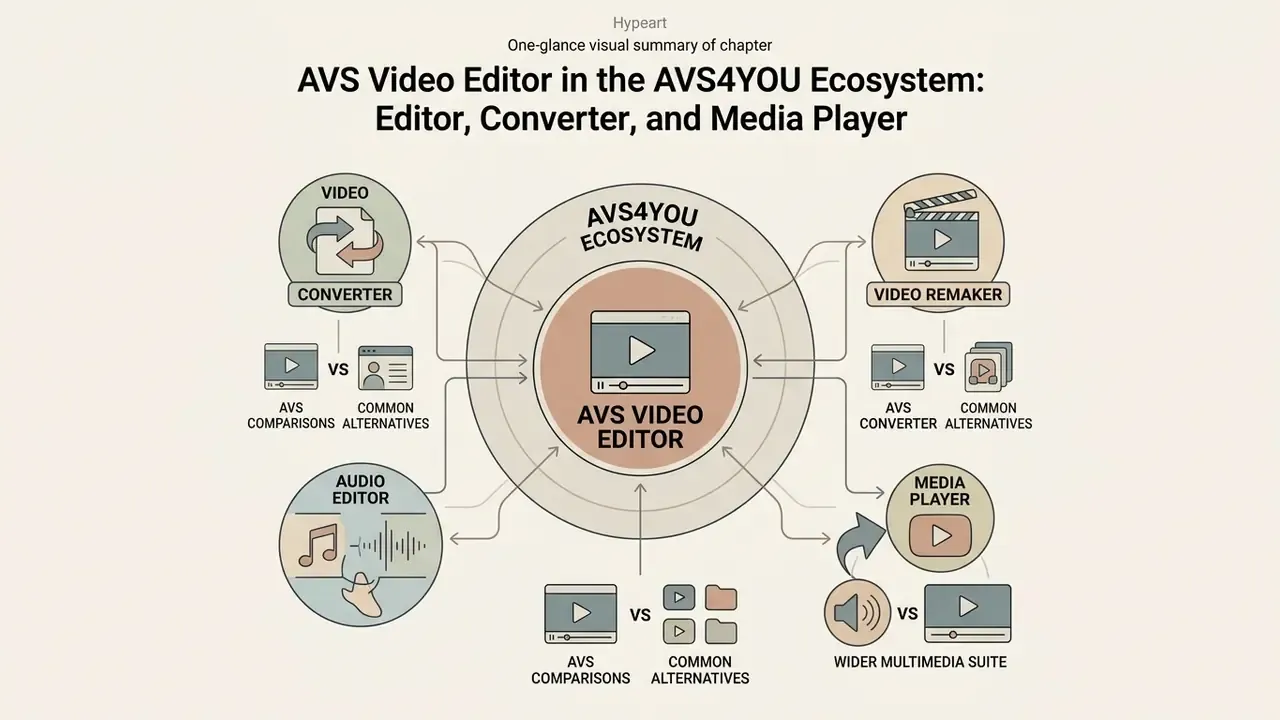
AVS Video Editor is the core video component of the wider AVS4YOU multimedia suite. Around it sit specialized single-purpose utilities for fast conversion, lossless cutting, disc burning, and playback.
How AVS Video Editor Differs from AVS Video Converter and Video ReMaker
Understanding the boundaries between these programs prevents workflow bottlenecks:
Pick the wrong one and you pay in render time, or in quality you did not need to lose.
When AVS Media Player and Audio Editor Are Needed
Complementary utilities cover specific production stages. AVS Media Player (free) provides lightweight, hardware-efficient playback of raw footage and rendered projects, plus image slideshows, playlists, and snapshots, without loading a heavy editing timeline. AVS Audio Editor handles waveform editing, noise reduction filters, ringtone creation, and spectral analysis for soundtrack restoration before finished audio returns to the video editor. AVS Audio Converter covers free batch audio transcoding, and AVS Photo Editor handles stills, including HEIC and WebP images used as watermarks.
How AVS Compares With Common Alternatives
| Criterion | AVS Video Editor | Camtasia-class screen-recording suites | Adobe Premiere Pro-class NLEs |
|---|---|---|---|
| Primary strength | Low-cost general editing plus capture on Windows | Tutorial and training video production | Professional multi-track post-production |
| Video tracks | One main track + overlay line | Multiple tracks | Unlimited tracks |
| Platforms | Windows only | Windows + macOS | Windows + macOS |
| Processing model | Fully local, offline editing | Local, some cloud services | Local + cloud collaboration services |
| Licensing | Per-computer 1-Year or Unlimited subscription | Per-user perpetual or subscription | Per-seat subscription |
| Learning curve | Minimal (vendor states "no learning curve") | Low to moderate | Steep |
| Best fit | SMB, training teams, individual creators | L&D and documentation teams | Broadcast, agency, film |
Pricing is intentionally omitted here because vendor plans and promotional discounts change frequently. Verify current rates on each vendor's own purchase page before budgeting. Side-by-side feature grids for adjacent tools live in our AI Media Comparison Matrices.
FAQ About AVS Video Editor
Is There an AVS Video Editor APK for Android?
No. There is no official AVS Video Editor APK for Android or iOS. AVS Video Editor is native software for Microsoft Windows only, and Android appears in official documentation solely as an export or conversion target profile. Any third-party website offering an "AVS Video Editor APK" download distributes an unverified, unofficial package. NIST guidance on the mobile ecosystem warns that third-party app stores commonly distribute malware and cracked applications, and the NIST Mobile Threat Catalogue lists masquerading as a legitimate application and malicious code download among documented threats. That is precisely the risk profile of an unofficial "AVS" APK.
What Does the AVS Video Editor Logo Watermark Look Like?
In unregistered mode the program renders a centered text mark reading "Made by AVS Video Editor" over the exported footage. It appears only in produced files, never in the preview window, which surprises users who check the timeline and assume the export is clean. The mark is burned into pixels during rendering, so it cannot be peeled off afterward. Activate the license, then produce the project again.
Where Do I Find Reviews and Official Support?
Independent listings on Softonic, Capterra, GetApp, Chip.de, Trustpilot, and Sitejabber give a mixed but generally positive picture, with most criticism aimed at license transfers rather than editing quality. For help with a specific build, registered users can open a ticket at avs4you.com or write to [email protected]. Common failure patterns, render crashes, missing codecs, activation errors, are also documented in our AI Media Support and Troubleshooting hub.
Final Verdict
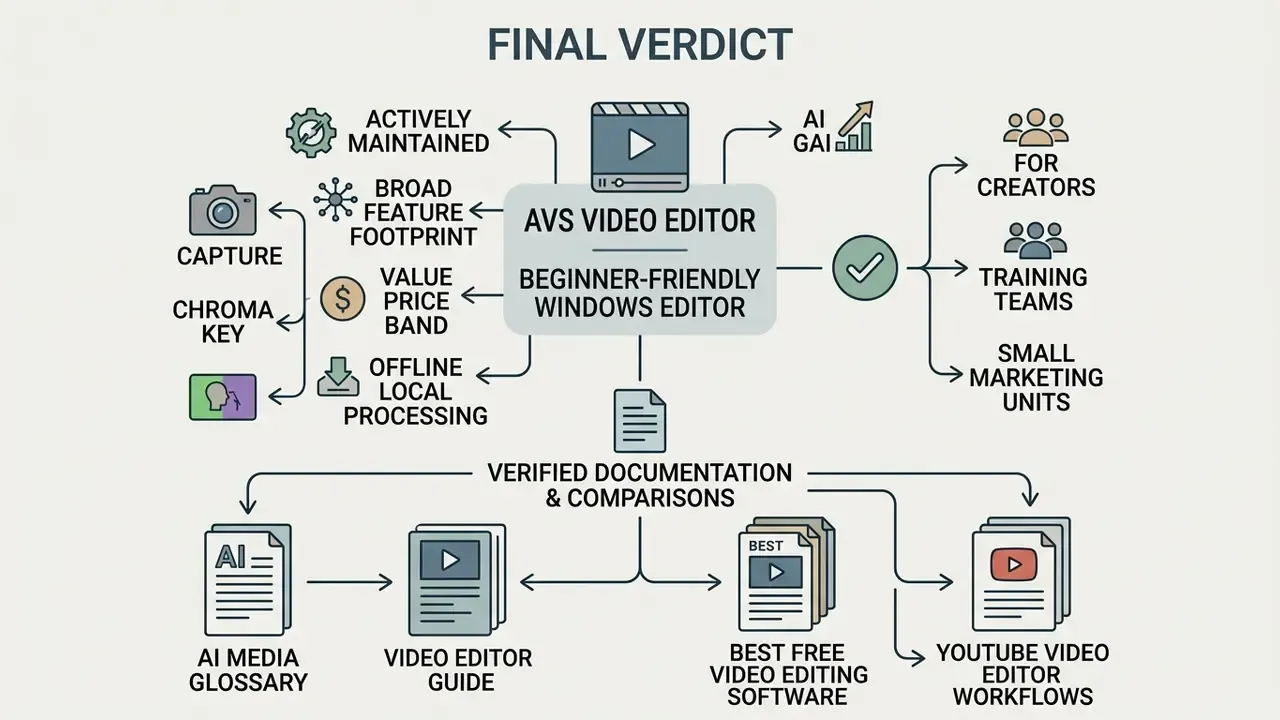
AVS Video Editor remains an actively maintained, genuinely beginner-friendly Windows editor with an unusually broad feature footprint for its price band: capture, chroma key, stabilization, color correction, disc authoring, and, in the 26.0 branch, optional AI generation and restoration effects. Its constraints are equally clear: one main video track, Windows-only distribution, full re-encoding on export, per-computer licensing.
For individual creators, training teams, and small marketing units that value offline, local processing over cloud collaboration, it is a rational choice. For professional multi-cam post-production or macOS-standardized studios, it is not. Download the free build, run one representative project end to end, and check the render on your own hardware before you buy a single key.