«Deploying generative visual tools into enterprise design pipelines requires balancing creative agility with strict governance, input rights, and output verification.»
Why should a compliance or risk leader care about a design tool? Because marketing seats upload files somewhere every day. When those files touch customer imagery, unreleased pricing, or a regulated promotion, a photo editor quietly becomes a data-processing decision. That is the frame used throughout this guide.
Executive Summary
- What it is Canva AI Photo Editor is not a single button but a stack of eight AI tools inside Canva's Magic Studio: Magic Edit, Magic Eraser, Magic Expand, Magic Grab, Grab Text, Background Remover, Auto Enhance, and Magic Layers. All of them modify photos you already have.
- Editing is not generation These tools are input-conditional editors. To create an image from a text prompt you use Canva's Dream Lab generator, which sits under different creative and licensing constraints.
- What is new in 2026 Magic Layers entered public beta on 10 March 2026, powered by Canva's proprietary Design Model, and Canva added a real-time AI credit tracker inside the editor the same month.
- Pricing reality Free accounts get roughly 20 Premium AI credits per month; Canva Pro is $18/month ($144/year) with 200 Premium AI credits; Canva Business/Teams is $25/user/month ($250/year per seat) with 400 credits. Older reviews quoting "$15/month and 500 credits" are out of date.
- Hard operational limits Background Remover caps at 500 removals per 24 hours, rejects files over 9 MB, and downscales images above 10 megapixels.
- Quality expectation Peer-reviewed evaluation of real editing requests shows AI editors satisfy only about one-third of precise requests without human correction. Human-in-the-loop review is mandatory, not optional.
- Licensing AI-edited outputs are generally usable for lawful commercial purposes under Canva's AI Product Terms, but purely AI-generated visual elements are not copyrightable in the United States, and stock assets can never be resold standalone.
Who Should Read This Guide, and What Decision It Supports
Three groups tend to arrive at this page with different questions. Marketing operations wants to know which tool removes a background fastest. Finance wants the real annual cost per seat. Risk and compliance wants to know whether an unreviewed generative edit can reach a regulated promotion.
The guide answers all three, in that order, and flags where evidence is thin.
A note on posture. Nothing here should be read as a claim that AI photo editing is a high-materiality model under a bank's model-risk framework. In most institutions it is closer to a low-materiality, human-reviewed content process. Still, "low materiality" is a conclusion your own risk function reaches, not a label a vendor guide can hand you. Treat the audience assumptions in this article as hypotheses until your analytics, interviews, or CRM data confirm them.
What Is Canva AI Photo Editor and What Tasks Does It Solve
Canva AI Photo Editor is a suite of AI-assisted image manipulation features housed within Canva's Magic Studio ecosystem that enables non-destructive object editing, background removal, frame expansion, and layer separation on existing photographs. Designed as a cloud-based photo editor, it allows marketing, communications, and enterprise design teams to modify visual collateral directly in the browser without deploying heavy raster graphics software. Readers who want the category-level context first can review how AI photo editors differ from classical raster suites before evaluating Canva specifically. The platform integrates generative neural networks and semantic segmentation models to process user-uploaded assets as well as stock images, streamlining routine visual tasks such as product photo retouching, aspect ratio adaptation, and marketing banner creation.
Within modern content workflows, an ai photo editor serves as an operational acceleration layer rather than an autonomous visual designer. By automating complex manual masking, localized object swapping, and lighting adjustments, canva's ai photo editor reduces the technical barrier for high-volume graphic adjustments.
One clarification, since the phrasing matters. Rather than appealing to unnamed "industry standards", the accurate framing is empirical. Published evaluations of generative editing systems report substantial failure rates on precision tasks (see the limitations section below), so organizations that deploy ai photo tools at scale treat them as fallible processing assistants under human supervision. Operational outputs require oversight to verify structural fidelity, brand consistency, and legal compliance before distribution. Where a firm already runs a model-risk framework, AI visual tooling is usually absorbed as a low-materiality, human-reviewed process rather than as an autonomous decision model. Confirm that mapping with your own risk function instead of assuming it.
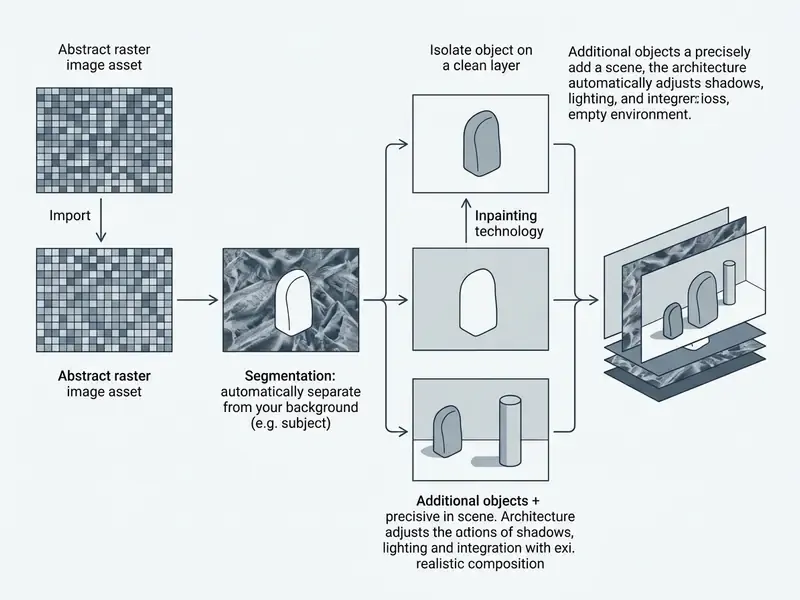
Photo Editing vs. Image Generation: What Is the Difference
AI photo editing operates on an existing base photograph to modify localized regions through inpainting, background extraction, or quality enhancement. AI image generation, by contrast, synthesizes entirely new visual assets from text prompts without an underlying raster input. In canva ai photo editor workflows, photo editing preserves the structural identity, camera perspective, and baseline subject geometry of an uploaded file.
Dedicated text-to-image engines behave differently. Canva's Dream Lab generator (powered by modern generative pipelines) and external ai art generator tools build visual outputs from scratch, with no raster input at all. Because those outputs are unanchored to any source photograph, they fall under different creative constraints and licensing rules; teams should review the rules governing commercial use of AI image generators before shipping generated assets into paid media. This is the single most common point of confusion for new users. If your starting point is a file, you want the photo editor. If your starting point is a sentence, you want Dream Lab.
Computer vision research emphasizes that input-conditional editing models must balance faithful image reconstruction against generative re-generation.
While text-to-image models act as pure generative engines, dedicated editing models preserve the core characteristics of the base photo while satisfying localized edit instructions. Understanding this distinction is vital for brand governance: editing an approved corporate product photograph retains original product geometry, while generating a new image introduces visual variance that must be audited by an ai art critic or brand manager prior to commercial deployment.
Canva AI Tools for Photo Editing
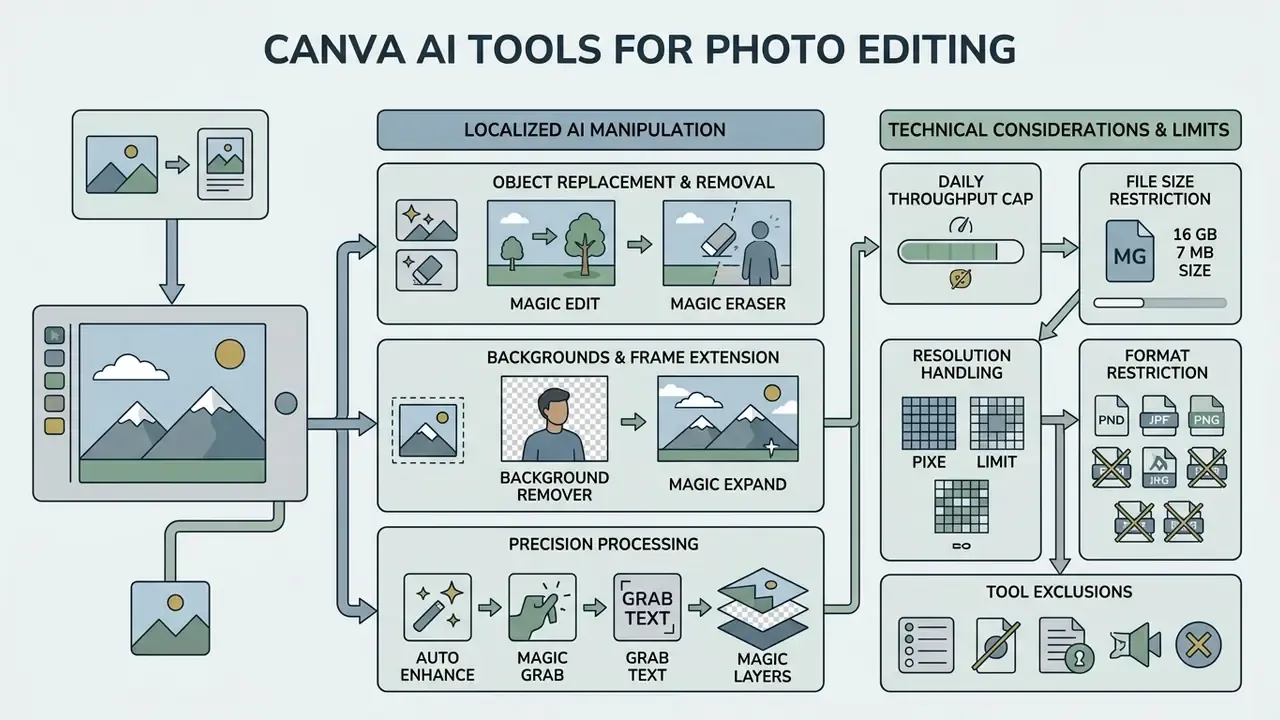
Canva integrates multiple localized AI manipulation algorithms into its visual suite, allowing users to apply targeted enhancements to specific regions of an image. These capabilities, collectively marketed under Canva's Magic Studio, leverage deep learning models trained to perform semantic segmentation, contextual background synthesis, and spatial resolution enhancement.
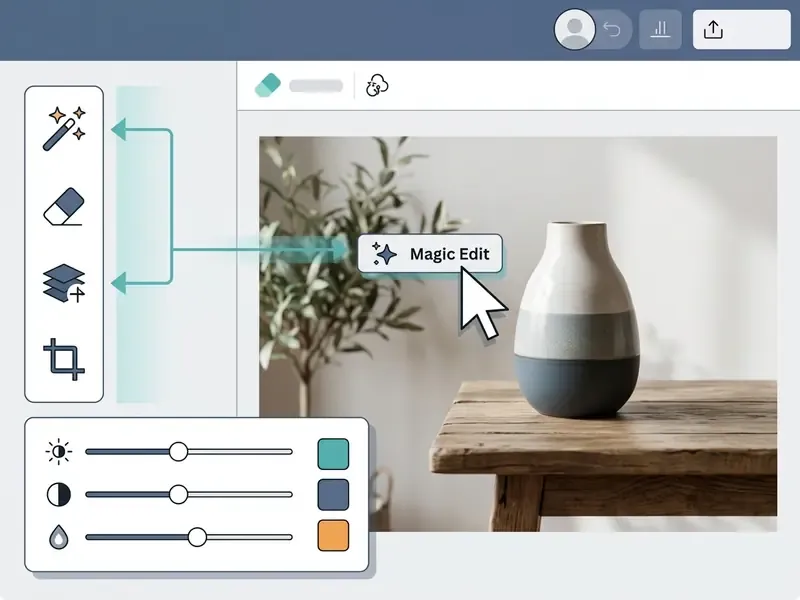
Using an ai photo editor canva framework, teams can manipulate distinct elements of a photograph while preserving the overall composition. The primary functional controls inside the canva photo editor ai suite include object deletion, localized prompt-based replacement, text extraction, background removal, frame extension, and layer separation. Access paths are consistent across the suite: select the image on the canvas, click Edit photo, then choose the tool under the Tools / Magic Studio grouping.
Magic Edit and Magic Eraser for Object Replacement and Removal
Magic Edit allows users to select a specific region of a photo using a brush interface and describe a replacement object via a text prompt. The underlying generative inpainting model synthesizes the requested object while attempting to match the lighting, texture, and perspective of the surrounding image context.
«A survey of diffusion-based editing methods proposes the EditEval benchmark and an LMM Score metric to assess text-guided editing quality while accounting for fidelity to the original.»
This enables quick modifications, such as changing apparel colors or swapping background props, without re-shooting original assets. Practical examples include dropping a palm tree into a beach photograph, replacing artwork hanging on a wall, or adding birds to an empty sky. Canva returns several candidate variants and the user selects the strongest one. When testing workflows across specialized consumer apps, such as an ai art app or stylized generators like ai art ai cute girl, enterprise teams notice a clear pattern: business-grade editors prioritize contextual blending over extreme stylistic transformations.
Magic Eraser focuses exclusively on non-destructive object removal. Users brush over unwanted elements, such as clutter, power lines, or background bystanders, and the tool reconstructs the underlying pixels using surrounding spatial data. Highly effective on simple backgrounds. Less so elsewhere: diffusion-based inpainting can generate visual artifacts or blurred textures when reconstructing complex pattern gradients or fine geometric structures. Busy or highly detailed backgrounds frequently leave faint smudges, so zoom to 100% and inspect edges before export. Because every edit is non-destructive, a single undo restores the original file, which makes controlled experimentation safe.
Background Remover and Magic Expand for Backgrounds and Frame Extension
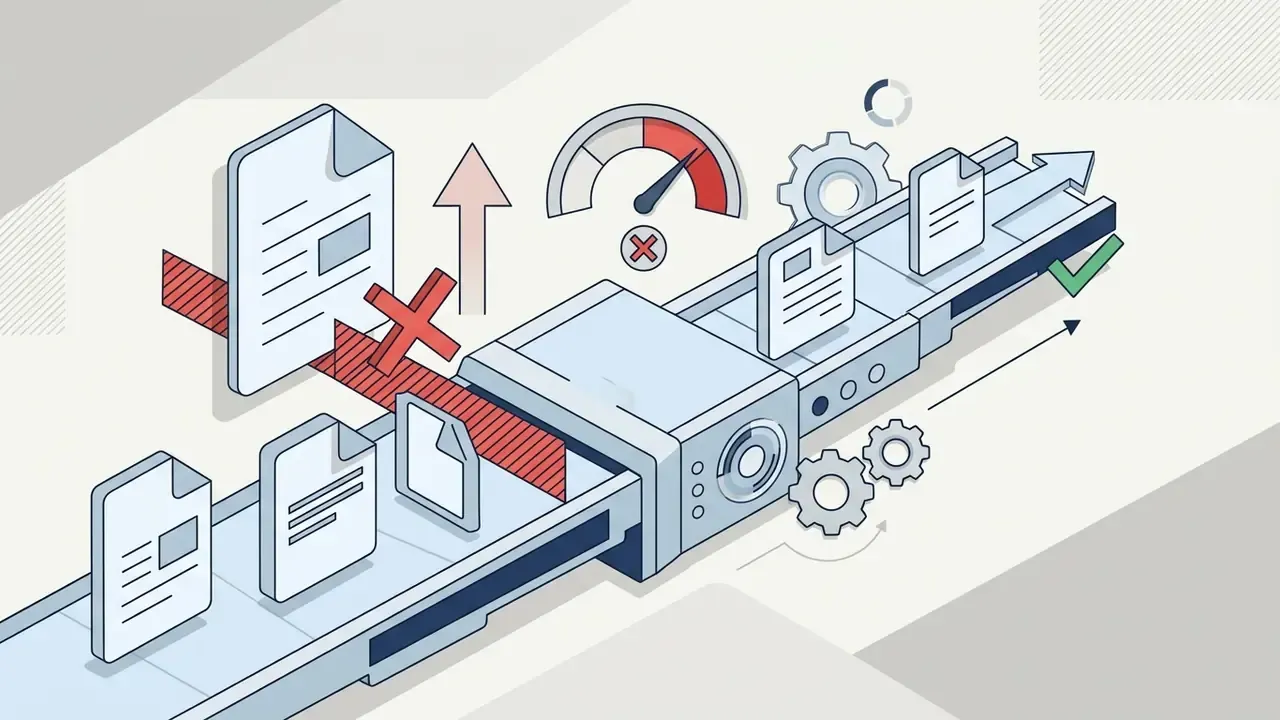
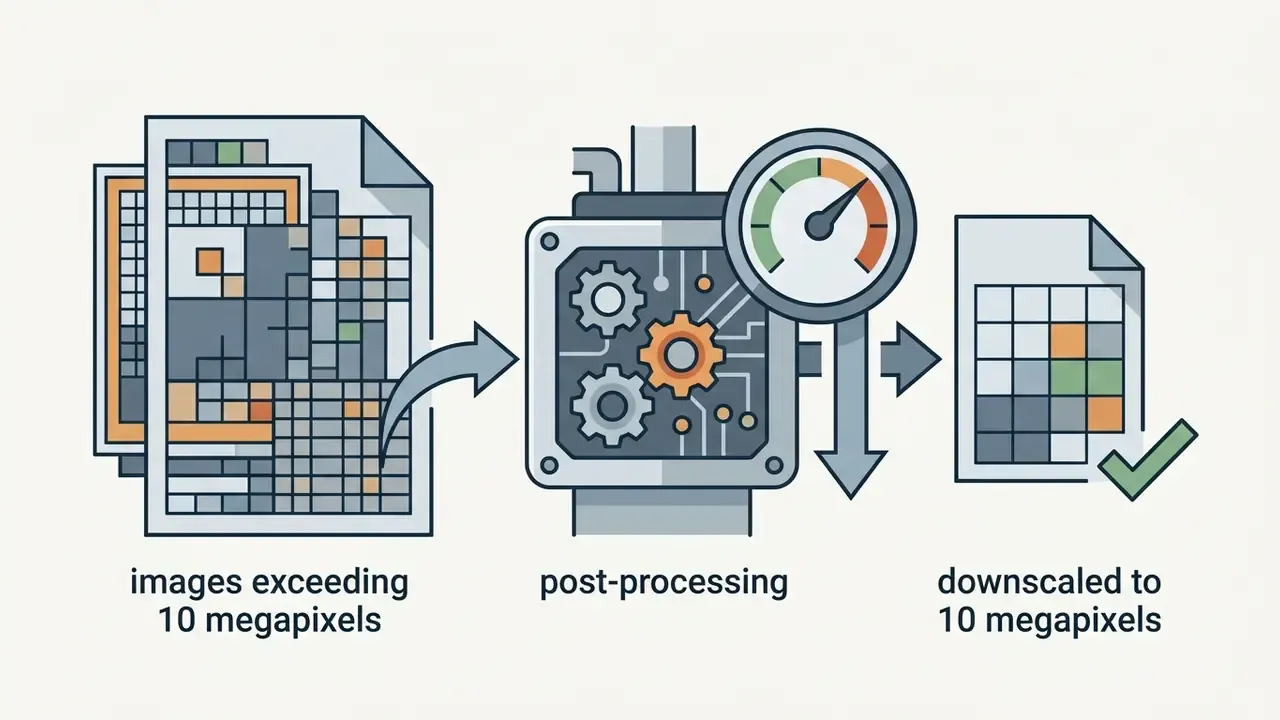
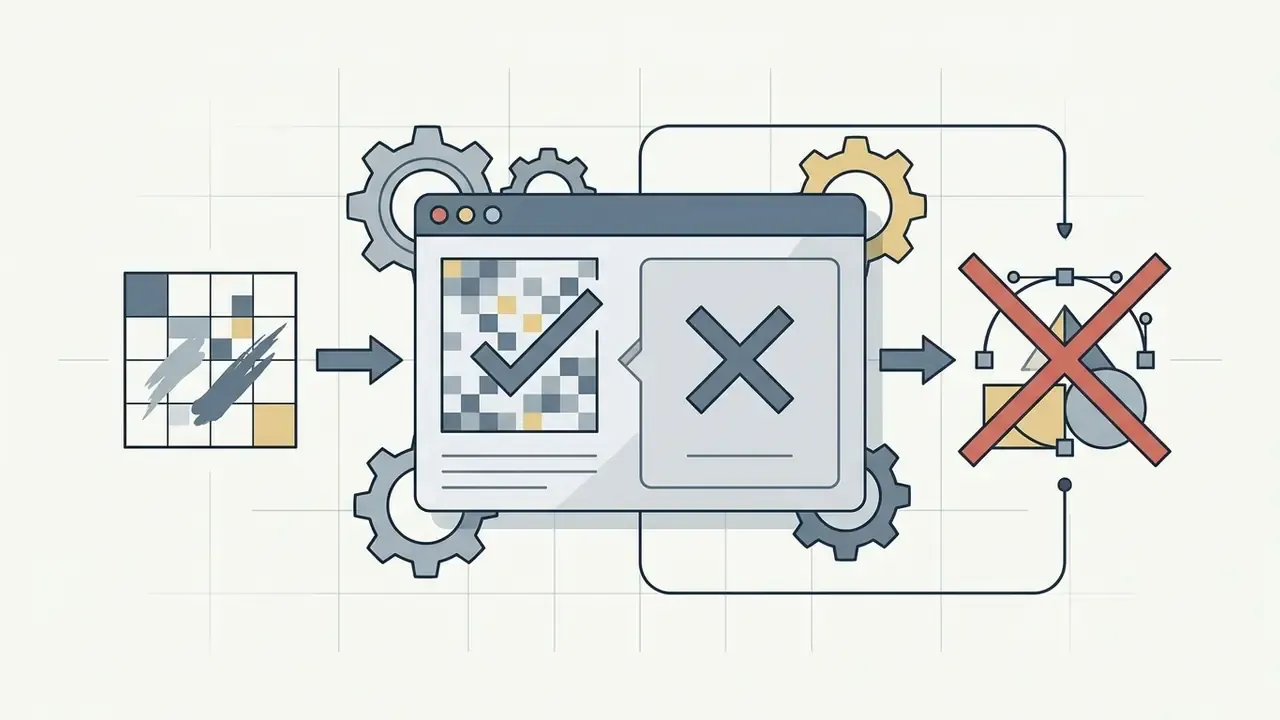
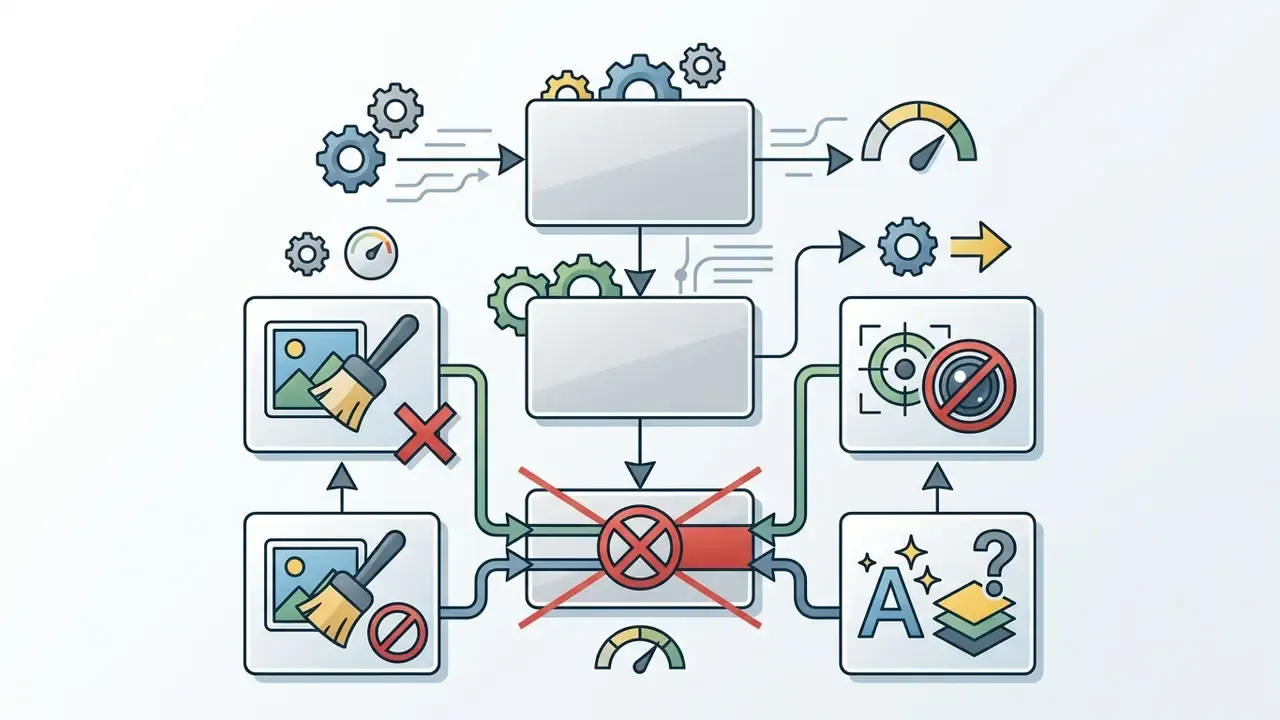
Background Remover executes automated semantic segmentation to separate foreground subjects from their backgrounds in a single action. The tool isolates subjects such as product packaging or corporate headshots, allowing designers to place them against transparent or custom backgrounds. It is simultaneously the most-used AI tool in Canva and the most generous on lower tiers. Canva enforces specific technical operational parameters for background extraction:

For transparent cutouts destined for reuse, think product shots, profile pictures, catalog thumbnails, export as PNG to preserve the alpha channel.
Magic Expand uses generative outpainting to extend an image canvas beyond its original borders. Teams comparing Canva's implementation against dedicated AI outpainting tools will find the workflow familiar: choose a target size or drag the crop handles outward, then generate. When adapting vertical photos to horizontal formats for digital banners, Magic Expand analyzes edge pixels and synthesizes plausible context to fill the expanded boundary. Outpainting on common subjects has become measurably more reliable through 2026, though unusual or geometrically complex scenes still produce warped edges. Generating two or three versions and keeping the cleanest one remains the pragmatic approach. Teams evaluating frame expansion tools alongside broader market solutions can refer to the comprehensive AI Media Commercial-Use Hub for enterprise licensing alignment.
Auto Enhance, Magic Grab, Grab Text, and Magic Layers for Precision Processing
Auto Enhance automatically optimizes image exposure, dynamic range, contrast, and color balance without requiring manual curve adjustments. It is the low-effort first step before reaching for heavier generative tools. Where resolution rather than tonality is the constraint, dedicated AI image upscalers usually outperform a single-tap enhancement pass. Helpful for rapid retouching, yes, but automated aesthetic enhancement needs monitoring in technical or product documentation workflows, where color accuracy and photographic neutrality outrank exaggerated visual polish.
Magic Grab isolates a recognized subject from a flat photograph and converts it into a movable, resizable graphics layer while automatically filling in the background behind it. In practice this means selecting a person in a photo, sliding them left while the background stays fixed, then closing the resulting gap with Magic Expand if required.
Grab Text Sub-Feature: Embedded within the Magic Grab suite is the Grab Text tool. It automatically detects, isolates, and converts static text printed on photos or graphic banners into editable type. Once extracted, users can modify the wording, font, size, and color directly on the canvas without manual backspace retouching. This is the fastest route to correcting a typo on a photographed sign, localizing a poster caption, or re-versioning a banner where only the offer wording changes.
Magic Layers extends this concept by decomposing flat JPEG or PNG files into multi-layer compositions, separating foreground subjects, background elements, and text regions. Released in public beta on 10 March 2026, Magic Layers relies on Canva's proprietary Design Model. Unlike standard image segmentation, this architecture parses compositional logic, decomposing flat raster visual files into natively movable, re-colorable design layers. That also makes it the bridge between generating an image in Dream Lab and properly editing it afterwards.
This item-prompt disentanglement approach allows designers to slide secondary graphics or text elements behind a foreground subject without manual vector masking.
Complex architectural layout reviews often combine these visual tools with specialized software such as an ai architecture generator during initial design exploration.
| Tool | Primary Task | Editable Elements | Typical Output | Technical Limitations |
|---|---|---|---|---|
| Background Remover | Automated subject segmentation | Global background | Foreground subject isolated on transparent background | Max 500 photos/24h; file limit under 9 MB; photos above 10 MP downscaled to 10 MP; no vector support; subject-edge artifacts on fine detail |
| Magic Edit | Prompt-based region replacement | Selected brush area | AI-generated replacement item contextually blended | May alter surrounding style; struggles with precise anatomical detail or complex text rendering |
| Magic Eraser | Object removal and background fill | Selected objects or artifacts | Cleaned background with reconstructed pixels | Can leave blur artifacts on complex textures or non-uniform lighting; no manual clone-stamp control |
| Magic Expand | Canvas boundary outpainting | Outer canvas extension zones | Extended background matching base image style | Outpainted regions may introduce repetitive patterns or geometric drift; cannot guarantee historical accuracy |
| Auto Enhance | Global tonal optimization | Exposure, contrast, clarity | Brighter, color-balanced photograph | May over-saturate or alter intentional photographic mood; no fine-grained curve adjustments |
| Magic Grab | Subject detachment to movable layer | Recognized foreground subject | Detached subject layer plus filled background layer | Fails on low-contrast subject boundaries; unsuited for images constrained inside complex grids |
| Grab Text | OCR and text extraction | Embedded typography on photos | Editable text layer matching source styling | Struggles with stylized handwriting, highly distorted perspective, or low-contrast fonts |
| Magic Layers | Multi-layer asset decomposition | Subjects, text, and background | Multi-layered editable composition file | Public beta since 10 Mar 2026; processing depends on clear visual contrast; exported designs compress back into flat raster formats |
How to Edit Photos in Canva AI: Step-by-Step Workflow
Operating canva's ai photo editor within enterprise creative pipelines requires standard operating procedures, otherwise output quality drifts with whoever happens to be on shift. The standard workflow follows a structured sequence: control definition, asset ingestion, tool initiation, parameter selection, manual edge refinement, and pre-export visual inspection.
Quality Verification and Audit Trail Controls to Define First
Before a single file is uploaded, define the control layer. Governance-led teams in regulated sectors typically fix four artefacts up front:
- Retained input/output pairs.Store the original upload and the exported edited asset side by side in the asset management system, with matching identifiers. This is the only reliable way to demonstrate later what the AI actually changed.
- Edit manifest.Record which tools were applied (for example: Background Remover, then Magic Expand, then Grab Text), the prompts entered into Magic Edit, and the account that executed them. Canva's editor history and version history support reconstruction, but a manifest stored outside the tool survives licence changes and staff turnover.
- Named human reviewer.Every AI-edited asset that leaves the design environment carries a reviewer sign-off. Unreviewed generative output should not reach production channels.
- Escalation path.Define who decides when an artefact is material, for example a distorted product feature in a regulated financial promotion, and what happens next: re-generate, hand-correct, or revert to the original photograph.
Consult your own compliance, records-retention, and model-risk functions on the exact evidence format required in your jurisdiction. The list above is an operational pattern, not a regulatory instruction.
How to Upload Images and Access AI Editor Tools
To initiate editing, open the Canva workspace and navigate to the left-hand sidebar panel. Click Uploads, select Upload files, or drag raster assets directly into the media repository. Folder upload is also supported. Once the file finishes uploading, drag it onto the active canvas.
- Select the image on the canvas to activate the top context toolbar.
- Click Edit photo (or Edit image in legacy interface views) to open the side drawer.
- Locate the Magic Studio section, which groups canva ai photo controls including Magic Edit, Magic Eraser, Background Remover, Magic Grab, Grab Text, and Magic Layers.
- Select the desired tool to launch its interactive brush interface or configuration menu.
- Brush an area or type a prompt depending on the tool, then click Generate or Apply and review the returned variants.
- Click Share, then Download to export, or continue building the surrounding design around the edited photo.
For enterprise software integrations and automated asset workflows, developers can evaluate platform API capabilities via the AI Media API Guides.
How to Review Results and Prepare Photos for Design
Automated AI adjustments require systematic quality evaluation before final asset approval. Assess AI-edited graphics against four core verification checks:
- Structural Integrity Verify that object edges, fine details (such as hair or glass translucency), and geometric lines remain sharp without visible anti-aliasing noise or haloing.
- Input/Output Alignment Ensure prompt-based replacements in Magic Edit correctly reflect the requested changes without modifying adjacent visual elements.
- Text Rendering Pass Confirm that any text present within the original image or generated by AI inpainting is legible and free from character distortion.
- Layout Context Fit Inspect the edited photograph at both thumbnail scale and 100% zoom within the final macro-design template.
If background cutouts leave rough selection edges, open the manual Erase and Restore brush overlays within the Background Remover panel and paint over the missed pixels. For continuous technical support, troubleshoot common platform display issues through the AI Media Support and Troubleshooting hub.
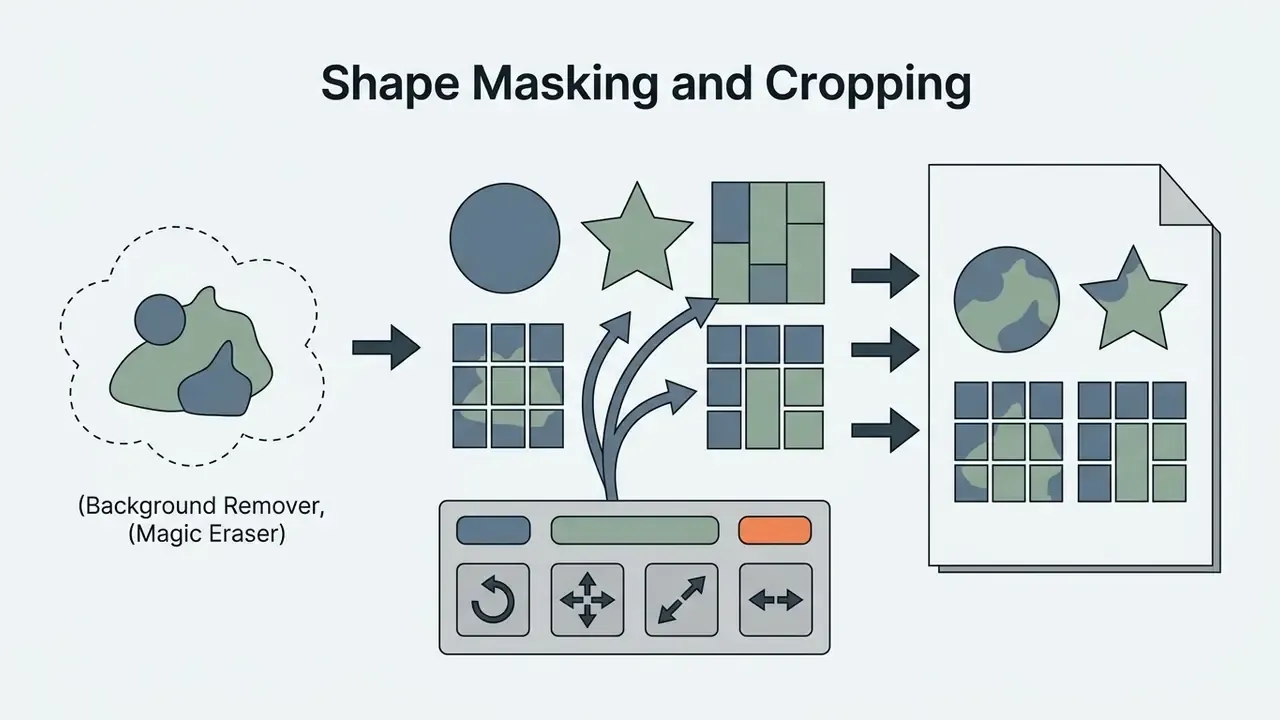
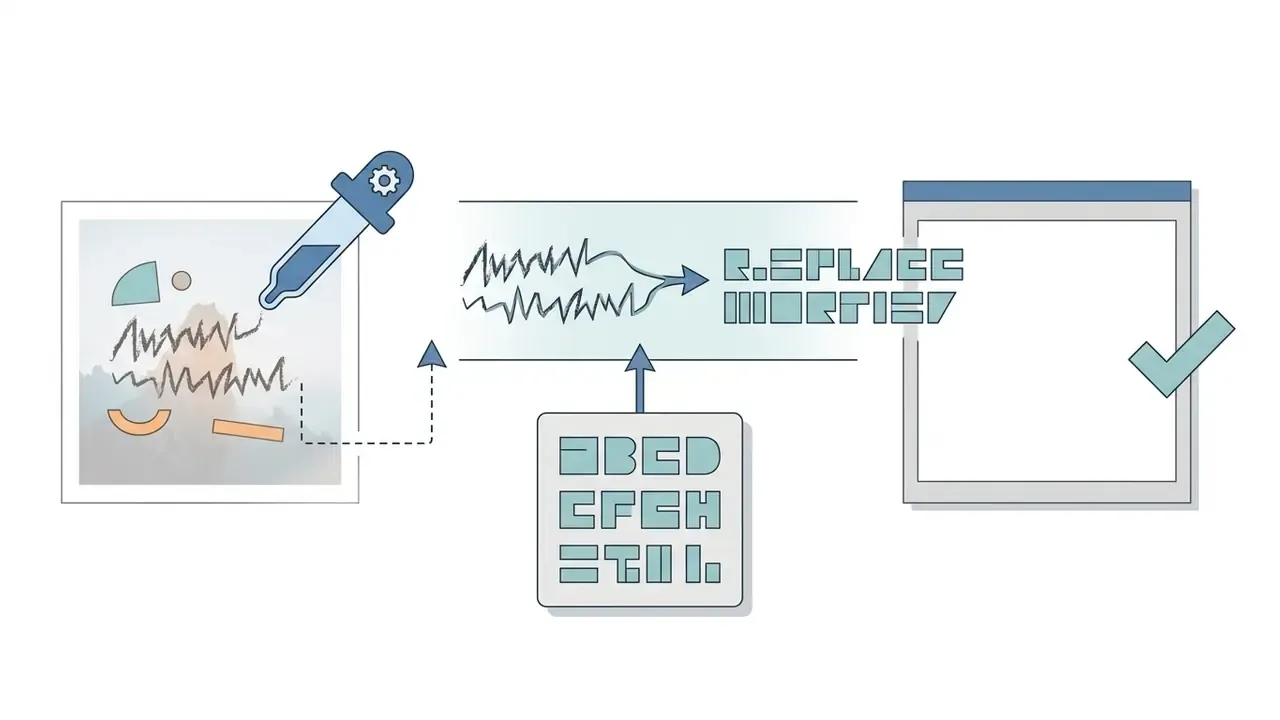
Hybrid Post-Processing Workflows:

Enterprise Case Study: Financial Services Marketing
Canva AI Photo Editor: Free Access vs. Subscriptions
Access to canva ai photo editor tools operates on a freemium model. Readers evaluating the wider generative feature set alongside photo editing can review the Canva AI Generator overview for design, export, and licensing coverage. Basic canvas editing, cropping, and standard color adjustments cost nothing. Advanced generative features, automated background separation, and high-frequency AI processing credits sit behind paid subscription tiers.
Organizations evaluating enterprise deployments must analyze the balance between free feature allowances and paid tier credit limits to keep operational costs predictable.
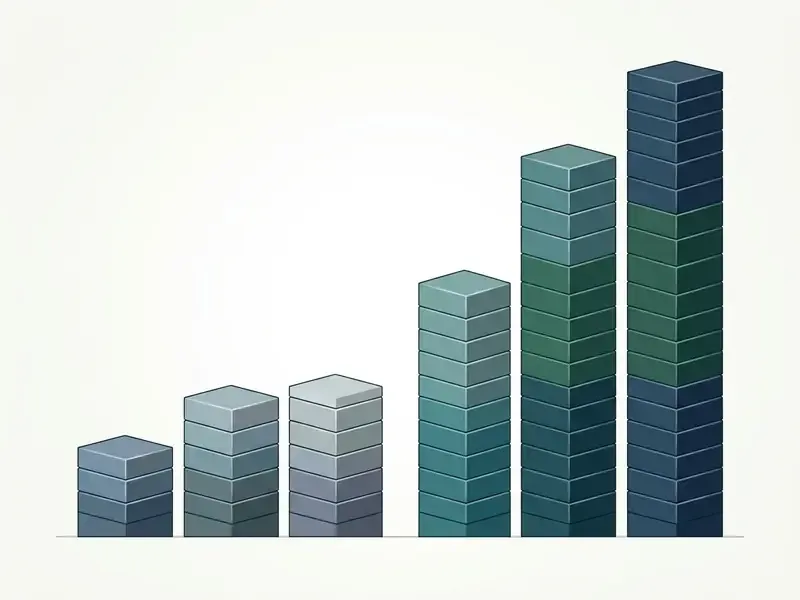
What AI Features Are Available on Canva Free
The Free plan provides access to the core visual editor, basic layout templates, standard filters, and a limited pool of generative AI trials. Users on the free tier can test basic generative features, such as text-to-image generation, up to a lifetime or monthly cap (typically capped at 50 total lifetime credits or roughly 20 Premium AI actions per month).
Background Remover and Auto Enhance are the most forgiving features on the free tier, which is why light users often never upgrade. Ongoing operational tools, however, sit behind paywalls or single-use trials: Magic Eraser, Magic Edit, Magic Expand, and Magic Grab. Users weighing whether a no-cost workflow is viable at all can compare capability ceilings across free photo editors. Teams exploring non-commercial niche tools, such as stylized generators like ai art hentai, or evaluating broader platform differences can review feature matrices across the AI Media Comparison portal.
What to Check in Pricing Tiers and Limits Before Subscribing
Prior to procuring paid enterprise accounts, procurement teams should evaluate subscription costs, credit allowances, and daily throughput limits. Subscription models break down into four categories:
- Canva Pro Designed for individual creators. Costs $18/month ($144/year). Includes access to Background Remover, Magic Eraser, Magic Grab, and Magic Expand, with a monthly baseline pool of 200 Premium AI credits.
- Canva Business / Teams Designed for collaborative organizations. Costs $25/month per user ($250/year per seat, minimum 3 seats). Provides shared brand kits, workflow approvals, and 400 Premium AI credits per user/month.
- Canva Enterprise Custom quote-based enterprise licensing offering dedicated admin governance, SSO integration, central procurement control, customizable AI tool enablement policies, and custom credit allocations.
- Credit Tracker UI As of March 2026, Canva incorporates a real-time AI credit tracking meter directly inside the editor menu, preventing mid-session execution halts and removing the guesswork from balance management.
| Subscription Tier | Approx. Cost (US) | Monthly AI Usage Allowance | AI Photo Tool Availability | Stock Asset Library Access |
|---|---|---|---|---|
| Free | $0 | ~20 Premium AI credits / month (50 total generation credits) | Basic editor; generous Background Remover and Auto Enhance; locked Magic Edit/Eraser/Expand/Grab | 1.6M+ templates; 4.7M+ free stock assets |
| Pro | $18/mo · $144/yr (1 user) | 200 Premium AI credits / month | Full access to Background Remover, Magic Eraser, Magic Grab, Magic Expand, Grab Text | 3.6M+ templates; 141M+ Pro stock assets |
| Teams / Business | $25/user/mo · $250/yr per seat (min 3) | 400 Premium AI credits / user / month | Full Magic Studio access plus central brand kit governance | 3.6M+ templates; 141M+ Pro stock assets; central team storage |
| Enterprise | Custom quote | Custom enterprise credit allocations; admin control | Full Magic Studio suite, subject to organizational admin enablement | Full enterprise library plus custom brand asset vaults |
Pricing and credit figures verified April 2026 against Canva's public pricing page.
Modelling Risk-Adjusted Total Cost of Ownership
Licence price alone understates the real cost of an AI visual pipeline, because every generated asset consumes human review time. A simple, defensible model:
Annual TCO = (Seats × Annual Seat Price) + (Assets/year × Avg. Review Minutes ÷ 60 × Loaded Hourly Rate) + (Assets/year × Rework Rate × Avg. Rework Minutes ÷ 60 × Loaded Hourly Rate) + Overage Credit Purchases
Worked illustration for a 10-seat Business deployment producing 4,000 edited assets per year, 6 minutes average review, a 30% rework rate at 12 minutes per rework, and a $60 loaded hourly rate:
- Licences: 10 × $250 = $2,500
- Review: 4,000 × 6 ÷ 60 × $60 = $24,000
- Rework: 4,000 × 0.30 × 12 ÷ 60 × $60 = $14,400
- Total roughly $40,900, of which licences are only about 6%.
The operational conclusion is consistent across deployments: the cost driver is verification labour, not subscription fees. Reducing the rework rate, by restricting AI editing to task types the models handle reliably, moves the TCO needle far more than negotiating seat discounts. Plug your own baselines into the calculators hub before committing to a tier.
Can You Use Canva AI Photos in Commercial Content
Using photos edited or synthesized by an ai photo editor in commercial projects requires navigating multi-layered IP rules. Organizations must evaluate rights across three separate asset components: original uploaded photographic material, stock elements incorporated from Canva's library, and synthetic visual additions created by generative AI tools. Teams still choosing a platform for commercial output can weigh the licensing posture of leading AI image generators alongside Canva's terms.
Under Canva's legal framework, images generated or modified by AI tools outside stock content libraries generally may be used for any lawful commercial purpose, including marketing campaigns, corporate collateral, and merchandise sales, provided the user adheres to Canva's AI Product Terms. Canva also states that it makes no copyright ownership claim over user input or AI output.
User-perception research helps explain why governance friction is often low in practice:
«Both professional and non-professional users generally perceive AI as a means of amplifying creativity and regard AI tools simply as tools.»
Useful for change management, that framing. It is no substitute for rights clearance, though: the tool may be "just a tool", while the asset it produces still carries layered licence conditions.
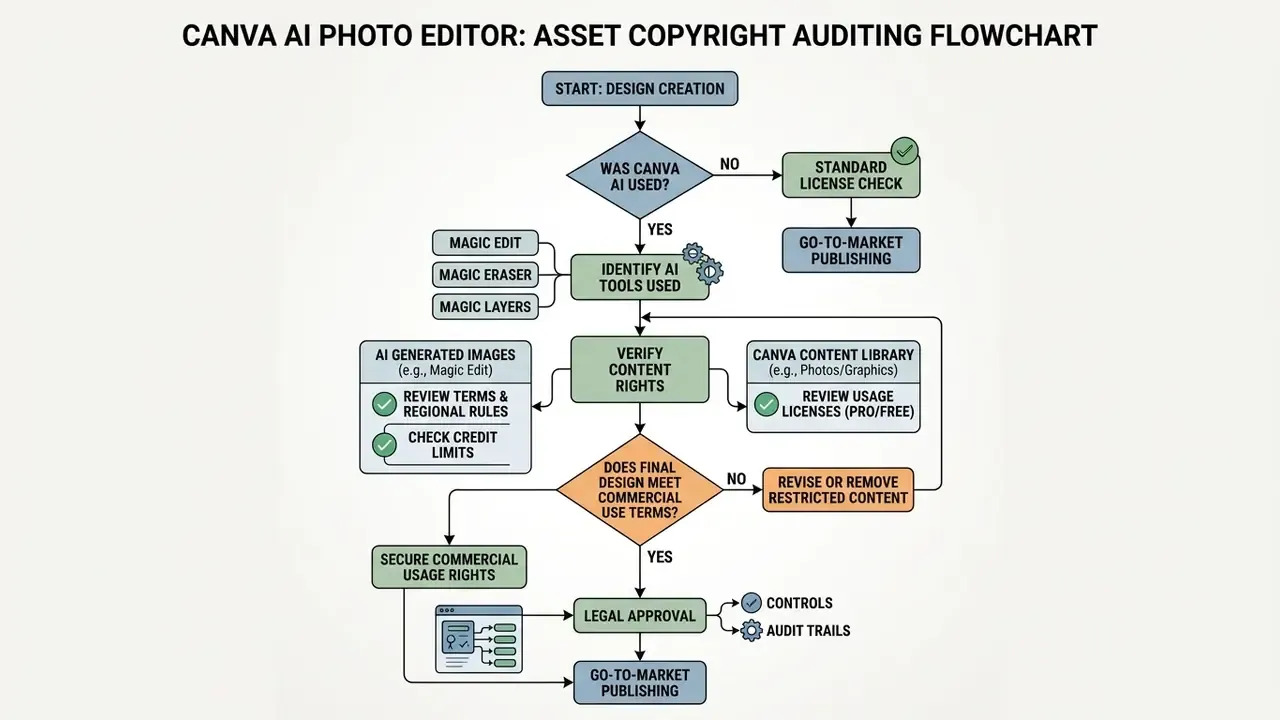
What to Audit for Source Photos, AI Edits, and Design Elements
Commercial clearance requires verifying every discrete asset layer present within a finalized Canva composition:
To review legal frameworks, intellectual property disputes, and regulatory developments surrounding synthetic media, consult the AI Litigation and Case Timelines tracker.
- Original Uploaded Photos
- Applying AI tools (such as Magic Edit or Background Remover) to a user-uploaded image does not grant ownership over protected third-party elements within the base image. Users must ensure they own the underlying photographic rights, trademark clearances, and model releases.
- Canva Stock Library Content
- Sourced visual elements carry distinct licenses. Free Content and Pro Content are licensed non-exclusively for permitted commercial uses (promotional flyers, digital ads, packaging, presentations, catalogues, product packaging). Because the licence is non-exclusive, the same asset may legitimately appear in a competitor's campaign. Stock assets cannot be sold or redistributed as standalone files, for instance resold as standalone stock photography or digital clip-art.
- Branded Content
- Graphics or logos designated as Branded Content in Canva's library are strictly restricted to personal, non-commercial use unless explicit corporate permissions are granted.
- AI-Generated Elements
- Synthetic elements created via Magic Edit, Magic Layers, or Dream Lab are governed by Canva's AI Product Terms rather than the Content License Agreement. While Canva does not claim copyright ownership over generated outputs, US legal precedents (including US Copyright Office guidance) hold that purely AI-generated visual work lacks human authorship and generally cannot be registered for copyright protection. In practice, a campaign key visual produced entirely by generation, with no substantive human authorship in the expressive result, may be freely copied by third parties without infringement. That is a commercial exposure rather than a compliance breach.
Data Privacy, Model Training, and Retention Controls
For regulated organizations, the decisive question is rarely licensing. It is whether confidential uploads leave the trust boundary. Before approving Canva AI photo tools for sensitive material, procurement and privacy teams should obtain written answers on five points directly from Canva or the account's enterprise agreement:
| Control Question | Why It Matters | Where to Confirm |
|---|---|---|
| Are customer uploads used to train or fine-tune Canva's models? | Determines whether unreleased product imagery or client-identifiable material could influence future outputs. | Canva AI Product Terms; enterprise data processing addendum |
| Is there an administrator-level opt-out from AI training? | Enterprise and Teams tiers are the appropriate place to enforce an organization-wide setting rather than relying on individual users. | Enterprise admin console; contract schedule |
| How long are inputs, prompts, and outputs retained? | Retention windows must align with internal records policy and any client confidentiality undertakings. | Data processing terms |
| Which subprocessors and regions handle inference? | Cross-border processing may trigger transfer-mechanism requirements. | Subprocessor list; DPA |
| Can AI tools be disabled per team or per workspace? | Prevents shadow AI, where a marketing seat processes material that legal has not cleared. | Enterprise admin controls |
Practical mitigations that do not depend on vendor answers: de-identify imagery before upload, prohibit uploads containing customer PII or unreleased financial figures, keep sensitive retouching on locally installed software, and audit workspace membership quarterly. Because vendor data-handling terms change, treat any answer as valid only until the next published update to Canva's terms, and record the version reviewed. This block describes a diligence process, not a statement of Canva's current contractual position. Verify the live Canva AI Product Terms and your own agreement before relying on it.
When to Consult Canva's Current Terms and Policies
Enterprise compliance officers should mandate policy reviews under three specific operational conditions:
- Before launching national or global paid advertising campaigns incorporating generative AI elements.
- Whenever upgrading or transitioning organizational licensing models between Pro, Teams, and Enterprise tiers.
- Following published updates to Canva's AI Product Terms or Terms of Use.
ALERT: Commercial Licensing Caution
Enterprise Compliance Checklist for AI Visuals
Run this list before any AI-edited photograph enters advertising, product, or financial-communications production:
Checklist0 / 9
Canva AI Photo Editor Limitations and Quality Considerations
Despite significant advancements in generative computer vision, canvas photo editor AI capabilities present real technical limitations. Understanding these failure modes lets creative teams set realistic review standards and keep sub-par graphics away from production. Where Canva's ceiling is reached, dedicated AI image enhancers may deliver cleaner results on specific tasks such as denoising or detail recovery.
Large-scale empirical research on generative AI editing capabilities quantifies the gap between marketing claims and delivered precision.
AI models therefore perform significantly better on open-ended, creative touch-ups than on low-creativity, high-precision tasks like anatomical preservation or exact geometric alignment. Independent user-review corpora on G2 and Capterra reinforce the pattern qualitatively: reviewers repeatedly report inconsistent Magic Edit passes, blurry or oddly shaped fills, limited fine control compared with professional raster suites, and weak photorealism on faces and hands.
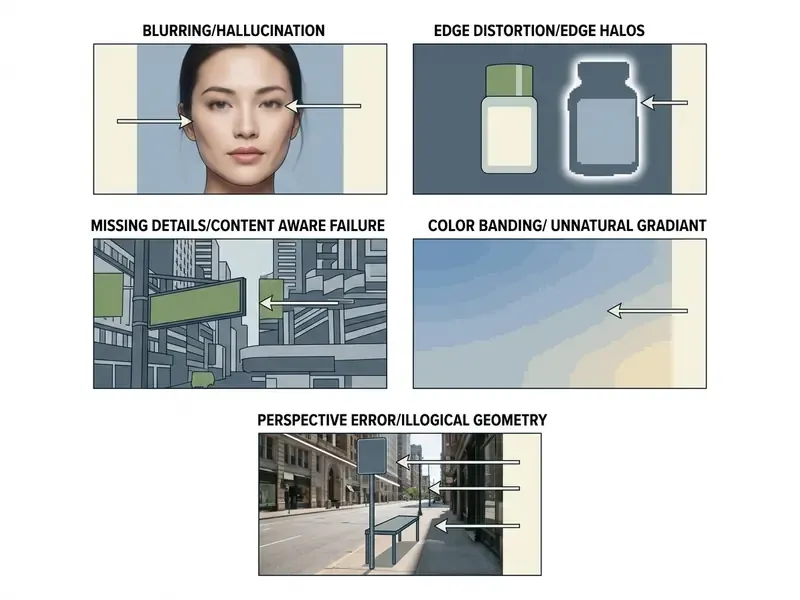
Common Errors in Object Removal, Cutouts, and Expansion
Canva AI Photo Editor on Mobile Devices
Canva provides native mobile applications for iOS and Android that include core Magic Studio capabilities at near feature parity with the web editor. Operational performance on mobile, however, differs from desktop browser environments:
- Interface ConstraintsSmall touchscreen displays make fine brush adjustments in Magic Eraser and Magic Edit difficult. Precise object selection requires zooming in, which obscures surrounding composition context, and touch input can misregister on dense compositions.
- Missing Refinement ControlsManual selection refinement tools, such as the granular Erase and Restore brushes used after background removal, are optimized primarily for desktop web interfaces and may be restricted or absent in mobile app views.
- Hardware and Downscaling LimitsProcessing high-resolution images on mobile devices can cause performance throttling or application latency. The iOS app requires iOS 14.5 or later and free device memory to operate reliably. Large uploaded images are automatically downscaled to 10 megapixels following background removal to conserve mobile memory. Users constrained by device performance may prefer lightweight free photo editors for on-the-go crops and reserve Canva AI passes for desktop sessions.
Frequently Asked Questions (FAQ)
Is the Canva AI photo editor free?
Partly. Free accounts receive roughly 20 Premium AI credits per month plus comparatively generous Background Remover and Auto Enhance access. Sustained use of Magic Edit, Magic Eraser, Magic Expand, and Magic Grab requires Canva Pro (200 credits/month) or Canva Business (400 credits/user/month).
How many AI tools does the Canva photo editor include?
Eight, in practice: Magic Edit, Magic Eraser, Magic Expand, Magic Grab, Grab Text, Background Remover, Auto Enhance, and Magic Layers. All sit under Magic Studio and operate on photos you already have.
What is the difference between Magic Edit and Magic Eraser?
Magic Edit adds or replaces objects from a text prompt, creating new content inside the photo. Magic Eraser only removes elements, brushing over distractions and reconstructing the background behind them.
Where do I generate an image from a text prompt?
Not in the photo editor. Use Canva's Dream Lab generator, then optionally run Magic Layers on the result to convert the flat output into editable design layers.
Does Canva AI editing work on AI-generated images?
Yes. Magic Layers was built for exactly that case, splitting a flat or generated image into editable layers via Canva's Design Model so individual parts can be recoloured, resized, or removed.
Can I use Canva AI-edited photos commercially?
Generally yes under Canva's AI Product Terms, subject to the rights attached to any stock elements and to the underlying photograph. Purely AI-generated elements are unlikely to attract copyright protection in the United States, and stock content can never be resold as a standalone asset.
What are the hard technical limits I should plan around?
Background Remover: 500 removals per 24 hours, files under 9 MB, images above 10 MP downscaled, no vector input, and no combination with Magic Eraser, Magic Edit, or Autofocus in the same step.
Can administrators restrict AI tools for specific teams?
Enterprise-tier administration is the layer where AI enablement policies, SSO, and central procurement control are configured. Confirm the exact scope of available toggles with Canva before assuming a given restriction is enforceable.
Appendix A: Revision Notes and Superseded Formulations
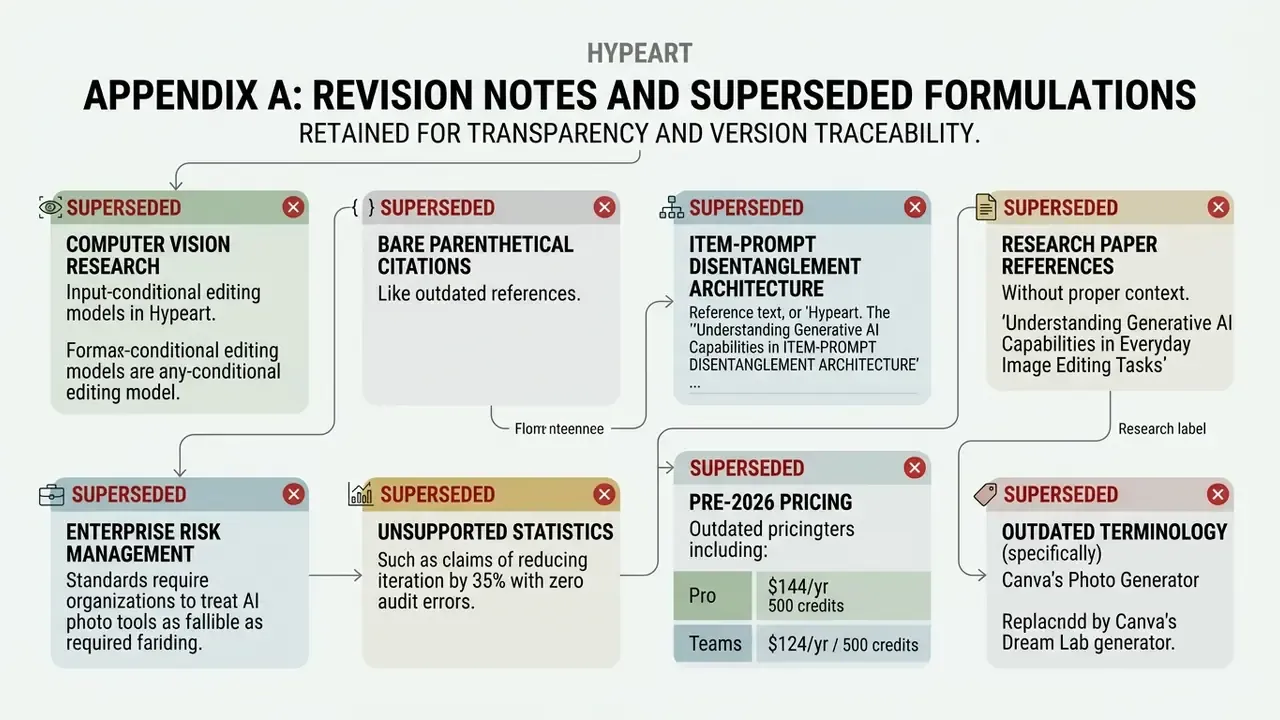
Retained for transparency and version traceability. The following formulations appeared in earlier revisions of this guide and have been replaced in the body text above.
- Superseded: "Computer vision research emphasizes that input-conditional editing models balance image reconstruction against generative re-generation (SeedEdit, 2024)." Replaced by a direct quotation with methodology and URL.
- Superseded: "(Huang et al., 2024)" as a bare parenthetical. Replaced by the EditEval and LMM Score description with full citation.
- Superseded: "This item-prompt disentanglement architecture ('An Item is Worth a Prompt', 2024)". Replaced by a quoted finding with URL.
- Superseded: "('Understanding Generative AI Capabilities in Everyday Image Editing Tasks', 2025)" without sample description. Replaced by the 83,000-request and 305,000-edit methodology note with URL.
- Superseded: "enterprise risk management standards require organizations to treat ai photo tools as fallible processing assistants." Reformulated as an empirically grounded observation, since no named standard was cited.
- Superseded: "reducing design iteration turnaround by 35% while keeping audit error rates at zero" presented without qualification. Retained inside the case-study callout with an explicit methodological limitation note.
- Superseded pricing (pre-2026 revision): Pro at roughly $144/yr with "up to 500 generation credits"; Teams at roughly $250/yr per seat with about 500 credits per seat. Replaced by Pro $18/mo with 200 Premium AI credits and Business/Teams $25/user/mo with 400 credits, plus the March 2026 real-time credit tracker.
- Superseded terminology: "Canva's Photo Generator." Replaced by "Canva's Dream Lab generator."
Open Questions and a Safe Next Step
Three things remain genuinely unresolved, and it is better to name them than to paper over them.
First, per-tool accuracy. No vendor benchmark isolates the artefact rate of Magic Edit against Magic Eraser on comparable inputs, so the only reliable number is the one your own reviewers record. Second, retention. Public terms describe practice at a point in time; enterprise agreements vary, and the version you reviewed matters. Third, copyright. US registrability for mixed human and AI authorship keeps shifting, and a 2026 reading may not survive 2027.
A cautious sequence works better than a platform-wide rollout. Pick one low-risk asset class, product cutouts, say, or internal presentation imagery. Run 50 assets through the workflow with the audit trail described above. Log review minutes and rework rate. Then decide the tier, the seat count, and the enablement policy with real numbers rather than estimates.
Small pilot, measured evidence, then scale.