Google Photo Editor is not a standalone application. It is the built-in image editing pane inside the Google Photos app on Android, iOS, web, and Chromebooks. It combines traditional manual adjustments with advanced generative AI features directly within the personal cloud storage interface.
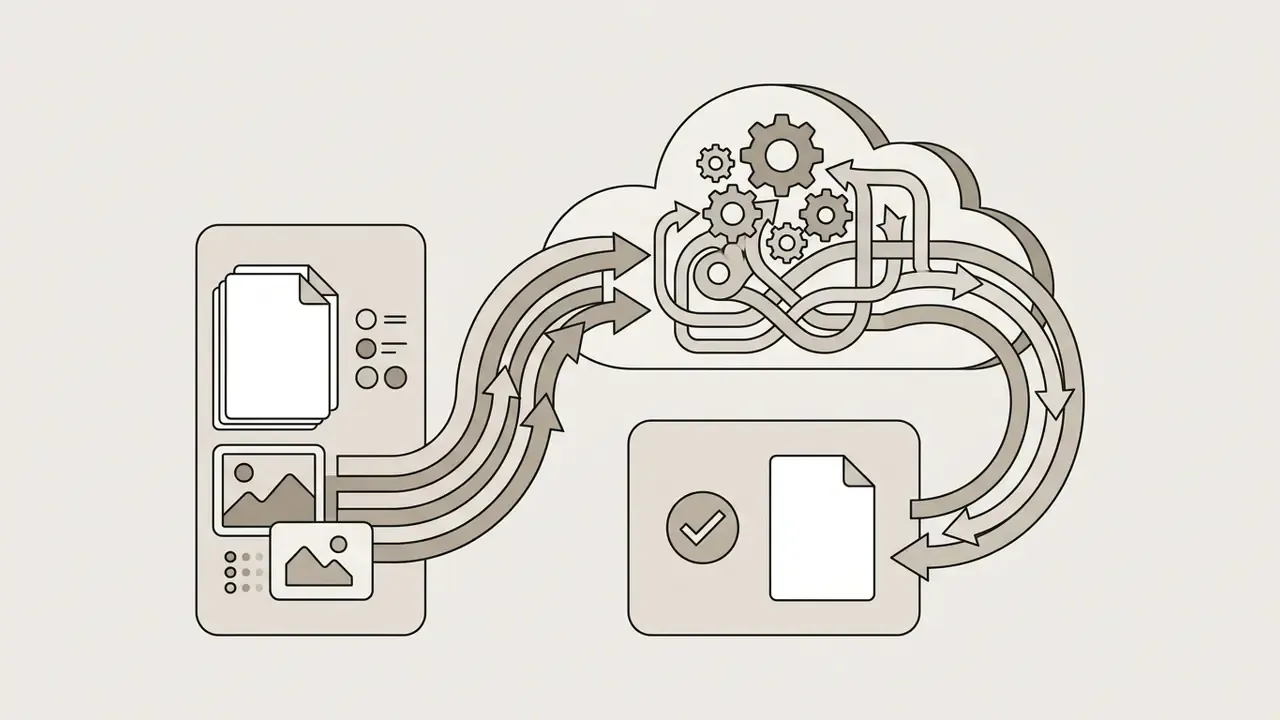
Why should a risk or finance leader care about a consumer photo tool? Because it already sits on staff phones, and because generative edits leave the device. More on that later.
Key Takeaways in 60 Seconds
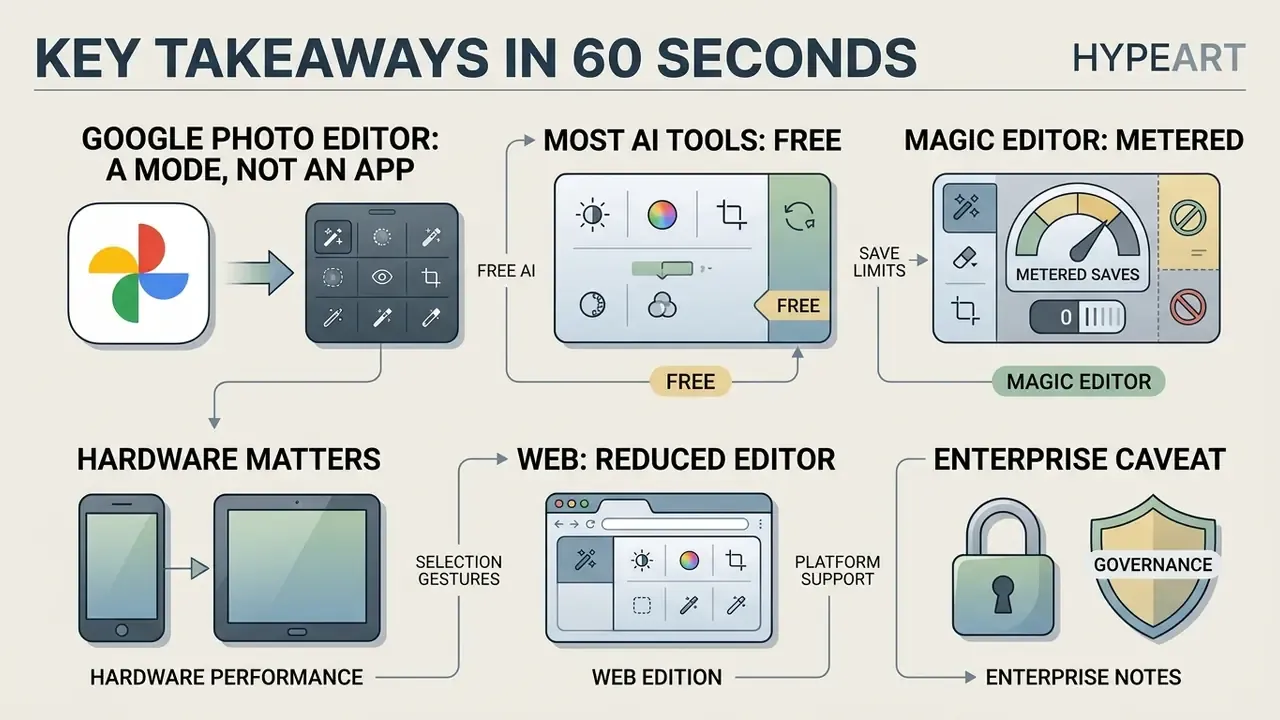
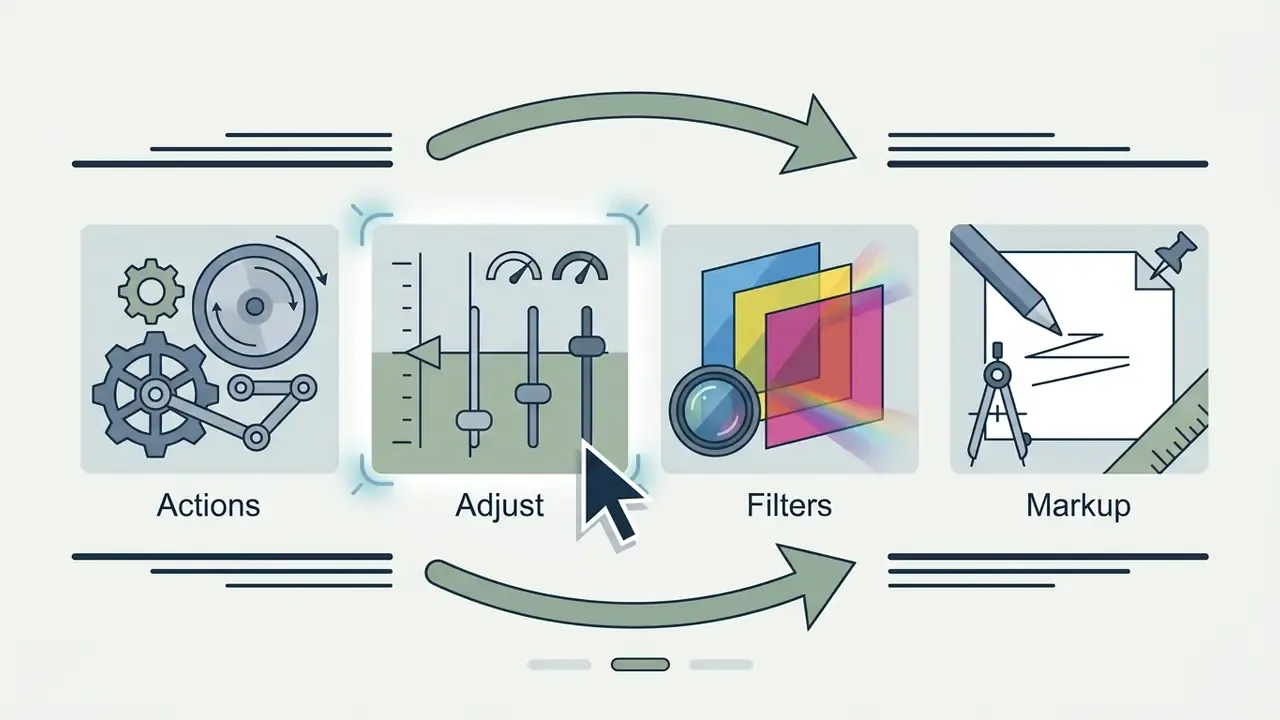
- It is a mode, not an app. Editing lives inside Google Photos: open a photo, tap Edit, and tools appear grouped by category (Actions, Adjust/Lighting, Color, Filters, Markup).
- Most AI tools are free. Magic Eraser, Photo Unblur, Portrait Light, Portrait Blur, HDR effect, Color Pop, Sky Suggestions, Cinematic Photos, Collage Styles, and Video Effects require no subscription on eligible hardware.
- Magic Editor is metered. Personal accounts on non-Pixel Android and iOS devices get 10 Magic Editor saves per month. Beyond that you need a Pixel device or a Google One Premium plan of 2 TB or above.
- Hardware still matters. Android 8.0+ with at least 3 GB RAM, iOS 15+, Chromebook Plus on ChromeOS 118+ (Magic Editor from ChromeOS 125+). Best Take remains a Pixel-series exclusive; Pixel Tablet is supported.
- Web is a reduced editor. Magic Editor, conversational editing, and several AI actions are app-only.
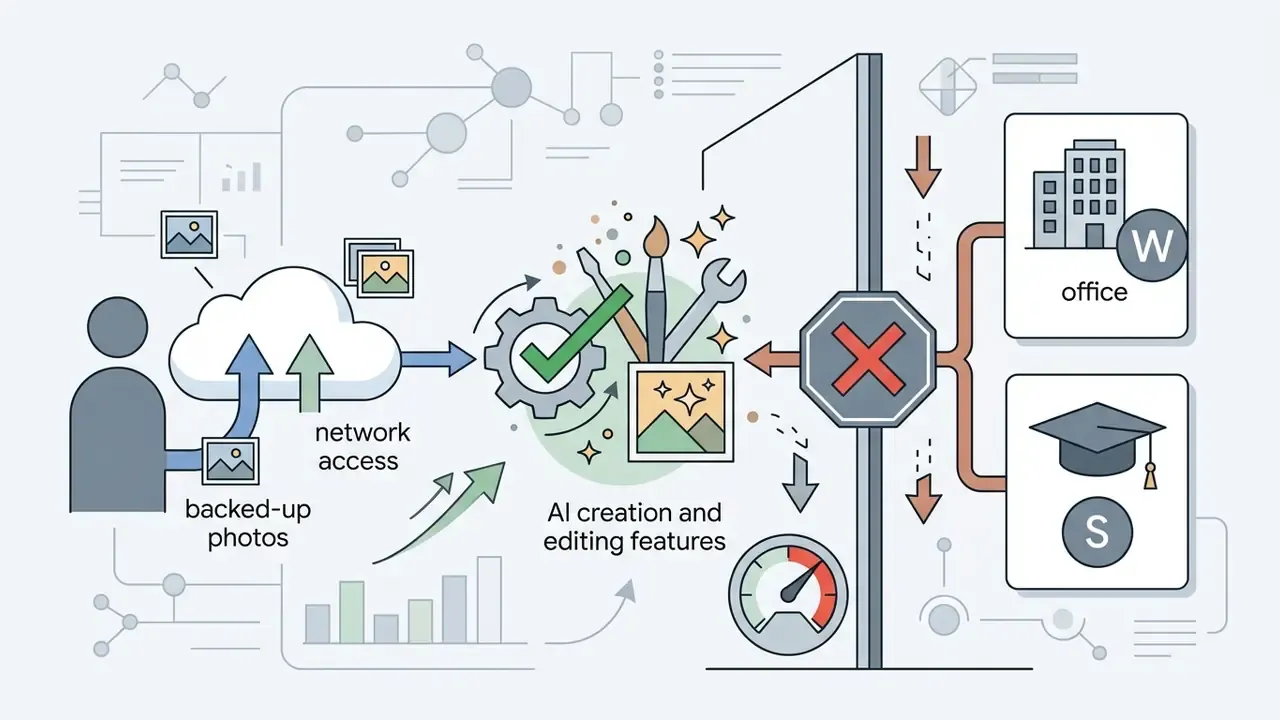
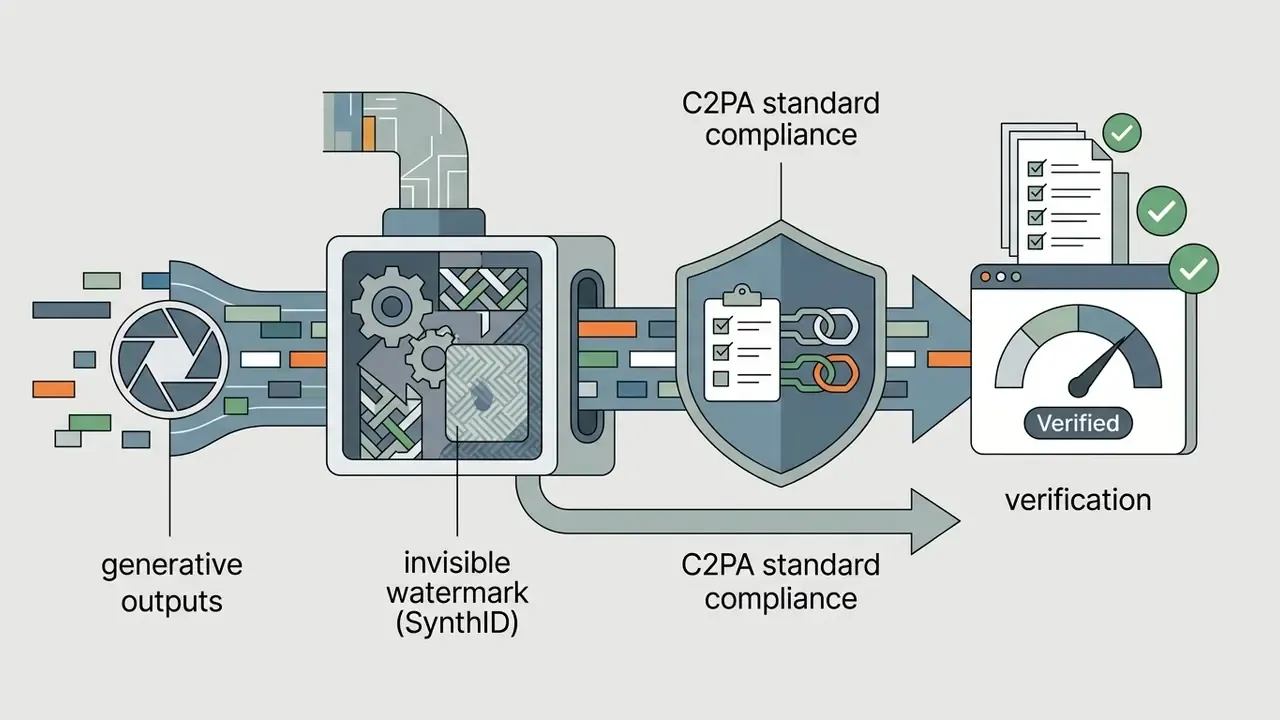
- Enterprise caveat. Google Workspace and school accounts may have AI editing disabled by policy. Generative edits are processed with cloud assistance and carry provenance metadata considerations.
What Is Google Photo Editor and Where to Find It
Google Photo Editor is the native editing workspace embedded within the main Google Photos application, across mobile operating systems and web browsers. Users do not need to download a separate product to perform a photos edit or retouch an image. The functionality is integrated into the primary image viewer, which is exactly why adoption inside organisations happens quietly.
Editing in Google Photos is best understood as a mode rather than a product. The user opens a photograph, taps Edit, and immediately receives a panel of tools organised into named categories. No file import, no project creation, no export dialogue.
"Editing in Google Photos is a mode inside the app: the user opens a photo, taps Edit, and gets tools grouped by category."
To access the editor, open the google photos app on Android or iOS, choose any photograph from your library, and tap the Edit button in the bottom toolbar. This action opens a structured panel containing manual correction controls, preset filters, and AI-powered utilities. On desktop computers, navigating to photos.google.com and selecting a photo reveals a similar edit button at the top right of the screen.
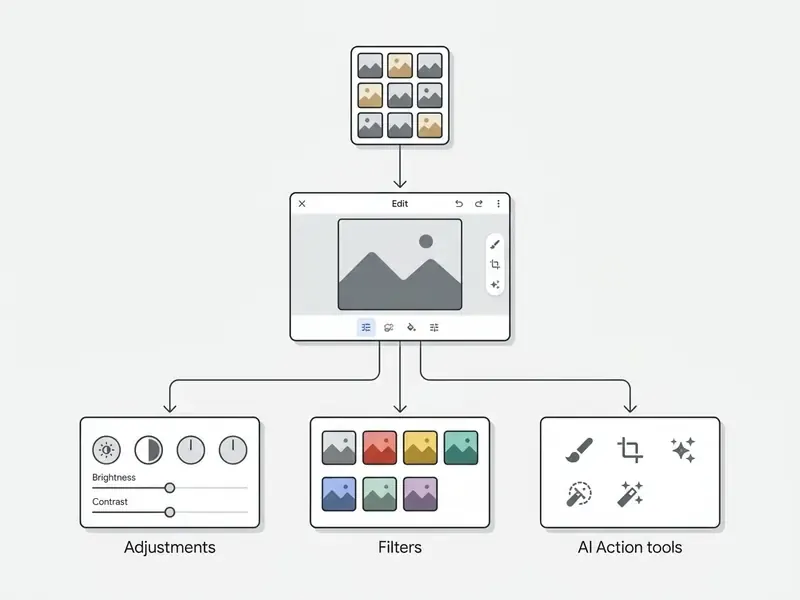
While the mobile application provides a comprehensive suite of editing tools, the web version offers reduced capabilities. Advanced machine learning features like Magic Editor and conversational editing are absent on the desktop browser interface. For full functional access, Google recommends using the mobile application on supported hardware. Understanding these platform constraints is essential when reviewing a broader free photo editor landscape or configuring workflows across distributed teams. Readers comparing categories more generally can also consult our reference guide to the online photo editor market.
One practical consequence: a policy written around "browser access only" behaves very differently from a policy written around managed phones. The tool surface is not the same.
How to Edit Photos in Google Photos: Step-by-Step Guide
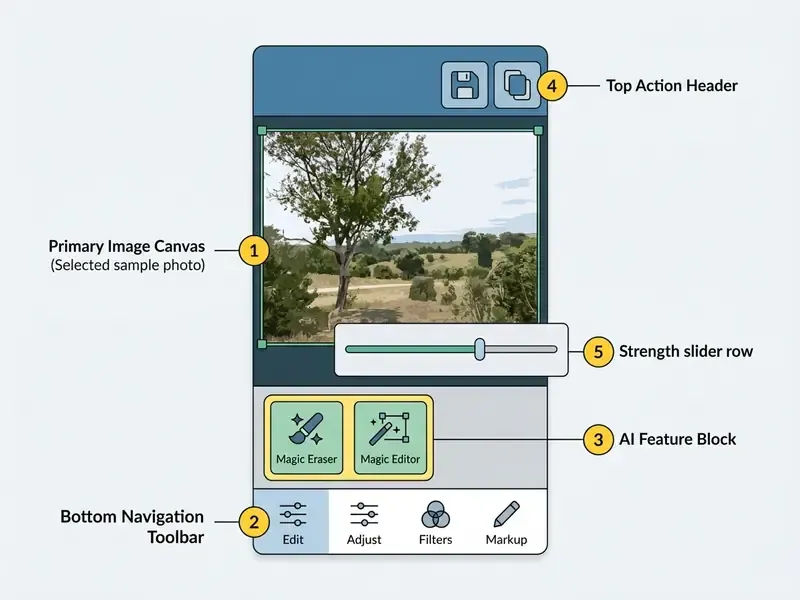
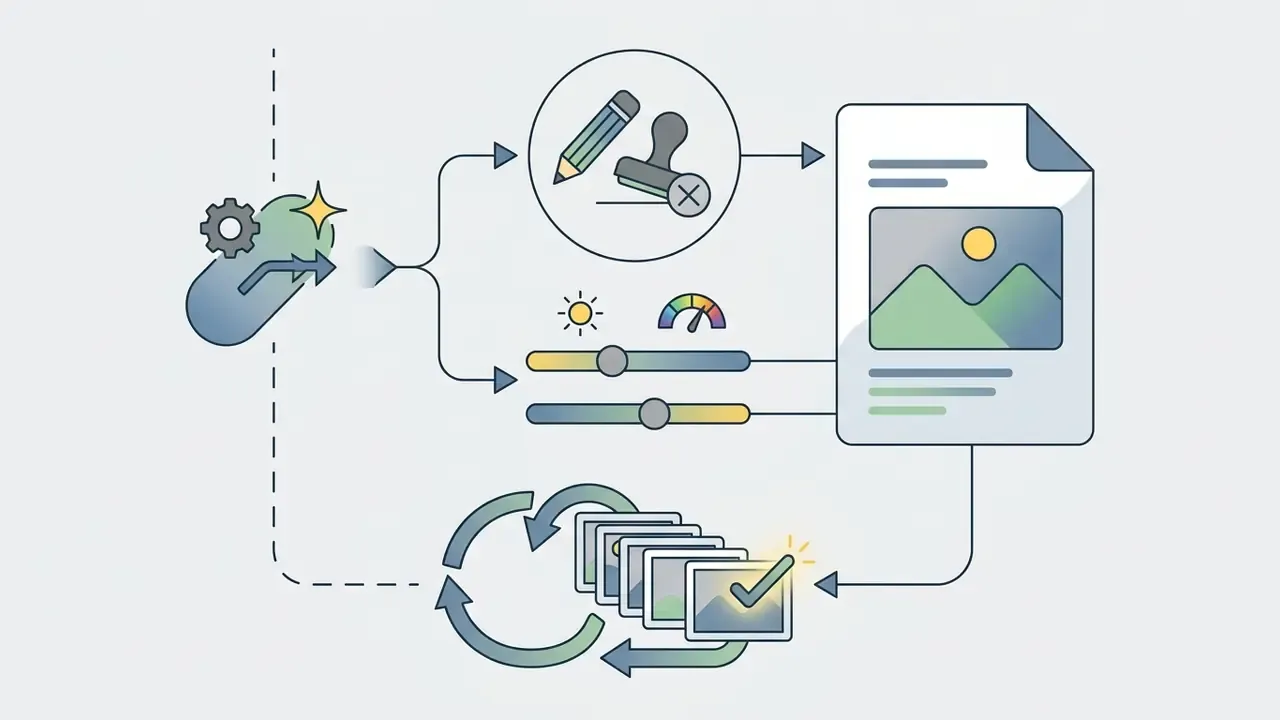
Executing an edit within the google editor photo interface requires navigating a streamlined, multi-tab layout. The non-destructive workflow ensures that modified files can be saved separately without overwriting original assets.
"Clear feature grouping, interface minimalism, and consistent iconography measurably increase task completion on small screens."



Pro-Tip: Layering AI Utilities with Manual Adjustments
To achieve solid photo fidelity without over-processing artefacts, follow this sequential workflow rather than applying tools at random. Google Photos senior product manager Selena Shang described a comparable chain publicly: apply a Magic Editor preset first, clean distractions with the same tool, then finish tone and brightness in the regular editor.
- Apply composition presets.Use Magic Editor for portrait positioning or structural framing first, so later corrections operate on final geometry.
- Clean up artefacts.Run Magic Eraser for small background debris, or Magic Editor Erase for prominent foreground subjects.
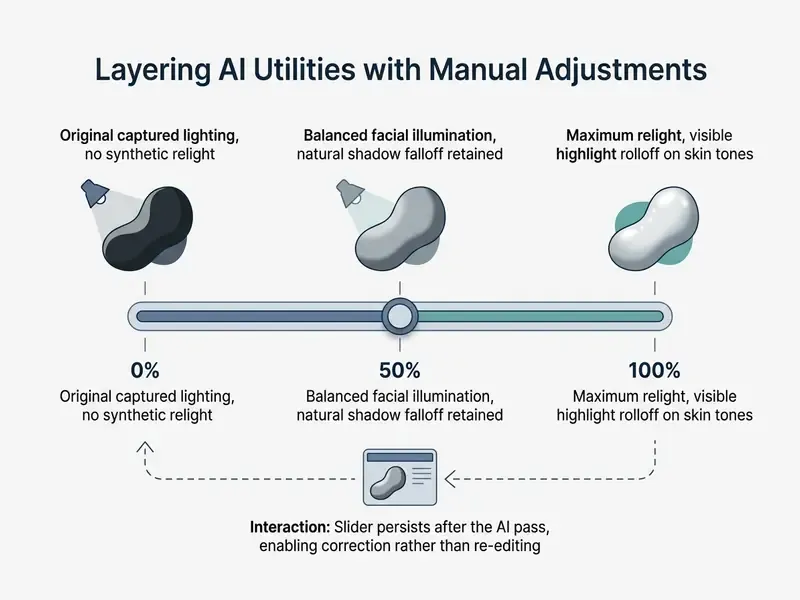
- Refine lighting geometry.Apply Portrait Light and adjust the strength slider to moderate light placement intensity instead of accepting the default.
- Final manual polish.Conclude by adjusting global Contrast, Shadows, and Saturation sliders to unify colour density across the composition.
Order matters more than most people expect. Correct lighting first and the generative pass will often re-light the scene anyway, forcing a second round of work.
"Certain editing tools provide a strength slider to let you vary the intensity of an effect. After applying Portrait Light, I'll modify the strength if I want the effect to be more subtle."
Free Google Photo Editor: What Is Available Without a Subscription
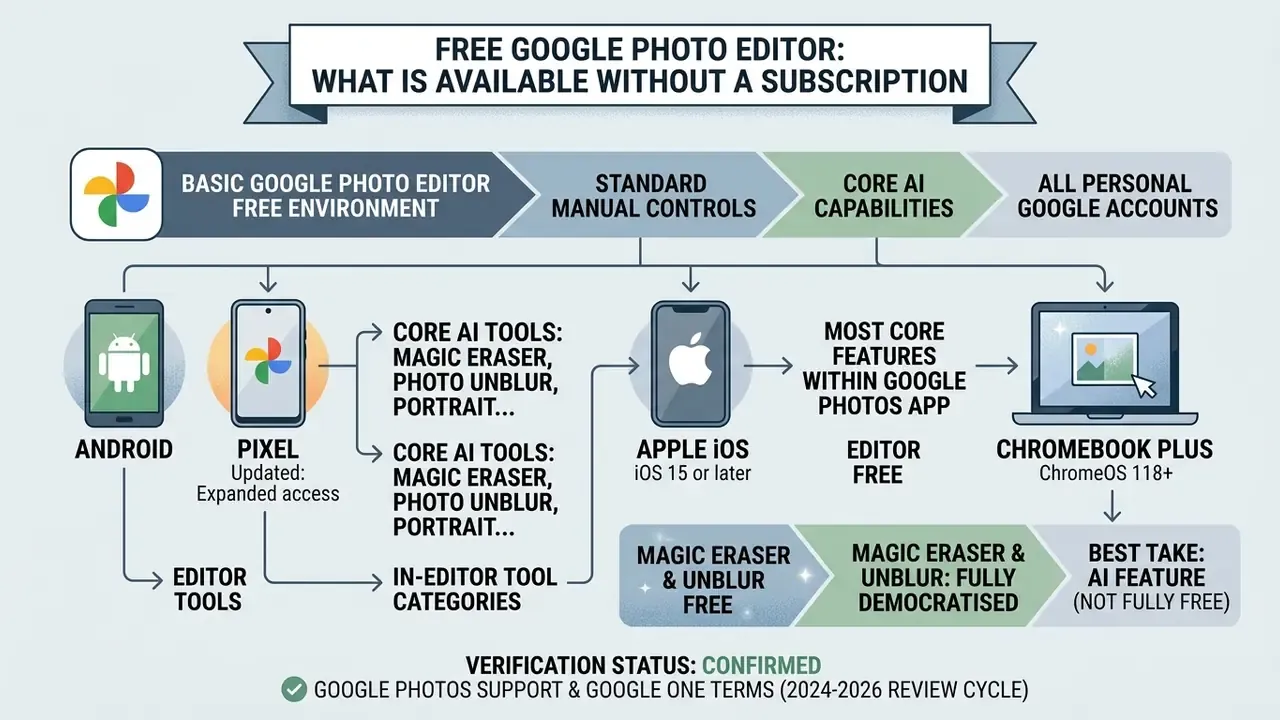
The basic google photo editor free environment provides standard manual controls and core AI capabilities to all personal Google account holders at no cost. Users can crop, adjust exposure, tune colour, and remove objects without buying a paid subscription or maintaining active software licences. Worth benchmarking that against dedicated AI photo editors that gate comparable features behind credits: Google does not sell per-edit credits here, and credits Google does charge for tend to sit inside other product lines entirely.
Updated: Google has expanded access to core AI tools, such as Magic Eraser, Photo Unblur, and Portrait Light, to standard google photos users on Android and iOS, provided the device meets minimum hardware and OS thresholds and the account is a personal Google account. Access is therefore broad but not universal. It depends on device class, regional rollout, and Google One membership for the metered features. Generative features like Magic Editor carry usage thresholds on non-Pixel hardware. Unsubscribed users receive 10 Magic Editor saves per month; exceeding this cap requires upgrading to a 2 TB+ Google One Premium plan or operating a Google Pixel device. Personal accounts retain access to standard tools, whereas Google Workspace or education accounts may experience administrative restrictions.
On Chromebook Plus hardware, Magic Eraser and Photo Unblur are free from ChromeOS 118 upward, while Magic Editor becomes available from ChromeOS 125 upward. On that platform the monthly save cap does not apply in the same way as on non-Pixel phones.
"On Chromebook Plus, Magic Eraser and Unblur are free with ChromeOS 118+; Magic Editor arrives with ChromeOS 125+, without a save limit."
| Tool Category / Feature | Primary Function | Free Access Tier | Explicitly Supported Devices / Platforms | Access Notes & Verification |
|---|---|---|---|---|
| Basic Adjustments | Manual exposure, contrast, saturation, and temperature tuning | Yes, completely free | Android, iOS, Web, Chromebooks | Accessible via standard Edit panel without paywalls (Google Photos Help, 2026). |
| Crop & Geometric Tools | Reframing, rotation, aspect ratio lock, and Auto Frame | Yes, completely free | Android, iOS, Web, Chromebooks | Auto Frame available on mobile; basic crop supported across all platforms. |
| Filters & Sky Palettes | Tonal presets and sky colour replacements | Yes, completely free | Android, iOS, Chromebooks (limited web) | Intensity sliders allow granular control over preset filter applications. |
| Magic Eraser | AI-driven object removal and colour camouflage | Yes, completely free | Pixel devices, Android 8.0+, iOS 15+, Chromebook Plus (ChromeOS 118+) | Unrestricted access across personal Google accounts (Google Blog, 2024). |
| Photo Unblur | ML sharpening for motion blur and unfocused faces | Yes, completely free | Pixel devices, Android, iOS, Chromebook Plus | Requires device hardware acceleration for fast local rendering. |
| Portrait Light & Portrait Blur | Post-capture light source placement and depth-based background blur | Yes, completely free | Android, iOS, Pixel, Chromebook Plus | Strength slider allows intensity correction after the AI pass. |
| HDR Effect (photos & video) | Dynamic tone balancing across high-contrast scenes | Yes, completely free | Android, iOS, Chromebook Plus | Applies to both still images and video clips. |
| Cinematic Photos | Adds 3D camera movement to flat 2D images | Yes, completely free | Android, iOS | Generates synthetic depth maps automatically. |
| Sky Suggestions & Color Pop | One-tap sky replacement and background desaturation | Yes, completely free | Android, iOS, Web (partial) | Isolates subject colour while converting background to greyscale. |
| Video Effects & Collage Styles | AI stylisation for video clips and collage layouts | Yes, completely free | Android, iOS | Applies cinematic filters and dynamic grid layouts. |
| Magic Editor | Generative AI subject repositioning and scene reimagining | 10 saves / month free | Android, iOS, Pixel, Chromebook Plus (ChromeOS 125+) | Unlimited saves require a Pixel device or 2 TB+ Google One Premium subscription. |
| Best Take | Face swapping across a burst of group shots | Hardware-exclusive | Pixel 8 / 8 Pro and later Pixel flagships | Not available on non-Pixel Android, iOS, or web. |
Google Photos Availability on Android, iOS, and Pixel
Platform availability for the photo editor free google ecosystem depends on operating system versions and hardware specifications. On Android, full editor functionality requires Android 8.0 or higher and a minimum of 3 GB RAM. Google documentation indicates that heavier AI tasks are gated to devices with more memory, commonly cited in the 4 GB to 6 GB range for the most demanding tools. That threshold reflects vendor guidance rather than independently benchmarked data, so treat exact figures as indicative.
On Android specifically, the editor exposes the complete set of tool categories, including in-editor tool search. Typing "Magic Eraser," for example, surfaces the tool without manual tab navigation. Small feature, real time saving.
"On Android, the Google Photos editor exposes the full set of tool categories, including in-editor tool search, for example Magic Eraser."
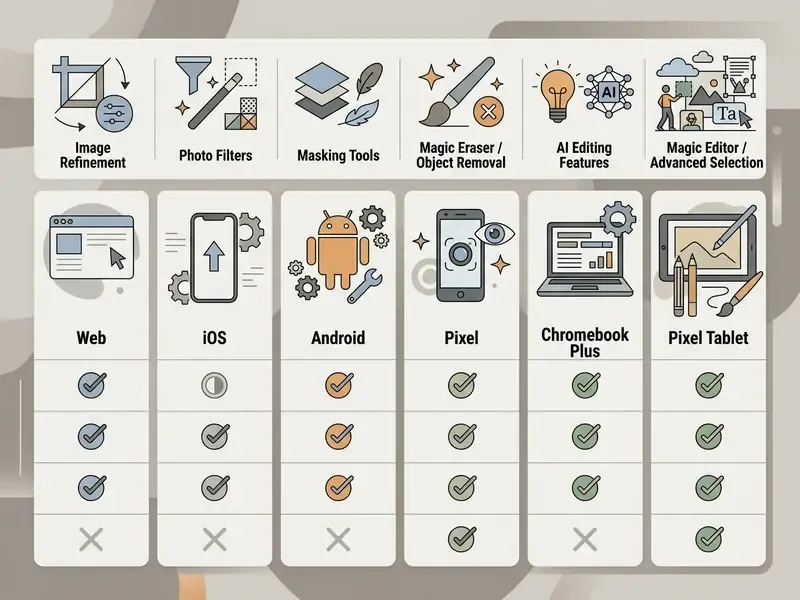
Apple iOS devices running iOS 15 or later support most core features within the google photos app, including Magic Eraser, Photo Unblur, and conversational "Help me edit" entries. Hardware-exclusive capabilities, such as Zoom Enhance, Best Take, and native RAW pair processing, remain tied to specific Pixel models, including the Pixel 8 and Pixel 10 series. Chromebook Plus laptops running ChromeOS 118 or higher, with at least 3 GB of RAM, receive mobile-class AI access through the integrated Android app layer.
Practically, this creates four distinct tiers: web (manual adjustments, crop, filters), non-Pixel mobile (all free AI tools plus 10 metered Magic Editor saves), Chromebook Plus (mobile-class AI without the same save ceiling), and Pixel (unlimited Magic Editor saves plus device-exclusive Best Take, Zoom Enhance, and RAW handling). If you are drafting a device standard, that four-tier split is the useful unit of analysis, not the app version number.
Google Photos Tools for Basic Image Processing
The photo editor google interface includes a solid set of standard image processing utilities designed for rapid manual adjustments. Users can fine-tune lighting parameters, correct off-centre framing, and apply tonal adjustments without modifying the original source file.
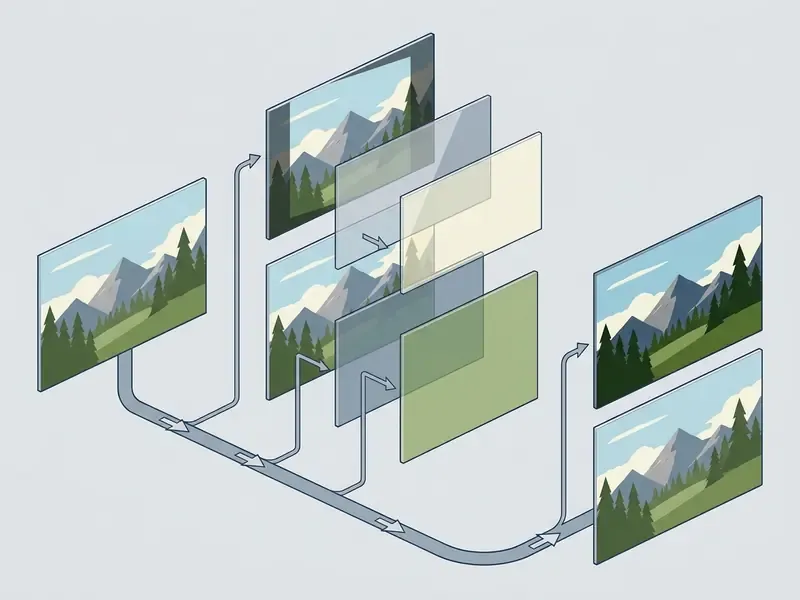
Manual controls are categorised into logical tool tabs inside the editor interface. Selecting the Adjust category reveals independent sliders for exposure, contrast, highlights, shadows, saturation, and warmth. Because edits are non-destructive, users can revert adjustments or restore the original photograph at any time prior to export. For anyone assembling an evidence trail, that restore path is quietly useful: the untouched capture stays retrievable.
Image Correction, Filters, and Quick Enhancements
"Enhanced image restoration using deep learning and transformer-based contextual optimization."
Expert quote
"Automated image enhancement tools are most effective when they apply mathematically bounded adjustments. In high-volume workflows, bounded auto-enhancement reduces manual review times while keeping output quality predictable." Marcus Hale, author
AI Tools in Google Photo Editor: Magic Editor and Magic Eraser
The integration of generative machine learning turns the google free photo editor from a basic adjustment panel into an advanced generative environment. Rather than relying solely on global pixel shifting, these tools use deep learning models to analyse semantic content, isolate subjects, and reconstruct missing image areas.
"Key intelligent editing algorithms, style transfer, image synthesis, and enhancement, are already applied in real creative workflows."
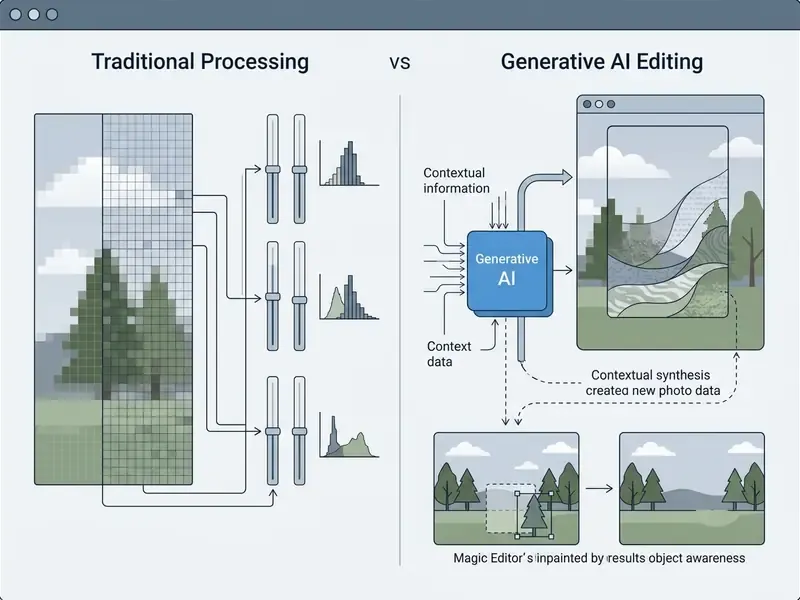
Magic Eraser identifies unwanted visual distractions, such as background pedestrians or overhead utility lines, and fills the erased area using contextual inpainting algorithms. Photo Unblur uses machine learning models trained on facial structures to correct motion blur and focus drift. Magic Editor, meanwhile, uses diffusion-based generative architectures to allow subject movement, sky replacement, and natural-language prompt modifications. It is the same model family that powers standalone AI image generators, applied here to an existing photograph rather than a blank canvas.
That distinction matters for review policy. A slider moves pixels that a camera recorded. A diffusion pass invents pixels that never existed.
When to Use Magic Editor vs. Eraser
Selecting between Magic Eraser and Magic Editor depends on the scope of the required modification. Magic Eraser is optimised for targeted, minor object removal where surrounding textures (grass, pavement, sky) can easily fill the removed region. As Google's own product team frames it, Magic Eraser works best for quick fixes on smaller portions of the photo, a stray figure in a landscape background, for instance. Prominent, complex foreground objects are better handled by Magic Editor's Erase tool.
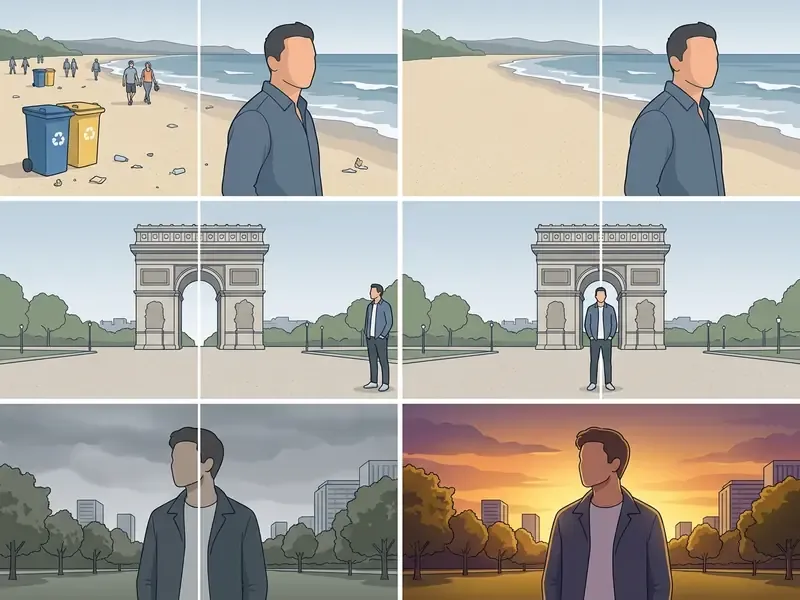
In contrast, Magic Editor handles complex structural composition changes. If an object occupies a large portion of the frame, or if moving a subject requires generating entirely new scene elements, Magic Editor provides the necessary generative reconstruction.
"A multi-stage diffusion pipeline with ControlNet conditioning and LoRA fine-tuning recovers images from 64×64 to 1024×1024 pixels while preserving texture and logo detail."
Users exploring broad creative transformations can examine trends in what is ai art or evaluate unusual synthetic outputs in weird ai images. For generative expansion tasks beyond standard boundaries, specialised AI outpainting tools offer alternative approaches, while readers who need resolution recovery rather than composition change should compare dedicated AI image upscalers.
How to Select Objects in Magic Editor: 3 Interaction Gestures
Precision selection in Magic Editor depends on the object's boundaries, and the tool exposes three distinct gestures rather than a single lasso:
- Tapping. Best for objects with sharp, distinct edges against the background: a water bottle in the foreground, a streetlight, an isolated person.
- Brushing. Best for fine-tuning coverage over complex shapes, or for filling in areas the automatic mask missed.
- Circling. Ideal for organic shapes with soft or ambiguous boundaries, such as foliage, clouds, or tree branches.
A practical rule of thumb: hard geometric edges, tap; soft, feathered or fractal edges, circle first, then refine with the brush. Mis-matching the gesture to the object type is the most common cause of halo artefacts around a removed subject. I have seen a single mis-brushed hairline ruin an otherwise clean edit, and no amount of contrast tuning hides it afterwards.
Enterprise Governance, Shadow AI, and Data Privacy
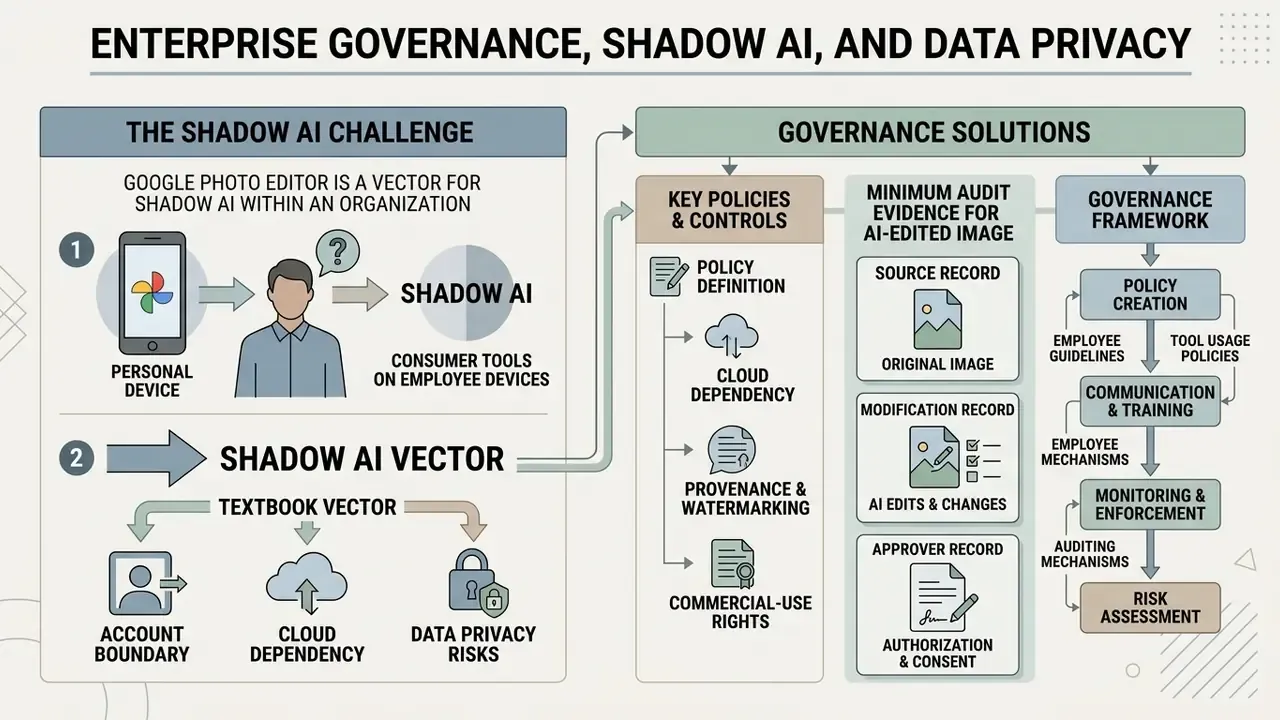
Because Google Photo Editor is a consumer surface that employees already carry on personal devices, it is a textbook Shadow AI vector. Corporate visual assets can be retouched inside a personal Google account without ever touching a managed system. No ticket, no log, no owner.
Information note: this section is general in nature. Google Photos feature access, processing locations, and account policies change over time. Verify current conditions in official Google documentation before setting internal policy. Nothing here constitutes legal, compliance, or regulatory advice.
Four control points deserve attention from risk, compliance, and IT functions:
Practical mitigations: disable backup for camera folders containing sensitive material; restrict corporate imagery to managed accounts where AI features are policy-disabled; require that any externally published AI-edited image is logged with the tool, the date, and the nature of the modification; and define a total-cost threshold at which Pixel hardware or 2 TB+ Google One seats are procured rather than tolerating uncontrolled personal-account usage.
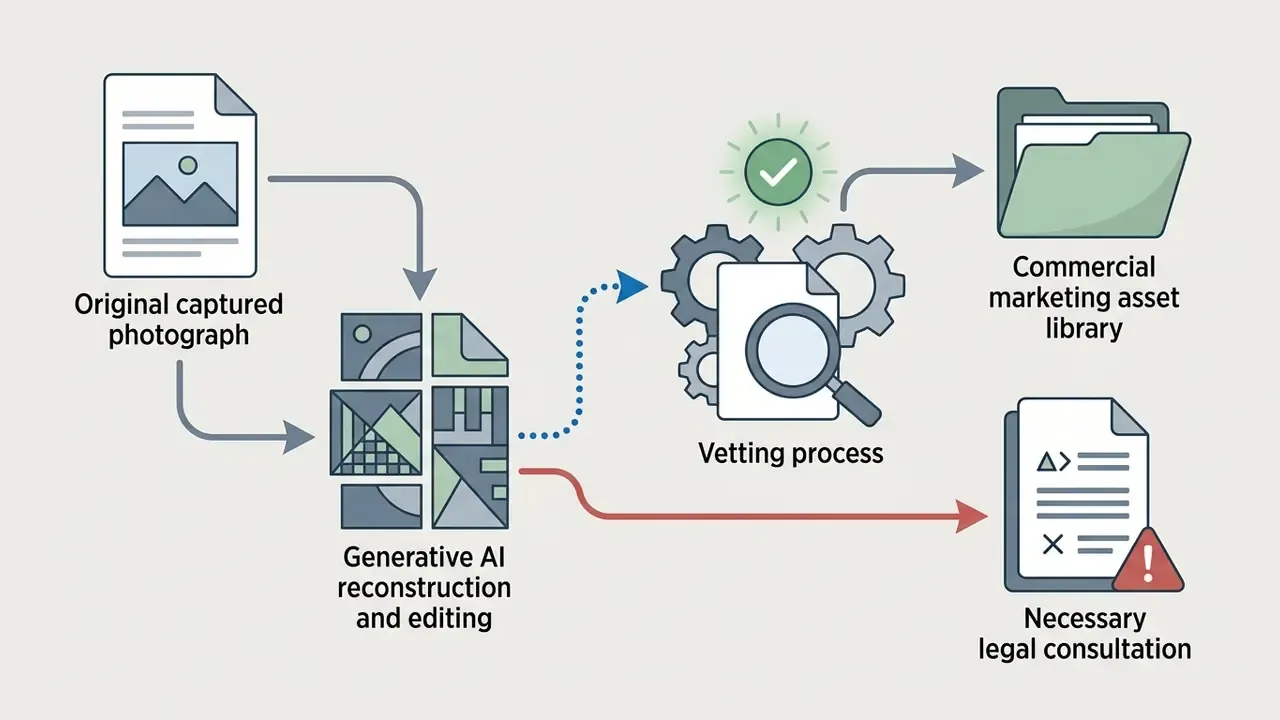
Minimum Audit Evidence for an AI-Edited Image
Is Google Photo Editor Right for Your Tasks?
Determining whether to use google photos as your primary editor depends on operational complexity, hardware availability, and licensing requirements. The platform excels at rapid, mobile-first retouching, automated cloud backup, and intuitive object removal. Position it against dedicated alternatives using our reference guide to the AI photo editor category.
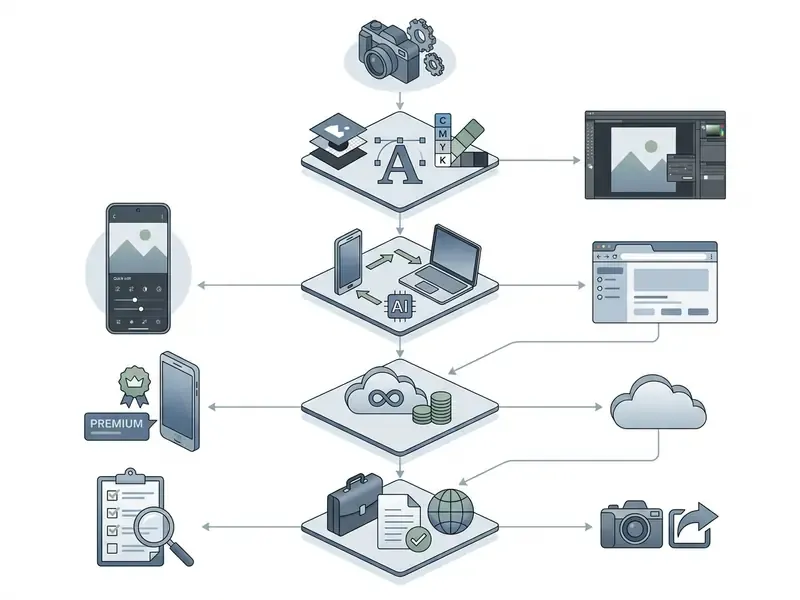
A simple cost-of-ownership rule. Monthly cost per creator is roughly the number of generative saves needed divided by 10, benchmarked against the cheapest qualifying unlock. If a user needs 12 saves a month, a single 2 TB Google One seat is usually cheaper than a Pixel hardware refresh. If an entire team needs unlimited generative saves plus Best Take and Zoom Enhance, device-level standardisation on Pixel becomes the lower-friction path, because it removes per-seat metering entirely. Model both against your own device refresh cycle; the arithmetic changes when hardware is due for replacement anyway.
For personal asset organisation and fast social media publishing, the free photo editor google offers exceptional value. Enterprise workflows that require layer compositing, CMYK colour management, or batch file processing will find mobile-focused tools insufficient. Organisations evaluating broader asset generation and media workflows can review our detailed analysis on Google AI image tools or consult our comprehensive AI Media Comparison Matrices to evaluate alternative software platforms.
One honest limitation: none of this is settled. Google has shifted feature gating more than once, and there is no public commitment that today's free tier stays free.
FAQ
What happens when my 10 free Magic Editor saves run out?
The tool still opens and previews the edit, but the save action is blocked for the remainder of the calendar month. Standard editing, Magic Eraser, Photo Unblur, and Portrait Light continue to work normally. Unlocking further saves requires a Pixel device or a Google One Premium plan of 2 TB or above.
Is Google Photo Editor genuinely free?
Yes for the large majority of tools: manual adjustments, crop, filters, Magic Eraser, Photo Unblur, Portrait Light and Blur, HDR effect, Color Pop, Sky Suggestions, Cinematic Photos, Collage Styles, and Video Effects, on eligible hardware with a personal Google Account. Only Magic Editor is metered.
Are edits destructive? Can I get the original back?
Edits are stored as a metadata layer over the original file when you choose Save, so the source can be restored. Choosing Save as copy creates a separate file and leaves the original untouched.
Does AI editing add a watermark?
Google's generative imaging stack applies invisible provenance watermarking (SynthID) and increasingly ships content-credential metadata. You will not see a visible logo, but the file may carry machine-readable provenance signals. Relevant if you republish commercially.
Can I use Magic Editor on the web?
No. Magic Editor, conversational editing, and several AI actions are app-only. The browser editor covers crop, rotate, lighting, colour, and filters.
Why is Best Take missing on my phone?
Best Take, which merges similar group shots so that every face is smiling, is a Pixel hardware exclusive introduced with Pixel 8 and 8 Pro. It does not appear on non-Pixel Android, iOS, or web.
Which devices are supported?
Android 8.0+ with at least 3 GB RAM, iOS 15+, Chromebook Plus on ChromeOS 118+ (Magic Editor from ChromeOS 125+), Pixel phones, and Pixel Tablet.
Can administrators disable these tools for staff or children?
Google Workspace and school accounts do not receive the AI creation and editing features, and family-managed accounts inherit account-level restrictions. Personal accounts on unmanaged devices cannot be centrally restricted, which is why device management rather than app settings is the effective control.
Further Reading
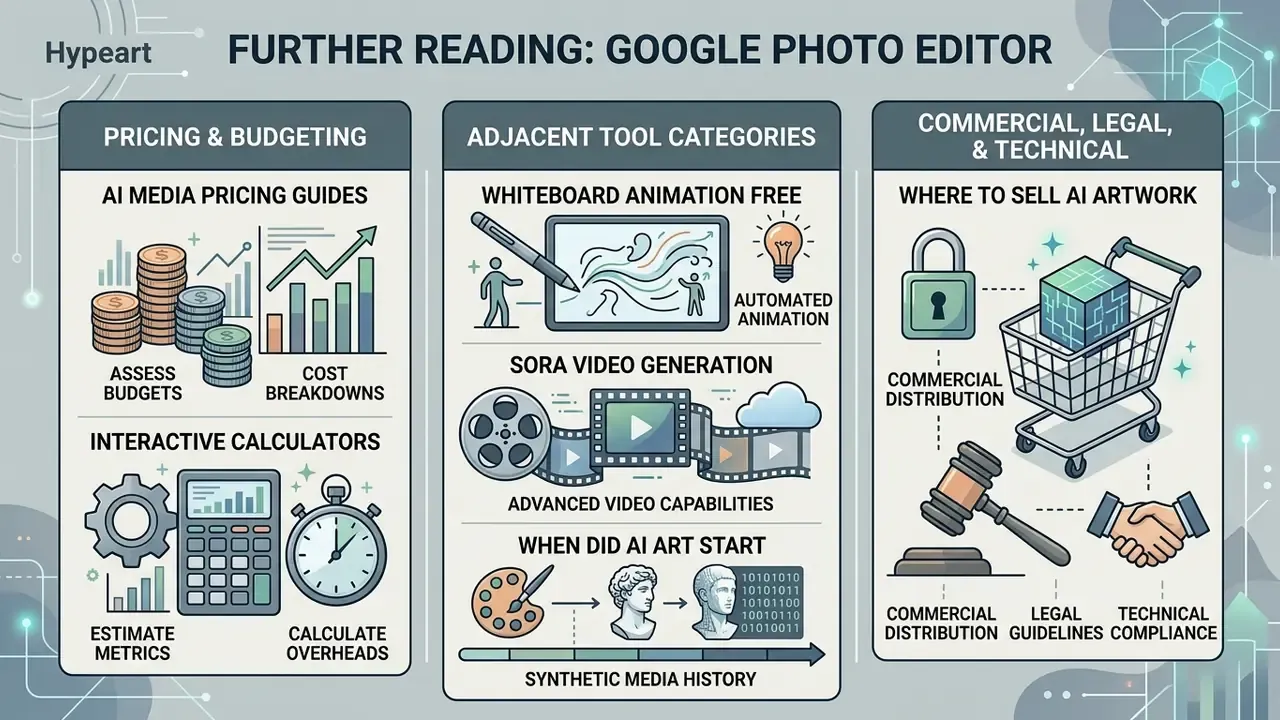
Pricing and budgeting
- Assess budget structures using our AI Media Pricing Guides.
- Estimate resource metrics and rendering overheads via our interactive calculators.
Adjacent tool categories
- Compare automated animation tools in our guide to whiteboard animation free.
- Evaluate advanced video generation capabilities in our report on what is sora video generation.
- Study historical developments in synthetic media in our analysis on when did ai art start.
Commercial, legal, and technical
- Review commercial distribution guidelines for generated media through the where to sell ai generated artwork overview.
- Access developer integration parameters using our AI Media API Guides.
- Access operational procedures via AI Media Support and Troubleshooting.
Appendix A: Editorial Revisions