"AI tools for slide creation can cut initial preparation time substantially, but they require mandatory human fact verification before instructional or public use."
Executive Summary
- What it is a prompt-to-deck generator inside the Slidesgo ecosystem that outputs editable PPTX files compatible with PowerPoint, Google Slides, and Figma.
- Best use case version 1 of a deck. Classroom explainers, student reports, internal overviews, lightweight pitch drafts, and document-to-slide conversion (DOCX, PDF, TXT).
- Worst use case regulated, financial, medical, or legal decks where every claim must be sourced. Treat generated copy as unverified draft material, nothing more.
- Pricing reality the Free tier gives 3 AI presentations and 3 template downloads per month with a mandatory Slidesgo credit slide. Premium raises that to up to 150 generations and 150 downloads per month, with attribution waived.
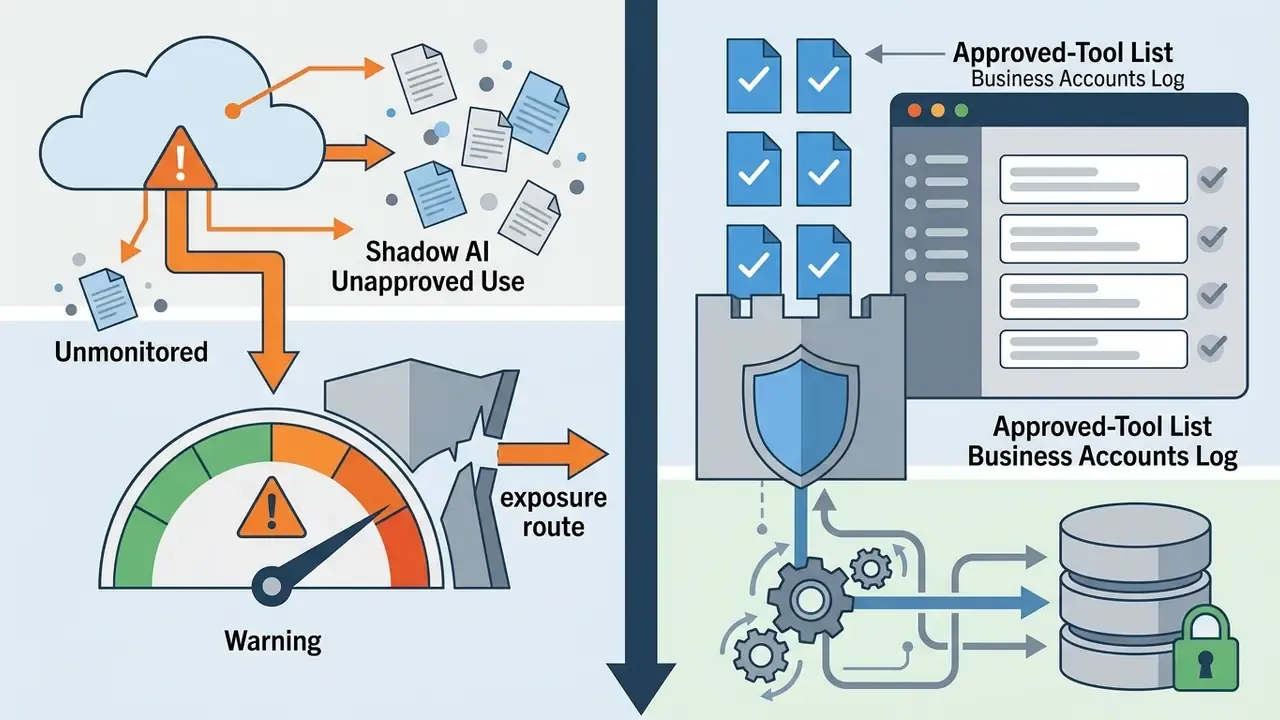
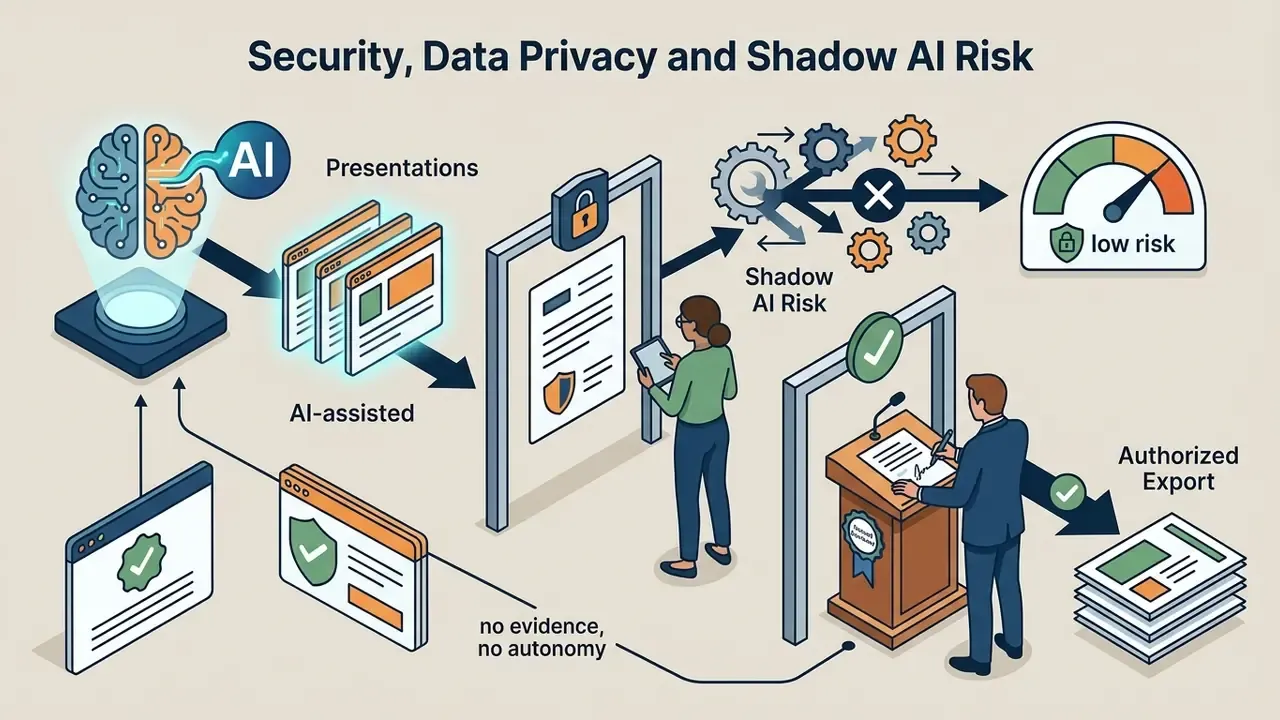
- Governance takeaway there is no published enterprise-grade data-processing guarantee for confidential documents, so uploading internal or client-confidential files should be governed by written policy rather than individual discretion (see the section on security, data privacy and shadow AI risk).
- Quality benchmark peer-reviewed testing shows AI-generated slides can match human-authored slides on perceived quality, but only with structured prompts and a human review pass.
What this guide covers

What Slidesgo AI Presentation Maker Is and Which Tasks It Fits
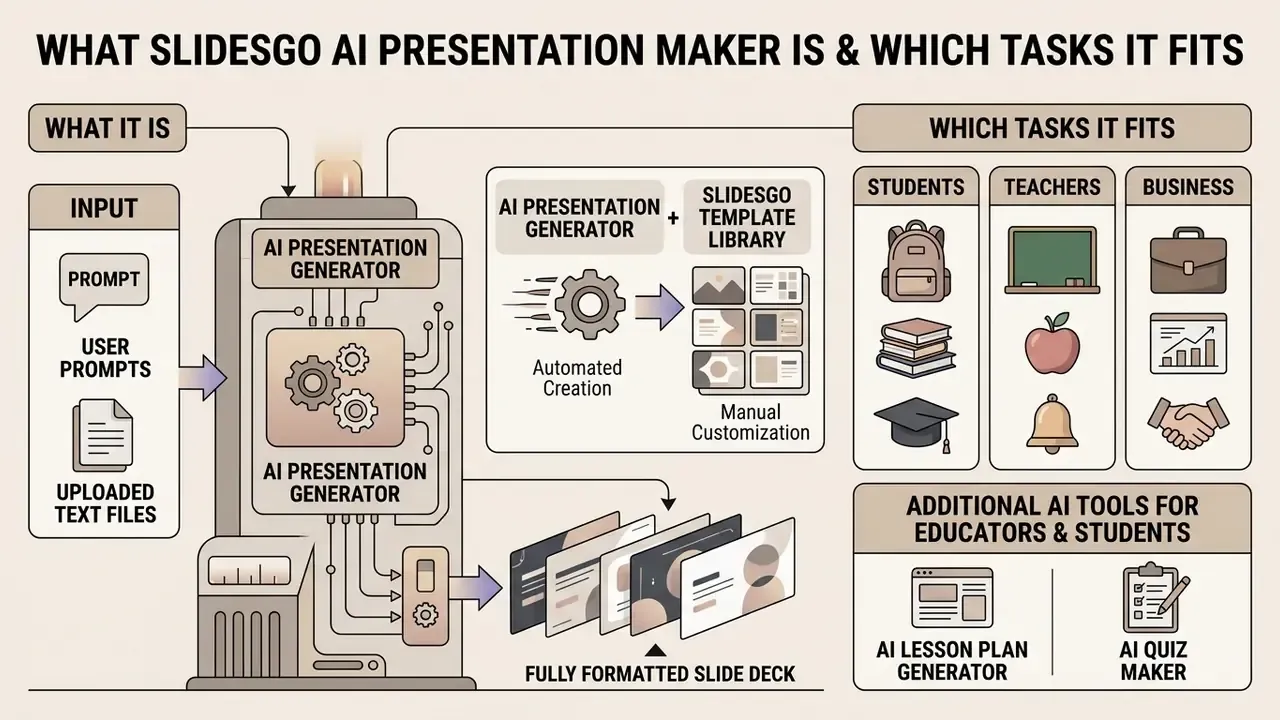
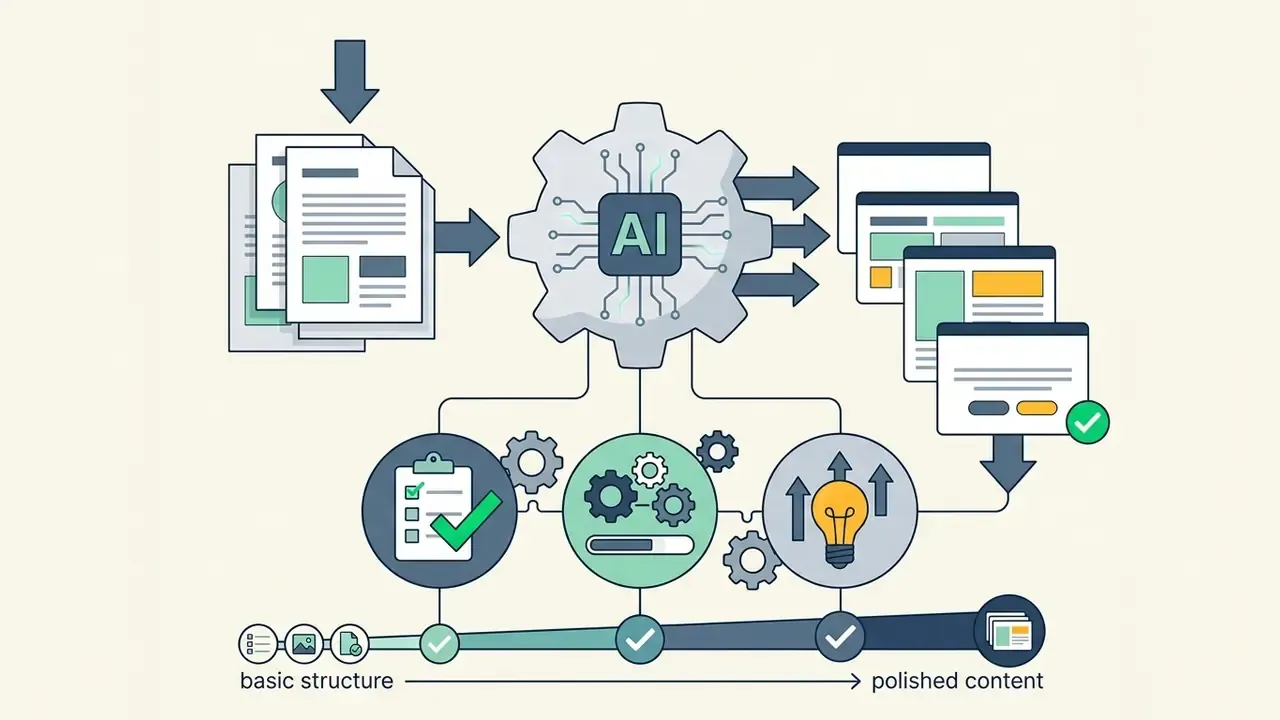
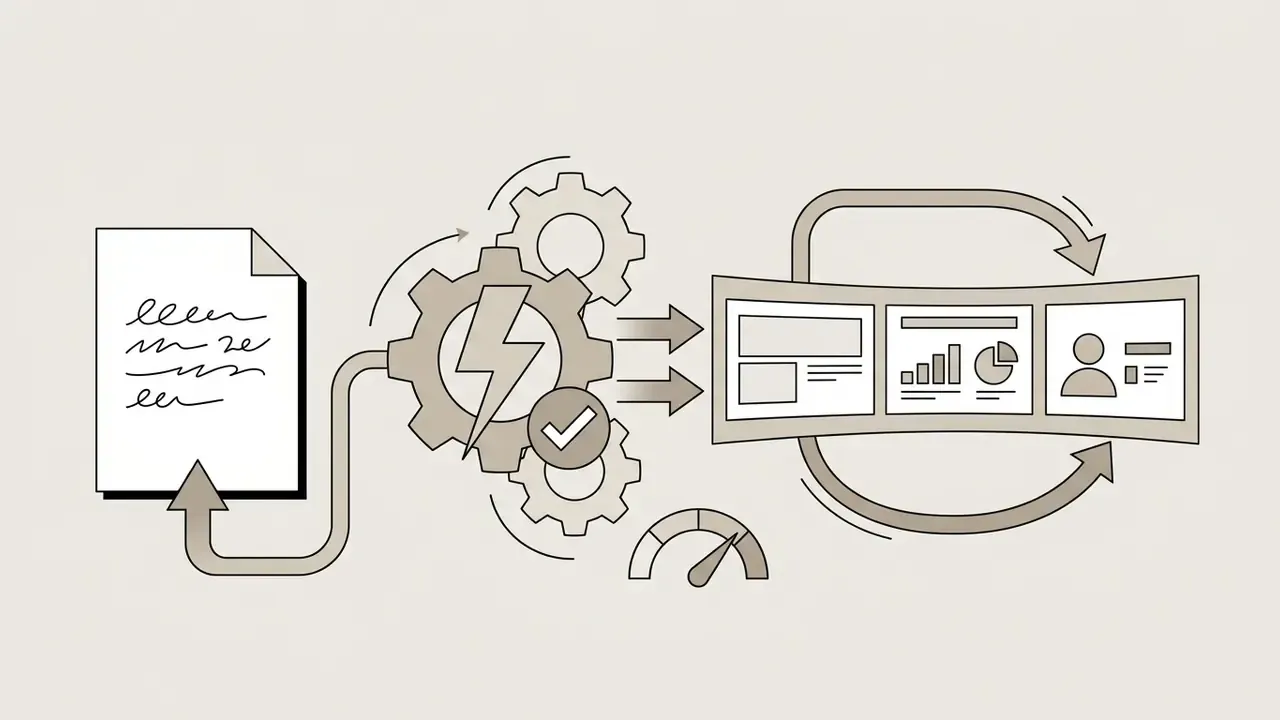
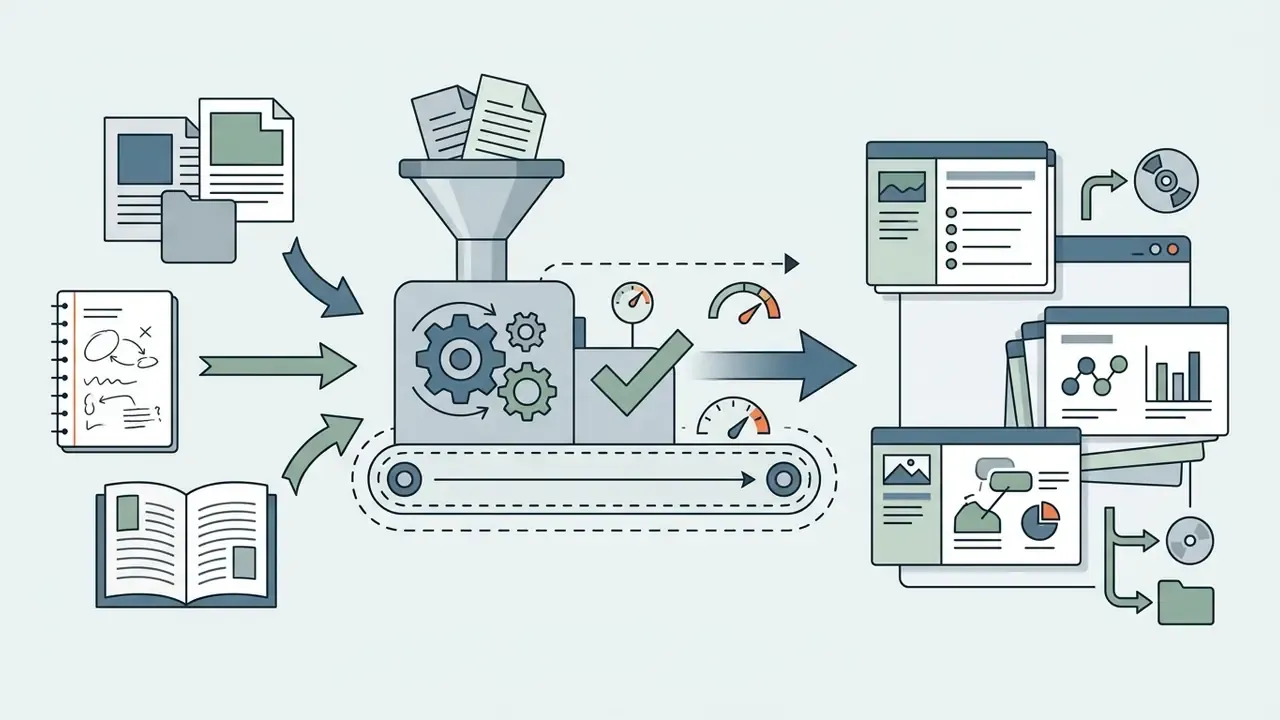
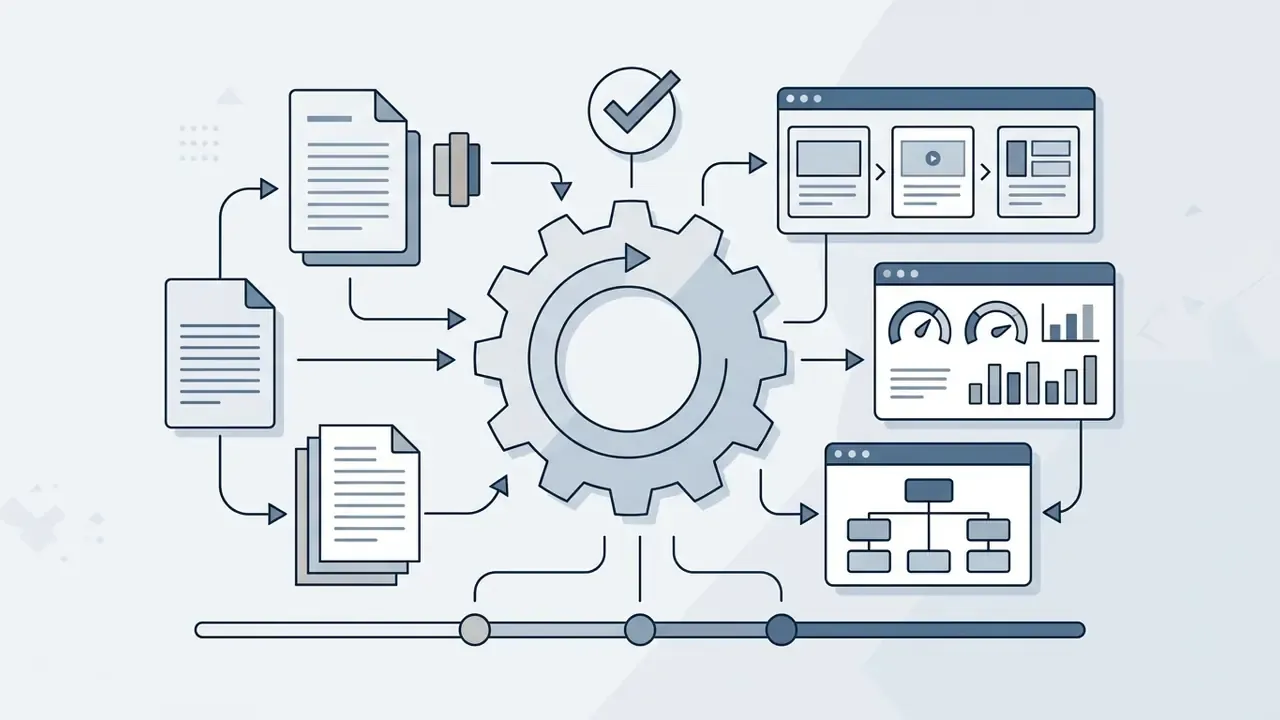
Mechanically, the tool parses your prompt, builds a logical outline, assigns a thematic visual template, and populates individual slides with suggested headlines, body copy, and graphics. Research on generative instructional design (Marchena Sekli, Godo & Véliz, Generative AI Solutions for Faculty and Students, 2024) reports that AI-assisted slide creation accelerates preliminary content organization, letting users spend their attention on factual verification and narrative refinement instead of manual visual styling. That reallocation of effort, not raw speed, is the real value.
The AI Presentation Generator vs. the Slidesgo Template Library
The primary distinction between the Slidesgo AI presentation generator and the traditional Slidesgo catalog sits in the initialization step. Standard Slidesgo templates require manual text insertion into static layouts. The AI presentation maker drafts outline structures, headlines, and supporting text from your topic parameters before you type a single bullet.
Static template downloads give you complete visual control before content drafting begins. The Slidesgo AI presentation generator instead constructs contextual slide flows automatically. Recent empirical evaluation of GenAI presentation systems suggests that prompt-driven slide structures reach pedagogical coherence ratings comparable to human-authored drafts, provided the prompt supplies well-structured context.
Practically, the design layer behaves differently in each workflow. Slidesgo describes its templates as "ready to use, customizable and easy to edit", so the visual frame exists before content insertion: faster, but design-constrained. Prompt-only generation has no pre-selected layout system at all; structure is derived from the instruction itself, which makes it more flexible and far more dependent on prompt quality. Teams standardising terminology across generative media stacks often benchmark tool categories side by side, for example when comparing the best AI art generators for slide illustration pipelines, or when reviewing full AI Media Comparison Matrices before committing to a single vendor.
Who Slidesgo Is Built For: Students, Teachers and Business
Slidesgo is engineered around three primary user groups: students, teachers, and business professionals who need rapid presentation drafting.
- Students academic reports, group presentations, and research summaries. Raw notes or a bare topic become structured presentations in minutes.
- Teachers lesson planning, lecture slide creation, and curriculum visual aids, which cuts manual prep time for classroom instruction (Marchena Sekli et al., 2024).
- Business professionals initial pitch decks, quarterly updates, project proposals, and corporate training material, where speed and visual consistency matter more than bespoke design.
"Generative AI was applied to build slides, exercises and personalised materials across medical education and language courses."
Additional AI tools for educators and students within the Slidesgo ecosystem:
Business users deciding whether generated visual assets can legally appear in client-facing decks should review how the wider market handles usage rights, for instance in the overview of the Canva AI Generator's commercial licensing terms and the broader guidance on commercial use of generated media.
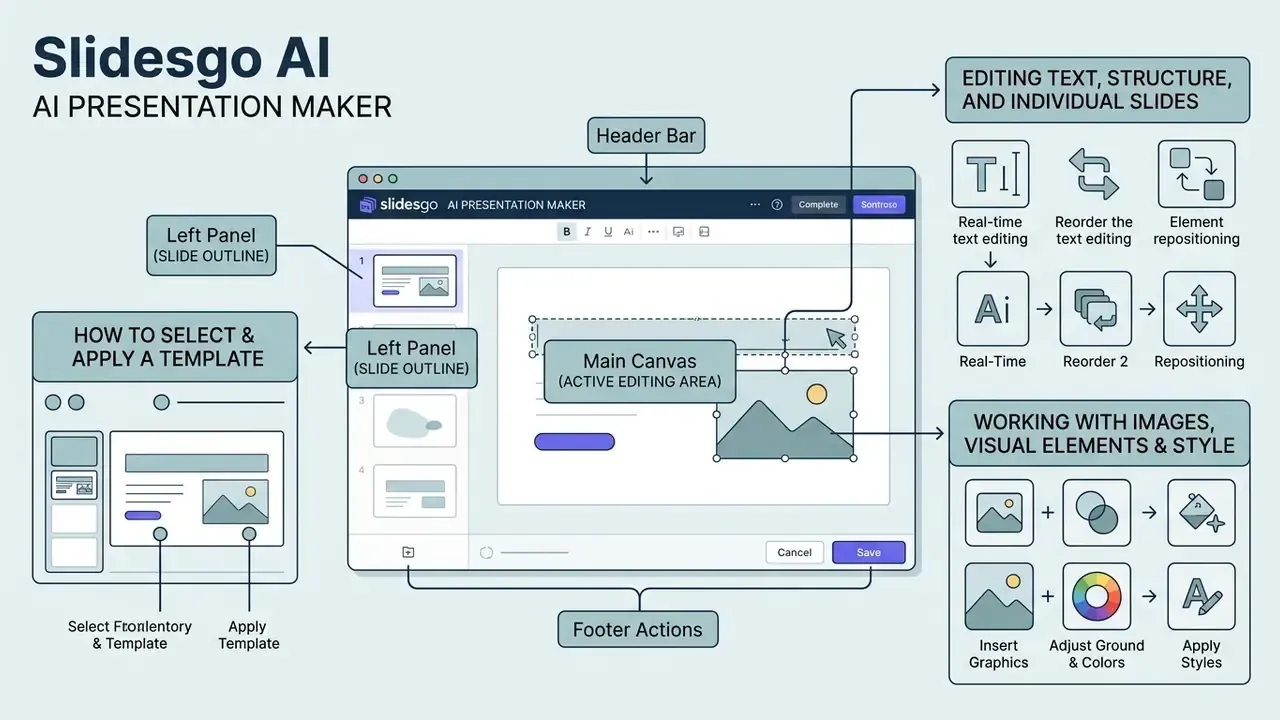
- Role-specific customization branches:
- Students: academic tone, concise summaries, citations, export to PPTX or PDF.
- Teachers: instructional tone, lesson objectives, visual aids, AI Quiz Maker, export to Google Slides.
- Business: professional or formal tone, key metrics, executive summary, PPTX download.
One clarification, because it trips people up. The role branches in Figure 1 are editorial scenarios, not an in-product role selector. Slidesgo does not currently expose a "student / teacher / business" switch inside the generator. Role-specific entry points exist as separate landing pages, so the differentiation actually happens through your prompt wording, tone selection, and export target.
How to Use Slidesgo AI Presentation Maker: Step-by-Step Process
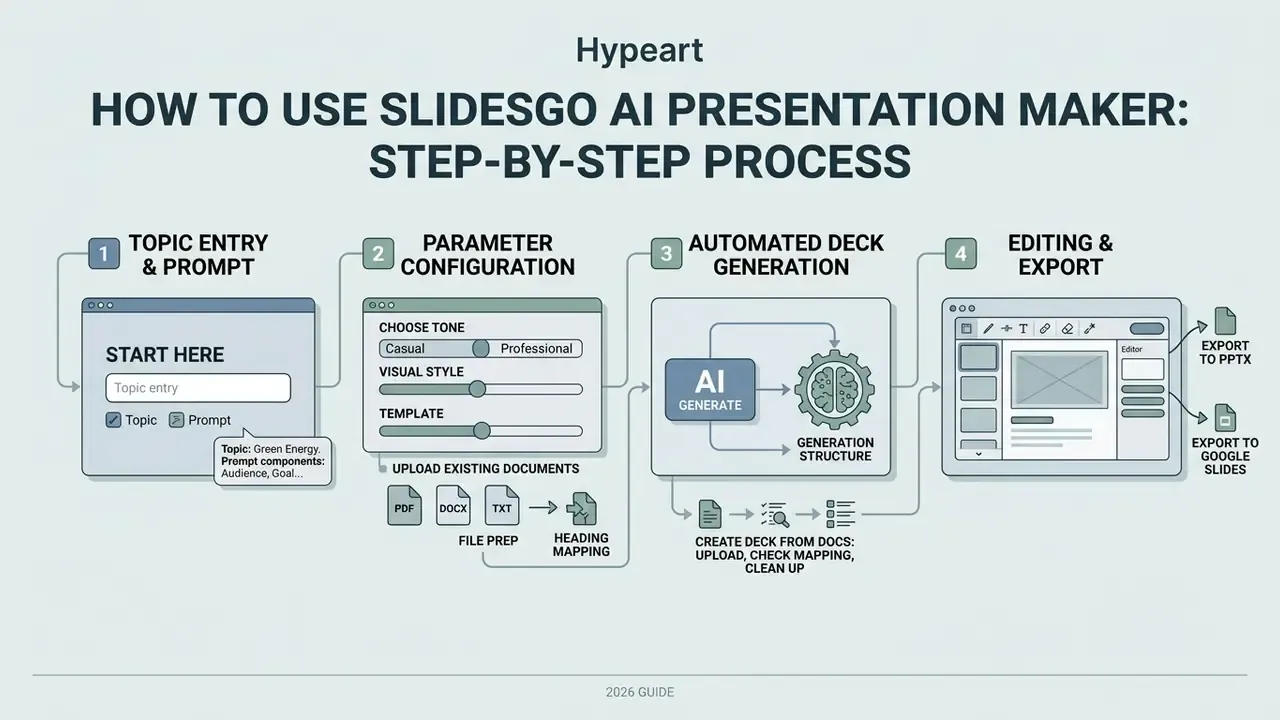
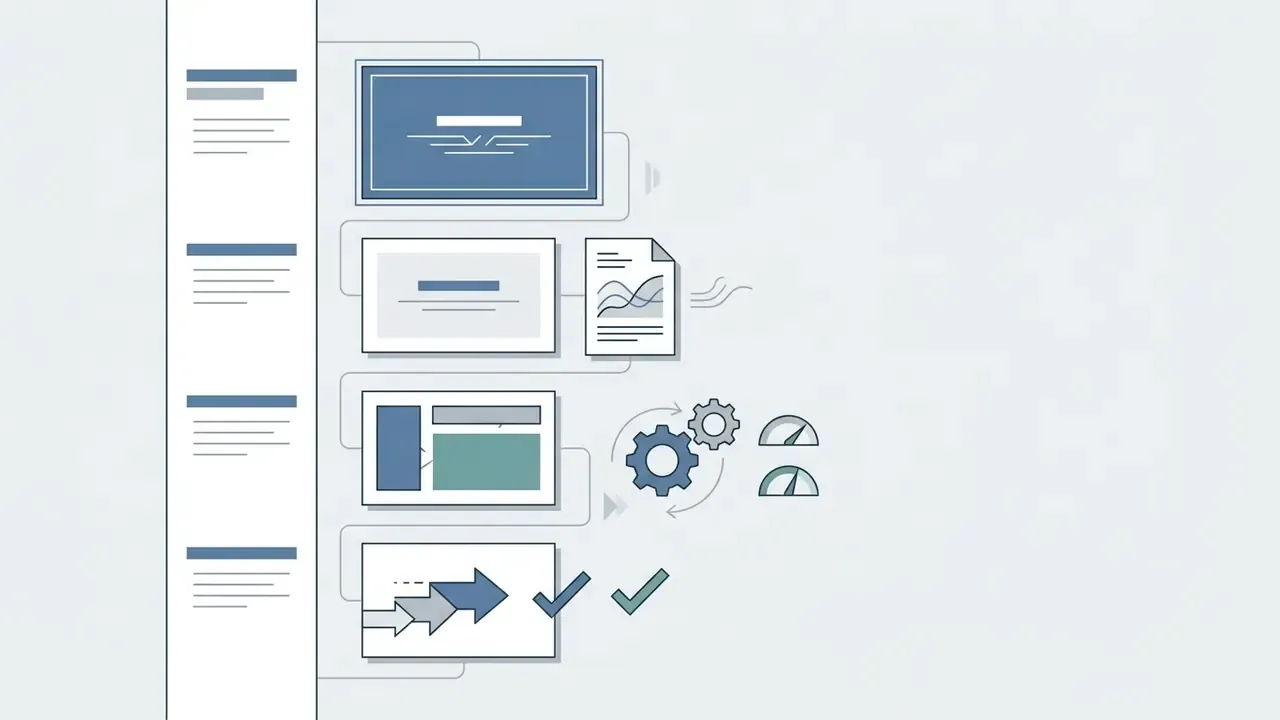
To use Slidesgo AI Presentation Maker effectively, follow a linear four-step workflow: topic entry, parameter configuration (tone and style), automated deck generation, and browser-based editing before export.
A structured generation workflow keeps the resulting AI presentation aligned with your communication goal, holds factual precision in place, and respects design standards. Account registration and login are mandatory before generation. Unregistered visitors cannot produce or download a deck, so plan for that if you are demoing the tool to a committee.
Enter Your Topic and Prepare the Presentation Prompt
Every effective presentation starts with a detailed, context-rich prompt that names the topic, the target audience, the key insights, and the desired slide count.
A vague prompt ("History of Banking") yields generic slides. A structured prompt ("Create a 6-slide executive overview of US commercial banking model risk frameworks for risk officers, focusing on SR 11-7 compliance") produces precise, actionable content.
"Explicit context constraints in the prompt significantly improve concept coverage and instructional coherence in AI-generated drafts."
Slidesgo's own prompt guidance confirms the same principle: specificity is the primary lever, and prompts should define structure, relevant context, constraints, and tone. Rather than improvising each time, use a fixed five-component matrix so no critical parameter goes missing.
| Prompt component | What to specify | Practical example |
|---|---|---|
| Audience | Who will actually watch the deck | "For the board of directors of a fintech startup" |
| Outcome | The decision or conclusion viewers should reach | "Approve the Q3 budget for AI model deployment" |
| Scope | Mandatory topics and content blocks | "Problem, current metrics, three solution options, ROI" |
| Format | Slide count, ratio, required visual types | "8 slides, 16:9, at least one comparison table and one timeline" |
| Tone | Delivery style and register | "Direct, business-like, no abstract introductions, no jargon" |
Worked example combining all five components: "Create an 8-slide presentation for first-year biology students explaining photosynthesis, with one process diagram, one comparison table, and a 3-question recap. Tone: clear and instructional, no jargon." Slidesgo documents five tone settings and several visual styles, so the tone line in your prompt should map onto one of them rather than fight it.
When you build complementary visual assets for the same campaign, thumbnails, portraits, or motion graphics, production teams commonly extend the pipeline with adjacent tools such as an animation maker, a faceless ai video generator for narrated recaps, or a free AI video generator comparison to automate the visual pipeline end to end.
Choose Tone, Visual Style and Template
Before you hit generate, configure the narrative tone, the visual design style, and baseline template parameters inside the prompt interface.
Slidesgo provides five documented tone settings, fun, casual, creative, professional, and formal, alongside visual style selections including Photography, Illustration, and 3D Style. According to Slidesgo's personalization documentation (Slidesgo School, 2025), the image style can be chosen directly from the prompt box, and the selected theme then applies fonts, colors, and layout automatically across the whole deck. In other words, parameter selection guides the engine toward matching palettes, typography pairs, and layout systems from the template catalog. That is a vendor-described mechanism, not an independently audited algorithm, so verify the visual result slide by slide instead of assuming brand compliance.
Generating a Presentation From Existing Documents (PDF, DOCX, TXT)
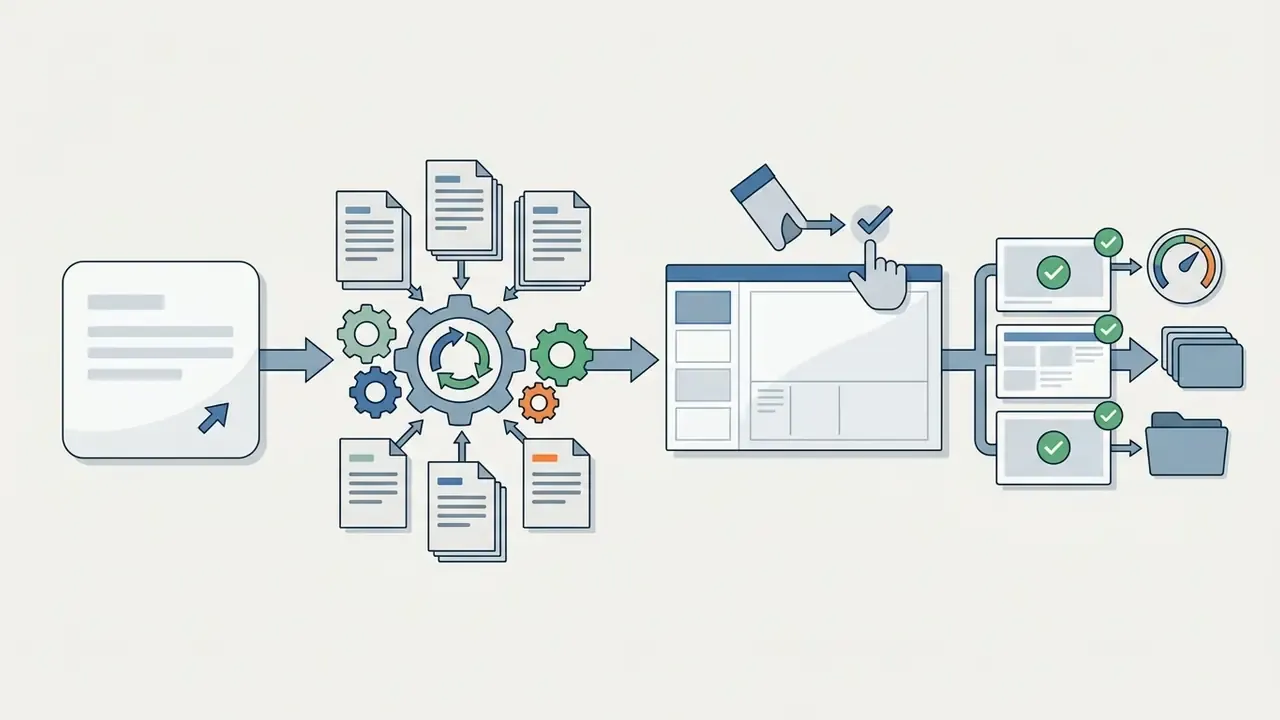
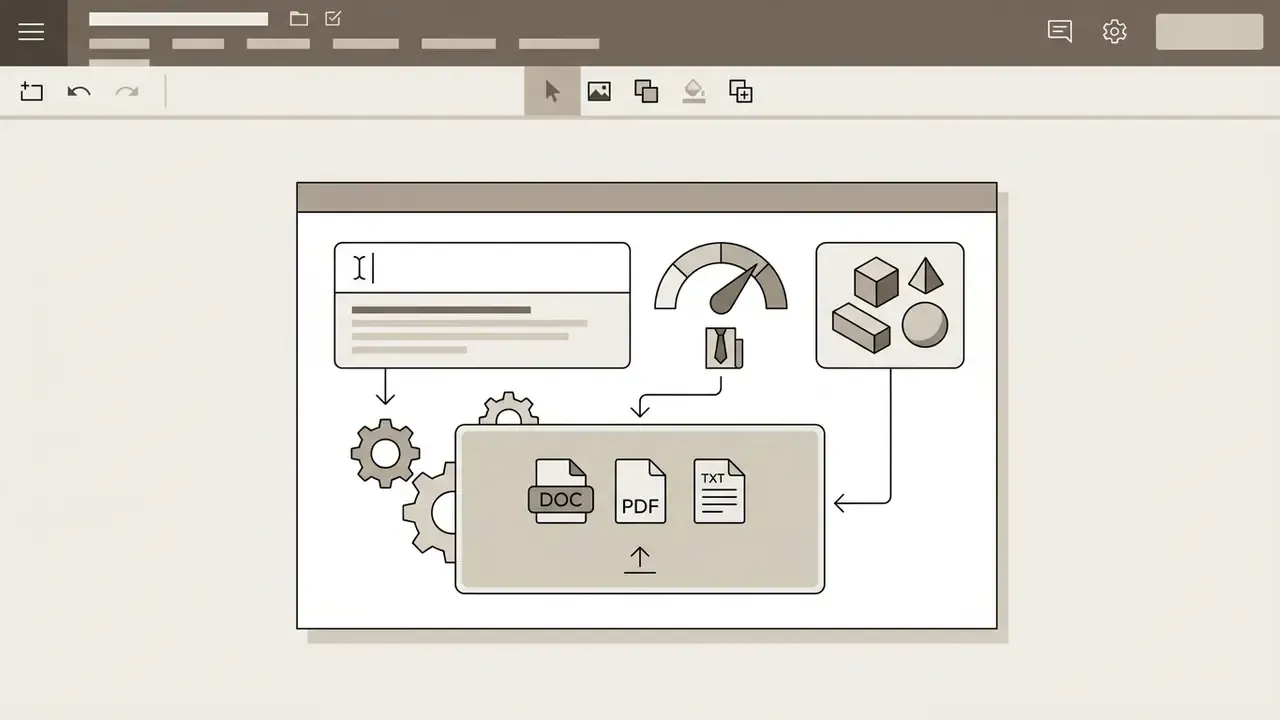
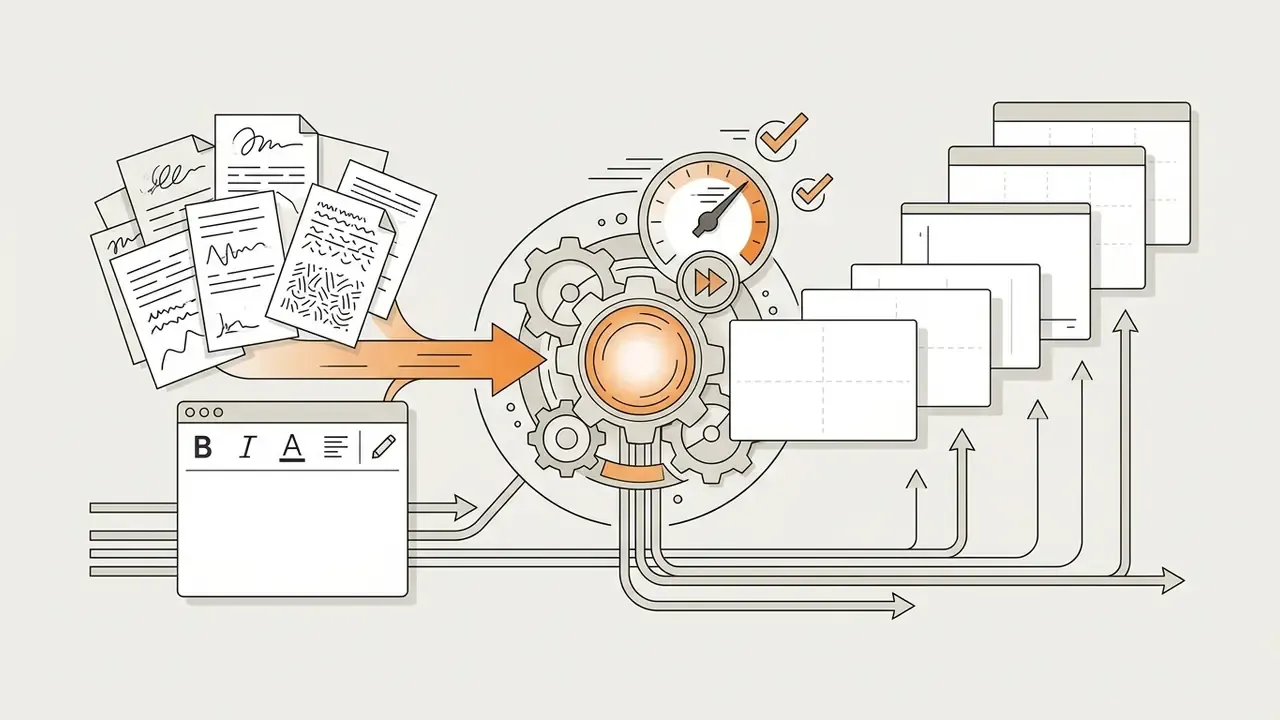
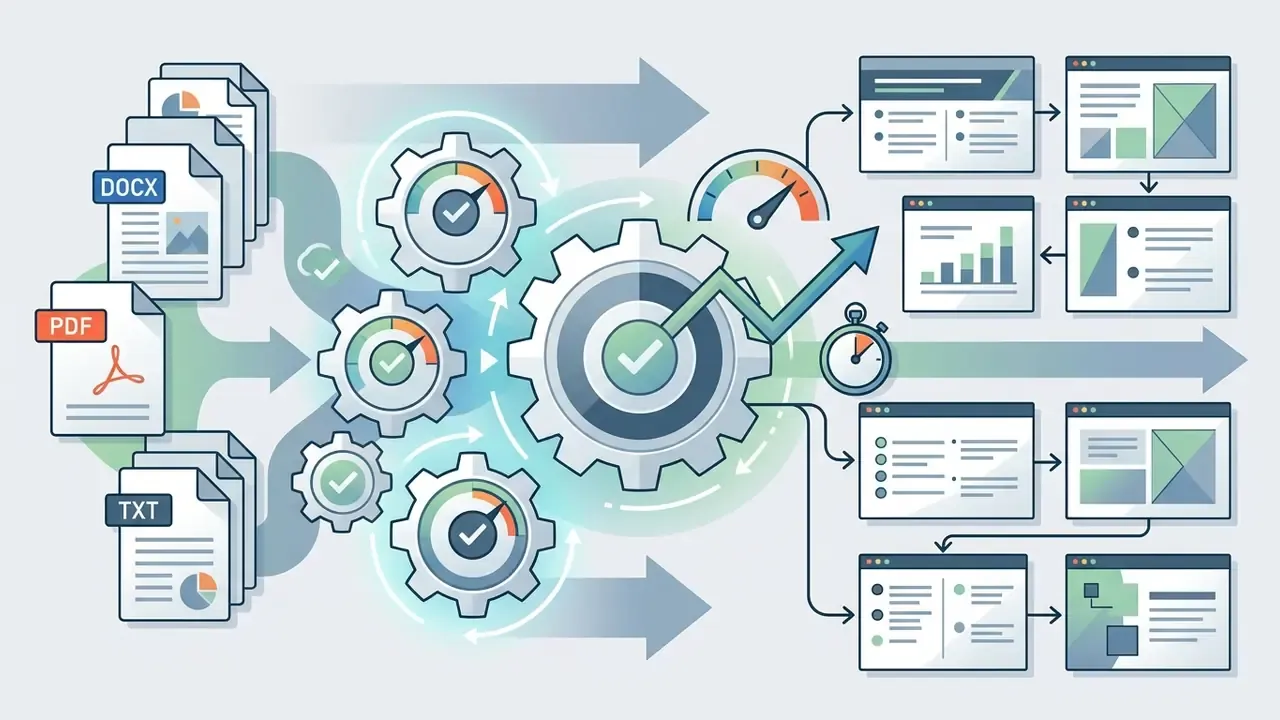
Already have a brief, report, lecture handout, or a page of meeting notes? You do not need to retype anything. Slidesgo's document-to-slides conversion turns a file into a structured deck, and DOCX, PDF, and TXT are listed as supported source formats for logged-in users.
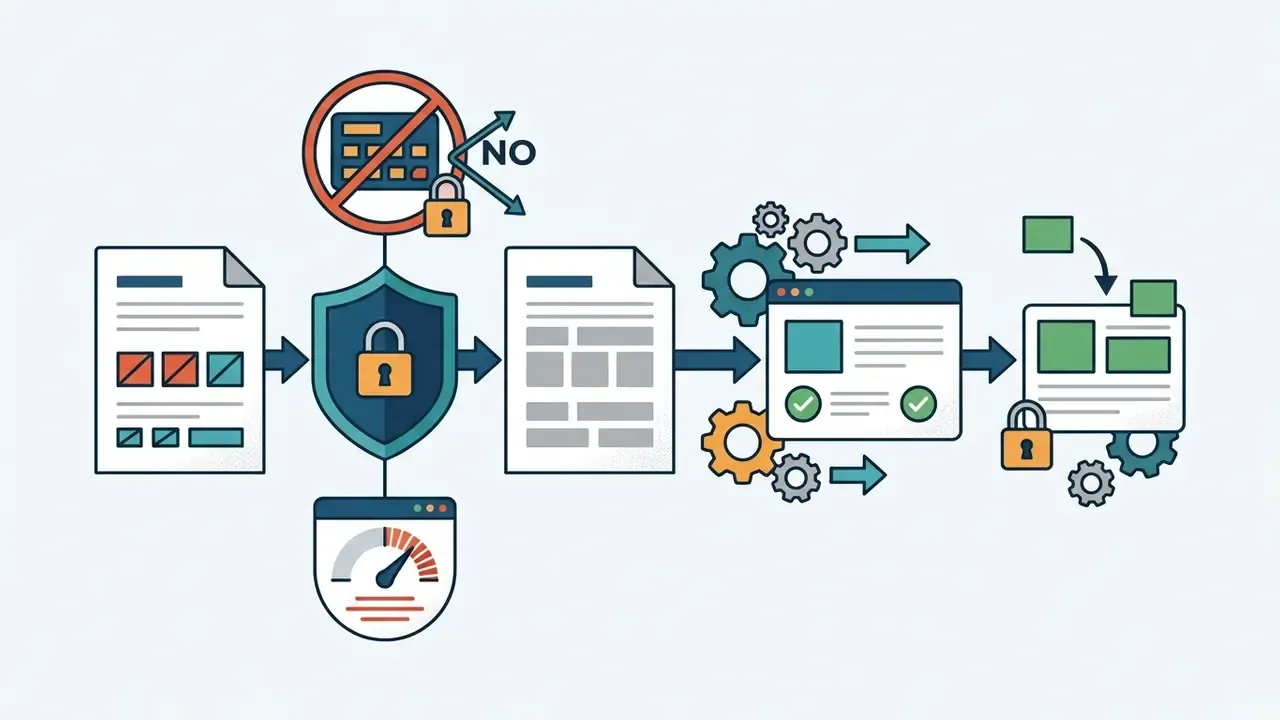
- Prepare the file.Strip page numbers, running headers, footers, and footnotes from the source PDF or DOCX. The converter treats them as body content and will clutter your slides with junk text.
- Upload.Drag the file into the AI PDF-to-PPT upload box. The engine extracts key information and maps it onto slides.
- Check heading mapping.Document headings become slide titles, and bulleted or numbered lists become talking points. Choose a template that matches the document's purpose before generating.
- Clean up the output.Delete slides repeating the same idea, then add slides where the detail is thin or where a chart would replace a wall of text.
- Verify against the original.Extraction can lose nuance, formatting context, and supporting evidence. Read the deck side by side with the source file before presenting.
Review the Draft and Edit AI-Generated Content
The critical phase involves reviewing the draft deck: verify factual accuracy, edit text blocks, reorder slides, and adjust visual formatting.
Generative models hallucinate, truncate text, and repeat outdated figures. Human-in-the-loop oversight means checking every slide against verified primary sources, sharpening headlines, and fixing automated placements that overlap or obscure content.
The Slidesgo AI Interface and Slide Editing Capabilities
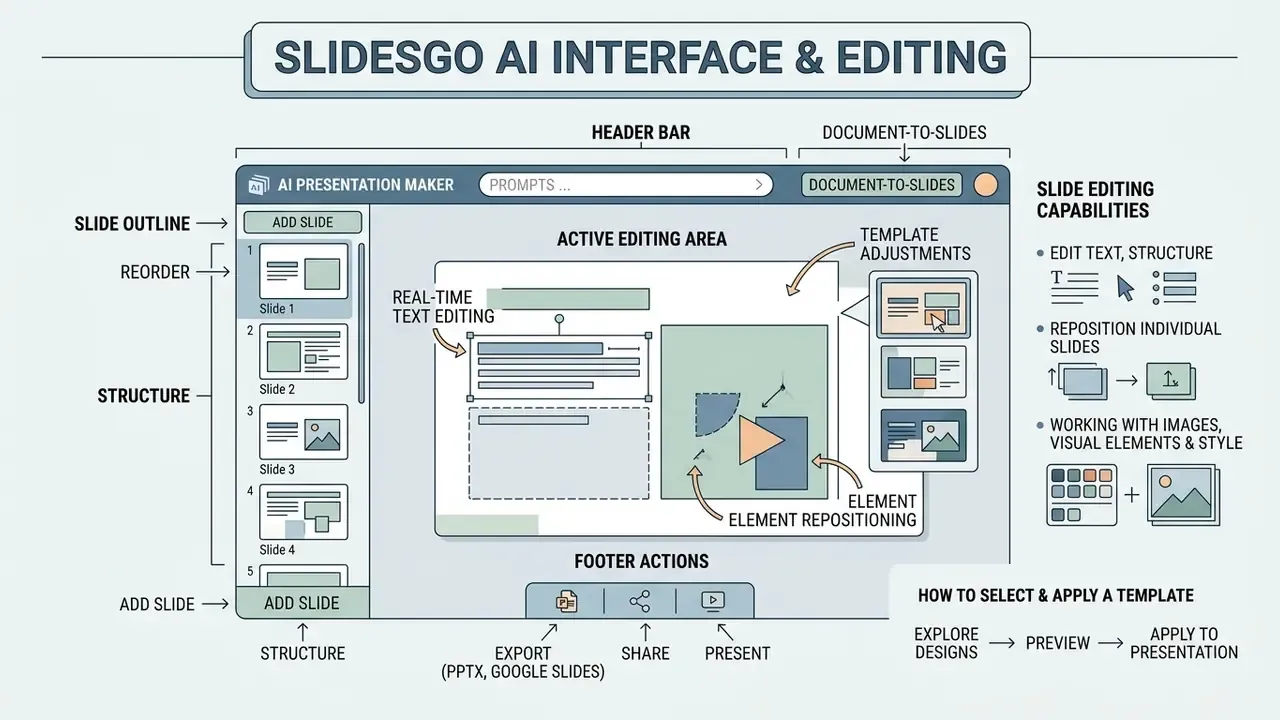
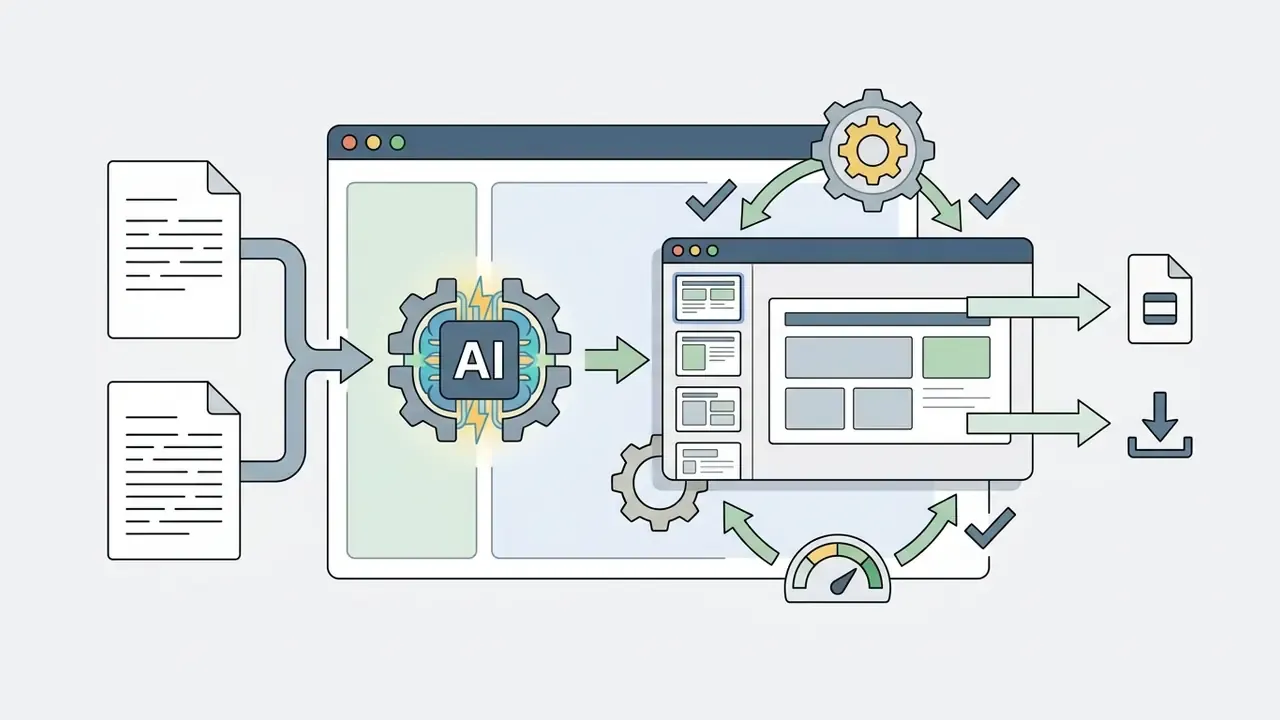
The Slidesgo AI presentation maker interface offers an integrated browser canvas with real-time text editing, element repositioning, template adjustments, and direct asset insertion from connected media libraries.
You do not need desktop software during initial drafting. Structure reordering, font styling, and graphic swapping all happen in the web environment. Slidesgo also surfaces adjacent AI utilities inside the editor, including an AI writer, an AI translator, and text-to-image generation, which help when localising a deck or rewriting a bloated bullet list without leaving the browser.
Editing Text, Structure and Individual Slides
The online editor allows direct manipulation of individual text boxes, slide sequences, bullet list structures, and the overall presentation hierarchy.
Clicking any text element opens a contextual toolbar with typography, font size, alignment, list formatting, and color controls. You can add blank or template-based slides, duplicate existing layouts, reorder slides by dragging thumbnails, or delete redundant sections to protect narrative pacing. When a deck needs to be repurposed into recorded or streamed content, the same source material usually moves into a downstream editing workflow. The YouTube video editor workflow guide documents that hand-off, and the notes on filmora video editor cover the desktop assembly path for slide-based screen recordings.
Working With Images, Visual Elements and Style
Visual customization in the Slidesgo editor lets you insert vector icons, replace stock illustrations, adjust color themes, and pull stock photography from connected platform libraries.
The interface integrates graphics from Freepik, Flaticon, and Magnific, so asset substitution is a single click. Custom user image uploads are restricted inside the AI generator itself. Slidesgo's official FAQ states that the option to upload your own images "isn't available" yet and is under active development. Exported decks, however, can be fully customized with proprietary imagery once transferred into PowerPoint or Google Slides. In practice, that means branded photography, product screenshots, and logos are added after export, not during generation.
"SlideBot outperforms Copilot on concept coverage, factual accuracy and instructional coherence in expert and student evaluations."
That finding matters for the visual layer as much as the text layer. Automated asset placement is optimised for aesthetic fit, not explanatory value. A decorative illustration that scores well visually can still fail to communicate the slide's argument. Teams preparing high-stakes decks tend to refine exported imagery in a dedicated tool. See the guide to online photo editors for the retouching, cropping, and compression steps that follow export.
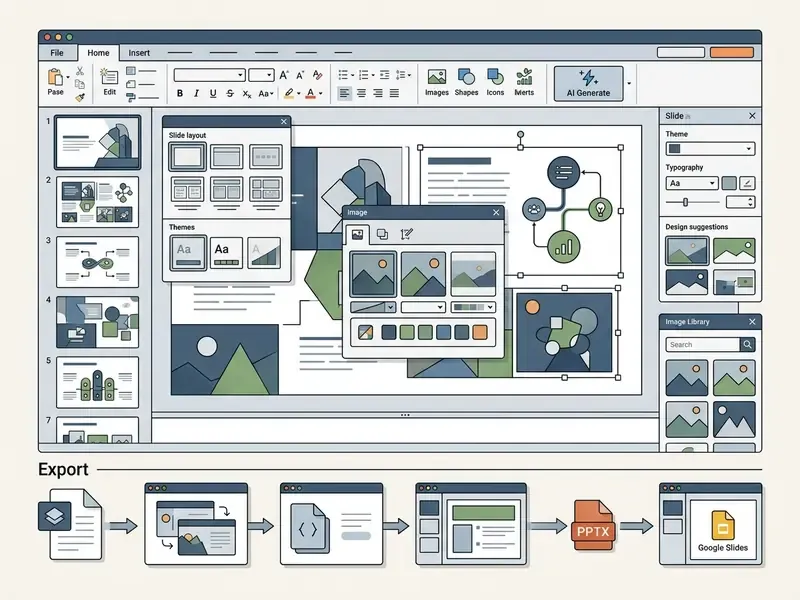
How to Select and Apply a Template
Choosing and modifying Slidesgo templates governs the primary visual container: master slide layouts, font combinations, and visual themes.
You can browse template styles during initialization or swap global themes mid-edit. In Google Slides, a different theme is applied through Slide → Change theme, and template slides can be inserted individually or as a full set. Changes made to master slide layouts (Slide → Edit master) cascade automatically across every slide using that structural frame, which keeps multi-page decks consistent. This is also the correct place to enforce corporate typography once, instead of restyling forty slides by hand. I have watched someone do it slide by slide. Never again.
Downloading and Using the Presentation in PowerPoint and Google Slides
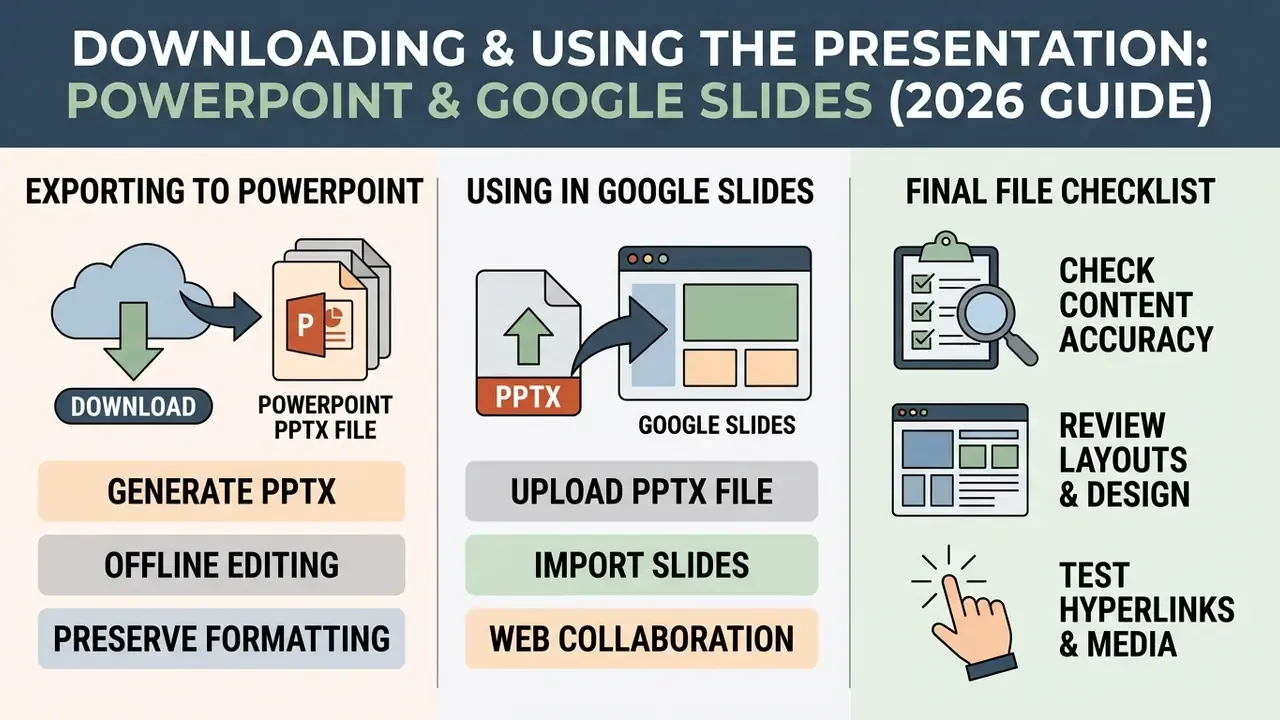
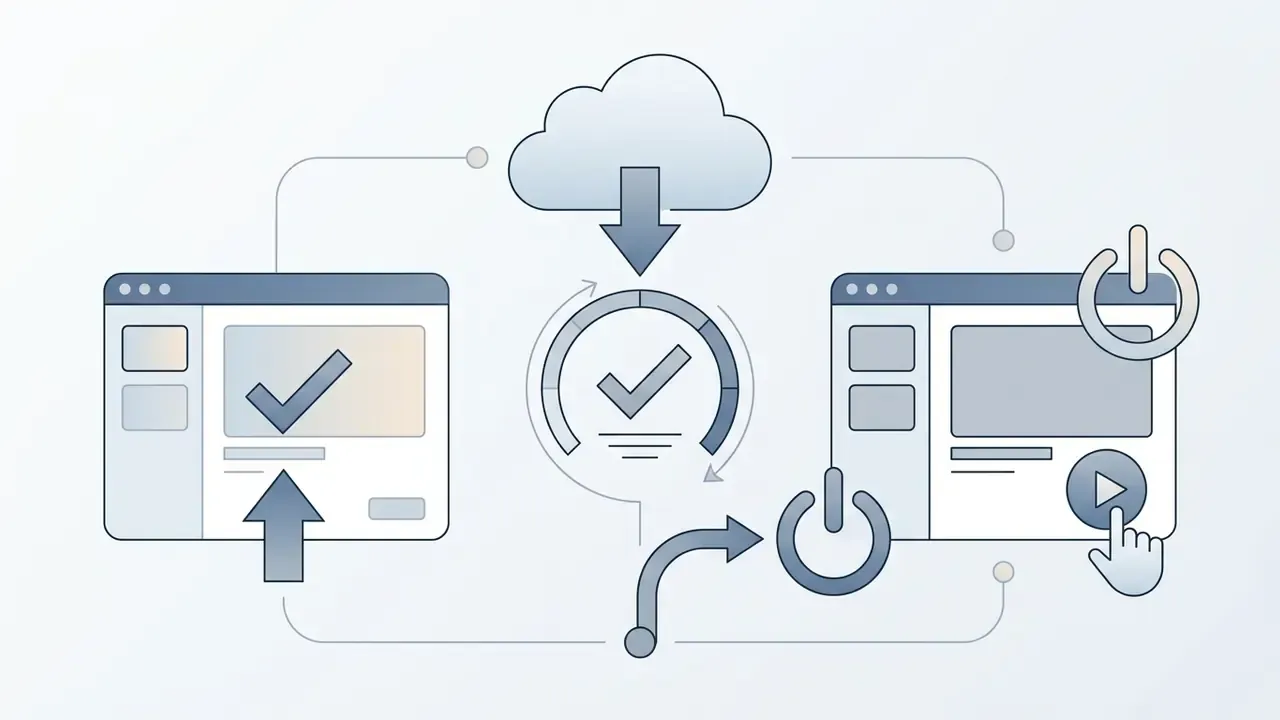
Once editing inside the web workspace is finished, the deck exports as an editable file in standard presentation formats, primarily Microsoft PowerPoint (.pptx).
Exporting the native file lets teams continue formatting, apply corporate master slides, or present offline on enterprise software. Slidesgo also supports PDF output through File → Download as → PDF document for print handouts and read-only distribution.
Exporting the AI Presentation to PowerPoint (PPTX / PPT)
Exporting a generated presentation to PowerPoint (.pptx) preserves vector shapes, editable text blocks, font assignments, and the slide master hierarchy.
Click the download action in the Slidesgo toolbar and select the PPTX format option. The resulting file stays compatible with desktop Microsoft Office applications and, per Slidesgo's own documentation, with Google Slides and Figma. That enables offline delivery, advanced animation timing, and corporate security review. One caution: if a deadline depends on the export, confirm the export route available in your specific account tier before you rely on it.
Opening and Editing in Google Slides
Bringing a Slidesgo presentation into Google Slides means uploading the exported .pptx to Google Drive, or opening it through the Google Workspace interface.
- Open Google Drive and select File Upload.
- Upload the downloaded Slidesgo .pptx file.
- Right-click the uploaded file and choose Open with > Google Slides.
- Save it as a native Google Slides deck to unlock real-time collaboration, comment threads, and multi-user editing.
If your team works exclusively inside Google Workspace, skip the manual round trip. Use the direct "Open in Google Slides" or "Make a copy" route from the template page, which avoids the layout drift that sometimes appears when a PPTX file is re-imported.
What to Check Before Downloading the Final File
Before final download and public delivery, every deck deserves a systematic quality assurance pass to catch visual and textual defects.
| Inspection Area | Key Check Items | Standards & Recommendations |
|---|---|---|
| Text Alignment | Readability, margin offsets, text box wrapping | Prefer left-aligned text, avoid justified blocks |
| Font Formatting | Font sizes, hierarchy, contrast | Clear sans-serif fonts, titles 24pt or larger, body copy 18pt or larger |
| Image Resolution | Pixelation, aspect ratio, overlap | High-resolution assets, no stretching or distorted ratios |
| Visual Consistency | Color palette, slide master integrity | Uniform theme execution across all generated slides |
| Factual Layer | Statistics, dates, quotations, citations | Every figure verified against a primary source before delivery |
| Accessibility | Contrast ratios, alt text, reading level | Sufficient contrast, alt text on informative images |
| File Hygiene | Unused template slides, speaker notes, file size | Delete surplus layouts, confirm notes are presenter-ready |
Organizations benchmarking generative tools across a wider software stack for licensing and compliance consistency can use category comparisons such as the free AI art generator evaluation to see how output limits, watermarks, and licensing differ between vendors before standardising on one platform.
Slidesgo AI Presentation Maker: Free, Premium and Pricing
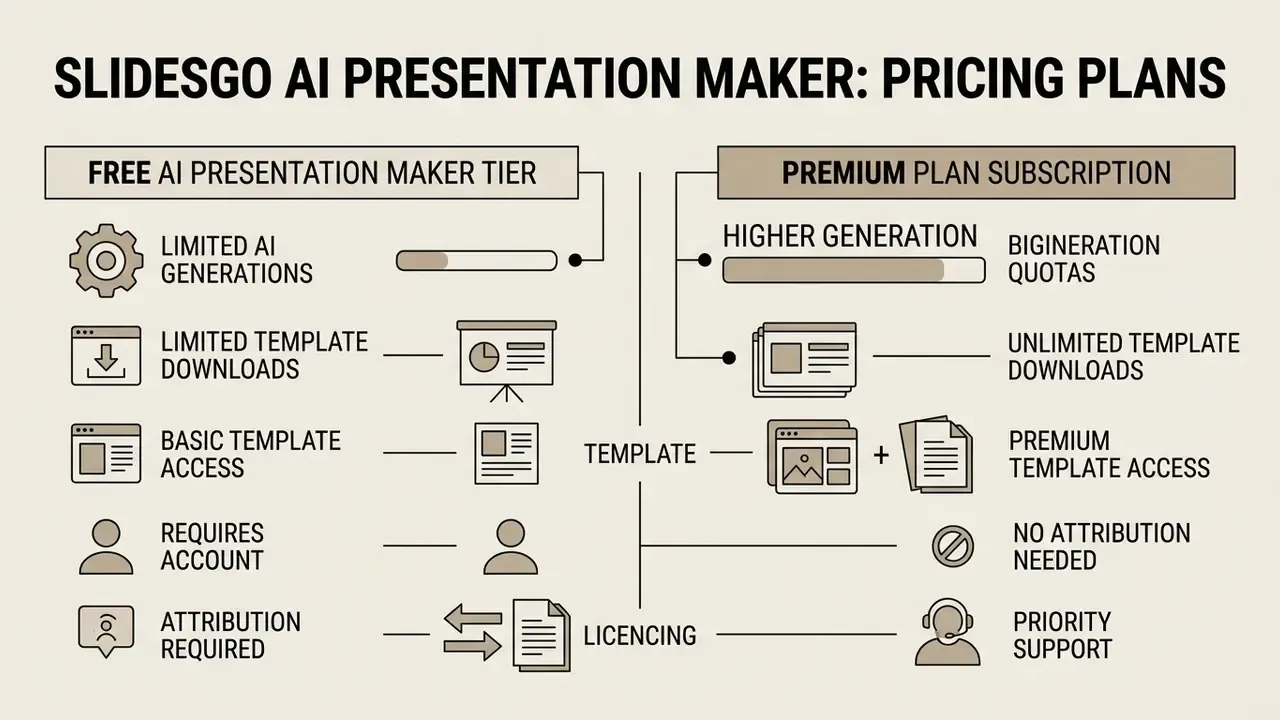
Slidesgo runs a freemium model: a free AI presentation maker tier sits alongside a Premium subscription plan with expanded generation quotas and asset access.
Reading the balance between free usage limits and paid capability is what lets an individual or a department pick the tier that matches actual presentation volume, rather than the tier that looks generous on a landing page.
What the Free AI Presentation Maker Includes
The free Slidesgo plan covers personal testing, evaluation, and low-volume creation.
- Generation quota 3 AI-generated presentations per month.
- Template downloads 3 standard template downloads per month.
- Account requirement registration and login are mandatory.
- Attribution the Slidesgo credit slide must stay inside exported decks.
- Template access free catalog templates only, the Premium library is excluded.
A sensible evaluation method before paying anything: build the same 8-slide deck twice, once with your normal manual process and once with Slidesgo AI, and measure elapsed time from blank page to a reviewed deck. Not time to first generated slide. If review and rework eat the time you saved, three free generations a month may already be enough.
Commercial and Professional Use of Finished Presentations
Using Slidesgo presentations for commercial use and business operations requires strict compliance with platform licence terms and attribution rules.
Free tier users may legally use generated presentations in commercial projects only while the official Slidesgo attribution slide stays intact. Premium subscribers gain non-attribution rights for commercial presentations, pitch decks, and client deliverables, yet remain prohibited from reselling, sublicensing, renting, redistributing, or claiming copyright over Slidesgo templates as standalone digital assets.
"Free-plan users may use presentations commercially only while the Slidesgo attribution slide is retained."
On the AI layer specifically, Slidesgo's AI terms state that users need no separate Slidesgo licence to use AI-generated content and retain rights in their own uploaded content. Because licence wording differs between the template terms and the AI product terms, procurement teams reviewing usage rights across vendors often cross-check comparable frameworks, such as the commercial-use terms of Microsoft's AI image generator, plus current litigation trends around generated media, before approving client-facing deployment.
| Feature Parameter | Free Plan | Premium Subscription Plan |
|---|---|---|
| Monthly AI Presentations | 3 generations / month | Up to 150 generations / month |
| Monthly Template Downloads | 3 downloads / month | Up to 150 downloads / month |
| Template Library Access | Free catalog templates only | 15,000+ free and Premium ad-free templates |
| Export Formats | PPTX, PDF, Google Slides | PPTX, PDF, Google Slides |
| Attribution Requirement | Mandatory credit slide | No attribution required |
| Commercial Use Rights | Allowed (with credit slide) | Allowed (without credit slide) |
| Resale / Sublicensing | Prohibited | Prohibited |
| Pricing Guidance | $0, free tier | Verify the current regional rate on the official Slidesgo pricing page |
Pricing, licensing and fact-check notice.
Security, Data Privacy and Shadow AI Risk
For risk, compliance, and IT governance readers, the decisive question is not output quality. It is data handling. Slidesgo is operated by Freepik Company, and its AI products are governed by separate AI Products Terms and Conditions rather than the general template terms. That means the privacy and retention posture of the AI generator must be read independently of the template licence.
What the vendor documents:
- AI products are an explicit part of the service and are covered by dedicated AI Products Terms and Conditions.
- Users retain rights and ownership in content they themselves supply, and no separate Slidesgo licence is needed to use AI-generated content.
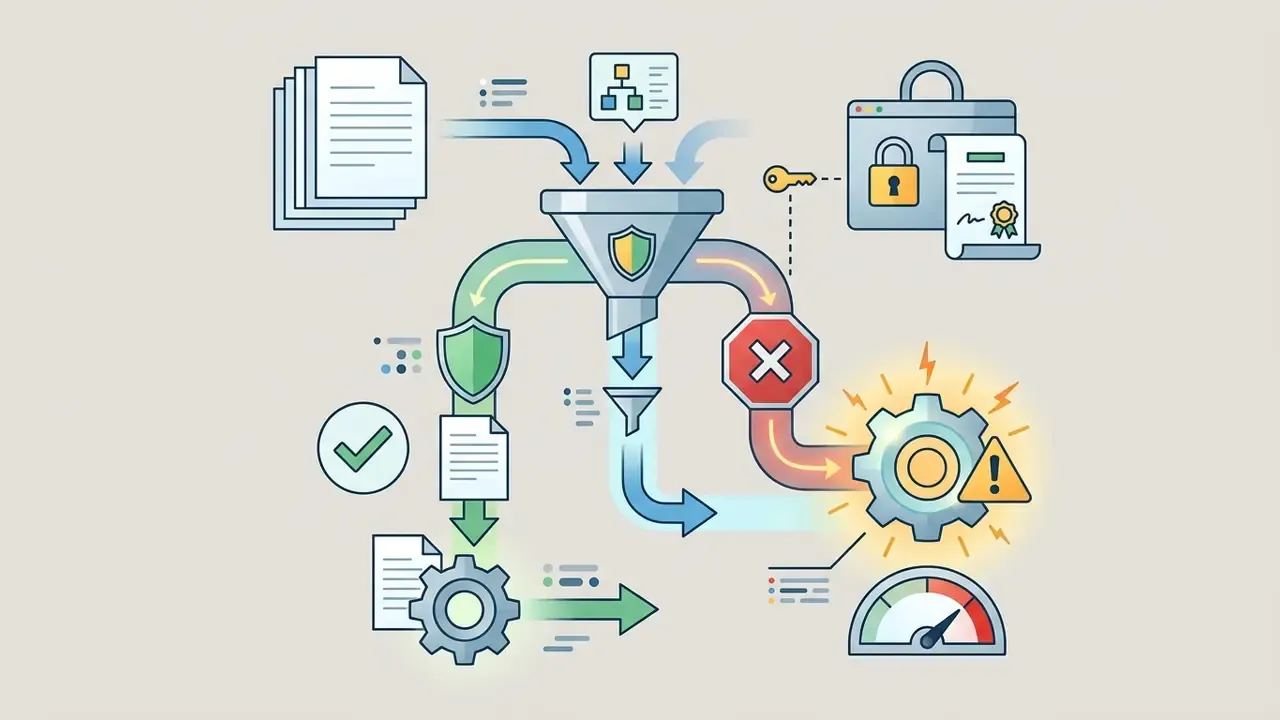
- Logged-in users may upload DOCX, PDF, and TXT files as source material.
What is not publicly guaranteed at enterprise grade, and therefore stays an open risk:
- Whether uploaded documents and prompts are retained, for how long, and in which jurisdiction.
- Whether prompts or uploaded files may be used to train or fine-tune models, either by the platform or by its upstream model providers.
- Whether a data processing agreement, a regional data residency option, or a "no-training" toggle exists for business accounts.
This section is informational and does not constitute legal or compliance advice. Validate all data-handling conclusions against the vendor's current published terms and your own regulatory obligations.
Advantages, Limitations and Choosing Slidesgo AI for Presentations
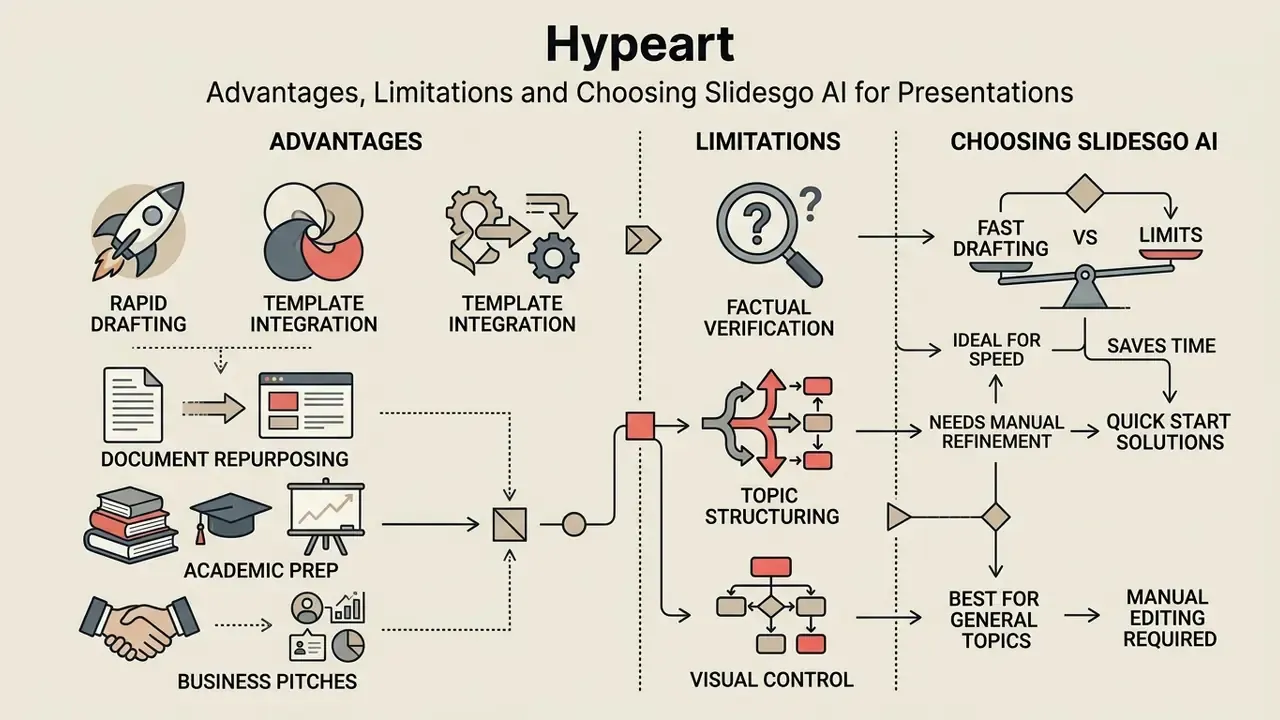
Choosing Slidesgo AI Presentation Maker means weighing fast drafting against real limits in automated topic structuring and visual control.
Generative tools compress initial deck preparation. Professional standards still demand rigorous manual refinement before a deck reaches clients, executives, or a public audience.
When Slidesgo AI Helps You Build a Presentation Faster
Slidesgo AI genuinely speeds up slide preparation in specific scenarios:
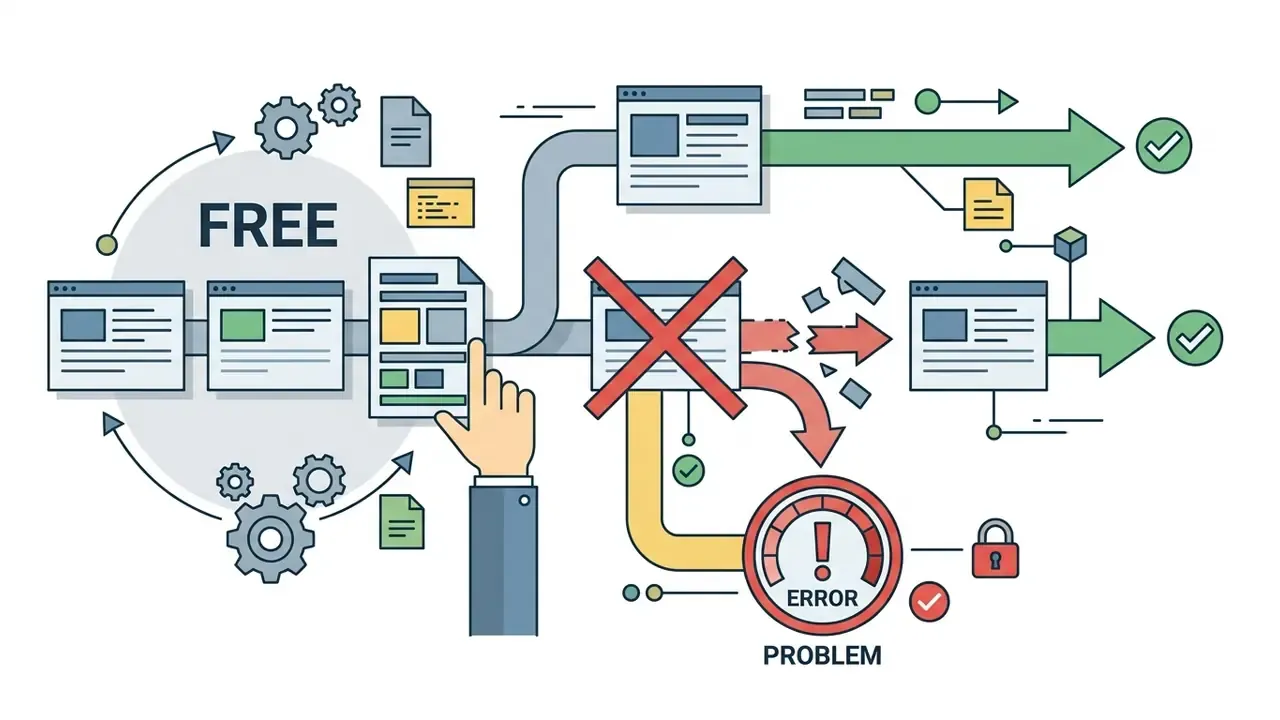
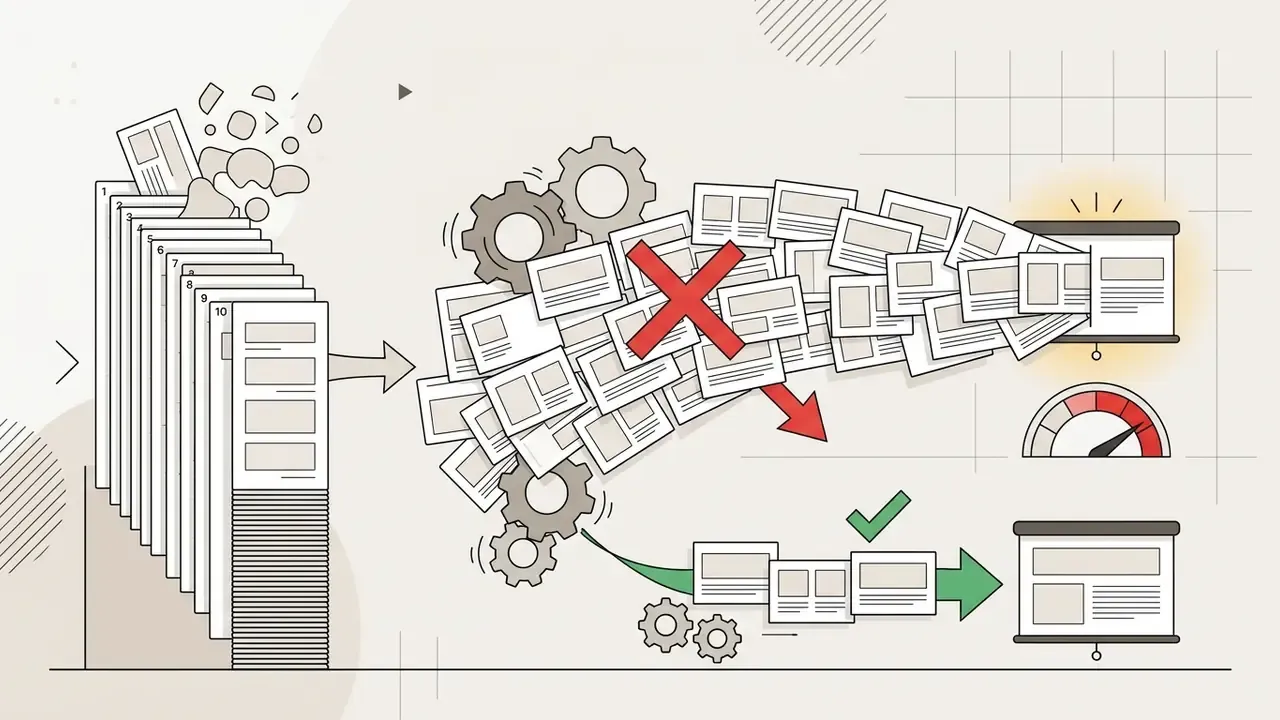
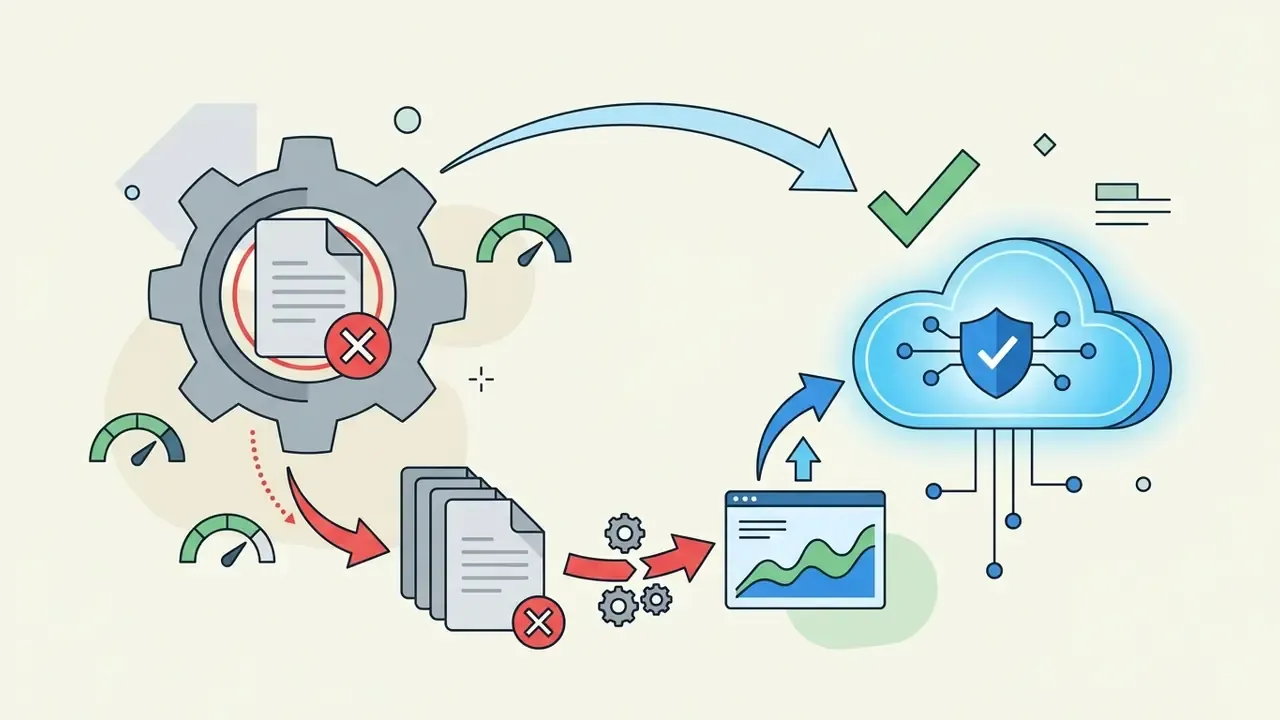

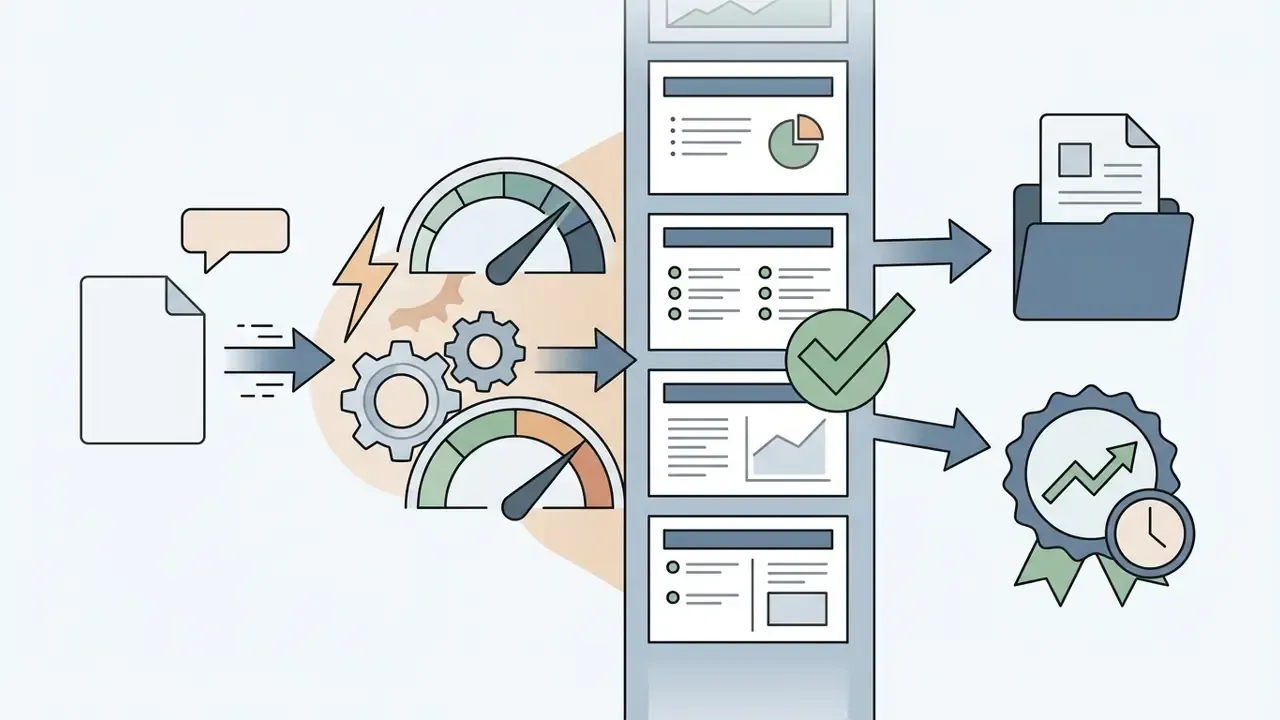
That parity in perception is exactly why verification discipline matters. If an audience cannot detect machine authorship, it also cannot detect an unverified statistic wearing an attractive slide.
When an AI-Generated Presentation Needs Manual Refinement
Manual editing and human oversight stay essential whenever a presentation involves complex data, strict brand compliance, or high-stakes communication:
- Factual verification models produce plausible but inaccurate statistics, wrong citations, and generic claims that need independent checking.
- Narrative depth generated text leans on generic bullets and requires organizational context plus specific case evidence.
- Visual overlap automated element placement can create awkward text wrapping or misaligned graphics.
- Brand compliance enterprise design guidelines, proprietary palettes, and logos must be applied manually after export.
- Structural limits research presented at EMNLP 2025 notes that presentation structure is intrinsically hard for language models, because slides vary in both function and layout, while PowerPoint's verbose XML complicates robust automated editing.
"Generative AI raises concerns about hallucinations, oversimplified explanations and cultural bias, requiring structured verification."
Microsoft's own guidance for AI slide generation in PowerPoint makes the same point from the vendor side: generated slide content can be inaccurate, misleading, or irrelevant, and may closely resemble existing internet content, so the user must read the output and apply judgment. Brand-compliance work after export usually involves swapping generated imagery for approved assets. The guide to free photo editors covers the export restrictions and quality trade-offs to watch for when finalising those visuals by hand.
Slidesgo AI vs. Alternative AI Presentation Generators
| Parameter | Slidesgo AI | Smallppt | Gamma App | AnyGen |
|---|---|---|---|---|
| Primary emphasis | Templates and visual design | Fast prompt-to-deck generation | Web-native documents and slides | Brief-driven, analytical prompting |
| PPTX export | Native, fully editable | Yes | Limited | Yes |
| Google Slides export | Direct, one click | Yes | Via PPTX | Via PPTX |
| Template catalog | 33,000+ (vendor claim) | Small | Proprietary themes | Minimal |
| Document upload (PDF/DOCX/TXT) | Yes | Yes (file-to-PPT) | Partial | Yes |
| Free tier | 3 AI decks/month, credit slide required | Basic free features | Credit-based free tier | Varies by plan |
| Best fit | Education and design-led decks | Quick internal slides | Interactive web decks | Research-heavy, structured content |
How to choose. If template variety and classroom-ready design are the priority, Slidesgo AI is the stronger pick. If your bottleneck is researched substance rather than layout, a brief-driven generator will produce better raw content and weaker visual polish. If the deck must live online as an interactive page rather than a file, a web-native tool fits better. In every case the review burden is identical. No generator removes it.
Common Mistakes and Troubleshooting
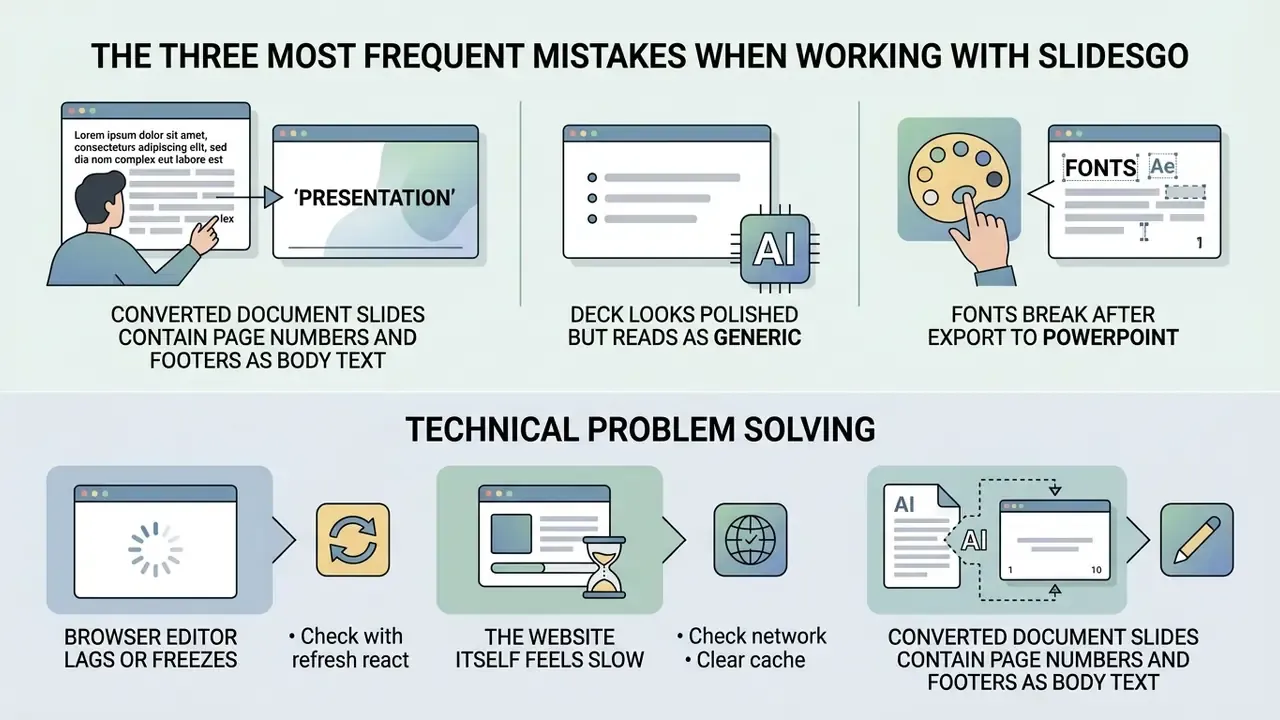
The Three Most Frequent Mistakes When Working With Slidesgo
- Mistake: free users remove the final Slidesgo attribution slide because it looks like filler.
- Consequence: this breaches the licence terms. Attribution is mandatory on the free plan, and removing it legitimately requires a Premium subscription. On a commercial deliverable, that is contractual exposure, not a cosmetic choice.
- Mistake: leaving unedited "spare" template layouts inside the deck.
- Fix: delete every layout you are not using. Smaller PPTX, faster editor, and no accidental placeholder slide appearing on screen mid-presentation.
- Mistake: downloading the PPTX file and re-uploading it for manual conversion.
- Fix: use the direct "Open in Google Slides" or "Make a copy" route to avoid layout drift, font substitution, and duplicated file versions.
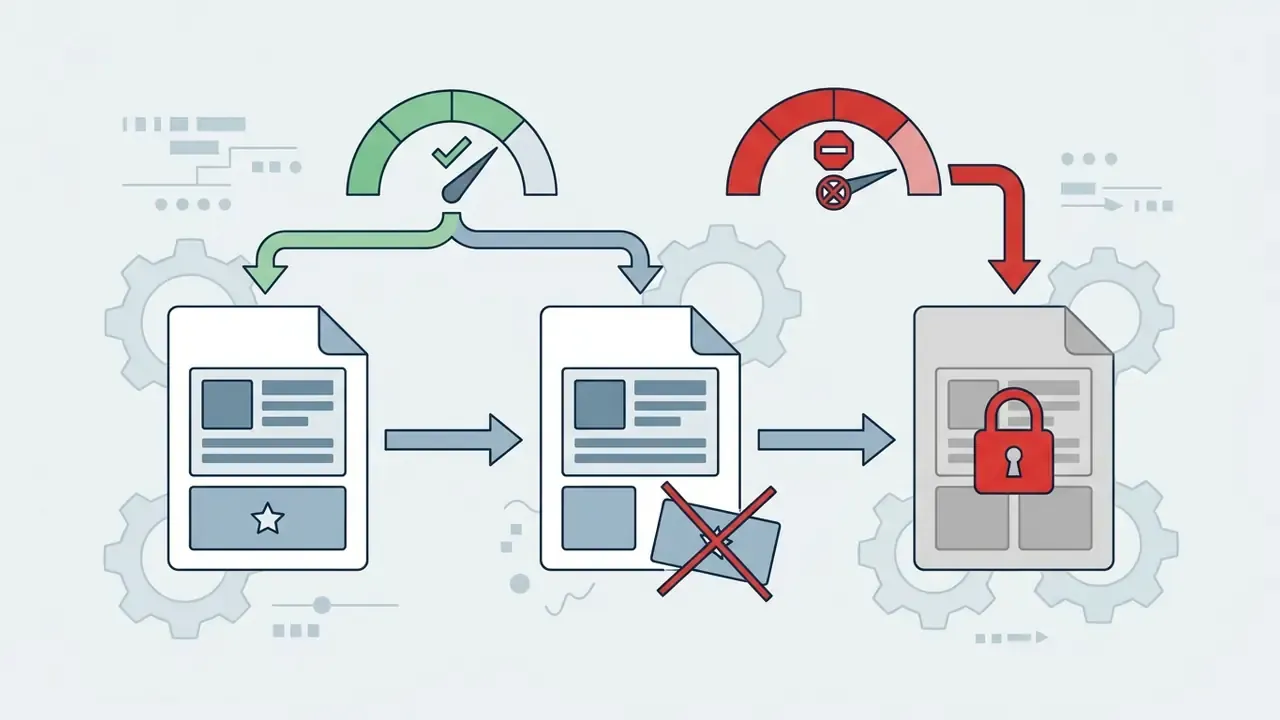
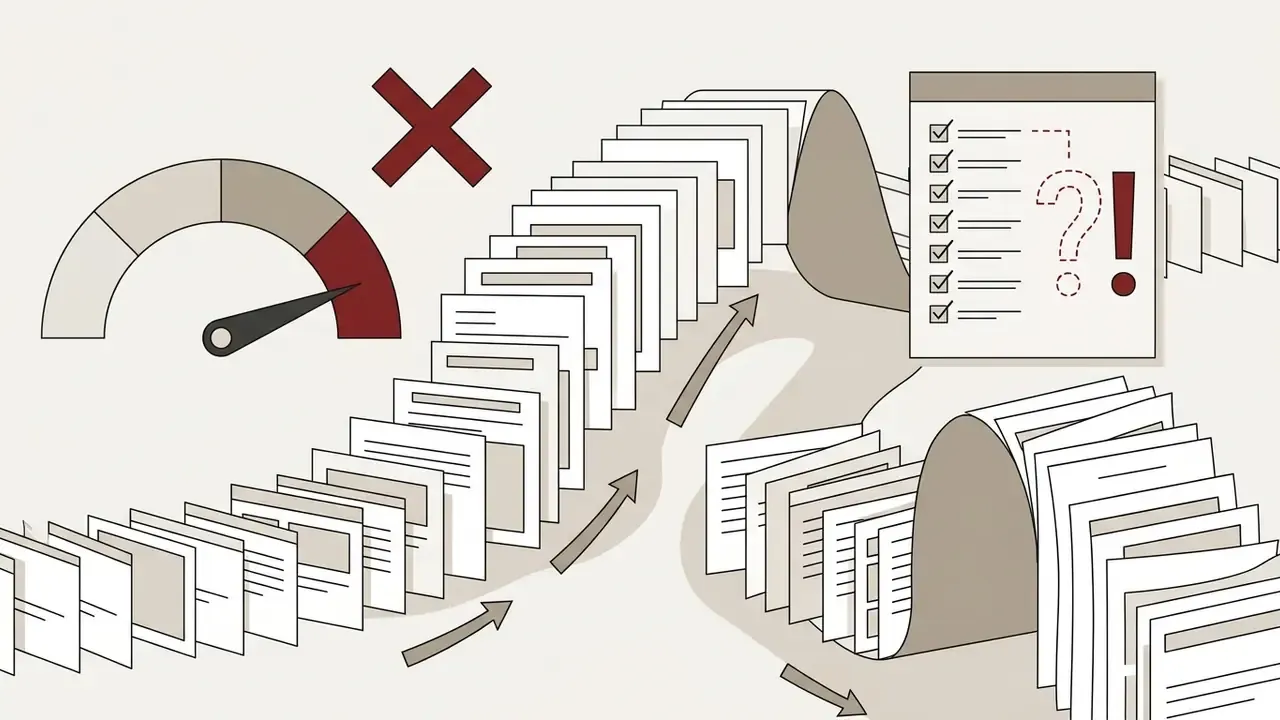
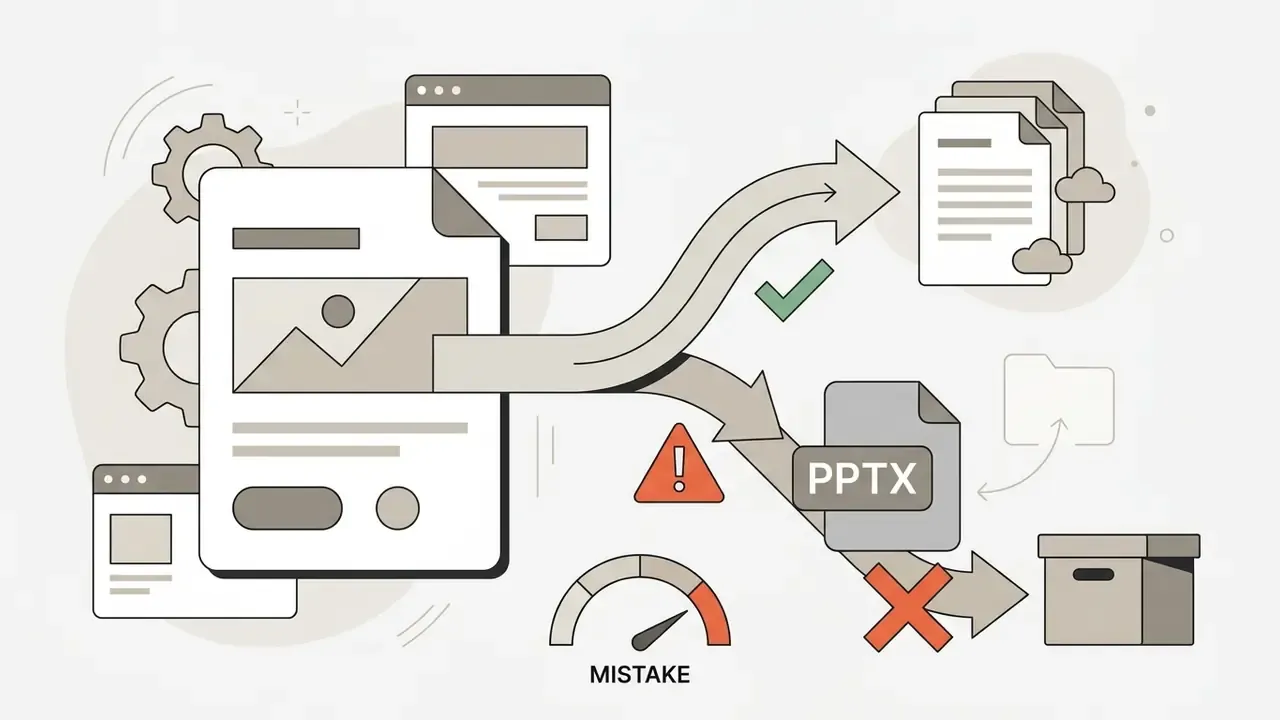
Technical Problem Solving
- Problem: fonts break after export to PowerPoint.
- Cause: the non-standard template font is not installed on your machine.
- Fix: install the font listed on the template page, or replace it globally through the Master Slide editor so the change cascades to every layout.
- Problem: the browser editor lags or freezes.
- Cause: slides overloaded with vector icons, charts, and unused graphics.
- Fix: clear browser cache and cookies, reload, then delete slides packed with unused graphics before continuing.
- Problem: the website itself feels slow.
- Cause: heavy template previews plus a weak connection.
- Fix: clear cache, reload, and browse with fewer preview tabs open. If it persists, contact Slidesgo support by email.
- Problem: converted document slides contain page numbers and footers as body text.
- Cause: the converter treats running headers, footers, and page numbers as content.
- Fix: strip that furniture from the source file and regenerate, rather than editing forty slides by hand.
- Problem: the deck looks polished but reads as generic.
- Cause: a one-line prompt with no audience, outcome, or scope.
- Fix: regenerate using the five-component prompt matrix, then rewrite every heading so it states a conclusion instead of naming a category.
Recurring platform issues, export failures, and account access problems across generative tools are catalogued in the AI Media Support and Troubleshooting hub, which is worth checking before you open a vendor ticket.
FAQ: Frequently Asked Questions About Slidesgo AI Presentation Maker
Is registration required to use AI text-to-PPT?
Yes. User account registration and login are strictly required to use the Slidesgo AI Presentation Maker and to download generated presentation files. Unregistered users cannot reach the AI generation engine or export PPTX files. The free tier is capped at three presentations per month.
How do I access the official Slidesgo AI Presentation Maker link?
The official web interface sits at slidesgo.com/ai/presentation-maker. Access the service through the official domain only, both for security and for valid account access.
Can I upload custom images inside the AI generator interface?
Direct user image upload inside the primary AI generator interface is currently unavailable, and Slidesgo's own FAQ states the feature is in development. Once the deck is exported to PowerPoint or Google Slides, you can insert custom images without restriction.
Can I upload a PDF, DOCX, or TXT file instead of writing a prompt?
Yes. Slidesgo lists DOCX, PDF, and TXT as supported source-content formats for logged-in users. Strip page numbers, headers, and footers first, then compare the generated deck against the original file, because extraction can lose nuance and supporting detail.
Can AI-generated presentations be used for commercial business pitches?
Yes, commercial use is permitted under Slidesgo terms. Free tier users must keep the Slidesgo attribution credit slide, while Premium subscribers can present without attribution. Reselling or redistributing templates as standalone assets stays prohibited on both tiers. For a comparable view of usage rights across vendors, see the overview of Google AI image generator usage rights.
Does Slidesgo AI cite its sources?
Do not assume generated slides carry complete or reliable citations. For research-heavy presentations, supply authoritative sources yourself and verify every number, quotation, date, and attribution slide by slide.
How many templates does the AI Presentation Maker have access to?
Slidesgo's Smart Guide states access to more than 33,000 templates, while its AI pages advertise more than 15,000 Premium ad-free assets and 800+ professional template designs inside the AI flow. These are vendor-published catalog claims, not independent audits.
Is Slidesgo AI a good fit for teachers?
Yes for lesson introductions, explainers, activities, and recap decks, particularly combined with the AI Lesson Plan Generator and AI Quiz Maker. Teachers should still verify instructional accuracy, reading level, accessibility, image appropriateness, and alignment with the stated lesson objective.
What should I do if the AI output contains generic or inaccurate copy?
Treat generated content as a preliminary draft. Rewrite the prompt using the audience, outcome, scope, format, and tone matrix, regenerate, then manually review and fact-check every text box, either in the editor or after exporting to PowerPoint or Google Slides.
Can I use it for confidential corporate documents?
Treat that as a policy decision, not a default. The platform publishes no enterprise-grade guarantee covering retention, jurisdiction, or model training for uploaded files. Redact sensitive data before upload, then reinsert it manually after export.
Footer and Hub Navigation
For broader terminology, framework overviews, pricing benchmarks, and licensing analyses across generative media tools, start with the AI Media Glossary, then explore related resources on AI voice generation and commercial licensing, AI headshot generators and professional use rights, and video compression for lightweight deck-embedded media.