In 2026, building corporate and instructional video presentations has shifted from a labour-intensive shooting process into a standardised digital workflow. A modern video presentation combines classic slides, dynamic video clips, text accents, animation and synchronised narration into a single media file. The international standard ISO/IEC/IEEE 26516:2026 fixes strict requirements for accessibility, contrast and captions for this kind of media content (ISO/IEC/IEEE, 2026). Automated tooling now converts text reports into watchable videos in minutes, including modern AI video generators that turn a script into scenes, narration and captions without a camera.
Why should a risk or compliance leader care about a production format at all? Because in a regulated institution, a recorded briefing is not just a communication asset. It is a dated artefact that shows what was said, to whom, and on what evidence.
«The main risk in multimedia adoption is trying to fit an entire narrative onto the slide and then reading it aloud. In a professional video presentation the visual track illustrates structural relationships, how a model, a control or a data flow connects to the next, while the audio track carries the interpretation, the caveats and the decision you are asking for.» *Marcus Hale, corporate systems and AI model governance specialist *
What a video presentation is and why you need one
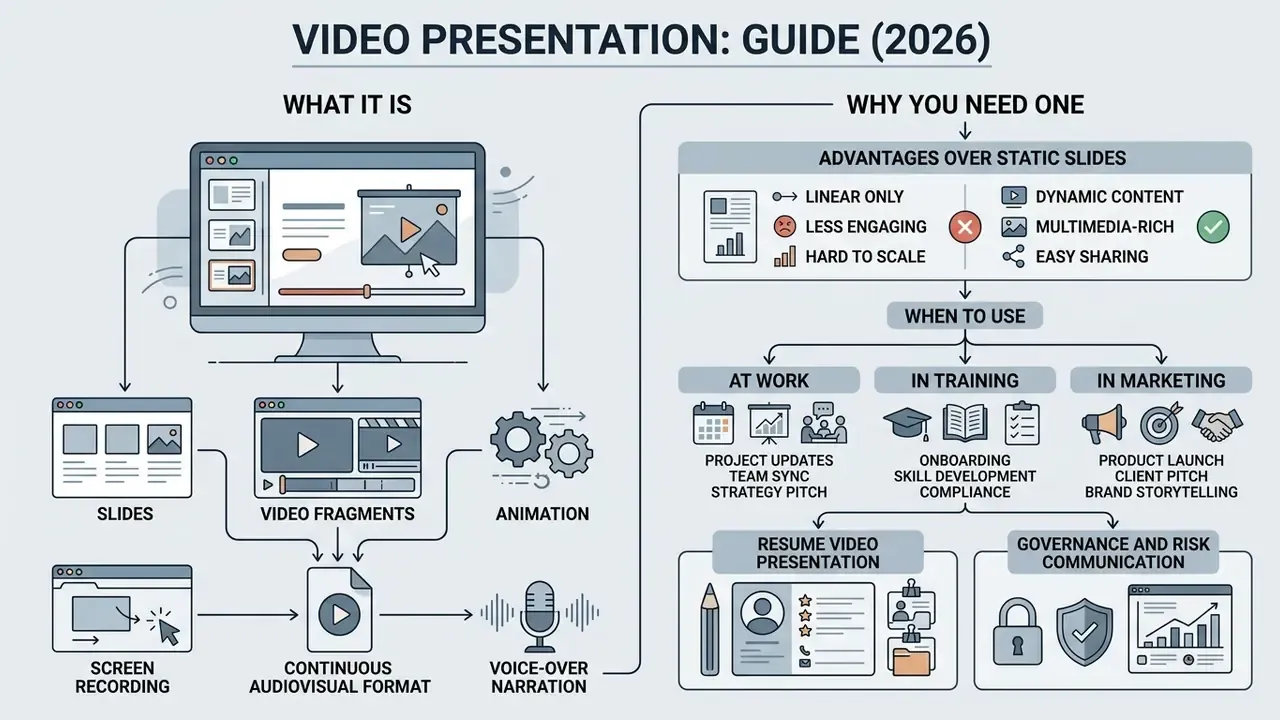
A video presentation is a continuous audiovisual format that merges slides, screen recording, video fragments, animation and voice-over narration into one digital file for asynchronous viewing. Unlike a static deck that requires manual clicking, the video format controls pacing and attention on its own.
The presentation with video format is in demand for business video, training material and product announcements. Research on adult learners shows that dynamic video content is perceived as more engaging than static slide-based delivery, and that learners actively prefer it even when comprehension scores are comparable.
«A study with 500 adult participants showed: with equal test results, subjects consistently preferred the video format over text materials and chose it more often on their own.»
Knowing how to prepare a video for presentation lets organisations standardise internal training, accelerate onboarding and raise conversion in marketing channels. By producing an engaging video, a company turns dry facts into a comprehensible story and reaches professional video quality of delivery without maintaining a full-scale studio.
Worth flagging early: numbers like that come from internal practice reports, not controlled trials. Treat them as a working hypothesis you validate against your own calendar data.
Advantages of a video presentation over static slides
A video presentation delivers higher emotional involvement and a stronger audience response than static files. Using an animated presentation helps hold attention in an era of shrinking attention spans.
«A meta-analysis of 61 primary studies (7,036 participants) showed that animation produces a significant but moderate effect on learning, Hedges's g = 0.226, 95% CI [0.12; 0.33].»
Recall accuracy for key points stays broadly comparable between formats, while satisfaction with the video format is markedly higher. Combining narration with a structured visual track also lowers cognitive load: in multimedia-learning research, pairing spoken text with graphic signalling yields a clear positive effect on comprehension (Hedges's g = 0.37 against text-only formats), and in corporate training and skills-verification tasks the advantage of video over written instructions reaches g = 0.80. Dynamic video slides make it possible to demonstrate complex processes such as model validation pipelines, approval chains or product flows, which are hard to convey through text or a flat diagram.
The effect is moderate, not magical. Animation helps when it carries meaning, and it distracts when it only decorates.
When to use a video presentation at work, in training and in marketing
Video presentations work best in five scenarios: corporate training, product demonstrations, commercial pitches, marketing campaigns and individual self-presentation. They deliver information without requiring the speaker to be physically present at every showing.
In the corporate segment, business video is used for employee onboarding, safety briefings and demonstration of internal policies. In a product launch, a video makes the value proposition tangible for clients and partners. Marketing teams adapt tutorial video assets, explainer clips and teasers for publication on social media platforms and specialised media platforms, achieving broad reach and repeated reuse of produced material. If you are choosing tooling for campaign-scale production, start by comparing the best AI video generators by output quality, licensing and export options. A branded marketing video built from the same master script keeps the claims identical across channels, which also simplifies marketing-compliance review.
«A 2025 survey found AI-generated video was used in 100% of the studied films, and AI voiceover in more than half of professional productions.»
Resume video presentation. This is a format of individual candidate self-presentation that combines a portfolio, a short on-camera pitch and visualised results of previous work (charts, metrics, before/after data). Unlike a traditional CV walkthrough, the recorded format leaves far less room for interview anxiety, answers most of the recruiter's standard questions in advance, and demonstrates self-presentation skill, which is itself a hiring criterion in sales, marketing and management roles. Ready-made resume templates save significant time here, because the layout, typography hierarchy and section order are already solved.
Governance and risk communication. A separate, fast-growing scenario is asynchronous executive reporting: a five-to-seven-minute recorded briefing for a board risk committee or a CRO that explains the state of GenAI and agentic-AI controls, the residual risk, and the cost of the proposed control set against risk-adjusted return. The video format is convenient precisely because committee members can watch it before the meeting, at their own pace, and the recording itself becomes a dated artefact of what was communicated and when. One caveat: the same property that helps you, permanence, also means a sloppy figure stays on the record.
Video presentation formats for different scenarios
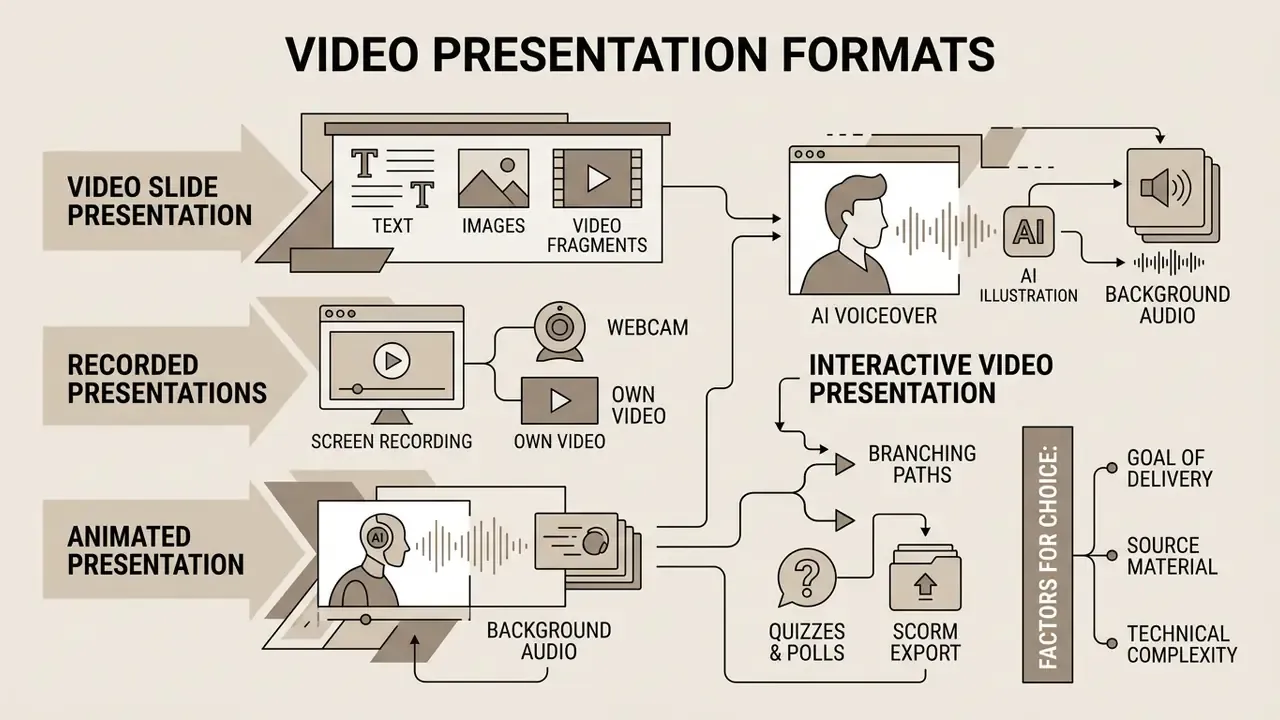
The choice of format depends on the goal of the delivery, the source material you already have and the technical complexity you can afford. The main formats are the video slide presentation, screen recording with a webcam, an on-camera speaker, a fully generated animated presentation, and interactive video published to a learning platform.
The right video format guarantees that the finished file will open on any device without quality loss. Screen recordings suit instructional demonstrations. An on-camera speaker suits emotional announcements. Slide-based videos with ai voiceovers suit recurring internal reporting. Interactive video suits compliance training where completion has to be tracked and evidenced.
Video slide presentation with text, images and video fragments
A classic video slide presentation builds the narrative around structured slides supported by voice-over narration and restrained transitions.
When building video slides, place one key idea per slide. After clicking add text, format lists so that they hold no more than 6 lines with up to 8 words each (SOE Vision, 2019). Short video clips inside slides break the monotony, while simple transitions such as Fade or Dissolve preserve visual coherence without pulling attention away from the key points. Keep one transition type for the entire deck: guidance from Purdue OWL notes that mixing transition styles irritates viewers rather than helping them navigate.
Presentations with screen recording, a webcam or your own video
Recording the screen with a built-in screen recorder is ideal for demonstrating software, services and digital workflows.
In this format the screen is the primary stream (recording), while the webcam shows the narrator in a small overlay window. Using own video increases trust in the material. Technical guidance recommends recording full-screen at 1080p and 30 frames per second, with an external microphone configured before the first take. Choose the microphone in the capture tool before pressing record. Re-recording because of a wrong input device is the single most common production loss, and it always costs more than the thirty seconds you saved.
One caution that matters in regulated environments: a screen recording captures everything visible in the frame, including account numbers, client names, internal dashboards and browser tabs. Before capture, switch to a demo tenant or masked dataset, close side panels and notification pop-ups, and prepare the desktop as deliberately as you would prepare a slide.
Animated presentation with AI voiceover and background audio
An animated presentation uses motion of graphic elements, synthesised narration (ai voiceovers) and background audio to explain abstract concepts: a data lineage, an escalation path, a limit structure.
Ai video technologies generate narration from text without hiring voice actors, and the measured quality gap is now small.
NIST AI 100-4 directives and the EU code of practice on transparency of AI-generated content require mandatory labelling of synthetic content and verification of its accuracy (NIST, 2024; European Commission, 2025). Practically, that means three steps before publication: record the model and tool version used, keep the name of the human reviewer who verified factual accuracy, and apply a visible or embedded disclosure that the narration or avatar is synthetic. When adding a soundtrack (add music), keep background music at least 20 dB below the narration level (W3C WAI, 2024). To compare synthesis engines by voice quality, language coverage and commercial licensing, review the options for AI voice generators; for stylised projects there are narrower tools too, including an anime ai voice engine and an anime ai generator for character visuals.
If your scenes need motion graphics rather than talking heads, look at a browser-based animation online workflow, a scripted animation generator, or a full animation maker 3d pipeline when the subject genuinely needs depth and camera movement.
Interactive video presentation: quizzes, branching paths and SCORM export
A modern interactive video presentation converts passive watching into active interaction. Unlike a linear MP4 file, interactive video lets you embed:
- Branching paths.The viewer chooses which section to watch through clickable elements on screen, so one asset serves several roles: a sales lead, a technical reviewer and an auditor each take a different route.
- Interactive quizzes and polls.Checkpoint questions inside the video stream verify comprehension in real time and, according to vendor benchmarks, roughly double completion rates compared with linear video. Vendor benchmarks, note, are marketing data until you reproduce them.
- Embedded CTA buttons.Direct links to application forms, policy documents or external specifications placed at the moment of highest intent.
For integration with corporate learning systems (LMS), the finished project is exported not as MP4 but as a SCORM or xAPI package, which allows per-employee progress, quiz scores and completion timestamps to be tracked. Note the technical trade-off: once interactivity is enabled, the project can normally no longer be flattened into a single MP4 and must be distributed through the player, an embed code or the SCORM package. For compliance training this is usually an advantage, because the tracking record is exactly what an auditor asks for.
How to create a video presentation: the step-by-step process
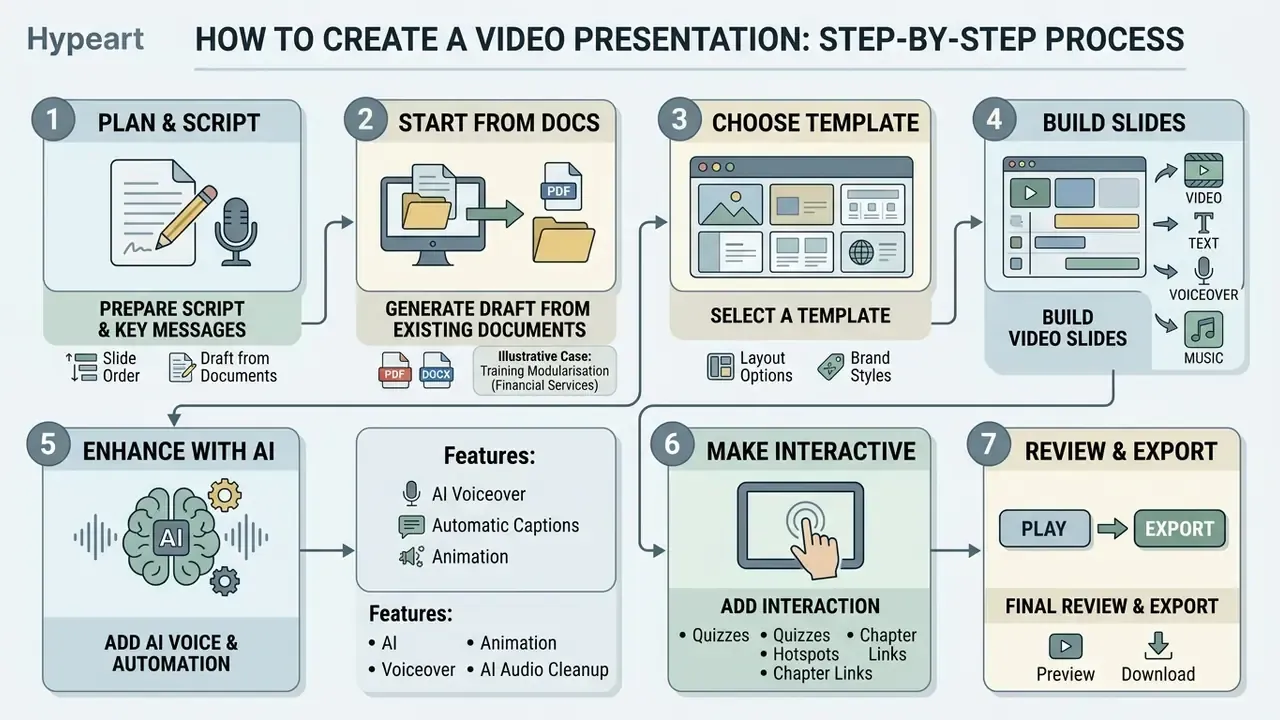
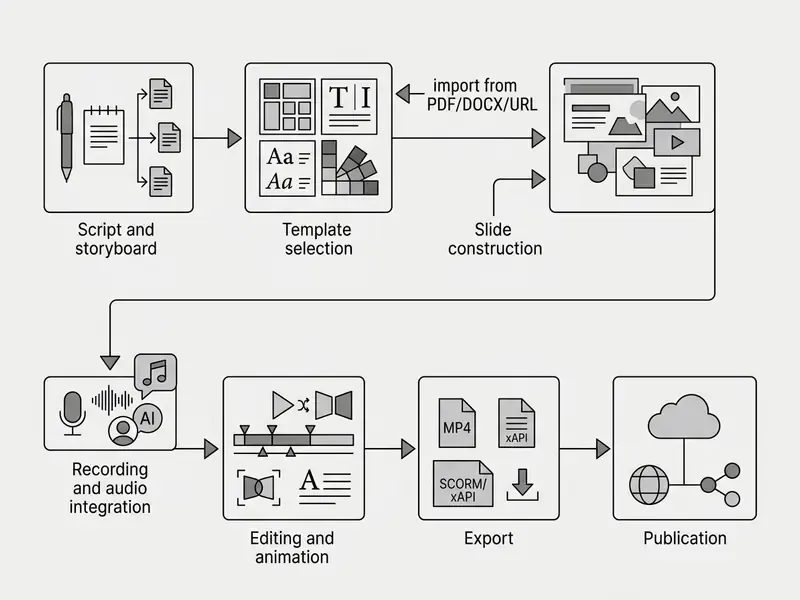
Producing a video presentation runs through sequential stages, from script writing to final export. A systematic approach prevents rework at the editing stage and guarantees a stable result.
A modern presentation maker or a dedicated video presentation maker speeds up preparation considerably, automating routine layout and audio-mixing operations. Careful video editing and a disciplined making video process turn a set of slides into a finished media product. A capable video maker will not rescue a weak script, though. Sequence first, tooling second.
Prepare the script, key messages and slide order
Script writing starts by formulating the main claims (key points) and distributing them across the runtime.
Use a two-column storyboard: the left column records what is said, the right column records what is shown. A third column with seconds per segment makes the timing explicit. Bear in mind that continuous-attention intervals for adults are usually described in instructional guidance as 5 to 12 minutes (University of Bath, 2017), which is why each meaningful block should stay within 1 to 2 minutes. For a traditional business or academic delivery, treat 10 minutes as the "Goldilocks zone" of total runtime, and keep the deck under roughly 15 slides with each slide under a minute. Aim to create powerful structure that holds the viewer from the first second to the last.
«The ReelsEd system (2025) showed that students who watched short AI-generated clips scored significantly higher on tests and completed tasks faster than those who watched long videos.»
Choose a template and build the video slides
Ready-made presentation templates and specialised video presentation templates set the visual style of the video, including type hierarchy and colour palette.
When choosing a template, test readability: headings should be at least 34 to 44 pt, body text at least 24 to 28 pt (Weill Cornell Medical College). Every slide needs sufficient white space. To create video with real visual discipline, adapt corporate colours and the logo, and avoid busy patterns and oversaturated backgrounds. Brand-guideline templates from mainstream editors normally expose exactly the parameters you need to fix, including logo usage, palette, typography, imagery and tone of voice, and can be saved as a personalised master template for the whole team. One master template also means one place to correct a disclaimer when the legal wording changes.
Add video, text, voiceover, music and animation
At the assembly stage, slides are merged with text captions (add text), dynamic video clips, narration and music.
Follow the "one thing at a time" rule: animation and audio must not pile on top of each other chaotically (EU Academy, 2025). When the narrator states an important claim, the corresponding text block or graphic element should appear on screen at that moment, not three seconds earlier and not after the sentence has ended. Background music (add music) should set a mood without masking ai voiceovers or live narration. If you need custom animated scenes or characters, review the available animation makers and their export options.
AI audio cleanup and automatic captions. During audio processing, apply AI noise suppression (Enhance Audio) and automatic caption generation (Auto-captions). The first removes room noise, HVAC hum and clipping. The second produces a timed caption track for the large share of viewers who watch without sound. Automatic captions are a starting point, not a deliverable: accessibility guidance is explicit that machine captions must be edited for accuracy, and product names, acronyms and figures are where they fail most often. "Basel III" transcribed as "basil three" is funny once. Also verify that captions are synchronised with the audio before publishing, and keep a full transcript alongside the file.
How to make a video presentation clear and engaging
A strong video presentation combines visual restraint with a clean audio track. Understanding how multimedia perception works is what prevents viewer overload.
To achieve quality video and a genuinely high quality result, balance the volume of text, the level of background sound and the tempo of scene changes. Clear signalling of key points and a professional voiceover make the material easy to absorb.
How to lay out slides and add text without overload
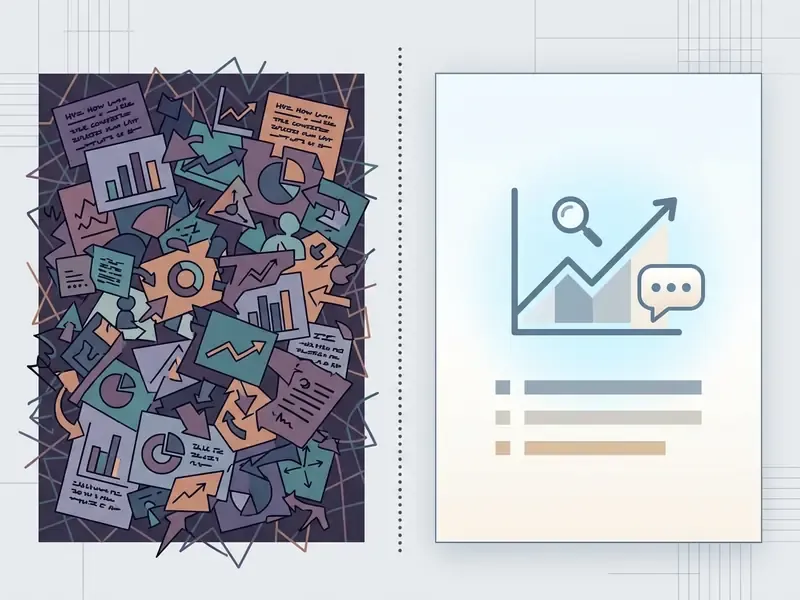
Slides in a video presentation serve as visual support, not as a reading room. Moving the entire narration onto the screen reduces comprehension rather than reinforcing it.
That gap between preference and performance is the uncomfortable part. Viewers ask for more text on screen, then remember less of it.
After clicking add text, keep to 5 to 7 bullets per slide and roughly 5 to 6 words per line. That preserves the professional video look and prevents visual fatigue.
Accessibility requirements (updated). Avoid narration phrases such as "as you can see here" or "this figure on the right" unless the element is described in words. For viewers with visual impairments, the narrator must verbalise the key graphic data: the direction of the trend, the magnitude, the exception. Every text block on the slide needs a contrast ratio of at least 4.5:1 against the background and must be duplicated through embedded closed captions. Where essential information exists only in the visuals, add audio description or an equivalent narration line, as required by Section 508 synchronised-media guidance and W3C WAI.
Advanced research demonstrates how far this can be automated. The Slidecho tool applies video scene detection, AI and OCR in four steps: extract slide frames, select slide elements, detect which elements the speaker actually described, then align slides with the speech, and it reads out the visual elements the narrator skipped. The practical lesson for authors is simpler than the technology. If an element on the slide is not described aloud, part of your audience never receives it.
How to use voice, music and transitions in a video presentation
The audio track and the dynamics of transitions set the rhythm of the entire presentation.
Narration should be clear and unhurried. If background music (background music) is used, its level must sit 20 dB below the narration (W3C WAI), with the exception of brief one-to-two-second sounds. Animated transitions in an animated video should be of a single type throughout the file; using more than two different transition styles distracts attention and weakens retention of key messages. Audio description should be placed in non-dialogue pauses and must never overlay speech (ITU-T T.701, 2022).
«A UCF project on integrating background music into instructional videos recorded gains in learner attention and motivation across all four ARCS dimensions, provided the music did not mask the narration.»
For post-production work on the recorded track and the visual layer, compare the capabilities of a browser-based video editor against a desktop suite before committing a team workflow. And if you need to model the cost of both routes across a year of output, the AI Media Calculators give you a rough baseline to argue with.
Alert box
- Text overload: the narrator reads out text that is fully duplicated on the slide.
- Loud music: the background track masks narration or AI voiceover.
- No captions: the video becomes unusable without sound and inaccessible to deaf or hard-of-hearing viewers.
- Animation chaos: mixed transition styles and flying typography.
- Skipping the final listen-through: publishing without checking the mix on laptop speakers, headphones and a phone.
- Unverified auto-captions: machine captions published without editing product names, acronyms and figures.
- Uncleared frame: client data, internal dashboards or notification pop-ups captured in a screen recording.
Data protection, confidentiality and compliance before you publish
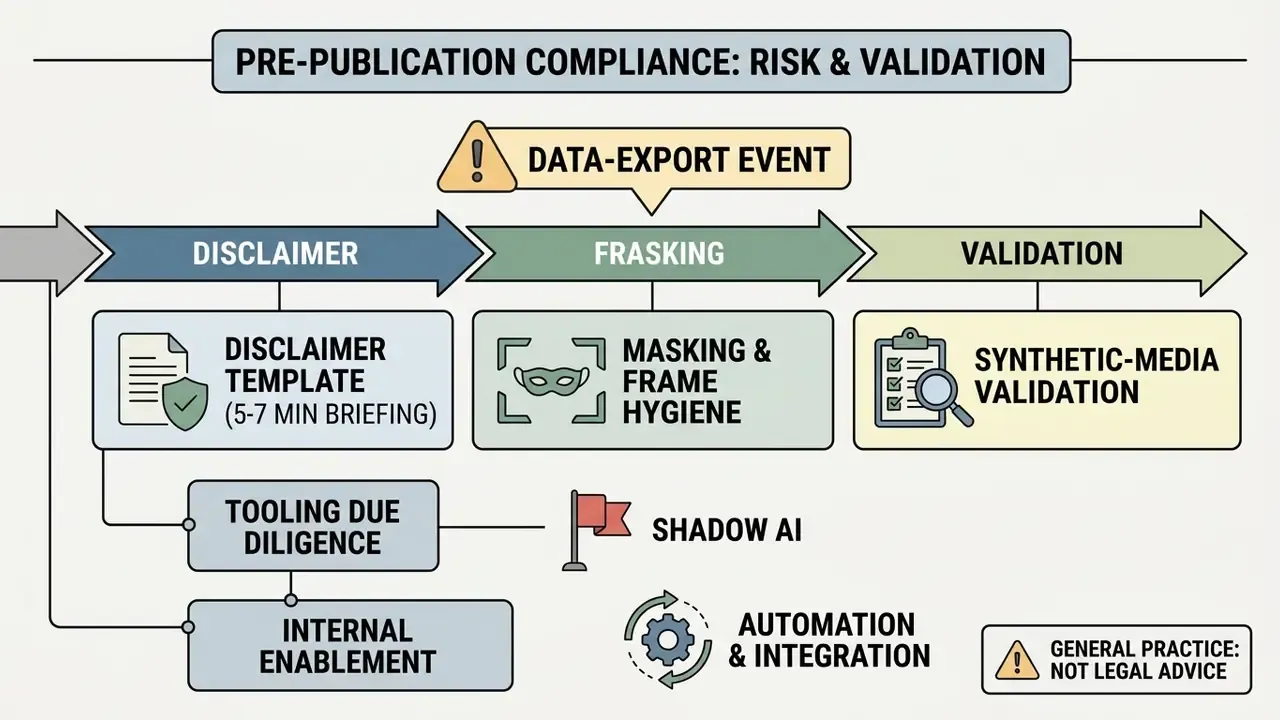
Template for an executive risk briefing (5 to 7 minutes). A workable structure for a board or committee video report: (1) the decision requested, stated in the first fifteen seconds; (2) scope, which models, agents or processes are covered and which are explicitly out of scope; (3) current risk position with two or three quantified indicators; (4) incidents and near misses since the previous report; (5) the proposed control set with cost and risk-adjusted return; (6) residual risk after implementation; (7) the dated artefact trail, where the evidence, logs and validation reports live. Keep one claim per slide, verbalise every figure, and publish with captions and a transcript so the record is searchable.
Free video presentation maker: choosing a tool and a template
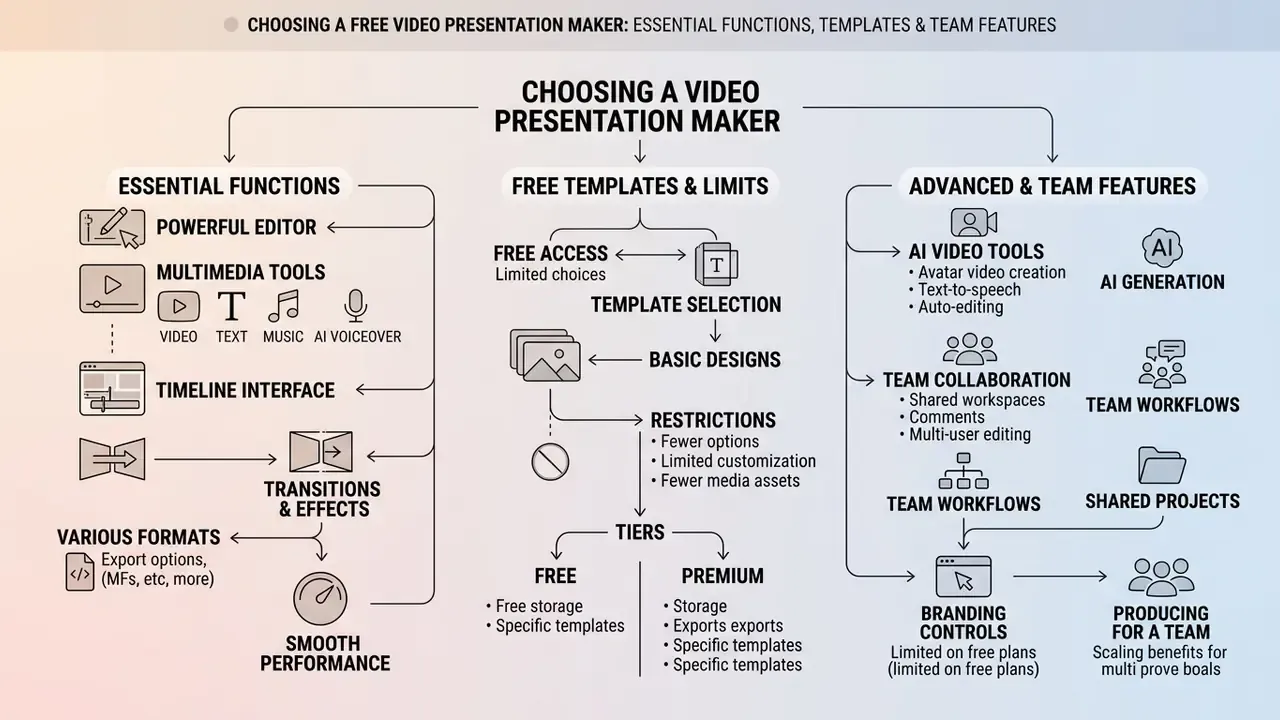
Today's market offers many online services for building video presentations. The choice depends on your task, the need for teamwork and the budget.
Many platforms offer a free video presentation tier that lets you evaluate the basic feature set at no cost. When selecting a video presentation maker or a general-purpose presentation maker, check the built-in video editor, the range of video presentation templates and the ai video capabilities. If your workflow is closer to straight editing than to slide authoring, compare the alternatives among free video editing software first.
Which functions a video presentation maker must have
An effective online editor should combine slide authoring with full video editing.
Mandatory functions include: a built-in screen recorder for screen and webcam capture, a comfortable video editor with a timeline, support for adding text (add text), fast video editing operations, automatic captions, AI narration, a template library and export presets. Full-featured services let you build an animated presentation entirely in the browser, with no local installation. Two further criteria matter for teams: real-time co-editing with comments and tasks, and granular access permissions. For individual work, the decisive criteria are usually file-format compatibility (PPTX import, MP4/PDF export) and the ability to work without a subscription. Output file weight also matters for LMS upload limits, so a video compressor is a useful companion tool when a platform caps upload size.
Free templates and the limits of free video presentation tiers
Free plans make video production accessible but usually carry technical restrictions.
Using free video presentation services, you may encounter watermarks, export-resolution caps (for example 720p instead of 1080p), runtime limits of a few minutes, a truncated presentation templates library and restrictions on SCORM export, which is almost always a paid feature. At the same time, several current tools, Clipchamp and Adobe Express among them, allow free video export without watermarks at up to 1080p, which is adequate for entry-level production. Compare the trade-offs across free AI video generators before standardising a team workflow, and re-verify the terms annually: free-tier limits change more often than documentation does.
AI video, collaboration and producing presentations for a team
Artificial intelligence and cloud collaboration accelerate material preparation in distributed teams.
Ai video and ai voiceovers technologies generate narration and visual scenes from a text description, while co-editing lets every team member contribute changes, leave comments and approve the final cut. This simplifies volume production when you need to create video presentations for an entire organisation.
A second practical example concerns weekly analytics in a cross-functional team. Because of time-zone spread, report sign-off took up to two days. The team introduced a cloud video editor with AI narration: each analyst entered data into a single template, after which the system generated the video with voice-over and captions automatically. Total preparation time fell from 48 to 4 hours, and mispronunciation of domain terms was eliminated through a shared pronunciation dictionary. The same pipeline was later extended with an approval gate, so no module renders until a named reviewer signs the script, which kept the speed gain without loosening the accuracy control. This example is illustrative rather than a documented client result.
How to download, publish and reuse a video presentation
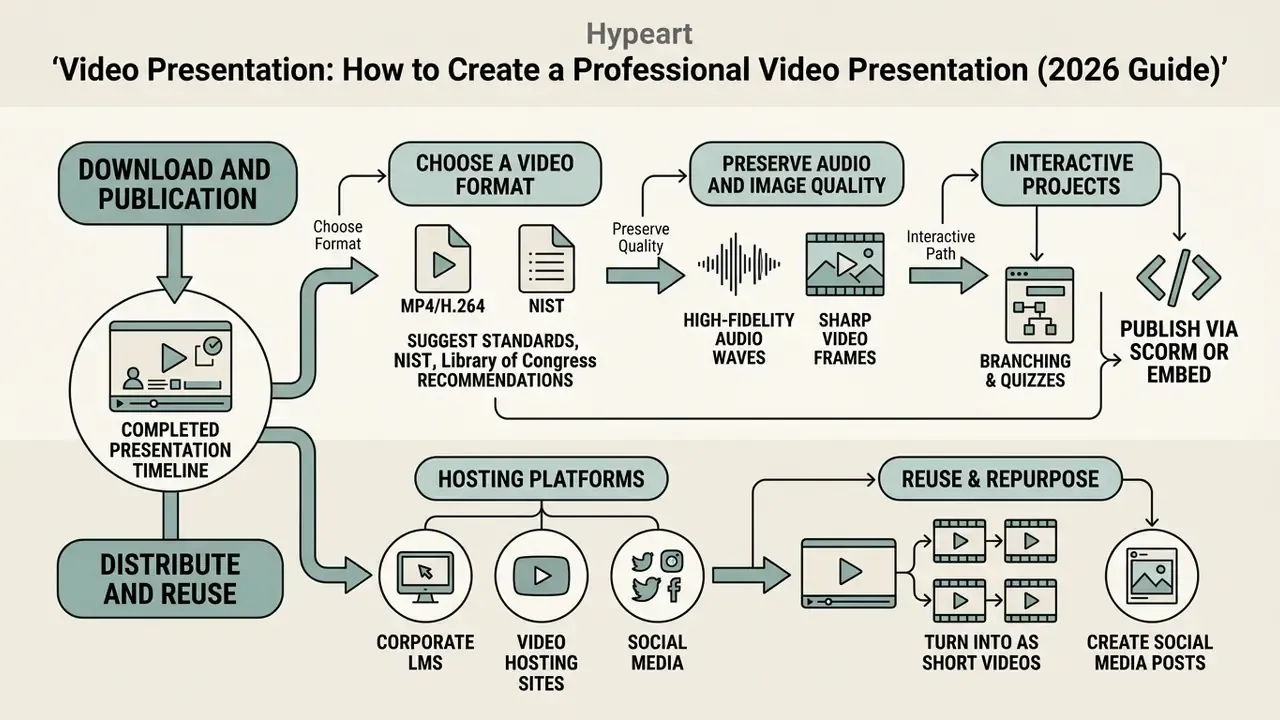
Once editing is complete, the presentation must be exported in a correct format and placed on the target channels.
The download step must preserve audio and image quality. With the right video format, you can stream online video in webinars, upload the file as a youtube video or adapt it for social media. Distribution through social media platforms and link sharing (shared via) expands reach without additional production, although gated links remain the default for anything containing internal data.
How to choose a video format for download and publication
The universal standard for downloading and hosting video presentations is an MP4 container with the H.264 video codec and AAC audio codec.
NIST 2025 digital video exchange guidance and the Library of Congress recommended-formats statement both position MP4/H.264 as the primary exchange format for digital video (NIST, 2025). For quality video and a high quality image, export in Full HD (1920×1080) at 5 to 8 Mbit/s, which balances sharpness against file weight. Bear in mind that container name alone does not guarantee playback: compatibility depends on the codec inside it, and device profiles differ sharply. Android baseline guidance cites 1280×720 at 2 Mbit/s for broad coverage, while current TV specifications accept VP9 up to 7680×4320 at 80 Mbit/s. When in doubt, ship H.264 MP4 and keep a higher-bitrate master.
Interactive projects are the exception: if branching or quizzes are enabled, the asset is published through the vendor player, an auto-updating embed code or a SCORM package rather than as a flat MP4.
Where to host a video presentation and how to turn it into short videos
A finished video presentation can be distributed through a corporate LMS, video hosting platforms and social networks, and then cut down into short fragments.
Once you publish a youtube video, split the long file into short vertical video clips (9:16) of 15 to 60 seconds. Institutional guidance converges on a 30 to 60 second sweet spot with a hook in the first one to three seconds and no long intro or logo animation. Such clips with burned-in captions are ideal for social media platforms and drive traffic to the full version on your media platforms. For publishing workflows, thumbnails and metadata, see the review of YouTube video editors: custom thumbnails are resized without changing aspect ratio, so supply 16:9 at 1280×720 or higher to avoid black bars.
«A 2024 study of more than 200 students found a negative correlation between short-video viewing time and exam scores; interviews recorded a subjective decline in concentration among heavy users.»
The practical implication is not to abandon short formats but to use them as an entry point: clips attract attention, while the full presentation and the tracked LMS module carry the learning load. You can estimate the cost of different production options on the pricing page, and compare tool categories side by side in the AI Media Comparison Matrices.
FAQ: frequently asked questions about video presentations
This section collects concise answers to the practical questions that arise most often during production, covering conversion from a powerpoint presentation and google slides, use of a screen recorder, the need to shoot own video, and the standards for professional video.
Can a PowerPoint presentation or Google Slides deck be turned into video?
Yes. Projects from PowerPoint and Google Slides can be exported to MP4 while preserving animations, transitions and audio tracks. In Microsoft PowerPoint, use File → Export → Create a Video, where you set the resolution (up to Ultra HD 4K) and enable "Use Recorded Timings and Narrations". The exported video carries narration, timings, animations, transitions, media and ink (Microsoft Support, 2026). If no timings exist, the default is 5 seconds per slide. In Google Slides, export runs through File → Convert to Video or via the integration with Google Vids, which adds AI voiceover, script and background music (Google Support, 2026). Be cautious with third-party converters: some of them work from slide snapshots and explicitly require animations to be removed, which defeats the purpose of the export. For adaptation of animated scenes, review the available animation makers.
Do I need to record myself for a professional video presentation?
An on-camera presence is not a mandatory requirement for a high-quality presentation. If the task is to demonstrate an interface or walk through a report, voice-over narration plus a screen capture from a screen recorder is sufficient, followed by post-production in a browser-based or desktop video editor. Where personal filming (own video) is not feasible but presenter presence matters for perception, synthetic AI presenters or high-quality ai voiceovers are acceptable, subject to the disclosure and review requirements described above. Vendor documentation is clear about the workflow advantage (no camera, no studio, localisation across many languages), but it does not demonstrate that avatars outperform a real author on trust or learning outcomes, so choose by scenario rather than by default.
How long should a video presentation be?
Treat 10 minutes as the upper bound for a traditional business or academic delivery, 5 to 7 minutes for an executive briefing, and 3 to 5 minutes per module for training content. Split anything longer into chaptered modules. Experimental data on short AI-generated clips shows higher test scores and faster task completion than long-form equivalents, though sample sizes remain small.
Can an interactive video presentation be exported as MP4?
Usually not. Once branching paths, quizzes or clickable CTAs are enabled, the project depends on a player layer and must be distributed via a direct link, an embed code or a SCORM/xAPI package. If you also need a flat file for offline viewing, plan a parallel linear version of the same script from the start.
Which format should I use for an LMS: MP4 or SCORM?
Use MP4 when you only need playback and the LMS tracks completion at the item level. Use SCORM or xAPI when you need per-learner progress, quiz scoring, attempt history and a defensible completion record, for example in compliance and policy training, where the record itself is the audit artefact.
Useful resources and tools
To explore media production, automation and the legal side of AI-generated content in more depth, see the following sections of this resource:
- Look up core terminology in the glossary.
- Choose a production tool in the animation maker catalogue, or test a scripted animation generator for repeatable scenes.
- Compare narration engines among AI voice generators.
- Reduce output file weight with a video compressor.
- Test cost scenarios in the AI Media Calculators.
- Get technical help in AI Media Support and Troubleshooting.
- Study integration guides in the AI Media API Guides.
- Review commercial-use rules in the AI Media Commercial-Use Hub.
- Track legal developments in AI Litigation and Case Timelines.