A video collage combines static images, moving footage, text elements, and background audio into a unified multi-panel composition. Modern web-based tools let you assemble these multi-layer visual layouts directly in the browser, with no desktop editing software installed and no admin rights requested.
That convenience is exactly why the format deserves a process, not just a tutorial.
Nine Things to Know Before You Build a Video Collage
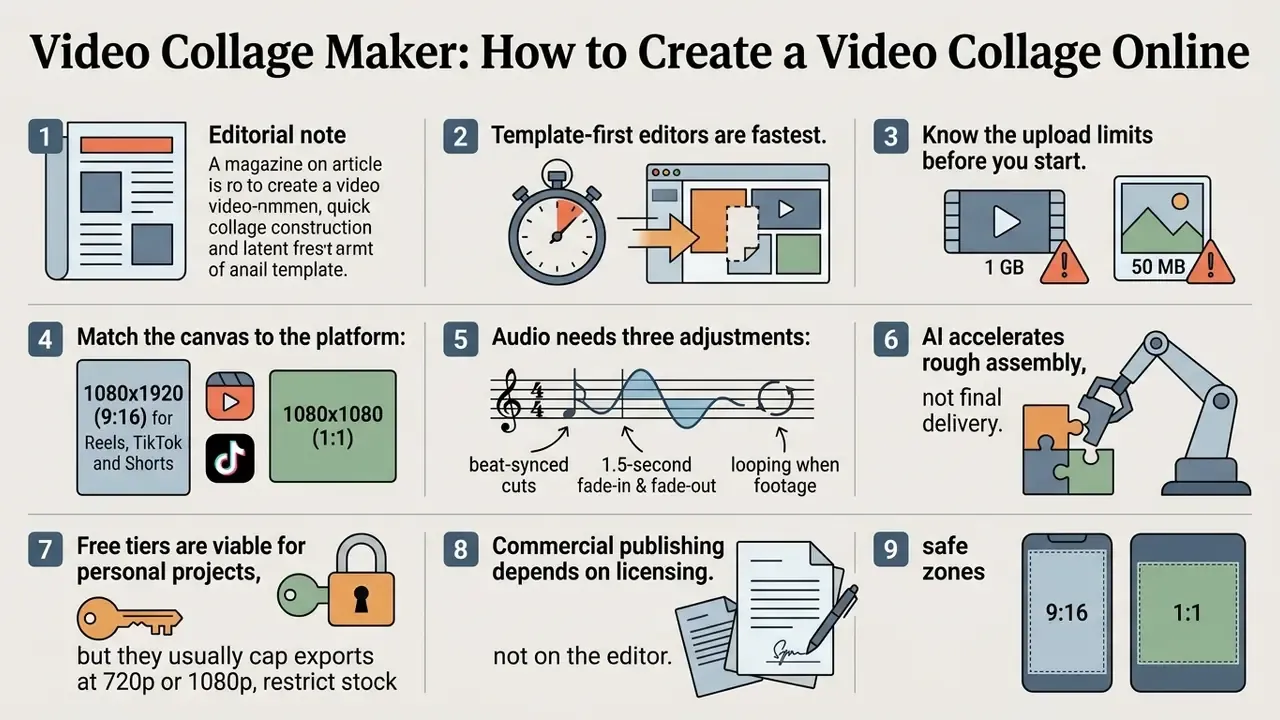
How to Use This Guide
Read it in the order your project actually moves. If you already know the format and just need output specs, jump to the upload table and the export settings. If you are choosing a tool for a team, the pricing, licensing, and security sections carry the decisions that cost real money.
Three practical checkpoints structure everything below: the creative choice (layout and platform), the production choice (editor features and AI assistance), and the control choice (licence scope, approval, data handling). Skip the third one and the first two stop mattering.
What Is a Video Collage and When Should You Use It?
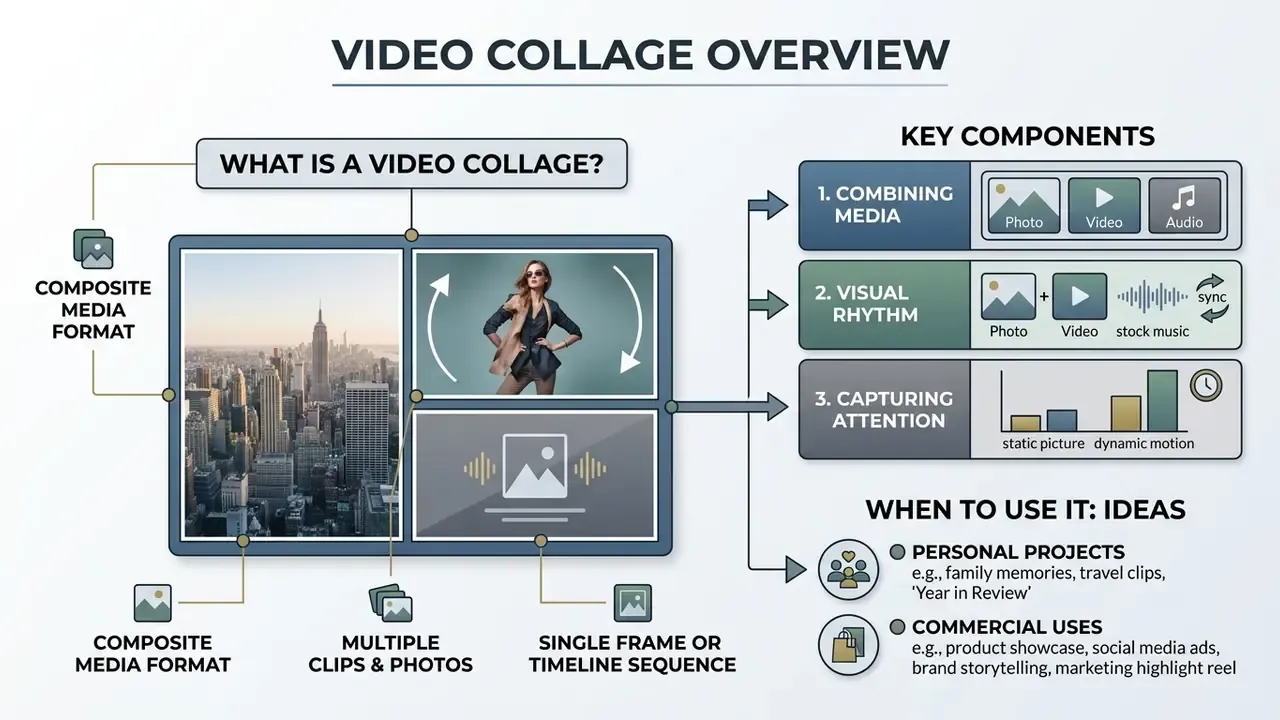
A video collage is a composite media format that displays multiple photos and video clips within a single frame or a structured timeline sequence. The format serves personal storytelling and commercial content creation alike, condensing complex narratives into grid layouts a viewer can parse in seconds.
Definitions differ slightly by source discipline, and that difference is useful. Microsoft Research originally framed "video collage" as a synthesized image that lets a viewer browse a video collection by arranging salient regions and representative frames on one canvas. Creative tooling documentation frames it as an editing format: Adobe documents collages that mix photos and videos into one exportable clip, while Wondershare describes combining two or more clips in one frame through split screen, overlay, or grid so that different moments or perspectives play simultaneously. In practice, the second definition drives production; the first explains why the format reads so quickly.
Combining static pictures with dynamic motion captures attention faster than a single-frame post, because the layout delivers several information channels at once: visual, acoustic, and textual, all inside one scroll-stopping unit.

Combining Photos, Videos, and Audio in a Single Layout
Pairing photo and video elements with stock music creates a cohesive visual rhythm, and rhythm is what improves recall. A collage photo video sequence with no beat structure feels like a slideshow; the same assets cut on the beat feel authored.
To keep visual balance, arrange photos and video clips along grid lines while adjusting individual track volumes. Tracks pulled from an approved music library let you add music that supports voiceover narration instead of fighting it. Google Vids documents the mechanism explicitly: a "Narrative" balance setting lowers other clips during voiceover, while a "Background" setting lowers music underneath narration, with separate controls for trimming audio length and repositioning tracks on the timeline.
Timing guidance from editing practice reinforces the same discipline. Pick the music first, mark the beats, then place clip cuts on those markers. High-energy social formats commonly run 1 to 3 second cuts, and a well-built collage with video should still read clearly with the sound muted. Test that. Mute it and watch.
Personal and Commercial Video Collage Ideas
Personal use cases for a collage photo video project include birthday video greetings, travel recaps, graduation reels, and anniversary memory stories. These blend family pictures, short clips, and custom text captions to highlight one memorable event. Vendor template libraries package exactly these scenarios, including video greetings, birthday video formats, an intro maker for channel openers, and social-platform clips, as ready-made starting points.
For enterprise and marketing teams, promo video collateral built with a collage maker video workflow accelerates campaign production. Businesses use multi-frame layouts for product highlight reels, social media advertisements, real-estate home tours, how-to tutorials, recruitment spots, and corporate event summaries. One frame, several proof points. Teams comparing production stacks for these tasks can review our roundup of video editing software before committing to a subscription.
How to Choose the Right Video Collage Template
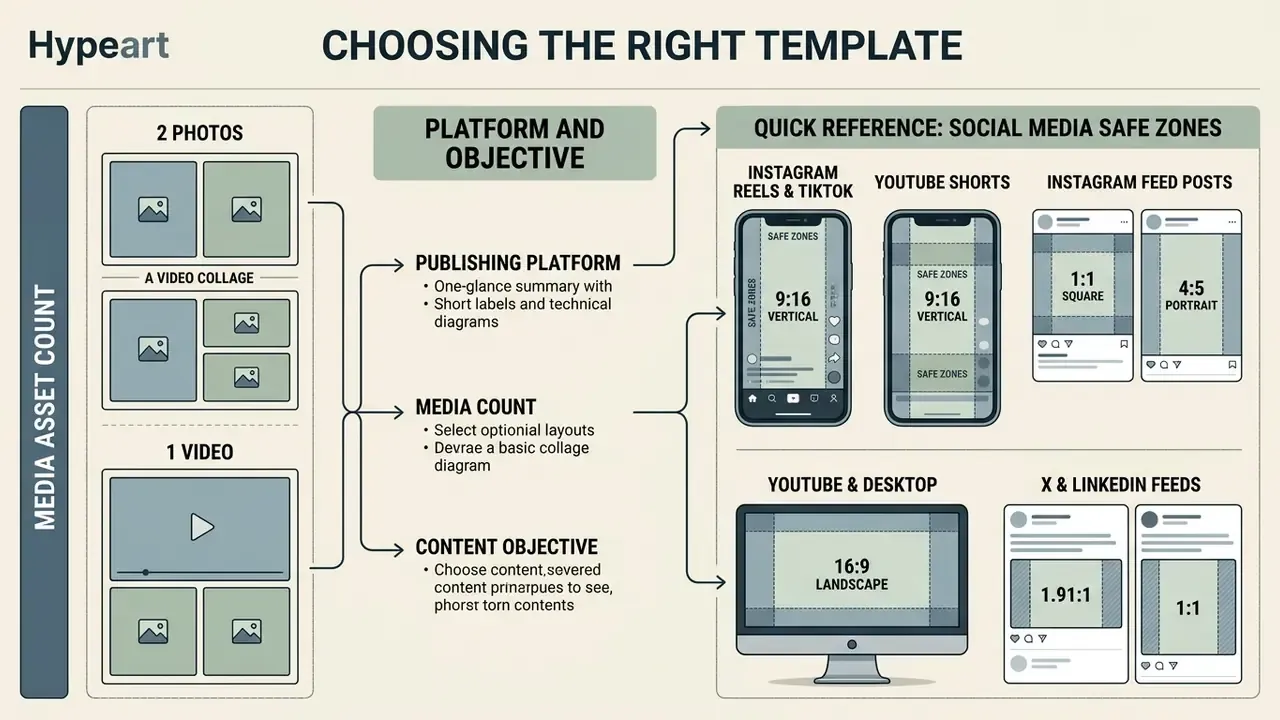
Choosing the correct video collage template depends on the target publishing platform, total media asset count, and the primary content objective. Pre-designed collage templates fix the grid structure, aspect ratio, and default animation timing before any media is inserted.
Standard platform layouts range from side-by-side split screens to complex multi-cell grids. Selecting an optimised video template reduces manual cropping and keeps critical visual elements inside safe display zones. Creators evaluating automation-heavy platforms alongside template libraries can compare current AI video generators to see which engines ship collage-ready presets.
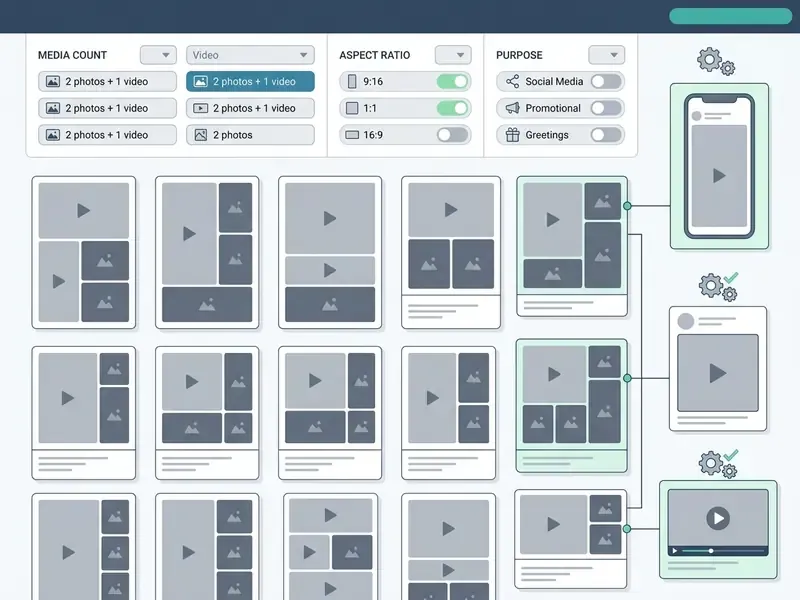
Template libraries are organised on two axes rather than one. Aspect-ratio filters typically expose 16:9, 1:1, 9:16, 4:5, and occasionally 2.7:1, while use-case filters split by destination: Stories, Reels and Shorts, feed posts, YouTube, widescreen. Adobe Stock's own video-template submission requirements standardise delivery at 16:9 widescreen, 9:16 vertical, and 1:1 square. No industry standard defines a universal "photo and video count" taxonomy; vendors label those variants themselves, for example "2 pic 1 video" or "1 video 2 pictures".
Layouts for 2 Photos and 1 Video
The 2 pictures 1 video template is a widely used three-cell composition that balances static detail with movement. Creators frequently place a central video clip between two complementary photos to supply context and hold visual hierarchy.
Layout variations such as the "2 pic templates video" or "2 pics template video" arrangement structure side-by-side or stacked grids. Some tools describe the same structure by geometry (a 2×1 side-by-side split with an inset), others by media order (a mixed three-item collage with interchangeable cells). Functionally, they belong to the same family. These arrangements let marketers showcase product features alongside a real-time demonstration inside a single frame.
Spacing, cropping, border weight, and background colour are what actually distinguish one three-cell template from another. In Adobe Premiere Elements, for instance, the collage grid itself can be resized, moved with its content, and have clips swapped between cells before the project file is saved.
Adapting Templates for Social Media Platforms
Adapting a video collage for an Instagram video or a short-form feed post means matching canvas aspect ratios to platform specifications. Standard formats include 9:16 vertical for Instagram Reels, TikTok, and YouTube Shorts; 1:1 square or 4:5 portrait for feed posts; and 16:9 horizontal for desktop displays.
When reframing, keep text overlays and primary visuals inside central safe zones so interface elements do not bury key information. Meta's own 9:16 creative guidance recommends keeping important elements away from the top, bottom, and side edges; TikTok and Shorts add a right-side engagement column to the list of obstructions. Animation follows the same rule, since movement placed near the bottom or right edge risks being covered by platform UI. Automated resize tools simplify canvas adjustment across multi-channel campaigns, though a human still has to look at the result.
Quick Reference: Social Media Aspect Ratios and Safe Zones
- Instagram Reels and TikTok (9:16 vertical)
- 1080×1920 px. Safe zone: keep central text overlays within roughly 1080×1350 px to avoid interface icon obstruction.
- YouTube Shorts (9:16 vertical)
- 1080×1920 px. Keep captions clear of the title strip and the right-side action column.
- Instagram feed posts (1:1 square or 4:5 portrait)
- 1080×1080 px or 1080×1350 px.
- YouTube and desktop display (16:9 landscape)
- 1920×1080 px, 30 or 60 fps.
- X (Twitter) and LinkedIn feeds (1.91:1 or 1:1)
- 1200×628 px or 1080×1080 px.
Step-by-Step Guide: How to Make a Video Collage Online
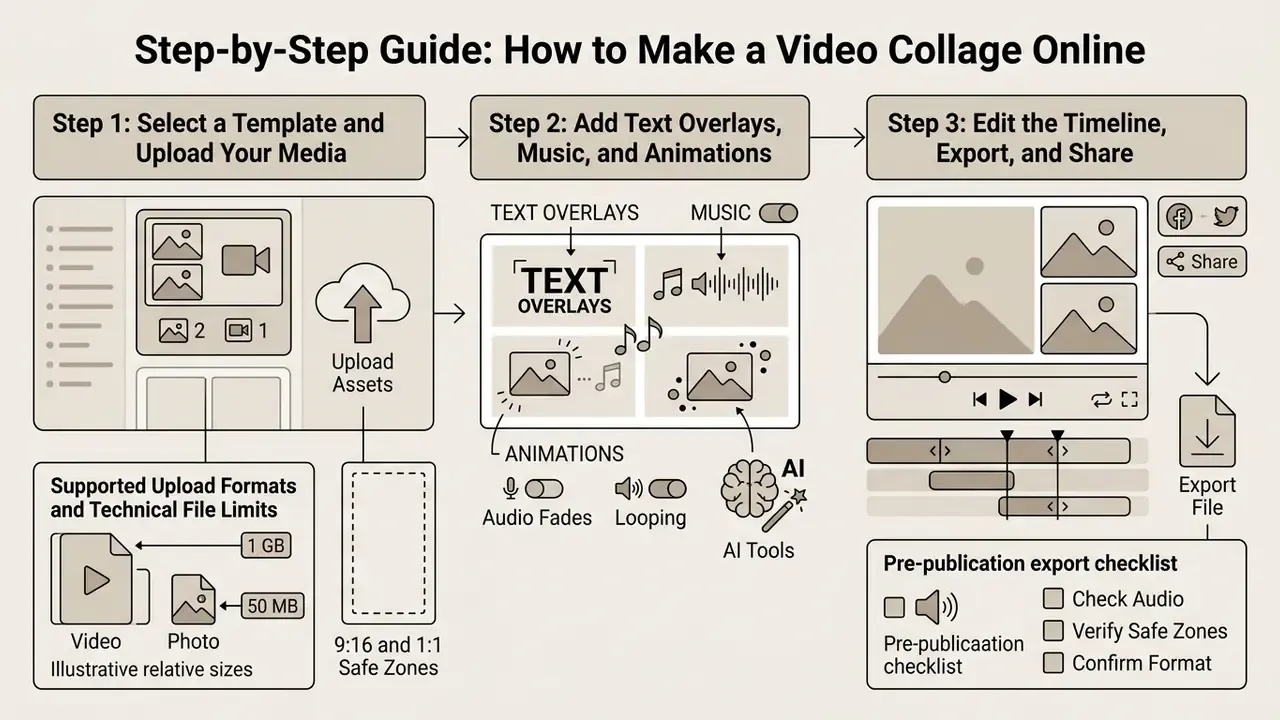
Creating a video collage online involves selecting a structural layout, uploading media assets, configuring visual enhancements, and exporting the finished file. Cloud-based editors run these processing steps in the browser, so heavy local hardware is optional. Readers new to automated production pipelines can start with our primer on the AI video generator category.
Following a standardised assembly sequence keeps assets in sync, prevents licensing errors, and holds visual quality steady across a campaign. For broader editing terminology, our AI Media Glossary covers the vocabulary used throughout this guide.
Step 1: Select a Template and Upload Your Media
Open a browser editor and pick a layout that matches your media count. Then upload pictures in JPG or PNG format alongside video clips in MP4 or MOV directly into the media staging panel.
Once uploaded, drag each asset into its designated grid frame. The editor scales footage to fit the layout constraints while still allowing manual repositioning. Before importing anything, gather every clip, still, graphic, and audio file into one folder. University production guidance treats this consolidation step as mandatory, because mid-edit asset hunting is where most timelines quietly break.
Supported Upload Formats and Technical File Limits
Before importing assets into the online canvas, check your files against these typical requirements:
| Media Type | Supported Formats | Max File Size | Resolution / Dimension Limits | Special Conditions |
|---|---|---|---|---|
| Video clips | MP4, MOV, WEBM, MKV, MPEG, GIF | Up to 1 GB per clip | Up to 4K (3840×2160) | Clips with transparency are best uploaded as GIF or WEBM |
| Static images | JPG/JPEG, PNG, WebP, HEIC/HEIF | Up to 50 MB per photo | Max 250 million total pixels (width × height) | Static WebP only; HEIC/HEIF auto-converted |
| Vector assets | SVG | Up to 3 MB | 150 to 200 px base width | Must be saved with an SVG Profile of "SVG 1.1" |
| Audio tracks | MP3, WAV, M4A, AAC | Up to 100 MB | 44.1 kHz or 48 kHz sample rate | Royalty-free library track or your own voiceover upload |
| Caption files | SRT, VTT | n/a | n/a | Required for accessibility compliance on public distribution |
Two caveats matter in enterprise environments. First, format support is editor-specific: some content platforms accept JPG and PNG but refuse MP4 or MOV storage entirely and require video to be hosted externally, while others accept all four in one media library. Second, oversized source files slow browser rendering, so if your clips exceed the cap, run them through a video compressor before upload rather than downscaling inside the collage editor.
Step 2: Add Text Overlays, Music, and Animations
Improve clarity by choosing options to add text captions, title headers, and brand elements over the background media. Selecting tracks from a royalty-free music library, or uploading custom audio, sets the narrative tone of the whole piece.
Subtle transitions between clip sequences smooth visual cuts. Transitions can also animate the appearance and disappearance of overlay titles and fade audio at clip boundaries. For balancing, automated ducking lowers background music during voiceover segments so speech stays intelligible. Text styling is not purely aesthetic either: federal multimedia accessibility guidance requires contrast checking for text placed over moving video, so verify legibility against the busiest frame in each cell, not the calmest one.
Step 3: Edit the Timeline, Export, and Share
Fine-tune project timing with timeline editing tools, trim unnecessary frames, and lock motion to audio beat markers. Play the whole thing through once to check visual continuity and overlay placement. Actually, play it twice: once for picture, once for sound.
When configuration is complete, export in MP4 (H.264) at 1080p for standard social media distribution. Export scaling modes, whether scale to fit, scale to fill, stretch to fill, or fit with black borders, determine how a cropped composition lands inside the target frame, so choose deliberately instead of accepting the default. Recommended delivery is 1920×1080 or 1280×720 at 30 or 60 fps, with captions supplied as a separate .srt file where accessibility compliance applies. GIF export exists, but far fewer platforms accept it than MP4. Then download the file locally or share it straight to connected marketing channels.
Pre-publication export checklist: confirm device storage capacity, confirm export settings, watch the exported file end to end, and verify both picture and audio after export, not before.
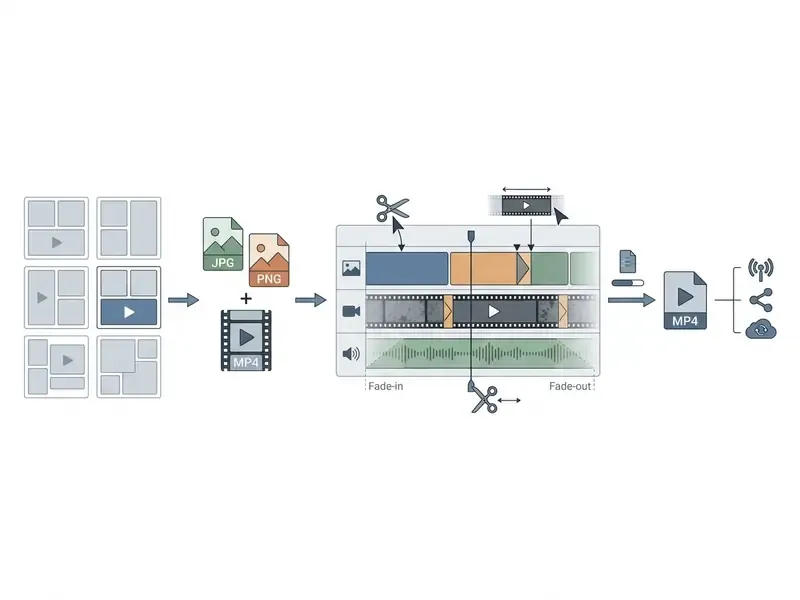
Essential Features of an Online Video Collage Editor
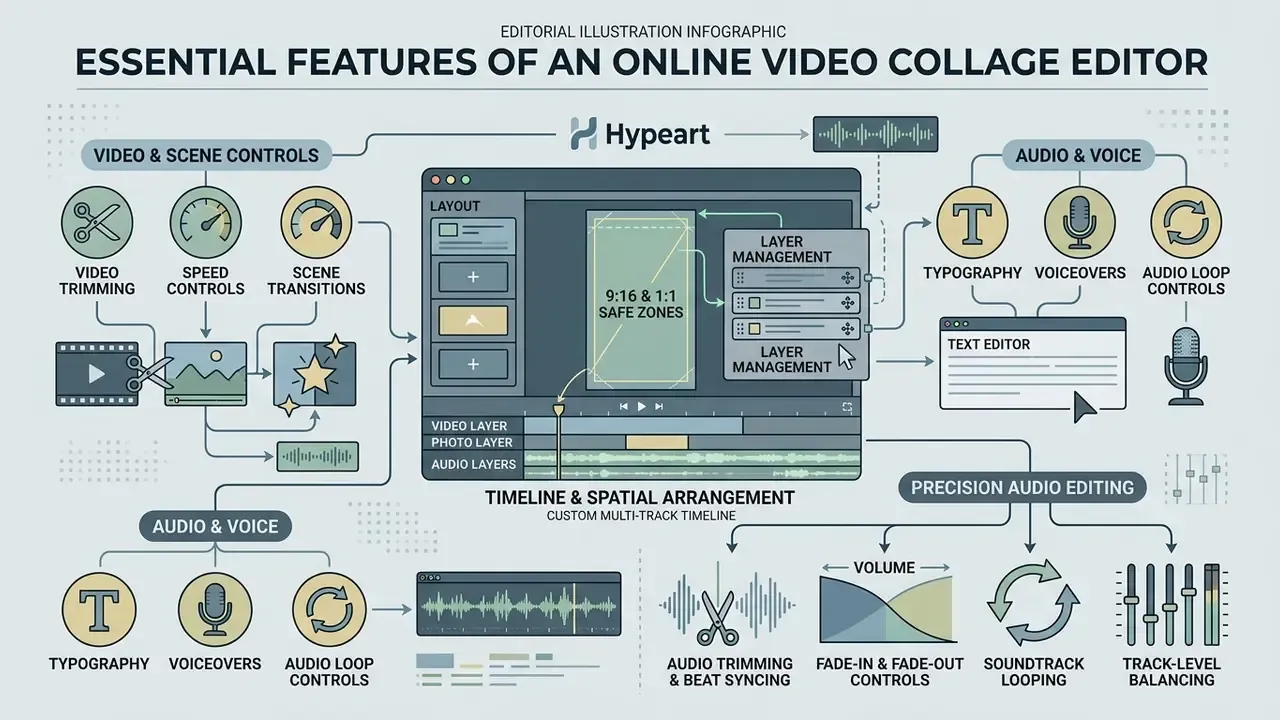
A specialised collage video editor provides custom timeline manipulation, spatial arrangement controls, and layer management. Together they let you refine individual cells independently inside one unified canvas.
Advanced editing tools are what turn a basic media grid into a usable marketing asset. For detailed feature evaluations, review our AI Media Comparison Matrices and our breakdown of the best AI video generators to read editor specifications side by side.
Video Trimming, Speed Controls, and Scene Transitions
Precise video editing requires independent clip trimming, spatial cropping, and colour correction across grid cells. Adjusting individual playback speeds creates motion contrast, such as a slow-motion highlight sitting beside real-time background footage.
Applying one cohesive colour filter across all grid elements unifies assets shot on different camera devices, which is usually the real problem with user-generated footage. Smooth transitions between scenes prevent jarring cuts during layout changes, and transition duration and alignment should be adjustable per cut rather than globally fixed. Look for four capabilities specifically: split at playhead, edge trim by dragging clip corners, per-clip transform (crop, scale, reposition), and filter presets with manual brightness and contrast override.
Typography, Voiceovers, and Audio Loop Controls
Informative text overlays clarify product specifications and narrative messaging. Editors with multi-track audio let you layer background tracks, sound effects, and voiceover recordings at the same time, which is the difference between a user friendly editing experience and a fight with the timeline.
Integrated text-to-speech tools convert written scripts into natural-sounding voiceover tracks. Our guides to AI voice generators and text-to-video AI cover licensing and quality considerations for synthetic narration.
Accessibility rules shape the caption layer too. Section 508 requires captions on pre-recorded synchronised media to be time-aligned with the audio and to include more than dialogue: effects, laughter, speaker identification, and music cues with title and artist where relevant.
Precision Audio Editing: Fades, Looping, and Multi-Track Layering
A professional audio mix inside a video collage comes down to four timeline adjustments:
- Audio trimming and beat syncingalign audio beat markers with visual scene cuts to create rhythmic transitions between photo and video cells.
- Fade-in and fade-out controlsapply roughly 1.5-second volume fades at the start and end of the audio timeline to eliminate harsh starts and abrupt cuts.
- Soundtrack loopingif footage duration exceeds the length of the background music track, enable seamless looping so the audio bed never drops out.
- Track-level balancingset narrative ducking so music drops automatically beneath voiceover, then spot-check the loudest music passage against the quietest line of narration.
When sourcing stock audio, confirm licence permissions first. Pricing details for advanced audio tools sit in our AI Media Pricing Guides.
AI Video Collage Maker: Automating Layouts and Audio Sync
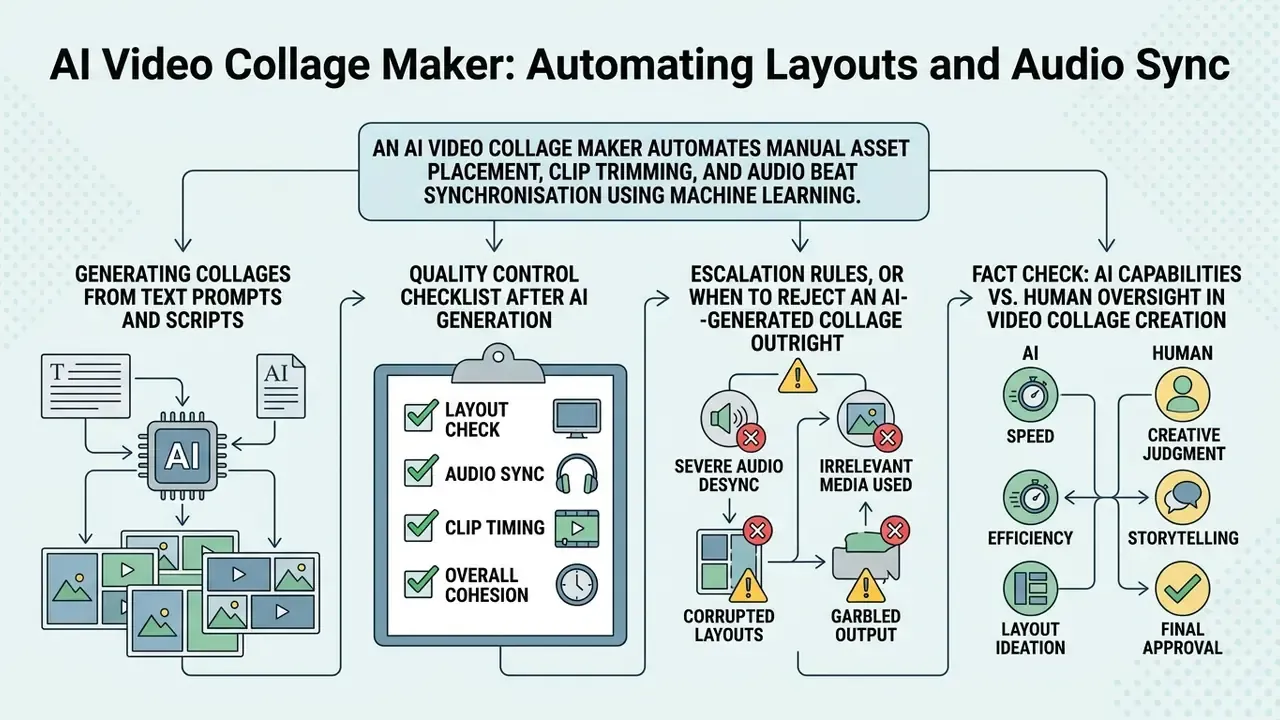
An AI video collage maker automates manual asset placement, clip trimming, and audio beat synchronisation using machine learning. AI-assisted workflows speed up generation by parsing user prompts and selecting complementary layout structures without a human dragging every cell.
These systems cut initial production time while leaving final creative control with human editors. Vendor documentation is explicit about that boundary. Canva's Beat Sync matches a soundtrack to footage in one click and then instructs users to trim or crop clips afterwards (Canva, 2025). CapCut's Auto Cut detects beats and pauses to build a rhythm-synced rough edit that still requires marker review, caption-timing adjustment, and a final watch-through before export (CapCut Help, 2026).
Generating Collages from Text Prompts and Scripts
An AI photo collage video maker converts text prompts or written scripts into dynamic video mockups. The engine analyses script keywords, selects matching stock visuals or uploaded media, and arranges them into balanced grid layouts.
Published approaches split into two generations. Earlier systems, from 2014 onward, converted text into search terms, retrieved candidate images, and assembled a storyboard or photomatic. Newer 2024 to 2026 methods generate the grid structure itself, producing a key grid image from the prompt and interpolating intermediate frames, or deriving per-cell shooting decisions plus one global visual style before multi-grid synthesis. Collage arrangement has also been formalised as a √K×√K grid optimised by genetic algorithms with crossover and mutation.
Systems with automated beat-sync alignment match visual cut points to background music rhythms. Readers focused on animating stills can review our guide to image-to-video AI. For creators evaluating automated generation utilities, our free template video resource hub offers starting points for structured workflows, and our animation maker overview covers motion-graphics alternatives.
Quality Control Checklist After AI Generation
AI tools streamline layout drafting. They do not sign off on it. Every automated output needs manual review before export.
Editors must verify that auto-generated captions match the speech audio, include non-speech sounds needed for comprehension, and do not obscure primary visual elements. Checking asset licences, timing alignment, and visual contrast is what keeps output publishable. Creators using external image utilities alongside video tools may consult our guide on free photo editor platforms for static media prep.
Escalation rules, or when to reject an AI-generated collage outright:
- Object or face identity drifts between cells or across the clip's duration, so reject and regenerate with shorter segments.
- Brand logo, colour, or typography deviates from the approved brand kit, so return it to the design owner instead of correcting it ad hoc.
- Caption text contradicts the spoken audio on any regulated claim (pricing, performance, health, financial), so escalate to compliance review before re-export.
- Stock asset provenance cannot be traced to a licence record, so remove the asset and do not publish pending clarification.
- A generated visual includes a recognisable person without a model release, so remove it and log the incident.
Fact Check: AI Capabilities vs. Human Oversight in Video Collage Creation
| Task / Feature | AI Automation Capability | Required Human Review |
|---|---|---|
| Layout selection | Auto-suggests grids based on asset count | Verifies visual hierarchy and focal points |
| Beat synchronisation | Detects audio markers and aligns cuts | Adjusts specific clip start and end frames |
| Caption generation | Transcribes speech to text in real time | Checks spelling, domain terms, timing, non-speech cues |
| Stock media matching | Retrieves clips based on prompt keywords | Confirms brand relevance and licensing rights |
| Speed and pacing | Applies template-level pacing presets | Confirms the edit still reads with sound muted |
| Auto-resize to 9:16 / 1:1 | Reframes canvas across social formats | Checks safe zones and overlay collisions |
Note: automated systems accelerate rough assembly, but human verification remains essential for brand compliance, accessibility, and technical accuracy.
Free vs. Paid Video Collage Makers: Features and Licensing
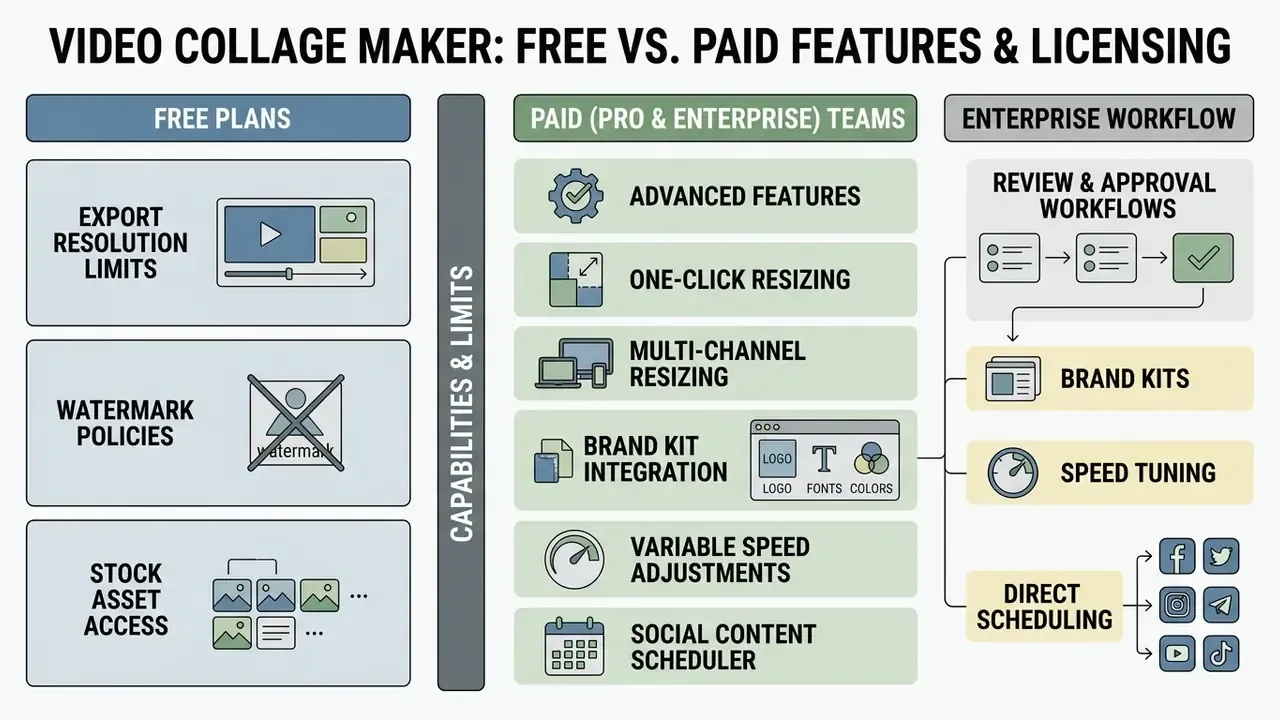
Evaluating a collage video maker free plan means assessing export resolution limits, watermark policies, and stock asset access. Free tiers generally support entry-level creation while restricting commercial licensing. Our overview of free AI video generators maps the same trade-offs across the wider generation market.
Organisations that intend to create video collage assets for commercial campaigns should read tier structures line by line. Detailed commercial usage terms live in our AI Media Commercial-Use Hub, with a platform-specific breakdown in our Canva AI generator licensing guide.
Capabilities and Limits of Free Plans
Advanced Features for Pro and Enterprise Teams
Professional marketing teams need tooling that holds brand consistency across multi-channel campaigns. Pro and Enterprise plans typically add 4K exports, custom brand kits, cloud storage, and real-time collaboration.
Expanded stock libraries and AI utilities speed up asset production further. Organisations managing mixed visual assets might also reference specialised utilities such as a free raw photo editor, a general-purpose photo editor, or design tools like a free sign maker for preliminary work. Teams publishing long-form companions to their collages can follow our YouTube video editor workflow.
Enterprise Workflow: Brand Kits, Speed Tuning, and Direct Scheduling
Production environments at scale need capabilities that go past grid assembly:
Developers who need programmatic collage assembly instead of a UI can review our AI Media API Guides and the implementation notes in our Google Veo video API guide.
Verifying Stock Assets and Templates for Commercial Use
Using stock assets in a commercial promo video requires verifying licence permissions under the official Terms of Service. Adobe Stock states that assets depicting recognisable people require a signed model release for commercial use and that all use must stay inside the licence agreement; its licence terms bar use in advertisements, promotions, endorsements, advertorials, or commercial blogs without prior written consent. Getty Images draws the same line differently: creative stock photos, video, and audio are intended for commercial projects, while editorial images cannot be used for commercial, promotional, advertorial, or endorsement purposes. Royalty-free licences permit broad commercial use; rights-managed licences restrict rights to a specified use.
Music and the edit itself are governed by two different documents, and people conflate them constantly. CapCut's Materials License Agreement states that Commercial Sounds may be used by brands for commercial purposes, but uses outside TikTok, CapCut, and TikTok for Business require separate permission and licensing. Microsoft's Clipchamp documentation allows stock videos, images, and sounds inside saved clips for commercial and non-commercial projects where the plan includes stock access, while prohibiting redistribution of the raw stock files. Shutterstock licenses music for synchronisation into a Production on a non-exclusive, non-transferable basis, with distribution scope set by the purchase terms. In short: the editor's terms govern your exported video, while the asset licence governs the music and library media inside it.
So before publication, confirm that stock tracks and templates actually grant commercial redistribution rights. Organisations facing legal inquiries or auditing compliance timelines should review our AI Litigation and Case Timelines documentation.
Pre-Publication Media Licence Audit Checklist
Checklist0 / 8
| Feature / Tier Parameter | Free Tier | Pro / Business Tier |
|---|---|---|
| Template access | Standard basic grids | Unlimited premium and branded templates |
| Stock media library | Limited selection (around 5M assets) | Full library (100M+ assets and audio) |
| Export quality | 720p / 1080p (possible watermark) | 1080p HD / 4K (watermark-free) |
| AI generation quotas | Basic, limited monthly credits | Expanded, high-priority processing |
| Commercial rights | Personal and non-commercial only | Full commercial and advertising licence |
| Team collaboration | Single user | Multi-user editing and brand kit controls |
| Upload ceiling | Often reduced (for example, 50 MB per file) | Up to roughly 1 GB per video clip |
| Scheduling and publishing | Manual download only | Direct multi-channel scheduler |
| Cloud storage | Minimal, session-based | Around 1 TB per seat on team plans |
Total Cost of Ownership: What the Subscription Price Omits
Seat price is the smallest line in a compliant production budget. A realistic TCO model for collage production adds:
TCO = (seats × subscription) + stock and music licence fees + legal review hours × internal rate + rework hours from rejected exports + storage and retention costs + vendor security review (one-off)
Two practical implications follow. First, a "free" tier that forces manual licence verification on every asset can cost more in legal hours than a Pro seat with cleared stock. Second, rework driven by wrong aspect ratios or unlicensed music is the single most controllable cost in the model, and it is eliminated by the pre-flight checks above rather than by a bigger plan.
Licensing and Regulatory Verification Framework
- U.S. Copyright Office, Circular 21: Reproduction of Copyrighted Works. Clarifies reproduction and distribution limits for copyrighted digital media.
- FTC, Guides Concerning Use of Endorsements and Testimonials in Advertising. Mandates clear and conspicuous disclosures in sponsored promotional video collateral.
- Section 508 and U.S. Access Board synchronised-media requirements. Captions for pre-recorded and live synchronised media must be accurate, time-aligned, and must not obscure relevant visual information.
- U.S. Environmental Protection Agency, Music Licensing guidance. Online publication of video requires a music licence; standard agreements are single-use and non-transferable.
- Adobe Stock licence terms and Getty Images licensing documentation. Define the boundary between creative (commercial-ready) and editorial-only assets, and between royalty-free and rights-managed scope.
- Vendor licensing agreements (CapCut Materials License Agreement, Microsoft Clipchamp stock media terms, Shutterstock Terms of Service). Commercial deployment requires explicit commercial licences for embedded stock audio and video.
Enterprise Data Security and Shadow AI Controls
Browser-based collage editors are among the most common entry points for shadow AI in marketing and internal-communications teams, precisely because they need no installation, no procurement ticket, and no admin rights. The material risk is not the edit. It is the upload: unreleased product footage, customer imagery, executive recordings, and pre-announcement assets leaving a controlled environment for a consumer SaaS tenancy.
Vendor due-diligence checklist before a collage tool is approved for corporate media:
Operational controls that reduce exposure without blocking the team:
- Maintain an approved-tool list and publish it where marketers actually look, in the brief template, not only in the policy portal.
- Classify media before upload: only assets rated public or internal-shareable may enter a cloud editor, and restricted footage stays on managed workstations.
- Strip metadata (GPS, device identifiers, internal file paths) from source files before upload.
- Use corporate accounts with SSO, never personal logins, so export and share activity remains auditable.
- Require a named human approver for every externally published collage, recorded alongside the licence audit checklist.
Checklist0 / 8
This section closes the gap a pure tutorial leaves open. The creative workflow and the control workflow have to be designed together, because a compliant collage is a product of both.
Limitations and Open Questions
A few things in this guide are firmer than others, and it is worth saying which.
Upload ceilings, aspect ratios, and export codecs are documented vendor facts, so they are reliable until a release note changes them. Engagement effects are directional: the cited reviews show short-form multimodal video influences attitudes and intent, but effect sizes vary by platform, category, and creative quality, so treat any "collages perform better" claim as a hypothesis for your own A/B test. AI capability claims are the least settled area of all, since object consistency, caption accuracy, and licence provenance for generated elements still differ sharply between vendors and between releases of the same tool.
One genuinely unresolved question: who owns the approval record when the collage is assembled inside a consumer-tier account by someone outside the marketing function? In most organisations the honest answer today is nobody. That is a governance problem, not a tooling problem.
A Safe Next Step
Pick one upcoming campaign, not the whole content calendar. Run a single collage through the full path: template selection, upload check, AI-assisted rough cut, human QC, licence audit, named approval, export verification. Note where it stalls.
If the stall is creative, a better template library fixes it. If the stall is legal or security-related, no editor upgrade will help, and the next step belongs with compliance and the vendor review process.
Frequently Asked Questions (FAQ) About Video Collages
Short answers to the operational, mobile, and technical questions that come up most often.
How do I make a video collage on a phone?
Mobile collage creation works through native iOS or Android apps or a responsive mobile web editor. Install the editor from the iOS App Store or Android Google Play, or simply open the mobile web editor in a browser, since major platforms expose the same collage flow in both. Touch interfaces let you tap a frame to insert photo or video media, pinch to scale assets, and drag elements to adjust framing. Check OS compatibility before installing: collage apps in the App Store commonly list minimum requirements from iOS 12 through iOS 16 or later. Accessibility guidance matters on touch too. Targets should be at least 44×44 pt on iOS and 48×48 dp on Android, interactions should not depend solely on multi-finger gestures, and video still needs captions. Mobile apps also simplify direct publishing to Instagram and TikTok. For help with mobile tool performance, consult our AI Media Support and Troubleshooting portal.
How do I combine two videos into one collage?
To collage a video pair into a single frame, select a split-screen or side-by-side template layout, then drag one file into the left cell and the second into the right. Technically it is a two-stage operation: align first, compose second. Alignment means trimming or time-warping both clips onto a common timeline, and research on multi-video synchronisation computes nonlinear temporal warping paths for exactly this problem. Practical guides sometimes just drop a leading frame to force a match. Composition then places both streams in one frame; in command-line terms, padding the canvas to double width and overlaying the second stream at the midpoint. Synchronise playback on the multi-track timeline so the clips run simultaneously or sequentially, and balance the audio so the primary sound stays clear. That is the whole trick behind any collage in video form.
Can I upload GIFs and transparent clips?
Yes. GIF is supported as an upload format alongside MP4, MOV, MPEG, MKV, and WEBM. If your clip has a transparent background, upload it as GIF or WEBM rather than MP4, because standard MP4 encoding does not preserve an alpha channel. Animated stickers and GIF elements from the editor's own library can be mixed into cells, and many editors export the finished collage as a GIF as well, which is useful for lightweight reactions even though GIF is accepted by far fewer distribution platforms than MP4.
How is a collage video maker different from a regular video editor?
A specialised video collage maker is template-first, offering pre-built multi-panel layouts optimised for rapid assembly. That focus enables fast content creation without manual timeline layer configuration, which suits fixed layouts and short social clips. A traditional online video editor, by contrast, provides full multi-track timeline flexibility, keyframe control, audio layering, and complex compositing, at the price of setup time. The trade-off is symmetrical: collage makers give up granular per-clip timing and deep layer work, while a general video editor adds steps before every export.
What export settings should I use?
MP4 with H.264 encoding is the default recommendation across publishing guidance, at 1920×1080 (preferred) or 1280×720, with 30 or 60 fps the most common frame rates. Vertical social delivery should be 1080×1920. Supply captions as a separate .srt file where accessibility compliance applies, and re-check picture and audio on the exported file rather than trusting the in-editor preview.
Is a free video collage maker enough for a business promo?
Technically, often yes. Legally, it depends on the licence rather than the resolution. A free video collage tool can produce clean 1080p output, but free tiers frequently restrict commercial rights, limit stock libraries, apply watermarks, or cap uploads at a fraction of paid limits. If the piece will run as advertising, verify commercial redistribution rights for every embedded asset, and remember that the editor's terms and the stock licence are two separate agreements.
How do I pick the best video collage maker for a team?
Score candidates on four axes rather than on template count: output control (resolution, codec, aspect presets), collaboration (brand kits, review links, roles), licence clarity for stock and AI output, and security posture. A tool with fewer templates but a signed no-training commitment and audit logging is usually the safer purchase for regulated environments.
Do I need to disclose AI use in a published collage?
Disclosure obligations depend on jurisdiction, platform policy, and the nature of the claim being made. Where a collage is sponsored or contains endorsements, FTC guidance requires clear and conspicuous disclosure regardless of how the video was produced. Treat AI-generation labelling as a policy decision owned by compliance, not by the editor operator, and record the decision in your approval log.
Appendix A: Editorial Revision and Sourcing Log
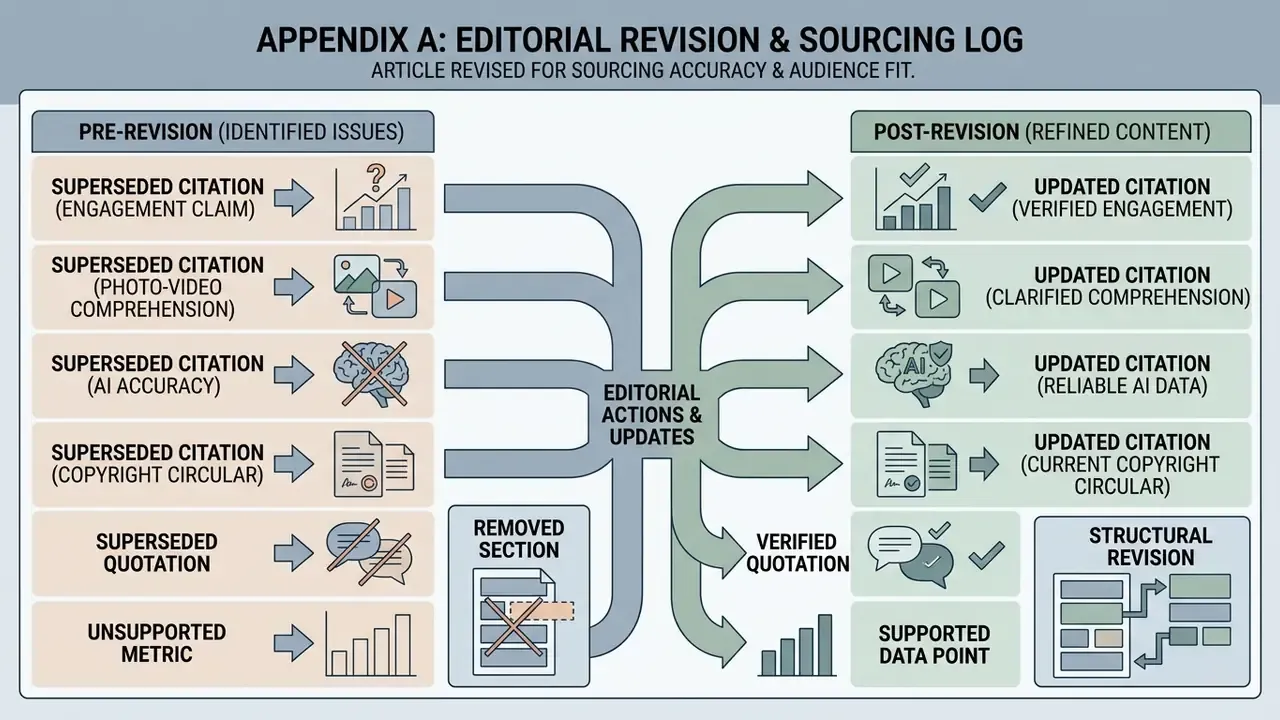
This article was revised for sourcing accuracy and audience fit. The following changes are recorded for transparency:
- Superseded citation (engagement claim). Earlier versions cited a Journal of Consumer Behaviour (2026) review without methodology or sample data. Updated: replaced with the 2025 PRISMA-2020 systematic review of 33 empirical short-form video studies, which states methodology and scope.
- Superseded citation (photo-video comprehension). An unattributed ACM Multimedia reference lacked year, sample, and metrics. Updated: replaced with multilevel-model findings from 2025 doctoral research coding 1,025 TikTok videos out of 12,335 screened.
- Superseded citation (AI accuracy). A general reference to IEEE Symposia on Industrial Applications (2024) carried no study title or method. Updated: replaced with the ASIANCON 2024 text-to-video system evaluation reporting 82% NLP and 89% ML accuracy.
- Superseded citation (copyright circular). A 2026 date was attached to Circular 21. Updated: the document is now cited by title without a year.
- Superseded quotation. An attributed expert epigraph could not be verified and has been replaced with a signed editorial note from the AI Media editorial team.
- Unsupported metric. The claim that "production time decreased by 70%" is not supported by any cited study. Updated: the case block now describes a directional reduction against an internal baseline and flags that results vary and are not independently benchmarked.
- Removed section. A former "Additional Utilities and Niche Generators" block contained an off-topic anchor to an adult-content generator, incompatible with this article's audience and with E-E-A-T standards. It has been removed and replaced with the Enterprise Data Security and Shadow AI Controls section, the TCO model, and the media licence audit checklist. Readers who arrived looking for calculation utilities can use the AI Media Calculators suite.
- Structural revision. The anchor-based table of contents was replaced with a short reading guide, and a Limitations section plus a next-step block were added to separate documented specifications from directional claims.
- Language consistency. Section headings and multimedia placeholders were unified to English to match the body copy.
Explore comprehensive technical definitions and platform frameworks in our AI Media Glossary, pricing breakdowns in our AI Media Pricing Guides, and licensing analysis in our Commercial-Use Hub.