That principle translates into a very practical question for solo creators too: which editor moves a finished video from camera card to published upload with the fewest manual steps, hidden export locks, and licensing surprises? Whether you run a one-person vlog channel or a corporate media studio publishing weekly explainers, the decision framework is the same. Match platform, skill level, AI feature depth, and export rights to the content format you actually publish. Everything below is organized around that framework.
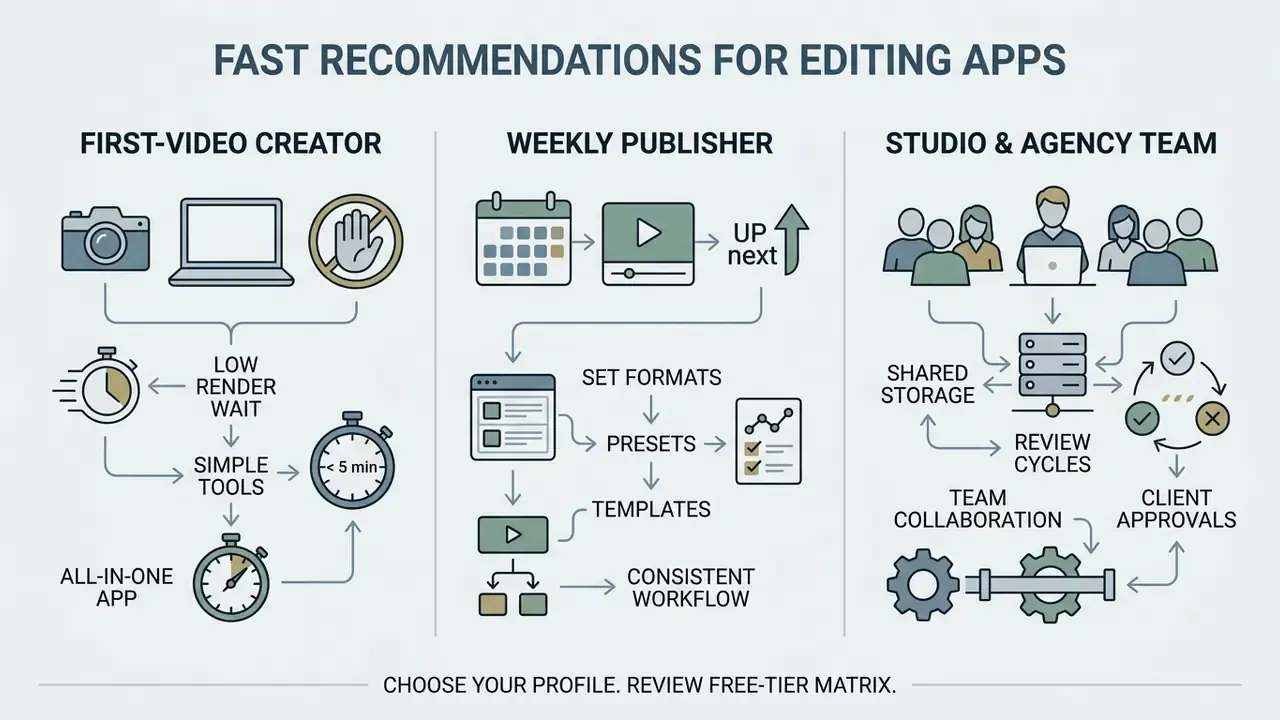
Fast Recommendations by Use Case
| Your Situation | Recommended Pick | Why It Wins |
|---|---|---|
| Absolute beginner, any device | CapCut | Templates, auto-captions, 16:9 and 9:16 projects, watermark-free standard exports |
| Best free editor overall (desktop) | DaVinci Resolve (free) | Full NLE, node-based color, Fairlight audio, Fusion VFX, UHD export, no watermark |
| Talking-head, podcasts, interviews | Descript | Transcript-based editing, filler-word removal, Studio Sound, Eye Contact |
| Fastest rough cut automation | Gling (paired with any NLE) | AI silence and bad-take removal, XML/EDL handoff to Premiere Pro, Final Cut, or Resolve |
| Free, zero-install, browser only | Microsoft Clipchamp | Watermark-free HD exports directly in Chrome or Edge |
| Free Apple ecosystem editing | Apple iMovie | 4K timelines, green screen, Magic Movie, no subscription |
| Team or agency long-form production | Adobe Premiere Pro | Multicam source sequences, speech-to-text, Creative Cloud pipeline, plugin ecosystem |
| Cinematic grading and finishing | DaVinci Resolve Studio ($299 one-time) | 32K timelines at 120 fps, multi-GPU, Neural Engine AI tooling |
| Fastest exports on Mac hardware | Final Cut Pro | Magnetic Timeline 3 plus Apple Media Engine H.264/HEVC acceleration |
| Linux or budget PC creator | OpenShot / VSDC Free | 100% free, no watermark, no project or duration caps |
Who This Comparison Is Built For
How to Choose the Best App to Edit YouTube Videos
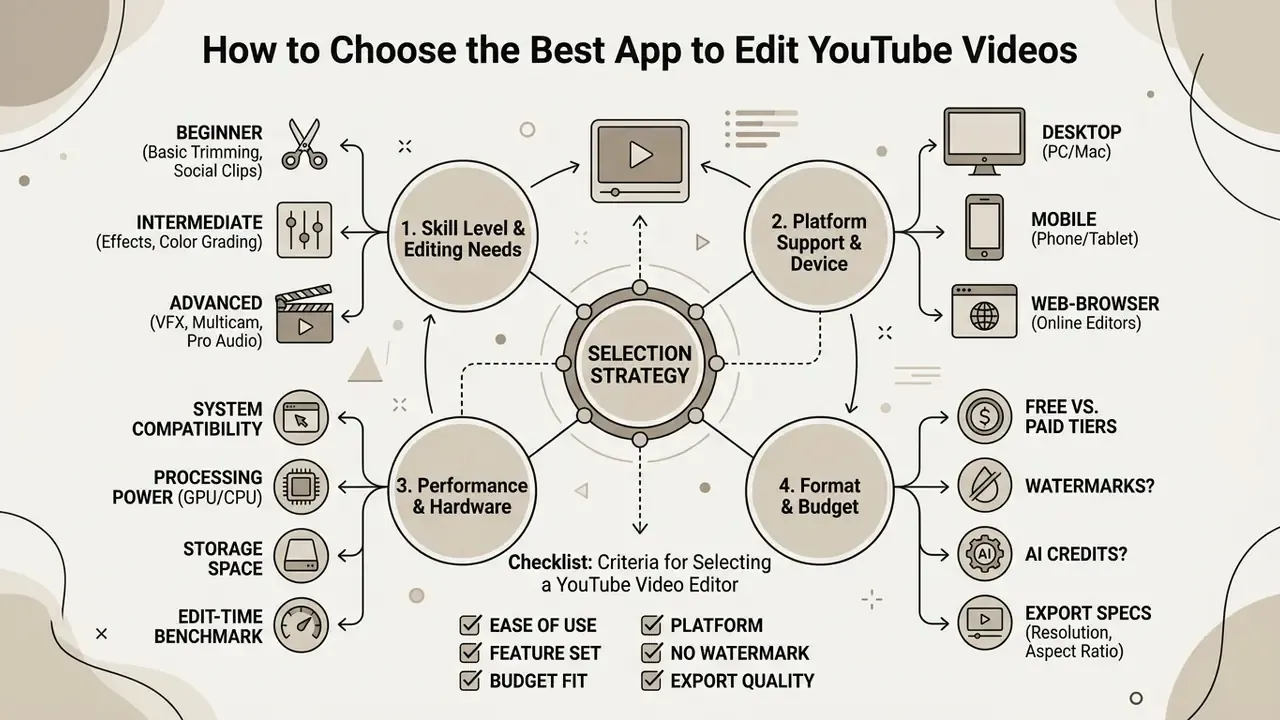
Selecting the optimal video editor for a YouTube channel means aligning software capability with creator skill level, hardware constraints, and target content formats. Prioritizing user-friendly navigation over raw technical complexity prevents workflow bottlenecks during early channel growth.
Choose an Editor by Skill Level and Editing Needs
Matching software complexity to technical expertise keeps a publishing cadence sustainable. Steep learning curves stall channels far more often than weak feature sets do. Creators who are just starting benefit most from simplified drag-and-drop interfaces, preset templates, and automated trimming that deliver a professional-looking output without hours of manual timeline configuration.
Beginner-oriented learning paths in official vendor documentation cluster around a compact tool set: import, trim and split, basic transitions, text and captions, background music, export. Professional paths add color correction scopes, multicam synchronization, proxy and collaboration workflows, VFX and motion graphics, and advanced audio mixing. Those are usually staged over several weeks of training rather than one tutorial session.
As channels expand into multi-camera setups, long-form commentary, or stylized tutorials, production demands shift toward professional editing capabilities. Advanced creators need precise timeline control, color correction scopes, multi-track audio mixing, and flexible visual effects. Choose an editing suite that mirrors your current skill level while leaving room for technical growth. That balance prevents the quiet project abandonment that follows software frustration.
Check Platform Support, Performance, and Hardware Headroom
Platform compatibility determines whether video production happens on mobile devices, desktop workstations, or web browsers. High-bitrate 4K camera editing and multi-camera projects demand robust desktop hardware, while quick mobile edits thrive on light touch-driven interfaces and cloud rendering.
Vendor-published requirements make the hardware floor concrete. Adobe's technical requirements documentation specifies 16 GB RAM with 8 GB GPU memory for HD media and 32 GB RAM or more for 4K and higher workflows, plus 10 Gigabit Ethernet for shared 4K network projects. Blackmagic's current guidance for DaVinci Resolve lists a minimum 4 GB VRAM GPU with OpenCL 1.2 or CUDA support, while Studio AI tooling on Windows and Linux expects 16 GB VRAM. Multicam capture utilities such as Corel MultiCam Capture X recommend an Intel Core i7/i9-class CPU and 16+ GB RAM for 4K/UHD multi-webcam sources.
Evaluators can review performance metrics across platforms when selecting the best video editor for iPhone and other mobile workflows, compare hardware-adjacent benchmarks for render throughput, or study film and video editing suites alongside adjacent creative tooling.
Checklist: Criteria for Selecting a YouTube Video Editor
Use this decision framework to narrow down candidate software before committing to an editing workflow:
Checklist0 / 10
Best Video Editors for YouTube at a Glance
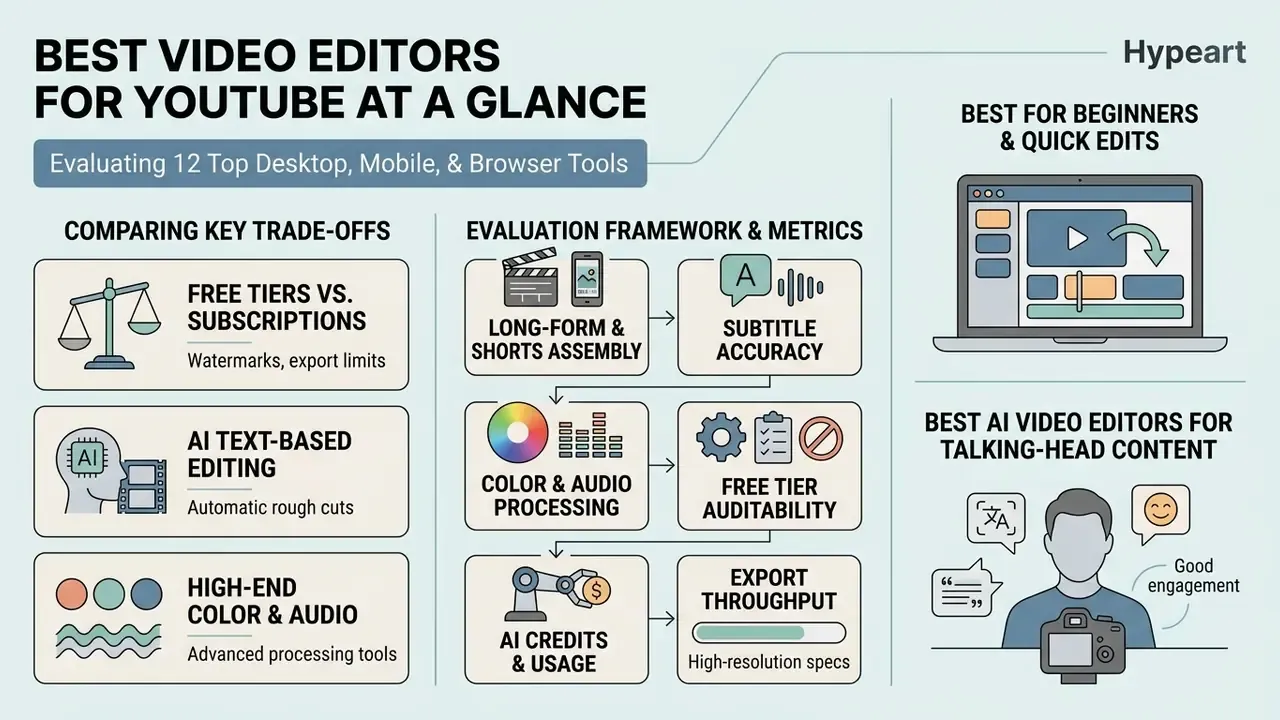
Comparing top YouTube video editors exposes clear trade-offs between free tiers, subscription models, AI text-based editing, and high-end color grading. The right tool depends on whether operational speed or deep post-production control drives your workflow. The twelve editors below cover nearly every practical combination of budget, platform, and production ambition.
Comparison of 12 Video Editing Apps for YouTube Creators (2026)
| Editor | Supported Platforms | Free Version Terms | Learning Curve | AI & Text Tools | Captions & Subtitles | Visual Effects & Audio | Best-Suited YouTube Content |
|---|---|---|---|---|---|---|---|
| Descript | Windows, macOS, Web | Free tier (60 media min/mo, 100 AI credits, watermark) | Beginner friendly | Text-based editing, filler word removal, Eye Contact, Studio Sound, Underlord | Automated transcription in 25 languages, custom styling | Studio audio cleanup, basic transitions, AI visual generation | Podcasts, talking-head reviews, educational videos |
| CapCut | iOS, Android, Windows, Mac, Web | Free with optional Pro plan; export up to 4K | Beginner friendly | Auto captions, background removal, text-based editing, AI effects | Auto-generated subtitles, sticker templates | Trending transitions, green screen, LUTs, sound effects | YouTube Shorts, TikTok cross-posting, quick vlogs |
| Wondershare Filmora | Windows, macOS, iOS, Android | Free trial (exports carry watermark) | Beginner to intermediate | AI smart cutout, AI audio stretch, auto reframe, AI expansion | Speech-to-text, animated title templates | Chroma key, 48 scene transitions, Mocha motion tracking | Product reviews, gaming videos, tutorial channels |
| Apple iMovie | macOS, iOS, iPadOS | 100% free (Apple hardware only) | Beginner friendly | Basic audio enhancements, Magic Movie, Storyboards | Basic title overlays, manual captions | Green screen, picture-in-picture, speed ramps, Cinematic mode edits | Basic vlogs, entry-level YouTube videos, quick cuts |
| Adobe Premiere Pro | Windows, macOS | Paid subscription (7-day trial); $22.99/mo individual, $37.99/mo per team seat | Steep learning curve | Speech-to-text transcript, Generative Extend, Object Mask | Multi-language auto-captions (18 languages), Mogrt formatting | Professional motion graphics, Lumetri color, plugin ecosystem | Commercial YouTube channels, multi-cam shows, documentaries |
| DaVinci Resolve | Windows, macOS, Linux | Fully functional free version (UHD 3840×2160 at 60 fps, 8-bit); Studio $299 one-time | Steep learning curve | IntelliScript, Animated Subtitles, Neural Engine auto color, Audio Assistant | Dedicated subtitling workspace, animated text tracks | Node-based color grading, Fusion VFX, Fairlight audio | Cinematic vlogs, high-budget production, short films |
| Final Cut Pro | macOS, iPadOS | Paid one-time ($299.99 Mac) or Apple Creator Studio bundle ($12.99/mo, $129/yr) | Intermediate | Magnetic Timeline 3, Smart Format, Voice Isolation | Closed captions (CEA-608/708), XML sync | Cinematic mode depth edits, Apple Silicon accelerated VFX | Apple-based creators, fast-turnaround narrative videos |
| Adobe Premiere Rush | Windows, macOS, iOS, Android | Free tier with 1080p/60 exports; Creative Cloud sync on paid plans | Beginner friendly | Auto-reframe, automatic clip assembly, color presets | Basic titles and caption templates | Speed ramps, audio ducking, LUT-style looks | Mobile-to-desktop vlogs, fast social cuts |
| Gling | Web (pre-editor for any NLE) | Trial credits; plans from about $29.99/mo | Beginner friendly | AI silence and bad-take detection, rough-cut automation | Transcript export and caption handoff | None natively; exports XML/EDL to your NLE | Podcasts, video essays, talking-head tutorials |
| Microsoft Clipchamp | Web (Chrome, Edge), Windows 11 app | Free HD exports without watermark; premium stock assets block export | Beginner friendly | Auto-captions, text-to-speech, background removal | Autocaptions with font, contrast, and position controls | Stock library, filters, screen recorder, basic transitions | Zero-install desktop editing, Shorts resizing, quick explainers |
| OpenShot | Windows, macOS, Linux | 100% free, open-source; no subscriptions, watermarks, or project limits | Beginner to intermediate | None (manual editing workflow) | Manual subtitle tracks and title templates | Unlimited tracks, Blender-powered 3D titles, background removal | Linux users, budget multi-layer compositing |
| VSDC Free Video Editor | Windows | Free with no watermark, no duration cap, export up to 8K | Intermediate (unconventional UI) | Limited AI features in free tier | Manual subtitle objects | Masking, chroma key, blend modes, waveform analysis | PC creators needing advanced non-linear editing for free |
Three patterns are worth reading out of that grid. First, «free» splits into two very different offers: fully functional desktop software (Resolve, OpenShot, VSDC, iMovie) versus metered cloud tiers that gate output behind credits or a watermark (Descript, Filmora trial). Second, AI depth and export freedom rarely arrive together in the same free plan. Third, the steep learning curve column correlates almost perfectly with long-term ceiling: the tools that take a week to learn are the ones you will not outgrow in two years.
Testing Methodology and Evaluation Framework
Best for Beginners and Quick YouTube Edits
Beginner-friendly video editors streamline production with preset templates, drag-and-drop transitions, and simplified visual effects. These tools remove timeline friction, so new creators can publish professional-looking videos without extensive technical training.
HCI research on video authoring shows that template-driven interfaces and metadata-based clip selection reduce task completion times and error rates for novice users compared with traditional track-based NLEs.
«Metadata-driven editors substantially reduce the time needed to locate relevant footage and the number of operations required to assemble a basic sequence.»
Tools like CapCut, Filmora, and iMovie abstract away manual frame-level operations, enabling rapid assembly for everyday vlogs and product reviews. Creators weighing zero-cost options can also compare free video editing software for YouTube against subscription tiers before committing budget, or view the guide to cost calculators when a subscription starts looking like a line item rather than a whim.
Best AI Video Editors for Talking-Head Content
AI-powered video editors optimize talking-head content by turning transcript manipulation into timeline edits and stripping filler words automatically. Gaze correction and noise reduction compress post-production time for podcasts, commentary, and educational channels.
«Transcript-based editing lets creators delete filler words and rearrange segments without touching the timeline, cutting rough-assembly time by up to 50%.»
Platform features such as Descript's Studio Sound and Eye Contact modules use deep neural networks to correct audio artifacts and misaligned gaze, holding audience attention without manual audio engineering or reshoots. For channels that also need synthetic narration, an AI voice generator can replace re-recorded pickup lines entirely. Worth a caution, though: viewers notice when gaze correction runs at maximum intensity. Subtlety wins.
Best Professional Editing Software for Growing Channels
Professional editing suites provide multi-camera synchronization, node-based color grading, and comprehensive audio mixing for channels scaling beyond basic cuts. These industry-standard applications support raw camera formats and the complex motion graphics that high-budget productions require.
«The Anatomy of Video Editing dataset annotates cut points, transition types, and color operations in professional projects, creating measurable quality baselines.»
Adobe Premiere Pro, DaVinci Resolve, and Final Cut Pro offer the multi-track depth, proxy workflows, and color management needed to execute those structures reliably across large team environments.
Best Apps to Edit Videos for YouTube: Beginner-Friendly Picks
Beginner-friendly editing apps put intuitive interfaces, auto-captions, and turn-key templates first. They balance fast editing against polished output for standard horizontal uploads and vertical Shorts alike.
CapCut for YouTube Shorts, Captions, and Templates
CapCut works as an agile editing platform for YouTube Shorts and mobile-first creators, with auto-generated subtitles and trend-focused templates. Switching between 16:9 widescreen projects and 9:16 vertical layouts takes seconds.
Available across mobile devices, desktop operating systems, and web browsers, CapCut provides built-in sticker overlays, royalty-free audio tracks, and automatic subtitle generation through its Auto Caption function. Free export settings range from 480p up to 4K with adjustable bitrate controls, and CapCut's own YouTube video maker documentation states that YouTube exports carry no watermark.
On the compliance side, two separate documents govern your usage: the Terms of Service and the Materials License Agreement, which covers how built-in stickers, music, and stock elements may be used. The Materials License Agreement carries a January 2026 revision date; the Terms of Service were revised earlier. Check both revision dates in-app before you monetize, because the platform terms and the asset-licensing terms are maintained on separate cycles and a change to one does not imply a change to the other.
Deeper timeline work reveals capability that punches above the app's simple appearance: RGB curve controls, LUT import, keyframed chroma keying inside the Remove BG panel, and text-based editing that analyses speech so you can cut footage like a document. Premium AI features consume token-based credits, with subscriptions typically starting near $9.99 per month or $89.99 per year.
Descript for Text-Based Editing and AI Tools
Descript reshapes dialogue-heavy editing by linking video clips directly to an auto-generated transcript. Delete a word, and the corresponding frames disappear. Filler word removal and script restructuring become near-instant.
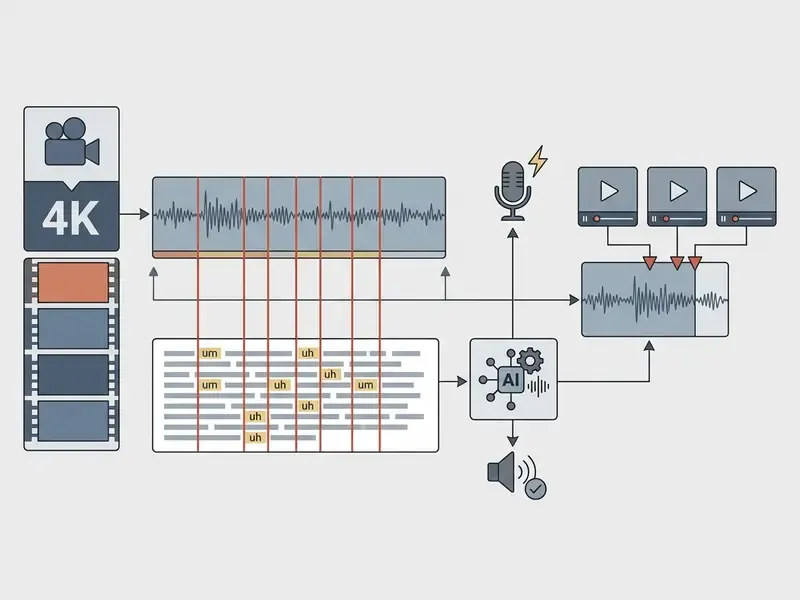
Operational AI resource breakdown: editing dialogue in Descript
When you rely on cloud AI editing features, you are budgeting two separate resources: monthly processing minutes and AI generation credits. Based on standardized processing of a short 4K dialogue clip (roughly 3 minutes 47 seconds):
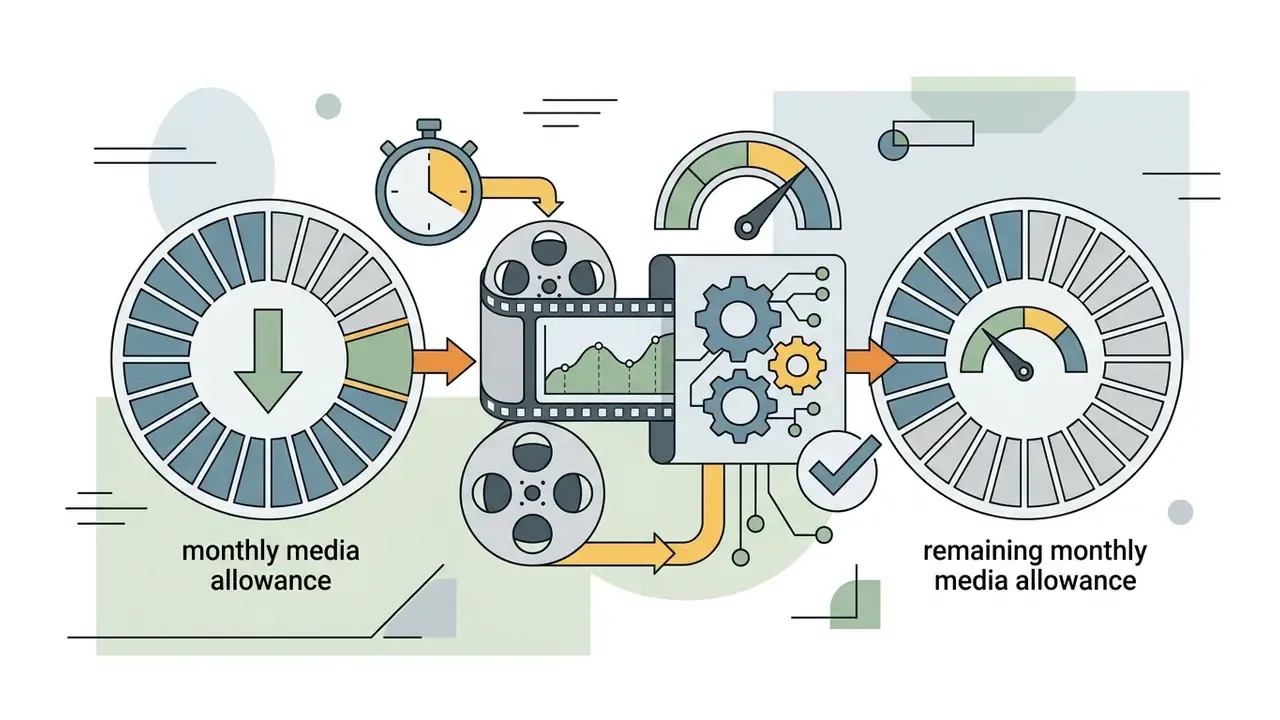
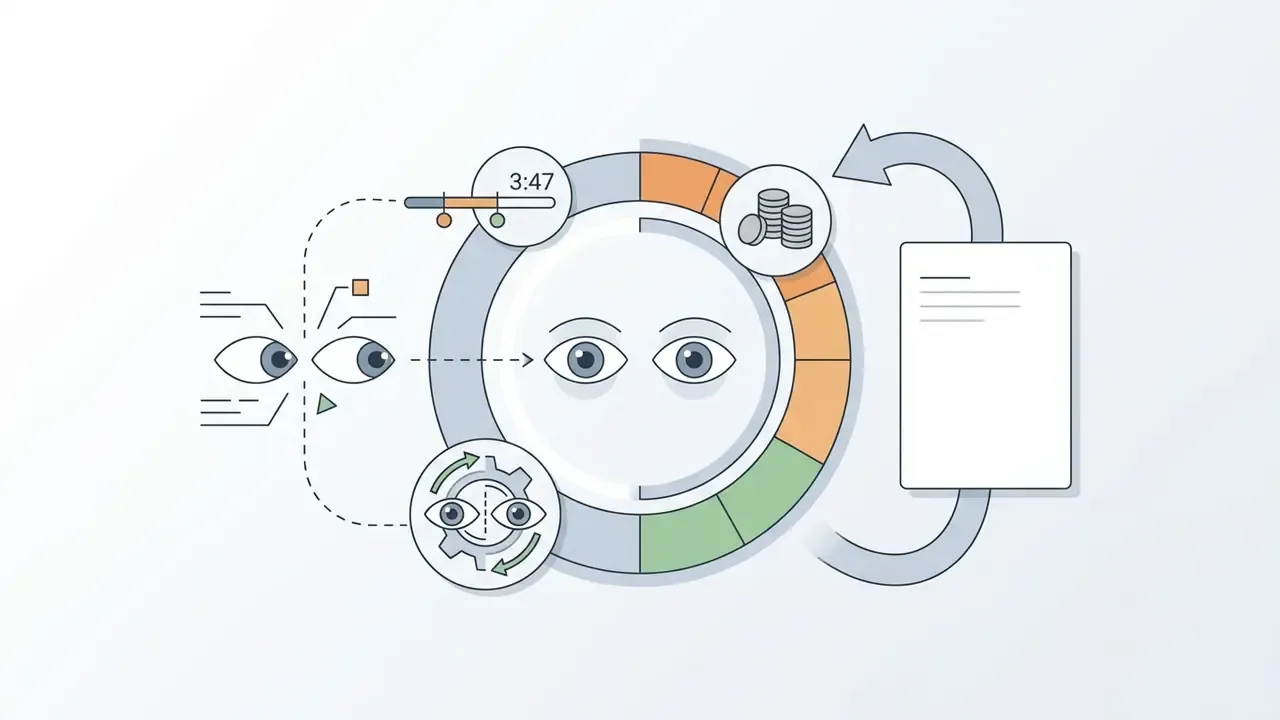
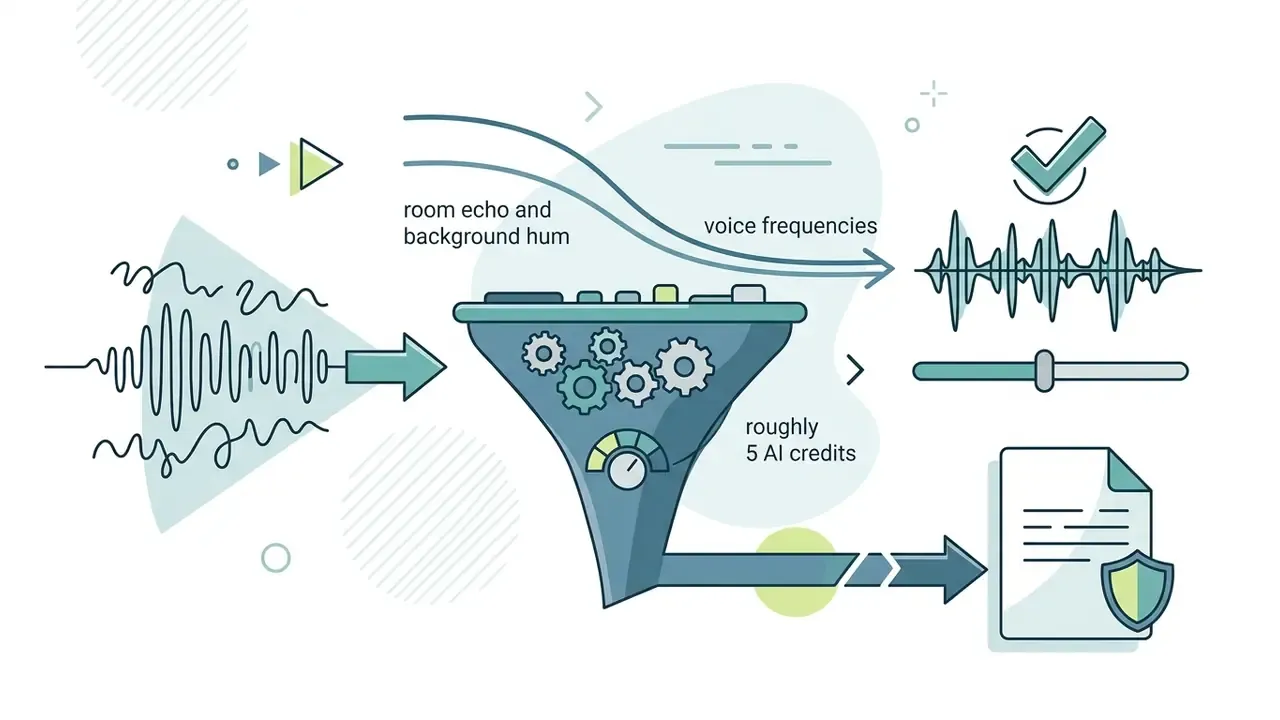
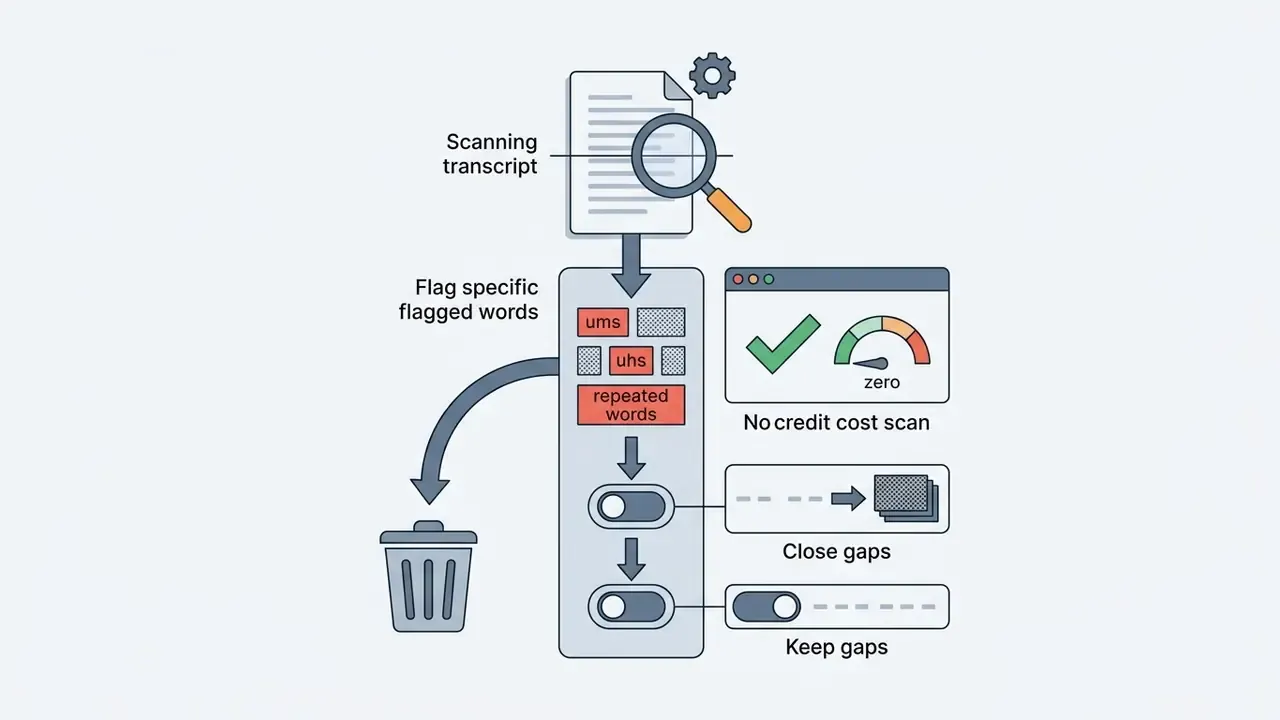
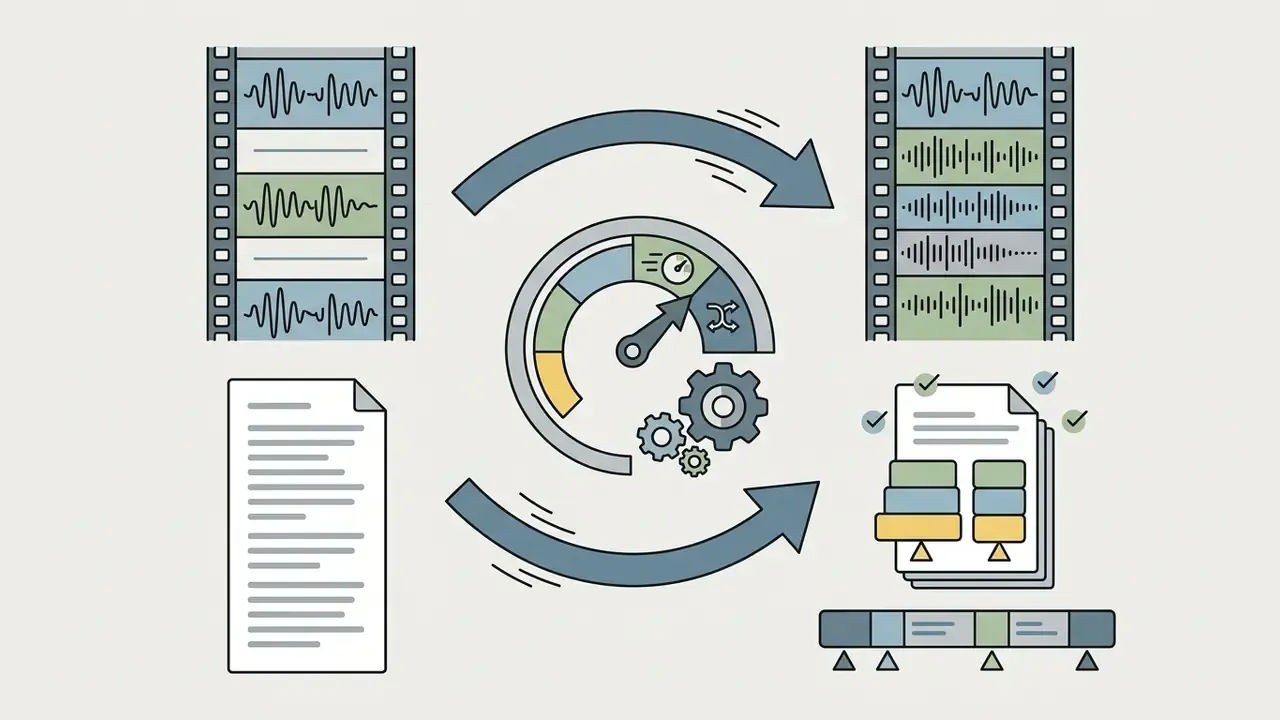
Plan ladder for budgeting: Free (60 media minutes, 100 AI credits), Hobbyist from $16/month (10 hours, 400 credits), Creator $24/month (30 hours, 800 credits), Business $35/month (40 hours, 1,500 credits), Enterprise (custom).
Descript's Underlord AI co-editor generates chapter titles, YouTube descriptions, and automated clips from long recordings. The pragmatic takeaway from extended hands-on use: Descript is not the most feature-dense editor on this list. It is the one that removes friction between finishing a recording and hitting publish, which is what actually sustains a weekly upload cadence.
Filmora for Effects, Transitions, and Easy Editing
Wondershare Filmora offers an accessible desktop interface packed with drag-and-drop transitions, green-screen chroma keying, and built-in sound effects. It bridges the gap between basic editing apps and professional suites for reviewers and vloggers.
Recent releases add AI smart cutout, AI audio stretching, AI image expansion, skin and face enhancement, and Mocha motion tracking, alongside 4K editing and export, screen recording, screen detection, and auto crop/resize. Chroma key controls expose transparency, offset, tolerance, edge thickness, and feathering, which is unusually granular for a beginner-tier editor.
The free download unlocks all core editing features and 48 scene transitions, but exported files carry a Filmora watermark until you upgrade to a licensed tier. Treat the trial as an evaluation sandbox, not a publishing pipeline. Filmora still earns its place for creators who want rich visual effects without a steep software learning curve.
iMovie for Free Editing on Mac, iPhone, and iPad
Apple iMovie is a completely free, watermark-free editing solution integrated natively across macOS and iOS. It delivers essential trimming, 4K timeline support, and green-screen capability without subscription fees.
You can start a project on an iPhone or iPad using Magic Movie or Storyboard templates and transfer it to a Mac for final polish. The software supports 4K video, 1080p HD at 60 fps, Cinematic mode depth-of-field adjustments on supported iPhone footage, and MP4 conversion for web upload. Its main operational boundary is platform lock-in: iMovie runs exclusively on Apple hardware with modern macOS or iOS/iPadOS, with no Windows, Linux, or Android builds.
One practical caveat documented by Apple: a project created in a newer iOS or iPadOS version of iMovie may refuse to open in an older Mac copy. Keep both installs current before transferring projects. Learned that one the annoying way.
Best Free Video Editing Software for YouTube
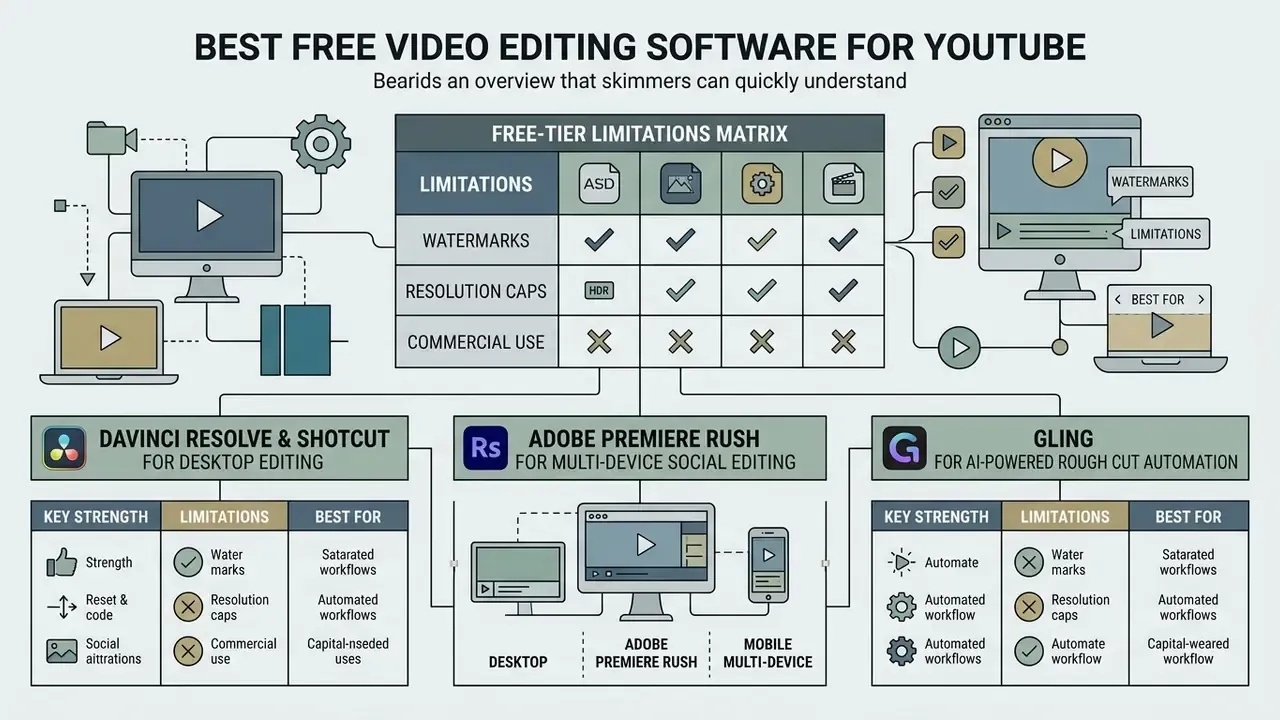
The best free video editing software for YouTube covers essential cutting, captioning, and audio control without recurring subscription costs. Check export resolutions, watermarking policies, and hardware demands early, and you avoid hidden operational limits later.
Free Editors Without a Watermark and With Export Limits Explained
Free-Tier Limitations Matrix
Watermarks, resolution caps, and commercial-use notes on free plans
| Editor | Watermark on Free Export | Max Free Export Resolution | Duration / Volume Limits | Asset & Commercial-Use Notes |
|---|---|---|---|---|
| DaVinci Resolve (free) | None | Ultra HD 3840×2160 at 60 fps, 8-bit | No time limit, no project cap | Studio license ($299 one-time) required for 10-bit, above-4K delivery, Neural Engine AI tools, multi-GPU |
| Shotcut | None | 4K (FFmpeg-based codec support) | None | Open-source; no bundled stock library to license |
| OpenShot | None | 4K | No subscriptions, watermarks, or project limits | Open-source; user supplies own media |
| VSDC Free | None | Up to 8K | No file-size or duration cap | Windows-only; some AI and advanced tools reserved for Pro |
| Apple iMovie | None | 4K (1080p at 60 fps) | None | Apple hardware only; bundled audio limited to Apple-supplied library |
| Microsoft Clipchamp | None | HD (1080p on current free tier; some documentation cites 480p for legacy free export, so verify in-app before rendering) | Performance degrades on very long timelines | Export blocked when premium stock assets are used |
| CapCut (free) | None on standard YouTube exports | Up to 4K with bitrate controls | None on core editing | Many advertised AI features are Pro or token-gated; Materials License Agreement governs bundled assets |
| Adobe Premiere Rush (free) | None | 1080p at 60 fps | Some in-app features reserved for paid tier | Creative Cloud sync and premium assets require subscription |
| Descript (free) | Yes | 1080p | 60 media minutes/month, 100 lifetime AI credits | Watermark removal and larger AI credit pools require a paid plan from $16/month |
| Wondershare Filmora (trial) | Yes | 4K | Trial is functionally identical to paid except for the watermark | Watermark removal requires license purchase |
DaVinci Resolve and Shotcut for Desktop Editing
Desktop editors like DaVinci Resolve (free version) and Shotcut offer professional-grade timeline editing, broad format support, and open-source flexibility across Windows, Mac, and Linux. Both give you unlimited timeline editing without watermarks.
DaVinci Resolve's free edition includes full non-linear editing, node-based color correction, Fairlight audio mixing, multicam editing, collaboration features, HDR grading, and Fusion visual effects up to Ultra HD 3840×2160 at 60 fps. Shotcut, an open-source tool powered by FFmpeg, supports hundreds of video and audio codecs natively without asset ingestion or proxy conversion, plus image formats from AVIF and WebP through layered image sequences.
Shotcut's documented requirements stay modest: 64-bit Windows 10 or 11, macOS 12 or later, or 64-bit Linux with glibc 2.35, with 4 GB RAM for SD, 8 GB for HD, and 16 GB for 4K timelines. Evaluators comparing desktop suites can explore commercial use ai tools to understand how free applications handle commercial licensing.
Gling for AI-Powered Rough Cut Automation
Gling is a specialized AI pre-editor that automates the dullest part of post-production: removing dead air, silences, and bad takes before media ever reaches your main NLE.
- Key strength Analyzes speech waveforms, cuts pauses, and exports clean XML/EDL project files straight into Premiere Pro, Final Cut Pro, or DaVinci Resolve. Vendor materials position this as cutting editing time by roughly half on dialogue content.
- Limitations Not a standalone editor; you still need a primary NLE for titles, transitions, and color grading. Plans start around $29.99/month.
- Best for Dialogue-heavy podcasts, video essays, reaction videos, and talking-head tutorials.
Microsoft Clipchamp for Web-Based HD Edits
Integrated natively into Windows 11 and accessible through a browser, Microsoft Clipchamp provides a clean drag-and-drop timeline with built-in stock libraries, text-to-speech generators, a screen recorder, and auto-captioning with font, contrast, and position controls.
- Key strength Watermark-free HD exports directly from Google Chrome or Microsoft Edge, plus one-click resizing of long videos into Shorts.
- Limitations Performance drops on timelines longer than about 20 minutes; limited color grading; export blocked when paid stock assets are in the project.
- Best for Entry-level creators who need zero-installation desktop editing.
OpenShot for Open-Source Cross-Platform Basics
OpenShot is a completely free, open-source video editor running on Windows, macOS, and Linux. It offers unlimited audio and video tracks, background removal, automatic transitions where clips overlap, and 3D animated title templates powered by Blender.
- Key strength
- Zero subscription fees, no watermarks, no project limits, and 4K export across all three desktop operating systems.
- Limitations
- Immature GPU acceleration on older systems; utilitarian interface aesthetic.
- Best for
- Linux users and budget creators who need basic multi-layer video compositing.
VSDC Free Video Editor for Non-Linear Effects on Windows
VSDC is a feature-rich non-linear editing suite for Windows supporting native 4K and 8K exports, masking, chroma keying, blend modes, and visual waveform analysis, all without watermarks.
- Key strength Advanced visual parameters and a small RAM footprint on modest PC systems.
- Limitations Windows-only; steep learning curve thanks to an unconventional UI layout.
- Best for PC creators who want advanced non-linear editing without a commercial license.
Free Mobile and Browser-Based Video Editors
Free mobile and web-based editors enable fast video creation inside a browser or on a smartphone, no heavy install required. They excel at turning long-form footage into vertical 9:16 Shorts with automated captions.
Browser tools like Adobe Express and Microsoft Clipchamp run in WebAssembly and WebCodecs environments on Chrome or Edge, offering MP4 exports and social media aspect ratios. On mobile, the official YouTube Create app (Android and iOS) provides free in-app editing, voiceover recording, auto-captioning, AI-assisted editing, and direct publishing with no watermark or third-party subscription prompt. YouTube's own app flow also supports remixing a public long video into a Short: select a segment, then add text, filters, or music before upload. For simple repurposing, that removes the need for any external editor at all.
«Lotus applies extractive and abstractive summarization to automatically produce short clips from long videos that users rated coherent and useful.»
Creators experimenting with generated footage rather than filmed footage can also review free AI video generators and animation makers as complements to a traditional timeline editor, or test a free ai image generator 2025 release for title cards and channel art.
Best Professional Video Editing Software for YouTube Channels
Professional video editing software equips established channels with advanced color management, multi-camera angle switching, and multi-track audio engineering. These desktop suites hold production quality steady across long-form narrative, commercial, and technical content.
Adobe Premiere Pro for Flexible Professional Workflows
Adobe Premiere Pro is an industry-standard non-linear editor with deep Creative Cloud integration, automatic speech-to-text, and native multi-camera editing. It handles complex timelines, proxy workflows, and an extensive plugin ecosystem installed directly from the in-app Get/Search panel.
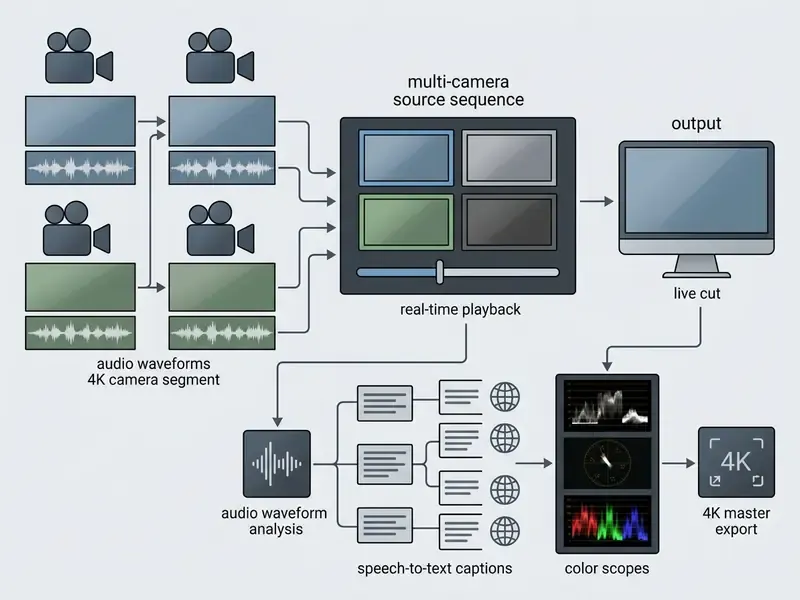
The 2026 releases introduce AI-powered Object Masking and Generative Extend, which speed up complex object tracking and audio padding. Individual subscription plans start at $22.99/month on an annual billing cycle, team licensing runs $37.99/month per seat, and Creative Cloud Pro is listed at $34.99/month for individuals. Promotional rates can increase after the initial term, so read the renewal line.
Adobe's requirements call for at least 32 GB RAM for sustained 4K post-production, plus 8 GB GPU memory for HD-class work. Multicam audio handling supports Camera 1 or All Cameras modes, with up to 32 channels in the latter. Creators evaluating professional platforms can review our best video editor guide and the detailed YouTube video editor workflows breakdown for full feature matrices, or explore the hub if your pipeline touches programmatic rendering.
DaVinci Resolve for Color Correction and Visual Effects
Blackmagic Design's DaVinci Resolve combines Hollywood-grade color correction on the Color page, Fusion motion graphics and compositing, and Fairlight audio post-production in a single application. For cinematic styling, precision here is hard to match at any price.
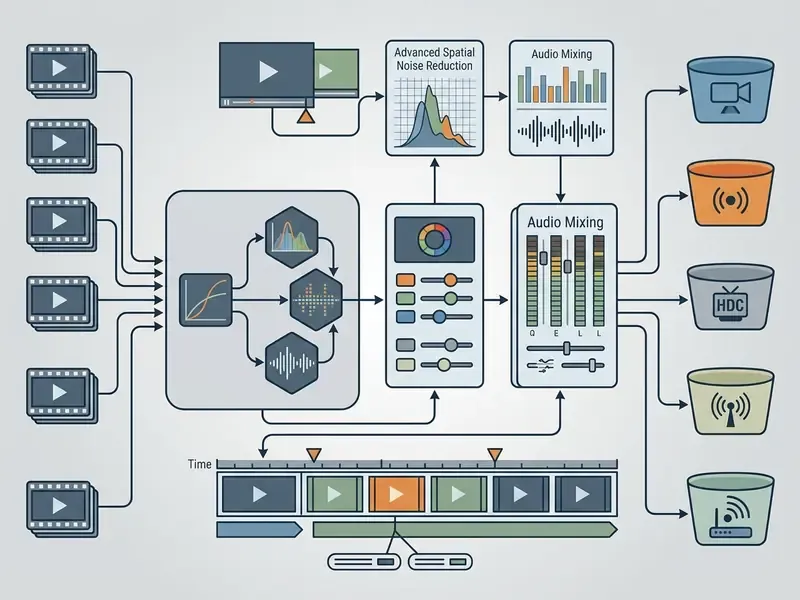
DaVinci Resolve Studio ($299 one-time license) unlocks multi-GPU acceleration, project collaboration, timelines up to 32K at 120 fps, hardware-accelerated H.264 and H.265 decode and encode, and Neural Engine AI tools including IntelliScript, Animated Subtitles, Multicam SmartSwitch, and Audio Assistant. Resolve is optimized for Metal on Apple Silicon and OpenCL or CUDA on Windows and Linux. The free version remains one of the most generous post-production suites on the market, with native Ultra HD output and no subscription.
«AutoVFX generates physically realistic dynamic visual effects from a single video and a natural-language instruction, automatically estimating scene properties.»
That research direction explains why prompt-driven effect generation is arriving inside mainstream NLEs rather than staying confined to specialist compositing suites. Worth tracking alongside AI art generators used for thumbnails and title cards.
Final Cut Pro for Apple-Based Video Production
Apple Final Cut Pro uses a trackless Magnetic Timeline tuned for Apple Silicon, delivering leading render and export speed. Clips adjust magnetically around inserted media, which removes the gap-management overhead of track-based editing.
Final Cut Pro 11 introduces Magnetic Timeline 3, enhanced spatial video editing, and automated Voice Isolation, and it received a maintenance update in January 2026. Using Apple's Media Engine hardware acceleration and segmented encoding across available engines, it exports H.264 and HEVC YouTube files significantly faster than non-optimized software on comparable Mac hardware. The social-platform export destination offers «Better quality» or «Faster encode» paths.
Pricing is a one-time Mac App Store purchase of $299.99 or the Apple Creator Studio bundle at $12.99/month or $129/year, which includes the iPadOS edition for touchscreen editing. Professional interchange stays straightforward: import REDCODE RAW, round-trip XML to DaVinci Resolve for grading, then render ProRes masters. Teams that also produce generative footage can compare options and review AI video generators for professional content as a supplement to camera-originated material.
Video Editor for PC, Phone, or Browser: Platform Scenarios
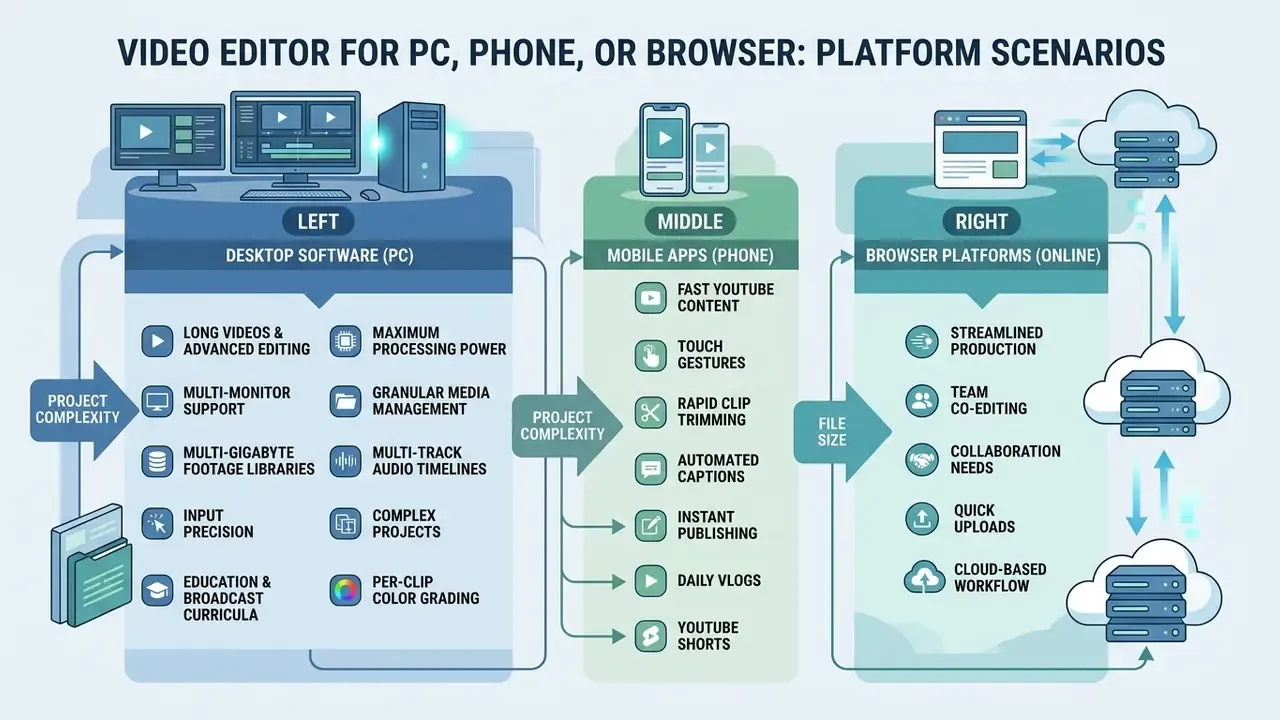
Choosing between PC desktop software, mobile apps, and browser platforms comes down to project complexity, file size, and collaboration needs. Workstation PCs excel at heavy multi-track rendering, while mobile and web tools prioritize speed and cloud access. The scenarios below turn that split into concrete production decisions rather than abstract capability lists.
Desktop Software for Long Videos and Advanced Editing
Desktop editing software delivers maximum processing power, multi-monitor support, and the granular media management long-form YouTube videos require. Desktop systems handle high-bitrate codecs, color grading scopes, and advanced audio mixing plugins.
Managing multi-gigabyte footage libraries and multi-track audio timelines needs desktop input precision and local storage throughput. The HCI literature cited earlier supports the distinction: metadata-driven retrieval accelerates clip selection, while Anatomy of Video Editing annotations show that professional cut density, transition variety, and color operations scale with timeline complexity rather than with interface simplicity.
Education and broadcast curricula reinforce the practical baseline: multiple audio sources, per-clip color manipulation, and single- or multi-track refinement inside one project, delivered as 48 kHz stereo with dialogue-dominant mixes. Workstations with discrete GPUs (8 GB or more VRAM) and 32 GB RAM can execute multi-camera synchronization, optical flow speed ramps, and 4K color grading without dropping playback frames.
Mobile and Online Apps for Fast YouTube Content
Mobile and browser apps streamline production for daily vlogs, YouTube Shorts, and team co-editing through cloud processing and social media templates. No installation barrier, and you can publish straight from a phone or browser.
«Participants successfully completed trimming, transition, and effect tasks on a mobile editor with acceptable usability scores, confirming the feasibility of smartphone-based editing.»
Mobile editing applications lean on touch gestures for rapid clip trimming, automated captions, and instant background removal. YouTube's own app and Studio app support vertical or square uploads up to 3 minutes as Shorts, with trimming, text, filters, music, and voiceover available before publishing. Web-based platforms run processing tasks on cloud servers, letting distributed teams review cuts, add text overlays, and generate summaries regardless of local hardware. The trade-off: browser performance depends on GPU and WebCodecs support plus available memory. Team leaders assessing software investment structures can browse the hub for detailed commercial licensing frameworks.
Multi-Tool Workflow Pairings That Cut Rough-Cut Time
The fastest YouTube pipelines in 2026 rarely rely on a single application. Pairing an AI pre-editor with a conventional NLE lets automation handle mechanical trimming while the editor keeps full control over story, graphics, and grade.
- Gling plus Final Cut Pro, Premiere Pro, or DaVinci Resolve Upload raw interview or podcast footage, let AI strip silences, dead air, and flagged bad takes, then export XML/EDL and finish titles, B-roll, and grading in the NLE. Vendor documentation positions this as roughly halving editing time on dialogue-heavy content.
- Descript plus Premiere Pro Build the narrative in the transcript (cut sentences, remove fillers, reorder sections), then move the locked structure into Premiere Pro for motion graphics, Lumetri grading, and multicam finishing.
- DaVinci Resolve plus an AI pre-editor Ideal for gaming highlights and long streams. Automation compresses hours of raw capture into usable selects, then Resolve's grading and Fairlight mixing finish the master.
- CapCut plus iMovie or YouTube Create For daily uploads, use CapCut's templates and auto-captions for the vertical cut and a lightweight editor for the horizontal companion video, keeping per-video turnaround inside a few hours.
- Premiere Rush plus Premiere Pro Assemble a mobile rough cut in the field, sync through Creative Cloud, then open the same project on the desktop for finishing when you get back.
One caution on handoffs: XML and EDL interchange is reliable for cut points, less reliable for effects and speed ramps. Lock the structure first, decorate second.
Editing Time and Workflow Matrix by YouTube Channel Type
Production efficiency depends on matching content strategy to software that removes your specific bottleneck. Below is an operational breakdown of estimated post-production time and recommended pairings across core formats. Times assume one editor working from organized footage.
| YouTube Content Format | Average Timeline Complexity | Estimated Edit Time (10-Min Video) | Recommended Software Pairing | Primary Time-Saving Bottleneck Solution |
|---|---|---|---|---|
| Talking-head / podcasts | Low (1 to 2 video tracks) | 45 min to 1.5 hours | Gling + Descript | Automated silence trimming and text-based bulk filler-word deletion |
| Daily vlogs and lifestyle | Medium (2 to 4 video tracks) | 1.5 to 3 hours | CapCut / iMovie | Preset speed ramps, auto-caption generation, instant transitions |
| Tech reviews and tutorials | Medium-high (multi-layer B-roll) | 3 to 6 hours | Filmora / Premiere Pro | Mocha motion tracking, screen-recording overlays, title templates |
| Cinematic / documentaries | High (multicam, RAW footage) | 12 to 25+ hours | DaVinci Resolve Studio | Node-based grading, Fairlight mastering, proxy workflows |
| Motion-graphics-heavy explainers | High (comps plus keyframes) | 20 to 40+ hours | Premiere Pro + After Effects | Reusable Mogrt templates and dynamic link round-trips |
| Gaming highlights / stream VODs | Medium-high (long source captures) | 10 to 20+ hours | DaVinci Resolve + Gling | AI selects from multi-hour captures plus grading control |
| YouTube Shorts / Reels | Low-medium (vertical 9:16) | 20 to 45 min | CapCut Mobile / YouTube Create | Auto-reframe, animated subtitle stickers, direct phone uploads |
These ranges come from observed editing sessions, not a controlled study. Your footage discipline moves them more than your software does. Sloppy capture adds hours no automation can recover.
AI Data Privacy, Security, and Commercial Rights
Cloud-based AI editing raises a question no feature checklist answers: where does your footage physically go, and who may retain it? Transcription, Studio Sound-style cleanup, eye-contact correction, generative fill, and auto-reframe often run on vendor servers rather than your workstation. That means unreleased product footage, internal financial commentary, or client interviews may leave your network during processing.
Controls to verify before adopting any AI editor in a regulated or brand-sensitive environment:
Disclaimer: This section summarizes general operational practice and is not legal advice. Software terms, licensing, and data-handling policies change without notice. Consult qualified counsel for compliance decisions in regulated industries.
How to Edit and Export Professional-Looking YouTube Videos
A professional-looking YouTube video comes out of a structured pipeline: rough assembly, audio cleanup, color grading, thumbnail creation, and correct encoding. Following platform export guidance prevents quality loss during YouTube processing.
Standard professional YouTube post-production workflow
To hold maximum visual quality through upload, export according to YouTube's official encoding recommendations:
- Container: MP4 (standard)
- Video codec: H.264 or Progressive High-Profile
- Audio codec: AAC-LC, Opus, or Eclipsa Audio at 320 kbps (stereo)
- Frame rates: Match the original recording source (24, 25, 30, 48, 50, 60 fps)
- Aspect ratios: 16:9 for standard horizontal videos; 9:16 for YouTube Shorts (vertical or square uploads up to 3 minutes qualify as Shorts)
- Upload ceilings: Standard uploads up to 12 hours or 256 GB; unverified accounts are capped at 15 minutes
- Thumbnail specs: 1280×720 pixels, minimum width 640 pixels, 16:9, under 2 MB (JPG, PNG, GIF, BMP)
Hit those standards and YouTube's re-encoding servers process your media cleanly, without banding, audio clipping, or frame rate stutter. Creators building title cards and packaging can also use a dedicated free photo editor for thumbnail composition, and anyone wanting comparative analysis of creative tools can compare options across our software review matrices.
Pro Productivity Hacks: Essential Shortcuts and Batch Workflows
Mastering timeline navigation shortcuts is the cheapest speed upgrade available to any editor. No hardware purchase required. Whichever NLE you choose, adopt these habits:
- Ripple trim (J-K-L and Q/W keys) Use
J-K-Lfor variable-speed playback review. MapQandWin Premiere Pro or Final Cut Pro to ripple trim the start or end of a clip to the playhead without leaving empty gaps. - Create reusable effect presets Save standardized EQ curves, Lumetri or color nodes, and drop-shadow title assets into custom bins. Dragging pre-configured grades onto adjustment layers eliminates redundant per-clip tweaks.
- Batch process series styling If you publish a recurring format, batch-apply the same transitions, lower thirds, and loudness normalization across episodes so channel branding stays consistent without weekly rebuilding.
- Automate silence removal through an XML pipeline Run raw interview audio through dedicated pre-processing software (Gling or Descript), export the resulting XML, and import the pre-trimmed timeline into Premiere Pro or DaVinci Resolve.
- Use proxy media for 4K footage Render 720p ProRes or H.264 proxies at ingest. Editing against lightweight proxies prevents dropped frames on mid-range hardware; switch back to original 4K masters for final export.
- Template your project structure Keep a master project with pre-built bins, sequence presets, export presets, and placeholder title cards. Duplicate it per episode instead of configuring settings from scratch.
FAQ: Apps to Edit YouTube Videos
What is the overall best app to edit YouTube videos for beginners?
CapCut and Apple iMovie lead the beginner category. CapCut offers turn-key templates, auto-captions, and multi-platform support across mobile, desktop, and web. iMovie gives Apple hardware users a completely free, watermark-free experience with straightforward 4K editing tools.
Which video editor do most famous YouTubers use?
Most professional YouTubers and editing teams work in Adobe Premiere Pro, DaVinci Resolve Studio, or Final Cut Pro. Premiere Pro dominates team-based agency workflows, Resolve is favored for color grading, and Final Cut Pro is chosen by Mac creators for render speed on Apple Silicon.
Can I edit YouTube videos for free without a watermark?
Yes. DaVinci Resolve (free version), Shotcut, OpenShot, VSDC Free, Apple iMovie, and Microsoft Clipchamp all export full-length videos with no watermark. Note that Clipchamp blocks export if premium stock assets are used, and the free tiers of Descript and Filmora do apply watermarks.
What is the best app for editing YouTube Shorts?
CapCut and YouTube Create are the top picks. Both support vertical 9:16 aspect ratios, auto-generated subtitles, trending sound effects, and fast mobile export. YouTube's own app can also remix an existing long-form upload into a Short without any third-party software.
Is text-based video editing better for talking-head content?
Usually, yes. Tools like Descript link video timelines directly to generated speech transcripts. Deleting filler words («um», «uh») or whole sentences from the text edits the footage automatically, and peer-reviewed CHI research reports up to 50% faster sentence-level trimming on speech-heavy material.
How long does it take to edit a 10-minute YouTube video?
It depends on format. A single-camera talking-head video with AI pre-processing runs roughly 45 minutes to 1.5 hours. A multi-layer tutorial takes 3 to 6 hours. A cinematic documentary segment with RAW footage and full grading can absorb 12 to 25 hours or more. See the editing time matrix above for pairing recommendations.
What hardware do I need for 4K YouTube editing?
Plan for at least 32 GB RAM for sustained 4K work in Premiere Pro (16 GB RAM with 8 GB GPU memory covers HD), a GPU with 4 GB VRAM minimum for DaVinci Resolve and 16 GB VRAM for Studio AI tooling on Windows or Linux, plus fast local NVMe storage. Proxy workflows let mid-range machines edit 4K comfortably.
How much do professional editors cost for a team?
Adobe lists Premiere at $22.99/month for individuals on annual billing and $37.99/month per team seat, with Creative Cloud Pro at $34.99/month for individuals. DaVinci Resolve Studio is a $299 one-time license per seat. Final Cut Pro is $299.99 one-time on the Mac App Store or $12.99/month ($129/year) through the Apple Creator Studio bundle.
Are cloud AI editing features safe for confidential footage?
Not automatically. Cloud AI features upload media to vendor infrastructure for processing. For sensitive material, prefer locally processed tools (DaVinci Resolve Neural Engine, Final Cut Pro on Apple Silicon), request a data processing agreement, confirm retention and model-training opt-outs, and verify commercial-use rights for both stock and AI-generated assets.
Can I combine two editors in one workflow?
Yes, and it is often the fastest route. Run footage through an AI pre-editor such as Gling or Descript, then import the resulting XML or EDL into Premiere Pro, Final Cut Pro, or DaVinci Resolve. Automation handles mechanical trimming; you keep full creative control for finishing. For more detailed software evaluations and comparative benchmarks, visit our AI Media Comparison Matrices hub, or review implementation-level API economics in our generative video API guide.