The Short Answer
- Best overall free editor (no watermark, no paywall) VN Video Editor. Multi-track timeline, keyframes, speed curves, MP4 export up to 4K at 60 FPS, clean output with zero watermarks.
- Best for AI tools and social media CapCut. Auto-captions, AI background removal, trend templates, and watermark-free export after a free account login. Budget roughly 8 GB RAM for comfortable HD/4K work.
- Best professional-grade NLE LumaFusion. A paid, one-time-purchase desktop-class editor for Android 10+ tablets and flagship phones, with six video/audio tracks, LUT-based grading and PAL frame-rate support.
- Best for absolute beginners InShot (single-track, preset ratios, watermark removable by watching one short ad).
- Lowest hardware demands InShot, VN and VLLO run on devices with roughly 2 GB RAM and 4 to 8 GB free storage.
Who This Guide Is For, and What Changed Recently
This comparison is written for people who publish regularly: solo creators, small marketing teams, and anyone cutting client work on a phone because the laptop is somewhere else. It is not a feature dump. Every claim below is tied to a watermark rule, an export ceiling, a permission, or a hardware threshold.
Four things shifted since the previous revision, and they change practical recommendations:
- Adobe Premiere Rush on Android reached end of life.Downloads stopped on 30 September 2025, and technical support closes on 30 September 2026.
- Codec support moved forward.Android 14 decodes AV1 in hardware; Android 16 adds APV. Newer phones skip a transcoding step that older devices still pay for.
- Login-gated watermark removal spread.Several editors now trade a free account for a clean export, which shifts the cost from money to data.
- Bitrate caps became the new watermark.A free tier may allow "4K" while quietly limiting bitrate, so the file is 4K in pixels only.
Keep that last point in mind. It explains most of the disappointment people report after their first export.
Selecting the best app to edit videos on Android means checking timeline functionality, export resolutions, hardware headroom and watermark policies against the project you actually have. Modern mobile processors handle multi-track timelines and automated artificial intelligence workflows directly on handheld hardware. Android's own Media3 Transformer documentation confirms that trimming, scaling, rotation, overlays, filters and HDR/slow-motion processing are executed by on-device hardware decoders, which is why rendering speed differs so sharply between an entry-level phone and a flagship chipset.
How We Choose the Best Android Video Editing Apps
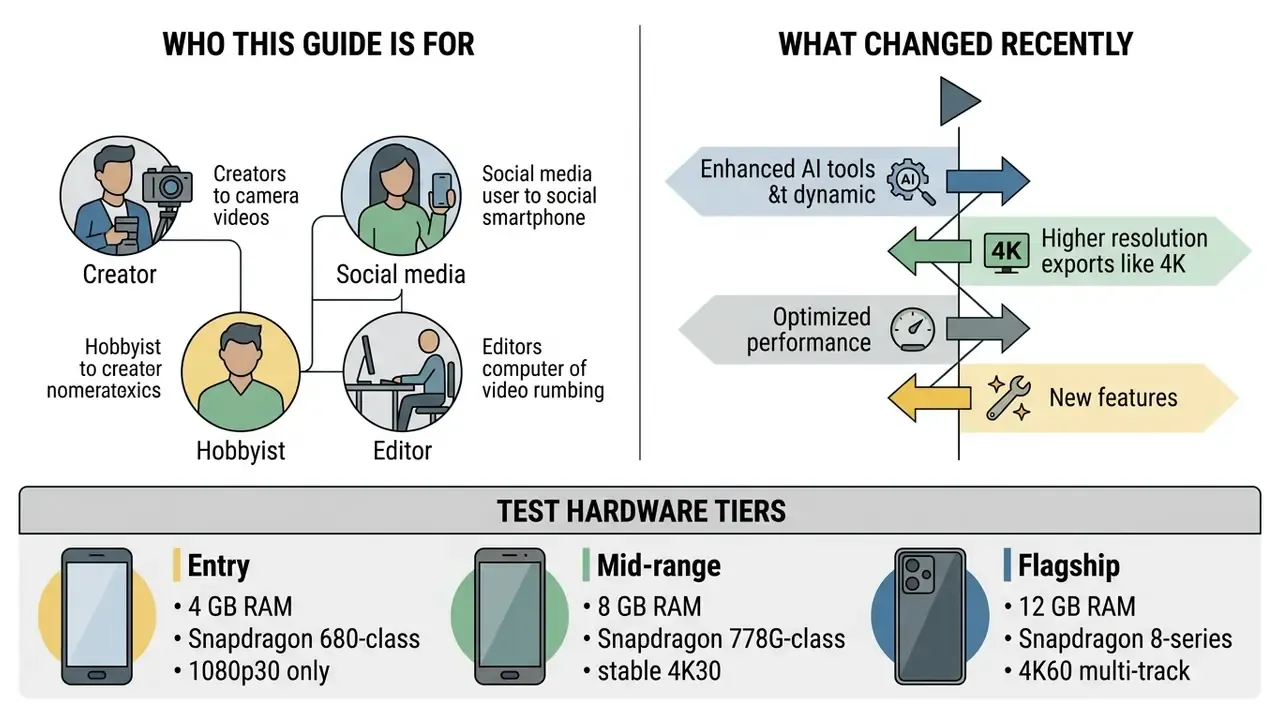
Each app was checked for three things in its free tier: (1) whether a watermark appears on a standard export or only on premium-asset exports, (2) the maximum selectable resolution and frame rate, and (3) whether project data or media is uploaded to a remote server during AI processing. That third question is the one most round-ups skip entirely.
One caveat on our own method: thermal behaviour was noted but not instrumented. A phone that renders 4K60 in a cool room can throttle badly after twenty minutes of continuous export, and we did not measure that under controlled conditions.
Advanced Tools That Matter for Mobile Video Editing
Advanced mobile video editing relies on multi-layer timelines, keyframe parameter animation, chroma keying, motion tracking and 4K resolution output. Together these enable non-destructive layering and genuine visual storytelling on a handheld device.
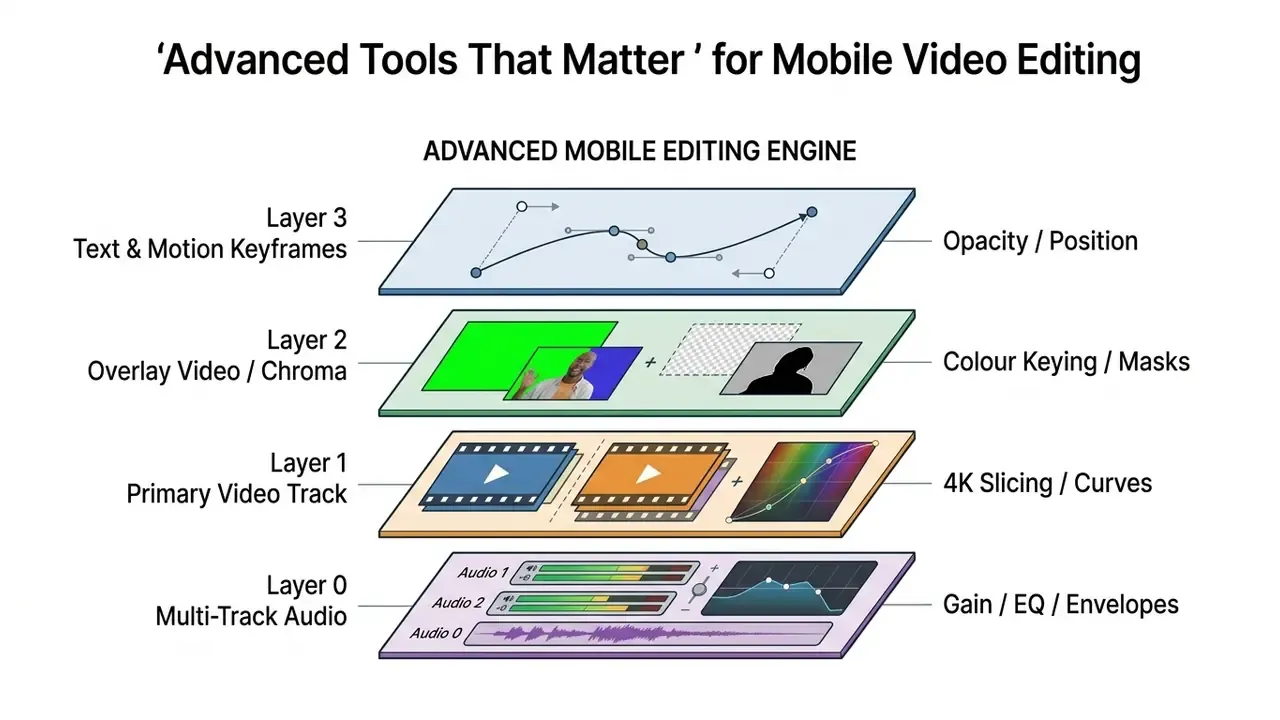
Multi-track timelines let you manage primary video, B-roll overlays, visual effects and audio stems independently. Research on natural-language and agent-assisted editing puts numbers on how far automation can be trusted before manual correction becomes necessary.
«ExpressEdit reached mIOU 0.56 for spatial interpretation and F1 0.82 for recognising edit operations in novice-user tests.»
Those figures matter in practice. An AI suggestion engine that interprets roughly half of spatial instructions correctly still needs frame-accurate manual controls to finish the job. High-tier mobile editors therefore expose keyframe controls for position, scale and opacity, which is how desktop-class compositing becomes possible on Android. Motion-graphics work follows the same logic: creators building animated titles or lower thirds usually combine a timeline editor with a dedicated animation maker for asset preparation, and the survey of free animation apps covers the options that export transparent PNG sequences.
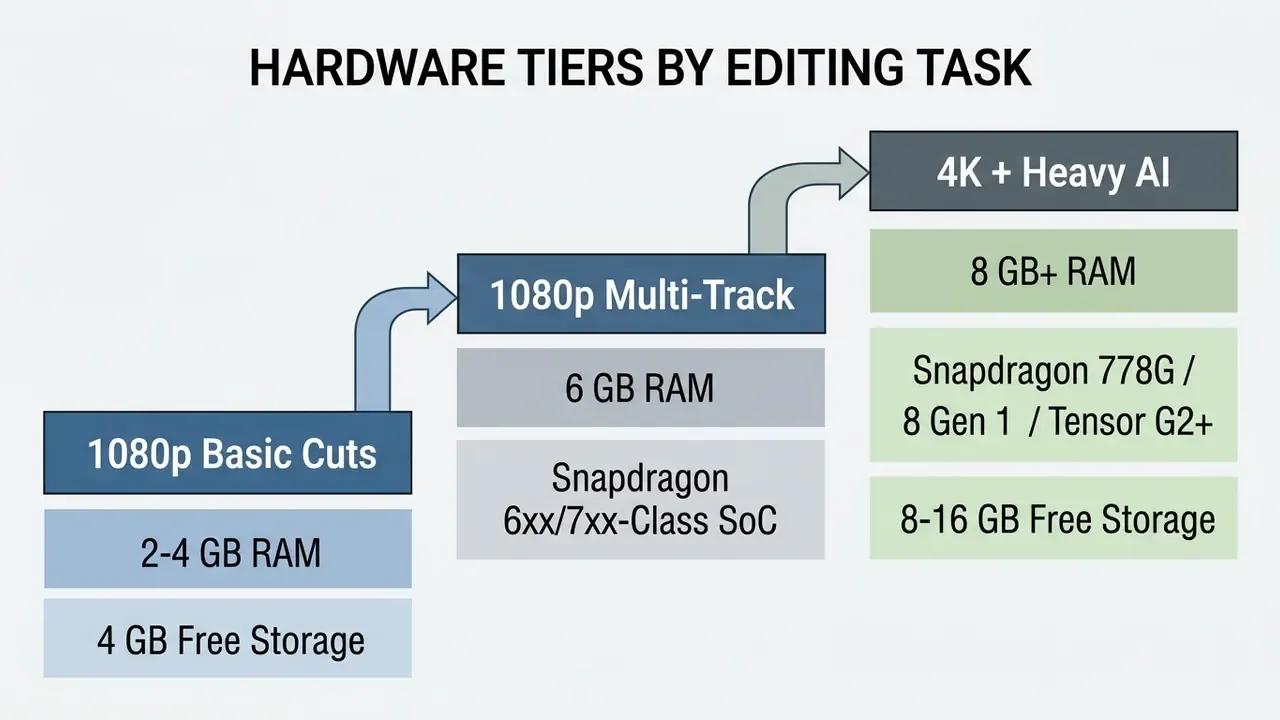
Minimum System Requirements: RAM, Storage and SoC
Best Free Video Editing Apps for Android: Top Picks
The best free Android video editing apps balance an accessible interface with a capable rendering engine, and they serve different skill levels and project scopes. The optimal editor depends on whether your workflow prioritises automated AI effects, precise timeline multi-tracking, or quick template-driven clip exports.
| App | Beginner-Friendly Interface | Timeline Editing Depth | AI Tools | Multi-Track Editing | Max Export Resolution | Min RAM (vendor-listed) | PAL 25/50 FPS | Audio Editing Capabilities | Free-Version Watermark Policy |
|---|---|---|---|---|---|---|---|---|---|
| CapCut | High | Moderate (multi-layer overlays) | Auto-captions, AI background removal, text-to-speech | Limited video tracks, full overlays | 4K at 60 FPS | 2 GB / 4 GB ROM (8 GB RAM for HD media) | Partial (project-dependent) | Basic gain, sound effects, voiceover | No watermark with account login |
| VN Editor | Moderate | High (multi-track NLE layout) | Limited | Full multi-track video & audio | 4K at 60 FPS | ~2 GB | Yes (project setup) | Multi-track audio, speed curves (6 presets) | Completely free, no watermark |
| LumaFusion | Moderate (pro layout) | Very high (desktop-class NLE) | None (manual pro toolset) | Up to 6 video/audio tracks | 4K UHD at 60 FPS / PAL 50 FPS | 3 GB+ (Snapdragon 7xx/8xx advised), Android 10+ | Yes | Multi-channel mixer, keyframed audio | None (one-time paid purchase) |
| InShot | High | Low (single primary track) | Basic cutout, auto-captions | Single-track main, photo overlays | 1080p free (4K/60 in Pro) | ~2 GB / 4 GB ROM | No | Basic music, voiceover, sound FX | Watermark present (removable via ad) |
| PowerDirector | Moderate | High (desktop-style timeline) | Motion tracking, green screen, AI effects | Full multi-track video & audio | 4K at 60 FPS (paid) | 4-8 GB for 4K | No PAL export | Multi-track audio, volume envelope | Watermark present in free tier |
| KineMaster | Moderate | High (layer-based timeline) | AI music, auto-subtitles | Unlimited video/asset layers (device-dependent) | 4K at 60 FPS | 3-4 GB (layer count scales with SoC) | Yes (25/50 FPS) | Pitch control, volume envelopes, ducking | Watermark present in free tier |
| Quik | Very High | Low (automated compilations) | Smart highlight detection (Mural) | Automated single track | 1080p / 4K (device dependent) | 2 GB / 8 GB ROM | No | Beat-synced audio matching | No watermark on basic exports |
| Filmora | High | Moderate (layer overlays) | AI text-to-video, smart cutout, AI music | Partial multi-track overlays | 4K at 60 FPS (paid) | 4 GB+ | No | Basic audio, sound effect library | Watermark present in free tier |
Reading the table in plain language: VN and LumaFusion win on timeline depth, CapCut wins on AI tooling, InShot and Quik win on speed to first export, and PowerDirector, KineMaster and Filmora all attach a cost to a clean file. Only three of the eight support PAL frame rates, which is the detail that quietly disqualifies apps for European delivery work. Subscription economics differ just as much as features, and the breakdown on AI Media Pricing is useful when a "free" editor turns out to bill annually.
CapCut: Best App for AI Video and Social Media Editing
CapCut ships built-in artificial intelligence auto-captions, background removal, text-to-speech and direct template integration tuned for vertical social media publishing. The vertical canvas interface is intuitive, and visual effects sync from the cloud.
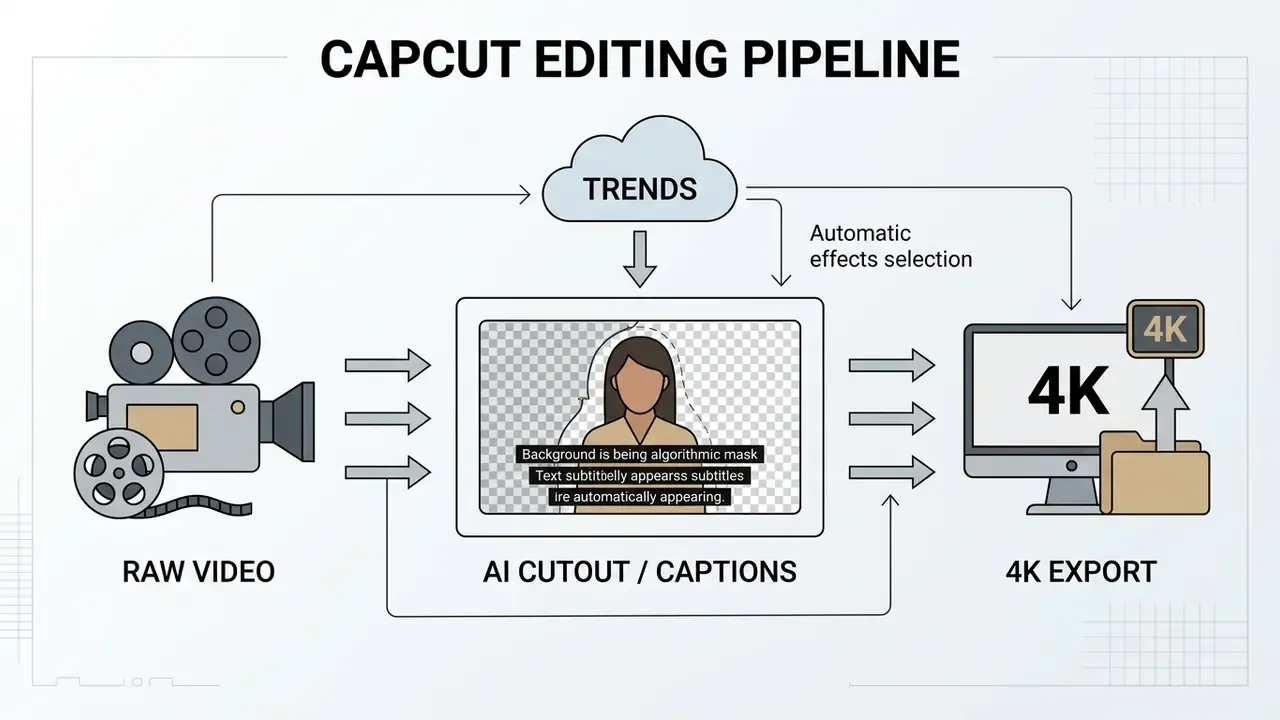
CapCut allows free exports up to 4K resolution at 60 frames per second without an enforced watermark, provided you complete a free account login and remove the optional closing branding clip. Its AI tools automate text generation, background keying and body tracking, and the official AI Video Editor documentation lists more than 30 built-in templates for tutorials, news and storytelling formats. Creators comparing mobile automation with fully generative pipelines often cross-check results against a free AI video generator before committing to a production route.
- System requirements
- minimum 2 GB RAM and 4 GB free storage; roughly 8 GB RAM for smooth HD/4K media handling.
- Caveat
- exporting a project that contains Pro-exclusive filters or stock assets will prompt a subscription upgrade or append a promotional frame. CapCut's own help pages also note that free accounts can face bitrate limits on 4K exports, so a "4K" free render is not always a maximum-bitrate 4K render.
VN: Best Free Video Editor for Timeline Editing
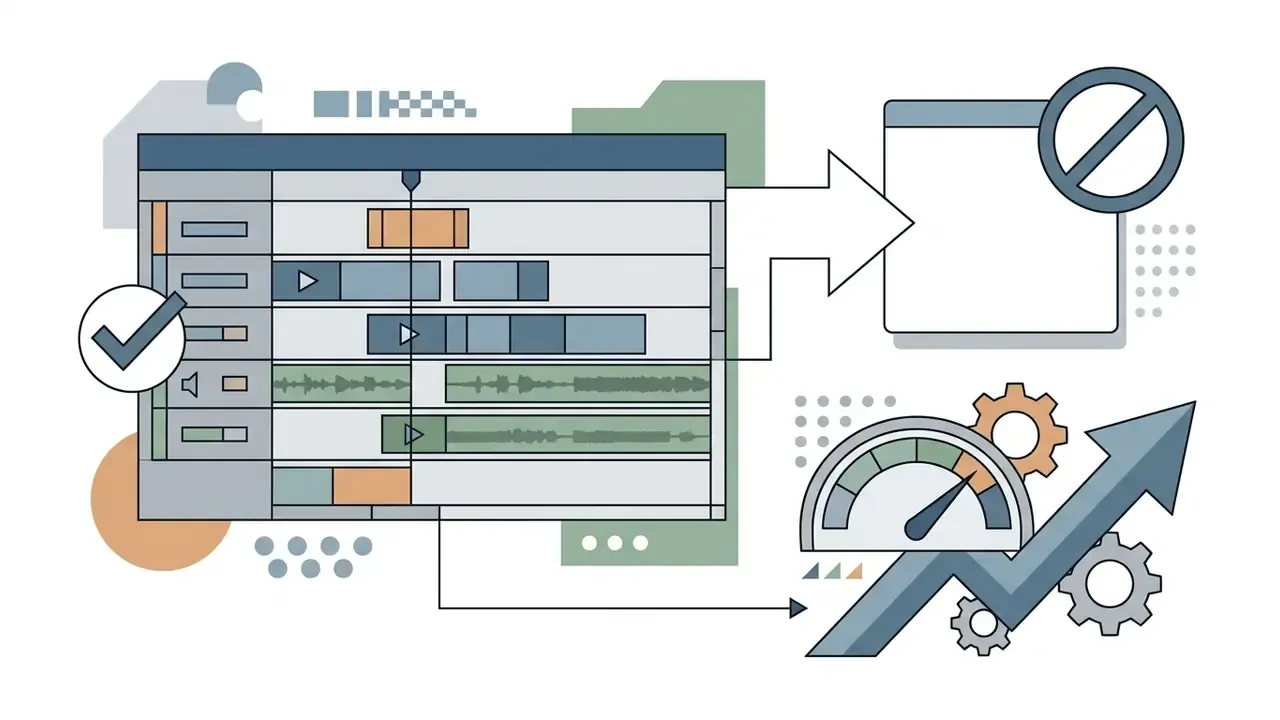
VN Video Editor provides a multi-track non-linear timeline, keyframe animation, customisable speed curves and watermark-free exports with no paid subscription attached. The interface is uncluttered, which suits vloggers and independent filmmakers who work in long sessions.
The timeline supports stacked video layers, picture-in-picture placements, frame-accurate clip splitting, and speed remapping using six preset curve shapes, plus 19 built-in keyframe animation effects. VN exports MP4 up to 4K at 60 FPS with clean output and zero watermarks, and PAL frame rates can be chosen during project setup.
LumaFusion: Best Pro-Grade Desktop-Class NLE for Android
LumaFusion brings desktop-style multi-track editing to Android tablets, ChromeOS devices and flagship smartphones. Long an iOS exclusive, it arrived on Android in 2022 and remains the most technically complete mobile editor available.
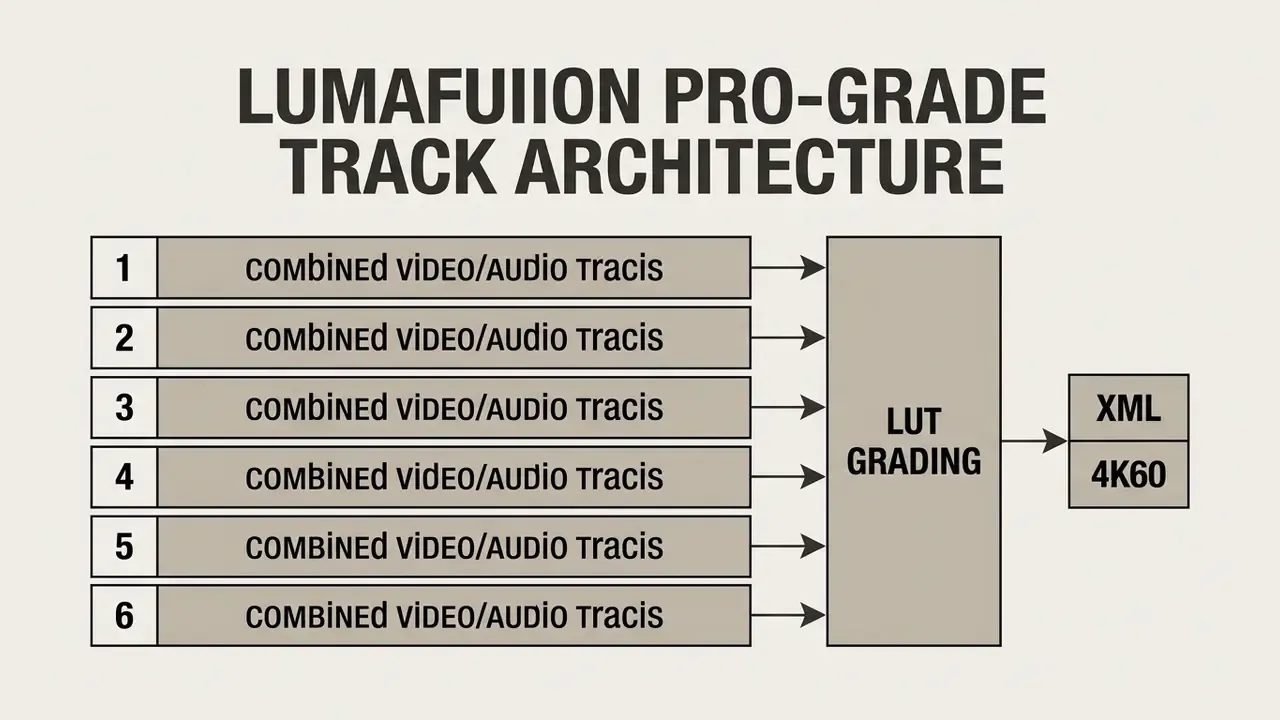
It supports up to six video and audio tracks, a magnetic timeline, colour grading with LUTs, multi-channel audio mixing, and project interchange via XML export for hand-off to desktop suites. Competing reviewers call it "hands down the most advanced mobile video editing app out there," and in practice it is the closest thing on Android to Premiere Pro or Final Cut Pro.
Editors who eventually move the same project to a laptop should check the desktop side of the equation too; the overview of free video editing software mac explains which applications accept LumaFusion's XML cleanly.

InShot: Best Beginner-Friendly App for Quick Edits
InShot offers a single-track editing environment with preset canvas aspect ratios built for fast social posts. Basic clip trimming, canvas scaling, background blurring and audio insertion are all two taps away.
The primary interface arranges tools horizontally above a scrollable timeline, so you can apply filters, adjust clip speed and insert text captions without diving into nested menus. Preset ratios cover 1:1 for feed posts, 9:16 for Reels and TikTok, and 16:9 for YouTube. The free tier exports up to 1080p and appends a small watermark in the lower corner. You can remove that watermark for a single export by watching a short video advertisement, or permanently by upgrading to InShot Pro, which also unlocks 4K/60 export.
- System requirements: minimum 2 GB RAM and 4 GB free storage; runs acceptably on entry-level hardware.
PowerDirector: Best Android Video Editor for Advanced Features
PowerDirector delivers desktop-class mobile editing with multi-layer video tracks, chroma keying, keyframe controls and motion tracking. The horizontal timeline follows traditional post-production logic, which shortens the learning curve for anyone arriving from a laptop NLE.
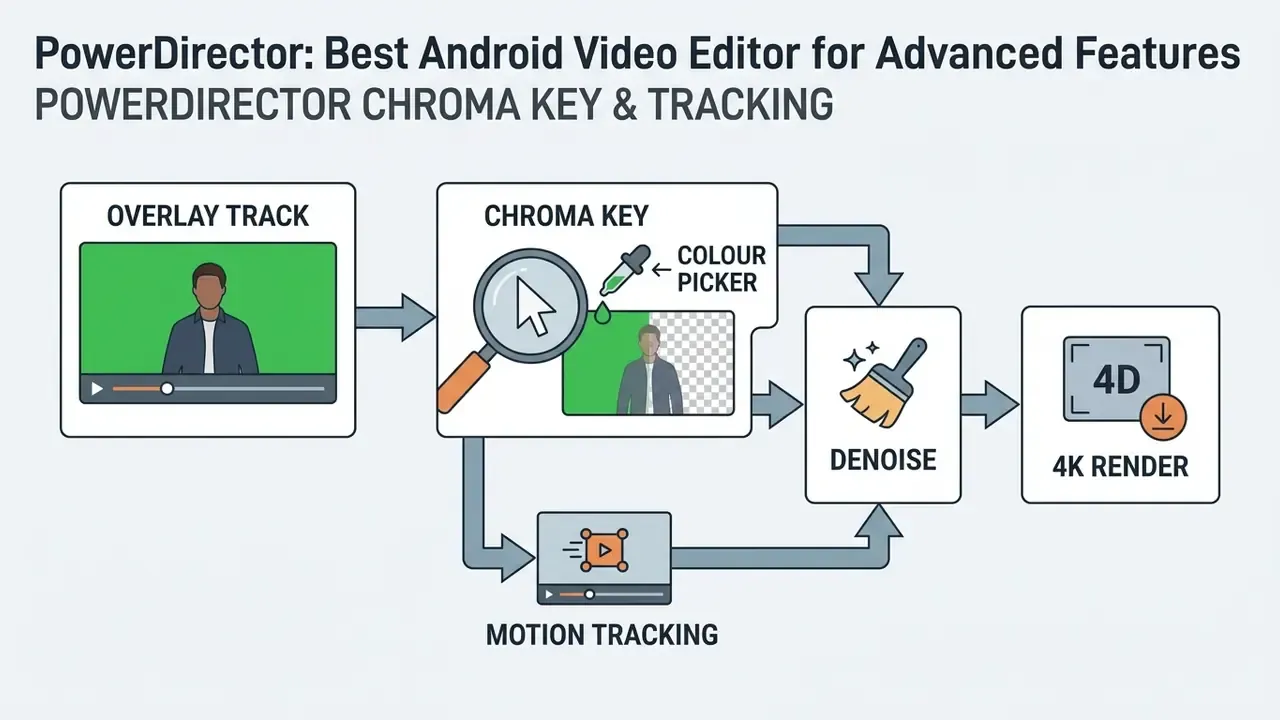
The chroma key tool handles blue and green screen replacement using colour pickers, range adjustment and denoise controls applied to a clip on the overlay track. PowerDirector edits and renders up to 4K resolution on compatible hardware, although 4K export, extra video tracks, watermark removal and ad removal all sit behind the paid tier.
Field observation, not a controlled study: in an internal composite test on a mid-range 8 GB RAM device, keying multi-layered B-roll for an educational vlog in PowerDirector produced clean edge contrast and needed fewer manual mask corrections than single-track alternatives. Setup time was not measured under controlled conditions, so treat this as practitioner observation rather than benchmark data.
KineMaster: Best App for Multi-Track Mobile Video Editing
KineMaster offers frame-accurate clip slicing, multi-layer composition, dedicated audio volume envelopes and keyframe manipulation. Its landscape interface suits anyone who needs fine control over stacked visual and audio assets.
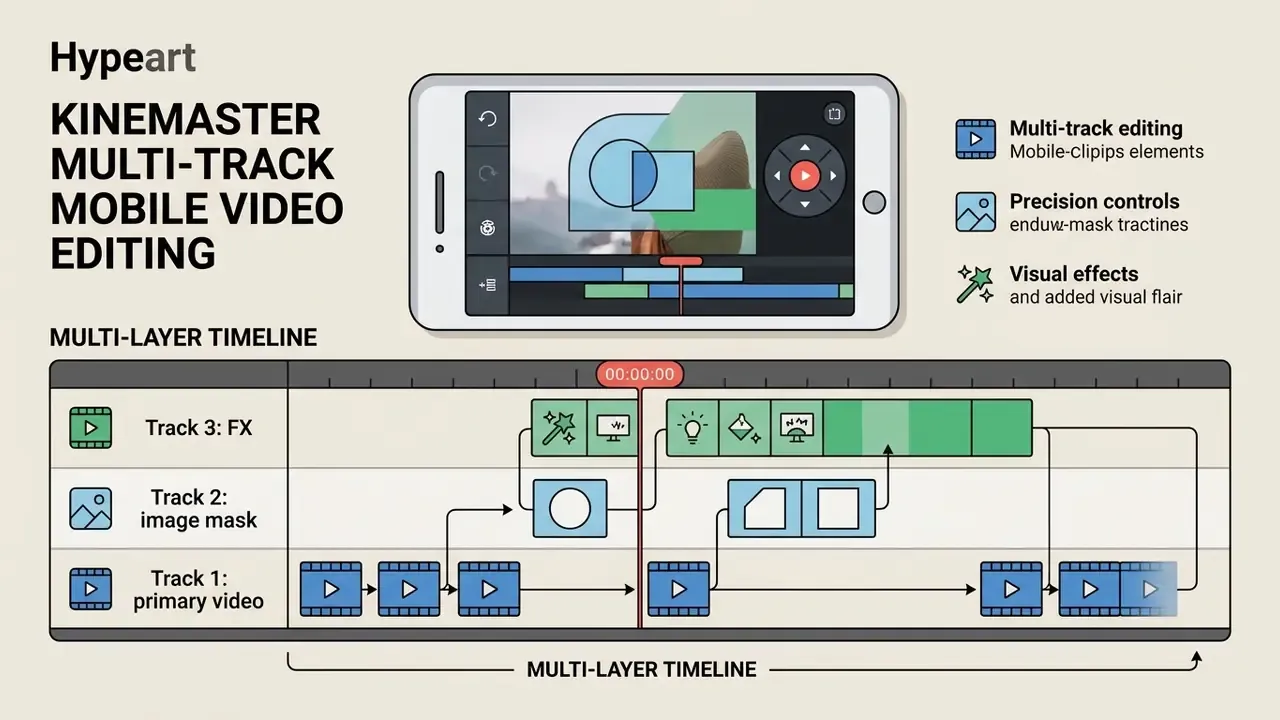
The engine supports unlimited asset layers on capable processors, so you can combine video clips, text overlays, handwriting, transparent PNG images and image masks. Audio mixing is a real strength: volume envelope keyframing per track, audio ducking, and voice-over recording. Project aspect ratios cover 16:9, 9:16, 1:1 and 2.35:1, and an existing project can be duplicated into a different ratio for cross-platform publishing. That last feature is a genuine time-saver when one shoot feeds YouTube, Reels and Shorts.
The free version grants access to core timeline tools and renders up to 4K at 60 FPS, though exported files carry an official KineMaster watermark until you upgrade. KineMaster is also one of the few mobile editors with native PAL (25/50 FPS) support and the ability to archive an entire project as a .kine file.
- System requirements: 3 to 4 GB RAM for layered 1080p; layer count and export resolution scale with the SoC.
Quik: Best Video Maker for Automated Edits
GoPro Quik automates compilation by analysing raw footage, picking highlights and syncing transitions to a music track. It suits people who want a finished clip without arranging a timeline at all.
Quik includes design themes that apply synchronised cuts, typography and filters automatically. GoPro documents 13 edit themes and 18 royalty-free original music tracks, with customisable text, transitions, duration and format. The Mural hub surfaces favourite clips and photos and doubles as storage for finished edits. You can adjust highlight tags, reorder clips and swap audio before exporting. Full access to cloud backup and premium themes requires an active GoPro subscription, and premium themes or music can block saving in the free tier.
- System requirements: minimum 2 GB RAM and around 8 GB free storage.
Filmora: Best Video Editing Tool for Effects and Templates
Filmora Mobile combines template-driven assembly with a library of transitions, motion stickers, filter presets and AI enhancement tools. It sits between fully automated compilation and manual timeline editing, which is a comfortable place for social teams.
The app includes smart video cutout, AI Show template generation, an AI music generator and automated text-to-video. Multi-layer overlays are supported, and paid plans render up to 4K. The free version watermarks every export, so a subscription is required for clean rendering, 4K output and the full asset library. Many effect packs download separately, so budget storage accordingly. Heavier projects lag noticeably on older devices.
- System requirements: 4 GB+ RAM recommended; asset-heavy projects benefit from 8 GB.
VLLO and ActionDirector: Two Free Options Worth Knowing
Two apps rarely covered in mainstream round-ups solve the watermark problem in unusual ways:
- VLLO ships with roughly 8,000 aesthetic assets and 1,800 copyright-free music and sound-effect files, plus chroma key, blur/mosaic and text styling. It is effectively free: the app mandates watching a video advertisement of about ten seconds before each export, after which the file saves without branding.
- ActionDirector (CyberLink) delivers sharp video enhancement and advanced effects. Exports are watermarked by default, but the watermark can be dismissed manually by tapping the cross icon on the overlay before rendering, a mechanic most reviews omit entirely.
- Edits (Instagram's own editor) and LightCut round out the watermark-free category, with Edits offering free 4K export and direct Meta publishing.
Free Version, Watermarks and Export Quality: What to Check
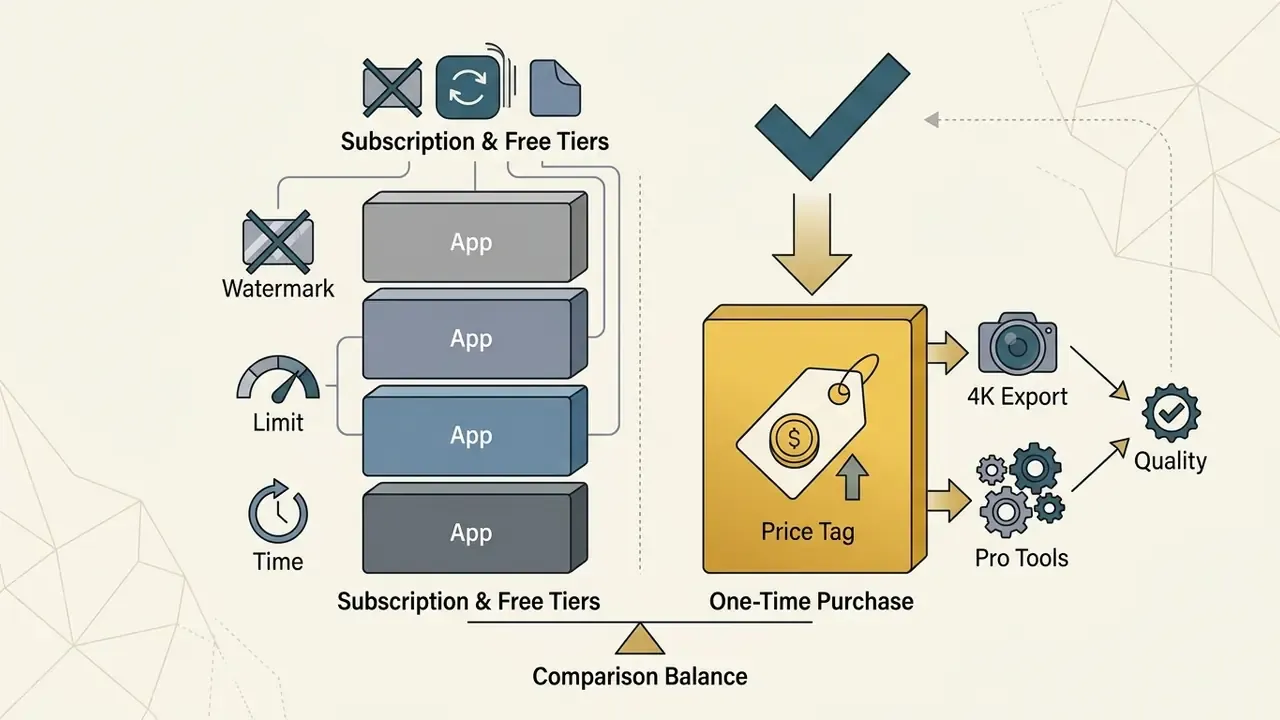
Evaluating a free Android video editor means reviewing watermark policies, resolution ceilings and bitrate controls before you start a project, not after. Developers monetise differently: some allow ad-supported clean exports, others lock resolution outright.
Which Free Android Video Editors Can Export Without a Watermark?
VN Video Editor, LightCut, VidCut and Instagram's Edits export watermark-free in their standard free versions, with no subscription pressure. Other popular editors allow conditional removal through free account registration or a short ad view.
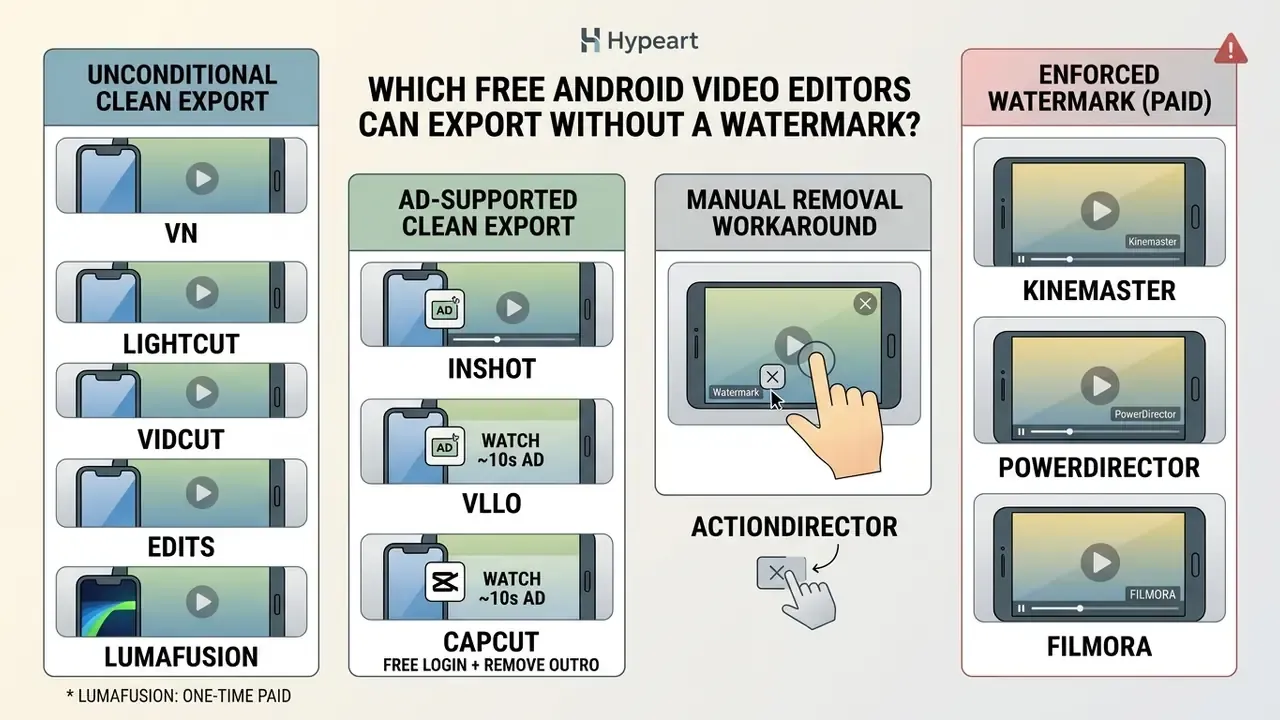
Understanding how each developer monetises prevents unwanted branding on a finished file:
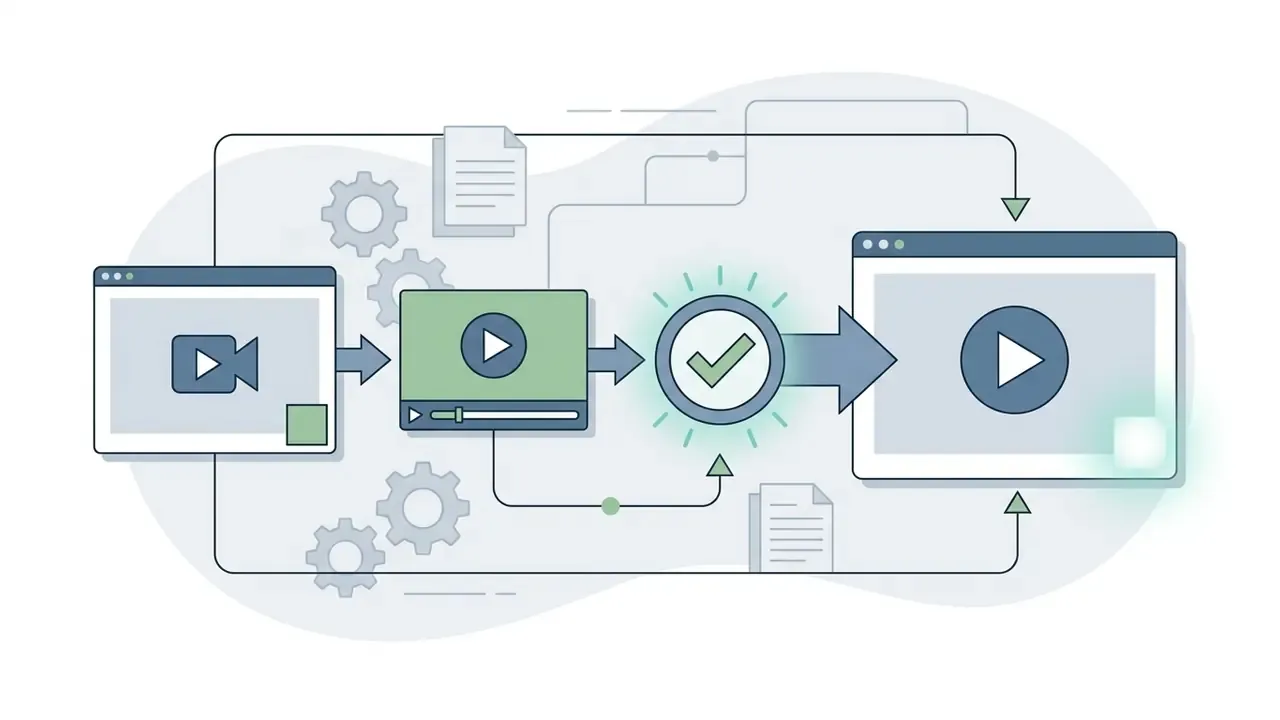
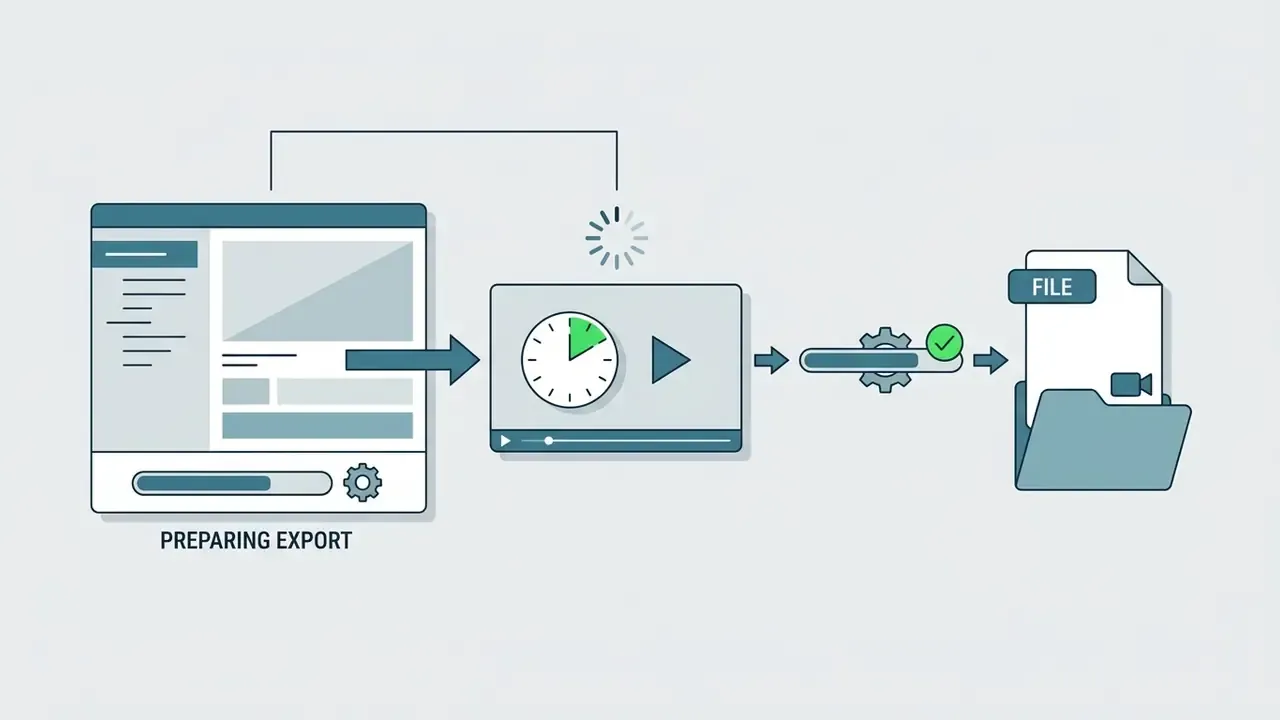
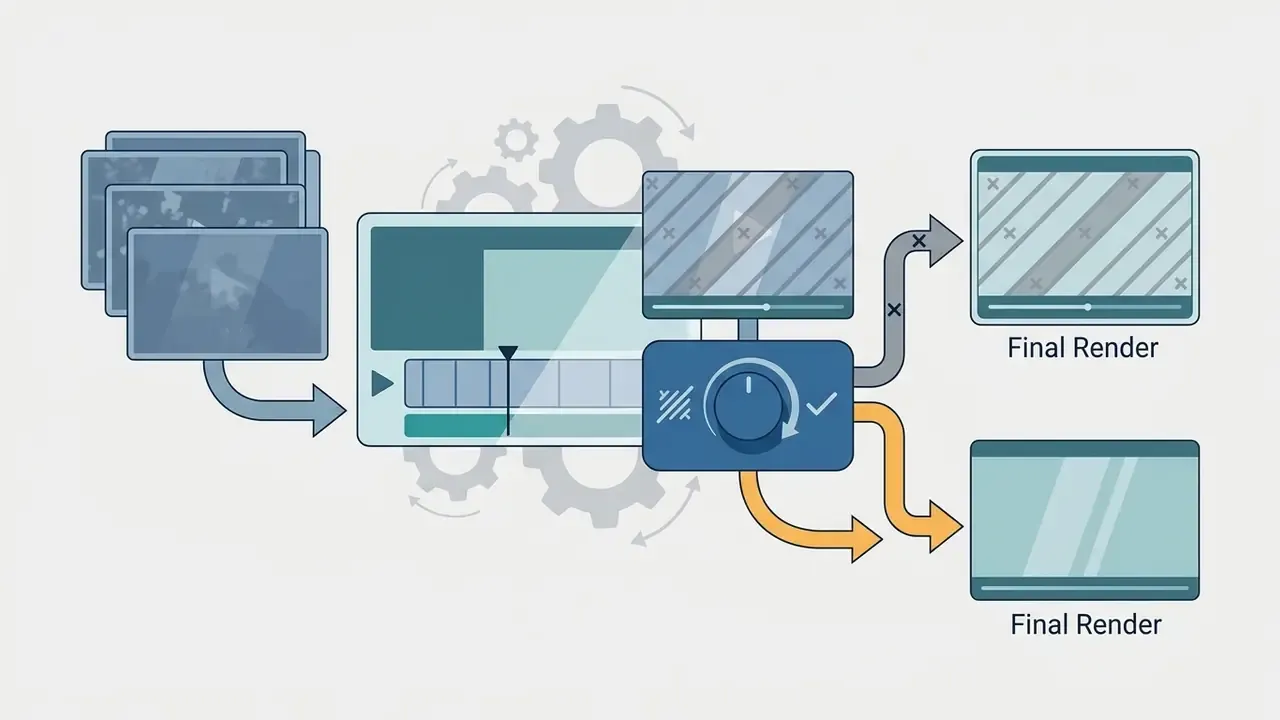
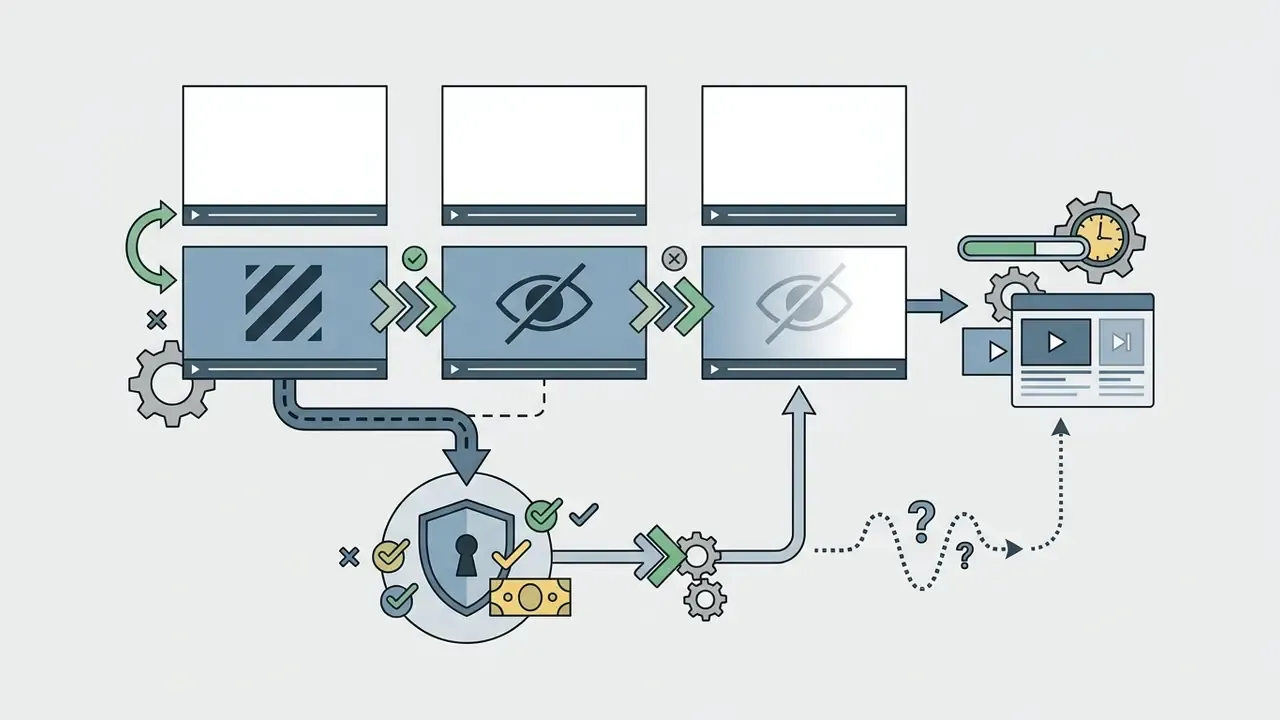
One more constraint is easy to miss: several editors grant watermark-free export only at default resolution (720p or 1080p). Select a higher output quality and the same project flips back into paid territory, or the branding returns. Run one short test export at your intended final resolution before you invest hours in a timeline. A category comparison of free video editing apps without watermark tracks these policies as they change, which they do more often than you would expect.
4K Video, Resolution and High-Quality Export
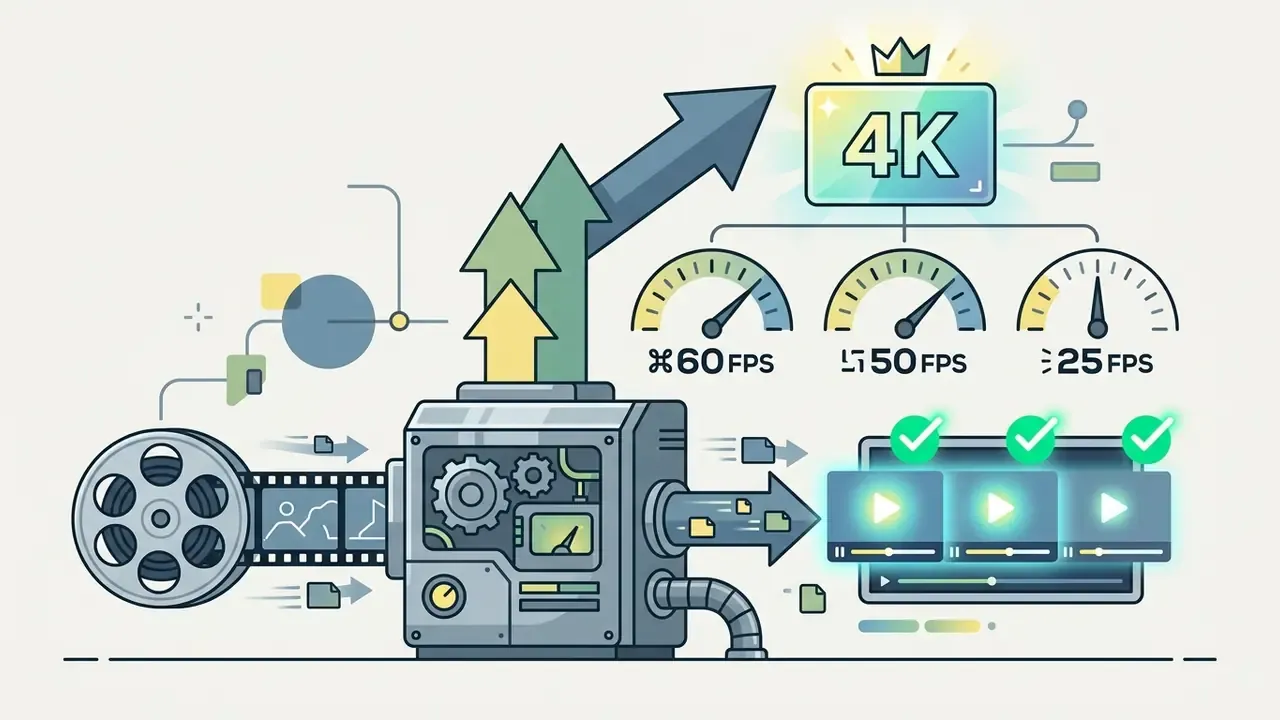
Exporting in 4K resolution (3840x2160) at a healthy bitrate preserves sharpness and leaves headroom for platform re-compression downstream. Output quality depends on source resolution, processor capability and the target bitrate you choose.
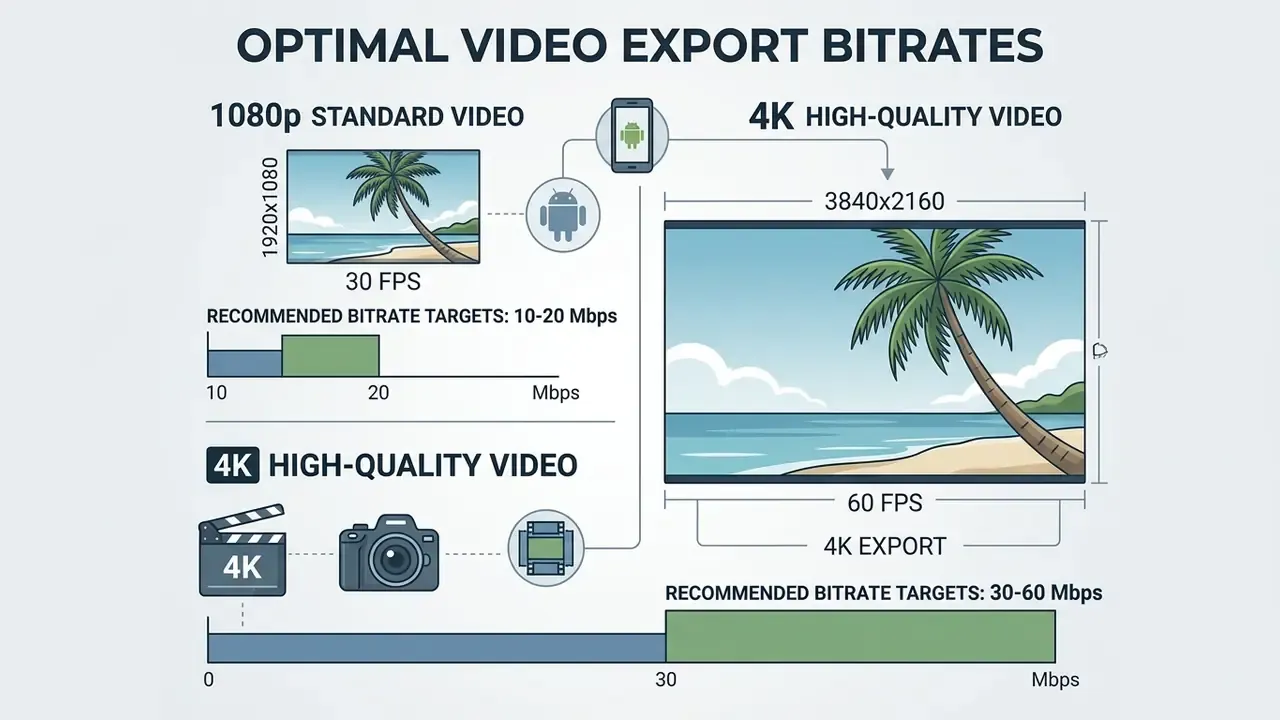
Platform encoding guidance published by Vimeo puts standard 1080p between 10 and 20 Mbps, and 4K between 30 and 60 Mbps (Vimeo compression guidelines, 2026: https://vimeo.com/help/compression). Adobe's export guidance is more conservative, recommending roughly 20 to 30 Mbps for HD and 60 to 80 Mbps for 4K (Adobe Premiere Pro export settings documentation: https://helpx.adobe.com/premiere-pro/using/exporting-video-and-audio.html). The gap reflects different delivery assumptions. Vimeo optimises for streaming re-encode, Adobe for mastering headroom, so treat 10 to 20 Mbps (1080p) and 30 to 60 Mbps (4K) as the practical mobile floor and Adobe's numbers as the archival ceiling.
Android's official Media3 Transformer documentation notes that export performance depends on hardware decoder capabilities, and it exposes explicit control over output videoMimeType and audioMimeType (H.264/AVC, H.265/HEVC, AAC). Android 14 adds platform AV1 support and Android 16 adds APV, which is why newer devices decode modern formats without a transcoding penalty.
Higher frame rates such as 60 FPS keep fast motion smooth, but they inflate file size and processing time on handheld hardware. For long-form publishing chains where one master feeds several destinations, mapping the full YouTube video editing workflow before export prevents repeated re-renders. Teams that want measured render times rather than vendor claims can also check the encoder comparisons in the AI media benchmarks hub.
Frame Rate Standards: NTSC vs PAL, and Project Archive Files
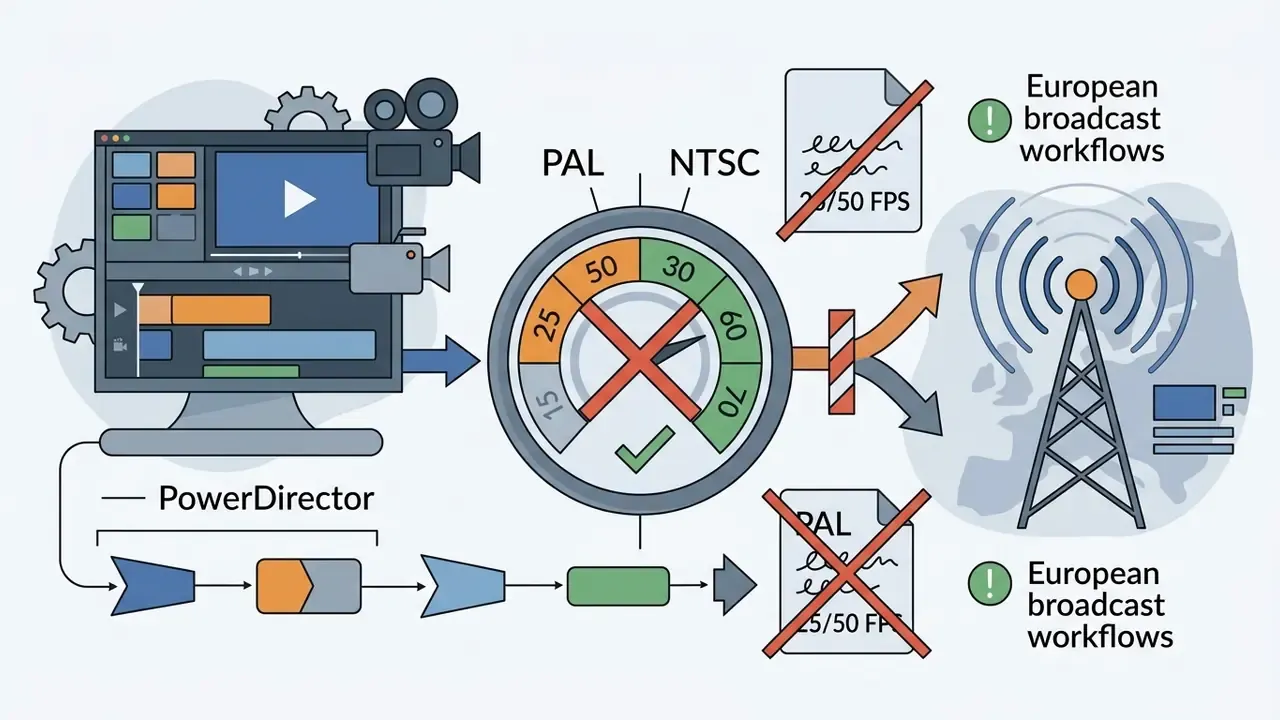
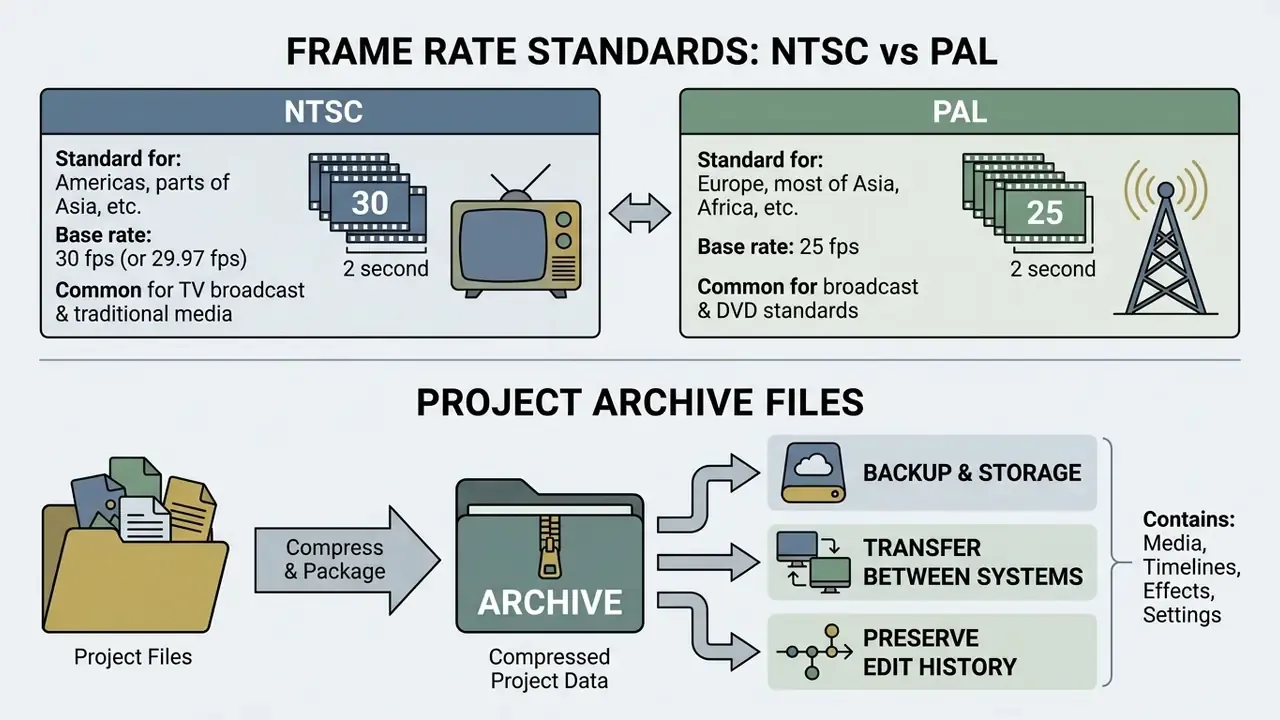
While 30 FPS and 60 FPS (NTSC-derived standards) dominate web and social video, creators in Europe, Australia and much of Asia frequently need 25 FPS or 50 FPS (PAL standard) to prevent light flicker under 50 Hz mains-powered lighting and to match broadcast delivery specs.
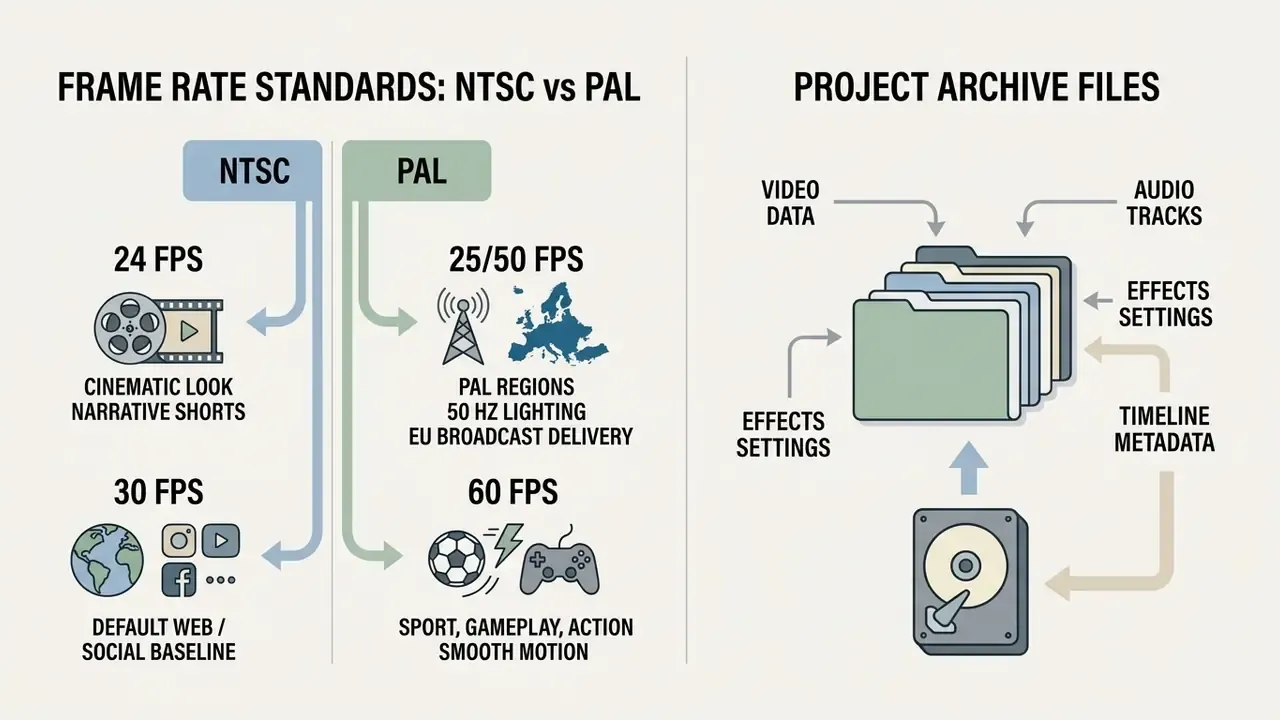
KineMaster, VN and LumaFusion allow native PAL frame-rate selection during project setup. PowerDirector notably lacks PAL export, and CapCut's options depend on project and device. Match the project frame rate to the source footage; Adobe's export guidance is explicit that frame rate should follow the source, because conversion introduces judder.
Advanced editors also export native project archive files, including KineMaster's .kine archive and VN's project export. These back up timeline cuts, layer positions and keyframes rather than a flattened video. It is the only reliable way to move an unfinished edit to a new device, hand a project to a collaborator, or recover work after a factory reset. LumaFusion goes further with XML interchange for hand-off into desktop NLEs.
Data Privacy, Cloud Processing and AI Risk Review
- On-device vs cloud AI. Core editing operations (trim, scale, rotate, overlay, filter) execute locally through Android's media pipeline. Peer-reviewed work on real-time mobile chroma key confirms background replacement can run entirely on-device on Android hardware ("A Real-time Chroma Key Application for Mobile Devices," 2025). By contrast, several AI features, including automatic transcription, text-to-video generation, upscaling and some background removal implementations, send media or audio to vendor servers. Vendor help pages, not store descriptions, are the place to confirm this per feature.
- Permission surface. Android listings disclose requested permissions. Editors typically request storage/media access and microphone access. Anything beyond that, such as contacts, precise location or phone state, deserves scrutiny. Android's own privacy guidance directs apps to request only necessary permissions and minimise collection.
- Shadow IT risk. An employee installing a consumer editor on a managed or BYOD device to cut a quick promo clip can move confidential footage into a third-party cloud with no approval trail. Keep an allow-list of editors whose AI features can be disabled or run locally, and prefer a one-time purchase with no cloud dependency (LumaFusion) over a subscription app with mandatory account sync.
- Content-safety filters. Generative features apply their own content policies, and those policies differ sharply between vendors. If your brief touches sensitive or adult-adjacent material, the constraints documented in the free nsfw ai generator review explain why some prompts fail silently inside mainstream editors.
- Commercial licensing of assets. Watermark-free export is not the same as commercial-use rights. Built-in music, stock clips, fonts and templates carry their own licence terms, and several libraries are restricted to personal or non-monetised use in free tiers. The same distinction applies across generative media tools, and the Canva AI generator commercial-use review illustrates how per-asset terms diverge from per-app terms.
- Corporate readiness checklist. Before approving an editor for business use, verify: (1) does it function offline with AI features disabled; (2) is an account login mandatory for export; (3) is there a documented data-retention policy for uploaded media; (4) does the licence permit monetised and client work; (5) can the vendor supply enterprise terms or SSO. Most free consumer editors fail items 3 to 5.
Choose the Best App to Edit Videos by Your Task
Picking an Android editing app around your publishing target keeps the software aligned with the canvas ratios, timeline depth, hardware headroom and effects you genuinely need. Everything else is noise.
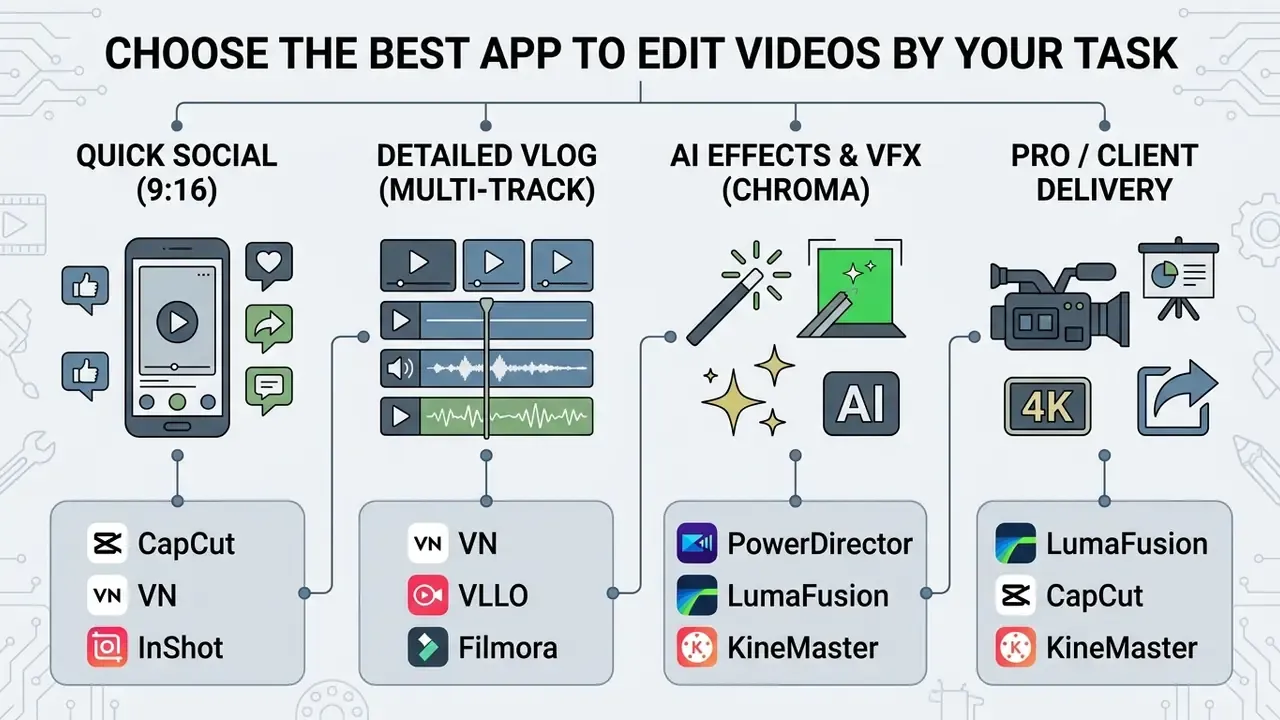
Text alternative to the diagram: for quick social edits choose CapCut, InShot or VLLO; for detailed multi-track vlogs choose VN, KineMaster or LumaFusion; for AI effects and chroma keying choose PowerDirector, CapCut or Filmora; for professional or client delivery choose LumaFusion, VN or KineMaster. If your current app fails on one specific constraint such as watermarks, price or PAL support, the directory of AI Media Alternatives by Reason is organised around exactly that kind of single blocker.
For TikTok, Instagram and Other Social Media Content
Short-form content needs vertical 9:16 presets, rapid clip slicing, automated captioning and access to trending audio. Mobile viewers expect fast pacing and clear text overlays that work with the sound off.
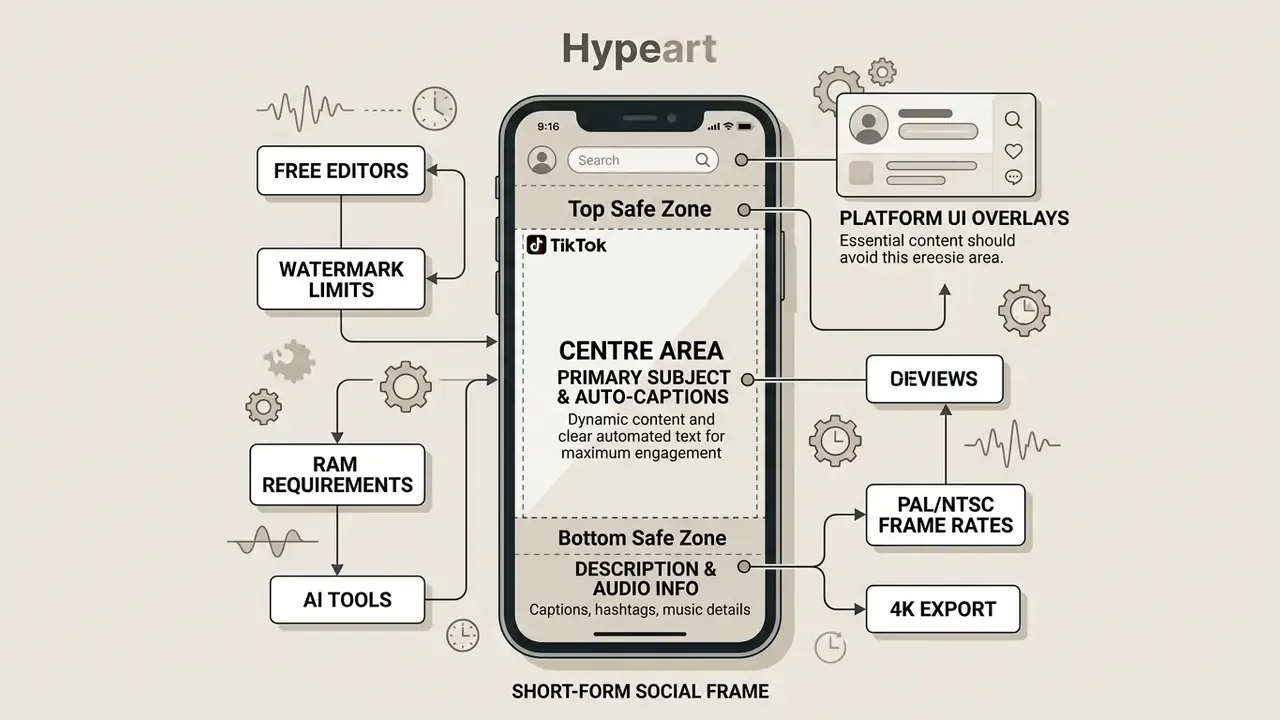
CapCut and InShot serve short-form creators directly with one-tap canvas reformatting and automated caption generators. The underlying research points the same way:
«Analysis of 274 YouTube tutorials found editing-phase AI is used most often for resolution enhancement, effects and long-to-short conversion.»
Platform guidance converges on the same fundamentals regardless of app: a hook inside the first one to three seconds, a 9:16 frame, and captions built for muted playback. Thumbnail and cover-frame preparation belongs to the same pipeline, and many creators finish covers in a dedicated photo editor rather than inside the video app. Comedy formats behave slightly differently, since timing beats matter more than polish; the patterns catalogued in the funny ai round-up show how automated reaction clips are usually assembled.
For YouTube-Style Videos and Detailed Timeline Editing
Long-form YouTube videos, tutorials and narrative vlogs need precise multi-track timelines, granular trimming, real audio mixing and high-resolution horizontal exports. Complex storytelling lives or dies on the balance between dialogue, ambience and B-roll.
VN Video Editor, KineMaster, LumaFusion and PowerDirector all provide multi-layer environments where video and audio channels can be manipulated independently. Managing audio balance across voiceover, background music and sound effects keeps music from masking speech. KineMaster's volume envelope and ducking tools, and LumaFusion's multi-channel mixer, are the two strongest implementations on Android. For creators who need narration in more than one language, generating voice tracks with an AI voice generator and dropping them onto separate audio layers beats re-recording every version. And if you are pricing out render time against a subscription, the editing cost calculators turn those trade-offs into numbers.
For AI-Powered Video Creation and Special Effects
AI-assisted workflows lean on automated background removal, text-to-video asset generation, smart object tracking and digital green-screen keying. Machine learning models absorb the labour-intensive parts of visual effects work.
PowerDirector and CapCut both include AI segmentation models that separate a subject from its background without a physical green screen. Field observation, not a controlled study: when generating synthetic background art for a green-screen shoot, combining mobile chroma key with AI masking preserved clean edge separation on a flagship test device and removed the need for a physical backdrop. Setup-time savings were observed rather than measured, so no quantified claim is made here. Teams building generative assets at scale usually evaluate output quality against dedicated platforms first, and the comparison behind the best AI art generators is a useful yardstick for background plates and title cards. Head-to-head matchups between individual tools sit in the versus comparison library.
How to Edit Videos on Android: A Simple Workflow
A structured mobile workflow prevents project clutter, speeds up post-production and protects render quality on constrained hardware.
Build a Video From Clips, Music and Transitions
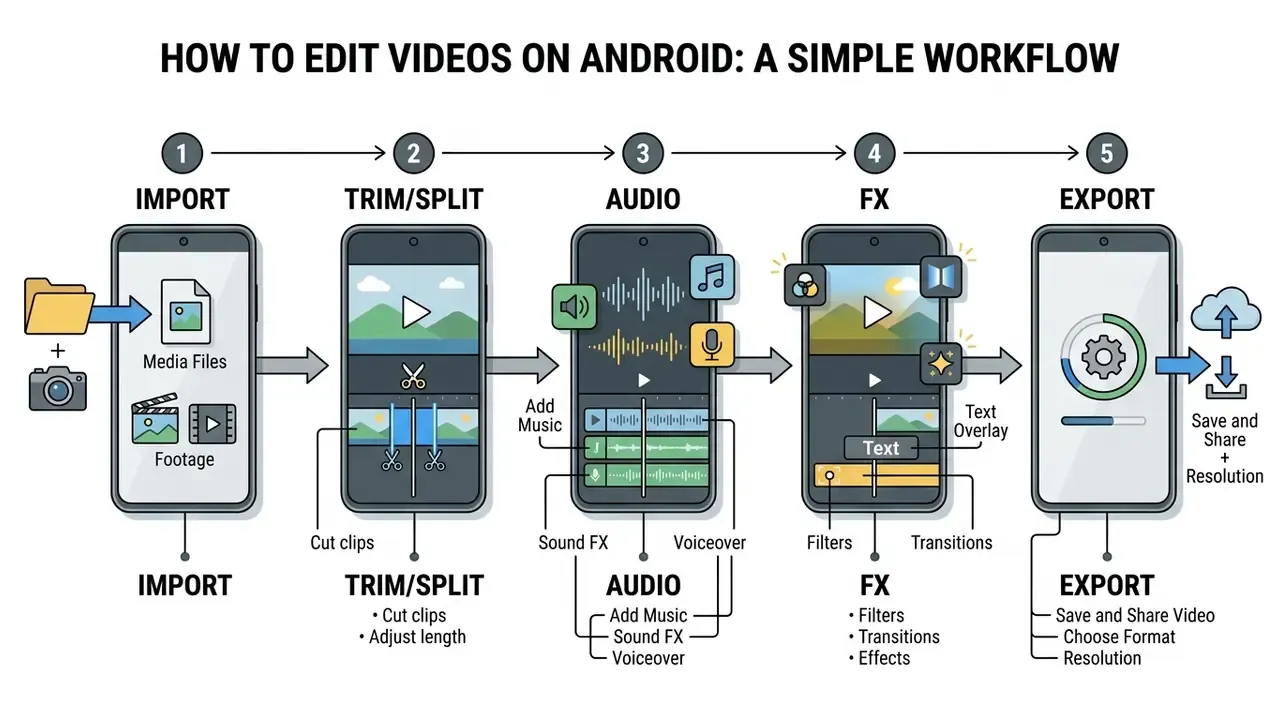
Assembling a polished video on an Android phone follows a five-stage sequence from ingest to finalising:
- Media import and project setup: open your chosen video editor, create a new project, and select the target aspect ratio (9:16 for vertical Reels and TikTok, 16:9 for YouTube) plus the correct frame rate, meaning 25/50 FPS in PAL regions and 30/60 FPS elsewhere. Import raw clips and photos from device storage.
«An LLM agent that supplies footage overviews and storyboarding speeds up edit planning for both novices and experienced editors.» LAVE, ACM IUI (2024). https://dl.acm.org/doi/10.1145/3640543
In practice that means spending two minutes labelling or ordering clips before you cut anything. Organised ingest is the cheapest speed gain in mobile editing. Honestly, it is also the step most people skip, then regret.
- Rough cut and trimming: place clips on the primary timeline. Use split and trim to cut away unwanted footage, arrange the narrative order, and set the pacing. Drag a clip edge to shorten it; split and delete for internal cuts.
- Audio insertion and balancing: add background music or record a voiceover on a secondary audio layer. Lower music volume relative to dialogue to preserve speech clarity, and use ducking or volume envelopes where the app provides them.
- Transitions and visual effects: apply restrained transitions such as cross dissolves or hard cuts by dragging them onto the junction between clips. Insert text titles, auto-captions and filters only where they earn their place.
- Final review: preview playback in real time to verify title placement, transitions and audio sync before rendering. Save or archive the project file (
.kine, VN project export, or XML) at this point so the layered edit survives a device change.
Check Video Quality Before You Export Videos
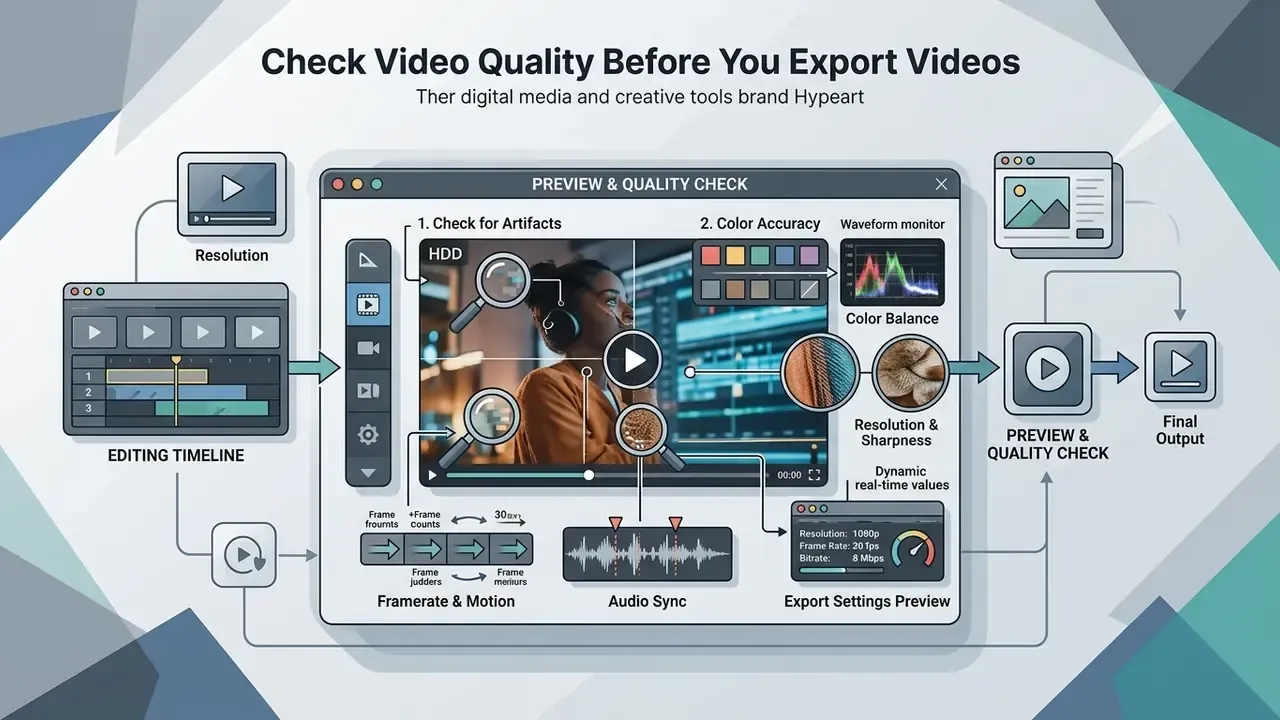
A systematic quality check before rendering prevents export errors, audio clipping and awkward framing on mobile screens.
Check that text overlays stay clear of platform interface elements, such as TikTok's right-hand action buttons or Instagram's bottom description area. If the finished file is too large for its destination, reduce it with a video compressor rather than re-rendering at a lower resolution, which discards detail permanently. Where footage will be monetised or used in client work, confirm asset licensing first; the framework in the Microsoft AI image generator commercial-use review applies equally to bundled music, fonts and stock clips, and the wider commercial-use licensing library covers the rest.
Interface reference figure (annotation specification). A standard mobile non-linear editor interface in landscape orientation contains five annotated regions:
- Preview canvas: upper-centre section displaying the current frame preview and aspect ratio guide lines.
- Media bin and asset toolbar: top toolbar containing media import, transitions, text and filter menus.
- Multi-track timeline: bottom section showing the primary video track, overlay video layer, text track and secondary audio waveform, with the playhead marking the current frame.
- Trim and split tools: left-side toolbar holding clip slicing, speed adjustment and keyframe toggle icons.
- Export and settings engine: top-right control opening resolution selection (720p/1080p/2K/4K), frame-rate toggle, bitrate control and render execution.
Checklist0 / 8
Editing on Android Tablets and Foldables
Screen real estate changes the workflow more than any single feature. VN, CapCut, KineMaster and LumaFusion all adapt to larger displays with dual-pane layouts, letting you drag media from the system file manager straight into the timeline on Galaxy Tab, Pixel Fold and Galaxy Z Fold hardware. Multi-window mode makes it practical to keep a script, browser or asset folder open beside the editor.
Two practical notes. LumaFusion's pro interface is genuinely built for tablets and feels cramped on a phone, while KineMaster's touch-first layout stays faster on a small screen. And because foldables switch between inner and outer displays mid-session, export the project archive before changing form factor. A layout change during an unsaved edit is the most common way mobile projects break.
FAQ About Free Android Video Editor Apps
Is a Free Android Video Editor Enough for Content Creation?
Yes. A free Android video editor covers professional short-form content and standard long-form vlogs without desktop software. Current mobile apps include multi-track timelines, 4K rendering engines and AI-assisted captions, which is most of a post-production workflow.
Free tools such as CapCut and VN Video Editor deliver complete editing suites, clean 4K exports and useful colour controls on the device itself. Specialised projects are the exception: complex 3D compositing, extensive motion graphics, multi-cam audio synchronisation or unrestricted commercial asset licensing will eventually push you to desktop hardware or a paid tier. The recurring paywall triggers are watermark removal, 4K export, premium effect packs and ad removal. Creators exploring automated production as a complement to manual editing often start with a free AI video generator comparison, then finish the cut in a mobile timeline.
What Are the Minimum Requirements to Edit 4K Video on Android?
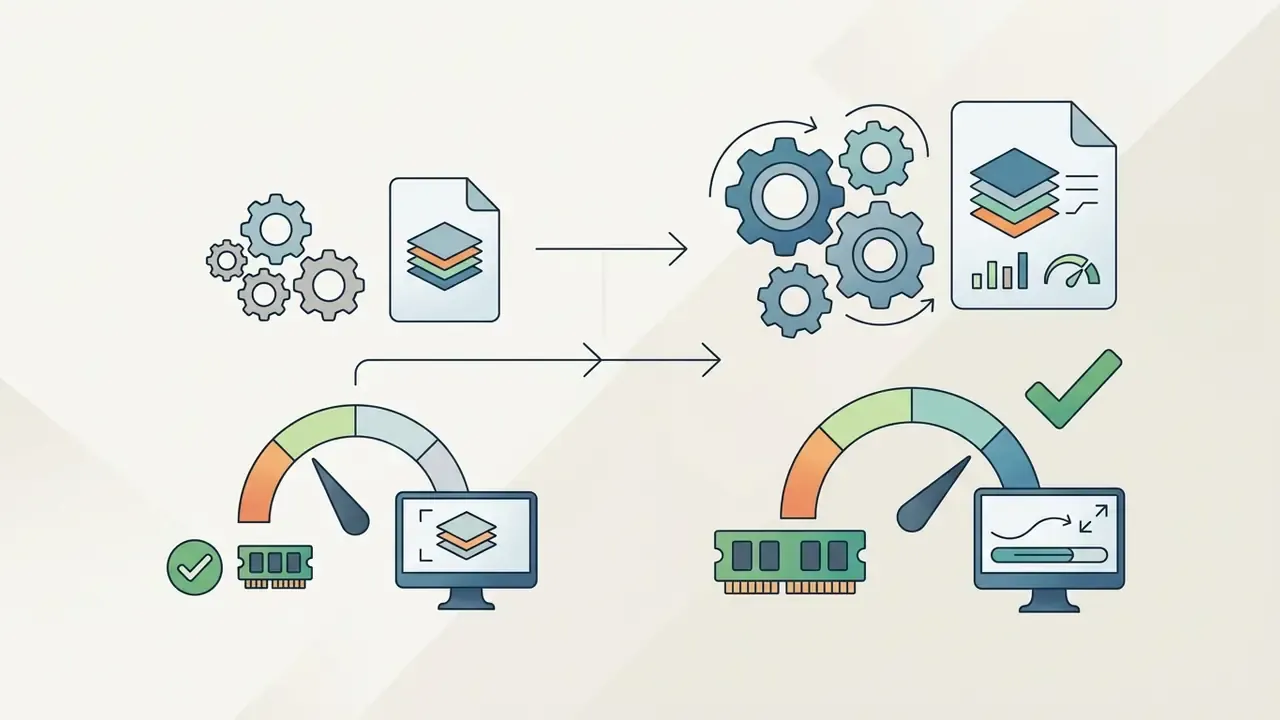
Plan on 8 GB RAM, a modern mid-range or flagship SoC (Snapdragon 778G, Snapdragon 8-series, Tensor G2 or newer), and free storage equal to roughly three times your source footage. Android 14 and newer decode AV1 in hardware, and Android 16 adds APV, which reduces transcoding overhead on current devices. On 4 GB devices, stay at 1080p/30 and keep the timeline to two or three layers.
Do I Need PAL (25/50 FPS) or NTSC (30/60 FPS)?
Match the frame rate of your camera and your mains frequency. In 50 Hz regions, meaning most of Europe, Australia, much of Asia and Africa, shooting and editing at 25 or 50 FPS avoids flicker banding under artificial light and matches broadcast delivery. In 60 Hz regions, 30 and 60 FPS are standard. KineMaster, VN and LumaFusion offer native PAL project settings; PowerDirector does not export PAL frame rates.
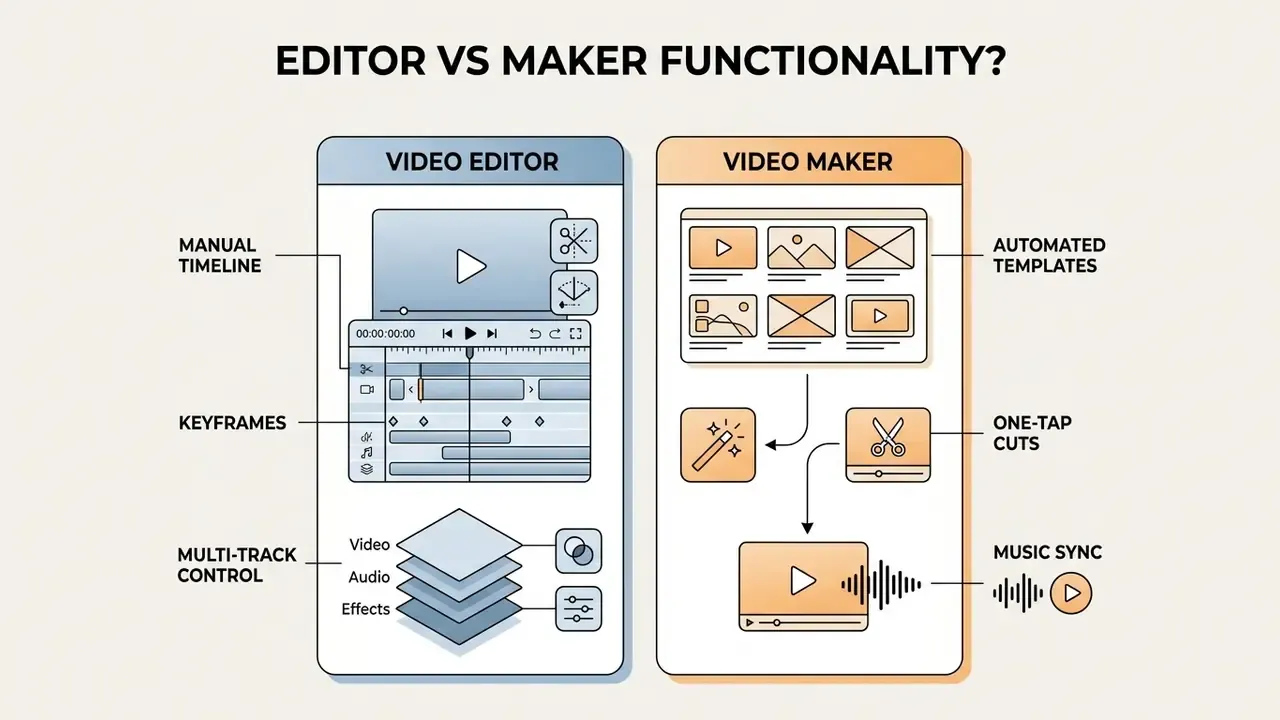
What Is the Difference Between a Video Editor and a Video Maker?
A video editor gives you manual control over timeline slicing, multi-track layering, audio keyframing and custom effect placement. A video maker automates assembly using pre-designed templates and music synchronisation.
Full video editors (VN, LumaFusion, PowerDirector) suit creators who want precise control over pacing and layout. Video makers (GoPro Quik, Filmora's AI Show templates) suit users who want a fast compilation from camera-roll footage with minimal input. Some newer products market both roles at once, which is exactly why the label alone should never drive a purchase decision.
On the desktop side of that question: Adobe Premiere Rush on Android is end-of-life. Adobe states that downloads ceased on 30 September 2025 and technical support concludes on 30 September 2026, and Adobe's mobile FAQ notes Rush is not currently supported on Android. The replacement path launched first on iPhone, with an Android version in development. Check the official Adobe notice for exact end-of-life deprecation dates in your region before planning any migration.
Developers embedding video generation or processing into their own products can review implementation details, quotas and costs in the Google Veo AI video API guide, or scan the broader AI video API documentation for alternatives.
Can I Use Free Editor Output for Client or Commercial Work?
Technically yes, legally it depends. Watermark-free export does not grant commercial rights to bundled music, fonts, stock footage or templates, and several free libraries restrict use to non-monetised personal projects. Read the in-app asset licence, keep a record of which assets you used, and prefer royalty-free libraries with explicit commercial terms. Subscription tiers commonly widen these rights. Verify rather than assume.
Appendix A: Superseded Passages and Verification Notes
Retained for transparency after revision:
- Original AI-research phrasing (quick edits section) "According to a 2024 study on short-form production workflows titled Unlocking Creator-AI Synergy published in the CHI Conference Proceedings, creators emphasize that rapid clip cutting and automated subtitle generation significantly reduce repetitive editing labor." Replaced above with a direct quotation and URL, because the original lacked methodology and a citation link.
- Original advanced-tools phrasing "Human-computer interaction research on natural language and agent-assisted video editing systems, such as ExpressEdit (ACM IUI 2024) and LAVE (ACM IUI 2024), demonstrates that precise spatial and temporal controls remain critical when fine-tuning AI-suggested edits." Replaced with the quantified mIOU 0.56 / F1 0.82 figures from ExpressEdit.
- Original social-media research phrasing "Research from a 2025 YouTube study titled Making AI-Enhanced Videos confirms that automated caption generation and aspect ratio reformatting represent primary AI use cases in content creation." Replaced with the n=274 sample figure and the specific editing-phase use cases.
- Original composite test claims in the PowerDirector and AI-effects sections described time savings without methodology. Both are retained above as explicitly labelled field observations rather than measured benchmarks.
- Bitrate sourcing the original text attributed a single 10-20 Mbps / 30-60 Mbps range jointly to "Vimeo and Adobe." Verification shows Vimeo publishes 10-20 Mbps (1080p) and 30-60 Mbps (4K), while Adobe recommends 20-30 Mbps (HD) and 60-80 Mbps (4K). Both are now cited separately with the discrepancy explained.
- Removed internal references several links in the earlier draft pointed to unrelated or non-existent destinations, using non-descriptive anchors such as "open the hub" and "view the guide." They have been replaced with topically relevant, descriptively anchored links.
- KineMaster watermark discrepancy vendor documentation and current store listings describe an enforced free-tier watermark, while some reviewer and regional sources report an ad-based temporary removal. Confirm the behaviour inside your installed build.
- Thermal performance not instrumented in this revision. Sustained-export throttling on mid-range devices remains an open question and is flagged for a future test cycle.
This article is general technical information about consumer software features and does not constitute legal, security or financial advice. App features, prices, watermark policies and privacy terms change frequently; verify current vendor documentation before relying on any detail for professional or regulated work.
More tool-by-tool breakdowns: compare editors, generators and mobile apps across the full library.