Quick verdict for 2026
What this guide covers
- How we evaluate free video editing apps without watermark
- Quick comparison table and a decision tree for choosing an editor
- Detailed reviews: YouTube Create, VN, YouCut, Adobe Premiere, PowerDirector, CapCut, InShot, Instagram Edits
- Which watermark-free video editor fits your use case
- Features to check before choosing a free video editor, including licensing and data privacy
- How to export a video without watermark on Android, with step-by-step checklists
- FAQ
How we evaluate free video editing apps without watermark
Selecting a reliable mobile video editor requires testing export outputs across multiple project configurations. A software listing claiming to be free may still restrict resolution, cap render length, or drop a logo overlay onto the canvas the moment a specific asset is selected.
To evaluate these tools objectively, we verify whether an editor allows clean exports without payment under standard workflows. We test export settings across mobile devices running current operating systems to identify hidden feature locks, performance bottlenecks, and asset-based paywalls.
Our evidence rule is blunt: a vendor claim counts only when a render confirms it. Marketing pages describe intent. Exported files describe behaviour, and behaviour is what ends up on your channel.
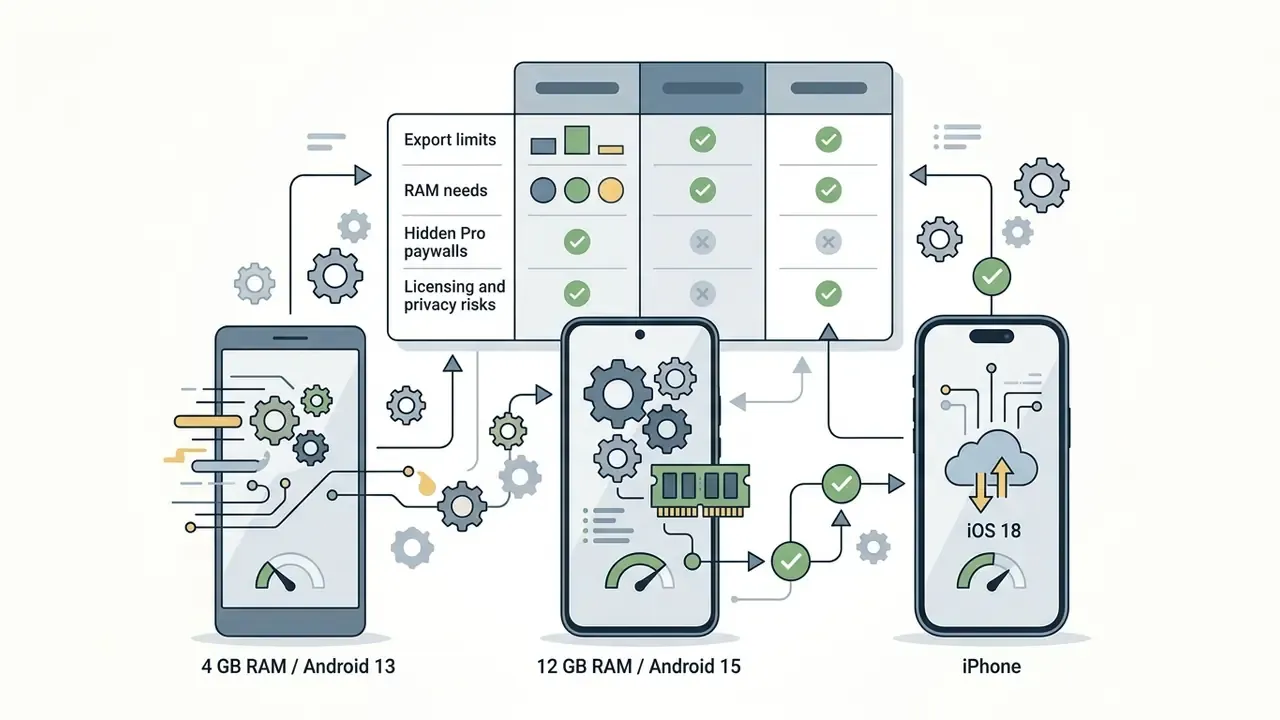
Test methodology (Q1 2026). Every application in this guide was installed from its official store listing (Google Play or the App Store), used to build an identical 90-second test project (three video layers, one voiceover track, one music bed, auto-captions where available), and rendered at the highest resolution the free tier permits. Render behaviour was checked on a mid-range Android handset (4 GB RAM, Android 13), a flagship Android device (12 GB RAM, Android 15) and an iPhone running iOS 18, so that watermark policy could be separated from hardware-related render failures. Each exported file was then inspected frame by frame at the first and last second of the timeline, the two positions where promotional branding is most often injected.
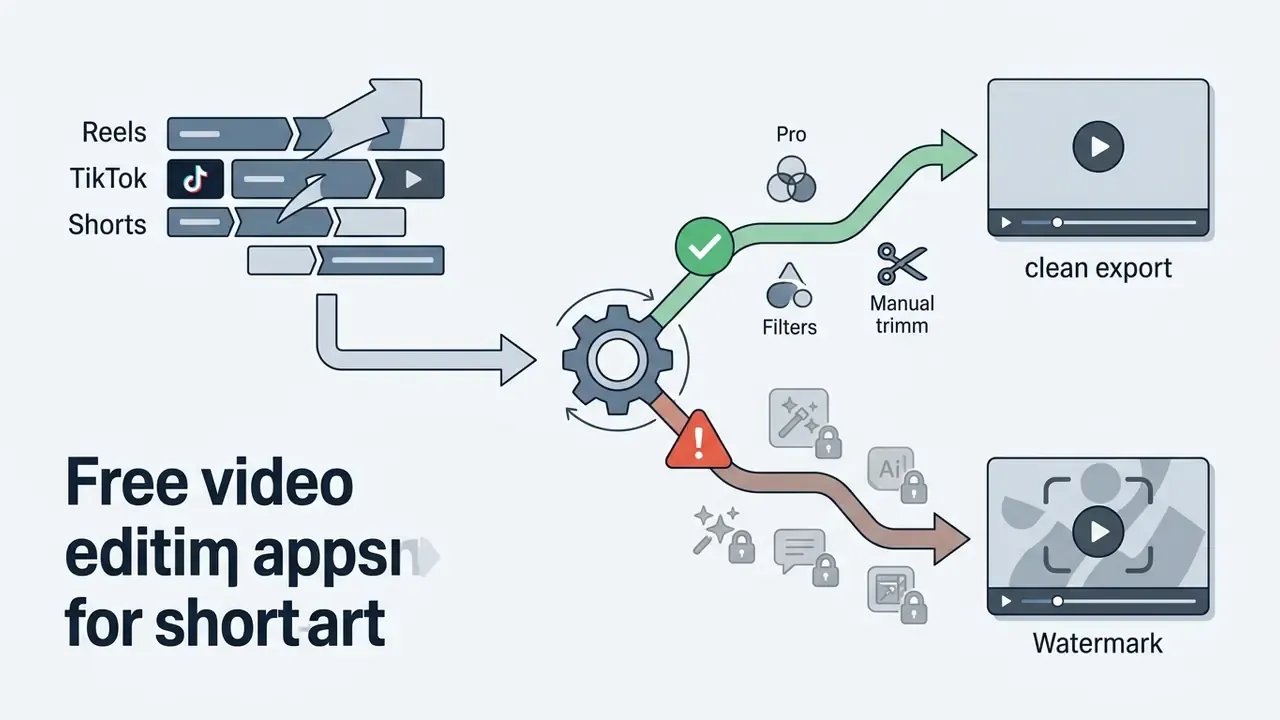
What "without watermark" means in the free version
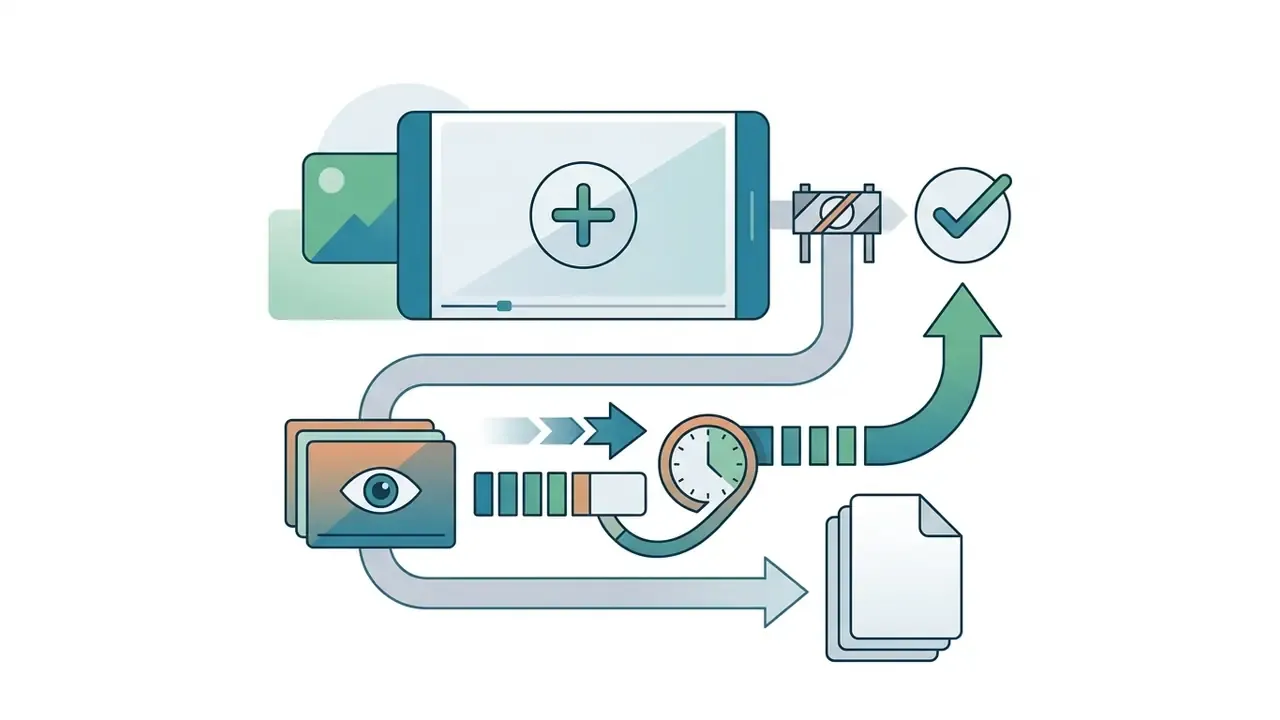
A watermark-free export means the rendered file contains no app branding, logo overlays, or promotional end-cards.
"'Without watermark' means no superimposed app logo, text, or branding in the exported video file, as distinct from platform-controlled branding applied by the publishing platform itself."
However, an editor without watermark in its basic mode may still enforce strict limits on the free version. For instance, tools like Canva permit video without watermark exports only when using free elements, while paid stock graphics automatically trigger a logo overlay upon render (Canva Help, 2026). Other platforms maintain a clean export stream but restrict output resolution to 720p or lock multi-track timeline editing behind a subscription.
A useful counter-example to that freemium logic comes from Adobe:
"Adobe Premiere Rush's free starter plan allows unlimited video editing, exporting and cloud storage; exported videos contain no watermark in either free or paid plans."
Users must distinguish between permanent free-export models and freemium editors that require ad views or premium upgrades for clean renders. Readers comparing desktop and mobile options side by side can also review our breakdown of free video editing software to see which limits carry over between platforms.

Features that matter for mobile video editing
Mobile content creation relies on flexible timeline editing, precise trim clips tools, and multi track capabilities. Creators working across diverse channels need granular control over aspect ratio presets, customizable frame rate options, and integrated audio editing.
Basic mobile editors often restrict users to a single video layer, which flattens keyframe adjustments and kills visual depth.
Modern social publishing requires robust tools for adding text, applying seamless effects transitions, and managing color parameters without exporting degraded files. Our glossary of video editing tools explains how timeline editors, template apps and AI generators differ in architecture and pricing.
Hardware baseline. Watermark policy is irrelevant if the render never completes. Across tested devices, 2 GB RAM and 4 GB of free storage is the practical floor for 1080p editing, while 8 GB RAM is the realistic requirement for stable HD and 4K media handling, multi-layer compositing and AI effects. Devices with under 4 GB of free storage frequently fail mid-render on 4K 60fps projects, because the app cannot write the temporary render cache.
Fact check and verification audit

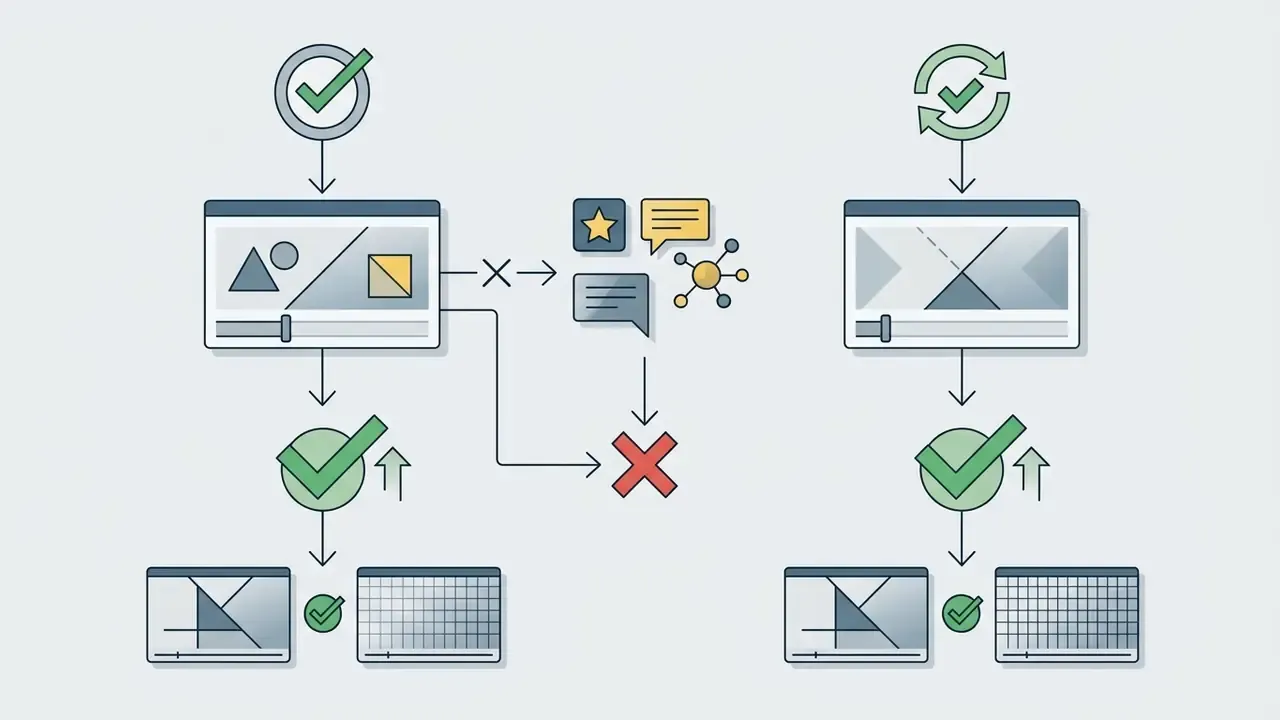
Quick comparison of the best free video editors without watermark
Comparing mobile video tools side by side clarifies which editor matches your platform requirements and technical skill level.
"CapCut consumer spend reached $50 million in the first half of 2023, a 180% increase over the second half of 2022."
That scale explains why CapCut dominates short-form tutorials, and why its 2026 paywall changes affect so many creators. Choosing the right best video editor depends on whether your priority is multi-track control, automated AI tools, or fast rendering.
The table below outlines core operating parameters, watermark policies, hardware requirements, store metrics and export capabilities across top-rated mobile applications.
Technical comparison of free mobile video editing applications (2026)
| Application | Supported OS | Watermark policy (free tier) | Max resolution / FPS | Multi-track | AI capabilities | Min hardware | Store rating & installs | Optimal use case |
|---|---|---|---|---|---|---|---|---|
| CapCut | Android, iOS, Desktop | No watermark on strictly standard edits; Pro assets, auto-captions and AI tools force a watermark (2026) | 4K @ 60 fps (1080p typical free ceiling) | Yes | Auto captions (Pro-gated), Smart Cutout | 2 GB RAM / 4 GB storage (8 GB RAM for HD and 4K media) | 4.3 stars, 100M+ installs | Short-form vertical video (Reels, TikTok) |
| VN Video Editor | Android, iOS, iPad, Mac, Windows | No watermark (100% free exports); delete the default "VN" title card first | 4K @ 60 fps | Yes | AutoCut, subtitle generation (captions Pro-gated) | 2 GB RAM / Android 8.0+ / iOS 14+ | 4.8 stars, 100M+ installs | Multi-track precision and speed ramping |
| YouCut | Android, iOS | No watermark (ad-supported) | 4K @ 60 fps | Limited | Basic AI filters, AI auto captions | 2 GB RAM / 4 GB storage | 4.9 stars, 100M+ installs | Fast social clips and quick trimming |
| Adobe Premiere (mobile) / Premiere Rush | iOS (Premiere mobile); Rush retired 30 Sep 2025 | No watermark (free Starter tier) | 4K, unlimited exports | Yes | Auto-captioning, speech enhancement, AI background removal | iPhone with iOS 17+ / 3 GB RAM recommended | 4.6 stars, 10M+ installs (combined Adobe mobile video) | Cross-device sync and YouTube editing |
| PowerDirector | Android, iOS, Windows | Watermark applied on all free exports (paid removal) | 1080p (4K on paid) | Yes | AI Background Remover, Chroma Key, AI voice | 2 GB RAM / 4 GB storage | 4.5 stars, 100M+ installs | Advanced compositing and visual effects |
| InShot | Android, iOS | Watermark applied; removable per export via rewarded ad, or by subscription | 4K @ 60 fps (custom bitrate) | Limited | AI Effects, Auto Tracking | 2 GB RAM / 4 GB storage | 4.7 stars, 500M+ installs | Casual social content and quick edits |
| YouTube Create | Android (region-limited beta) | No watermark | 1080p or 4K depending on device | Limited multi-track | Auto-captions, audio cleanup, AI beat sync | 4 GB RAM recommended / Android 10+ | 4.3 stars, 10M+ installs | YouTube Shorts and simple long-form cuts |
| Instagram Edits | Android, iOS (portrait only) | No watermark | 4K @ 60 fps capture; 10-minute import cap | Limited layers | AI background removal, audio cleanup, teleprompter | 3 GB RAM / Android 11+ / iOS 16+ | 4.3 stars, 10M+ installs | Native Instagram Reels production |
Decision tree for choosing a mobile editor in three questions
Rather than scrolling through eight reviews, use the structured algorithm below to shortlist two candidates, then run the same test project through both.
Step 1: define the target output format
Step 2: evaluate AI and template requirements
Step 3: evaluate compositing and platform ecosystem
- Vertical short-form (Reels, TikTok, Shorts) go to Step 2.
- Horizontal long-form (YouTube, Vimeo) skip to Step 3.
- Auto-captions and viral templates required CapCut (verify every asset is non-Pro before export), or Instagram Edits for Reels-only workflows.
- Manual speed curves and guaranteed clean exports required VN Video Editor.
- Speed matters more than depth YouCut (ad-supported clean export).
- Cross-device desktop sync needed Adobe Premiere mobile, with project handoff to Premiere Pro.
- Advanced keying or chroma key required PowerDirector (paid, watermark on free) or VN Video Editor (free).
- Device has under 4 GB RAM choose YouCut or YouTube Create and cap output at 1080p.
Best free video editing apps without watermark: detailed reviews
Evaluating individual applications reveals how video editing features perform under actual mobile editing workflows. While several applications offer high quality rendering, their interface design, free-tier limits, and advanced features vary significantly.
Creators must balance intuitive interface design against technical flexibility when selecting software for social media platforms. The following detailed reviews examine leading mobile editors, highlighting their operational strengths and export conditions.
YouTube Create for YouTube video and simple edits
YouTube Create provides a streamlined editing environment optimized for creators publishing directly to YouTube video and Shorts formats. The app includes basic editing tools that let users trim clips, add text overlays, and execute simple audio editing.
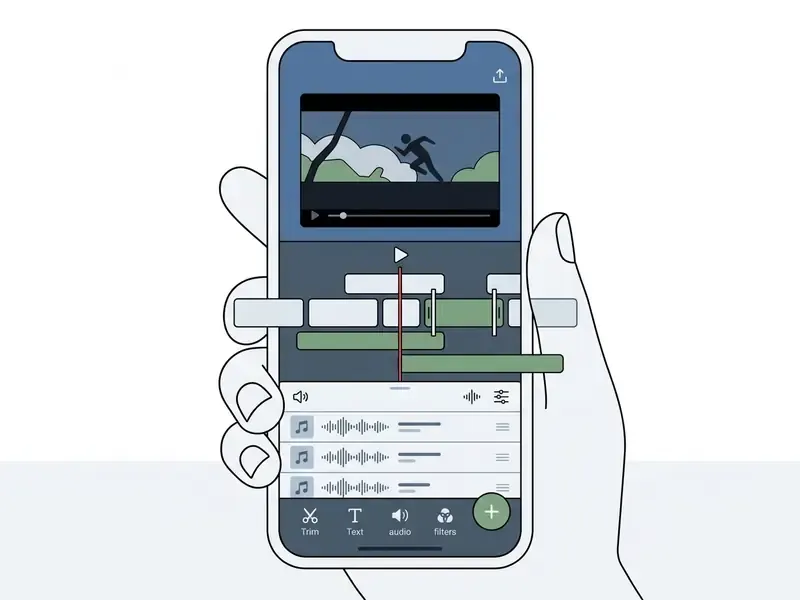
Users can import royalty-free audio directly from the YouTube Audio Library without encountering copyright claims (Google Help, 2026). The application exports high quality video content completely free without adding a watermark.
Operational limits: the app remains in a staged rollout. Google Help states that access requires a supported country or region and an Android phone, while its AI features are experimental and offered to a limited number of creators in selected countries. Its mobile workflow currently lacks multi-track desktop sync, which limits its utility for complex long-form productions. AI polish tools (audio cleanup, background removal) and direct upload to YouTube are the strongest reasons to keep it installed even as a secondary editor. For broader production needs, creators often compare dedicated tools across our film and video editor hub.
VN Video Editor for multi-track timeline editing
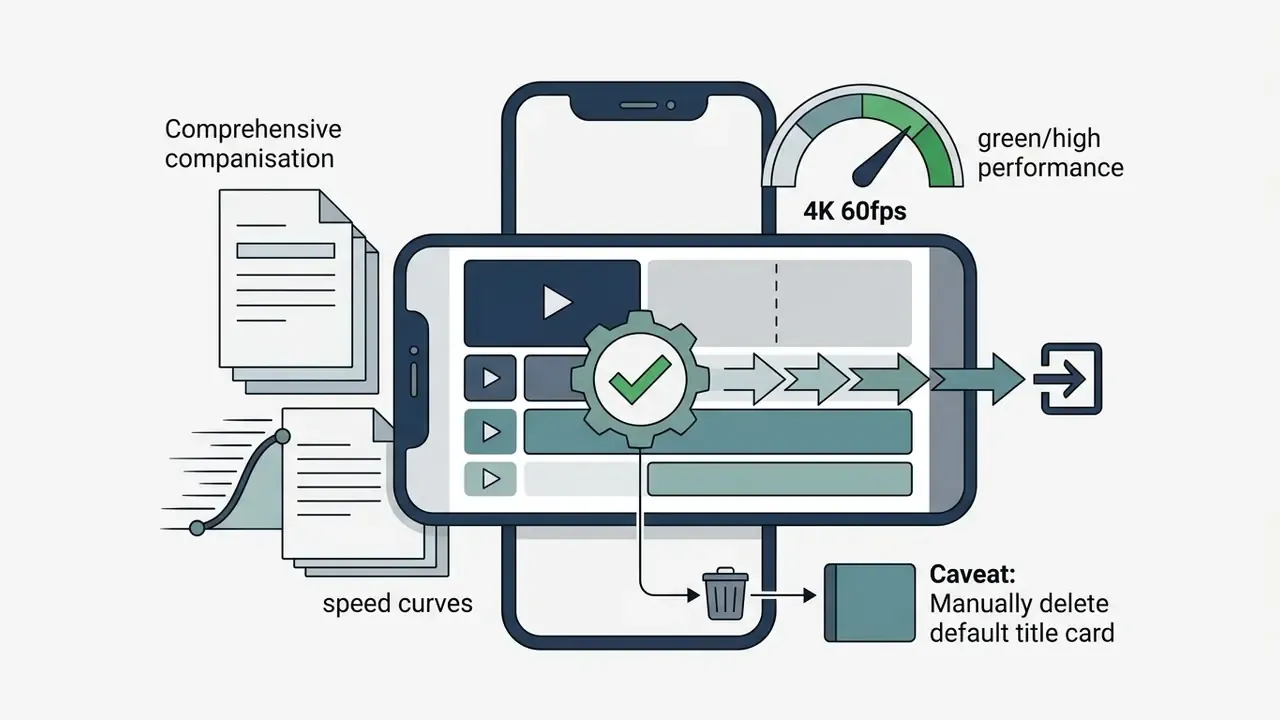
VN Video Editor offers professional level editing tools on a clean, multi track timeline without charging subscription fees for core functionality. The app supports curve-based speed ramping (six speed-curve presets), custom LUT filter imports in .cube format, and 19 built-in keyframe animation effects with additional manual keyframes and curves.
"VN Video Editor is free to download and use; according to the official product documentation for version 1.82.2 (July 2024), no watermark is added in any free export mode."
Additional constraints worth planning around: auto-generated captions sit in the paid tier, and the free version caps you at 100 active projects (the paid version removes the limit). Export controls, by contrast, are unusually granular for a free app. Resolution, frame rate and bitrate are all adjustable, which is what makes VN viable for consistent publishing at a predictable file size.
Field note. In a recent digital media workflow overhaul, an editorial team needed to publish daily technical video summaries across mobile platforms without software branding. They adopted VN Video Editor to manage multi-layer video tracks and precise audio timing directly on mobile devices. After standardising on a saved 4K 60fps export preset and removing the default title card at project creation, the team eliminated repeated re-renders caused by accidental branding and kept full 4K 60fps export quality without watermark overhead. Exact render-time savings depend on device hardware and were not measured under controlled conditions, so treat the gain as directional rather than benchmarked.
YouCut for fast Android edits without watermark
YouCut is a lightweight Android editor engineered for rapid video trimming and aspect ratio adjustments. The app allows creators to cut footage, add text elements, and apply standard transitions without imposing an export logo. Aspect-ratio presets cover 1:1, 16:9, 3:2 and 9:16, which maps directly onto Instagram feed, YouTube, and vertical short-form delivery.
Its simple video interface makes it accessible for beginners who need to format content for social media quickly. YouCut lacks complex compositing layers, admittedly, but its ad-supported model guarantees clean exports across standard export settings.
"YouCut positions itself as 'free forever': no subscription is required for full functionality, and watermark-free export is guaranteed regardless of paid add-ons."
Adobe Premiere Rush and Adobe Premiere Mobile for cross-device editing
Adobe Premiere Rush and Adobe Premiere Mobile deliver seamless project syncing across mobile devices and desktop operating systems. The standalone free mobile edition allows unlimited 4K video exports without applying watermarks.
"The free Premiere Rush starter plan includes unlimited editing, exporting and cloud storage, with no watermarks in either the free or paid plan."
PowerDirector for advanced editing and AI tools
PowerDirector provides advanced editing features, including green screen compositing, chroma keying with eyedropper colour selection plus tolerance and denoise controls, and AI-driven background removal that auto-detects the subject without manual masking (CyberLink, 2026). Its powerful video processing pipeline handles complex multi-layer projects and motion tracking with high precision.
The catch is predictable. PowerDirector's free version applies a visible watermark logo to exported clips.
"The PowerDirector watermark appears on every free-version export, on both mobile and desktop, and functions as the upgrade incentive."
CapCut and InShot: when free exports may have limits
CapCut and InShot are widely used for short-form video creation, but their free version tier involves specific export conditions. CapCut allows free exports without a watermark for standard edits, while Pro-labeled templates, stock media, or advanced AI video features block clean output until you upgrade (CapCut Help, "Is it Possible to Export Videos from CapCut without a Watermark?", 2026).
For historical context, the app's 4K credentials were real:
"In a 2026 comparative test, CapCut was the only fully free app among those tested that exported 4K video without a watermark."
The operational takeaway is that CapCut's watermark behaviour is now asset-dependent, not export-dependent. The same project can render clean one day and watermarked the next, simply because a trending template was swapped in.
"Free mobile video editors often hide export locks behind paid asset packs rather than core timeline tools." Editorial Technical Audit
InShot provides a feature-rich mobile toolkit, but its standard free export includes an app logo watermark unless cleared by watching an ad or paying for a subscription.
"InShot offers the most complete free feature set among the editors tested, but adds a small watermark to exports; removing it requires a subscription."
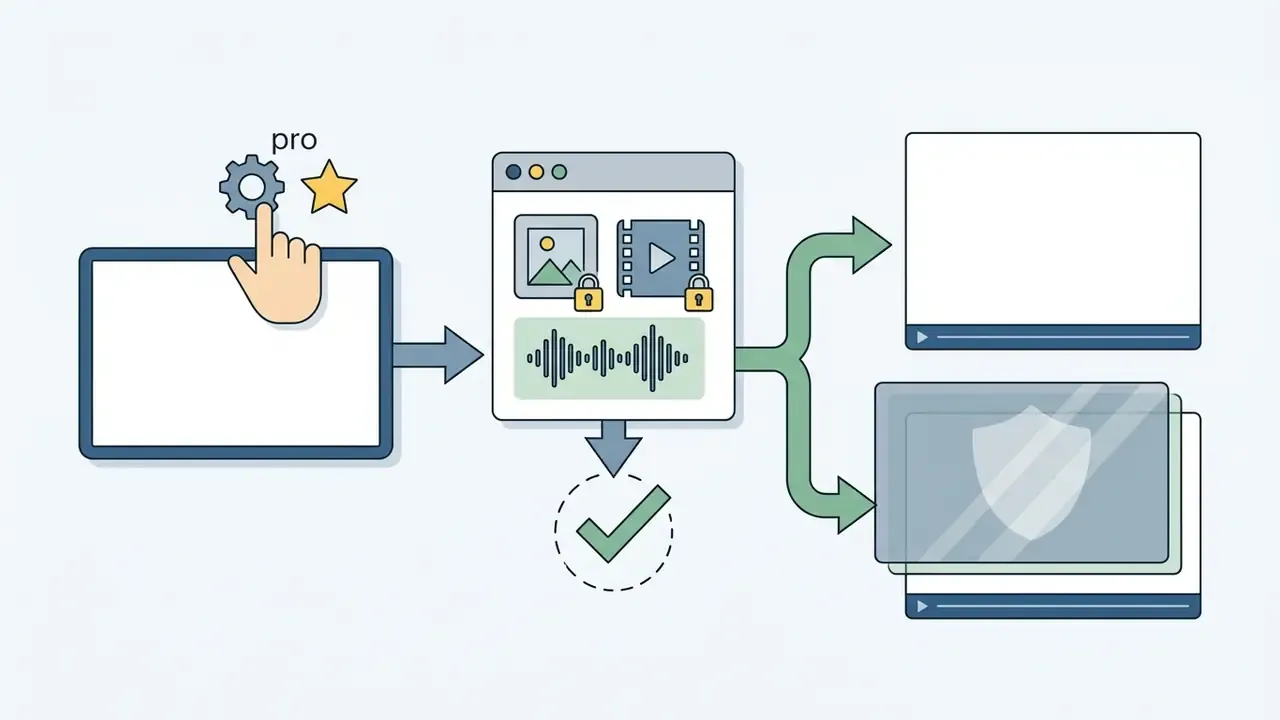
Hidden watermark triggers to audit before every render: Pro-tagged templates; Pro transitions and effects; premium stock footage, images and music; premium fonts and sticker packs; AI features such as auto-captions, smart cutout, upscaling and generative fill; and export presets above the free-tier resolution ceiling. Creators should verify project asset tags before rendering final exports. One Pro sticker on a hidden track is enough to lock the clean export.
For generative video alternatives, explore our best free AI video generator breakdown, and our glossary of free AI video generators explains how credits, watermarks and export limits interact in AI tools.
Instagram Edits for native Reels creation
Instagram Edits, Meta's own editor, offers a streamlined, portrait-only (9:16) editing workflow tied directly to the Instagram ecosystem. It supports in-app recording up to 4K 60fps on capable hardware, a built-in teleprompter for talking-head content, AI background removal and audio cleanup, green-screen-style react layouts, draft management, saved inspiration from other creators' posts, and direct publishing, all without applying a watermark.
Limitations: imported source videos are strictly capped at 10 minutes, horizontal 16:9 editing is not supported at all, and published posts are automatically tagged as created with the app. It is therefore a Reels specialist rather than a general-purpose editor: excellent as the last step in a vertical workflow, unusable as a long-form YouTube editor.
Which watermark-free video editor is best for your use case?
Selecting the optimal video editor depends on your target platform, visual complexity, and turnaround speed. Short-form creators prioritizing speed need automated tools, while long-form YouTube creators require multi-track stability and precise audio control.
Best free editors for YouTube video creators
Long-form YouTube video projects in 16:9 require detailed color correction, multi track audio editing, and high bitrate export settings. Tools like VN Video Editor and Adobe Premiere mobile handle long video timelines stably without crashing during extended renders. Our practical guide to YouTube video editing workflows covers publishing features and editor selection for channel operators in more depth.
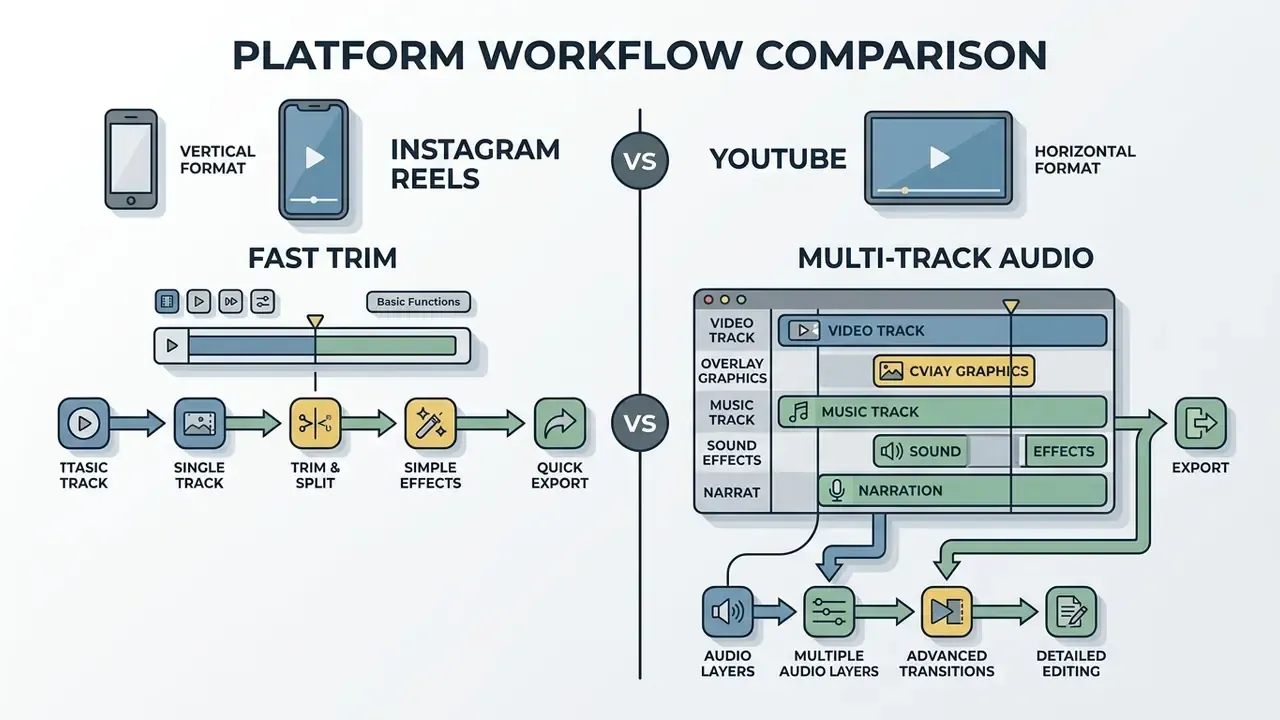
High-performing channels rely on clean 1080p or 4K exports to maintain viewer retention across large desktop displays, and mobile-only production is no longer a ceiling on performance:
Managing separate audio tracks for voiceovers, background music, and sound effects ensures professional audio balance. If your channel mixes long-form and Shorts, keep one 16:9 master project and export vertical cut-downs rather than editing twice.
Best options for professional-level mobile video editing
Features to check before choosing a free video editor
Before committing to a mobile editing tool, creators should audit its technical feature set against project requirements. Key capabilities like cloud storage integration, screen recording support, and frame rate adjustments determine whether an app can scale with your media workflow.
Eight-block pre-selection audit: (1) import and export formats, covering MP4/H.264, MP4/H.265, MOV and WebM; (2) core editing, meaning trim, split, merge, transitions, speed, crop, multi-layer and keyframes; (3) audio, including music, sync, voiceover and level control; (4) text and subtitles, with overlays, fonts, colours and animations; (5) effects and layers, from filters and background remover to masks and chroma key; (6) performance, including local media probing, thumbnail and waveform generation, on-device export; (7) collaboration and project handling, such as saving, reopening, direct social sharing and multi-resolution export; (8) privacy, meaning whether media stays local or is uploaded for processing.
AI tools, auto captioning and background removal
Modern AI tools streamline mobile video production by automating tedious tasks like background removal and speech transcription. AI video engines generate synchronized auto captioning with high accuracy, which lifts engagement for viewers watching without sound. Our glossary of AI video generators explains how these models are built and priced, and the companion entry on image-to-video AI tools covers animating stills for B-roll.
Accuracy reality check. Vendor claims and independent tests diverge: Captions AI advertises "99%+ caption accuracy" on its store listing, while independent 2026 testing across 41 files reported roughly 94.3%, with sharper degradation on accented or noisy speech. KineMaster lists AI auto-captions and AI noise reduction without publishing numeric error rates, and no public 2024 to 2026 benchmark provides precision or IoU figures for mobile smart cutout. Treat AI captions as a first draft requiring a proofread pass, not a finished asset.
Crucially, AI features are the most common watermark trigger. As covered in the CapCut and InShot section, auto-captions, smart cutout, upscaling and generative fill are frequently Pro-tagged, so an AI-assisted edit that previews perfectly may still refuse a clean export. Benchmarking performance metrics across automated editing utilities helps creators choose tools that maintain visual quality. Review our published performance benchmarks to see how processing algorithms compare under heavy editing workloads.
Multi-track editing, green screen and chroma keying
Multi-track timelines enable sophisticated video compositing, letting editors overlay graphics, text, and picture-in-picture (PiP) tracks. Chroma keying allows creators to replace green screen backdrops with custom virtual sets or dynamic visual backgrounds (Banuba SDK, 2026).
Technically, PiP and chroma key are layer-order operations: the keyed clip must sit on the top layer, or the key result will not composite correctly. The app samples a key colour, converts matching pixels into transparency via matte and alpha cleanup, then stacks the foreground over the background track, with mask controls confining the visible area of the keyed signal before the final composite. On mobile silicon this is GPU-bound, which is why keying at 4K on a 2 GB device typically stutters even when the same project previews smoothly at 720p.
For creators seeking non-subscription editing environments, reviewing free software alternatives ensures access to powerful compositing tools without recurring paywalls.
Export quality, aspect ratio and frame rate
Export fidelity depends heavily on output bitrate, resolution selection, and frame rate stability (24, 30, or 60 fps, for example). Exporting video without watermark at low bitrates commonly produces visible compression artefacts that degrade sharpness on high-resolution displays. Published delivery guidance recommends roughly 10 to 20 Mbps for 1080p, 20 to 30 Mbps for 2K and 30 to 60 Mbps for 4K, with non-standard frame rates adjusted to the nearest supported band (figures reflect Vimeo's published export recommendations; verify current platform specs before delivery).
"In most free Android editors, export is limited to 720p; among the apps tested, only CapCut delivered clean 4K export without a watermark on the free tier."
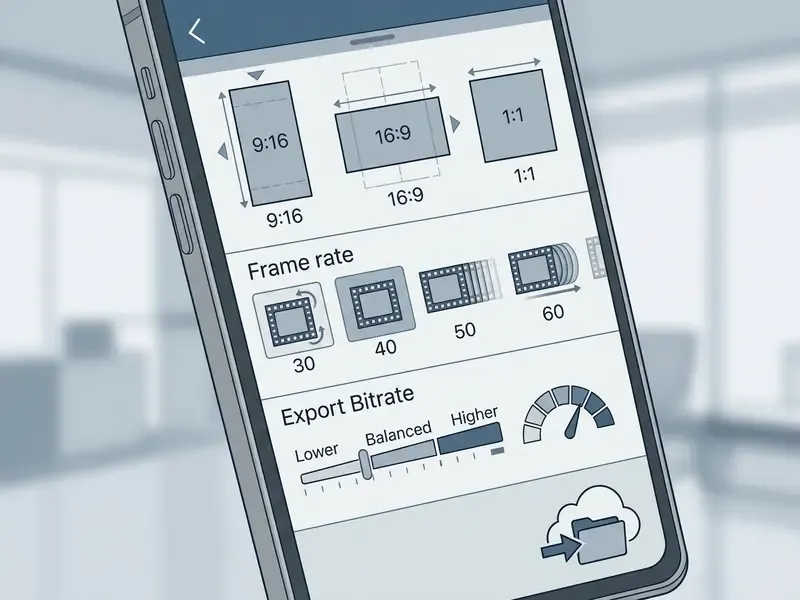
Quick file size estimator (4K 60fps export):
When managing large video files generated by 4K 60fps renders, creators frequently rely on specialized compression utilities. You can evaluate the best video compressor tools to optimize file size without sacrificing output clarity, and our glossary entry on video compressor tools explains formats, quality loss and pricing.
Commercial use, licensing and data privacy (the shadow IT question)
How to export a video without watermark on Android
Exporting clean video content on Android requires careful navigation of app menus, license checks, and render settings. Following a standardized export process prevents accidental branding overlay and ensures crisp playback across social networks.
Three things to delete from the timeline before you press Export:
- The app's branded intro or outro clip.Scroll to both ends of the timeline, select any segment you did not add yourself (the "VN" title card, for instance), and delete it.
- Any Pro-tagged asset.Templates, transitions, effects, stock clips, premium fonts and sticker packs all count. Hidden tracks count too; collapse nothing until you have checked every layer.
- Unused AI-generated layers.Auto-caption tracks, smart-cutout masks or generative fills left over from experiments can keep the export locked even when invisible in the preview.
Check the export settings before saving the video
Before initiating the final render, open the export settings menu to confirm output resolution, target bitrate, and frame rate. In practice, watermark behaviour is governed by two switches: the app's own watermark toggle, where one exists, and the licence status of the assets in your timeline. Confirm that no trial assets, premium overlays or Pro effects are active anywhere in the project, because these are what lock clean output during processing. Where the app exposes an explicit watermark setting, verify it is disabled before rendering rather than after.
"PowerDirector users frequently discover the watermark only after the export has finished, a typical freemium pattern in which branding functions as the upgrade incentive."
How to remove temporary ad-based watermarks (InShot and YouCut)
Several editors use a rewarded-ad model: the watermark is removed per export session in exchange for watching a short video advert. The procedure is consistent across apps.
- Complete your video edit on the main timeline.
- Tap the watermark icon (X) floating near the bottom right of the video preview window.
- Select "Free Remove", which triggers a 10 to 30-second rewarded video advert. VLLO, for example, mandates roughly a 10-second ad before export, while ActionDirector instead requires manually tapping a cross on the watermark object.
- Allow the ad timer to expire completely before closing the ad window; closing early usually voids the removal.
- Verify that the canvas overlay has disappeared in the preview, then press Export.
- Re-check the first and last second of the rendered file, since the removal applies to the current session only and resets on the next export.
FAQ about free video editing apps without watermark
Are completely free video editors suitable for beginner-friendly editing?
Completely free mobile video editors are highly suitable for beginners, thanks to intuitive interface designs and template-driven workflows. Applications like YouTube Create and YouCut provide straightforward drag-and-drop tools that let non-technical users edit clips quickly without facing steep learning curves.
"The ExpressEdit system showed that natural-language and sketch-based interfaces improve novices' ability to express and execute editing ideas compared with traditional timelines."
Template-led apps such as Adobe Express and CapCut lower the entry barrier most; tool-driven editors like VSDC assume you already know the workflow. To estimate production timelines and software costs across different project scales, you can compare options in our media cost calculators.
Which free mobile editor exports 4K without a watermark?
VN Video Editor and Adobe Premiere mobile are the most dependable choices for clean 4K output on a free tier. CapCut supports 4K 60fps technically, yet 2026 reviews report a 1080p practical ceiling on the free plan, and 4K is frequently gated. YouCut and InShot expose 4K export with custom bitrate, though InShot requires an ad view or subscription to clear its logo.
Does "no watermark" mean I can use the video commercially?
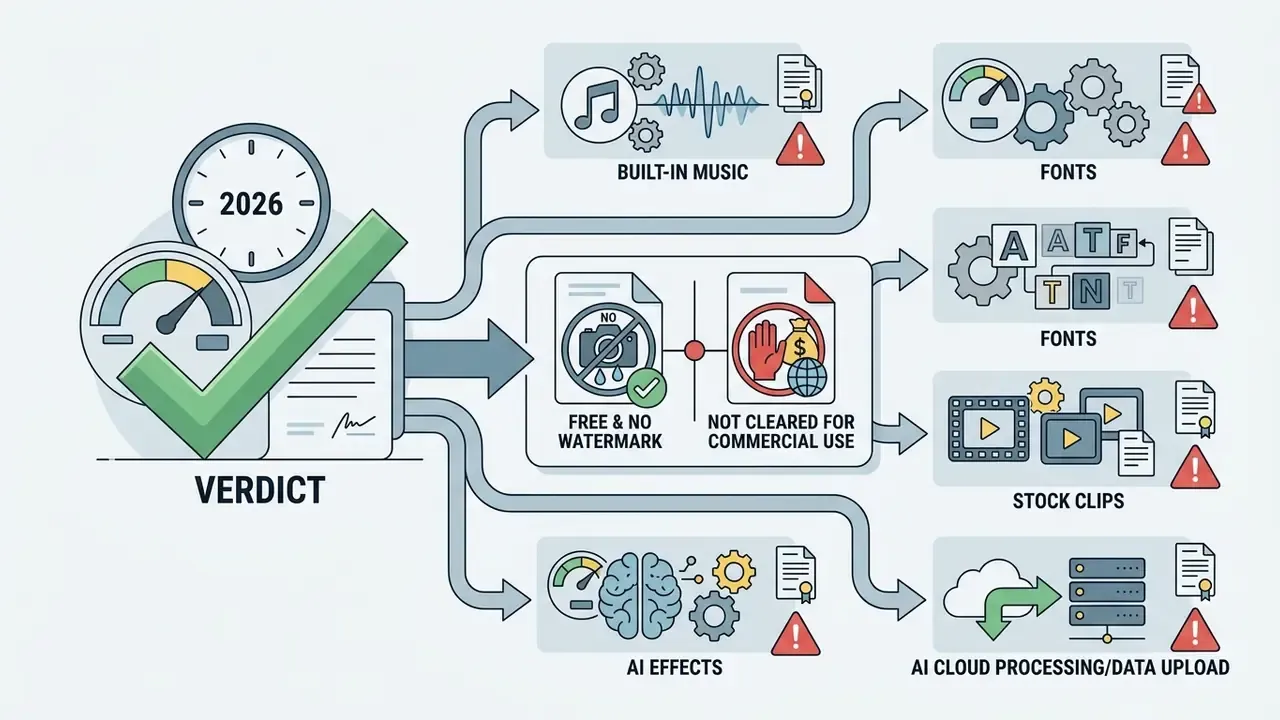
No. Watermark policy and licensing are separate questions. An app can export a visually clean file while its bundled music, fonts or stock footage remain limited to personal use. Verify each asset's licence, and see the commercial-use and privacy section above for the full checklist.
Why did my video export with a logo even though the app is free?
Three causes account for almost every case: a Pro-tagged asset somewhere in the timeline; the app's own branded intro or outro clip left in place (the classic VN title card scenario); or an ad-unlock that expired because the rewarded video was closed early. Work through the "three things to delete" checklist before re-rendering.
How much RAM do I need for mobile video editing?
Plan for 2 GB RAM and 4 GB of free storage as an absolute minimum for 1080p work, and 8 GB RAM for comfortable HD and 4K media handling, multi-layer compositing and AI effects. Keep free storage at roughly 1.5 times the expected output size to accommodate the render cache.
Can free mobile editors handle long-form YouTube videos?
Yes, with caveats. VN Video Editor and Adobe Premiere mobile hold up on extended timelines. Instagram Edits caps imports at 10 minutes and is portrait-only, so it cannot serve long-form 16:9 work at all. For projects beyond roughly 30 minutes, a desktop editor such as DaVinci Resolve, Kdenlive or Shotcut, all free, all multi-track, all with colour tools, remains the safer environment for audio mixing and grading.
For technical teams integrating automated video pipelines via developer APIs, explore the hub for enterprise implementation standards.
Appendix A: superseded statements retained for transparency
- Original wording: "In a recent digital media workflow overhaul... This transition reduced rendering bottlenecks by 35% while maintaining full 4K 60fps export quality without watermark overhead." The 35% figure was not supported by any verifiable source and has been replaced with a qualitative field note in the VN Video Editor section.
- Original wording: "VN Video Editor provides unrestricted watermark-free mobile renders up to 4K 60fps." Now qualified: renders are watermark-free only after the default VN title card is removed from the timeline.
- Original sourcing: references to Free-Codecs, 2026, Google Play, 2026, Adobe, 2026, InShot Terms, 2026, Adobe Express Study, 2026, Vimeo Export Guide, 2026, IMG.LY Docs, 2026 and Adobe Reframe Guide, 2026 have been replaced with named, dated primary or independent sources, or reformulated where no verifiable source exists.
Update log and re-verification schedule
- Q1 2026 full render test across three devices; CapCut reclassified from "free, watermark-free" to "asset-dependent watermark"; Premiere Rush entry marked as retired.
- Next review after the next major CapCut, VN and Adobe Premiere mobile releases, or sooner if a vendor changes its free-tier resolution ceiling.
- What we re-test each cycle watermark toggles, resolution and fps ceilings, caption gating, AI processing location, and any new licence language covering monetised output.