Picking the best free video editing software for Mac is really three decisions in one: how much interface complexity you can absorb, how much your Mac can push through an export, and what the free tier quietly takes away. For everyday consumer cuts, Apple iMovie is the obvious watermark-free starting point. For serious post-production, DaVinci Resolve Free hands you professional color grading, Fairlight audio mixing and multi-track editing with no subscription attached.
The short verdict
This guide is written for people who have to defend the choice afterwards: a freelancer billing client work, a small studio standardizing twelve machines, or a marketing lead who cannot upload unreleased product footage to someone else's cloud. So alongside features, we look at export ceilings, licence wording, data handling and the hours you will spend learning the tool. Price is only the first line of the invoice.
- Beginners, family and presentation videos
- Apple iMovie, pre-installed, watermark-free, native 4K export, three-track ceiling.
- YouTube, client work, professional finishing
- DaVinci Resolve Free, with a full color page, Fusion VFX, Fairlight audio and UHD 3840×2160 at up to 60 fps. No watermark. No export counter.
- Open-source and cross-platform pipelines
- Shotcut (deep format support, unlimited tracks, 5.1 surround) or OpenShot (simplest timeline, Blender-powered 3D titles).
- Short-form social video
- CapCut Desktop, with AI auto-captions, 9:16 auto-reframe, text-based transcript editing and master exports up to 8K/60 fps (bitrate caps apply on free accounts).
- 3D, compositing and VFX-heavy work
- Blender's Video Sequence Editor, free, GPL-licensed, with native Metal viewport support on Apple Silicon.
- Tutorials and screencasts
- hybrid capture-plus-timeline tools such as Filmage Editor, or the free OBS Studio + iMovie combination.
How to Choose Free Video Editing Software for Mac
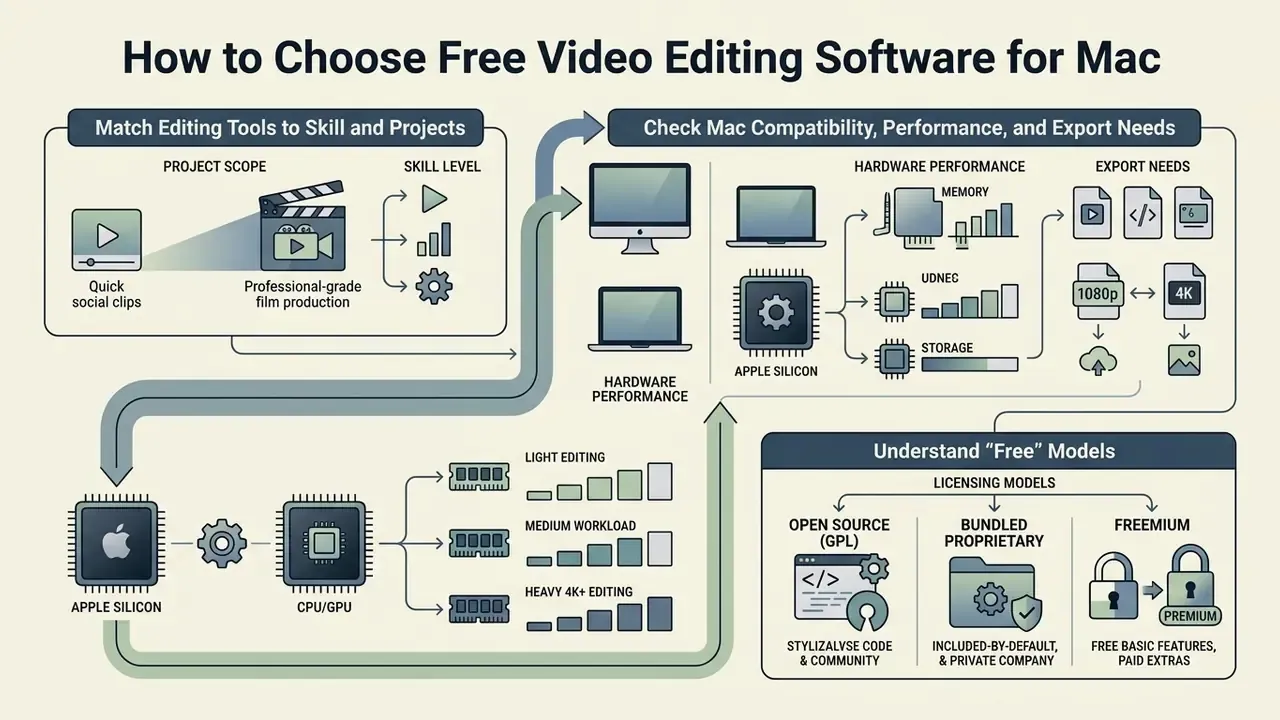
Choosing the best free video editor for Mac means matching project scope to hardware constraints and licence terms. Three variables do most of the work: interface cognitive load versus technical control, processing limits on M-series or Intel chips, and free-version restrictions such as watermarks, resolution caps or bitrate throttling.
Match Editing Tools to Your Skill Level and Projects
Start with output, not with feature lists. Beginners producing simple video projects benefit from streamlined non-linear interfaces that cut setup time and reduce the number of decisions per minute.
That trade-off is the central tension of the whole category. The simpler the timeline, the fewer levers you get over trim precision, track stacking and color decisions. Advanced creators need pro level features such as chroma keying, motion tracking, multicam editing and multi-track audio control, and they accept a denser interface in exchange. There is no free lunch here, only a choice about where the friction sits.
Vocational frameworks describe the same three tiers, which is a useful sanity check. Entry-level curricula (Oxford's "Video: Editing & post-production" module, for instance) stop at ordering clips on a timeline. Professional certifications such as TESDA's Film and Video Postproduction Level III map explicitly to editing, compositing, audio post-production and color grading in tools like DaVinci Resolve, Premiere Pro, Final Cut Pro, After Effects and Audition. Matching project scope to that ladder stops you over-engineering a two-minute family clip while making sure complex timelines still get the processing depth they need.
When evaluating software suites, check whether a tool needs specialized infrastructure or slots into what you already run, much like teams that compare free video editors and explore the hub to weigh workflow alternatives.
Check Mac Compatibility, Performance, and Export Needs
Performance on macOS is mostly a question of how well an editor uses Apple Silicon unified memory and the hardware-accelerated H.264/HEVC media engines. Working with 4K video across several tracks eats resources fast, and the generational gaps between chips are wide but far from uniform.
«The Mac Studio with M2 Max is 26% faster than a MacBook Pro M1 Pro, 66% faster than a 27-inch Intel iMac, and 93% faster than a 2018 Mac mini in video processing.»
«One minute of video exports in 2–5 minutes at 1080p but 10–20 minutes at 4K; Apple Silicon roughly halves 4K export time compared with Intel.»
Long 4K renders on a constrained system trigger thermal throttling and stretched render times, especially on a MacBook Air chassis with no active cooling. Watch memory allocation and disk throughput when you stack multiple video tracks and audio tracks: a single 4K ProRes 422 stream can exceed 700 Mb/s, so external SSD bandwidth often matters more than raw CPU headroom. A cheap USB enclosure is a bottleneck you will feel every single day.
Apple Silicon memory and storage guidance by workload
| Workload | Recommended chip tier | Unified memory | Storage / throughput | Notes |
|---|---|---|---|---|
| 1080p cuts, titles, iMovie projects | M1 / M2 / M3 / M4 base | 8 GB | Internal SSD sufficient | Comfortable for 2–4 tracks |
| 4K H.264/HEVC multi-track editing | M2 / M3 / M4 base or Pro | 16 GB | External NVMe, 1,000 MB/s+ | Proxy workflows optional |
| 4K ProRes, color grading, Fusion VFX | M-series Pro / Max | 16–32 GB | Thunderbolt NVMe RAID preferred | Blackmagic lists 16 GB as the Fusion threshold |
| 8K, heavy noise reduction, multicam | M-series Max / Ultra | 32–64 GB | Thunderbolt RAID | Studio-tier features often paid |
Blackmagic Design's current Mac listing for DaVinci Resolve 21.1 specifies an Apple Silicon Mac, macOS 15 Sequoia or later, 8 GB of system memory as a minimum, and 16 GB when you work inside Fusion. Apple's Final Cut Pro tech specs use the same 8 GB minimum and 16 GB recommended split, which is a handy reference for how much headroom professional NLEs expect on a Mac. Teams comparing performance standards across media workflows can review our technical benchmarks to calibrate processing expectations.
Understand What "Free" Includes Before Downloading
Free versions hide their costs in operational detail: resolution caps, feature lockouts, mandatory export watermarks. Truly free options, meaning native tools and open-source software, give you complete functionality with no financial commitment and no branding burned into the render. Freemium apps behave differently. They restrict high-bitrate exports, park AI tools behind a paywall, or stamp a promotional logo on the file you just spent four hours cutting.
Three distribution models dominate the macOS market, and in a business context they behave nothing alike:
- Open source (GPL and similar) Shotcut, OpenShot, Kdenlive and Blender grant rights to use, study, modify and redistribute the software. The Open Source Initiative's definition requires free redistribution and source availability, with no restriction on commercial sale, which is why these tools carry no per-seat licensing exposure.
- Bundled proprietary iMovie ships with macOS at no cost, but it cannot be modified, redistributed, or run outside Apple hardware.
- Freemium CapCut, Adobe Express, Canva and Lightworks offer a permanently free tier with functional limits (export ceilings, template watermarks, AI credit caps) plus a paid tier that removes them. Swiss federal OSS guidance draws the same line, noting that a time-limited trial is not freemium, because the free tier has to keep key functions indefinitely.
Reading the licence early prevents unpleasant migration costs later, when a project outgrows the basic tier halfway through delivery. Before you commit a pipeline to one platform, study video editor licensing models and check pricing structures across tool categories.
Best Free Video Editing Software for Mac at a Glance
Side-by-side comparison exposes what marketing pages blur: skill requirements, performance optimization and real export capability. The table below outlines core features, hardware expectations and free-tier limits across the leading free tools for Mac users.
Comparison of major free video editing software for Mac
| Editor | Target audience | Core editing features | 4K and watermark status | Color and audio tools | Open source | Free tier limitations |
|---|---|---|---|---|---|---|
| DaVinci Resolve Free | Intermediate to professional | Full NLE, Fusion VFX, Fairlight audio, multi-track timeline, multicam | UHD 4K at 60 fps; no watermark | Advanced Rec.709 color grading, node-based corrections, full Fairlight suite | No (proprietary) | Capped at 4K 60 fps, no spatial or temporal noise reduction, 8-bit output codecs only |
| iMovie | Beginner | Basic timeline, trimming, drag-and-drop, titles, basic transitions | Native 4K export; no watermark | Basic color sliders, preset audio enhancements, auto-ducking | No (bundled with macOS) | Three tracks only (1 title, 1 video, 1 audio), no multicam or motion tracking, 16:9-first |
| Shotcut | Intermediate | Multi-track editing, FFmpeg format support, custom filters, dockable UI | Full 4K and 8K project export; no watermark | Three-way color correction, 5.1 surround, keyframeable audio filters | Yes (GPL) | Less polished UI, possible Metal preview color glitches on pre-2014 Macs |
| OpenShot | Beginner to intermediate | Simple multi-track timeline, Blender 3D titles, keyframe animations, capture tools | Full 4K export; no watermark | Basic brightness and contrast, chroma key, clip-level audio adjustments | Yes (GPL v3) | Variable performance on Apple Silicon, less optimized for high-bitrate media |
| CapCut Desktop | Social media creators | Automated captions, text-based editing, social templates, AI effects, vertical framing | Up to 8K/60 fps master export; conditional watermark on Pro templates | Stylistic filters, RGB curves, LUTs, AI audio denoise | No (freemium) | Bitrate limits on maximum-quality renders; premium AI tools and avatars locked behind Pro |
| Blender (VSE) | 3D artists, VFX creators | Video Sequence Editor, masks, compositor nodes, 3D scene integration | Custom 4K+ export; no watermark | Basic color management (Filmic/AgX), multi-channel audio sync | Yes (GPL) | Timeline is secondary to 3D tools; steep interface learning curve |
Read the table diagonally and a pattern appears. The tools with the fewest limits are the ones that ask most of you up front, either in learning hours (Resolve, Blender) or in interface polish (Shotcut, OpenShot). The friendliest tools, iMovie and CapCut, trade that comfort for ceilings you will eventually bump into.
DaVinci Resolve: Best Free Mac Video Editor for Professional Editing
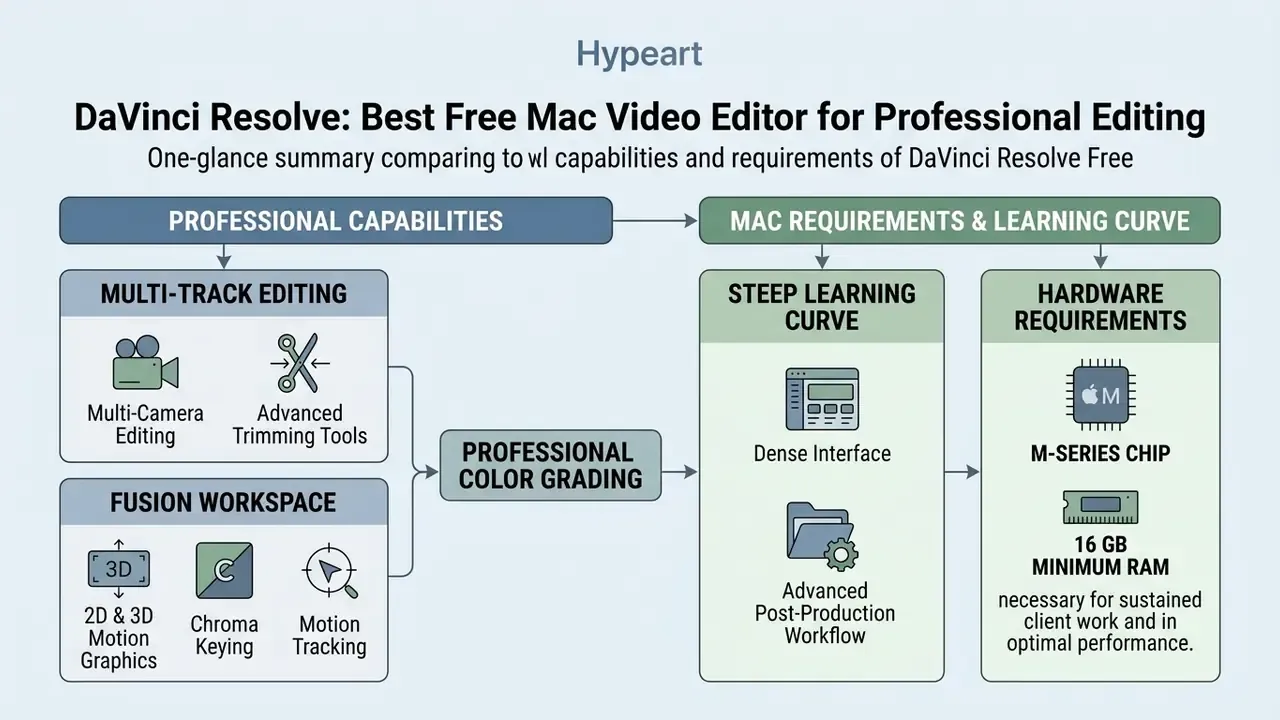
DaVinci Resolve Free is the most capable free video editing software for Mac users who need professional post-production. Developed by Blackmagic Design, it folds non-linear editing, advanced color grading, Fusion visual effects and Fairlight audio post-production into one application (Blackmagic Design, DaVinci Resolve 21 Specifications).
«Resolve Free has no time limit, no export limit, and no watermark; Blackmagic Design requires no credit card to download it.»
DaVinci Resolve Free Editing Features
The free edition ships a complete multi-track timeline with multi-camera editing, advanced trimming and high quality exports, and it adds nothing to the picture. The color page delivers industry-standard node-based grading, wheel adjustments and curve controls for precise Rec.709 calibration (GuruSoftware, DaVinci Resolve Review, 2025).
«The free version is limited to UHD 3840×2160 export at 60 fps, omits noise reduction, and outputs 8-bit codecs only.»
DaVinci Resolve Learning Curve and Mac Requirements
Resolve has a steeper learning curve than consumer-grade editors, thanks to a dense professional interface and a multi-page tabbed workspace.
«DaVinci Resolve 19 Free is the best free editor for Mac, though its learning curve is steeper than Final Cut Pro's.»
That curve is a budget line, not just a comfort issue. Teams migrating from iMovie typically plan 10 to 20 hours of structured training per editor before the node graph, media pool and delivery presets stop feeling foreign. Hardware matters too. Blackmagic's current specification asks for an Apple Silicon Mac running macOS 15 Sequoia or later with at least 8 GB of unified memory, and 16 GB or more for Fusion visual effects work. Older Blackmagic configuration guides recommended 8 CPU cores and 16–32 GB of RAM for heavier grading sessions.
For sustained client work, that points to an M-series Mac with 16 GB minimum. Anything less and the preview stutters at the worst possible moment, usually during a review call. Creators using Resolve for channel production can follow our practical guide to YouTube video editing for a repeatable ingest-to-publish workflow.
«PugetBench 20.2.1 records 151 fps for H.264 UHD and above 191 fps for 4K ProRes 422; the MacBook Pro M3 Max scores 10,441 points.»
iMovie: Best Free Video Editing App for Mac Beginners
Apple iMovie remains the best free video editing app for Mac beginners who want an intuitive interface for simple edits and casual projects. It is pre-installed on macOS, so you can trim clips, balance audio and export high quality video with no setup and no licensing fee (Apple Support, iMovie User Guide).
«iMovie is the best free editor for beginners: pre-installed, watermark-free, with 4K export out of the box.»
What You Can Create with iMovie
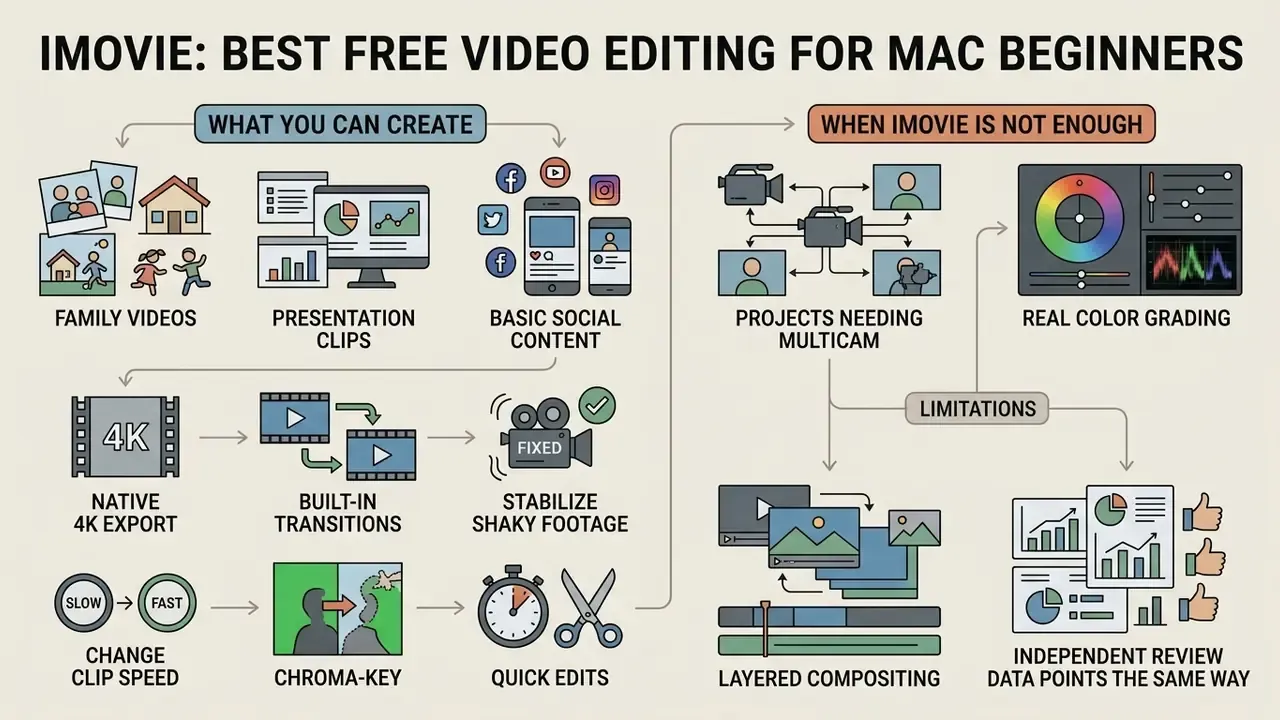
iMovie turns out family videos, presentation clips and basic social media content in native 4K quickly. Apple documents 4K sharing at 3840 × 2160 and 30 fps, with higher frame rates available at 1080p and 720p. Project resolution is set by the first clip you drop on the timeline, which surprises a lot of first-time users. Its simple interface gives you a two-track video timeline plus a dedicated title track, so organization stays obvious.
«iMovie supports three tracks - one title, one video, and one audio - with no animation and no screen capture.»
You can apply built-in transitions, stabilize shaky footage, change clip speed, use chroma-key and color-matching effects, and sync sound on the native audio tracks. Exports come out as MP4 or MOV, and Apple explicitly recommends MP4 for platforms that reject MOV. Projects move between iPhone, iPad and Mac through AirDrop, Files or iCloud Drive, which makes iMovie the fastest route from an iPhone recording to a finished 4K upload. For a school presentation or a product demo filmed on a phone, honestly, nothing beats it on time-to-publish.
When iMovie Is Not Enough
You outgrow iMovie the moment a project needs multicam editing, real color grading or layered compositing. The app enforces a hard ceiling: three primary tracks, no motion tracking, and limited title customization (PCMag, Apple iMovie Review, 2024).
«iMovie hits a hard ceiling within a few months of regular use.»
Independent review data points the same way. G2 and Common Sense Education both cite limited layering, compositing, audio mixing and export control as the most common reasons users migrate. If you need node-based visual effects, fine keyframe animation, custom export codec profiles or vertical-first framing, the move to DaVinci Resolve, Blender or Final Cut Pro is not optional. It is overdue.
Shotcut and OpenShot: Best Open-Source Video Editors for Mac
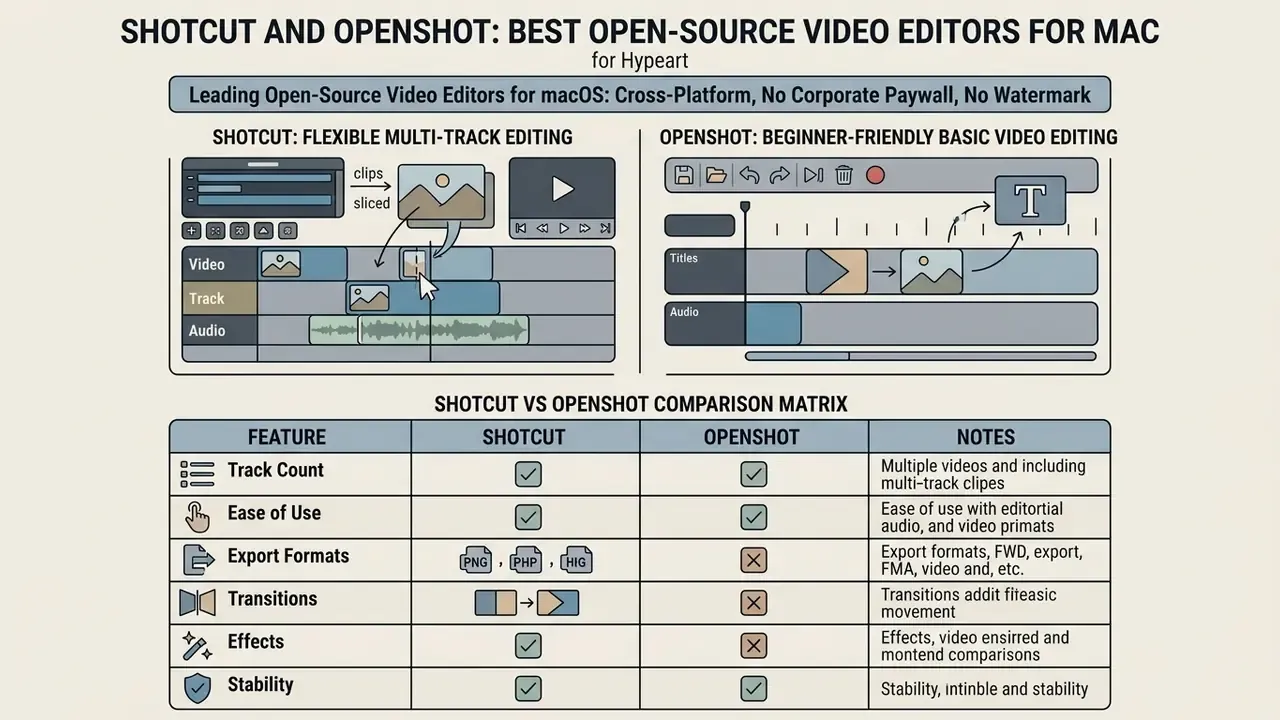
Shotcut and OpenShot are the leading open-source video editors for macOS: cross platform, no corporate paywall, no watermark. Both run on macOS, Linux and Windows, so project files travel between operating systems (OpenShot Documentation). For teams inside managed IT environments, GPL licensing also removes seat-count auditing from the conversation entirely, which procurement tends to appreciate.
Shotcut for Flexible Multi-Track Editing
Shotcut is an open source editor aimed at intermediate users who want deep multi track control and very broad format support. Built on the MLT Framework and powered by FFmpeg, it reads hundreds of audio and video codecs natively, with no pre-transcode step (Shotcut Feature Overview).
Its customizable interface uses dockable panels for waveform monitors, filter properties and encoding queues, and the app can even run as a portable build from an external drive. Shotcut handles 4K and 8K project resolutions, multi-track audio editing with 5.1 surround output, three-way color correction and keyframeable video filters, which makes it a flexible set of video editing tools for anyone who prefers open-source control. Two caveats from the download page: a Metal-related preview color issue on Macs from 2013 or earlier, and macOS 11 support ending with version 24.11.17. Organizations exploring custom integrations for media workflows can consult our api documentation.
OpenShot for Beginner-Friendly Basic Video Editing
OpenShot offers a beginner friendly open-source workflow built around drag-and-drop simplicity and approachable keyframe animation. Its clean timeline supports unlimited video tracks and audio tracks, so layering titles, overlays and background music is straightforward (OpenShot User Guide).
It integrates with Blender to render 3D animated titles, and built-in video transitions generate automatically when clips overlap, shown as blue rounded rectangles on the timeline. The documented feature set also covers screen, webcam and audio capture, plus chroma key, blur and lens-flare effects with animatable properties. Architecturally, OpenShot is a Python/PyQt interface (openshot-qt) sitting on two C++ libraries, libopenshot and libopenshot-audio. Its rendering engine is less optimized for Apple Silicon than native Mac apps, and parts of the pipeline still lean on Rosetta 2 translation in some builds. Even so, it remains a dependable option for basic video edits without watermarks, subscriptions or project limits.
Shotcut vs OpenShot comparison matrix
| Evaluation aspect | Shotcut strengths and limitations | OpenShot strengths and limitations |
|---|---|---|
| Ease of learning | Granular UI control; dockable panels can overwhelm true beginners. | Simpler drag-and-drop workflow; quick onboarding for basic cuts. |
| Multi-track capability | Robust multi track timeline; stable handling of mixed frame rates and formats. | Unlimited tracks and layers; playback can degrade under heavy layering. |
| Animation and effects | Extensive filter library with preview scaling for real-time effects; no 3D template generators. | Integrated Blender 3D animated titles; keyframed effect properties including chroma key and blur. |
| Audio handling | 5.1 surround output, keyframeable audio filters, waveform monitoring. | Unlimited audio tracks with basic mixing; no surround authoring. |
| Capture tools | Screen and audio capture via built-in sources. | Screen, webcam and audio capture documented in the official guide. |
| Hardware optimization | Regular FFmpeg updates (FFmpeg 8 in current releases); preview color issues on pre-2014 Metal hardware. | Cross platform compatibility; lower hardware acceleration efficiency on M-series chips. |
Which one? If you already think in tracks and filters, Shotcut. If you want to finish something tonight, OpenShot.
CapCut and Other Free Video Editing Apps for Social Media
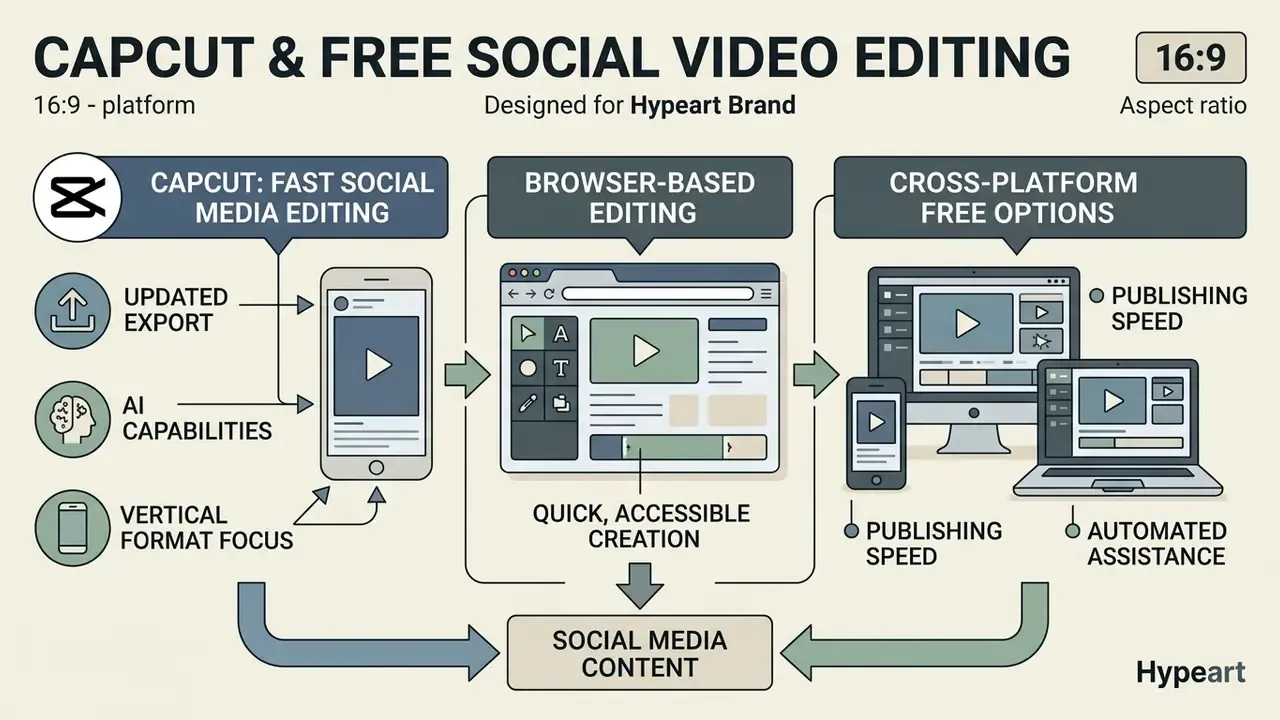
CapCut and browser-based editing apps serve social media creators who care about publishing speed, vertical formatting and automated assistance. Owned by ByteDance, CapCut Desktop for macOS pairs desktop editing tools with pre-built templates and cloud media libraries (CapCut Help Center). Apple's Mac App Store listing sets the minimum at macOS 10.14 or later.
Browser-Based and Cross-Platform Free Editing Options
Browser editors such as Adobe Express, Canva, Microsoft Clipchamp, VEED and Kapwing give Mac users a lightweight cross platform route for quick edits with nothing installed locally. You can trim, split, crop, add text overlays, upload a soundtrack and convert formats inside Safari or Chrome. Adobe Express states that no credit card is required and exports MP4 from any MacBook or desktop. After rendering, many creators still need video compression for publishing to fit platform upload ceilings.
Clipchamp and Kapwing both document 9:16 vertical templates, and VEED positions most of its vertical tooling as free. The trade-offs are consistent across the whole category.
«The free plan caps export at 1080p and omits full color grading; some AI features require a paid subscription.»
Cloud tools erase local hardware demands but introduce upload dependency, storage questions and thin codec control. Creators hunting for specialized options can explore alternatives to balance browser convenience against desktop performance.
Field example. During a digital campaign refresh, a marketing team used CapCut Desktop to turn twenty horizontal product webinars into vertical social snippets. Automated speech recognition handled captions, batch reframing handled the crop, and per-video editing time dropped from roughly 45 minutes to about 12. They shipped on schedule without external editing contractors. These timings come from the team's own project tracker, not a controlled study, so read them as the shape of the gain rather than a promise.
Specialized Free Mac Editors: Blender for 3D/VFX and Hybrid Screen Recorders
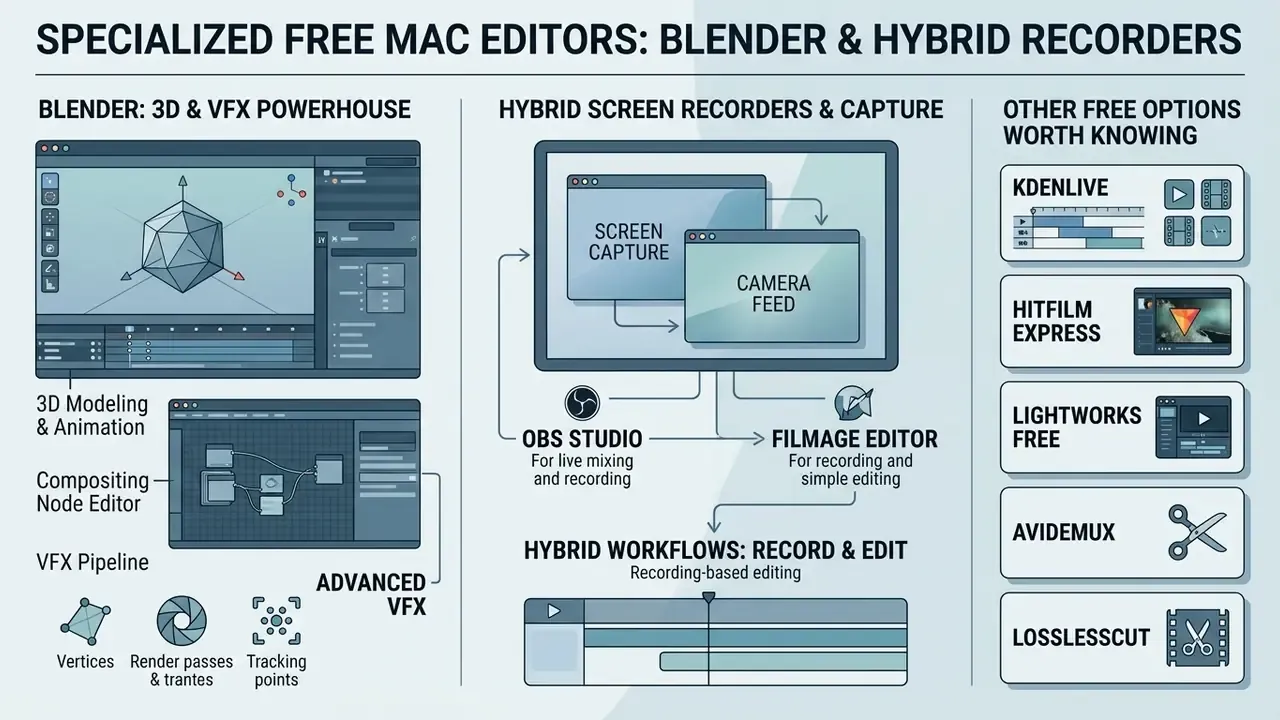
Some projects run past the edges of standard timeline editing. That is where specialized free software bridges raw capture and complex post-production.
Blender: Best Free Open-Source Editor for 3D and Advanced VFX
Filmage Editor, OBS Studio and Hybrid Capture Workflows
Software walkthroughs and educational courses need synchronized screen recording plus timeline editing. Traditional NLEs make you import an external recording, which adds a hand-off step and file-management overhead. Hybrid editors such as Filmage Editor, which pairs a frame-accurate multitrack timeline with built-in screen recording, keyframe animation and a blur tool for masking confidential data, keep capture, webcam picture-in-picture overlays and trimming in one macOS window. The free open-source route combines OBS Studio for multi-source 4K capture with iMovie, Shotcut or Resolve for assembly. Same result, zero cost, two applications to manage.
Other Free Options Worth Knowing
- Kdenlive a mature, fully free and open source editor (Linux, Windows, macOS, BSD) with proxy editing, multi-track timelines and effect keyframing, frequently recommended alongside Shotcut for anyone who has outgrown iMovie.
- HitFilm Express a free tier bundling editing with more than 410 effects and presets plus 2D/3D compositing, suitable for beginner-to-intermediate VFX work, with optional paid add-on packs.
- Lightworks Free professional multi-layer timeline and multicam editing, but delivery is restricted (1080p to Vimeo, 720p to YouTube), which makes the free tier closer to an extended trial.
- Avidemux minimal yet dependable for trimming, filtering, format conversion and scripted batch operations, useful as a utility rather than a primary editor.
- LosslessCut free, open source, subscription-free, built for very fast cutting of video and audio with no re-encoding and no quality loss. The right tool for trimming large camera files before they touch a timeline.
- Olive a free non-linear editor for macOS, Windows and Linux for users who want a conventional NLE layout in an open-source package.
- VN Video Editor listed free on the Mac App Store with no watermark, requiring macOS 13.0 or later.
Commercial Rights, EULA Terms and Data Privacy Risks
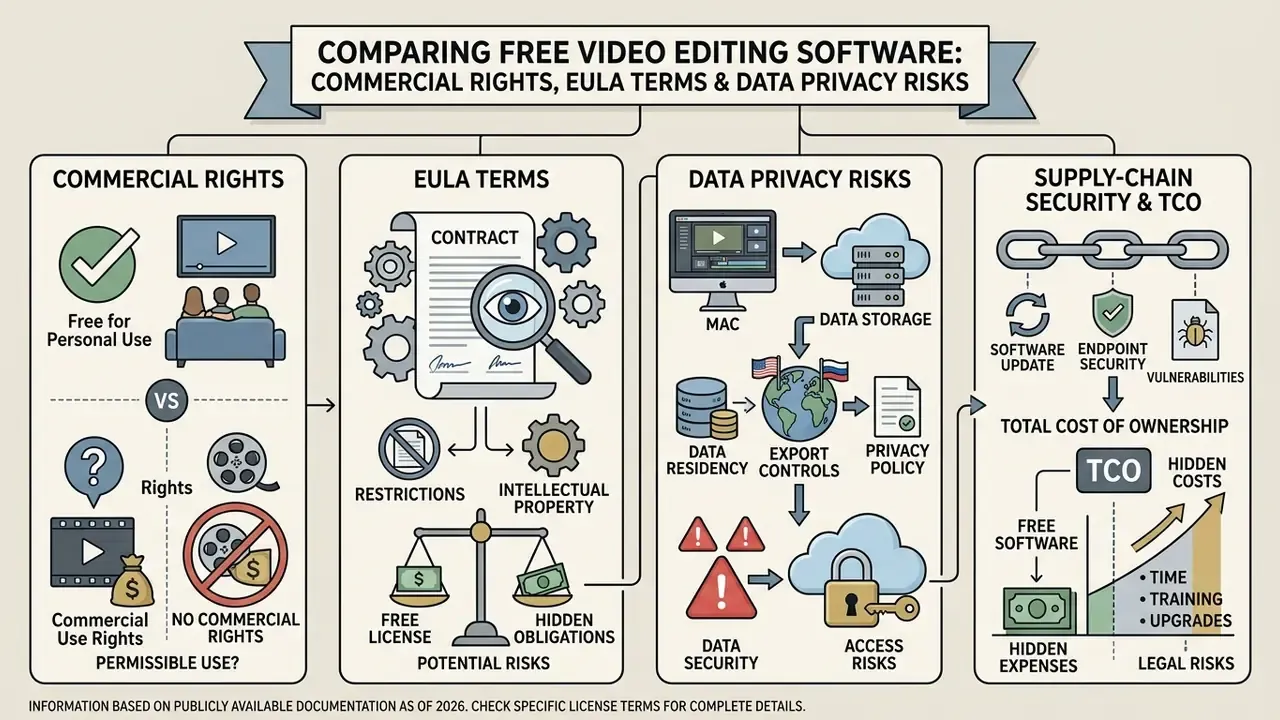
Free software is never free of obligations. Before you install an editor on a company Mac, look at three risk surfaces: commercial-use rights, data handling and endpoint security.
Commercial-use rights. DaVinci Resolve Free carries no watermark, no export counter and no restriction on commercial delivery, so client work is fine. Studio-only features (temporal and spatial noise reduction, stereoscopic 3D, higher frame rates and resolutions, some neural-engine effects) are simply absent rather than crippled. iMovie output is commercially usable as well, but Apple's bundled music and sound effects carry usage conditions tied to iLife and iMovie content, so check current terms before dropping them into paid advertising. GPL-licensed tools (Shotcut, OpenShot, Kdenlive, Blender) impose no restriction on commercial output at all, because the licence governs the software, not the rendered file. Freemium platforms concentrate the risk: template libraries, stock assets, AI voices and generative footage often carry separate licences that differ from the editor's own terms. A watermark-free export is not the same thing as a cleared licence. Teams building asset pipelines can view the guide on commercial use before shipping campaigns.
Data residency and privacy. Browser-based editors upload your source media to third-party infrastructure by design, which raises three questions: where masters live, how long they persist, and whether they feed model training. CapCut is owned by ByteDance and collects usage and content data under its own policy. Organizations handling unreleased product footage, customer PII, medical content or regulated financial material should treat cloud-tier free plans as unsuitable for confidential media and keep those projects in local NLEs such as Resolve, iMovie, Shotcut or Blender. Where cloud collaboration is genuinely required, document a retention and deletion procedure, and confirm the free tier supports real project deletion rather than quiet archiving.
Endpoint and supply-chain security. Open-source tools are auditable, but they usually arrive from outside the Mac App Store, so Gatekeeper prompts, notarization checks and hash verification matter. Download only from official project domains (shotcut.org, openshot.org, blender.org, blackmagicdesign.com), verify checksums where they are published, and skip mirror sites that bundle installers. In managed fleets, package approved builds internally and pin versions. FFmpeg-based editors update often, and a silent major-version jump can change export behavior mid-project.
Total cost of ownership. The honest cost of free software is training time, migration risk and rework. Resolve's depth costs no dollars and plenty of hours. iMovie is cheap in hours and expensive in ceiling-related rework the first time a project needs multicam or layered graphics. Budget explicitly for onboarding, project-file portability (GPL tools move across operating systems; iMovie and Final Cut do not), and the cost of re-cutting a project if a free tier changes its export limits. To model storage and processing costs alongside licence assumptions, open the hub of calculators.
Technical Codec & Format Compatibility Matrix for macOS
| Video editor | Input codec support | Max export resolution | Audio features | Apple Silicon native (M-series) |
|---|---|---|---|---|
| DaVinci Resolve Free | H.264, HEVC, ProRes, DNxHR, AV1 | 4K UHD (3840×2160) at 60 fps | Full Fairlight suite, VST plugin support, 3D audio | Yes (optimized for the Apple media engine) |
| Apple iMovie | H.264, HEVC, Apple ProRes | 4K UHD at 30 fps (1080p at higher rates) | Basic stereo, auto-ducking, denoise | Yes (native macOS integration) |
| Shotcut | FFmpeg native (hundreds of codecs) | 4K and 8K project sizes, custom frame sizes | 5.1 surround sound, keyframeable audio filters | Yes (universal binary) |
| OpenShot | FFmpeg native (H.264, HEVC, VP9) | 4K UHD at 60 fps | Unlimited audio tracks, basic mixing | Partial (build-dependent; Rosetta 2 in some releases) |
| CapCut Desktop | H.264, HEVC, ProRes | 8K UHD at 60 fps | AI auto-denoise, speech-to-text, text-based editing | Yes (Metal-optimized) |
| Blender VSE | H.264, MPEG-4, ProRes, raw image sequences | Custom up to 4K+ | Multi-channel audio mixing, sync control | Yes (native Metal viewport) |
| Kdenlive | FFmpeg native (broad) | 4K UHD, custom profiles | Multi-track audio, effect keyframing | Yes (recent builds) |
| Browser editors (Express, Clipchamp, Canva) | MP4/MOV upload (H.264 preferred) | 1080p on free tiers | Soundtrack upload, basic auto-audio tools | Not applicable (cloud rendering) |
Two format notes for Mac users. First, 10-bit 4:2:2 HEVC from recent iPhones plays back natively across Resolve, iMovie and CapCut thanks to the Apple media engine, but Resolve Free delivers 8-bit output codecs, so grading-heavy jobs that must finish in 10-bit need Studio or another finishing tool. Second, for XAVC-S camera media and 360°/VR timelines, paid suites such as Premiere Pro, PowerDirector and Final Cut Pro remain far better documented than any free option. If a broadcaster hands you a 10-bit delivery spec, that single line decides your software for you.
Pre-Install Checklist for Free Mac Video Software
Run this list before installing an editor on a work Mac:
- Hardware fit.Confirm chip generation, unified memory (8 GB minimum, 16 GB for Fusion and grading) and free SSD space against the vendor's current specs.
- macOS version.Check the minimum OS: Resolve 21.x requires macOS 15 Sequoia or later; Shotcut supports macOS 12 to 26; CapCut lists macOS 10.14+.
- Codec match.Verify that your camera's codec (HEVC 10-bit, ProRes, XAVC-S, AV1) is supported natively, not only through a transcode step.
- Export ceiling.Confirm maximum resolution, frame rate, bit depth and bitrate on the free tier before a paid project starts.
- Watermark and template terms.Test a short export using the exact effects and templates you intend to ship.
- Licensing.Record whether the tool is GPL, bundled proprietary or freemium, and whether commercial delivery is permitted.
- Data handling.For cloud tools, document storage location, retention, deletion and any model-training clauses.
- Source integrity.Download from the official domain, verify notarization and checksums, and pin the approved version in managed fleets.
- Project portability.Check whether project files can move to another OS or another editor if the tool is discontinued.
- Training budget.Estimate onboarding hours per editor. This is the largest hidden cost in "free" professional software.
Which Free Mac Video Editing Software Should You Choose?
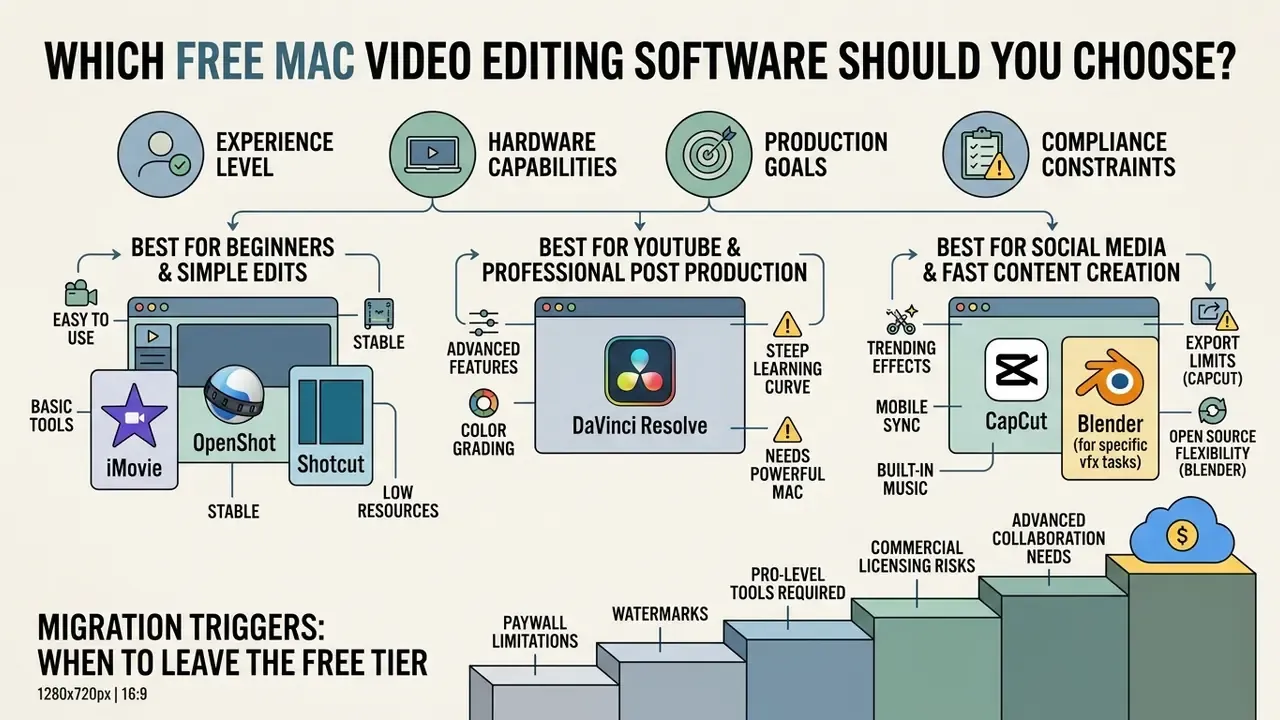
The right free Mac video editor is the one that matches four things at once: your experience level, your hardware, your production goals and your compliance constraints.
Best Free Editor for Beginners and Simple Edits
Apple iMovie is the recommended choice for first-time Mac editors who want a simple interface for straightforward projects. It is pre-installed, reliable, needs zero setup, exports native 4K and never brands your file (Mac-DVD Review, 2026). OpenShot is the strong alternative for beginners who need open-source cross platform flexibility or more than iMovie's three tracks, and Kdenlive deserves a test from anyone who wants a free editor with proxy workflows already built in.
Best Free Editor for YouTube and Professional Post Production
DaVinci Resolve Free is the top pick for YouTube creators, filmmakers and post-production specialists who need advanced capability without recurring cost. Professional color grading, Fusion VFX compositing, Fairlight audio design and watermark-free 4K/60 fps exports put it ahead of every other free non-linear editor on macOS.
«The free version includes the full color toolset, Fusion VFX, and Fairlight; maximum resolution is Ultra HD 4K with no watermark.»
Smooth performance still assumes an M-series Apple Silicon Mac with 16 GB of unified memory. Blender is a complement here, not a competitor: Resolve for the edit and grade, Blender for 3D inserts and heavy compositing.
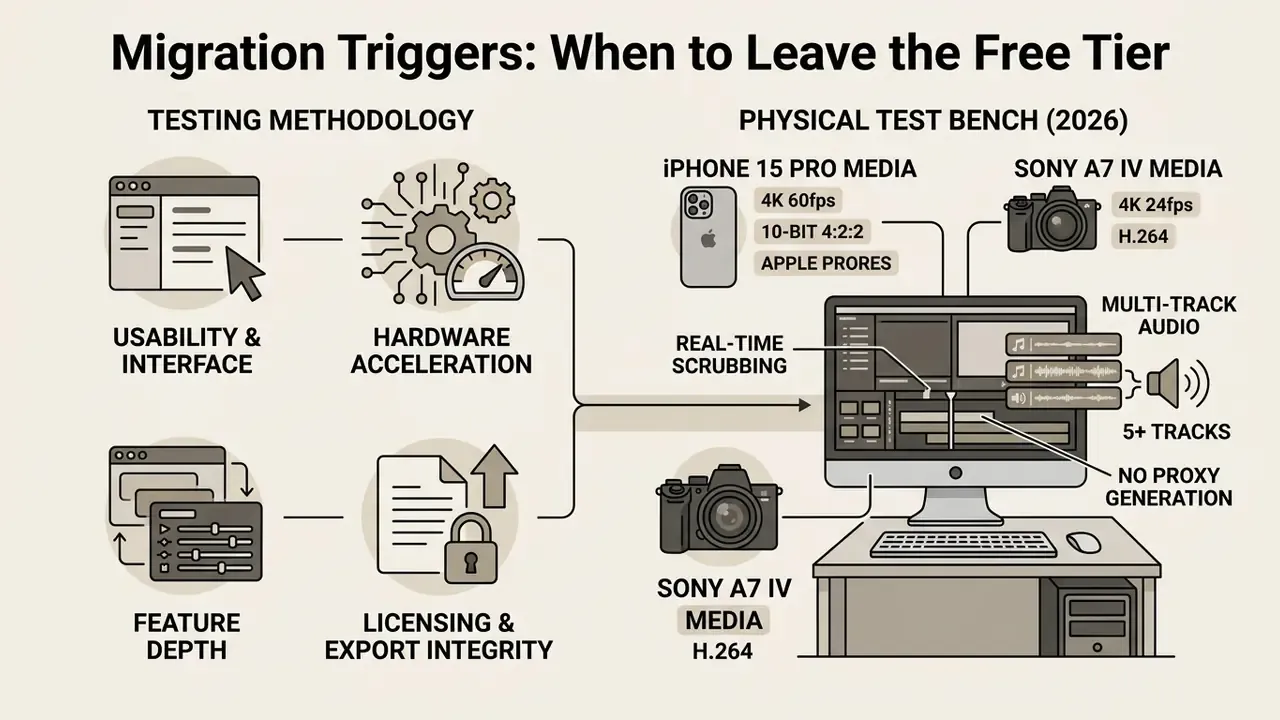
Migration Triggers: When to Leave the Free Tier
| Trigger | Symptom in practice | Recommended move |
|---|---|---|
| Track ceiling reached | Cannot stack graphics, B-roll and captions at the same time | iMovie to Shotcut, Kdenlive or Resolve Free |
| 10-bit delivery required | Client rejects banding in graded skies or gradients | Resolve Free to Resolve Studio or Final Cut Pro |
| Noise reduction needed | Low-light interviews unusable without temporal NR | Resolve Studio (one time licence) |
| Confidential media | Legal or security team blocks cloud uploads | Browser or CapCut to a local NLE (Resolve, iMovie, Shotcut) |
| Multicam volume | Podcast or event edits with three or more synced angles | iMovie to Resolve Free, Lightworks or Final Cut Pro |
| 3D or camera-tracked graphics | Fusion nodes insufficient for scene-scale 3D | Add Blender to the pipeline |
| Throughput bottleneck | Exports dominate the working day | Upgrade to M-series Pro/Max with 32 GB before buying software |
That last row is worth repeating. When rendering, not editing, owns your afternoon, hardware is the purchase, not software.
How We Tested: Methodology and Physical Test Bench
FAQs About Free Video Editing Software for Mac
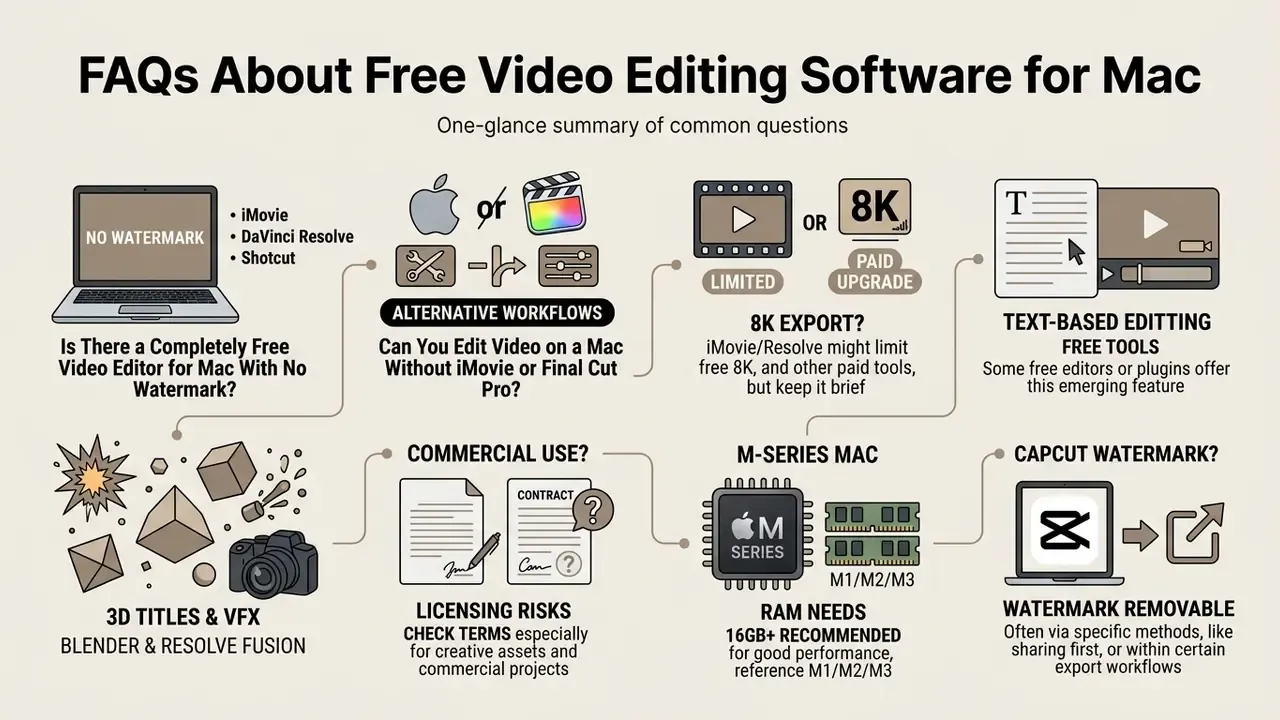
Is There a Completely Free Video Editor for Mac With No Watermark?
Yes. Apple iMovie, DaVinci Resolve Free, Shotcut, OpenShot, Kdenlive and Blender are completely free video editors for Mac that export without adding a watermark. Resolve Free allows watermark-free exports up to Ultra HD 4K at 60 fps across all supported video formats.
«Resolve Free applies no watermark to any export format, with no time limit and no export cap.»
iMovie exports clean native 4K files out of the box with no subscription (Apple Support), and OpenShot's official site states that editing is possible "without subscriptions, watermarks, or project limits."
Can You Edit Video on a Mac Without iMovie or Final Cut Pro?
Yes. Mac users have several professional free alternatives outside Apple's own ecosystem. DaVinci Resolve Free delivers industry-standard editing, color correction and audio post-production (Blackmagic Design). Open-source apps such as Shotcut, OpenShot, Kdenlive and Olive give you flexible multi track editing, while CapCut Desktop and browser tools such as Adobe Express, Clipchamp and Kapwing cover quick automated projects. If you are weighing free options against Adobe Premiere or Final Cut Pro, the practical question is delivery spec, not brand.
Can a Free Mac Editor Export 8K Video?
Yes. CapCut Desktop supports master exports up to 8K at 60 fps on macOS, with bitrate limits applied to free accounts at maximum-quality presets. Shotcut supports 8K project resolutions, while DaVinci Resolve Free caps out at UHD 3840×2160 at 60 fps. 32K and 120 fps delivery is Studio-only.
Can You Edit Video by Editing Text on a Mac for Free?
Yes. CapCut Desktop's free tier includes AI text-based editing: it transcribes the audio and lets you cut or reorder the timeline by editing the transcript. Cloud editors such as Flixier offer a comparable AI text editor on paid tiers, and Premiere Pro implements the same concept for subscribers. No fully offline open source editor currently matches this workflow out of the box.
What Is the Best Free Mac Editor for 3D Titles and Visual Effects?
Blender is the strongest free option for 3D and VFX-heavy work, because its Video Sequence Editor sits next to a full 3D suite and node compositor, all under the GPL. OpenShot offers a lighter path by rendering Blender-based 3D animated title templates straight onto its timeline, and HitFilm Express bundles 410+ effects and presets with 2D/3D compositing in its free tier.
Is Free Video Editing Software Safe for Commercial Client Work?
It can be, with checks. GPL-licensed editors place no restriction on commercial output, and DaVinci Resolve Free explicitly permits commercial delivery with no watermark or export cap. The risk sits in bundled assets, since templates, stock clips, fonts, AI voices and music often carry separate licences, and in cloud storage of confidential footage. Verify asset licensing and data-handling terms before shipping paid work, and consult qualified counsel for regulated content.
How Much RAM Do I Need on an M-Series Mac?
8 GB of unified memory is workable for 1080p and light 4K editing in iMovie, CapCut or Shotcut. Blackmagic lists 16 GB as the threshold for Fusion work in Resolve, and Apple recommends 16 GB for Final Cut Pro. Grading, multicam and 8K workflows are far more comfortable at 32 GB with fast Thunderbolt storage.
Does CapCut Put a Watermark on Free Exports?
Standard timeline exports from CapCut Desktop are clean. Watermarks and upgrade prompts appear when a project uses premium Pro templates, premium effects or token-based AI assets, and free accounts also face bitrate restrictions on maximum-quality 4K and 8K renders, according to CapCut's own export documentation.
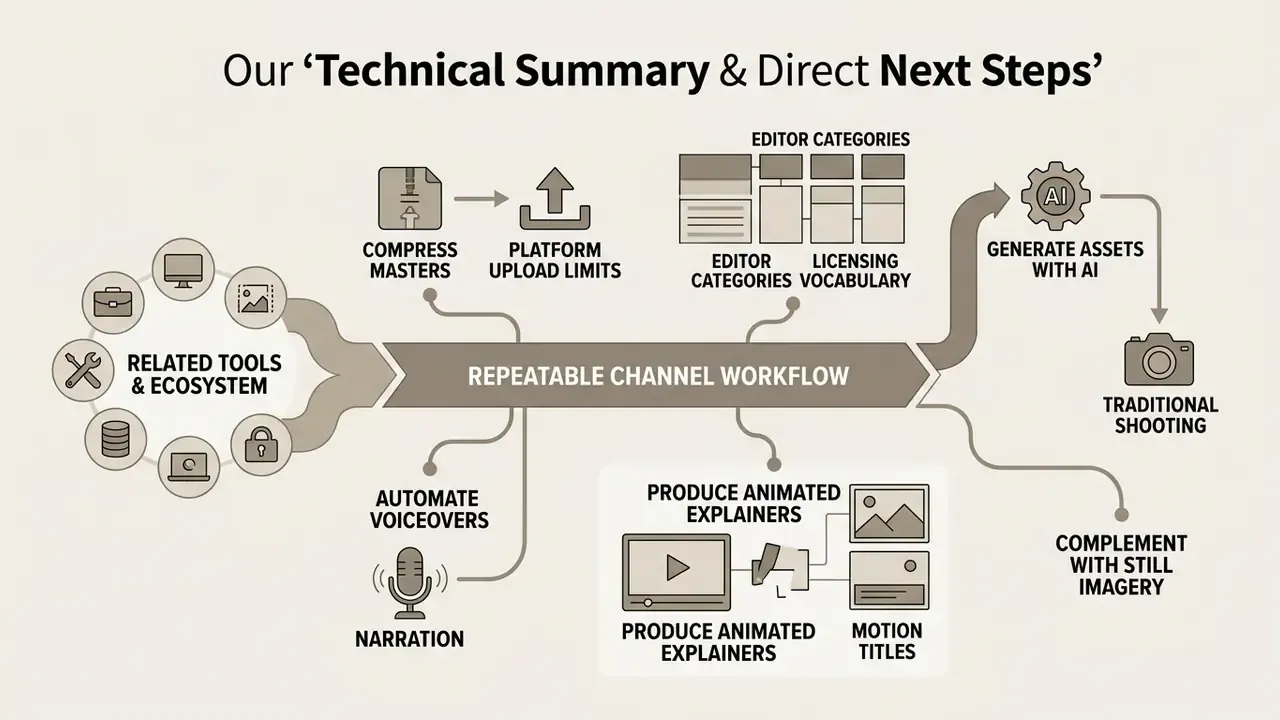
Technical Summary & Direct Next Steps
Finding the optimal free Mac video editor is a balance of software capability, project goals, hardware limits and compliance constraints:
- For first-time editors start with pre-installed iMovie for quick 4K cuts, basic titles and watermark-free exports.
- For intermediate and advanced editors adopt DaVinci Resolve Free for professional color grading, Fairlight audio and Fusion VFX on Apple Silicon, and budget the training hours as the real cost.
- For open-source workflows use Shotcut, Kdenlive or OpenShot for cross platform multi track timeline control with no licensing or seat audits.
- For social media publishing deploy CapCut Desktop for vertical framing, auto-captions, transcript editing and exports up to 8K.
- For 3D, compositing and VFX add Blender and its Video Sequence Editor to the pipeline at zero licensing cost.
- For tutorials and screencasts pair OBS Studio with a free NLE, or use a hybrid capture-plus-timeline editor such as Filmage Editor.
- For fast lossless trimming keep LosslessCut on hand to cut large camera files without re-encoding.
A sensible next step is small and reversible: install two candidates, run one real project end to end, and export with the exact effects you plan to ship. Two hours of testing beats two weeks of regret. To compare specialized creative software suites and automated workflow systems, open the hub of head-to-head evaluations.
Appendix A: Superseded Statements Retained for Transparency
For editorial accountability, we keep the earlier wording of statements that have since been corrected:
- Original: "Benchmarks show that Apple M-series chips deliver up to double the encoding speed of legacy Intel hardware when processing UHD timelines." Superseded by Larry Jordan's measured 26–93% range (2024), which varies by comparison machine.
- Original: "Longer 4K exports on constrained systems can cause thermal throttling and extended rendering times (iMovie Export Benchmarks, 2026)." Superseded by the iMovie Export Performance Analysis figures: 2–5 minutes per minute at 1080p, 10–20 minutes at 4K.
- Original: "Up to 4K export; free accounts face bitrate limits on 4K." Superseded by confirmation that CapCut Desktop supports master exports up to 8K/60 fps with bitrate limits on maximum-quality presets.
- Original case-study figures, namely a 35% reduction in client approval cycles (DaVinci Resolve deployment) and a 45-to-12-minute per-video editing reduction (CapCut campaign), are retained above as self-reported, non-instrumented team data rather than benchmark results.