That governance lens explains why a browser-based, admin-controlled tool matters more than a standalone app. Google does have a web-based video editor: it is called Google Vids, and it lives inside the Google Workspace ecosystem. Every project inherits Drive permissions, domain policy, and Admin Console controls. Vids is positioned as an AI-powered video creation tool for work, so teams can produce, edit, and review workplace video directly in a desktop browser, while IT and risk functions keep the same visibility they already hold over Docs, Sheets, and Slides.
No new storage silo. No shadow app to discover six months later.
Executive Summary
- Yes, Google has a video editor. It is called Google Vids, it runs entirely in a desktop web browser, and it is a core Google Workspace app, not a plugin or a separate download.
- It is scene-based, not timeline-first. Vids behaves more like Google Slides than Premiere Pro: you build discrete scenes, then adjust object tracks inside each scene.
- Gemini does the first draft. "Help me create" converts a prompt plus linked Drive files into an outline, scenes, script, voiceover, stock media, and background music in one pass.
- Access is licence-gated. Vids ships with Business Standard and Plus, Enterprise Standard and Plus, and Education editions. AI generation limits scale by tier (10 to 20 per month at Starter, up to 100 to 200 at Plus).
- Hard limits exist. Maximum 50 video clips and 50 audio clips per project, 35 minutes and 4 GB per uploaded file, 10 minutes per in-app recording, desktop-only creation, up to 100 concurrent collaborators.
- Governance is inherited, not separate. Files live in Drive, sharing uses Viewer, Commenter, and Editor roles, and Vids can be enabled or disabled per organizational unit in the Admin Console.
Decision Questions This Guide Answers
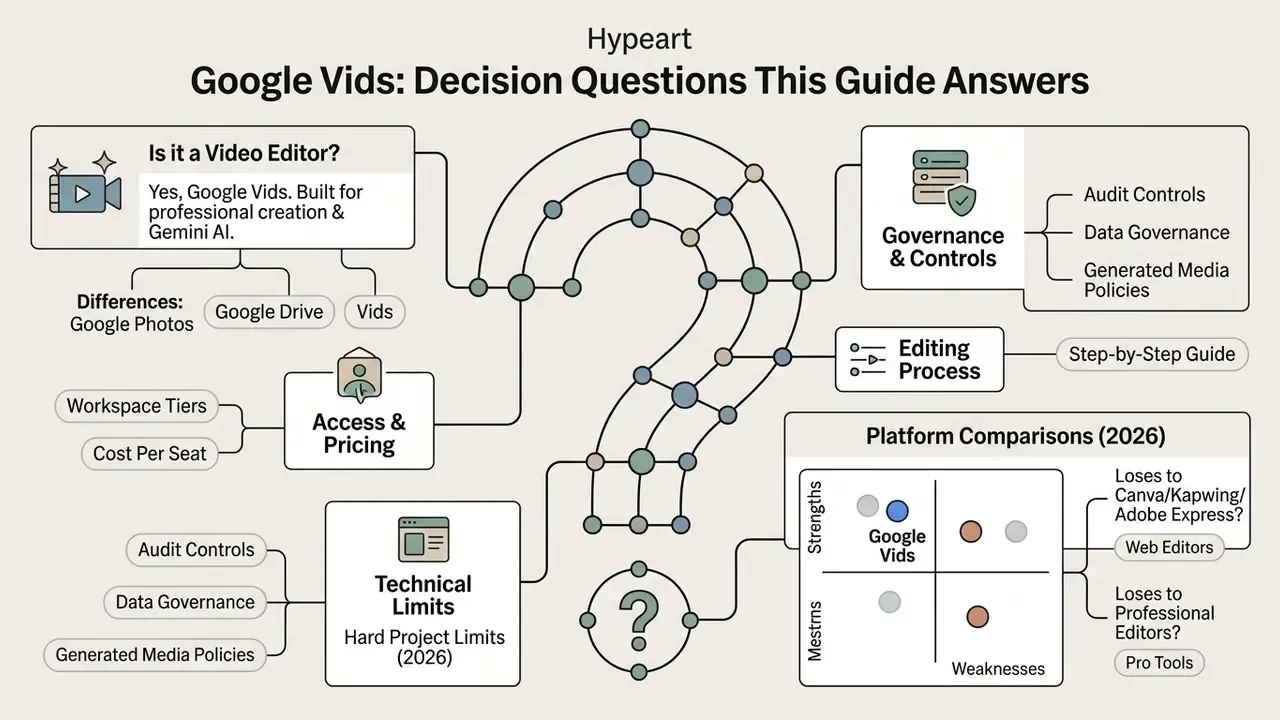
- Is there a Google video editor, and what exactly is Google Vids built for?
- How does Vids differ from Google Photos and from video stored in Google Drive?
- Which Workspace plan unlocks creation, and what does it cost per seat?
- What are the hard technical limits before a rollout hits them?
- Which data governance and audit controls apply to generated media?
- How do you actually edit Google videos, step by step?
- Where does Vids lose to Canva, Kapwing, Adobe Express, or a professional editor?
Does Google Have a Video Editor, and What Is Google Vids?
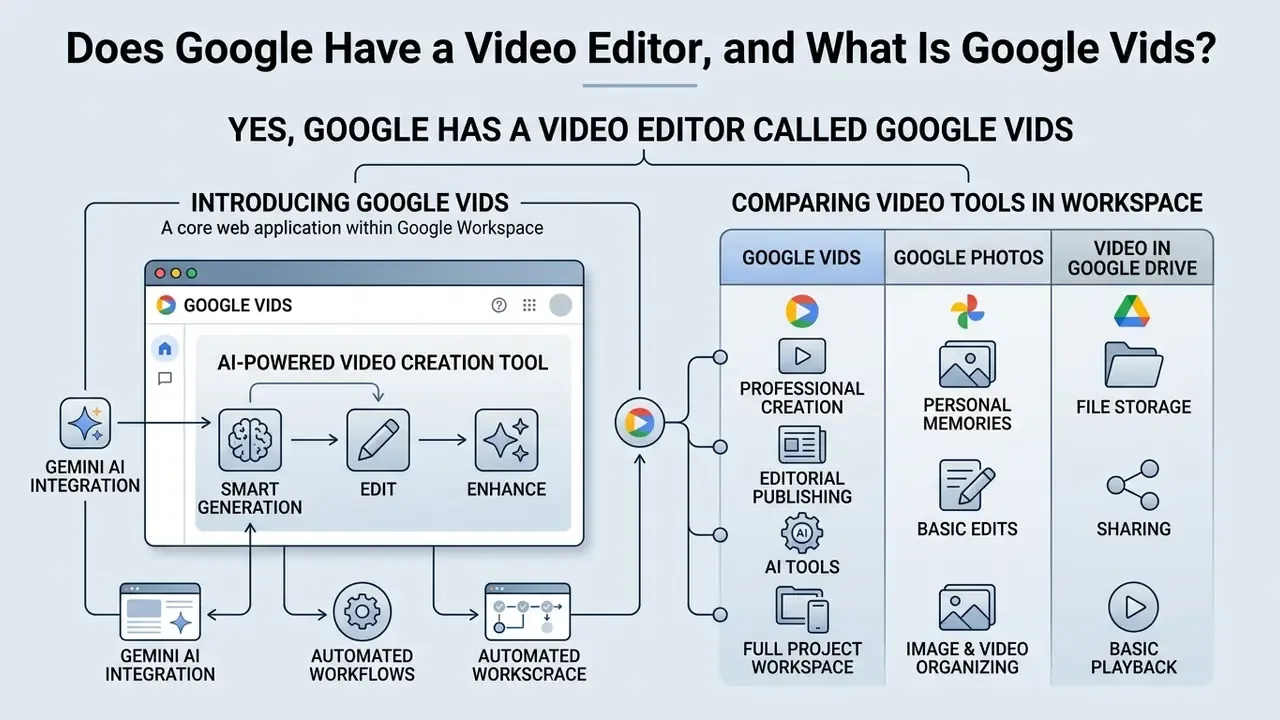
Yes. Google has a video editor called Google Vids, introduced as a core web application inside Google Workspace. It is not a complex timeline-based non-linear editor. Vids is designed for workplace communication and asynchronous video creation. Google's own positioning is explicit: Vids is "an AI-powered video creation app for work," sitting alongside Docs, Sheets, and Slides rather than competing with professional post-production suites (Google Workspace Product Announcements, 2024).
So the honest framing for a procurement conversation is this: Vids is a communication tool with an AI drafting layer, not a studio.
Google Vids as an AI-Powered Video Creation Tool
«Using Gemini as a 'screenwriter' delivers higher audio-visual alignment compared with unguided generation.»
Google Vids vs Google Photos vs Video in Google Drive: What's the Difference?
Google maintains three distinct tools that touch video assets. Each one fills a different operational job inside the ecosystem, and mixing them up is how retention policy quietly breaks.
«Google Vids is the only one of the three tools that supports multi-scene video creation with an AI assistant and collaborative editing.»
Google Vids focuses on multi-scene video creation and collaborative editing. Google Photos handles personal media backup and single-clip enhancements such as crop, rotate, stabilization, and filters. Google Drive is the central cloud storage and access layer, with no native editing engine of its own (Google Docs Editors Help, 2026).
Understanding these distinctions prevents shadow AI usage and unapproved data storage across organizational units. A common failure mode in regulated environments: an employee edits customer-facing footage in a personal Google Photos library, outside domain retention policy. That risk mostly disappears once Vids is the sanctioned editor and Drive is the sanctioned store.
Table: Comparison of Google Vids, Google Photos, and Google Drive for video creation, editing, storage, and AI capabilities.
| Tool | Primary business purpose | Video editing capabilities | AI integration | Storage and access controls |
|---|---|---|---|---|
| Google Vids | Workspace-integrated Google Vids AI-powered video creator and editor for workplace communication | Scene-based editing, transcript trimming, per-object timeline adjustments, template composition, captions, transitions | Gemini storyboard generation, Veo video clips, Lyria music, AI voiceovers, AI avatars, teleprompter | Native projects stored in Google Drive; MP4 export for central sharing; inherits domain permissions |
| Google Photos | Consumer photo and video library with basic mobile clip adjustments | Single-clip trimming, stabilization, speed adjustment, crop, rotate, perspective, mobile visual presets | Visual enhancement presets (basic cut, slow motion, subject tracking) | Personal cloud storage; basic link sharing without Workspace enterprise permissions |
| Google Drive | Cloud storage layer for hosting, organizing, and controlling access to enterprise files | No native editing engine; launches Google Vids for modifications via "Open in Vids" | Delegates AI tasks to connected Workspace apps such as Google Vids or Gemini | Central access control, governance policy, retention rules, domain-wide permission settings |
Teams that want to benchmark this trio against non-Google options can compare capabilities with free video editors and the broader AI Media Comparison Matrices before drafting an internal Acceptable Use Policy.
How to Access Google Vids: Google Workspace, Accounts, and Pricing
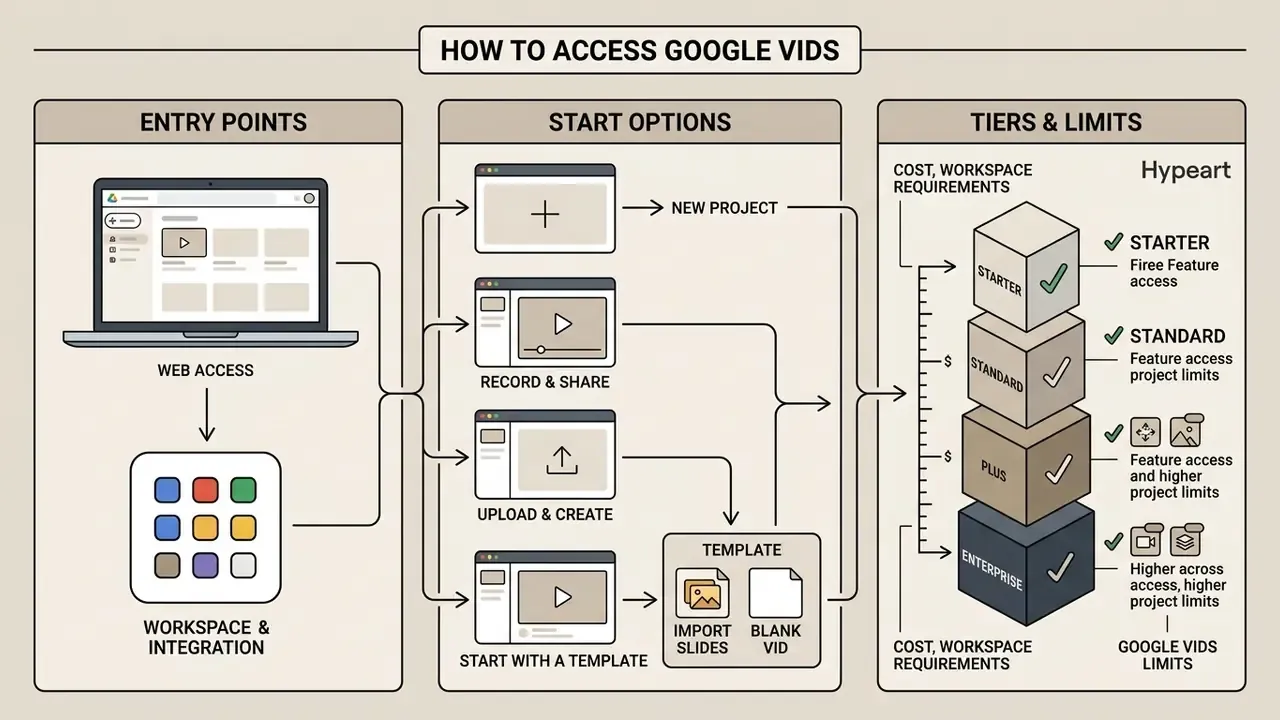
Access to Google Vids comes through Google Workspace tier subscriptions and standalone web entry points. Administrators control deployment in the Workspace Admin Console, and both Google Drive and Google Docs services must be active for Vids to function at all.
Where to Open Google Vids and How to Start a New Project
You can reach the Google Workspace video editor directly at vids.google.com, or type vids.new in any supported desktop browser. You can also launch a project from Google Drive by clicking "+ New" in the left sidebar, by picking Vids from the Workspace app launcher, or by opening a stored video clip (Google Workspace Updates, 2024).
«Vids is available at vids.new; creation and editing are supported on desktop only, while viewing works on any device.»
Opening an existing MP4 file in Google Drive triggers a video editor Google Drive workflow. Choosing "Open in Vids" creates a project with the source clip already placed in the first scene tile. For lightweight tasks, that is the fastest route: trimming a recorded town hall, or dropping music under a screen capture (Google Support, 2026).
There are five documented entry paths into a project:
- Record and share: capture yourself, your screen, or both in real time.
- Upload and create: bring in local video or audio files and assemble them.
- Start with a template: use pre-built scene sets, much like Slides templates.
- Import Slides: convert an existing Google Slides deck into a video, one slide per scene.
- Blank Vid: start from an empty canvas and build scene by scene.
Cost, Workspace Requirements, and Google Vids Limits
Google Vids is included in Google Workspace Business Standard (from $14 per user per month), Business Plus, Enterprise Standard, and Enterprise Plus plans (Google Workspace Pricing, 2026). Business Starter, Standard, and Plus are sold for up to 300 users. Enterprise editions carry no minimum or maximum seat count. Education editions gained access to Vids on June 30, 2025, initially without AI features (Google Workspace Updates, 2025). Higher tiers raise the ceilings for avatar creation, video generation, and music synthesis.
Monthly AI generation limits reset on a recurring schedule tied to licence tier (Google Workspace Help, 2026):
- Business and Enterprise Starter 10 AI avatars, 20 AI video clips, 10 AI music generations per month.
- Business and Enterprise Standard 25 AI avatars, 50 AI video clips, 20 AI music generations per month.
- Business and Enterprise Plus 100 AI avatars, 200 AI video clips, 100 AI music generations per month.
«Personal Google accounts receive 10 free Veo 3.1 generations per month; AI Ultra accounts receive up to 1,000 videos per month.»
What happens when limits are exhausted? Generation quotas reset at 12:00 a.m. Pacific Time, on a daily or monthly cadence depending on the feature (Google Workspace Help, 2026). Once the monthly allowance is gone, generative actions are blocked until reset. Manual editing, uploads, recording, trimming, and sharing keep working normally. For total-cost-of-ownership modelling, the practical planning formula is:
Required tier = (videos per month × AI clips per video) ÷ seats needing generative access
A 40-person communications team producing four AI-assisted clips per video, across eight videos a month, consumes roughly 32 generative clips per creator. Comfortably inside Plus at 200 per month, well outside Starter at 20. Teams that hit ceilings often tend to split the licence mix: Plus for a small production pod, Standard for reviewers and commenters. If you prefer to model that against other platforms, our AI Media Calculators and AI Media Pricing Guides cover per-seat and per-generation cost patterns.
E-E-A-T Fact Check and Verification Box
Technical Limits of Google Vids Projects
Most support tickets around Google Vids trace back to hard platform limits rather than bugs. Document them before the tool reaches a large team (UW–Madison Google Workspace documentation, 2025; Google Docs Editors Help, 2026).
Object and duration limits:
Large source files that keep breaching the 4 GB ceiling are usually better pre-processed. Our guide to video compressors covers the quality-versus-file-size trade-offs, and the AI Media Support and Troubleshooting hub collects the usual upload and rendering failures.
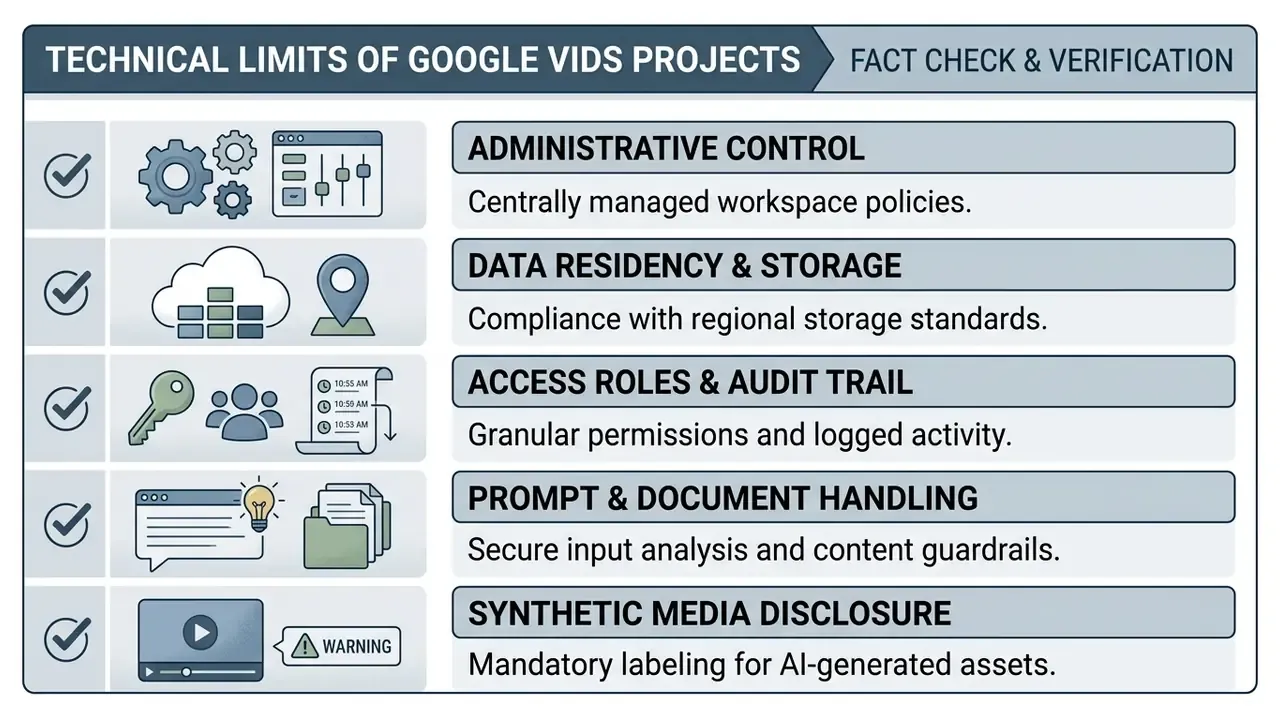
Data Governance, Security, and Compliance Controls
Google Vids Features for Creating and Editing Video
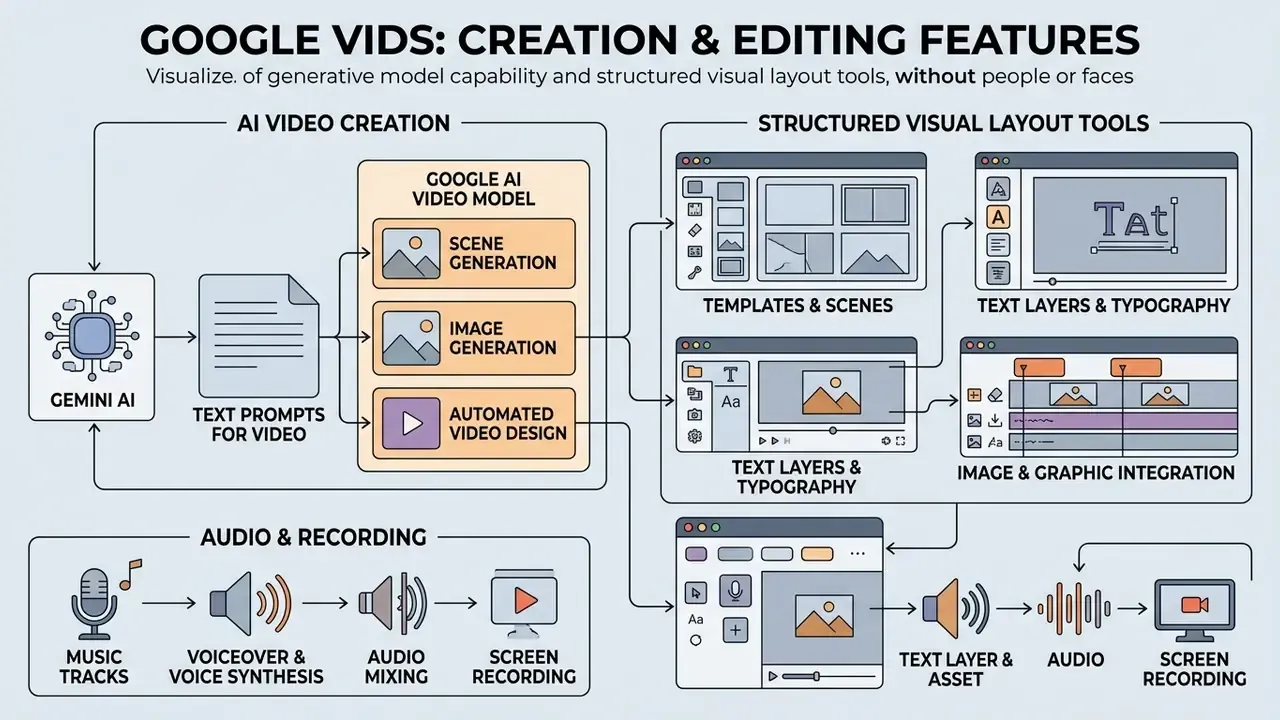
Google Vids pairs generative model capability with structured visual layout tools. The architecture favours fast assembly inside standardized brand formats, which is exactly the trade-off most internal comms teams want.
AI Video Creation with Google AI and Gemini
The Google Vids AI video generator uses Gemini models to plan narrative structure. Select "Help me create," enter a prompt, attach reference files with the @ symbol, and you get a full draft storyboard. The flow is deliberately reviewable: Gemini first returns an outline of scene tiles, you edit or reorder those tiles, choose a design, and only then click "Create the draft video" (Google Docs Editors Help, 2026).
Research on AI-assisted video production suggests multimodal models acting as semantic planners improve visual and audio alignment compared with unguided generation:
«AutoMV, with Gemini acting as screenwriter, reached an audio-visual alignment score of 24.4% and content quality of 4.59 out of 5 on an expert scale.»
Gemini produces scene titles, scripts, stock media selections, and background music in a single pass, the same pattern used across modern text-to-video tools. Newer Workspace releases push past static assembly: Google's 2026 product announcements describe Gemini generating original clips and modifying existing footage from text instructions, which moves Vids closer to true from-scratch generation while the scene structure stays intact.
An expectation setter, because it saves arguments later: the AI draft is a starting push, not a finished asset. Pacing, on-screen text density, and scene order nearly always need a human pass before the video reads as intentional rather than templated.
Templates, Scenes, Text, and Images for Video Design
Instead of traditional multi-track timelines, Google Vids organises projects around discrete scene blocks. A template, in Google's own definition, is a pre-built set of scenes with media and transitions; you can insert all scenes at once or add individual scenes to an existing project (Google Support, 2026). Roughly a dozen style templates shipped at launch, covering the recurring workplace formats: team update, training module, product walkthrough, announcement.
Scenes are then customised with corporate templates, text overlays, high-resolution stock images, imported media, background colours or images, and scene styles that propagate across the whole video. Each object placed in a scene gets its own timeline track, so appearance timing and duration are controlled per element rather than globally.
Visual assets can be tuned scene by scene to keep the message clear. Organizations building automated marketing assets often compare these capabilities against design-first platforms reviewed in our Canva AI Generator overview, and against motion-graphics workflows in the animation maker guide. Learning teams that convert modules into assessments usually pair Vids with an ai quiz generator so each video ends with a knowledge check rather than a shrug.
Music, Voiceover, Audio, and Screen Recording
Google Vids includes an integrated recording studio alongside AI audio generation. The studio supports four capture modes: screen recording, webcam, combined screen plus camera, and audio-only voiceover. Camera and camera-plus-screen modes use the computer microphone, screen recording can include system audio, and voiceover captures microphone input only (Google Docs Editors Help, 2026).
For presenters, Vids offers an AI teleprompter mode that auto-scrolls the script while recording. It cuts retakes for non-professional speakers noticeably, which matters when your narrator is a compliance officer rather than a voice actor. When creating a project, three aspect ratios are available: 16:9 landscape, 9:16 vertical, and 1:1 square. The square option earns its place in feed placements where vertical is too tall and landscape too wide.
For synthetic narration, the Google Vids AI video editor provides text-to-speech voiceovers powered by Gemini 3.1 Flash TTS in more than 24 languages, with selectable voices, dialects, and accents. Voiceovers can be applied to the current scene or generated across all scenes at once. Teams comparing narration quality across vendors can review alternatives in our guide to AI voice generators; for stylised or music-led narration experiments, the adjacent ai rapper voice and ai rap song generator write-ups show how far synthetic vocals now stretch outside corporate use.
«Students rated AI-generated lectures highly for clarity and coherence; learning outcomes were comparable to instructor-recorded video.»
In that Stanford SCALE evaluation of AI-generated video lectures, synthetic voiceovers paired with structured slides produced learning outcomes comparable to human-recorded presentations. A useful data point for L&D teams deciding whether synthetic narration is acceptable for internal training modules, though not a licence to skip review.
Audio can also be uploaded from Drive or a local machine, or pulled from the built-in royalty-free library of music and sound effects. Background music generated with Lyria can be layered under narration, with per-track volume balancing so speech stays intelligible.
How to Edit Google Videos in Google Vids: Step-by-Step
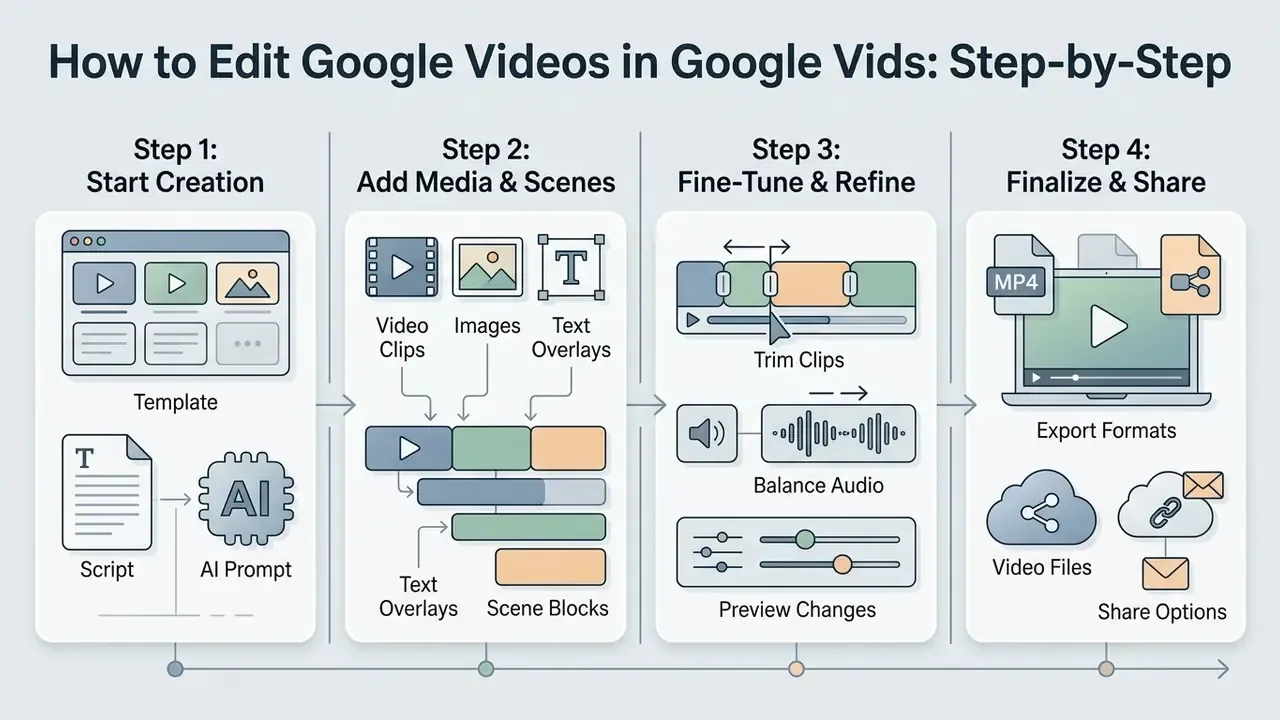
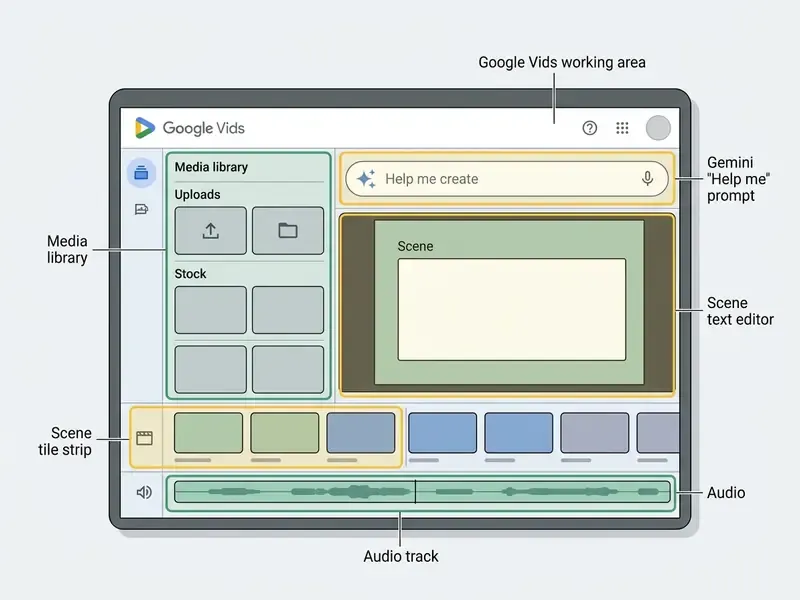
Creating and editing video in Google Vids follows a scene-based progression. The workflow keeps production accessible to business users without formal post-production training, a design philosophy shared by the lighter-weight tools covered in our overview of video editors.
Step 1: Choose a Template, a Script, or AI-Powered Video Creation
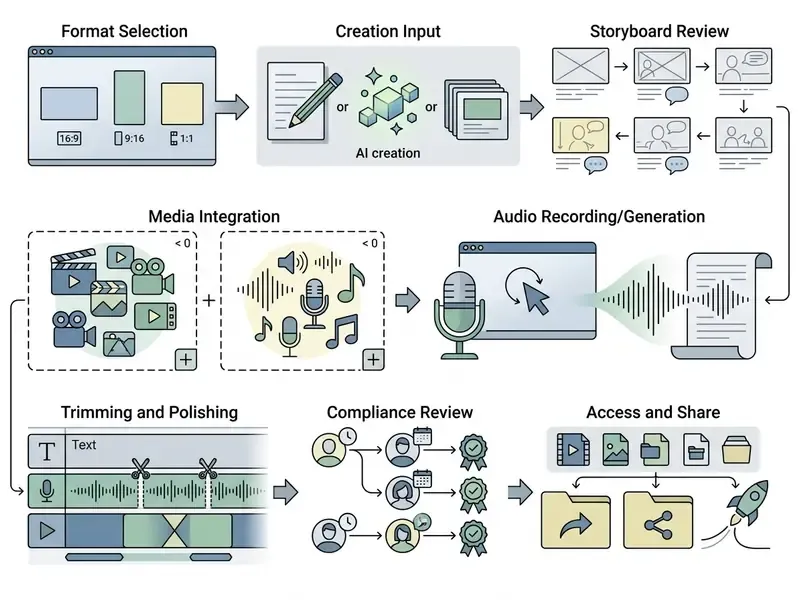
Projects begin at vids.new. Pick the aspect ratio first (16:9, 9:16, or 1:1), then choose a creation pathway: blank canvas, industry template, imported Google Slides deck, direct recording, or the Google Vids AI video creation wizard.
With Gemini, a specific prompt does the heavy lifting. Something like "Create a 2-minute compliance update on customer data protection for retail branch staff" returns an editable scene outline. Specificity in audience and tone visibly improves the first draft. Vague prompts produce generic scene titles that take longer to repair than to write from scratch.
Step 2: Add Video Clips, Images, Text, and Scenes
Once the outline appears, add or reorder scene tiles on the canvas by dragging them. Custom media arrives three ways: dragging files from local storage, inserting assets from Google Drive and Google Photos, or typing @ to reference related Drive files, including PDFs and Slides decks.
Inside each scene, text blocks, images, and clips are formatted independently. Object timing is adjusted by dragging the left or right edge of an object's track, and moving a track horizontally changes when that element appears. Keep the ceiling in mind: 50 video objects and 50 audio objects per project, no exceptions.
Step 3: Trim, Balance Audio, and Prepare the Video for Sharing
The Google Vids video editor lets you trim individual clips by dragging track edges in timeline view. Transcript-based trimming is faster still: delete words from the generated audio script and the corresponding audio goes with them, which is the quickest way to strip filler words and dead air (Google Workspace Updates, 2025).
Audio tracks, including background music generated with Lyria, are then balanced against narration so speech stays dominant. Old broadcast QC habits still pay off here. Check for leading or trailing black frames and silence, and confirm levels do not collapse toward the noise floor before distribution.
«AutoCut outperformed GPT-4-based systems on clip-selection accuracy (CSA 0.66) and script quality (SQ 84.6 out of 100).»
In research on automated advertisement editing, tight script-to-visual synchronization improved message retention. Practically, that means auditing whether each scene's visual actually matches the sentence being narrated. It is exactly where AI drafts drift most often, usually somewhere around scene four.
Step 4: Export Formats and Delivery
When editing is finished, the project stays in Google Drive as a native Workspace file. From there you can export as MP4, convert short scenes into GIF animations, or download in MOV format for local use. Vids also exports directly to YouTube, and exported videos default to private until sharing is configured (Google Docs Editors Help, 2026).
Collaboration, Google Drive, and Video Sharing
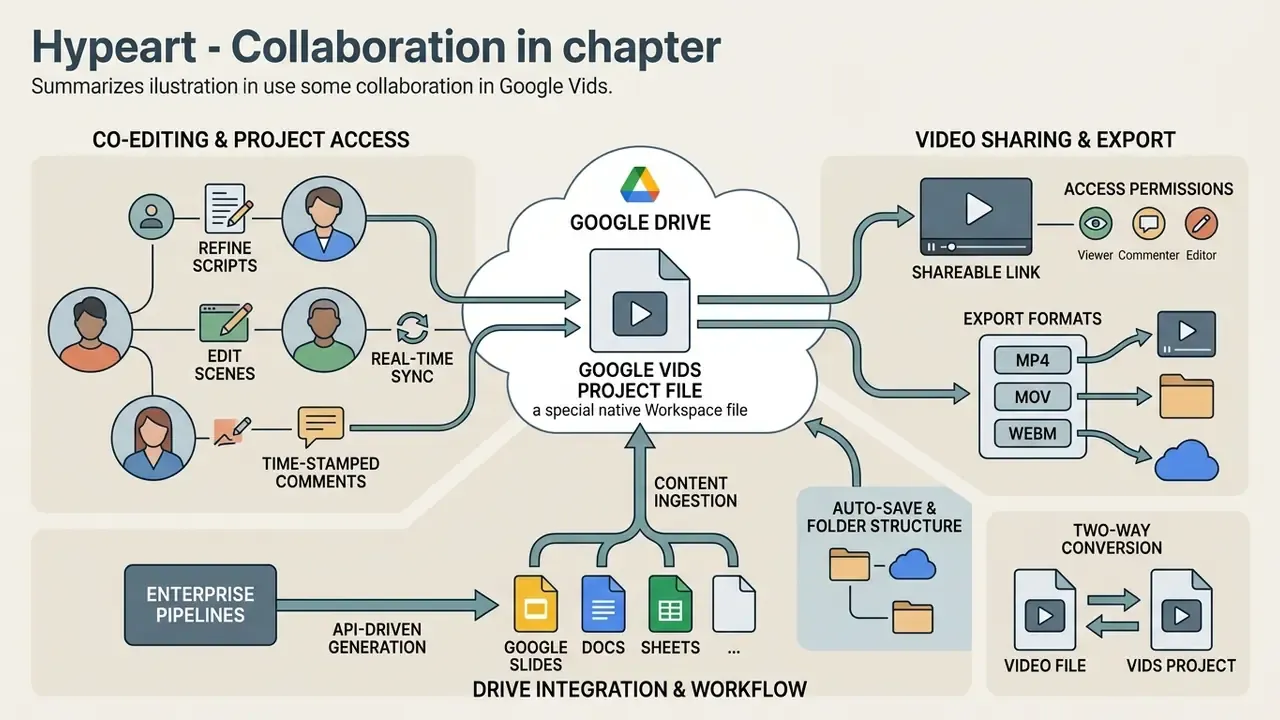
Google Vids carries the real-time collaboration model standard across Workspace apps. That framework is what makes multi-stakeholder review bearable.
Co-Editing and Project Access
Several people can edit scenes, refine scripts, and leave time-stamped comments in the same Vids file simultaneously. Permissions run through the standard Workspace Share dialog, with Viewer, Commenter, and Editor roles, and up to 100 concurrent participants per file (Google Workspace Blog, 2024).
«Vids supports viewing and collaboration for any Workspace account; creation is available only on specific plans.»
That distinction matters operationally. Reviewers in legal, risk, and compliance do not need premium creation licences to comment on a draft, so approval workflows stay cheap while generative capability stays inside a controlled group.
A typical co-authoring pattern in enterprise software companies works like this: subject-matter experts drop technical screen recordings into designated scenes, while instructional designers rewrite the script text in the same file. Version-control chaos from MP4 drafts circulating over email largely disappears. Updated: this is presented as a documented capability of Vids' real-time collaboration model, not a measured case study. No published methodology or sample size exists for such internal deployments, so treat any efficiency claim as a hypothesis to test locally.
For organizations building API-driven video generation pipelines, implementation specifications sit in the Google Veo AI Video Generator guide.
Google Drive and Google Slides in the Workflow
Vids projects save straight to Google Drive as native Workspace files, so autosave, folder structure, shared-drive membership, and retention policy behave exactly as they do for Docs and Sheets. Finished MP4 exports embed into Google Slides via Insert → Video → Google Drive. One catch worth flagging: a Vids project must be exported to Drive first, because Slides inserts Drive-hosted video, not live Vids projects (Google Docs Editors Help, 2026).
The conversion runs both directions. Entire Slides decks convert into Vids projects automatically, each slide becoming its own scene ready for narration, and a Slides presentation can be generated back out of an existing Vids project (Google Support, 2026). If you have ever been asked "can you turn this deck into a video?", this is the shortest path from static asset to narrated module.
Teams looking at broader content transformation and distribution can review our YouTube video editor workflows guide for the publishing steps after export.
Google Vids vs Canva vs Kapwing vs Adobe Express
Vids makes the most sense when a team already lives inside Google Workspace and needs collaboration plus fast, structured video creation. The alternatives win once the requirement shifts toward creative flexibility, brand design systems, or social-first repurposing.
| Tool | Primary purpose | Editing style | Collaboration | Best use case |
|---|---|---|---|---|
| Google Vids | Work videos, training, internal updates, reporting | Scene-based | Seamless inside Workspace | Internal communications and corporate learning |
| Canva | Marketing and branded social video | Drag-and-drop and templates | Strong | Design plus video in one environment; MP4 and GIF export, 4K upscaling on paid tiers |
| Kapwing | Social and creator-style video | Classic timeline plus automation | Moderate | Quick cuts, auto-subtitles, repurposing; up to 4K export on Pro |
| Adobe Express | Express marketing inside brand guidelines | Template-driven editor | Moderate | Promo assets when an Adobe subscription already exists |
Practical read: for weekly internal video, Vids is the smoothest, because the workflow was built for teams rather than for creators. For brand-led social output at volume, a template-rich design tool usually wins. For frame-level control, none of the four is the right answer, and the next section explains why.
Who Google Vids Suits, and When You Need a Different Video Editor
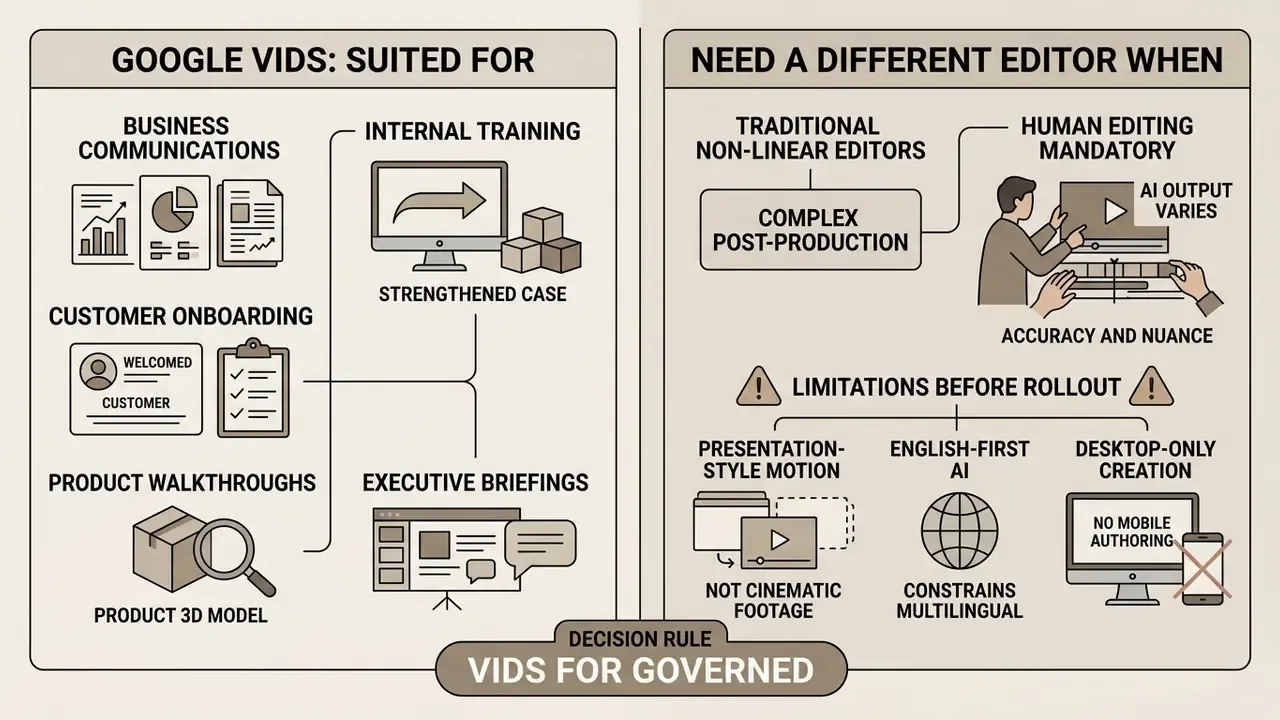
Google Vids is optimised for business communications, internal training, customer onboarding, product walkthroughs, and executive briefings. The scene-based structure lets non-technical employees produce structured visual content quickly, without specialised software licences (Google Workspace Product Announcements, 2024).
«AI-interactive video lessons significantly outperform traditional ones in motivation, cognitive-load reduction, and learning outcomes.»
That evidence strengthens the training case in particular. Where the realistic alternative is a text SOP nobody opens, an AI-assisted narrated module is a measurable improvement rather than a novelty. Teams that build learning libraries sometimes pair modules with pull-quote assets from an ai quote generator for reinforcement messaging.
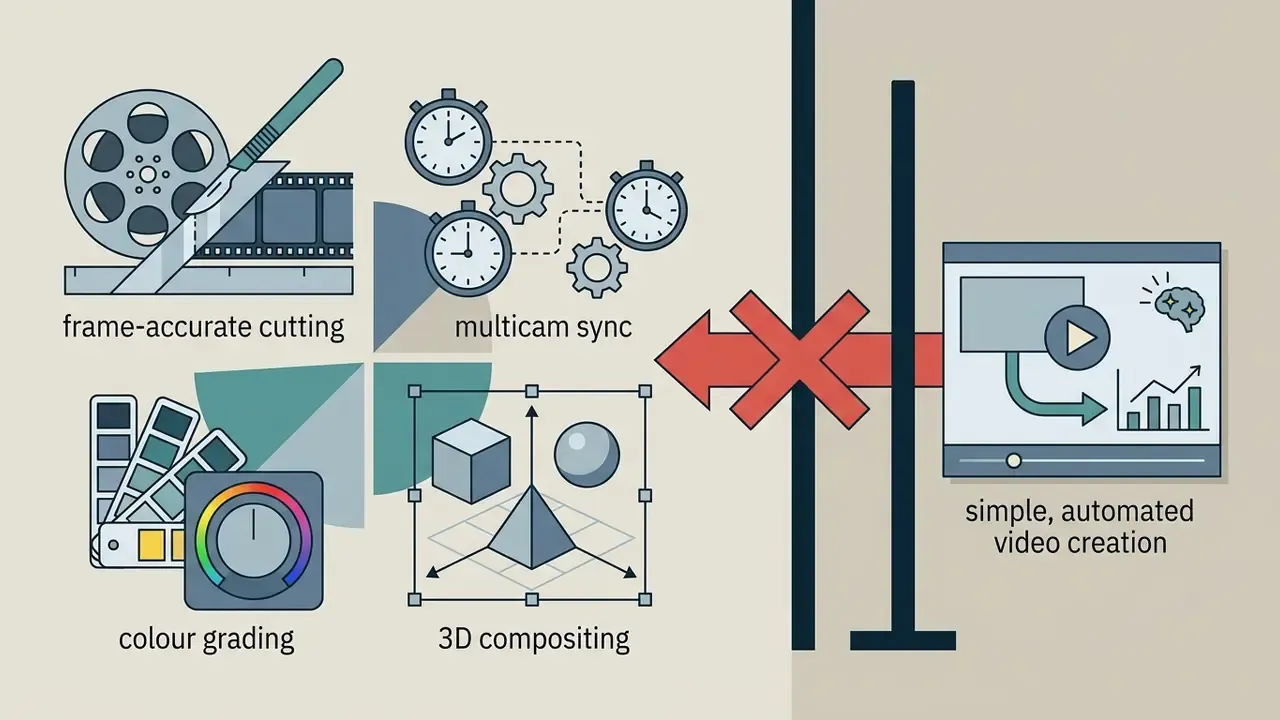
Traditional non-linear editors still hold their ground for complex post-production. Teams wanting broader generative capability at lower cost can survey free AI video generators before standardising. But projects needing precise frame-by-frame cutting, multi-camera sync, advanced colour grading, keyframed motion design, or 3D visual effects sit outside the scope of a browser-based scene editor. For those, see our comparison of free video editing software and professional suites such as DaVinci Resolve or Adobe After Effects.
Limitations worth stating internally before rollout, plainly:
- AI output quality varies; human editing stays mandatory for accuracy and nuance.
- Vids produces presentation-style motion, not cinematic footage. Expectations set by consumer text-to-video demos will be missed.
- Several Gemini features remain English-first, which constrains multilingual internal comms.
- Creation is desktop-only, so field teams cannot author on mobile.
For anyone drafting an internal Acceptable Use Policy, the decision rule is short: Vids for governed, workflow-driven video inside Workspace; a professional NLE for anything that will be graded, composited, or broadcast; and a documented approval path for any asset containing synthetic voices or avatars.
A Safe Next Step for Governance Teams
If you own model risk or AI governance and Vids is already live in your tenant, a 30-day controlled review usually beats a policy memo. A workable sequence: Nothing here is exotic. It is the same control logic applied to any tool that can generate a customer-facing artifact without a human in the loop.
- Inventory first.Add Vids to the AI system inventory as a generative capability, with a named owner, not as "a Workspace feature".
- Scope access.Enable creation for one organizational unit; leave viewing and commenting open so approvals stay cheap.
- Write the prompt rule.Prohibit PII, MNPI, and unreleased financials in prompts, and require redacted source documents for
@attachment. - Define the evidence trail.Decide which artifacts constitute audit evidence: the Drive version history, the time-stamped approval comments, the export record.
- Add a labelling gate.No externally distributed asset with a synthetic voice or avatar ships without a disclosure check.
- Measure honestly.Baseline current production time and review cycles before you claim savings, then re-measure after 30 days.
- Re-verify quarterly.Quotas, features, and contractual data-use terms change on Google's cadence, not yours.
FAQ
Does Google have a video editor?
Yes. Google Vids, launched in 2024, is Google's browser-based video creation and editing app inside Google Workspace.
Do I need to download software to use Google Vids?
No. Vids runs entirely in a desktop web browser, with no installation, plugins, or local rendering required.
What is the maximum length of a finished Google Vids video?
The tool is designed for videos up to roughly 10 minutes. In-app recordings are capped at 10 minutes. Uploaded files may run up to 35 minutes and 4 GB, but anything over 10 minutes must be trimmed below 10 minutes before further editing.
How many clips can one project contain?
Up to 50 video clips and 50 audio clips, with audio counting music, sound effects, and AI voiceovers.
Can I use Google Vids on a phone or tablet?
Only for viewing and commenting. Creation and editing require a desktop browser.
Can a Google Slides presentation be converted into a video automatically?
Yes. Importing a Slides deck turns each slide into a separate video scene, ready for narration, music, and captions. The reverse conversion, Vids to Slides, is also supported.
Which export formats does Google Vids support?
Projects are stored in Google Drive and can be exported as MP4, downloaded as MOV, converted to GIF for short scenes, or published straight to YouTube, private by default.
Is Google Vids free?
Full creation requires an eligible Google Workspace Business, Enterprise, or Education subscription. Consumer AI plans provide limited generative allowances. Viewing and commenting are broadly available.
What happens when monthly AI generation limits run out?
Generative actions pause until the quota resets, at 12:00 a.m. Pacific Time, daily or monthly depending on the feature. Manual editing, uploads, recording, and sharing remain available.
Who can see or edit my Vids project?
Access follows standard Workspace roles: Viewer, Commenter, Editor, managed in the Share dialog, with up to 100 concurrent collaborators. Admins can enable or disable Vids per organizational unit.
Can Google Vids be used in a regulated environment such as banking or insurance?
It can be deployed inside Workspace governance controls. Institutions should restrict generative access to named users, prohibit sensitive data in prompts, confirm current contractual commitments on customer-data use for model training, and add a synthetic-media labelling and approval step to the publishing workflow. Consult compliance and legal counsel before external distribution.
Does an AI-generated avatar or voice need to be disclosed?
Disclosure expectations depend on jurisdiction and content type. Transparency rules for synthetic media are tightening globally, so treat labelling as the default for externally distributed assets and confirm the specifics with counsel. This article is informational and does not constitute legal, financial, compliance, or procurement advice. Product features, pricing, and generation limits reflect verification as of August 19, 2026 and are subject to change by Google.
Appendix A: Superseded Fragments (Editorial Record)