Last updated: February 2026 · Reviewed for technical accuracy by the AI Media editorial team.
This page is written for two very different readers. The first is a creator who wants a backwards video maker that just works on a phone. The second is someone in a regulated environment (marketing inside a bank, an in-house content team, an agency handling client footage) who has to answer a duller question first: where does my file physically go? Both answers are here, and they are kept separate on purpose.
Three quick checks before you start:
- Is your clip already trimmed? Reversing buffers the whole sequence, so a short file processes faster.
- Do you need the sound running backwards, running forward, or gone entirely?
- Will the export be used commercially? If yes, watermark and resolution limits matter more than speed.
How to reverse a video online: step by step
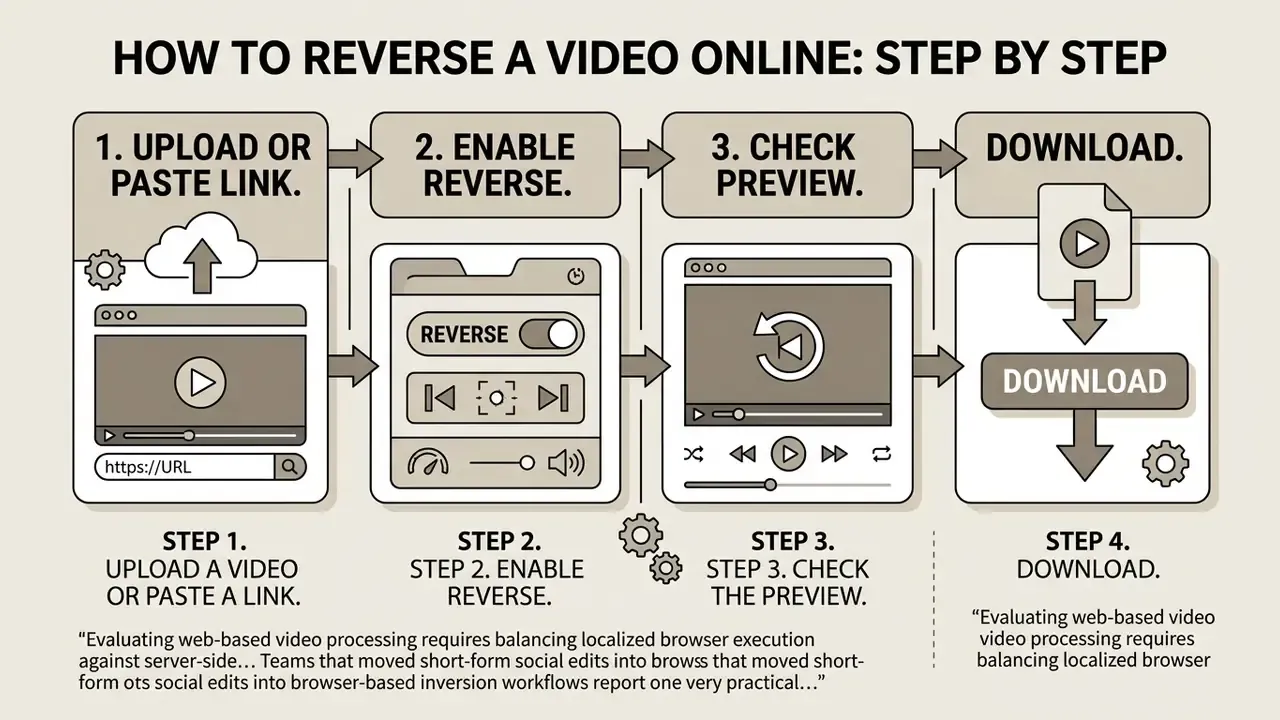
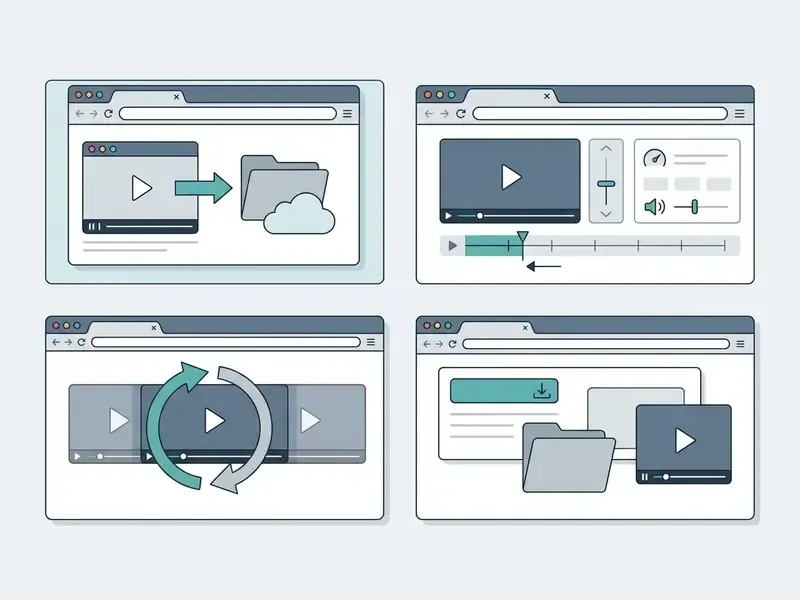
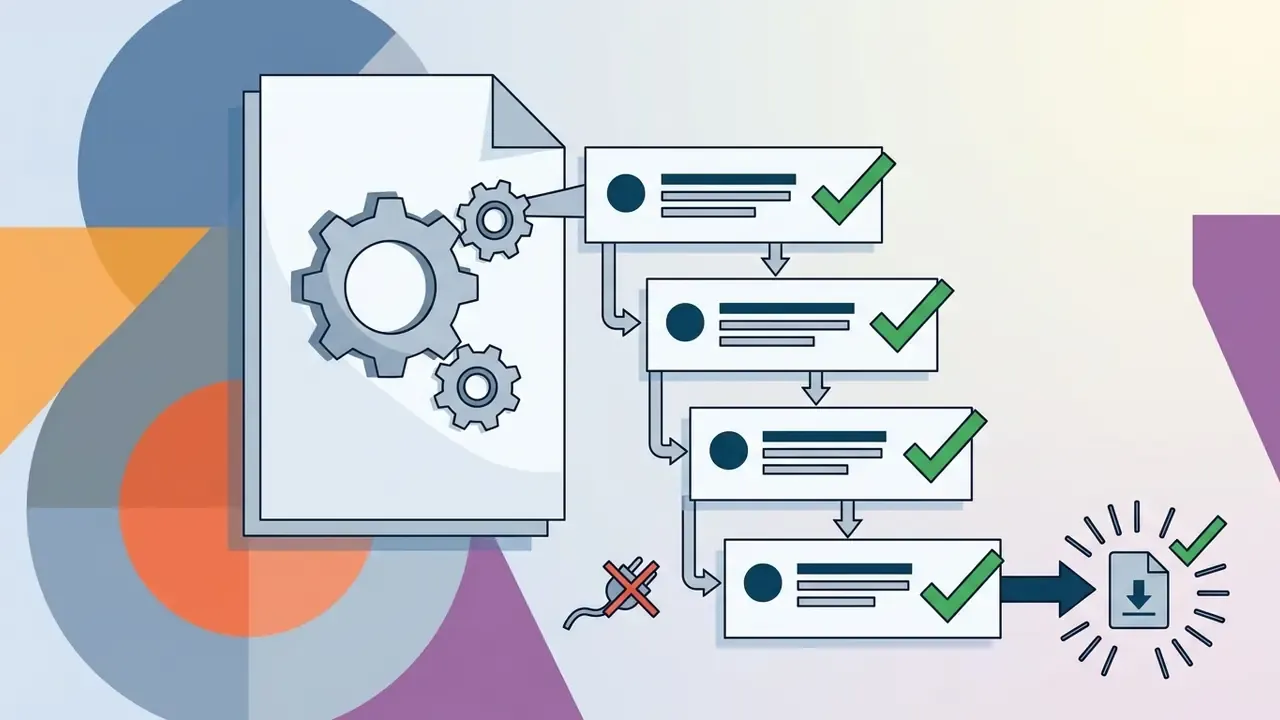
Reversing a clip in the browser is a four-step routine: load the media, switch on frame inversion, inspect the preview, export the file. Nothing else is required. No timeline knowledge, no plugins, no account.
Step 1. Upload a video or paste a link. Drag and drop the file into the browser window, pick it from your device (Windows, macOS, iPhone, iPad or Android), or paste a direct URL to a video file. Both routes feed the same processing pipeline, so a link-based upload behaves exactly like a local file. One caveat: the URL has to point at the media itself, not at a player page.
Step 2. Enable Reverse. One toggle flips the playback direction, so every frame runs from the last to the first. There is no need to cut the clip into segments or build a custom speed curve by hand.
Step 3. Check the preview. The preview window plays the inverted sequence in real time. You confirm motion smoothness and audio behaviour before you spend time on a full export. Skipping this step is the most common reason people render twice.
Step 4. Download. Export the file and save the reversed video straight to your device, ready for TikTok, Reels, Shorts, WhatsApp, or a larger editing project.
Teams that moved short-form social edits into browser-based inversion workflows report one very practical benefit. For clips under 100 MB processed with client-side WebAssembly, the upload wait disappears entirely, because the frames are decoded and rebuilt locally. Independent research on assisted editing points in the same direction: lightweight, guided tools change how quickly creators reach a finished cut.
«Users of the LLM-assisted editor LAVE reported that the system strengthened the feeling of co-creation and helped them find unconventional editing decisions.»
Still deciding between a web utility and a desktop suite? Our comparison of free video editing software and the notes on the davinci video editor explain when a browser tool is enough and when a full NLE is genuinely justified.
What a reverse video online tool actually does
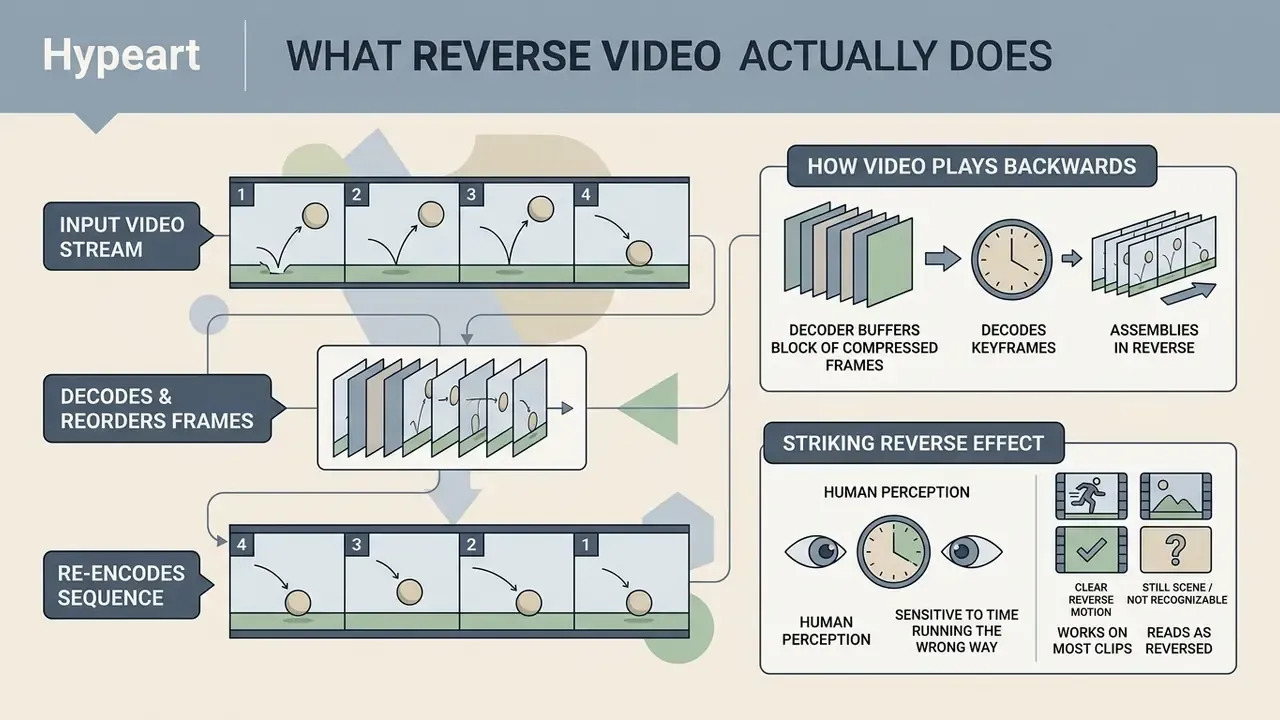
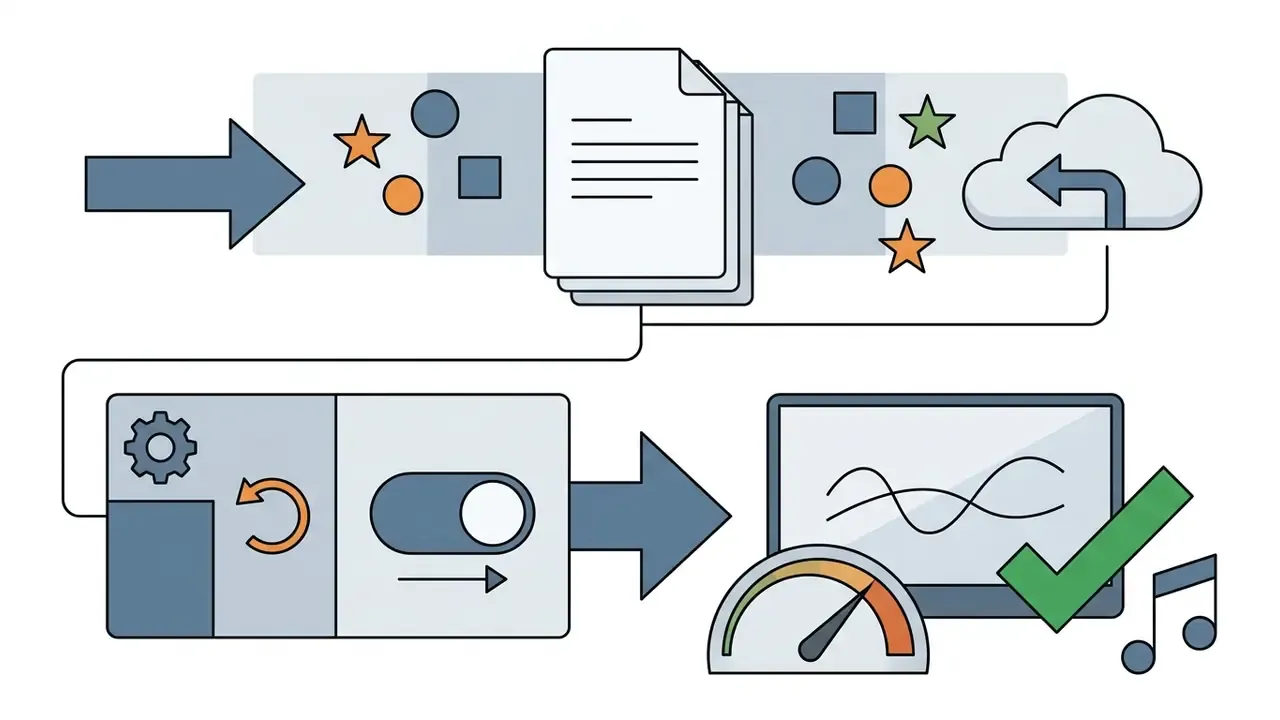
A reverse video online tool decodes an incoming video stream, reorders its frames from last to first, and re-encodes the sequence so all motion plays backwards inside a browser tab. That is the entire mechanism behind the reverse video effect: forward motion becomes a controlled video backwards sequence. Modern web utilities let you reverse your video using WebAssembly or the HTML5 canvas API, which means confidential footage does not have to travel to an external server when local processing is active.
How a video starts to play backwards
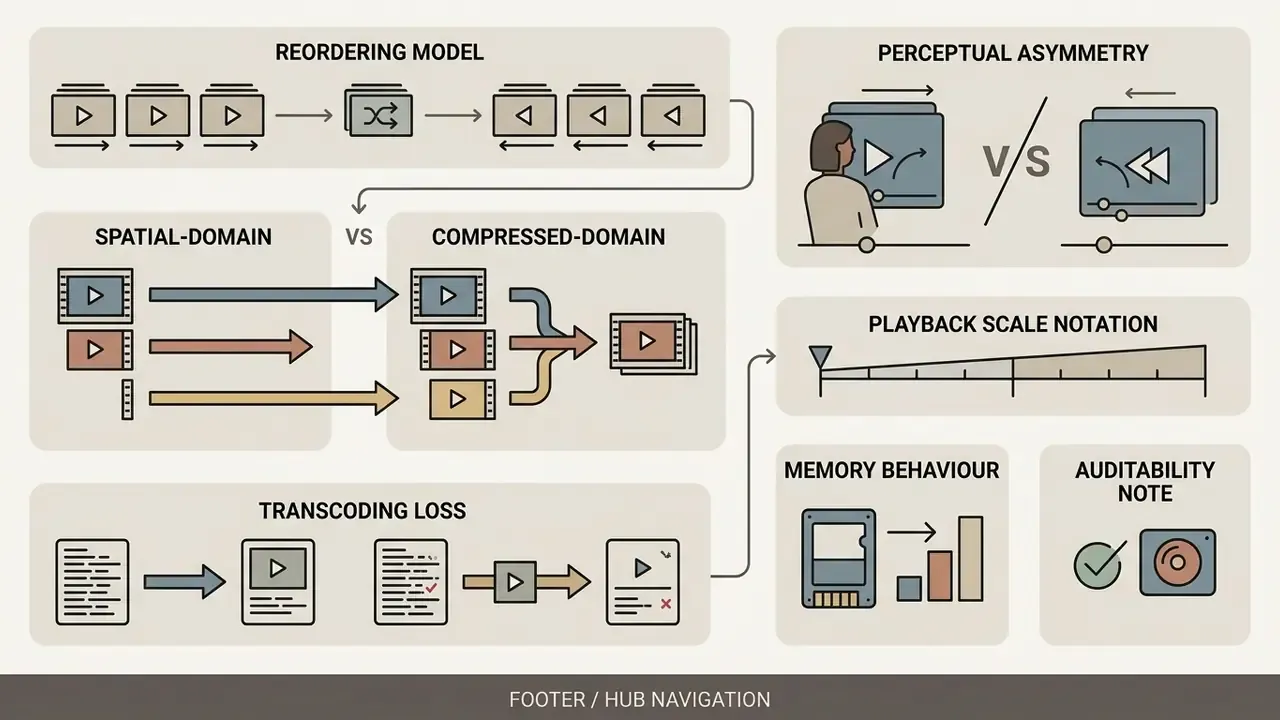
A video plays backwards when the decoder buffers a block of compressed frames, decodes the keyframes and delta frames in their normal decode order, and then outputs the decoded pictures with descending timestamps. The stream simply starts from the end. Microsoft's media framework documentation describes exactly this behaviour for reverse playback: samples are delivered in reverse order with steadily decreasing presentation times. Open-source tooling behaves the same way. The FFmpeg reverse filter is documented as buffering the whole clip in memory before emitting it backwards, which is why trimming a long recording first is always faster and gentler on RAM.
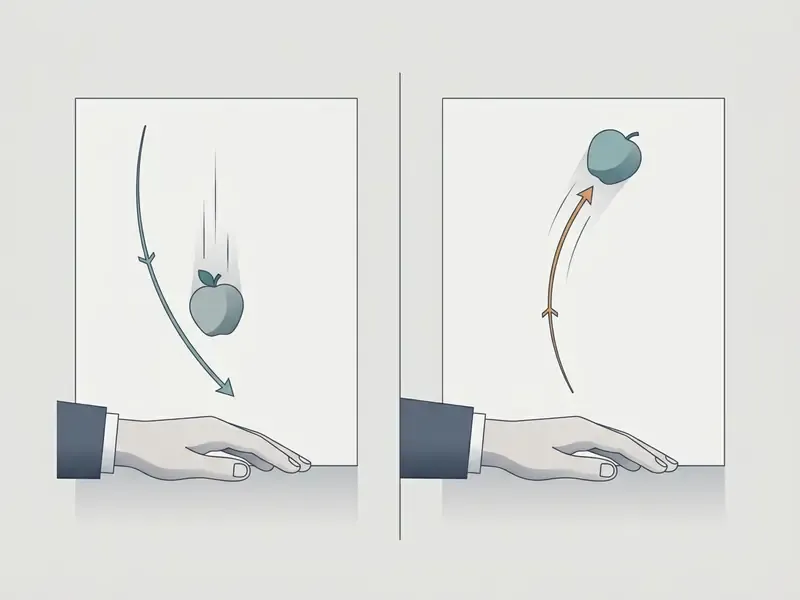
There is also a perceptual reason reverse edits feel so striking:
«Viewers notice backward jumps in time more often than forward ones, which indicates an asymmetry in the perception of continuity violations.»
In plain terms: the human eye is unusually sensitive to time running the wrong way, and that sensitivity is precisely what makes a rewind clip stop the scroll. For the broader context on this class of software, see the overview of online video editors.
For which clips does the reverse effect actually work
Almost any video can be inverted, but not every clip reads as reversed. The effect lands on footage with a clear cause-and-effect chain: something falls, spills, shatters, splashes, or flies away. Symmetric movement is the weak case. A slow camera pan or a neutral walk cycle looks nearly identical in both directions, so the viewer feels no surprise at all.
Creative ideas: which clips look best backwards
The reverse effect hits hardest on short clips of roughly 3 to 12 seconds with clear, one-directional physical movement: falling objects, splashing liquid, stunts, or a viral social trend. Symmetric motion (a swinging pendulum, a neutral walk, a slow tilt) barely registers as reversed, because the eye cannot tell which way time is flowing.
«Human observers reach near-ceiling accuracy in recognising the direction of time for physically irreversible processes such as free fall and explosions.»
Five ideas that work every time:
- Pouring drinks.Water leaves the glass and "gathers" itself back into the bottle. The classic un-pour.
- Jumping into water.The swimmer flies out of the splash and lands back on the diving board, dry.
- Magic tricks and clean-ups.Scattered sweets, coins, LEGO bricks or spilled popcorn leap back into the hand or the box.
- Food tossing.A slice of pizza, a pancake flip or a handful of berries snaps back into the pan.
- Sports and stunts.A basketball flies out of the hoop into the player's hands; a skateboard trick lands in reverse; a motocross jump un-jumps.
Bonus tips for making a backwards clip genuinely funny: keep it short, use everyday gestures (throwing, pouring, jumping), stack reverse with fast motion for comic timing, and add a sound effect or a music bed so the punchline lands. Creators building surreal visual concepts often combine inverted footage with unusual generated assets such as cursed ai images to push engagement further. One caution from experience: the joke dies at around the eight-second mark, so cut earlier than feels comfortable.
Reverse video settings: audio, speed, boomerang and clip length
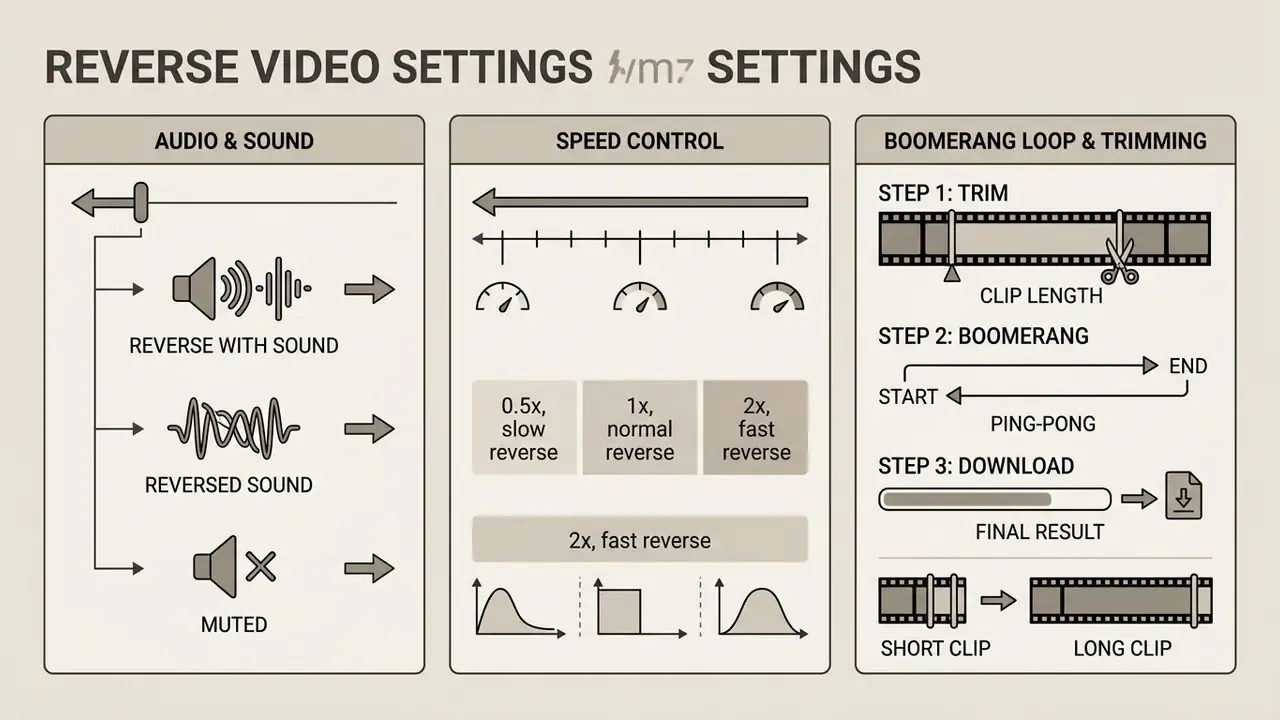
Configuring reverse video comes down to three decisions: what happens to the audio track, which speed multiplier you use, and how the clip is trimmed to hit the timing you want. Get those three right and you avoid distorted sound while keeping the visual punch intact.
Reverse video with sound, reversed sound, or muted
You have three clear options, and each one is a single click:
| Audio option | What you hear | When to use it |
|---|---|---|
| Keep original sound | Picture runs backwards, audio stays forward | Voice-overs, music beds, tutorials |
| Reverse the sound too | Speech and music play backwards | Rewind gags, hidden-message effects, ASMR |
| Mute completely | Silent export | Commercial edits where you add a new soundtrack |
Reversing the waveform plays it from right to left, producing that familiar garbled speech. Muting keeps the clip duration intact while stripping the track, which is why it stays the default choice for brand and marketplace content.
«Adaptive reverse perturbation of an audio signal substantially alters its temporal structure, exposing artefacts invisible in the original recording.»
Once the original track is muted, you can drop in music, a sound effect, or a synthetic narration built with AI voice generators, including voices you create your own way, or pair the footage with an avatar produced by a d id ai style system.
Speed control for reverse playback
Speed control decides how dramatic the rewind feels. Use plain multipliers, not engineering notation:
- 0.5x, slow reverse. Dramatic rewinds, splashes, hair and fabric in motion.
- 1x, normal reverse. Natural-looking backwards playback; the safest default.
- 2x, fast reverse. Comedy timing, clean-up gags, time-lapse style rewinds.
Speed and duration are directly linked: doubling the speed halves the clip length, so trim before you export if you have a platform limit to respect. Combining reverse with fast motion is still the cheapest way to turn an ordinary clip into a joke.
How to create a Boomerang (ping-pong) loop
The boomerang effect, also called ping-pong, plays your clip forward to the end and then immediately backwards to the start, producing an endless, seam-free loop. It is the format behind most "satisfying loop" posts on Reels and Shorts.
Boomerang in three steps:
- Upload the clip to the online reverse video editor.
- Switch on the "Add loop (Boomerang)" toggle.
- The tool joins the original clip with its reversed copy and exports one continuous file.
Manual equivalent in any editor: duplicate the clip, reverse the second copy, and place it directly after the original. Because the last frame of the forward pass is identical to the first frame of the reverse pass, the join is invisible. Keep boomerang source clips under six seconds. Longer loops start to feel repetitive rather than hypnotic, and the difference is obvious the moment you watch three cycles in a row.
Working with clips of different length
Short clips of 3 to 10 seconds are ideal for social formats and process almost instantly. Longer recordings are better trimmed before reversing, because the decoder has to hold the frame sequence in memory: a two-minute 4K file consumes far more RAM than a ten-second 1080p clip. On phones and tablets, staying under roughly 50 MB per clip keeps mobile browsers stable. If Safari reloads the tab mid-render, that limit is usually the culprit.
Formats, quality and online video processing
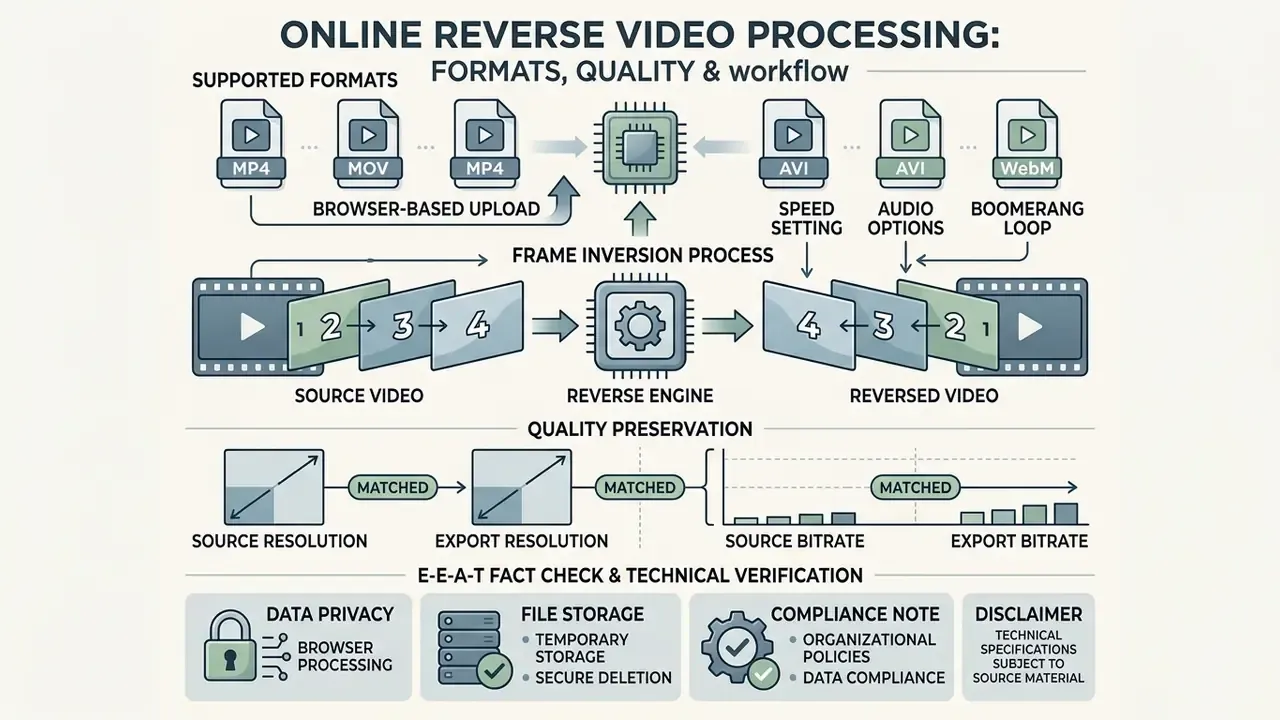
Web-based video tool systems process standard media containers and preserve resolution and bitrate during frame inversion, provided the export is configured to match the source. Checking compatibility up front prevents unpleasant artefacts after the upload a video step.
Which video formats a video reverser accepts
Our video reverser accepts all the popular containers: MP4, MOV, WebM, AVI, MKV, WMV, FLV, MPG, VOB and OGG. MP4 (H.264/AAC) and WebM (VP8/VP9) are supported natively by the HTML5 video specification and therefore decode fastest in-browser. MOV, AVI, MKV, WMV and the older MPEG family are handled either by a client-side WebAssembly demuxer or through a transcoding pass before the reverse video transformation is applied. In most cases the output keeps the resolution and encoding of the source; only unusual codecs fall back to MP4, and you can select MP4 manually if you prefer a predictable container.
What happens to quality after reversing
Quality loss during reversing happens for one reason: the output is re-encoded with a lower bitrate than the original file. Compression runs a second time, so detail is discarded a second time. The fix is simple. Export with the Match Source setting so resolution, frame rate and bitrate mirror the input. Practical bitrate anchors: roughly 3,000 to 8,000 kbps for 1920×1080, and 8,000 to 14,000 kbps for 3840×2160. Set those correctly and the reversed video shows no visible degradation. Set them too low and you will see blocking in fast motion, usually in the splash or the dust cloud, exactly where the eye is looking. Our guide to video compression without quality loss covers the trade-offs in detail.
E-E-A-T fact check / technical verification block
- Supported formats
- HTML5 guarantees native support for MP4 (H.264/AAC), WebM (VP8/VP9) and OGG. MOV, AVI, MKV and WMV require additional demuxing or a transcoding pass.
- Quality preservation
- re-encoding at a lower bitrate is the only meaningful source of loss. The "Match Source" export preset keeps the original resolution (1080p or 4K) and target bitrate, so the result is visually identical to the input.
- Privacy and storage
- with local WebAssembly processing, files never leave the browser. For cloud-assisted exports, temporary cache files are removed according to the service's cleanup policy. Check the vendor's retention statement if you handle confidential footage.
- Compliance note for organisations
- teams working under GDPR or an internal shadow-AI policy should prefer the fully client-side mode, because no media is transmitted at all. Confirm the provider's zero-retention terms in writing before you rely on any cloud fallback, and record which mode was used. That single line in a ticket is often the difference between a clean review and an open finding.
Free online video reverse: what the free plan covers
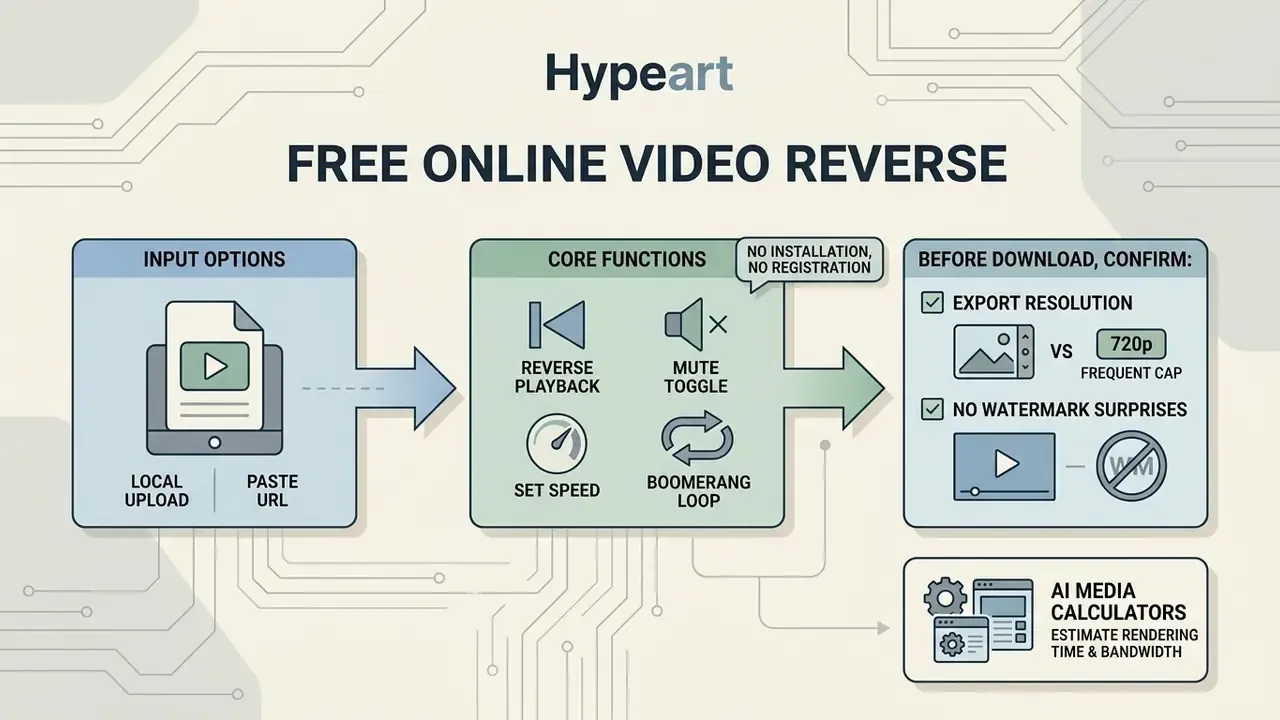
A free online reverse video tool provides the essential frame-inversion functions with no paid subscription, no installation and no registration. Knowing where the free video tier ends helps you plan a rendering workflow without rework later.
What is available in the free online video reverser
The free tier typically includes file upload (local or by URL), baseline reverse playback, the mute toggle, speed presets, the preview window, and a direct download of the output. You can reverse a video online free within standard size thresholds, commonly 200 to 250 MB per file. In practice that covers most phone footage up to about a minute at 1080p.
What to check before you hit download
Before exporting, confirm whether the free online video reverser caps export resolution (720p is a frequent limit), stamps a watermark, or restricts clip duration to around four minutes. Reviewing those three constraints in advance saves you from re-exporting a finished edit. Watermark policy varies widely between services: some free reversers export completely clean files, while others embed a permanent mark that cannot be removed afterwards. Read that screen, not the landing page.
| Stage / feature | Free tier | Pro tier |
|---|---|---|
| Upload a video | Up to 250 MB (MP4, MOV, WebM, AVI, MKV, WMV) plus URL upload | No file-size limit |
| Reverse playback | Baseline in-browser frame inversion | Frame-level control and codec attributes |
| Audio handling | Keep original, reverse audio, or mute | Multi-track separation and cleanup |
| Speed control | Fixed presets (0.5x, 1x, 2x) | Custom speed ramping curves |
| Boomerang loop | One-click forward plus reverse loop | Multi-pass loops with custom trim points |
| Preview | Reduced-resolution preview | Full-size 1080p or 4K preview |
| Download and export | 720p export (watermark possible) | 1080p and 4K export, no watermark |
Where backwards video is used
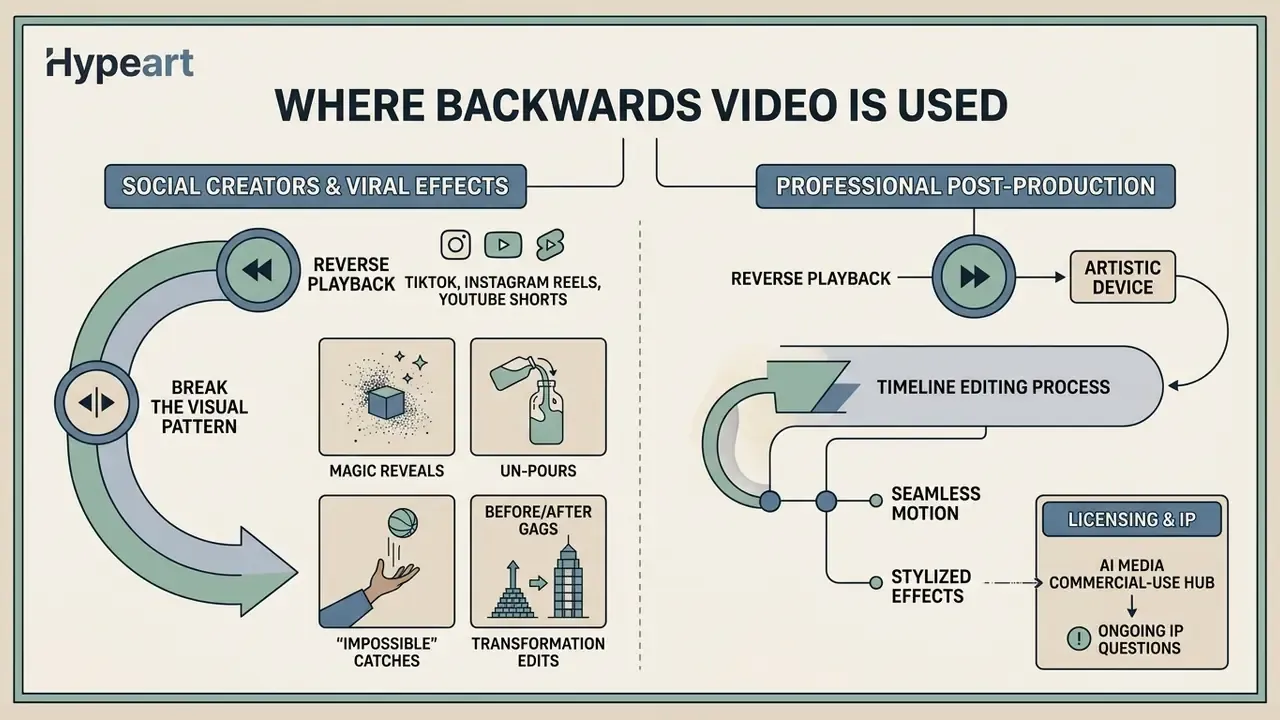
Reversed clips show up everywhere in social marketing, viral entertainment and professional post-production, because they create an instant visual hook. Creators and video editors use play video backwards online tools to build loops that lift replay rates.
Reverse playback as an editing technique
In professional post-production, reverse playback serves two purposes: an artistic device that shows the impossible, and a technical trick that hides a cut. Duplicating a clip, reversing the copy and placing it immediately after the original produces a seamless boomerang transition where the direction change reads as one continuous move. Editors also use short reverse segments as rewind punctuation between scenes, often two or three frames only. For a full publishing pipeline around these edits, see our guide to YouTube video editing workflows.
Broader licensing standards are covered in the AI Media Commercial-Use Hub, and ongoing IP questions around modified media are tracked in AI Litigation and Case Timelines.
What to do with the clip after reversing
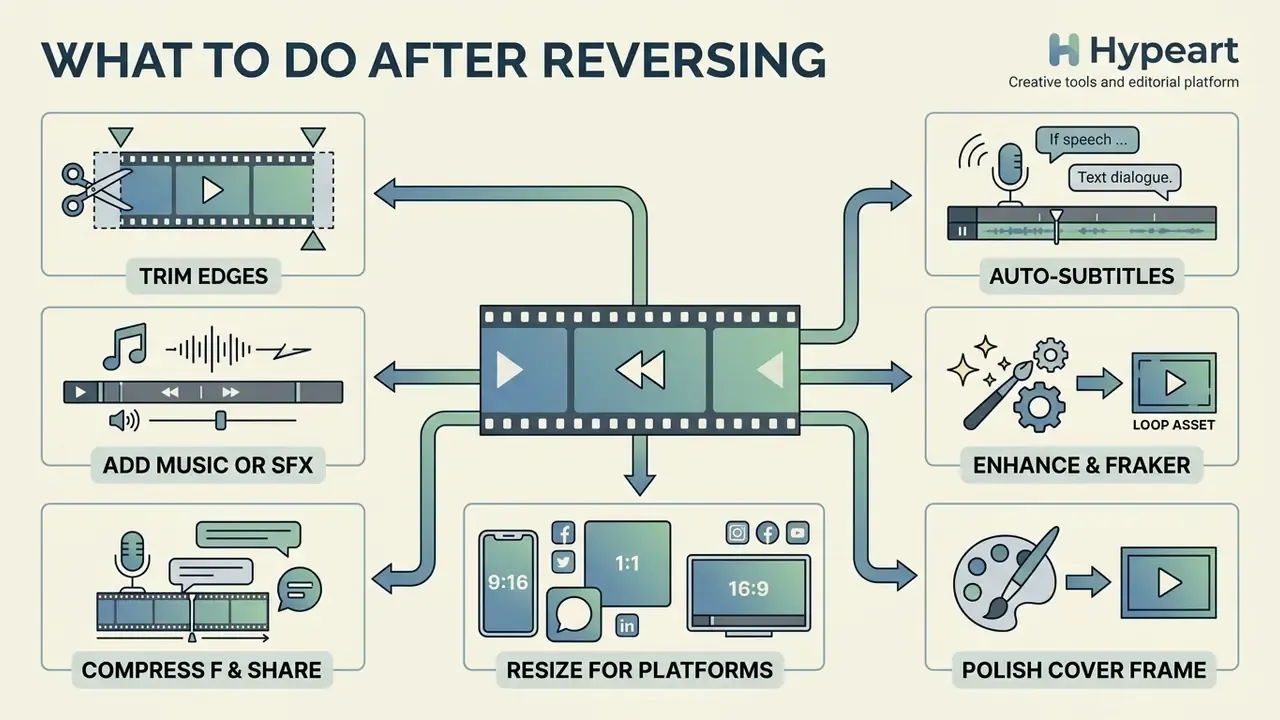
Reversing is rarely the last step. Once the inverted file is ready, you can keep working in the same browser session:
- Trim the edges so the loop starts exactly on the action. Here is how to crop video online.
- Add music or a sound effect to replace the muted original track.
- Generate auto-subtitles if the clip contains dialogue that plays forward.
- Compress the export for messaging apps without visible quality loss.
- Resize to 9:16, 1:1 or 16:9 for each platform you post to.
- Turn the loop into an animated asset with an animation maker, or polish the cover frame in a photo editor.
FAQ about reverse video online
Can I play a YouTube video backwards online?
Running play youtube video backwards online directly from a live YouTube link is not possible. The official embedded IFrame Player API exposes standard playback controls only and documents no reverse mode, and YouTube itself provides no rewind-playback feature. Any tool that accepts a YouTube URL must first fetch and decode the source file, invert the frames in memory or offline, and export a new media stream. Rights still apply to that new file, by the way. Compare what each platform allows in our AI Media Comparison Matrices.
Do I need a separate online reverse video search?
No, because these are different products. An online reverse video search (or online video reverse search) identifies the origin, creator or earlier appearances of a clip by indexing its keyframes against web databases. An online video reverser is an editing tool that changes the frame order of a file so it plays backwards. One traces a source; the other transforms media. If source tracing is what you actually need, start with our overview of reverse image search tools. Developers looking for programmatic visual-search endpoints can consult the AI Media API Guides.
Can I reverse a video on a phone?
Yes. You can reverse your video on iOS or Android by opening an online video reverser in Safari or Chrome, with no app install required. Mobile processing relies on HTML5 canvas capabilities and hardware acceleration, so clips under about 50 MB are recommended to stay inside device memory limits. Files can be pulled straight from Camera Roll or Files, and the finished export lands back in the same place.
Will reversing reduce the quality of my video?
Only if the export bitrate is lower than the source. Choose "Match Source" or an equivalent preset, and the reversed file keeps the original resolution and frame rate.
How long does reversing take?
For a short 1080p clip processed locally, a few seconds. Processing time scales with resolution, duration and file size, because the full frame sequence has to be buffered before it is written back in reverse order.
Is there a watermark on the free export?
Free exports on our tool are capped at 720p, and the watermark policy is stated on the export screen before you download. You always see the final result in the preview first.
Appendix A: technical notes for advanced users