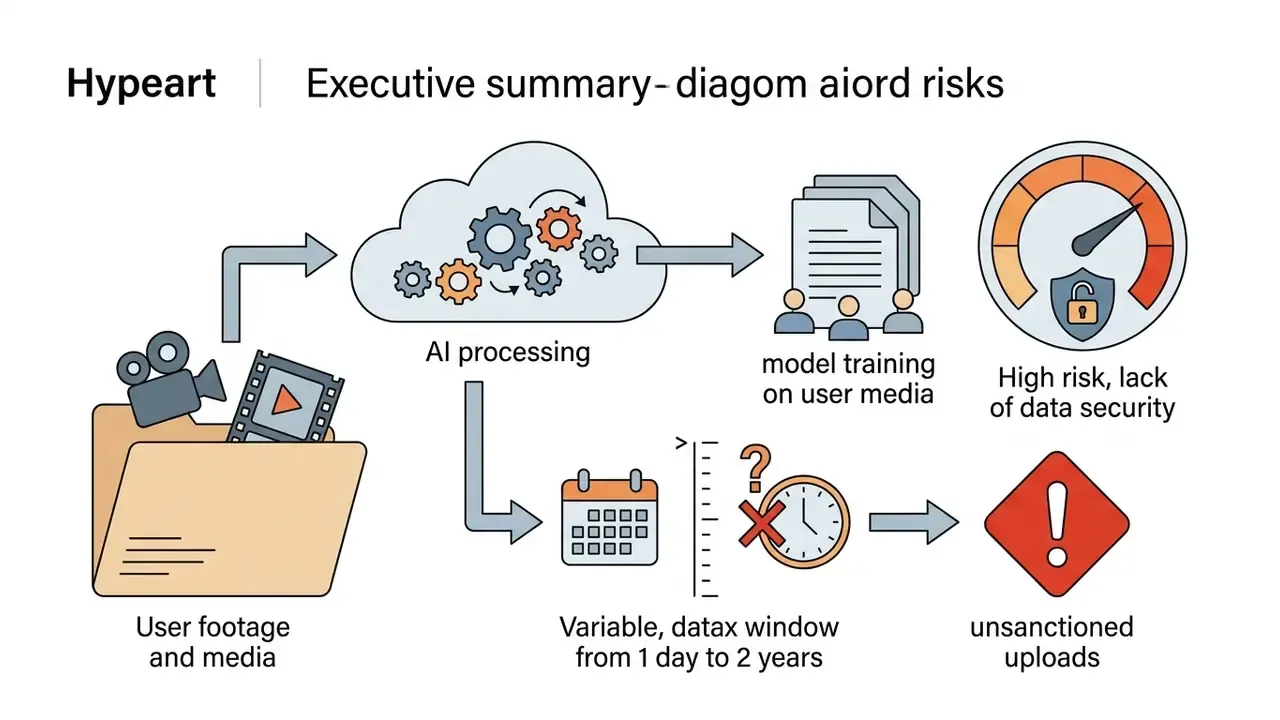
That is Shadow AI with a timeline interface.
So this guide does two jobs at once. It verifies which free tiers actually export clean files, and it flags the governance exposure that comes attached. Marketing teams get their clean 1080p. Second-line reviewers get something they can put in an inventory.
Reviewed by the AI Media Tooling desk, media compliance and workflow research. Last verified: Q1 2026. Free-tier limits, AI credit pools, and watermark rules change without notice. Always confirm current vendor terms in-product before committing a production workflow.
Executive Summary
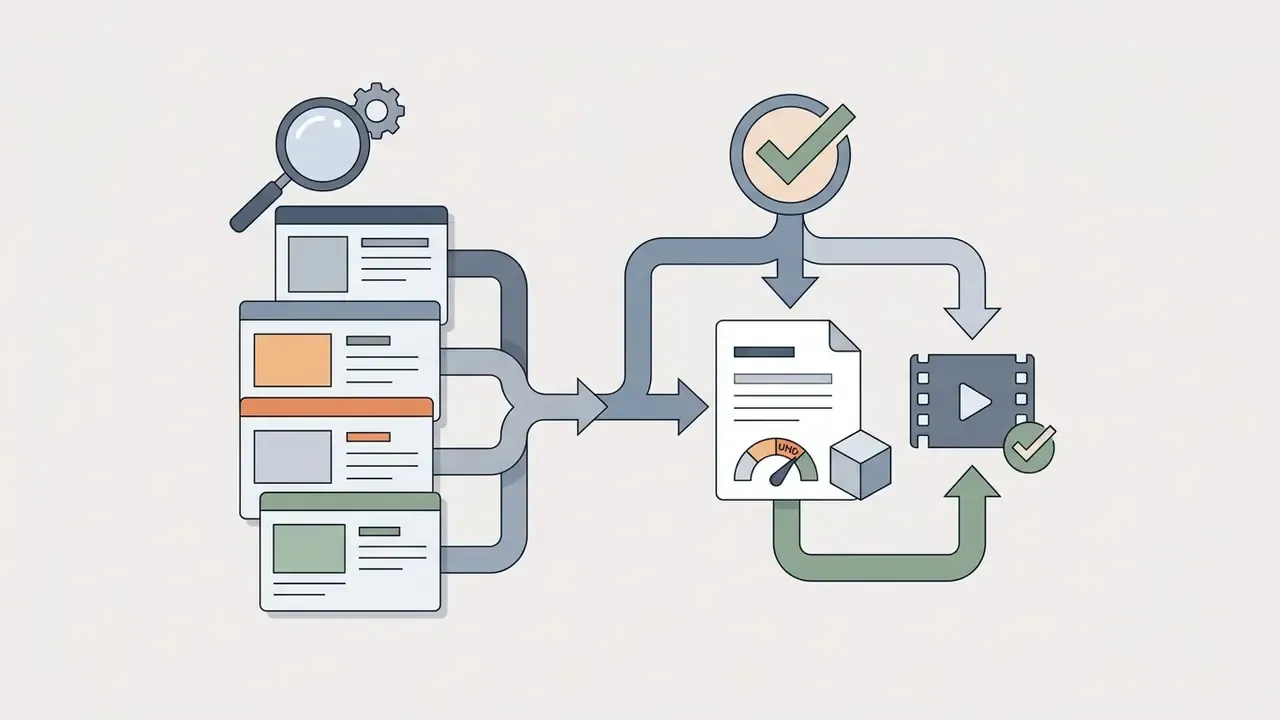
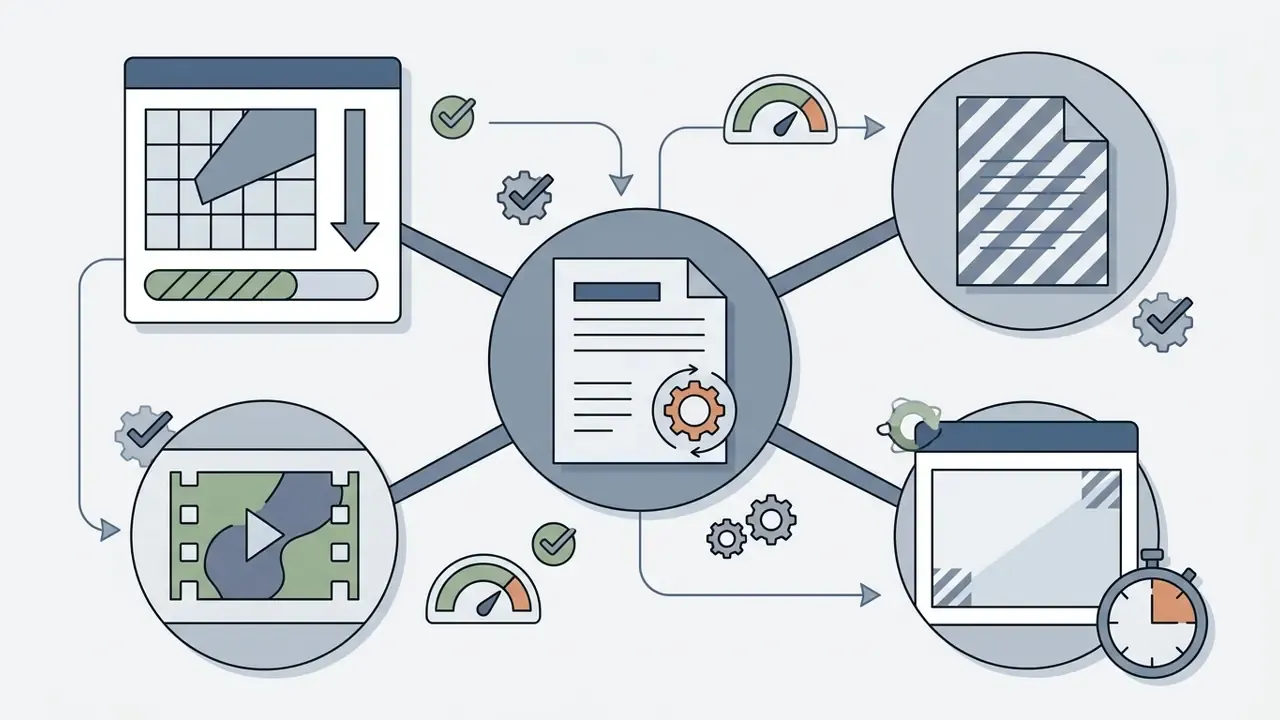
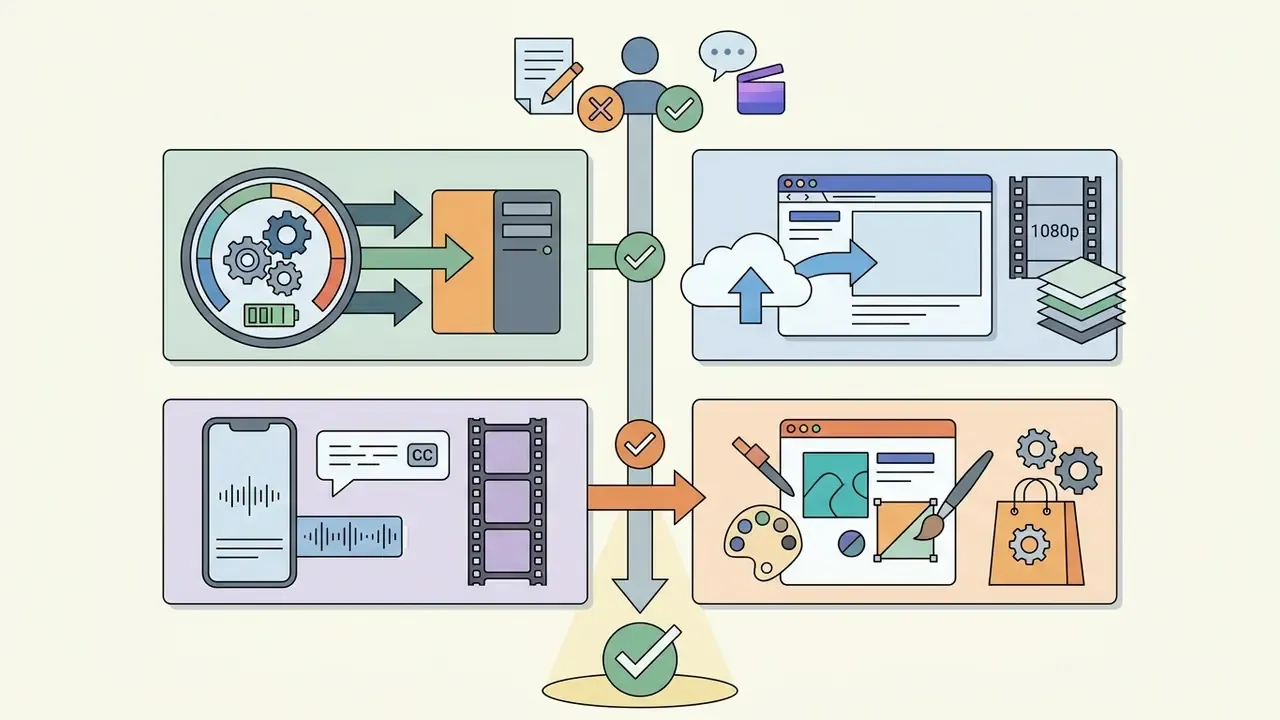
What This Guide Covers
- What "free AI video editor no watermark" really means
- AI features worth comparing before you switch
- Quick comparison of the best free AI video editors without watermark
- Data privacy, Shadow AI, and compliance
- Choosing a watermark-free editor by your goal
- Switching from a watermarked editor
- How to edit and export videos without a watermark
- FAQ
- Appendix A, verification notes
What "Free AI Video Editor No Watermark" Really Means
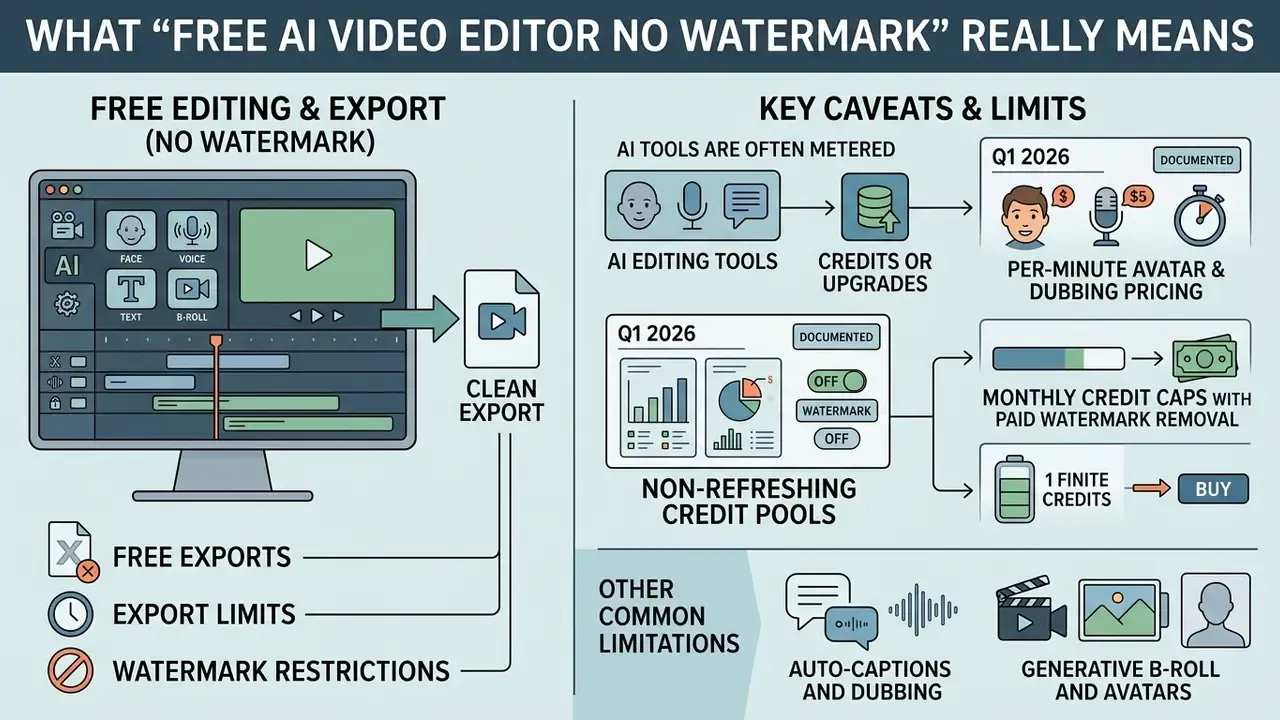
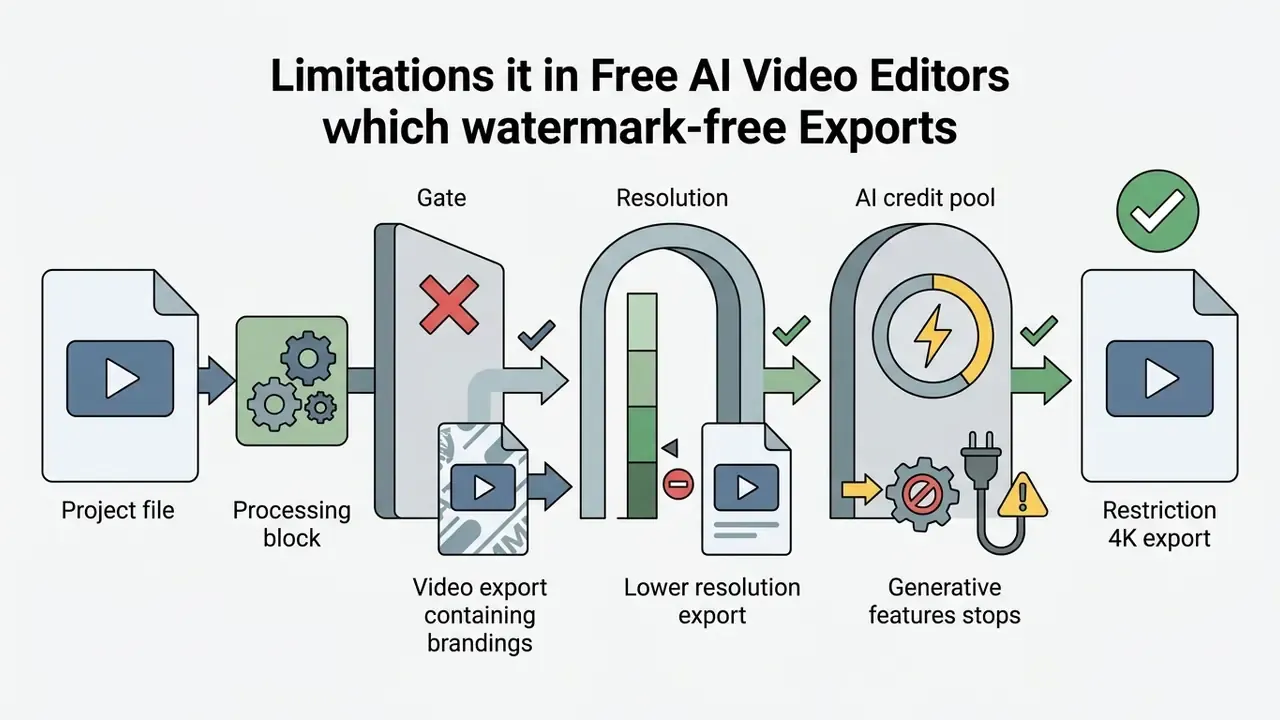
A free AI video editor without a watermark is a desktop program or web application that lets you process, edit, and export video files without a forced vendor logo burned into the final output. Operating conditions vary sharply across platforms. Basic rendering may cost nothing, while advanced artificial intelligence features, higher resolutions, and commercial usage rights sit behind credit systems or subscription tiers.
Read the gates, not the landing page.
Map of free-tier trade-offs in AI video editors: what each "free" label actually restricts
| Gate type | How it appears in the product | Typical free-tier boundary | Workaround without payment |
|---|---|---|---|
| Visible watermark | Burned-in vendor logo, moving overlay, or branded ending clip appended to the timeline | Hardcoded on VEED, Kapwing, Vmaker AI, Fliki free exports | None after render. Must be prevented before export, or switch editor |
| Resolution ceiling | Export dialog greys out higher presets | 720p (VEED), 1080p (Clipchamp, CapCut, Canva), 4K UHD (DaVinci Resolve free) | Choose an editor whose ceiling matches the delivery spec |
| AI credit pool | Per-feature deductions for captions, dubbing, avatars, generative B-roll | Non-refreshing or monthly pools, for example 60 credits per month on Vizard free | Batch AI tasks; do manual captioning once credits are exhausted |
| Premium asset lock | Crown, diamond, or "Pro" badge on stock, templates, fonts, music | Export blocked or watermarked (Canva, Clipchamp, CapCut) | Filter asset libraries to free-license results only |
| Licensing gate | Commercial-use rights tied to plan or asset license | Free stock is often personal-use or attribution-bound | Verify each asset's commercial terms before distribution |
One more distinction worth holding onto: editing software and AI video generators are different product categories with different economics. A timeline editor charges you for resolution and assets. A generator charges you for inference seconds. Mix the two in one workflow and your "free" pipeline develops a metered heart.
Free exports, export limits, and watermark restrictions
Free export policies generally fall into two operational models: clean exports with capped technical specifications, or watermarked exports with full feature previews. Microsoft Clipchamp sits firmly in the first camp. It provides unlimited 1080p video exports without a visual watermark on its free plan, gating only 4K resolution and premium stock media behind paid upgrades. No credit card required to start, which matters when procurement has not yet approved anything.
Conversely, platforms like VEED apply a hardcoded visible watermark to every export rendered under a free account and restrict export resolution to 720p.
When evaluating any free online video editor no watermark, separate temporary preview overlays from hardcoded frame burn-ins. A hardcoded watermark cannot be retroactively removed from an exported MP4 or MOV file without re-rendering the original project on an upgraded plan. People try anyway. It does not work.
Visible watermarks are a marketing device. Emerging technical standards move in the opposite direction: the Video Seal neural watermarking framework embeds imperceptible, tamper-resistant metadata directly into frames for provenance tracking, without touching visual appearance.
«Video Seal jointly trains an embedder and extractor with video codecs in the loop, delivering robustness, speed, and low perceptual impact on frames.»
For broader context on how metered generation interacts with export policy, review how free AI video generators structure their daily and lifetime allowances.
AI editing tools that may require credits or upgrades
Artificial intelligence capabilities inside video editors, such as automatic subtitle generation, text-to-speech voiceovers, AI avatars, and background removal, are typically governed by credit-based consumption rather than unlimited access. Registering rarely requires a credit card up front. Platforms instead allocate a finite pool of credits for generative tasks, and pool size varies widely by vendor rather than following a single industry norm.
Documented examples of metered AI consumption (Q1 2026):
- Non-refreshing credit pools. Captions' help documentation states that every AI feature, covering images, video, sounds, music, voiceovers, text-to-video, and AI Edits, deducts from the user's allocated limit. Free accounts hold a fixed starter allowance that does not reset monthly.
- Per-minute avatar and dubbing pricing. HeyGen bills avatar generation and translation voiceover from the same pool, with published rates around 3 credits per minute for its lighter avatar model, up to roughly 20 credits per minute for its highest-fidelity avatar tiers, and about 2 credits per minute for translation voiceover.
- Monthly credit caps with paid watermark removal. Vizard's free plan issues 60 credits per month and lists watermark removal as a paid-only feature. That combination means a clean export is impossible on free usage regardless of credit balance.
- Auto-captions and dubbing. Basic transcription is often included on free tiers up to a fixed monthly duration, while multi-language dubbing and AI voice cloning consume processing credits. Third-party 2026 summaries report CapCut free limits such as five AI auto-edit runs per month and auto-captions capped per video. Those figures are not confirmed in CapCut's official help pages and should be treated as indicative only.
- Generative B-roll and avatars. Rendering synthetic presenter clips or generating video from text prompts depletes free credit balances fastest of all. Expect an upgrade prompt mid-project.
- Pro asset blocking. Editors such as Canva Video and Clipchamp permit clean exports only when free assets are used. Adding a Pro-labeled element or effect triggers an export block or upgrade prompt instead of appending a watermark.
Teams standardising on a free ai video generator no watermark should audit these credit structures before any recurring production commitment, otherwise the workflow halts at the worst possible moment: campaign launch week. A structural overview of how AI video generators price generation minutes, resolution tiers, and model access helps forecast the true monthly cost of a supposedly free workflow.
Marketing red flags: "unlimited Sora 2 and Veo 3.1, free, no watermark"
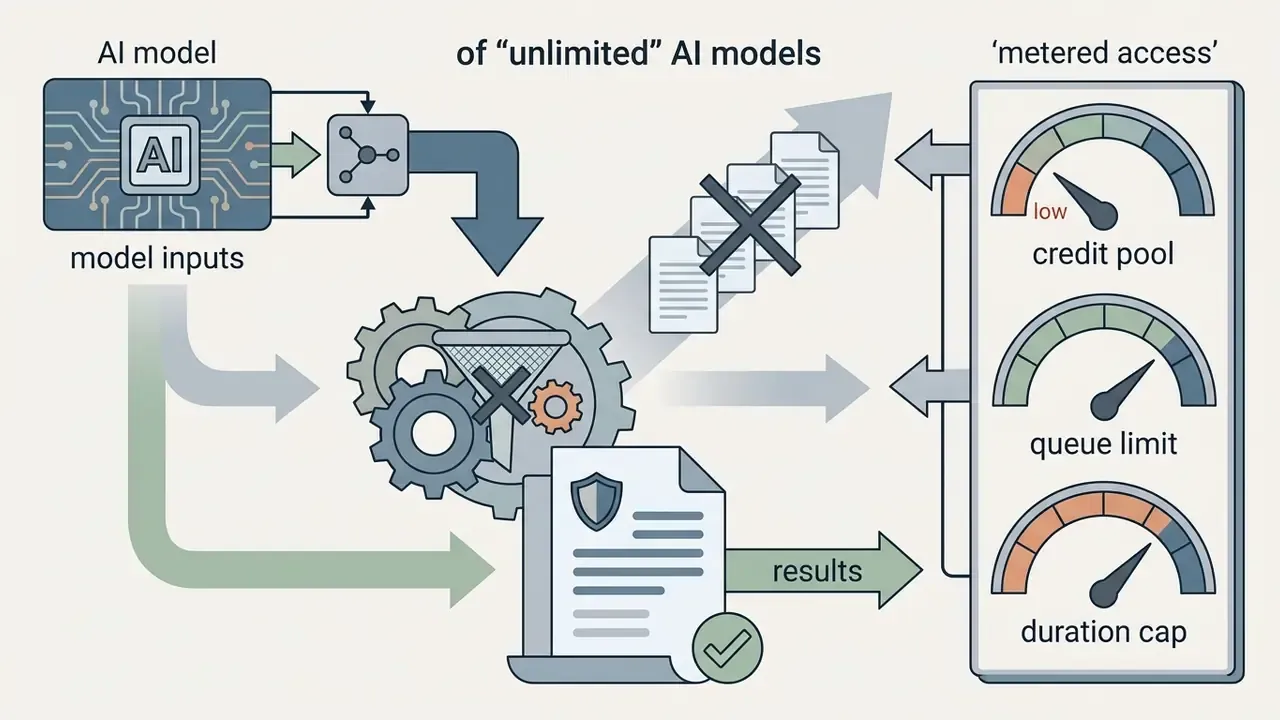
A growing class of aggregator sites advertises "every top model in one free AI video generator" with ten-minute runtimes and watermark-free downloads. Read those claims as marketing framing, not technical specification. Frontier video models carry substantial per-second inference costs, so access is invariably metered through one of four mechanisms: starter credit allocations, daily generation caps, queue throttling, or reduced resolution on the free path.
Searches for a free ai video editor no watermark unlimited almost always land on this category. Before adopting such a platform, locate three things: the credit table, the maximum free clip duration, and the exact wording on watermark policy. Several vendors publish contradictory statements across their own marketing pages and localized blog posts, usually because the pages were written against different plan versions and never reconciled.
Legacy roundups titled free ai video editor no watermark 2024 and free ai video editor no watermark 2025 still rank well, which is part of the problem. Plan structures moved. The articles did not.
AI Features Worth Comparing Before You Switch
Evaluating an AI video editor means looking past feature counts to the measurable time savings each machine learning module delivers. Reading this section before the comparison table clarifies why the AI columns matter more than the feature checklist.
Comparative workflow acceleration across primary AI editing functions
| AI function | Manual equivalent | What it replaces | Failure mode to watch |
|---|---|---|---|
| Auto captions and transcript editing | Manual timecoded subtitling | Keyframe-level text sync and filler-word trimming | Residual word errors in technical or accented speech |
| Silence and filler removal | Frame-by-frame audio scrubbing | Dead air, false starts, "um" and "er" hesitations | Over-aggressive cuts that clip breath and cadence |
| AI highlight clipping | Manual review of full recordings | Locating quotable segments in long-form footage | Hook-biased selection that strips necessary context |
| Eye contact correction | Re-shoot with teleprompter | Off-camera script reading | Uncanny gaze artefacts on heavy head movement |
| Text-to-video and generative B-roll | Stock licensing or new shoot | Visual gap-filling between talking-head segments | Fastest credit burn of any AI feature |
Auto captions, subtitles, and text-based editing
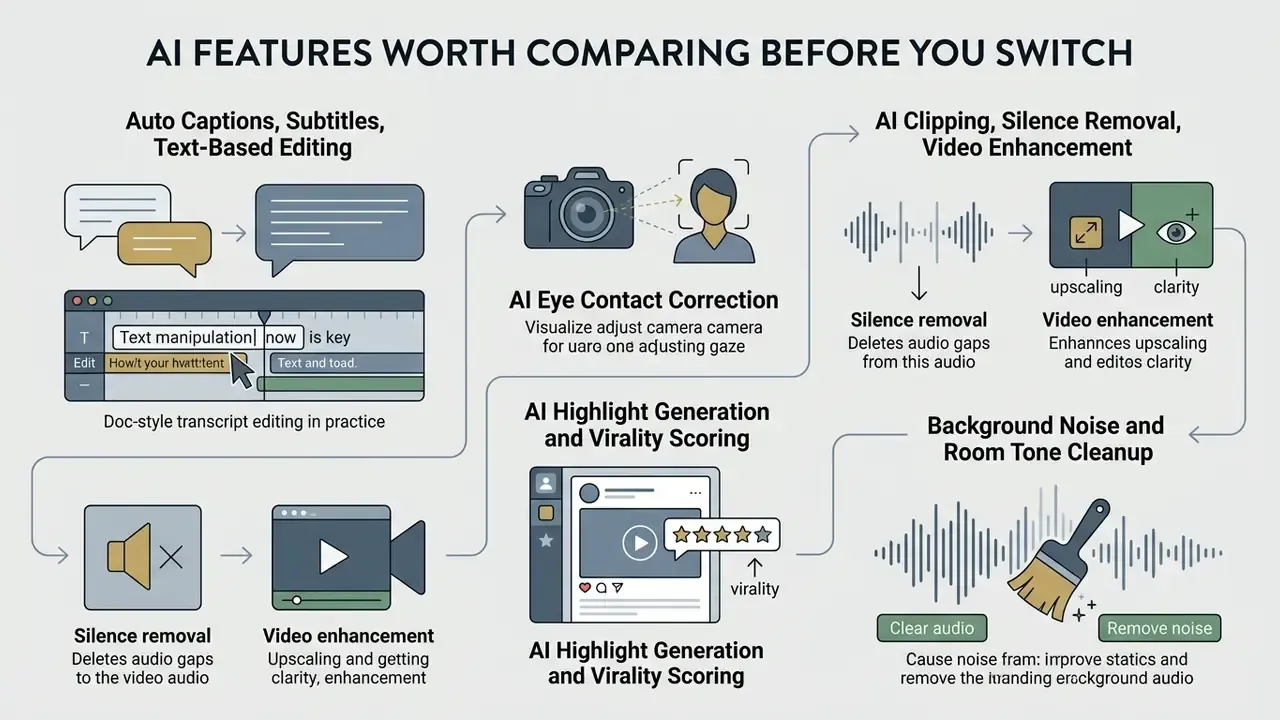
An AI subtitle generator transcribes spoken audio into synchronized text tracks, and independent measurement beats vendor accuracy claims every time. A controlled evaluation of automatic subtitling on university lecture recordings recorded a Word Error Rate of 8.9% before correction, dropping to 5.6% for simultaneous use and 6.8% for delayed use after manual editing. That is roughly 91% to 94% word-level accuracy in raw machine output. Accessibility guidance, meanwhile, treats 98% accuracy as the usability threshold for subtitles. Which is precisely why a human review pass stays mandatory for published captions. Read vendor lines like "98% accurate subtitles" against that independent baseline.
Text-based editing takes the capability further. Edit the generated transcript, delete filler words or a weak sentence, and the underlying timeline cuts at the corresponding timestamp.
Doc-style transcript editing, in practice. Modern text-based AI editing turns trimming into document manipulation. Editors such as VEED, Descript, and CapCut auto-transcribe spoken audio into an editable script. Deleting filler words ("um", "uh", "er") or awkward silent pauses removes the corresponding frames. The workflow runs: upload footage, wait for the transcript, select and delete the offending words or whole sentences, confirm the ripple edit on the timeline, then review cut points for breath artefacts. Bulk operations carry the value here. Deleting every detected filler word across a 40-minute recording in one action is the difference between a ten-minute rough cut and a two-hour one.
AI eye contact correction. Machine learning modules now repair gaze direction too. Real-time facial mesh repositioning nudges the speaker's gaze vector back toward the lens, rescuing off-camera script readings without a re-take. Marketing and UGC teams use it most often on talking-head ads recorded while reading from a second monitor. Results degrade on fast head turns, strong side lighting, or heavy occlusion from hands, microphones, or thick eyewear, so spot-check every corrected clip.
«In a user study with 10 novice editors, the ExpressEdit system scored a mean SUS of 75.7 (SD = 10.00), confirming high usability of text-driven edit control.»
That score sits above the commonly cited 68-point SUS average. It is the empirical basis for treating natural-language and transcript-driven editing as a genuine complexity reducer for non-professional editors, not just a marketing convenience.
AI clipping, silence removal, and video enhancement
Automated processing tools accelerate rough-cut assembly through scene segmentation and audio threshold analysis:

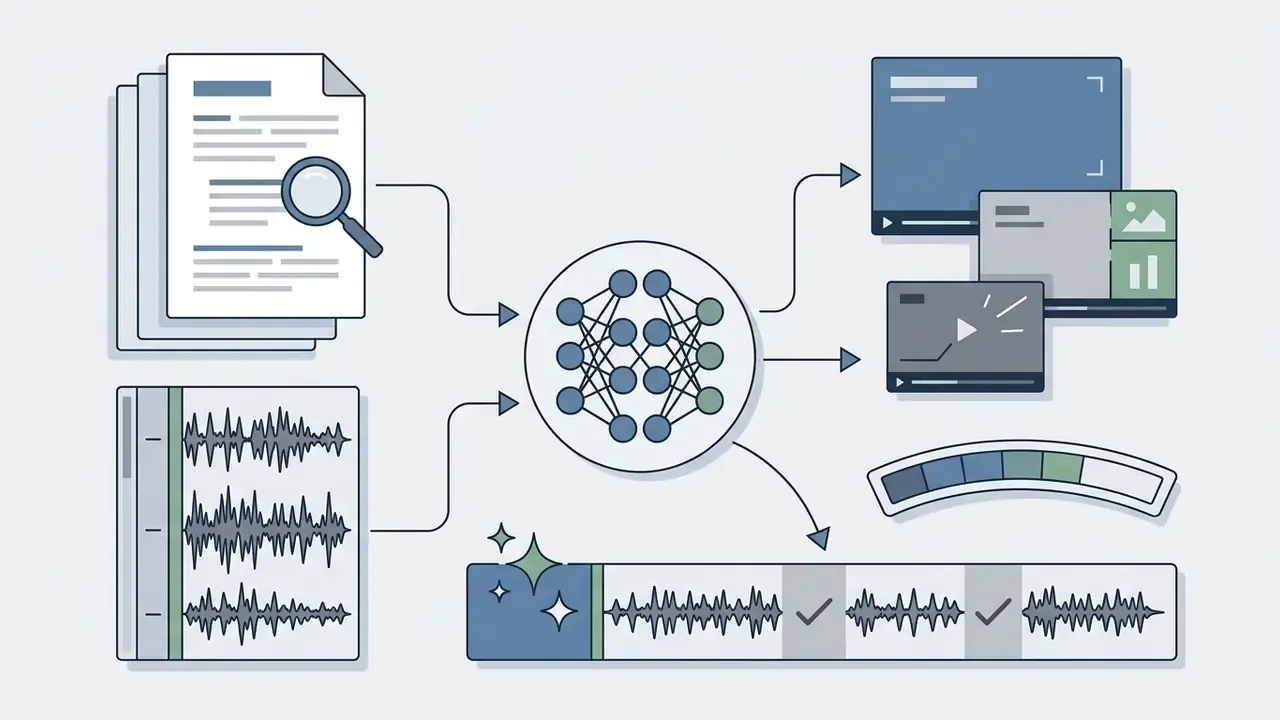
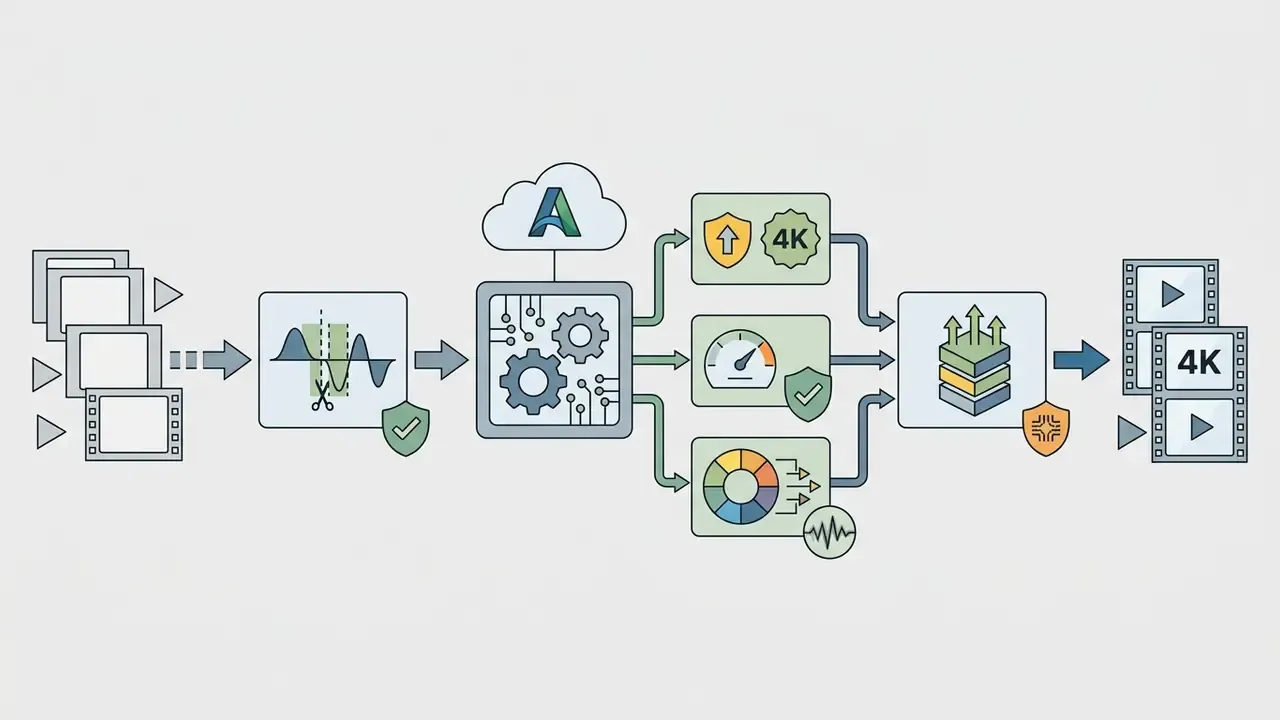
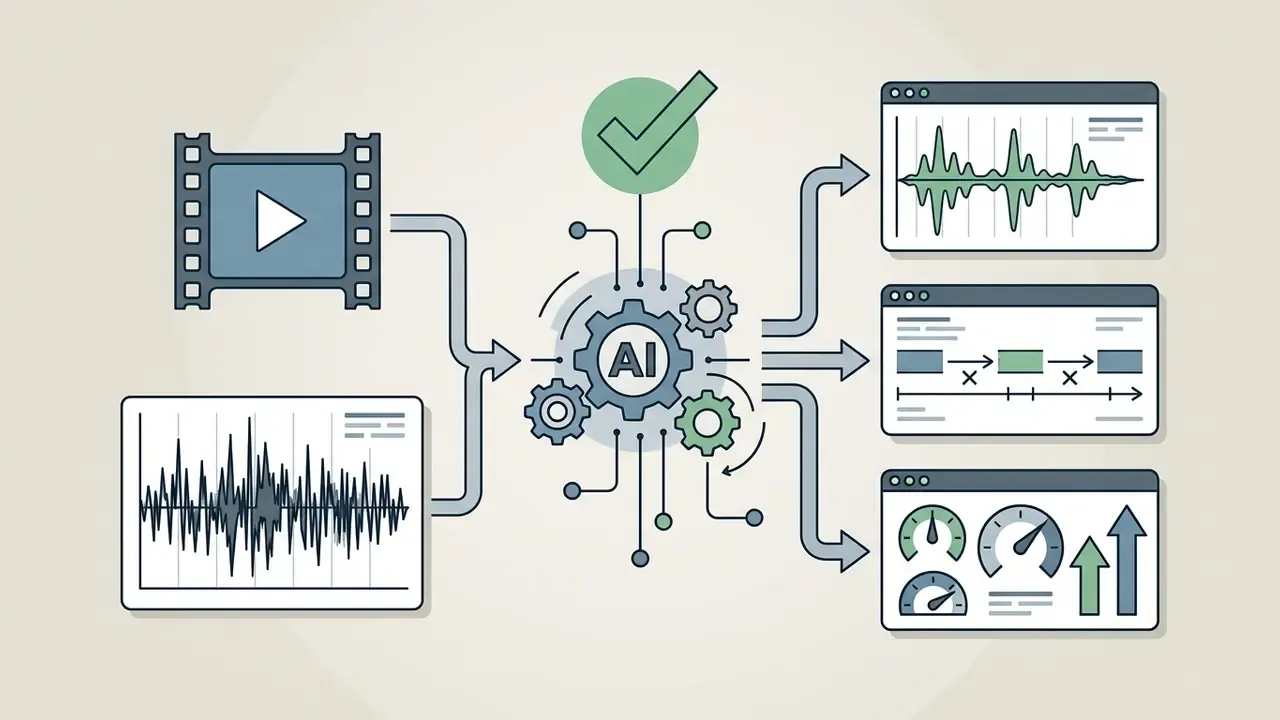
«The DEVIL protocol reaches over 90% Pearson correlation with human ratings, using dynamics range, controllability and quality metrics to evaluate generated video.»
AI-generated video, avatars, voiceovers, and B-roll
Generative capabilities let editors produce synthetic media directly on the timeline:
- Text-to-video models. Generate supplementary B-roll clips from descriptive text prompts to fill visual gaps. A structured overview of text-to-video AI tools clarifies which engines actually sit behind a given editor's "generate" button. The practical questions are model identity, maximum clip length, output resolution, and credits consumed per second.
- AI avatars. Synthesize photorealistic digital presenters from script text for corporate training and explainer videos. Free tiers on Synthesia, HeyGen, Kapwing, and Vmaker AI expose avatar and voiceover generation, each with distinct credit, duration, and watermark conditions.
- Natural voice generators. Convert script copy into high-fidelity voiceover tracks in multiple languages, with adjustable inflection and pitch. Comparative detail on output fidelity, language coverage, and licensing sits in the guide to AI voice generators.
- Multilingual dubbing and voice cloning. Generative suites now automate video translation across roughly 35 to 125 or more languages depending on vendor. Vmaker AI documents 35+ dubbing languages and 75+ subtitle languages, while VEED advertises translation into over 125 languages. Neural dubbing models clone the original speaker's timbre, pitch, and emotion while synthesizing translated speech, and advanced tools sync lip movement to the new audio track. Voice cloning typically requires a short consented sample and is restricted to higher paid tiers.
- Background remover and green screen. AI segmentation replaces the physical green screen for most talking-head work, though hair edges and motion blur still favour real chroma key when the deliverable is broadcast-grade.
Before committing, inspect current pricing tiers and credit deductibles. Synthetic avatar generation and multi-language dubbing consume account quotas far faster than standard timeline trimming.
The regulatory direction carries commercial weight. An export with no visible watermark may still carry an invisible provenance signal, and disclosure obligations for synthetic media are tightening in several jurisdictions. Teams using avatars or generated B-roll in advertising should document which segments are synthetic, clip by clip, and keep that record with the project file. For regulated marketing in financial services, that record is not optional housekeeping. It is evidence.
Best Free AI Video Editors Without Watermark: Quick Comparison
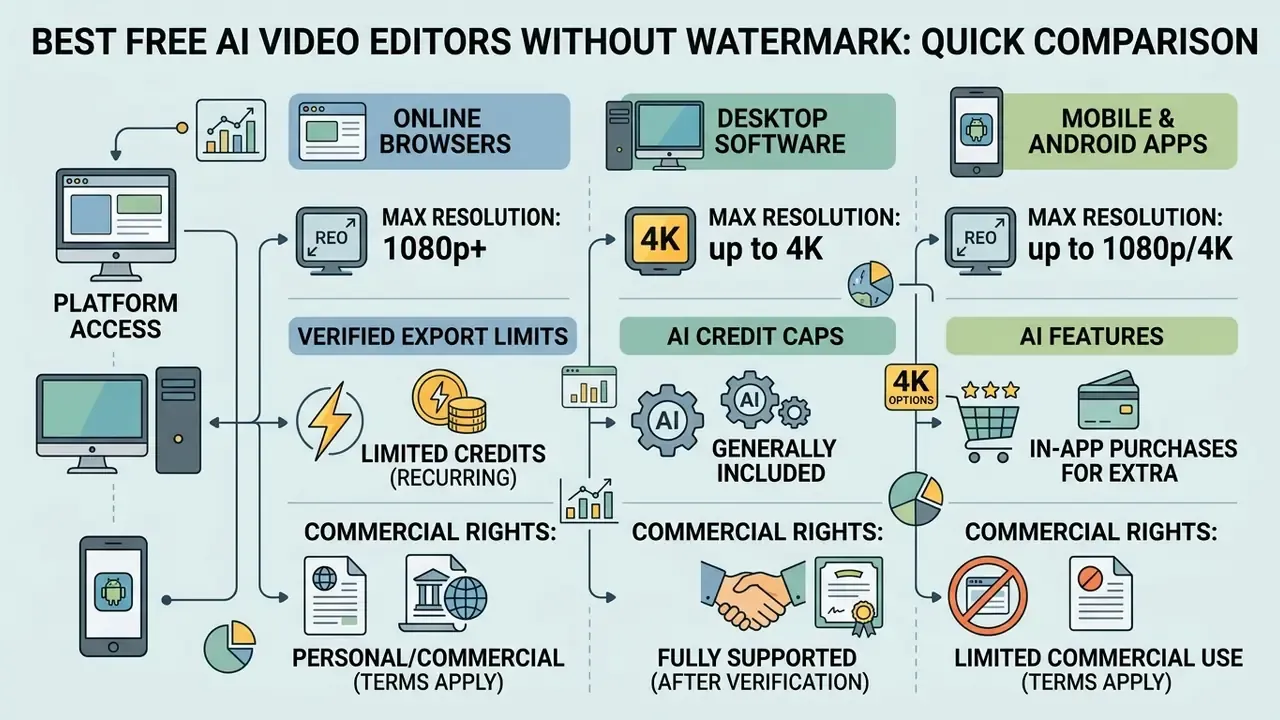
Picking the best free AI video editor no watermark means balancing platform access, maximum export resolution, AI feature quotas, and commercial usage rights against your actual delivery spec. The table below sets out verified conditions across leading online, desktop, and mobile platforms based on official vendor parameters as of Q1 2026.
Comparison of selected AI video editors on free export, watermark, advanced AI capabilities, and commercial rights
| Tool | Primary platform | Visible watermark (free) | Max free resolution | AI capabilities (captions, eye contact, voice clone, dubbing) | Credit system / free caps | Commercial use on free tier | Credit card required |
|---|---|---|---|---|---|---|---|
| Microsoft Clipchamp | Online (browser), Windows | No | 1080p HD | Auto captions (100+ languages), text-to-speech voiceovers, silence removal, AI auto-cut | Unlimited free exports; 4K and premium stock paywalled | Permitted with free-license assets; premium stock requires paid plan | No |
| CapCut | Online, desktop (Win/Mac), mobile (iOS/Android) | No on standard edits, once the branded ending clip is deleted | 1080p HD | Auto captions, script-to-video, background remover, eye contact, AI style filters | Pro templates, effects, and AI quota overruns block export until removed | Allowed for user-owned media; Pro assets and some AI outputs restricted | No |
| DaVinci Resolve 19 (Free) | Desktop (Windows, macOS, Linux) | No, except previews of Studio-only effects | 4K UHD (3840x2160) | Voice isolation, dialogue leveler, scene cut detection; Neural Engine tools are Studio-only | No render caps, no credits; local GPU/CPU rendering | Full commercial use of the free edition | No |
| Canva Video Editor | Online, mobile (iOS/Android), desktop apps | No, with free assets only | 1080p HD | Magic Switch, text-to-image and text-to-video, auto-captions, background remover | Pro stock elements trigger watermark or export block; AI generation quota applies | Free stock is watermark-free; crowned Pro assets need a licence | No |
| VEED | Online (browser) | Yes, hardcoded moving overlay | 720p | Text-based doc editing, AI eye contact, auto B-roll, dubbing into 125+ languages | Free tier restricted to 720p with forced watermark; AI tools as one-time trials | Not viable for branded output until upgraded, since the watermark persists | No |
Two limits under the table deserve repeating, because they decide most shortlists: VEED caps free output at 720p with a permanent overlay, and DaVinci Resolve is the only entry here offering a true free video editor 4K export no watermark path. Everything else tops out at 1080p on the free plan.
For a wider matrix of timeline tools beyond the AI-first category, compare options in the guide to free video editing software.
Online AI video editors for editing in a browser
Online AI video editors run rendering and inference on cloud infrastructure, which lets you create videos online inside Chrome, Edge, or Safari with nothing installed. Microsoft Clipchamp and Canva Video both let creators build timeline edits, apply video templates, and render 1080p MP4 files without local software or billing details.
«According to Similarweb, capcut.com receives roughly 39.4 million visits per month (September 2025), with an average session duration of 3 minutes 30 seconds.»
That scale explains why browser-first editors now set the usability baseline creators expect. Cloud tools still enforce strict storage and export limits, so asset usage needs monitoring. And, critically, they move your source footage off-device. Hold that thought until the compliance section.
Desktop editing software for professional videos
Desktop video editing software uses local GPU and CPU resources, which makes it the default for long-form, high-bitrate, professional production. DaVinci Resolve's free version exports up to 4K Ultra HD (3840x2160) at up to 60 frames per second, with no visual watermark and no monthly render caps. Resolutions beyond UHD, including 6K and 8K pipelines, require the paid Studio licence. Advanced machine learning tools, the DaVinci Neural Engine behind face refinement, magic mask, and speed warp, are Studio-only as well.
Even so, the free edition remains the strongest free ai video editing software no watermark option for desktop editors, and the only one on this list with no upload requirement at all. One nuance worth knowing: the free edition can display a watermark while you preview a Studio-exclusive effect. That is a licence indicator, not a limitation of normal exports. A broader primer on timeline architecture, codecs, and render settings sits in the guide to video editing tools.
Free mobile and Android video editing apps
Mobile editors serve vertical video for TikTok, Instagram Reels, and YouTube Shorts. CapCut Mobile and YouCut deliver mobile-optimized timeline controls, aspect ratio toggles such as 9:16, and AI background removal on Android and iOS. YouCut is documented as free with no watermarks and supports both horizontal and vertical ratios. Instagram's Edits app exports without a watermark but is constrained to 9:16 vertical only. Apple's iMovie stays watermark-free on iOS with a lighter AI feature set.
«Similarweb ranks the CapCut app #2 in the "Video Players & Editors" category in the United States and #1 in Indonesia (September 2025).»
On CapCut, an android video editor free no watermark export is a two-step job: delete the default branded ending clip from the timeline, then confirm no premium Pro filters or paid stickers remain on the project tracks. Anyone hunting a free mobile video editor no watermark or a free ai video editor app no watermark should check one thing first, whether the app watermarks all free exports or only Pro-asset exports. The two policies look identical in app-store screenshots and behave nothing alike. To shortlist mobile-friendly generative tools by duration limits and credit policy, see the comparison of best free AI video generators.
Data Privacy, Shadow AI, and Compliance
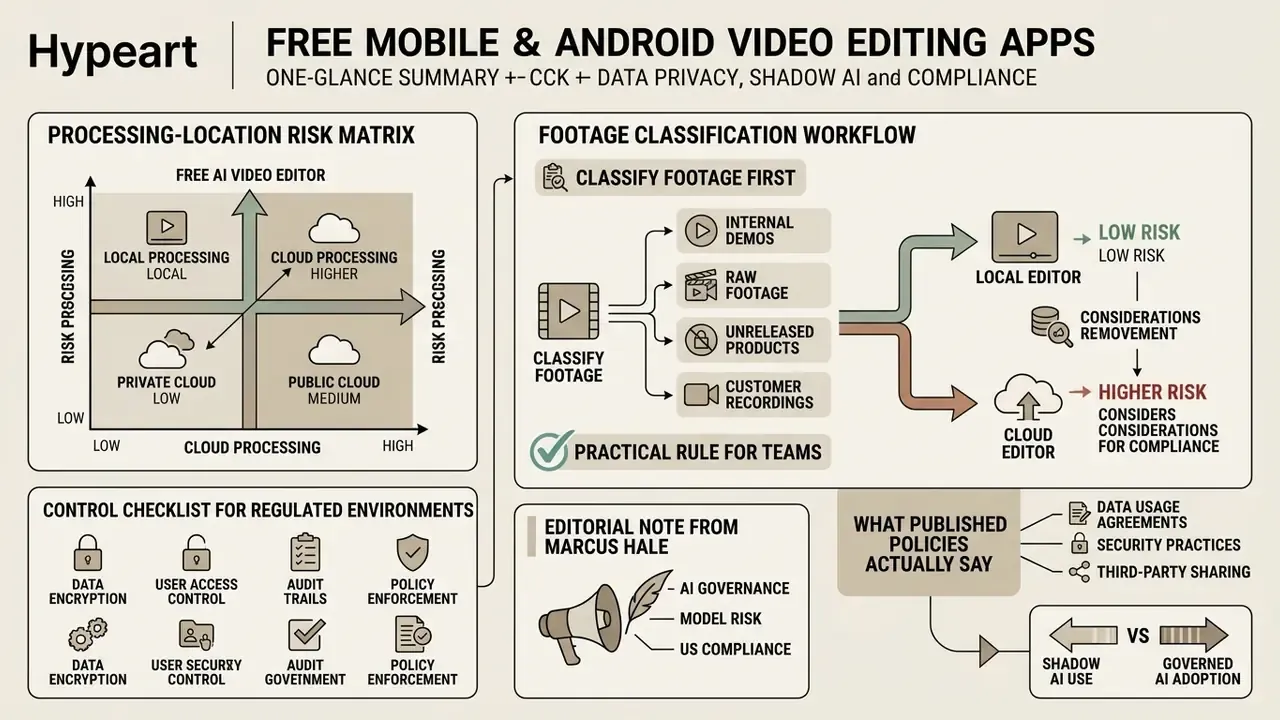
| Editor | Where rendering happens | Footage leaves the device? | Governance implication |
|---|---|---|---|
| DaVinci Resolve (Free) | Local CPU/GPU | No, unless cloud collaboration is enabled | Best fit for confidential or regulated footage |
| Clipchamp (Windows app or browser) | Largely local for standard edits; AI features call cloud services | Partially, for AI features | Microsoft states it "never has access to your videos, unlike other providers" |
| CapCut / Canva / VEED / Kapwing | Cloud GPU inference and storage | Yes | Requires policy review, retention checks, and asset classification |
Control checklist for regulated environments. Public-sector and standards guidance gives a usable baseline. NIST IR 8320E advises protecting cloud AI workloads against data theft and malware using confidential-computing approaches. The DoD Cloud Security Playbook (Volume 2) requires strict access controls, logging, monitoring, audit, and secure-delete capability for AI systems in cloud environments. Australia's OAIC guidance confirms that privacy obligations attach both to personal information entered into an AI system and to AI-generated output containing personal information. Municipal deployments such as San Francisco's CJIS-compliant video redaction tool show that server-side AI processing of video is workable, but only inside a compliance-scoped environment.
A practical rule that survives contact with real teams: classify footage before choosing the editor, not after. Public marketing footage can go to any cloud editor. Anything containing insider information, customer identities, unreleased product detail, or regulated records should be rendered locally. Write that rule into the tool-approval workflow, name the approver, and log exceptions. Cheap control, high return.
Choose a Watermark-Free AI Video Editor by Your Goal
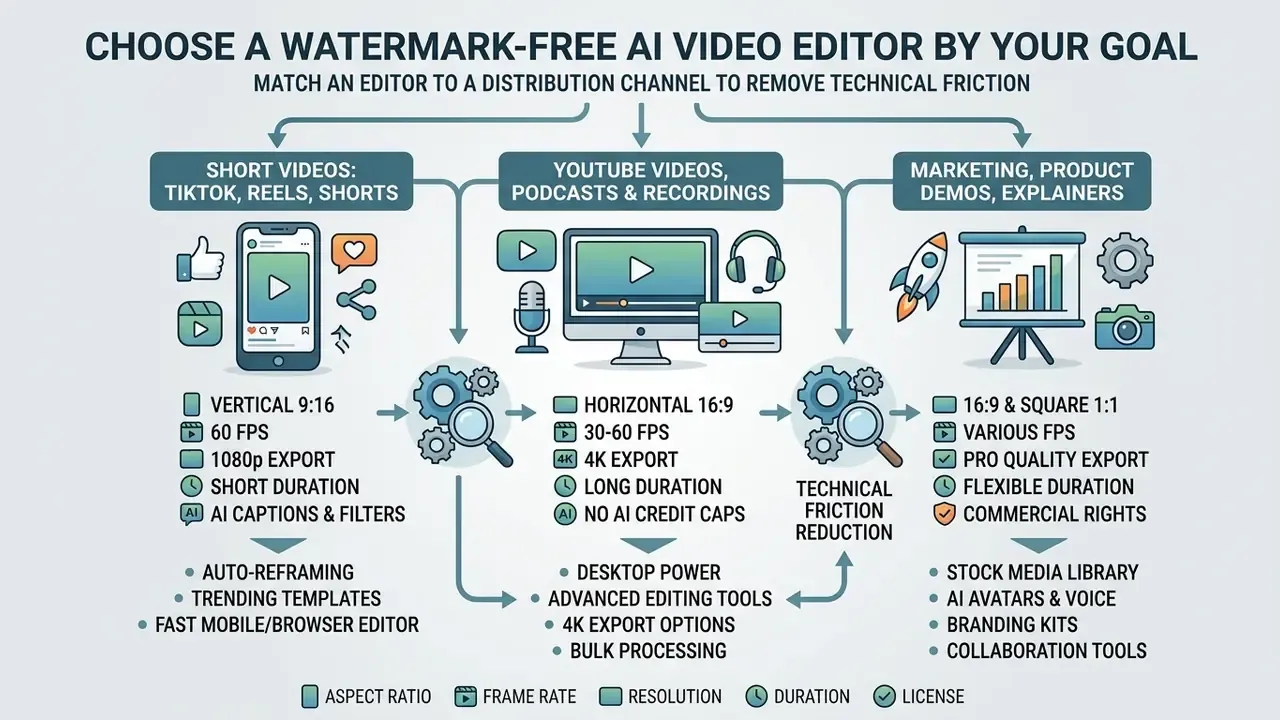
Matching an editor to a distribution channel removes most technical friction around aspect ratios, frame rates, and encoding standards. Pick by output, not by feature list.
Decision matrix: selecting an AI video editing environment by output channel and constraint
| If your primary output is... | Then edit in... | Because the binding constraint is... | Recommended tool |
|---|---|---|---|
| Vertical short-form (TikTok, Reels, Shorts) | Mobile or browser | 9:16 native capture, caption speed, same-device posting | CapCut Mobile, Canva, Instagram Edits |
| Long-form YouTube video and podcast content | Desktop | Multi-track audio, high bitrate, 4K delivery, no render caps | DaVinci Resolve, Clipchamp |
| Marketing, product demos, explainer videos | Browser (collaborative) | Brand kits, template reuse, multi-format repurposing | Clipchamp, Canva, Adobe Express |
| Confidential internal footage | Desktop only | No third-party upload, no retention exposure | DaVinci Resolve (Free) |
Three governance questions belong next to that matrix, and they take about ten minutes to answer per tool. Who owns the account and the asset library? Where does the rendered master get archived once the free tier's storage cap is reached? And which internal role signs off when a new AI feature appears in the editor without notice, as they routinely do? Answer those and tool selection stops being a monthly argument.
Short videos for TikTok, Reels, and Shorts
Short-form work needs fast 9:16 conversion and animated text overlays generated in seconds, not minutes. Automated clipping tools use computer vision to scan long recordings, find high-engagement segments, and crop horizontal footage into vertical framing, increasingly with speaker tracking so the active face stays centred in the narrower frame. Pair that with an auto captions pass and creators can export mobile-ready clips straight to social media without manual keyframing. Submagic and Reap both document AI captioning in 100+ languages alongside automatic short-form clip extraction. To match a tool to a specific format spec, see the comparison of best AI video generators for short-form content.
YouTube videos, podcasts, and long-form recordings
Long-form editorial workflows gain the most from AI audio cleanup and silence removal. Clipchamp's AI auto-cut, per Microsoft's own support documentation, detects and trims pauses and silences longer than three seconds, which tightens a podcast timeline considerably. Cleanvoice, Gling, Wisecut, and Kapwing's Smart Cut offer equivalent functions, with additional removal of breaths and mouth sounds. Specialized audio tools then clear background noise, electrical hum, and room reverberation, so long recordings reach professional quality before the final MP4 render. Publishing-side mechanics such as chapters, end screens, thumbnail specs, and re-upload rules are covered in the guide to YouTube video editing workflows.
Marketing, product demos, and explainer videos
Marketing teams building explainer videos need centralized access to stock videos, brand kits, and animated text templates. Browser-based editors let a team standardize brand colors, fonts, and logo overlays across a series of product demo clips. Adobe Express and WeVideo both document brand-kit support on free tiers, while Canva and Clipchamp bundle royalty-free stock libraries into free editing.
When adopting any Commercial-Use AI Tool, verify that every stock clip, music track, and generated voiceover carries commercial distribution rights before release. The distinction that causes most trouble: "royalty-free" describes the payment model, not the permission scope. Attribution requirements, resale bans, and platform-specific restrictions still apply, and a copyright flag on a regulated financial ad is an expensive way to learn that.
Switching From a Watermarked Editor: What to Check First
Migrating from a watermarked tool to a watermark-free alternative means verifying technical settings before you rebuild anything. Do the preparation first. The most common migration failure is discovering, after a full re-edit, that the new editor cannot hit the delivery spec.
Four risks to assess before migrating:
- Watermark persistence.Some free plans watermark every export regardless of asset choice (Kapwing, Vmaker AI). Removal requires a paid plan, so switching to them solves nothing.
- Quality and length caps.Free tiers may cap output at 720p or 1080p and limit single-video duration or storage, which can silently downgrade a 4K master.
- Upload and privacy exposure.Cloud editors transfer source footage to vendor servers, replacing a local-only workflow with a data-handling obligation you now own.
- Licence and commercial-use scope.Free and open-source alternatives differ in licensing. Confirm the licence permits your intended personal or commercial use before committing.
Anyone comparing free video editing apps no watermark free of charge should also test one full production cycle end to end before cancelling the old subscription. Export, review, archive, re-open the project a week later. Surprises surface on re-open.
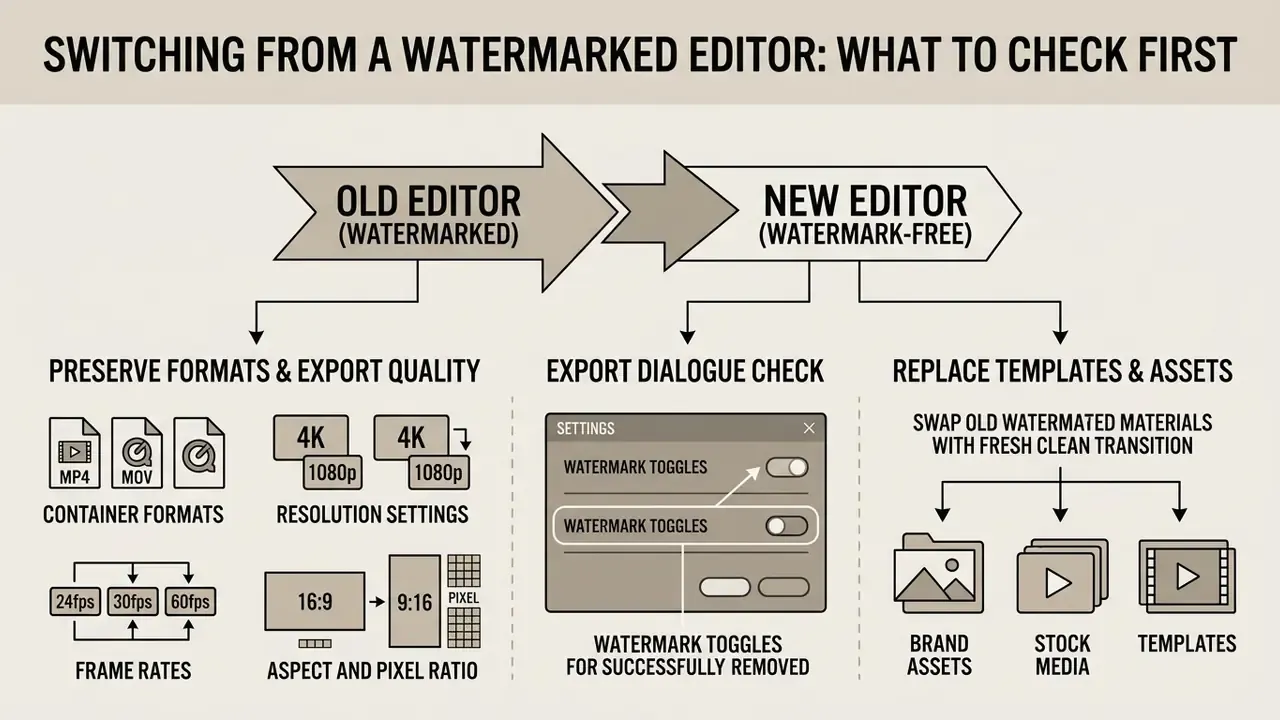
Preserve formats, aspect ratios, and export quality
When moving projects between platforms, align export settings with source footage specifications:
- Container formats. Standardize on widely supported containers such as MP4 (H.264/AAC) or MOV (ProRes/H.264) for cross-platform playback. HEVC/H.265 support is plan- and device-dependent in several browser editors, which makes it a poor default for handoffs.
- Resolution settings. Match export settings, 1080p HD or 4K Ultra HD, to source clip resolution. Upscale low-resolution files only when using a dedicated AI spatial enhancement filter.
- Frame rates. Keep frame rates consistent from capture to export (23.976, 29.97, or 60 fps) to prevent motion stuttering and dropped frames.
- Aspect and pixel ratio. Professional NLEs preserve frame aspect ratio, pixel aspect ratio, and frame dimensions on import, precisely so assets are neither cropped nor distorted. Verify the new editor does the same rather than silently letterboxing your masters.
- Watermark toggles in export dialogs. Some professional tools include an explicit "add a visual watermark during export" option. A clean render requires confirming that checkbox is off, not assuming it.
Detail on bitrate ladders, codec choices, and quality loss during conversion is collected in the guide to video compression and format support.
«In December 2024, capcut.com recorded 38.8 million visits (average session 3:30) versus 3.2 million visits for flexclip.com (average session 3:04), per Similarweb.»
The practical implication of that gap is ecosystem depth. High-traffic editors accumulate more tutorials, templates, and community troubleshooting, which materially shortens onboarding when a team switches tools. Undervalued factor, in my experience, especially for teams without a dedicated video editor on staff.
To evaluate technical parameters across competing production suites, view the guide comparing free and commercial video processing architectures.
Replace templates, brand assets, and stock media
Switching editing software usually means rebuilding proprietary templates, title cards, and stock media:
Asset migration strategy for editing software switching
| Asset category | Legacy environment impact | Replacement action |
|---|---|---|
| Brand kits | Proprietary font files and color palettes locked to the old editor. | Re-upload HEX color codes, SVG vector logos, and licensed TTF/OTF fonts to the new brand workspace. Platforms that support brand kits can auto-replace existing colors, fonts, and logos, including button elements and dynamic captions, across a project once the kit is applied. |
| Video templates | Project templates cannot be exported across vendor formats. | Rebuild lower thirds, intro titles, and CTA overlays using native text elements in the new editor. Where the platform supports it, create the new video from a template so the brand kit applies automatically. |
| Stock media | Stock footage licensed under old platform terms may carry usage restrictions. | Replace proprietary stock elements with verified royalty-free clips or dedicated stock libraries. Check per-item media-replacement settings (Auto, Always, Never) in template-driven tools so AI assistants do not swap approved footage unexpectedly. |
| Captions and transcripts | Burned-in captions cannot be re-styled or re-timed. | Export sidecar SRT, VTT, or TXT transcript files from the legacy tool before cancelling the subscription, then re-import and re-style in the new editor. |
Teams transitioning enterprise workflows can see the overview of media platform integrations, or explore enterprise ready ai media tools to keep unified asset management across multi-user environments.
How to Edit and Export Videos Without a Watermark
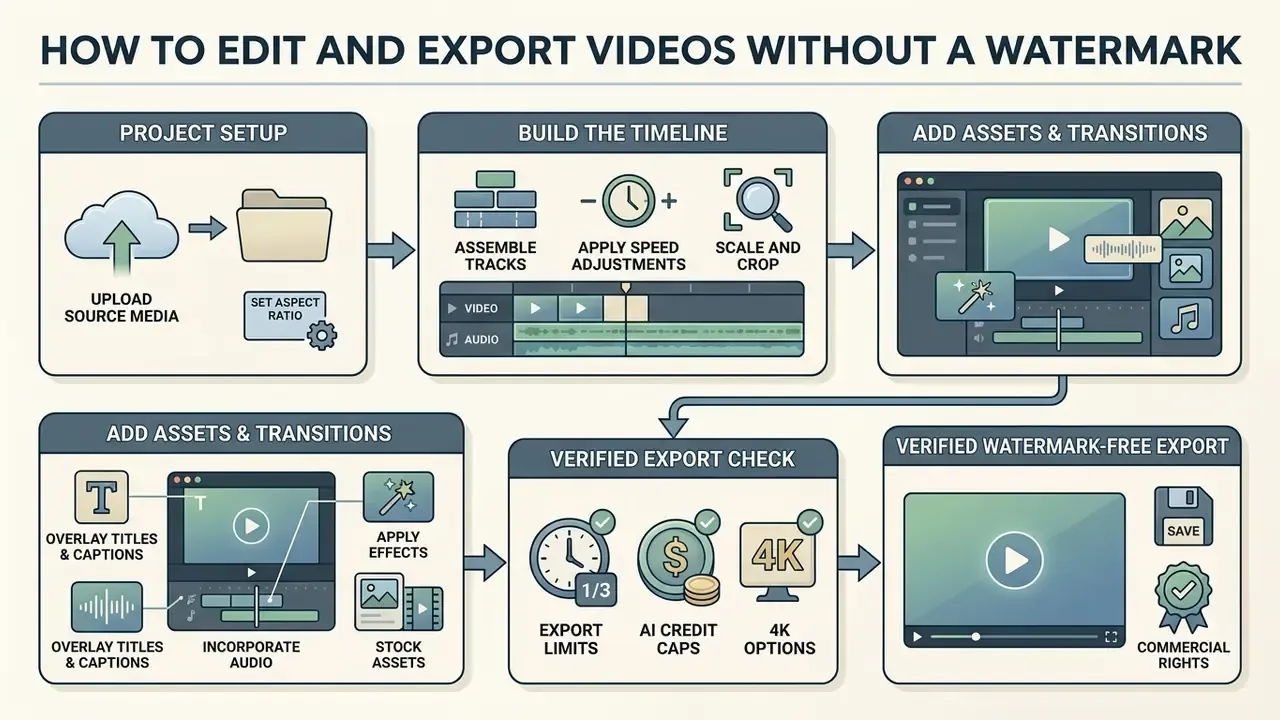
A clean, watermark-free export comes from project setup discipline plus one asset verification pass. Nothing exotic.
Upload, trim, resize, and build the timeline
- Import source media.
- Upload raw MP4 or MOV footage into the project assets bin.
- Set aspect ratio.
- Configure the canvas to the intended output dimensions (16:9 widescreen, 9:16 vertical, or 1:1 square) before arranging assets. AI-assisted editors usually offer an automatic-fit option that derives the ratio from the first imported clip, and the ratio can still be changed later from the aspect-ratio dropdown.
- Assemble tracks.
- Drag clips onto the primary video track, then trim with the split tool or clip edges. Generated clips normally appear in a generation-history panel and can be dragged in to extend the sequence.
- Apply speed and scale adjustments.
- Crop clips to fill the frame, or change playback speed without altering the global timeline frame rate.
Add text, audio, stock assets, and transitions
- Overlay titles and captions.Place text layers above the primary video tracks, using standard lower-third placement for speaker names. Titles should support the message, not dominate the frame.
- Incorporate audio and effects.Add royalty-free background music and sound effects on secondary audio tracks, with audio ducking enabled so voiceovers stay intelligible. Keep effects subtle and avoid distortion, clipping, or unnatural pitch processing on speech.
- Insert transitions.Use simple cross-dissolves or hard cuts between scenes. Heavy 3D transitions pull attention away from the content.
- Audit asset licenses.Confirm every stock clip, graphic, and sound effect sits in a free license tier before you click export. Where B-roll gaps remain, image-to-video AI tools can animate owned stills instead of pulling in a premium stock item that would trigger an export block.
Pre-render watermark audit
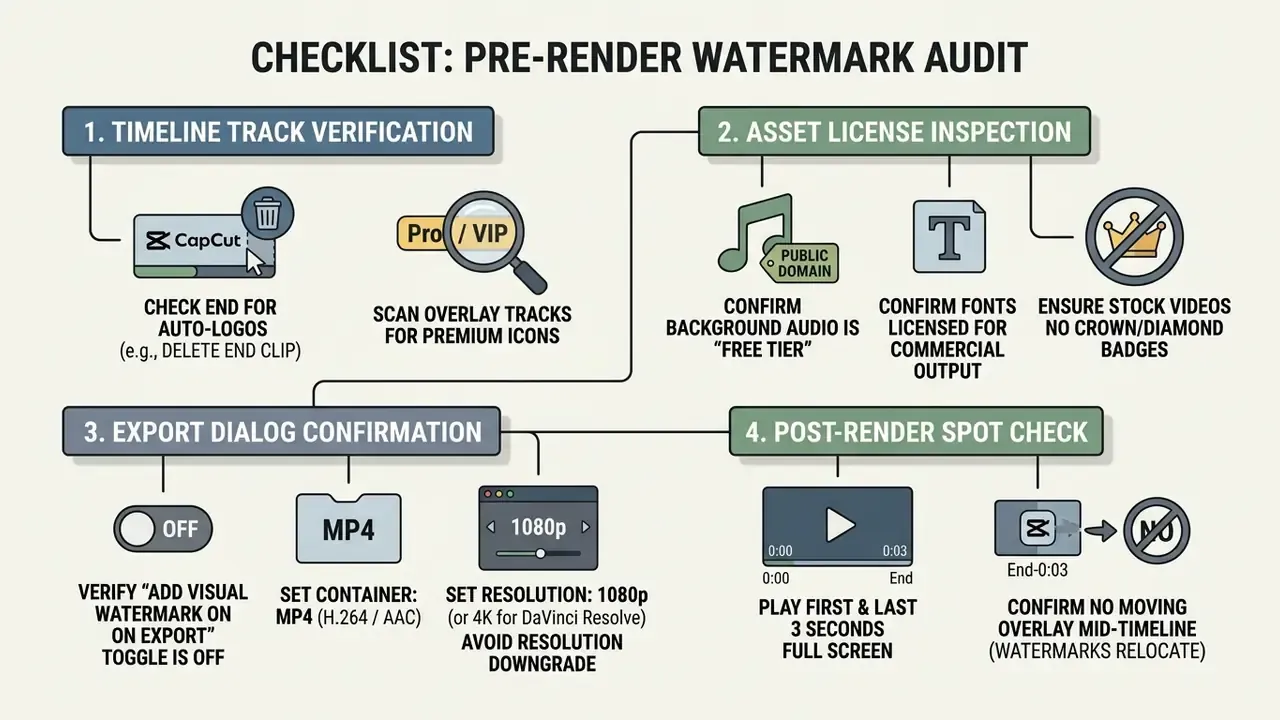
Removing the default CapCut branding on mobile. CapCut appends a branded ending clip to new projects by default. To export cleanly: open the project, scroll to the very end of the timeline, select the CapCut ending segment, and delete it. Then review every overlay, sticker, and text track for Pro-labeled items, because CapCut's help documentation states that an upgrade prompt appears at export when Pro content is present, or when free-tier length and resolution limits are exceeded. Only after the ending clip and any Pro assets are gone does the standard export produce a watermark-free file. Some mobile templates additionally expose an explicit "export without watermark" option. If it appears, confirm the rendered file rather than trusting the label.
FAQ About Free AI Video Editors Without Watermarks
What video formats are supported?
Most free online and desktop AI video editors import MP4, MOV, WebM, AVI, and MKV containers. Export formats on free tiers are heavily standardized on MP4 with H.264 video and AAC audio, because that combination plays everywhere: browsers, social platforms, and every current operating system. Advanced desktop platforms like DaVinci Resolve also support high-bitrate MOV exports using ProRes or H.265/HEVC on supported hardware. Note that HEVC/H.265 export is frequently plan-gated or browser-dependent in cloud editors. Several publish MP4 (H.264) as the only free-tier path, with MOV and HEVC reserved for paid tiers.
Is an online AI video editor safe to use?
Online AI video editors run in cloud infrastructure, which means uploaded source media, audio tracks, and project metadata are processed on remote vendor servers. Legitimate platforms use HTTPS transport encryption and secure AWS or GCP storage to protect user media.
«Clipchamp states that it "never has access to your videos, unlike other providers", positioning itself as a privacy-focused alternative to cloud editors.» Microsoft Clipchamp FAQ, official documentation (2023-2025). https://clipchamp.com/en/faq/ Still, anyone working with sensitive corporate data, unreleased product footage, or regulated financial materials should read the privacy policy for two specific things: retention period and training rights. Published retention windows in this category range from one day to two years, and at least one major consumer editor reserves the right to use uploads for algorithm training subject to consent. App-store disclosures add another signal. Clipfly's Google Play listing, for instance, states that data is encrypted in transit and not shared with third parties, while also noting that collected data "can't be deleted." For sensitive enterprise workflows, local desktop software or CJIS/SOC 2 compliant cloud infrastructure gives materially better data isolation. Disclaimer: this information is general in nature and does not replace professional legal, security, or compliance advice. Vendor data-retention terms and privacy policies change. Review current provider documentation before uploading confidential material.
Do free exports include commercial-use rights?
Watermark removal and commercial licensing are separate questions, and conflating them is a common expensive mistake. A clean 1080p file from a free tier can still contain assets that are not cleared for advertising, resale, or client work. DaVinci Resolve's free edition permits full commercial use of your own footage. Clipchamp, CapCut, and Canva permit commercial output built from user-owned media and free-license assets, but premium stock, crowned elements, and certain AI-generated outputs carry extra licence requirements. Keep a record of each asset's licence tier alongside the project file.
Why did my export get blocked instead of watermarked?
Export blocking is the modern alternative to watermarking. Clipchamp, Canva, and CapCut all detect premium assets on the timeline and halt the render with an upgrade prompt rather than degrading output. The fix is subtractive: remove or substitute the flagged item, usually a Pro template, crowned stock clip, premium font, or licensed music track, then re-render.
Can a watermark be removed from an already-exported file?
No, not cleanly. A hardcoded watermark is composited into the pixel data of every affected frame, so cropping, blurring, or AI object removal degrades the surrounding image and usually leaves artefacts. Vendor documentation is explicit that re-uploading and re-exporting a watermarked file does not remove the mark. The only reliable path is re-rendering the original project on a plan that permits clean export, or rebuilding the edit in an AI video editor without watermark restrictions.
Which free editor keeps footage entirely on my machine?
DaVinci Resolve's free edition renders locally using your CPU and GPU, with no upload required for standard editing. That makes it the default recommendation for unreleased product footage, internal training material, and any recording containing personal or regulated information.
Are there genuinely unlimited free AI editing tools?
Unlimited rendering exists. DaVinci Resolve free imposes no render caps, and Clipchamp advertises unlimited watermark-free 1080p exports. Unlimited generative AI does not exist on a free tier in any verified case we could document. Every generator we checked meters inference through credits, daily caps, queue position, or duration limits. If a page promises both at once, check the credit table before you plan around it. To examine broader software options and deployment models, browse the hub for comprehensive media tool breakdowns, or view the guide covering commercial usage frameworks.
Appendix A: Verification Notes
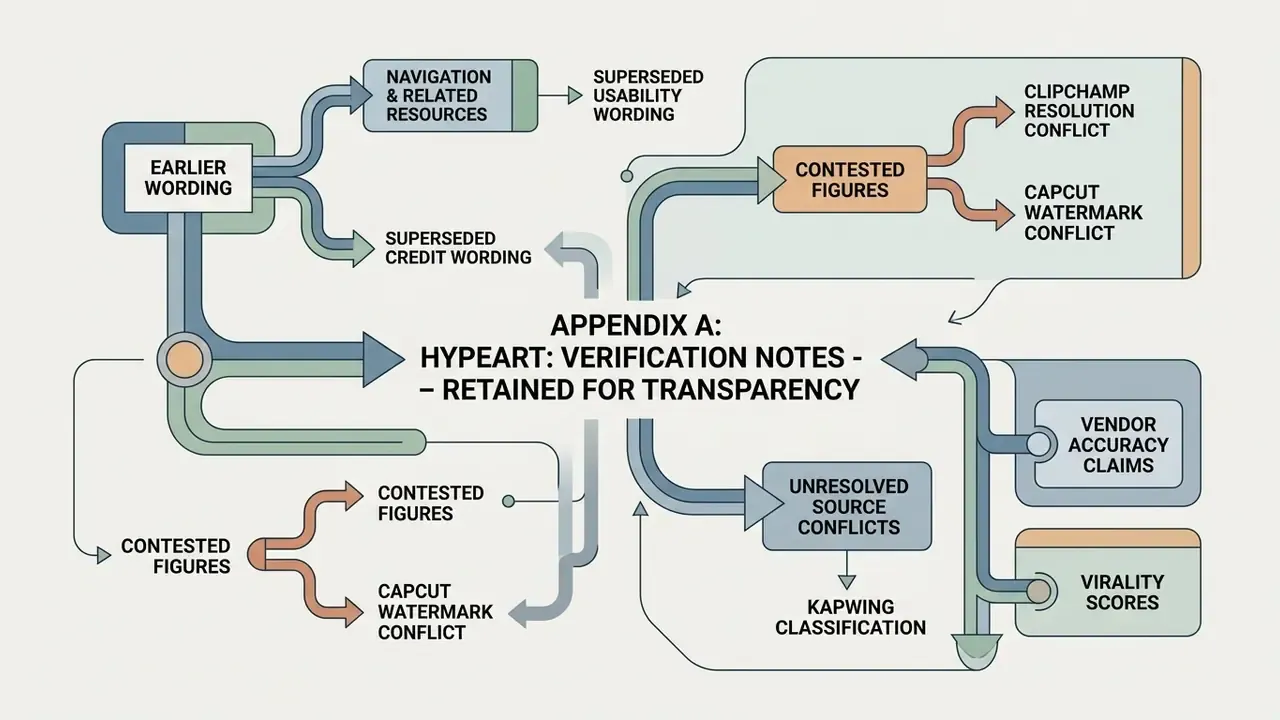
Retained for transparency: earlier wording, contested figures, and unresolved source conflicts underlying the claims above.
- Superseded usability wording. A previous version of this article stated: "Academic usability studies (e.g., Tilekbay et al., ExpressEdit, ACM IUI) demonstrate that natural-language editing interfaces yield a System Usability Scale (SUS) score of 75.7 out of 100." Updated: the figure is a mean of 75.7 with SD = 10.00 across a study sample of 10 novice editors, now published with sample size, dispersion, and source URL.
- Superseded credit wording. A previous version stated that platforms "frequently allocate a finite pool of monthly or lifetime credits (e.g., 60 to 200 credits)" and that "basic transcription may be included on free tiers up to a fixed monthly duration (e.g., 10 minutes)." Updated: these ranges are now attributed to named vendors (Captions, Vizard, HeyGen) rather than presented as an industry norm, and CapCut's reported per-month AI caps are flagged as third-party and unconfirmed.
- Clipchamp resolution conflict. Microsoft's pricing and support pages state unlimited watermark-free exports up to 1080p on the free plan. A minority of secondary summaries cite a 480p free-export cap. The discrepancy most likely reflects different plan versions or regional variants. Confirm the available presets in your own export dialog before scheduling a 1080p delivery.
- CapCut watermark conflict. Official CapCut resources state that standard edits can be exported watermark-free and that the watermark setting can be hidden. Some third-party pages claim all free exports are watermarked. The difference resolves to whether Pro templates, paid effects, or specific AI-generated clips are present in the project.
- Kapwing classification. Several roundups list Kapwing as watermark-free. Kapwing's own documentation states that free-account exports include a watermark on all output, including AI-generated content, with removal requiring Pro. Official wording takes precedence.
- Vendor accuracy claims. Marketing figures such as "98% accurate AI subtitles" are unverified by independent benchmark. The measured baseline used here is 8.9% WER before correction and 5.6% to 6.8% after manual editing, drawn from a controlled lecture-captioning evaluation.
- Virality scores. Confidence and virality scores produced by clipping tools are proprietary and unaudited. No published validation against platform engagement data was located.
- Audience assumptions. Statements about buyer priorities in financial services remain hypotheses until supported by analytics, interviews, CRM data, or verified customer research.