Generative AI has changed how digital teams turn flat imagery into motion. In 2026, a free ai image to video app lets you test a current video diffusion model, animate a product photo, or build a short-form marketing asset before any budget line is approved. That is the appealing part. The harder part is reading the trade-offs: how many credits you get, what resolution the export is capped at, how faithful the motion looks, what the provider does with your upload, and whether the licence covers commercial use at all.
One more framing note before the tables. If you work inside a regulated environment, a free video generator is not just a creative tool. It is an unreviewed data processor sitting on someone's laptop. We come back to that in the governance section.
Quick Summary for Fast Decisions
| If you need… | Start with | Why |
|---|---|---|
| Cleanest free export (no visible watermark) | Pika (Basic free tier) | 80 monthly credits, 480p output, downloads without a visible watermark, commercial use permitted on the Basic plan. |
| Highest daily free volume plus a flagship model | Google Flow / Veo | Around 50 credits per day, 720p export, invisible SynthID provenance instead of a visible logo. |
| Exact, repeatable human motion (dance, sports, flips) | Viggle-style video-to-motion mapping | Motion is copied from a reference clip instead of guessed from a text prompt. Free tiers typically allow roughly 5 videos per day. |
| Talking-head avatars from a single portrait | Kling AI Lip Sync | Accepts an uploaded voiceover or singing track, or native Text-to-Speech, and works with realistic, 3D and 2D faces. |
| Multi-clip ads that keep one product or face consistent | Reference-to-video workflows (invideo agent-style) | Locks front, side and back reference images into project context, so identity survives across several generations. |
| All-in-one pipeline with 4K upscaling | DomoAI-style platforms | Animate, restyle, add speech, apply screen keying and upscale to 4K without leaving the tool. |
Three checks before you generate anything: confirm whether the free tier grants a commercial licence; confirm whether your uploaded photo may be used to train the provider's models; confirm whether exports carry a visible watermark or machine-readable provenance metadata (C2PA or SynthID).
Those three questions take four minutes. Skipping them has cost teams entire campaigns.
What Is a Free AI Image to Video App?
A free ai image to video app is a web, mobile or API-based service that uses conditioned video diffusion, or a Diffusion Transformer (DiT) architecture, to synthesise a short clip from one static reference frame. The app reads your photo or illustration, analyses its structural features, and generates a temporal frame sequence that simulates object motion and camera movement.
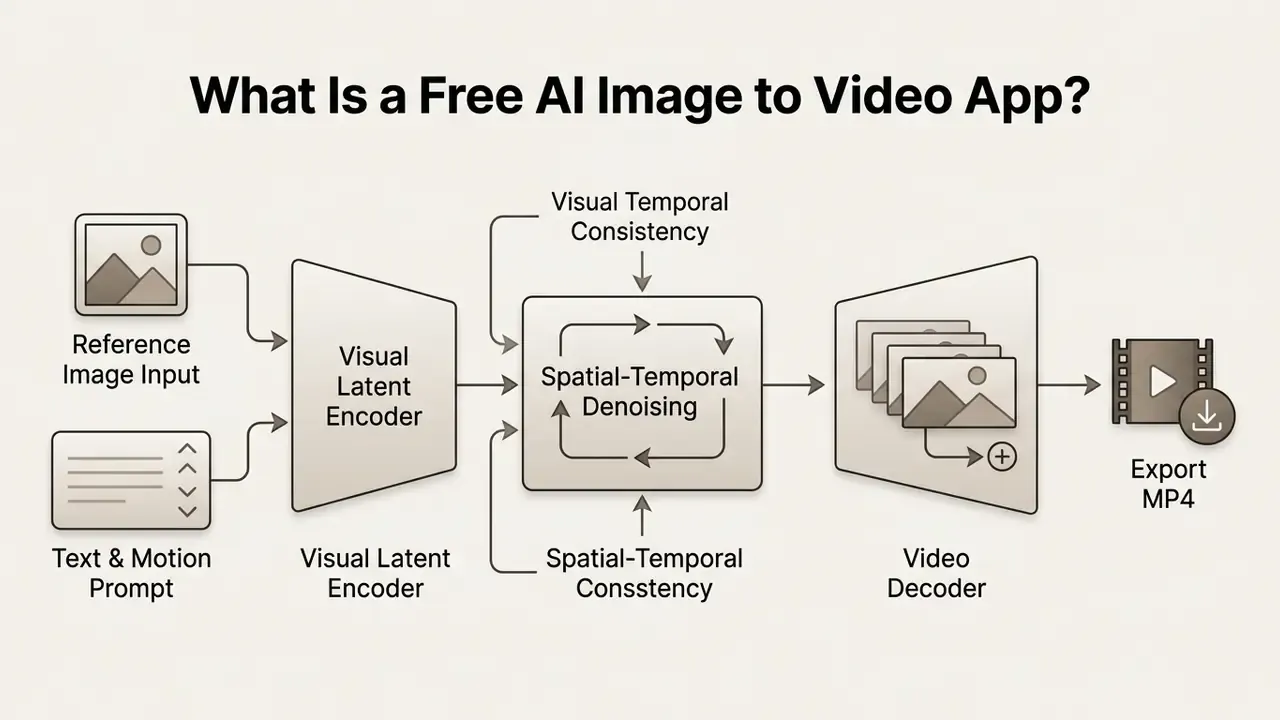
How AI Turns a Static Image into Video
The engine encodes your reference frame into a low-dimensional latent space, then runs an iterative denoising process conditioned on spatial and temporal parameters. Research on trajectory-oriented video generation (Tora, CVPR 2025) shows that modern models treat the input image as first-frame conditioning while integrating explicit trajectory vectors that guide pixel movement across time (Zhang et al., 2025).
«Video diffusion models trained on video outperform image-trained models on action recognition, tracking and depth estimation tasks.»
This is why simple frame-by-frame interpolation rarely matches a dedicated video model. Temporal training data teaches the network how objects persist and deform through time, not only how they look in a single instant. Google's Lumiere (2024) implements this with spatial and temporal down and up-sampling across several space-time scales on top of a pre-trained text-to-image backbone. DreamVideo (2023) takes a different route and adds a frame-retention branch that holds the source photo steady while motion is synthesised around it.
Underneath, two modules do most of the work. The spatial module preserves subject identity, texture and structural boundaries from your photo. The temporal module estimates frame-to-frame optical flow and synthesises plausible motion vectors, driven by text prompts, motion brushes or camera presets. For a broader catalogue of engines and licence terms, review our overview of image-to-video AI tools.
What "Free" Means for an AI Video Generator
How to Choose the Best Free Image to Video Website or App
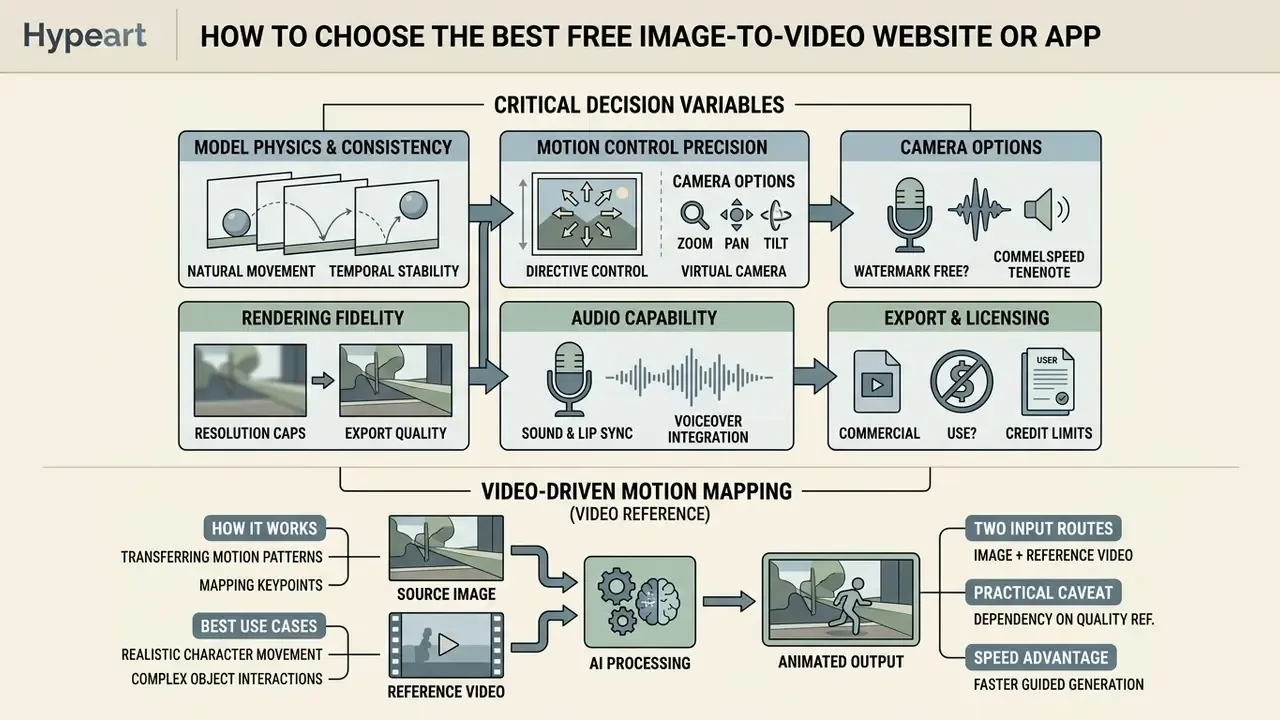
Picking the best free image to video website or mobile tool comes down to five variables: model physics, motion control precision, rendering fidelity, audio capability and export flexibility. Weigh them against your actual publishing channel, not against a feature list. An ai image to video free generator that produces gorgeous 480p clips is useless if your distribution requires 1080p vertical.
Comparative analysis of leading free image-to-video platforms (2026)
| Platform / Tool | Free tier allocation | Output resolution | Motion control features | Video motion reference | Lip sync / audio | Watermark status | Commercial use terms |
|---|---|---|---|---|---|---|---|
| Google Flow / Veo | ~50 daily credits | 720p export | Camera direction, prompt conditioning | No | Native audio on flagship model tiers | Invisible (SynthID) | Account and policy constrained |
| Pika (Basic) | 80 monthly credits | 480p output | Motion Brush, Pika 2.5 camera control | No | Limited | No visible watermark | Permitted on Basic tier |
| Kling AI | 66 daily credits | 720p (5-second clips) | Single character motion reference, motion strength | Yes (one primary character per clip) | Yes, audio upload or Text-to-Speech lip sync | Visible watermark | Restricted, personal use |
| Runway (free tier) | 125 one-time credits | Draft resolution | Motion Brush, multi-stage camera controls | Limited | Separate audio tools | Visible watermark | Non-commercial, evaluation |
| Luma Dream Machine | Generative credit bundle | Draft quality (HDR/EXR on paid Ray 3.2) | Ray engine trajectory control | No | No | Visible watermark | Personal use only |
| Viggle-class motion mappers | ~5 free videos per day | Up to 1080p on paid tiers | Spatial motion mapping, character consistency, multi-track timing | Yes: upload your own clip or pick from thousands of templates | No native lip sync | Tier dependent | Check tier; free renders often evaluation-only |
| Agent editors (invideo-class) | Limited weekly minutes and exports | Model dependent (Seedance, Veo, Kling, Runway) | Reference-to-video identity locking, storyboard, timeline editor | Reference images rather than motion clips | Integrated audio and music models | Plan dependent | Commercial licence stated on free plan |
| All-in-one animators (DomoAI-class) | Free tier with relax-mode queue | Draft, plus 4K AI upscaling in-platform | Prompt motion control, animation templates, duration control | Style and motion templates | Yes, add speech in the same workflow | Watermark control on paid tiers | Tier dependent |
«Pika and Gen-2 reach adjacent-frame CLIP scores of 0.996 and 0.995 respectively, substantially above open-source model values.»
That gap matters more than it sounds. Adjacent-frame consistency is the best available proxy for whether a viewer reads your animated photo as a real shot or as a flickering morph. Cross-reference these quality scores with subscription costs in our comparison of the best AI video generators.
Models, Motion Control and Camera Options
Video diffusion engines differ sharply in how much directional control they hand over. The better ai tools for image to video include motion brushes: you paint the regions allowed to move, so only the water flows or only the hair sways. Research on precise controllers (MotionPro, CVPR 2025) reports finer object-level control than earlier brush-only interfaces, while ATI: Any Trajectory Instruction (2025) unifies stylised motion effects, dynamic viewpoint changes and local manipulation inside one framework.
Explicit camera parameters do the rest.
Prioritise tools with independent sliders for pan, tilt, zoom and motion strength. And treat motion strength as an engineering control, not decoration. Work on adjustable motion strength (2024) models it as a speed-based signal fed directly into the network, which is exactly why turning it down is the fastest cure for warped anatomy.
Video-Driven Motion Mapping (Video Reference)
Beyond prompts and brushes sits a different control paradigm: video-to-motion transfer. The engine extracts motion from a reference clip and applies it to a static character photo. You are no longer describing movement in words. You are copying it.
- How it works. Pose and trajectory are decoupled from the reference video, then mapped onto the visual structure of your image. Face, body type and clothing come from your photo. Choreography comes from the clip.
- Best use cases. Complex human movement: dancing, sports actions, high-speed spins, flips, gymnastics, breakdancing, boxing. Text prompts simply cannot encode that timing.
- Two input routes. Film the movement yourself and upload it, or pick from template libraries. Leading platforms host thousands of trending motion templates, which is also how creators deliberately ride a social trend.
- Key tooling. Platforms such as Viggle AI use spatial motion mapping (JST-1-class architectures) to hold appearance stable while executing video-guided actions, and expose multi-track timing for multi-character scenes.
- Practical caveat. Kling's own motion-control documentation notes that one character motion reference is used per generation. With two or more characters, the largest one in frame drives the result. Plan reference clips accordingly.
- Speed advantage. Because motion is copied rather than invented, renders often finish inside a minute, and the prompt-iteration loop disappears.
Output Quality, Aspect Ratio and Video Duration
Free tiers shape output around rendering cost. Standard free clip length runs 5 to 8 seconds per generation, which happens to match short-form social requirements almost exactly.
- Resolution limits.Most free tiers cap at 480p or 720p. A few expose limited 1080p under restricted daily queues or promotional access. Production-grade 4K effectively always needs a paid upgrade, with one partial exception: all-in-one platforms that render a draft and then run an AI 4K upscale inside the same workflow. Paid plans also unlock high-bitrate exports and, on Luma's Ray 3.2, native 16-bit HDR and EXR.
- Aspect ratio presets.Look for both 16:9 landscape (YouTube, web) and 9:16 vertical (Reels, Shorts, TikTok). Some products reserve vertical or unusual ratios for paid users, which is an unpleasant surprise to discover after export.
- Duration ceilings are a model property.Not a platform property. In 2026, Seedance-class models generate in 4 to 15 second steps, Veo caps near 8 seconds, Kling and Runway near 10 seconds, while PixVerse V6 advertises up to 15 seconds at up to 1080p, with credit charges scaling by length and audio.
- Frame rate and consistency.Strong models output 24 to 30 frames per second, and hold texture between frames without pulsing.
«AIGCBench reports Pika generating 72 frames with a DOVER score of 0.715, while VideoCrafter produces only 16 frames at DOVER 0.518.»
Read frame count and perceptual score together. More frames at a higher DOVER value means longer usable takes and less flicker to clean up afterwards. One number alone tells you very little.
Online Website, Mobile App or API
The delivery format you pick depends on how your team actually works:
- Online web applications. Best for browser-based asset creation, heavier prompt engineering and side-by-side output review. Updates ship server-side, which means fewer client-side security obligations for your organisation.
- Mobile applications (Android and iOS). Built for speed: direct camera upload, quick generation, immediate social sharing. Android's offline-first guidance explains why native apps can keep a critical subset of functions usable without connectivity, unlike browser-only access.
- Developer APIs. For programmatic automation. Teams can wire an api endpoint into an existing stack and batch image-to-video processing. Most modern endpoints accept any public URL as media input, while local files must first go through an upload route (for example,
/v1/media/uploads) before the returned URL is passed to the model. Chaining is API-native too: Luma exposes generation chaining through a priorgeneration_id. See a concrete walkthrough in our Google Veo implementation guide, and read the wider background on how an AI video generator works across generation methods and commercial applications. There is also a genuine free image to video ai api tier on several providers, though the rate limits are tight enough that batch work will hit them within an hour. - Integrated post-processing. Advanced web platforms build secondary nodes into the pipeline: screen keying for background isolation and green-screen extraction, duration control, relax-mode queueing for slow-but-plentiful renders, temporal frame interpolation that turns a 24 fps draft into a smooth 60 fps export, flicker and artifact removal, and AI 4K upscaling that lifts draft output toward production grade. Research backs the layered approach. Upscale-A-Video (CVPR 2024) reports improved realism, temporal consistency and artifact removal on AI-generated video versus CNN and diffusion baselines, and VEnhancer (2024) explicitly combines spatial upsampling with temporal synthesis to strip spatial artifacts and flicker. Detailed technical setups sit in our AI Media Comparison Matrices.
How to Create Video from an Image for Free
Turning a still into a clip follows a fairly standardised pipeline. A free ai app convert image to video workflow keeps output predictable while you stay inside the free allocation.
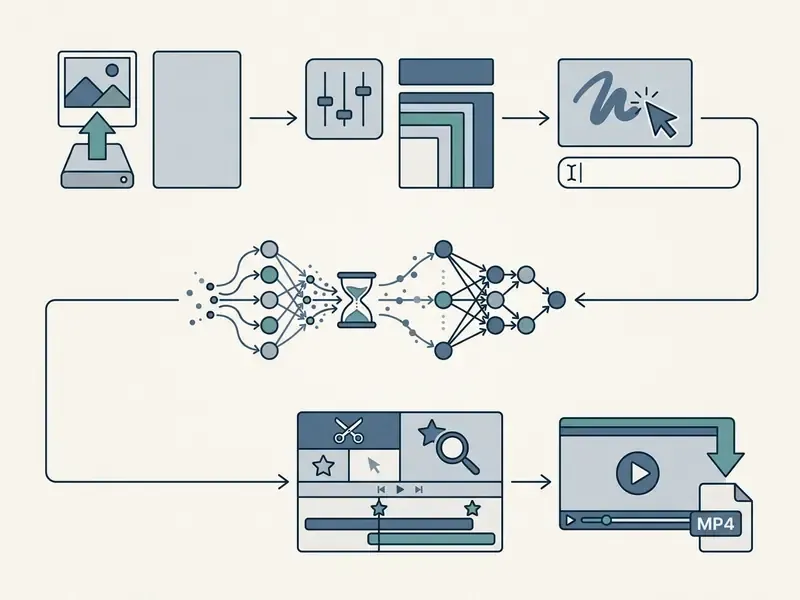
The same six steps, in text form: upload the photo, choose model and aspect ratio, define motion brush and prompt, run the render, review artifacts and edit, export the MP4.
Vendor flows converge on this sequence. Adobe Firefly documents it as: open Video, then Generate video, choose the Firefly Video model in General settings, upload an image as the first frame, add Motion plus a text prompt, generate, export. An optional end frame gives you a controlled transition. Pixlr's route is nearly identical: switch to Image to Video, upload, add a motion prompt, choose Fast, Pro or Ultra plus aspect ratio, generate, download. OpenAI-style video endpoints accept the same concept programmatically through an input_reference image field.
Upload an Image or Photo That Works Well
Output quality tracks the structural clarity of the input far more than most people expect. Video diffusion models need distinct visual features to compute stable motion paths.
Source image preparation pipeline: optimal photo parameters for AI video generation
| Stage | Parameter to set | Target condition | Failure mode if ignored |
|---|---|---|---|
| 1. Subject isolation | High-contrast subject boundary | Subject clearly separated from background edges | Background bleeds into limbs; silhouette dissolves mid-motion |
| 2. Background | Plain, uncluttered or removed background | Minimal competing detail behind the subject | Objects merge, spawn or duplicate during camera movement |
| 3. Lighting | Neutral, even illumination | No blown highlights or crushed shadows | Temporal flicker and unstable colour grading across frames |
| 4. Framing | 1:1, 16:9 or 9:16 frame; front-facing or three-quarter angle | Subject centred, full face or body geometry visible | Anatomical warping when the model must invent occluded structure |
| 5. Technical quality | Sharp focus, at least 512 px on the shortest side, JPG/PNG/WEBP | No compression blocking or baked-in motion blur | Soft, mushy output; texture jitter between frames |
For sourcing, benchmark construction practice is a more defensible reference point than any single vendor prep sheet.
«UI2V-Bench uses roughly 500 carefully curated image-text pairs where subjects are clearly visible and spatial relationships are unambiguous.»
Translated into three rules you can apply to your own uploads:
- Subject prominence. Centre the primary subject, whether person, product or character, with a clear boundary against the background.
- Lighting and clarity. Use evenly lit images without extreme shadows, heavy motion blur or visible compression artifacts.
- Framing. Front-facing or three-quarter angles let the model preserve anatomical and geometric proportion during movement.
If your photo fails any of these checks, fix it before spending credits. Background cleanup, exposure correction and sharpening are all cheaper than a wasted re-render. Our guide to choosing an AI photo editor covers the preparation tools, and the free photo editor comparison details export and privacy limits on no-cost plans.
Handling illustrated and non-photorealistic inputs
Standard video diffusion models default to photorealistic weights. Feed them a 2D illustration, a hand-drawn sketch, anime art or a flat vector graphic, and they frequently add real-world texture, plastic skin, or outright spatial drift. The result resembles neither your original style nor a clean photograph. To hold the style:
- Name the style in the prompt, explicitly. For example: "2D vector animation, flat shading, cel-shaded style, maintain original line art."
- Describe palette, texture and lighting in words rather than trusting the reference image alone. The model treats your prompt as the style authority, and an illustrated input on its own is a weak signal.
- Strip photorealistic keywords such as "photorealistic," "hyperrealistic" or "cinematic 8K." They actively pull the render back toward native realism weights.
- Lower motion strength at the start, to stop structural disintegration of non-standard anatomy: exaggerated limbs, stylised eyes, non-human proportions.
- Prefer platforms advertising dedicated anime, 3D and hand-drawn modes. Style-native pipelines need far less prompt correction than general-purpose realism models.
Real photographs rarely show this problem, because the model is already in its native domain. If illustration is your daily work, our guide to an animation maker compares template-driven and AI-driven approaches to stylised motion.
Multi-Shot Consistency: Image-to-Video vs. Reference-to-Video
Producing a multi-scene ad exposes a limitation no prompt can fix: frame drift across consecutive generations.
- Image-to-video (single clip). Animates one photo as the absolute starting frame (t₀). The generation stays completely faithful to that image, and to nothing beyond it. Chaining by feeding the last frame of Video 1 into Video 2 works acceptably for one self-contained clip where you already know the opening and closing shot. Past a single clip it degrades. The model sees only one still, so it re-derives lighting, camera geometry and material response from scratch each time, and colour, object and scale distortion accumulate.
- Reference-to-video (multi-clip sequences). Embeds persistent visual context, front, side, rear and close-up references, into the model's latent memory. Instead of anchoring strictly to frame pixels, it preserves character identity, brand packaging and environmental atmosphere across several sequential generations. It reads the whole prior clip plus your locked references, so identity carries forward rather than resetting. The result is the same identity, not the same pixels.
- Practical trick for products. Include one reference shot of the product held in a hand. That gives the model a true scale cue instead of forcing it to guess dimensions, which is the most common reason packaging inflates or shrinks between shots.
- Long-form assembly. Agent-style editors auto-split a script into clips that respect each model's duration ceiling, then stitch them. A 30-second video plays as one continuous take even though several generations sit underneath.
- Reusable characters. Where available, generate multi-angle reference images before the first render, using "character refine" workflows. For series work this front-loaded step returns more than any prompt tweak.
«IPRO demonstrates that reward-based optimisation for identity similarity substantially reduces face and object drift in generated video.»
Describe Motion and Choose a Model
With the image uploaded, pick an engine and write motion instructions that a machine can act on. Combine text with explicit camera direction.
Structure your prompt around three elements:
- Primary action."The subject slowly turns their head toward the camera and smiles."
- Environmental dynamics."Soft wind gently rustles the background foliage."
- Camera movement."Camera slowly zooms in with a steady tracking shot."
Model choice encodes its own trade-off. Precision-oriented engines, usually labelled advanced modes, hold anatomy better on complex motion. Speed-oriented engines burn fewer credits per attempt, which makes them the right pick while you are still exploring prompts. Explore cheap, finalise expensive.
Generate, Review and Edit the Video
Start the render and let the cloud do the denoising. Then inspect the preview properly, not casually:
- Temporal stability audit. Step through adjacent frames looking for flicker, morphing limbs or shifting facial features.
- Prompt adherence. Did the camera and subject actually follow your instructions, or improvise?
- Iterative adjustment. When distortion appears, lower motion strength or simplify the prompt before re-rendering. Changing both at once tells you nothing.
- Post-processing pass. Route the approved clip through interpolation, artifact filtering and upscaling before export, not after publication. Artifact-aware evaluation research (2026) frames this stage as a filtering problem: generate several candidates, then suppress the weak ones programmatically instead of shipping the first render.
Illustrative operational scenario (hypothetical, not a measured case study): a fintech creative team needs to turn static campaign banners into short promotional video ads. Using structured camera-control prompts and reduced motion intensity on a standard image-to-video tool, they can produce roughly ten compliant 5-second assets inside a single free-tier allocation. That is enough for early creative testing before production budget moves to a paid render tier. Real savings depend on your credit allocation, iteration count and per-clip approval rate, so treat this as a workflow template rather than a benchmark. For downstream trimming and publishing, see our YouTube video editing workflow guide.
Prompts and Motion Settings for More Realistic AI Videos
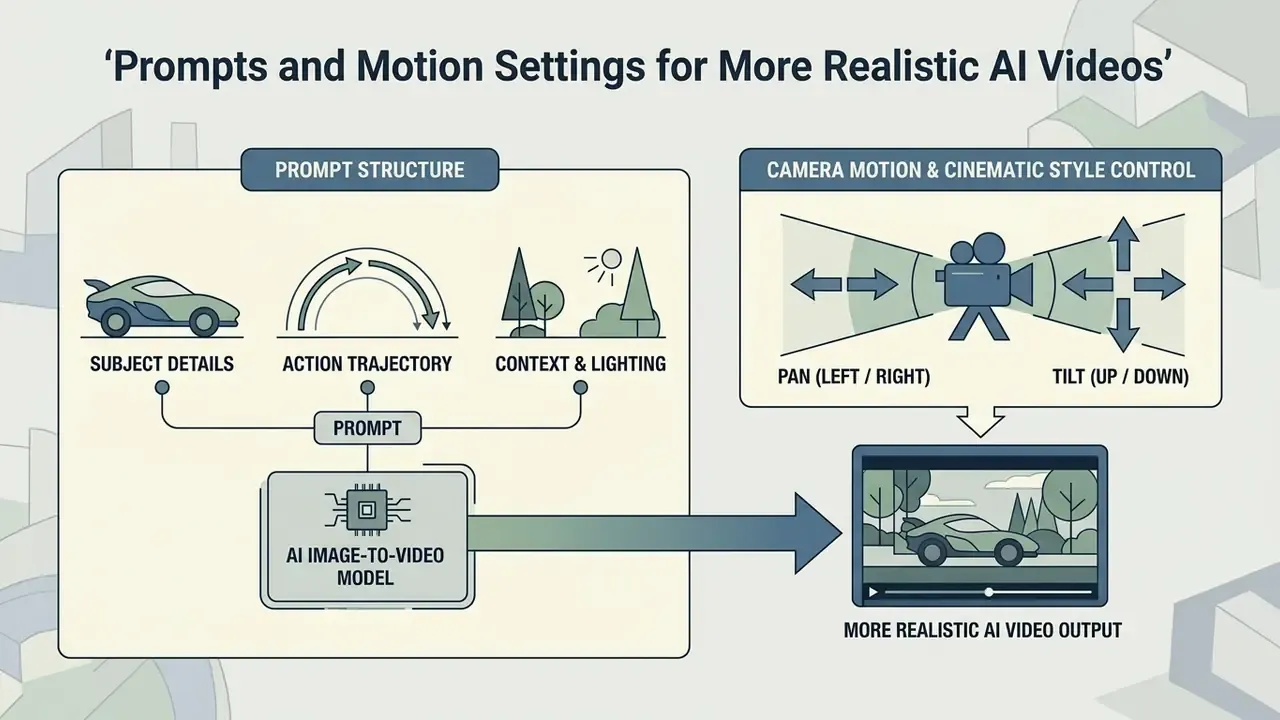
Photorealistic motion from a still needs precise prompt syntax and calibrated motion settings. Leave motion parameters at default and ai-generated clips slide into physical implausibility fast.
Prompt Structure for Subject, Action and Scene
Enterprise prompting guides (Google Cloud Veo and Adobe Firefly frameworks) converge on a modular four-part formula:
Video Prompt = [Cinematography / Shot] + [Subject Details] + [Action Trajectory] + [Context / Lighting]
- Cinematography "Medium close-up shot, 35mm lens, cinematic depth of field."
- Subject details "A professional executive in a charcoal grey suit."
- Action trajectory "Slowly walks forward while reviewing a digital tablet."
- Context and lighting "Modern glass office background, warm afternoon golden-hour lighting."
Vendor formulas differ in ordering, not substance. Google Cloud's Veo 3.1 guide uses cinematography, subject, action, context, style and ambiance. Adobe Firefly specifies shot type, character, action, location and aesthetic, defining location through weather and terrain, aesthetic through ambience and lighting. Runway's image-to-video template collapses everything into one sentence: "The camera [motion] as the subject [action] [additional descriptions]," ordered as shot size, angle, movement, direction and speed, subject and action, lens, lighting, reveal.
Camera Motion and Cinematic Style Control
Use standard film terminology. The models were trained on it, and combining direction with speed prevents abrupt scene jumps:
- Pan (left / right) swivels horizontally on a fixed axis.
"Camera pans slowly left across the city skyline." - Tilt (up / down) pivots vertically.
"Camera tilts up from the product base to the logo." - Zoom or dolly (push in / pull back) changes focal length or physical distance.
"Slow dolly-in on the character's face." - Orbit rotates around a central subject.
"Slow 180-degree orbit around the stationary vehicle." - Track (forward / alongside) moves with the subject through space.
"Track forward alongside the runner at a steady pace." - Static camera an instruction, not an omission.
"Static camera, locked-off tripod shot; only the subject moves." - Rack focus shifts the focal plane between foreground and background.
"Rack focus from the product label to the model's face."
Research on motion prompting treats the camera path as a discrete input sequence, separate from text. Which is precisely why platform sliders and prompt keywords should work together rather than compete. Contradict them and the model picks a winner you did not choose.
Common Image-to-Video Generation Errors
Diffusion models introduce artifacts whenever a spatial transition gets complicated.
«TC-Bench finds that most video generators complete fewer than 20% of the intended compositional changes, particularly under multi-stage narrative instructions.»
«UI2V-Bench identifies systematic failures in spatial understanding and attribute binding even in models with high SSIM and CLIP scores.» - UI2V-Bench, evaluation of semantic understanding in image-to-video models (2025)
Read those two findings together and the implication is uncomfortable: a model can score well on pixel-similarity metrics while placing the wrong object in the wrong place. Human review is not optional here.
Common AI video artifacts: what to inspect before publishing
| Artifact class | Visible symptom | Root cause | Corrective action |
|---|---|---|---|
| Facial / identity drift | Features shift, age changes, the face "becomes someone else" mid-clip | Weak identity conditioning across denoising steps | Shorten the clip, add face or pose conditioning, use reference-to-video identity locking |
| Anatomical inconsistency | Extra fingers, joints bending backwards, limbs merging with background | Occluded structure the model must invent | Re-upload a front-facing or three-quarter source; reduce motion strength |
| Spatial intersection | Solid objects passing through one another or floating | No physical-plausibility constraint in latent space | Simplify the scene; specify contact and support in the prompt |
| Temporal flicker | Brightness pulsing, texture jitter between consecutive frames | Independent per-frame denoising drift | Run a temporal-consistency enhancement or interpolation pass |
| Motion blur / smearing | Ghosting trails on fast movement | Excessive motion strength versus frame rate | Lower motion strength; raise frame rate; apply motion-aware restoration |
| Style collapse | 2D illustration renders as semi-realistic 3D | Photorealistic default weights overriding an illustrated input | Name style, palette and line art explicitly; strip realism keywords |
Academic mitigation strategies mirror that table. Attribute-guided diffusion using 3D face reconstruction signals reduces facial distortion (Face Animation with an Attribute-Guided Diffusion Model, 2023), while residual-guided diffusion restoration targets minor, moderate and heavy motion artifacts (Res-MoCoDiff, 2025).
Alert: quality control and artifact inspection checklist
Inspect every generated clip for these failure modes before public or commercial deployment:
- Facial and identity drift. Features morphing or shifting alignment during pan or zoom.
- Anatomical inconsistencies. Extra limbs, unnatural hand joints, background elements fusing into the body.
- Spatial intersections. Solid objects passing through each other or floating without support.
- Temporal flicker. Sudden brightness changes or texture jitter between consecutive frames.
- Text and logo integrity. Packaging copy, signage or watermarks degrading into unreadable glyphs.
- Audio-visual sync. Where lip sync is used, verify phoneme alignment in both the first and the last second of the clip.
For legal and compliance context around AI media, review our AI Litigation and Case Timelines.
If your current tool produces artifacts you cannot tune out, switching engines usually beats switching prompts. Our side-by-side ranking of free AI video generators notes which free tiers hold temporal consistency best at draft resolution.
Free AI Image to Video Mobile Apps for Android
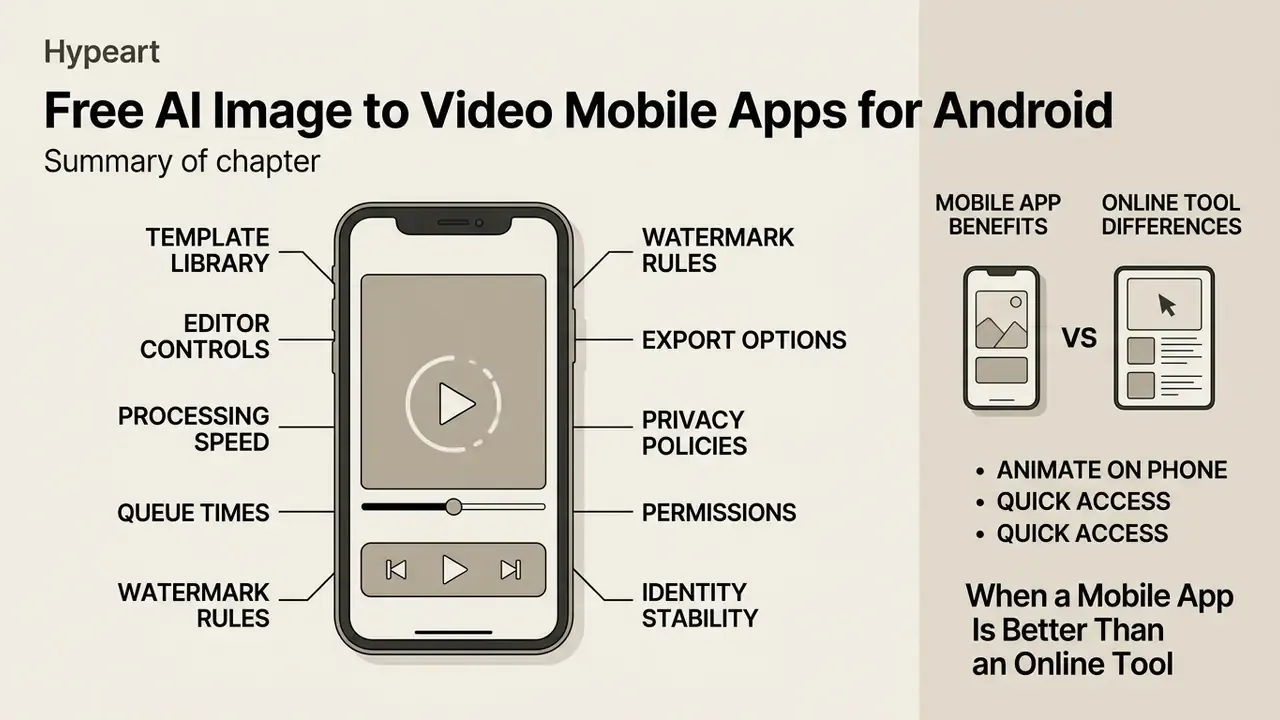
Plenty of creators would rather animate a photo on the phone that took it. Searching for a free ai image to video app android option turns up several builds aimed at on-the-go production. In 2026 the clearest free or free-to-start Android listings include PixVerse (AI Video Generator), Photo2Reel (free tier limited to seven photos per reel, watermarked export, ad-supported), Vidmo (Image to Video with AI), Vivideo (free to start, with credits granted after completing tasks) and AI Video Maker: Image to Video.
Features to Check in a Mobile Image-to-Video App
When you evaluate a free ai image to video mobile app, read the Google Play listing before installing. Six checks:
- Template library.Pre-configured motion templates for Reels, TikTok and Shorts, plus trending motion-reference templates if the app supports video-driven mapping.
- Built-in editor controls.Native trimming, cutting, joining, merging, cropping, playback-speed adjustment and audio overlay. A dedicated speed UI is a decent signal of editor maturity.
- Processing speed and queue times.Does rendering happen on device or in the cloud? Cloud processing needs a stable connection, and listings promising "fast create video" usually mean cloud rendering with priority reserved for paying users.
- Watermark and export rules.Whether the free tier stamps exports, and whether resolution sits below 720p.
- Privacy policies and permissions.Trustworthy apps do not ask for contacts, SMS or location. Read the Data Safety section for whether uploads are shared with third parties or used for model improvement.
- Identity stability across renders.For character-driven content, prefer apps that publish an identity-preservation mechanism instead of leaving it to prompt luck.
«IPRO demonstrates that reward-based optimisation for identity similarity substantially reduces face and object drift in generated video.»
When a Mobile App Is Better Than an Online Tool
For some workflows, mobile genuinely wins:
- Direct camera integration. Shoot through the mobile camera APIs (Android's
camera2or capture intents) and convert immediately. - On-device media access. Animate photos already in the camera roll without a manual cloud upload step.
- Touch-based motion painting. A finger is a surprisingly good motion-brush tool, better than a trackpad for irregular regions.
- Offline-capable function subsets. Android's offline-first guidance means a well-built app keeps core non-render functions usable without connectivity. One-tap reopening beats a browser tab plus login, every time.
- Cross-device account continuity. Leading platforms sync one account across phone, tablet and desktop, so a photo generated on mobile can be finished on a large screen.
Desktop web still wins for complex multi-layer editing, careful prompt composition and enterprise media asset management. There is a security dimension too: NIST SP 800-163r1 notes that mobile clients widen the attack surface and require continuous reassessment of security controls, whereas web deployments centralise updates. For post-production after export, compare tools in our roundup of free video editing software, or browse the wider set on our AI Media Comparison Matrices page.
Data Privacy, Model Training and Shadow AI Risk
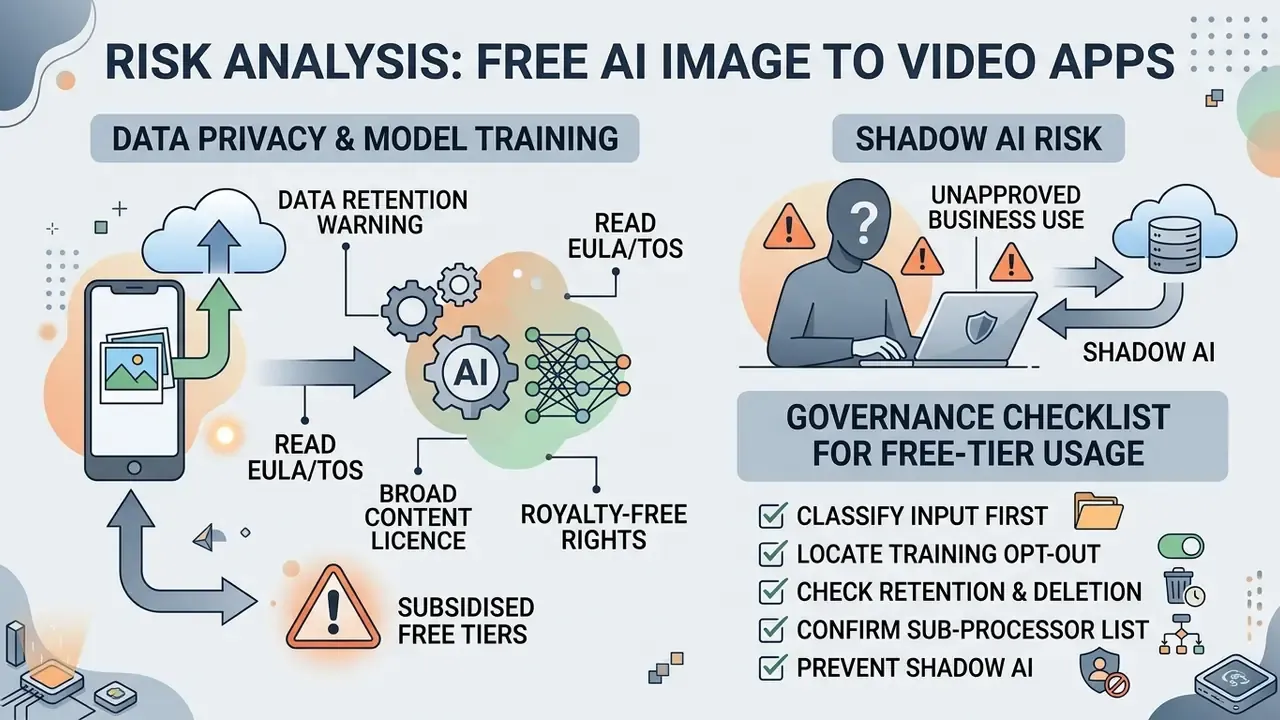
Free tiers are subsidised by something. On consumer platforms, that something is frequently your data.
Data retention warning: read before uploading business assets
Many free cloud image-to-video services grant themselves a broad, royalty-free content licence in their Terms of Service. That licence can include using uploaded images and generated outputs to improve or fine-tune internal models. Opt-out switches, private-generation modes and zero-retention commitments are commonly reserved for paid, team or enterprise plans. Verify current terms directly with the provider before uploading.
A practical governance checklist for free-tier usage:
- Classify the input first. Unreleased packaging, pre-announcement renders, customer faces, employee portraits, medical imagery and internal documents should never enter a consumer free tier. No exceptions worth arguing about.
- Locate the training opt-out. If the setting does not exist on the free plan, treat every upload as potentially retained indefinitely.
- Check retention and deletion mechanics. "Removed from your gallery" and "deleted from provider storage and backups" are not the same statement.
- Confirm the sub-processor list. Free consumer apps often proxy generation through third-party model providers, which multiplies the number of entities holding your image.
- Prevent shadow AI. Publish an approved-tools list. Uncontrolled staff use of free generators is the most common route by which confidential imagery leaves an organisation, and it usually leaves no audit trail at all.
- Mirror the mobile permission audit. On Android and iOS, restrict photo-library access to selected images rather than the full library.
- Log every generation. Keep prompt, source image hash, model version, timestamp and reviewer for any asset you publish. That record is what makes a later provenance claim defensible.
If your workflow also involves synthetic voice, run the same retention analysis on audio uploads. Our guide to an AI voice generator covers voice-data handling and commercial licensing in parallel.
This section provides general information on data-governance practice and is not legal advice. Platform terms change frequently; validate current Terms of Service and Data Processing Agreements before uploading any confidential or personal data.
How to Add Lip Sync and Audio to Animated Photos
Turning a portrait into a talking avatar couples image-to-video diffusion with lip-sync alignment. It is a separate capability from motion generation, and not every free tier includes it. Check before you plan a campaign around it. Terminology note. "AI avatar" is a broad label covering realistic or stylised generated characters. "Digital human" usually implies a lifelike virtual presenter, a digital twin, or an interactive enterprise assistant. Image-plus-audio lip-sync tools produce rendered character videos. They are not real-time conversational avatar systems, and marketing them as such invites trouble.
Compliance note. Synthetic speech attached to a recognisable face is the highest-risk output in this entire workflow. Voice cloning of a real person without documented consent, and any depiction that could be mistaken for a genuine statement, triggers both platform enforcement and the disclosure duties described next.
- Select a clear facial portrait or clip.Front-facing, unobstructed features, good contrast, well-defined boundaries. Modern lip-sync engines handle realistic, 3D and 2D characters. The face simply has to be fully visible in frame.
- Supply audio input.Upload an MP3 or WAV voiceover or singing track, or type a script and let native Text-to-Speech generate the voice. Trim audio that runs longer than the clip, because most engines will not extend the visual duration to match.
- Viseme-to-phoneme alignment.The platform computes facial landmark offsets per frame and drives mouth geometry against speech frequencies. Some workflows also let you describe the desired performance, meaning energy, emotion and delivery pace, in text alongside the audio.
- Review temporal sync.Preview it. If timing feels off, trim silence padding, adjust Text-to-Speech speed, or re-cut the audio at a phrase boundary rather than mid-word.
- Reuse the avatar.Where supported, save the character image together with your preferred voice and performance settings, so the same presenter can carry a whole content series without identity drift.
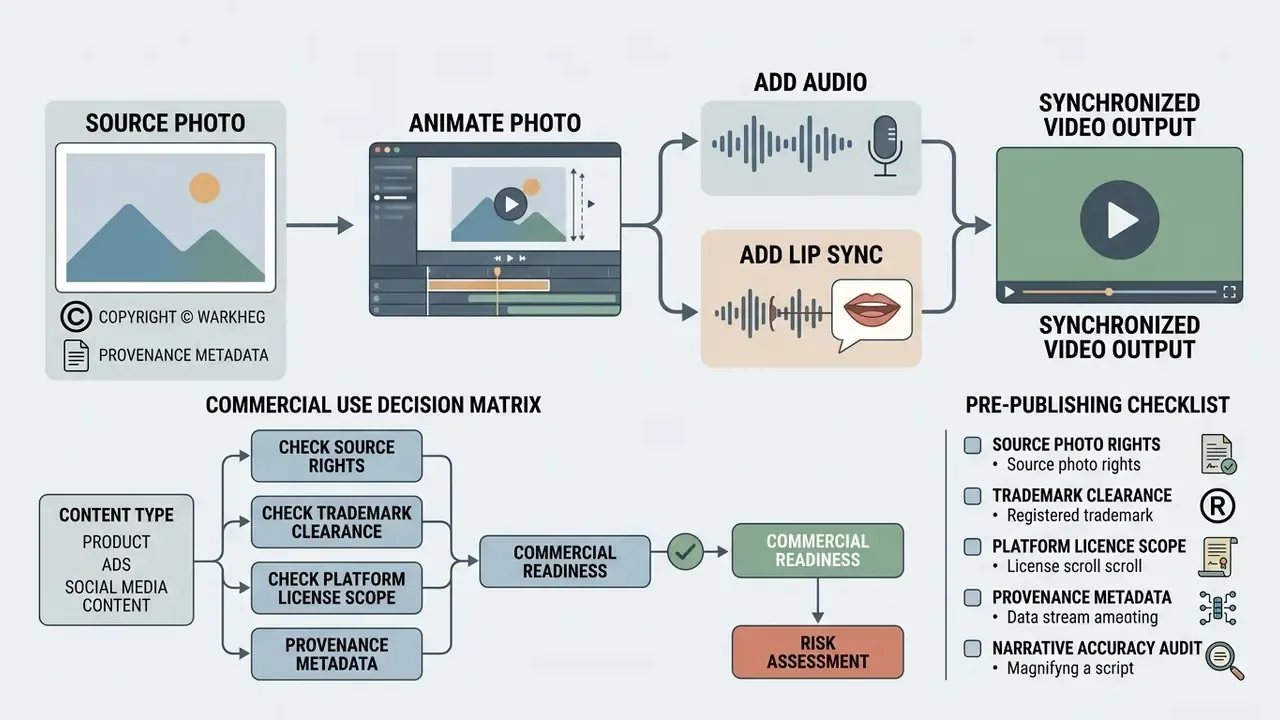
Can You Use Free AI-Generated Videos Commercially?
| Use case scenario | Commercial feasibility | Primary risk factor | Required governance action |
|---|---|---|---|
| Social media organic posts | High | Platform terms violation if the free tier prohibits commercial use | Verify the Terms of Service grant a commercial licence on the free plan. |
| Paid digital advertisements | Moderate | No copyright ownership; watermark and disclosure compliance | Remove visible watermarks (paid upgrade if required); ensure C2PA compliance and AI disclosure. |
| E-commerce product pages | Moderate | Product misrepresentation caused by rendering artifacts | Audit output against physical product specifications before listing. |
| Talking-head avatar or voiced spokesperson | Moderate / conditional | Likeness and voice rights; digital-replica exposure; deepfake disclosure duty | Obtain written consent for face and voice; mark output as AI-generated in machine-readable form. |
| Multi-clip campaign series | Moderate | Identity drift across shots creating a misleading product depiction | Use reference-to-video identity locking; approve each clip against the master reference set. |
| Enterprise broadcast and TV | Low / restricted | IP infringement risk, non-exclusive licensing, draft resolution limits | Use enterprise paid tiers with full IP indemnification and 4K export. |
What to Check Before Publishing AI-Generated Output
Run this verification pass on every asset headed for commercial use:
- Source photo rights.Confirm you own, or hold a valid commercial licence for, the reference photo used as input.
- Trademark clearance.Check that no third-party logo, protected design or proprietary mark appears in the frame, thumbnail, caption or embedded text.
- Platform licence scope.Some platforms (Pika Basic, Adobe Firefly, invideo's free plan) permit commercial use on free tiers. Others (Luma Dream Machine, Runway Free, Magic Hour's free tier) restrict free output to personal use. Read the current terms, not last year's summary.
- Provenance metadata.Verify that content credentials (C2PA, SynthID) survive your editing and export chain, since re-encoding can strip manifests silently.
- Narrative accuracy audit.Multi-stage claims are where models fail hardest.
«TC-Bench shows models execute fewer than 20% of specified compositional changes, a critical risk for multi-stage advertising narratives.»
FAQ About Free AI Image to Video Apps
Can AI Create Video from Multiple Images?
Yes. Modern models generate video from images using generative frame interpolation or multi-image conditioning modules. Advanced architectures accept a designated start frame and end frame, then synthesise smooth transition frames between the two stills. That lets you build multi-scene narrative sequences, or morph one visual state into another. STIV (ICCV 2025) integrates a variable number of image conditions into a Diffusion Transformer, Step-Video-TI2V (2025) generates up to 102 frames from combined text and image inputs, and Google's FILM work shows frame interpolation producing high-quality slow motion from near-duplicate photos.
«Frame In-N-Out demonstrates that models can accept new identities as input frames mid-sequence, guided by explicit motion trajectories.» - Frame In-N-Out, a cinematic paradigm for image-to-video diffusion (2025)
How Long Does Image-to-Video Generation Take?
Usually between 30 seconds and 3 minutes per 5-second clip on cloud infrastructure. A 2026 benchmark of thirty models reports typical bands of 30 to 60 seconds for fast modes, 90 to 180 seconds for standard modes, and 180 to 540 seconds for high-fidelity, 4K or native-audio renders. Latency depends on three things:
- Server queue load. Free requests go into the standard queue and slow down at peak hours. Relax-mode options trade speed for volume.
- Resolution and frame count. Higher frame rates (30 fps) or longer durations increase the number of diffusion steps required.
- Hardware acceleration. Enterprise GPUs process diffusion steps far faster than basic consumer servers. One archival system scales from 2 seconds at 128×128 to 12 seconds at 512×512 on A100 hardware.
«AR-Drag, an autoregressive diffusion model with 1.3B parameters, substantially reduces latency versus bidirectional models while preserving high quality.» - AR-Drag, autoregressive video diffusion with real-time motion control (2025)
Can I Use a Video as the Motion Source Instead of a Text Prompt?
Yes. Motion-mapping platforms let you upload a reference clip, a dance, a walk, a flip, and transfer that exact movement onto your character image. You can also pick from large community template libraries. This is the preferred route for high-speed or anatomically complex motion, where text cannot specify timing and joint articulation precisely enough.
Why Does My Illustration Drift Toward Photorealism?
Because most video diffusion models render photorealistically by default. An illustrated or hand-drawn reference can come out looking like neither your style nor a clean photo. Name the style, palette, texture and lighting explicitly, remove realism keywords, and lower motion strength. Real photographs rarely behave this way, since the model is already in its native domain.
Can I Keep One Product or Character Consistent Across Several Clips?
Yes, though not through frame chaining. Load reference images, front, side, back and a close-up, into a reference-to-video workflow so every subsequent generation reads the same locked context. For packaged goods, add one shot of the product held in a hand so the model reads true scale instead of guessing.
Do Free Tiers Really Cap Output at 720p?
Mostly. Common ceilings are 480p or 720p, with 1080p and 4K behind paid plans. A handful of platforms expose limited 1080p under restricted daily queues, and all-in-one tools let you upscale a draft render to 4K inside the same workflow.
Will the Platform Train on My Uploaded Photos?
Frequently yes, unless you have opted out or sit on a paid or enterprise plan. Read the content licence clause in the Terms of Service, plus the app-store Data Safety disclosure, before uploading anything confidential.
Can I Add a Voice to an Animated Photo?
Yes, on platforms with a lip-sync module. Upload an MP3 or WAV voiceover, or generate one with built-in Text-to-Speech, then trim the audio to clip length. Current engines support realistic, 3D and 2D character faces, provided the face is fully visible.
Additional Resources & Tools
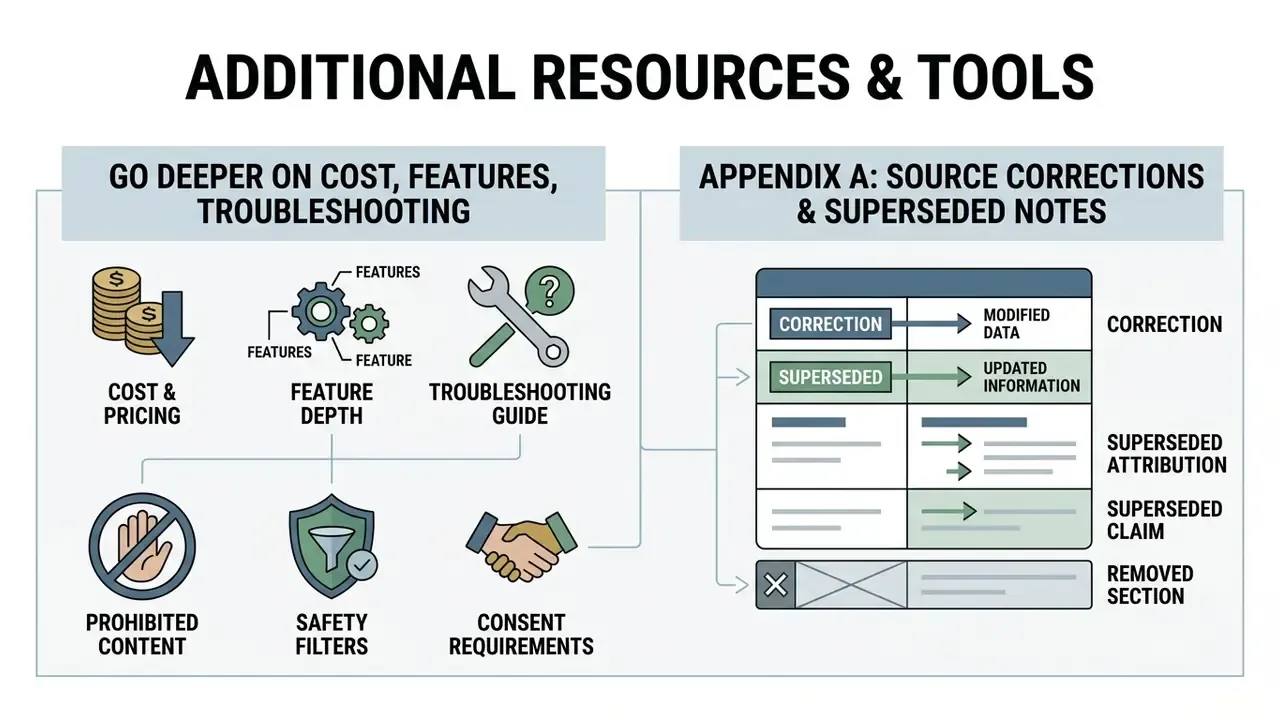
To go deeper on cost, features and troubleshooting:
- Calculate generation costs and credit allocations with our AI Media Calculators.
- Review subscription models and credit costs on our AI Media Pricing resource, then shortlist options using our ranking of the best free AI video generators by credits, watermarks and export limits.
- Access developer integration frameworks and code samples in our api documentation.
- Troubleshoot rendering errors and artifact issues with AI Media Support and Troubleshooting.
- Compare adjacent creative tools such as an ai poem generator for multi-modal campaign work, and explore text-to-video AI tools when you have no source image at all.
- Prepare and clean source imagery with a photo editor, and shrink finished exports for web delivery using a video compressor.
Prohibited Content, Safety Filters and Consent Requirements
Every commercial AI video platform runs automated safety filters. Generating or uploading harmful, illegal or non-consensual content is prohibited outright: sexual content involving real, identifiable people without documented consent; any sexual depiction of minors; non-consensual intimate imagery; deceptive political or financial deepfakes. Violations attract immediate account termination, content removal, and regulatory or law-enforcement reporting.
Because image-to-video tools operate on photographs of real people, three consent controls apply before any render. First, documented written permission covering AI generation of the subject's likeness. Second, a distribution scope limited to the channels named in that permission. Third, machine-readable AI disclosure on the published output, as required for synthetic and manipulated media under EU AI Act Article 50. Platform-side filters are a backstop, not a compliance programme. The publisher stays accountable for the asset.
Appendix A: Source Corrections and Superseded Notes
For transparency, the following statements appeared in earlier revisions of this guide and have been revised in the main text:
Correction: too absolute. Free tiers most commonly cap at 480p or 720p, but selected platforms expose limited 1080p exports under restricted daily queues or promotional access, and some all-in-one tools include in-platform 4K upscaling of draft renders. See the updated Output Quality section.
Correction: the source-preparation criteria are retained, but the attribution now points to benchmark-construction evidence from UI2V-Bench (2025), which documents curated image-text pairs with clearly visible subjects and unambiguous spatial relationships.
Correction: the figure was illustrative and not derived from a measured deployment. The scenario stays as a workflow template with the quantified savings claim removed.
Correction: reframed as a procedural illustration. No verified client outcome is asserted.
Footer hub navigation: explore our full media technology knowledge base in the main site glossary directory.
- Superseded
- "Free tiers cap rendering at 720p. High-definition (1080p) and production-grade (4K) rendering require premium plan upgrades."
- Superseded attribution
- "According to the NVIDIA Video Generation Prep Guide (2026), source photos yield optimal motion synthesis when adhering to specific criteria."
- Superseded claim
- "...reducing initial ad creative testing costs by 40%."
- Superseded claim
- "...the company eliminated potential breach-of-contract and regulatory compliance risks."
- Removed section
- an earlier footer block enumerated adult-content search terms as examples of prohibited use. It has been replaced by the consent-and-safety section above, which states the same prohibitions without keyword listings.