Quick Verdict by Use Case
| Your Task | Recommended App | Why |
|---|---|---|
| Fastest fix, zero installs | Apple Photos (built-in) | Trim, speed, color sliders and Audio Mix presets, fully on-device, no watermark |
| Best free editor overall | VN Video Editor | Desktop-style multi-track timeline, no watermark on free exports, speed curves |
| Best for TikTok / Reels / Shorts | CapCut | AI auto-captions, trending templates, native 9:16 presets |
| Best free multi-clip project editor | Apple iMovie | Free, watermark-free, syncs to Mac, requires iOS 17.6 or later |
| Best professional mobile NLE | LumaFusion | Up to 12 tracks, color scopes, LUT import, FCPXML export, external SSD editing |
| Best cross-device workflow | Adobe Premiere Rush | Cloud sync with Premiere Pro on desktop |
| Best green-screen / layered mobile edits | KineMaster | Chroma Key, blended layers, large asset store |
| Best long-form YouTube editing | PowerDirector | Multi-track 4K timeline, color scopes, stabilizer |
One caveat before the details. Prices and free-tier caps in this category change monthly, so treat every figure below as a checkpoint, not a contract.
1. Is There a Built-In Video Editor on iPhone?
Short answer: yes. Every iPhone ships with a video editor inside Apple Photos, plus the free iMovie app for multi-clip projects. Photos handles single-clip fixes. iMovie handles sequences.
So when someone asks "does iphone have a video editor", the honest reply is that it has two, and most people never open the second one. The native Photos editor lets you trim clip length, apply parametric color and lighting adjustments, run visual filters, change playback speed and apply environment-specific Audio Mix presets without installing anything.
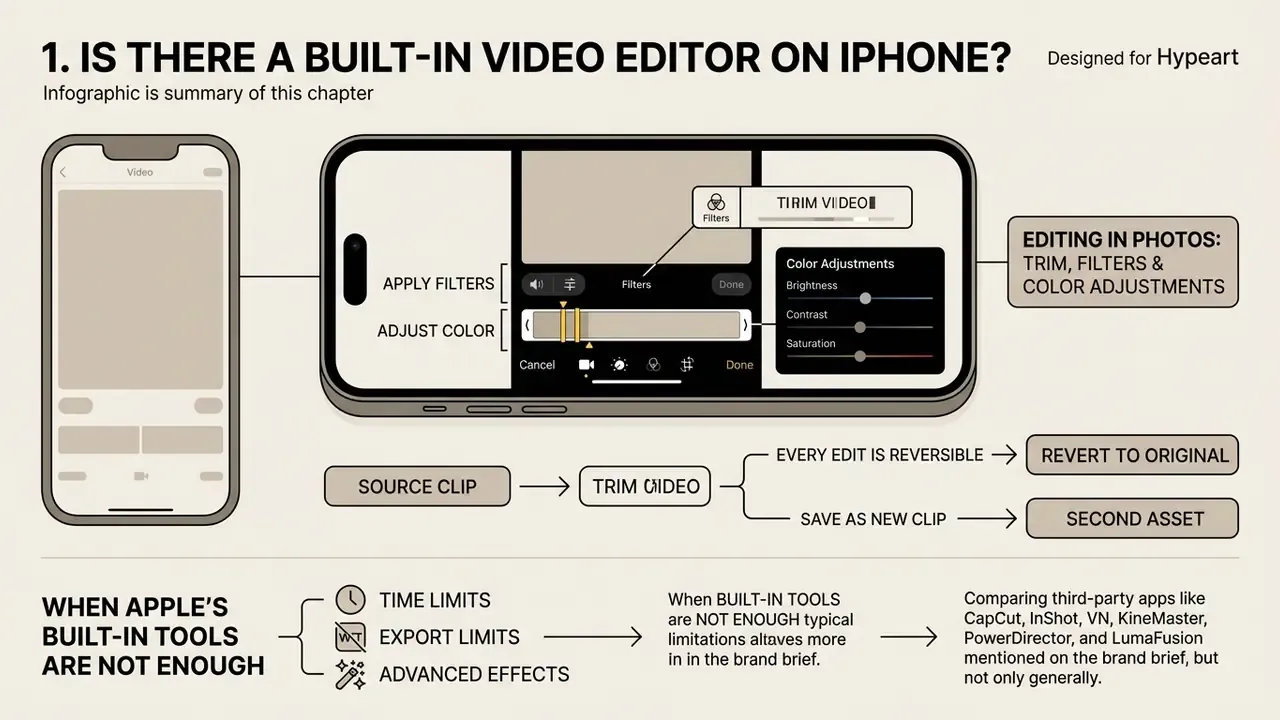
Here is a small field example. During a news recording where cellular bandwidth was constrained, a production team used the native Photos editor to color-balance and clean up raw interview footage on the spot. Applying the Studio Audio Mix preset isolated speech frequencies, and a new clip version was saved in under two minutes. No third-party app, no upload queue, no waiting.
According to official Apple Support documentation, editing in Photos works on a non-destructive model. You can change temporal boundaries, tweak exposure and swap audio profiles while the raw source file stays intact.
Apple also documents a "Save Video as New Clip" option, which writes a second asset instead of overwriting the master. That is the safer route whenever the original footage is a paid shoot or a client deliverable.
2. Editing Video in Photos: Trim, Filters and Color Adjustments
Apple Photos gives you single-clip tools for frame-accurate trimming, aspect-ratio cropping, parametric color adjustments and environment-based audio processing. To trim, select a clip, tap Edit, then drag the timeline boundary handles to the exact start and stop timestamps. Cropping, rotation and straightening sit in the same toolbar, so reframing a horizontal capture into vertical needs no extra app for iPhone at all.
The Adjust panel exposes sliders for Exposure, Brilliance, Highlights, Shadows, Contrast, Black Point, Saturation, Vibrancy, Warmth, Tint, Sharpness, Definition and Noise Reduction. Color grading and lighting changes render live on the device preview. For timing, slo-mo range controls let you define exact high-frame-rate speed ramps, and playback speed can be changed across the whole clip. Audio Mix offers four algorithms: Standard (raw capture), In-Frame (suppresses off-camera sound), Studio (removes acoustic reverb and background ambience) and Cinematic (places vocals on a prominent center channel).
One practical limit deserves emphasis. In Photos, adjustments apply to the entire clip, never to a selected range. Need a color change on one second of footage? You already need a timeline editor.
3. When Apple's Built-In Tools Are Not Enough
The built-in editor runs out of room the moment a project needs multi-track layering, custom text overlays, external soundtracks, designed transitions or automated AI features. Because Photos works on one video clip at a time, it cannot assemble a sequential storyboard or mix overlapping tracks.
Install a dedicated non-linear video editing app when your project needs any of the following:
- Two or more clips on separate tracks (interview plus B-roll, or webcam plus screen capture).
- Burned-in captions, animated titles or brand lower-thirds.
- Licensed external music with fades and ducking against a voiceover.
- Chroma key (green screen), masks or blend modes.
- Keyframed scale, position, opacity or speed curves.
- Custom LUT (.cube / .3dl) application to Log or HDR footage.
- Per-platform export presets with manual bitrate control.
If you want workflow definitions and terminology in one place, our media and AI glossary benchmarks the foundational vocabulary, and the baseline explainer on video editors and their core features is the shortest route to the taxonomy.
4. How to Choose the Best iPhone Video Editing App
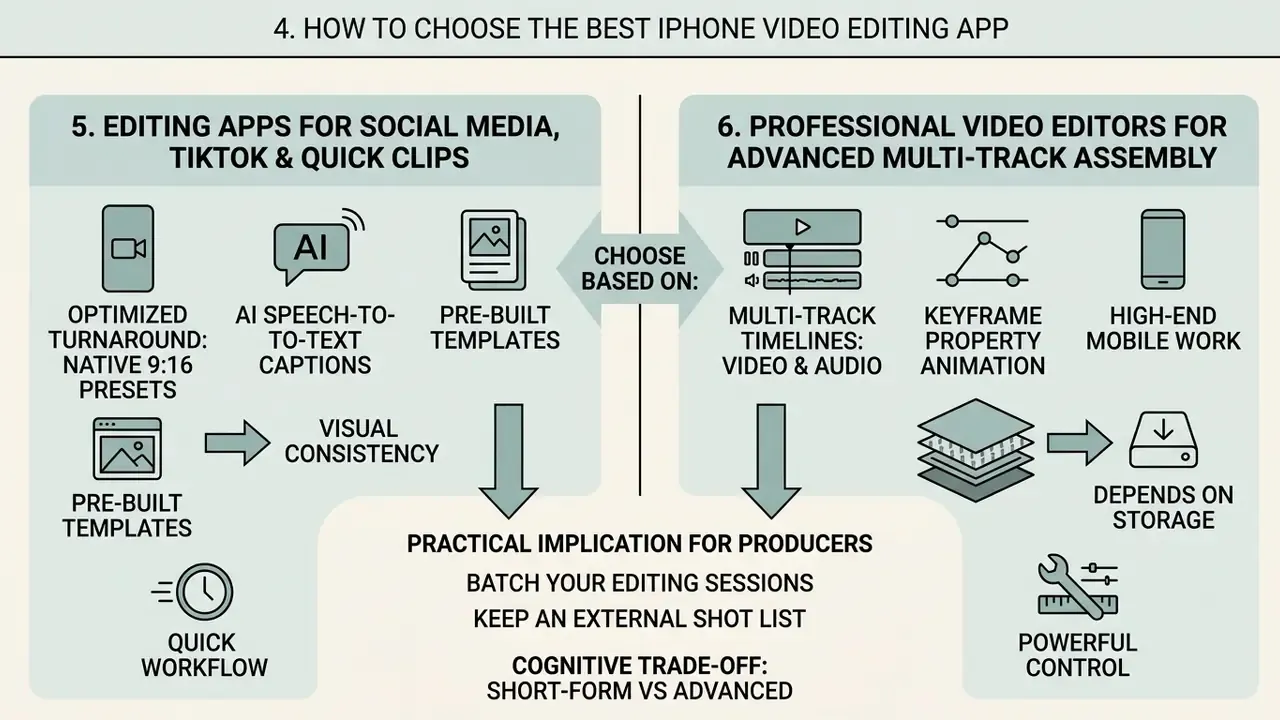
Picking the right video editing app comes down to four variables: your publishing format, the timeline complexity you need, how much automation saves you, and budget. Before committing to a subscription, skim the video editors for different task profiles overview. Short-form creators want automated captioning, vertical 9:16 templates and viral audio sync. Professional shooters want multi-track NLE timelines, LOG/ProRes LUT support, frame-accurate keyframing and clean 4K export.
Decision flowchart placeholder: task, then required features, then recommended editor class. Branch 1: single-clip fix (trim, exposure, noise) leads to Apple Photos. Branch 2: vertical social post (captions, trending audio, templates) leads to CapCut, InShot or Apple Clips. Branch 3: structured long-form (multi-clip timeline, titles, music bed) leads to iMovie, VN Video Editor, PowerDirector or Premiere Rush. Branch 4: commercial or broadcast delivery (multi-track, scopes, LUTs, external SSD, desktop round-trip) leads to LumaFusion.
Check device compatibility first. iMovie's current App Store listing requires iOS 17.6 or later, so older hardware may be limited to Photos plus third-party apps with lower OS floors.
- Quick clips and basic fixesuse native Apple Photos for fast trim, exposure correction and Audio Mix noise reduction.
- Social content (Reels, TikTok, Shorts)pick template-driven editors such as CapCut, InShot or Apple Clips for AI auto-captions, vertical presets and sound libraries.
- YouTube and long-form narrativedeploy timeline editors such as Apple iMovie, VN Video Editor, PowerDirector or Adobe Premiere Rush for structured multi-clip assembly and clean transitions.
- Professional and commercial productionuse LumaFusion for multi-track editing, color scopes, custom LUT import, external drive editing and FCPXML desktop export.
6. Professional Video Editors for Advanced Multi-Track Assembly
Professional mobile editors deliver multi-track video and audio timelines, keyframe property animation, color correction scopes, external monitor output and custom LUT (.cube / .3dl) import. The best video editing tools in this class handle raw 4K ProRes and HDR footage from pro-tier iPhone hardware without proxy compression. Apple confirms that iPhone 15 Pro, 16 Pro and 17 Pro models record ProRes in HDR or Log, while earlier Pro models support ProRes in HDR, SDR or Log.
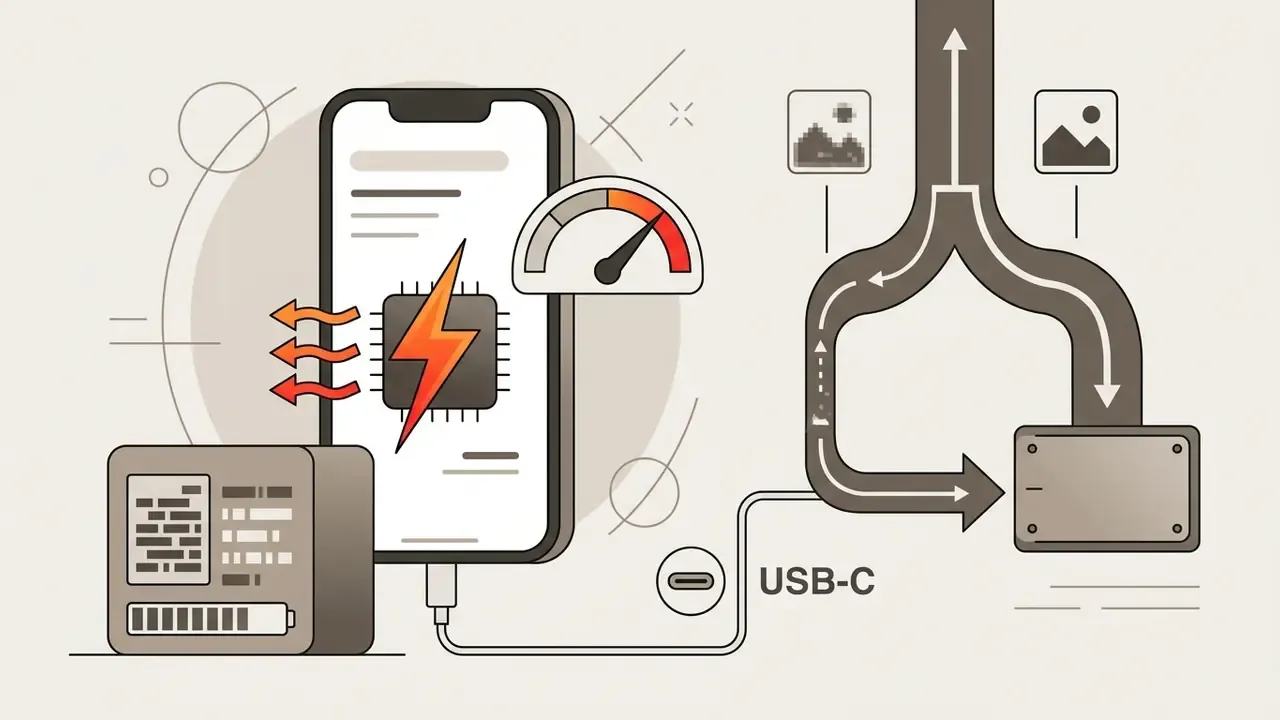
High-end mobile work also depends on storage. LumaTouch's own guidance is that external editing behaves best on SSDs delivering roughly 1,050 Mbps or faster read speeds over USB-C or Thunderbolt 3. Audio capture matters just as much: apps such as ProCamera document ProRes Log recording plus external microphone input over USB, Bluetooth and Lightning, which keeps dialogue usable before it ever reaches the timeline. Fix the sound at the source; no editor rescues clipped audio.
Professional creators building structured publishing channels can review our specialised guide on YouTube video editor workflows to align mobile assembly with long-form growth. Teams weighing automation against manual assembly can also compare the leading AI video generators for pre-production and B-roll synthesis.
7. Best iPhone Video Editing Apps: CapCut, iMovie, InShot and Alternatives
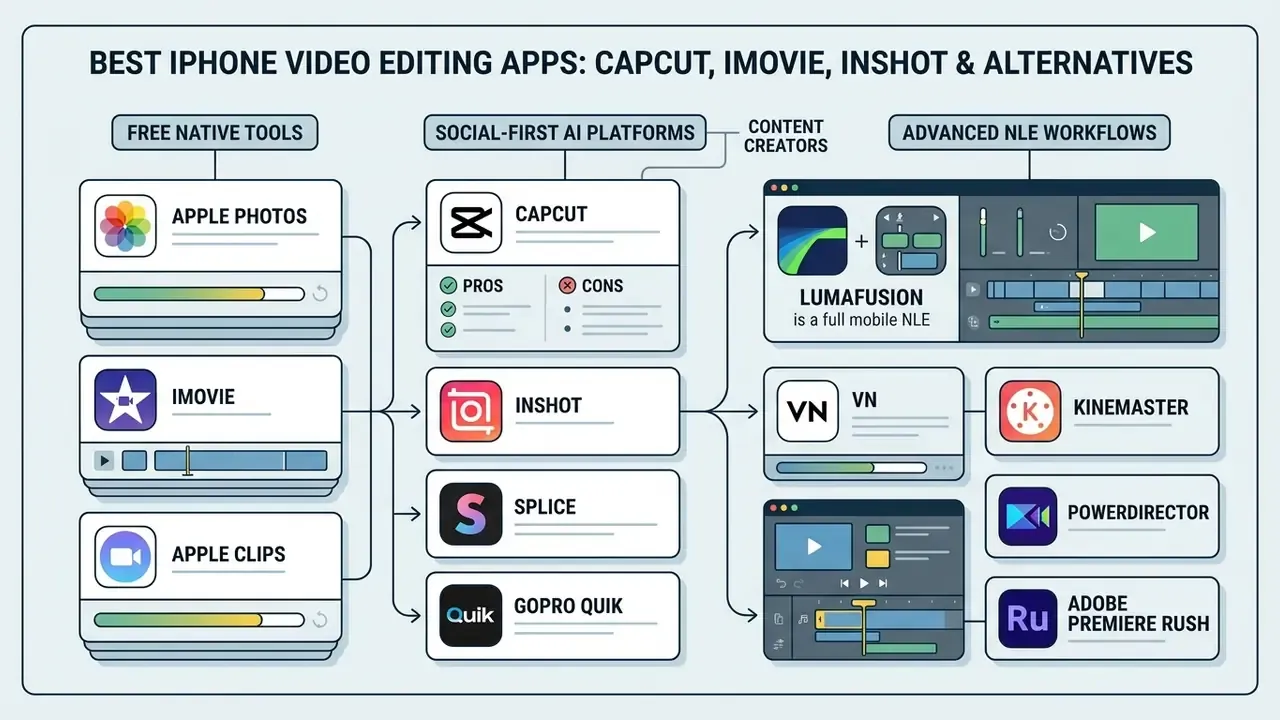
The leading options span three tiers: free native tools (Apple Photos, iMovie, Apple Clips), social-first AI platforms (CapCut, InShot) and full mobile NLE suites (LumaFusion, PowerDirector, Adobe Premiere Rush). Choosing well means comparing timeline limits, AI feature availability, asset licensing and pricing structure side by side.
For broader technical evaluation across media tools, our AI Media Comparison Matrices break down features and licensing parameters in the same format.
| App | Primary Use-Case | Free Tier Availability | Paid / Pro Pricing (Approx.) | Multi-Track Timeline | AI / Advanced Features | Stock Media & Music | Max Export Resolution |
|---|---|---|---|---|---|---|---|
| Apple Photos | Quick single-clip edits, color, basic audio mix | Included on all iPhones | None (no upsells) | No (single clip) | Audio Mix presets (Standard, In-Frame, Studio, Cinematic) | User library only | Native capture (up to 4K) |
| Apple iMovie | Basic multi-clip assembly, personal & YouTube projects | Free download (iOS 17.6+) | None (no upsells) | Yes (basic multi-clip) | Video stabilization, noise reduction, Magic Movie, Storyboards, Cinematic mode editing | Built-in soundtracks & SFX | Up to 4K |
| Apple Clips | Quick social clips, casual voiceovers | Fully free | None (included) | Single-track | Animated Live Titles, AR spaces, Memoji integration | Apple soundtracks | Up to 1080p / 4K |
| CapCut | Short-form social, vertical videos, AI editing | Free (watermark on Pro assets) | Standard ~$9.99/mo; Pro ~$19.99/mo or $179.99/yr; 7-day trial | Yes (multi-layer timeline) | ~15 AI tools, auto-captions, vocal isolation, motion tracking | 12M+ royalty-free assets (Pro) | Free: 1080p; Pro: 4K |
| InShot | Reels, Shorts, casual video montage with filters | Free (ads & watermark) | $4.99/mo, $19.99/yr, $49.99 Lifetime Pro | Yes (PIP overlay) | Keyframing, speed curves, chroma key | Built-in music & SFX packs | Up to 4K at 60fps |
| VN Video Editor | High-end free editing, YouTube long-form | Free (no watermark) | Optional Pro ~$9.99/mo | Yes (multi-track NLE) | Curve speed adjustment, keyframe animation, custom LUTs | Built-in sound library | Up to 4K at 60fps |
| KineMaster | Multi-layer mobile production, green screen | Free (with watermark) | ~$4.99/mo or $39.99/yr | Yes (multi-layer) | Chroma Key, blended video layers, real-time voice recording | Asset Store (1,000+ effects) | Up to 4K |
| PowerDirector | Cinematic & YouTube long-form editing | Free (basic tier) | ~$5.99/mo or $34.99/yr | Yes (advanced multi-track) | AI motion tracking, video stabilizer, color correction scopes | Royalty-free stock library | Up to 4K |
| Splice | Fast automated cuts, music-led montage | Free (limited) | Subscription (points-based extras) | Yes (basic overlays & masks) | Background removal, speed control, slideshows | Built-in music library | Up to 4K |
| GoPro Quik | Action footage, telemetry overlays | Free tier | Subscription for full asset access | Limited | Auto-highlight edits, GPS telemetry stickers, voice detection | Licensed music library | Up to 4K |
| LumaFusion | Professional journalism, documentaries, NLE work | No free tier | $29.99 base app; Creator Pass $9.99/mo or $69.99/yr; add-ons ~$19.99 | Yes (up to 12 tracks) | Scopes, speed ramping, LUT import, FCPXML export, Multicam Studio | Storyblocks add-on (2M-6M+ assets) | Up to 4K / 8K assets |
| Adobe Premiere Rush | Cross-device mobile & desktop editing | Free basic tier | $9.99/mo (Express/Rush bundle) | Yes (4 video, 3 audio) | Pan & zoom, auto-reframe, cloud sync, Adobe Fonts | Creative Cloud asset library | Up to 4K |
| Filmmaker Pro | Detailed manual grading on mobile | Free (with watermark) | Paid unlock | Yes (color-coded timeline) | 46 transitions, 30 filters, brightness/contrast/saturation/white balance | 100+ royalty-free tracks + SFX | Up to 4K |
Read the table with one filter in mind: watermark policy and export cap are independent variables, and vendors mix them differently. Apple's tools are the only ones here with no upsell path at all.
8. CapCut, InShot, Splice and Quik for Content Creators
Creator-focused apps are built around speed: automated assembly, speech-to-text subtitles, speed ramping and keyframe animation.
«A feature analysis of CapCut identified 15 AI functions, deep TikTok integration and a broad content library, alongside weaknesses in data privacy.»
CapCut carries the broadest AI set here: background removal, vocal isolation and automated caption sync across multiple languages, with automatic language detection plus editable font, color, effect and placement controls per subtitle line. InShot handles 4K/60fps output alongside straightforward picture-in-picture compositing and speed curves; InShot Pro sells at $4.99/month, $19.99/year or $49.99 as a lifetime unlock, and the free tier does export up to 4K/60fps, watermark included.
Splice and Quik target faster, blunter jobs. Splice imports your media, lets you mark key sections, then auto-cuts the sequence to the selected music track, with exposure, contrast, saturation, speed control, masks, voiceovers and 4K output. Action-sports creators can use GoPro Quik to burn real-time GPS telemetry stickers, covering speed, elevation and distance, straight onto high-frame-rate edits, and its voice-detection feature unmutes clips containing dialogue automatically. For dramatic ramps, InShot and VN Video Editor both offer bezier speed curves, which makes a smooth move from 240fps slow motion to a 2x burst inside one clip range. Reverse playback, still a staple of transition-driven social edits, lives in VN, KineMaster and VivaVideo-class editors.
CapCut
- Pros: industry-leading AI auto-captions; vast viral audio and transition library; seamless 9:16 TikTok export; motion tracking and vocal isolation.
- Cons: free exports capped at 1080p and watermarked when Pro assets are used; persistent cloud account syncing prompts; documented privacy concerns in academic feature analysis.
InShot
- Pros: very fast learning curve; 4K/60fps free export; keyframes, speed curves, chroma key; strong text and sticker library; lifetime purchase option.
- Cons: heavy ad load in the free tier; watermark removal is gated; no full project archive for photo and collage modes.
Splice
- Pros: music-synced automatic assembly; no watermark on subscription exports; unlimited project length; ad-free.
- Cons: confusing music licensing section; noticeable lag on very long timelines; points expire if the subscription lapses.
GoPro Quik
- Pros: free tier is genuinely usable; telemetry GPS stickers; auto-highlight edits; imports from camera roll and social accounts.
- Cons: limited to a modest number of assets per project; not designed for granular multi-track editing.
Creators exploring generative media can review our analysis of text to video ai applications or read Text-to-Video AI Explained to weigh generative models against traditional mobile timelines. For a definitional baseline on AI-based video generators, start with the glossary entry before comparing vendors.
9. iMovie, LumaFusion, VN, KineMaster, PowerDirector and Adobe Premiere Rush for Advanced NLE Workflows
Advanced mobile editors bring traditional timeline assembly, precise audio mixing and desktop integration. Apple iMovie is the cost-free entry point: clip stabilization, green-screen compositing, Magic Movie and Storyboard automation, Cinematic mode depth editing and cross-device project sharing between iOS and macOS. On the Mac side, iMovie libraries can live on an external USB or Thunderbolt drive formatted as APFS or Mac OS Extended (Journaled), though not on network-attached storage or external flash drives.
LumaFusion is the ceiling of mobile NLE engineering right now: up to 12 video and audio tracks (expanded in version 5.2), color scopes (histogram, waveform, vectorscope), an audio mixer, .cube and .3dl LUT import, six-camera Multicam Studio, FCPXML project export to Final Cut Pro and direct editing from external USB-C SSDs (LumaTouch, 2025).
«Vendor metrics report approximately 1.2 million LumaFusion customers and roughly 35 million editing sessions per year.»
«A journalist cut a storm report entirely in LumaFusion on iPhone at the scene, recording narration inside a tent and using sleeping bags as acoustic insulation.» - LumaTouch mobile journalism case study (2024).
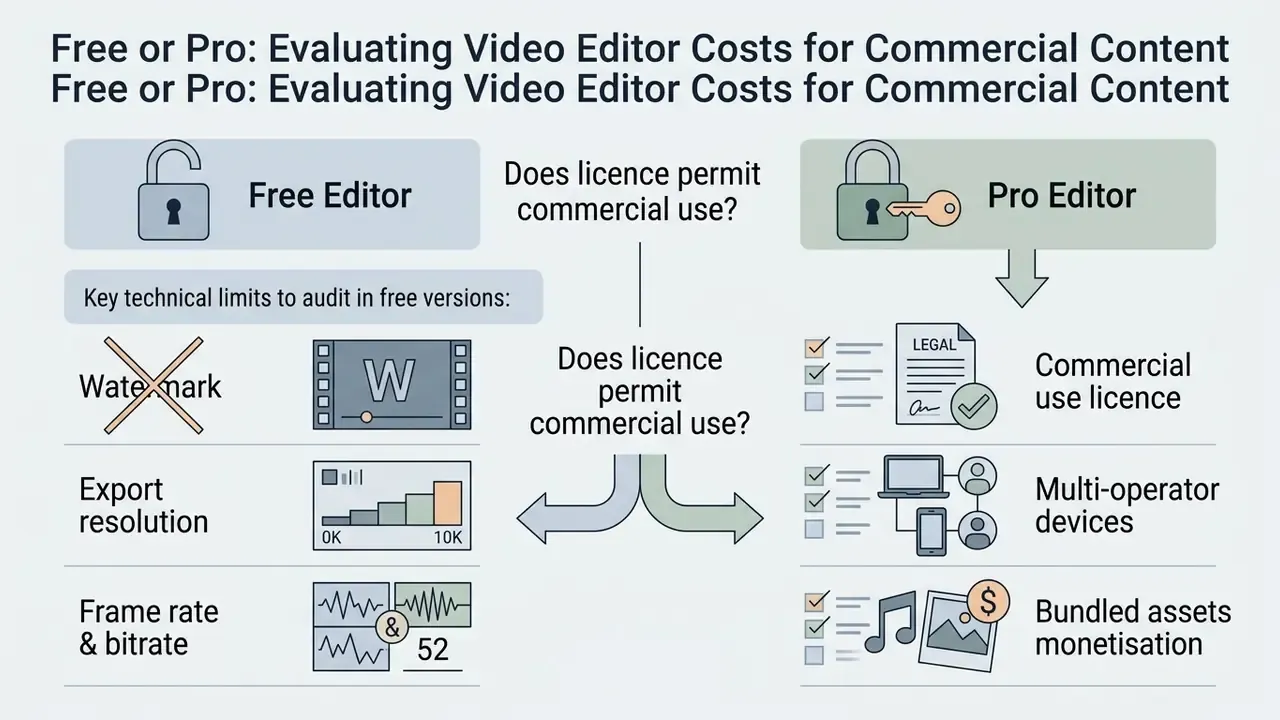
10. Free or Pro: Evaluating Video Editor Costs for Commercial Content
https://videosoftdev.ru/eula-for-education
11. Key Technical Limits to Audit in Free Versions
Before you start a commercial project on a free tier, audit four constraints:
Creators working with image assets alongside footage can use our guide to free photo editors to benchmark feature gating in graphic utilities, or run a side-by-side comparison of free video editing software before spending anything. To model production cost and subscription break-even, use our interactive media calculators.
12. When Pro Subscriptions Are Justified for Creators and Businesses
Pro tiers pay off when automation, 4K export rights, cloud collaboration and stock libraries convert into measurable hours saved and visibly better output. Automated subtitle alignment and vocal isolation, in particular, compress post-production turnaround.
One reported example. A digital marketing agency producing twenty commercial video assets monthly moved from free tools to a Pro mobile subscription with AI speech isolation and camera tracking. In their internal figures, per-video post-production dropped from roughly 120 minutes to about 25, cutting labour overhead while enabling standard 4K deliverables. That is a single self-reported client case, not a controlled benchmark, so treat the ratio as directional and re-measure against your own baseline before you rebuild a budget around it.
The value is not only commercial, either. In education, mobile editing has been used as a confidence-building instrument:
Teams that need clarity on media rights and asset usage can review our AI Media Commercial-Use Hub. Voice-driven productions should also verify terms for synthetic narration; our reference on AI voice generators and commercial licensing lists what to check before a client hand-off. Studios producing motion graphics alongside footage can extend the same audit to animation makers.
13. Privacy and Data Security: Local vs Cloud Processing
Not every "AI feature" runs on your phone. That distinction matters when footage contains client material, internal briefings, minors or anything under NDA.
A short governance note, since the same logic applies to any tool that touches regulated material: name an owner for the app, define what data it may see, and record the approval. If nobody owns the decision, nobody can defend it later.
14. Hardware Constraints: Thermal Throttling, HDR Profiles, Storage and Bitrate
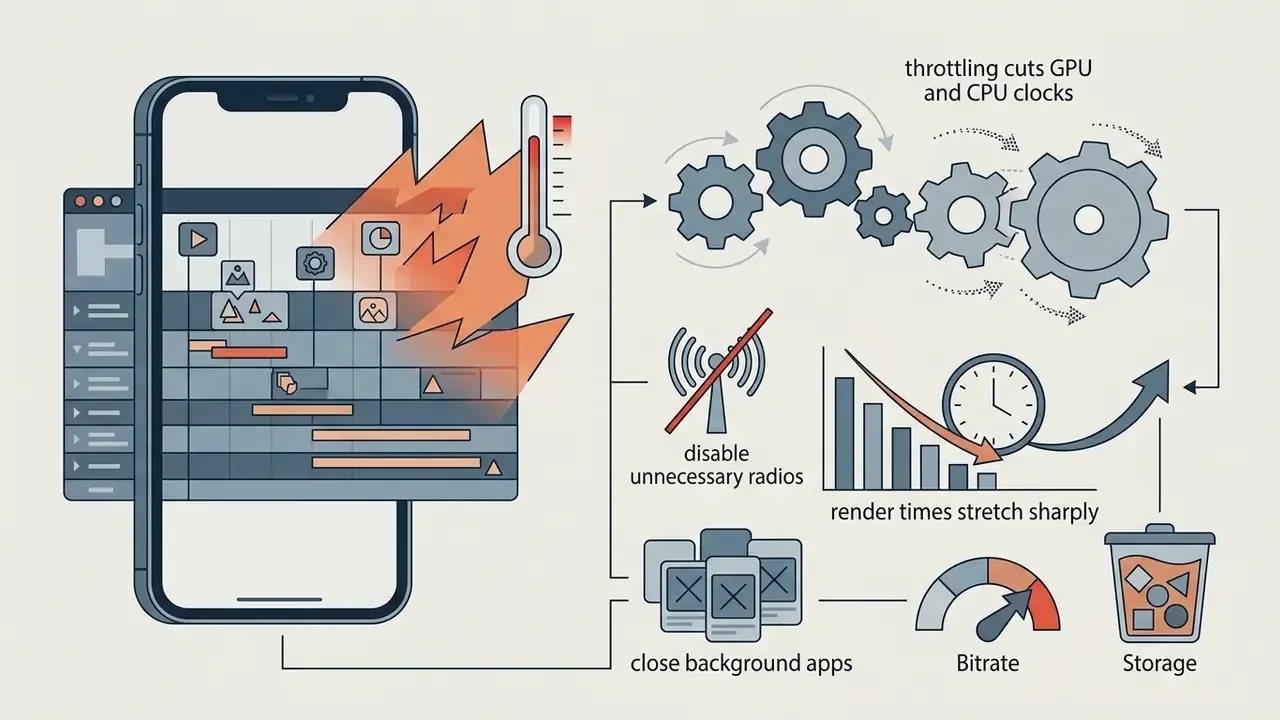
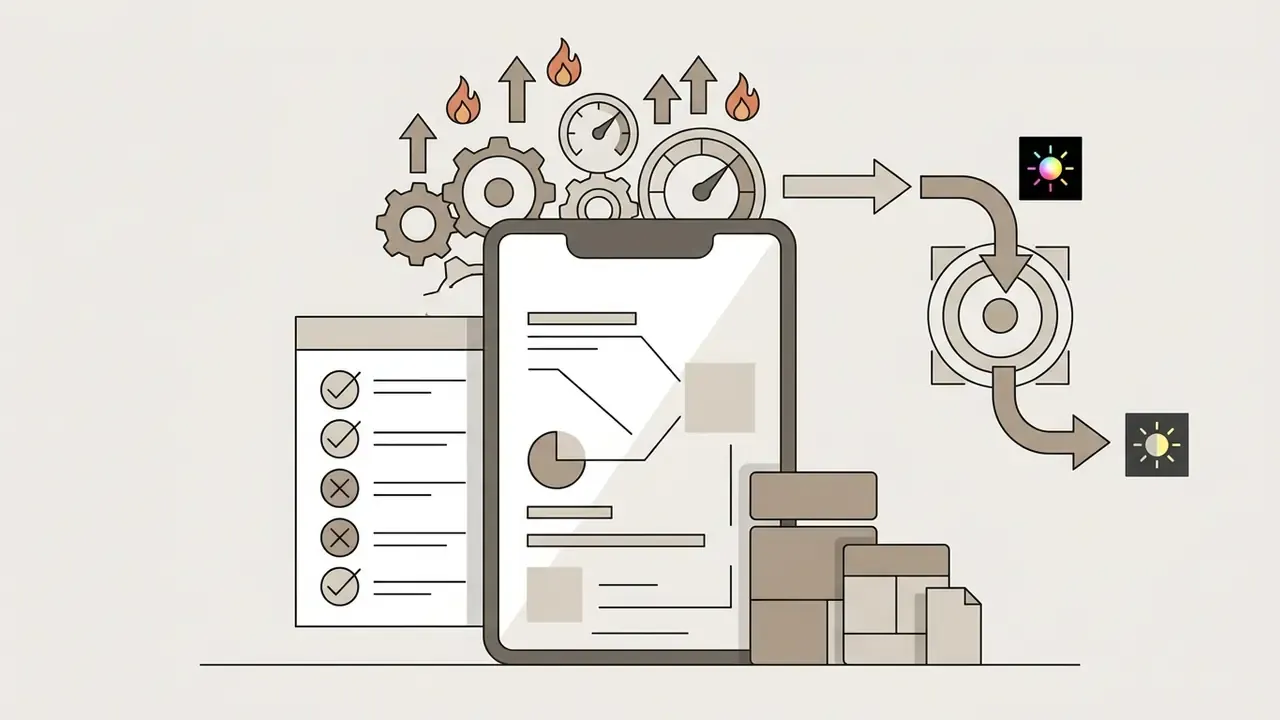
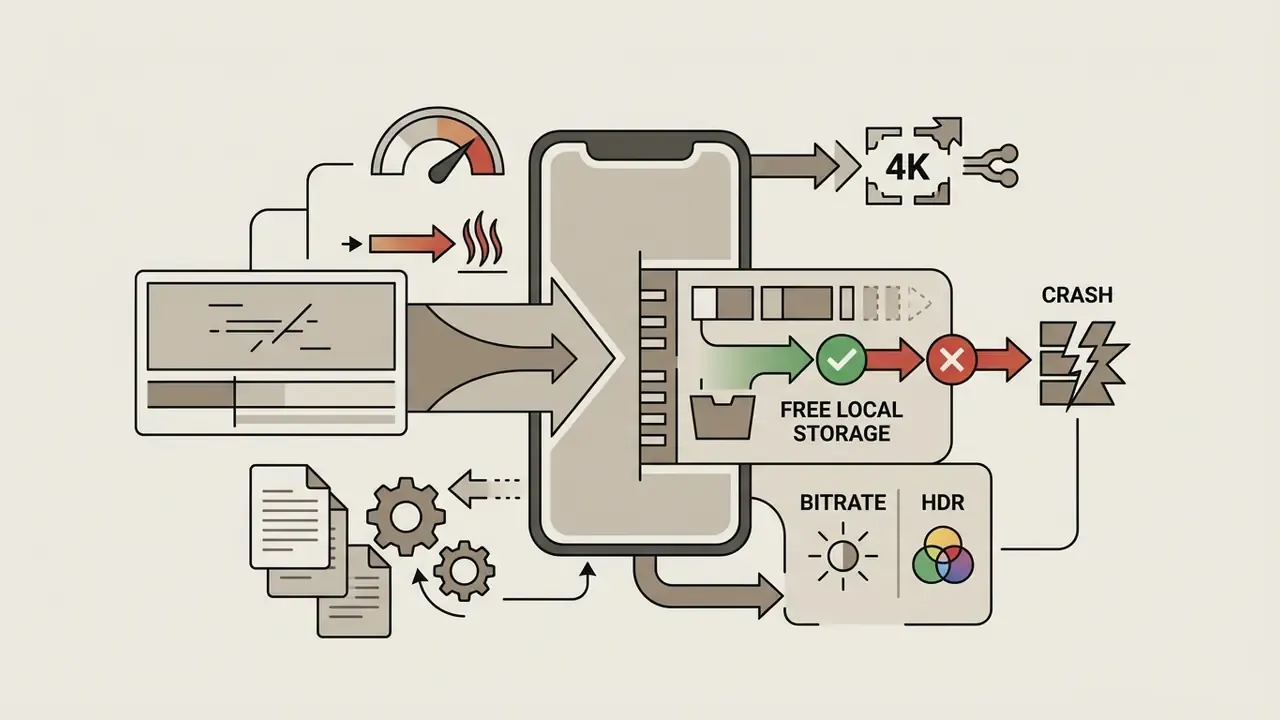
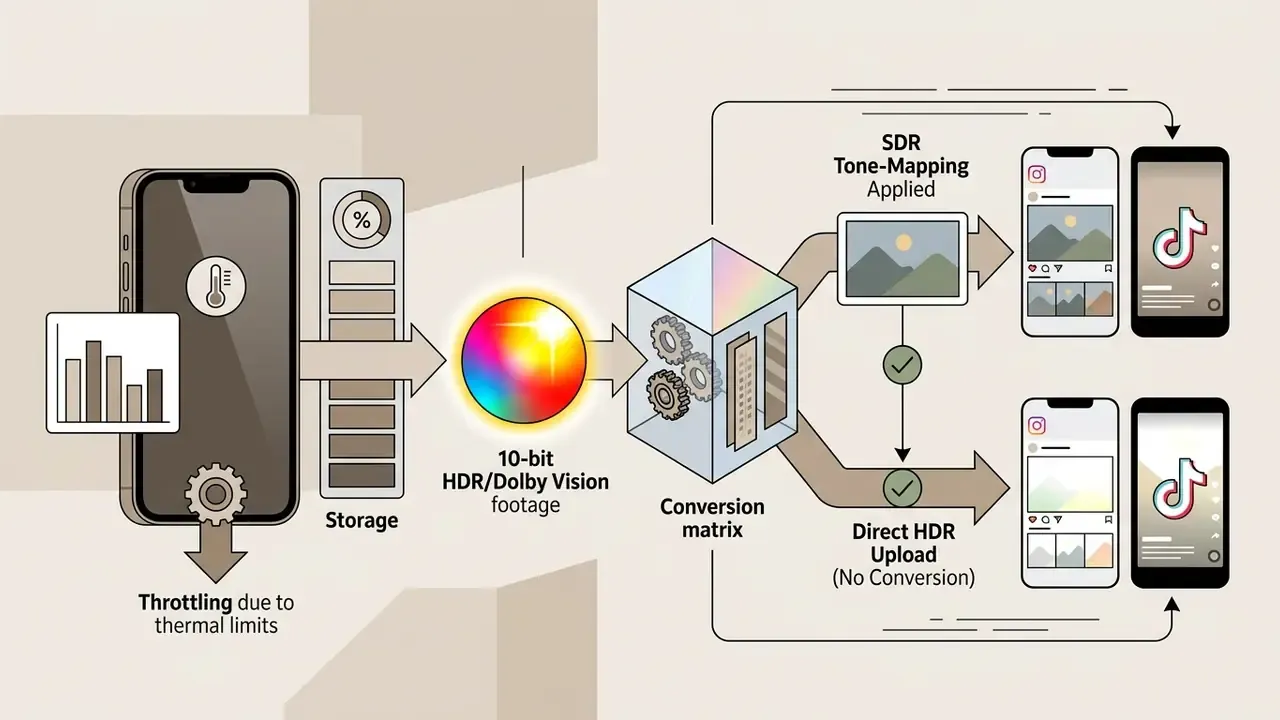
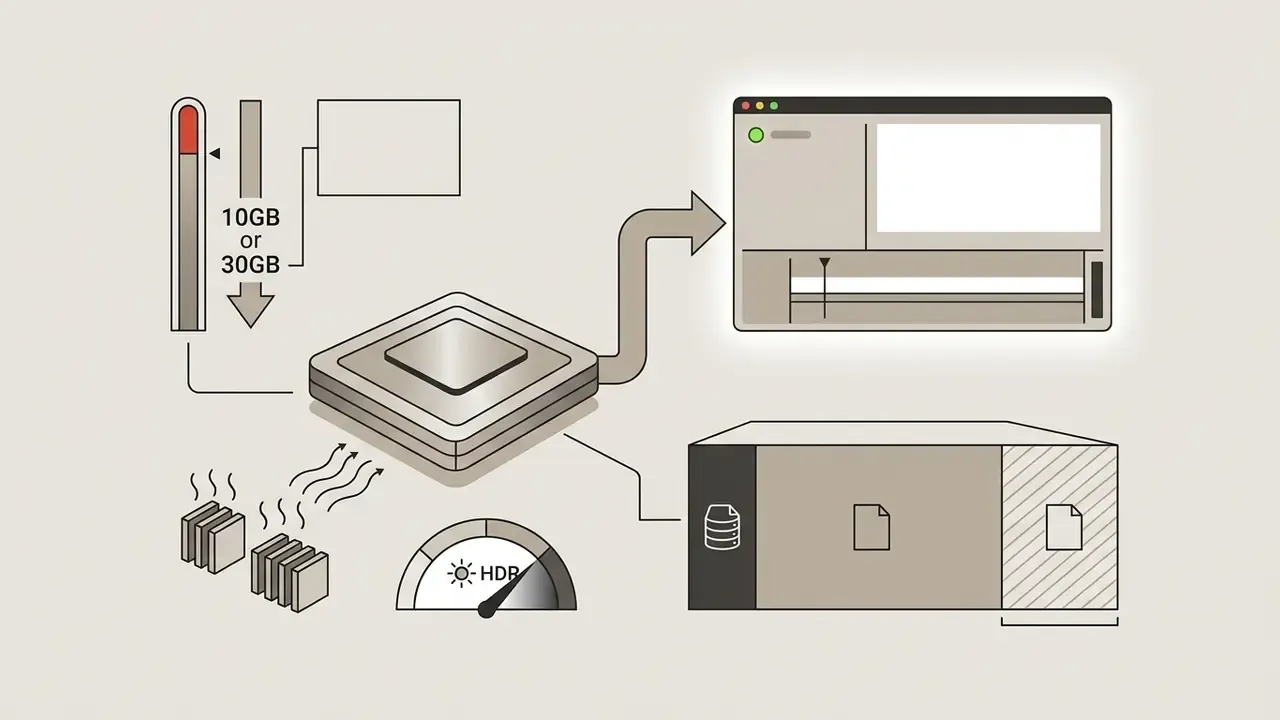
Editing 4K ProRes or high-bitrate footage pushes the A-series SoC hard. Four constraints decide whether an export finishes cleanly:
15. How to Edit Video on iPhone: Step-by-Step Production Workflow
Editing videos is mostly a sequencing problem, and a six-step pipeline keeps quality intact from ingest to distribution. Before importing anything, group your source clips into an Album in Photos by scene or topic. That one habit stops the editor's import panel from turning into a pile of screenshots and unrelated media.
Interactive checklist placeholder: the sequential iPhone editing pipeline. Select clips, trim footage, add music and text, apply filters and transitions, verify audio levels, configure export parameters, then save and share.
Checklist0 / 6
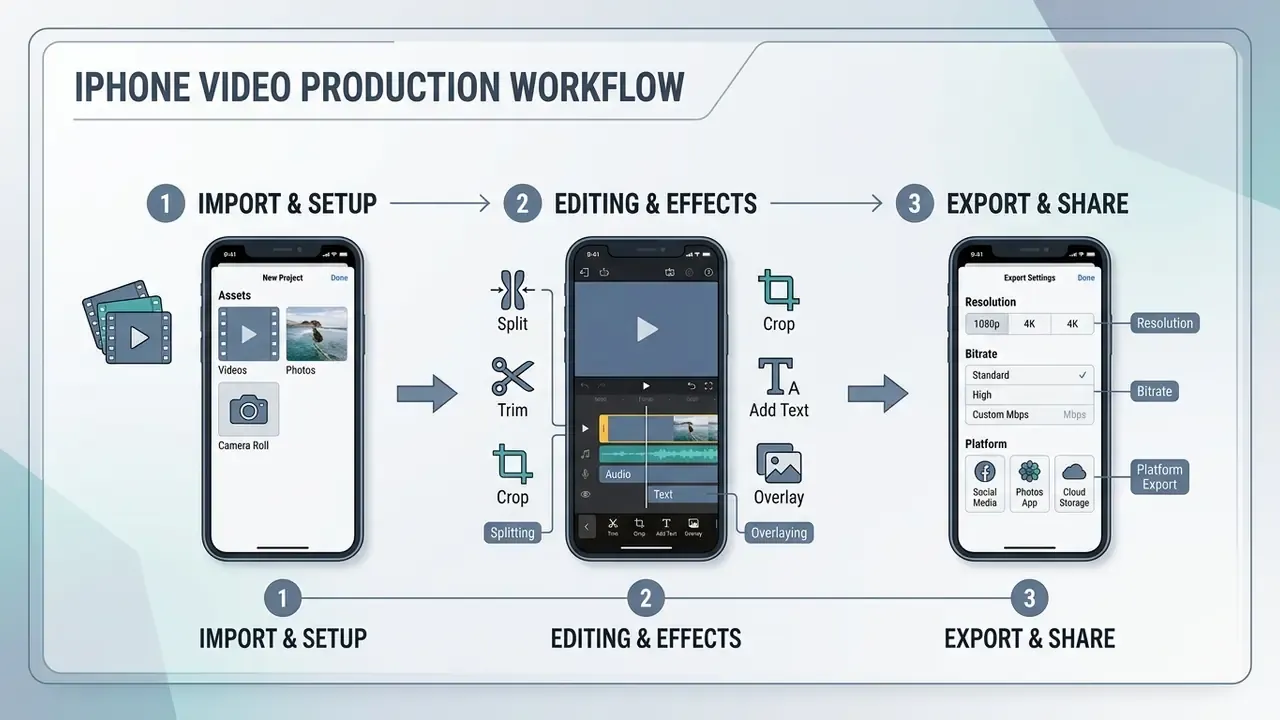
Practical 3-Step Timeline Editing Guide
Step 1: media import and canvas setup. Launch your editor (CapCut, VN Video Editor, iMovie or LumaFusion), tap New Project or +, select source clips from the camera roll or the app's media library, then tap Add. Define the canvas aspect ratio immediately: 9:16 for Reels, TikTok and Shorts, 16:9 for YouTube, 1:1 for feed posts. Change the canvas after keyframing and you will reposition every animated element by hand.
Step 2: splitting, trimming and overlaying. Tap and hold a clip to drag it into position, then arrange the sequence in narrative order. To shorten a clip from either end, tap the block and drag the yellow bounding handles inward. To cut from the middle, scrub the playhead to the exact frame where the unwanted footage begins, select the clip, tap Split, then select the dead segment and tap Delete. Tap the transition icon between two clips to insert a dissolve or cut-through effect. For picture-in-picture, tap Overlay and place the secondary clip on a track above the main video. Add keyframes with the diamond icon to animate scale, position, opacity or speed across timestamps; for a speed ramp, open the speed panel and use the Curve tab rather than the linear slider. Text, stickers, effects, sound effects and music all come from the bottom action bar, and each element lands on its own track, trimmable and draggable like any video clip.
Step 3: bitrate, resolution and platform export. Tap the Export icon in the top-right corner. Set resolution to 1080p for social feeds or 4K for YouTube and client delivery. Match the frame rate to the raw capture (24, 30 or 60 fps) instead of resampling, and push the quality slider to high bitrate, roughly 10-20 Mbps at 1080p and 30-60 Mbps at 4K, to kill compression artefacts. Keep the colour space at Rec.709 / SDR for Instagram, TikTok and Facebook unless the app tone-maps HDR properly; reserve HDR or HLG for YouTube, where HDR delivery is supported. Choose vertical orientation for social, landscape for long-form. Save to Photos first, then upload from the destination platform's own app. Apple's guidance for its video apps is the same: export with the Social Platforms setting, save to the Photos library, upload from the service.
For developers wiring media processing into web applications, review our AI Media API Guides. To control file size without visible quality loss, see the technical reference on video compressors for mobile export, which covers format support, quality-loss thresholds and pricing.
16. Five Mistakes That Quietly Ruin an iPhone Edit
Most failed mobile projects fail for boring reasons. These are the recurring five, in rough order of frequency:
- Grading before the cut is locked.Colour work on clips you later delete is wasted time, and re-grading after a re-cut rarely matches.
- Mixing frame rates in one timeline.A 60fps clip dropped beside 24fps material produces stutter unless the editor conforms it deliberately.
- Ignoring loudness on the vocal track.Music sitting only 3 dB under dialogue sounds fine in headphones and unintelligible on a phone speaker.
- Exporting at platform-cap resolution but default bitrate.The file says 4K; the motion says mush.
- Editing from a full device.Under 5 GB free and the app will crash mid-render, usually on the longest project you own.
Actually, one more deserves a mention: forgetting to save a flat, unbranded master. Deliver the captioned vertical version, sure, but keep a clean 16:9 or 1:1 master so the same footage can be repurposed next quarter without a rebuild.
FAQ: iPhone Video Editing Questions
Do free iPhone video editors leave watermarks?
Apple Photos, iMovie, Apple Clips and VN Video Editor are watermark-free. CapCut lets you delete the appended end-tail logo segment manually before export, yet applies a watermark when Pro assets are used. InShot, KineMaster and Filmmaker Pro gate watermark removal behind ads or Pro subscriptions.
Can I edit iPhone projects directly from an external SSD?
Yes. Professional editors such as LumaFusion support direct editing from external USB-C drives, without copying raw 4K files into internal flash storage. LumaTouch recommends SSDs with read speeds of roughly 1,050 Mbps or higher, and Adobe Premiere Rush also imports media from external drives.
Why does my iPhone get hot and slow down during export?
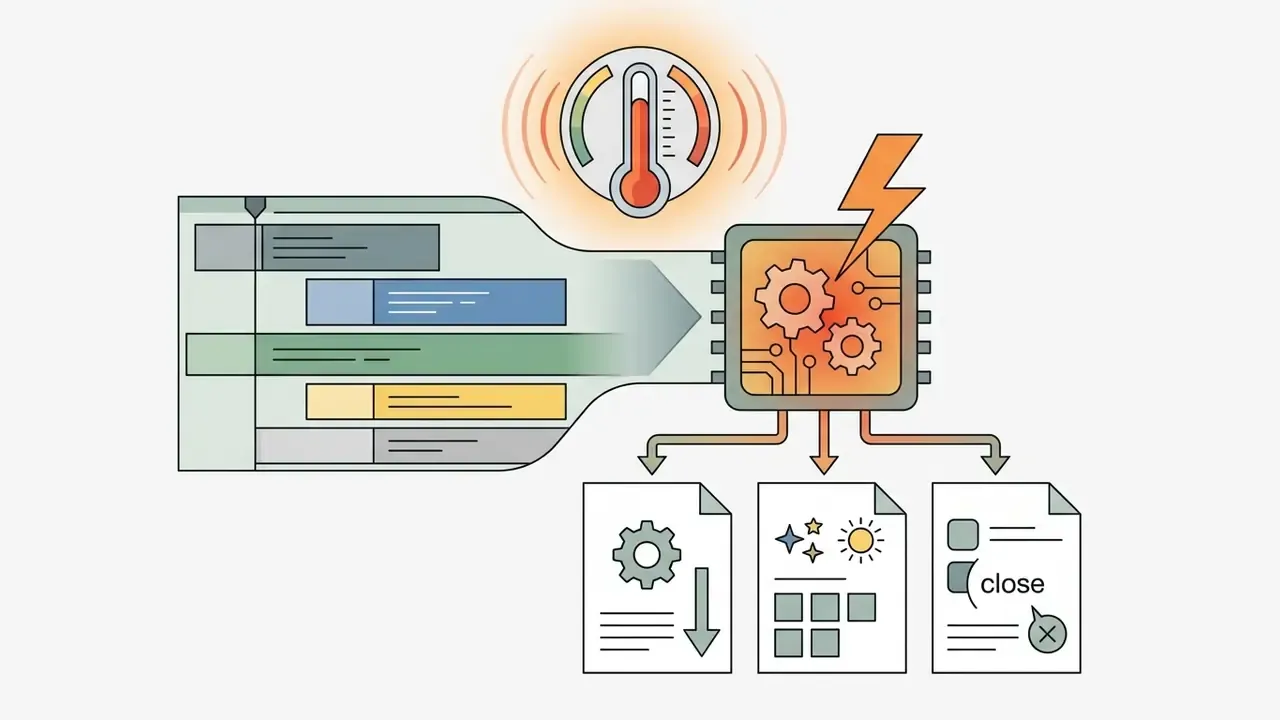
Sustained multi-track 4K rendering triggers thermal throttling, which lowers clock speeds to protect the SoC. Close background apps, remove thick cases, avoid charging while rendering and let the device cool before long exports.
Why does my video lose quality after exporting?
Almost always the export settings. Check resolution and, more importantly, bitrate: high bitrates give larger files with cleaner motion, while low bitrates introduce blocking and mosquito noise. Target about 10-20 Mbps at 1080p and 30-60 Mbps at 4K.
My HDR video looks washed out on Instagram. What happened?
Dolby Vision or HDR footage was uploaded without SDR tone-mapping. Export in Rec.709 / SDR for social platforms, or use an editor that performs an explicit HDR-to-SDR conversion.
Can I move a mobile edit to a desktop editor later?
Most mobile editors store projects in proprietary formats. LumaFusion is the notable exception: its FCPXML Export add-on hands the timeline to Final Cut Pro, and Adobe Premiere Rush syncs projects to Premiere Pro through Creative Cloud.
How much free storage do I need before starting a project?
Aim for at least 10 GB of free local space for scratch files and render caches, and 30 GB or more for long-form 4K timelines.
Are these free editing apps safe for confidential footage?
Editors from established developers are generally safe, but read the privacy policy and refuse apps demanding unnecessary permissions. For NDA-covered material, prefer on-device tools (Photos, iMovie, LumaFusion, VN) over cloud-assisted AI features.
Which video editor Apple provides is best for beginners?
Start in Photos for single-clip fixes, then move to iMovie for the first multi-clip project. Both are free, watermark-free and fully on-device, which makes them the lowest-risk place to learn timeline logic before paying for anything.
Further reading and definitions live in our media and AI glossary.