A modern online video cutter lets you trim, crop and assemble footage directly in a web browser without installing heavy software. You upload the source video file, mark the time boundaries on the timeline, and export the finished trimmed clip while preserving the original resolution. The same interface now covers three jobs that used to demand three separate products: temporal editing (trim and cut), spatial reframing (crop), and format conversion on export.
Why should a compliance or operations lead care about a consumer-looking web utility? Because the footage passing through it is often the regulated kind: KYC session recordings, branch camera exports, recorded advisory calls, internal training clips. The tool is small. The data is not.
Executive summary in five points
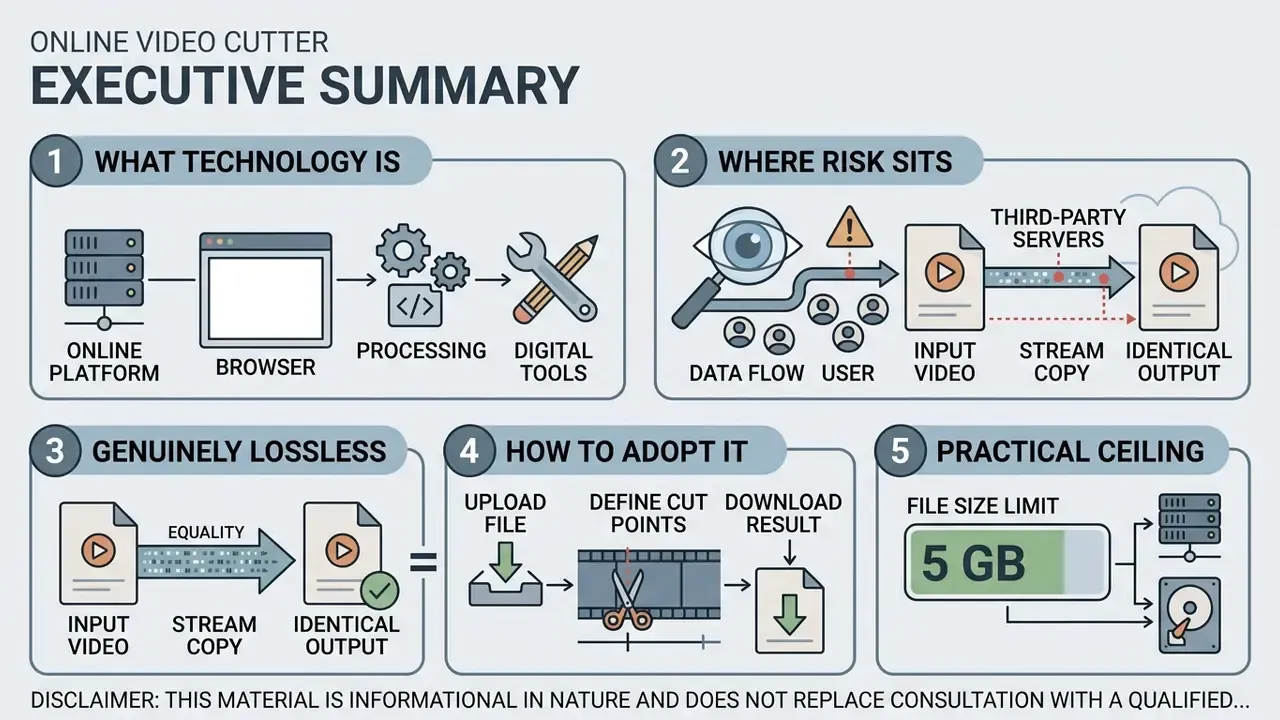
- What the technology is. Client-side cutters run FFmpeg compiled to WebAssembly (
FFmpeg.wasm) plus the nativeWebCodecsAPI. Decoding, cutting and encoding happen inside the browser sandbox, in RAM, on the user's own device. - Where the risk sits. The engine is not the risk. The page is. A "free" cutter can be architecturally local and still leak metadata through third-party analytics, ad scripts, or an optional "upload to cloud" fallback. Shadow-IT usage of unvetted cutters is the realistic threat model, not the codec.
- What is genuinely lossless. Only stream copy (
-c copy) on key-frame boundaries preserves pixels bit-for-bit. Any bitrate, resolution or "remove the middle" operation forces a re-encode. - How to adopt it. Whitelist tools that demonstrably transmit zero bytes of media (verifiable in DevTools, Network tab), require SSO for the paid tier, publish retention terms, and preserve source-file hashes so edits remain auditable.
- Practical ceiling. "Up to 5 GB" is a browser-memory statement, not a guarantee. On 8 GB laptops and on phones, multi-gigabyte projects can still trigger an
Out of Memorytab reload. Plan capacity, don't assume it.
Security and privacy of the video file during online cutting
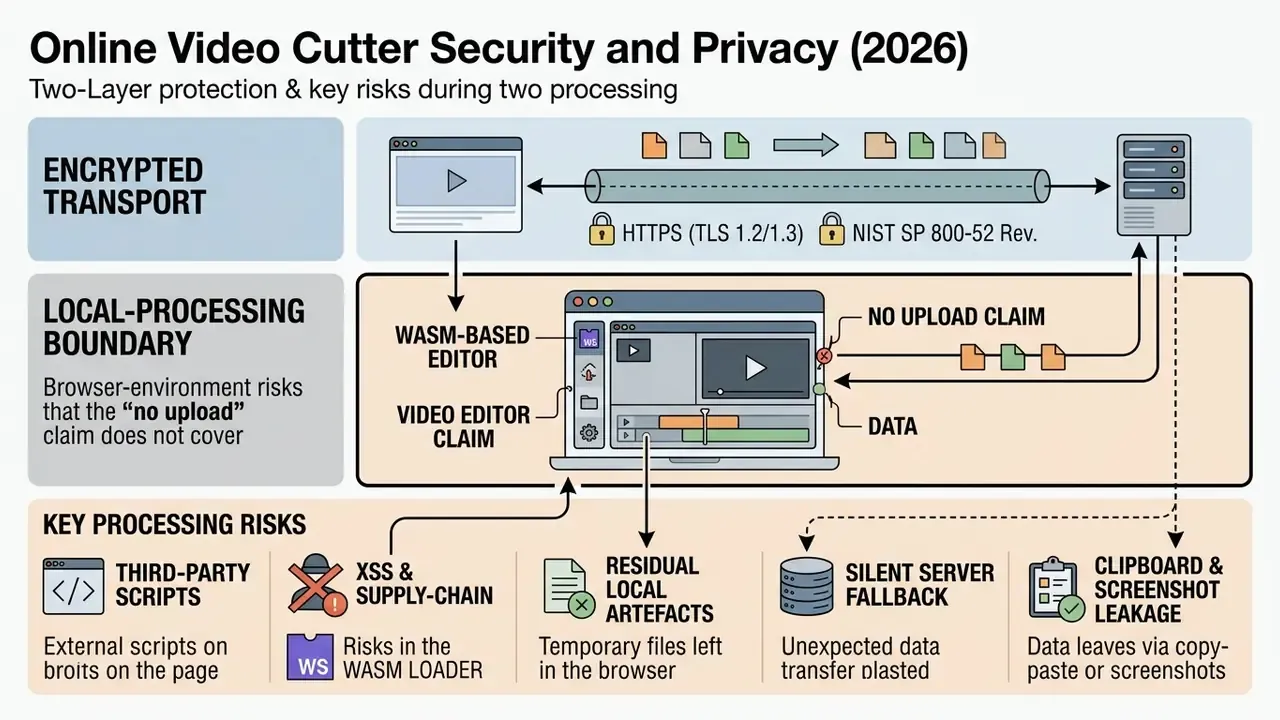
Personal-data protection during online video processing rests on two independent layers: encrypted transport (HTTPS with TLS 1.2/1.3, configured per NIST SP 800-52 Rev. 2, 2019) and, more importantly, local processing inside the browser so that no media crosses the network boundary at all.
«Average encryption time per video packet is 0.685 ms, sufficient for protected real-time transmission with no perceptible latency.»
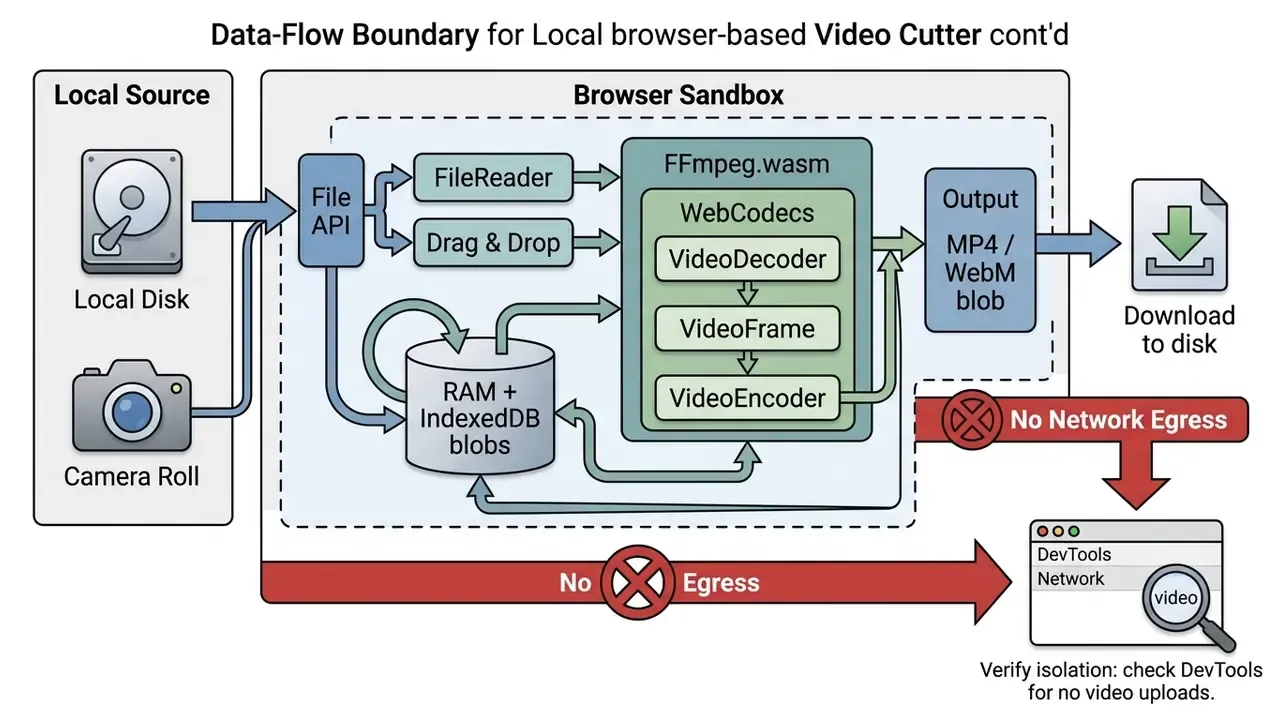
The data-flow boundary: what "local" actually means
Browser-environment risks that the "no upload" claim does not cover
Client-side processing eliminates server-side exposure. It does not eliminate:
- Third-party scripts on the tool's page. Ad networks, session-replay and heatmap SDKs can capture filenames, durations and typed metadata.
- XSS and supply-chain risk in the
wasmloader. A compromised CDN bundle can exfiltrate frames from the same origin the media lives in. - Residual local artefacts. Abandoned IndexedDB blobs and Cache Storage entries linger on shared or kiosk machines.
- Silent server fallback. Some services quietly switch to server encoding when the browser lacks a codec, usually HEVC or ProRes.
- Clipboard and screenshot leakage. Preview frames of KYC or medical footage rendered on screen are still data.
One more mundane vector deserves a line: search behaviour. Staff type queries like "best free online video trimmer" or "best free video cutter online" into a search bar, land on whatever ranks first, and paste in regulated footage within ninety seconds. Domain policy beats training slides here.
Infosec audit checklist before whitelisting an online cutter
| # | Control | How to verify | Pass criterion |
|---|---|---|---|
| 1 | Zero media egress | DevTools, Network tab, cut a 200 MB file | No multipart/binary POST of media |
| 2 | Codec fallback disclosed | Vendor docs plus a test with HEVC/ProRes | Explicit statement, no silent upload |
| 3 | Third-party scripts | Request map, CSP report | No session-replay or ad SDKs on the editor route |
| 4 | Retention terms | Terms of use, DPA | Zero retention or 24 h maximum, documented |
| 5 | Certifications | SOC 2 Type II / ISO 27001 report | Current report available under NDA |
| 6 | Identity | SSO / SAML / SCIM on business tier | Supported, with de-provisioning |
| 7 | DLP compatibility | Domain category plus upload policy | Tool domain classifiable and policy-controllable |
| 8 | Source integrity | SHA-256 of input before and after session | Source file byte-identical after export |
| 9 | Metadata handling | Compare EXIF/XMP pre and post export | Documented behaviour, configurable |
| 10 | Licensing | Commercial-use clause | Commercial rights explicit for paid tier |
Enterprise governance matrix instead of consumer criteria
| Governance parameter | Consumer free web tool | Business tier | Enterprise / regulated deployment |
|---|---|---|---|
| Processing locality | Browser, undocumented fallback | Browser plus documented server option | Browser-only or self-hosted wasm bundle |
| Data retention | Unstated | Documented, typically 24 h or less | Contractual zero retention |
| SOC 2 / ISO 27001 | None | Frequently available | Required, report under NDA |
| SSO / SAML / SCIM | No | Partial | Mandatory, with SCIM de-provisioning |
| DLP / CASB integration | No | Domain allow-listing | Full policy control, tenant restriction |
| Audit trail of edits | None | Export history | Operation log plus input/output hashing |
| Metadata preservation | Stripped silently | Configurable | Documented, EXIF/XMP retained on request |
| Commercial rights | Personal use only | Full commercial rights | Contractual, indemnified |
| Shadow-IT exposure | High | Medium | Controlled whitelist |
Reproducibility and audit trail
For material that may reach a regulator, an auditor or a court, cutting is an evidentiary operation, not a cosmetic one. Three controls make it defensible:
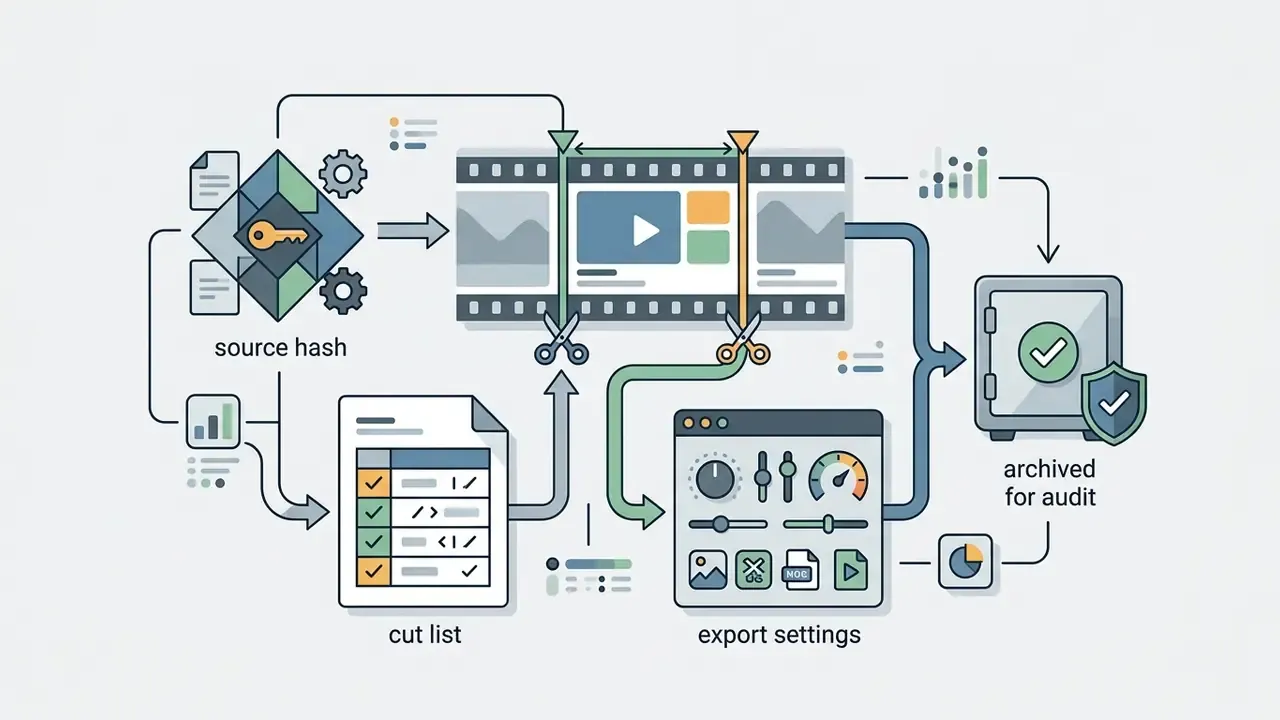
- Immutability of the source.The File API reads bytes; it never writes back. Hash the original with SHA-256 before the session and re-hash afterwards. The values must match.
- Documented derivation.Record source hash, start and end timestamps in milliseconds, mode (keep or remove), codec path (
copyversus re-encode), and output hash. That five-field record reconstructs the derivation deterministically. - Metadata policy.Decide explicitly whether creation timestamps and camera metadata (EXIF/XMP) survive export. Stream copy usually preserves container metadata; a full re-encode usually rewrites it.
Teams that automate this step tend to script it rather than click it. A short helper, generated with an ai python code generator and reviewed by a human, can hash inputs, log cut lists and archive export settings in one pass. Review the code before it touches production data, obviously.
Disclaimer: this information is general in nature and does not replace consultation with a specialist on evidentiary or regulatory requirements in your jurisdiction.
How an online video cutter works
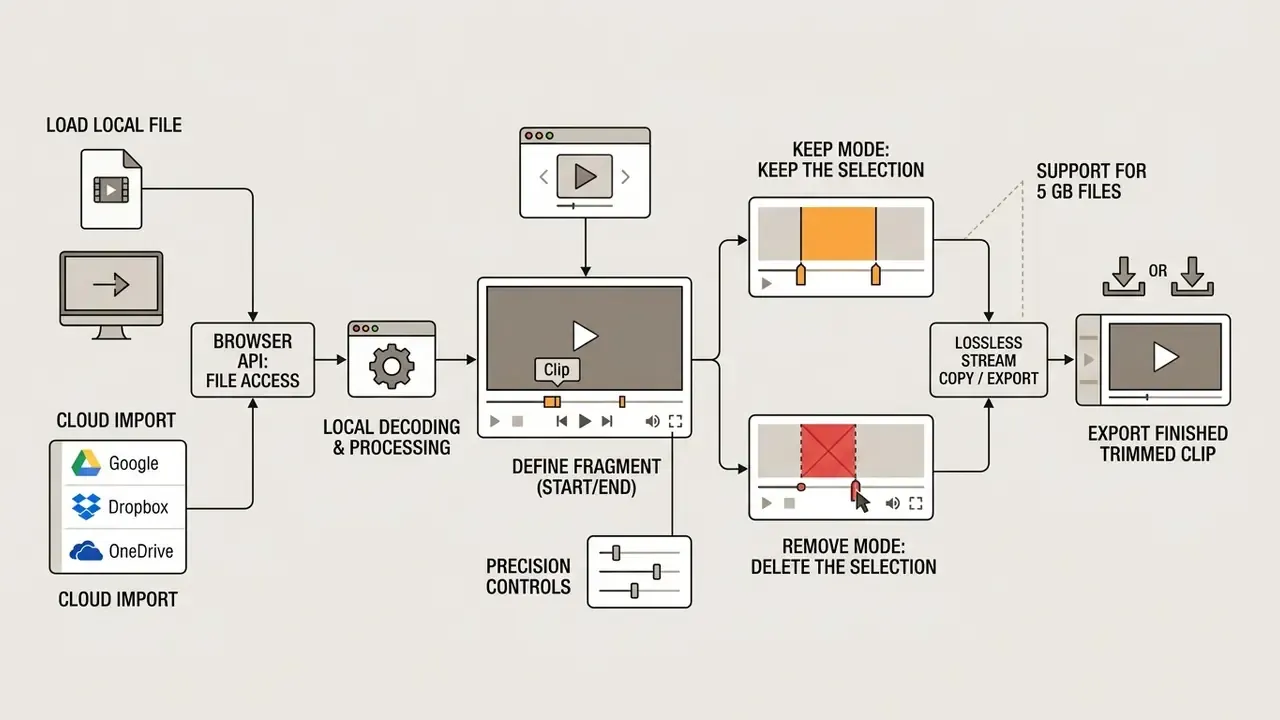
A modern online video cutter processes media locally: it reads the file through a browser API, decodes frames, and exports the finished clip in the required video format. The whole operation takes seconds, because rendering leans on the local device's GPU through hardware-accelerated decode and encode.
- Step 1: Import the source. You click upload your video or upload a video, and the file is loaded into browser memory through the HTML5 File API.
- Step 2: Mark the timeline. You set the trim video boundaries by dragging handles to the required frames or entering exact timecodes with millisecond precision.
- Step 3: Export the result. The browser assembles the final video clip as MP4 or WebM, immediately available for download to a PC or smartphone.
Load the video file into the browser
Media is loaded into the web editor through the local FileReader interface, with no mandatory transfer to an external server. When you click upload a video or drag a video file into the window, the browser reads it instantly via WebAssembly and stores working blobs in IndexedDB. The W3C File API, a living specification still updated in 2026, defines readAsArrayBuffer(), readAsBinaryString(), readAsText() and readAsDataURL() as the asynchronous read paths for exactly this purpose.
That headroom is what makes stable work with MP4, MOV, AVI, WEBM and MKV containers realistic inside a tab. For heavy sources, run video compression before upload to reduce peak memory pressure on the browser.
Cloud import: Google Drive, Dropbox, OneDrive
Beyond local drag-and-drop selection, mature tools support direct import from Google Drive, Dropbox and OneDrive through authorised API pickers. This lets you edit sources of up to 5 GB straight from cloud storage without spending local bandwidth on an intermediate download, and without leaving a copy in the Downloads folder of a shared machine. Two governance caveats apply: the OAuth scope requested should be read-only for the selected file, and the transfer path should be documented. Cloud import inevitably means the bytes touch the network, which is a different risk profile from purely local editing.
Choose the start and end of the fragment you need
Precise boundary marking happens on an interactive timeline with snapping to key frames (I-frames). Trimming and cutting relies on the built-in player, which generates an instant preview of the selected range. To build a clean video clip, you move the start and finish markers, or type timecodes manually. Editing documentation from Adobe and Apple describes the same principle: trims are applied at selected edit points, and I-frames act as clean decoder entry points, which is why scrubbing and preview feel instantaneous once a boundary lands on one.
Two cutting modes, and the core distinction between them:
- Keep mode ("keep the selection"). Only the marked segment is exported. In this mode the tool can copy the original video and audio streams without re-encoding, so there is no quality loss at all.
- Remove or Split mode ("delete the selection"). The flawed segment in the middle is excised and the remaining parts are spliced seamlessly. Because two separate ranges must be concatenated into one continuous bitstream, this mode always re-encodes at least around the join.
Precision controls. For meticulous assembly, use frame-by-frame stepping and a "Use current position" button that stamps the player's playhead into the start or end field, accurate to 1 millisecond (0.001 s) rather than the 0.1 s granularity of older sliders. Manual timecode entry in hh:mm:ss.mmm format is the fastest route when you already have marks from a transcript or a shot list.
Export the finished trimmed clip
How the finished clip is saved depends on the selected mode: direct stream copy or a full re-render. If no parameters change, the system hands back the file instantly with no quality loss; if effects, scaling or bitrate changes are added, the VideoEncoder module activates. The trimmed clip is checked in the preview window and downloaded in the appropriate video format, for example MP4 or WebM.
Two practical implications follow. First, in-browser encoding is fast enough for social-length deliverables but not for feature-length re-renders; plan around minutes of footage, not hours. Second, keep-mode stream copy is effectively instantaneous regardless of duration, because nothing is encoded at all.
What you can do with video: trim, cut, crop and clip
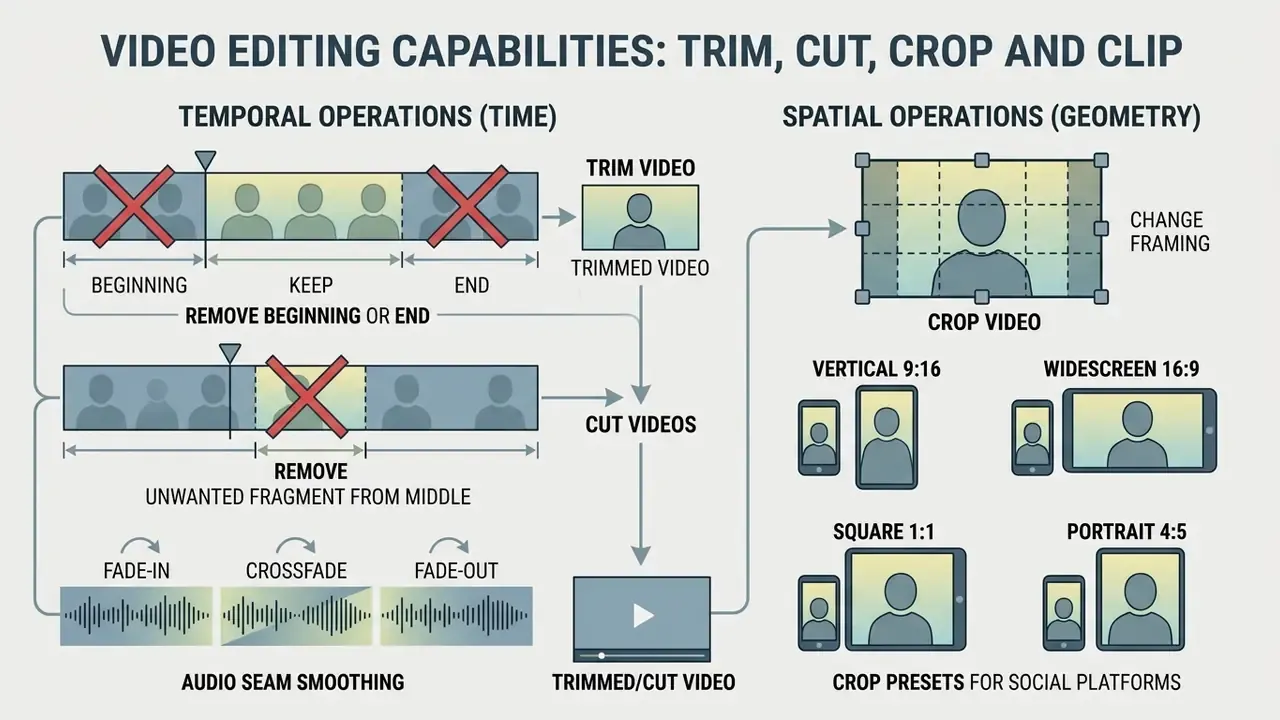
Web-editing tools split video operations into spatial ones (changing frame geometry) and temporal ones (shortening duration). Understanding the difference between trim video, cut videos, crop video and producing a standalone video clip helps you pick the right processing mode for a specific platform's requirements. A broader overview of adjacent capabilities is collected in our guide to online video editing tools.
Trim video: remove the beginning or the end
The trim video operation removes an uninformative intro or an overlong outro. The user simply drags the outer timeline handles inward, keeping a continuous central section. This is the operation behind most searches for "clip a video online" or "chop video online": people want the middle, and nothing else.
Trim boundaries are reversible in most editors: dragging a handle back restores the hidden footage, because the source asset is untouched. Platform limits are worth knowing. YouTube Studio's own trim tool works on videos under six hours, and IBM's video API enforces a 10-second minimum trim length while leaving the original file unaffected.
Cut videos: remove an unwanted fragment from the middle
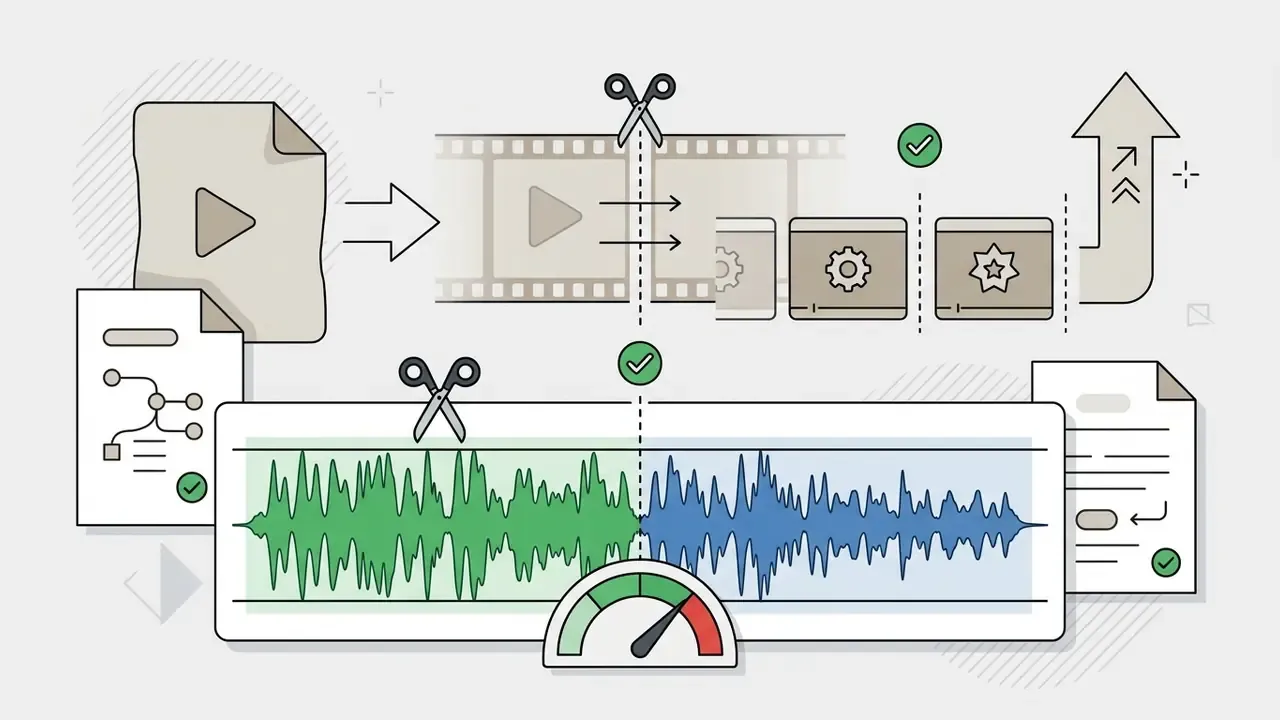
The cut videos procedure (splitting) removes botched frames, stumbles or misstatements from the middle of a recording. The tool divides the source video clip into parts, deletes the selected stretch, and automatically splices the remainder. Automatic audio-track synchronisation prevents lip-sync drift on the diction of the speaker; professional editors achieve the same result by aligning on audio waveforms and sync points such as timecode, markers and file creation date.
That result matters because the hard part of middle-cutting is not the render. It is locating the exact fragment. Transcript-anchored navigation reduces the search cost far more than any speed-up in the encoder.
Audio seam smoothing: fade-in, fade-out and crossfade
Splicing two ranges together creates a discontinuity in the audio waveform, and a discontinuity is audible as a click or a pop. To avoid abrupt clicks and loudness jumps at the junction of cut fragments, the algorithm automatically applies a crossfade of 50 to 100 ms across the seam, and lays a smooth fade-in at the head and a fade-out at the tail of the finished clip. Two additional practices improve results:
- Cut at natural breaks in the action or the audio, at the end of a breath or a sentence, so the ear does not expect continuation.
- Where music runs underneath dialogue, extend the crossfade to 200 or 300 ms on the music bed only, keeping the dialogue seam short to avoid a doubled word.
Crop video: change framing and video length
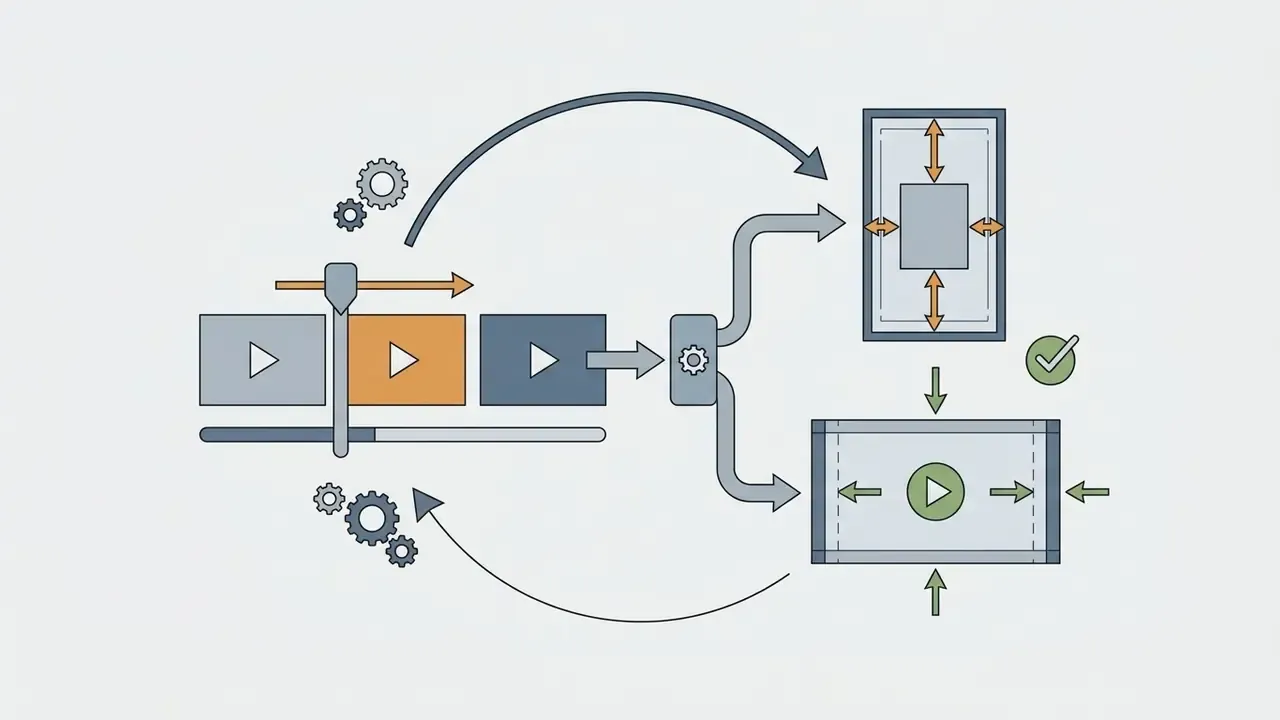
The crop video function changes the spatial proportions of the frame, for example converting horizontal 16:9 footage into vertical 9:16, by cutting away black bars or superfluous detail at the edges. Tools of the crop and trim video online class let you correct geometry and duration in a single pass, and the "crop and trim video online free" tier usually covers this too. Crop is not a duration operation: it removes image area, while trim and cut remove frames. For estimating the compute budget of large-scale media reprocessing, teams use specialised AI Media Calculators.
Trimming audio files and GIF animations
The local engine handles more than video containers. It also processes standalone audio tracks (MP3, WAV, FLAC, AAC, M4A, OGG and OPUS) and GIF animations. You can clip silence from the head of a podcast, isolate a 30-second audio quote for a newsletter, or slice a short looping GIF out of a video file without recruiting a separate converter. Export options mirror the source logic: audio can be re-exported as MP3 or WAV, and a video range can be rendered directly to an optimised GIF with a chosen frame rate and palette size. For voice-over work adjacent to this pipeline, see the guide to AI voice generators; for frame-based animation output, the animation maker overview covers export settings in detail.
Video formats and quality after cutting
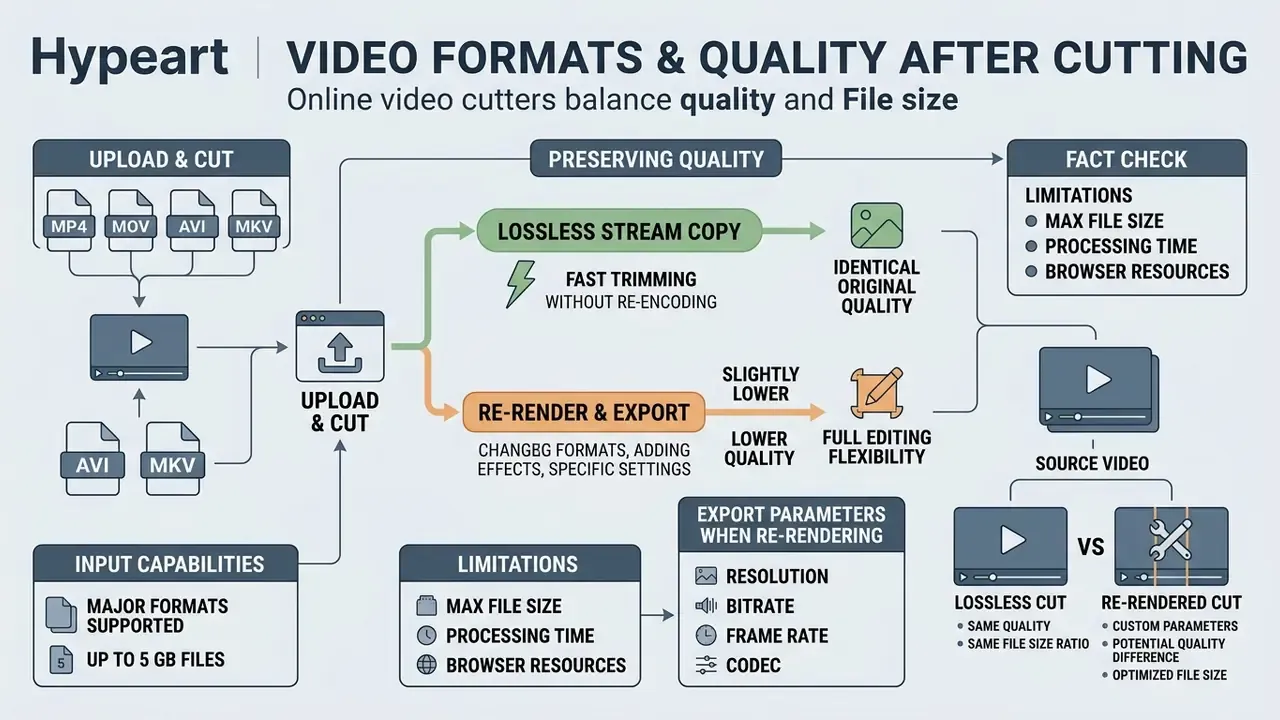
Online editors support the overwhelming majority of popular media containers, balancing high clarity against final file size. Choosing the right codec on export guarantees playback on any device.
Which video formats and files you can upload
A capable best online video cutter accepts practically any video, from ubiquitous MP4 and MOV to heavy AVI, WEBM and MKV files. In browser-based editors the video file size can reach 500 MB to 5 GB, depending on the device's available RAM and on 64-bit memory addressing in the WebAssembly runtime of modern browsers. Camtasia's documentation, by comparison, restricts MOV import to H.264, H.265, ProRes, JPEG and PNG, which illustrates how codec support inside a container is never universal. Mozilla's web codec guide pairs H.264 with MP4 and AV1 with WebM as the standard web combinations, with HEVC/H.265 also present in the modern codec set.
Honest limitation: a stated 5 GB ceiling describes what the format layer allows, not what every device survives. On an 8 GB laptop, or on a phone under memory pressure, a multi-gigabyte project can still trigger an Out of Memory tab reload. To optimise heavy sources before editing, use a dedicated video compressor to lower the load on the browser.
How to preserve quality during trimming and cutting
You can preserve 100% of the original quality only in direct stream-copy mode, where the cut lands strictly on key-frame (I-frame) boundaries. If the cut falls on an arbitrary P- or B-frame, the editor performs a local re-render of the short leading segment.
AI video cutter online: automatic video cutting
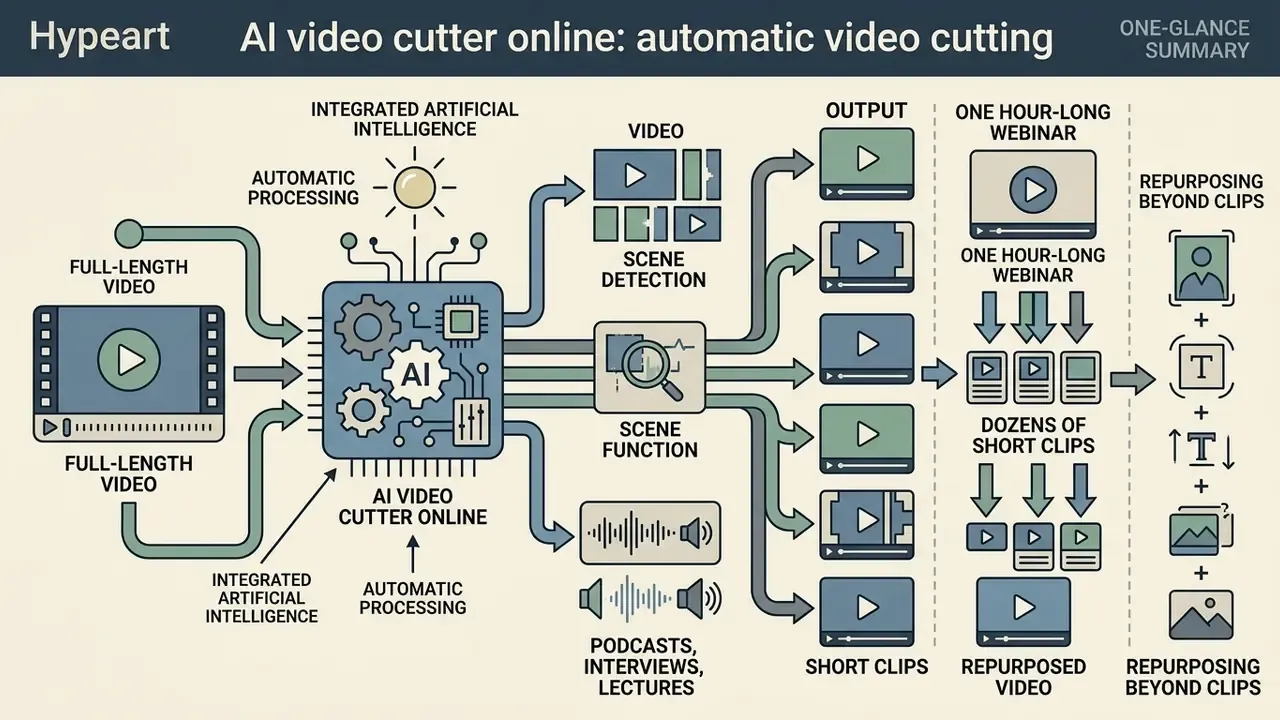
Integrating artificial intelligence into an ai video cutter online turns routine editing into automated processing. Neural models detect scene changes, analyse loudness and identify semantic emphasis.
When to use auto cut video online
The auto cut video online tool is indispensable for podcasts, interviews and lectures. Auto Cut typically combines three pipelines: shot-boundary detection for scene changes, waveform thresholding for silence, and transcript-aligned trimming for filler words. Silence detection removes stretches that fall below roughly -50 dB for longer than about 0.5 seconds, a threshold documented by commercial silence removers and consistent with RMS-plus-duration approaches, while filler removal ("um", "uh", "like") requires ASR timestamps, because filler words are spoken and therefore never appear as silence. Vendors report large reductions in rough-cut time; treat any single percentage figure as a vendor claim rather than a measured constant, since the saving depends entirely on how much dead air the source contains.
«A transformer-based video summarisation model outperformed prior approaches on the SumMe dataset by 3% in F-measure, identifying key moments more accurately.»
Scene detection is equally well documented in open tooling. PySceneDetect splits a video into separate clips automatically, with both fast-cut and fade detection, and 2025 arXiv work reports adaptive thresholding: lowering the threshold for videos under two minutes and using production values of minlen = 12 s with threshold = 15 for short clips and trailers.
One caveat from practice. Automation is confident and occasionally wrong: it will happily cut the pause a speaker used for emphasis. Review the auto-generated cut list before export, always.
AI video cutter for short clips and repurposing video
Using an ai video cutter free online, one hour-long webinar can be turned automatically into dozens of short vertical clips for Shorts, Reels and TikTok. Speaker-tracking systems keep the face centred in the 9:16 frame; vendor documentation from OpenShorts, reap.video and Wisecut all describes the same triad: automatic clip selection from long footage, 9:16 reframing, and real-time tracking of the active speaker across multi-person panels. The ai video cutter online free tier usually caps clip count or resolution rather than removing the feature outright.
Repurposing rarely stops at the clip. Compliance-training teams pair short segments with knowledge checks built by an ai question generator or a full ai quiz generator, so a webinar becomes an attestable learning artefact rather than a link nobody opens. If you script the reframing prompts for an AI editor, an ai prompt generator helps keep instructions consistent across a batch. For adjacent generation workflows, see AI tools for creating short videos; teams building this into a product should compare capabilities and quotas in the Google Veo implementation guide.
Free online video cutter: what to check before exporting
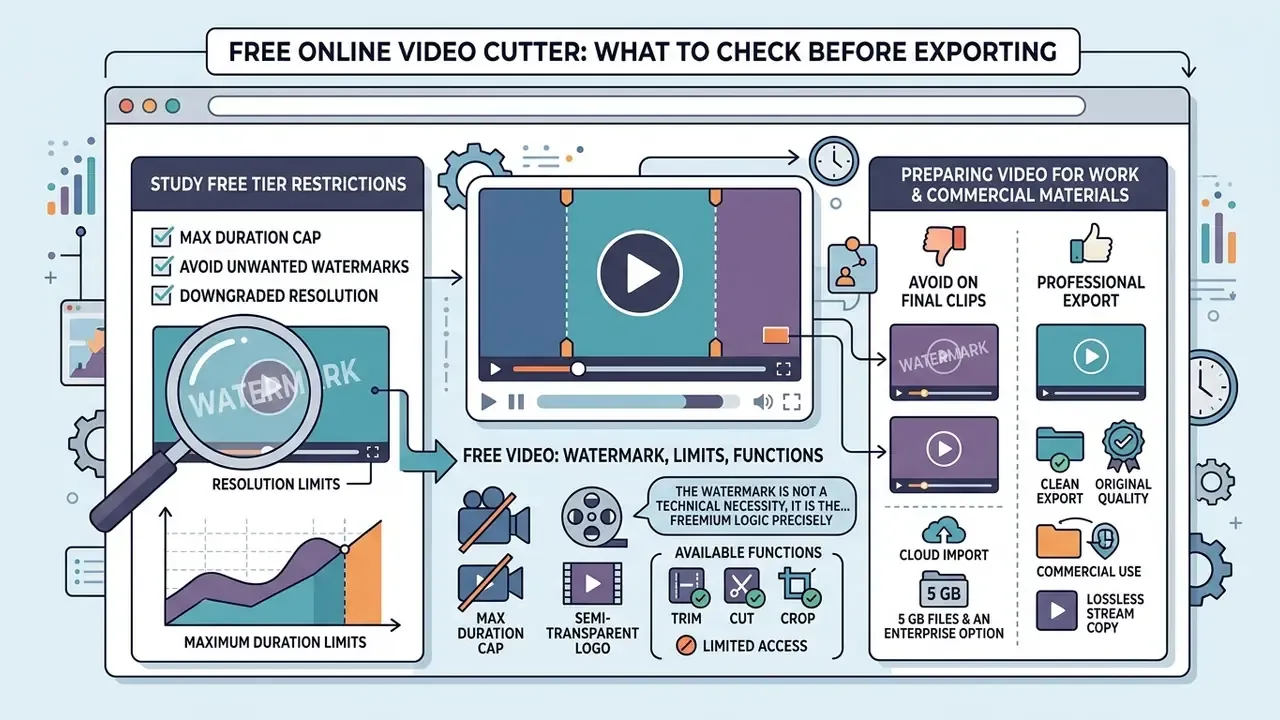
When choosing a free service, study the Free Tier restrictions carefully to avoid unwanted watermarks and downgraded resolution. Free tiers diverge sharply: some add a mark, others advertise no watermark, no signup and no limits. Queries such as "best free online video trimmer 2024", "best free online video trimmer india" or "best online video trimmer tool" surface very different products under nearly identical promises, so verify rather than trust the ranking.
| Criterion | Free tier | Pro / Enterprise tier |
|---|---|---|
| Watermark | Present on many services; absent on several (Clipchamp, Ezgif) | Absent |
| Maximum resolution | 720p or 1080p HD | 4K UHD without downscaling |
| File size limit | 500 MB to 5 GB | 10 to 20 GB or unrestricted |
| Duration cap | Often 5 to 10 minutes per project | Unrestricted |
| Stream copy (lossless) | Limited or unavailable | Full lossless export support |
| Cloud import | Sometimes Drive and Dropbox only | Drive, Dropbox, OneDrive, S3 |
| SSO / SAML | Not available | Available on business tiers |
| Commercial rights | Personal use only | Full commercial rights |
Free video: watermark, limits and available functions
The free video mode often caps maximum duration and stamps a semi-transparent logo over the image. VEED's free plan exports at 720p with a watermark and a 10-minute ceiling, and Kapwing's free exports also carry a mark. However, tools such as Microsoft Clipchamp or Adobe Express offer 1080p export with no watermark: Microsoft states unlimited watermark-free exports on the free plan, and Adobe Express permits files up to 1 GB. Compare limits side by side in our roundup of free video editors with watermark-free export, and check subscription costs for popular services in the AI Media Pricing Guides.
«AI photo and video editors generated $101 million in consumer spending in 2024, 2.5× more than the year before.»
That growth explains the freemium logic precisely: the watermark is not a technical necessity, it is the conversion lever. Understanding which limits are architectural (browser RAM, codec licensing) and which are commercial (720p caps, duration ceilings) tells you where a paid tier actually buys capability and where it merely removes an artificial gate. For a "clip video online free" workflow with no signup, the architectural limits are the ones that will bite you first.
Preparing a video clip for work and commercial materials
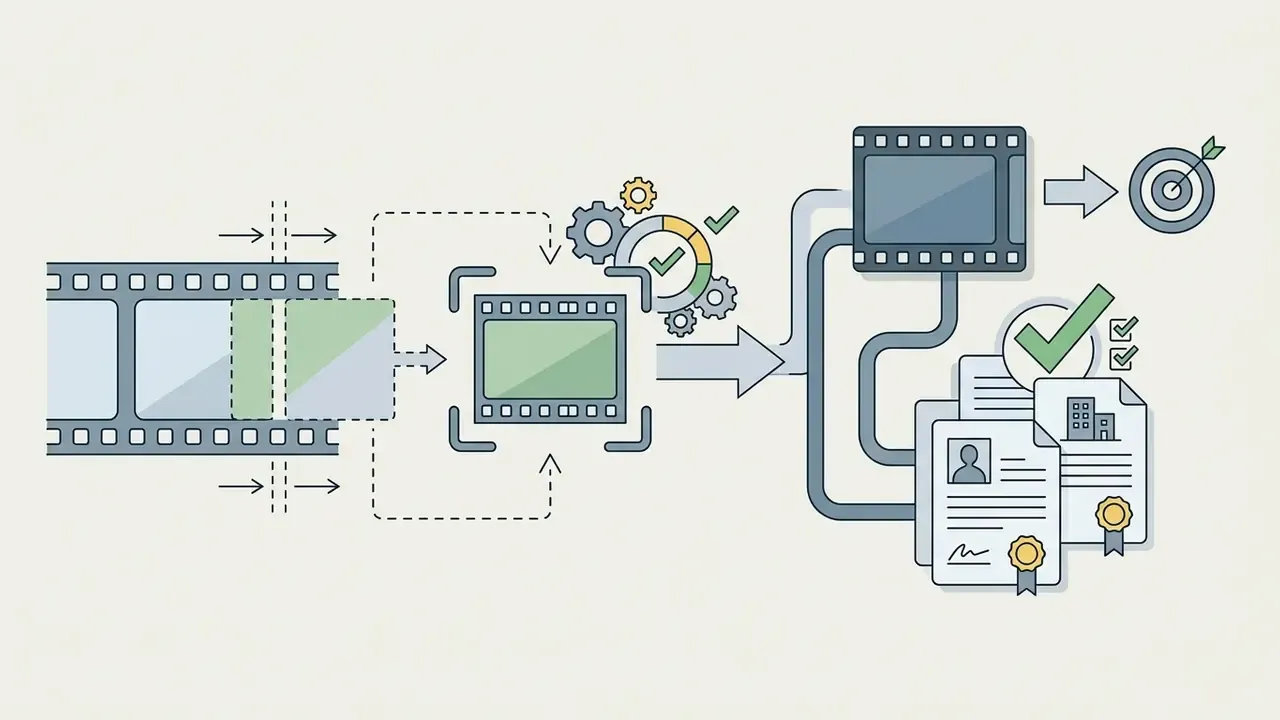
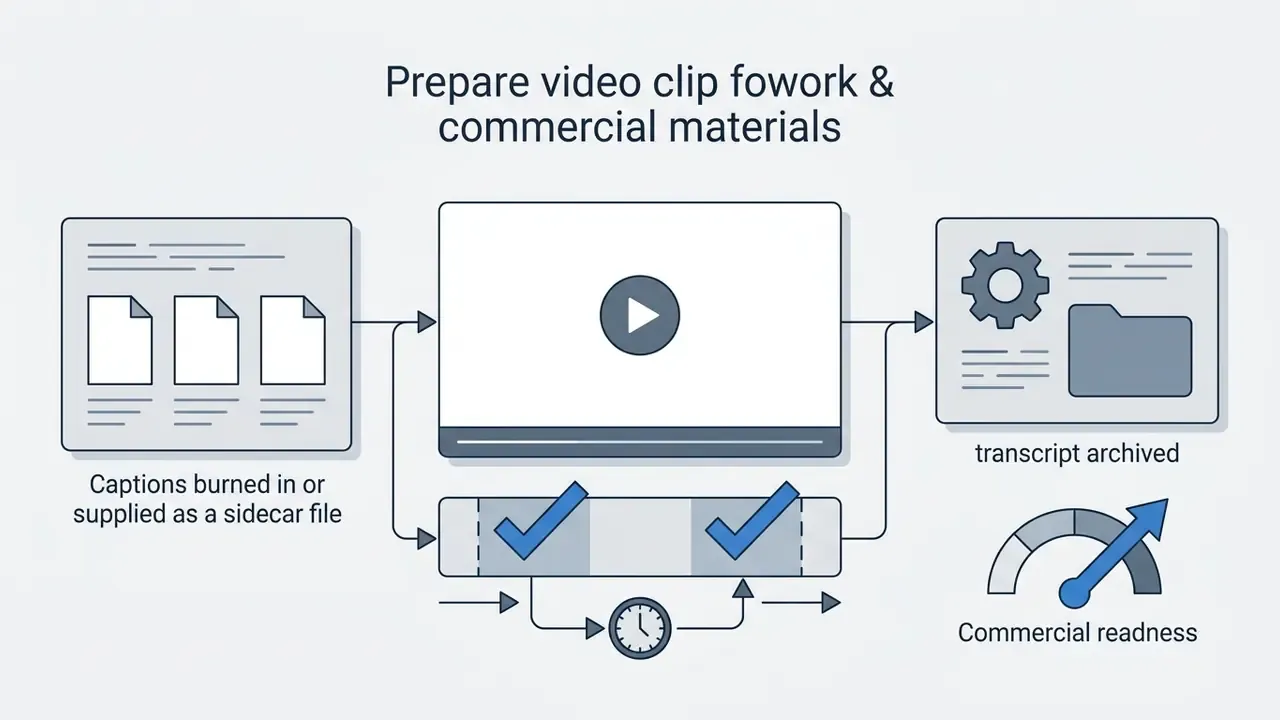
Creating a video clip for paid traffic and corporate presentations requires compliance with disclosure and accessibility standards.
Disclaimer: this information is general in nature and does not replace consultation with a qualified legal specialist.
Rather than relying on informal rules of thumb, anchor the requirements in published guidance. The US FTC requires that written claims carry written disclosures, so a disclosure spoken only inside an audio or video clip does not satisfy the requirement for a written claim, and on-screen disclosure text must appear simultaneously with the relevant sales claim, be large enough and high-contrast, remain on screen long enough to be read, and not compete with background audio during a spoken disclosure. EU audiovisual rules require sponsors to be clearly identified at the beginning, during and/or the end of the content. Recent institutional video standards additionally require WCAG 2.1 AA compliance, captions and transcripts, and a playback-and-accessibility review before release.
Rewritten from the original claim: the earlier statement that "clips must not contain third-party logos and all text disclaimers must be readable and contrastive" is directionally right on contrast and readability, but it was presented as a legal standard without a normative source. Accurate version: third-party marks require a licence or a documented fair-use basis, and disclosure text must meet the contrast, size and dwell-time criteria set out in the FTC guidance above. Where commercial rights on generated or AI-assisted assets are involved, compare available options in the guide to free AI tools for commercial video materials. Agencies packaging this work for a client often draft the deliverables schedule with an ai proposal generator, which is fine as long as the licensing clauses are checked by counsel and not by autocomplete.
FAQ about the online video trimmer
What is the difference between cutting and trimming a video?
Trimming shortens a clip from the beginning or the end; cutting removes a segment from the middle and rejoins the remainder. Both are temporal operations, and both live in the same interface. Crop, by contrast, is spatial: it changes what part of the image is visible without changing duration.
How do I remove a section from the middle and join the rest?
Select Remove mode, set the start and end of the unwanted stretch with millisecond precision, and export. The remaining parts are concatenated automatically, with a crossfade applied across the audio seam. Remove mode always re-encodes at least around the join, which is the price of a seamless splice.
Can I cut several separate segments in one pass?
Yes, in editors that support multiple ranges on the timeline. Where only a single range is supported, run the operation iteratively, but perform every intermediate step in stream-copy mode so repeated generations do not accumulate compression artefacts.
Can I trim GIFs and audio files?
Yes. GIF animations can be trimmed and re-exported as GIF, and video ranges can be rendered to GIF directly. Audio files in MP3, WAV, WAVE, M4A, FLAC, AAC, OGG, OGA and OPUS can be trimmed on the same timeline and exported as MP3 or WAV.
Can I import a file straight from cloud storage?
Yes. Google Drive, Dropbox and OneDrive pickers are supported through authorised APIs, which removes the intermediate download step. Bear in mind that cloud import necessarily moves bytes over the network, so it is a different privacy profile from purely local editing.
Will trimming reduce quality?
In keep mode with stream copy, no: the original streams are copied without re-encoding. In remove mode, or whenever resolution, bitrate or effects change, a re-encode occurs and a minor generational loss is unavoidable. Minimise it by exporting once at the highest practical bitrate rather than iterating through multiple lossy saves.
Can I cortar video youtube online?
Cutting clips directly from a YouTube link is prohibited by the YouTube Terms of Service and Developer Policies. Disclaimer: this information is general in nature and does not replace consultation with a qualified legal specialist. The YouTube API Services Terms grant no right to reproduce or distribute audiovisual content outside the API Services, and the Developer Policies forbid downloading, importing, backing up, caching or storing copies without prior written approval. The embedded player is covered by the same terms, so any attempt to clip an online video from a direct link stays inside those contractual limits. YouTube's copyright guidance adds that reuse depends on exceptions such as fair use, fair dealing or public domain; otherwise the uploader's rights govern any extracted segment. For lawful work, download your own video file through your channel's studio first and then load it into the online video trimmer. Platform ceilings are worth noting: uploads are limited to 256 GB or 12 hours, whichever is less, and videos over 15 minutes require account verification. Detailed recommendations for preparing media for this platform are collected in the guide to YouTube video editors.
Does the online video trimmer work on Android and iPhone?
Yes. Modern web editors run in mobile Safari (iOS) and Chrome (Android). However, because of strict operating-system limits on RAM allocation, processing files larger than 1 GB on a smartphone can cause the tab to reload. Browser-side pipelines keep frames in ArrayBuffer and VideoFrame structures, so memory grows roughly linearly with media size, and embedded WebView origins receive lower quotas than full Safari. Some browser-based desktop editors, Clipchamp among them, explicitly do not run in mobile browsers at all, offering a native app for iOS 14 and above instead.
«Instagram First Draft automatically trims pauses and silence from selected clips and lays them out on a timeline; the feature is arriving on iOS first.» Engadget, report on Instagram First Draft (2025) To pick an optimal mobile tool, review the AI Media Comparison Matrices.
How do I move the finished clip to my phone via QR code?
On the export screen, scan the QR code displayed by the tool. Some editors build these dynamically with an ai qr code module, but the mechanism is the same: the clip loads into mobile Safari or Chrome directly from the local browser session over the same network, without being published to a public URL. This keeps a review copy off email and messenger threads, which is useful when the footage contains customer or employee data.
Do I need to install software?
No. No installation or plugins are required; everything runs in the browser, which is also what makes usage governable through domain policy rather than endpoint software inventory. That is the quiet advantage for a bank: you can block or allow a URL far faster than you can uninstall an application from three thousand laptops.
Additional resources and commercial navigation
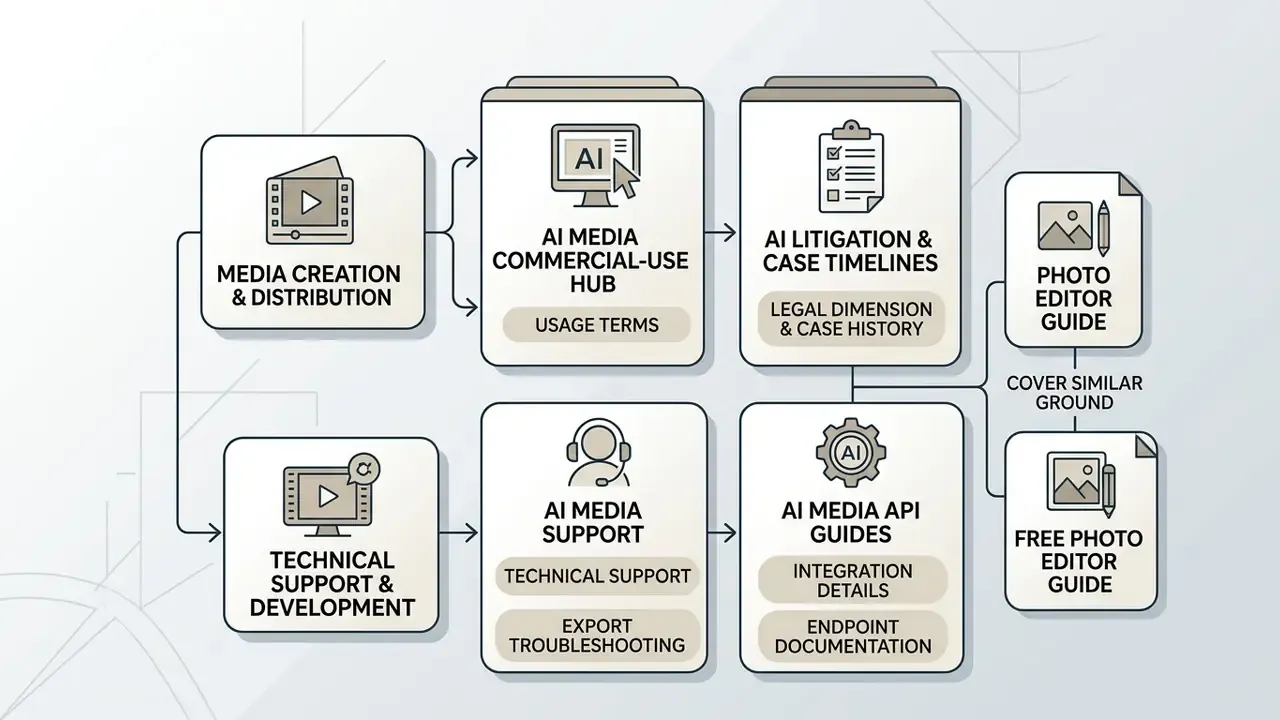
For a deeper dive into media creation and distribution technologies, use the reference sections:
- Check the usage terms of neural-network services in the AI Media Commercial-Use Hub.
- Study the legal dimension and case history of AI on the AI Litigation and Case Timelines page.
- For technical support and export troubleshooting, go to AI Media Support.
- Integration details and endpoint documentation are available in the AI Media API Guides for developers.
- Adjacent editing references: the photo editor guide and the free photo editor guide cover the same client-side processing questions for still images.
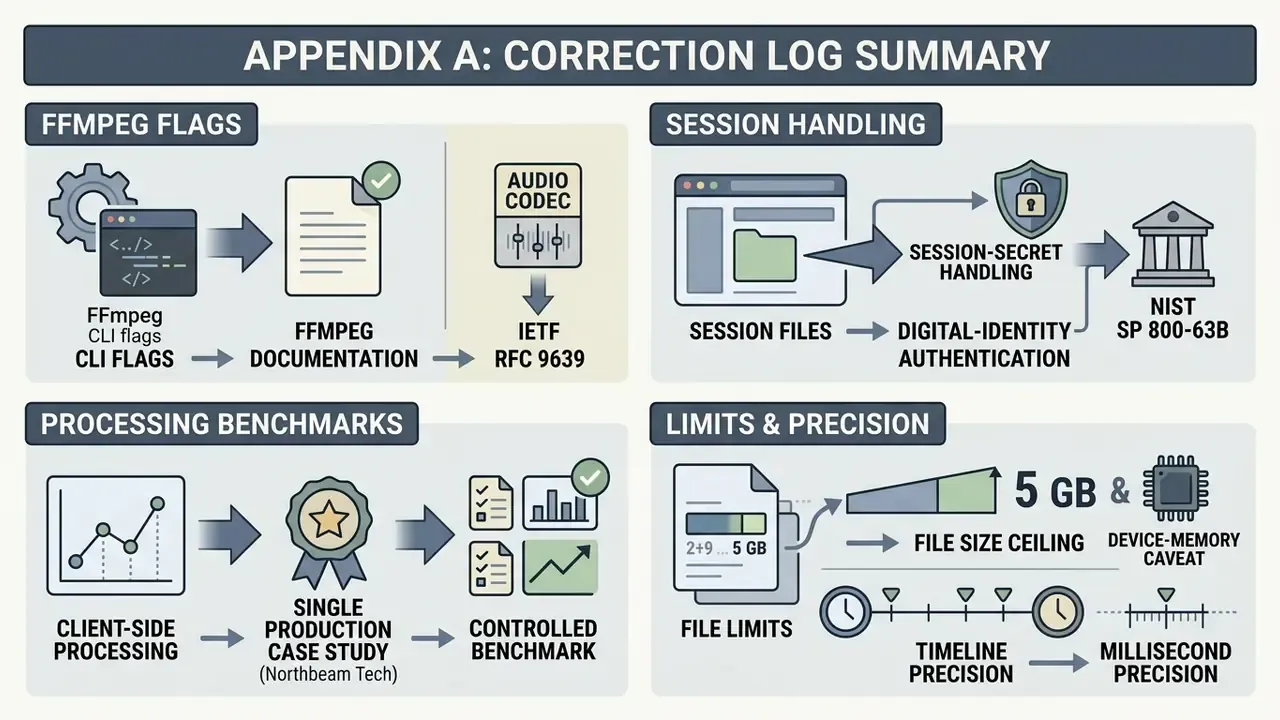
Appendix A: preserved original wording and correction log