The Short Answer
- Professional long-form channels run on Adobe Premiere Pro, Final Cut Pro, or DaVinci Resolve.
- Shorts, vertical clips, and mobile-first creators rely on CapCut, VN Video Editor, LumaFusion, or YouTube Create, often paired with AI clipping tools like OpusClip.
- Beginners start with iMovie, Clipchamp, Canva, or the free edition of DaVinci Resolve, which is a full professional NLE at zero cost.
- Niche formats need niche tools: Camtasia for tutorials and screen recording, Filmora for mid-tier narrative editing, Descript or Podcastle for podcast and interview cleanup.
The Short Answer
The money angle
freelance YouTube editors charge roughly $30 to $60 per hour, so learning an efficient pipeline yourself is usually the cheapest scaling decision in year one.The risk angle
many "free" AI editing features process your footage in the cloud. Know which tools run locally on your GPU and which upload your media to third-party servers before you drop sensitive or unreleased footage into them.How to Read This Guide (Decision-First)
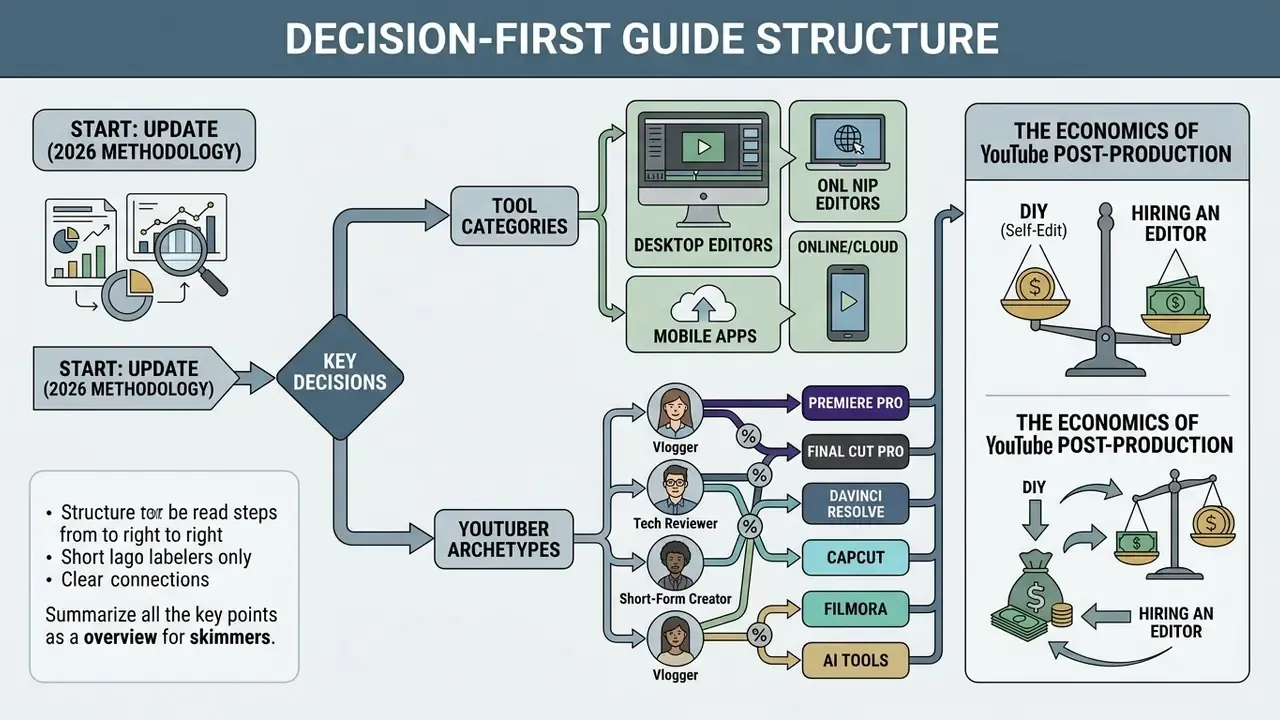
Most software round-ups list twenty editors and leave you exactly where you started. This one is arranged as a sequence of decisions, so you can stop reading once your answer appears.
Four questions settle nearly every case: Answer those four, then jump to the matching section. If you are switching editors rather than starting fresh, skip ahead to the migration checklist near the end; that is where the operational risk actually lives.
- What is your operating system?macOS opens the Final Cut Pro door. Windows and Linux close it permanently.
- What format dominates your channel?Vertical Shorts and long-form documentaries pull toward opposite ends of the tool spectrum.
- What is your monthly ceiling for software?Zero is a legitimate answer in 2026, and it no longer means "amateur".
- Whose footage is it?Your own vlog carries different confidentiality duties than a client's unreleased product review.
What Do YouTubers Use to Edit Videos?
«Adobe Premiere Pro holds about 35% of the market, Final Cut Pro X 25%, DaVinci Resolve 15%; CapCut and iMovie together account for roughly 7%.»
Final Cut Pro holds approximately 25% to 28% of the Mac-based editing segment, and DaVinci Resolve accounts for roughly 15% of the market while experiencing rapid growth thanks to its robust free tier. Meanwhile, CapCut dominates mobile video editing with over 300 million monthly active users globally, according to data from Sensor Tower (2024).
To evaluate which free video editing software no watermark option or professional suite fits a specific production model, creators need to weigh platform compatibility, cost structure, and specialized editing features against the videos they actually publish.
| Editor | Typical Skill Level | Primary Platforms | Free Version Available? | Key Editing Features | Best-Supported YouTube Use Case |
|---|---|---|---|---|---|
| Adobe Premiere Pro | Advanced / Professional | Windows, macOS | No (7-day trial) | Multilayer timeline, speech-to-text auto-captions, native Adobe Creative Cloud integration | High-output long-form channels, multi-editor teams, complex narrative series |
| Final Cut Pro | Intermediate / Advanced | macOS | No (30-day trial) | Magnetic Timeline, Apple Silicon optimization, background rendering | Solo Mac-based creators needing fast turnaround on polished long-form content |
| DaVinci Resolve | Intermediate to Professional | Windows, macOS, Linux | Yes (full-featured free edition) | Node-based color grading, Fairlight audio post-production, Fusion VFX | Creators upgrading to cinema-grade color correction, audio polish, and zero-subscription editing |
| CapCut | Beginner to Intermediate | iOS, Android, Web, Desktop | Yes (optional Pro tier) | AI auto-captions, background removal, short-form templates, rapid vertical export | YouTube Shorts, TikTok and Reels cross-posting, fast mobile commentary clips |
| iMovie | Beginner | macOS, iOS | Yes (bundled with Apple devices) | Simple drag-and-drop timeline, basic transitions, built-in Apple storyboards | First YouTube videos, straightforward vlogs, basic educational tutorials |
| Canva (Video) | Beginner / Non-editor | Web, iOS, Android | Yes (free tier available) | Template-based drag-and-drop assembly, stock videos, simple text animation | Brand explainers, simple social promos, graphic-heavy presentation clips |
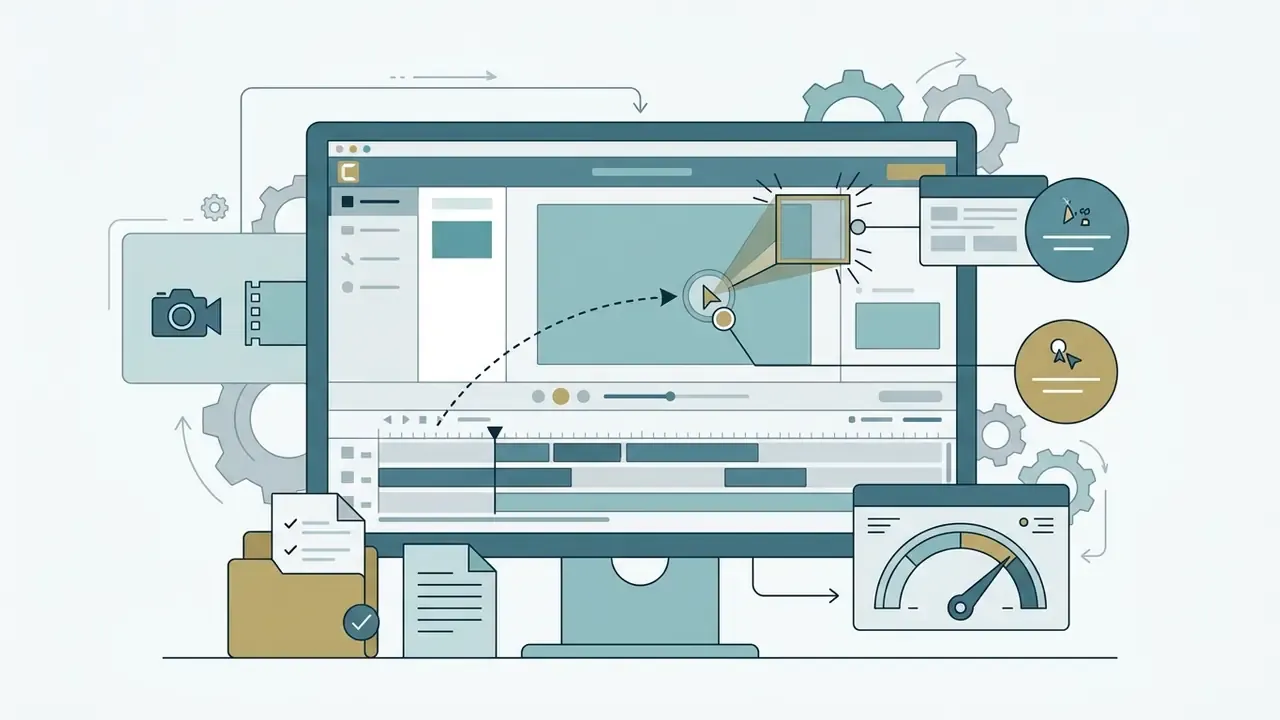
| Camtasia | Intermediate | Windows, macOS | No (trial) | Screen recording, auto-zoom, cursor highlighting, smart callouts | Software tutorials, coding channels, educational walkthroughs |
| Wondershare Filmora | Beginner to Intermediate | Windows, macOS | Yes (watermarked trial) | Drag-and-drop effects, keyframing, split-screen and motion templates | Mid-tier narrative channels upgrading from mobile apps |
Read the table by column, not by row. The "free version" column narrows the field fastest for cost-sensitive creators; the "use case" column narrows it fastest for everyone else.
Desktop, online, and mobile video editing tools
Desktop, online, and mobile video editors fulfil distinct operational requirements inside a creator's production pipeline. Desktop video editors provide full timeline control, multi-track audio engineering, high-resolution rendering, and the granular color science that long-form video content demands.
Online video editors run inside modern web browsers, which lowers local hardware requirements for basic cutting, template assembly, and rapid social media sharing. Browser-based tools do carry platform constraints. Microsoft Clipchamp, for example, requires Chrome or Edge on desktop, so browser support belongs on any evaluation checklist. Mobile editing applications take the opposite approach, prioritizing touch-optimized interfaces, automated vertical formatting, and direct publishing for short-form video content. Creators comparing technical deployment models can inspect browser-based solutions through the dedicated free online video editor hub to gauge performance limits before committing.
It is also worth noting what YouTube itself provides. YouTube Studio on desktop handles metadata, trims, blurring, end screens, and caption settings, while the separate YouTube Create app on Android and iOS offers genuine timeline editing with voiceover, music, overlays, and automatic captions. The standard YouTube and YouTube Studio mobile apps, by contrast, only manage uploads and video settings. They are not full editors, and creators who assume otherwise lose an afternoon finding out.
Why different YouTubers use different editing software
Creators select specific editing software based on learning curve, content formatting requirements, budget constraints, and post-production complexity. There is no single "YouTuber editor", and anyone selling one is selling a subscription.
The Economics of YouTube Post-Production: DIY vs. Hiring
Post-production represents one of the largest operational expenses for growing channels. Professional freelance YouTube editors typically charge between $30 and $60 per hour, which translates to roughly $150 to $500+ per finished 10-minute long-form video, depending on editing density, B-roll volume, and motion graphics work.
For channels uploading twice weekly, outsourcing post-production can realistically cost $1,200 to $4,000 monthly. Mastering an efficient editing pipeline yourself lets early-to-mid-stage creators reinvest that capital into better recording hardware, audio equipment, lighting, and content research before scaling to a dedicated post-production team. The inverse calculation matters just as much: once a channel's ad and sponsorship revenue exceeds the hourly value of the creator's own editing time, delegating the timeline becomes the higher-return decision. Creators weighing licensing costs against freelance rates can also compare options before locking into an annual plan.
Rate ranges reflect prevailing mid-level freelance marketplace pricing and vary by region, turnaround speed, and deliverable complexity; verify current quotes directly with editors.
A solo creator producing daily commentary needs high export speed and automated captioning far more than complex multi-cam syncing. A channel built on documentary-style investigative essays needs the opposite: advanced color correction, precision keyframing, and multi-layered audio mixing.
Production teams often standardise on tools with robust project-sharing capabilities, whereas budget-conscious independent creators prioritize zero-subscription overhead above almost everything else.
«45% of professional video editors are aged 25–34, 62% of freelancers are millennials, and 35% of editors prefer subscription licensing models.»
Professional Video Editors Used by Established YouTubers
Established YouTube channels and professional production teams rely primarily on Adobe Premiere Pro, Final Cut Pro, and DaVinci Resolve to deliver high quality long-form videos. These suites offer deep timeline flexibility, advanced audio processing, precise color grading, and support for multi-camera production workflows.
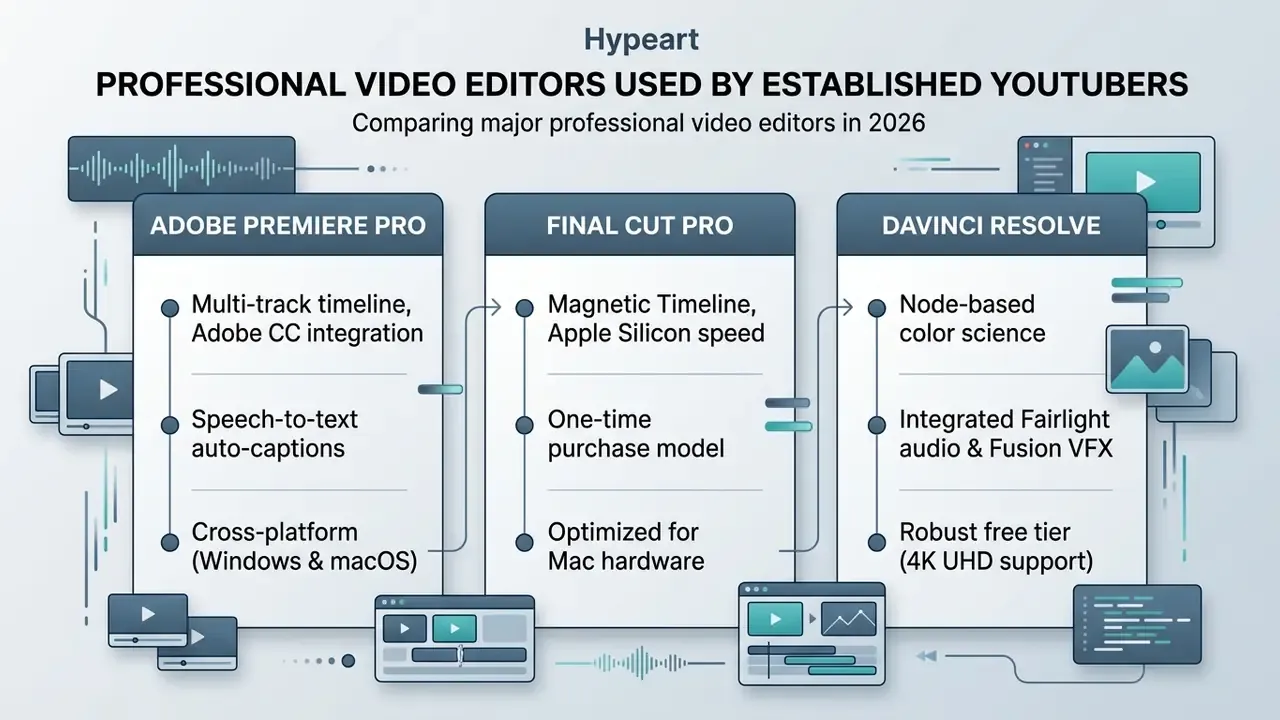
The structural difference between the three deserves a plain statement. Premiere Pro wins on collaborative pipelines and plugin ecosystems. Resolve wins on unified finishing, since edit, color, VFX, and audio live in one project file with no intermediate exports. Final Cut Pro wins on raw editing speed on Apple hardware. Everything else is preference.
Adobe Premiere Pro for flexible professional editing
Adobe Premiere Pro functions as an industry-standard non-linear editor (NLE), a timeline-based application where clips are arranged without altering the source files. It handles multi-layer timelines, complex motion graphics, and collaborative editing pipelines.
«65% of editors use AI features in Premiere Pro daily; the tool holds 45% of the enterprise professional video editing market.»
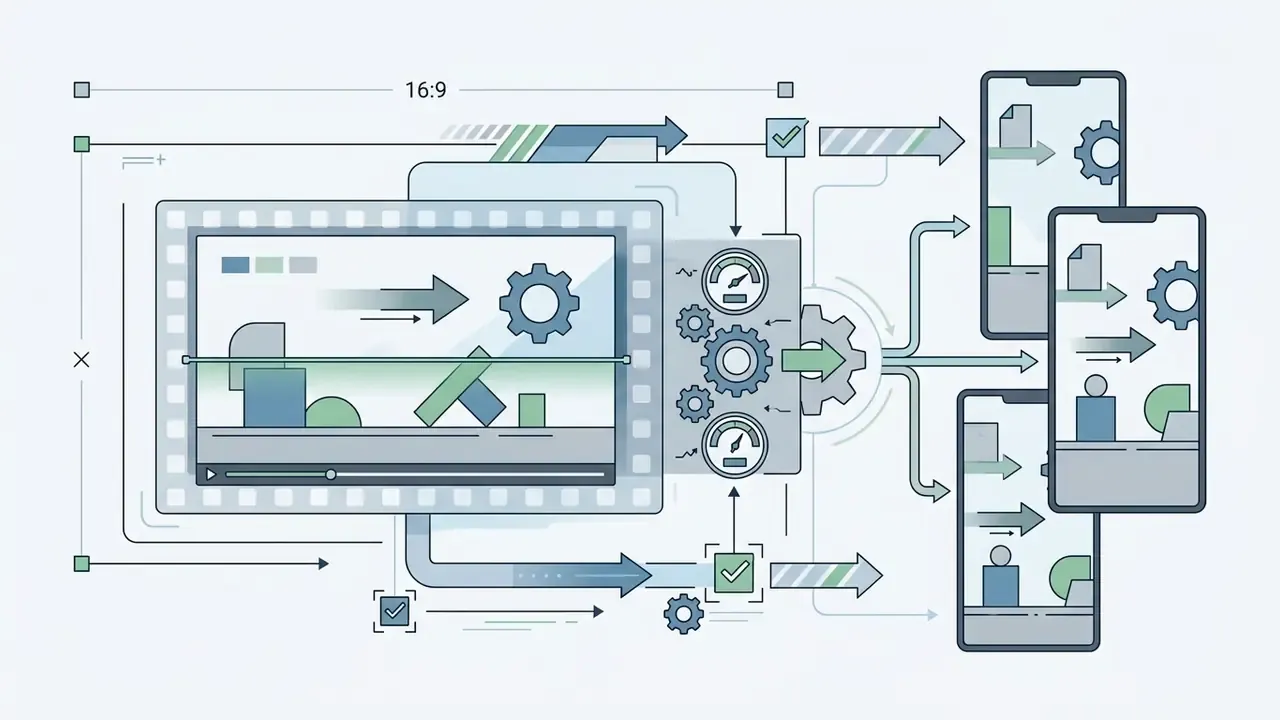
Those native AI powered features include speech-to-text transcription, text-based editing driven by the generated transcript, and Auto Reframe for repurposing 16:9 masters into vertical deliverables.
Premiere Pro integrates directly with Adobe After Effects for complex visual effects and Adobe Audition for advanced sound restoration. Motion Graphics Templates (MOGRTs) move between Premiere and After Effects without re-keyframing, and Productions let multi-editor teams shuttle clips and sequences between project files inside one shared structure. This ecosystem connectivity is why Premiere Pro remains the default for high-output media operations, despite the recurring monthly subscription fee. Teams supplementing live-action timelines with synthetic footage often pair it with the best AI video generators for B-roll and concept shots, or with No-Watermark AI Video tools when the output goes straight to publish.
Where the time savings actually come from (illustrative, not a measured case study): the biggest documented efficiency gains in Premiere-based YouTube pipelines come from two repeatable mechanisms rather than from the software itself. First, standardising recurring graphics as reusable MOGRT templates instead of rebuilding titles every episode. Second, using transcript-based rough cuts so dialogue trimming happens in text rather than by scrubbing the timeline. Creators should benchmark their own per-episode assembly hours before and after adopting these two practices. The magnitude of the improvement depends heavily on episode length, footage volume, and graphics density. Vendor-published productivity percentages should be treated as marketing claims until reproduced against your own project logs.
Final Cut Pro for Mac users
Final Cut Pro is built exclusively for macOS and takes direct advantage of Apple Silicon hardware for background rendering and real-time 4K timeline playback. Apple's technical documentation confirms that Final Cut Pro uses Apple's Metal graphics engine to accelerate compositing, export speeds, and real-time effect processing.
The editor employs a trackless Magnetic Timeline, which prevents audio clipping and clip-collision errors during complex trimming passes. Roles, libraries, and native multicam support keep large projects organised without manual track management, and mastered exports can carry separate video, title, audio, or caption tracks. The software costs a one-time license fee of $299.99 rather than a monthly subscription, which many mac users prefer. Two caveats stay on the record: Mac-only availability restricts cross-platform team collaboration, and the Magnetic Timeline is a genuine workflow adjustment for editors trained on track-based systems. Expect a week of mild frustration.
«Final Cut Pro holds a 28% share among Mac-based editors as of 2023, second only to Adobe Premiere Pro.»
DaVinci Resolve for color correction and high-quality video
DaVinci Resolve by Blackmagic Design combines non-linear editing, advanced color grading, Fusion visual effects, and Fairlight audio post-production inside a single unified application. As documented in the official DaVinci Resolve 21 Manual, the platform lets creators run complete post production workflows without exporting intermediate files between separate software packages.
Resolve's primary strength sits in its node-based color correction architecture, which offers 32-bit float processing and wide-gamut color management, primary and secondary grading, Power Windows, and HDR wheels. The Fairlight page adds dedicated audio-post tooling with folder-based track organisation, while Fusion handles node-based compositing and motion graphics in the same project. The free version provides comprehensive editing and color features up to Ultra HD 3840x2160 resolution at 60 fps with no watermark, which makes it the obvious pick for creators chasing cinematic polish without recurring licensing costs.
«The free version of DaVinci Resolve was downloaded 15 million times in 2023, confirming its role as the leading free professional editor.»
Creators mapping Resolve into a publishing routine can cross-reference the YouTube video editor workflow guide for ingest-to-upload sequencing.
Fact Check: Verification of Professional Video Editors (2026 Status)
To keep pricing, platform access, and technical parameters accurate, the following data points were verified against official vendor documentation. This block sits apart from the descriptive sections above on purpose, so pricing can be updated independently of feature commentary.
| Product | Verified | Licensing model | Free vs paid boundary | Official source |
|---|---|---|---|---|
| Adobe Premiere Pro | August 2026 | Subscription, $22.99/mo individual plan, 7-day trial | No functional free tier beyond the trial; cloud storage and AI speech-to-text require an active subscription. Published requirements include 8 GB RAM and a 1920×1080 display | Plans · Technical requirements |
| Final Cut Pro | August 2026 | One-time purchase, $299.99 USD, 30-day trial | Trial is fully featured for 30 days; no permanent free tier. Requires macOS 15.6+, a Metal-capable GPU, 8 GB memory, 6.5 GB disk | Apple Support · Tech specs |
| DaVinci Resolve | August 2026 | Free edition, or one-time $295 USD for Resolve Studio | Free version includes full NLE functionality, Fairlight audio, Fusion VFX, and 4K UHD export at up to 60 fps with no watermark. Studio adds the DaVinci Neural Engine (AI masking, face recognition), multi-GPU acceleration, and advanced noise reduction | Blackmagic Design |
Beginner-Friendly and Free Video Editors for YouTube
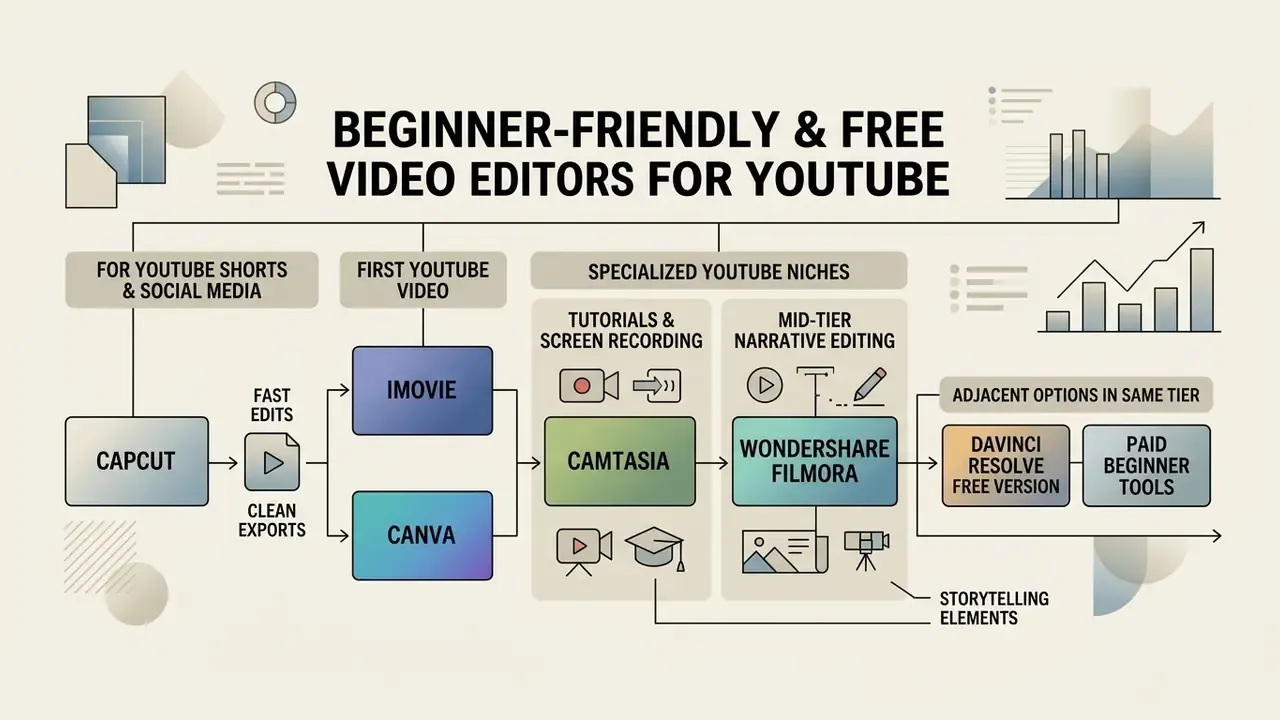
Beginner creators usually want accessible editing software that avoids a steep learning curve while still delivering clean exports. Tools in this tier prioritize template-driven assembly, automated caption generation, and streamlined interfaces over depth.
iMovie and Canva for a first YouTube video
Apple iMovie and Canva offer frictionless onboarding for creators producing their first video upload. iMovie comes bundled with macOS and iOS devices, providing a clean track-based interface, Apple-designed storyboards with themed shot lists, basic title controls, standard transitions, and direct 4K/60 fps export to YouTube.
Canva operates primarily as a web-based, template-driven design editor with a genuine timeline across mobile, browser, and desktop. It lets non-editors combine screen recordings, high quality stock footage, overlay text, and background music into structured video files, then export MP4 without a watermark. Its limits deserve to be known in advance: several Canva video tools cap uploads at under 10 minutes, and template or music availability can depend on region and licensing. Both tools lack advanced multi-track audio engineering and color grading, but their user friendly interfaces remove almost all production friction for early-stage channels.
«iMovie remains popular with 18% of beginner editors on iOS, holding its position as a starter tool for young creators.»
Creators building thumbnails and channel art alongside their first edits usually work from the same design stack; see the online photo editor guide for the still-image side of the pipeline.
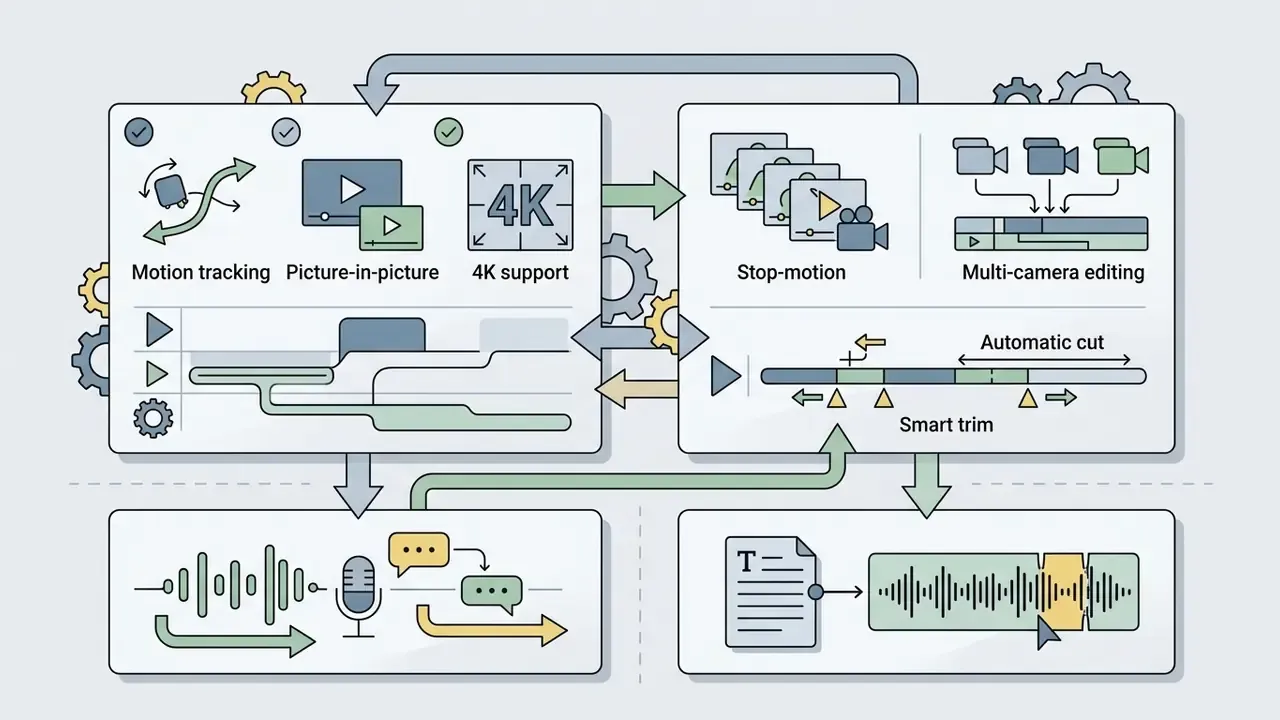
Filmora and Camtasia for specialized YouTube niches
CapCut and iMovie cover quick cuts and entry-level vlogs. Some content formats need something more specific before jumping to a full NLE:
DaVinci Resolve free version versus paid beginner tools
Choosing between the free version of DaVinci Resolve and entry-level paid tools means balancing immediate ease against long-term skill development. Entry-level paid applications offer simplified cut points and pre-built title overlays, but they often restrict timeline precision and hide useful editing features behind paywalls.
DaVinci Resolve Free provides complete professional-grade editing capabilities, advanced color wheels, and node-based compositing at zero initial cost, and Blackmagic publishes structured beginner training for it. It does demand a larger upfront investment in learning. The practical rule: simple editors fit basic cuts and social clips, while Resolve fits creators who need professional grading, compositing, and reusable industry-standard workflows they can carry into paid work later.
| Selection Scenario | Skill Level | Primary Hardware | Format Focus | Recommended Free Tool | Recommended Paid Option | Operational Trade-off |
|---|---|---|---|---|---|---|
| First Vlog / Simple Commentary | Beginner | Mac / iOS | 1080p long-form | iMovie | None required initially | Low learning curve; limited to basic trimming and title templates |
| Short-Form Content Channel | Beginner to Intermediate | Mobile / Web | YouTube Shorts, Reels | CapCut Free | CapCut Pro | Rapid vertical generation; advanced features require subscription |
| Tutorial / Screencast Channel | Beginner to Intermediate | PC / Mac | 1080p–4K screen capture | OBS Studio (capture only) | Camtasia / Filmora | Purpose-built zoom and callout tools; paid license required |
| Budget-Conscious Mid-Tier Channel | Intermediate | PC / Mac / Linux | 4K long-form | DaVinci Resolve Free | DaVinci Resolve Studio | Full professional feature access; higher initial learning curve |
| Collaborative Media Operation | Advanced | Multi-OS network | Multi-format series | None (free tools insufficient) | Adobe Premiere Pro | Maximum pipeline integration; recurring subscription costs |
What Apps Do YouTubers Use to Edit Videos on a Phone?
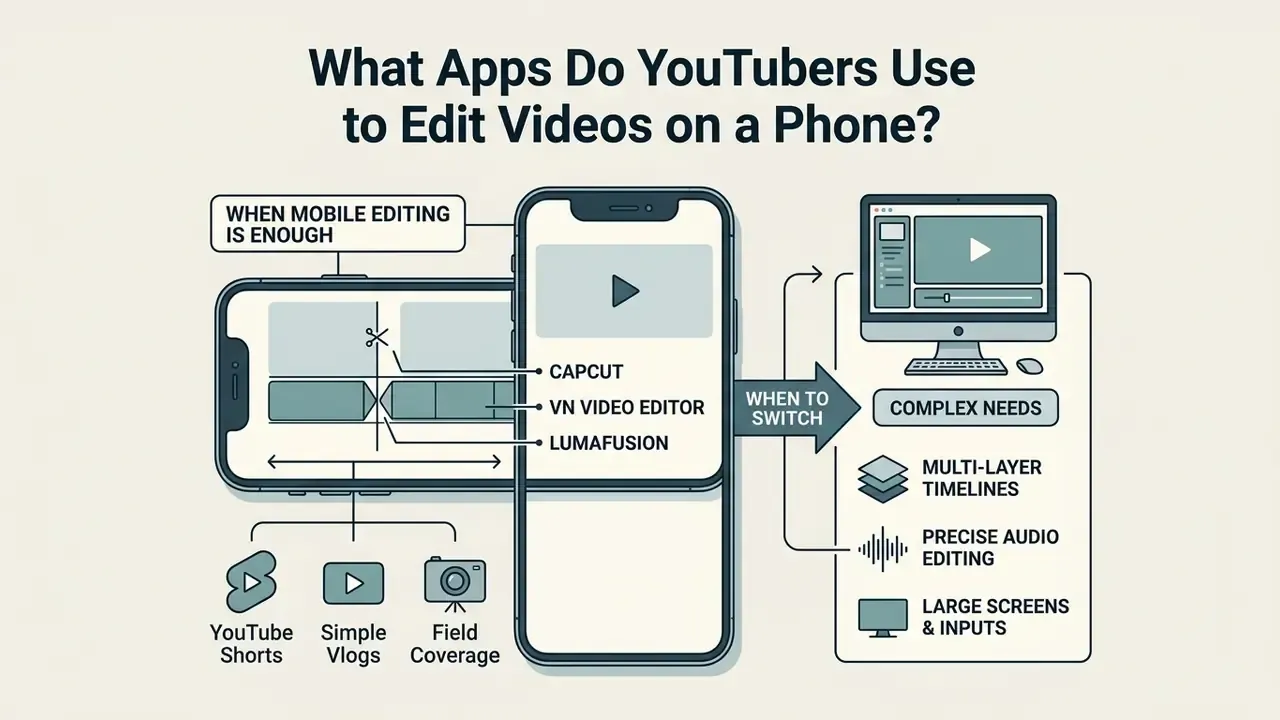
Mobile editing applications let creators shoot, cut, add captions, and publish YouTube content entirely from a smartphone or tablet. High-resolution camera sensors on modern phones have made this viable for specific channel formats, not merely tolerable.
When phone editing is enough for a YouTube channel
Phone-only workflows are sufficient for channels centred on YouTube Shorts, personal vlogs, simple field commentary, and reaction clips. The evidence here is structural rather than anecdotal. YouTube's own documentation confirms that the YouTube Create app (Android and iOS) supports direct timeline editing, voiceover recording, automated caption generation, music, overlays, and direct publishing, while YouTube Studio mobile handles uploads, titles, privacy, audience settings, and thumbnails. A creator therefore never needs a desktop machine in the publishing chain. Only in the editing chain, and only when project complexity demands it.
Paired with mobile editors like CapCut, VN Video Editor, or LumaFusion, phone-based creators can assemble multi-clip sequences, apply motion titles, and clean up dialogue without transferring media to a desktop workstation. Mobile journalism and field-reporting teams have used LumaFusion in exactly this configuration for years, filing finished packages from hotel rooms.
«CapCut's largest user age group is 25–34 (31%), with average session length of 15–30 minutes, matching fast mobile editing patterns.»
Those session-length figures make a useful diagnostic. If your own edit sessions routinely run past 30 to 45 minutes on a phone screen, you have probably already crossed the threshold described below.
When to switch from a mobile app to desktop software
Creators hit the ceiling of mobile editing when content demands complex multi-layer timelines, precise audio engineering, or large file management. Desktop becomes necessary with project file sizes above 20 GB, timelines longer than a few hours, source material above roughly 4K pixel dimensions, long-form sequences with hundreds of cut points, or granular color correction passes. Those thresholds are not arbitrary. Browser and mobile-class editors publish hard technical ceilings in exactly those ranges, and CapCut's own documentation recommends desktop for long timelines, precise keyframes, advanced effects, and broader export options.
There is a physical dimension too. Mobile interfaces create interaction bottlenecks during extended sessions with multi-track asset arrangement; hours of trimming, audio balancing, and file organisation on a touchscreen is a functional switch point, not a matter of taste. Your thumbs will tell you before your project does. Creators comparing standalone desktop tools against web-based suites can review the free video editing software comparison for platform and cost structures.
AI Video Editing Tools YouTubers Are Adding to Their Workflow
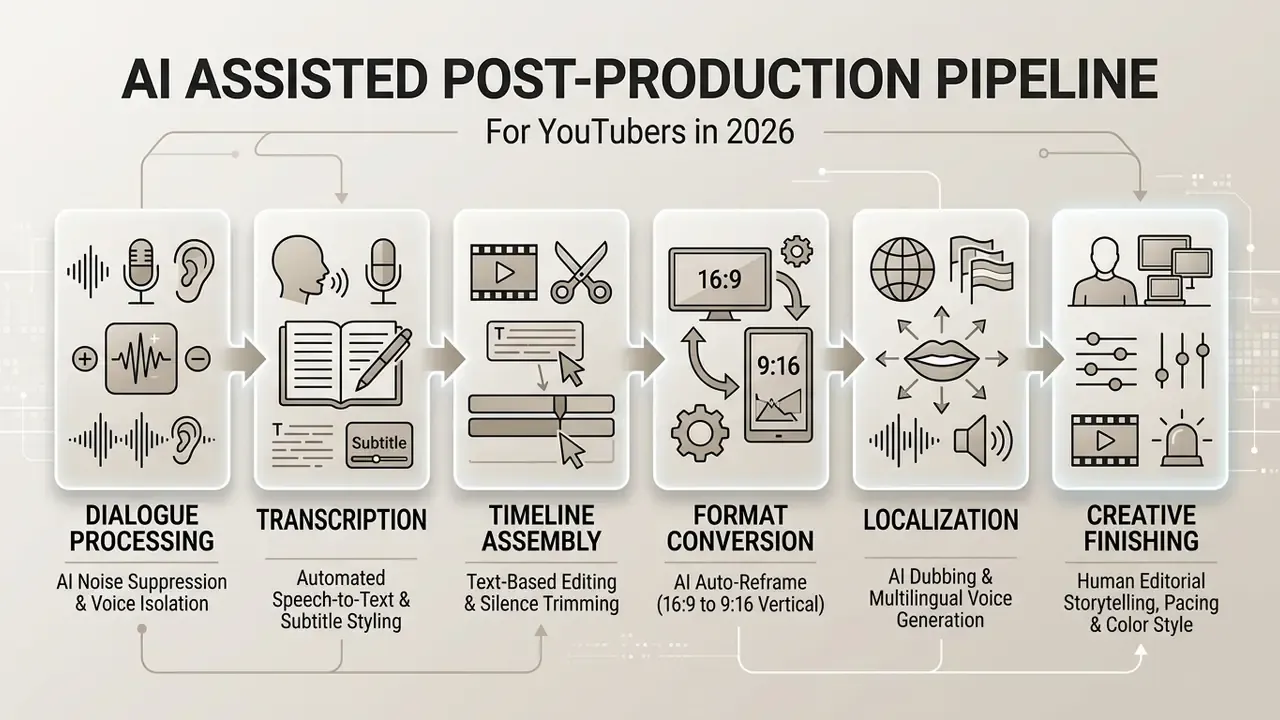
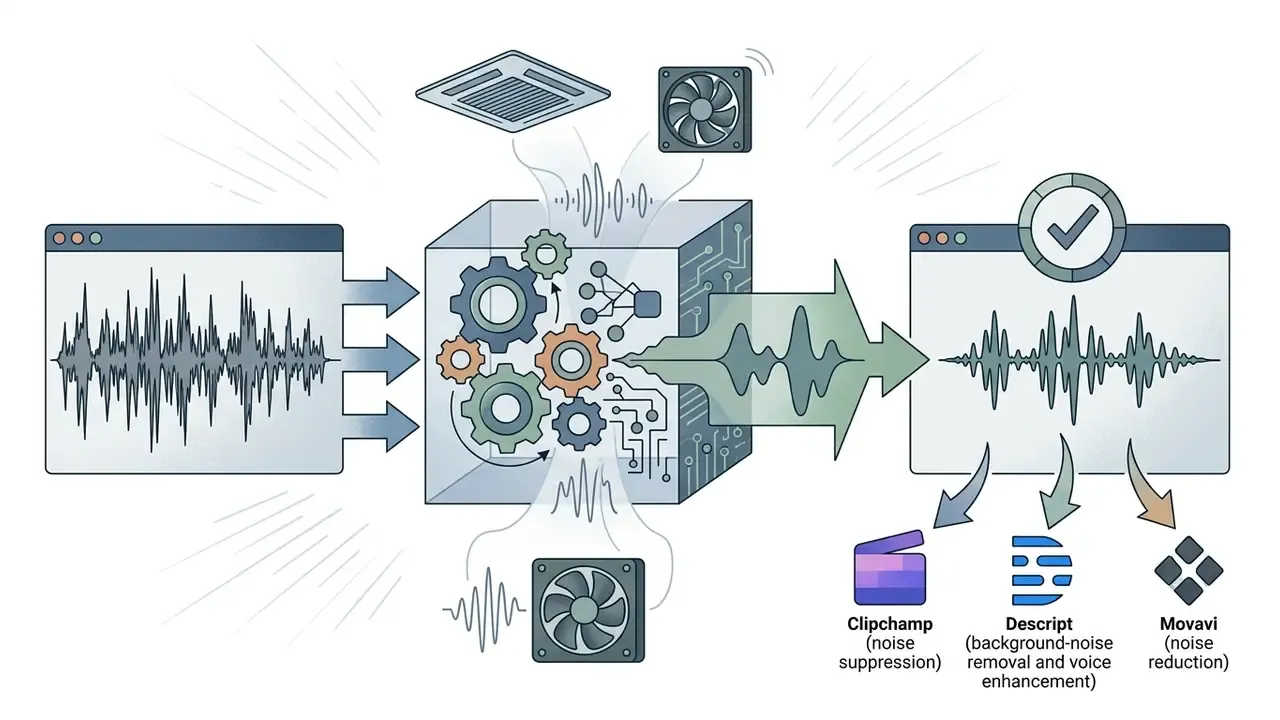
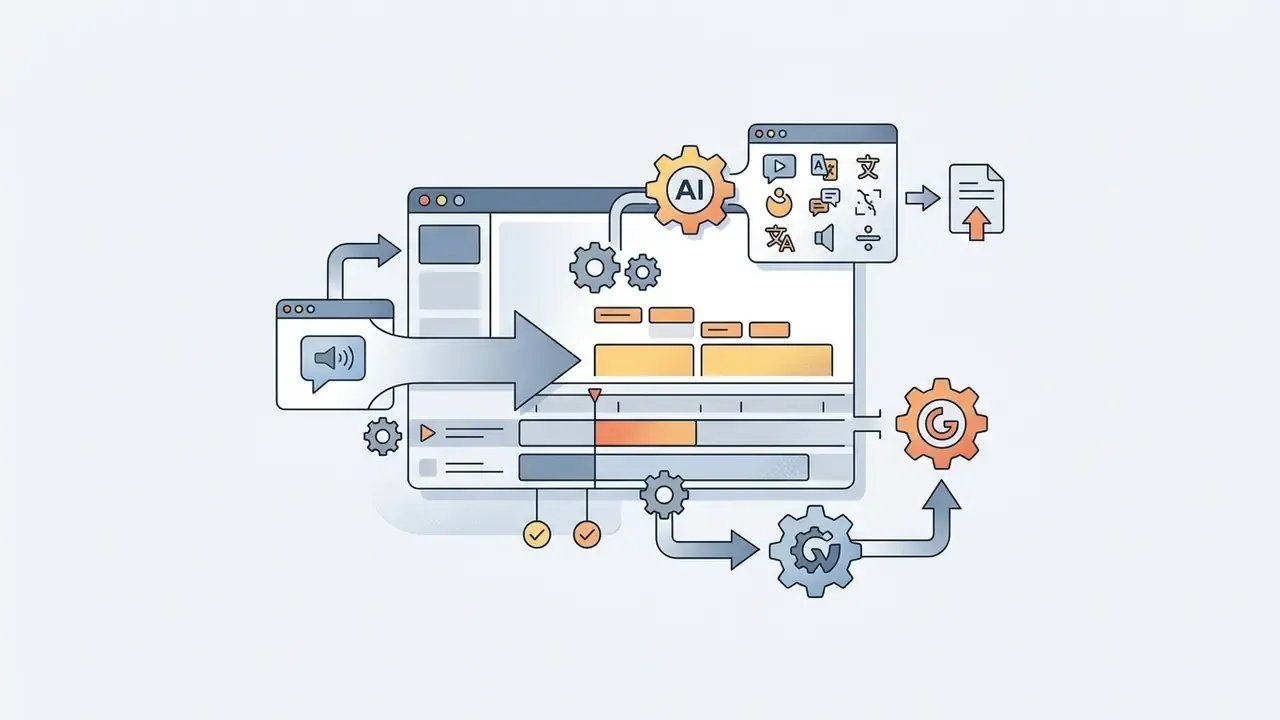
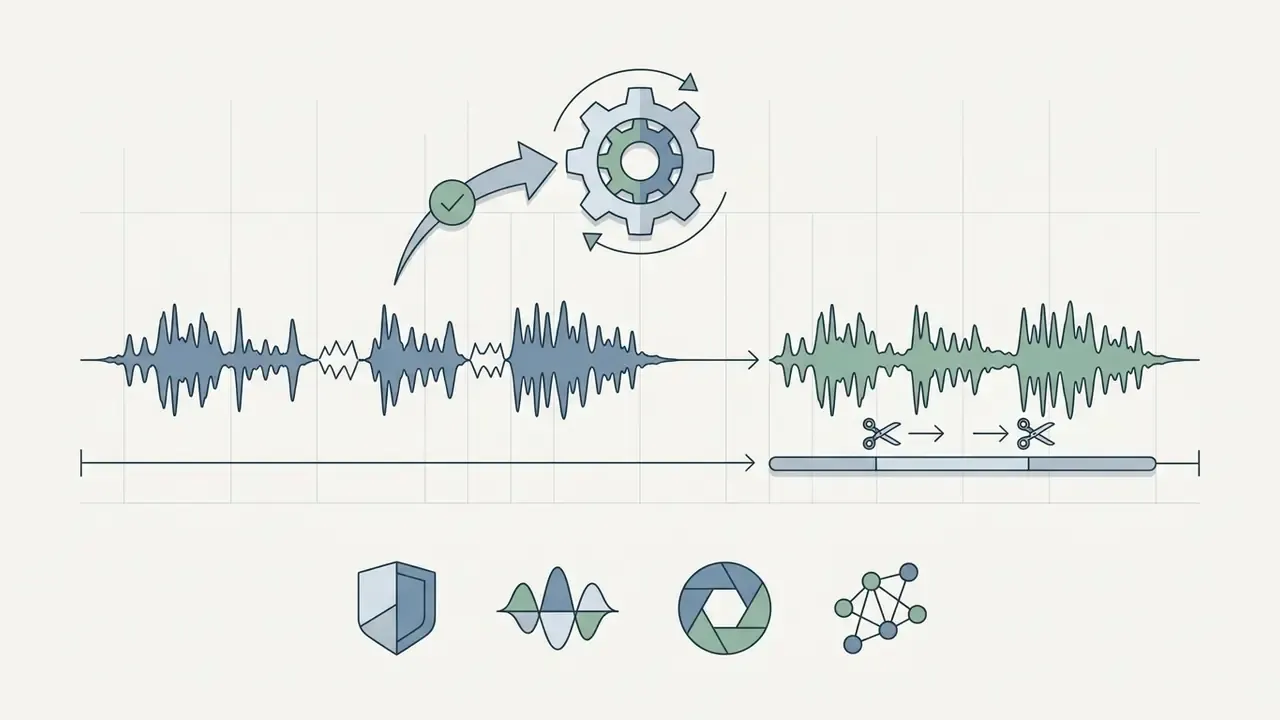
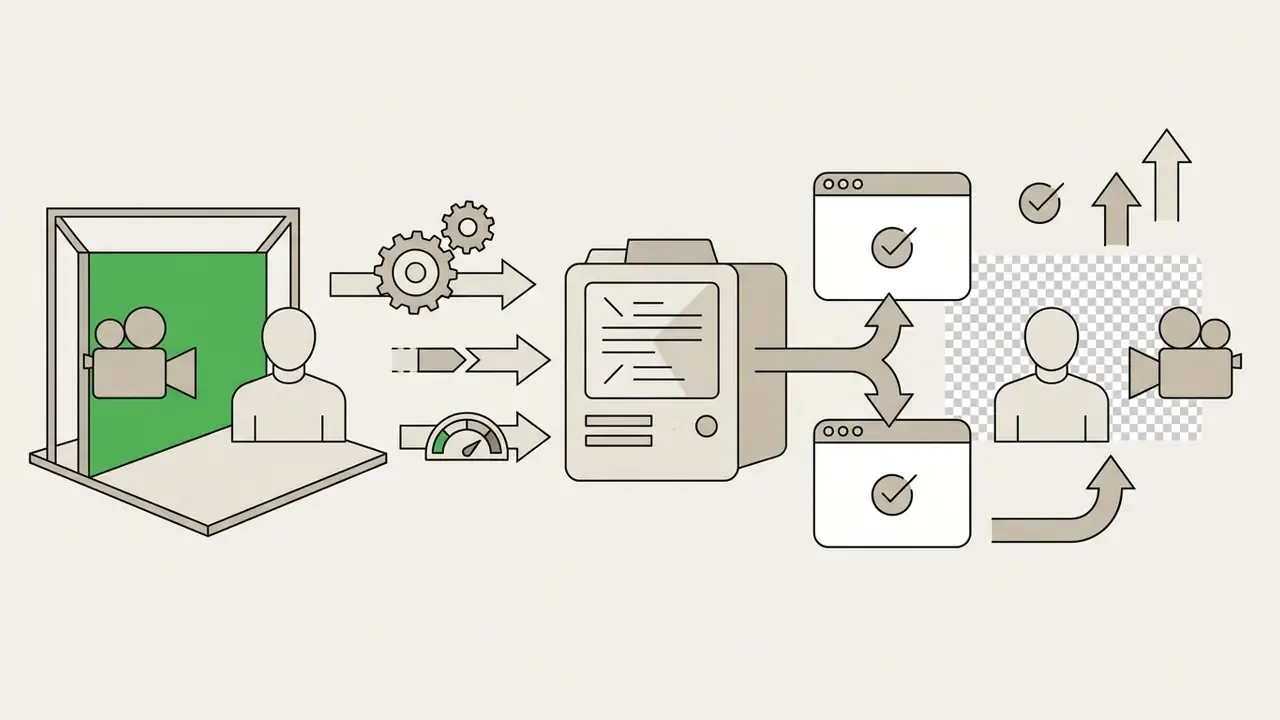
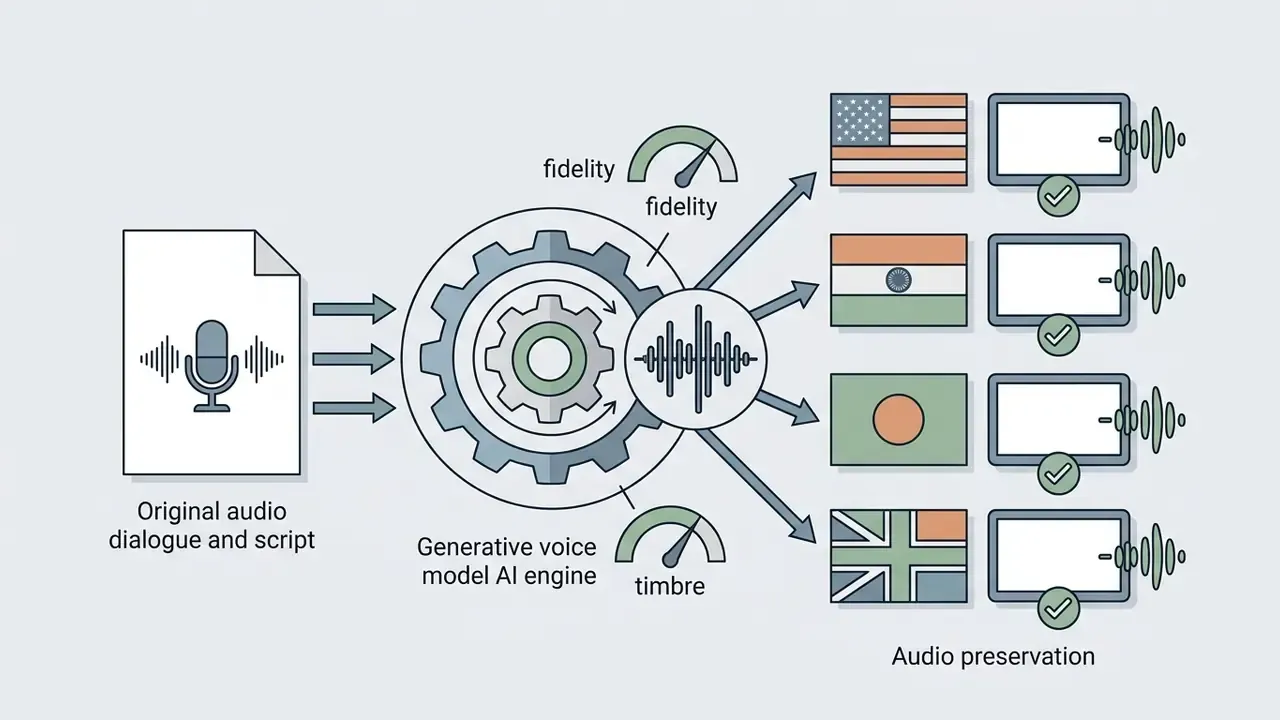
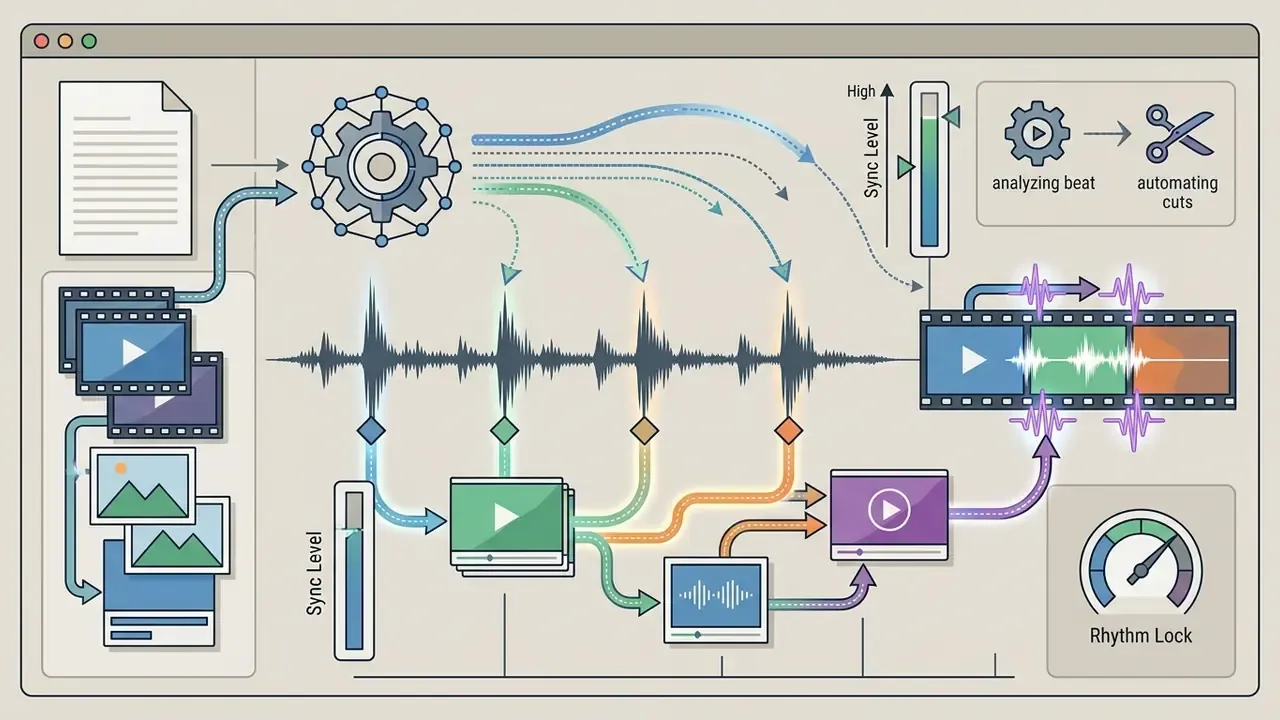
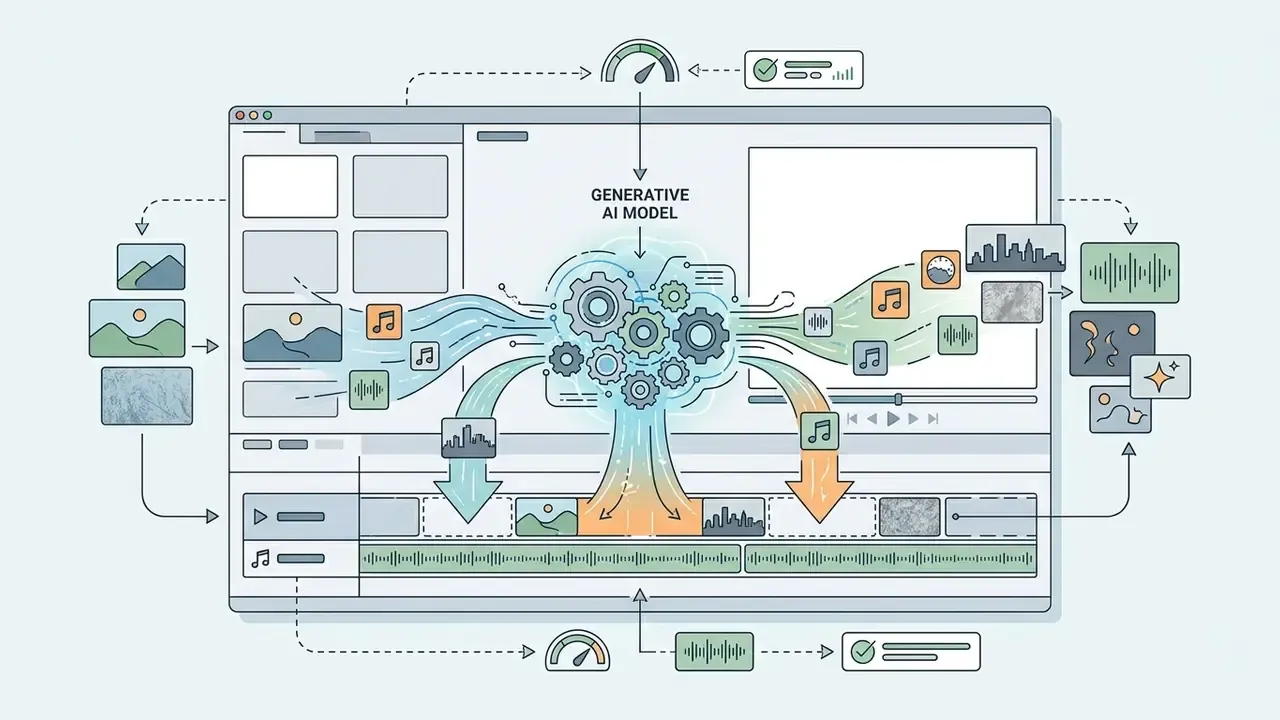
Artificial intelligence tools are now standard components in modern video post production. Rather than replacing human editorial oversight, AI utilities automate repetitive work: dialogue transcription, background noise reduction, vertical auto-reframing. Readers exploring the generative end of the spectrum can review the text-to-video AI primer for how synthetic footage enters an otherwise conventional timeline, or browse free ai video generators if the budget line is already full.
YouTube itself now ships AI editing features natively. "Edit with AI" turns raw camera-roll footage into a first draft Short, and Veo-based generation produces backgrounds and clips with sound inside Shorts. Platform policy requires creators to disclose realistic content that has been altered or synthetically generated, with some native tools applying that label automatically.
AI features that save time during video editing
The most effective AI editing tools attack manual labour in routine post-production tasks, not the creative work. According to the IdeaRocket AI Video Production Survey (2024), over 86% of surveyed video producers use AI utilities in their workflows, with sound optimization, transcript-based editing, and auto-captioning the most widely adopted functions.
«Only 14% of respondents had never used AI tools for video production; roughly 40% used them for editing, image generation, and video generation.»
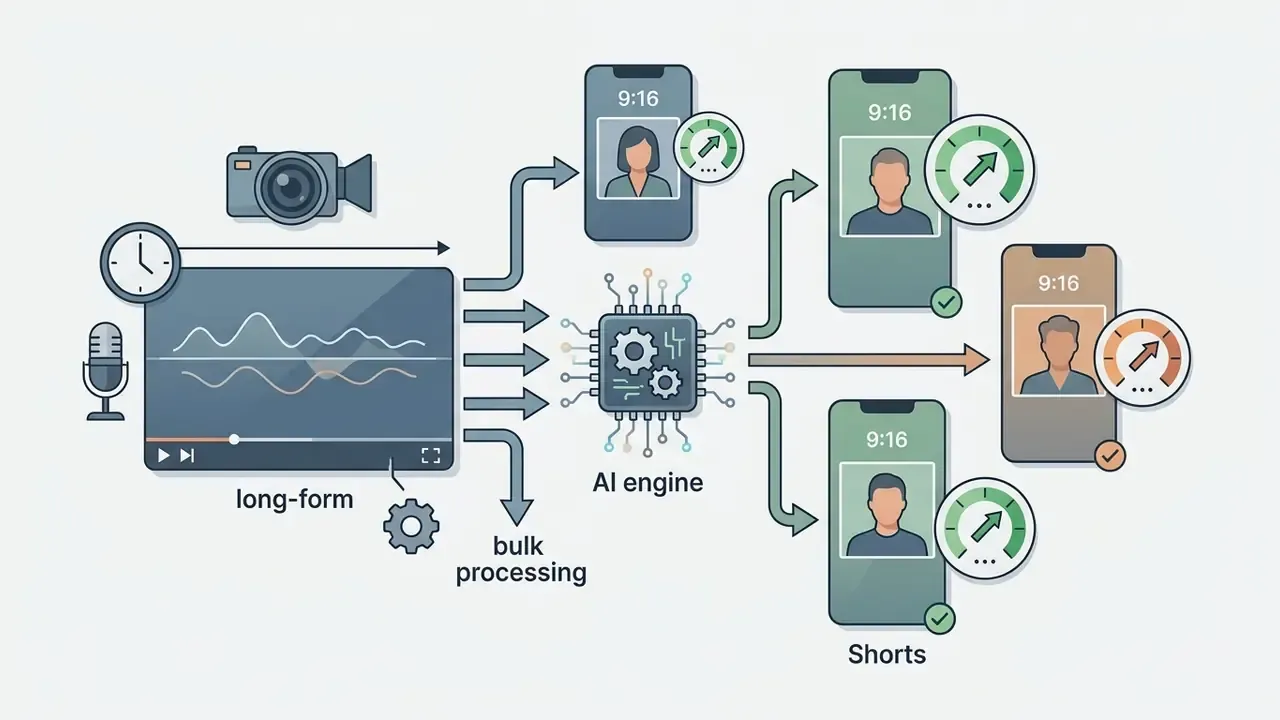
Creators looking for dedicated platforms for short-form clip extraction can inspect the AI video generator reference for pipeline optimization, and review free AI video generators if budget is the binding constraint.
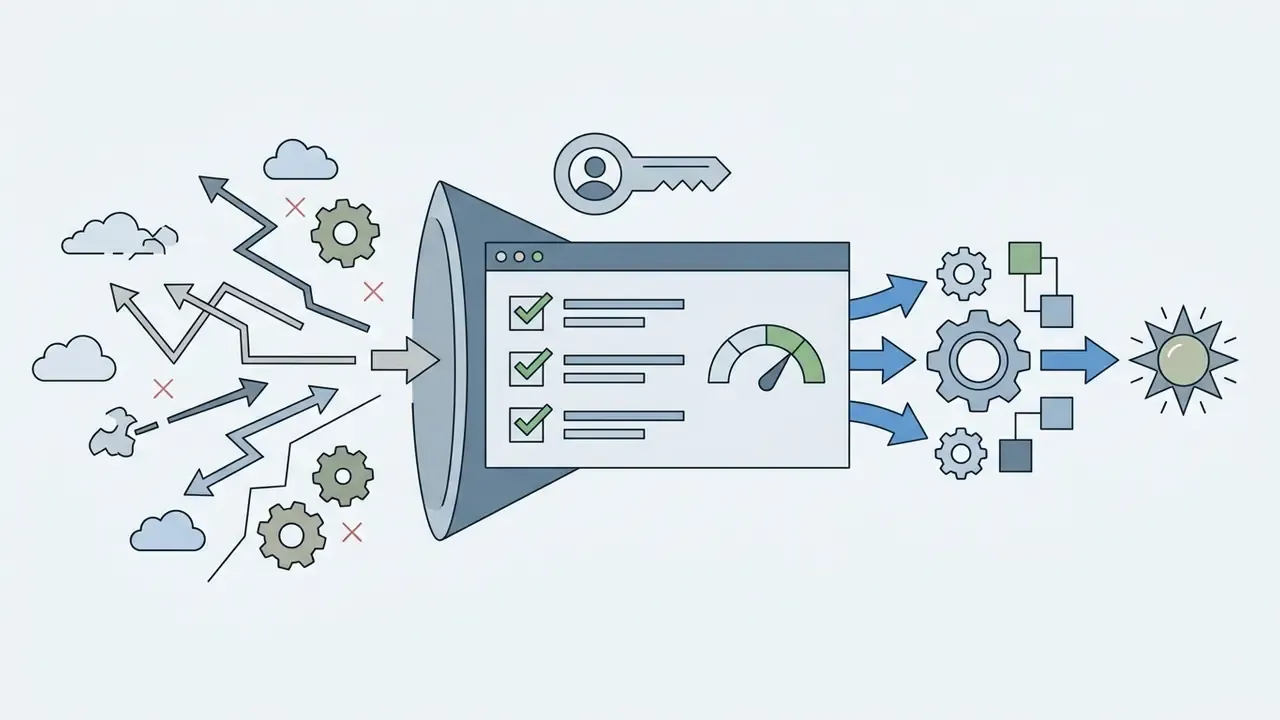
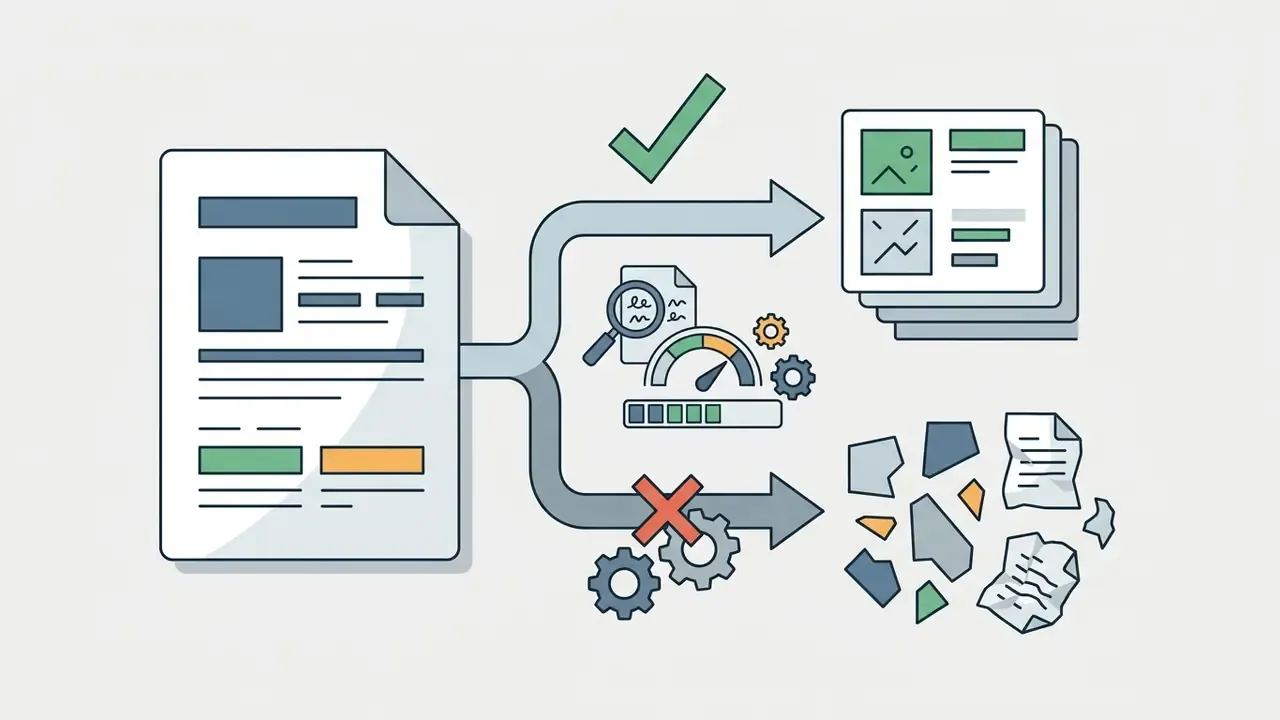
Data Privacy, Shadow AI, and Where Your Footage Is Processed
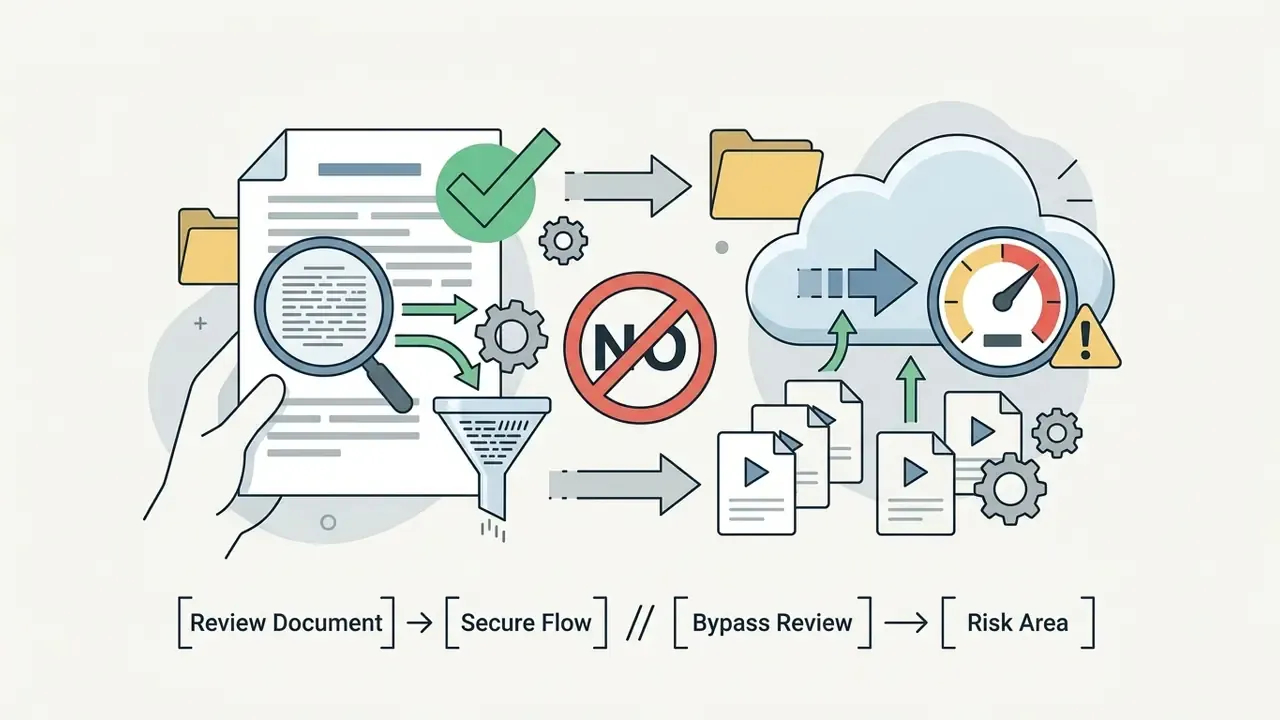
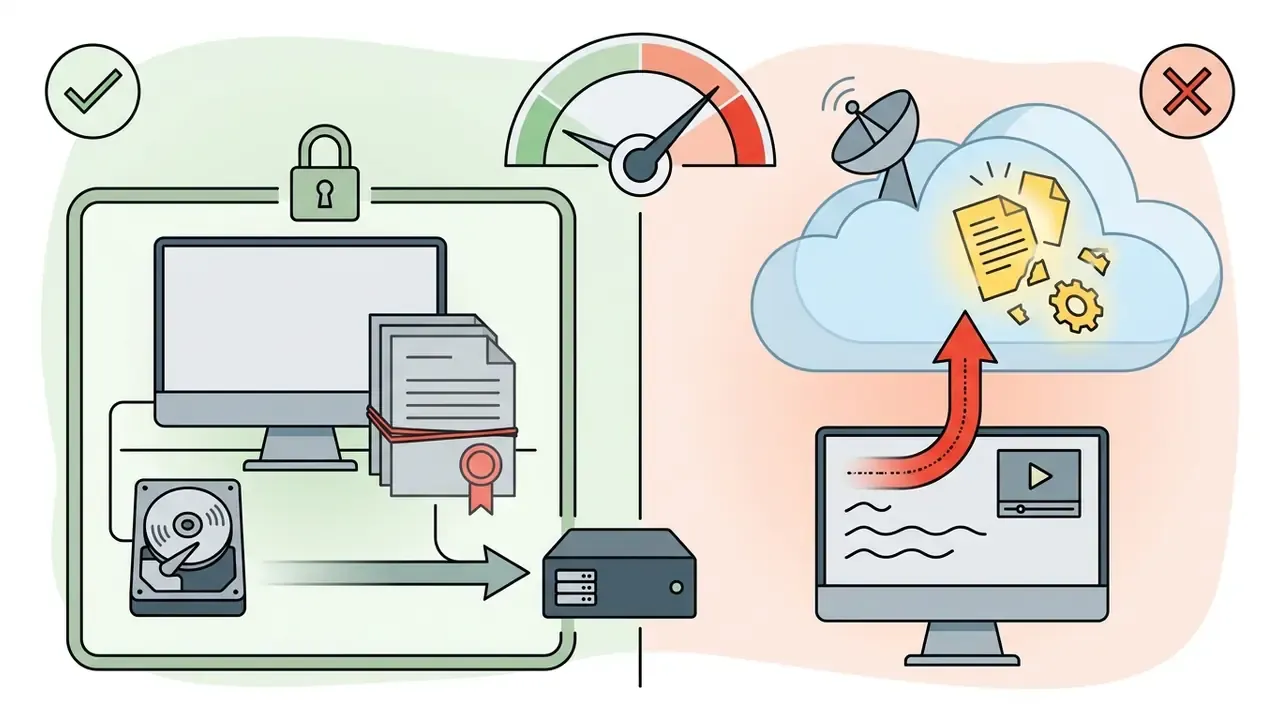
| Processing model | Examples | What leaves your machine | Primary risk |
|---|---|---|---|
| On-device / local GPU | DaVinci Resolve Studio Neural Engine (masking, face recognition, noise reduction), Final Cut Pro Metal-accelerated effects, most desktop plugin effects | Nothing; inference runs on your CPU or GPU | Hardware cost and render time, not disclosure |
| Cloud / vendor servers | Browser-based editors, most free AI captioning and clipping services, generative B-roll and dubbing platforms, mobile apps with "AI" toggles | Your source media, audio, and generated transcripts are uploaded to a third party | Confidentiality, retention, model-training reuse, jurisdiction |
| Hybrid | Desktop NLEs with cloud transcription, apps with optional cloud sync | Audio or proxy files only, sometimes silently | Unclear boundary; defaults often favour upload |
Practical safeguards for creators and small teams:

Creators publishing monetized or sponsored work should also confirm usage rights for generated assets; the commercial licensing view the guide hub covers that ground.
What AI cannot replace in professional video editing
Artificial intelligence cannot replace human creative judgment on narrative arc, emotional pacing, comedic timing, and stylistic color choices. Generative models can assemble raw video clips against transcript rules, yet they have no contextual grasp of visual metaphor, thematic continuity, or brand identity.
An academic analysis by Sadiq et al. (2024) on AI-powered video editing found that over-reliance on automated cuts often produces homogenized, formulaic video structures.
«AI significantly improves editing efficiency but introduces risks: a steep learning curve, potential errors, and reduced creative control.»
Independent reviews of generative editing arrive at the same boundary from a different direction. Pacing, timing, and overall aesthetics require human judgment. Opening shots, deliberate pauses, and scene order are story decisions, not rule-based cuts. Deep color grading for mood remains human work even when AI balances exposure. Intricate visual effects, complex transitions, and precision-heavy edits still demand an editor's hand. Professional editing therefore needs human oversight to keep narrative pacing aligned with audience expectations, and, frankly, to keep the channel sounding like a person.
How Do YouTubers Edit Their Videos Efficiently?
Professional YouTube creators follow a structured, multi-stage post-production pipeline to hold consistent publishing schedules and high visual standards. A documented YouTube video editor workflow prevents redundant work and reduces timeline errors, because running edits in a defined order stops later stages from invalidating earlier ones.
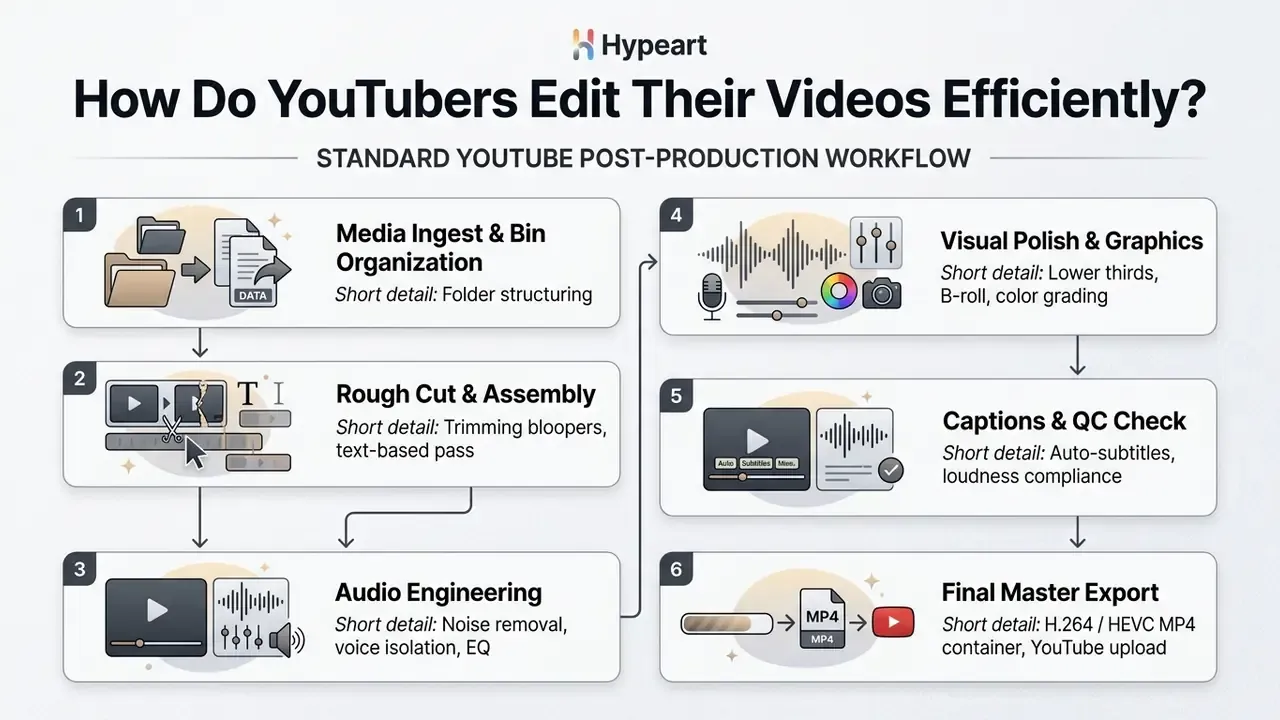
Roles and sign-off. In teams of more than one person, each stage needs an owner and a single approver. A workable minimum: the editor owns Stages 1 to 4, a second pair of eyes performs the Stage 5 QC pass (captions, loudness, spelling on graphics, sponsor mentions), and the channel owner holds final publish approval. Raw media should be archived independently of proprietary project files, with originals and working copies stored separately, so a corrupted project never costs you the footage.
From raw video clip to rough cut
The editing process begins with media organization and rough assembly. Creators import raw video files into structured project bins, separating main A-roll dialogue, secondary B-roll footage, screen recordings, external audio tracks, and graphic assets. A stable convention, a project root split into Footage / Audio / Graphics / Project / Exports, with consistent clip names such as Title_Scene01_Take03, is what makes relinking and archiving survivable months later. Ask anyone who has reopened a two-year-old project without one.
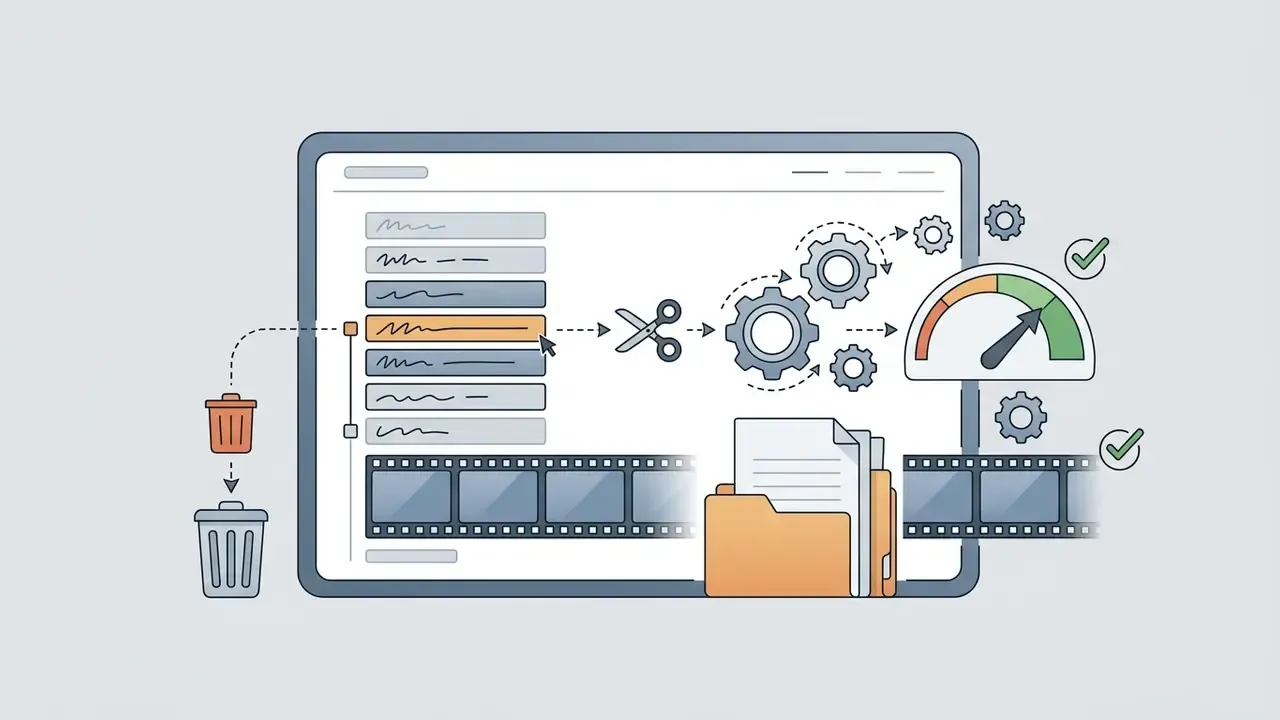
During the rough cut phase, the editor marks usable takes, removes false starts, awkward pauses, and out-of-focus shots, then groups duplicates by scene to establish the core narrative structure. Many creators use text-based editing utilities to strike unwanted dialogue straight out of the transcript, which accelerates the initial assembly timeline. The rough cut is then tightened: redundant material goes, pacing compresses, and sections get reordered until the narrative arc holds.
Where the real speed gains come from (mechanism, not a testimonial): two standard practices consistently reduce rough-cut time on 4K multi-cam projects. First, transcoding to proxy media before assembly so timeline playback stops stuttering. Second, locking folder and filename conventions before ingest so nothing has to be re-hunted mid-edit. Both are documented vendor-recommended workflows rather than channel-specific anecdotes. Measure your own before-and-after assembly hours on a single episode to size the benefit for your footage volume and machine; gains scale with resolution and camera count.
Asset Management: Integrating Stock Footage, SFX, and Templates
High-velocity YouTubers lean on integrated asset libraries to keep production value up without stretching edit times. Choosing an NLE is only half the stack. The other half is where the music, B-roll, and graphics come from.
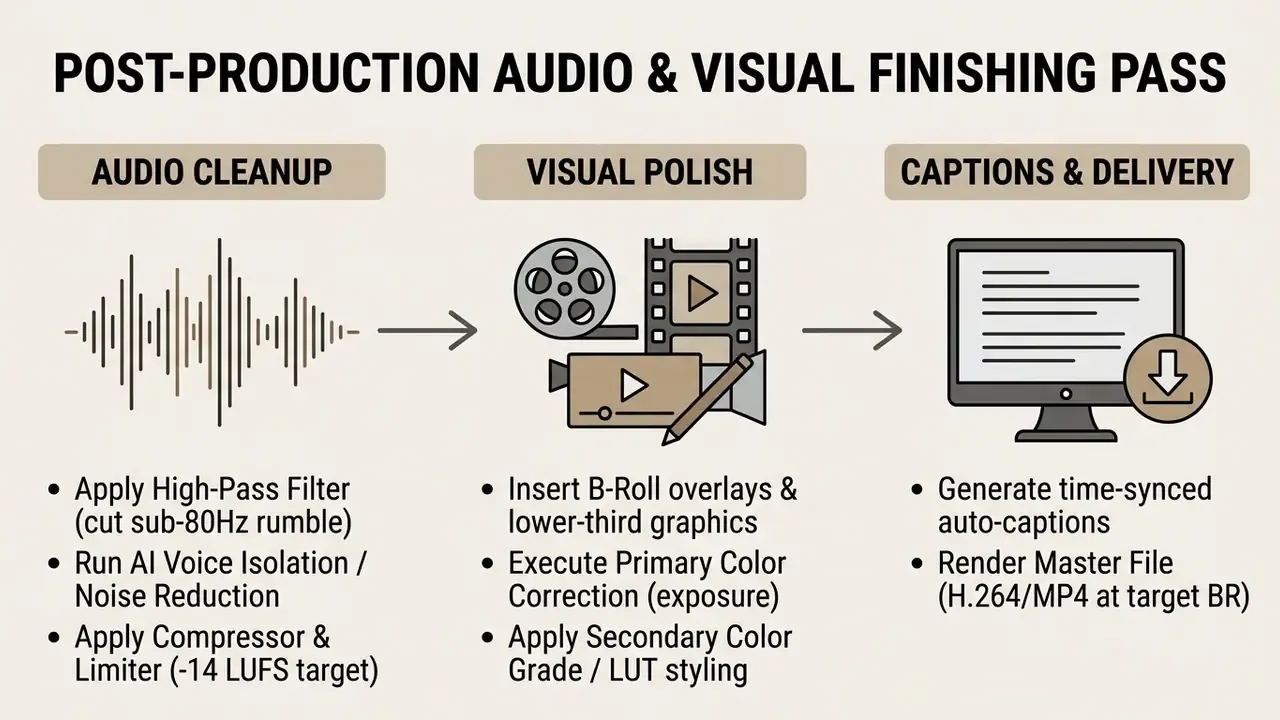
Audio, captions, and visual polish before publishing
Once the rough cut is locked, the workflow advances to audio cleanup, graphic overlays, color adjustment, and export prep. Dialogue audio quality is critical for viewer retention, so editors apply high-pass filters, noise suppression, and compression to normalize voice levels. Viewers forgive soft footage. They do not forgive bad sound.
How to Choose the Right Video Editor for Your YouTube Content
Picking the right tool means assessing your current technical proficiency, hardware, production budget, and content format. Creators should resist over-complicating the stack with software that exceeds their operational requirements. A grading suite does not fix a weak hook.
Choose by skill level and editing capabilities
Beginner YouTubers should prioritize intuitive interfaces and low setup requirements: iMovie, CapCut, or Clipchamp. These tools let new creators master fundamentals, cutting on action, audio balancing, simple pacing, without drowning in software settings.
Intermediate and advanced creators whose channels demand cinematic color grading, multi-track audio mixing, or complex visual effects should move to professional NLEs such as DaVinci Resolve, Adobe Premiere Pro, or Final Cut Pro. A comparison of free video editing software is the cheapest way to test that transition before committing budget. Hardware requirements scale along the same curve: RAM and GPU demands rise directly with task and image complexity, so a tool upgrade often implies a machine upgrade. Creators hunting specialized generative video tools to supplement their timelines can consult the free AI video generator resource guide.
Choose by platform, budget, and content format
Operating system and recurring software costs drive most of the decision. Mac users benefit from Final Cut Pro's one-time purchase model and Apple Silicon optimization, plus native trimming in Photos on iPhone, iPad, and Mac for the simplest cuts. Windows and cross-platform production environments generally lean toward Adobe Premiere Pro or DaVinci Resolve; a broader video editor overview helps map categories to operating systems before you install anything.
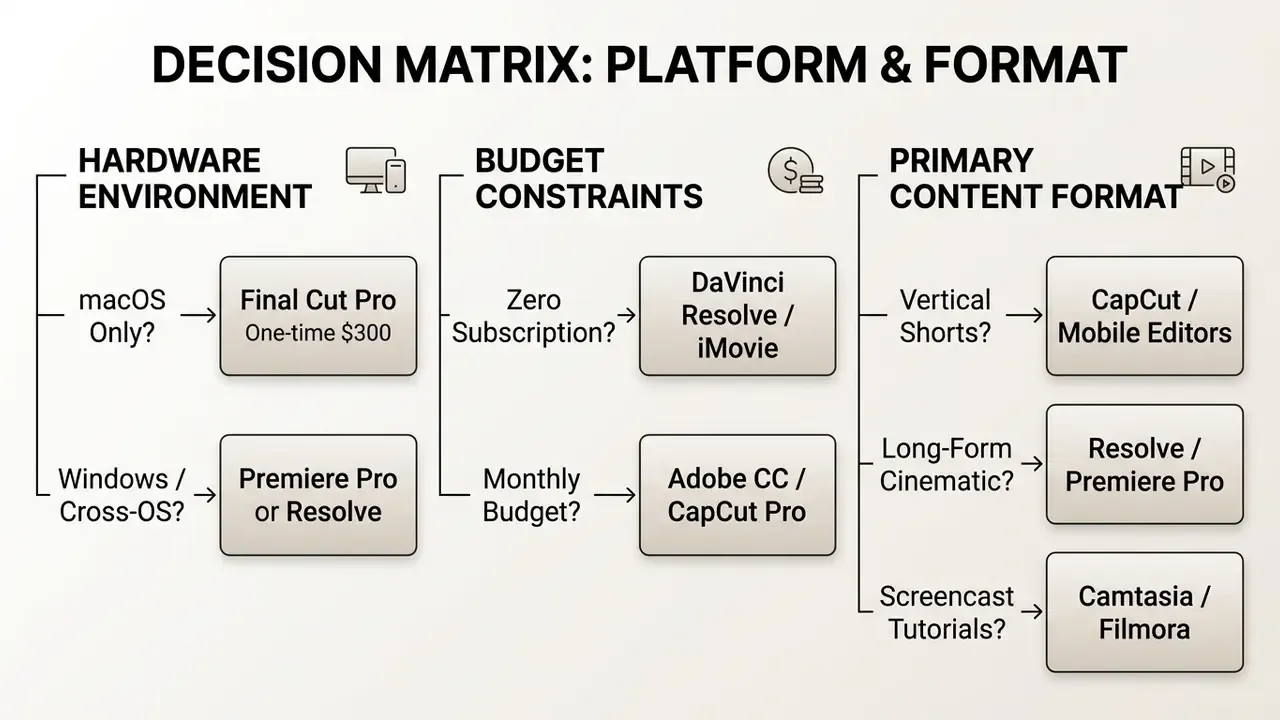
On budget, DaVinci Resolve Free delivers a high-capability professional editing environment at zero cost, which makes it the default for cost-sensitive creators. Content format matters just as much: vertical short-form videos favour mobile-first applications with built-in auto-captioning, whereas long-form documentary channels need the deep timeline controls of a desktop NLE.
«The global video editing software market was valued at $852.5 million in 2022 and is projected to reach $1.2 billion by 2030 at a 4.9% CAGR.»
That growth trajectory explains why vendors keep pushing features into free tiers: user acquisition at the beginner end is the entire competitive battleground. The practical consequence for creators is simple. The free tier you dismiss today may be materially more capable in twelve months, so re-check it before you renew anything.
Content Type Matrix: Genre → Required Feature → Recommended Stack
| YouTube Content Type | Primary Editing Challenge | Key Required Software Feature | Recommended Software Stack |
|---|---|---|---|
| Gaming Channels | Multi-source audio/video sync, facecam management | Multi-camera editing, high-FPS screen capture | OBS Studio + DaVinci Resolve / Premiere Pro |
| Tutorials & Software Reviews | Visual clarity, step-by-step callouts | Auto-zoom, cursor highlights, screen recording | Camtasia / Filmora |
| Podcasts & Interviews | Long-timeline audio cleanup, text trimming | Multi-track audio engineering, text-based editing | Descript / Podcastle + Premiere Pro |
| Travel & Cinematic Vlogs | Exposure matching, color science, high bitrate | Node-based color grading, LUT support | DaVinci Resolve / Final Cut Pro |
| YouTube Shorts / Clips | Rapid vertical output, retention hooks | Auto-reframing, animated AI auto-captions | CapCut / OpusClip |
| Educational / Explainer | Diagrams, animated concepts, voiceover clarity | Motion graphics templates, TTS and voice tools | Filmora / After Effects + AI voice tools |
| Multilingual / Global Channels | Localization at scale | AI dubbing, multilingual captions | Async / Descript + native NLE |
Creators reviewing competitive options can inspect the detailed software versus matrix.
A practical switching checklist for changing video editing software
Migrating from one video editing platform to another can wreck a production schedule if you do it without preparation. Work through this checklist before transferring any active project. If every item clears, your post-production workflow is ready for a low-risk migration.
1. Hardware and OS compatibility
Checklist0 / 3
2. Formats, codecs, and project interchange
Checklist0 / 3
3. Test round-trip before committing
Checklist0 / 2
4. Proxy and transcode workflow
Checklist0 / 1
5. Archive, backup, and rollback
Checklist0 / 3
6. Collaboration and asset access
Checklist0 / 2
7. Migration sequencing
Checklist0 / 2
8. Privacy and compliance re-check
Checklist0 / 1
When changing platforms, keep the previous software installed until all current active projects are fully exported. Testing project transfers via XML or EDL exchange ensures cuts and timeline placements migrate accurately between applications, and validating the interchange file before you need it is the difference between a planned migration and an emergency one.
For commercial licensing, usage rights, and workflow standards across digital media production, creators can review commercial-use standards for operational compliance. Developers automating render or publishing steps can consult Google Veo API implementation notes for costs, limits, and integration patterns, or browse the hub for the wider API reference set.
FAQ: Video Editing Software for YouTube
What is the best free video editor for YouTube?
DaVinci Resolve Free is the most capable, delivering full NLE editing, node-based color, Fusion VFX, and Fairlight audio with no watermark and 4K UHD export up to 60 fps. For fast mobile and vertical work, CapCut is the strongest free option. For Mac beginners, iMovie remains the lowest-friction starting point.
Can I edit YouTube videos entirely on my phone?
Yes. YouTube Create handles timeline editing, voiceover, music, overlays, and captions on Android and iOS, while YouTube Studio mobile handles upload, titles, privacy, and thumbnails. CapCut, VN Video Editor, and LumaFusion cover more advanced mobile edits. Switch to desktop when projects exceed roughly 20 GB, run hours long, or demand precise keyframing and grading.
Do I need professional software to grow a channel?
No. Audience retention is driven by hook, pacing, audio clarity, and topic selection, none of which require a subscription NLE. Upgrade when a specific capability blocks you, such as multi-cam sync, deep grading, or team collaboration. Not before.
What software do large YouTube channels actually use?
Adobe Premiere Pro for collaborative long-form pipelines, Final Cut Pro for fast solo Mac workflows, DaVinci Resolve for unified finishing with heavy color and audio work, and CapCut or OpusClip for high-volume Shorts output.
Should I hire an editor or learn to edit myself?
Freelance YouTube editors typically charge $30 to $60 per hour, or roughly $150 to $500+ per finished 10-minute video. Early-stage channels usually gain more by learning an efficient pipeline and reinvesting that money into audio, lighting, and research. Delegate once your revenue per hour exceeds the editing rate.
Which tool is best for tutorials and screen recordings?
Camtasia, because auto-zoom, cursor highlighting, and smart callouts are built in rather than keyframed by hand. Filmora is a lighter alternative for tutorial channels that also need narrative editing.
Is it safe to use free cloud AI editing tools on unreleased footage?
Treat cloud AI features as an upload, not a filter. Local processing (Resolve Studio's Neural Engine, Metal-accelerated Final Cut effects) keeps media on your machine, while browser and mobile AI services generally transmit it to vendor servers. For NDA or embargoed material, stay local and read the retention terms first.
Do I have to disclose AI use on YouTube?
YouTube requires creators to disclose realistic content that has been altered or synthetically generated, and some native tools apply that label automatically. Routine cleanup, meaning noise reduction, captions, and color correction, is not the target of the policy. Synthetic people, voices, and events are.
Appendix A: Superseded Passages (Editorial Record)
For transparency, the following earlier formulations were revised in this update and are preserved here:
- Market share (superseded) "Adobe Premiere Pro leads professional desktop adoption with an estimated 35% to 52% market share among professional video editors." Superseded because the range merged two different measurement bases (overall market share versus professional-adoption rate) from two separate reports.
- Premiere Pro efficiency claim (superseded) "A technology review team evaluated editing efficiency across a 100-episode long-form video production schedule. By migrating template assets into Adobe Premiere Pro and utilizing automated speech-to-text captions, the team reduced per-episode post-production assembly time by 35%. This operational shift allowed the channel to double its weekly output without expanding edit personnel." Superseded because the case lacked an identifiable source and methodology; replaced with a mechanism-level explanation and a self-benchmarking instruction.
- Rough-cut efficiency claim (superseded) "A mid-sized educational channel restructured its media ingest framework by standardizing folder naming conventions and utilizing proxy files during rough assembly. This operational adjustment eliminated timeline lag during 4K multi-cam playback, reducing the channel's initial rough-cut assembly window from six hours to two hours per episode." Superseded for the same reason; replaced with the underlying vendor-recommended practices.
- Removed off-topic reference a link to HTML image-display documentation was removed from the software-selection section as irrelevant to video editing intent, and replaced with editor-category references.
- Reformatted elements the migration checklist previously published as a raw HTML form is now rendered as a structured eight-block checklist, and the anchor-based table of contents was replaced with a decision-first reading guide.