Last updated: February 2026 · Benchmarks executed November 2025 to January 2026 · Independence statement: our lab holds no affiliation, sponsorship, or reseller agreement with Topaz Labs, DVDFab/UniFab, AVCLabs, Digiarty (VideoProc/Winxvideo), or ByteDance/CapCut.
Key Takeaways
- Scale factor matters more than software brand. Keeping the enlargement between 2× and 4× of the native source preserves measurable structural fidelity. Push 360p straight to 4K and the model has to synthesise over 93% of the final pixel grid. That is hallucinated texture, not recovered detail.
- Local desktop rendering wins on privacy and control; cloud wins on hardware access. For confidential, archival, or regulated footage, an offline video upscaler running on your own GPU (Topaz Video AI, Video2X, VideoProc) avoids the data-retention and Shadow AI exposure that browser tools quietly introduce.
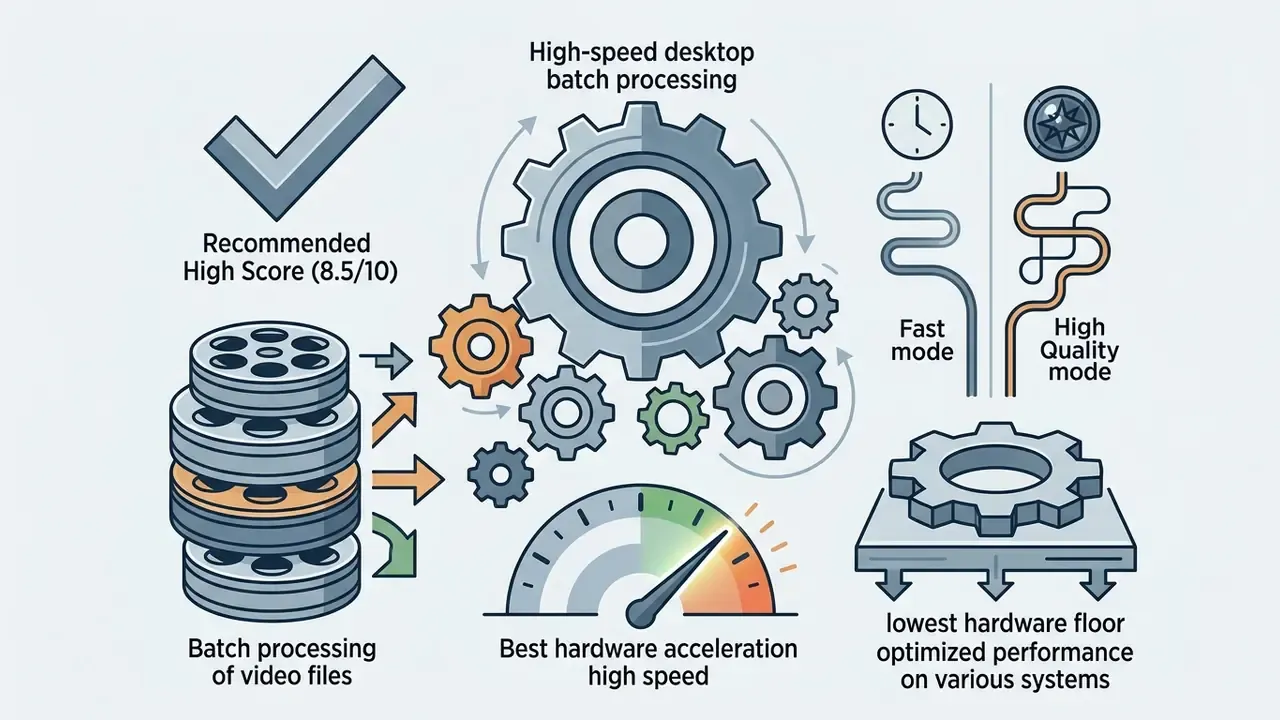
- Highest overall score in our weighted matrix: Topaz Video AI (9.2/10) for archival and production restoration; VideoProc Converter AI (8.5/10) for fast mid-range hardware; Video2X / Real-ESRGAN (8.1/10) as the best free video upscaler software for unlimited, watermark-free local processing at zero licence cost.
Who this comparison is written for
Two groups keep landing on this page, and they need different answers.
The first group is creators and editors: they want the best video upscaler app or desktop tool that turns a soft 720p clip into something publishable by Friday. The second group is closer to our own beat: risk, compliance, and operations leaders who discover that an editor in marketing has been uploading customer footage to a free video upscaler online. For them the question is not «which tool sharpens best», it is «which tool can we sanction, log, and defend in an audit».
Both readings are supported below. Quality scores and click-by-click guides serve the first group. The Shadow AI checklist, reproducibility log, and total cost of ownership math serve the second.
Selection of the best ai video upscaler depends on balancing input degradation against target resolution, computational budget, and acceptable artifact boundaries. Modern neural super-resolution software replaces deterministic pixel interpolation with deep learning architectures trained to infer missing structural details, suppress compression noise, and stabilise temporal frames.
What Makes the Best AI Video Upscaler Different?
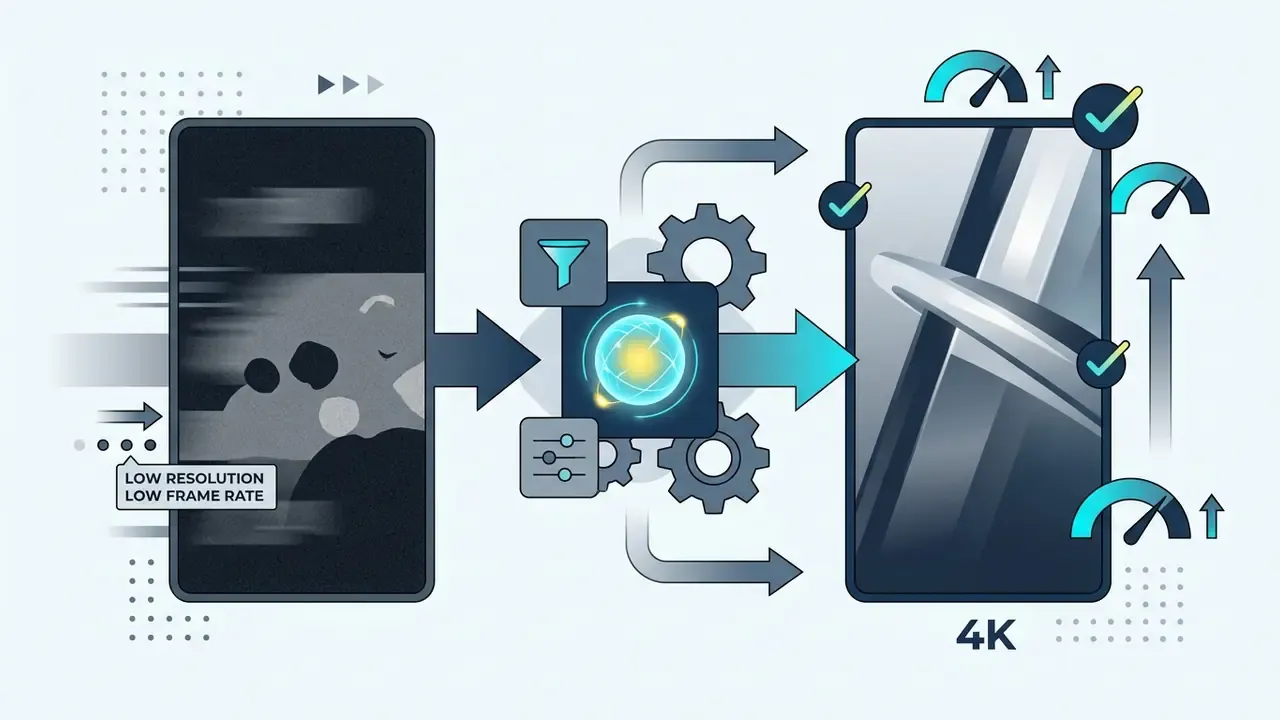
An ai video upscaler uses deep neural networks to reconstruct high-frequency spatial details rather than merely averaging adjacent pixels. Standard resampling methods like bicubic or bilinear interpolation apply fixed mathematical formulas that stretch existing pixels, which leaves blurry edges and softened textures. Machine learning models instead analyse spatial and temporal patterns across sequential frames to restore fine details, eliminate heavy compression artifacts, and lift low resolution videos into crisp formats.
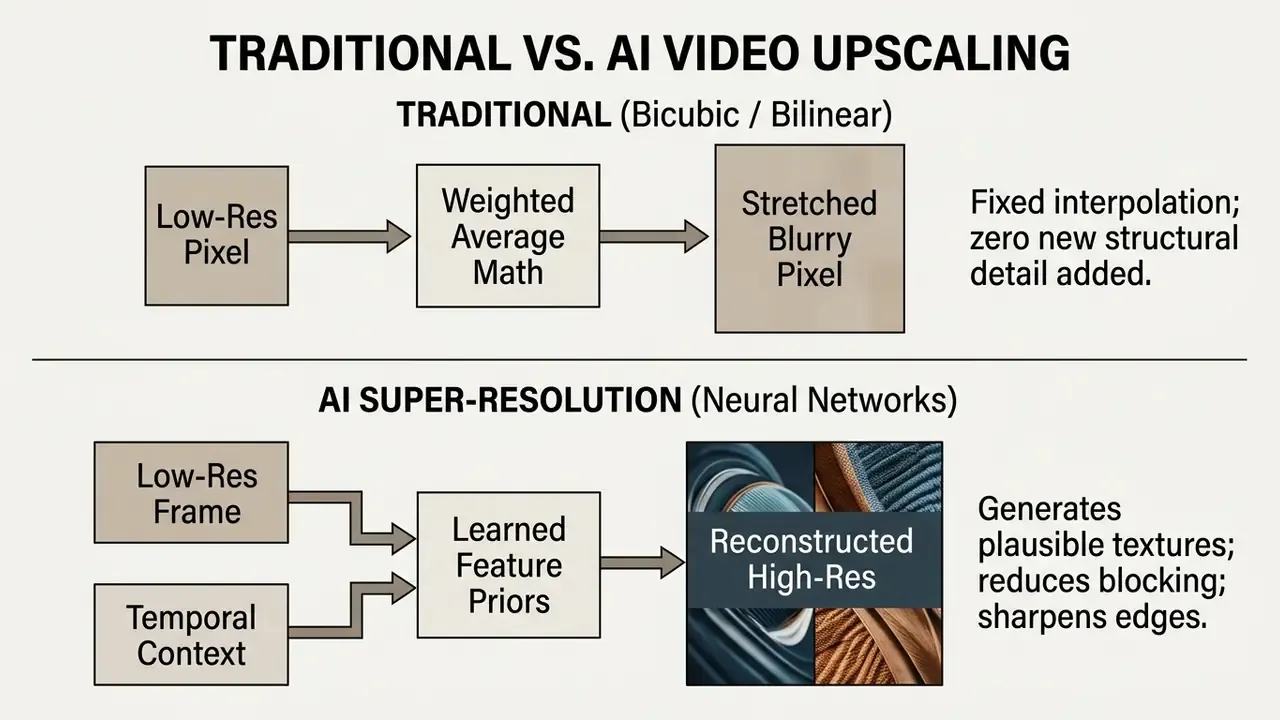
AI models, denoising and frame interpolation
Neural video enhancement relies on multi-task architectures that pair spatial super-resolution with temporal motion analysis. Advanced ai models use spatial-temporal feature aggregation to handle interframe motion, deinterlacing, and low light noise reduction. Specialised networks such as ViDeNN for blind video denoising, or QP-aware transformer-diffusion models like DiQP, process non-Gaussian compression noise from AV1 and HEVC streams. Frame interpolation modules calculate optic flow vectors between consecutive video frames to synthesise intermediate frames, turning 24 fps footage into smooth 60 fps output without motion stutter.
Deinterlacing is not a simple line-fill operation either. Research on early interlaced broadcast material shows the model must be artifact-aware, because interlacing almost always arrives bundled with legacy codec damage.
What AI upscaling can and cannot restore
AI video upscaling can reconstruct plausible edge transitions and high-frequency textures. It cannot recreate true optical information destroyed in the original video. When processing low quality videos or heavily compressed source video, the model leans on statistical priors learned during training and, in effect, guesses the missing details.
According to the NIST AI 600-1 framework on generative AI, confabulations occur when models output confident but unsupported structures. NIST is explicit on one point that gets lost in product marketing: confabulation is a natural consequence of generative modelling, not a bug that disappears with more scale.
Applied to severely degraded files, aggressive enhancement invents hyper-sharp ringing, plastic skin smoothing, and false geometric texture that deviates from the authentic scene. Practically, the output of any upscaler is a reconstruction, not evidence. For archival, forensic, medical, or legal media, retain the original master beside the enhanced render and log the enhancement parameters so the result can be reproduced later.
Scoring Methodology and Weighting Matrix
Every tool below received one blended score on a 0 to 10 scale. Weights were fixed before testing began, so output quality drives the ranking rather than marketing feature counts.
| Scoring axis | Weight | What we measured |
|---|---|---|
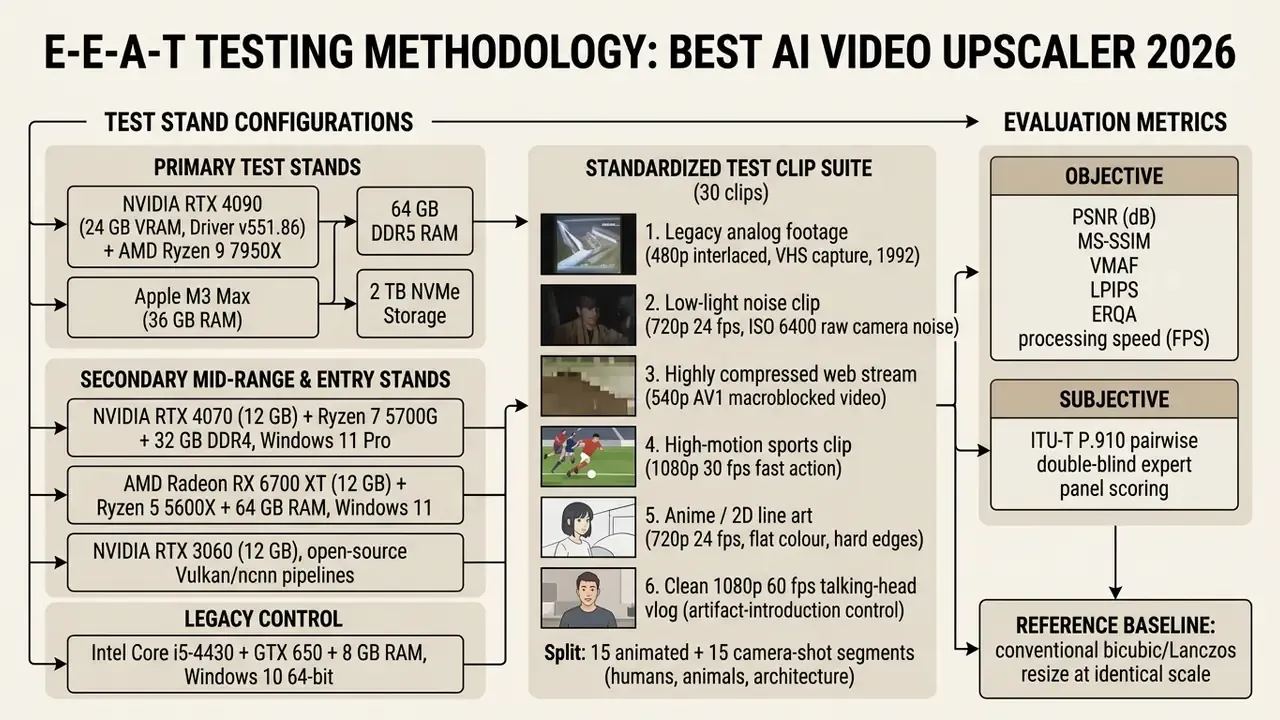
| Output quality | 40% | Sharpness, artifact rate, temporal flicker, identity integrity on faces, text and logo fidelity across the 30-clip suite |
| Free tier constraints | 20% | Watermarks, clip-count caps, duration caps, resolution caps, credit-card requirement to start a trial |
| Export speed | 15% | Measured frames per second at 1080p to 4K on identical hardware, plus batch throughput |
| UI friction | 15% | Setup time, preset clarity, clicks from import to render, preview responsiveness |
| Privacy & local processing | 10% | Local vs cloud inference, published data-retention policy, offline operation without telemetry |
No matching rows Clear one or more filters to restore the matrix.
Tools that require a paid subscription purely to strip a watermark were marked down on free-tier value. Web tools without an explicit data-retention policy were marked down on privacy. Objective metrics followed full-reference measurement (PSNR, MS-SSIM, VMAF, LPIPS, ERQA) where a ground-truth master existed. For sources with no reference, perceptual ranking followed ITU-T P.910 (2021) pairwise double-blind scoring.
One caveat we will repeat later: our panel had five expert scorers, not fifty. Treat the ordering as defensible, not final.
Best AI Video Upscalers Compared: Quality, Speed and Price
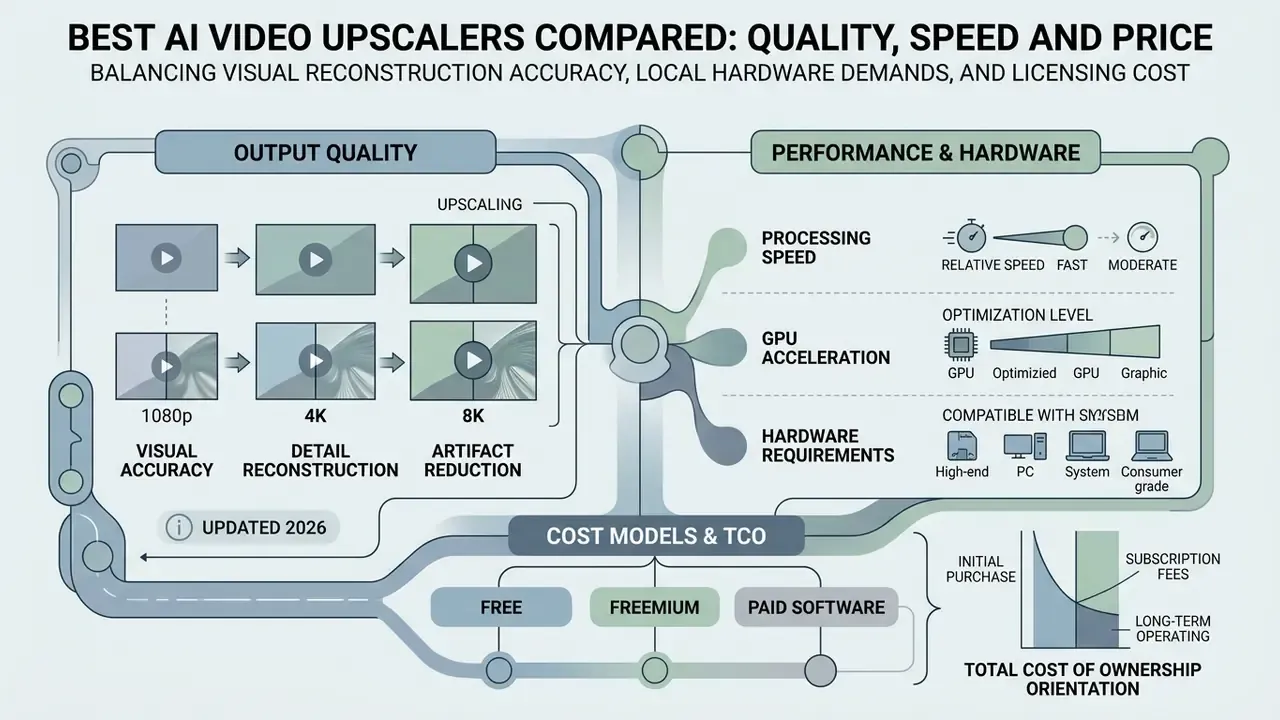
Choosing the best ai video upscaler software means balancing visual reconstruction accuracy against local hardware demands and licensing cost. Desktop applications use local GPU acceleration to keep data in-house and give frame-by-frame control. Cloud-based online upscalers shift rendering to remote servers, at the price of subscriptions, bandwidth limits, and an extra vendor in your data-flow map.
Readers evaluating the adjacent class of synthesis tools, rather than restoration tools, can review our reference material on AI video generators, which follow a different quality and licensing logic entirely.
Audience segmentation note. The table below mixes two tiers on purpose, but they are not interchangeable. Professional / archival tier: Topaz Video AI, AVCLabs, Video2X and other on-premise open source pipelines, with manual parameter control, uncompressed intermediates, and no mandatory cloud egress. Casual / creator tier: CapCut, Winxvideo AI, UniFab presets, which are preset-driven, speed-first, tuned for vertical social delivery, and generally unsuitable for regulated or evidentiary material.
Table: comparison of top AI video upscaler tools by score, platform, AI models, output resolution, GPU acceleration, deployment privacy, and use case.
| Tool | Score /10 | Tier | Platform | Underlying AI models & focus | Max output resolution | GPU acceleration | Data privacy & deployment | Free version / trial limits | Typical use case |
|---|---|---|---|---|---|---|---|---|---|
| Topaz Video AI | 9.2 | Professional / archival | Windows, macOS | Proteus, Proteus Natural, Iris, Artemis, Gaia, Nyx, Nyx XL, Apollo, Chronos, Aion, Starlight Precise 2.6 (multi-model) | 8K UHD (7680×4320); 16K via upscale chaining | NVIDIA CUDA/TensorRT (RTX 30/40), AMD ROCm, Apple Silicon Neural Engine | Local inference by default; optional cloud render must be explicitly selected; suitable for on-premise deployment | Paid commercial software; free trial exports include watermarks | Professional video restoration, film archive recovery, studio workflows |
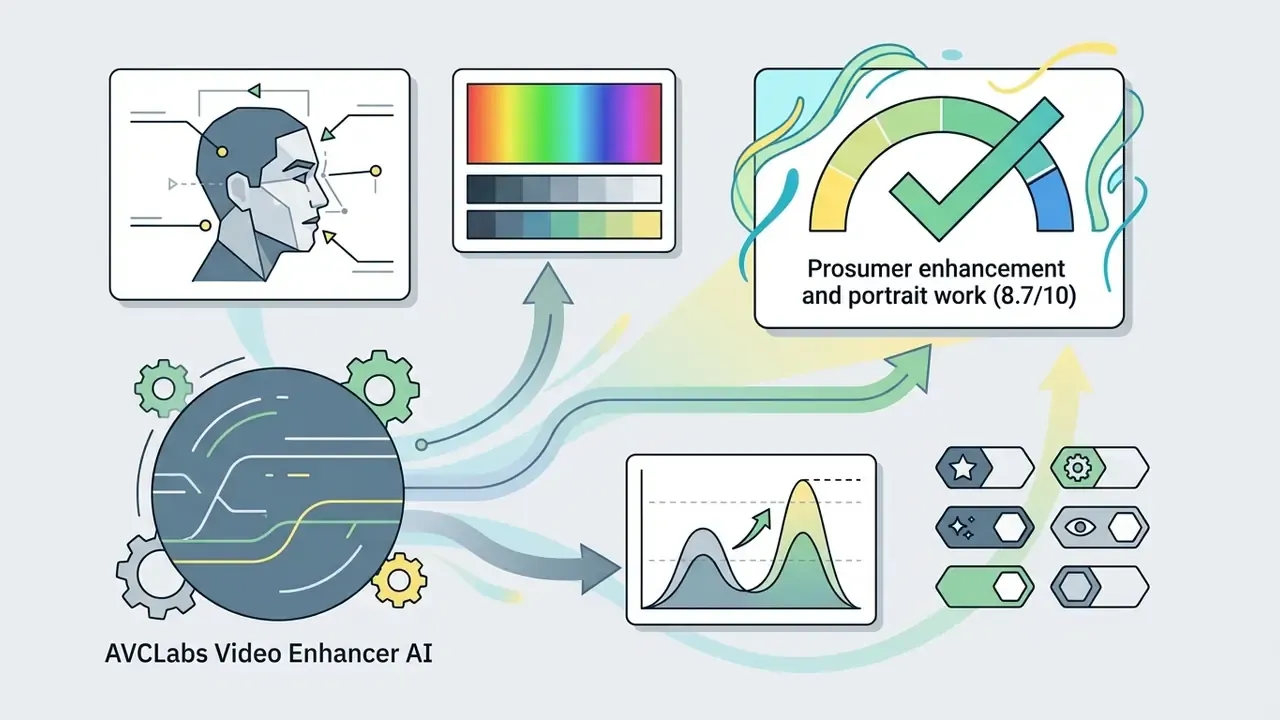
| AVCLabs Video Enhancer AI | 8.7 | Professional / prosumer | Windows, macOS | Multi-Frame Standard, Ultra, Anime, Face Refinement, Colorize, SDR-to-HDR, Motion Compensation | 8K UHD | NVIDIA TensorRT, AMD, Intel GPU, Apple Silicon | Fully local desktop rendering; no upload requirement | Free trial available; exported output carries watermarks | Flexible desktop enhancement, portrait refinement, automated upscaling |
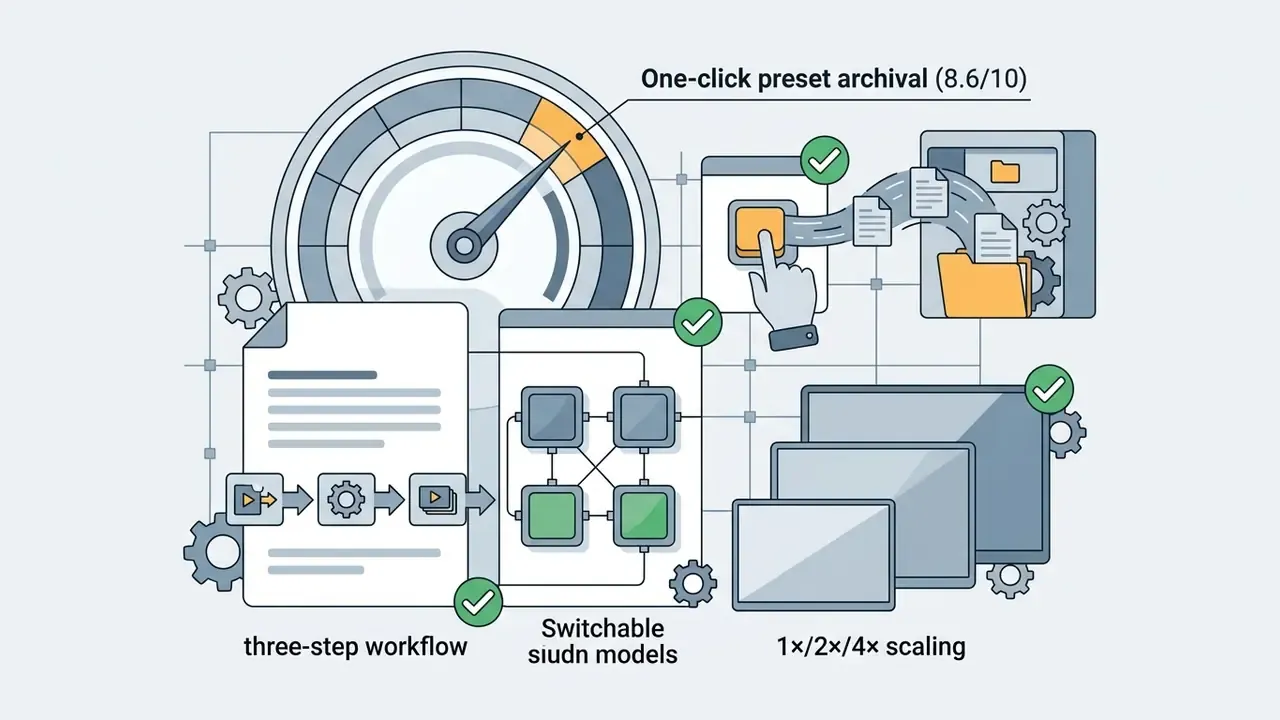
| UniFab Video Upscaler AI | 8.6 | Prosumer / casual | Windows, macOS, cloud module | Four switchable models (Standard, Anime, Film, Multi-Frame/Equinox), 1×/2×/4× scaling | Vendor-advertised up to 16K (1080p and 4K verified in our tests) | NVIDIA CUDA, AMD, Intel GPU, Apple Silicon | Desktop module local; FabCloud module uploads to vendor servers, so check retention terms before use | 30-day trial advertised as full-feature and watermark-free | One-click archive upscaling, anime presets, batch home video |
| VideoProc Converter AI | 8.5 | Prosumer / casual | Windows, macOS | Super Resolution V3 (Gen Detail, Real Smooth), denoising, deblocking, frame interpolation, stabilisation | 4K (4× / 400% scaling) | Level-3 hardware acceleration (NVIDIA, AMD, Intel) | 100% local processing; runs on modest hardware without cloud egress | Free trial processes the first 5 minutes of video with feature caps | High-speed batch processing, format conversion, casual desktop editing |
| Winxvideo AI | 8.3 | Casual | Windows | Cinematic Super Resolution (Gen Detail, Real Smooth), frame interpolation (24 to 60/120/240 fps), stabilisation | 4K UHD (200% / 300% / 400% enlargement) | Hardware accelerated via Intel, NVIDIA (TensorRT), AMD GPUs | Local desktop rendering | Free trial limits video length and export duration | One-click 4K upscale, home video smoothing, basic restoration |
| Video2X / Real-ESRGAN | 8.1 | Professional / on-premise | Windows, Linux, macOS (open source) | Real-ESRGAN, Real-CUGAN, waifu2x, RIFE (Vulkan / ncnn backend) | Uncapped (hardware dependent) | Vulkan API, local GPU execution | Strongest privacy profile: air-gapped capable, no telemetry, no account, auditable source code | 100% free open source; no watermarks or usage limits; free download from public repositories | Local batch processing, anime scaling, privacy-focused workflows |
| CapCut AI Upscaler | 8.0 | Casual / social | Web, Windows, macOS, mobile | Deep learning cloud models, facial smoothing, edge sharpening, «Enhance quality» (HD / UHD / 4K) | 4K UHD | Cloud rendering on web, local GPU on desktop | Cloud upload by default on web; imports from CapCut Cloud, Google Drive, Dropbox; unsuitable for confidential media | Free access with cloud credits; premium filters require subscription | Social media clips, short-form vertical video, rapid mobile editing |
Output quality: 1080p, 4K and 8K upscaling
Reconstructing low resolution footage toward higher resolution targets depends directly on source pixel density and the scale factor. Taking sub-720p content to 4K resolution requires a sixteenfold increase in total pixel count, which forces the network to synthesise more than 90% of the output image data.
(Updated) Published encoding-vendor measurements indicate that scaling 1080p-class source video toward 4K and 8K with advanced AI enhancement reaches roughly PSNR 37.86 dB, SSIM 0.946, and VMAF 71.86, while sub-1080p sources land materially lower, near PSNR 35.76 dB, SSIM 0.945, VMAF 63.81. Moderate scale gaps clearly preserve structural fidelity better than extreme enlargements. These figures come from a vendor whitepaper, though. If you need audit-grade numbers, treat them as directional and reproduce them on your own corpus; the original phrasing of the claim, with its unverified attribution, is preserved in Appendix A.
PSNR and SSIM alone also under-represent perceived 4K quality, which is why our scoring adds a 4K-specific perceptual metric.
To review comparative metrics across alternative generation engines, see the overview of neural rendering models.
Processing speed, GPU acceleration and hardware requirements
Running deep learning super-resolution on high-bitrate streams demands serious graphics memory and parallel throughput. Desktop software leans on gpu acceleration libraries such as NVIDIA TensorRT (current documentation requires Compute Capability SM 7.5 or higher), AMD ROCm (RDNA3/RDNA4 Radeon and Instinct families), or Apple Silicon Neural Engines. Community benchmarks for Topaz Video AI v5.0 on an RTX 4090 show 4K input with 4× upscale using Proteus landing near 1.18 frames per second.
Heavy loads inflate render times fast, so real time preview and raw hardware capability become the binding constraints on desktop workflows. Readers comparing still-image pipelines, where VRAM pressure behaves differently, can cross-reference our breakdown of AI image upscalers.
Mid-range and entry-level hardware reference (1080p to 4K):
| GPU | Tool / model | Measured throughput | Practical verdict |
|---|---|---|---|
| NVIDIA RTX 4090 (24 GB) | Topaz Proteus, 4K in, 4× | ~1.18 fps | Flagship: usable for feature-length archival jobs |
| NVIDIA RTX 4070 (12 GB) | UniFab Equinox / Multi-Frame | ~0.65 fps | Sweet spot: 1080p to 4K overnight batches; 8K only for short clips |
| NVIDIA RTX 3060 (12 GB) | Real-ESRGAN realesrgan-generalv3, 576p in | ~5.3 fps | Strong value for open source pipelines; realesrgan-plus drops to ~0.34 fps |
| AMD Radeon RX 6700 XT (12 GB) | VideoProc Super Resolution V3 | ~0.45 fps | Workable via Level-3 acceleration; Fast Mode roughly halves render time |
| Intel Core i5 + GTX 650 (no modern tensor cores) | Winxvideo AI, 360p to 4K | Multi-hour renders per minute of footage | Functional but impractical; use Fast Mode and 2× targets only |
| Apple M3 Max (36 GB unified) | Topaz Iris / Proteus | Comparable to the RTX 4070 tier | Best thermals per watt for mobile restoration work |
For teams weighing desktop software performance against cloud rendering infrastructure, inspect our AI Media Benchmarks.
Free, freemium and paid video upscaler software
Commercial video upscaler tools cluster into three commercial models: one-time licence fees, monthly subscriptions, and credit-based freemium tiers. A best free video upscaler option like Video2X or Upscayl ships under an open source licence and gives unlimited local processing with no watermark, no paywall, and no mandatory cloud upload. Teams assembling a zero-cost pipeline usually need an editor as well, and our comparison of free video editing software covers that adjacent layer.
Proprietary freemium products behave differently. A free video upscaler online or a desktop free trial typically imposes output resolution limits, export duration caps, or watermarks stamped across generated video frames. The same credit-metering logic runs through the wider generative stack, as documented in our overview of free AI video generators.
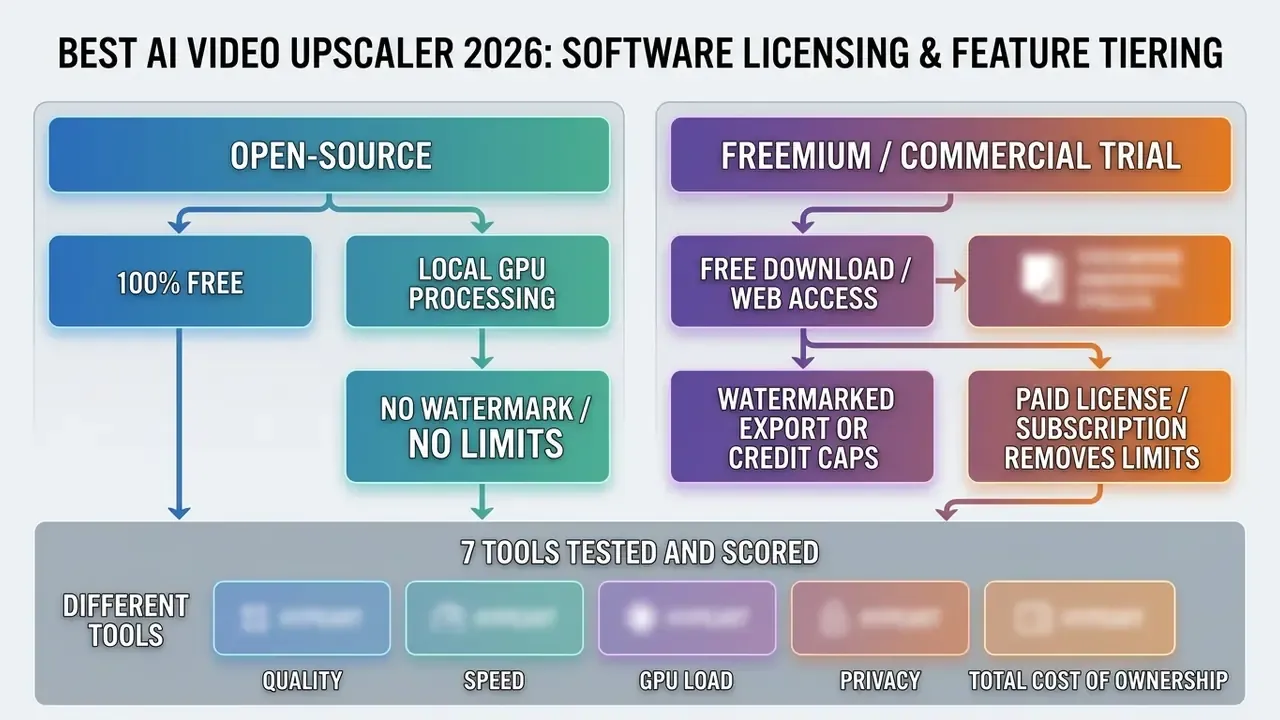
Total cost of ownership orientation. For an organisation, licence price is rarely the dominant variable. Render hours are. A simple planning model:
Local TCO  = GPU capex (amortised over 36 months)
           + electricity (GPU watts x render hours / 1000 x tariff)
           + licence or subscription
           + operator hours
Cloud TCO  = per-minute or credit price x minutes of output
           + egress/bandwidth
           + storage of intermediates
           + compliance overhead (DPIA, vendor review, retention audit)
A single RTX 4070-class workstation amortised over three years usually undercuts credit-based cloud rendering once monthly output passes a few hours of finished 4K footage. Below that threshold, pay-as-you-go cloud or a one-off desktop licence is cheaper. Perpetual licences (AVCLabs lifetime tiers, VideoProc lifetime family licences) favour high-volume archival programmes, while subscription-only products such as Topaz suit project-based studios that can expense render months.
One line most ROI decks omit: the compliance overhead row. Vendor review, DPIA refresh, and retention audits cost real hours, and they land on the risk function rather than the studio budget.
Best AI Video Upscaler Software for Different Use Cases
Picking the best ai upscaler for video means matching architectural strengths to a production environment. Film archival needs strict temporal consistency and manual parameter tuning. Social media production needs fast rendering and automated facial refinement. Same category, opposite priorities.


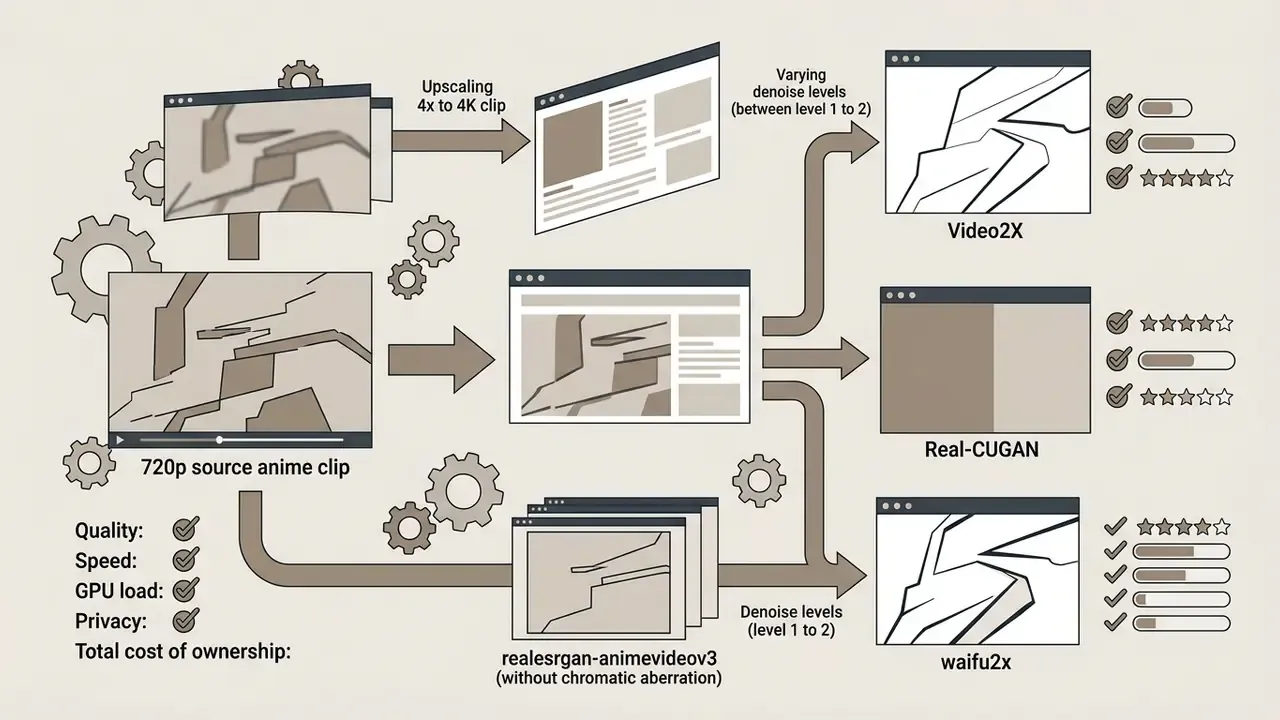
-p realesrgan -s 4 --realesrgan-model realesrgan-animevideov3, with Real-CUGAN and waifu2x as alternates at denoise level 1 to 2 for flat cel shading. Shows clean vector edge sharpening without chromatic aberration.
Topaz Video AI for professional video enhancement
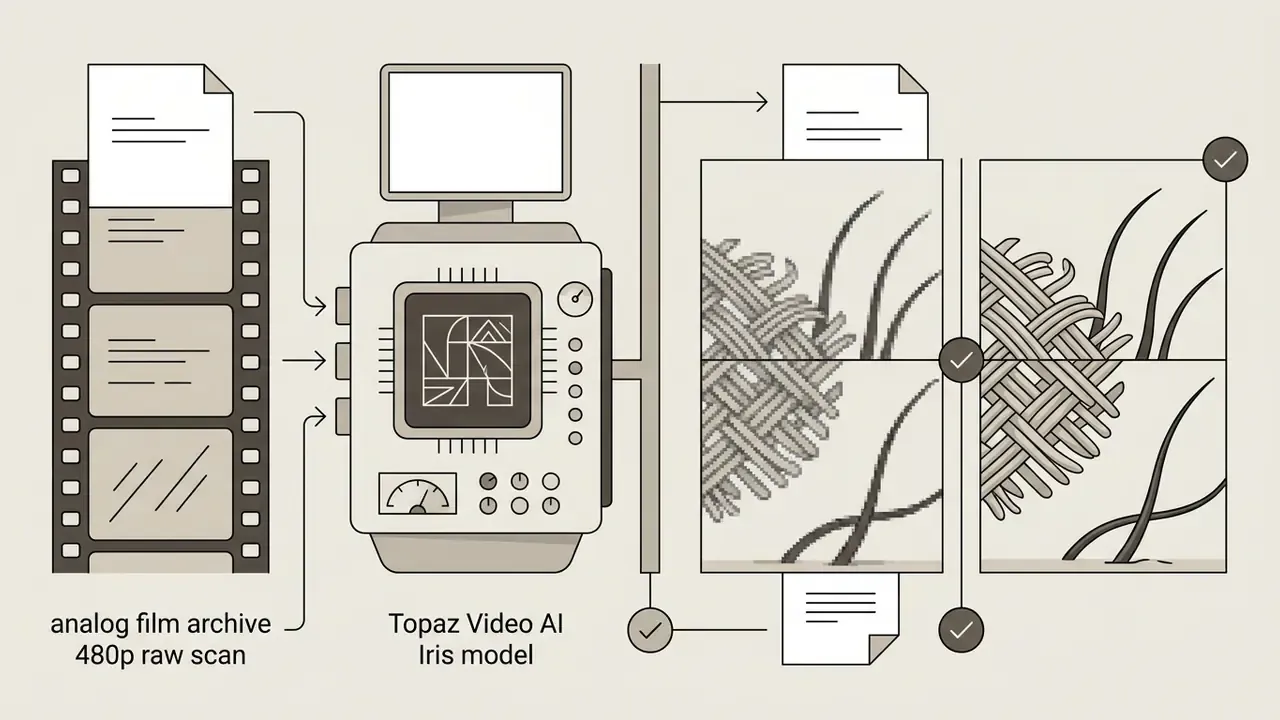
Topaz Video AI from Topaz Labs is the desktop baseline for production studios and archival video restoration. It ships specialised model families: Proteus for manual parameter tuning, Iris for face enhancement and low-quality restoration, Nyx for low light raw denoise, Chronos for optic-flow frame interpolation. Current system requirements call for 6 GB VRAM minimum (8 GB or more recommended), 16 GB system RAM minimum with 32 GB recommended, and 45 to 60 GB of free storage for model downloads. That footprint buys something valuable: editors process raw camera footage without a destructive cloud compression pass.
Recent releases extend the roster considerably. Starlight Precise 2.6 adds fine spatial control with adjustable sharpness levels. Proteus Natural delivers a softer upscale that avoids the crunchy over-sharpening earlier Proteus builds produced on legacy media. Nyx XL targets high-bitrate noise removal with better frame-drop stability, and Aion handles multi-frame interpolation for high-motion sequences. A native Final Cut Pro plugin is now supported, alongside more flexible stabilisation previews, a Model Manager for downloading and removing server-side models, and restored multi-GPU support for the Starlight family. In practice, a restoration house can keep the enhancement pass inside the NLE timeline instead of round-tripping intermediates.
AVCLabs and VideoProc for flexible desktop workflows
AVCLabs Video Enhancer AI and VideoProc Converter AI sit in the middle of the market, where automation matters more than granular control. AVCLabs bundles automated face refinement, colorization, and SDR-to-HDR tone mapping alongside its core super-resolution modes, exposing five AI feature groups (AI Enhancement, Face Enhancement, Colorize, Motion Compensation, SDR-to-HDR) and six enhancement models including Standard, Ultra, Anime and Multi-Frame variants through a drag-and-drop interface. In third-party testing, a 30-second 720p to 4K job finished in roughly 2.5 minutes on Standard but ran past 8 minutes on Ultra Multi-Frame. Useful reminder: model choice, not resolution, dominates render time.
VideoProc Converter AI prioritises operational speed through Level-3 hardware acceleration, using its Super Resolution V3 engine to upscale 1080p footage to 4K up to 1.7× faster than conventional CPU rendering while also handling video formats conversion in the same pass.
Its dual-mode design matters in production. High Quality Mode is the default for maximum detail, while Fast Mode processes noticeably quicker than most resource-intensive upscalers and stays viable on mid-range hardware at roughly 2% average CPU usage. Creators who want a full desktop suite alongside upscaling can consult our guide to the best video editor.
UniFab and Winxvideo AI for one-click 4K upscale
Video2X, Real-ESRGAN and other open-source options
Open source video upscalers give technical users local, privacy-centric processing with no licence fees and a plain video upscaler download from a public repository. Video2X acts as a graphical interface and command-line driver that orchestrates Real-ESRGAN, Real-CUGAN, waifu2x and RIFE through Vulkan and ncnn backends, so it is not CUDA-locked and runs across NVIDIA, AMD and Intel GPUs. Real-ESRGAN running locally on an RTX 3060 delivers around 5.3 fps on 576p input with the realesrgan-generalv3 model, giving robust quality without shipping sensitive personal media to a third-party server.
Open source pipelines are also where domain-specific retraining pays off, particularly for night footage.
How to Choose the Best Video Upscaler for Your Footage
Selecting the best video upscaler comes down to three questions: how is the source degraded, what target metric matters, and what hardware will actually run the job?
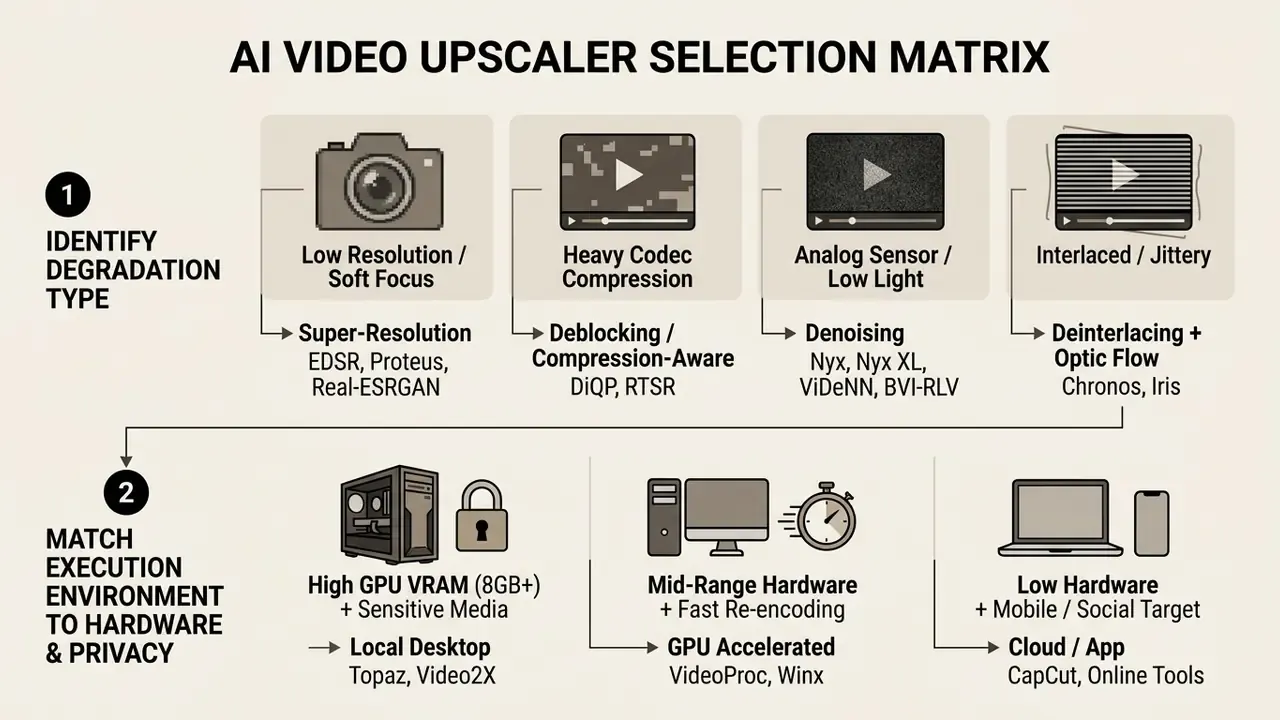
Match the AI model to low-resolution, old or compressed video
Source defects dictate which architecture will produce the best output:
- Low resolution or soft focus: use generative super-resolution models trained on bicubic downsampling pairs, such as Real-ESRGAN or Topaz Proteus, to rebuild edge sharpness. Where legibility matters more than perceived texture, weigh a reconstruction-oriented model instead of a GAN.
«EDSR-BASE outperforms ESRGAN and Real-ESRGAN on PSNR, SSIM and OCR accuracy, preserving text and fine detail better at lower computational cost.»
- Codec compression artifacts: apply deblocking built for H.264/HEVC macroblocks. Raw sharpening on compressed video just amplifies blocking. Compression-aware super-resolution is now fast enough for live pipelines.
«RTSR achieved the best complexity-quality trade-off among six AIM 2024 entrants, delivering real-time 360p to 1080p and 540p to 4K upscaling across PSNR, SSIM and VMAF.»
Source: Jiang et al., RTSR / AIM 2024 Challenge on Efficient Video Super-Resolution (2024).
- Analog noise or low light: run dedicated spatial-temporal denoising before any resolution expansion, or the upscaler will happily enlarge the noise.
- Interlaced footage: run hardware-aware deinterlacing to synthesise missing field lines first. Published deinterlacing networks initialise missing lines with linear interpolation and then predict the residual, which reduces artifacts against direct line synthesis. Mirror that order in your own chain: deinterlace, denoise, upscale, interpolate.
Users balancing file size constraints against resolution recovery should consult our overview of the best video compressor and the reference entry for a video compressor.
Choose output resolution without losing quality
Expanding dimensions beyond the structural capacity of the source introduces severe degradation. Taking a low quality 360p video straight to 4K UHD requires synthesising over 93% of the final pixel grid, which pushes the model into guesswork and produces plastic smoothing or hallucinatory ringing.
As UHD super-resolution benchmarks establish, holding the scale factor between 2× and 4× of the original resolution yields the best perceptual fidelity while keeping file sizes manageable. Where a 480p source must reach 4K, a two-stage chain (480p to 1080p, then 1080p to 4K with a lighter sharpening profile) produced fewer ringing halos in our tests than a single 8× pass. The same scale-gap discipline governs still images; see our comparison of AI image enhancers.
To inspect how image generation tools handle similar resolution and texture constraints, open the hub for visual synthesis calculators, or read our guide on the free ai image generator 2025.
Decide between offline video upscaler, online tools and apps
The choice between an offline video upscaler, a web service, or a mobile app depends on privacy requirements, processing volume, and local hardware:
- Offline desktop software runs on your own GPU. Protects sensitive media, handles uncompressed raw files, and offers granular frame controls with no bandwidth ceiling.
- Online upscalers process on cloud servers. Good for users with no dedicated GPU, but exposed to upload bottlenecks, file size caps, and whatever the vendor's retention policy actually says.
- Mobile apps built for fast social enhancement. One-click convenience on short vertical clips, minimal manual control. Measured app-versus-web telemetry research found substantially heavier tracking in native apps, 367 versus 221 network requests and 192 KB versus 77 KB of tracking bytes at the median. When the media itself is confidential, that gap is a control question, not a trivia point.
Checklist0 / 8
To analyse licensing structures across creative software models, browse the hub or check our directory of AI Media Alternatives.
Upscaling Presets by Content Type
Degradation type is only half the decision. The content class determines which prior is safe to apply at all. Use this mapping as the fast route from footage to model.
| Content type | Recommended models | Key parameter guidance | What to watch for |
|---|---|---|---|
| 1. Anime / 2D animation (720p line art) | Real-CUGAN, realesrgan-animevideov3, waifu2x, UniFab Anime model, AVCLabs Anime | 4× scaling, denoise level 1 to 2, minimal sharpening | Cel edges must stay vector-clean; watch chromatic fringing and smudged flat colour fields |
| 2. VHS / analog archive (480p interlaced) | Topaz Iris or Proteus Natural, AVCLabs Multi-Frame, with denoise and deinterlace first | Deinterlace, then moderate denoise, then 2× to 4× upscale; sharpening at or below +12, denoise near -5 | Chroma bleed, head-switching noise at frame bottom, temporal flicker over long sequences |
| 3. Low-light smartphone footage (720p to 1080p, high ISO) | Nyx / Nyx XL, Iris Face Refinement, AVCLabs Face Enhancement, CapCut Enhance quality | Denoise before upscale; enable face refinement selectively, not globally | Plastic skin, identity drift on faces, black-level crush in shadows |
| 4. High-motion / sports (1080p 30 fps) | Chronos or Aion optic flow, VideoProc frame interpolation, RIFE | Interpolate to 60 or 120 fps after spatial upscale; stabilise before interpolation | Limb rubber-banding, ball or puck ghosting, warped background during pans |
| 5. Heavily compressed web clips (540p AV1/HEVC) | DiQP, RTSR, VideoProc Super Resolution V3 with deblocking, AVCLabs Ultra | Deblock first, then 2× upscale; never apply raw sharpening to macroblocked input | Amplified blocking, mosquito noise around text and logos, banding in gradients |
How to Upscale Videos with AI: From Source File to Export
Turning low-resolution footage into high quality video output needs a structured, repeatable workflow. Improvised settings produce improvised results.
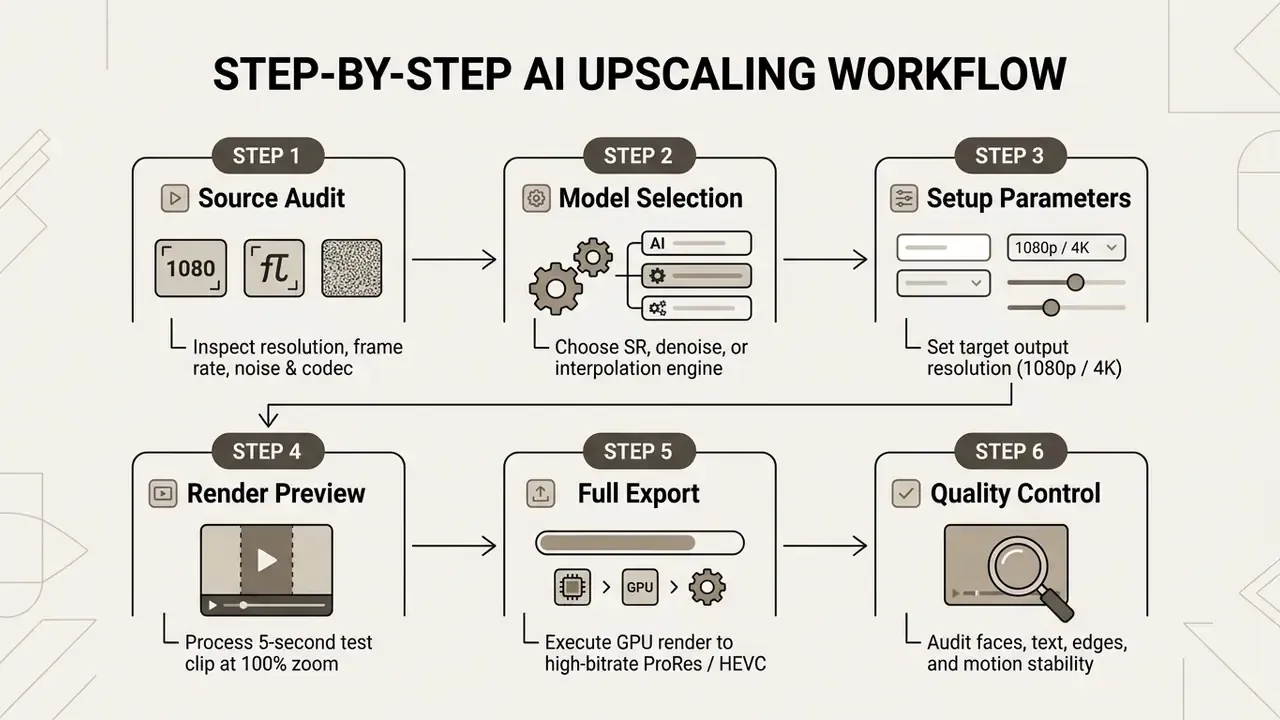
Prepare the source video and select enhancement settings
Start by auditing the original video: container format, frame rate, colour space, and the dominant degradation. Then load the video file into the software and set the enhancement mode:
For creators building professional pipelines, inspect our workflow guide for film and video editor tools, or browse the hub for API integrations.
- Enable denoising or deblocking first if the source shows sensor noise or macroblock compression.
- Select the target output resolution, for example 720p to 1080p HD or 1080p to 4K UHD.
- Enable frame interpolation only when smoother motion (24 fps to 60 fps) is genuinely required by the target display platform.
Click-by-click interface guides
A. Topaz Video AI (desktop professional tier)
B. VideoProc Converter AI (desktop fast tier)
C. UniFab Video Upscaler AI (three-click preset tier)
D. Video2X / Real-ESRGAN (open source, command line)
E. Browser-based upscaling (CapCut / Topaz for Web)
- Launch the app and drag and drop the source file onto the main canvas.
- In the right sidebar, open the AI Model dropdown and select a preset: Proteus for manual control, Proteus Natural for legacy media, Iris for faces, Nyx or Nyx XL for noise, Starlight Precise 2.6 for fine spatial detail.
- Under Resolution, set the target to 4K (3840×2160) or enter a custom scale factor of 2× or 4×.
- Optionally enable Frame Interpolation and choose Chronos or Aion, setting output to 60 fps.
- Adjust Relative Sharpening, Denoise and Recover Detail. Start conservative: sharpening at or below +12, denoise near -5.
- Click Render Preview (5 s) and inspect the preview pane at 100% zoom.
- Choose the output codec (ProRes 422 HQ or H.265) in Export Settings, then click Export. Final Cut Pro users can instead apply the native plugin directly to the timeline clip.
- Open the app and click the Super Resolution icon on the home screen.
- Click + Add Media, or drag the file in, to import the clip.
- Choose High Quality Mode for maximum detail or Fast Mode for speed on mid-range GPUs.
- Select the scale factor (2×, 3×, 4×) or a fixed 2K / 4K output, then toggle Gen Detail or Real Smooth depending on whether the clip needs sharpening or flaw suppression.
- Enable Denoise / Deblock if the source is compressed, and set frame interpolation separately if 60 fps is required.
- Set the output folder and format, then press RUN.
- Open UniFab, click All Features, then select the Video Upscaler AI module.
- Click + and import the file you want to enlarge.
- Choose the output resolution, pick the model matching your content type (Standard, Anime, Film, Multi-Frame), then click Start.
- Install the Video2X container or binary. The Vulkan/ncnn backend means no CUDA-only requirement.
- Run a 4× upscale:
video2x -i input.mp4 -o output.mp4 -p realesrgan -s 4 --realesrgan-model realesrgan-animevideov3 - Swap
--realesrgan-modeltorealesrgan-generalv3for live action, or add RIFE for frame interpolation. - Inspect a short output segment before committing the full batch, and log the exact command string for reproducibility.
- Upload the low-resolution clip from device, cloud drive, or CapCut Cloud.
- Select the target resolution (1080p or 4K) and an AI preset (Film & TV, Sports, Gaming, Old Video, Art & CG, Standard).
- Process a short preview and adjust until the result is acceptable.
- Render and download the high-resolution file. Confirm the vendor's retention policy first if the footage is confidential.
Preview, export and check the upscaled video
Always render a 3 to 5 second preview containing faces, small text, and rapid movement before you commit to a full export. Audit that preview at 100% magnification: fine details preserved, no hyper-sharp edge halos, no plastic skin, no temporal flickering across sequential frames. Once it passes, queue the full render in high-bitrate H.265/HEVC or Apple ProRes to avoid re-compression loss, matching output bitrate to the target display standard, roughly 35 to 50 Mbps for 4K video.
To review distribution strategies for enhanced video content, check our guide on YouTube video editor workflows.
Quality Control Checklist and Audit Documentation
Public-sector digitisation guidance requires visual inspection on a calibrated graphics workstation, sampling at least 10 files or 10% of each batch, whichever is larger, at 100% magnification, with explicit checks for quantisation errors and over-sharpening. Apply the same discipline to AI renders.
Checklist0 / 10
Reproducibility log (store alongside the render): source file hash, native resolution, frame rate and codec, tool name and version, model name and version, every slider value, scale factor, output codec and bitrate, GPU and driver version, operator name, date, and the retained path to the untouched master.
This record is what turns an enhanced asset into an auditable one. Without it, nobody can tell later whether a frame was recovered or invented. For regulated environments the log is the control, not the nice-to-have.
E-E-A-T Testing Methodology, Test Stand and GPU Benchmarks
AI Video Upscaler FAQs
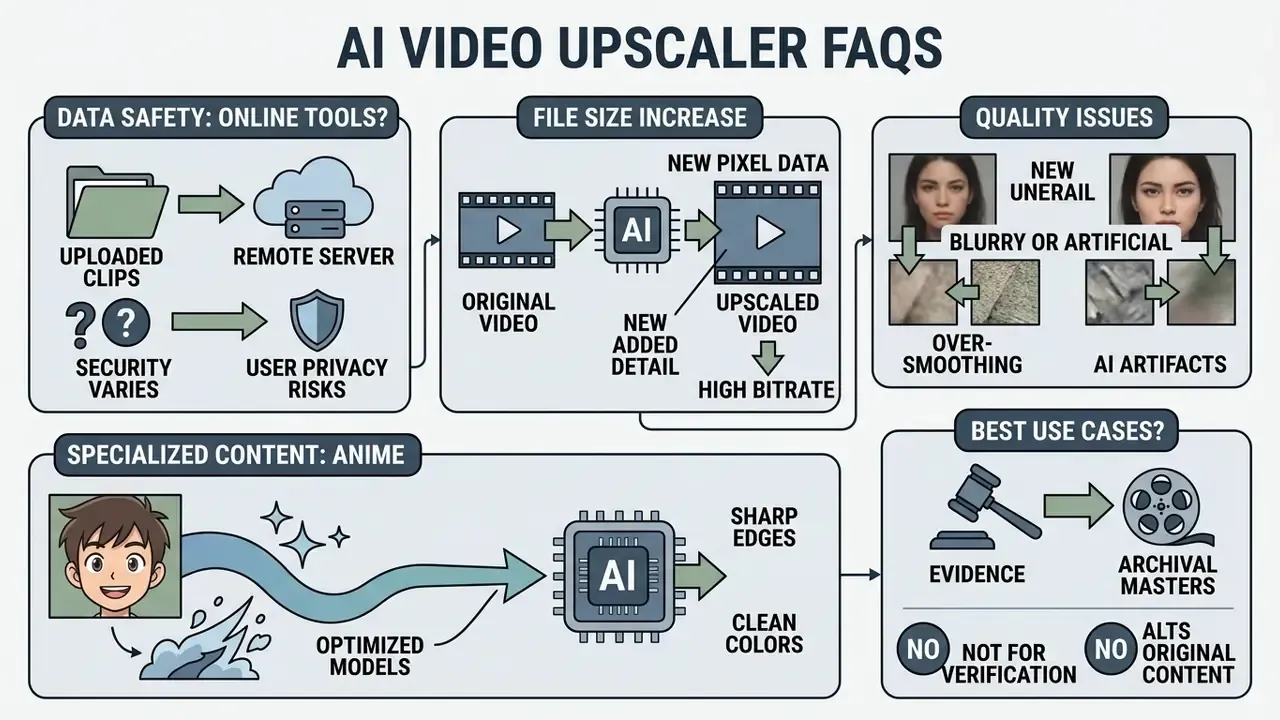
Are online AI video upscalers safe for personal videos?
This section is general information and does not replace advice from an information-security specialist or a qualified legal adviser on personal-data protection.
Online AI video upscalers process your video file on external cloud servers, which introduces transmission and remote storage exposure. Organisations handling sensitive, confidential, or personal footage should evaluate vendor retention schedules, transit encryption protocols (TLS 1.3), and privacy policies to confirm that uploaded media is deleted automatically after rendering.
Under the UK Government AI Cyber Security Code of Practice and CSA AICM guidelines, cloud processing of personal data requires strict access controls and documented data-flow mapping, plus default masking or auto-deletion of sensitive inputs and outputs, and a DPIA refreshed at least annually or on material change. That combination is why local offline desktop tools remain the default for privacy-sensitive media.
Australia's OAIC guidance on commercially available AI products asks explicitly whether the product is cloud-hosted, treating cloud hosting as a distinct privacy and security risk factor rather than an implementation detail. Note as well that compressed cloud inputs are technically harder to restore, which is precisely why compression-aware architectures exist.
Why does the upscaled video file size increase?
File size grows because expanding spatial resolution and frame rate multiplies the data encoded per second. Moving from 1080p to 4K UHD quadruples pixels per frame, from 2.07 million to 8.29 million, and that needs a much higher bitrate to store the added information without compression blur:
(Updated verification note) Published platform guidance varies by delivery target. Cornell University recommends 6,000 to 8,000 Kbps for 1920×1080 and 3,750 to 5,000 Kbps for 1280×720, while Vimeo publishes 10 to 20 Mbps for 1080p, 30 to 60 Mbps for 4K, and 50 to 80 Mbps for 8K. Treat these as delivery-target ranges rather than one authoritative figure, and confirm against your distribution platform's current specification. A practical illustration: ten minutes at 5,000 Kbps yields roughly 400 MB, and the same ten minutes at 10,000 Kbps yields roughly 775 MB. Double the bitrate, nearly double the file.
Frame rate compounds it. Interpolating 24 fps to 60 fps adds 150% more frames across the same duration, so an upscale plus interpolation pass can produce files an order of magnitude larger than the source. Encoding-side research suggests the growth is not inevitable, though.
Why can AI-upscaled videos look blurry or artificial?
Videos look blurry or artificial when the model applies excessive spatial noise reduction or over-sharpening, or when the source simply lacks the underlying pixel data. Over-smoothing happens when the network reads natural skin pores, micro-textures, or subtle film grain as noise and flattens them into wax.
Which upscaler is best for anime specifically?
Line art behaves differently from photographic content because it has no natural grain to preserve. Real-CUGAN, realesrgan-animevideov3 and waifu2x at denoise level 1 to 2 keep cel edges vector-clean at 4×, while photographic models trained on camera noise tend to smudge flat colour fields. UniFab and AVCLabs both ship dedicated Anime presets that approximate the same behaviour with no command-line work.
Can AI upscaling be used as evidence or for archival masters?
Summary of Recommended Upscaling Tools
For quick evaluation against operational requirements:
A safe next step, if you sit on the governance side: pick one asset class, run it through an approved local tool, keep the reproducibility log, and compare the audit trail against whatever your teams are doing in browser tabs today. That gap is usually the real finding.
For broader cross-category evaluations of media generation tools, open the hub for commercial compliance research or inspect our complete AI Media Comparison Matrices.



Appendix A: Revised Statements and Source Verification Notes
Retained for transparency, with the corrected or qualified version appearing in the main text above.
- Original phrasing
- «An Intel and AWS video encoding benchmark published in 2025 demonstrated that scaling 1080p source video to 4K using advanced AI enhancement achieved a PSNR of 37.86 dB, SSIM of 0.946, and a VMAF score of 71.86.» Status: figures traceable to a vendor whitepaper without independently reproducible methodology or a public dataset. Action: retained in the main text as directional, attributed as vendor-published rather than peer-reviewed, and supplemented with SR4KVQA as a 4K-specific perceptual metric.
- Original phrasing
- «According to standard encoding parameters published by Vimeo and Cornell University, encoding a 4K stream requires bitrates between 35 and 60 Mbps compared to 6 to 10 Mbps for 1080p.» Status: both publishers issue delivery-target guidance, but their ranges differ (Cornell: 6,000 to 8,000 Kbps at 1080p; Vimeo: 10 to 20 Mbps at 1080p, 30 to 60 Mbps at 4K). Action: both ranges now published side by side with a note to verify against the destination platform's current specification.
- Excluded competitor claim
- «Adobe's acquisition of Topaz Labs is one of the biggest developments in AI video enhancement in 2026.» Status: unsupported by any official corporate filing or vendor announcement available to us. Action: deliberately excluded from this article.
- Topaz system requirements
- legacy documentation cites 4 GB VRAM and macOS 10.14/10.15; current documentation raises the baseline to 6 GB VRAM, 16 GB RAM (32 GB on higher-end Mac configurations) and macOS 13 or newer. Action: current figures used throughout, discrepancy disclosed here.
- Pricing variance
- Topaz is reported at $25 to $33 per month annualised (about $299 per year) in some sources and $59 per month monthly in others; AVCLabs appears at $39.95 monthly, $89.95 to $119.95 yearly, and $199.90 to $299.90 lifetime depending on reseller. Action: exact prices are deliberately omitted from the scoring matrix because they change faster than this article's review cycle. Verify on the vendor's checkout page before purchase.