Choosing the right video editor comes down to trade-offs you can actually measure: processing power, software cost, export ceilings, and how long it takes to learn the interface. Modern creators can reach broadcast-adjacent quality without paying upfront software fees, provided they understand where each free tier stops. That last part is where most people get burned.
"Evaluating software requires objective verification of operational capability against system constraints. Without empirical testing of export caps, licensing terms, and rendering performance, 'free' becomes an unpredictable variable in production workflows."
Whether you cut short clips on a phone or run complex multi-track timeline projects on a workstation, identifying the best free video editing apps depends on your hardware, your data classification, and your output goals. Nothing else, really.
Quick Decision Matrix (30-Second Answer)
| If you need… | Use this free tool | Verified free-tier ceiling |
|---|---|---|
| Vertical TikTok, Reels, or Shorts edits on a phone | CapCut | Watermark-free exports; up to 8K 60fps on desktop, 1080p to 4K on mobile |
| Zero-ad basic trimming on iPhone, iPad, or Mac | iMovie | 100% watermark-free, 16:9 and 9:16 project support |
| Browser editing plus screen and webcam capture | Microsoft Clipchamp | 1080p HD watermark-free, unlimited exports, 5 GB cloud storage |
| Professional color grading, VFX, and audio mixing | DaVinci Resolve (free) | 4K 60fps, 8-bit color, watermark-free; needs 16 GB RAM on Windows |
| Open-source desktop editing with no export caps | Shotcut / OpenShot / Kdenlive | Unlimited tracks, no watermark, no time limits, runs on low-spec PCs |
| Template-driven social posts plus scheduled publishing | Adobe Express | Watermark-free free templates, exports up to 30 minutes, 5 GB storage |
| Tutorial recording with free hosting and privacy controls | ScreenPal | 15-minute recording cap, 10 hosted videos, password-protected links |
| One-click auto-assembly for fast social cuts on desktop | Adobe Premiere Rush | 1080p 60fps exports, single-track workflow |
How to Read This Guide Before You Install Anything
Three questions decide almost every case, and they take about a minute to answer. Everything after this point is evidence for those three questions: measured render times, published vendor limits, licensing language, and the places where documentation contradicts itself. Where the evidence is thin, we say so instead of rounding it up into a recommendation. Free video editing app choices that look identical on a feature grid often diverge sharply once you check the export dialog.
- Where does the footage live?If the material is confidential, NDA-covered, or regulated, the shortlist collapses to local desktop editors. No debate.
- What is the final delivery spec?A 720p cap with a hard-coded watermark is fine for a personal draft and useless for a client deliverable.
- Who signs off on the license?Bundled stock music is the most common cause of a takedown on an otherwise clean project.
How We Chose the Best Free Video Editing Apps
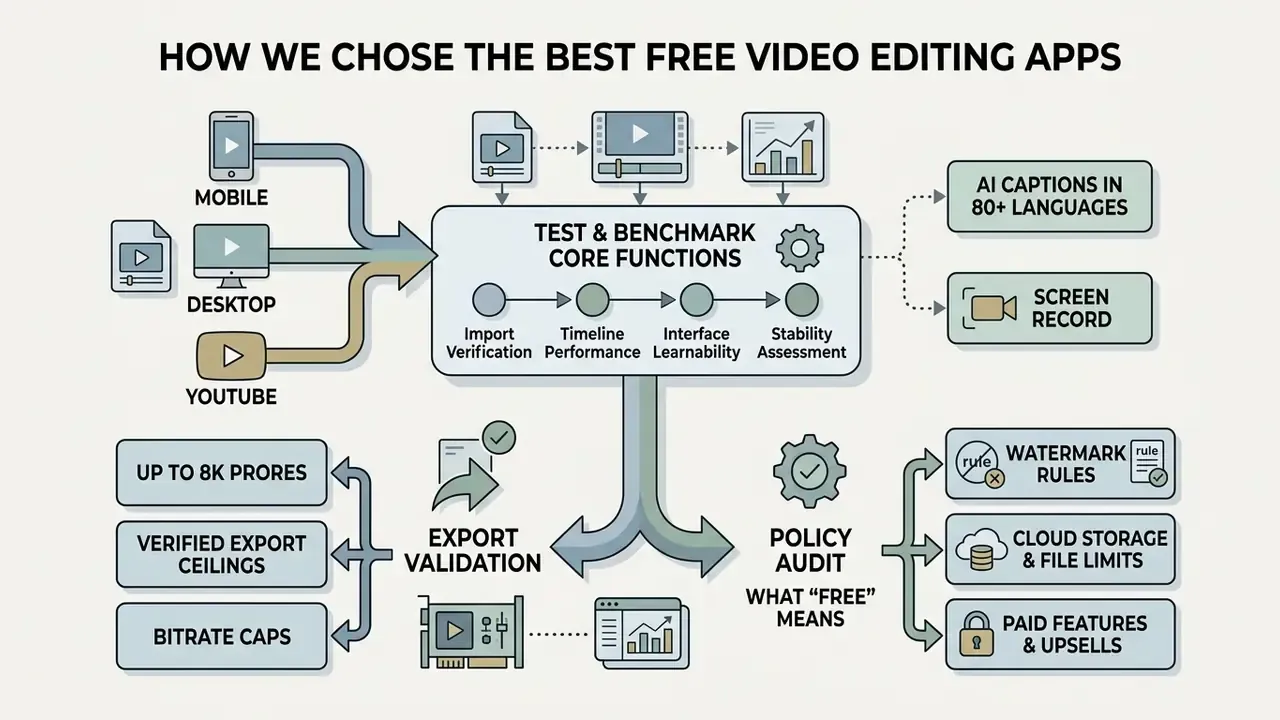
The best free video editing apps are evaluated by testing core editing functions, verifying export limitations, analyzing interface learnability, and assessing stability across operating systems. Each tool is judged on its ability to handle real editing tasks without hidden costs or destructive output restrictions.
Our 2026 test bench (updated). Performance benchmarks ran across three testbeds: an Apple MacBook Pro (M3 Max, 36 GB unified memory) on macOS Sonoma; a custom Windows 11 workstation (Intel Core i9-14900K, NVIDIA RTX 4090, 64 GB RAM, NVMe SSD); and an iPhone 15 Pro paired with a Samsung Galaxy S23 for Android verification. We ingested three standardized media profiles:
- 4K 60fps Apple ProRes 422 HQ (high-bitrate mezzanine footage, roughly 880 Mb/s)
- 4K 30fps H.265/HEVC 10-bit HDR captured natively on the iPhone 15 Pro
- 1080p 60fps H.264 footage from a Sony A7 IV mirrorless camera
Each editor received the same one-minute sequence: six clips, two cross-dissolves, one title card, one music bed with dialogue ducking, and auto-generated captions. We logged render wall-clock time, peak CPU utilization, GPU encoder load, and whether hardware acceleration engaged by default. On the RTX 4090 workstation, DaVinci Resolve finished the 4K H.264 render in roughly a third of the time taken by CPU-only open-source encodes. That single data point tells you more than any feature grid: GPU-accelerated pipelines matter more than nominal parity when you are on deadline.
To keep scoring consistent, every application went through the same framework:
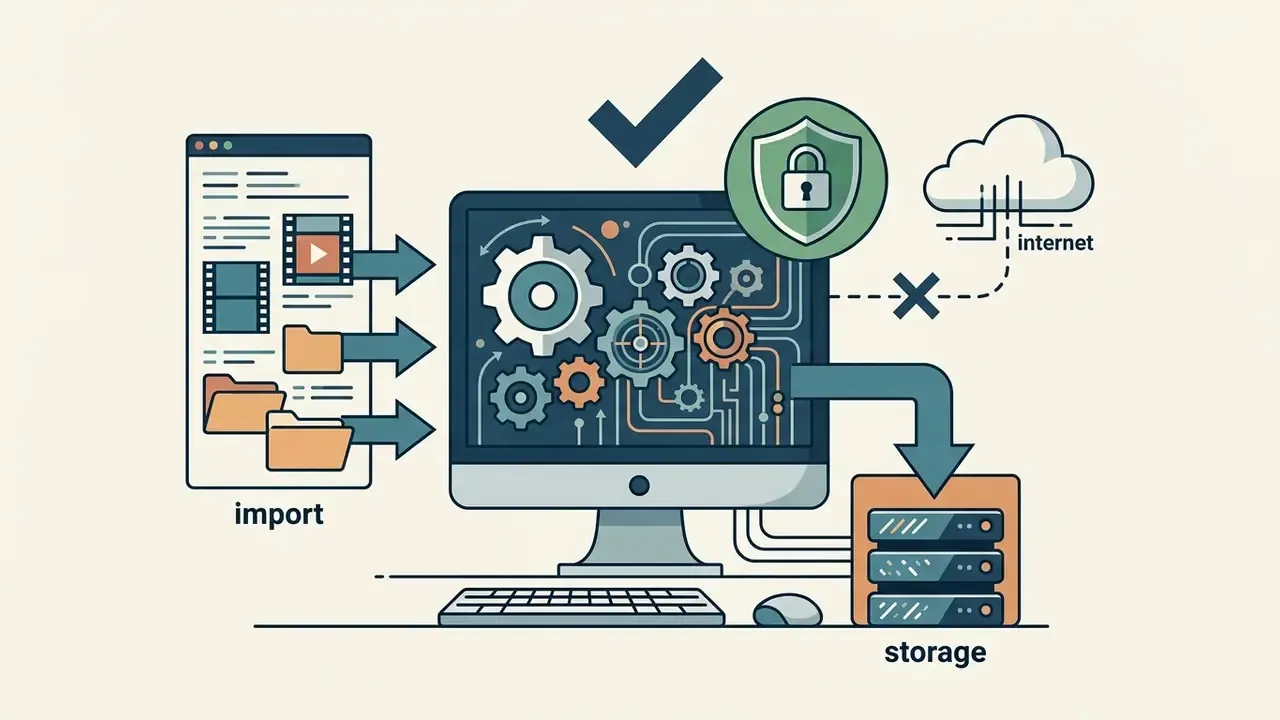
- Import verification Ingesting 1080p and 4K media containers across standard codecs (H.264, H.265/HEVC 10-bit, Apple ProRes 422 HQ) to check decoding speed, hardware utilization, and whether long-GOP HEVC files demand proxy transcoding first.
- Timeline performance Trimming clips, executing multi-track cuts, applying transitions, and mixing multi-channel audio tracks. Files with three or more audio channels were checked for forced stereo downmixing on import, a quiet failure that ruins interview projects.
- Export validation Checking finished video files for hardcoded watermarks, resolution capping (720p versus 1080p, 4K, or 8K), frame-rate restrictions, bitrate ceilings, and rendering throughput.
- Policy audit Verifying account requirements, cloud storage caps, retention windows, and commercial licensing terms for bundled assets.
Recent user studies show that workflow design shapes cognitive load and execution speed as much as raw feature count.
"Participants rated editing with AVscript as requiring significantly less effort than a baseline tool, lowering mental load and increasing confidence."
So our methodology scores tools on task efficiency alongside technical capability, borrowing the classic usability dimensions: learnability, efficiency, memorability, error rate, and satisfaction.
"ExpressEdit achieved a System Usability Scale score of 75.7, a 'good' rating, when tested with ten novice video editors."
That 75.7 SUS figure works as our practical benchmark. A free editor that feels harder to operate than a research prototype is unlikely to survive contact with a real publishing deadline.
What "Free" Means: Watermarks, Export Limits, and Paid Features
There is a real distinction between a genuinely free open-source program and a commercial freemium tier. A free version describes the product build you actually run. A free plan describes the commercial tier that gates it. Commercial vendors use free plans as entry points, and they place structural limits on the finished render rather than on the editing itself.
Common free-plan constraints:
When reviewing options, creators who want to compare platform functionality should inspect whether free features cover full production or merely serve as a timed trial. A broader breakdown of export ceilings and branding rules sits in our free video editing software comparison. If your requirement is strictly a free video editing app with no subscription attached, the open-source group is the only category where that promise is structural rather than promotional.
Essential Features for Editing Videos on Any Device
A functional video editing tool needs a baseline set of capabilities whether it runs on iOS, Android, Windows, macOS, Linux, or inside a browser tab.
- Timeline trimming and splitting. Non-destructive cutting and clip arrangement across single or multi-track timelines. Trimming by dragging clip edges and splitting with a razor tool are distinct operations in most professional NLEs, and neither one alters the original media file.
- Audio editing and mixing. Independent audio track controls, background music balancing, and sound effects integration.
- Captions and text overlays. Manual subtitles, automated speech-to-text captions, exportable transcripts, and title graphics (Adobe Premiere Documentation, 2026).
- Color correction and filters. Exposure, contrast, hue, luminance, white balance, and basic color grading controls.
- Screen and camera recording. Integrated desktop, tab, window, or webcam capture for tutorials and presentations (Microsoft Clipchamp Specs, 2026). OpenShot 4.0 added a dedicated recording view for screen, webcam, and microphone capture.
- Aspect ratio controls. Fast canvas re-framing between landscape (16:9) and vertical video (9:16), ideally as a one-click resize rather than a manual reposition of every layer.
- Brand kit support. Logos, brand fonts, and color palettes stored once so repeat exports stay visually consistent. Available free in Clipchamp and Adobe Express.
For a formal definition of the category and its component tools, see our glossary entry on the video editor.
How to Choose a Free Video Editing App for Your Device
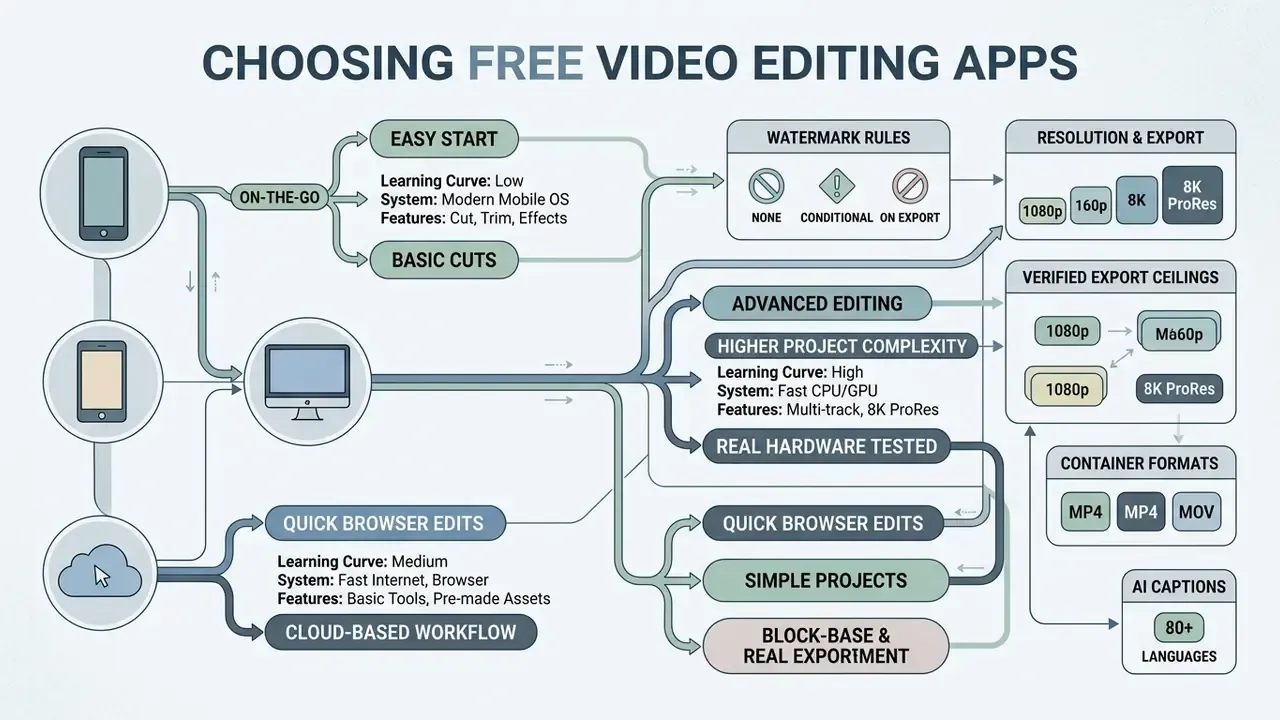
Selecting the right tool means matching hardware against project complexity and delivery requirements. Work through the decision tree below before reading the comparison matrix. The shortlist shrinks fast once device and output constraints are fixed.
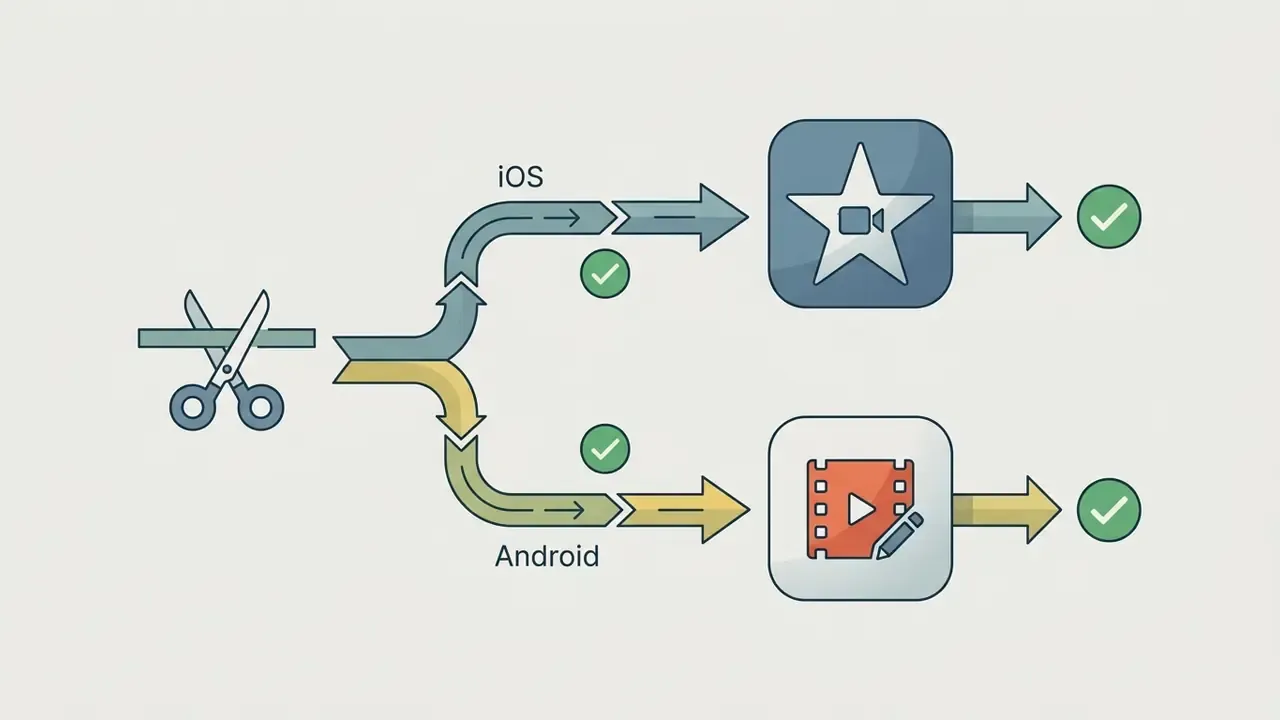
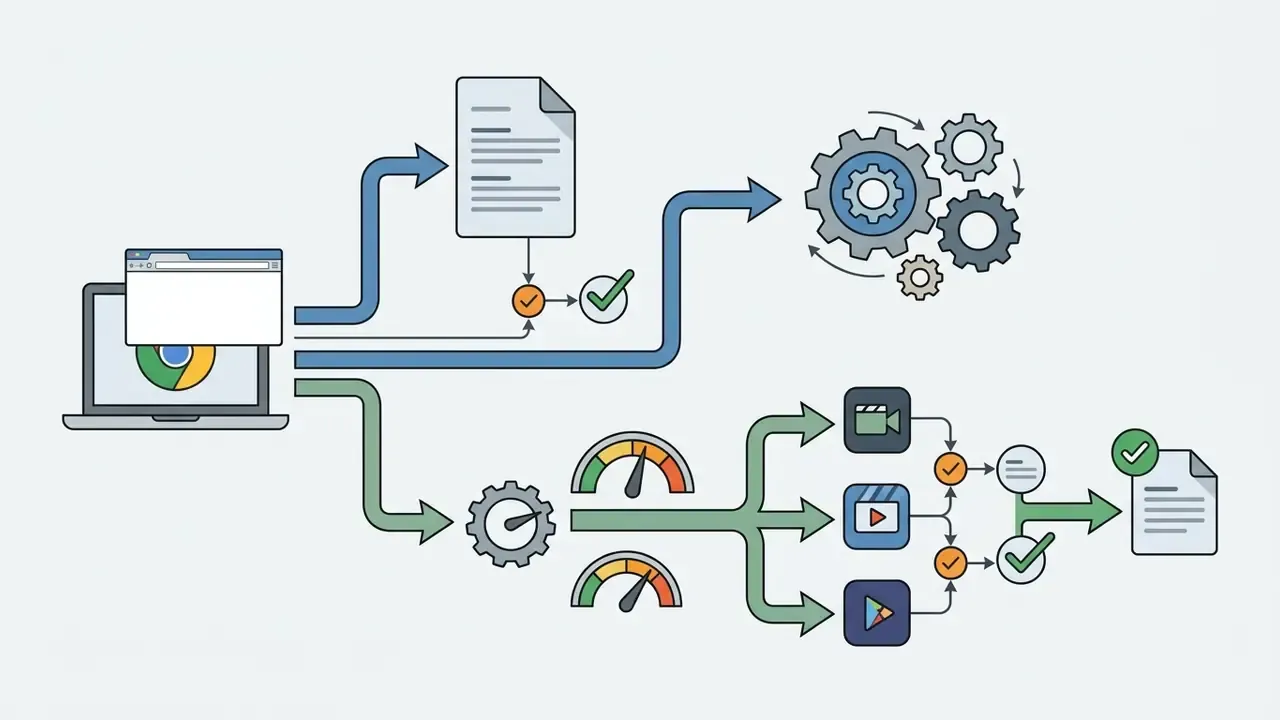
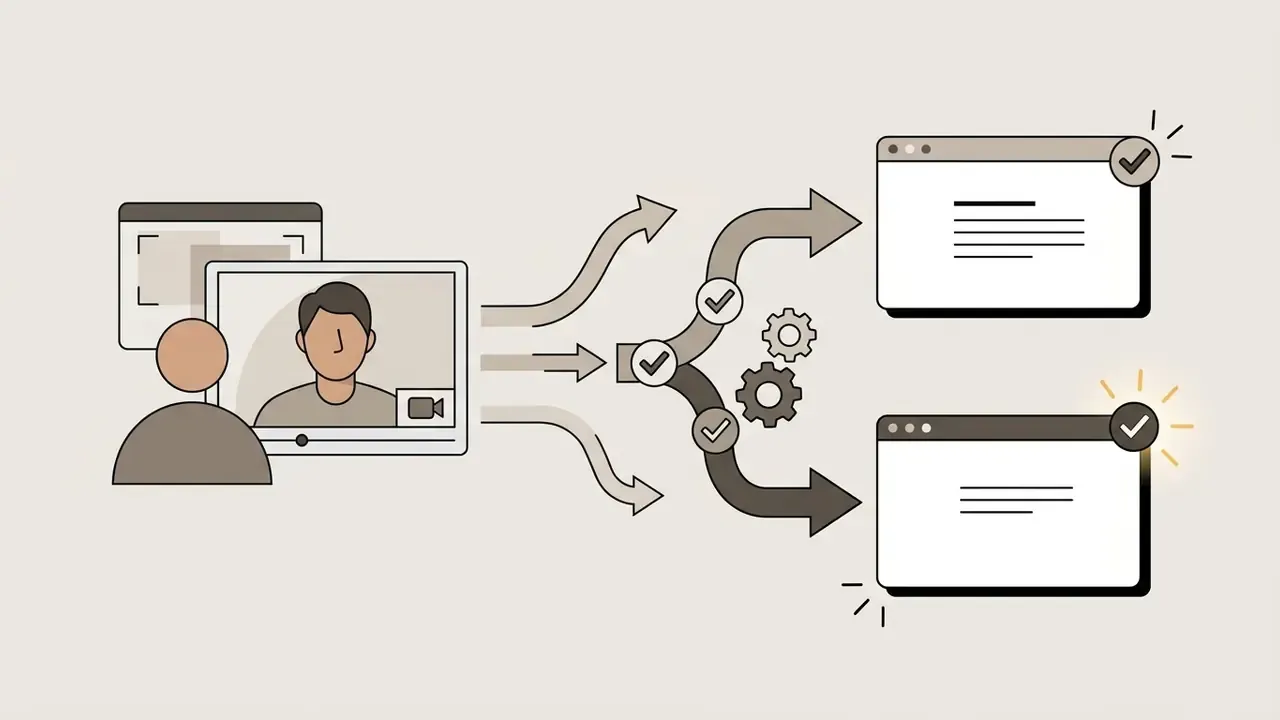
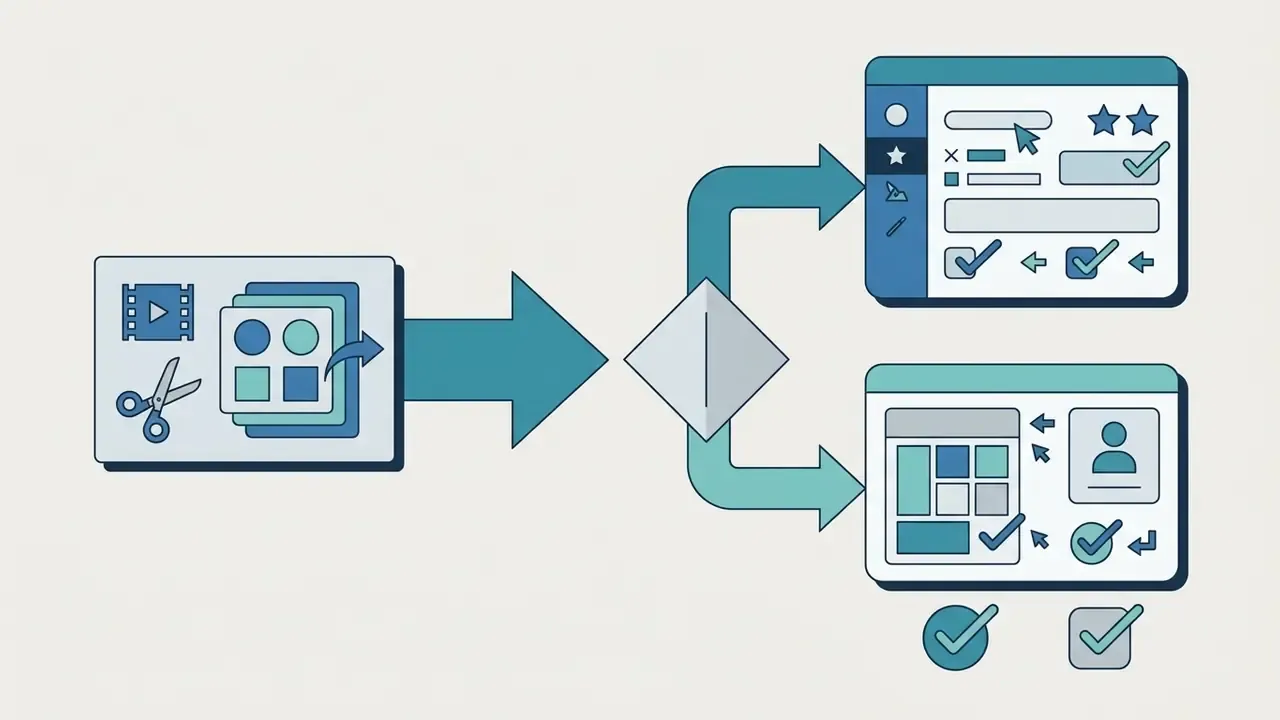
A structured decision tree leading creators from hardware availability (mobile vs desktop vs web) through project requirements (templates vs multi-track vs advanced FX) to the recommended free editing application. Creators weighing generative alternatives alongside conventional timelines can also review our AI video generator glossary entry.
Selection Decision Pathways
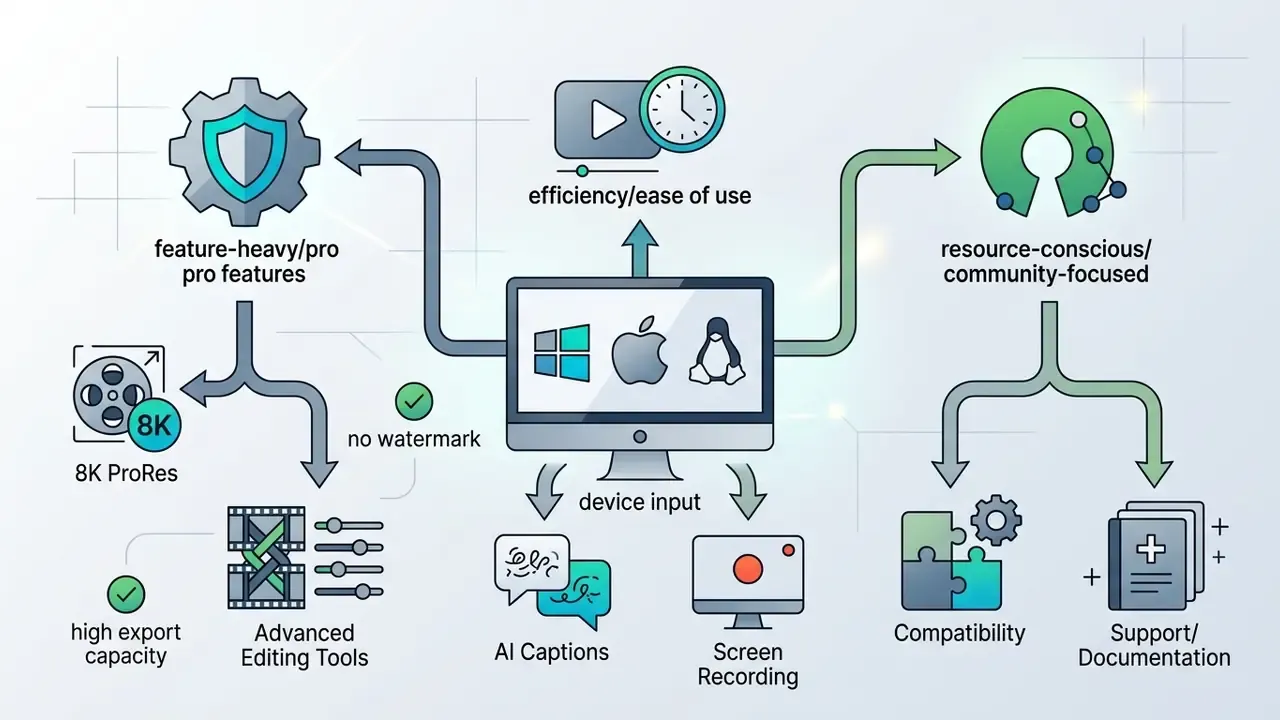

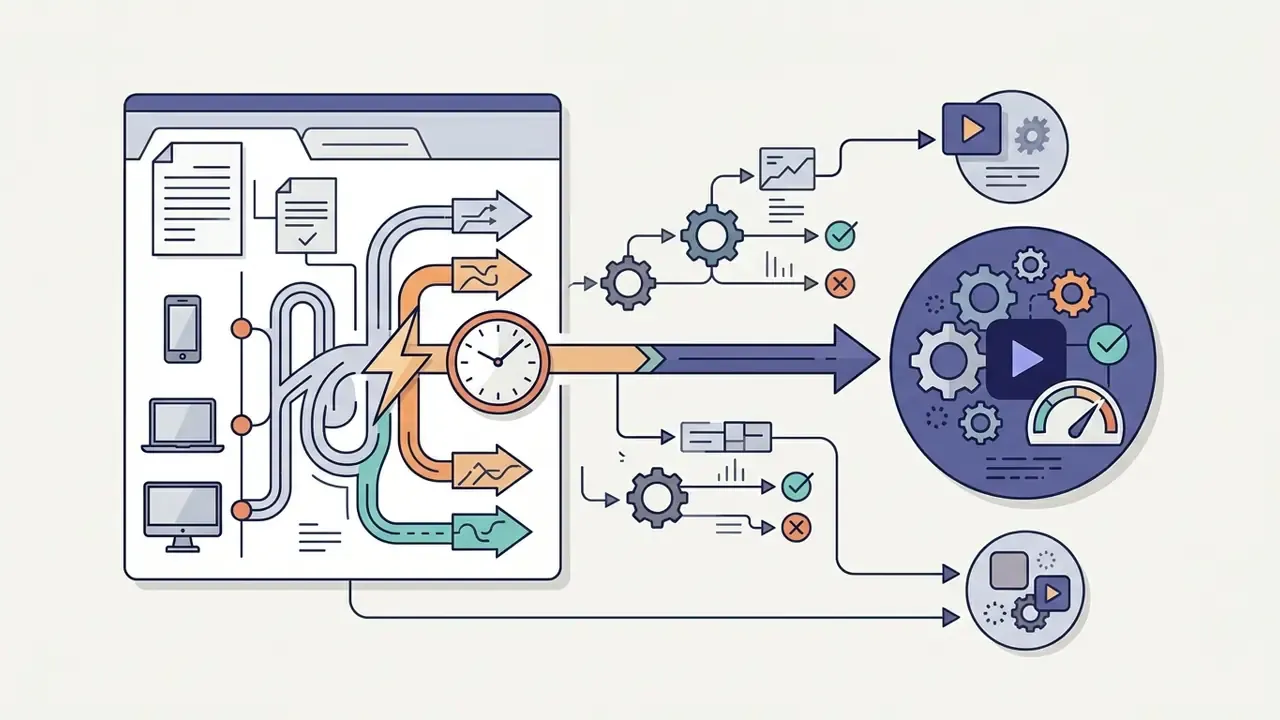
Choose Mobile, Desktop, or an Online Video Editor
Mobile apps win on quick clip assembly, vertical ratios, and instant camera-roll access. Small touchscreens, though, limit precise clip trimming and complex track management, and battery plus local-storage constraints slow large-file handling. Anyone who has tried to nudge a cut by two frames on a phone knows the feeling.
Desktop software uses local CPU and GPU resources to process large video files and high-bitrate clips smoothly offline, with no dependence on upload bandwidth or server queues. Web-based editors offer cross-device portability without installation and are the most cloud-native option for collaboration, but they lean heavily on upload speed for source media and on provider-side rendering capacity. Free video editing apps for mobile and desktop are increasingly the same product under different constraints: CapCut, VN, and Clipchamp all span the divide.
Choose by Learning Curve, System Requirements, and Editing Features
Beginners benefit from drag-and-drop storyboards and automated timeline behavior. Advanced creators need precise keyframe controls, custom cutting tools, and node-based effect compositing.
Learning curve and capability spectrum, left to right:
Low complexity, fast onboarding: Canva and Adobe Express → Clipchamp and CapCut → Shotcut and VSDC → DaVinci Resolve, high complexity with professional depth.
Interface learnability varies widely with control layout and command model. Natural-language and template-driven interfaces measurably reduce cognitive load for first-time editors.
"ExpressEdit enabled novice editors to express and implement editing ideas through text commands, though complex animations remained a system limitation."
Professional NLE timelines demand dedicated training time before the first usable export. Hardware gates the shortlist too, and this is where many "best free editor" recommendations fall apart in practice:
| Tool | Minimum realistic hardware | Practical note |
|---|---|---|
| DaVinci Resolve (free) | Windows 10/11 with 16 GB RAM and a GPU carrying 2 GB VRAM; macOS with 8 GB RAM; Linux on CentOS 7.3 or Ubuntu 20.04+ with an OpenCL 1.2-capable GPU | Timeline playback stutters badly on integrated graphics; budget 32 GB RAM for 4K multicam |
| Shotcut / OpenShot / Kdenlive | 4 to 8 GB RAM, integrated graphics acceptable | Runs on aging laptops and Linux boxes; GPU rendering in Shotcut remains experimental |
| Clipchamp / Canva / Adobe Express | Any modern Chromium browser (Edge or Chrome), stable upload bandwidth | Performance depends on network and server load, not local silicon |
| CapCut (desktop) | 8 GB RAM; GPU encode recommended for 4K or 8K output | Interface mirrors Final Cut Pro conventions, easing the jump to paid NLEs |
When evaluating automated creative workflows alongside video production, teams can consult our best free ai tool comparison for visual asset generation.
Choose by Watermark, Resolution, and Export Needs
"InShot supports export at 4K 60fps; watermarks and ads appear in the free version and are removed only with a Pro subscription."
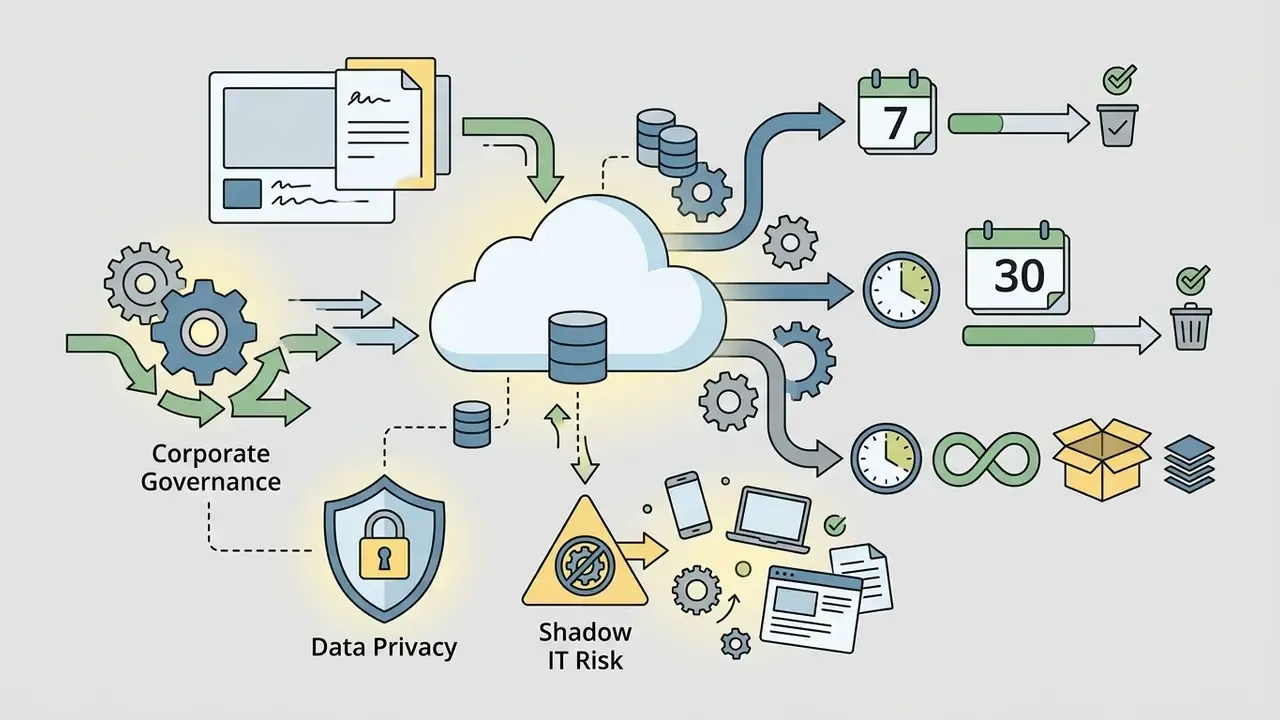
Corporate Governance, Data Privacy, and Shadow IT Risk
Free editing tools are the single most common entry point for shadow IT in marketing, enablement, and training functions. An employee who needs a 90-second product demo installs whatever renders fastest. Unreviewed installs then move confidential footage, pre-release UI, recorded customer calls, internal roadmaps, into third-party clouds. Nobody files a ticket.
Three governance variables separate acceptable free tools from unacceptable ones.
Controls that cost nothing to implement: publish an approved-editor list split by data classification (public, internal, confidential); mandate local-only editors for confidential footage; disable cloud auto-save for project files containing customer data; and require that any free tool used for client deliverables be logged with its licensing terms attached. One owner per tool, one escalation path, one place to look during an audit.
Best Free Video Editor Apps at a Glance
Picking a video editor means matching device hardware to technical requirements: multi-track editing, AI tools, screen recording, or watermark-free rendering.
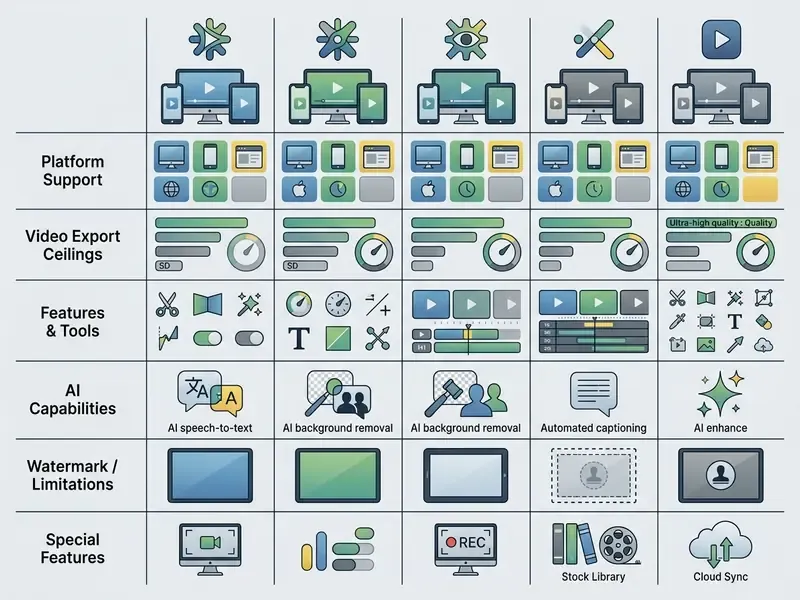
An executive summary table comparing cross-platform video editors by platform support, template access, watermark rules, multi-track capability, AI features, screen recording, and ideal deployment scenarios. All tool names and limits remain available as readable text, not icons.
Comparison of top free video editing applications (2026 audit)
| Application | Supported platforms | Built-in templates | Free export ceiling | Watermark policy | Multi-track editing | AI and smart tools | Screen recording | Best scenario |
|---|---|---|---|---|---|---|---|---|
| CapCut | Mobile (iOS, Android), desktop, web | Yes, extensive | Up to 8K 60fps on desktop; H.264, H.265/HEVC and ProRes output; GIF export | Watermark-free exports; Pro-only effects and AI tokens block render until upgraded | Yes | Auto-captions, background removal, text-based editing, chroma key | No | Fast vertical social media content (TikTok, Reels) |
| VN Video Editor | Mobile (iOS, Android), desktop | Yes | Up to 4K on supported hardware | Watermark-free standard export | Yes, multi-layer | Curve speed control, keyframes, basic smart tools | No | Precise mobile multi-track clip editing |
| InShot | Mobile (iOS, Android) | Limited | Up to 4K 60fps | Watermark plus ads on free tier (removable via ad view or Pro) | Limited, picture-in-picture track | Smart cutout, visual effects | No | Quick mobile video cuts and canvas resizing |
| iMovie | macOS, iOS, iPadOS | Yes, storyboards | 4K on supported Apple silicon | 100% watermark-free, no ads | Yes, 2 video tracks | Magic Movie, auto audio ducking | No | Native entry-level editing on Apple hardware |
| Clipchamp | Windows, web browser | Yes, 1M+ stock assets | 1080p HD, unlimited exports, 5 GB cloud storage | Watermark-free up to 1080p HD; premium stock blocks export | Yes | AI subtitles in 80+ languages, 400+ text-to-speech voices, AI Auto Compose, Brand Kit | Yes, screen, tab, window and webcam | Browser-based editing and webcam tutorials |
| DaVinci Resolve | Windows, macOS, Linux | No, custom macro graphics | 4K 60fps, 8-bit color, direct publish to YouTube and TikTok | 100% watermark-free (standard edition) | Yes, unlimited | Fairlight AI audio, color neural engine, Fusion VFX | No | Professional color grading and post-production |
| Shotcut | Windows, macOS, Linux | No | No resolution, time, or size caps (open source) | 100% watermark-free (open source) | Yes, unlimited | Basic processing filters, chroma key, color correction | Yes, screen, webcam, microphone | Open-source desktop editing without export caps |
| Adobe Express | Web browser, mobile | Yes, thousands | Up to 30-minute runtime, MP4 export, 5 GB storage, one account per social network | Watermark-free basic templates; premium assets gated | Limited | Firefly generative AI, one-click resize, Content Scheduler, Brand Kit | No | Template-driven social posts and scheduled publishing |
| ScreenPal | Windows, macOS, iOS, Android, Chromebook | Storyboards and scripts | 4K, Full HD, standard HD; MP4, AVI, GIF; 15-min recordings, 10 hosted videos | No video watermark, no account required | Compressed timeline with layered overlays | Speech-to-text captions (paid), background removal | Yes, screen plus facecam | Tutorials, demos, and training video hosting |
Creators weighing conventional timelines against prompt-driven production can compare both categories in our free AI video generators roundup.
Best Free Video Editing Apps for Mobile
Mobile video editors prioritize touchscreen responsiveness, quick asset assembly, vertical canvas ratios, and rapid social export. The good free video editing apps on phones now overlap heavily with desktop feature sets.
- CapCut. Dominates short-form social creation with auto-caption tools, velocity editing curves, keyframe animation, chroma key, and multi-layer timeline tracks.
"CapCut ranks second in Video Players and Editors in the United States, with an overall usage rank of 119 across all categories over a 28-day period."
Corrected export specification (updated). CapCut's free tier is far less restricted than commonly reported. On desktop it renders up to 8K resolution at 60fps, with H.264, H.265/HEVC, and high-bitrate Apple ProRes options plus GIF output, and no forced watermark, provided Pro-exclusive filters, body effects, and token-metered AI features stay off the timeline. Mobile exports usually top out at 1080p to 4K depending on device encoder support.
- VN Video Editor. A clean interface for creators who need keyframe animation, multi-track audio control, and curve speed adjustments without aggressive ad interruptions. Standard exports carry no watermark.
- InShot. Strong for fast canvas adjustments, background blur on non-vertical media, and text overlays. It supports up to 4K 60fps output, but the free tier serves ads and adds a removable watermark (InShot Product Documentation, 2026).
- iMovie (iOS). Apple's native mobile app: zero ads, no watermarks, smooth handoff of project files between iPhone, iPad, and Mac.
- YouCut (Android). Explicitly states it never adds a watermark, which makes it the lowest-friction option for basic Android trimming, merging, and speed changes.
- KineMaster and PowerDirector. Both offer genuinely deep mobile toolsets, including chroma key and layered overlays, but their free tiers brand the render. Treat them as evaluation builds rather than finished free video editor apps unless you plan to subscribe.
- ScreenPal Mobile. Records screen and facecam on the go, then allows cropping, trimming, overlays, and speed adjustment before saving or uploading.
For creators building out wider mobile workflows, a best android photo editor guide supplies complementary image assets, while our photo editor glossary covers thumbnail and still-frame preparation.
Best Free Video Editing Software for Desktop
Desktop video editing software uses local GPU and CPU resources to process high-bitrate media, complex color science, and multi-track timelines without network latency.
- DaVinci Resolve. The reference point for free desktop post-production. Node-based color correction, Fusion visual effects, Fairlight audio mixing, multicam sync, and direct upload to YouTube and TikTok with chapter, thumbnail, and title support. It renders watermark-free up to 4K 60fps in 8-bit color in the standard release (Blackmagic Design Specifications, 2026). The free edition excludes stereoscopic 3D, hardware noise reduction, remote grading, and multi-user collaboration, which stay Studio features.
- Shotcut. A cross-platform open-source editor for Windows, Mac, and Linux. Broad codec support, unlimited timeline tracks, chroma key, color correction, and native screen, webcam, and microphone capture, with no trial timeout and no watermark (Shotcut Documentation, 2026).
- OpenShot. An open-source non-linear editor with simple drag-and-drop timeline mechanics, unlimited tracks, keyframe animation, chroma key, and vector titles. Well suited to beginners. The project states no subscriptions, no watermarks, no time limits, and no project-size limits; version 4.0 added a dedicated recording view (OpenShot Project Update, 2026).
- Kdenlive. A GPL-licensed editor for Linux, Windows, macOS, and BSD with virtually unlimited video and audio tracks, custom interface layouts, and deep color scopes. The strongest fully free option for genuinely complex multi-track timelines (KDE Documentation, 2026).
- VSDC Free Video Editor. A Windows non-linear editor supporting hardware acceleration, masking, blending modes, chroma keying, sub-pixel accuracy, and 4K export, advertised free of watermarks, branding, and time limits for personal and educational use (VSDC Feature Specs, 2026).
- Adobe Premiere Rush. A lightweight companion to Premiere Pro for creators who value speed over depth. Select clips in sequence, click Create, and Rush auto-assembles the cut, then exports up to 1080p 60fps with direct YouTube publishing. The trade-off is a restrictive single-track workflow with no chroma key or multicam.
- Lightworks Free and HitFilm. Both remain worth a look, with a caveat we cannot resolve cleanly: their free-tier export ceilings and branding rules have changed more than once across recent releases. Verify the current export dialog before you plan a deliverable around either one.
In one commercial video production initiative, a media team evaluated open-source desktop editors to remove subscription overhead across remote workstations. Standardizing on cross-platform open-source software eliminated licensing bottlenecks and produced identical 1080p output quality with no ongoing fees. The unplanned benefit mattered more: all client footage stayed on local machines, which satisfied the customer's NDA without a separate security review.
Best Free Online Video Editors With Templates
Web-based video editors process media inside the browser or rely on cloud rendering. They remove local installation and hand you a template library on day one.
- Microsoft Clipchamp. Built into Windows 11 and Chromium-based browsers (Edge and Chrome). Free 1080p watermark-free exports with no export count limit, 5 GB cloud storage, screen and webcam recording, over one million royalty-free stock videos, images, backgrounds, and music, plus a free Brand Kit for logos, brand fonts, and color palettes.
"Clipchamp recorded 9.1 million visits in a single month, with an average session duration of 6 minutes 47 seconds and a 28.71% bounce rate."
Its free AI suite is unusually deep. Speech-to-text auto-captioning covers over 80 languages and accents with downloadable .srt transcripts, and the text-to-speech generator offers 400+ neural voices across global locales with pitch and speed modulation. AI Auto Compose assembles highlight and slideshow videos in a chosen style, including bulk creation, and finished files publish straight to YouTube, TikTok, and LinkedIn company pages, or save to OneDrive, Google Drive, and Dropbox.
- Adobe Express. Template-driven layouts plus Adobe Firefly generative AI for assembling clips and social posts. Free users get thousands of customizable templates, Adobe Stock soundtracks, automatic project autosave, one-click resizing between 9:16 and 16:9, and 5 GB of storage with exports up to 30 minutes. Its standout workflow feature is the built-in Content Scheduler, which lets one person edit, resize, and schedule auto-publishing to TikTok, Instagram, and Facebook weeks ahead from a single interface. Supported inputs include MP4, MOV, and M4V up to 1 GB (Adobe Express Specs, 2026).
- Canva Video. Excellent for template-driven presentations and social clips, with thousands of 9:16, 1:1, and 16:9 layouts plus built-in free stock footage. Free accounts export clean media as long as paid Pro stock assets stay off the canvas, since Canva ties watermarking to asset licensing rather than export resolution (Canva Licensing Terms, 2026). Teams assessing its generative features can review our Canva AI Generator breakdown.
- Wave.video. Offers 1,000+ free templates and an integrated stock library for creators who want a browser-native alternative outside the Microsoft and Adobe ecosystems.
Creators seeking wider platform options can check our see the overview hub for alternative web creation systems, or compare prompt-based production in our AI video generators matrix.
Best Free Video Editing Apps by Use Case
Different production tasks need different toolsets. An app built for rapid vertical TikTok editing will struggle with high-bitrate long-form YouTube tutorials or a color-grading pipeline.
Best Free Apps to Edit YouTube Videos
Long-form YouTube content needs stable audio processing, screen recording integration, precise trimming, and caption generation.
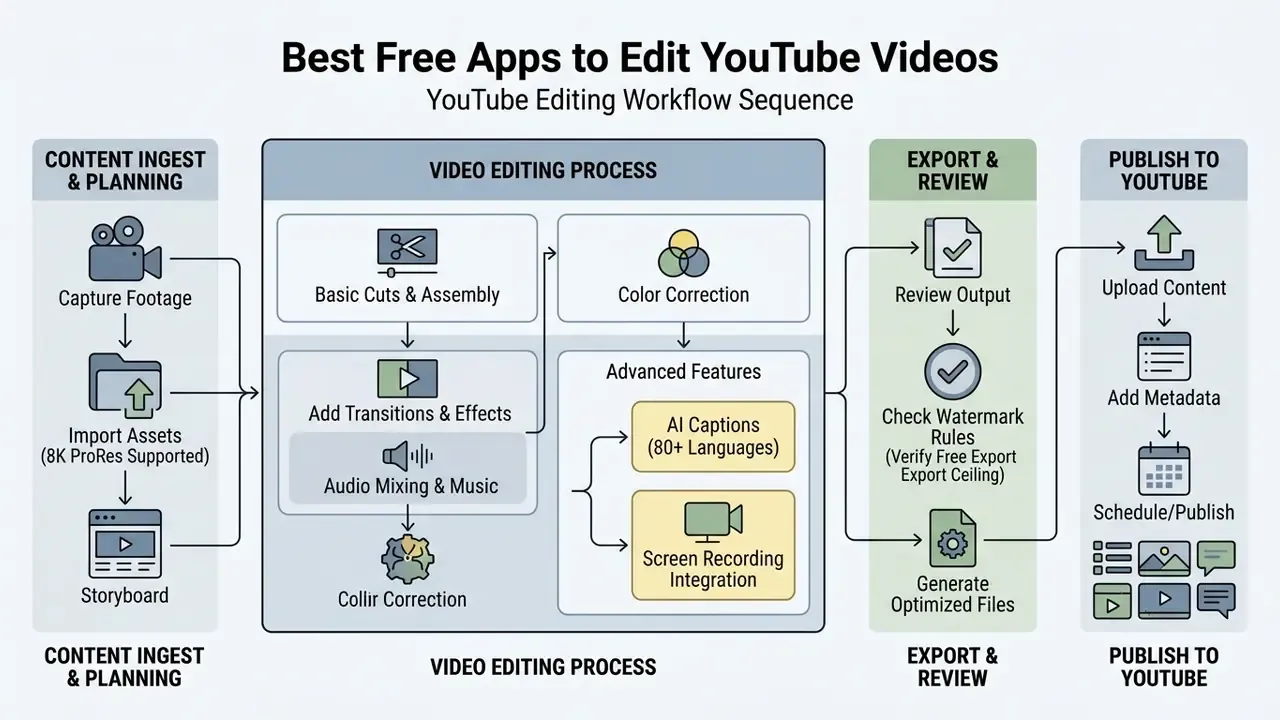
A functional diagram showing the steps for YouTube production: ingest raw footage → screen and webcam capture → audio cleanup and ducking → subtitle and overlay generation → 1080p or 4K H.264 export.
Recommended free tools for YouTube production:
- Microsoft Clipchamp. Integrated webcam, tab, window, and full-screen capture with unlimited retakes and no watermark, which makes it a reliable free app to edit YouTube videos straight from a browser. Subtitle transcripts export as editable
.srtfiles that upload directly into YouTube Studio.- DaVinci Resolve. Professional audio mixing via Fairlight and advanced color grading for creators publishing high-resolution video content, plus direct YouTube upload with chapters and thumbnails.
"AI-edited videos received an average engagement score of 4.09, identical to professionally edited clips in a comparative evaluation."
That parity matters for solo creators. Automated assembly and AI captioning no longer imply an engagement penalty, so free AI tooling can absorb the repetitive layer while human attention goes to narrative and pacing.
- Descript (free tier). Transcript-based editing: cut video clips by editing the spoken text, with screen recording, system and microphone capture, and captions in one workflow. Free-tier storage and transcription minutes are metered, and per-file uploads are capped near 1 GB (Descript Documentation, 2026).
- OpenScreen. A free and open-source recorder that captures screen plus microphone or system audio and generates on-device automatic captions with editable transcripts and subtitle translation. Useful wherever cloud transcription is prohibited outright.
- YouTube Create. Google's own free Android editing app, with filters, effects, licensed music, voiceover, and auto-captions tuned for Shorts and long-form publishing.
Teams managing corporate channels can check our YouTube video editor guide for structured production practices.
Best Free Tools for Advanced and Multi-Track Editing
Complex productions needing multi-camera sync, green screen (chroma keying), motion tracking, and composite visual effects demand non-linear desktop software.
- DaVinci Resolve. Fusion visual effects nodes, advanced chroma keying, Fairlight audio post, and multicam timeline sync.
- VSDC Free Video Editor. Windows non-linear editing with hardware acceleration, masking, chroma keying, blending modes, and sub-pixel accuracy at 4K output (VSDC Feature Specs, 2026).
- Kdenlive. Open-source multi-track editing with custom interface layouts, virtually unlimited audio and video tracks, and deep color adjustment scopes (KDE Documentation, 2026).
- Shotcut. Multi-track editing, chroma key, and a broad filter set with no export ceiling, though GPU rendering remains experimental.
- Flowblade. A lightweight Linux-first multitrack editor for anyone who wants film-style three-point editing on modest hardware.
To see how automated voiceover fits into multi-track timelines, compare best ai voice generation tools for narration, or read the underlying concepts in our AI voice generators glossary entry.
Integrated Screen Recording, Hosting, and Workflow Publishing
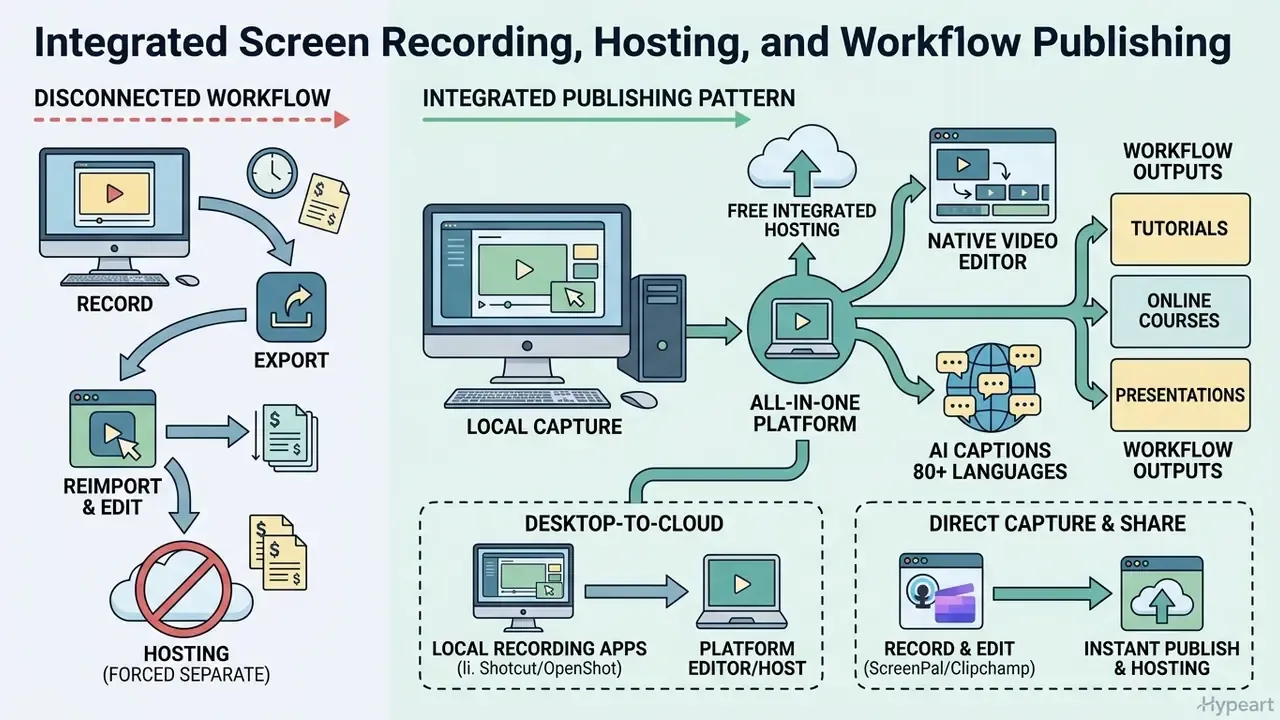
For software tutorials, online courses, onboarding material, and corporate presentations, standalone editors force a clumsy capture, export, reimport cycle. Integrated recorders remove that round trip.
- Microsoft Clipchamp. Captures a full screen, a single browser tab, or an application window while recording webcam video at the same time, with unlimited retakes and watermark-free saves. Recordings drop straight onto the timeline for trimming, caption generation, and Brand Kit overlays, and export destinations include YouTube, TikTok, LinkedIn company pages, OneDrive, Google Drive, and Dropbox. For organizations already inside Microsoft 365, it inherits centralized IT controls and tenant-level security settings, a real governance advantage over consumer-grade alternatives.
- ScreenPal. Pairs recording with free hosting. The free tier records up to 15 minutes per capture and hosts up to 10 videos, shared through an ad-free accessible player via link or embed. Privacy controls include unlisted access and password protection, plus folder organization, playlists, and carousel channels. Autosave allows reverting any change, and the color-coded compressed timeline lets you identify, redo, or delete a single edit without disturbing the rest of the sequence. Drag-and-drop storyboards let teams start from a script or import existing slides and convert them into presentation videos. Webcam backgrounds can be removed, blurred, or replaced at no cost, and native apps exist for Windows, macOS, iOS, Android, and Chromebook.
- Shotcut and OpenShot. Local screen, webcam, and microphone capture with zero cloud dependency. The correct choice when recording internal systems, dashboards, or anything under NDA.
- Adobe Express. Handles the publishing half rather than capture: edit once, resize to 9:16 or 16:9 in a single click, then schedule auto-publishing to TikTok, Instagram, and Facebook from the Content Scheduler.
A practical hybrid pattern for course producers: record locally in Shotcut or ScreenPal Desktop, edit and caption in Clipchamp for its 80+ language subtitle engine, then host unlisted with password protection for pre-release review before going public. Lessons that exceed an LMS upload limit can be shrunk afterwards with a dedicated video compressor.
Commercial-Use Checklist for Free-Tier Assets
"Royalty-free" means you do not pay per-play royalties. It does not automatically mean commercial use is permitted. Run this checklist before a free-tier export enters a monetized channel, a client deliverable, or a paid ad.
| Scenario | Generally safe on a free tier | Requires verification or a paid tier |
|---|---|---|
| Footage you shot yourself | Any free editor; open-source tools impose no licensing conditions on your own media | Nothing to verify |
| Bundled stock music and SFX | Personal, non-monetized posts where the library states free commercial use | Paid ads, client work, and monetized channels where the license says personal or non-commercial |
| Premium templates and stock clips | Free templates flagged as free by the vendor | Anything Pro-flagged: Canva watermarks Pro elements; Adobe reserves 100,000+ templates for Premium |
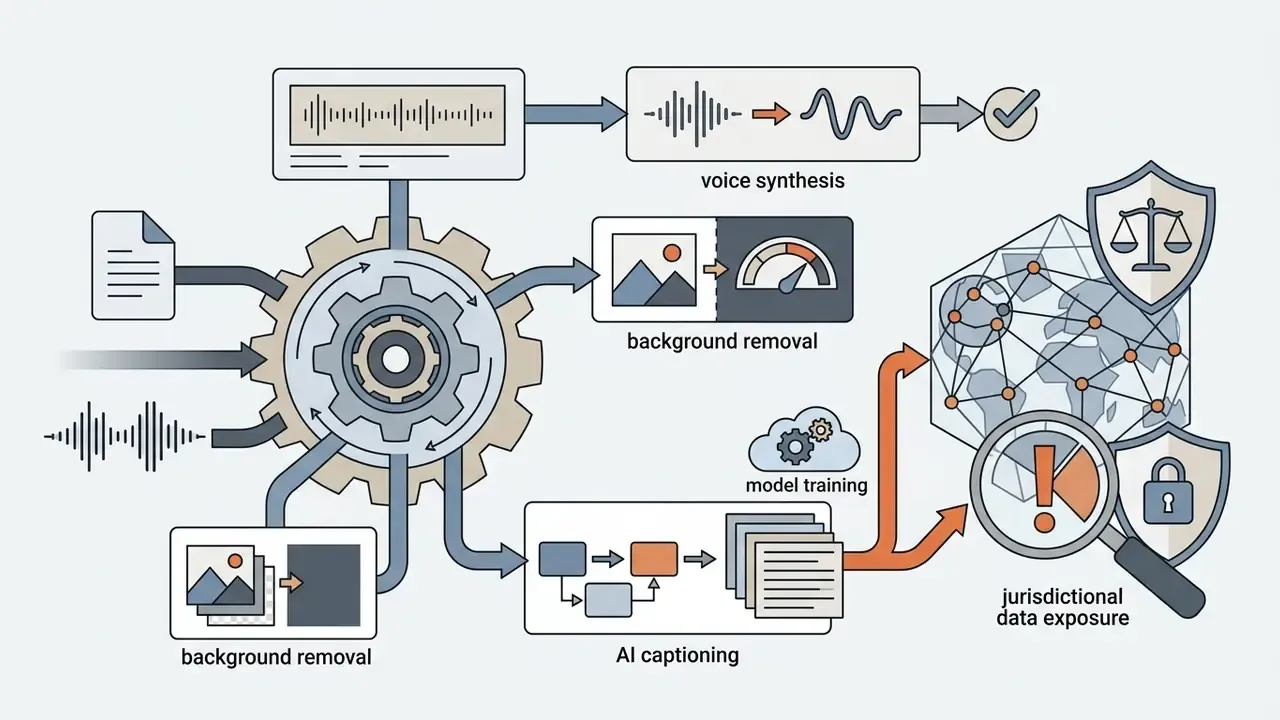
| AI voiceover and AI captions | Internal drafts and social posts where output rights are granted | Broadcast, paid media, or resale; check whether output rights transfer on the free plan |
| Creative Commons assets | CC0 material | CC-BY material, which requires correct, visible attribution |
| Brand logos in Brand Kit | Your own marks | Third-party marks, which need the owner's written permission |
The operative test is always the specific license text next to the asset, never the word "free" on the landing page. Keep a per-project asset log listing each bundled item, its source library, and the exact license clause you relied on. It is the cheapest possible defense during a rights dispute, and it takes maybe five minutes per project.
"Rights holders using YouTube's Content ID can block or monetize user videos containing protected content, directly affecting the value of 'free' editing."
How to Edit Videos for Free: From Clips to Export
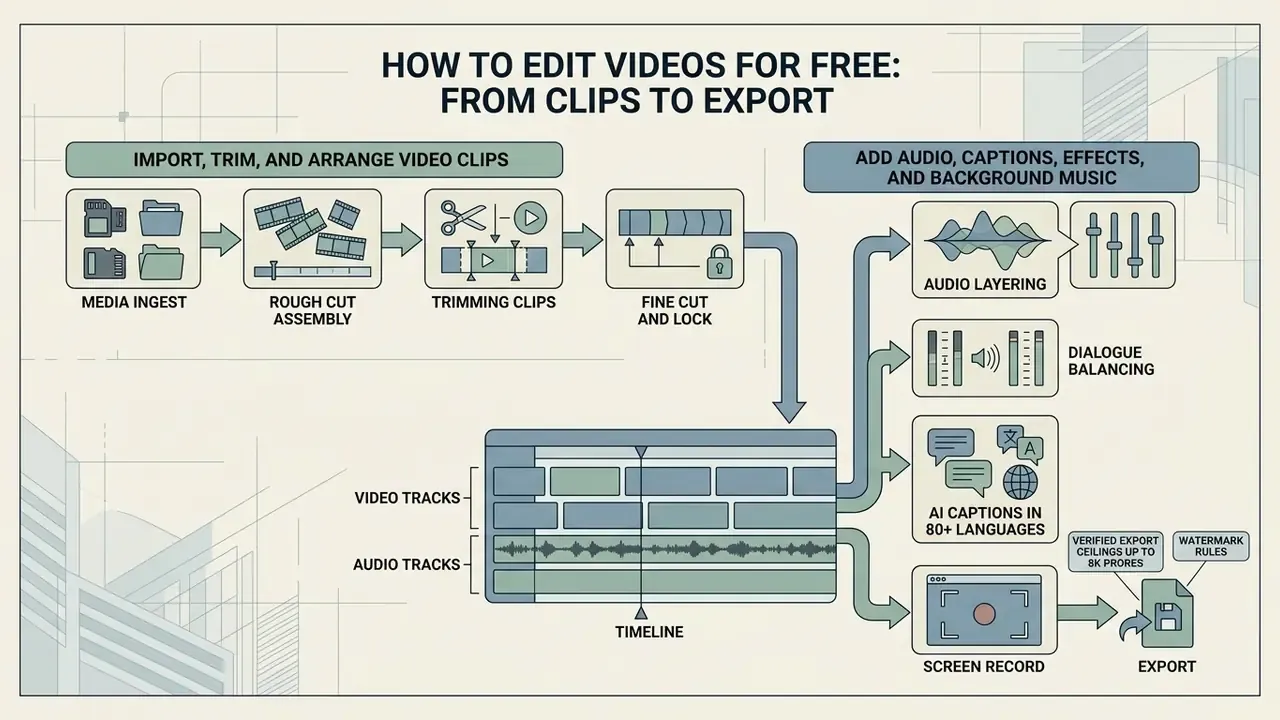
A structured post-production method keeps clip handling efficient, audio balanced, and rendering predictable. Classic production guidance splits the process into logging and first assembly, rough cut, fine cut, picture lock, and sound lock before delivery. That sequence still holds no matter which free tool you start editing in.
Post-production sequence: ingest media → assembly cut → audio and text overlays → render and export.
Import, Trim, and Arrange Video Clips
- Media ingest.Transfer camera or card files to your workstation, keep the originals untouched in a separate folder, then upload media, graphics, and audio files into your project bin (OpenShot Editing Workflow, 2026).
- Rough cut assembly.Drag primary clips from the media panel onto the main timeline track. Arrange scenes chronologically to establish narrative flow, stacking additional tracks where overlays or B-roll are needed.
- Trimming clips.Drag clip edges to trim video frames, or use the razor and split tool to remove middle sections and then cut and merge clips. Trimming and cutting are distinct operations, and both are non-destructive: the source file on disk is never altered (Adobe Premiere Editing Guide, 2026).
- Fine cut and lock.Tighten pacing frame by frame, then lock picture before committing to audio sweetening, so later changes do not invalidate the mix.
Add Audio, Captions, Effects, and Background Music
- Audio layering. Place background music and sound effects on secondary audio tracks below primary dialogue clips (Avid DS Audio Workflow Guide). Apply audio effects by selecting the target clip or region on its track.
- Dialogue balancing. Lower background audio volume (ducking) during speech to keep voices clear, then apply noise suppression for hum and mic static before you add music.
- Auto-captions and subtitles. Generate subtitles automatically from speech or import external
.srtfiles for social accessibility. Save the subtitle file with a name matching the media file so players pair them automatically (Subtitle Edit Documentation, 2026). Clipchamp's free engine covers 80+ languages and accents and exports an editable transcript. - Transitions and overlays. Apply subtle cuts, cross-dissolves, animated text, shapes, or logo overlays to hold attention without cluttering the canvas. Keyframed zoom-in and zoom-out moves add motion to otherwise static screen recordings. Green screen work belongs here too, right after the cut is locked.
To see how specialized generative engines handle animated assets inside a video timeline, explore our animation maker evaluation.
Export and Share Videos to Social Platforms
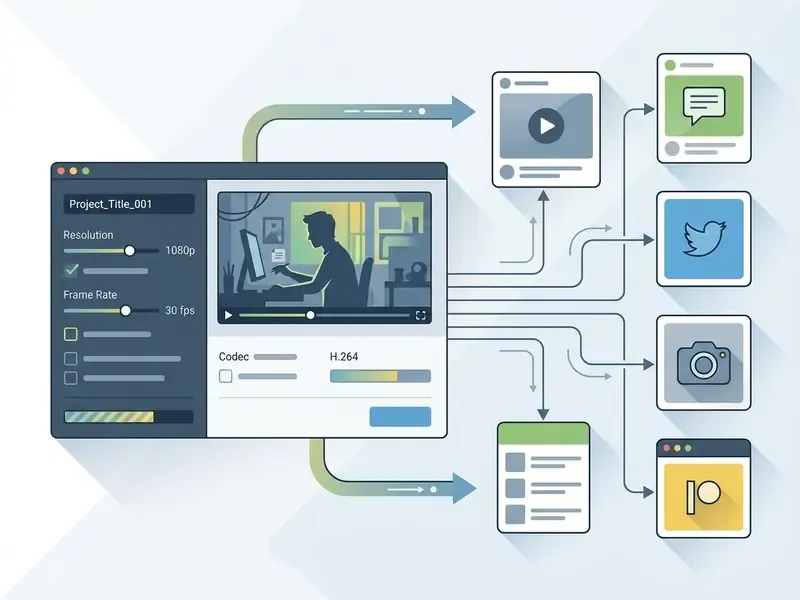
Final rendering means choosing file settings that match the delivery destination.
FAQ About Free Video Editing Apps
An interactive accordion covering Android compatibility, online cloud media safety, stock licensing rules, hardware requirements, and watermark-free export. All questions and answers remain readable in the page text.
Does Android Have a Free Video Editor?
What are the best free video editing apps available on Android devices? Yes, Android has several capable options. CapCut provides multi-track editing, auto-captions, keyframes, chroma key, and speed curves with watermark-free exports. VN Video Editor delivers clean multi-layer clip management without forced watermarks. YouCut states in its Google Play listing that it never adds a watermark, and handles basic trimming and merging. YouTube Create is Google's own free Android app with filters, licensed music, voiceover, and auto-captions. ScreenPal adds mobile screen recording with facecam plus editing in the same app. One caveat: CapCut is owned by ByteDance, which some enterprises restrict on managed devices, so confirm your organization's policy before installing it on a work phone.
Is an Online Video Editor Safe for Video Files?
How safe is uploading confidential video files to browser-based online editors? This answer is general information and does not replace consultation with an information-security specialist or a legal adviser on data protection. Browser-based editors either process files locally via WebAssembly or upload source media to cloud servers. Reputable platforms encrypt data in transit, but cloud uploads still expose media to remote storage policies and retention schedules. Published vendor notices in this category range from automatic deletion after 7 days, to typical retention of up to 30 days, to indefinite retention of cloud-stored outputs until the user deletes them (NIST SP 800-144 Cloud Security Guidelines). NIST also warns that cloud customers lose direct control over where data resides and who can access it administratively.
"The IEEE digital privacy model defines six privacy-expectation characteristics: identities, behaviors, inferences, transactions, confidentiality, and availability." Source: IEEE Digital Privacy Model, IEEE (2023). https://ieeexplore.ieee.org/document/10251216 Desktop editors such as Shotcut, Kdenlive, or DaVinci Resolve keep processing entirely local, which gives maximum privacy for sensitive footage. For regulated or NDA-covered material, treat local-only editing as the default and require security sign-off before any cloud upload.
Can Free Apps Use Royalty-Free Music and Stock Video?
Can bundled royalty-free assets in free video editors be used in commercial projects? This answer is general information and does not replace advice from a licensing or copyright specialist. Not automatically. "Royalty-free" means you do not pay per-play royalties, but usage scope depends on the software's specific asset license. Built-in media libraries on free tiers may restrict usage to personal non-commercial posts, and some licenses require visible attribution or impose platform limits. Commercial distribution, client work, or monetized YouTube uploads often require a paid Pro tier, or strict CC-BY attribution compliance, to avoid copyright strikes through Content ID systems.
"Rights holders using YouTube's Content ID can block or monetize user videos containing protected content, directly affecting the value of 'free' editing." Source: Peukert, Journal of Economic Surveys (2025). https://onlinelibrary.wiley.com/doi/10.1111/joes.12590
Which Free Editors Run on a Low-Spec Laptop?
What can I use if I do not have 16 GB of RAM or a discrete GPU? DaVinci Resolve's free edition expects 16 GB of RAM and a GPU with at least 2 GB of VRAM on Windows 10/11, so it is the wrong pick for entry-level hardware. Shotcut, OpenShot, and Kdenlive run acceptably on 4 to 8 GB of RAM with integrated graphics, and impose no watermark, time, or project-size limits. Browser editors such as Clipchamp and Canva shift rendering load to remote servers, which helps a weak CPU but makes performance depend on upload bandwidth. On very old machines, editing 1080p proxies and conforming to 4K only at export is the most reliable approach.
Which Free Editor Exports the Highest Resolution Without a Watermark?
Where are the real export ceilings on free plans? CapCut desktop currently offers the highest documented free ceiling, exporting up to 8K at 60fps including ProRes and H.264/HEVC options with no forced watermark, provided no Pro-gated effects or AI tokens appear in the project. DaVinci Resolve free exports 4K 60fps in 8-bit color, watermark-free. Shotcut, OpenShot, Kdenlive, and VSDC impose no resolution or duration caps at all. Clipchamp caps free output at 1080p HD but allows unlimited watermark-free exports. VEED is the strictest of the set: 720p with a hard-coded watermark on every free render. To explore automated website creation alongside media projects, consult our best ai website directory. Developers integrating media automation pipelines can review our AI Media API Guides for automated processing.
Appendix A: Revision Log and Corrected Claims
Transparency about corrections is part of our editorial standard. These claims appeared in earlier versions of this guide and were revised after the Q1 2026 re-test.
| Earlier claim | Status | Current verified statement |
|---|---|---|
| "CapCut free exports up to 1080p are available clean." | Corrected, understated | CapCut's free desktop tier exports up to 8K 60fps, including ProRes and HEVC options, watermark-free, when Pro-gated effects and AI tokens are excluded. |
| Learnability attributed to "Roberts, ACM Evaluation Study" without data, year, or URL. | Replaced | Replaced with ExpressEdit CHI 2024 findings (SUS 75.7; text-command editing enabled novices, complex animation remained a limitation), with full citation and URL. Roberts' 1982 text-editor work stays a valid historical reference for learnability spread, but it carried no figures in the original insertion. |
| "Descript's 1 GB file limit on free plans." | Clarified, requires ongoing verification | Descript's free-tier cloud allocation caps per-file uploads near 1 GB and meters monthly transcribed minutes. These limits change often, so confirm against current vendor documentation before planning a project around them. |
| Methodology described only as "ingesting 1080p and 4K media containers." | Expanded | Replaced with named testbeds (MacBook Pro M3 Max 36 GB; Windows 11 with i9-14900K, RTX 4090, 64 GB; iPhone 15 Pro; Galaxy S23) and three named source profiles (ProRes 422 HQ, HEVC 10-bit HDR, H.264). |
| Contextual link to an anime AI art generator comparison. | Removed | Replaced with a topically relevant animation maker reference. |
| General claim that DaVinci Resolve is suitable for beginners on any desktop. | Qualified | Added published minimum hardware: 16 GB RAM and 2 GB VRAM on Windows; 8 GB RAM on macOS; OpenCL 1.2-capable GPU on Linux. |
| Lightworks and HitFilm listed with fixed free export ceilings. | Marked unresolved | Free-tier limits and branding rules for both have shifted across releases; the guide now flags them as requiring direct verification rather than quoting a number we cannot confirm. |
Notes on source disagreement: third-party market-sizing reports diverge sharply on 2026 category value and growth rates, so segment leadership here is derived from vendor documentation and measured usage data rather than revenue forecasts. Watermark rules also differ by gating model. Clipchamp gates on export tier, Canva gates on asset licensing, and that single difference explains most of the apparently contradictory claims across competing reviews.