Why should a risk or finance leader care about a free video editor? Because it lands on managed endpoints, touches confidential footage, and rarely passes through formal procurement. That combination is exactly where shadow tooling starts.
«Evaluating open-source media utilities requires the same rigor as enterprise software procurement: transparent licensing, reproducible export behavior, and zero hidden operational liabilities. OpenShot Video Editor shows how accessible, non-linear video editing software can serve operational needs without licensing overhead, provided institutional data governance and media asset rights remain strictly controlled.»
Last updated: based on OpenShot Video Editor 4.0.0 documentation and the official 4.0 release announcement dated August 30, 2026 (OpenShot Studios, LLC, openshot.org/blog). Third-party mirrors such as Uptodown list the Windows build date as August 31, 2026. The one-day offset reflects distribution timezone and mirror-sync timing, not two separate releases.
Executive Summary
View → Views → Advanced View).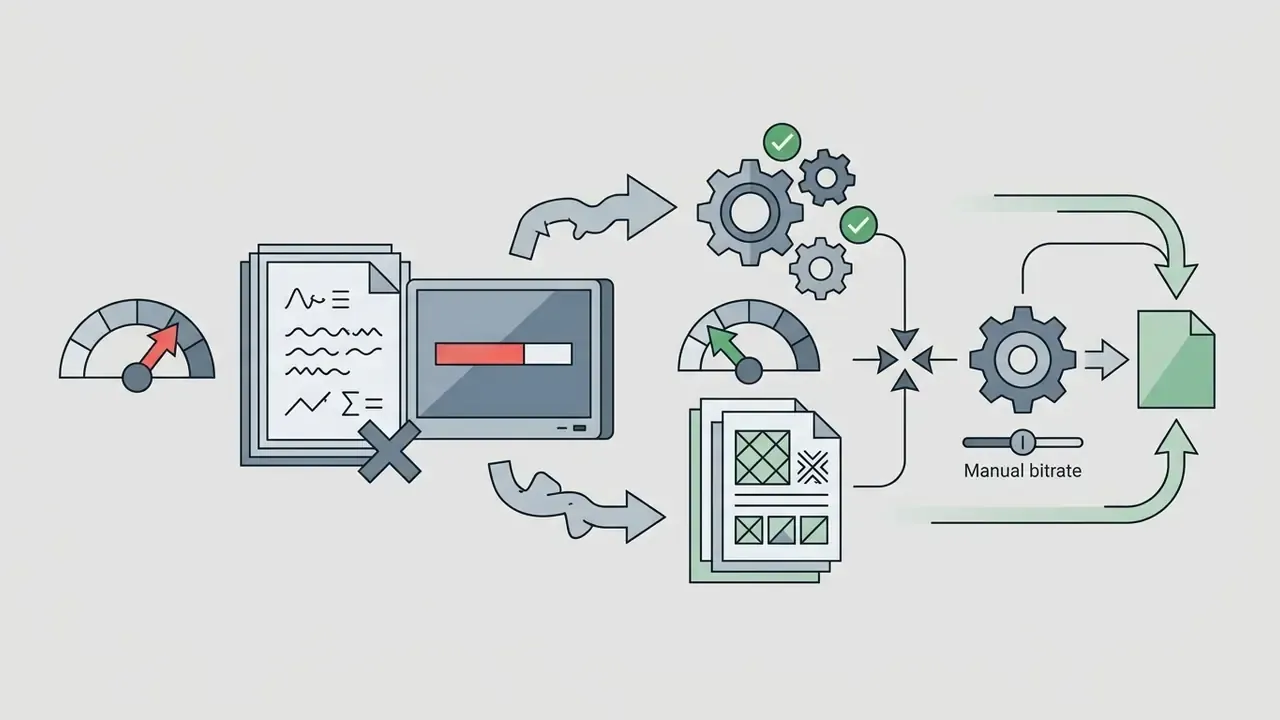
What Is OpenShot Video Editor and Which Tasks It Suits
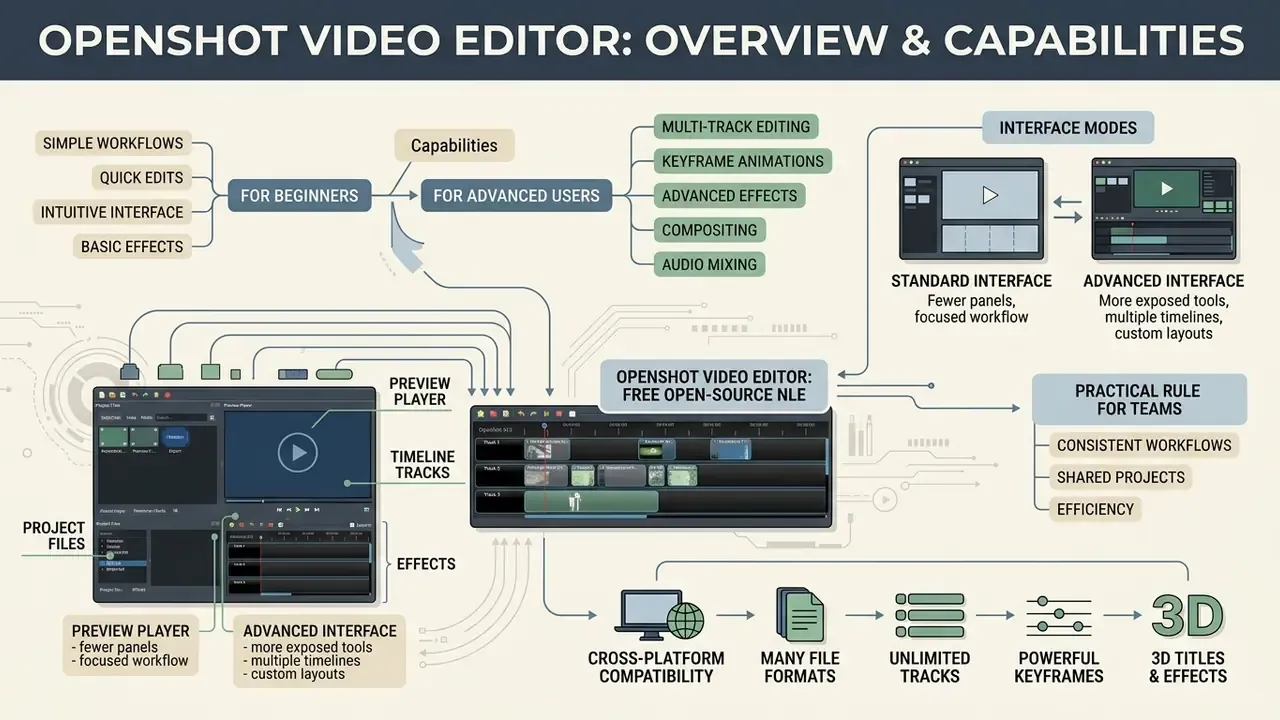
OpenShot Video Editor is an open-source video editing application engineered for desktop non-linear editing. Built on the C++ library libopenshot with a Python and Qt graphical interface, this open source video editor provides a workspace where users import, trim, composite, and export multi-track video projects (libopenshot Documentation, 2026).
«OpenShot is documented across official resources as a free, open-source non-linear editor supporting multi-track editing without destructive modification of the original source files.»
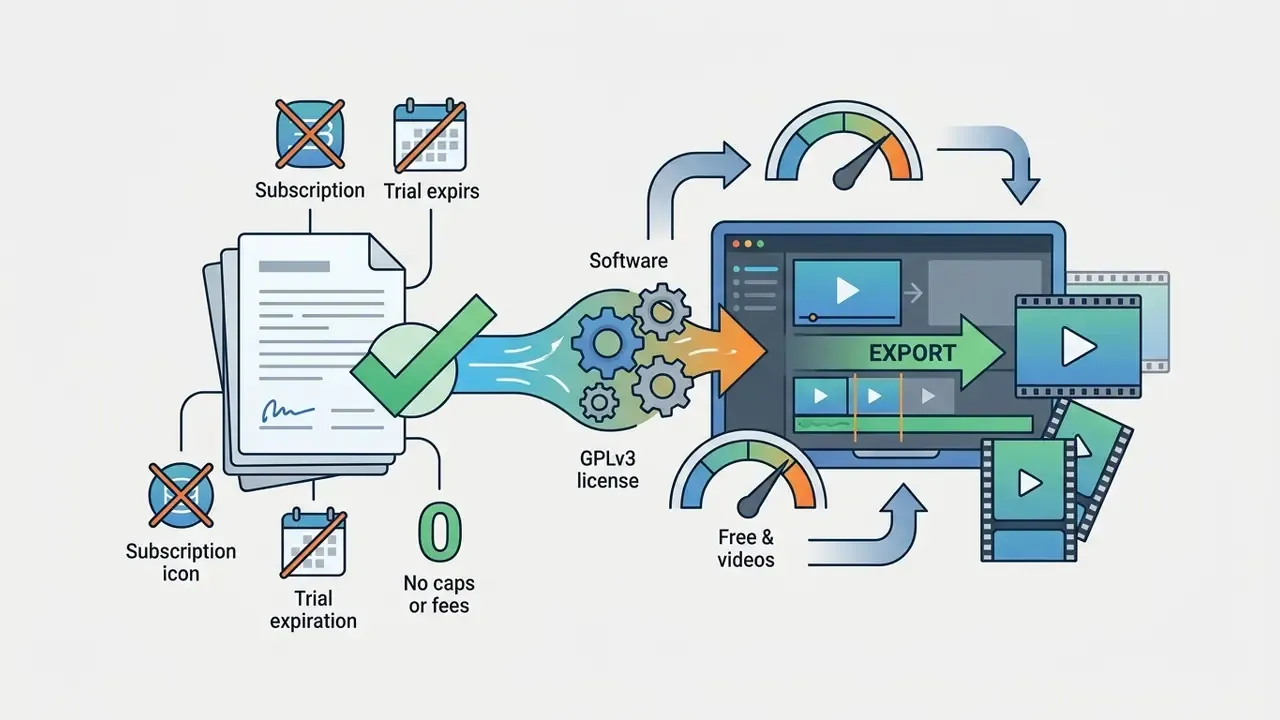
The purpose of the OpenShot free open source video editor is straightforward: accessible video editing for educational content, corporate onboarding, compliance and internal communications, presentations, social media clips (YouTube, TikTok, Reels, Shorts), and training materials. Because OpenShot enforces no watermark and no export cap, it works as a dependable free video editor for teams that cannot justify recurring licensing fees. Readers benchmarking tools side by side can consult our overview of free video editing software to see where OpenShot sits against other zero-cost options. For organizations building structured digital asset workflows, the curated frameworks in our AI Media Commercial-Use Hub help align creative utilities with enterprise risk standards.
Capabilities for Beginners and Advanced Users
OpenShot combines an easy learning curve for novice editors with scalable multi-track compositing for advanced creators. The software launches an interactive built-in tutorial that walks new users through media import, timeline placement, and video export in under five minutes (OpenShot Quick Tutorial, 2026). The tutorial can be reopened at any time from Help → Tutorial or with the F2 key.
«University teaching-and-learning guides present OpenShot as an editor with a "simple, easy-to-use interface," suitable for students performing basic edits at no cost.»
Experienced users get keyframe animation, unlimited timeline tracks, vector-based SVG titling, curve-based time mapping, color wheels, curves and LUTs with scopes, plus local AI-assisted tools for object tracking, stabilization, and speech transcription introduced in version 4.0.0 (OpenShot 4.0 Release Announcement, August 30, 2026). Version 4.0.0 also added direct screen, webcam, microphone, and system-audio recording into an open project, which removes the need for a separate capture utility in most internal-video pipelines. Small change, real workflow effect.
Default interface layout (v4.0.0). The workspace has three primary zones plus two toolbars, and every documented workflow maps onto them:
| Zone | Screen position | Function |
|---|---|---|
| Project Files panel | Top left | Lists every imported audio, video, and image asset in the project |
| Preview Window | Top right | Renders real-time playback of the timeline at the playhead |
| Timeline | Bottom, full width | Visualizes clips, transitions, and effects across stacked tracks (5 tracks by default in a new project) |
| Main toolbar | Top edge | Open, Save, Import, Export, and profile selection |
| Timeline toolbar + zoom slider | Above the timeline | Blade (razor) tool, snapping, markers, zoom level, playback controls |
Selecting Standard vs. Advanced Interface Modes
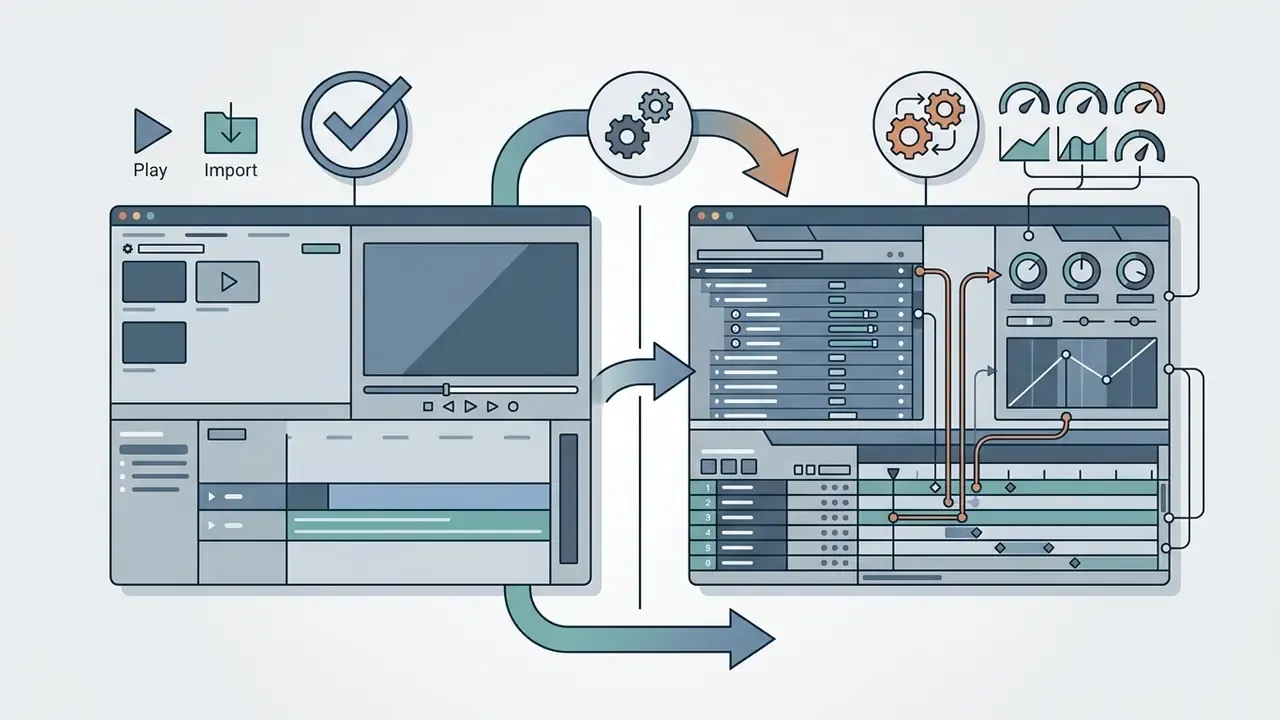
On first launch, OpenShot defaults to the Standard (Simple) Interface, which optimizes screen space for simple trimming, multi-track layering, volume adjustment, audio-track separation, and basic transitions. This is the right mode for most internal-video contributors who only need to cut, caption, and export.
To unlock complex clip manipulation, go to View → Views → Advanced View. Advanced Mode exposes the full Properties Panel plus the Effects and Transitions libraries, so you can edit keyframe interpolation curves (Bézier, linear, constant), transform coordinates, alpha and blend modes, and detailed audio channel parameters in real time. Filters and effects can then be dropped onto any individual clip on any track.
Practical rule for teams: publish two internal presets. Standard View for subject-matter experts recording their own explainer videos, Advanced View for the media specialist who finalizes color, captions, and compositing. That single decision eliminates most "I can't find the effects tab" support tickets. I have seen it cut a help-desk queue in half within a week, though that is an observation rather than measured data.
OpenShot Is Free and Open Source: License and Commercial Use
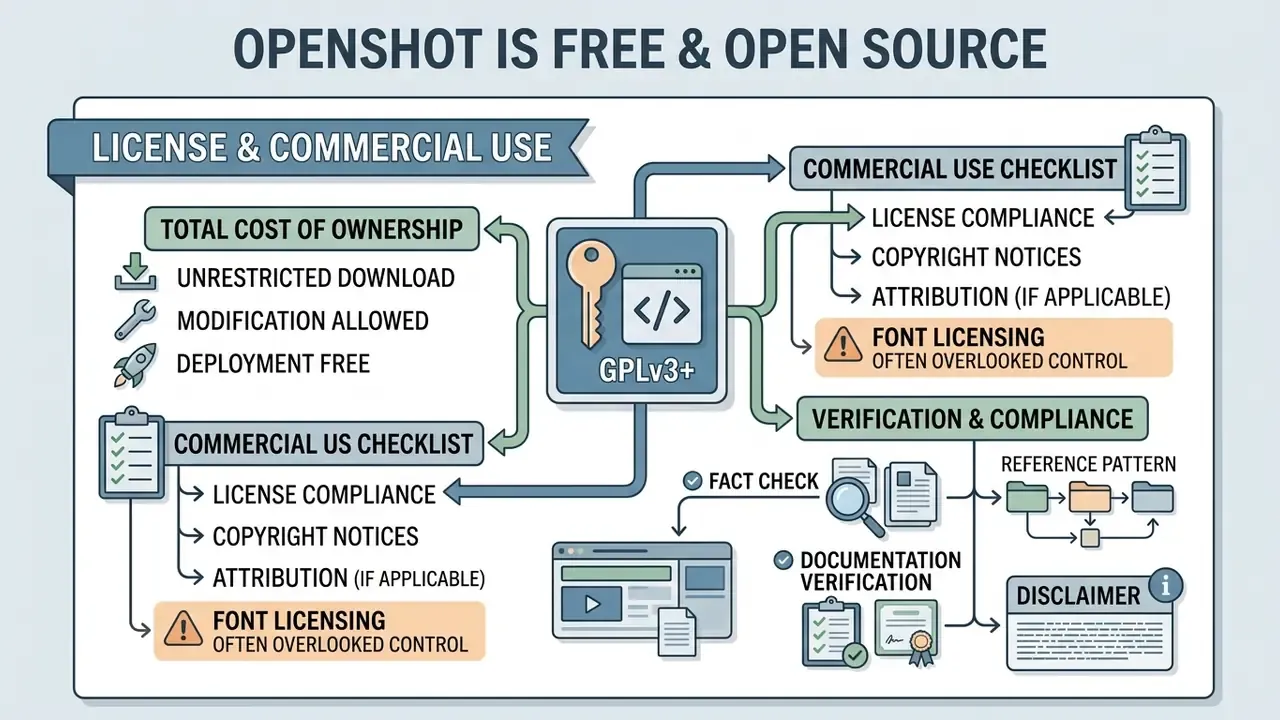
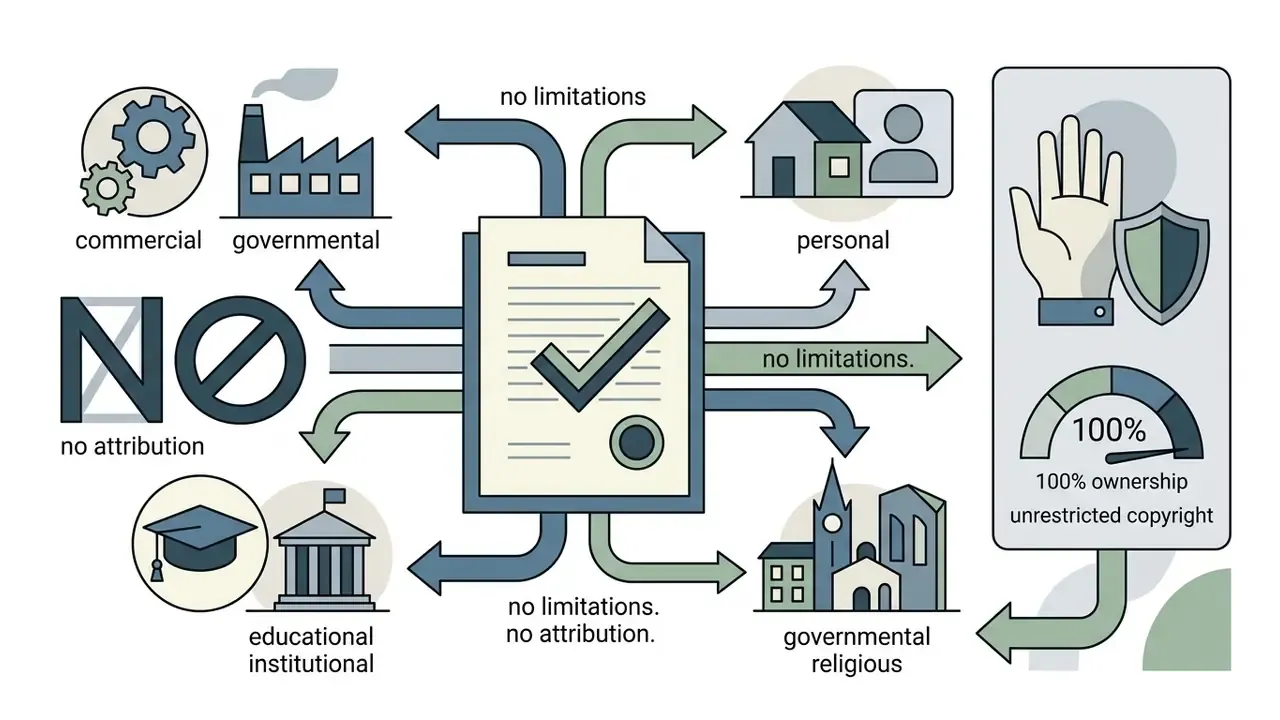
OpenShot Video Editor ships as 100% free software under the GNU General Public License version 3.0 or later (GPLv3+), allowing unrestricted download, modification, and deployment. The OpenShot free video editor documentation explicitly confirms that the desktop application can be used for personal, commercial, educational, governmental, and religious purposes without royalty fees or licensing restrictions (OpenShot Studios, LLC, 2026).
Videos rendered with OpenShot Video Editor free carry no mandatory watermarks, platform branding, or resolution caps. While the OpenShot video editor open source application is governed by copyleft terms, which keep its source code public on GitHub, the copyright of videos produced with the editor remains entirely with the creator. That is the whole promise of an OpenShot free video editor open source model.
«The LGPL applies to the library code, not to output files: users are free to sell, monetize, and distribute the videos they create under any license they choose.»
This distinction matters because it is the single most common misconception in procurement reviews: GPL and LGPL copyleft is not "viral" toward rendered media. The obligation attaches to redistribution of modified software binaries or source, not to the MP4 you upload to an internal portal or a client channel. To verify official source builds and license disclaimers, refer directly to the OpenShot video editor official website.
Total Cost of Ownership: What "Free" Actually Costs
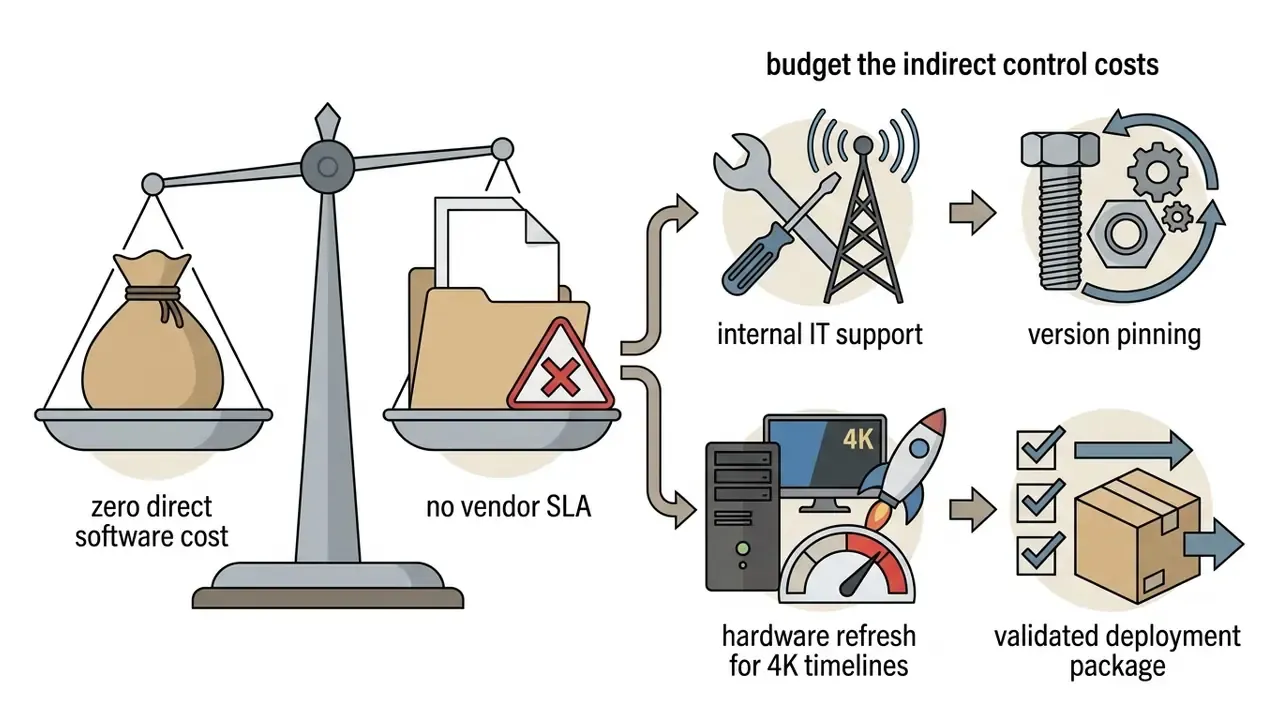
Zero license fee is not zero cost, and any honest business case should say so. In a regulated environment the spend simply moves from the vendor invoice to your own control layer.
| Cost line | Typical driver | Who owns it |
|---|---|---|
| Package validation and version pinning | One-time build, then a review per release | Endpoint engineering |
| Internal support and escalation | No vendor SLA; community channels only | Named internal owner |
| Hardware refresh | 4K and multi-layer timelines need the 16 GB profile | IT asset management |
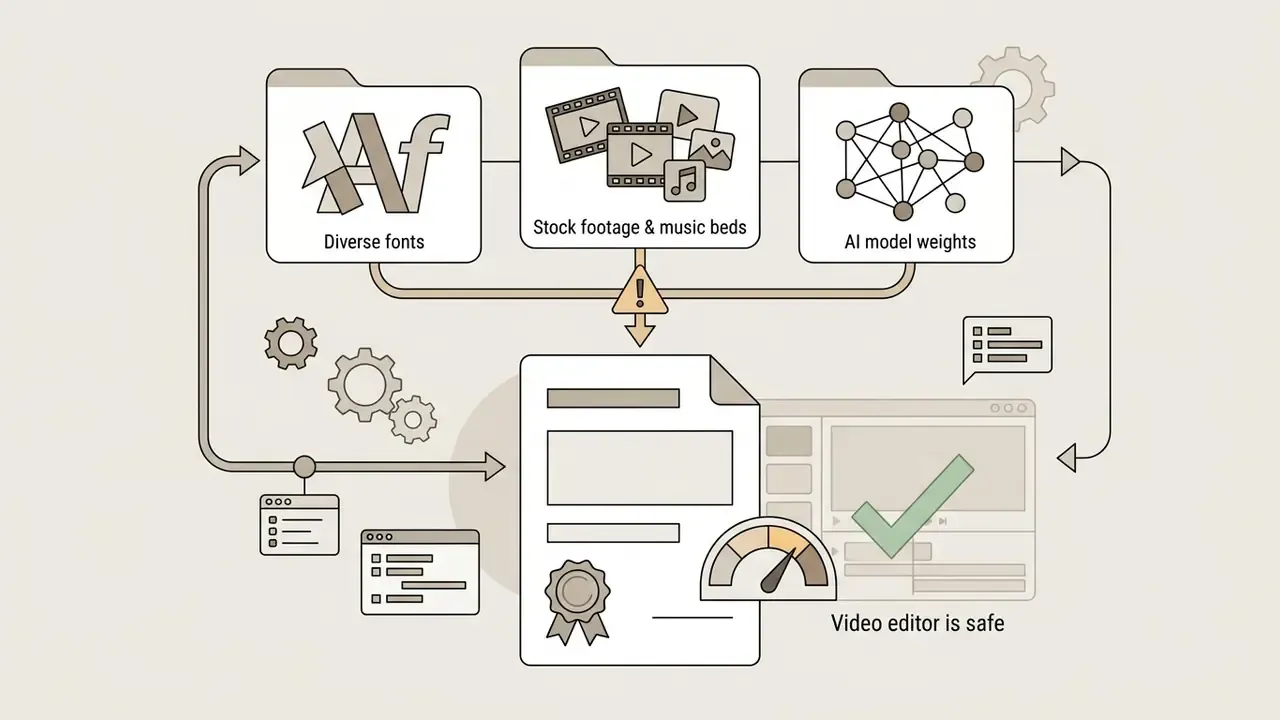
| Asset clearance | Fonts, music, stock media, AI model weights | Legal and brand |
| Egress and retention controls | Cache isolation, disk encryption, monitoring | Security operations |
None of these lines is exotic. They are the same controls you already apply to any locally installed utility. The point is to price them before someone claims the tool is "free," then discovers an unbudgeted font license in an audit sample.
What to Check Before Commercial Use of OpenShot
| Evaluation Metric | OpenShot Terms & Status | Commercial Workflow Implications | Primary Verification Source |
|---|---|---|---|
| Software Cost | 100% free; no subscriptions or per-seat fees | Zero direct software licensing expenditure for commercial production | Official Site & Documentation (OpenShot Studios, LLC, 2026) |
| License Type | GNU General Public License v3.0 or later (GPLv3+) | Free to use and distribute; internally modified source must respect GPL terms | libopenshot GitHub Repository & License File |
| Library License | libopenshot dual-licensed (LGPLv3 plus commercial option) | Enables commercial embedding scenarios for developer pipelines | libopenshot Licensing Section, 2026 |
| Export Watermarks | None; fully clean output files | Videos can be published, monetized, or sold without corporate branding | Official Support Portal (OpenShot Support, 2026) |
| Attribution | Not required for rendered output | No mandatory credit line in finished videos | OpenShot Support FAQ, 2026 |
| Output Copyright | Retained 100% by the creator | Full rights to sell, license, and sub-license finished media | libopenshot Licensing Section, 2026 |
| Asset Licensing | Third-party audio, fonts, and media not covered | Requires separate commercial clearance for every timeline media asset | External Vendor EULAs & Royalty Terms |
| System Support SLA | Community-driven; no default enterprise SLA | Operational teams handle internal technical support or arrange custom contracts | OpenShot Community & Issue Trackers |
Fact Check / Documentation Verification:
Enterprise Deployment & Security Checklist
Before OpenShot reaches a managed endpoint, run the following controls. This sequence addresses the two risks that matter most in a regulated environment: software supply chain integrity and uncontrolled data egress.
Checklist0 / 10
Verifying Installation Package Integrity (SHA256)
To confirm downloaded binaries are free from unauthorized modification, compute the installer's SHA256 checksum and compare it against official release logs:
- Windows (PowerShell)
Get-FileHash -Algorithm SHA256 .\OpenShot-v4.0.0-x86_64.exe - macOS (Terminal)
shasum -a 256 OpenShot-v4.0.0-x86_64.dmg - Linux (Terminal)
sha256sum OpenShot-v4.0.0-x86_64.AppImage
Compare the resulting 64-character hash with the cryptographic checksum published on the OpenShot developer repository or release page before execution. As a real-world reference point, the widely mirrored Windows build of OpenShot 4.0.0 (EXE, roughly 214 MB) is published with the SHA256 digest 0b06acf0d1b1c75a053dd34975be15202400aa3f1fa1de12d69894ce3e3fb3f2. Any mismatch between your computed hash and the published value means the file must be discarded and re-downloaded from the official source. Assume a modified binary, not a "corrupted download." That assumption is what keeps SecOps safe.
How to Download and Install OpenShot Video Editor
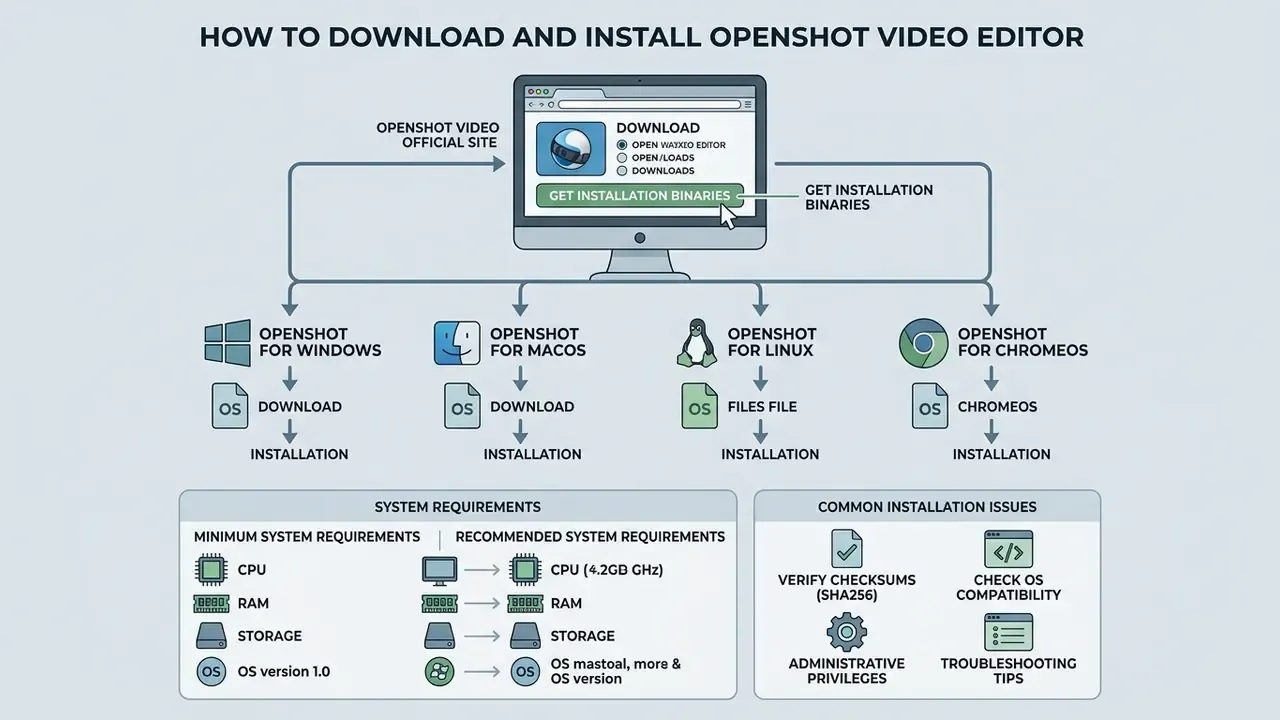
To download OpenShot Video Editor safely, fetch installation binaries exclusively from the OpenShot video editor official site. Installers pulled from unofficial third-party repositories create security risks and may introduce modified software binaries (OpenShot Installation Guide, 2026).
«The official download page provides verified builds for 64-bit systems; installing from third-party repositories introduces security risks.»
The official download page detects the host operating system automatically and serves verified stable builds for 64-bit systems. Users who need experimental capabilities or an unreleased bug fix can access daily builds, though stable releases remain the recommendation for production environments. When in doubt, check the version number on the OpenShot video editor official website against your software register.
OpenShot for Windows, macOS, Linux, and ChromeOS
OpenShot offers native cross-platform support across major operating systems, which keeps project file interchange consistent between machines:
- Windows Official 64-bit and legacy 32-bit executable installers (
.exe) are available. A portable installation mode runs via command-line arguments (/portable=1 /currentuser /noicons) for managed enterprise environments without administrative rights (OpenShot Support, 2026). Note: these flags apply to the Windows installer package only and have no macOS or Linux equivalents. - macOS Distributed as a signed Disk Image (
.dmg) bundle. Drag the OpenShot icon to the Applications folder and launch under standard Apple notarization rules. - Linux Supported through universal AppImage packages, official Debian and Ubuntu Personal Package Archives, and distribution package managers. The stable PPA installs with:
  sudo add-apt-repository ppa:openshot.developers/ppa
  sudo apt update
  sudo apt install openshot-qt python3-openshot
A separate daily PPA exists for testers and is explicitly described as highly experimental. Flatpak packages circulate in third-party guides but are not confirmed as an official distribution channel in OpenShot documentation.
- ChromeOS: Supported inside the Crostini Linux container environment via official installation shell scripts (ChromeOS 83+).
System Requirements and Common Installation Issues
Stable video editing depends on meeting minimum hardware thresholds, otherwise timeline scrubbing stutters and renders fail late (OpenShot System Requirements, OpenShot Studios, LLC, 2026):
- Minimum system requirements 64-bit OS (Windows 8+, macOS 10.15+, Linux, ChromeOS 83+); multi-core 64-bit CPU (2 cores, 4 threads, 2.7 GHz turbo); 4 GB RAM; 1 GB available storage.
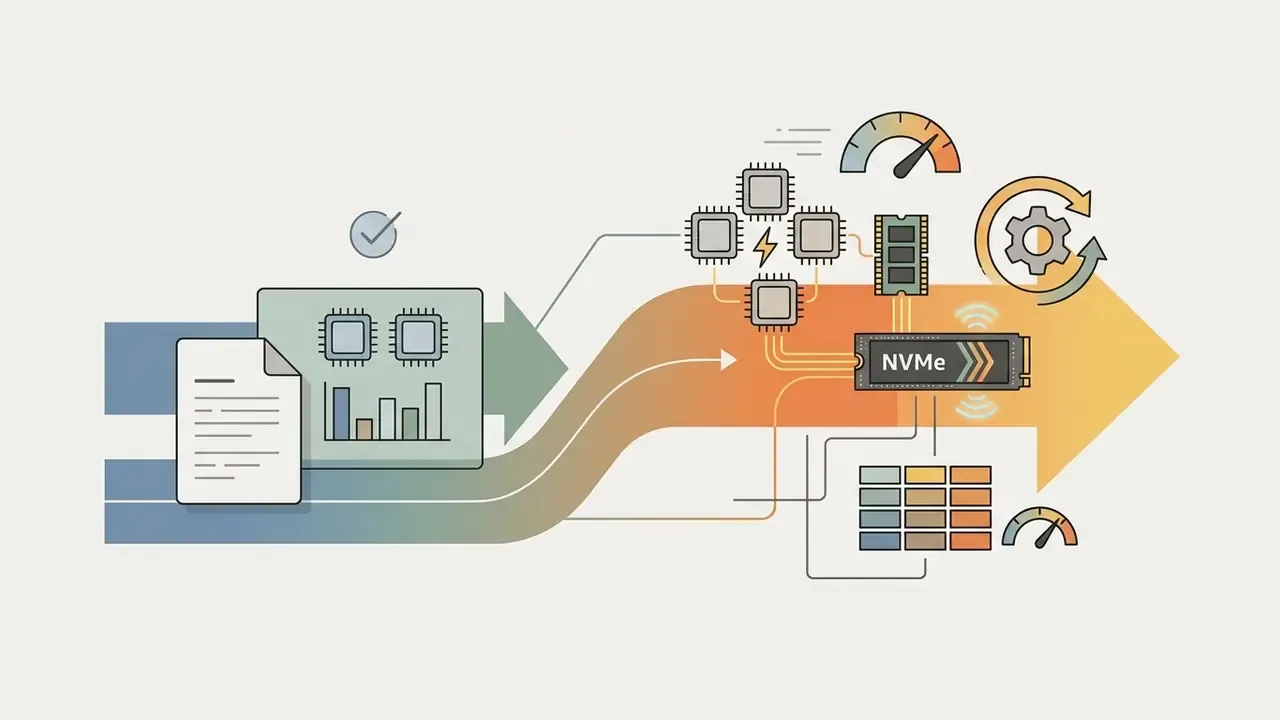
- Recommended system requirements multi-core CPU with 6+ cores, 6+ threads and 3.4+ GHz clock speed; 16 GB+ RAM; fast NVMe SSD storage with 50 GB+ allocated for media assets and an additional 10 GB when disk caching is enabled.
Note that CapCut's blog and similar secondary sources still quote "at least 2 GB of RAM" for OpenShot. That figure reflects much older releases. The current official support article specifies 4 GB as the floor, and 4K or multi-layer effect timelines realistically need the 16 GB profile.
Common installation issues include privilege restrictions on corporate PCs, missing GPU driver libraries during hardware acceleration setup, and custom install path mismatches on Windows. Installing OpenShot to its default system directory (C:\Program Files\OpenShot Video Editor\) resolves most Windows launch errors (OpenShot Troubleshooting Guide, 2026). If the application crashes or freezes on startup, official guidance is to test the latest daily build and see whether the defect is already patched. Teams comparing hardware demands across editors can consult our guide to free video editing software, and teams modelling deployment budgets can inspect our detailed AI Media Pricing Guides for enterprise software allocation models.
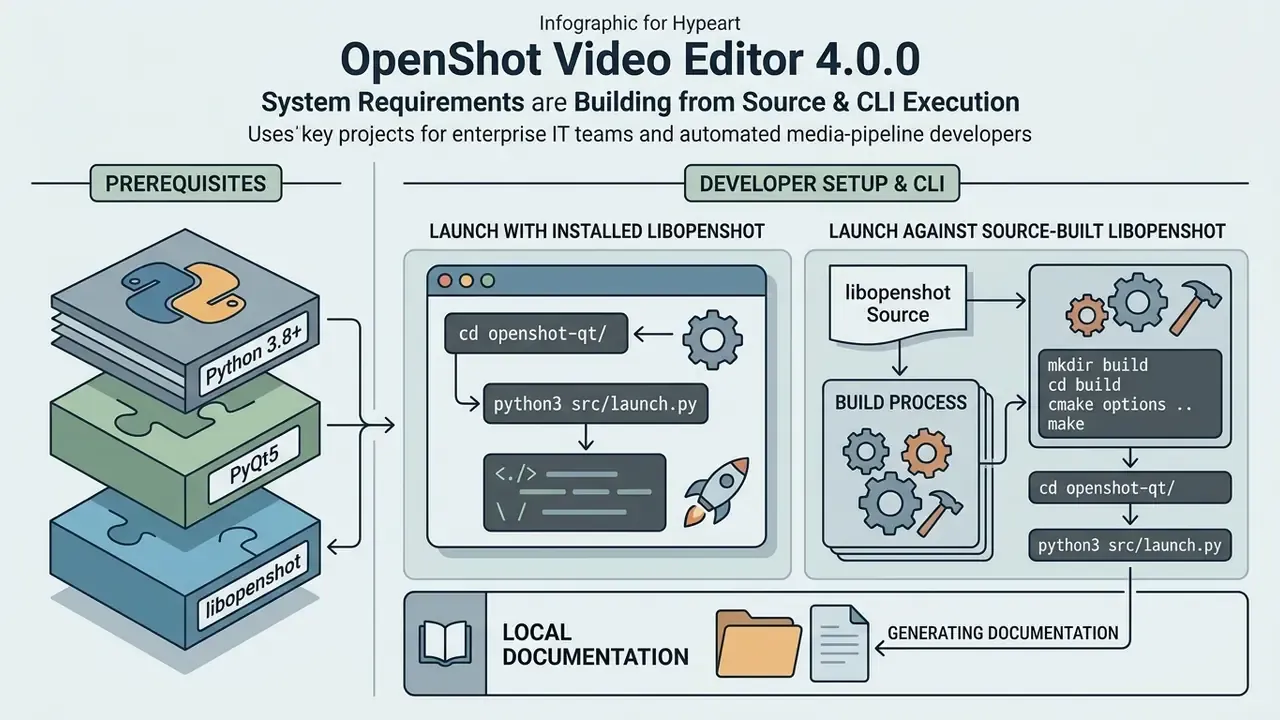
Developer Setup: Building from Source & CLI Execution
The OpenShot Interface: Project Structure and Timeline
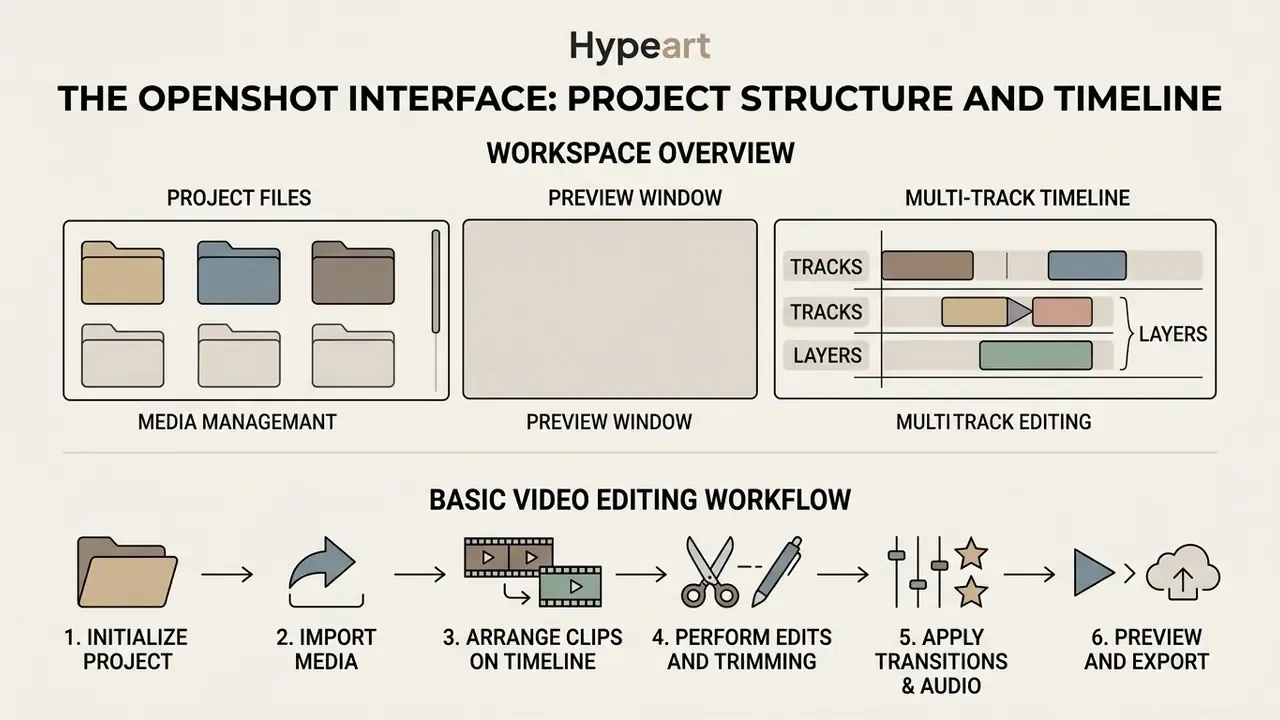
The OpenShot workspace is organized around a centralized non-linear editing interface with three main regions: the Project Files panel, the Preview Window, and the multi-track timeline.
An OpenShot project is saved as a single .osp JSON file holding clip settings, timeline coordinates, keyframe markers, and effect properties. Media assets are linked by file reference rather than embedded, which keeps project files small but demands consistent media directory management in the shared library. The practical consequence: moving or renaming source media after saving breaks the link, so shared network paths, not local desktops, should host assets in team environments.
Tracks, Layers, and Media Management
OpenShot uses an "infinite tracks" architecture, so users can add an unrestricted number of vertical tracks to the timeline (OpenShot User Guide 4.0.0, 2026). New projects open with five tracks by default. Tracks behave as visual layers: higher tracks render above lower tracks.
«Tracks function as visual layers: clips on higher tracks overlay those below, enabling multi-layer compositions with titles and overlays.»
Place a text overlay or transparent title on Track 5 and it sits above video footage on Track 4, while background music runs on Track 1. Media assets, including video files, audio tracks, still images, and vector SVG titles, are dragged from the media library straight onto any available track. This layered model is what enables watermarks, logo bugs, picture-in-picture insets, subtitle tracks fed from dedicated templates, and full compositing with alpha transparency.
Basic Video Editing Workflow in OpenShot
A basic assembly in OpenShot follows a structured editorial sequence. Each step has a visible expected result, which makes it easy to hand to a first-time contributor:
- Initialize the projectlaunch OpenShot Video Editor and select a target profile matching your resolution and frame rate (for example, 1080p 30 fps). More than 70 profiles ship with v4.0.0. Expected result: an empty timeline with the right frame geometry.
- Import mediadrag raw video, audio, and image assets into the Project Files panel, use
File → Import Files(Ctrl+ForCmd+F), or click the toolbar plus button. Expected result: thumbnails listed in the panel. - Arrange clips on the timelinedrag media onto tracks, positioning primary footage sequentially from left to right. Expected result: a continuous rough cut.
- Perform edits and trimmingtrim duration by dragging clip edges, or use the Razor/Blade tool (
Ctrl+K) to slice clips and remove unwanted segments. All edits are non-destructive; source files are never overwritten. - Apply transitions and audiooverlap adjacent clips on the same track to auto-generate blue transition blocks, or apply manual transitions and adjust audio volume properties. Expected result: no hard jumps between scenes.
- Preview and exportreview playback in the Preview Window, then open the Export Video dialog (
Ctrl+E) to render the final file (default: MP4 H.264 plus AAC).
Core OpenShot Features for Video Editing
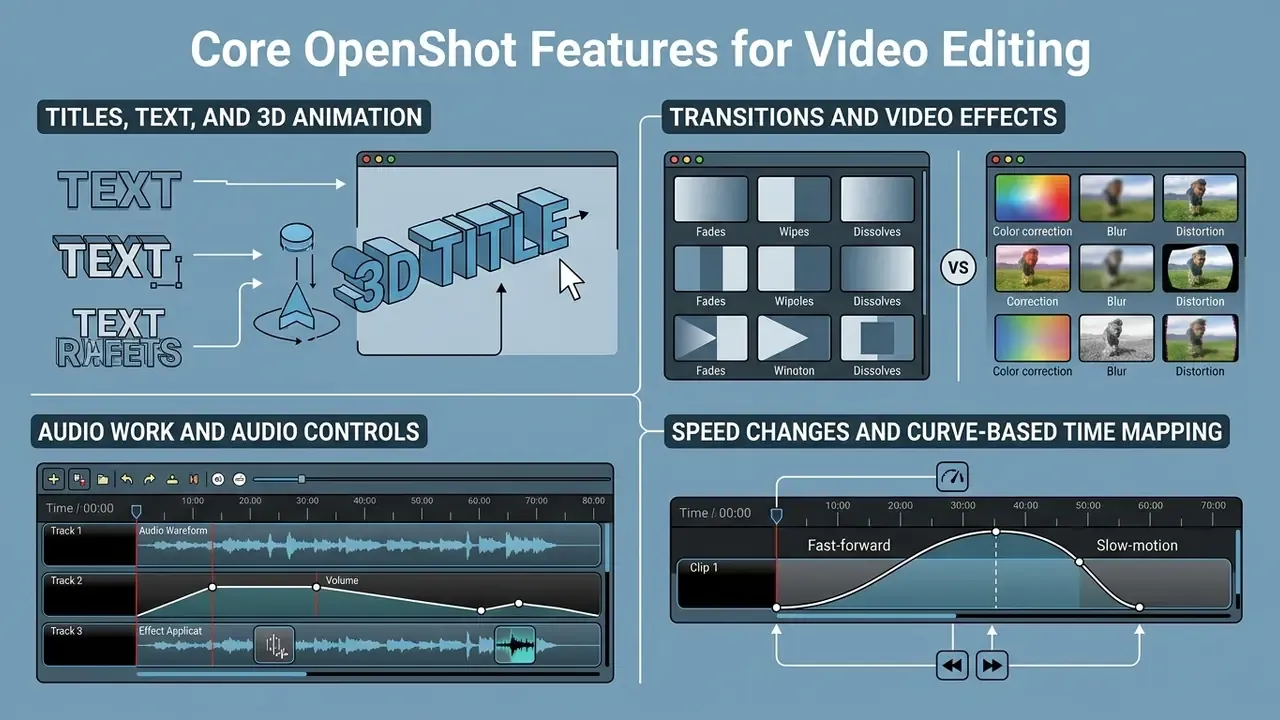
OpenShot ships a broad set of editing tools for video manipulation, visual polishing, and audio mixing. The underlying libopenshot engine handles real-time compositing, alpha channel transparency, multi-layer blending, and keyframe property animation (libopenshot Architecture Reference, 2026).
For creators building structured video channels, our guide to video editing workflows for YouTube adds comparative perspective on timeline efficiency and publishing steps.
Titles, Text, and 3D Animation
OpenShot handles lower-thirds and typographic overlays through a vector-based titling engine. Static text overlays are generated as SVG graphics from built-in templates, or customized in external vector software such as Inkscape. Text imported from an external program must carry an alpha channel, otherwise it composites over footage as an opaque rectangle.
For motion graphics, OpenShot includes integrated 3D animated titles powered by Blender (OpenShot Title Documentation, 2026). Launching the Animated Title dialog from the Title menu or with Ctrl+B lets users customize 3D text templates such as fly-by titles, glowing text, and animated lower-thirds.
«For 3D animation to work, Blender must be installed and configured; once rendered, 3D titles behave like ordinary video clips and are placed on the timeline.»
The configuration step is explicit: enter the path to the local Blender executable in OpenShot Preferences before the Animated Title renderer will run. A missing or wrong path is the single most common cause of "3D titles do nothing" support tickets.
Transitions, Video Effects, and Audio Work
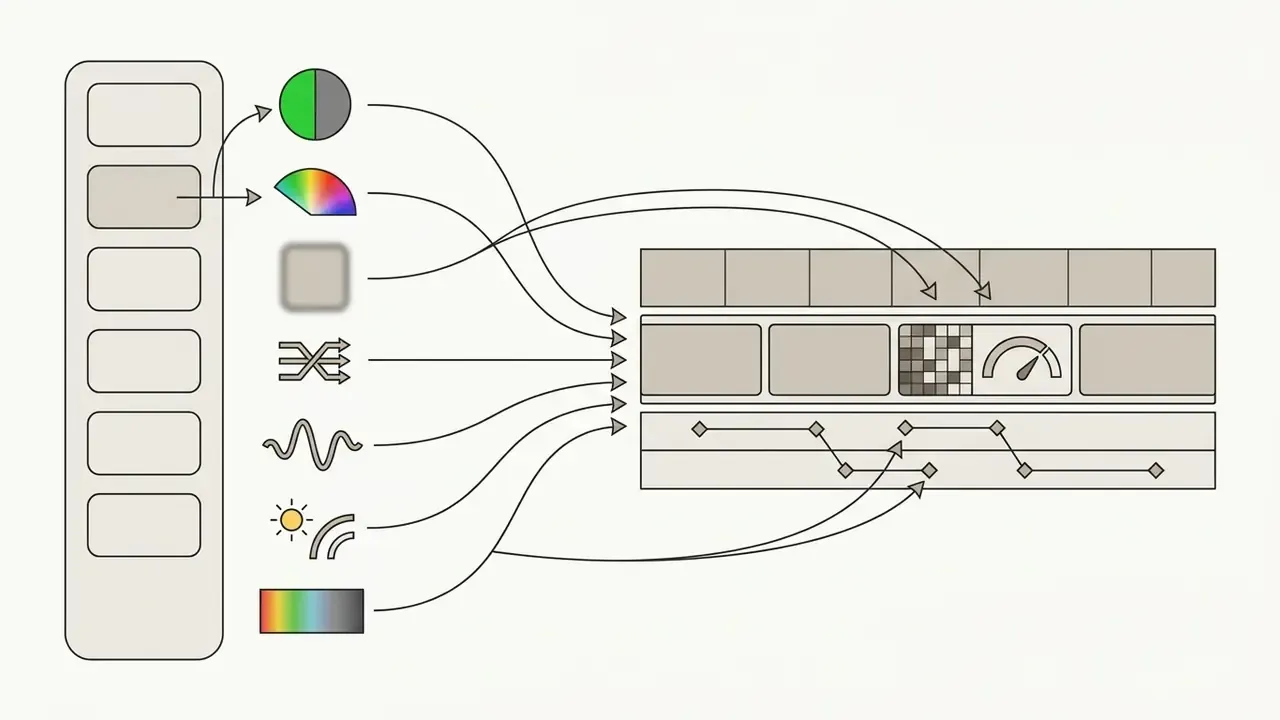
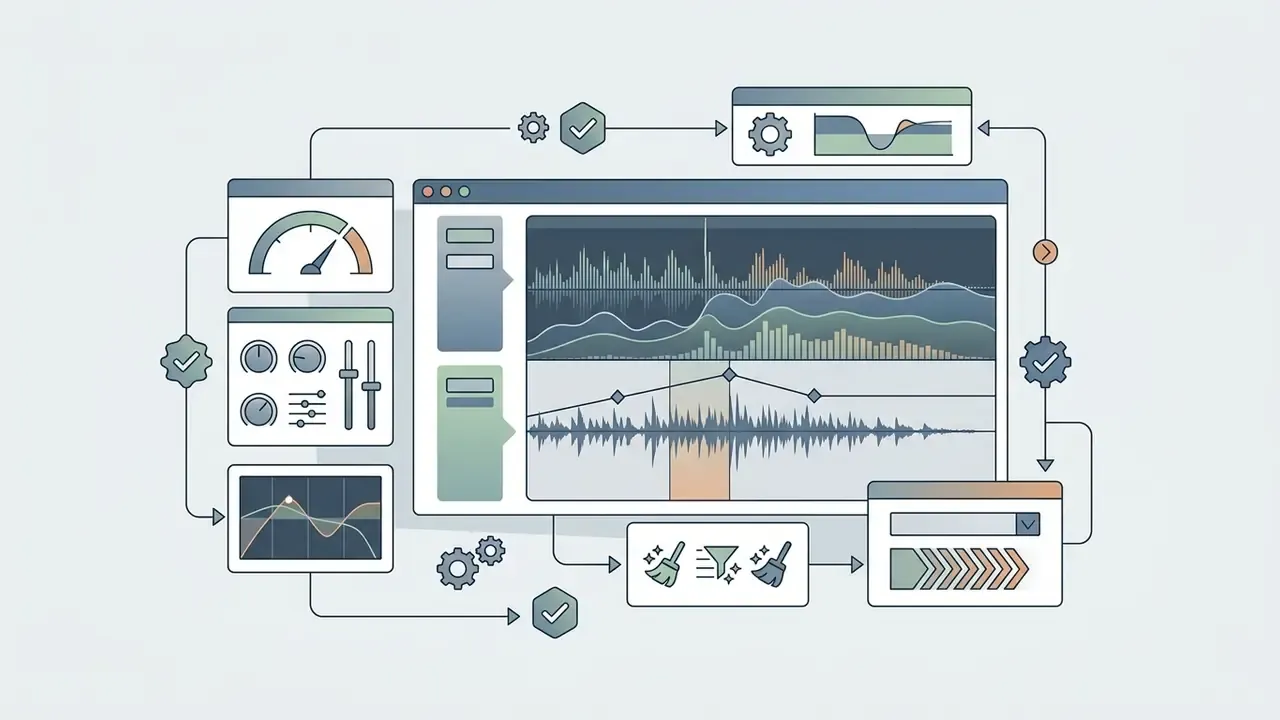
OpenShot includes over 400 built-in transition patterns and, in version 4.0.0, 43 individual effect filters: 34 video effects and 9 audio effects (Effects, OpenShot Video Editor 4.0.0 documentation, OpenShot Studios, LLC, 2026, https://www.openshot.org/static/files/user-guide/effects.html). Older documentation and secondary reviews still cite 18 video effects or 27 effects in total; those counts reflect pre-4.0 releases, and the 2026 documentation supersedes them. The 4.0 release added ten new effects along with color wheels, curves, LUT support, and scopes.
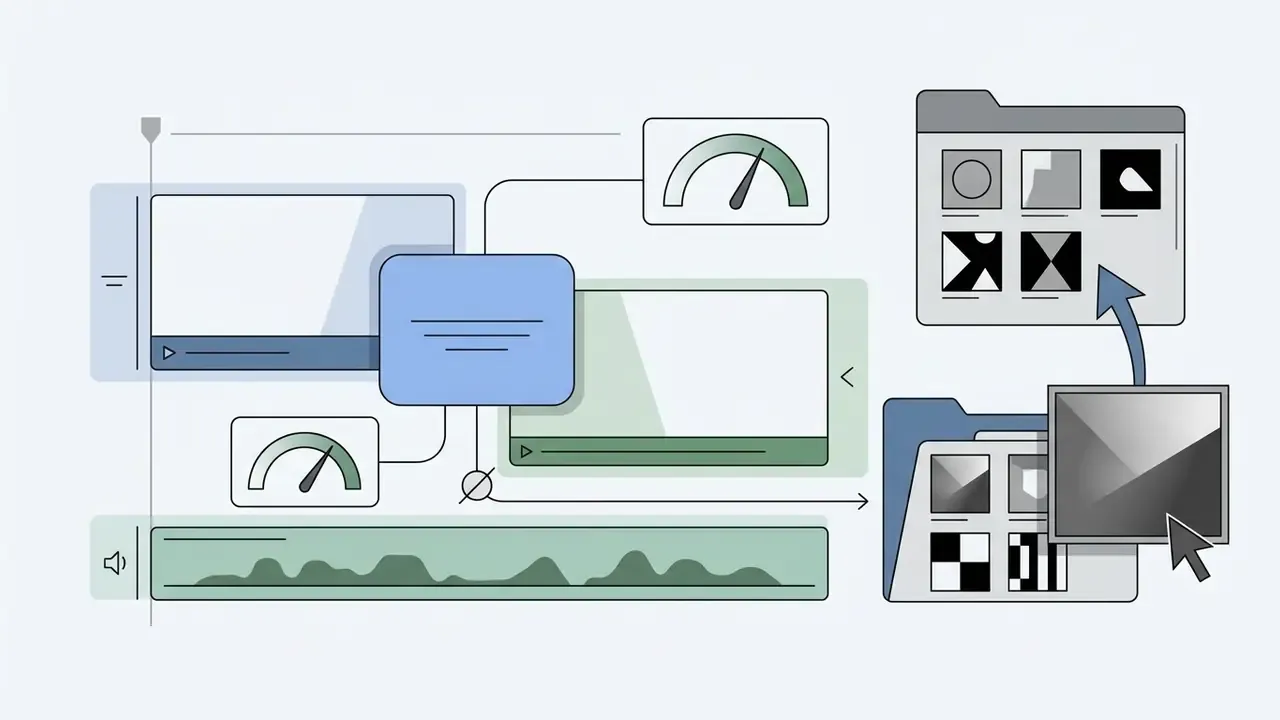
Speed Changes and Curve-Based Time Mapping
Time remapping is controlled through the Time keyframe property curve, which enables non-linear playback acceleration, slow motion, freezes, freeze-and-zoom, loops, ping-pong playback, and direction reversal. Presets cover automated speed changes (1/2x, 1/4x, 2x, 4x forward or backward), and the Timing toolbar produces the same result by dragging clip edges, after which OpenShot inserts time keyframes and rescales the others automatically.
Manual curve-based time mapping allows smooth speed ramping inside a single clip. Because keyframe values represent frame numbers at given timeline timestamps, setting an ending frame index lower than the starting index reverses playback smoothly. A start value of 300 paired with an end value of 1 plays the clip backward.
AI Features & Data Privacy Audit
Version 4.0.0 introduced AI-assisted tooling that changes the governance profile of the application, so it deserves separate treatment rather than one bullet in a feature list.
What the AI layer does. Documented capabilities include object tracking, object detection, AI-powered masks, video stabilization, and speech transcription with automatic caption generation (OpenShot 4.0 release announcement and User Guide, 2026).
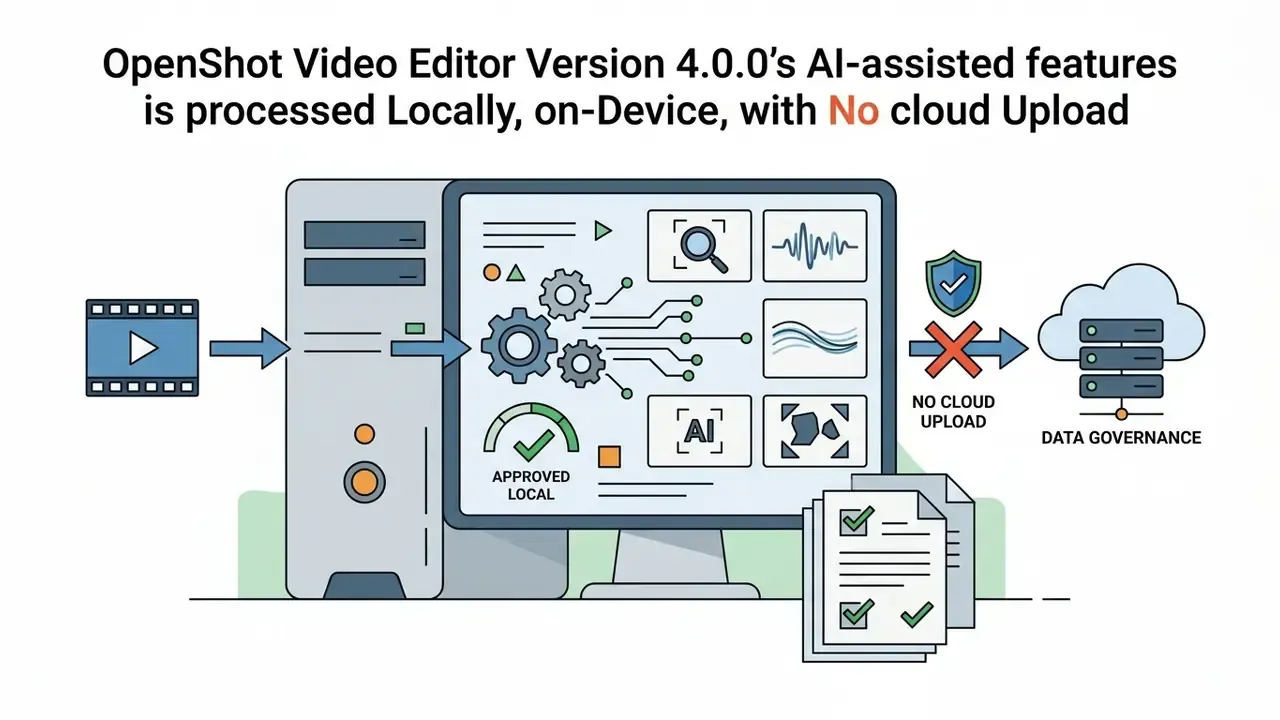
Processing location. Official feature descriptions characterize these as local, on-device capabilities. The release material describes "local AI-powered masks," and no cloud upload, API key, or account sign-in step appears in the documented workflow for tracking, detection, stabilization, or transcription. Practically, confidential footage does not need to leave the workstation to be captioned or tracked, which is often the decisive factor for banks, healthcare organizations, and public-sector teams.
Verification steps before processing sensitive footage. Documentation statements are a starting point, not an assurance. Run this three-step validation on your own build:
- Network observationprocess a short sample clip through transcription and object tracking with an outbound connection monitor, or on a temporarily air-gapped machine, and confirm no media-sized egress occurs.
- Model provenancerecord which model weights or bundled libraries the build ships with, note their individual licenses, and add them to the third-party asset register described earlier. AI model licenses are separate from the GPLv3 application license.
- Retention checkconfirm where intermediate artifacts (cache files, transcript text, mask data) are written, and include those directories in your standard endpoint retention and wipe policy.
Formats, Export, and Performance in OpenShot
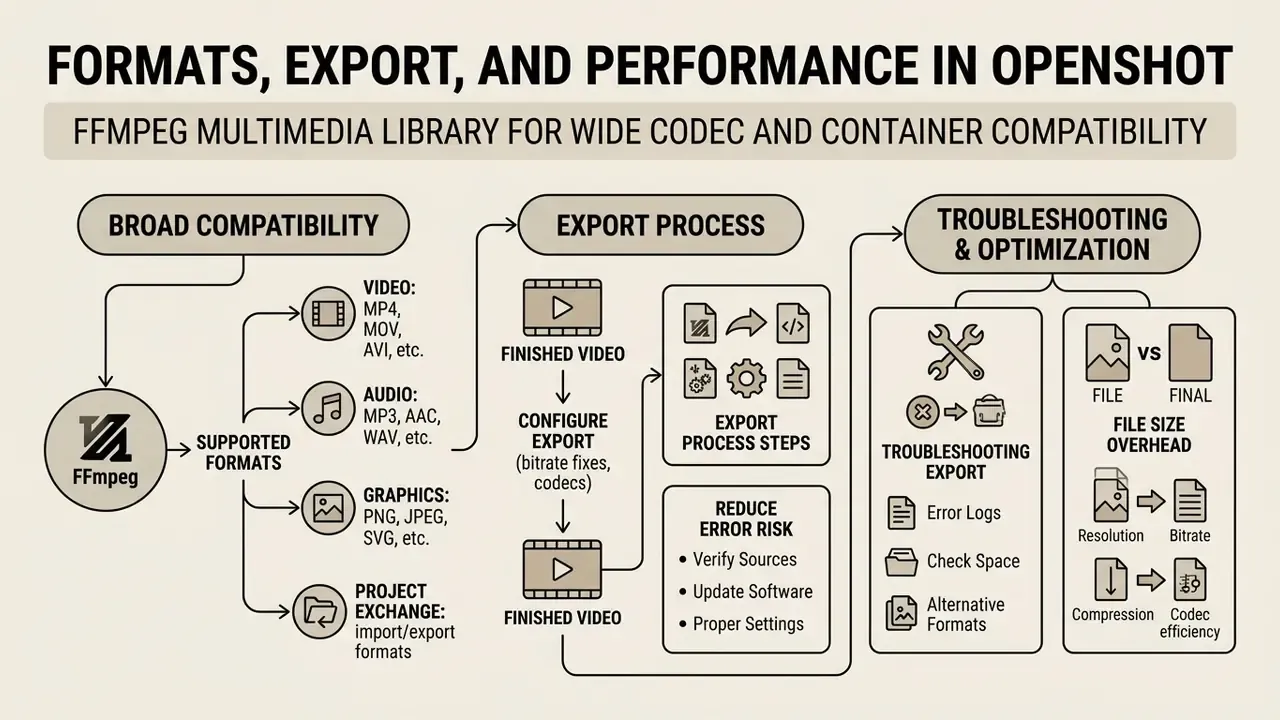
OpenShot relies on the FFmpeg multimedia library for broad container and codec compatibility. That architecture lets the editor import, process, and render virtually any video, audio, or image format FFmpeg supports, with no preliminary transcoding (OpenShot Export Reference, 2026).
«OpenShot supports WebM (VP9), AVCHD (H.264), and HEVC (H.265), with resolutions up to 16K Ultra HD, drawing on FFmpeg's broad codec base.»
Supported Video, Audio, and Graphic Formats
OpenShot works as a source video editor across a wide media matrix:
- Video codecs and containers MP4 (H.264, HEVC/H.265), MOV, AVI, WebM (VP9), MKV, MPEG-2, Ogg Theora, and AVCHD, with export profiles up to 16K Ultra HD.
- Audio codecs AAC, MP3, WAV, Vorbis, FLAC, and AC3.
- Graphic formats PNG (with full alpha transparency), JPEG, BMP, GIF, and vector SVG; 2D animation is supported through image sequences.
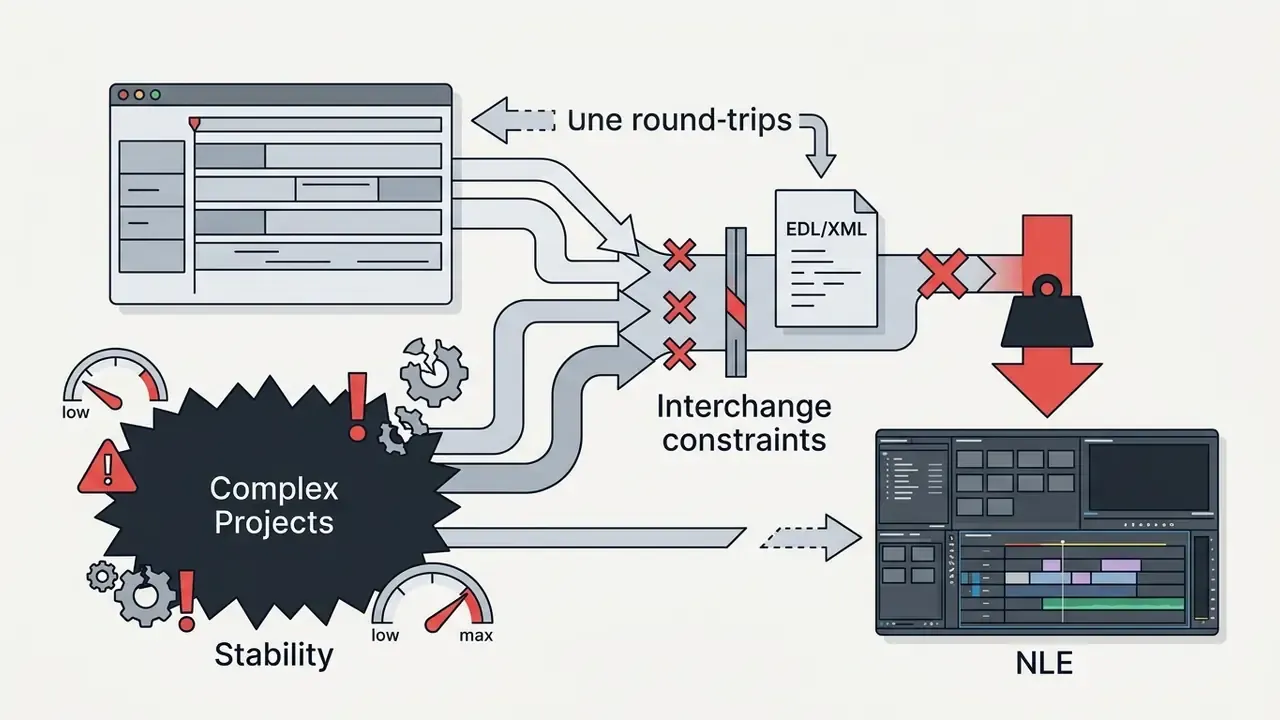
- Project exchange timeline export and import compatibility with EDL (CMX-3600) and XML (Final Cut Pro format). Note the documented constraint: only a single track can be imported at a time through EDL or XML interchange, so round-tripping complex multi-track sequences between suites requires manual reassembly.
How to Export the Finished Video and Reduce Error Risk
Rendering a finished project runs through the Export Video dialog (
File → Export Video,Ctrl+E, or the Export toolbar icon). OpenShot defaults to an MP4 container with H.264 video and AAC audio, which maximizes playback compatibility across web platforms and devices. Export defaults inherit the parent project's width, height, FPS, sample rate, channels, and channel layout.Reference pattern for high-bitrate screen-capture projects. In executive media reporting work built from long screen recordings, timeline lag and export bottlenecks on standard workstations are a recurring pattern. The corrective sequence is consistent: enable GPU hardware acceleration where the driver supports it, match export profile dimensions and frame rate to the source footage, and split multi-hour timelines into shorter sub-projects rendered separately and joined afterwards. OpenShot's own release notes attribute a 20 to 30% performance improvement to hardware acceleration, and up to 30 to 40% in the 2.5.0 announcement, "depending on input and output formats and GPU support." That is the range teams should plan against. Earlier drafts of this guide cited a specific 35% figure from an unattributed internal case; that number is not independently verifiable and has been replaced with the vendor-published range.
To keep exports stable and avoid visual distortion:
- Match profile dimensions: ensure export resolution, aspect ratio, and frame rate match the project editing profile, otherwise you get black bars or stretched geometry (OpenShot User Guide, 2026).
- Verify hardware acceleration: hardware-accelerated encoding targets (NVENC, VA-API, QSV, VideoToolbox, DirectX) require compatible GPU drivers, and OpenShot's documentation still labels hardware acceleration as experimental. Older GPUs may render slower than the CPU path.
«If no hardware encoder is available or export fails, fall back to the software MP4 encoder (H.264 + AAC) based on libx264.» — OpenShot Export Reference Documentation, OpenShot Studios LLC (2026). https://www.openshot.org/user-guide/
- Manage resource limits: for complex timelines with high effect density, export in smaller sequential segments to reduce memory pressure.
- Isolate repeat failures: if the render crashes at the same timestamp on every attempt, the cause is a specific clip or effect at that point on the timeline, not a general export fault. Delete, re-import, or re-apply the effect on that segment, then re-render.
Troubleshooting Export File Size Overhead
Default render presets in OpenShot sometimes generate bloated files because the target bitrate is unconstrained. This is one of the most persistent real-world complaints about the editor. A user review on Uptodown puts it bluntly: "Easy to use. CONS: Huge 600MB for a 5min MP4 720p." A 5-minute 720p clip should land in the 60 to 110 MB range, not above half a gigabyte.
To optimize file size without sacrificing visual fidelity:
- Open
File → Export Videoand select the Advanced tab. - Under Video Settings, change the Bit Rate / Quality parameter from fixed maximum values to a targeted range.
- Cap the audio profile at 192 kbps AAC rather than an uncompressed PCM stream target.
- Re-render a 30-second test segment first and inspect the resulting size before committing to the full timeline.
| Target output | Recommended video bitrate | Audio | Expected size per 5 min |
|---|---|---|---|
| 720p H.264 (internal/training) | 2.0 to 3.0 Mbps | 128 to 192 kbps AAC | about 75 to 110 MB |
| 1080p H.264 (web/YouTube) | 2.5 to 5.0 Mbps | 192 kbps AAC | about 95 to 190 MB |
| 1080p60 H.264 (screen capture) | 5.0 to 8.0 Mbps | 192 kbps AAC | about 190 to 300 MB |
| 4K H.264/HEVC (archive master) | 25 to 45 Mbps | 192 to 256 kbps AAC | about 0.9 to 1.7 GB |
If output must shrink further after rendering, for email, LMS upload caps, or intranet portals, a dedicated compression pass is usually more efficient than a second full re-render. Our reference on video compressors and file-size reduction covers the trade-offs between bitrate reduction and visible quality loss. For rendering-time and storage estimates, our AI Media Calculators provide working models.
Pros and Cons of OpenShot Video Editor
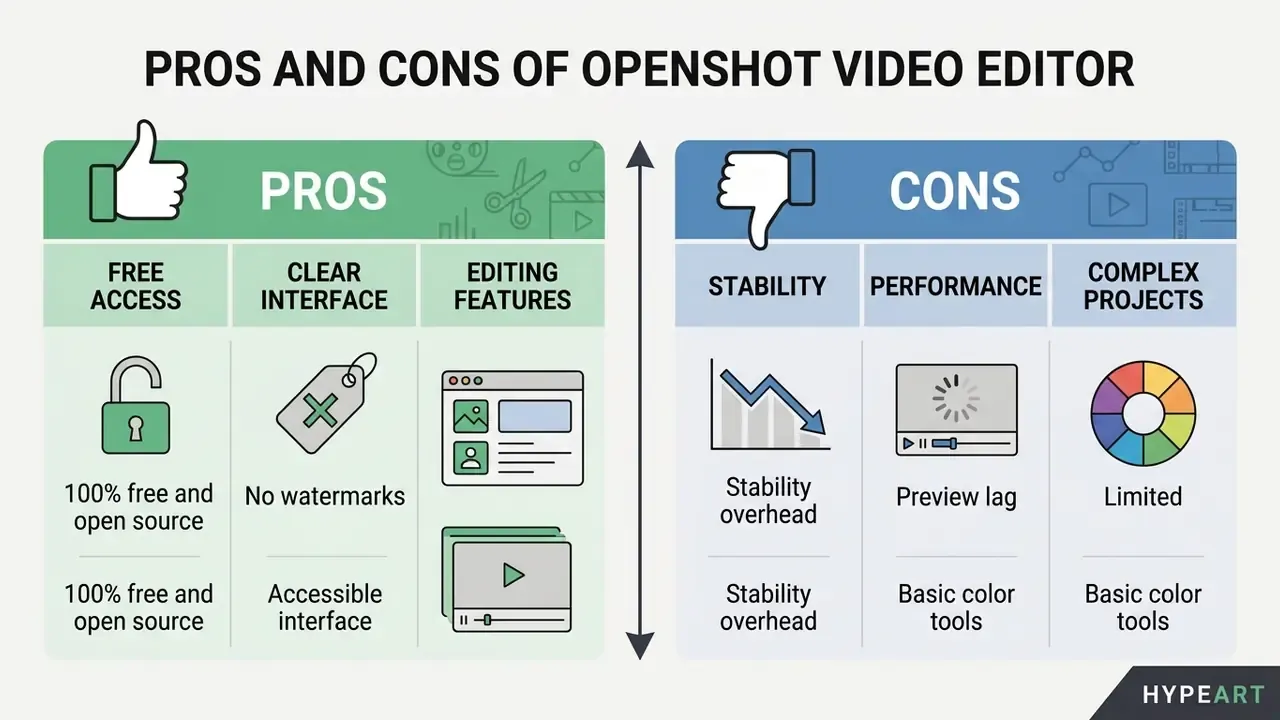
Evaluating OpenShot means balancing its zero-cost accessibility against operational constraints on dense commercial timelines. Reviews split fairly predictably along that line.
Advantages: Free Access, Clear Interface, and Editing Features
OpenShot performs well as an easy, multi-platform free video editor:
- 100% free and open source no subscription costs, trial expiration, or paywalled features.
- No watermarks exported videos are completely clean and commercially usable without forced branding or attribution.
- Accessible interface clean UI layout with an immediate built-in tutorial for fast onboarding, plus a Standard and Advanced view switch that scales complexity to the user.
«On GetApp, users in 2024 rated OpenShot 10/10, 9/10, and 8/10 on "likelihood to recommend," praising value for money.»
Software Advice similarly records 4.4/5 for ease of use and 4.5/5 for value for money in 2026 aggregate ratings.
- Rich, powerful feature set: unlimited timeline tracks, vector titling, 3D animations via Blender, curve-based time remapping, colour wheels, curves and LUTs with scopes, and built-in screen, webcam, microphone and system-audio recording.
- Multi-language support: localized into over 100 languages per the official user guide's "Translations (100+ languages)" listing, with community translation open to anyone through LaunchPad, no coding required.
- Non-destructive editing: source media is never modified, which simplifies asset retention and audit trails.
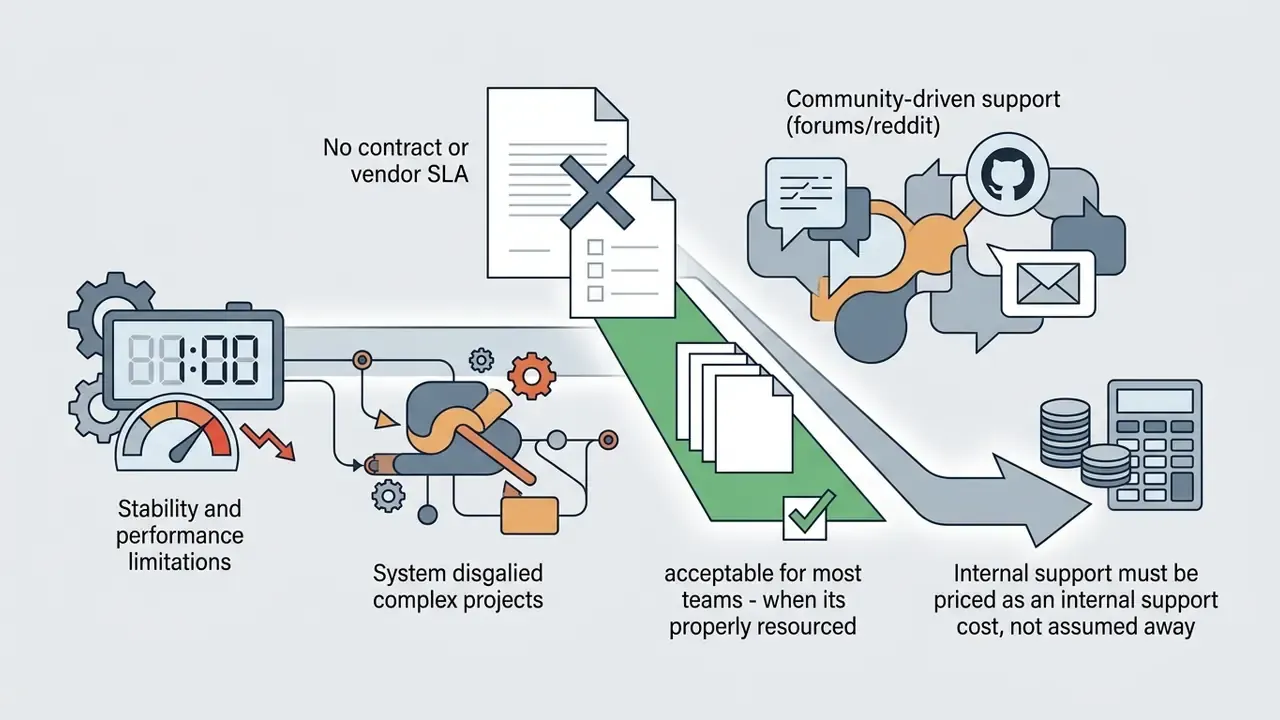
Limitations: Stability, Performance, and Complex Projects
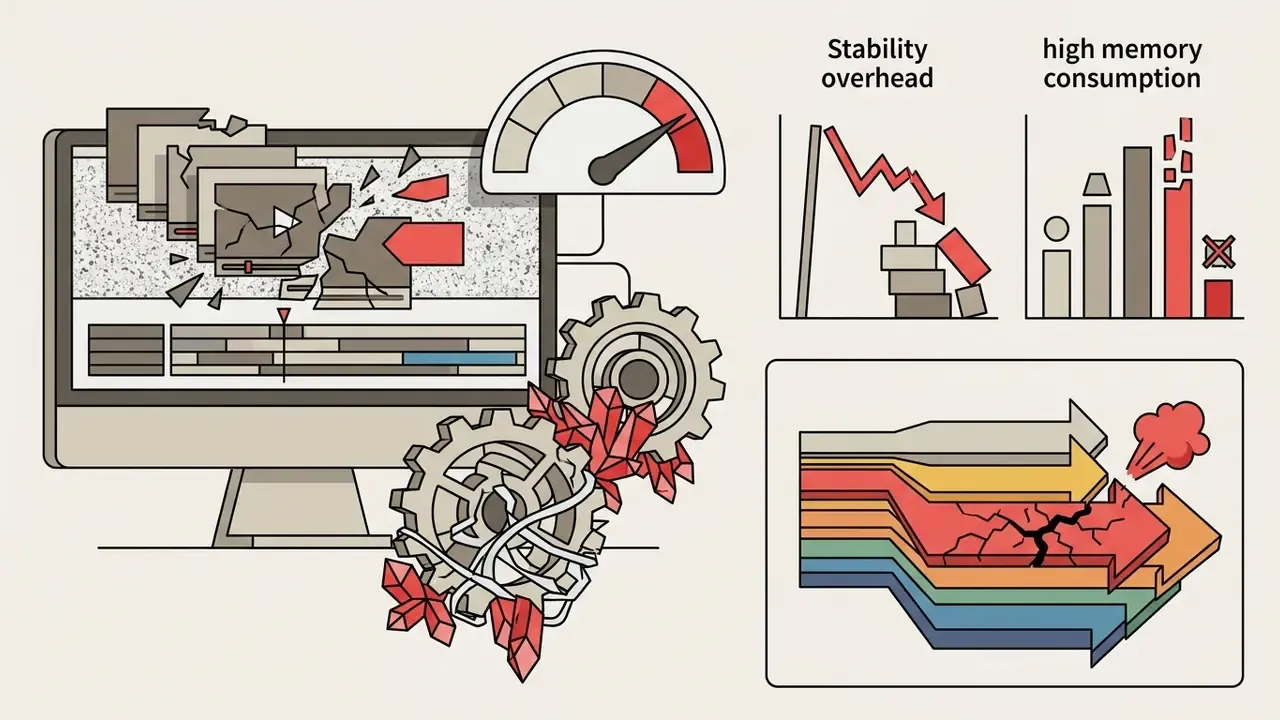
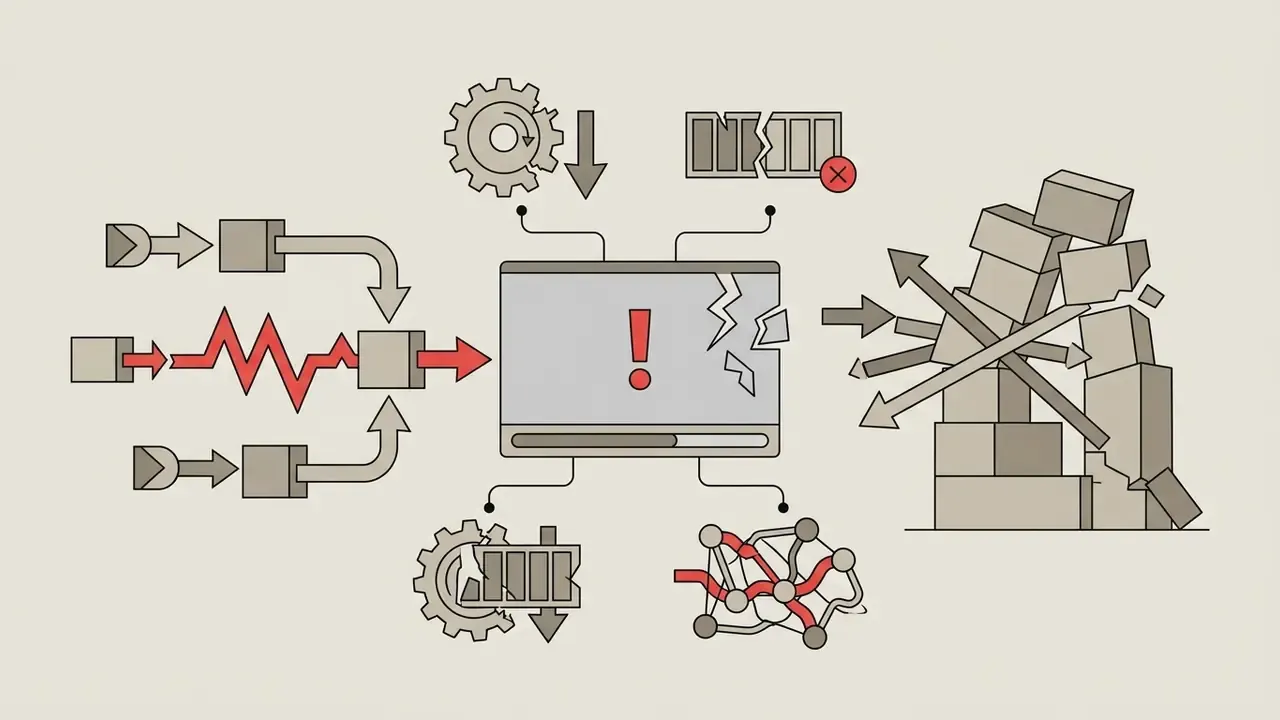
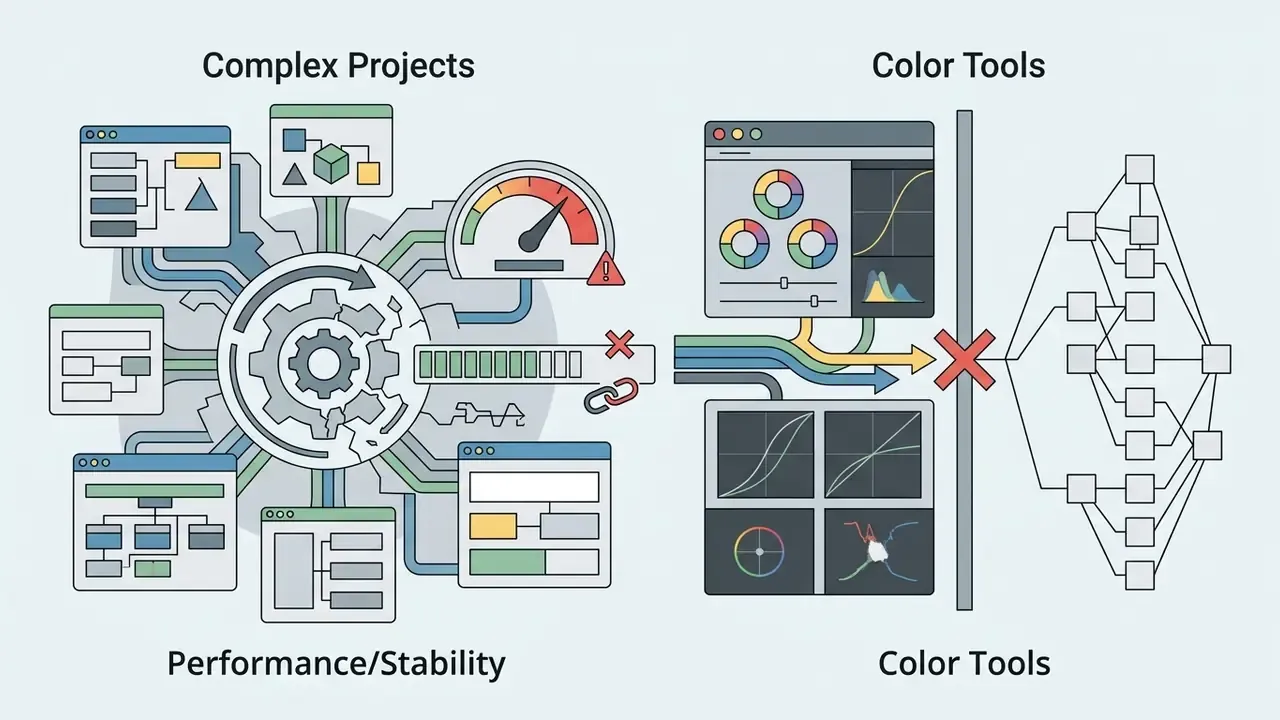
The constraints show up fastest on lower-tier hardware and highly complex projects:
| Assessment Category | OpenShot Advantages | Operational Constraints | Target Audience Impact |
|---|---|---|---|
| Pricing & Rights | Free GPLv3 license; clean commercial output | No vendor SLA or dedicated enterprise support | Ideal for budget-conscious teams; requires internal IT support |
| Usability & UX | Minimal learning curve; drag-and-drop workflow; Standard and Advanced views | Classic UI styling; fewer layout customization options | Highly accessible for beginners and casual editors |
| Editing Capabilities | Multi-track layering, keyframes, 3D titles, built-in recording | Limited advanced color grading; no multi-cam suite | Excellent for short-form media; limited for feature films |
| Performance | Cross-platform flexibility; GPU encoding (experimental) | Resource-heavy preview rendering on complex projects | Requires recommended hardware specs for heavy 4K timelines |
| Governance | Local AI processing; no account or cloud dependency | No DPA; model provenance must be logged internally | Suitable for regulated teams that can enforce endpoint policy |
Alternatives to OpenShot: Shotcut, Kdenlive, DaVinci Resolve, and Blender
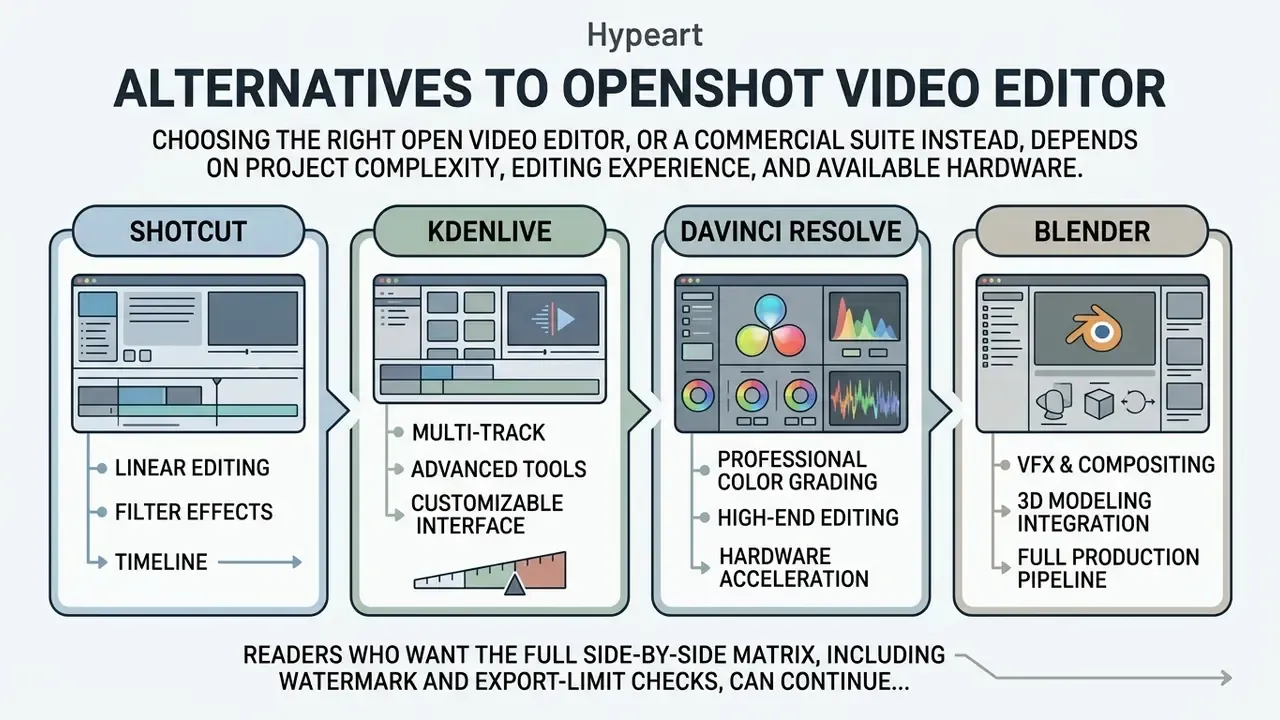
Choosing the right open video editor, or a commercial suite instead, depends on project complexity, editing experience, and available hardware.
«Shotcut is a free, open-source editor built on the MLT Framework under a GPL-3.0 license; the stable 26.8.1 release is dated August 1, 2026.»
Shotcut's differentiators over OpenShot are native FFmpeg editing without import conversion, mixed resolutions and frame rates on one timeline, frame-accurate seeking, 10-bit colour, and LUT support. The table below compares OpenShot with leading free open source video editing software and professional alternatives.
| Feature / Metric | OpenShot Video Editor | Shotcut | Kdenlive | DaVinci Resolve | Blender (VSE) |
|---|---|---|---|---|---|
| License Type | Open Source (GPLv3+) | Open Source (GPL-3.0) | Open Source (GPL-3.0) | Proprietary (Freemium) | Open Source (GPLv2+) |
| Platform Support | Win, macOS, Linux, ChromeOS | Win 10/11, macOS, Linux, FreeBSD | Linux, Win, macOS | Win, macOS, Linux | Win, macOS, Linux |
| Ease of Learning | Very high (beginner) | Moderate (intermediate) | Moderate (intermediate) | Low (professional) | Low (technical) |
| Core Strengths | Simple UI, unlimited tracks, 3D titles, built-in recording | Native FFmpeg editing, 10-bit color, LUTs, mixed timelines | Multi-cam, proxy editing, speech-to-text, keyable effects | Industry-standard color, Fairlight audio, Fusion VFX | Integrated 3D modeling, animation, compositing pipeline |
| Min. RAM Spec | 4 GB (16 GB rec.) | 4 GB SD / 8 GB HD / 16 GB 4K | 4 GB (16 GB rec.); OpenGL 2.0 GPU | 16 GB (32 GB rec.) | 8 GB (32 GB rec.) |
| Best For | Training, internal comms, short-form social | Format-heavy edits, mixed-source timelines | Multitrack projects, subtitling, proxy workflows | Full post-production stacks | 3D and VFX-driven video |
Source note: parameters above are drawn from each project's official documentation, release notes, and system-requirement pages as published in 2026. Where a vendor publishes ranges rather than fixed figures, the range is reproduced.
«Kdenlive positions itself as a "powerful, free and open-source video editor," built on the MLT Framework using Qt and KDE Frameworks 6.»
Next Steps for Enterprise Adoption
No evidence, no autonomy. The same principle applies to a video utility: an approved owner, a pinned build, and a documented test result before it touches regulated material.
- Run a two-week pilotwith three to five editors on the exact hardware profile you intend to standardize, using real project footage rather than sample clips.
- Lock a version and a hash.Record the release number and SHA256 digest in your software asset register, then distribute that single validated package.
- Publish a one-page export standardnaming container, codec, bitrate ceiling, and audio profile per output type. This closes the file-size defect permanently.
- Stand up the asset registerfor fonts, music, stock media, and AI model weights, with license type and permitted use recorded before first use.
- Complete the AI verification stepsin the governance section before any confidential footage is transcribed or tracked.
- Assign an internal support owner.With no vendor SLA, one named person maintaining the build, the docs mirror (
cd doc && make html), and the escalation path to GitHub issues is the whole support model. - Formalize the software policy entryapproved use cases, prohibited use cases (unreviewed third-party plugins, for example), and the annual re-review date.
FAQ About OpenShot Video Editor
Is OpenShot really free for commercial use?
Yes. OpenShot's official support documentation states the editor may be used for personal, commercial, educational, governmental, and religious purposes with no limitations or restrictions, at no cost, with no watermarks and no attribution requirement. The obligations of GPLv3 concern redistribution of the software itself, not the videos you render with it.
Where to find tutorials and documentation for OpenShot
Official documentation, quick-start tutorials, and user manuals are hosted directly on the OpenShot platform at openshot.org/user-guide/ (OpenShot User Guide, 2026). The user guide covers interface navigation, clip trimming, effect keyframing, and export settings, and a downloadable PDF manual is published on OpenShot's CDN. Community assistance and bug reporting run through the official Reddit community and GitHub issue trackers, with ticket and email support for professional queries.
«Institutional university guides describe OpenShot as an editor with a "simple interface," available on Mac and Windows, with step-by-step download and installation instructions.» — University Teaching & Learning Center Quick Guides (2026). https://www.openshot.org/user-guide/ For creators expanding into voiceover production, our guide to AI voice generators adds workflow detail on voice quality, language coverage, and commercial licensing. Setup problems that survive the troubleshooting steps above can be escalated through AI Media Support and Troubleshooting.
When you might need to install older versions
Users sometimes need older versions from the official OpenShot download archive: legacy project compatibility, older 32-bit operating systems, or a platform-specific regression. Because newer .osp project files may use updated effect definitions that legacy builds cannot parse, matching the version across production workstations prevents render errors, whether the team calls the tool an OpenShot editor de video or simply "the free one." Release notes show why pinning matters: 3.3.0 fixed Windows 11 24H2 audio sync and preferences, Linux colour-picker behaviour, export profile dropdowns, and FFmpeg compatibility, while 3.0 expanded codec support and duration detection.
«Older versions are available in the official archive; select a version number and locate the download links at the bottom of the release-notes page.» — OpenShot Installation Archive, OpenShot Studios LLC (2026). https://www.openshot.org/download/
Why is my exported file so large?
Because the default preset does not always constrain the target bitrate. Open File → Export Video → Advanced, set the video bitrate to a targeted value (2.5 to 5 Mbps for 1080p H.264), and cap audio at 192 kbps AAC. See the bitrate table above for per-resolution targets.
Can I run OpenShot without administrator rights?
Yes, on Windows, using portable mode via the installer arguments /portable=1 /currentuser /noicons. These flags are specific to the Windows installer. On Linux the equivalent approach is the AppImage, which runs from a user-writable directory.
Does OpenShot send my footage to the cloud?
No cloud processing step is documented for its editing or AI features. Transcription, tracking, detection, stabilization, and masks are described as local. Confirm on your own build with the network-observation procedure in the governance section before processing confidential material.
Is paid support available for regulated teams?
Not as a standard product tier. OpenShot Studios offers commercial licensing options around libopenshot and responds to professional queries through ticket and email channels, but no default enterprise SLA is published. Treat support as an internal capability, and if a contractual SLA is mandatory, that requirement alone may push you toward a proprietary suite.
Can OpenShot handle multi-cam interview edits?
Only manually. There is no dedicated multi-cam sync module, so editors align angles by waveform on separate tracks and cut between them. For frequent multi-cam work, Kdenlive or DaVinci Resolve is the better fit, and the comparison table above shows why.
Appendix A: Editorial Corrections and Verification Notes
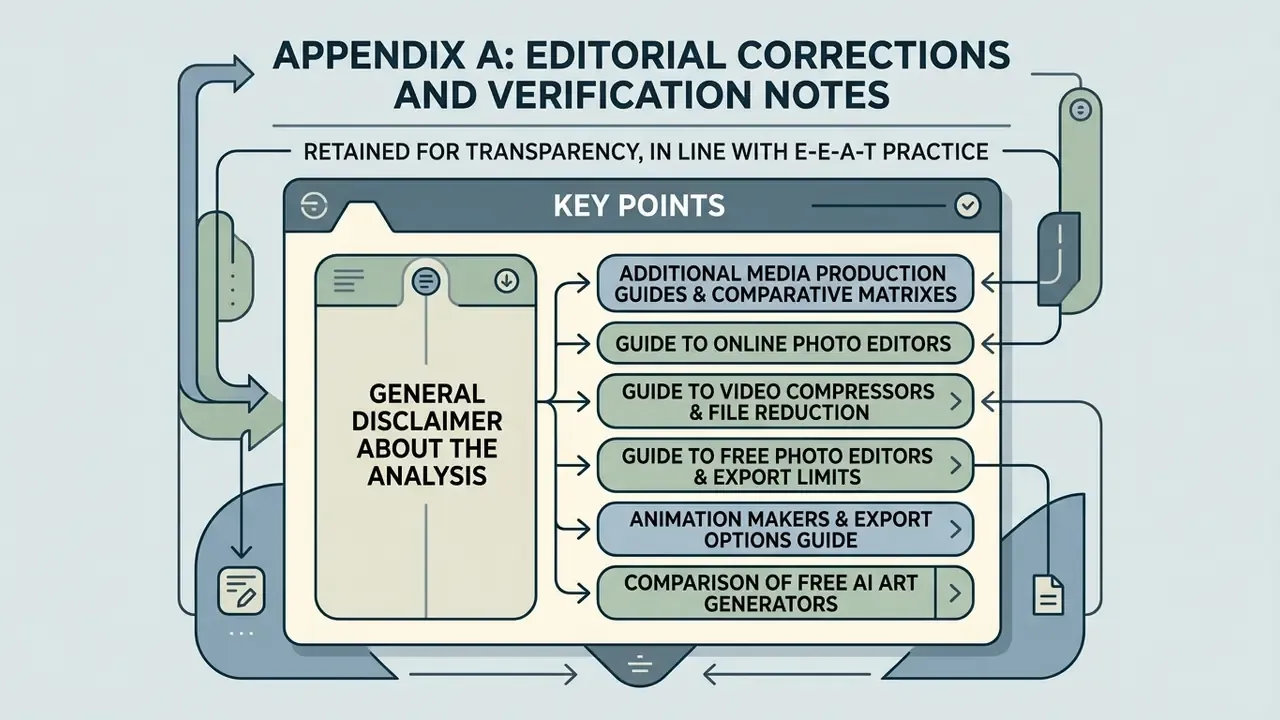
Retained for transparency, in line with E-E-A-T practice. Each entry lists the earlier claim, the current status, and the correction applied in the body text above.
| Earlier claim in this guide | Status | Correction applied |
|---|---|---|
| "43 individual effect filters (34 video, 9 audio)" cited without a linked source | Verified | Now attributed to the OpenShot 4.0.0 Effects documentation; conflicting legacy counts (18 video, 27 total) identified as pre-4.0 figures |
| "Localized into over 100 languages" cited without a source | Verified | Now attributed to the "Translations (100+ languages)" listing in the official user guide, with the LaunchPad contribution route added |
| "Software Advice User Reviews, 2026" cited for crash reports without URL or sample size | Replaced | Substituted with GetApp user reviews (2024) plus OpenShot's own 3.0 release notes on stability work; Software Advice aggregate ratings retained only for ease-of-use and value scores |
| "The team published 45 standardized training videos on schedule with zero licensing compliance findings" | Reformulated | Rewritten as an explicitly illustrative workflow pattern; unverifiable output counts removed |
| "Reduced render times by 35%" (NVENC case) | Reformulated | Replaced with vendor-published ranges of 20 to 30% (release notes) and up to 30 to 40% (2.5.0 announcement), with the experimental status of hardware acceleration noted |
| "Released August 30, 2026" vs. third-party "Aug 31, 2026" | Reconciled | Official blog date (August 30, 2026) treated as canonical; mirror offset explained in the header note |
| "Minimum RAM: 4 GB" vs. secondary sources quoting 2 GB | Confirmed at 4 GB | Official 2026 support article cited; 2 GB identified as a legacy figure carried by third-party blogs |
| Portable-mode flags presented as universal | Scoped | Marked as Windows-installer-only, with the AppImage named as the Linux equivalent |
| Image placeholder in place of an interface figure | Replaced | Substituted with a labelled interface-zone table and caption sourced to the Main Window documentation |
About the analysis: compiled from OpenShot Studios' official documentation, support portal, release notes, and public repositories, cross-checked against independent user-review platforms and competing product documentation. Expert commentary by Marcus Hale, AI Governance & Model Risk Analyst, the author focused on procurement, licensing, and data-governance implications for regulated organizations. Statements about audience needs remain hypotheses until supported by analytics, interviews, or verified customer research.
Additional Media Production Guides & Comparative Matrixes
Footer navigation and hub links:
Explore our comprehensive glossary for technical definitions, or review our AI Media API Guides to evaluate developer integration options. Licensing policies across formats are collected in the AI Media Commercial-Use Hub, and legal or copyright considerations are covered in AI Litigation and Rights Frameworks. Comparative data across editing frameworks sits in our AI Media Comparison Matrices.
Additional audio-visual references: creators researching synthetic voice and generative media tools can examine our reviews of timbaland ai artist, tome ai presentation generator, topmediai ai music, tribute video maker, trump ai generator, and trump ai voice.