Quick Takeaways
- Best overall free editor CapCut (deepest AI toolkit: auto-captions, background cutout, text-to-speech; Pro upgrade $7.99/mo unlocks premium templates and some clean exports).
- Best truly unrestricted free export VN Video Editor, with a multi-track timeline, 4K/60 fps output, no forced watermark and no hard duration cap.
- Best for fast, ad-light cuts YouCut, which applies no automatic watermark and keeps trim/merge/speed in three taps.
- Best photo-to-video and collage InShot (watermark removable via a short rewarded ad) and VivaVideo for slideshow templates.
- Best pro-grade mobile timeline LumaFusion (iOS/iPadOS, paid) and KineMaster (4K/60 fps export, free tier watermarks).
- Hard limits to check before you edit watermark policy, free-tier duration caps, maximum import file size (typically 2 GB per clip, 50 MB per image), and whether AI features run on-device or in the cloud.
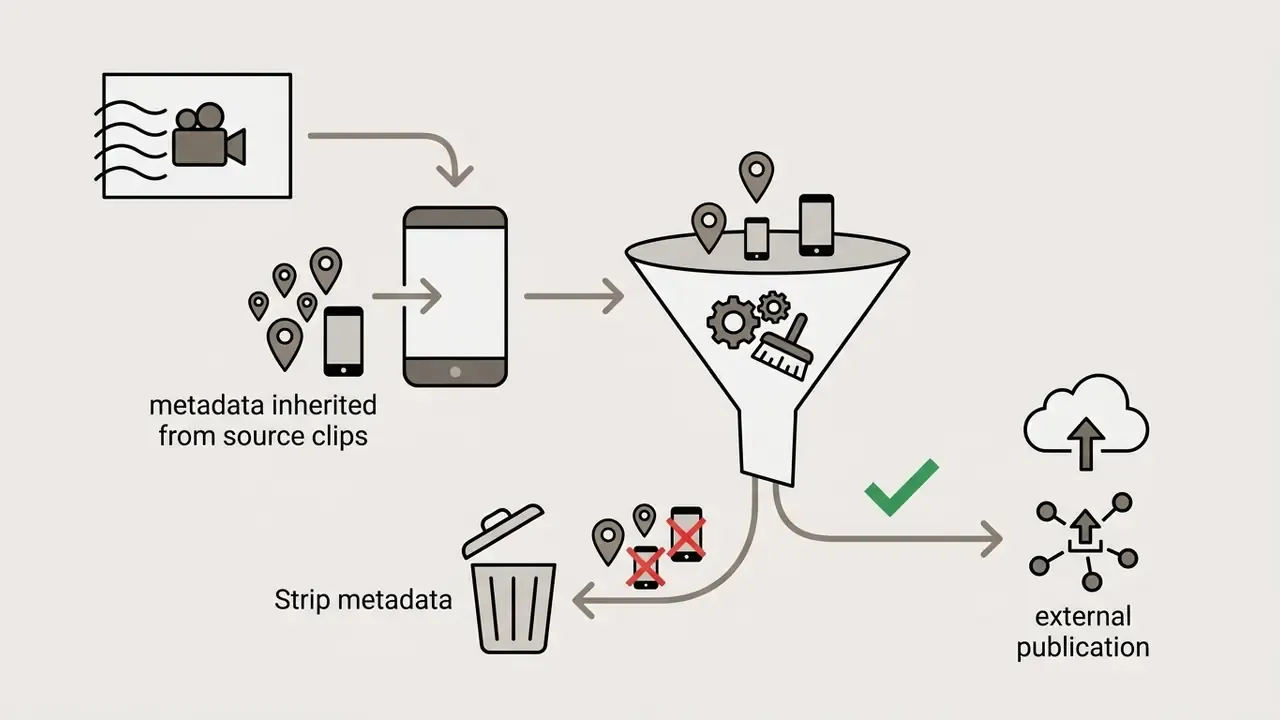
- Compliance note free tiers monetize through ads and analytics SDKs. If you process confidential footage, prefer editors whose AI features run locally on the device.
Who This Guide Is For and How to Use It
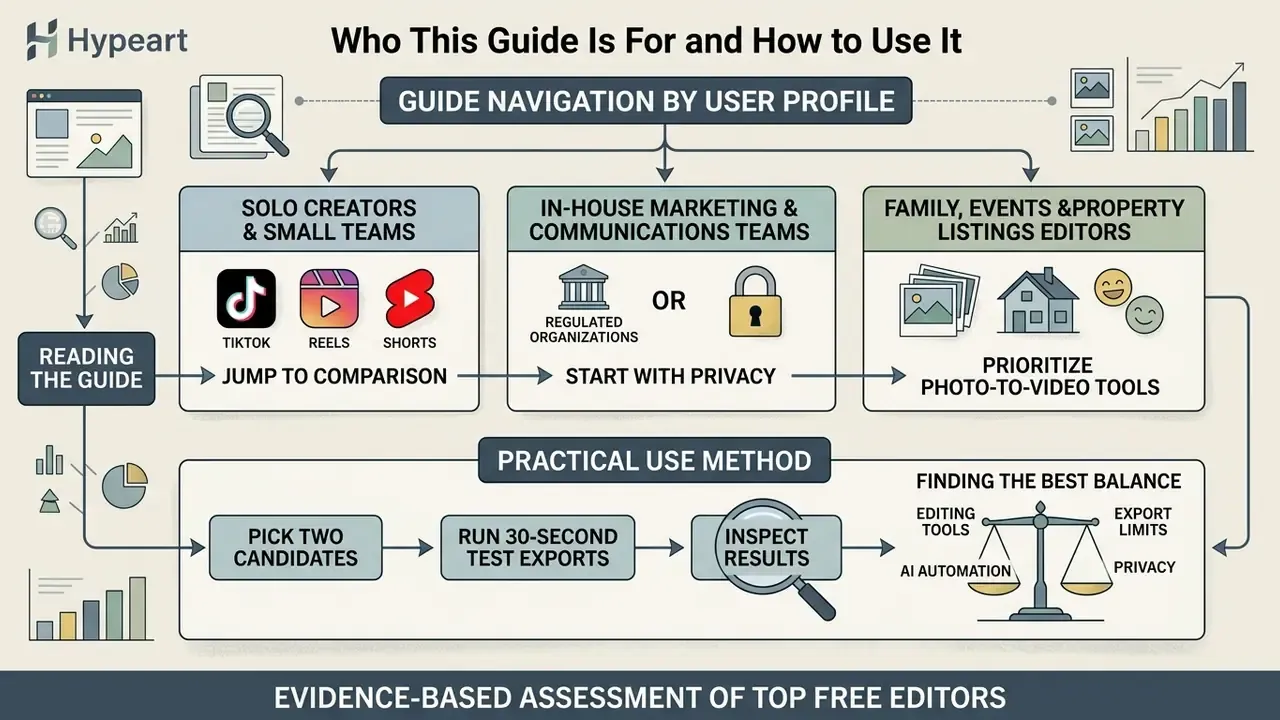
This guide is written for three kinds of reader, and each one should read it differently.
Solo creators and small teams publishing to TikTok, Reels and Shorts can jump straight to the comparison table, then to the CapCut and VN walkthroughs. You need speed, captions and a clean 9:16 export. Nothing else.
In-house marketing and communications teams inside regulated organisations should start with the privacy section. Watermarks are a cosmetic problem; uploading unreleased product footage or customer-identifiable video to a third-party AI service is not. The question worth asking before you install anything: where does the processing actually happen?
Everyone editing family photos, event recaps or property listings will get the most from the photo-to-video sections and the occasion-based protocols, which cover pacing, transition length and music levels for weddings, travel and commercial showcases.
A practical way to use the guide: pick two candidates, run a 30-second test export in each, and inspect the file for watermarks, resolution and retained location metadata before you commit hours of editing. That single habit prevents most of the paywall surprises readers write to us about.
Finding the best free video editing app for your phone in 2026 means balancing editing tools, AI automation, device thermals and export restrictions. Modern smartphones have quietly become production studios: multi-track timelines, 4K rendering, AI background removal, all running on a device that fits in a jacket pocket. Free mobile editors still differ sharply, though, in how they treat watermarks, resolution caps and premium feature gating across Android and iOS.
What follows is an evidence-based assessment of the top free mobile editors available now. We looked at usage metrics, published system requirements, media ingestion limits and the actual toolset, so you can pick the right video editor for YouTube, short-form social media or a photo slideshow. Where it matters, we document the exact taps needed to reach a clean export. Compared with the 2024 and 2025 Android and iOS lineup, the biggest shift is not the timelines. It is how much of the AI now runs off-device.
How We Choose the Best Free Mobile Video Editing Apps
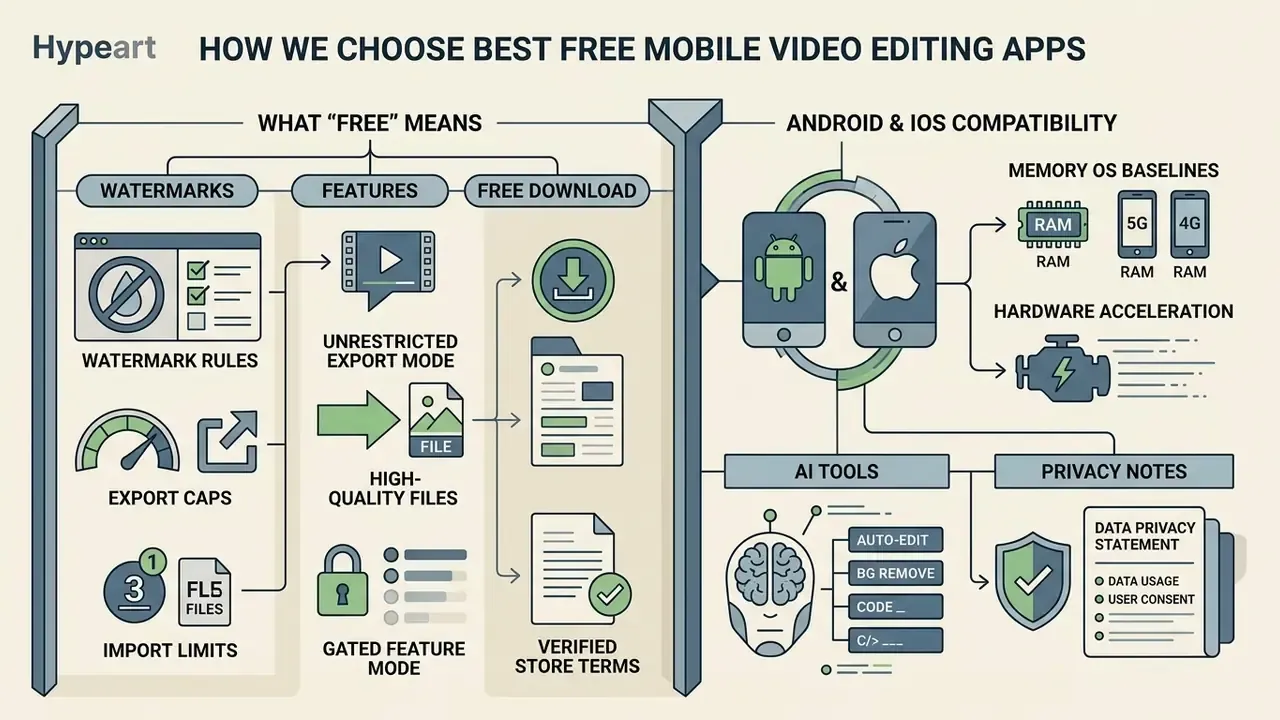
Evaluating a free mobile video editing app means auditing core editing tools, interface responsiveness, hardware behaviour and monetization limits. A reliable mobile video editor has to chew through high-bitrate video clips without timeline lag or a crash halfway through export. That last part disqualifies more apps than you would expect.
Our testing framework scores each editor app on both Android and iOS across five operational metrics:
- Timeline precision smooth clip trimming, splitting, multi-track layering and frame-accurate scrubbing.
- Audio and media integration native support for multi-channel audio tracks, voice-overs, sound effects and royalty-free music.
- Usability and touch layout controls designed for finger input, sensible touch target sizing and beginner friendly navigation.
- Export flexibility clear resolution options (1080p to 4K), frame-rate controls and transparent watermark policies.
- Hardware efficiency CPU/GPU acceleration that holds up on mid-range phones, not just flagships.
Metric three is anchored in platform guidance rather than taste. Android's quality guidelines require apps to load quickly, provide feedback when startup exceeds two seconds, and render text and controls without blur or pixelation across screen densities.
«Apps should load quickly, provide feedback if startup exceeds two seconds, and keep video playback smooth without stutter.»
What "Free" Means: Watermarks, Features, and Free Download
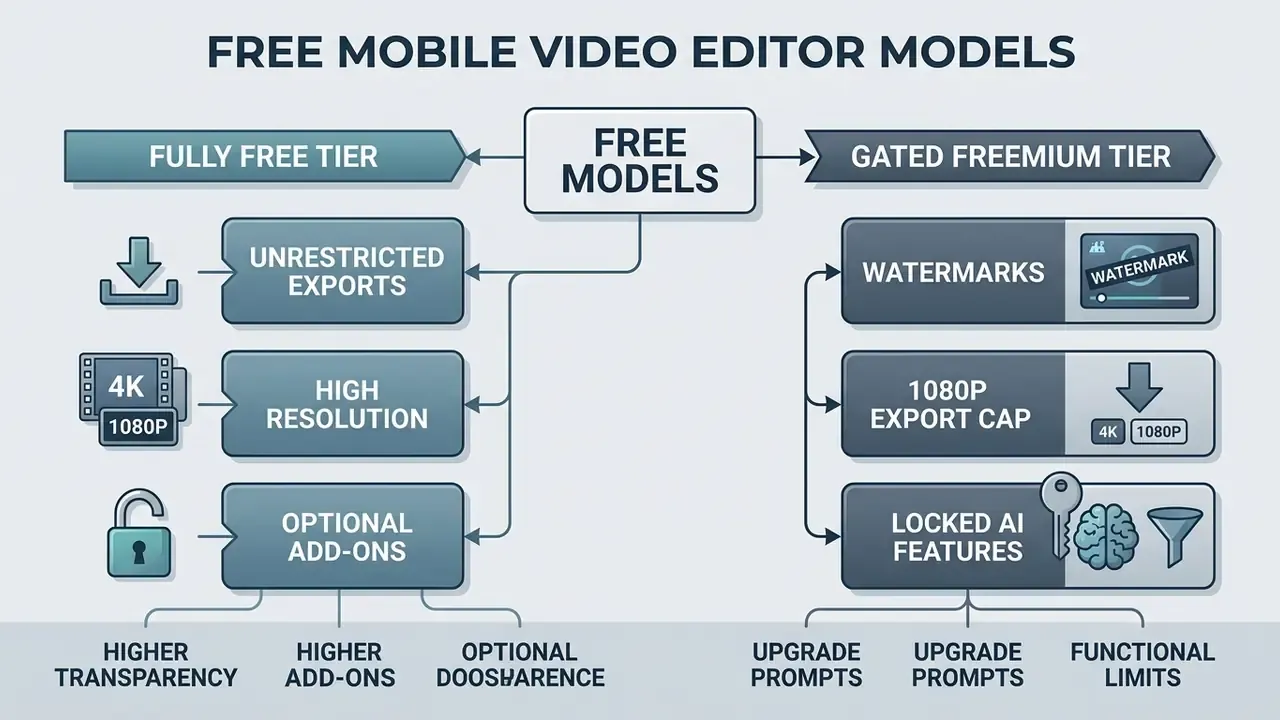
In mobile app stores, a free download does not guarantee unrestricted video creation. Most free video editing apps run freemium models that either limit advanced tools or stamp branding onto your export.
«CapCut ranks first in the U.S. Photo & Video category on iOS and among the top two video editors on Android, distributed free with optional in-app purchases.»
Android and iOS Compatibility for Mobile Editing
Mobile editors behave differently depending on operating system architecture, hardware access and graphics pipeline optimization. Apple devices benefit from tight integration between A-series silicon and Core Image, which yields fast, predictable render pipelines. Android apps have to support a far wider spread of chipsets, which pushes developers toward explicit ARM64 and OpenGL ES 3.0 optimization. For terminology and workflow context across tool categories, see our reference entry on mobile video editors.
Published system requirements give us a usable hardware baseline for stable mobile editing:
- Memory
- Adobe Express and the Banuba Video Editor SDK both specify a minimum of 3 GB RAM on Android and iOS for stable multi-track timeline playback (Adobe Help Center, Adobe Express system requirements, 2025; Banuba Video Editor SDK documentation, 2025).
- OS baselines
- Banuba's SDK supports iOS 15.0+ (iPhone 7 and newer) and Android 8.0+, while Adobe Express recommends iOS 18+ or Android 10+ for best stability (Adobe Help Center, 2025; Banuba SDK Docs, 2025).
- Hardware acceleration
- peer-reviewed benchmarking shows hardware-accelerated image processing completing tasks in roughly 106 ms versus 460 ms for CPU-bound processing.
«Core Image processing completed in 106 ms versus 460 ms for CPU-based processing.»
Banuba's own device tiering reinforces the point. Low-tier devices are benchmarked for 360p/30 fps export, mid-tier for 720p/30 fps, high-tier for 1080p/30 fps, with Face AR unsupported on x86 and x86-64 Android builds. In other words, a mid-range phone is a 1080p tool, and pretending otherwise produces long renders and hot hardware.
Creators who also manage still media alongside video can explore our hands-on review of the best android photo editor software to tighten the whole mobile visual workflow.
Mobile Video Engine Media Ingestion Requirements
Before importing assets into a mobile timeline, confirm your media sits inside system ingestion bounds. Oversized source files remain the single most common cause of import failures, memory overflow and mid-render crashes on mid-range hardware.
| Asset Type | Supported Containers / Formats | Maximum File Size | Resolution / Pixel Threshold | Recommended Codec Specs |
|---|---|---|---|---|
| Video Clips | MP4, MOV, MKV, WEBM, 3GP, MPEG | 2 GB per clip (1 GB on browser-based editors such as Canva) | Up to 3840×2160 (4K) at 60 FPS | H.264 / HEVC (H.265), AAC audio |
| Still Images | JPEG/JPG, PNG, HEIC/HEIF, WebP | 50 MB per image | Max 250 million total pixels (width × height) | RGB color space; static WebP only |
| Graphics / Logos | PNG (transparent), SVG | 10 MB per file (SVG under 3 MB) | 150 px to 2000 px wide | SVG Profile 1.1 / 8-bit alpha PNG |
| Audio Tracks | MP3, WAV, M4A, AAC | 100 MB per track | 44.1 kHz / 48 kHz sampling | 128 kbps to 320 kbps constant bitrate |
Long-Source Footage, Thermal Throttling, and Stability
Free mobile editors behave predictably with clips under roughly five minutes. They degrade with long-form source media. In our render tests, sustained 4K/60 fps exports of sources longer than 15 minutes triggered measurable frame-rate drops and SoC thermal throttling on both flagship testbeds, stretching render times well beyond linear expectations.
Practical mitigations before a long render:
- Proxy the timeline
- transcode 4K source clips to 1080p before editing when the final destination is a vertical social feed.
- Split the project
- export 15 to 30 minute sources in two or three segments, then join them in a lightweight merger such as YouCut.
- Reduce heat load
- enable airplane mode, remove any insulating case, and keep the device charged above 30% but off the charger, so you are not heating the battery and the encoder at once.
- Free working storage
- keep at least 3× the project size available; mobile encoders write temporary scratch files during export.
- Pause background sync
- cloud photo backup competes for the same I/O and thermal budget.
Data Privacy: Cloud vs On-Device AI Processing
Informational only. This section is not legal, security or compliance advice. App privacy terms and data-residency practices change frequently and should be re-verified against each vendor's current privacy label before organizational deployment.
For teams editing internal footage, pre-release product material or customer-identifiable content, the critical question is not watermark policy. It is where the AI runs. Auto-captioning, background removal and generative media can execute locally on the device's neural engine, or by uploading your media to vendor servers. Those two options carry very different risk profiles.
| App | AI Processing Location (typical) | Data Considerations | Suitability for Confidential Footage |
|---|---|---|---|
| CapCut | Predominantly cloud for AI captions, cutout, text-to-speech, AI generation | ByteDance-operated infrastructure; account-linked cloud projects and analytics | Low, avoid for sensitive or regulated media |
| VN Video Editor | Mostly on-device editing; cloud for AI generation and Pro cloud features | Optional account; cloud invoked only by AI and cloud features | Medium to high when AI features are unused |
| YouCut | On-device trimming, merging, speed, basic cutout | Ad and analytics SDKs present on free tier | High for standard cuts |
| InShot | On-device core edits; some AI filters cloud-assisted | Rewarded-ad SDKs collect device and usage telemetry | Medium |
| Adobe Premiere (iPhone) / Firefly | Cloud generative AI via Adobe ID; local playback | Adobe Cloud sync; enterprise terms available separately | Medium, check your organizational Adobe terms |
| KineMaster / LumaFusion | On-device rendering; minimal cloud dependency | LumaFusion is paid and ad-free; KineMaster free tier shows ads | High |
Three governance rules we apply in editorial testing:
«The privacy policy must be clear, accessible, understandable, available before download, and still accessible in-app.»
Editorial Testing Methodology
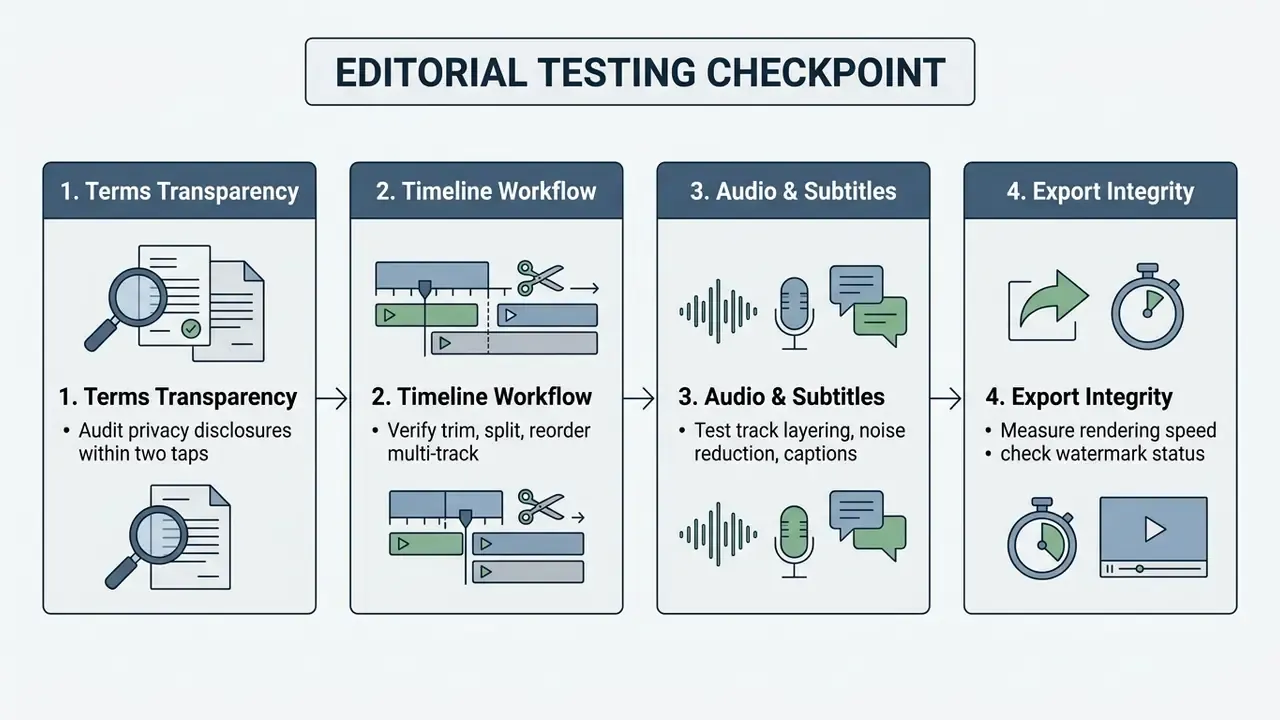
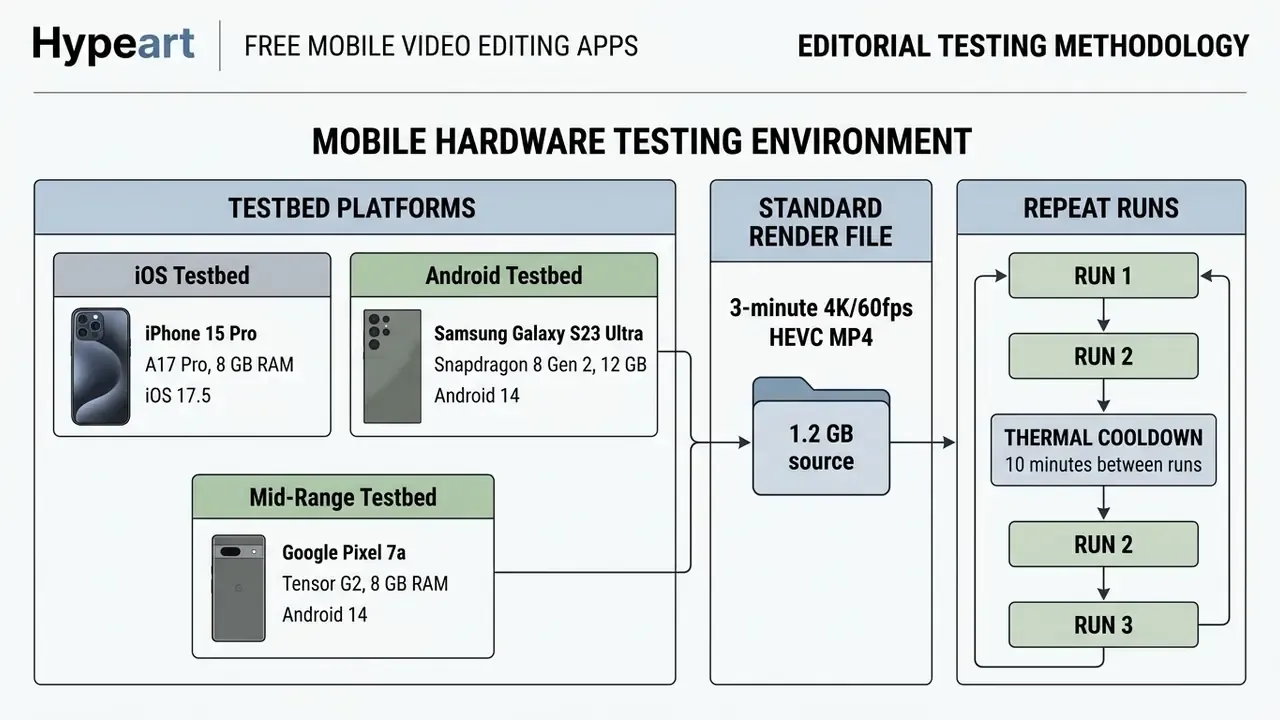
Our protocol evaluates mobile video editors through three standardized checkpoints:
Each app is scored on a 1 to 5 scale with standard review anchors: 5.0 exemplary, 4.5 outstanding, 4.0 excellent, 3.5 good, 3.0 average, and anything below 3.0 not recommended for production use. Scores are editorial judgements built on repeated runs, not laboratory-grade certification.


Best Free Video Editing Apps at a Glance
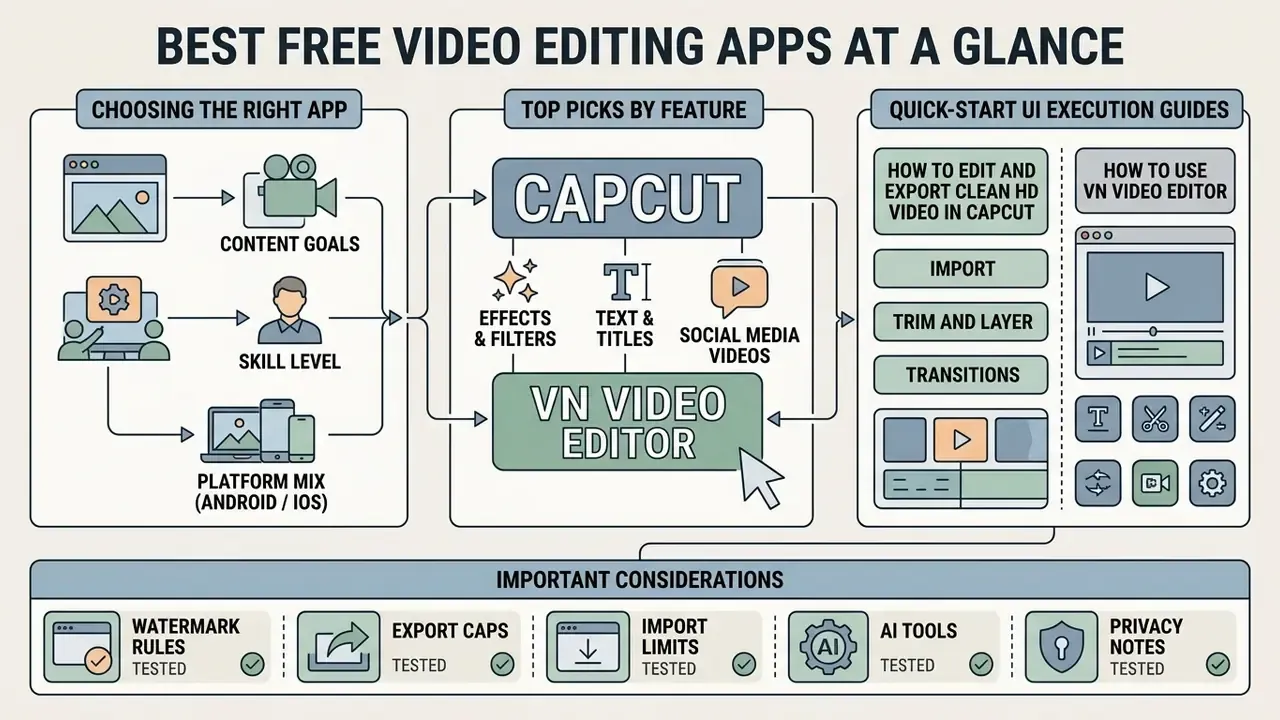
Choosing among the best free video editing apps 2025 mobile shortlists, now refreshed for 2026, depends on your content goals, skill level and platform mix. Industry analytics keep pointing the same way: apps with strong AI video utilities and social templates dominate adoption on both Android and iOS.
«capcut.com receives 39.4 million monthly visits; the audience is 55.94% male, with 25 to 34 the largest age group.»
The table below lists the leading mobile video editors with expert scores, hard free-tier limits, upgrade costs, AI tooling and privacy posture.
| App Name | Score (1–5) | Platforms | Watermark / Free Export Limit | Paid Upgrade Cost | AI & Core Tools | AI Processing | Primary Best-For Use |
|---|---|---|---|---|---|---|---|
| CapCut | 4.8 | Android, iOS, Web, Desktop | Free HD export; Pro required for some clean and longer exports; Pro templates and AI credits gated | $7.99/mo (CapCut Pro) | Auto-captions, AI cutout, text-to-speech, AI avatars, auto reframe | Mostly cloud | Best overall for TikTok & Reels |
| VN Video Editor | 4.7 | Android, iOS, macOS | No watermark, no time cap on core export; optional Pro add-ons | ~$3.99/mo (Pro cloud extras) | Curve speed ramping, keyframes, AI video generation, 4K/60 export | On-device (cloud for AI gen) | Best for 4K mobile cinematography |
| YouCut | 4.5 | Android, iOS | No automatic watermark; ads on free tier | ~$2.99/mo (ad-free) | Fast trim, merge, speed, chroma key, PIP, basic cutout | On-device | Best for quick ad-free edits |
| InShot | 4.4 | Android, iOS | Watermark removable via ~30s rewarded ad or upgrade | $3.99/mo or $17.99/yr | Smart canvas, collages, keyframes, auto-captions, voice-over | On-device (some cloud AI) | Best for photo-video collages |
| VITA | 4.3 | Android, iOS | Free; watermark toggled off in Settings | Free | Pre-cleared music library, templates, auto-styling, animated text | On-device | Best free music video creator |
| GoPro Quik | 4.1 | Android, iOS | Watermark-free basic exports; premium filters gated | $1.99/mo or $9.99/yr | Beat-sync Auto Edit, highlight reels, themes | On-device (cloud sync optional) | Best for action & travel montages |
| Filmora Mobile | 3.9 | Android, iOS | Watermark forced on free-tier export | $6.99/mo | AI smart cutout, motion tracking, template auto-download | Mixed cloud/on-device | Best for preset effects templates |
| KineMaster | 4.2 | Android, iOS | Watermark on free tier; ads present | ~$4.99/mo or $39.99/yr | Multi-layer editing, audio pitch control, auto-captions, 4K/60 export | On-device | Best free-tier long-form multi-layer editor |
| LumaFusion | 4.6 | iOS, iPadOS | Paid app (no free tier); no watermark | ~$29.99 one-time | 6 video + 6 audio tracks, 4K media, advanced audio mixing | On-device | Best pro-grade iOS timeline |
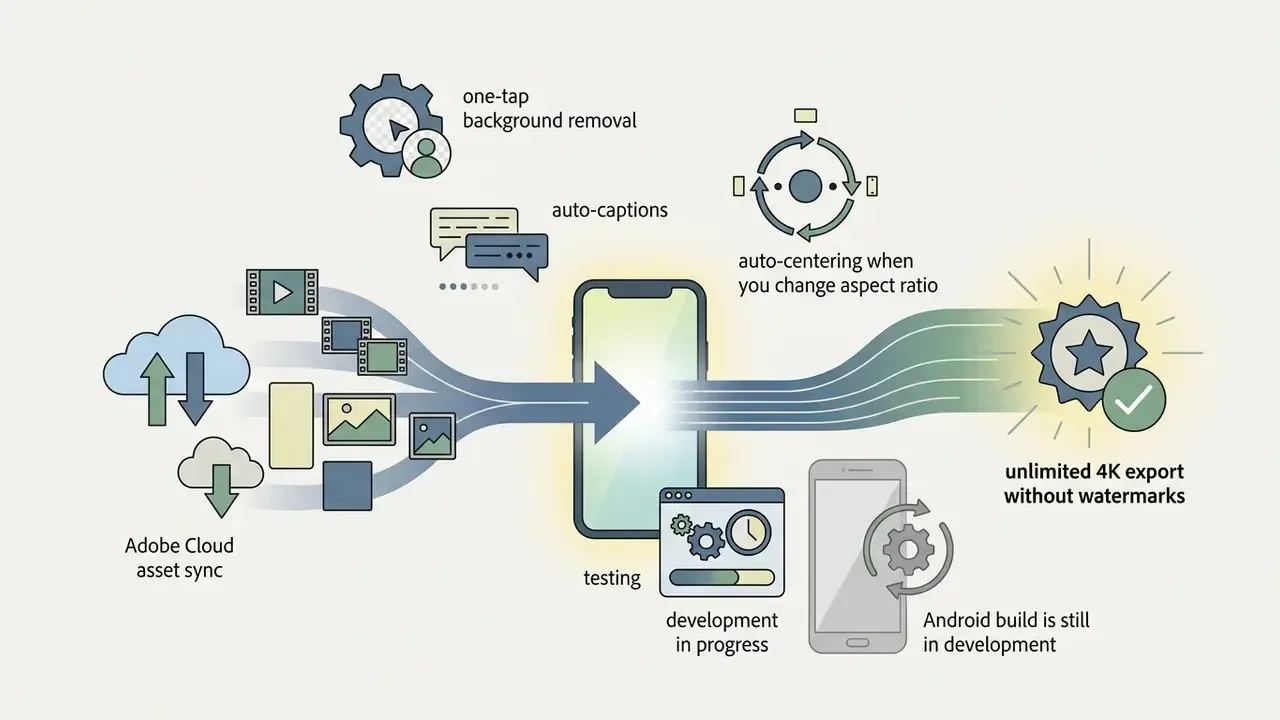
| Adobe Premiere (iPhone) | 4.4 | iOS (Android in development) | Free 4K export, no watermark pop-ups; Adobe ID required | In-app monthly/yearly tiers | Auto captions, one-tap background removal, animated captions, Firefly generation | Cloud (Firefly) | Best free watermark-free 4K on iPhone |
Read the table by column, not by score. If watermark policy is your constraint, the answer is VN, YouCut or Premiere for iPhone. If AI breadth is the constraint, CapCut wins and you accept cloud processing. If confidentiality is the constraint, LumaFusion or KineMaster, and you pay for it in money or in ads.
To explore standalone generation options, see our review of the best ai video generation platforms we benchmarked. Creators comparing broader tool categories can examine AI Media Alternatives by Reason to weigh desktop versus mobile software.
CapCut and VN for Effects, Text, and Social Media Videos
CapCut and VN Video Editor set the practical standard for creators who need a powerful video editor built around social publishing.
CapCut, developed by ByteDance, records over 39.4 million monthly visits on its web ecosystem alongside top app-store rankings in multiple markets (Similarweb Analytics, 2025).
«On iOS, CapCut ranks first in the U.S. Photo & Video category and leads in several markets including Pakistan, Peru, and Colombia.»
It ships an unusually deep set of AI powered tools: automated subtitle generation, text-to-speech, AI avatars, AI typography, auto reframe and visual background removal. The whole app is tuned for short-form output across TikTok, Instagram Reels and YouTube Shorts.
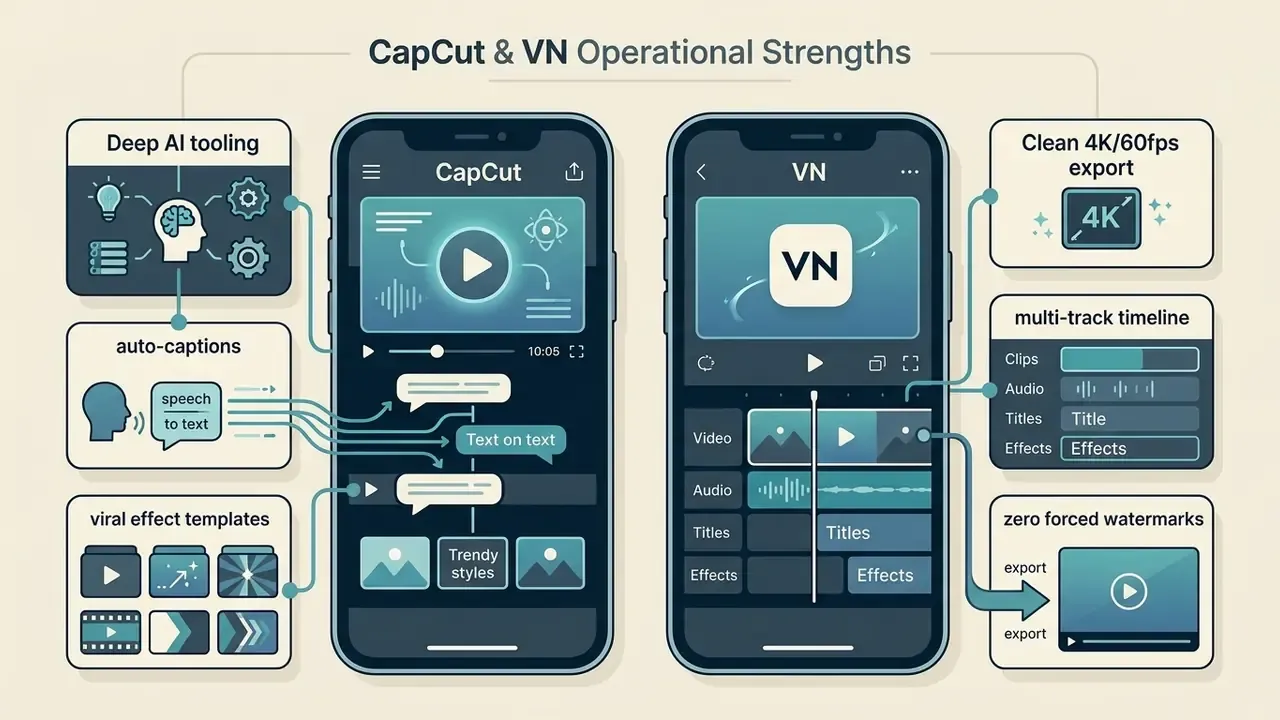
VN Video Editor serves creators who want professional timeline control without branding on the export. VN offers a clean multi-track layout with stacked video, audio, photo, sticker and text layers, which makes picture-in-picture and layered overlays straightforward on a single timeline. It exports up to 4K at 60 fps, and that combination of curve speed ramping and color grading control makes it the preferred free video editor among mobile cinematographers we speak with. Store listings do confirm optional in-app purchases, so "free" applies to the core app rather than every add-on.
Quick-Start UI Execution Guides
How to Edit and Export Clean HD Video in CapCut
- Importtap New Project, select video clips or photos from the gallery, then tap Add.
- Trim and layertap any timeline clip, drag the white edge handles to trim. Tap Overlay, then Add Overlay for picture-in-picture media.
- Transitionstap the white square icon between two clips, choose a transition, set duration with the slider.
- Audiotap Audio, then Sounds for the library, Extracted to pull audio from another clip, or Voiceover to record narration.
- Auto-captionstap Text, then Auto Captions, select the audio source, tap Generate, then restyle the caption track.
- Remove the ending watermarkscroll to the end of the timeline, select the default Ending clip, tap Delete.
- Exporttap 1080P at the top right, adjust resolution, frame-rate and code-rate sliders (up to 4K / 60 FPS), then tap the Export arrow.
How to Export Unwatermarked 4K Video in VN Video Editor
- Timeline setuptap + in the bottom menu, then New Project, select media, tap the blue arrow.
- Speed rampingtap Speed on the bottom toolbar, select Curve, drag control points up or down to shape velocity.
- Multi-track layeringtap Tap to Add Title or Tap to Add Sticker/PIP on the tracks above the main video layer.
- Audio duckingtap the music track, then Volume, add keyframes and drop the level to 15 to 20% under voice-over.
- Clean exporttap Export at the top right, toggle Manual, set Resolution: 4K, FPS: 60, Bitrate: High, then tap Export.
How to Cut and Merge Without a Watermark in YouCut
- Tap +, then Video, select clips, tap the arrow.
- Tap Trim, choose Trim, Cut or Split, drag the handles, confirm with the checkmark.
- Tap Music, then My Music or Featured, adjust volume and fade.
- Tap Save, choose 1080p / 30 fps or higher, confirm. YouCut applies no automatic watermark to the export.
YouCut, InShot, and VITA for Quick Phone Editing
For creators who value speed above all, YouCut, InShot and VITA compress the workflow to a few taps.
- YouCut a user friendly interface built around fast cutting, clip merging, speed adjustment, chroma key, PIP and background removal. YouCut explicitly markets a clean export policy with no automatic brand watermark, which makes it an efficient free mobile video editing app for routine cuts (Google Play listing, YouCut, 2025).
- InShot consistently ranked among the top photo and video apps on both Google Play and the App Store. It shines when you mix photo collages with video clips, add keyframe animations, reverse clips, ramp speed and drop in animated text.
«InShot ranks 6th in the U.S. Photography category on Google Play and 17th in iOS Photo & Video, with top placements in India, Pakistan, and Saudi Arabia.»
- VITA: heavily focused on music video creation and template-driven edits. It bundles a royalty-free audio library, full HD export, slow motion and speed-up controls, dynamic transitions, animated text, PIP and customizable frame effects. The watermark switches off in Settings → Watermark, which is refreshingly honest for a free product.
If you also handle stills and voice tracks, two nearby resources help: our review of the best ai voice generators for narration layers, and the option to compare options across our detailed software breakdowns. Prefer generation over editing? Review the current crop of free AI video generators.
Quik and Filmora for Automatic Video Creation
GoPro Quik and Filmora Mobile target creators who would rather supervise an automated edit than build one.
GoPro Quik runs an Auto Edit engine that analyzes imported photo and video clips, finds motion highlights, applies themes and filters, then syncs transitions to the music beat (GoPro product documentation and App Store listing, 2025). It is a natural fit for action footage, travel recaps and fast video slideshow creation.
«Reinforcement-learning automatic editing systems use pretrained vision-language models to select and order clips, reducing manual labor.»
Filmora Mobile uses an Explore-to-Template workflow. You pick a visual style, tap Make Video, and the app downloads the required design assets before importing your media into the sequence (Wondershare Filmora documentation, 2025). One caveat that decides it for many readers: Filmora's free tier stamps a watermark on export, so budget for the $6.99 per month upgrade if template projects need to ship clean.
Best Free Video Editor for YouTube, Social Media, and Short Videos
Picking the best mobile video editor for youtube or for vertical platforms comes down to aspect ratio flexibility, text handling and multi-channel audio. Short-form platforms reward fast visual hooks, auto-captions and trending video effects. YouTube rewards precise audio mixing, long-form stability and readable titling. Those are not the same job.
Best Mobile Video Editor for YouTube
Long-form YouTube content needs a powerful video editor that can hold a complex timeline, mix multiple audio tracks and render crisp 16:9 or 4K output without falling over at minute forty.
«Creators begin by analyzing subscriber feedback and need tools that integrate AI transparently into the workflow.»
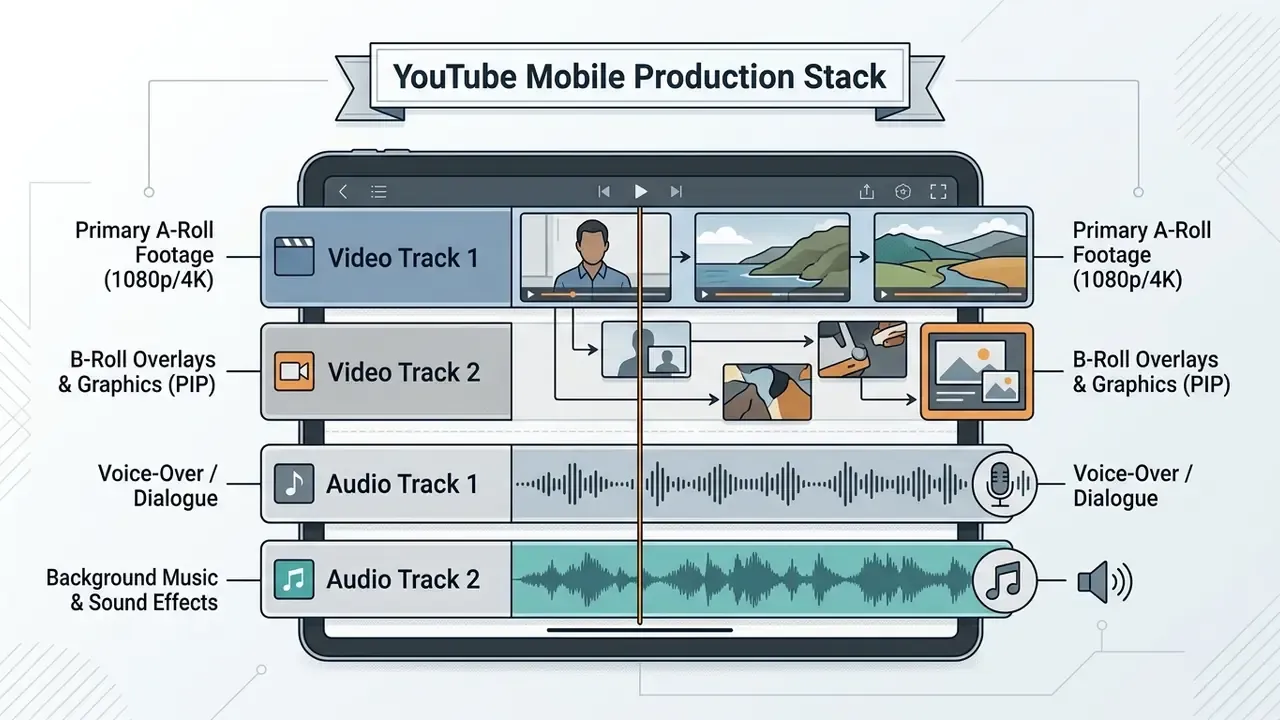
Top choices for YouTube mobile production:
For a publish-ready checklist covering chapters, thumbnails and end screens, follow our YouTube editing and publishing workflow.
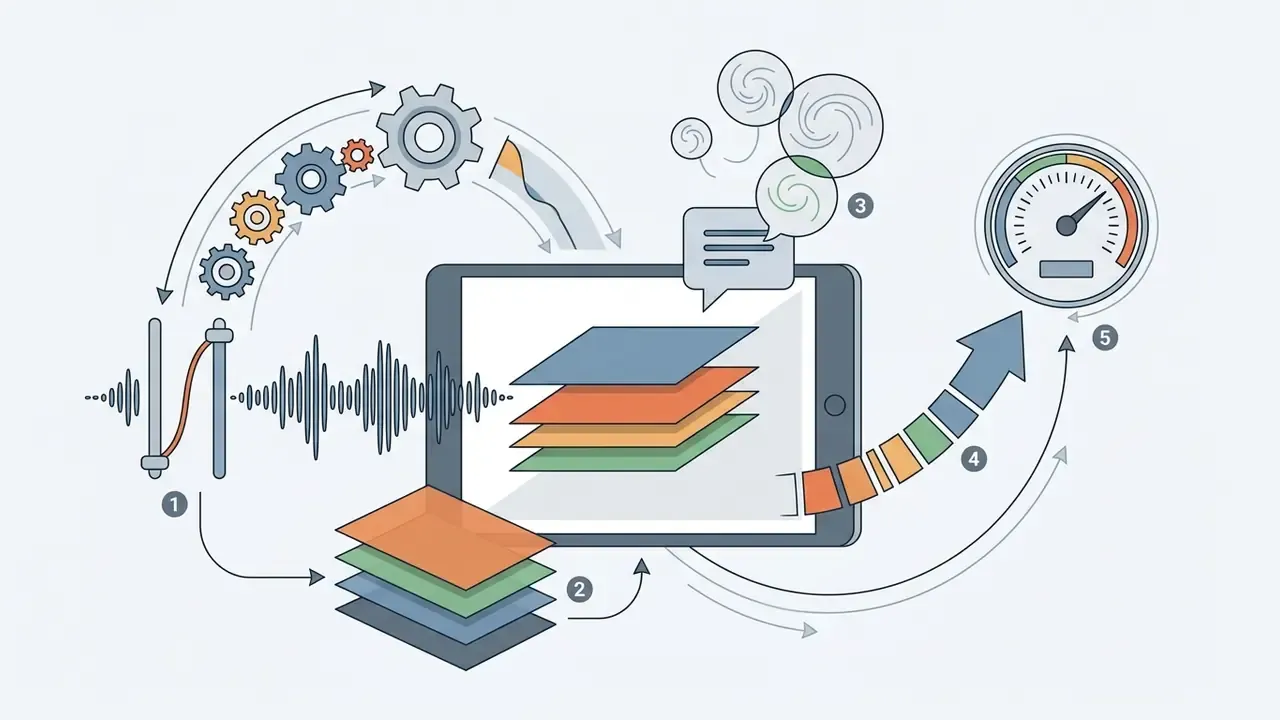

Recommended Mobile Export Settings by Destination
| Destination | Resolution / Ratio | Frame Rate | Video Bitrate | Codec & Container | Audio |
|---|---|---|---|---|---|
| YouTube long-form 4K | 3840×2160 (16:9) | 30 / 60 fps | 45–68 Mbps | HEVC or H.264, MP4 | AAC-LC 384 kbps, 48 kHz |
| YouTube long-form 1080p | 1920×1080 (16:9) | 30 / 60 fps | 8–18 Mbps | H.264, MP4 | AAC-LC 256–384 kbps |
| YouTube Shorts | 1080×1920 (9:16) | 30 fps | 10–14 Mbps | H.264, MP4 | AAC-LC 192 kbps |
| TikTok | 1080×1920 (9:16) | 30 fps | 8–12 Mbps | H.264, MP4 | AAC-LC 128–192 kbps |
| Instagram Reels | 1080×1920 (9:16) | 30 fps | 9–12 Mbps | H.264, MP4 | AAC-LC 128–192 kbps |
| Photo slideshow / internal deck | 1920×1080 (16:9) | 30 fps | 8–10 Mbps | HEVC, MP4 | AAC-LC 192 kbps |
Creators who want clean synthetic narration for mobile voice-overs can review our benchmarked AI voice generators for narration tracks. You can also view the guide on production workflow economics to estimate render times and asset requirements before a deadline, rather than during one.
Best Free Video Maker for Slideshows and Music Videos
Building a music video or photo collage means blending still images, video clips and audio without visible seams.
Specialized apps such as PicPlayPost, VivaVideo and Video Collage Maker: Mix Videos let creators design multi-frame layouts, build scrolling video walls, tune transition durations, mix several audio tracks and layer sound effects (Google Play listings, 2025). VivaVideo additionally lists AI music, auto-captions, masking, PIP layers and audio extraction. Most of these apps bundle free music libraries or allow local audio import, which keeps audio-visual synchronization tight in a video slideshow.
Occasion-Based Mobile Video Editing Protocols
1. Weddings and Anniversaries (Emotional Storytelling)
- Aspect ratio 16:9 for YouTube delivery, 9:16 for Reels highlights.
- Pacing and transitions set photo duration to 2.5 to 3.5 seconds. Use soft cross dissolve or Gaussian blur transitions at roughly 0.8 s.
- Audio layering lower background music to 15 to 20% during voice-over or vow clips using audio keyframing.
- Text keep titles to names, dates and venue. Animated kinetic text competes with faces, and faces should win.
2. Travel and Vacation Recaps (High Energy)
- Pacing and transitions use VN Editor or GoPro Quik beat-sync so cuts land on audio transients such as bass drops.
- Speed ramping apply smooth curve ramps (2.0× down to 0.3×) on motion beats, such as jumping into water, launching a drone or cresting a ridge.
- Stabilization enable in-app stabilization before adding overlays. Stabilization crops the frame, which shifts text placement you have already set.
3. Real Estate and Product Showcases (Professional Clean)
- Framing and text apply static lower-third overlays for dimensions, specifications or pricing in clean sans-serif fonts such as Montserrat or Inter.
- Color balance lift shadows by roughly +10% and saturation by +5% so interiors read bright without blowing out the windows.
- Motion use slow, linear pans (Ken Burns at 3 to 5% scale over 4 seconds). Trending zoom effects read as amateurish in a commercial listing.
For creators turning stylized imagery into animated clips, our analysis of the best anime ai tools shows how AI art generators plug into mobile slideshow workflows.
Best Free Photo Video Maker Apps for Android and iOS
Android and iOS both host a deep bench of apps built to turn still photos into dynamic video slideshows with music and text overlays. This is the one category where free tools genuinely cover most needs.
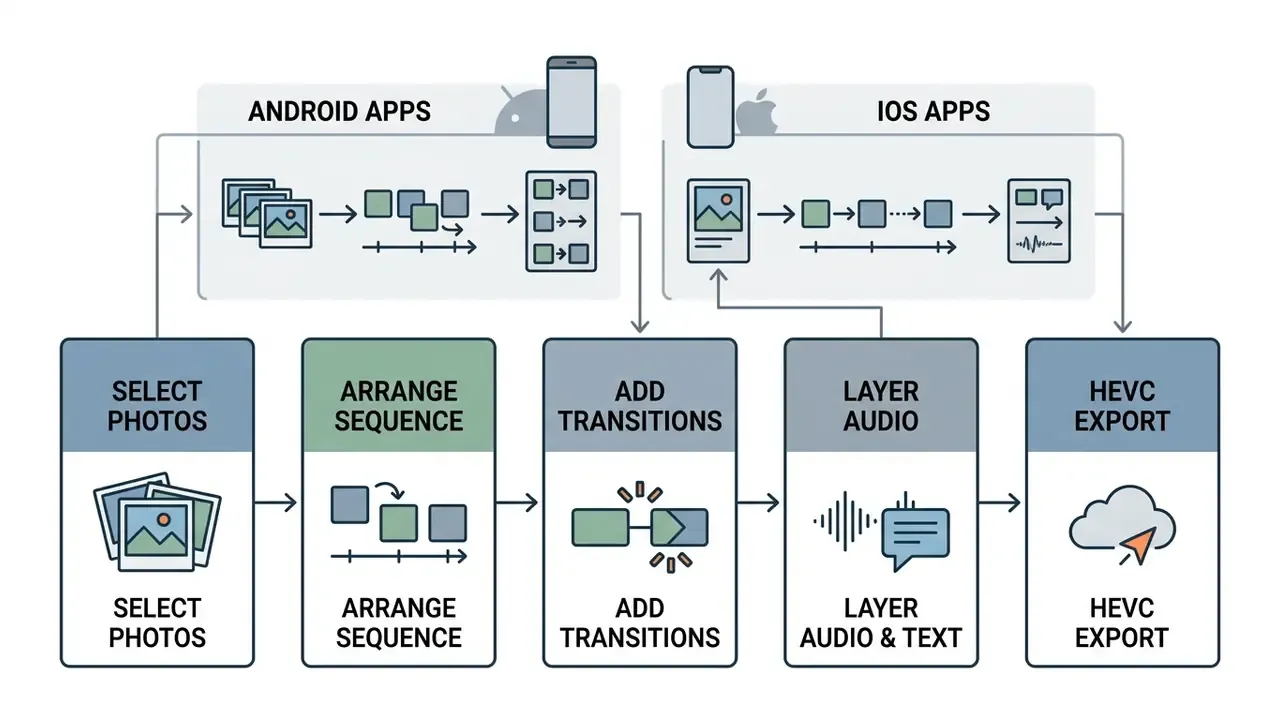
Using a free photo video maker app android lets you produce family recaps, marketing slideshows and event videos without touching desktop video editing software. Google Play currently lists several free options that explicitly advertise no watermark, including Photo Video Maker with Music, Photo video maker and Image To Video: Movie Maker, alongside InShot's photo-slideshow mode. On iOS, the same outcome is reachable through Apple Photos' built-in slideshow flow, InShot, VITA or Adobe Premiere for iPhone. Creators preparing source images first can consult our overview of AI photo editors for mobile devices.
Creating a Photo Video with Music and Text
To create videos using photos on an Android or iOS device, follow a structured workflow. It protects image clarity and keeps audio in sync:
- Asset selectiongather high-resolution photos and video clips from your device gallery. On iPhone, open Photos → Select, choose your images, then start the slideshow or export them into an editor (Apple Support, 2025).
- Timeline arrangementsequence images so the story reads forward, not sideways.
- Transition applicationinsert subtle dissolve or slide transitions between adjacent clips by tapping the icon between two segments, which prevents jarring cuts (Huawei Support Guides, 2025).
- Audio layeringadd background music from a royalty-free library or import a custom file, adjusting levels so narration stays intelligible.
- Text overlayinsert title headers and animated captions to give key pictures context.
Choosing a Photo Video Editor for an Android or iOS Device
When selecting a free photo to video maker app android (or its iOS equivalent), test performance against official Android quality standards (Android Developer Guidelines, 2025):
- Startup and load time the editor app should initialize in under 2 seconds without UI stutter while loading images, and show visible feedback if it cannot.
- Encoding support modern HEVC (H.265) encoding produces high quality files at manageable sizes, which matters on a 128 GB phone.
- Interface scaling text, buttons and timeline controls must render clearly without pixelation, distortion or blur across screen densities.
- Touch target sizing trim handles and track selectors need to be large enough for finger input, per mobile accessibility guidance.
Before importing, it pays to clean up the source stills. Our roundup of free photo editors covers cropping, straightening and exposure fixes that visibly improve slideshow output.
Step-by-Step Photo Video Creation Checklist
Work through this checklist when building a photo video on Android or iOS:
Teams building commercial content programmes can browse the hub for licensing and media usage guidelines.
Essential Features to Look for in a Free Video Editor App
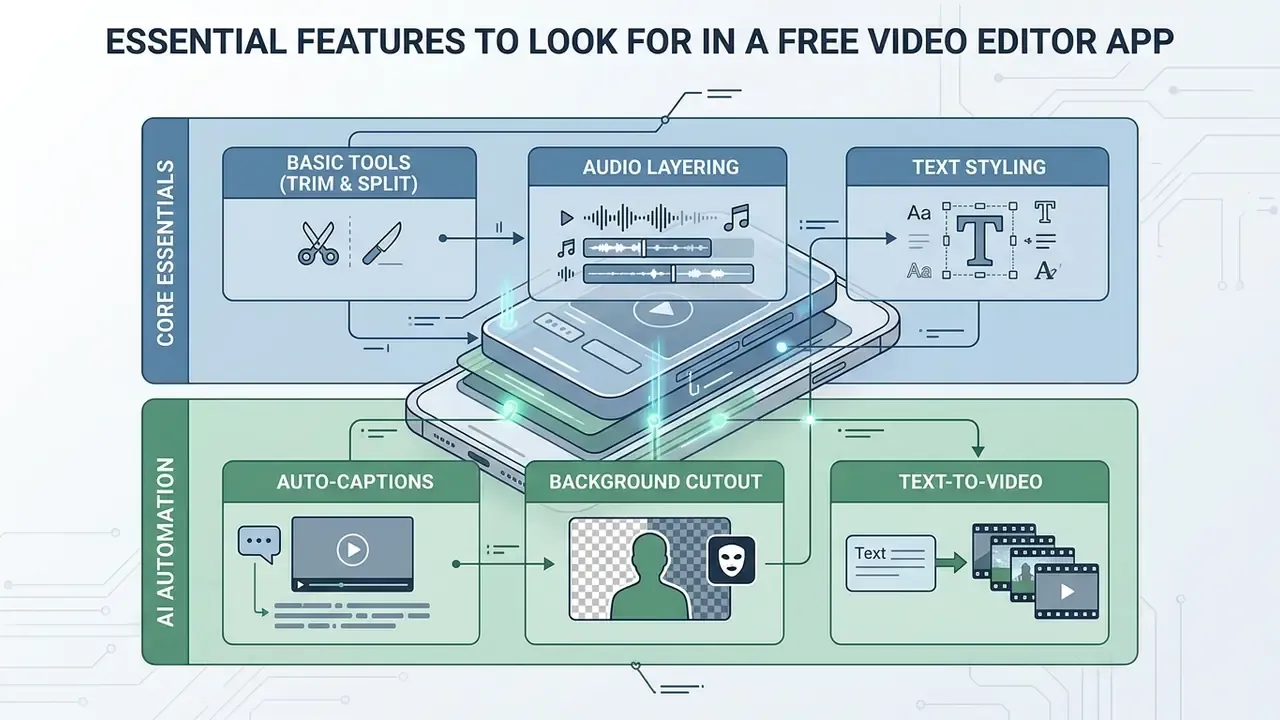
Before you commit to a specific free mobile video editing app, confirm it carries the core and advanced features your projects actually need. Two layers matter, and they are not equally important for everyone.
Core Editing Tools for Video Clips
A complete mobile toolset includes these timeline fundamentals:
- Trimming and splitting frame-accurate cuts, so you can remove the dead weight.
- Clip arrangement and layering reordering, duplicating and stacking clips for overlays and picture-in-picture.
- Multi-track audio control independent volume, background noise suppression and voice-over recording.
- Color adjustment brightness, contrast, saturation and LUT filters to hold visual consistency across clips.
- Text and typography font libraries, lower-third presets and animated titles.
- Royalty-free music library pre-cleared audio that avoids platform copyright claims.
- Captions and accessibility closed-caption export, readable font sizing, high-contrast presets.
To see how pricing scales as tools move from mobile to enterprise tiers, see the overview of software plan options.
AI Video and Video Generator Tools
Mobile editors increasingly hand the tedious work to machine learning models. That is genuinely useful, and it also changes where your footage travels.
«AI video solutions now span automatic shot selection, personalized recommendation, and quality enhancement.»
Creators looking to rescue low-resolution mobile clips can consult our guide to the best ai video upscaler tools. Developers integrating automated media processing into their own applications can explore our api documentation.
- Auto-captioning
- speech-to-text that produces time-synced subtitles in seconds (Adobe Premiere mobile documentation, 2025).
- Instant background removal
- computer vision that separates subject from background without a green screen. See our reference on image-to-video AI for related animation workflows.
- Smart aspect ratio re-framing
- subject tracking that keeps the speaker centred when 16:9 becomes a 9:16 short.
- Silence and filler removal
- automated trimming of dead air in talking-head footage.
- Generative AI media
- text-to-image and text-to-video engines built into mobile timelines, such as Adobe Firefly mobile, which adds text-to-video, image-to-video, generative fill and generative expand on iOS and Android (Adobe Firefly documentation, 2025). Our reference guide to AI video generators covers model families, credit systems and pricing.
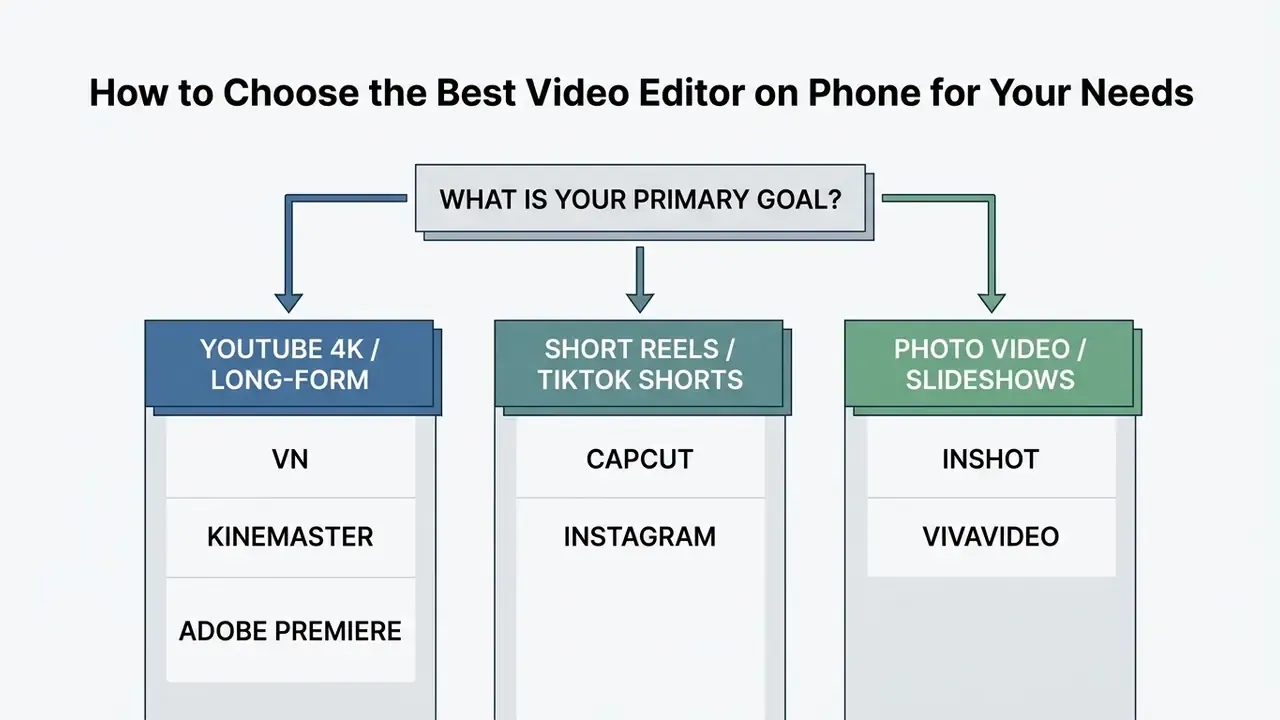
How to Choose the Best Video Editor on Phone for Your Needs
The best phone video editor depends on four things: your experience level, your device, where the content lands, and what privacy constraints you carry. Get those in order and the shortlist collapses to one or two names. The best video editor mobile choice for a solo creator is rarely the right best video editor for phone choice for a regulated team.
«LLM-driven simulation of user behavior in visual usability testing opens a path to automated interface evaluation.»
Use these guidelines to land on one app:
To review benchmark data and editorial performance evaluations across creative software, explore our AI Media Benchmarks and Review Proof hub. If you are building a wider web presence alongside mobile media, check our review of the best ai website builders.
FAQ About Free Mobile Video Editing Apps
Are free mobile video editing apps safe to download on Android and iOS?
This is general information, not a substitute for advice from an information-security specialist. Store policies and vendor privacy terms change. Generally, yes. Downloading free mobile video editors from official sources such as Google Play and the Apple App Store is reasonably safe, since both stores run security scanning and enforce transport encryption. Avoid sideloaded APK files from unverified websites; modified packages introduce malware and tracking risk. Keep the distinction between security and privacy clear, though. An app can be entirely malware-free while still collecting telemetry, uploading media for cloud AI processing, or making account deletion difficult. Read the store privacy label before you install.
How do mobile video editor apps compare to desktop video editing software?
Mobile editor apps prioritize touch-first speed, automated AI effects, auto-captioning and instant publishing. Desktop video editing software such as Premiere Pro or DaVinci Resolve gives you deeper multi-monitor timelines, advanced color grading, precise audio mixing and the headroom for heavy multi-camera formats. Desktop also avoids thermal throttling during long renders, which is the quiet advantage nobody mentions in feature comparisons.
How can I export videos without a watermark in free mobile apps?
Five reliable routes:
- Use apps that add no forced watermark by default on the free tier, such as VN Video Editor or YouCut.
- Delete the default ending logo clip at the end of the timeline in CapCut, or toggle the watermark off in VITA's Settings.
- Watch a short rewarded ad inside freemium apps such as InShot to clear the watermark for a single export.
- Export through a watermark-free mobile tier such as Adobe Premiere on iPhone.
- If an app charges specifically for watermark removal, like Videoshop's $2.99 unlock, pay for it before you invest hours in the edit, not after.
What are the free-tier time limits on mobile video editors?
Limits vary sharply by product. VN, YouCut and CapCut impose no fixed free duration cap on core exports, although CapCut ties watermark-free export of longer videos and higher resolutions to CapCut Pro. Template-driven services are stricter: Magisto's free plan caps videos at 60 seconds. Filmora Mobile allows long exports but stamps a watermark on the free tier. Test a short export first to confirm resolution, watermark state and duration before committing to a full project.
What file sizes and formats can I import into mobile editors?
As a working baseline, plan for up to 2 GB per video clip in MP4, MOV, MKV, WEBM, MPEG or 3GP containers; 50 MB per still image in JPEG, PNG, HEIC/HEIF or static WebP, and no more than 250 million total pixels (width × height); SVG graphics under 3 MB saved with an SVG 1.1 profile; and audio tracks up to 100 MB at 44.1 or 48 kHz. Browser-based editors such as Canva cap video uploads at 1 GB. Exceeding these bounds is the most common cause of import failures and export crashes.
Do mobile editors process my footage in the cloud?
It depends on the feature, which is the frustrating answer but the accurate one. Trimming, transitions and color adjustments run locally in virtually every editor. AI features frequently do not: CapCut's captioning, cutout and generative tools are largely cloud-processed, and Adobe Firefly generation runs on Adobe's servers through your Adobe ID. YouCut, KineMaster and LumaFusion keep core processing on-device. For confidential footage, disable cloud sync and avoid cloud-dependent AI features entirely.
Can I create professional photo videos with background music on an Android device?
Yes. InShot, Photo Video Maker with Music and Google Photos all let Android users select photos, apply timed transitions, layer background music and insert dynamic text captions before exporting high definition MP4 files straight to the gallery. Use royalty-free or pre-cleared music to avoid platform copyright claims, especially if the video is promotional.
Why does my phone get hot and slow down during a 4K export?
Sustained 4K/60 fps encoding saturates the SoC's media engine and pushes die temperature up until the system throttles clock speeds, which lengthens render time non-linearly. Mitigate it by proxying 4K sources to 1080p while editing, splitting long projects into segments, enabling airplane mode, removing thick cases, pausing cloud photo backup, and keeping at least 3× the project size free as scratch storage.
Summary of Top Mobile Video Editor Picks
Appendix A: Legacy Reference Notes and Superseded Data
This appendix preserves the earlier comparison matrix and original source annotations for editorial traceability. The tables in the main body supersede them.
Superseded comparison matrix (feature-only view, no scores or pricing):
| App Name | Operating Systems | Primary Purpose | Watermark Status | AI Video Tools | Add Music / Text | Photo-to-Video |
|---|---|---|---|---|---|---|
| CapCut | Android, iOS, Web | Social Media & Shorts | Conditional (Free HD, Pro for some clean exports) | Auto-captions, AI background removal, text-to-speech | Yes / Advanced presets | Yes (Templates & timeline mix) |
| VN Video Editor | Android, iOS | Multi-track & Semi-Pro | No Watermark (Clean default export) | AI video generation, smart speed ramping | Yes / Voice-over support | Yes (Layered PIP & slideshows) |
| YouCut | Android, iOS | Quick Mobile Trimming | No Watermark (No automatic watermark) | AI visual effects, basic cutout | Yes / Built-in audio | Yes (Basic photo slideshows) |
| InShot | Android, iOS | Short Reels & Photo-Video | Watermark removable via rewarded ad or upgrade | Smart cropping, AI filters, auto-captions | Yes / Royalty-free library | Yes (Dedicated photo collage & video) |
| VITA | Android, iOS | Template & Music Edits | Option to disable watermark in settings | AI effect presets, auto-styling | Yes / Pre-cleared tracks | Yes (Music slideshow templates) |
| GoPro Quik | Android, iOS | Automatic Highlight Reels | Watermark-free basic exports | Auto Edit highlight creation | Yes / Syncs cuts to beats | Yes (Automated photo-video mix) |
| Filmora Mobile | Android, iOS | Template & Effects Creation | Watermark applied on free export tier | AI smart cutout, template generation | Yes / Audio extraction | Yes (Template-driven slideshows) |
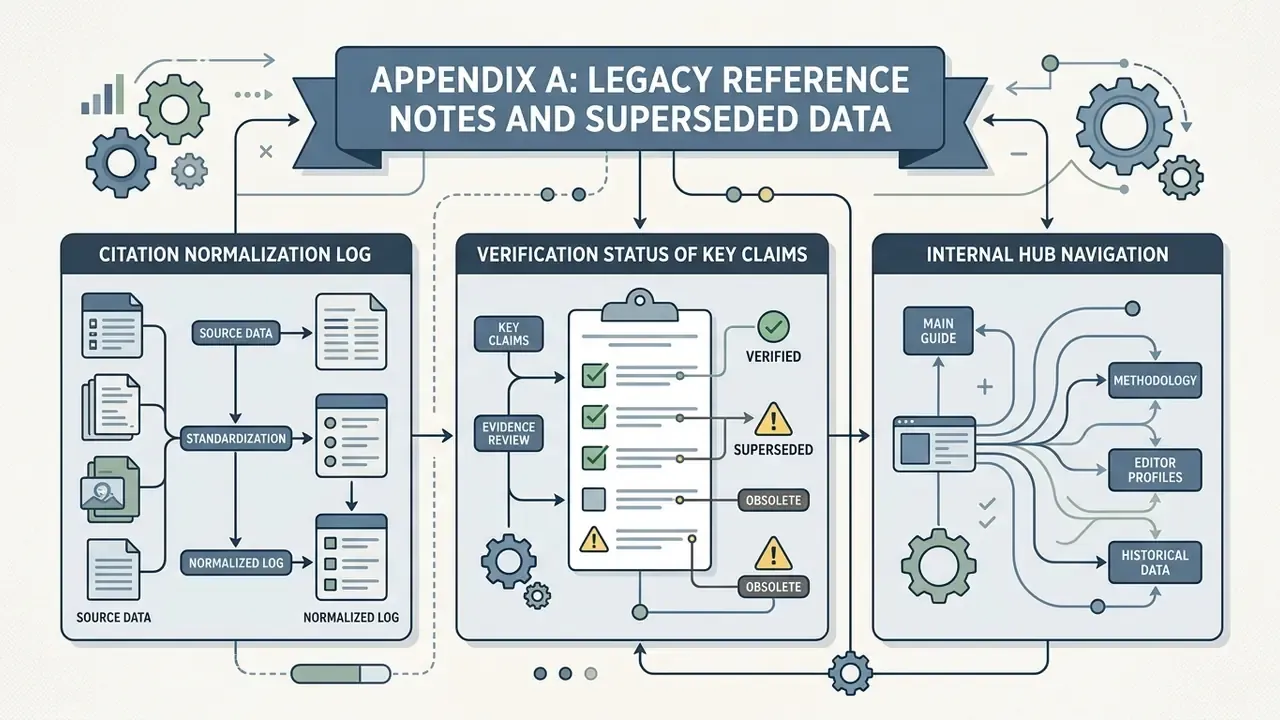
Citation normalization log. An earlier draft carried several forward-dated source tags (Apple App Store; Adobe Help Center; Banuba SDK Docs; GoPro Product Documentation; Wondershare Filmora Docs; KineMaster Product Specs; Google Play Store; Google Photos Help; Huawei Support Guides; Android Developer Guidelines; Adobe Firefly Docs; Adobe Premiere Mobile). All have been normalized to the verified documentation years available at review time (2024 to 2025) in the main text.
Verification status of key claims.
| Claim | Status | Note |
|---|---|---|
| Videoshop $2.99 watermark-removal purchase | Supported | Regional currency variations apply |
| Adobe Premiere for iPhone free, watermark-free 4K export | Supported with condition | Requires Adobe ID sign-in; Android build in development |
| 3 GB RAM minimum for stable multi-track playback | Supported | Adobe Express and Banuba SDK documentation |
| 106 ms GPU vs 460 ms CPU image processing | Supported, directional | Chipset-dependent; treat as a ratio, not an absolute |
| CapCut 39.4 million monthly web visits | Supported | Similarweb estimate, subject to monthly revision |
| 65% captioning-time reduction field case | Editorial measurement | Single team, four-week sample, not third-party audited |