On this page: the four-step browser workflow, choosing a voice source (record, upload, AI), auto-captions and one-click noise clean, mixing, ducking, sync, pitch, speed and fades, what "free" really means (watermarks, exports, privacy, commercial use), formats, mobile step-by-step, social exports, recording best practices, FAQ, and a final checklist.
How to Add Voiceover to a Video Online for Free
To add voiceover to video online free of charge, upload the video file to a browser editor, choose a voice input method (microphone recording, audio file upload, or AI text-to-speech), align the audio on a multitrack timeline, and export the rendered result.
Modern web editors lean on browser APIs to process media locally or through secure cloud clusters, so no desktop installation is required. Accessibility research also shows that browser-native, text-first editing widens the pool of people who can produce narrated video at all. That point gets overlooked in tool round-ups.
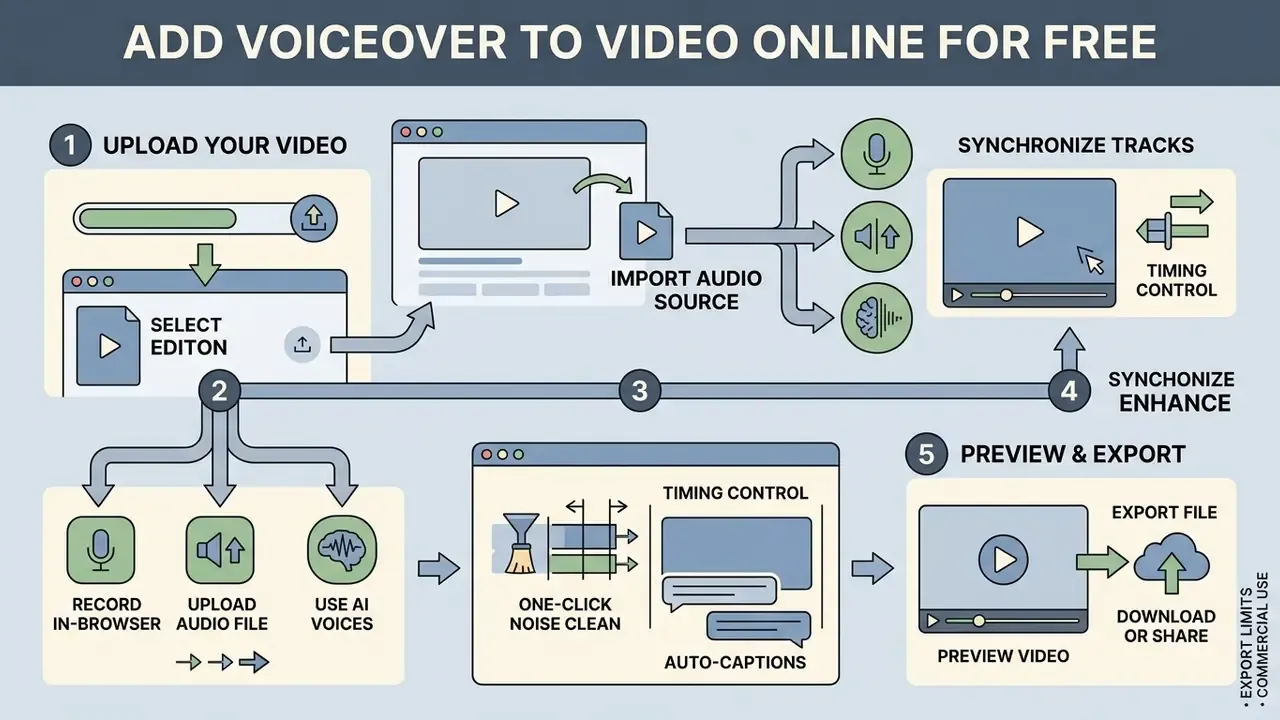
Standard four-step online voiceover process:
- Upload videodrag and drop source media into the browser workspace.
- Select audio sourcerecord live speech, upload a pre-recorded audio file, or generate synthetic speech from text.
- Synchronize tracksalign audio clip boundaries with visual scene changes on the multitrack timeline.
- Export and downloadrender the combined media and download the final video file.
Four steps. That is the entire loop, whether you are narrating a product demo or a KYC training module.
Upload Your Video and Start a Project
Start by uploading any supported container, MP4, MOV, or WebM, into the online video editor workspace. Most platforms then generate a temporary lower-resolution proxy file so the browser preview stays smooth on modest hardware.
Cloud platforms accept media through direct file uploads, cloud storage integration (Google Drive, Dropbox), or URL ingestion. Maximum single-file limits usually run from 100 MB on basic web tiers up to 15 GB on enterprise infrastructure. Preview generation is format-gated too: many platforms only render browser previews for MP4, MOV, AVI, MKV, WMV, and OGV, and some cap preview generation at 1 GB per file. Checking a companion video compressor first helps manage upload bandwidth before you start building a complex project timeline.
Add a Recording, Audio File, or AI Voiceover
You can add voiceover by capturing live microphone input through the browser media capture API, importing an existing WAV or MP3, or generating synthetic speech with an AI text-to-speech engine. Each mode answers a different production constraint: authenticity, fidelity, or speed.
Browser recording captures speech instantly. File uploads let producers bring in externally mastered voice tracks with hardware-level conditioning. Neural text-to-speech engines turn plain text or SSML scripts into narration across multiple languages, which is how multilingual training libraries get built without booking talent again. Teams preparing scripts often pair this step with an ai blog post generator, an ai bio generator for presenter intros, or an AI voice generator before synthesis.
Choose a Voiceover Source: Record Your Voice, Upload Audio, or Use AI
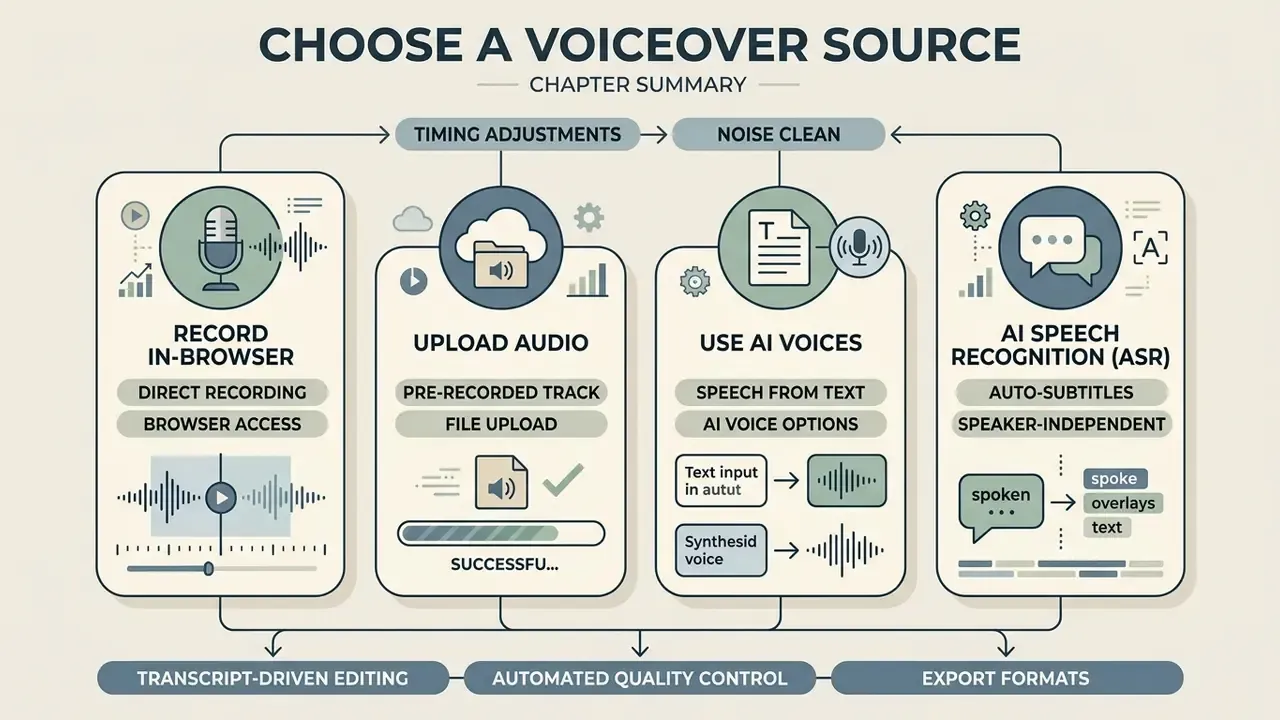
Choosing between browser recording, audio upload, and AI text-to-speech depends on hardware access, required emotional control, turnaround pressure, and licensing. Weighing those four factors up front prevents a rebuild later.
Comparison of voiceover sources for online video creation
| Voiceover source | Preparation effort | Control over voice qualities | Speed of creation | Typical tasks and use cases |
|---|---|---|---|---|
| Record in browser | Needs microphone setup and live performance; effort scales with vocal skill and script complexity. | Full control over accent, emotion, and style; carries personal identity and human authenticity. | Moderate; real-time recording plus retakes, but no synthetic rendering delay. | Personal vlogs, authentic product demos, individualized training guides, human-led presentations. |
| Upload pre-recorded audio | High initial effort for offline capture; may involve studio hardware or external mastering software. | High control through external editing, including frequency isolation and hardware dynamics. | Fast integration once audio is ready; upload and sync are the only tasks. | Commercial advertising, audiobooks, institutional announcements, pre-cleared legal broadcasts. |
| AI text-to-speech voices | Low effort for scripted content; writing and light text markup are the main tasks. | Variable control; tuning via SSML or style tags, bounded by the model's voice library. | Very fast; rendering completes in seconds, enabling rapid iteration and multilingual output. | Rapid explainers, accessible audio descriptions, social posts, scalable training modules. |
"Personalizing a synthetic voice, its gender, accent, and delivery style, measurably improves user-perceived quality and engagement versus a single default voice."
Each mechanism serves a distinct objective. Browser recording delivers human nuance. File uploads support studio-grade engineering. AI speech synthesis wins on turnaround for high-volume narration. Latency profiles differ as well: cloud TTS stacks measured in 2025 returned narration in roughly 0.28 seconds on average, with worst-case end-to-end synthesis near 3.15 seconds, still faster than any human retake cycle.
Record Your Own Voiceover Directly in the Browser
Browser-based voice recording uses the W3C MediaStream Recording API to capture live microphone signal inside the page, with no external recorder software. On start, the browser prompts for audio device permission under a strict security policy.
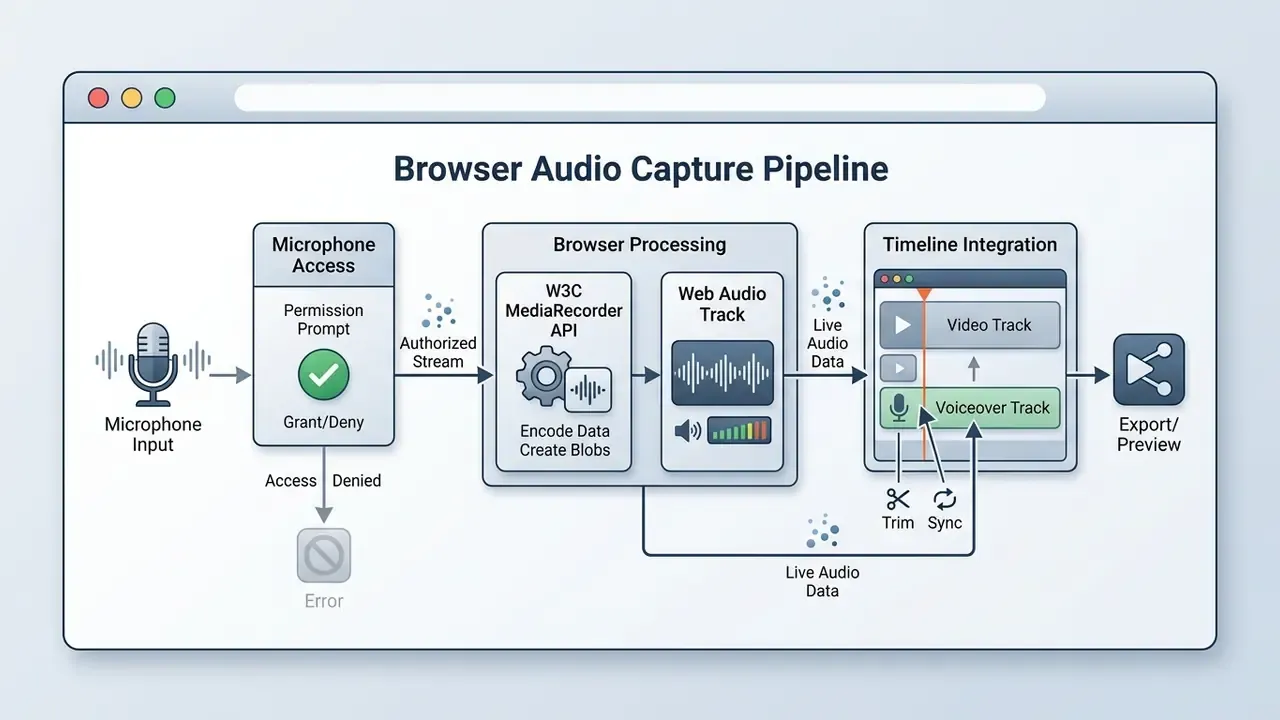
Modern browsers expose audio constraints such as echoCancellation, noiseSuppression, and device selection (deviceId) through MediaTrackConstraints. Access is gated twice: by the microphone directive in Permissions-Policy, and by the user's explicit consent prompt for getUserMedia(). Acoustic echo cancellation stops speaker feedback from bleeding back into the recording. Automated noise suppression attenuates steady background noise, which produces a cleaner voice track in an untreated room. For multi-microphone setups, enumerate devices first, then constrain getUserMedia() to the exact input rather than trusting the system default. That single habit removes most "why did it record my laptop mic" support tickets.
Upload a Pre-Recorded Audio Track
Importing a pre-recorded audio track means uploading local WAV or MP3 files into the editor for tighter post-production control. External studio capture sidesteps browser processing limits and allows hardware-level conditioning.
Speech recognition and audio engineering practice favor uncompressed 16 kHz or 48 kHz 24-bit PCM WAV masters for maximum fidelity. Speech-to-text ingestion guidance is stricter: capture at 16,000 Hz or higher, avoid resampling, and disable automatic gain control and aggressive noise reduction at the source, because destructive pre-processing strips phonetic detail the model needs. Compressed formats like MP3 are fine for final delivery, though repeated re-encoding dulls high-frequency clarity. Keep the room noise floor low during recording to avoid hiss when you mix multiple soundtracks, and use light rather than heavy noise reduction so the vocal timbre stays natural.
Generate Speech from Text with AI Voices
AI text-to-speech generators convert written text or SSML into natural-sounding synthetic voiceover using neural audio models. Contemporary architectures produce expressive speech with adjustable cadence, tone, and emphasis.
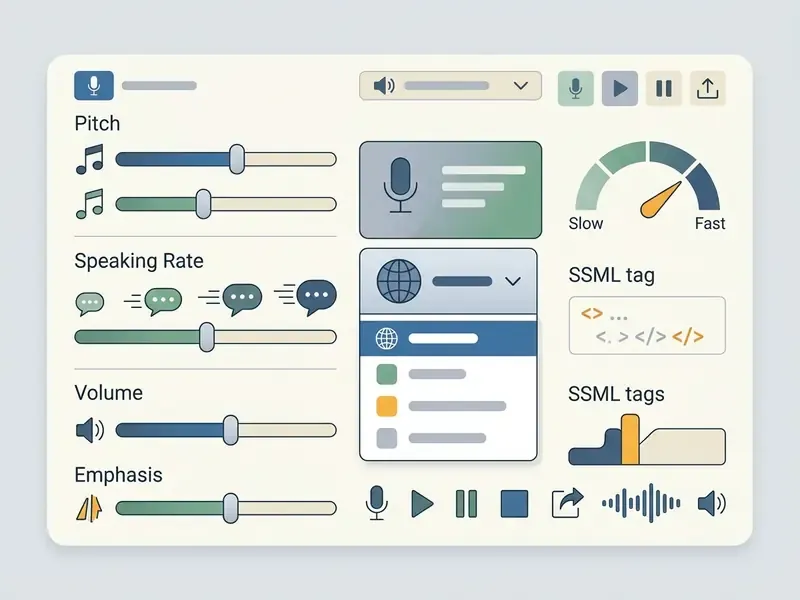
Leading TTS platforms cover dozens of global languages and localized accents, with documented per-engine coverage ranging from 5 to 17 languages. Cloud engines expose pitch tuning across roughly 20 semitones, speaking rates from four times slower to four times faster than baseline, and SSML emotion styles such as calm, empathetic, firm, apologetic, and lively. Advanced neural models support zero-shot or few-shot voice cloning from 3 to 10 seconds of clean reference audio, depending on the architecture and the vendor's consent workflow.
"Analysis of Speechify and ElevenLabs revealed systemic accent bias in English-language AI voices, creating digital exclusion risks for speakers with non-standard pronunciation."
Governance teams should treat accent coverage as a fairness control, not a cosmetic setting. A voice library that renders only prestige accents fluently will systematically misrepresent part of an internal or customer audience, and that is a documented risk worth logging in the model inventory. Before sending finalized text to the generator, it helps to review an AI voice generator comparison or a survey of free AI video generators. Adjacent glossary entries, including the ai blueprint generator, ai body generator, ai book cover and ai bikini generator pages, illustrate how differently vendors word consent and commercial-use clauses across generative categories.
Generate Auto-Subtitles with AI Speech Recognition (ASR)
Modern browser editors include Automatic Speech Recognition to turn voiceover tracks into synchronized subtitles. Neural ASR produces time-coded caption files (SRT or VTT), which lift accessibility and retention on muted social feeds. You can edit the transcript directly in the timeline, and playback re-syncs to the corrected text.
Practical ASR behavior in a free online video maker with text and voiceover follows a predictable pattern:
- Speaker-independent transcription. ASR captions narration even when the speaker never appears on screen, which is the defining condition of voiceover content.
- Export formats. Common outputs include SRT, VTT, TXT, DOCX, JSON, and PDF; SRT and VTT are the two directly consumable by social platforms and LMS players.
- Transcript-driven editing. Correcting a word updates the caption cue instead of forcing manual timeline nudges, which compresses QA on long training modules.
- Automated quality control. ASR output can be diffed against the source script to flag mispronunciations, dropped lines, and clipped syllables, a verification step raw live capture simply does not provide.
- Free-tier ceilings. Transcription allowances on free plans are metered in minutes, often a few hundred in total, so batch long-form courses deliberately.
Caption accuracy carries compliance weight as well: Section 508 requires synchronized media captions to appear at approximately the same time as the corresponding audio and to match the spoken words.
Edit Voiceover and Original Audio for Clear Video Sound
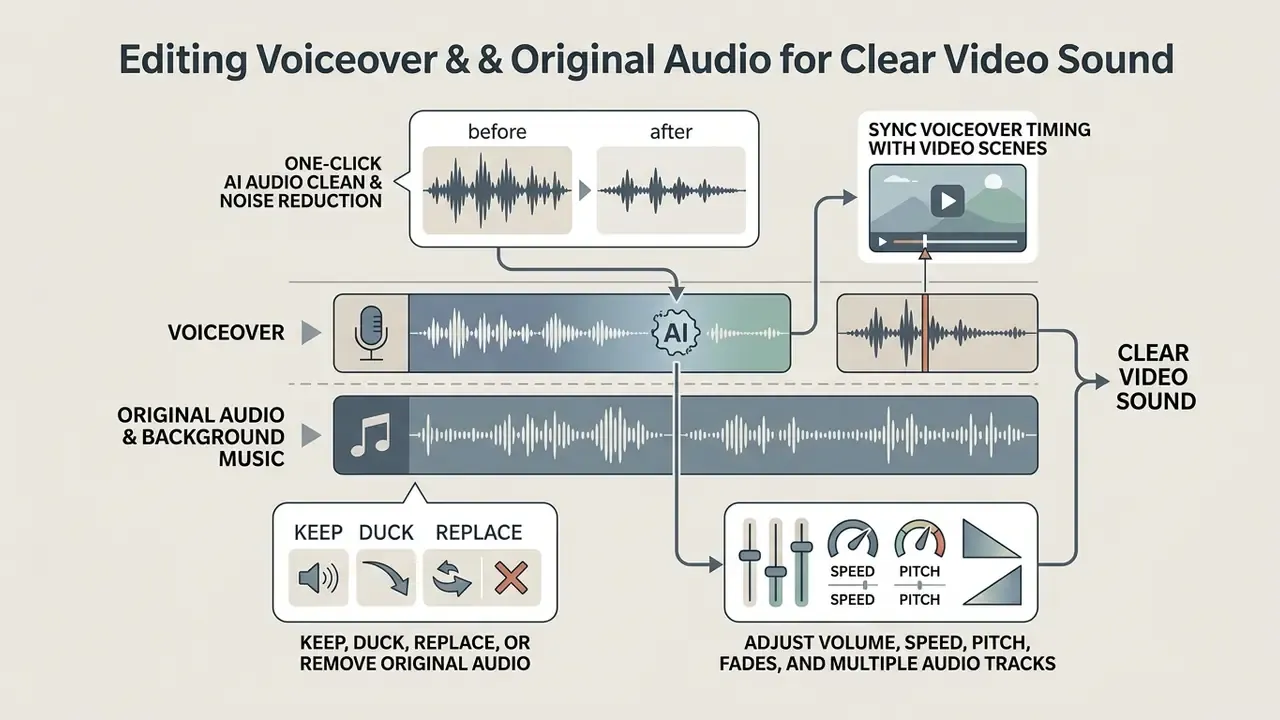
Clear video sound comes from balancing the voiceover against background music and original soundtracks using gain adjustment, frequency isolation, and automated ducking. Badly balanced audio raises cognitive load and quietly kills retention.
"Music and sound effects strengthen emotional engagement, but combining them without level control produces cognitive overload."
Illustrative scenario: a mid-sized corporate team needed to standardize internal training videos built on heavy background music and inconsistent dialogue levels. The production group applied automated ducking plus dynamic compression to enforce speech clarity across 40 modules. The systemic approach removed manual volume keyframing from every project timeline and produced consistently intelligible dialogue across the set. Retention effects were observed qualitatively by the internal review group, not measured against a controlled baseline, so no percentage uplift is claimed here. The example is composite and hypothetical.
One-Click AI Audio Clean and Noise Reduction
Dynamic compression targets overall balance. Automated AI noise suppression does something narrower: it removes room reverberation, HVAC hum, and background hiss in one click. Neural isolation models separate the human vocal band (roughly 300 Hz to 3.4 kHz) from ambient noise and rebuild degraded speech without manual equalization or a chain of noise-gate plugins.
If you cannot record in a treated room, this is the highest-leverage single control in a browser editor. Apply the clean first, audition it against the raw take, then reach for compression or EQ. Two cautions apply. Over-aggressive denoising introduces artefacts, that thin "underwater" tone, so prefer moderate presets on already-decent takes. And if the same audio will be transcribed later, run ASR on the cleaned track but keep the untouched master, since heavy suppression strips phonetic cues recognition models rely on. Speech-isolation pipelines work by splitting a multi-channel signal into speech and non-speech channels, then re-weighting them to raise voice intelligibility.
Keep, Duck, Replace, or Remove the Original Audio
Original soundtracks can be retained, ducked automatically under narration, replaced with fresh audio, or detached and deleted. The decision hinges on one question: does the ambient sound add anything to the scene?
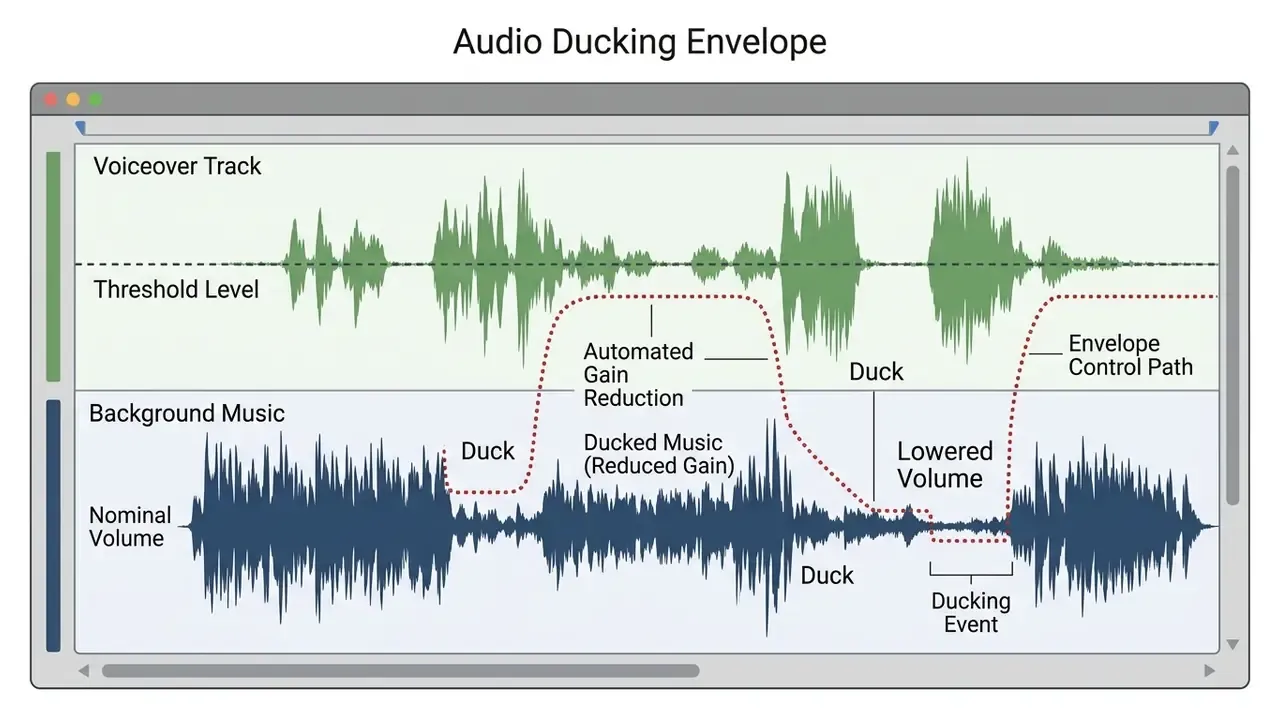
Automated ducking monitors the voiceover track and drops background volume by a preset attenuation whenever speech occurs. Professional implementations expose four controls, Ducking Level, Threshold, Attack, and Decay, and write keyframes onto an amplify effect rather than baking the change into the file. Typical profiles set attenuation between -15 dB and -20 dB, with smooth attack and decay times to avoid volume pumping.
"Layering multiple sound sources without level management degrades speech uptake: listeners absorb less information when audio signals compete."
Broadcast accessibility guidance reinforces the same principle. Narration should not run over existing dialogue, should not obscure music that carries the storyline, and should leave room for deliberate quiet and meaningful ambience. If the original bed contains stray chatter or rumble, detach and delete it. Cleaner mix, fewer arguments in review. Creators prepping supporting visuals can borrow the workflows in the online photo editor guide for static asset preparation in the same pass.
Sync Voiceover Timing with Video Scenes
Precise synchronization aligns spoken phrases with visual transitions and on-screen actions inside a tight timing window. Mismatches between speech cues and visual actions distract viewers and, in regulated content, undermine credibility.
Accessibility standards, including W3C SAUR and Section 508, require synchronized media captions and speech to match visual timing accurately. Editors hit that window by scrubbing the timeline to find exact cuts and trimming audio start points to specific phrases. Visual markers placed at key action beats simplify manual alignment across busy multitrack projects. A practical rule from production: let caption and scene timing follow the finished voiceover, treating narration as the primary cue and shot length as the visual constraint, then review every transition once at normal speed against its matching phrase.
"User-driven audio descriptions anchored to key video moments received high ratings for effectiveness and viewing comfort from blind and low-vision participants."
Adjust Volume, Speed, Pitch, Fades, and Multiple Audio Tracks
Multitrack mixing balances per-track gain, adjusts voice playback speed, integrates music, and applies dynamic compression to prevent clipping. Managing channel levels keeps dialogue intelligible over everything else.
Under WCAG 2.1, background audio should sit at least 20 dB below foreground speech, roughly four times quieter to the human ear. International loudness practice (ITU-R BS.1770-5 measurement, BS.2076-3 targets) recommends average dialogue loudness near -24 LKFS/LUFS. Browser-based processors use DynamicsCompressorNode to flatten peaks and prevent distortion when several tracks play at once, while gain nodes and playbackRate handle level and tempo respectively. For deeper technical troubleshooting, see AI Media Support and Troubleshooting.
"Text-to-speech significantly improved reading comprehension in students with ADHD-related reading difficulties; for dyslexic readers it cut reading time and cognitive effort while preserving comprehension."
Fine-tuning includes fade-in and fade-out curves of roughly 0.2 to 0.5 seconds to remove audible clicks at clip boundaries. Pitch shifting changes vocal tone without altering speed, while speed adjustments between 0.8x and 1.5x fit narration into rigid scene timings without metallic artefacts. Sequence the mix in a fixed order for repeatable results: clean, level, compress, duck, pitch or speed, fades, then a final loudness check against the -24 LKFS/LUFS target. Fixed order matters more than clever settings, because it makes the result reproducible by a colleague who did not build the project.
What "Free" Means: Watermarks, Exports, Privacy, and Commercial Use
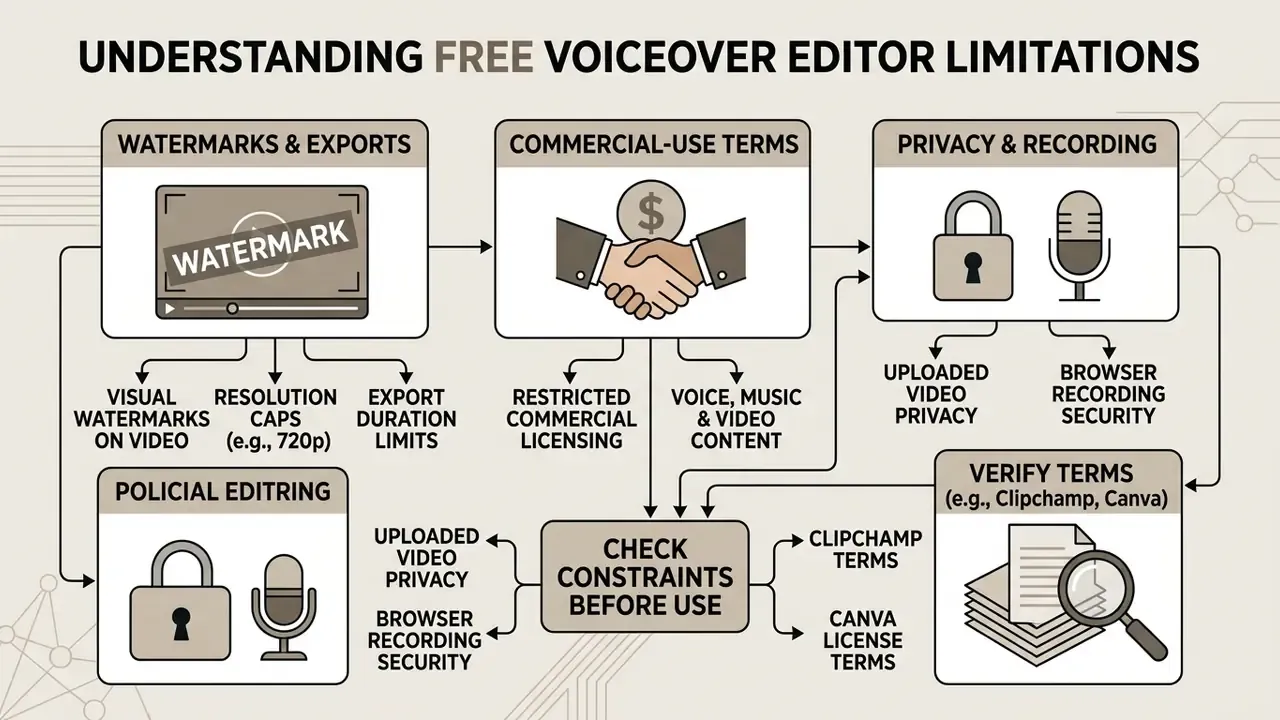
Check Free Export Limits and Watermark Conditions
Free plans typically restrict output with branded watermarks, resolution caps at 720p or 1080p, and length limits between 1 and 10 minutes. Policies vary widely, and they move.
Free-tier export limits across popular browser video editors (verify at time of use)
| Platform | Watermark on free export | Max free resolution | Free length / render limit | Commercial use on free tier |
|---|---|---|---|---|
| Microsoft Clipchamp | None stated for standard free assets | 1080p | No published hard length cap; premium stock blocks export until upgrade | Depends on asset source; premium stock requires a paid plan |
| Canva | None when only free elements are used; Pro elements trigger a watermark | 1080p (MP4, GIF) | Project-based | Governed by the Canva Content License Agreement |
| Kapwing | Yes, on all free exports | 720p | About 1 minute per export | Varies by asset type; AI-generated assets documented separately |
| VEED | Yes, on all free exports | 720p | Up to about 10 minutes | Restricted on free tier |
| CapCut (web) | Varies by template and asset labeling | 1080p | Project-based | Only assets labeled for commercial use under the Materials License Agreement |
| Generative AI video tools (PixVerse-class) | Provider logo on free renders | 540p to 720p | 5 to 10 second clips per generation credit | Usually excluded or credit-limited on free tiers |
Microsoft Clipchamp, for instance, permits watermark-free 1080p exports when standard stock media is used, whereas Kapwing and VEED stamp free-tier renders and cap resolution at 720p. Some free AI video generators limit each generation credit to a 5 to 10 second clip. Reviewing these limits during project setup prevents render failures at the finish line, and anyone comparing render allowances can consult a roundup of free AI video generators.
Consolidated tier comparison. The same constraints, viewed by capability rather than by vendor:
| Platform feature | Free tier standard | Paid / enterprise tier |
|---|---|---|
| Max export resolution | 720p to 1080p HD | 4K UHD / uncompressed |
| Visual watermarking | Present on most free tiers (Kapwing, VEED) | Fully removed |
| Max video duration | 1 to 10 minutes | Unlimited / project-based |
| AI voice generation | Limited monthly credits, basic voices | Unlimited, premium neural voices |
| ASR / auto-captions | Metered transcription minutes, limited export formats | Bulk transcription, SRT/VTT/JSON at scale |
| Commercial rights | Restricted or non-monetized | Full commercial clearance |
For head-to-head capability and pricing detail across generative engines, see the comparison of the best AI video generators.
Review Commercial-Use Terms for Voice, Music, and Video Content
"Synthetic audiobook narration raises unresolved rights questions: voices may be cloned from performers or derived from training data of unclear legal status."
To evaluate broader licensing frameworks, see the overview, compare options across platform terms, and track regulatory movement through AI Litigation and Case Timelines. Commercial asset questions can also be cross-referenced against the Canva AI Generator overview.
Understand Privacy for Uploaded Videos and Browser Recording
Uploading media to a web editor exposes file metadata, including location data, and depends on secure browser transport to protect the recording session. Governance teams should verify data handling before proprietary footage ever leaves the building.
Under privacy frameworks such as GDPR and EDPB Guidelines 3/2019, video and voice data containing identifiable human features qualify as personal data. W3C privacy specifications warn that uploaded files may leak embedded EXIF location metadata unless scrubbed before ingestion. WebRTC media transport security relies on end-to-end encryption (RFC 8826) to protect microphone streams captured in the browser, and the same specification notes that browsers reach local keying material, files, camera, and microphone, so protection must hold both inside the browser and in transit.
"Responsible evaluation of text-to-speech systems requires explicit documentation of how voice samples are collected, stored, and used in model training."
Practical controls before uploading proprietary footage:
- Strip EXIF and GPS metadata from source files.
- Confirm the vendor's retention window and sub-processor list.
- Restrict voice-cloning reference uploads to consenting speakers with written authorization.
- Prefer processing tiers that contractually exclude customer media from model training.
This information is general in nature. It does not constitute legal advice or replace consultation with a qualified specialist. Licensing, privacy, and data-protection obligations depend on jurisdiction, contract wording, and the version of vendor terms in force at the time of use.
Fact check and terms verification
- Clipchamp terms
- free 1080p exports carry no watermarks unless premium stock assets are included.
- Canva license terms
- watermark-free exports require free-tier designated elements or active Pro licensing; Licensed Content falls under the Canva Content License Agreement.
- CapCut terms of service
- commercial use is governed separately under the CapCut Materials License Agreement; unlabeled assets are restricted to personal use.
- Privacy standards
- W3C security and privacy guidelines mandate explicit user consent for browser microphone capture (
getUserMedia), with transport encryption under RFC 8826. - Accessibility standards
- WCAG 2.1 (background audio at least 20 dB below speech), W3C SAUR (±20 ms timed-text tolerance), Section 508 (synchronized captions matching spoken words).
- Loudness standards
- ITU-R BS.1770-5 measurement algorithms; BS.2076-3 average dialogue loudness of -24.0 LKFS/LUFS.
- Legal disclaimer
- these summaries are informational, reflect vendor documentation available at the time of review, and are not legal advice.
Supported Formats, Browser Access, and Social Media Video Exports
Browser video editors support a core set of video and audio containers, run across desktop and mobile, and ship export presets for the major social platforms. Browser compatibility, not codec theory, determines whether ingestion is stable.
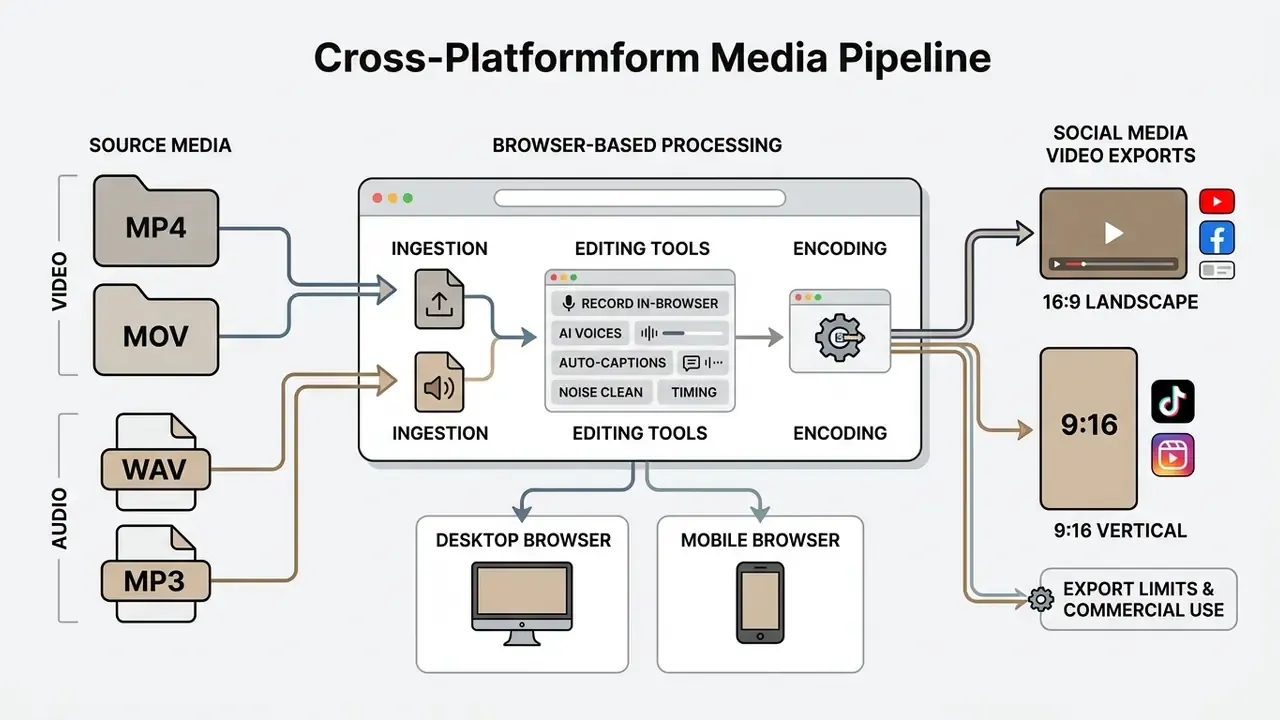
Video and Audio Formats to Upload for Voiceover Editing
Online editors accept video containers including MP4, MOV, WEBM, and AVI, plus audio in WAV, MP3, M4A, and AAC. Standardizing formats prevents playback errors during timeline editing.
H.264 video with AAC audio inside an MP4 container remains the most universally supported upload combination across browsers. Broader ingestion lists often extend to M4V, MKV, MPEG, OGV, QT, TS, and WMV, though support is platform-specific rather than guaranteed. For audio, uncompressed WAV gives the cleanest signal to edit; MP3 gives smaller files for fast uploading over a shaky connection. Obscure legacy codecs may fail preview rendering unless transcoded first, and a lightweight free photo and media editor pass helps normalize accompanying static assets at the same time.
Add Voiceover from a Browser or Mobile Device
You can record voiceover from a desktop browser or a mobile device on iOS and Android, though mobile platforms impose stricter hardware access rules. Mobile browser security architecture shapes the whole recording workflow.
Desktop Chrome, Edge, and Firefox give direct access to microphone hardware through standard permission prompts. On iOS Safari, audio recording may route through a native system capture picker, adding interaction steps. Android browsers support direct in-browser capture, sometimes by handing off to a chosen recorder app and returning the file to the page, though hardware gain controls vary by manufacturer. Short version: desktop is the most direct path, Android the most flexible mobile path, iOS the most constrained.
Step-by-step mobile voiceover workflow (iOS and Android):
- Import project launch the browser editor, tap + New Project, and pick source media from the camera roll.
- Access audio menu tap the Audio / Sound icon on the bottom toolbar and choose Record Voiceover.
- Grant permissions allow microphone access when iOS Safari or Android Chrome prompts.
- Record and align tap the Microphone button, speak after the 3-second countdown while watching the preview, then tap Stop.
- Apply and sync tap Keep / Save (✓) to lock the track onto the mobile multitrack timeline for trimming.
Two mobile-specific cautions. Record with the device plugged in or above 30% battery, because low-power mode can throttle capture. And silence notifications first, or an alert tone will print straight into the take. Teams evaluating programmatic pipelines can compare options, review the Google Veo video generation API guide, or follow the YouTube video editor workflow.
Export Voiceover Videos for YouTube, Instagram, TikTok, and Social Media
Social exports require platform-specific aspect ratios, frame rates, and bitrates: 16:9 for YouTube, 9:16 vertical for Instagram Reels, TikTok, and YouTube Shorts. Matching the spec protects visual quality and reduces re-compression artefacts.
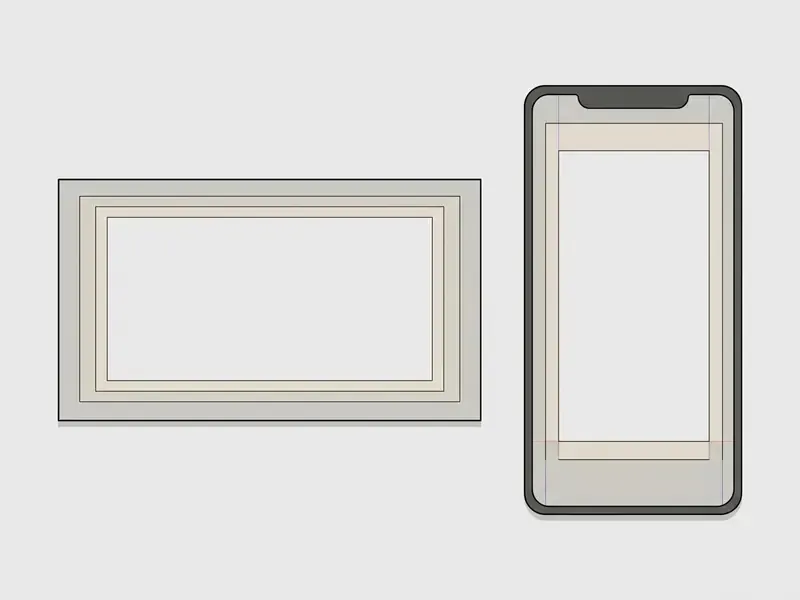
Standard specs for vertical short-form platforms call for a 9:16 ratio at 1080x1920, 23 to 60 frames per second, and a video bitrate around 5 Mbps; YouTube Shorts also accepts 1:1 square framing. Horizontal YouTube content uses 16:9 at 1080p or 4K, typically H.264 with an adaptive high-bitrate preset matched to the source. Keep captions and key text inside platform safe margins so interface overlays do not cover them. Publishers building a dedicated pipeline can review the YouTube video editor guide or survey production options across AI video generators.
LMS and corporate distribution specs. For learning portals, export MP4 (H.264 High Profile, AAC-LC audio at 128 to 192 kbps, 48 kHz) at 1080p or 720p so files stream on constrained corporate networks. Package narrated modules as SCORM or xAPI containers when completion tracking is required. Ship the matching SRT or VTT file alongside the video instead of burning captions into the frame, because external caption tracks stay searchable, translatable, and screen-reader accessible.
Pro Tips for Studio-Quality Voiceover Recording
Clean recordings come from script preparation and basic room control, not from expensive gear:
- Script pacing and pause markers format the script with visual cues such as
[PAUSE 1s]and[SCENE SWITCH], and bold the key terms. Mark start and stop points that match pauses and transitions in the video. Rehearse aloud against playback at least twice. - Acoustic environment record in small, soft-furnished rooms, rugs and drapes included, to kill flutter echo. Place the microphone 4 to 6 inches away at a 45-degree angle so plosive bursts on "p" and "b" miss the capsule.
- Real-time monitoring wear closed-back headphones so you hear the input instantly without leaking playback into the microphone stream.
- Capture discipline prefer push-to-talk or take-based recording over a continuously open microphone. It cuts stray room noise, shortens editing, and keeps the noise floor low.
- Delivery and retakes speak slightly slower than conversational pace, hold a consistent distance across takes, and re-record whole sentences rather than single words so the room tone matches at the edit point.
FAQ: Frequently Asked Questions About Adding Voiceover to Video Online
The remaining questions tend to cluster around production sequencing, skill requirements, and enterprise use in marketing and training. Clarifying them early shortens project planning.
What Comes First: the Video or the Voiceover?
Scripting and recording the voiceover first gives tighter timing for structured content. Recording after the edit works better when the visuals already exist. The choice depends on which layer is fixed.
"Structuring narration by publication section before video assembly reduced authors' cognitive load and improved the rhetorical coherence of the finished clip." Supporting Video Authoring for Communication of Research Results (Pub2Vid), ACM. https://dl.acm.org/ For educational, corporate, or promotional video, write the script and record the voice first to create an audio anchor. Editors then cut visuals to the narration cadence, which eliminates awkward pauses and frees the narrator from hitting a fixed length per scene. With pre-existing footage, documentary clips or live event recordings, narration is written and performed against fixed timestamps instead. So the deciding question is simple: if the text must be exact, record the voice first; if the edit is locked, fit the voice to the cut.
Can I Add Voice to Video Without Editing Experience?
Yes. Drag-and-drop templates, automated speech synthesis, and browser recording interfaces let a first-time user add voice to video online without prior editing experience. Script-driven controls remove most timeline management.
"Blind participants in AVscript user studies successfully completed scene-trimming and timing-correction tasks through a text interface, without using a conventional editing timeline." AVscript: Accessible Video Editing with Audio-Visual Scripts, ACM CHI. https://dl.acm.org/ Template-driven editors let users swap placeholder text, record over predefined slides, or paste a script for automated AI voice generation. Interface abstractions handle background media synchronization, and vendor documentation for template-first editors states plainly that no prior editing skill is needed to add royalty-free music, upload audio, or record narration in-browser. Cornell's production guidance suggests the real beginner threshold is planning rather than software: define purpose, audience, location, participants, equipment, and available time before recording a single line. Anyone widening their toolkit can look at an animation maker, explore the hub for planning utilities, or browse the hub for tier comparisons.
Can I Use a Voiceover Video Maker for Presentations and Product Content?
Free voice over video maker tools are widely used for corporate presentations, training modules, and product marketing, mostly because narration lifts clarity and completion rates. Adding clear audio to slides improves comprehension across distributed teams. Corporate briefing guidance for video presentations caps runtime at 12 minutes with a maximum of 15 slides and roughly 1,500 spoken words in total, opening with introduction, agenda, organization intro, content, conclusion, and contacts.
"Maximum video length is 12 minutes, with an absolute maximum of 15 slides and about 1,500 words of audio for the whole presentation." Briefing Note for VTM Video Presentations, ExpoWorld.cloud. https://expoworld.cloud/ "Text-to-speech improved comprehension for students with ADHD-related reading difficulties and reduced cognitive effort for dyslexic students; eye-tracking showed fewer fixations." The effects of text-to-speech on reading comprehension in students with reading difficulties (2024). https://doi.org/ AI voiceover integration also makes translation of training modules into regional languages practical without re-hiring talent. Enterprise platforms support SCORM-compliant exports for direct LMS ingestion, and comparable AI training-video tools convert scripts, PDFs, slide decks, SOPs, and policy documents into narrated modules with SCORM-ready packaging. For product pages and catalog cards, keep clips short, front-load the value proposition inside the first five seconds, and ship captions so the message survives muted autoplay.
Final Production Checklist
Checklist0 / 12