Choosing a free video editing app is really a trade-off exercise. You weigh the feature list against the hard limits: watermarks, export resolution caps, stock-asset entitlements, and commercial licensing terms. Creators, educators, and enterprise teams can now ship polished content without paying for software upfront, provided the platform matches their hardware, their workflow, and their distribution channel.
One caveat before the comparisons. "Free" describes the price, not the permissions. Two apps with identical timelines can differ enormously in what you are allowed to publish, and where your footage is processed.
Quick Answer: Which Free Video Editor Fits Your Workflow?
| If your priority is… | Choose | Why |
|---|---|---|
| Fast vertical social clips (TikTok, Reels, Shorts) | CapCut or VN Video Editor | Mobile-first timelines, auto-captions, trend audio, watermark-free export (VN up to 4K/60fps) |
| Beginner-simple editing with templates | Adobe Express or Canva | Drag-and-drop canvas, thousands of templates, watermark-free MP4, auto-save |
| Browser editing plus screen and webcam capture | Microsoft Clipchamp | Native multi-source recorder, AI subtitles in 80+ languages, watermark-free 1080p |
| Complex multi-track 4K projects, offline work | OpenShot, Shotcut, Kdenlive | Open-source desktop NLEs, no watermarks, no project or resolution caps |
| Mobile color grading and aesthetic looks | VSCO (free tier) | Preset film-style filters and exposure control on iOS/Android |
| Simple, watermark-free mobile timeline | VLLO | Frame-accurate touch editing without a subscription wall |
| Maximum data control in a regulated environment | OpenShot / Kdenlive (local processing) | On-device rendering only; no cloud upload of confidential footage |
Risk-profile shortcut for compliance, risk, and governance teams: if the footage contains PII, customer records, internal dashboards, or unreleased product screens, default to an offline desktop editor. Restrict browser-based tools to approved vendors with documented security attestations (SOC 2 Type II or ISO/IEC 27001) and a signed data processing agreement. No attestation, no upload.
What a Free Video Editing App Offers and What Limitations Exist
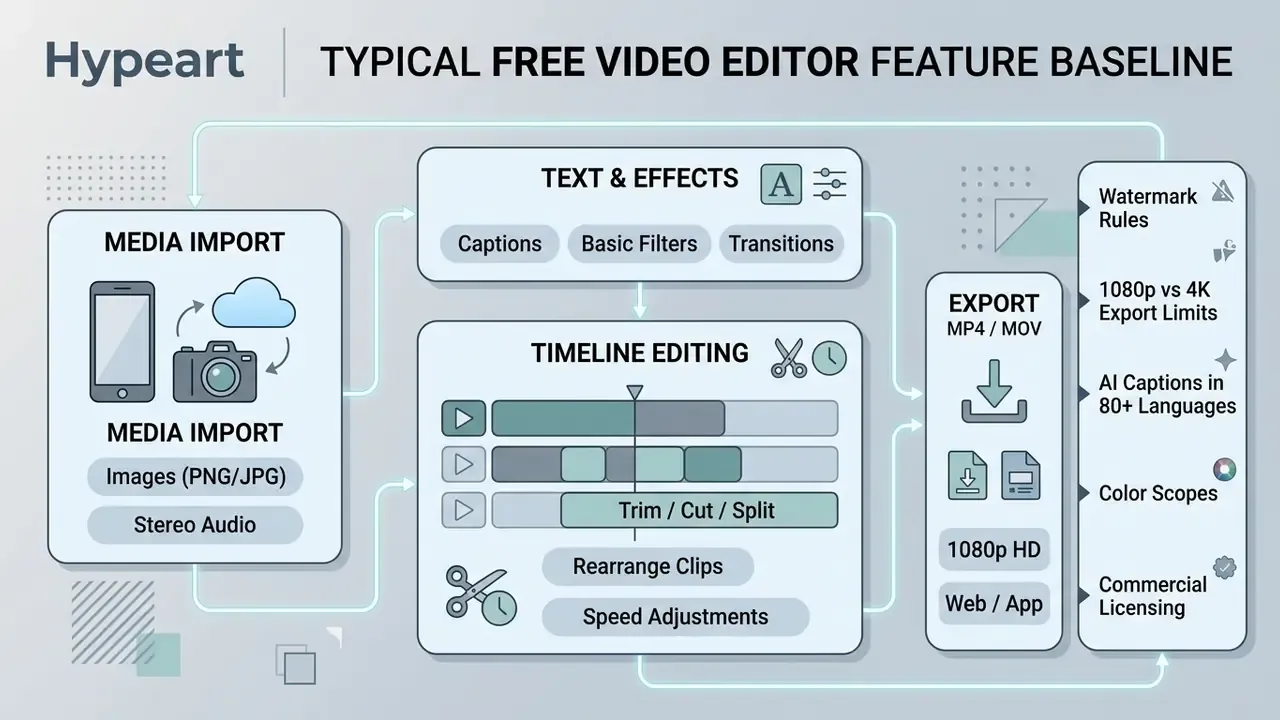
A free video editing app gives you the foundations of non-linear editing: clip trimming, timeline arrangement, text overlays, and basic audio control, with no licence fee at the door. Freemium business models then gate the advanced layer, usually export resolution, premium effects, and commercial asset rights. Knowing where those gates sit prevents a nasty surprise at 11pm on delivery day.
Scale explains why the gates matter commercially. Browser editors now carry mainstream production volume, not just weekend hobby projects.
«Clipchamp attracts roughly 9.1 million visits per month, with users spending an average of nearly 7 minutes per editing session.»
What Is Typically Available in a Free Video Editor
Free video editors cover the essential post-production moves needed to assemble a complete project. Across mobile, web, and desktop, the common baseline includes multi-track or single-track timeline editing, clip splitting, trimming, canvas resizing, transitions, visual filters, and basic audio manipulation. That is enough to finish a tutorial, a product demo, or a quarterly all-hands recap.
For everyday projects, Microsoft Clipchamp and Adobe Express both expose timeline controls, text overlay templates, and auto-captioning at no cost. According to Microsoft Clipchamp official documentation (2026), free users can edit and export unlimited videos at 1080p HD without a subscription. Open-source alternatives go further on ceilings: OpenShot provides non-linear timeline editing with unlimited video and audio tracks, keyframe animations, and title templates, with no functional paywall at all - OpenShot Documentation (2026). https://www.openshot.org/
Limitations of Free Video Editing Software: Watermarks, Pro Tools, and Stock Media
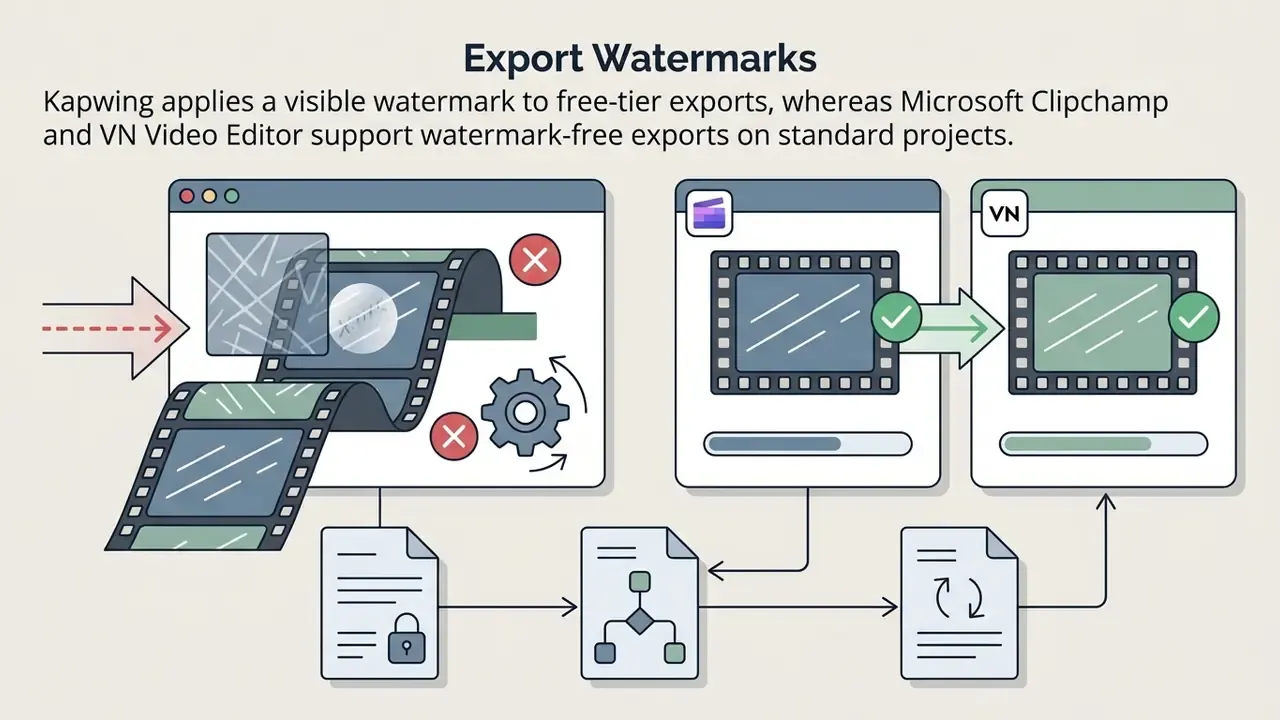
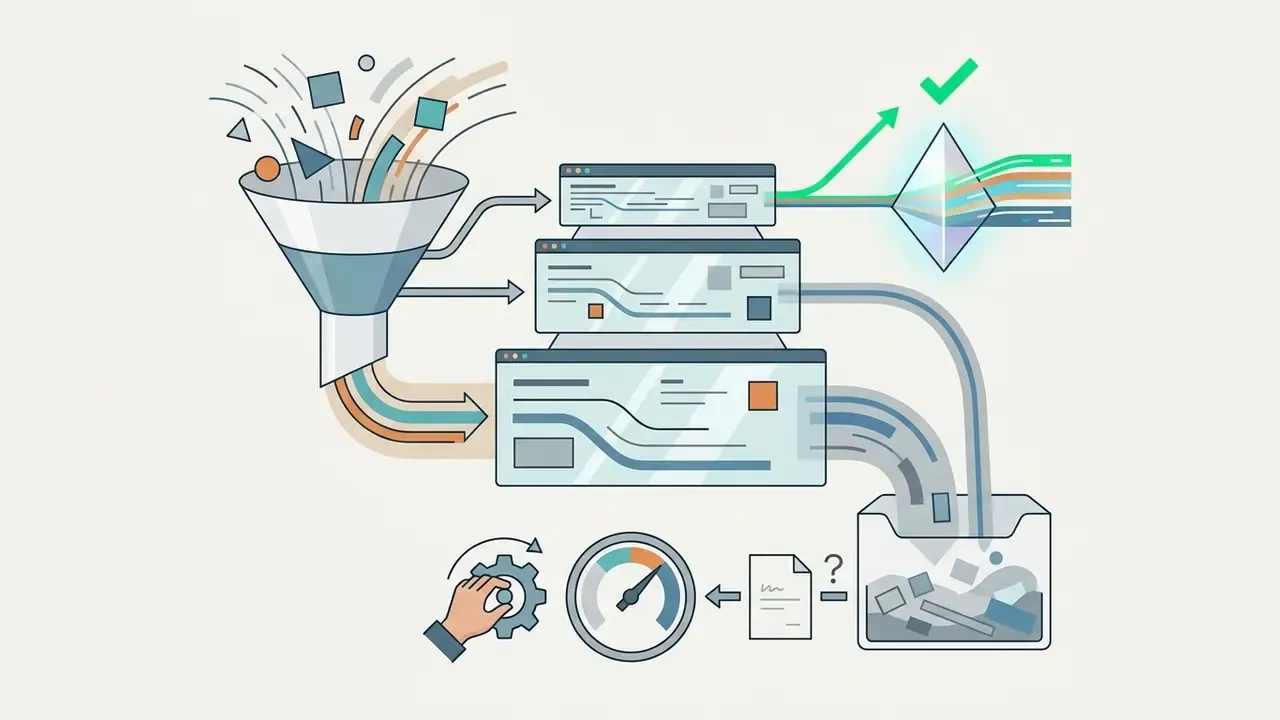
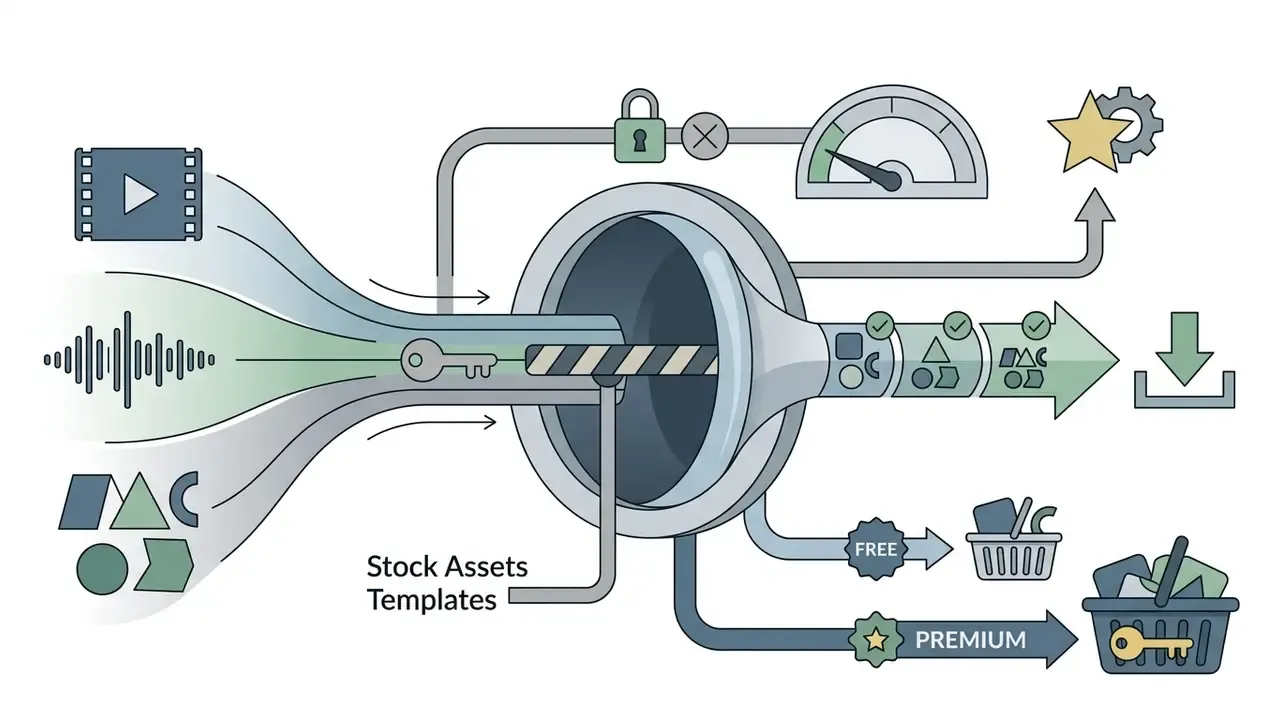
Freemium editing software monetizes in four predictable ways: it caps export resolution, stamps a branded watermark, gates advanced effects, and limits stock asset access. Desktop open-source tools rarely impose export limits. Web and mobile apps gate aggressively, because that is where the upgrade prompt lives. Readers weighing specific products can compare free video editors by feature set and export limits before committing a production workflow to any single vendor.
- Cloud Processing and Storage Web editors limit cloud storage capacity (5GB on the Adobe Express free tier) and restrict project version history (10 days on the same plan).
- Project and Duration Limits Some free tiers cap stored projects or maximum clip length, which quietly blocks long-form tutorials, webinar recaps, and training modules.
E-E-A-T Verification: Terms of Free Access (2026 Data Verification)
How to Choose an Easy Free Video Editing App for Your Tasks
Picking an easy free video editing app comes down to matching two things: your technical comfort and your publishing destination. Then check the interface, asset library, and export presets against both. Novices and social media managers usually thrive in drag-and-drop web tools. Multi-layer, colour-critical projects still belong on a desktop NLE.
Flowchart: Selecting the Right Free Video Editor
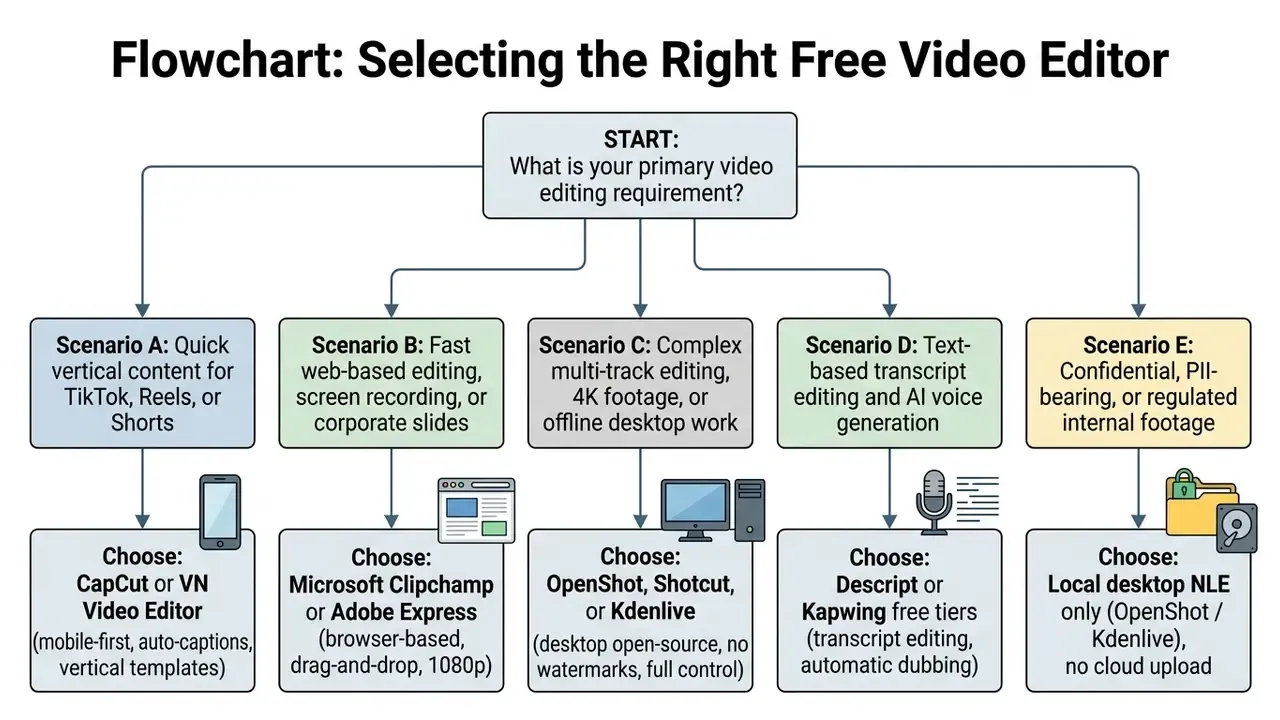
To put that decision tree to work:
- Identify the distribution channel. Vertical 9:16 mobile platforms favour CapCut or VN. Horizontal 16:9 YouTube or boardroom presentations favour Clipchamp or OpenShot.
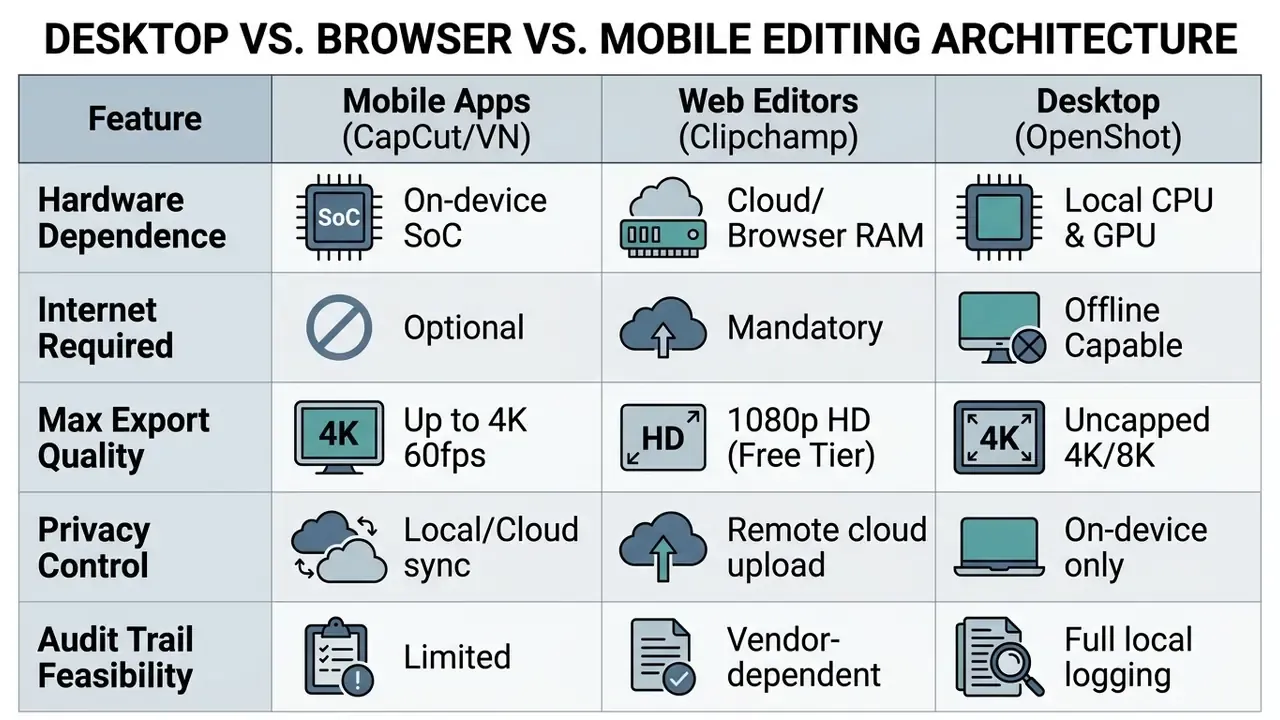
- Evaluate hardware honestly. Cloud-based browser tools offload the heavy lifting; 4K desktop editing needs real RAM and GPU headroom, not optimism.
- Confirm feature overlap. If you need graphic design assets next to video, consult our AI Media Comparison guide to evaluate hybrid creative suites.
- Classify the data, then the tool. Decide whether the footage carries confidential or personal data before comparing features. Data classification, not interface preference, should dictate whether cloud processing is permissible.
Simple Editing App for First-Time Video Creation
First-time creators need interfaces that skip the setup ritual: drag-and-drop timelines, pre-built canvas sizes, one-click export presets. Simplified layouts lower cognitive load by promoting trim, cut, and audio controls above colour-grading nodes nobody has asked for yet. The easiest free video editing app, for most beginners, is whichever one lets them publish something today.
That trade-off is the real price of simplicity. Beginner tools accelerate the first export and constrain frame-accurate control later. Adobe Express and Canva simplify creation by treating video clips as visual blocks on a design canvas - Canva Video Editor (2026). https://www.canva.com/video-editor/ You import media, drag the handles to trim start and end points, add animated text, and export MP4 without ever learning timeline vocabulary. Readers who want that vocabulary anyway can review how video editors and their key functions differ across NLE categories.
Need clean graphic elements for a title sequence? An ai icon generator supplies crisp vector shapes, while teams producing human-centred visuals often test an ai human generator for placeholder presenters before booking a shoot. Educational channels building explainer segments sometimes pair a free editing video app with an ai homework helper picture tool to illustrate worked examples on screen.
Best Free Video Editing Apps for Phone, Browser, and Desktop
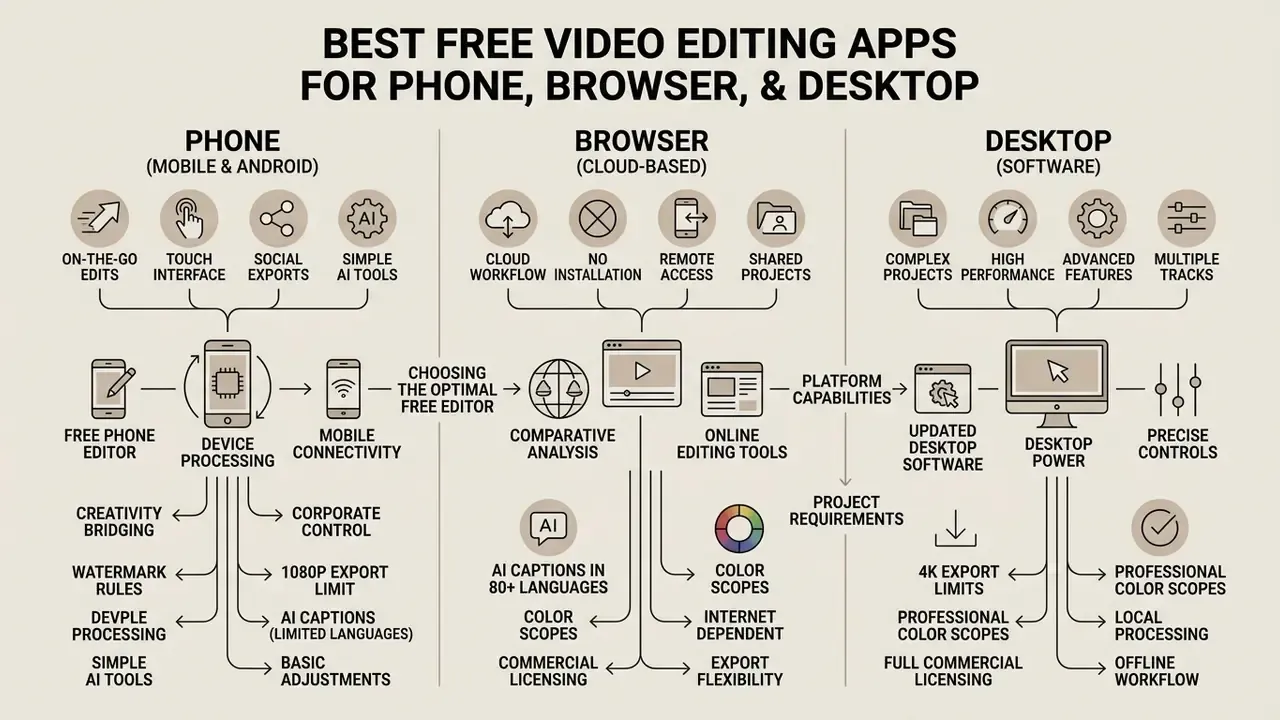
The optimal choice among apps for video editing free of charge depends on device compatibility, available processing power, and connectivity. Mobile apps win on mobility and camera integration. Browser editors win on cross-device access. Desktop software wins on offline reliability and resource control.
«Over a three-month window capcut.com recorded roughly 34 million visits versus 7.8 million for clipchamp.com, though the average Clipchamp session runs three times longer.»
That gap is instructive. Mobile-first platforms win reach and volume; browser editors capture the longer, more deliberate sessions typical of corporate and educational projects.
Comparative Feature Analysis of Leading Free Video Editors
| Application | Supported Platforms | Ease of Interface | Built-in Templates | AI Tools & Captions | Export Watermark | Max Free Resolution |
|---|---|---|---|---|---|---|
| CapCut | iOS, Android, Web, macOS, Windows | High (mobile-first) | Extensive social templates | Auto-captions, background removal, text-to-speech | None (if end clip is deleted) | 1080p HD |
| VN Video Editor | iOS, Android, macOS, Windows | Medium (timeline NLE) | Filters and speed curves | Auto subtitles, animated text styles | None | 4K at 60fps |
| VLLO | iOS, Android | High (touch timeline) | Basic transitions and stickers | Basic captions | None (free tier) | 4K at 60fps |
| VSCO (Free Tier) | iOS, Android | High (preset-driven) | Preset-focused film looks | None | None | 1080p HD |
| Adobe Express | Web, iOS, Android | Very high (drag-and-drop) | Thousands of free templates | Text-to-image, auto-animation | None | 1080p HD |
| Microsoft Clipchamp | Web, Windows 11 | High (browser timeline) | Social and marketing templates | Auto-subtitles (80+ languages), 400 AI voices, screen recorder | None | 1080p HD |
| OpenShot | Windows, macOS, Linux | Medium (traditional desktop) | Title templates | Basic 3D titles, transition generation, screen/webcam capture (4.0+) | None | 4K UHD |
| Shotcut / Kdenlive | Windows, macOS, Linux | Medium to advanced | Minimal | Keyframe automation, scopes | None | Up to 4K+ |
Free Phone Video Editor for Android and Mobile Editing
Free mobile video editing software lets creators shoot, trim, style, and publish HD video without ever touching a laptop. Touch interfaces make gesture-based scrubbing and pinch-to-zoom cropping surprisingly precise once your thumb learns the timeline.
CapCut and VN Video Editor dominate free phone video editing apps on Android and iOS. VN provides a responsive multi-track timeline supporting overlay tracks (picture-in-picture), sound effects, speed curves, and clean export up to 4K at 60 frames per second without watermarks (VN Official Site, 2026).
Beyond those two, VLLO offers non-watermarked timeline editing with frame-by-frame control, speed adjustment, reverse playback, voiceover recording, and picture-in-picture layering for split-screen or double-exposure effects. For colour, VSCO hands mobile creators preset film filters and subtle exposure tools, working best as a look-development stage before final assembly. Short-form publishing adds one more mobile-only advantage: you can assign a custom video cover shot inside the app before exporting, preserving grid consistency across a channel. Desktop NLEs simply cannot set that.
Bridging mobile creativity and corporate control. The same convenience that makes a free phone video editor fast also makes it the most common entry point for unmanaged software in regulated firms. Mobile capture bypasses desktop endpoint controls, so an internal training clip filmed on a personal handset can reach a public cloud renderer before any reviewer sees a frame. That is why mature organisations publish explicit mobile editing standards instead of banning phones outright. Bans move the work into the shadows; standards keep it visible.
Illustrative case example, regulated fintech internal training video (hypothetical composite). A financial technology firm wanted faster internal training clips recorded on mobile devices, without exposing proprietary dashboard interfaces. By deploying standardized mobile editing guidelines using on-device background blur and privacy-compliant trimming, the compliance team eliminated accidental data exposure across 140 internal media uploads while cutting production turnaround from days to under three hours. The controls were deliberately unglamorous: an approved app list, mandatory on-device blur of any screen showing customer records, and a rule that no clip leaves the device until a second reviewer signs off.
Online Video Editor for In-Browser Work
Free Video Editing Software for Desktop and Complex Projects
Desktop non-linear editing software uses local CPU, GPU, and RAM to handle complex multi-track timelines, uncompressed audio, and high-bitrate 4K footage with no internet dependency at all.
Open-source desktop platforms such as OpenShot, Shotcut, and Kdenlive provide stable post-production environments on Windows, macOS, and Linux - Shotcut Official Site (2026). https://www.shotcut.org/ Shotcut's documentation confirms resolution support up to 4K, and Kdenlive positions itself as a full non-linear editor across Windows and macOS. OpenShot supports multi-track layering, keyframe animation curves, digital zoom, transition presets, and advanced colour balance without project duration limits or commercial usage fees - OpenShot User Guide (2026). https://www.openshot.org/static/files/user-guide/introduction.html Published minimums are a 64-bit OS (Windows 8/8.1/10/11 or macOS 10.15+), an x86_64 multi-core CPU, and 4GB RAM, with 16GB RAM and 50GB+ storage recommended for comfortable 4K work. Creators building heavier visual effects can cross-reference asset techniques in our guide to animation makers.
Essential Tools Needed to Edit Videos
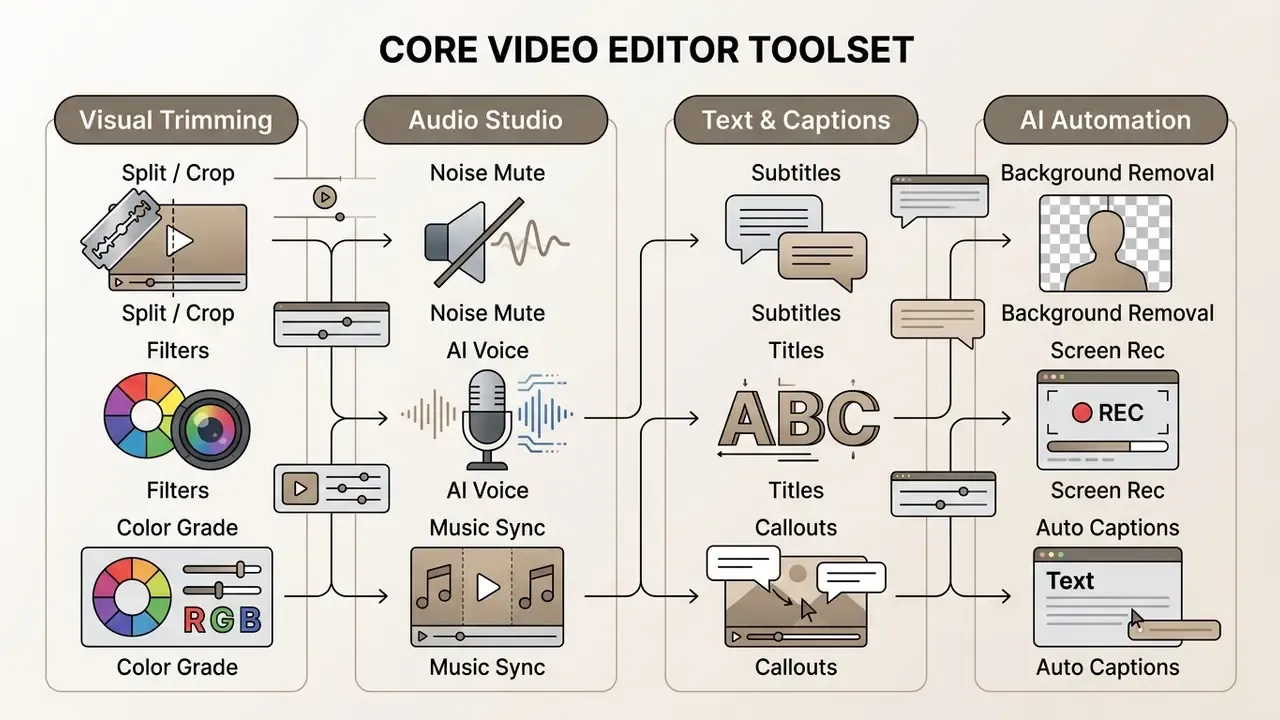
Modern editing apps fold visual cutting, audio processing, typography, and AI automation into one workspace. Evaluating a free video editor means confirming that all four modules meet your quality bar, not just the one you use most.
Editing Clips, Effects, Filters, and Color Correction
Visual cutting is the foundation. Core operations: trimming (setting clip start and end), splitting (cutting a clip into segments), cropping (reframing composition), and keyframing (animating properties over time). Professional NLEs extend this with selection, track-selection, ripple-edit, razor, and slip tools, which together allow surgical adjustments without re-cutting neighbouring clips.
Enhancement then relies on preset filters and manual colour panels. Lumetri Color in professional suites, or plain contrast, brightness, and saturation sliders in free tools, let you normalize exposure, fix white balance, and unify look across clips shot hours apart (Adobe Video Documentation, 2026).
Professional-grade grading and scopes in free software. Advanced free editors such as OpenShot and the free tier of DaVinci Resolve push past brightness sliders into broadcast-adjacent pipelines. You can balance footage with primary color wheels, tone curves, and custom 3D LUTs (Look-Up Tables), then validate the result against real-time color scopes: histograms, waveform monitors, vectorscopes, and RGB parade displays. Judging exposure by eye on an uncalibrated laptop panel is how brand colours drift. Effect layers such as lens flares, chroma key, and blur can be animated with keyframes across position, scale, rotation, and opacity, while masking workflows isolate a subject or region, refine the generated video mask, and preview the composite in the timeline. For audio-led projects, advanced suites turn tracks into visual elements: animated waveforms, spectrum audio bars, and radial audio visualizations. That is how podcast and music channels build motion without shooting a single frame.
For projects incorporating synthetic artwork, review style control frameworks in our comparison of free AI art generators.
Audio, Music, Voiceover, and Captions
Clean audio and synchronized subtitles drive completion rates more reliably than any filter. The essentials: gain adjustment, background noise reduction (denoise), multi-track music mixing, text-to-speech voiceover, and automatic subtitle generation.
Updated (accessibility requirement, corrected sourcing): US federal accessibility guidance under Section 508 requires that synchronized captions accurately transcribe spoken dialogue and identify meaningful non-speech audio, including sound effects and music changes, so viewers who are deaf or hard of hearing receive equivalent information. Section508.gov guidance also advises planning captions and audio description before production, because retrofitting synchronized media afterwards costs considerably more. (Section 508 captions and transcripts guidance, Section508.gov / U.S. Access Board; consult the current published revision rather than a dated snapshot.)
Advanced free editors automate the transcript step with neural speech-to-text, letting you generate, edit, and style subtitles in one pass before burning them in or exporting sidecar .srt files. Order matters more than people expect: run denoise first to strip echo, wind, and room noise, then generate captions from the cleaned track, because transcription accuracy collapses on noisy source audio. Creators mixing synthetic speech into a soundtrack can review licensing terms in our guide to AI voice generators.
AI Tools, Templates, and Screen Recording for Fast Video Creation
AI features compress the repetitive middle of post-production: background removal, screen capture, reframing between vertical and horizontal ratios.
- Screen and webcam recording: Microsoft Clipchamp integrates browser-based screen capture with webcam recording, capturing a full display, a single tab, or one window while filming a webcam feed simultaneously, with unlimited retakes and no watermark (Microsoft Support, 2026). OpenShot 4.0 brought equivalent capability to the desktop, recording screen, webcam, microphone, and system audio straight into a project.
- AI background removal: Canva and Camtasia use computer vision segmentation to isolate subjects without a physical green screen - Canva Video Background Remover (2026). https://www.canva.com/
- Auto reframe: algorithms detect the primary subject in 16:9 footage and re-centre the crop for 9:16 distribution.
- AI silence and pause removal: automated trimming scans the audio track, strips silent gaps, filler words, and long pauses in one pass, compressing rough-cut assembly for talking-head, tutorial, and podcast videos from hours to minutes.
- Multilingual AI voices and captions: modern free editors expose text-to-speech engines with up to 400 realistic AI voices across global languages, adjustable pitch and speed, plus subtitles in over 80 languages with accent-tolerant transcription and downloadable
.srtsidecars. - AI auto-compose and script-to-video: template-driven engines assemble highlight reels and slideshow edits in a chosen style from a raw clip bin, while script-to-video converts a written outline into a rough timeline for manual refinement.
- Transcript-based editing: Descript and similar tools let editors cut video by deleting words in the transcript, shifting rough-cut work from timeline scrubbing to text editing.
- Generative B-roll and visuals: teams running advanced generative workflows can evaluate enterprise pricing in our Google Veo API implementation guide, browse the broader AI Media API Guides, and read our guidance on AI video generators and their commercial application.
Using a Free Video Editor for Work and Commercial Content
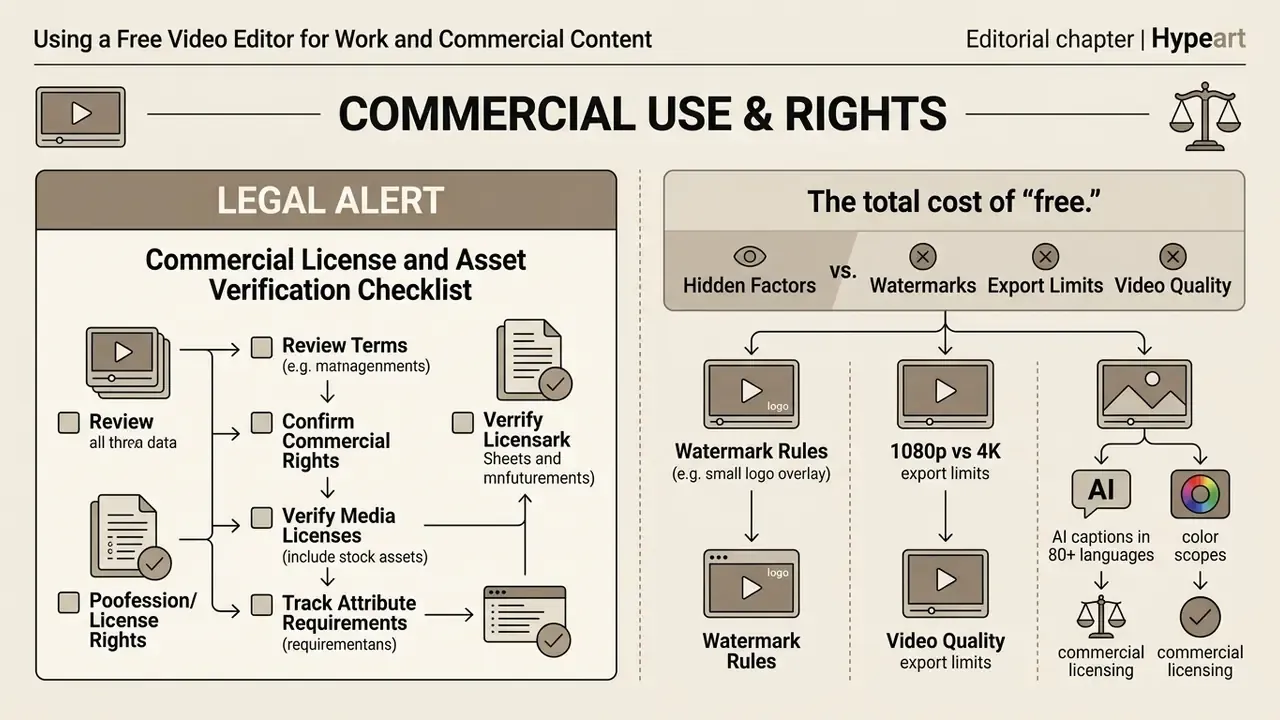
This section provides general educational information about licensing and copyright practice. It is not legal advice and does not replace consultation with qualified counsel on copyright, licensing, or regulatory matters in your jurisdiction.
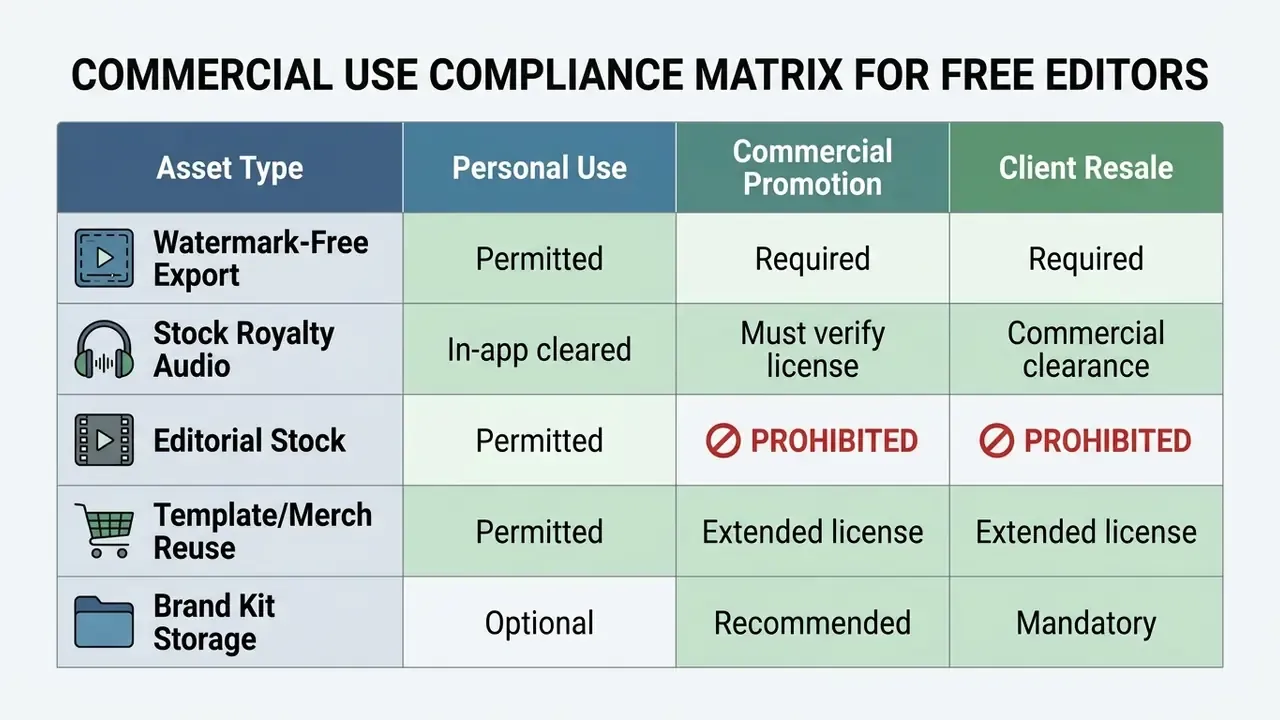
Using a free video editor for commercial content requires verifying three separate layers: software terms of service, asset licence permissions, and copyright boundaries. Exporting without a technical watermark does not grant commercial clearance for embedded music, stock clips, or brand templates. Watermark status is an export restriction. The legal test is the software licence, the terms of service, and any asset licence attached to what you dropped on the timeline.
LEGAL ALERT: Commercial License and Asset Verification Checklist
The total cost of "free." Finance and operations leaders should note that a zero-price editor is not a zero-cost tool. Realistic total cost of ownership includes reviewer time on caption accuracy, vendor risk assessment, storage for master files and project archives, and the residual risk of an unlicensed asset slipping into a public campaign. Those control costs are exactly the line items most ROI models omit, which is how a free app quietly becomes an expensive incident. Budget them explicitly, then compare against paid alternatives using our AI Media Pricing Guides and our AI Media Commercial-Use library.
Watermarks, Export, and Video Quality
Commercial publishing demands professional resolution standards: 1080p HD at minimum, 4K UHD for broadcast or large-format displays.
Free software like OpenShot and Clipchamp permits watermark-free 1080p exports, while other freemium platforms lock high-bitrate output or stamp branded watermarks until you upgrade. Delivering client work with a software watermark dents brand credibility and may breach the contract outright. Note the inverse case too: some professional suites can deliberately burn a watermark at export, which is genuinely useful for review copies circulated before sign-off. For projects mixing image assets with video, review resolution limits in our guide to free photo editors.
Brand Assets, Stock Media, and Audio for Business Videos
To review commercial licensing across enterprise AI image suites, consult our overview of Microsoft AI image generator commercial use and our breakdown of Canva AI commercial licensing.
Governance, Shadow AI, and Model Risk Controls for Video Tooling
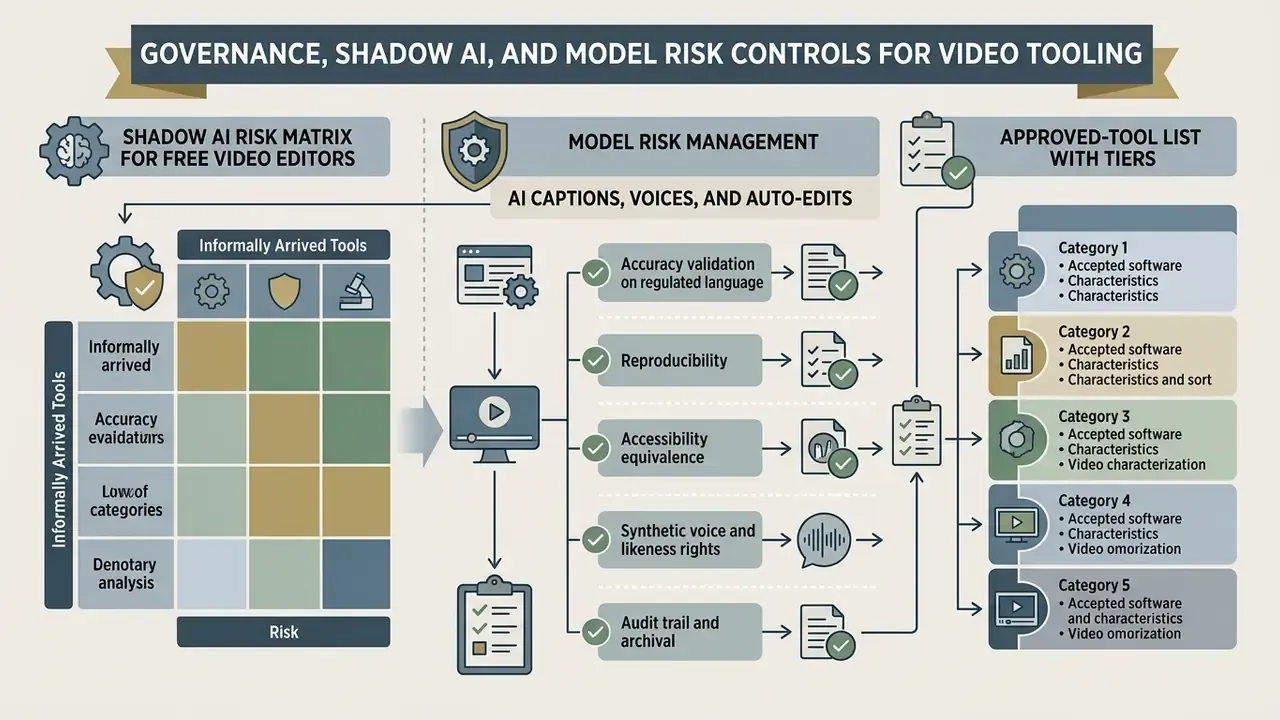
Free video editors arrive informally. A marketing associate installs a mobile app. A trainer records a walkthrough in a browser tab. A product manager renders a demo the night before a review. Because the tools cost nothing, they skip procurement, security review, and vendor risk assessment entirely. That is the textbook definition of shadow software, and increasingly of shadow AI, since almost every modern editor now embeds generative models.
Shadow AI Risk Matrix for Free Video Editors
| Risk dimension | Diagnostic question | Lower-risk configuration | Higher-risk configuration |
|---|---|---|---|
| Data residency | Where is the footage processed and stored? | On-device rendering (OpenShot, Kdenlive); client-side browser processing | Cloud upload to undisclosed regions |
| Model training use | Can uploaded video train the vendor's models? | Contractual opt-out or explicit no-training commitment | Consumer terms permitting product improvement use |
| PII and confidentiality | Does the frame contain customer data, account numbers, or internal dashboards? | Pre-edit blur or redaction pass; approved-recording checklist | Raw screen capture uploaded unreviewed |
| Vendor assurance | Is there a security attestation and DPA? | SOC 2 Type II or ISO/IEC 27001 plus signed data processing agreement | Free consumer tier with click-through terms only |
| Account control | Who can open the project and share links? | SSO, least-privilege access, expiring share links | Personal accounts, public share links |
| Asset provenance | Is every clip, font, and track licence-traceable? | Curated internal asset library | Ad-hoc in-app stock and trending audio |
| Retention and deletion | How long does the vendor keep uploads? | Documented deletion SLA, verified purge | Indefinite retention, no deletion path |
Regulatory anchors make this concrete. The European Data Protection Board's Guidelines 3/2019 treat video as personal data requiring a lawful basis and data minimisation. NIST SP 800-144, Guidelines on Security and Privacy in Public Cloud Computing, requires organisations to identify security, privacy, and organisational requirements before adopting a cloud service, not after the clip has already been uploaded.
Ownership is the missing control in most of these environments. Every approved editing tool should have a named owner, a documented purpose, an access boundary, and an off-switch. Treat an AI-enabled editor the way you would treat any digital worker: defined role, defined limits, defined escalation path.
Model Risk Management for AI Captions, Voices, and Auto-Edits
The moment an editor generates captions, dubbing, or synthetic voiceover, it is running a model on the organisation's behalf. Model risk discipline applies, even for a marketing clip.
- Accuracy validation on regulated language.Automatic speech recognition reliably mistranscribes product names, ticker symbols, percentages, and legal disclaimers. Require human review of every caption track in communications subject to disclosure obligations. An auto-caption that drops a "not" or misreads a rate figure changes the disclosure your viewers actually read.
- Reproducibility.Vendor models update silently. Record the tool, version, and date used for each deliverable, so a re-render months later can be explained when outputs differ.
- Accessibility equivalence.Because Section 508 guidance requires captions to convey meaningful non-speech audio, an unreviewed machine transcript is rarely compliant on its own.
- Synthetic voice and likeness rights.Confirm the licence permits commercial use of a generated voice, and never clone a real employee's or customer's voice without documented written consent.
- Audit trail and archival.Retain the master export, the project file, the caption sidecar, the asset licence records, and the review sign-off. A recoverable chain from source footage to published file is what turns an ad-hoc edit into an auditable record.
- Approved-tool list with tiers.Publish something short: unrestricted tools for public marketing footage, restricted tools for internal footage, local-only tools for anything containing confidential or personal data. One page beats a policy nobody opens.
Where does this leave a risk owner? With a smaller, clearer question than "which app is best." The question becomes: which class of footage may touch which class of tool, and who signs.
How to Edit Videos in a Free App: From Media Import to Publishing
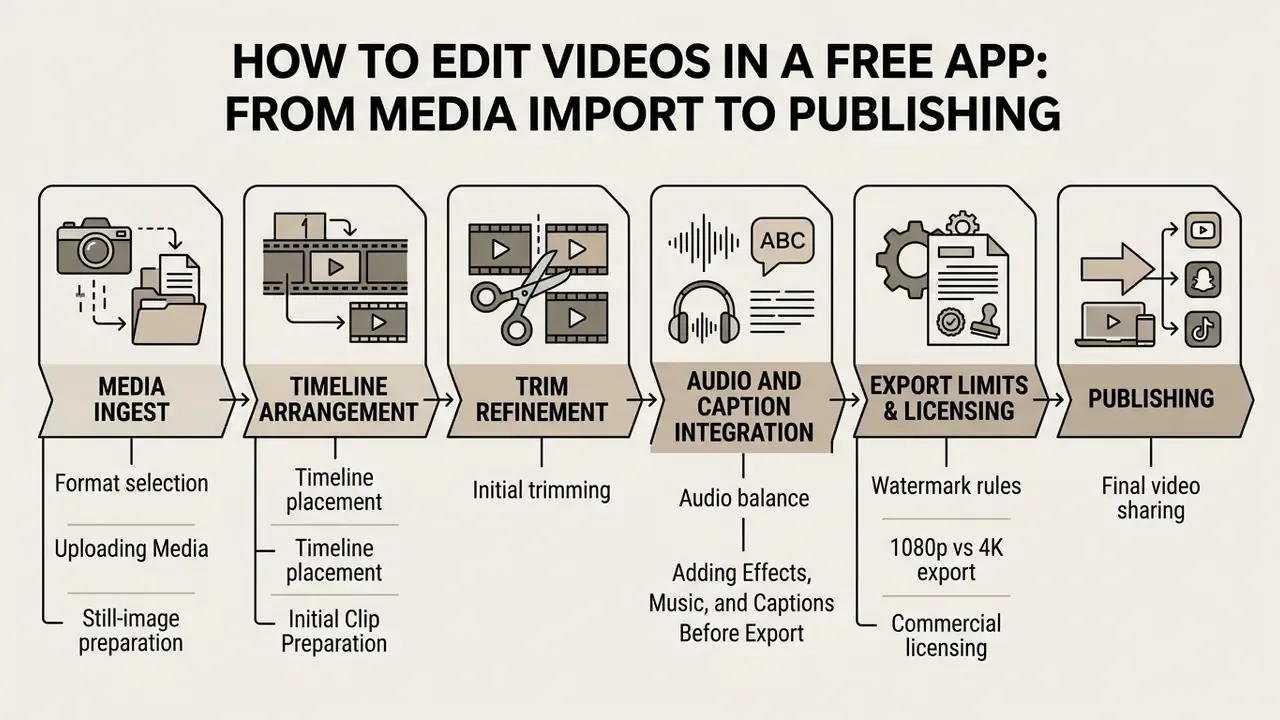
Editing in a free app to edit videos follows a six-step post-production sequence: media ingest, timeline arrangement, trim refinement, audio and caption integration, licence review, and export.
Step 1: Project Setup & Media Import
  - Upload raw video files, images, and audio tracks into the media bin.
Step 2: Rough Cut Timeline Assembly
  - Drag clips onto the timeline; crop, split, and trim unwanted footage.
Step 3: Visual Polish & Transitions
  - Apply color normalization filters, keyframe scaling, and transition effects.
Step 4: Audio Engineering & Auto-Captions
  - Balance audio tracks, apply denoise, add royalty-free music, and generate captions.
Step 5: Watermark & Compliance Audit
  - Inspect timeline for Pro-gated assets, check canvas aspect ratios, review licence rights.
Step 6: Final Export & Distribution
  - Render in 1080p HD / 4K MP4 and schedule or share to publishing channels.
Uploading Media and Initial Clip Preparation
Post-production starts with a new project canvas and a clean media import.
- Format selection choose the canvas aspect ratio first (16:9 horizontal for YouTube and desktop; 9:16 vertical for mobile feeds). Changing it later reframes everything.
- Media ingest upload raw MP4/MOV footage, PNG overlays, and audio into the media panel (Adobe Firefly Video Editor Guide, 2026). Note the documented placement behaviour in Firefly: images and video land at the end of the main track, while audio inserts at the playhead. Small detail, big sync-drift prevention.
- Still-image preparation size stills in pixels to match project resolution before import, so scaling does not soften graphics on export.
- Timeline placement drag clips onto the main video track and arrange them chronologically to build the story arc before touching transitions.
- Initial trimming use the razor or split tool to remove dead footage, false starts, and filler audio, or run AI silence removal first and refine manually afterwards.
For creators expanding background visuals before trimming, our guide to AI outpainting and image expansion tools details outpainting techniques compatible with video overlays.
Adding Effects, Music, and Captions Before Export
With the rough cut assembled, fine-tune the visual, auditory, and textual layers before rendering.
- Audio balanceset main voiceover peaks between -6dB and -12dB. Duck background music to roughly -20dB so it stops masking speech. Apply denoise before captioning, and use automatic audio-sync analysis where offered to align externally recorded sound with camera footage.
- Generate auto-subtitlesrun speech recognition, then manually fix typos, correct brand-name spellings, mark sound effects and music cues, and align subtitle styling (Captions Help Center, 2026).
- Visual enhancementapply restrained colour correction to unify temperature across camera angles, verifying on a waveform or vectorscope rather than by eye.
- Compliance passre-check the timeline for Pro-gated templates or premium stock that will block export, and confirm every asset is licence-cleared for the intended distribution.
- Final exportopen the export dialog, select the MP4 container with H.264 video codec, verify 1080p or 4K, check for software watermarks, and render (NIST recommends the MP4 container with H.264 video for digital video exchange). Publishing to YouTube specifically? Review our YouTube editing and publishing workflows for platform presets.
Project Resilience and Social Scheduling
Browser editors such as Adobe Express and Microsoft Clipchamp save progress continuously to client-side storage or cloud nodes, so a closed tab or browser crash no longer destroys an afternoon. You resume where you stopped, and projects sync between mobile and desktop, meaning an edit started on a phone can be finished on a laptop. Once rendering completes, integrated content schedulers queue posts to TikTok, YouTube, LinkedIn company pages, and other destinations weeks ahead, or route the master file to OneDrive, Google Drive, or Dropbox for archival. That bridges post-production directly into social operations. For regulated teams it also extends the approval surface, so schedule only after the compliance pass: a queued post publishes without a second human look.
FAQ About Free Video Editing Apps
Is It Safe to Upload Video Files to an Online Video Editor?
Uploading to a reputable, HTTPS-encrypted online editor is generally safe, but it introduces privacy and security considerations around cloud storage and third-party processing. Under frameworks like EDPB Guidelines 3/2019 and NIST SP 800-144 cloud security guidance, personal video footage counts as personal data. Cloud platforms process uploads on remote servers, which creates exposure if account credentials are compromised or sharing settings are misconfigured.
«The SafeMountain framework proposes an AI-based method for quantifying mobile application privacy risk with GDPR requirements in scope.» - SafeMountain Privacy Risk Assessment Framework, cited in Evidence-Based Assessment of Free Video Editing Applications (2023-2025). https://dl.acm.org/ For sensitive corporate media, healthcare records, or confidential interviews, use offline desktop editors such as OpenShot, or require the web vendor to maintain strict data processing agreements, published security attestations, and client-side processing. End-to-end encrypted storage further limits provider-side exposure for master files awaiting review.
Can I Record My Screen and Webcam Directly Inside a Free Video Editor?
Yes. Microsoft Clipchamp (web) and OpenShot 4.0+ (desktop) include native multi-source recorders capturing full displays, specific tabs or windows, webcam video, microphone input, and system audio at once, with unlimited retakes and watermark-free saving. Clipchamp drops recordings straight onto the timeline, which suits tutorials and training modules that need trimming and captions immediately. For quick screen sharing without full timeline work, Loom or Camtasia remain viable, and Camtasia adds AI-assisted background removal for talking-head segments. In regulated environments, confirm the recorder sits on the approved-tool list before capturing screens with customer or account data.
Supported File Formats and Browser/System Requirements
Most free editing video apps accept standard consumer containers, though browser and system requirements vary by processing architecture.
- Supported input formats: MP4 (H.264/AVC, H.265/HEVC), MOV (ProRes, H.264, H.265), AVI, WebM, OGG, MP3, WAV, PNG, and JPG (Adobe Firefly technical requirements, 2026; Google Vids Help, 2026).
- Browser requirements: modern 64-bit Google Chrome, Microsoft Edge, or Mozilla Firefox (Chrome/Edge version 144 is the documented Firefly baseline) with WebAssembly and hardware acceleration enabled; Clipchamp officially supports Chromium-based Edge and Chrome.
- Operating system baselines: Windows 10+ and macOS 12+ for leading browser editors; Windows 8/8.1/10/11 (64-bit) or macOS 10.15+ for OpenShot desktop.
- Desktop hardware minimums: x86_64 multi-core processor, 4GB RAM minimum with 8-16GB recommended for 4K, 1GB free storage minimum with 50GB+ recommended for media caches, plus dedicated GPU acceleration - OpenShot Support (2026). https://support.openshot.org/ To trim file sizes before upload, our guide to video compressors and file-size reduction offers practical bitrate recommendations, and our photo editor overview covers matching still-image assets to project resolution.
Publishing Directly to Social Platforms and Exporting in 1080p HD or 4K
Direct publishing simplifies distribution, but exporting a local master in 1080p HD or 4K first guarantees you keep an archival copy and limits compression damage. Web and mobile editors offer direct API publishing to YouTube, TikTok, or Instagram, yet every platform re-encodes and compresses uploads (Instagram Creator Guidance, 2026). Uploading a higher-resolution master retains more perceived detail after transcoding, though no mainstream platform preserves a byte-for-byte original. Lossless delivery through social upload is not achievable. Export the local master at 1080p HD or 4K (MP4/H.264) and keep it. Creators comparing alternative generative suites can cross-reference our commercial-use guide to Canva AI tools.
Does a Watermark-Free Export Mean I Own Commercial Rights?
No. A watermark is a technical export restriction set by the vendor. Commercial rights come from the software licence, the terms of service, and the licence attached to each asset on your timeline. A pristine 1080p MP4 can still contain an editorial-only stock clip or an unlicensed music bed, which is precisely the failure mode behind takedowns and infringement claims. Run the licence checklist before delivery, not after the invoice.
Which Free Editor Is Best for a Regulated Enterprise Team?
For footage containing confidential, personal, or customer data, an offline open-source desktop NLE such as OpenShot or Kdenlive offers the strongest control, because rendering never leaves the endpoint. For public-facing marketing content, a browser editor with a documented security posture and enterprise identity controls, for example Clipchamp inside a managed Microsoft 365 tenant with centralised IT administration, balances speed against oversight. The deciding factor is data classification, not feature count.
Source Verification and Editorial Corrections Log
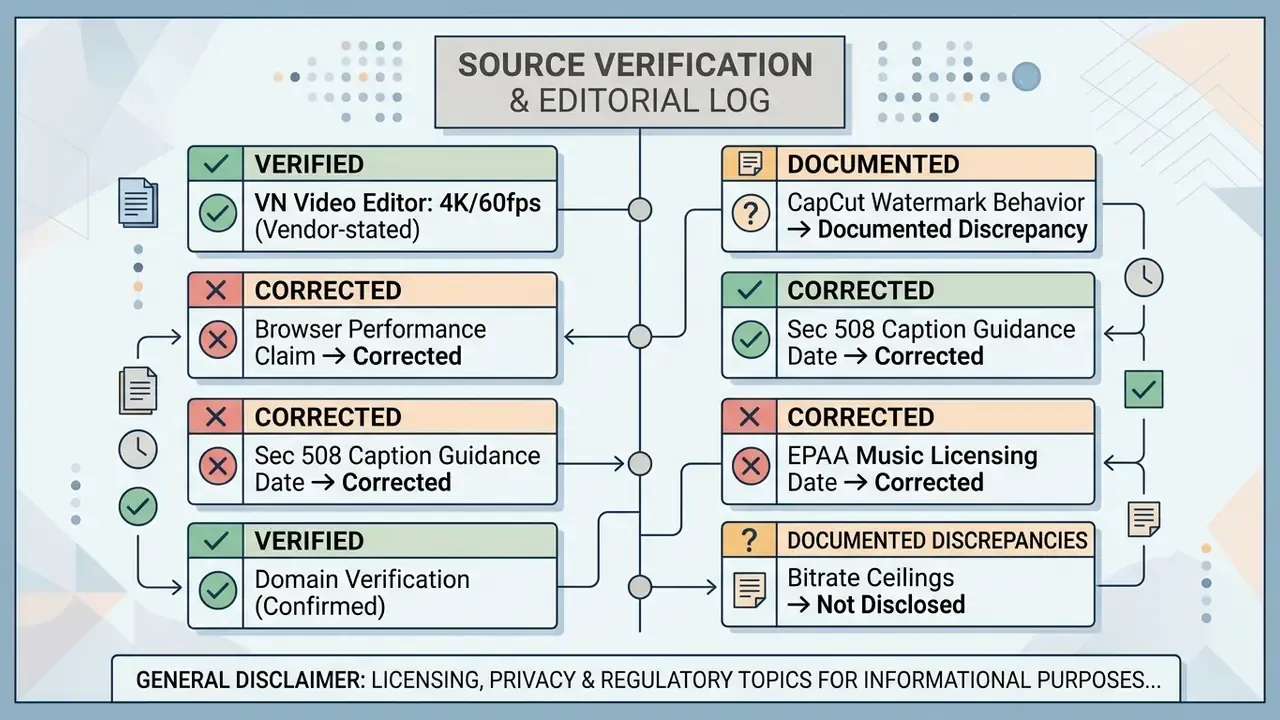
Being explicit about what we could and could not verify is part of the evidence standard for this guide.
- Browser rendering performance claim, corrected. An earlier version cited a benchmark attributed to "Biteable Research, 2025" for the claim that local browser rendering eliminates cloud queue delays. That citation lacked published methodology, figures, and a stable URL, so the attribution was withdrawn. The revised passage now describes the two architectural models (cloud-side versus client-side) without asserting a benchmarked speed advantage for either.
- Section 508 caption guidance, date corrected. The requirement that captions transcribe dialogue and identify meaningful non-speech audio remains accurate, but the "2026" edition label applied previously was wrong. Consult the current published revision of the Section508.gov captions and transcripts guidance.
- EPA music licensing guidance, date corrected. The EPA's Music Licensing Guidelines for Video Projects is an undated federal guidance document and was previously mislabelled as a 2026 publication. The substantive point about synchronization licences is unchanged.
- VN Video Editor 4K/60fps export, vendor-stated. VN's official product pages state watermark-free export up to 4K at 60fps plus multi-track editing on mobile and desktop. This rests on vendor documentation and app-store listings; independent third-party verification was unavailable at review time, and store listings also disclose in-app purchases.
- CapCut watermark behaviour, documented discrepancy. Official CapCut help material indicates manual exports can be watermark-free once the branded ending clip is removed, while several 2026 third-party guides report watermarks on Pro-template outputs. The divergence reflects template and feature gating rather than a contradiction about manual timeline export.
- Domain verification note. A DNS lookup during fact-checking for a third-party domain referenced in an earlier draft (
hypeart.ai) returned no resolving records, and no verified information about its commercial claims was available. That reference has been removed from the body of this guide; it is retained here only as a record of the verification step. - Bitrate ceilings, not disclosed. No vendor in the reviewed set publishes an explicit bitrate cap for free-tier exports. Test-render and inspect the output file if bitrate matters to your delivery specification.
General disclaimer: this article covers licensing, privacy, and regulatory topics for informational purposes only and does not constitute legal, compliance, or security advice. Pricing, free-tier entitlements, and terms of service change without notice; verify current vendor terms before production or client delivery.
A safe next step. Pick one upcoming video project. Classify its footage, choose the tool class that matches, and document who approved the export. That single dry run reveals more about your control gaps than a vendor questionnaire ever will.
For additional technical references and definitions, explore our comprehensive AI Media Glossary, review current cost frameworks in our AI Media Pricing Guides, or troubleshoot a stuck render through the AI Media Support and Troubleshooting portal.